Tag: chromebook

  • How to Export Chrome Bookmarks To Another Browser

    How to Export Chrome Bookmarks To Another Browser

    We all have those important websites we frequent regularly on web browsers like Google Chrome for online updates. And we employ different methods to keep track of some of the information on these websites for future reference. Since it’ll be stressful committing all the URLs to memory or scribbling them down each time we visit, the most convenient way to save them is by bookmarking.

    By bookmarking these websites, Chrome users can easily access them whenever they want, and these bookmarks can be synchronized across multiple devices. While bookmarking these sites on Chrome is a breeze, importing, and exporting bookmarks from google chrome can present a challenge of its own.

    Export Chrome Bookmarks

    If you wish to transfer your Chrome bookmarks to another computer or browser, you have the option to export it as an HTML file on a Flash or hard drive. OR you can use third-party Google Chrome extensions (available on Chrome Web Store) to share them. Or even transfer bookmarks using Google Collections on the Google app. Another alternative is to send the HTML file as an attachment to your personal email.

    Let’s export your bookmarks from Google Chrome as a HTML file:

    1. Open Chrome and access the browser menu by clicking the icon with three dots in the top-right corner.
    2. Navigate to the Bookmarks section in the pop-up menu.
    3. Open the Bookmark Manager by selecting it from the options that pop up.
    4. In the new tab that opens, locate the icon with dots next to the Bookmarks search bar, below the Chrome address bar.
    5. Click on the icon and choose the Export Bookmarks option.
    6. Click on the icon and select the Export Bookmarks option.
    7. Select a name and location you want to save the bookmarks(flash drive, desktop, etc).
    8. Click Save to finalize the process. The bookmarks are saved as HTML files.

    Import Bookmarks From Chrome

    After successfully following and completing the above steps to export your bookmarks, the next thing is to import those bookmarks you saved as an HTML file into the browser of your choice. It could be Mozilla Firefox, Safari, Brave, Microsoft Edge, etc.

    1. Below are the steps to import Chrome bookmarks:
    2. Open the Google Chrome browser
    3. Locate the menu icon with three dots at the top-right corner of the Chrome window.
    4. From the menu that appears, go to “Bookmarks” and select “Bookmark Manager.”
    5. In the Bookmark Manager, find the three-dot menu icon located next to the search bar, below the Chrome address bar.
    6. Select the three-dot icon, and a drop-down menu will appear.
    7. From the menu, choose “Import Bookmarks” and your computer’s Open File dialog box will pop open.
    8. In the dialog box, navigate to where you saved the HTML file containing your exported bookmarks.
    9. Select the file and hit “Open.” This will initiate the import process, and all your bookmarks will be imported into Chrome.

    For your Chrome to work faster on mac and android, check out our article on how to maximize the speed and performance of your Chrome browser.
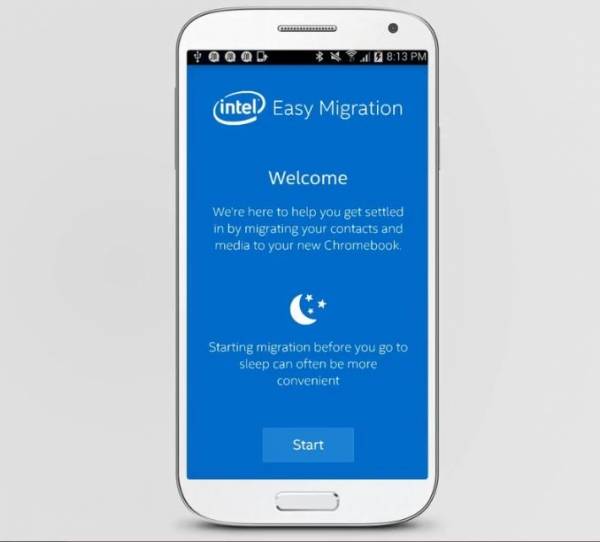

  • Intel Easy Migration App sends data from your device to a Chromebook

    Intel Easy Migration App sends data from your device to a Chromebook

    Over the past 18 months, Intel has been striking on the Chromebook market as the said market grows as more and more content is placed and trusted to the cloud. The company, that makes many CPU chips and graphics, wants to help customers switching to a Chromebook device to have a much easier time with their switch.

    With their app, conveniently named Intel Easy Migration, users can easily migrate files from their mobile devices or PCs to Intel-powered Chromebooks. The app can move all sorts of files like photos, videos, and audio to even contacts and more. The Intel Easy Migration app let’s the customer move any of said files from their mobile Apple iOS or Google Android device to their Chromebook or even files from their Intel-powered Windows computers.

    According to Intel officials, the customer can use the Quick Migration function to have all of their files sent over to the targeted destination, or manually select the files they want to have migrated. The user can also pause the migration whenever they wish to. The app is available in the Google Play and Apple App Store online stores, or can be downloaded for Microsoft Windows systems. Through the software, users can migrate their local and Hotmail contacts to Google Contacts, and their photos and videos to Google+ Photos. The app will also show how much space on their Google Drive is being used during the migration.

    The new app by Intel comes shortly after the popularity for the Chromebook grew, the trend continuing through 2014. In July, analysts with NPD Group found that during the first half of the year, Chromebook sales in the U.S. commercial channel jumped 250 percent from the same period in 2013 and accounted for 35 percent of the notebook sales in the channel.

    Building on last year’s surprising strength, Chrome’s unit strength ahead of this year’s education buying season shows how it has become a legitimate third platform alongside Windows and Mac OS X and iOS,” Stephen Baker, vice president of industry analysis at NPD, said in a statement at the time.

    Analysts also look at the Chromebook as a key reason – alongside Microsoft cancelling Windows XP support – for the decline of global PC sales this year. Intel has been aggressive in pursuing the Chromebook market as part of its larger efforts to gain inroads in the mobile device space against ARM and its manufacturing partners and to extend the reach of its chip portfolio into as many computing devices as possible. That includes supporting a broad range of operating systems, including Windows, Android and Chrome.

  • Chrome beta users get an assist from Google Now

    Chrome beta users get an assist from Google Now

    IDG NEWS SERVICE – Google Now is moving out of the lab and onto the desktop in the beta version of Chrome.

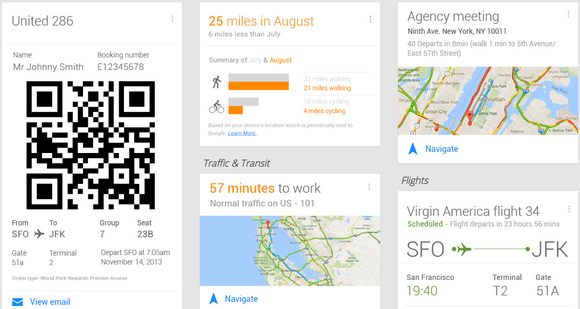
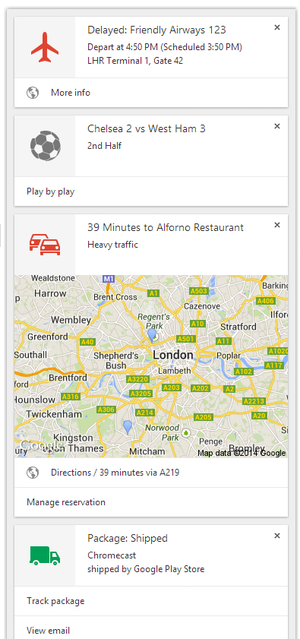
    Starting this week, Chrome beta users can view Google Now “cards” within the notifications area on Windows, Mac, and Chrome OS. The cards should show up automatically if you’re already using Google Now on Android or iOS, and have signed into Chrome with the same Google account.

    Google Now is a virtual assistant that tries to anticipate the information you want, such as the weather, traffic, travel details, and upcoming reservations. Much of that information is based on activity from your Google account. For example, Google Now can detect flight confirmations in Gmail and notify you about any delays; it can also look at your Web searches to infer what breaking news topics you’d be interested in.

    The service first launched for Android in 2012, making its way to the iPhone last April as part of the Google Search app. There have been hints of a desktop version since early last year; last month, it finally launched as an experimental feature—not enabled by default—within Chrome Canary. While the feature rolls out to the Chrome beta channel this week, it’s already available through theChrome dev channel.

    The arrival of Google Now is the search giant’s biggest step yet toward a convergence of Chrome and Android. Google has said that it won’t merge the two platforms anytime soon, but that it wants to have a more consistent experience across both platforms. Along that line, Google recently started letting Chrome developers create standalone Web apps for Android.

    Having Google Now in Chrome could be useful for certain things, such as traffic on your upcoming commute or reminders of when to leave for your next appointment. But it could also be a nuisance for less important things such as sports scores.

    If you’d rather not see Google Now notifications, click the bell icon in your notification area (lower-right corner in Windows, upper-right on Macs), then click the gear icon in the Notifications Center and uncheck the “Google Now” box.

    View original source.