Tag: email

  • Entourage to Outlook Converter – Worth Tool to Change MBOX Files in PST Form

    Entourage to Outlook Converter – Worth Tool to Change MBOX Files in PST Form

    MBOX Converter is an apt solution that can be used as an Entourage to Outlook converter though the application works only on Windows Operating System, whereas Microsoft Entourage is an email client that was developed for Macintosh OS 8.5 and higher. But the release of Entourage has been discontinued with the release of ‘MS Office for Mac 2011.’ Rather it can be said that ‘Outlook for Mac’ or Outlook 2011 has replaced Entourage mail client that was developed specifically for Mac systems.
    Here in this page we will be reviewing MBOX Converter version-2.1 and check into the useful attributes of the tool that makes it suitable to be employed as an Entourage to Outlook converter; that requires the conversion of MBOX files to PST format. But before we exactly go for the inspection of the software it is necessary to know how to perform transition from Entourage to Outlook for Windows, with the assistance of the application.

    How to Migrate and Access Entourage Mail in Outlook?

    The tool whose performance is being examined in this page converts MBOX files to PST format and also functions only on Windows OS instead of Mac. The Entourage folder structure is stored at the following location in Apple Macintosh OS X:
    ‘Hard Disk Name/Users/user_name/Documents/Microsoft User Data/Office 2008 Identities/Main Identity’
    Therefore, to use the tool as Entourage to Outlook converter, following steps need to be followed:

    1. Copy the Main Identity folder to a Windows system because when this is practiced, MBOX files are created for individual mail folders.
    2. Import the exported PST file in Outlook mail client once the conversion of MBOX files to PST format is complete by running/ executing the software program.

    Installation Prerequisite

    The application seeks some basic minimum system requirements and they are:

    System Requirement SysTools
    Support Windows 8.1 & Below versions
    Available Hard Disk Space 10 MB
    Processor 1GHz
    Memory (RAM) 512MB

    Acquaintance with Some Key Attributes Of the Converter

    • Scans the emails in short span of time
    • Previews emails along with attachments
    • Can merge multiple MBOX files into single PST
    • Can create single Outlook PST file for each MBOX data file
    • Outlook installation is not needed to convert MBOX to PST form
    • Can convert multiple MBOX files to PST/EML/MSG format in bulk
    • Both demo and full version of the converter is available

    Detailed Description of Characteristic Features of the Software

    • Exports MBOX File In Bulk – The tool has the exportation potential of converting and exporting multiple MBOX file all together at a time in batch.
    • Multiple Forms Of MBOX File Backed – MBOX file is an ordinarily used format created by a number of mail clients in different forms such as .mbox, .mbx and MBOX file without any extension. The application backs all these MBOX file forms.
    • 2 Conversion Choices Except Outlook PST – MBOX files can also be exported in 2 different file formats such as EML and MSG excluding PST format.
    • Supports Different Mail Clients MBOX Files – The tool has the ability to convert about 17+ email clients (e.g. Entourage, Thunderbird, etc.) MBOX files to MS Outlook PST, EML and MSG file type.
    • Capability To Create Multiple PST File – While converting MBOX to PST file type, the Entourage to Outlook converter provides two different options so as to create either single or multiple PST. Note – With ‘Create single PST file’ option, all MBOX files can be merged into a single common PST file whereas with ‘create multiple PST file’ choice one PST file can be produced  for each MBOX file.
    • Files & Folders Selectivity Choices – Either all or selected Entourage emails can be converted and exported to Outlook PST or other supported formats.
    • Various File Naming Convention Available – When exporting emails, the software provides alternative to choose an appropriate naming pattern to save each email. The different file naming patterns that are available are: Save as subject, DD-MM-YY, DD-MM-YYY, MD5, Auto incremental and many more.

    Demo and Full Release Comparison

    Almost all features explained above are provided in both the demo version and full version. Though there are some exceptions in the demo edition which is provided for trial purpose so that the execution of the program is well known before purchasing the license. The comparison is shown in form of the table given below:

    Features Demo Version Full Version
    Auto Scan MBOX files Yes Yes
    Preview MBOX emails with attachments Yes Yes
    Windows 8 & below versions supported Yes Yes
    Advanced Naming Convention No Yes
    Export MBOX file as PST, EML, MSG No(Limited) Yes

    It is inferred from the comparison table that demo version of Entourage to Outlook converter does not fulfill the exportation of all emails if the number of emails is more than 25. Also naming convention feature is not enabled in free edition. Thence, to avail all the facilities, license of the third party application has to be purchased.

    Activation Key Of Full Versions: Personal License, Business License, Enterprise License

    Extended Client Assistance

    To make the users completely satisfied with the product and to assist users Chat as well as Email optionhas been provided to the customers. Users can log on to: www.mboxtooutlook.org and avail the facilities 24*7.

    • Chat – Clients can chat with the support technicians to clear their doubts or any uncertainties.
    • Email – Clients can drop a line at: [email protected]
  • Yahoo acknowledges Yahoo Mail hack

    Yahoo acknowledges Yahoo Mail hack

    Have your friends recently texted you about spam originating from your Yahoo Mail account? If so, that may be because you (and many of your friends) were hacked.

    Yahoo acknowledged Thursday that attackers now own an undisclosed number of usernames and passwords to Yahoo Mail accounts. In a blog post, Jay Rossiter, the senior vice president in charge of Yahoo’s platforms and personalization products, wrote that the attackers had most likely hacked an external, third-party database and obtained the information there.

    “We regret this has happened and want to assure our users that we take the security of their data very seriously,” Rossiter wrote.

    Yahoo did not say how many accounts had been compromised, nor when the attacks had taken place. However, the company says it began notifying users that the attacks had taken place, and had begun using second sign-in verification to allow users to re-secure their accounts. Users who have been affected, unsurprisingly, will be asked to change their password, and may receive an SMS text to that effect, Yahoo said.

    Yahoo said that it was working with federal law enforcement to find the culprits and would take further precautions to prevent this from happening again.

    Finally, Rossiter stated the obvious: “In addition to adopting better password practices by changing your password regularly and using different variations of symbols and characters, users should never use the same password on multiple sites or services,” he wrote. “Using the same password on multiple sites or services makes users particularly vulnerable to these types of attacks.”

    In December, Yahoo Mail went down for several days, stranding about 1 million users of the service without email—or word from the company. While the outage began on Monday, it was Friday before CEO Marissa Mayer apologized on behalf of the company.

    However, this week Mayer touted Yahoo Mail and services like Flickr as “a strong foundation for revenue growth,” even as that revenue fell by 6 percent compared with a year ago.

  • Protect your devices from Web and email threats

    Protect your devices from Web and email threats

    Smartphones and tablets are vulnerable to attack, too. Here’s what to look for in a comprehensive security solution. By now you should already know the basics of online security: Don’t send money to a Nigerian prince, don’t click on that picture of Britney in a bikini, don’t call the Rev. Father from senegal and don’t run your PC without a security suite. All those basics still apply, but as technology moves forward, so do threats to your privacy and your devices. Today, we need to protect not only our computers, but also our smartphones and tablets. Fortunately, protecting yourself and all your devices can be easy with the help of some sound practices and good software. The first step, however, is to understand what threats are out there.

    Never forget that your smartphone or tablet is actually a full-fledged computer in a smaller package. You can surf the web with it; check email; and use it to download and upload documents, photos, mp3s, videos, and software in the form of apps. That’s why we love handheld devices, of course, but it also means they are susceptible to attacks just like PCs are. To make matters worse, your phone or tablet can be the seed that carries an attack to all the hardware devices in your network, as well as those of anyone you email, text, or share data with.
    Know The Threats
    There are so many different kinds of threats out there, it can be hard to keep track: worms, botnets, viruses, spyware, phishing… You’ve probably heard of all of these without knowing exactly what they look like or how they work. They’re all basically different types of software threats, known collectively as “malware,” or malicious software.

    • A worm is malware that is designed to spread itself from computer to computer across the Internet. Once it’s in your system, device, or network, it can make your computer perform unwanted actions.
    • A botnet is malware that turns infected hardware (like your PC or phone) into an unwitting host for its creator. You won’t necessarily know you’re infected, but meanwhile your hardware is being used as part of a large, powerful network of similar “bots” that their programmer weaves together into one big system. Botnets can be used to attack other networks, such as the “denial of service” attacks on the news to sites like Amazon, Citibank, and even the U.S. government.
    • A virus is self-replicating malware that is usually attached to legitimate programs or files, so that when you launch the infected program or file, the virus launches too. Similar to a virus is a Trojan horse, which starts out as a file that you feel confident opening, such as a picture or presentation file, but is actually a virus in disguise. Once a virus is on your computer, it can make a wide variety of unwanted changes to your files.
    • Spyware is any type of software that collects information about the user of an infected device. Some spyware can be legitimate—parents or others might install spyware to monitor how a computer is being used. When spyware installs as a threat, it often arrives as a Trojan horse or through adware, which is any advertisement that installs malware after it is clicked.
    • Phishing is a type of threat that requires you to interact with it. Typically, the purpose of a phishing attack is to collect your information—like your web logins, passwords, and credit card or bank account information. Phishing attacks are often disguised as emails or websites for large banks or online retailers, prompting you to click a link to log in and enter personal information. If you do as prompted, you will be giving your login info away to a predator.

    Why You Should Care
    All of these types of attacks can compromise smartphones and tablets just as readily as they can hit your PC. These threats can come to you through email, text message, social networks, QR codes, or even through cloud computing—all of which you probably use on a regular basis, if you’re like most people with a PC, smartphone, or tablet.
    So, what can happen if you fall prey to these threats? First of all, most threats will slow your device down because they are using up memory running malware. Sometimes they even install programs that can make it impossible to use your device. And many of these threats can steal your personal data and use it for fraudulent purposes. Your information might even be used to give someone a passport or government identification using your name, social security number, and other details. In milder cases, your Facebook login, email account, and other personal data can fall under the control of malicious strangers intent on stealing from you and your friends.
    Solve It with Software
    Now that you know the worst of it, what can you do to stop these threats? Good security software can keep you off the victims list, and there are also several simple things you can do just by changing how you use your device settings.
    Start by buying a trusted security suite that protects all of your connected devices. Be sure to choose a product that will protect smartphones and tablets in addition to your computer. Considering the number of things we plug into our computers these days—from “thumb” drives to smartphones—having single, trusted source of protection is a huge advantage. If you choose separate antivirus protection for each piece of hardware, you’ll lose the advantage of having a single place to see and control all of the threats on your network. A single piece of software also has the advantage of only having to “learn” a threat once, rather than risking that it will be caught every time it hits one of your devices.
    Good security software should be highly customizable, so that it can automatically run checks on your system as often as you like and check exactly what you ask it to check. Some software will even watch over you as you surf the web and signal that a given site or link is safe to use. These automatic checks can even extend into your social networks, showing which posted links are safe. If you need to check an individual site to find out if it’s safe, you should only be a click away, with icons for the software appearing on your desktop and in your browser.
    Buying and using antivirus software is critical, but it’s also important to use good sense as you use your online devices. Many threats come in predictable forms: attachments in email, links that set off malicious downloads or lead to malicious apps, or QR codes from unknown sources. All of these have one thing in common: You have to set them off. Without your input, these threats are harmless. Learning just a little about malware and phishing can give you almost everything you need to beat these threats on your own. Almost, that is. Unfortunately, the folks who build malware tend to be pretty sneaky, so it’s essential that you have up-to-date software on all your devices to back you up.
    Full Service, Please
    In addition to security scanning, backup is another feature your full-service security software should offer you. By backing up your data automatically into the cloud, you can be sure that regardless of what happens to your hardware—broken, lost, stolen, or hacked—you will have access to all of your files. What about protecting the files left on a lost device? You’ll want to look for the ability to remotely lock your device and wipe your files from it. With these software features, your loss is minimized to merely hardware instead of all your valuable data.
    Smartphones and mobile computing have solved many problems in modern life, but they have created some new ones, too. Everyone knows someone who has lost his phone or had her computer stolen from a public place. Harassing calls and texts, whether from bill collectors or angry exes, are also a 21st century problem. A robust software solution should give you the ability to track a lost device via GPS mapping, as well as to filter calls or text messages from an unwanted source.
    Mobile computing, whether by laptop, tablet, or smartphone, has permanently changed how we live our lives, mostly for the good, but there are new threats as well. To protect yourself, learn all you can about the threats that exist, use common sense practices, and, most importantly, find a turnkey antivirus software that protects all of your devices and offers a wide range of services to access your devices remotely. Relying on one good cross-device software solution will make responding to threats fast and easy, giving you peace of mind as you bravely go forth to surf the web.

  • Send Email Like a Pro

    Send Email Like a Pro

    Email often straddles a fine line between help and hindrance. It’s an invaluable tool, no doubt about it, but sometimes it can be a stubborn, unwieldy, and intrusive monster—maybe even a security threat.
    So who’s in charge around here—you or your inbox? With the right tools, services, and knowledge you can tame the unruly email beast. It’s time to evolve from email user to email power user, and we’ve got just the six tips you need. Start by learning how to add a snooze button to your inbox, then wrangle Gmail to make it smarter and more cooperative. Keep your inbox free of spam with disposable email addresses, then check to make sure your primary addresses haven’t been compromised by hackers. Finally, become a master of email signatures, and learn how to send giant files that would normally choke a mail server.

    Set Your Email to ‘Snooze’ So It Comes Back Later

    Here’s how to make messages bubble back to the top of your inbox—on your schedule.
    A crowded inbox can be a productivity killer, if for no other reason than that important messages can get pushed out of sight by newer ones. What you need is a kind of “remind me later” button for email, a way to defer selected messages to a later date or time before they drop “below the fold.”
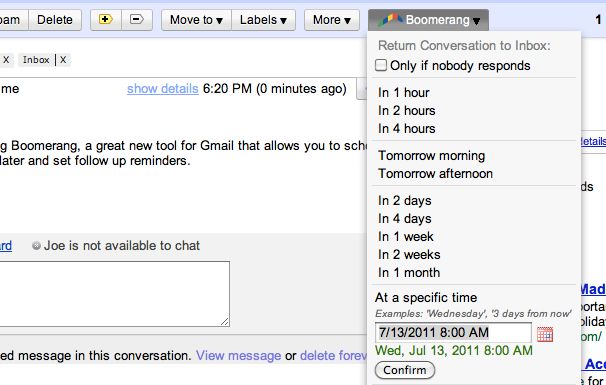
    Outlook and Gmail users should check out Baydin’s Boomerang, which lets you reschedule email with just a few clicks. Or, if you’re not a fan of plug-ins, services like Followup.cc and NudgeMail work with any email system: You just forward a message to a specialized address ([email protected], for example, or [email protected]), and you’re done. The email will reappear in your inbox at the designated time and date. And if you’re still not ready to act on the message, just click one of the embedded “snooze” options and go back to sleep—er, work.
    Boomerang for GMailBoomerang for GMail can help keep important messages you can’t read right away from getting buried by newer mail.
    Both Followup.cc and NudgeMail are free. Boomerang for Outlook costs $30, though you can try it free for 30 days. Boomerang for Gmail offers its Basic plan (ten messages per month) free of charge; you can upgrade to a Personal plan (unlimited messages) for $5 monthly.

    Tame Gmail With Priority Inbox and Dethreaded Conversations

    GMail Priority InboxPriority Inbox is Gmail’s answer to email overload. By evaluating your reading and replying habits, it predicts which messages are most important and “floats” them to the top of your inbox, corraling the less-important stuff for later viewing. (You can tweak the prediction accuracy by clicking a “plus” or “minus” button for any given email.) It’s kind of like having a personal assistant who separates the email wheat from the email chaff.
    To enable Priority Inbox, head to your Gmail settings, click the Inbox tab, and then choose Priority Inbox from the “Inbox type” drop-down menu. Then click Save Changes and return to your inbox.
    Alternatively, while you’re in the settings area, consider turning off one of Gmail’s most controversial features: Conversation View, which groups together messages with the same subject line. The longer a message thread gets, and the more people who participate in it, the harder it becomes to find the newest addition—or to review earlier replies. In other words, these “conversations” can quickly turned into muddled, incomprehensible, frustrating messes.
    To turn off Conversation View—which will make messages appear one after another (as in most traditional email systems)—click over to the General tab, then set Conversation View to off. Click Save Changes when you’re done.

    Protect Your Privacy With Disposable Email Addresses

    You know the routine: There’s some new service, promotion, or online freebie that requires your email address–but you don’t want the inevitable deluge of ads, updates, and other inbox spam. How can you sign up without actually sharing your email address?
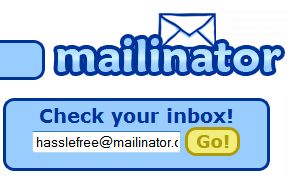
    Mailinator is simple and free to use.What you need is a disposable address, one that won’t negatively impact your inbox. Suppose you’re staring at a registration form and don’t want to use your regular email account. Just make up an address (like “ihatespam”) and tack on @mailinator.com. Then head to the free Mailinatorservice and sign in using the address you just created; you’ll find a Web-accessible inbox you can use to retrieve your promotional code, download link, or whatever. All Mailinator mail gets deleted within a day.
    Mailinator isn’t the only disposable-email game in town. Services like 10 Minute Mail, Humaility, and YopMail offer similarly convenient registration-free addresses. And if you’re a Firefox user, Less Spam, Pleaseintegrates with these services, generating a disposable, reusable email address when you right-click in an email field and choose Insert a temporary mail address. Doesn’t get much easier than that.

    Instantly Paste Your Choice of Email Signatures

    An email signature is a great way to share snippets of contact information: your phone number, Facebook/Twitter addresses, website, and so on. But with most email systems and programs, it’s an all-or-nothing affair: signatures are either “on” or “off,” and you’re limited to just one appended block of text. What if you want to add your signature to some emails but not others? And what if you want to share different contact blurbs with business associates than you do with friends and family?
    The solution: an “autotext” or macro program that quickly and automatically turns abbreviated text into expanded blocks of text.
    For example, you could create a custom signature that you’ll use only with clients and customers, and designate it “bizsig.” Then, when you’re done composing an email, you just type bizsig at the end. Presto: The autotext program instantly inserts your full business signature.
    You could take the same approach for a more generalized signature, designating it “sig1” or the like, then just paste it in as needed. And that’s the beauty of this approach: You apply a signature when you want one and skip it when you don’t.
    A number of programs afford this kind of macro-powered convenience; two of the most popular are AutoHotKey and PhraseExpress. Both are free, but the latter is definitely the more user-friendly of the two. (AutoHotKey requires a bit of scripting.)

    Find Out If Your Email Account Has Been Hacked

    It seems that every day we hear about another email database being compromised by hackers. The “good” news is that these petty thieves often post the stolen databases online. The bad news is, there’s no way to know for sure if your email address has been compromised.
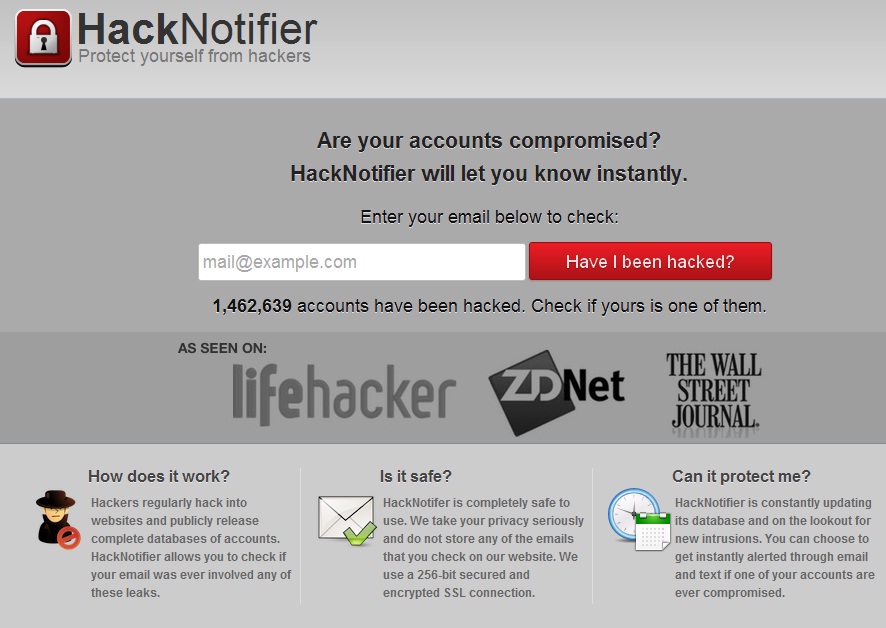
    There is now: HackNotifierchecks your email address against the growing number of publicly available “hacked” email databases. Just type in your address and click Have I been hacked? If the results are negative, you can rest easy–though you should continue to be diligent about using strong passwords and varying them from site to site.
     
    Verify that your e-mail account hasn’t been hacked with HackNotifier.
    If the news is not good, HackNotifier will tell you which accounts were compromised and provide more information about the leaks. The service also offers 24/7 account monitoring for $5 per year ($7 if you want instant notification via text message). What it doesn’t do is offer any instructions on how to safeguard your email security if an account has been hacked. Check out numerous ways of Creating an effective password

    Send Super-Huge File Attachments

    As a general rule, mail servers don’t like large file attachments. While some can accommodate files as large as 25MB, others balk if they exceed just 5MB. In these days of mammoth videos, photo libraries, PDFs, and the like, that doesn’t always cut it.
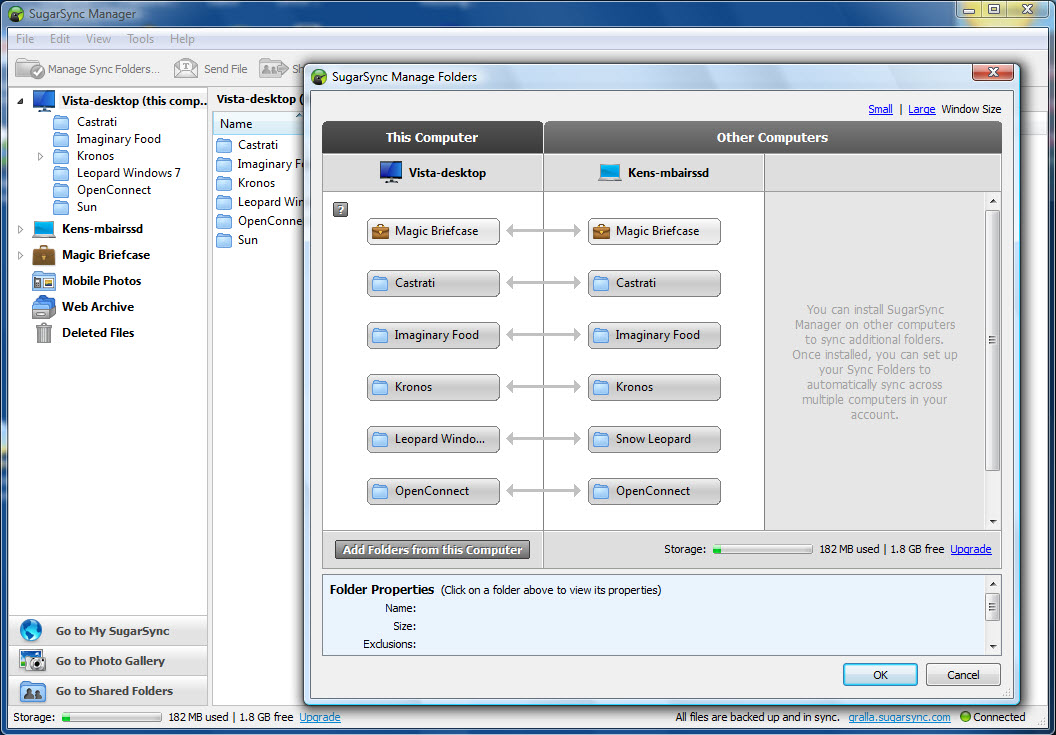
    What you need is a file-sharing service that bypasses your mail server. Countless options are available, including such cloud-storage stalwarts as Dropbox and SugarSync(which give you 2GB and 5GB of free space, respectively). You simply upload your file(s) to a public folder, copy the “share” link, and paste that link into an email. The recipients will be able to download the file(s) via the link, effectively taking mail servers out of the equation.
    SugarSync is a perennial favorite for storing and sharing files online.
    If you’d rather not sign up for yet another service, or you just want a more straightforward way to share your big files, try Ge.tt. In about the time it takes to read this sentence, you can upload a file and get a link to hand out—no registration, software, or plug-ins required. Files remain available for 30 days, or 90 if you elect to sign up for an account (which is free). That account also gives you real-time sharing statistics, something you definitely can’t get from email.
    On the other hand, if you prefer the traditional (some would say easier) email-attachment method, file-sharing service YouSendIt offers a free Microsoft Outlook plug-inthat does an end run around your mail server, while still making big-file sharing as simple as creating an attachment. Note, however, that the maximum file size is 50MB unless you sign up for a Pro account ($10 monthly or $50 per year), which raises the maximum to 2GB.
    With these tools in your arsenal, it won’t be long before you’re sending and sorting email like a pro.

  • How to Send Your Boss an Anonymous Email

    How to Send Your Boss an Anonymous Email

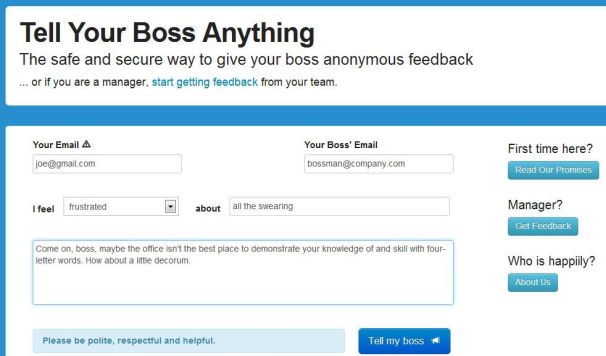
    What’s the best way to communicate with your boss? Open, honest, face-to-face conversation, of course.That would seem to fly in the face of Tell Your Boss Anything, a Web site designed expressly for sending anonymous messages. But it’s not really about giving ol’ Scrooge a piece of your mind; rather, the site appears to have constructive motives.
    To get started, you enter your own “trusted” email address (more on that in a bit), then your boss’ address. Next, you create a subject line by filling in the blanks: “I feel ____ about ____.”
    Within that first blank, you can choose words like happy, frustrated, irritated, confused, and proud. The words that go in the second blank are up to you.
    Then you compose your email. When you click Tell my boss, your message gets delivered anonymously. But here’s the thing: Your boss can reply, and that reply will come to your aforementioned email address — all the while keeping your identity private.

    The site cautions you to be “polite, respectful, and helpful,” and indeed nothing about Tell Your Boss Anything suggests that it’s aimed at telling a person off. The idea is more to express yourself in a way that you might not feel comfortable doing otherwise.

    That could prove valuable if your boss is the type who doesn’t typically welcome open, honest, face-to-face communication. On the flipside, I think most bosses would likely be ticked off by an anonymous email from an employee, even one that was positive. What’s more, there’s always the risk that the boss will somehow “know it was you,” which might land you in hot water.
    The real value here is for bosses themselves, who can use Tell Your Boss Anything to invite anonymous feedback from employees. It’s like a digital version of the suggestion box, a way to let the team know they can communicate with you without fear of reprisal.
    Personally, I have no use for Tell Your Boss Anything, because my bosses are all awesome, and I have no qualms about telling them to their faces. Or, you know, by way of a blog post.
    But what do you think? Would you ever use a service like this, either as a boss or an employee?

  • Spam Halved With Grum Takedown

    Spam Halved With Grum Takedown

    An international effort by spam fighters has taken down the infamous Grum botnet, slashing in half the worldwide amount of spam e-mail. Grum’s last servers were taken offline in Russia last week, effectively killing the botnet that has no fallback mechanism, said Atif Mushtaq, a researcher at FireEye’s security lab, which collaborated with the Russian Computer Security Incident Response Team and the Spamhouse Project in battling Grum. At its height, Grum was the world’s largest spam botnet, since January. Before the takedown, the botnet’s120,000 malware-infected, active computers were spewing 18 billion spam e-mail a day, or roughly a third of the world’s spam, said Trustwave. The impact of Grum’s collapse went beyond the spambot. Stopping Grum caused a slowdown in the world’s largest spam botnet, Lethic, Mushtaq said Thursday. “Due to this [international] community reaction, Lethic has gone underground for awhile.” With Grum down and Lethic quiet, the total amount of the world’s spam has been cut in half, at least temporarily, said Mushtaq. Aside from the numbers, the spam-fighters’ success is expected to have a chilling effect on Russian and Ukrainian spam operations, which can no longer assume the countries offer a safe haven, due to weak laws.

    Security Teams Unite to Fight

    The Grum operation was done without any involvement by law enforcement, showing that security researchers working together can also be effective in fighting botnets, which besides spam are used in denial of service attacks against websites.

    With security researchers globally watching them, cybercriminals now have to deal with far more adversaries than in the past. “That will have a huge impact on the mindset of bot herders, and that may be the reason Lethic is going underground,” Mushtaq said. Bot herder is the name given to people who control hijacked computers, or bots, in an illicit network. Grum’s death leaves tens of thousands of inactive, malware-infected computers. But without the original master computer and the IP addresses of the infected systems, the botnet is unlikely to be resurrected. “There’s no way to hijack this botnet,” Mushtaq said. “[the computers] are lost to us and to bot herders.” The Grum-killing operation started about two weeks ago when authorities in the Netherlands pulled the plug on two servers. This led to other servers in Panama being taken offline early this week. In a cat-and-mouse game with spam fighters, the Grum operators launched more servers in Russia and the Ukraine. A service provider in Russia took the last of those computers off the Internet on Wednesday. How long spam numbers will remain down is unclear. Spammers are sure to start filling the gap at some point. “Major takedowns can have a perceptible impact for weeks, even months, but that doesn’t mean it will be the case here,” David Harley, senior research fellow at ESET, said in an e-mail.