Tag: Fix

  • What to do when your Hard Drive Start Making Scary Noises

    What to do when your Hard Drive Start Making Scary Noises

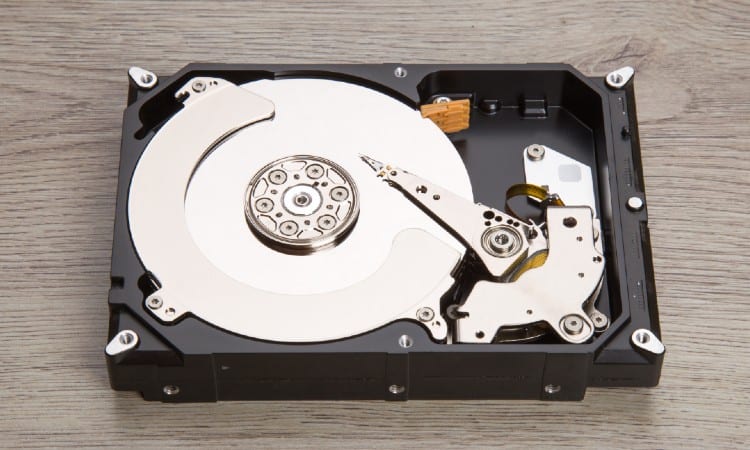
    This morning I powered on my desktop only to be greeted by a weird noise, like that of a grinding mill. Further investigation led me to discover to my own dismay, that my hard drive was responsible for this new development.
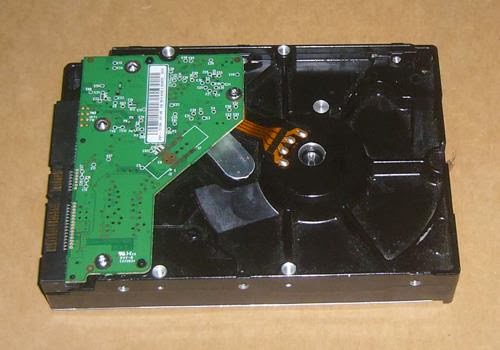
    If you are in same situation with me, what will you do? What will be your reaction when your hard drive start making strange and unpleasant noises? Could this be last days of your hard drive?

    I’m afraid, indeed, this could be the last days of your hard drive. The first step to take is to power off your PC completely.

    Of course, you will need to replace your hard drive with a new one, hence, the need to recover your files from the the spinning hard drive. If your hard drive (the old one) is still accessible, the process of recovery is relatively easier. USB adapters such IDE/SATA to USB Adapter can be used to copy data from your old hard drive to your new one.

    A complete, up-to-date backup, or  a cloud-based backup service can come quite handy in situations when your drive is inaccessible. Though much will depend on what type of backup you have.

    If you have an image backup of your C: drive, you can restore that to the new drive and be up and working almost immediately. Whatever program you used to create the image should have a way for you to boot the computer and restore it.

    If you backed up your data files separately, you’ll have to restore those separately, as well.

    But what if you have your documents and other data files safely backed up, but never bothered to back up Windows itself? (As far as I know, an image is the only reliable way to back up Windows.) In that case, contact the computer manufacturer and find out how you can restore Windows to the new drive. Once that’s done, you’ll have to restore your programs.

    If you do not have a backup, you can ask a skilled professional to clone the dying hard drive to the new one.

    Cloning a hard drive is easy if you have done it before but for a novice, it could be a bit tricky. Some agents such as DriveSaversKroll OnTrack and Flashback Data offers reliable but expensive data recovery services.
  • Download Windows Repair 1.5.3 “great freeware for fixing windows registry error”

    Download Windows Repair 1.5.3 “great freeware for fixing windows registry error”

    This great windows software works with all recent windows version both X86 & x64 bit in a “nutshell”
    Windows Repair is an all-in-one repair tool to help fix a large
    majority of known Windows problems including registry errors and file
    permissions as well as issues with Internet Explorer, Windows Update, Windows
    Firewall and more. Malware and installed programs can modify your default settings.
    With Windows Repair you can restore Windows original settings.
    Windows Repair can do the following:
    Reset Registry Permissions
    Reset File Permissions
    Register System Files
    Repair WMI
    Repair Windows Firewall
    Repair Internet Explorer
    Repair MDAC & MS Jet
    Repair Hosts File
    Remove Policies Set By Infections
    Repair Icons
    Repair Winsock & DNS Cache
    Remove Temp Files
    Repair Proxy Settings
    Unhide Non System Files
    Repair Windows Updates
    Repair CD/DVD Missing/Not Working
    and more…
    Windows Repair:
    When you first run the program you will be introduced to 4 steps before the
    repair options. These steps are highly recommend to do before attempting any
    repairs.
    Step 1. Clean Your System Of Infections.
    Trying to fix a system that is currently infected is obviously a very bad idea
    and can make things worse. An infection can hijack a machine and keep part of
    the repairs from running correctly. Since only part of a repair will work the
    other part that failed could end up causing problems. Rule of thumb before
    working on a system is to make sure it is clean. Even if you think your system
    is clean doing a scan before hand is a good idea.
    Step 2. Check File System
    Doing a check disk on the hard drive is a good idea. This will have Windows
    check the file system on the drive fixing any problem it finds. Corrupt files
    can break a lot of things, including the repairs. So making sure the file system
    is good is a must.
    Step 3. System File Check (SFC)
    The built in Windows system file checker is a tool that checks that the Windows
    files are intact, the correct versions and not corrupted. This is a good idea to
    do before doing repairs as if a file is corrupt and we try a repair that needs
    that file then the repair will fail.
    Step 4. System Restore
    Doing a system restore point is a great idea to do before doing any repairs. If
    any unforeseen problems happen after any repair than a system restore can put
    the system back to the way it was before the repairs. This is highly
    recommended.
    Start Repairs
    In this final step you can choose between 3 modes.
    Basic Mode: This will run only the most basic, safe repair options. Extra
    advanced repairs are disabled.
    Advanced Mode: Runs more advanced repairs while leaving a few disabled.
    Custom Mode: Every repair is available. The program will remember your repair
    choices the next time you choose custom mode.
    Download Windows Repair 1.5.3 from this link

  • Firefox 16 arrives with a raft of critical fixes

    Firefox 16 arrives with a raft of critical fixes

    Shortly after Firefox regained its No. 2 position in the browser arena, Mozilla on Tuesday unleashed the next version of its popular open source browser complete with fixes for numerous critical vulnerabilities

    Holes associated with a full 14 security advisories were closed in the new Firefox 16, in fact, 11 of them rated “critical.”
    Also notable about Firefox 16 are features including a new developer toolbar, early Web app support, preliminary VoiceOver support in the Mac OS X version, and a new Reader Mode in the Android version.
    ‘A growing set of novel features’
    Among the vulnerabilities fixed by Firefox 16 are memory corruption and memory safety hazards, a buffer overflow bug, and a spoofing and script-injection flaw.
    Most were also corrected in Thunderbird 16 and SeaMonkey 2.13, both of which were released on Tuesday as well, in addition to being backported to the business-oriented Extended Support Release (ESR) versions of Firefox and Thunderbird.

    With initial support for Web apps in the desktop Windows, Mac, and Linux versions of Firefox 16, meanwhile, developers can now begin building self-contained versions of their websites that are installed by the user, can run offline, and “don’t always require the chrome of a browser window,” Mozilla explains. Web apps also “have access to a growing set of novel features, such as synchronizing across all of a user’s devices,” it adds.

    Eventually, Web apps will be distributed through the forthcoming Mozilla Marketplace.
    ‘Removes all the clutter’
    Mac users will find that preliminary support for the VoiceOver screen reader is now turned on by default in Firefox 16, while new features in the Android version include a Safari-like Reader Mode that “removes all the clutter from Web pages and shows you only what you want to read in a minimalist UI,” as Firefox Mobile developer Lucas Rocha explained in a blog post this summer.
    Also new on the Android side are the ability to use a “Share” menu item to send tabs to other devices through the “Firefox Sync” option and a feature designed to ensure that malicious “tel: URLs” crafted to wipe the phone can no longer be opened.
    Ready to give the latest and greatest Firefox a try for yourself? It’s now available as a free download in desktop and mobile versions on the Mozilla site.