Tag: Google Chrome

  • How to Export Chrome Bookmarks To Another Browser

    How to Export Chrome Bookmarks To Another Browser

    We all have those important websites we frequent regularly on web browsers like Google Chrome for online updates. And we employ different methods to keep track of some of the information on these websites for future reference. Since it’ll be stressful committing all the URLs to memory or scribbling them down each time we visit, the most convenient way to save them is by bookmarking.

    By bookmarking these websites, Chrome users can easily access them whenever they want, and these bookmarks can be synchronized across multiple devices. While bookmarking these sites on Chrome is a breeze, importing, and exporting bookmarks from google chrome can present a challenge of its own.

    Export Chrome Bookmarks

    If you wish to transfer your Chrome bookmarks to another computer or browser, you have the option to export it as an HTML file on a Flash or hard drive. OR you can use third-party Google Chrome extensions (available on Chrome Web Store) to share them. Or even transfer bookmarks using Google Collections on the Google app. Another alternative is to send the HTML file as an attachment to your personal email.

    Let’s export your bookmarks from Google Chrome as a HTML file:

    1. Open Chrome and access the browser menu by clicking the icon with three dots in the top-right corner.
    2. Navigate to the Bookmarks section in the pop-up menu.
    3. Open the Bookmark Manager by selecting it from the options that pop up.
    4. In the new tab that opens, locate the icon with dots next to the Bookmarks search bar, below the Chrome address bar.
    5. Click on the icon and choose the Export Bookmarks option.
    6. Click on the icon and select the Export Bookmarks option.
    7. Select a name and location you want to save the bookmarks(flash drive, desktop, etc).
    8. Click Save to finalize the process. The bookmarks are saved as HTML files.

    Import Bookmarks From Chrome

    After successfully following and completing the above steps to export your bookmarks, the next thing is to import those bookmarks you saved as an HTML file into the browser of your choice. It could be Mozilla Firefox, Safari, Brave, Microsoft Edge, etc.

    1. Below are the steps to import Chrome bookmarks:
    2. Open the Google Chrome browser
    3. Locate the menu icon with three dots at the top-right corner of the Chrome window.
    4. From the menu that appears, go to “Bookmarks” and select “Bookmark Manager.”
    5. In the Bookmark Manager, find the three-dot menu icon located next to the search bar, below the Chrome address bar.
    6. Select the three-dot icon, and a drop-down menu will appear.
    7. From the menu, choose “Import Bookmarks” and your computer’s Open File dialog box will pop open.
    8. In the dialog box, navigate to where you saved the HTML file containing your exported bookmarks.
    9. Select the file and hit “Open.” This will initiate the import process, and all your bookmarks will be imported into Chrome.

    For your Chrome to work faster on mac and android, check out our article on how to maximize the speed and performance of your Chrome browser.
  • Google Chrome Now Works Faster On Mac and Android

    Google Chrome Now Works Faster On Mac and Android

    American global technology company Google has announced its latest adjustments to Chrome—one of the leading internet browsers in the world. Over the years, several users have lodged complaints about Chrome’s very slow performance. Along with the inordinate amount of time it takes to load pages. And for a while, Google Chrome sought long and hard for ways to improve the swiftness and efficiency of their extensively utilized internet browser. But now, they’ve made a few tweaks.

    Google prides itself on being the premier search engine that offers a wide range of tools to assist millions of its users in universally accessing and sharing helpful information. In line with this mission, the Google Chrome web browser is getting a speed boost. This significant modification to the dynamic web browser will allow for a faster and more enjoyable browsing experience. The company announced this in a blog post.

    From improved caching to better memory management for all devices, including Mac and Android devices with varying capabilities. These technical improvements will not only make the browser faster, but they’ll also make the experience satisfying. According to them, the changes made to this new upgrade required Google’s expert team of engineers to delve beneath the surface of Google Chrome.

    Google Chrome Changes To Improve Functionality

    Google Chrome Changes To Improve Functionality
    Credit: Nintendo-Power

    One of the specific improvements Google factored into their upgrade is HTML Parsing. In the announcement, Google says it has uncovered some targeted optimizations for their highly used JS “Object.prototype.toString” and “Array.prototype.join” functions. Google equally implemented targeted improvements in CSS’s InterpolableColor. All of which are specialized fast paths for parsing to offer a more satisfactory web experience for all of its web users.

    Another tweak that was made to the Google Chrome web browser was a more efficient pointer compression. Due to the endless tussle between memory and performance, Google stated that it has made optimizations to how it compresses and decompresses pointers. This is to also ensure a faster, seamless browsing experience for its users with reduced memory consumption. Google further highlights the relocation of frequently accessed objects like JavaScript’s “undefined” to the beginning of the memory bases. Where they can be easily accessed with faster machine code.

  • Chrome beta users get an assist from Google Now

    Chrome beta users get an assist from Google Now

    IDG NEWS SERVICE – Google Now is moving out of the lab and onto the desktop in the beta version of Chrome.

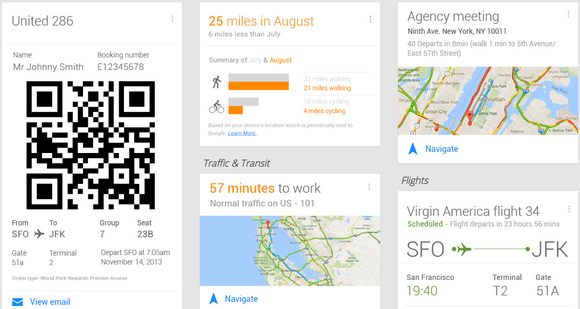
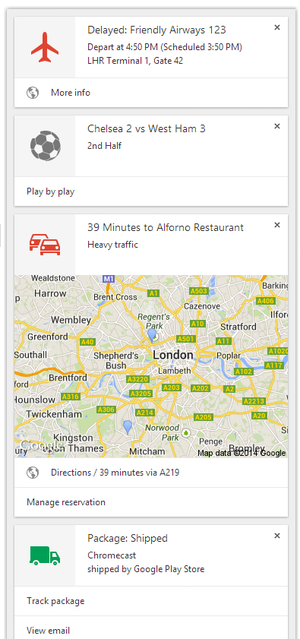
    Starting this week, Chrome beta users can view Google Now “cards” within the notifications area on Windows, Mac, and Chrome OS. The cards should show up automatically if you’re already using Google Now on Android or iOS, and have signed into Chrome with the same Google account.

    Google Now is a virtual assistant that tries to anticipate the information you want, such as the weather, traffic, travel details, and upcoming reservations. Much of that information is based on activity from your Google account. For example, Google Now can detect flight confirmations in Gmail and notify you about any delays; it can also look at your Web searches to infer what breaking news topics you’d be interested in.
    The service first launched for Android in 2012, making its way to the iPhone last April as part of the Google Search app. There have been hints of a desktop version since early last year; last month, it finally launched as an experimental feature—not enabled by default—within Chrome Canary. While the feature rolls out to the Chrome beta channel this week, it’s already available through theChrome dev channel.

    The arrival of Google Now is the search giant’s biggest step yet toward a convergence of Chrome and Android. Google has said that it won’t merge the two platforms anytime soon, but that it wants to have a more consistent experience across both platforms. Along that line, Google recently started letting Chrome developers create standalone Web apps for Android.

    Having Google Now in Chrome could be useful for certain things, such as traffic on your upcoming commute or reminders of when to leave for your next appointment. But it could also be a nuisance for less important things such as sports scores.

    If you’d rather not see Google Now notifications, click the bell icon in your notification area (lower-right corner in Windows, upper-right on Macs), then click the gear icon in the Notifications Center and uncheck the “Google Now” box.

    View original source.

  • How to Create and Manage Multiple User Accounts in Google Chrome

    How to Create and Manage Multiple User Accounts in Google Chrome

    The recent versions of Google Chrome will let you synchronize your Google account with Chrome so that you don’t have to login again to each Google products (e.g. Google Drive, Gmail, Blogger, Google Play, etc) website you visit. This will also mean that anybody who has access to your Google Chrome browser can easily explore your email and other Google products without your consent.

    How do you ensure that no intruder can have access to your Google account without you logging off? If you share a PC at home, other family members can start searching the web as you by simply opening Chrome.

    Luckily, Chrome’s multiple profile support can help, providing an easy-peasy way for multiple people to use the same browser without worrying about intruders or having to constantly sign in and out of Google profiles.

    How to Add a New User

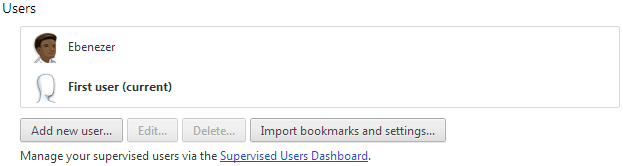
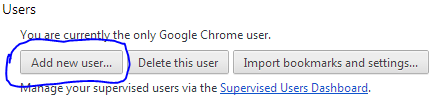
    First off, open Google Chrome’s menu—the icon with three horizontal lines in the upper right-hand corner—and open the Settings option. Towards the bottom you’ll see a “Users” section >> Simply click on Add new user.

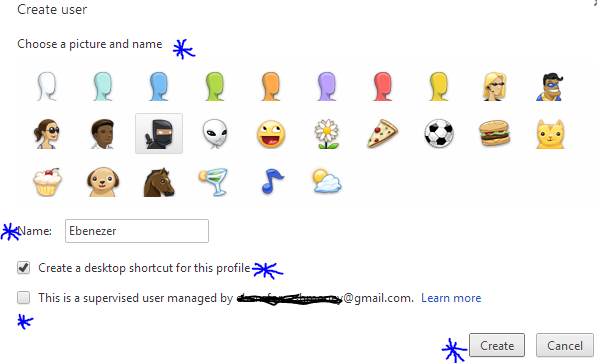
    A pop up window will appear with a bunch of user icons and new user account configuration. Choose an icon and name for your profile, you will have to decide whether you want to create a desktop shortcut icon for the profile, and then tap the “Create” button. Viz.. In a few seconds, a new window will open with the new user profile.

    Notice that the first time you create a new user profile, Chrome will actually create two profiles: One called “Default Profile” for the person who is currently signed in to Chrome, and one for the new profile that you just created.
    So the first time you add a new user, you are actually creating two profiles. To change the name of the default profile to something more user friendly, go back to the Chrome settings tab. Highlight the default profile in the “Users” section and the click the “Edit…” button to change the name.
    That’s pretty much it. Just follow the same process as many times as you need to create a user profile for each member of your household.

    Create User Profiles for Kids

    If your kid is less than 16 years old. You need to be weary of what he/she does on the internet. The most reliable, easy and cheap way to achieve that is with Google Chrome. The browser allows you to supervise a particular profile. You can block the profile from visiting certain websites, view website histories by that user profile, delete and add bookmark.
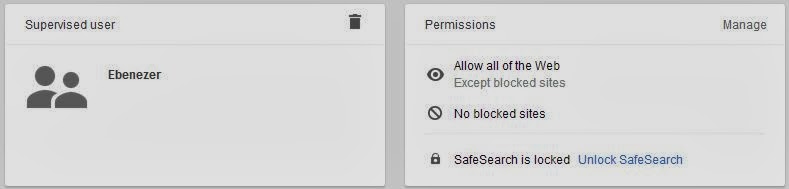
    To be able to monitor your kid internet activities, you will need to create a special kind of profile called a supervised user, a beta-grade profile type Google added to Chrome earlier in January.
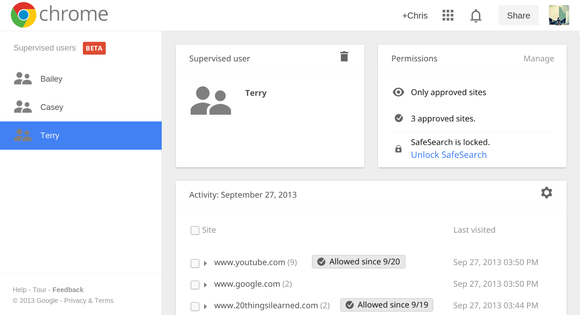
    To make a supervised user, simply click the checkbox next to “This is a supervised user managed by [email address].” Parents of supervised users can block specific websites, check out the websites they’ve visited, and lock kids into Google’s “Safe search.” If you block a website that your child thinks they should be allowed to view, they can even send you a request to unblock it, and you can manage settings for your supervised users via the dashboard at chrome.com/manage.
    You need to be weary of the fact that user profiles are not password protected, however, so Chrome’s supervised users feature is far from fool proof. You will still have to keep an eye on your child’s surfing habits to make sure they are using their profile and not switching over to yours, or—if you’re really worried—create separate user accounts as the operating system level .

    How to Switch between Profiles

    To switch between users, just click the user icon that appears in the upper left corner of the browser window. The other created users will appear in a drop down menu. Select the one you want to switch to and a new window will open for that user profile. If that’s too much trouble, you can also use the customized desktop shortcuts Chrome offers to make when creating a profile to open the browser as a particular user.
  • Latest Google Chrome Release Officially lets you Mute Noisy Tabs

    Latest Google Chrome Release Officially lets you Mute Noisy Tabs

    IDG News Service – Few things are worse than when you’re trying to get some work done with your headphones on and all of a sudden, a loud, obnoxious advertisement yells at you to “come try this out!”

    It’s terrible, but Google seems to empathize with this. Back in November, the search giant launched an update to its Chrome beta browser that included a helpful little feature that silences these noisy tabs. This helpful feature is now available in the latest stable release of Google Chrome.

    Just look for the little sound icon in your tabs.

    The feature allows you to track down noisy tabs with visuals: scan your tabs and look for the speaker icon to see which one is the disruptor. You’ll also be able to tell which tabs are using your webcam or are being cast to your TV via Chromecast.

    The new Google Chrome update also comes with the stronger Safe Browsing feature that blocks malicious files from downloading, while Windows 8 users will appreciate the new “Metro” mode look.

    Supervised users is a lot like multi-user accounts.

    Lastly, if you’ve got a family computer, you can now try out a beta preview of supervised users, which helps out those family members who need some help getting around the Internet. Once you’ve set up the accounts, you can visit a specific page to review each member’s browsing activity and determine their restrictions. It’s like Android’s multi-user profiles, but for Chrome.

    If you’d like to try out the new features, you can update the Chrome browser from the Help menu under the browser settings. To try out the beta features, you’ll have to download Chrome Beta.

  • Mozilla Firefox 23 Proved Flawless as IE Woes Continue

    Mozilla Firefox 23 Proved Flawless as IE Woes Continue

    In  a browser reliability test, the recent versions of Google’s Chrome and Mozilla’s Firefox are measurably less prone to crashes and errors than Microsoft’s Internet Explorer 10, a new analysis by applications testing firm Sauce Labs has found.

    If this looks like another stick to beat Microsoft’s browser with, it is worth pointing out that the firm’s study of around 55 million tests run using the Selenium platform found that all browsers showed extremely low levels of errors, in the order of 0.12 percent or lower for the “worst” performer, Apple’s Safari 6.

    On the same scale, Opera 12 scored 0.08 percent, IE10 at 0.05 percent, Chrome 27 under 0.02 percent, with Firefox was so low it effectively achieved a remarkable zero, that is to say no errors at all. IE lagged its main rivals but at levels that were already extremely low.

    As interesting as the reliability figures was the level of improvement shown by these recent versions, some only months or even weeks old.



    Internet Explorer 6 (released in 2001 with XP) and 7 (2007) had previously been the worst performers on 0.3 percent each, behind Firefox on Opera 10 (2009) and Firefox 7 (2011) and IE8 (2009) on just under 0.25 percent. It is remarkable that all of these are still used by small percentages of global browser users, but they are also aging software vulnerable to issues more serious than how often they might crash.

    “Half of the browser versions we analyzed had error rates lower than 0.07 percent. That’s pretty low, and suggests that browsers are getting more reliable as more versions come out,” said Luren Nguyen of Sauce Labs.

    Despite lagging slightly, IE had also shown major improvement over time.

    “Microsoft has really been pushing their new version of Internet Explorer as the most modern and high-performing version of IE. You’ve may have seen their nostalgia-tinged IE 10 commercial. The data we have on browser error rates suggests that their claims may have quite a bit of merit,” she said.

    The absolute level of errors in these tests is an imperfect way to measure browser reliability some might argue (can the errors be proved to be the browser’s fault and not the testing suite’s?), but the comparative measurement won’t be coincidence. Errors, which usually result in a crash of some kind, are caused by bugs in the browser code.

    Do error rates really matter? Only when they occur, which seems to be rarely these days.Credit: pcword.com

  • How to Enable/Disable JavaScript in Mozilla Firefox

    How to Enable/Disable JavaScript in Mozilla Firefox

    The introduction of mozilla firefox 23 has seen the option to disable or enable javascript removed from the primary user interface. Alex Limi earlier explained the reason behind this decision, citing user protection as their major reason.

    Most sites these days that aren’t just displaying content will fail in interesting& mysterious ways if you don’t have JavaScript enabled. For the general population, Firefox will appear broken.-Alex Limi

    A Back Door


    Well, the good news is that firefox actually left us a
    back door: the option was not entirely removed from the browser, it was hidden from the primary user interface as part of an effort to simplify the Firefox options set and to protect users from unintentionally damaging their Firefox browser.

    Show me the Way

    You can enable or disable your javascript in mozilla firefox by either using the about:config interface or through the use of add-ons.

    Using about:config Interface

    • Enter about:config in your address bar
    • Click “I’ll be careful, I promise”
    • In the search bar just at the top of the page, search for “javascript.enabled” (without quotes).
    • Right click on the result named “javascript.enabled” and click “Toggle”. 

    JavaScript is now disabled for your browser, to re-enable javascript, simply repeat the above steps.

    Using Add-ons

    The No-Script add-on will help you manage javascript setting for each page you visit or you can download the QuickJava add-on to quickly (one click for all) enable or disable javascript in your browser.