Tag: image

  • Screencast Pro – Make Quality Videos with your Android Phone

    Screencast Pro – Make Quality Videos with your Android Phone

    This application works with rooted Android phones only. It helps you record your screen into high quality videos.  Recorded videos will be saved as MP4 on your device or SD card – you in turn, will be able to mail this video to a friend or share it on YouTube and social media.
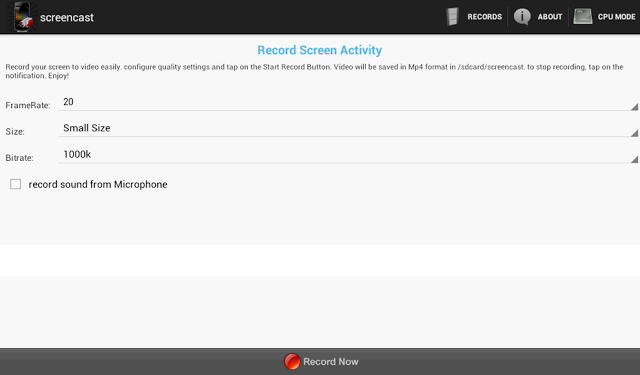

    The Screencast Pro is available to be downloaded free at the Google Play Store. However, if for reasons you would love to have a ‘raw’ copy of the application or you wish to use this Android app on PC or Mac, simply hit the download button just beneath this section.

    Publisher’s Description

    ** Rooted phones only ** Screencast is a free screen recorder application. Record your screen into high quality video. Videos are saved as MP4 on your sdcard. Very usefull to create presentation or tutorials.

    This application may works on some unrooted phones. Please tell us if it works for you. and if it doesn’t, please tell us too to help us improve this app.

    If your phone is rooted and the app doesn’t work, please send us a message with your phone characteristics including processor information, thanks. This application doesn’t support all Tegra 2/3 based devices.
    Keywords: screenshot, screencast, video recorder, screen recorder, camtasia, screenrecorder

    **This app uses FFMPEG application for the encoding process

    File Info

    • Release Date: 6 November 2013
    • Size: 6.3 MB – Version: 1.21
    • App Requirement: Android 2.2 and up
    • Age Rating: Suitable for all age group

    You can install Screencast Pro for Android directly on your phone or download the .apk file.
  • How to give your USB devices a Background Image

    How to give your USB devices a Background Image

    USB (Universal Serial Bus) is an industry standard that allows data exchange and power delivery between many types of electronics. Wikipedia

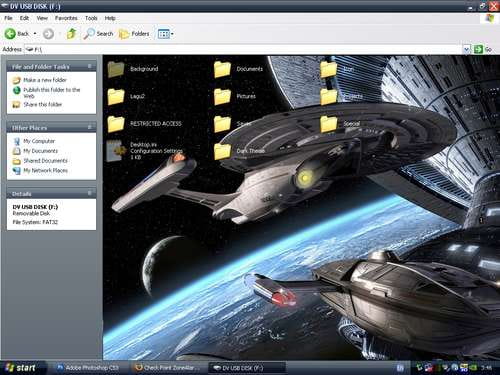
    I suppose we all have tried to give background images to our desktop folders. How about setting the same background to our USB devices (Pen drive, Portable Hard Disks etc.) as well? That background image will be seen on every computer you plug in that USB device.
    It’s really a 3 step process. Let’s begin:-

    Steps in changing the background of your USB device:

    • 1.) Open a Notepad.
    • 2.) Paste this code and save it as desktop.ini


    Code:

    [.ShellClassInfo]
    IconFile=%SystemRoot%system32SHELL32.dll
    IconIndex=127
    ConfirmFileOp=0

    [{BE098140-A513-11D0-A3A4-00C04FD706EC}]
    Attributes=1
    IconArea_Image=”your_picture.jpg”
    IconArea_Text=”0xFFFFFF”
    VeBRA sources –
    [ExtShellFolderViews]
    {BE098140-A513-11D0-A3A4-00C04FD706EC}=
    {BE098140-A513-11D0-A3A4-00C04FD706EC}
    {5984FFE0-28D4-11CF-AE66-08002B2E1262}=
    {5984FFE0-28D4-11CF-AE66-08002B2E1262}

    [{5984FFE0-28D4-11CF-AE66-08002B2E1262}]
    PersistMoniker=Folder.htt
    PersistMonikerPreview=%WebDir%folder.bmp

    • 3. Place the file desktop.ini and your picture

    (named your_picture.jpg) in your USB device and refresh it….

    Leave your comments here…