Installed software not designed for your laptop? Did you install a wrong driver on your laptop? Or did you mistakenly delete one of the important programs your laptop came with? Any of these will certainly affect the proper functioning of your laptop. Things like this happen to us sometimes. Events like this usually call for one thing, and that is resetting your laptop computer.
In this article, we explore a tutorial on how to reset a laptop, restoring it to factory settings. This tutorial covers procedures on how to reset laptops running windows and MAC OS back to their factory settings.
How To Reset/Restore A Laptop Running Windows Operating System Back To Factory Settings
Before you go ahead to formatting your windows laptop, please be aware that resetting your windows laptop will wipe out all your installed programs and files on your windows laptop. Using an external hard drive is a very secure way to back up your files. Once you have backup your files, you can proceed to reset your windows laptop using the steps listed below.
There is no autonomy when it comes to resetting windows laptops; there are several methods that can be employed in resetting a windows laptop. These methods are listed below.
How To Reset A windows Laptop, Using Built-In Reset Option On Windows 10
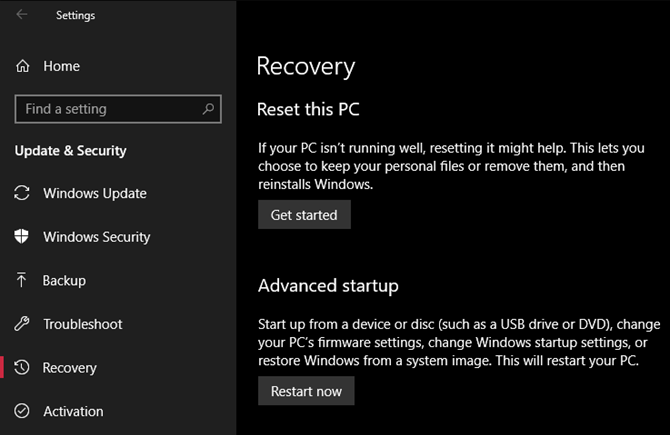
- On your windows laptop, Navigate through settings > Update & Security > Recovery.
- Under “Reset this PC” click on get started
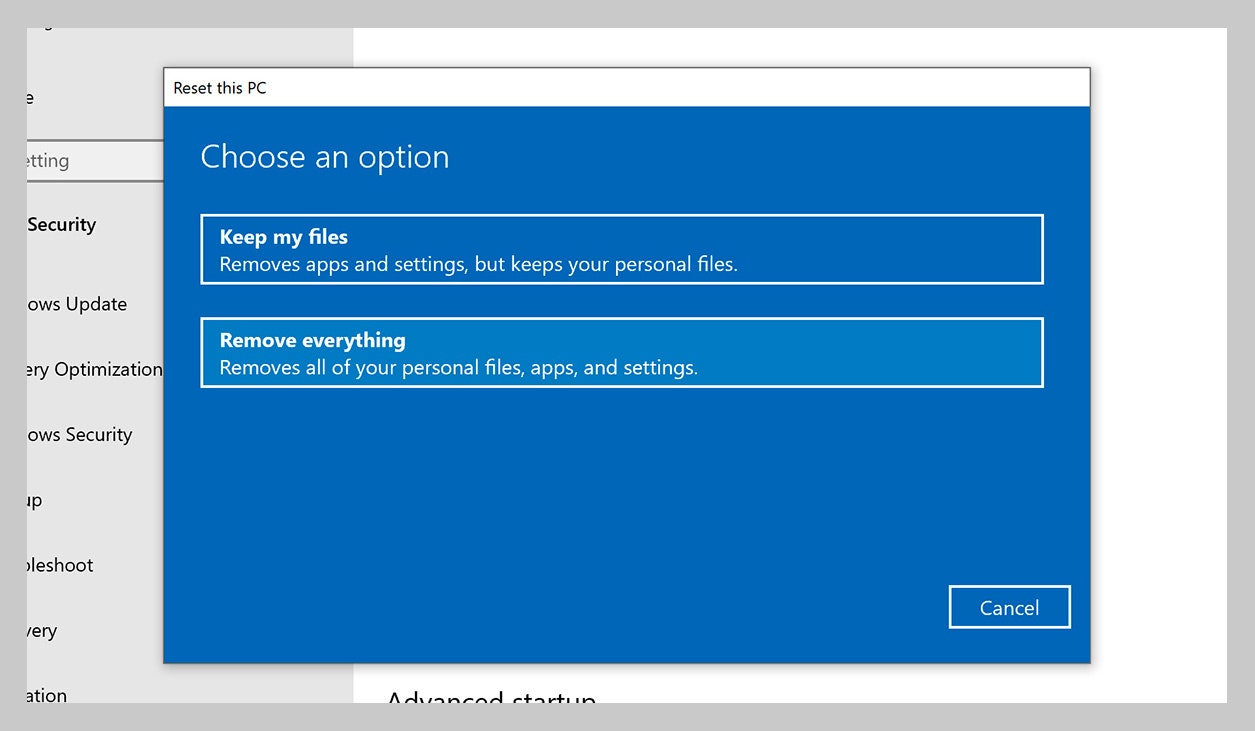
- You will be presented with the option to keep files, or remove everything. Select your preferred option. Keeping your files will reset your windows laptop to default, keeping your files and uninstalling your installed apps. The ” Remove Everything option,” remove resets your windows laptop, completely wiping your computer, remove all files and installed apps.
Please Note that click the ”Erase Everything” option, will provide you with another set of options to choose from. You will be asked to select between Removing everything or remove files and clean drives. Selecting the latter will securely erase your hard drive, making it impossible to do any form of recovery.
4. Once you have selected the option of your choice, you can proceed to click the reset button.
How To Reset A windows Laptop, ” Fresh Start” Option in Windows 10
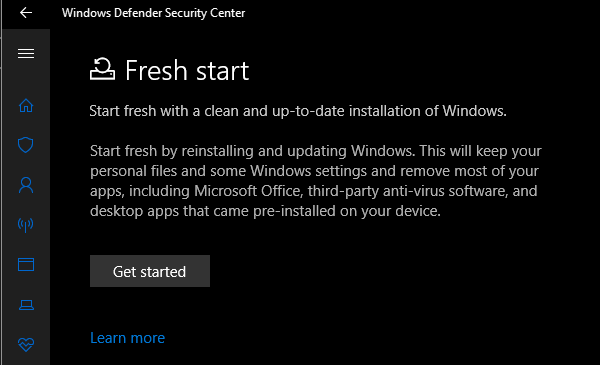
As earlier mentioned, there are different ways to re-setting your windows laptop. Using the Fresh Start option is another method. Steps to be followed when using this method are listed below:
- On your windows laptop, Navigate through Settings > Update & security > Recovery page
- Click the link ”Learn how to start fresh with a clean installation of windows” you will find it at the bottom of the page. You will be directed to windows defender security center. Click on Get started to proceed.
Note: Using the fresh start option, your files will be retained. There no option to remove all files. Also note that using the fresh start option, the latest version of windows will be automatically be downloaded on your windows laptop. Fresh start option reinstall all bloatware and keeps some of your settings intact.
Reinstall Using A Windows Installation Media
Using Windows 7 or later, this method is for you. The methods mentioned above is available on Windows 8 and above. If you use windows 7 or lower, you can reset your windows laptop using windows installation media.
What is windows installation media? Windows installation media is an ISO file burnt into a pen drive or DVD. Windows installation media allows you re-install windows from scratch, provided you have a product key.
How To Reset/Restore A Laptop Running MAC OS Back To Factory Settings
Unlike Windows operating system, re-setting laptops running MAC OS is a lot easier. There is autonomy here, as there is only one method of getting it done. The steps are listed below:

Note: Please be aware that re-setting your MAC Book will completely wipe your hard drive, no file will be left, and all settings will be restored to default. Backup your files if need be.
- Hold Down Command and R keys on your keyboard, and turn on your MAC Book. Let
- both keys go, when te Apple Logo pops up
- Select Langauge and click the arrow facing right to continue
- Select Disk utility and continue
- Select your startup disk. Startup disk is named Macintosh HD by default
- Click the erase button
- From the drop-down menu, Select MAC OS Extended and click erase.
- click done and the exit window
- Connect to wifi
- Select Reinstall MacOS
- Click on continue and click agree
- Select boot disk and click on Install
- wait for the installation to complete
Note: Your MAC Book is will restart several times during the installation. You shouldn’t be bothered, as it is normal for it to reboot.
There you have it – a comprehensive tutorial on how to reset a laptop. As you might have already observed, re-setting a laptop isn’t as difficult as most people claim, all you have to do is follow the steps listed above. If you have any question, feel free to drop them in the comment section below.
You must be logged in to post a comment.