If your TV doesn’t allow you surf the net, stream videos from top streaming services available, feature inbuilt app and play games without a console, chances are that you are using an outdated Television, and your television isn’t smart. Smart TV’s are the latest technological trend. Thanks to thoughtful innovation, you don’t need to spend the extra cash, in purchasing a new Smart TV, in other to gain access to the features mentioned above, there is a way you can convert your old PC to a smart TV, saving you cost. Apart from converting your old PC to a smart TV, in other to save cost, you can also convert any digital TV to a smart TV. In this article, we explore a comprehensive tutorial on how to convert your old PC to a smart TV.
The steps to converting your old PC to smart TV is pretty basic, steps are very easy. Before you can convert your old PC to smart TV, your old PC should be under the HTPC category. Which means it should be a theater personal computer.
A computer that falls in the category of HTPC, is a regular computer with HDMI and audio outputs. These ports help you create a media link between your old pc and your Television. If connected correctly, you will be able to transmit audio and video from your PC to your television seamlessly. This way your old PC will once again gain relevance.
Still on computers under the HTPC category, if your PC falls under the category of HTPC. You will be able to use your computer as a smart TV, allowing you to watch Netflix and Amazon prime videos.
Using your old PC as a smart TV doesn’t actually require much. All you need are moderate specs enough to push your PC without any form of lag. If you currently experience lag on your PC, you are advised to upgrade the RAM and storage of your computer, before proceeding to use your old PC as a smart TV. You would also be needing a strong internet connection, to ensure streaming goes smoothly.
There you have it – a comprehensive tutorial on how to convert your old pc to a smart TV. if you have questions, feel free to drop them in the comment section below.
Smart TVs generally are advanced television sets, that possess more functions when compared to ordinary TV sets. Xiaomi Mi smart TV 4 is one of the Smart TVs that allow users surf the internet, allow the installation of apps supported on the OS they feature, and most importantly smart TVs allow users to stream content from a wide range of streaming services available today. In the presence of these smart TV essentials, it is very obvious that purchase facilitators have gone beyond screen size and resolution.
But if you have a digital TV and you want to convert it to a smart TV, you can check out on how to go about it.
In this article on what to watch out when buying your Smart TV set, we look at the different parameters to look out for when purchasing a Smart TV. These parameters determine the power of a Smart TV. These parameters are listed below.
Size (screen resolution)
One obvious detail you should consider is your preferred screen resolution (size) of a smart TV which most of the time is affected by your budget. Most standard Tv sets come with a 3840 by 2160pixel resolution and a screen is made up of dots or pixels and the more the pixel, the sharper the screen displays detail. The 3840 X 2160pixels is a 4k display or an ultra HD display. Please note that if you desire to enjoy 4k resolution in its full glory, you will need a larger inches smart TV.
The Fact that Ultra HD resolution A.K.A 4K resolution has become a standard is unarguable. Major streaming platforms today support 4K streaming, Streaming platforms like Netflix, Amazon Video including Youtube support 4k Streaming. This indicates the importance of having a Smart TV. In a bid to future proof your Smart TV, you are strongly advised to purchase a Smart TV with support for 4K content.
Display Technology
For display technology, we have two good options: the LED LCD and OLED l. You must note that the OLED screen technology is more expensive compared to LED LCD but the good thing is they are both use the same technology for LED illumination but their graphics are tweaked differently and that gives an advantage over the other depending on your choice and your budget
Software platform
The main difference between Smart TV’s and Ordinary TV’s is software. Smart TV feature a software platform not present in ordinary TV’s. The software platform featured on Smart TV’s make all their features come alive. Just picture a Smart TV, as a big tablet on your wall. A big tablet, that doesn’t make calls, but can be used to access the internet, play media files and stream media content from streaming platforms available.
Just the way tablets, smartphones, and laptops have different operating system, Smart TVs have different operating systems. Samsung Smart TVs feature the Tizen operating system, LG smart TVs feature WEB OS, the list goes on and on. When purchasing a smart TV, you should make sure the operating system on the Smart TV, has support for major streaming platforms, and also have a wide range of supported apps.
Refresh Rate
The refresh rate is a parameter that describes how many times per second a picture is refreshed on your screen. The refresh rate is expressed in Hertz (Hz). Please note that the standard refresh rate is 60 Hertz. Having a Smart Tv with a low refresh rate, usually output blurry images, in scenes of rapidly moving objects.
A Smart TV with 60 Hertz refresh rate won’t give you the very best, but you are gonna be satisfied, as long as you do not set your eyes on a Smart Tv with refresh rate more than 60 Hertz.
Some Smart TV’s feature High-Frame Rate support (HFR). Smart TVs with HFR have higher frame rates, and also added support for content higher than 60Hz. If your money isn’t a constraint, I advise you for TVs with HFR support. Also, you should take note of TVs with effective frame rates. Effective frame rate means the actual frame rate is half the stated frame rate. If a Smart TV has an effective frame rate of 60Hz, it means you will be able to stream content with 30 frames per seconds.
HDMI and Connections
Availability of connection ports is another important parameter, you should pay attention to when purchasing a Smart TV. Apart from being able to stream content, surf the internet, A good Smart TV should feature a generous amount of ports, for connections. These ports allow users to connect Speakers, decoders, game console and lots more. A good Smart TV should also feature an HDMI port, for the connection of external streaming devices. Make sure the HDMI ports on the Smart TV, is HDMI 2.0, and also make sure the Smart TV has at least 4 HDMI ports.
As already mentioned, if you desire to purchase a Smart TV, you should consider the parameters listed above. Take note of the minimum requirements for each parameter. You shouldn’t purchase Smart TVs with specs lower than the mentioned.
Famous for its smartphones, Xiaomi is a technology company that offers so much for so little. This fact has played a significant role in the success of their company. Price tags featured on their products facilitate questions, regarding the price worth of products from other manufacturers. Still Speaking on offering so much for so little, the Xiaomi Mi smart tv 4, is an example of products manufactured by Xiaomi, that provides so much, for a price tag not relative. The TV is Xiaomi’s first foray into the smart TV market. For a newbie in the Smart TV market, Xiaomi isn’t doing poorly at all.
The smart TV meets all the requirements of a modern TV, that suits its generation. It features a modern design, as well as top-notch hardware specs and software, that facilitates top-notch user experience.
In this article, we explore the features, specs, and pricing of the Mi TV, giving you a clearer insight into why the Xiaomi Mi smart tv 4 is a must-have.
Xiaomi TV Build
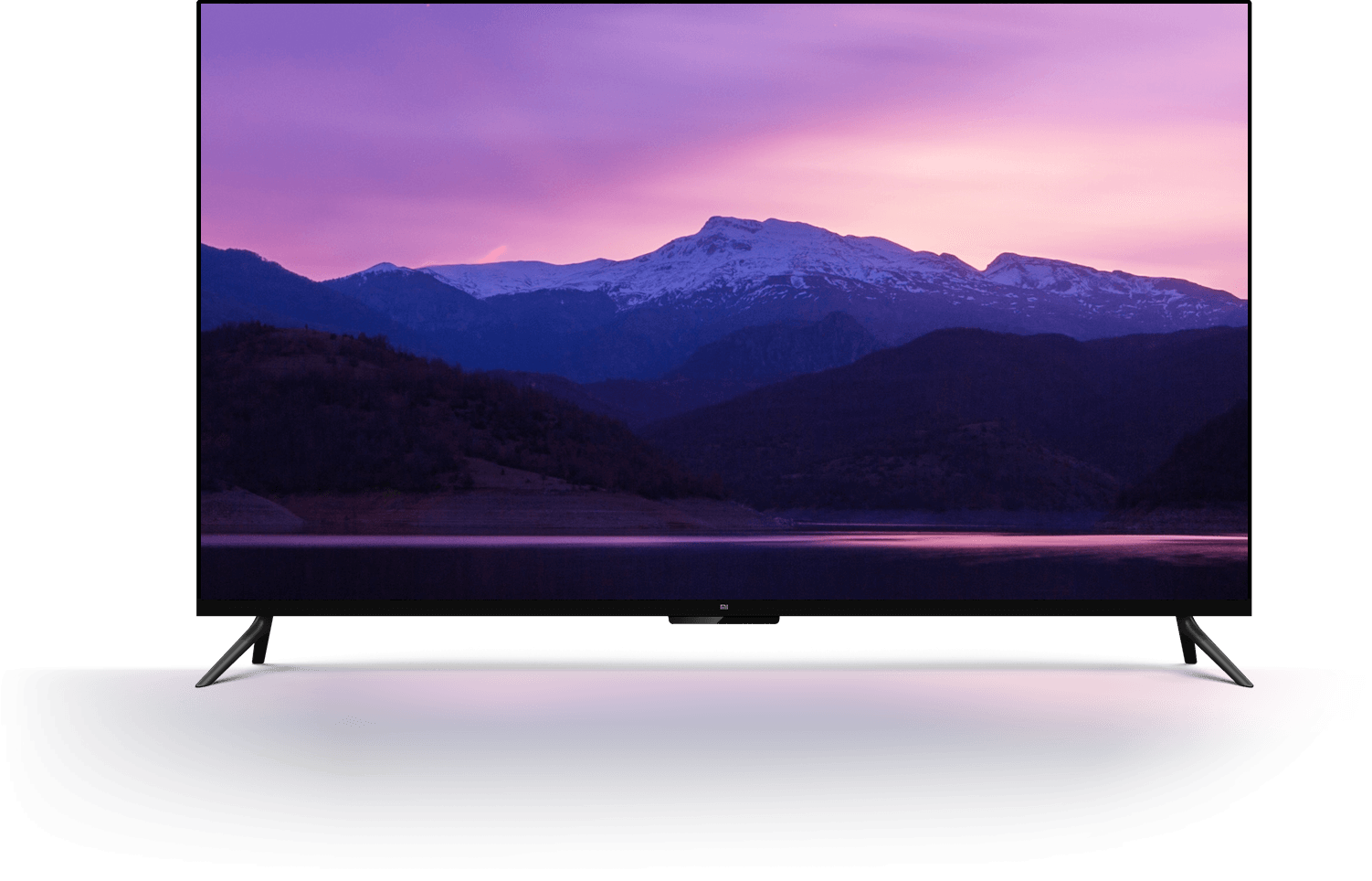
As earlier mentioned, it was designed to meet all the requirements of a modern smart TV. It features a very modern design that is going to keep you staring. With a thickness of 4.9 mm, the Xiaomi Mi 4 is a fragile device. The Smart TV 4 claimed the Red Dot Award last year for having a thickness of 4.9 mm.
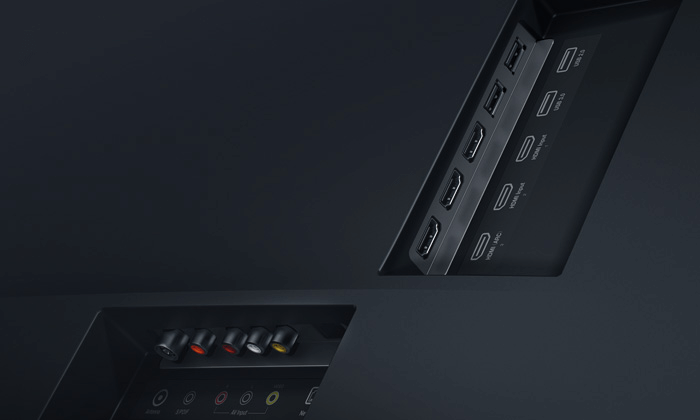
Having a thickness of 4.9mm doesn’t limit the ports of the Xiaomi Mi smart Tv 4. The Xiaomi 4 comes with a good number of ports for connectivity. The Xiaomi smart tv 4 features three HDMI ports, two USB A ports, one of them is a USB 3.0 port, the other is not. Still on ports, the Xiaomi Mi 4 smart Tv features port for audio video input, Ethernet port, and an Antenna port.
To provide users with an immersive experience when streaming, the Xiaomi Mi smart tv 4 features an integrated Mi TV bar with ten speakers a subwoofer and two wireless rear satellite speakers. It also supports Dolby Atmos audio technology with two up-firing speakers for an unbeatable audio experience.
Xiaomi Mi Smart TV 4 Display
The Xiaomi Mi Smart TV features a 55 inch 4k HDR 10-bit display panel, with a screen resolution of 3840 x 2160. The display has a 60Hz refresh rate, with a response time of 8ms. To feat into the modern smart TV market, this smart tv features a near bezels display, the bezels on this tv is very thin, it’s difficult to see to when watching content on it. The Xiaomi Mi Smart TV blends into your surrounding, creating the illusion that its a wallpaper.
Xiaomi Mi Smart TV 4 Hardware Specs
Being a smart TV, you should expect all the essentials needed for streaming and functioning of supported apps. The Xiaomi Mi smart tv does justice to that.
The Xiaomi Mi Smart TV is powered by a 64-bit quad-core Mlogic processor, a Mali-T830 MP2 GPU, 2GB RAM, and 8GB of Ram. The Xiaomi Mi Smart TV 4 features blue 4.0 with low energy, 2GHz / 5GHz wifi for internet connectivity.
Software / Interface
The primary reason Smart TVs were created, is to provide users with a powerful TV software, that allows users to stream content, use supported apps and surf the net. The ease using these features is hinged on the type of software the TV features and the fluidity of the interface.
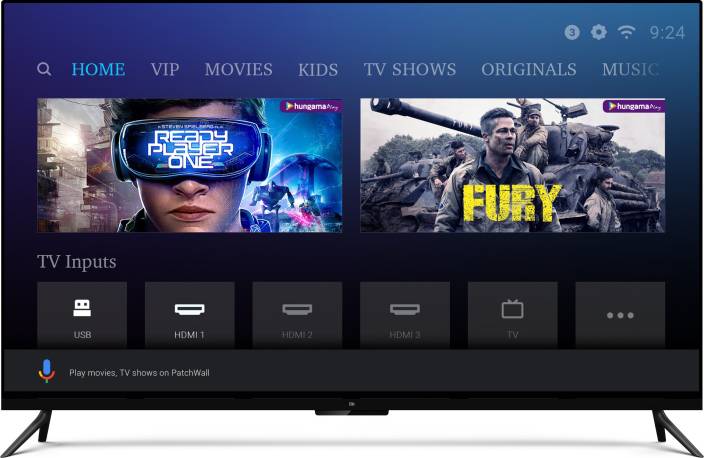
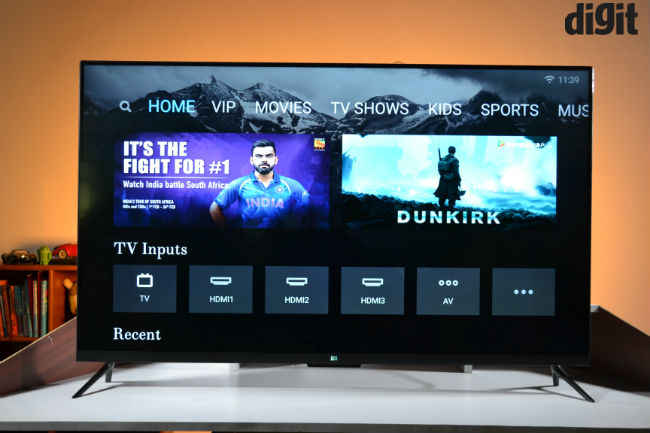
The Xiaomi Mi TV 4 features on the PatchWall interface. The PatchWall interface is an Android-based user-interface, that does away with a lot of Android essentials. This TV doesn’t come with Google PlayStore and Youtube and doesn’t support them. The PatchWall interface was designed to be as fluid as possible, doing away with all the features that slow down Android-based Smart TV.
Launching the home screen on the PatchWall UI, you are presented with a tile interface for the channels. When you search for a show, you are provided with the content, as well as information on when scheduled shows will be aired. The patchWall UI also suggests contents based on your viewing habits.
Remote Control
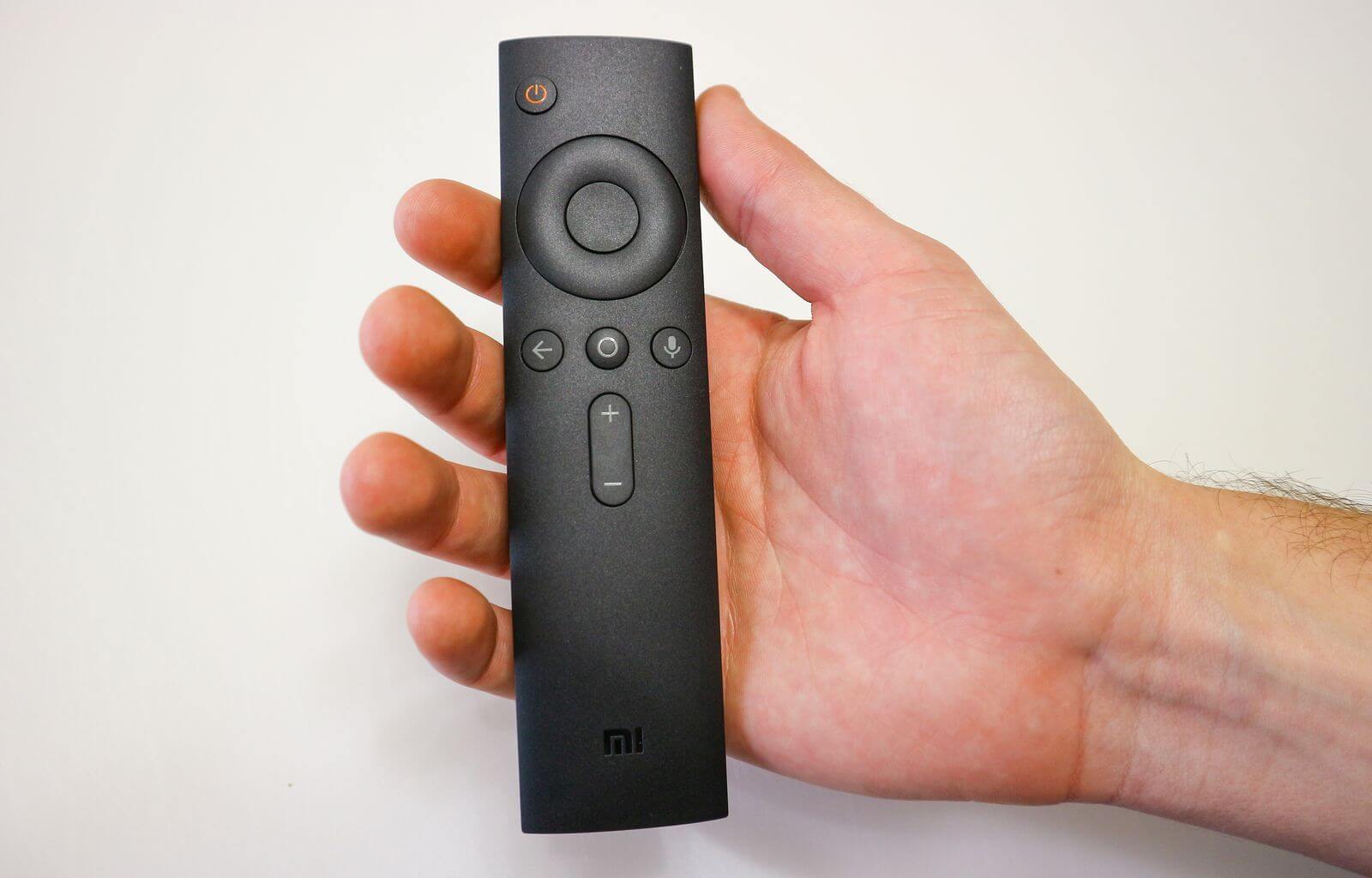
Just like any TV would, the Xiaomi Smart TV 4 does come with remote control. I am giving you remote access to the TV. The Remote features minimalistic buttons that are very easy to understand. This is similar to what we get on most high-end TVs today. On the remote, you will find the standard Android Home, Return and menu button. You will also find volume controller buttons, the Navigation button, and the power button. This remote connects to the TV through Bluetooth. It allows you to control the TV, without directly pointing the remote at it. Apart from being able to control this smart TV, this remote can control your Set Top Box, Mi Android Box, and some other devices.
Conclusion
Despite being a foray, the Xiaomi Mi Smart TV 4 actually packs a lot of impressive features, from its display to hardware specs, to software, there is hardly a thing you would miss when using this smart TV. Although it doesn’t measure shoulders with the top smart TVs we have today, with a price tag for Rs 39,999, the Xiaomi Mi Smart TV 4 is a good buy, with excellent value for the money.
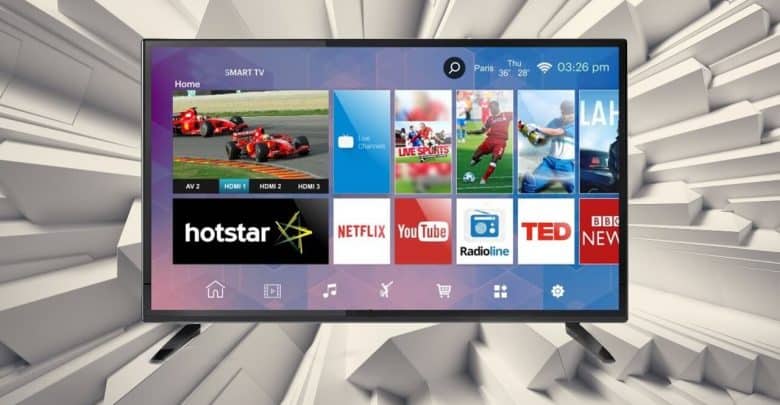
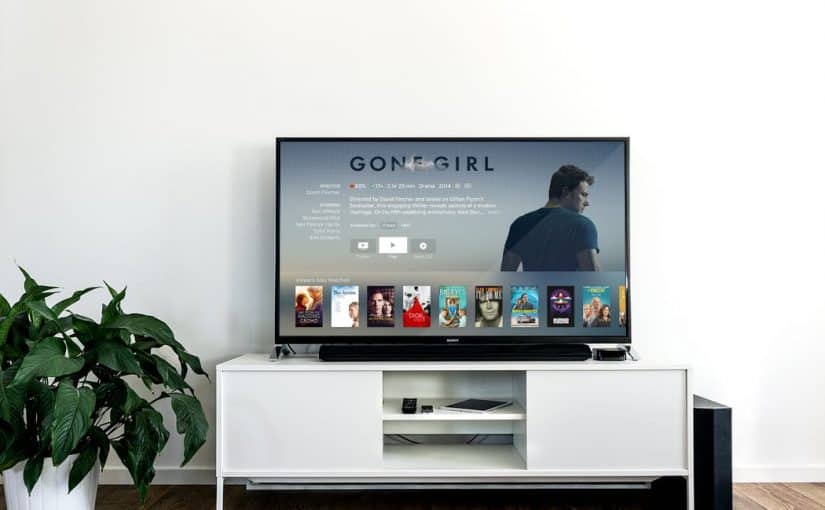
In a bid to cut down cables, TVs have over the years metamorphosed into stand-alone gadgets, that feature built-in wireless internet connections, with support for a wide range of apps. A modern television with these features is referred to as a smart TV. A smart TV also let you record shows, take screenshots and access YouTube, Netflix and other movie outlets. Now, the idea of having a smart television sounds great, but having to purchase one, may not be too palatable.
Smart TVs don’t exactly come cheap. If buying a one isn’t part of your budget right now, we have good news for your. You don’t necessarily need to purchase a smart TV to be able to gain access to the features of a smart TV. There are external media players you can use to turn your digital television into a smart television. These media players are also know as TV boxes.
A TV box is a small tech gadget that basically transforms your ordinary digital TV into a smart TV. Most TV these days are already equipped with smart technology, however, these does not completely eradicate the need for a TV box. A TV box can relatively expand the capabilities of your television, turning it into a less powerful version of your computer, or a larger version of your smartphone.
If you are in country where DSTV is supported, you won’t need an additional decoder for the kids room. You can can simply connect to DSTV online via your TV box.
Converting your Digital TV (DTV) into a Smart TV
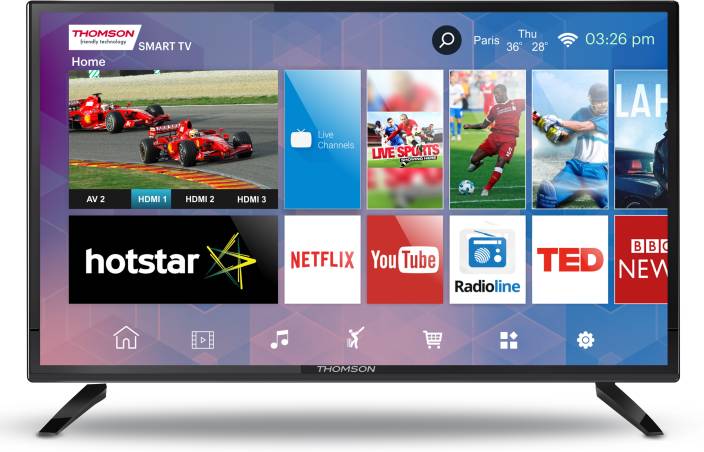
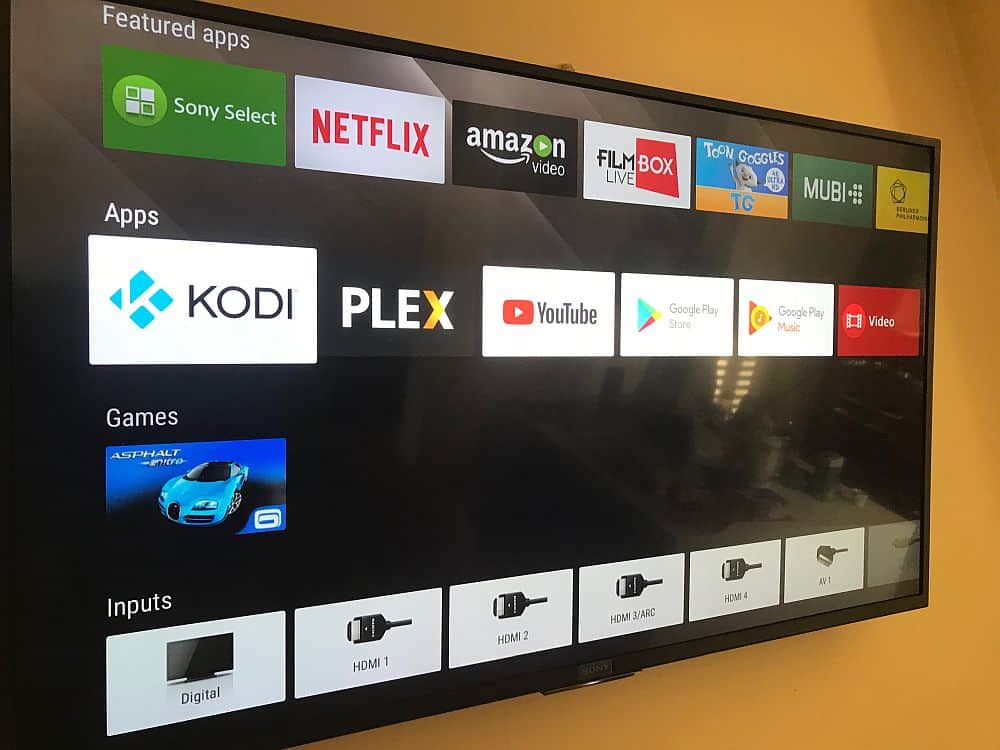
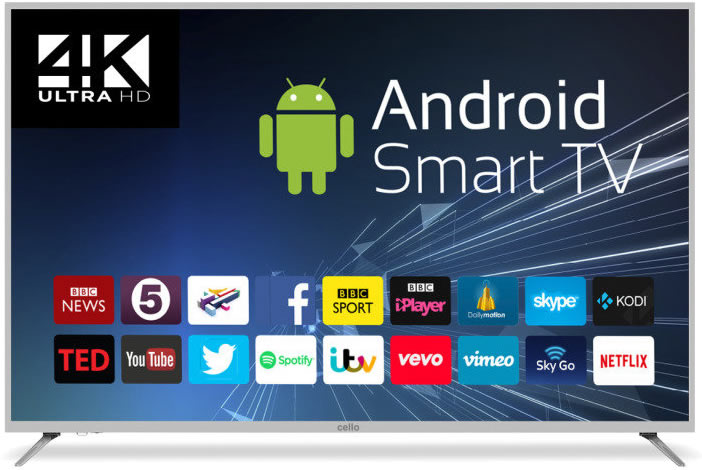
Smart TV with Netflix, YouTube and FilmBox live pre-installed
In this article, we are going to explore the various ways you can convert any Digital TV to a Smart TV using a TV box. While all of these TV boxes run via similar technology, they have different operating systems and thus, different user interfaces. For example, Apple TV runs the mobile iOS format, whereas Fire TV runs off Amazon’s operating system, instantly connecting you with Alexa. Google ChromeCast on the other hand, is powered by a simplified version of Chrome OS.
Using Media Players to Convert DTV to Smart TV
As earlier said, turning a digital TV to a smart TV, can be done using certain external media players otherwise known as TV boxes. These media players are listed below, together with tutorials on how to use them to transform your digital TV to a smart TV.
Using media players such as Apple TV, Fire or ChromeCast is one way of converting your old digital TV into a smart one. However, if these media players are far beyond your reach, there are cheaper alternatives such as using a white label Android TV box. This will be discussed much later in the article.
Note that, most Android TV box or media players require a HDMI port and a HDMI cable. If your TV set doesn’t feature a HDMI port, but instead the traditional yellow red and white port, you can use an HDMI to RCA adapter.
How to Convert any Digital TV to a Smart TV – Using Apple TV
Unarguably, Apple TV is one of the best streaming devices we have today. It is one of the top 3 streaming devices, with others being the Amazon Fire stick and the Google ChromeCast. Apple TV is the only Apple product that isn’t restricted to Apple’s ecosystem.
The TV gadget lets you stream videos, pictures, and music from your digital TV. Apple TV also enables you to buy or rent movies on iTunes. However, you cannot store media files on the Apple TV.
Step 1: Locate the HDMI port on your TV
As earlier mentioned, using a smart media player to convert your digital TV to a smart TV requires the presence of an HDMI port, and also you will need an HDMI cable. You will find HDMI ports on the body of your Digital TV. In case your digital TV doesn’t feature an HDMI port, you can use an HDMI to RCA adapter.
Step 2: Connect Apple TV to your Digital TV
In connecting the Apple TV to your digital TV, you will need to connect one end of the HDMI port to your Digital TV and the other end to your Apple TV. After you might have connected the Apple TV to your digital TV, you are required to power both of them and change your TV’s input to HDMI.
Step 3: Setup Apple TV
immediately you change your TV’s input to HDMI, the Apple TV interface will be displayed. Here you are required to select your language of choice, select a Wi-Fi network and enter a password and download any suggested updates.
Step 4: Use Apple TV as a Smart TV
Once you have completed the steps listed above, you will be presented with a drawer of apps, that include all the top-notch streaming service apps, you will able to stream content from Netflix, Hulu and lots more.
How to Convert any Digital TV to a Smart TV – Using Amazon Fire TV Stick
Amazon Fire Stick is yet another media player that lets you turn your Digital TV into a smart TV. Amazon Fire Stick takes the shape of a pen drive. It is one of those media players that isn’t obvious. Plug it to the HDMI port of your TV, and you will have access to a wide range of streaming services, streaming services that ordinarily won’t be accessed on your digital TV.
As you might have already guessed, the setup of the Amazon Fires Stick is very similar to that of the Apple TV, they both require a functioning HDMI. In case your digital TV doesn’t feature an HDMI port, you can use an HDMI-RCA adapter. Steps to converting your Digital TV using Amazon Fire Stick is listed below:
Step 1: Plug Amazon Fire Stick into HDMI Port Of Your Digital TV
Unlike the Apple TV, Amazon Fire Stick doesn’t require an HDMI cable for connection. As earlier mentioned, the Amazon Fire Stick has the shape of a pen drive. Instead of featuring a USB A or C, the Amazon Fire Stick Features an HDMI connector. So all you need to do for connectivity is plug the Amazon Fire Stick into the HDMI port of your computer.
In case the HDMI port of your TV is located on the rear, and you don’t have enough room for connection since the wall will be obstructing it, you can use an HDMI extension cable. You are required to plug one end of the HDMI cable to your Amazon Fire Stick, while other End will be plugged to your TV.
Step 2: Connect Amazon Fire Stick To A Power Outlet
Apart from featuring an HDMI connector, the Amazon Fire Stick also features a USB port. To power the Amazon Fire Stick, you are required to connect a USB power cord to it’s USB port and connect the other end to the power brick, then finally connect the Power brick to a power outlet. You are also required to place batteries in the remote of the Amazon Fire Stick.
Step 3: Switch To HDMI Input
To gain access to the Amazon TV Fire interface, you will need to switch your TV’s input to HDMI, since the Amazon Fire Stick was connected to the HDMI port of your TV.
Step 4: Setup Amazon Fire Stick
After you must have successfully connected the Amazon Fire Stick to your Digital TV, the next step is to set up the Amazon Fire service. You will be presented with the Amazon Fire interface, as soon as you switch to HDMI output. Here you are required to perform basic tasks before you can start streaming. You will be prompted to press the play/pause button at intervals, you will be required to log in to a wireless network, inputting the password. You are also required to log in your Amazon account. This will ensure This will ensure that you can view your Amazon subscriptions and purchases.
Step 5: Use Amazon Fire Stick As A Smart TV
Once you have completed the steps listed above, and Logged into your Amazon Account, you will be able to view your purchased movies, shows, and games. You will also be presented with a drawer of streaming apps, that you can use to stream content on your Digital TV
How to Convert any Digital TV to a Smart TV using Google ChromeCast
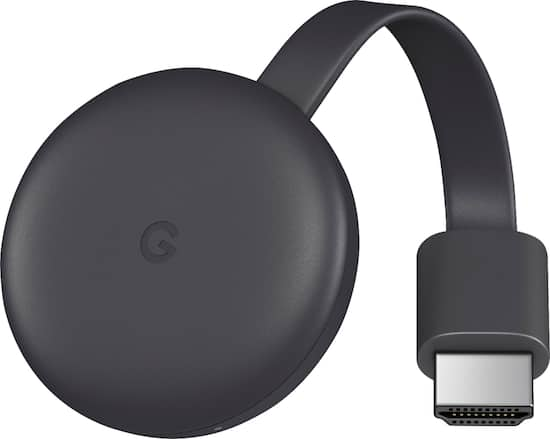
Last but not least, is Google ChromeCast. Google ChromeCast is yet another media player that can turn your Digital TV to a Smart TV. Manufactured by Google, ChromeCast is a media player, that gives you access to many streaming services. Here are the steps to using the ChromeCast to convert your Digital TV to a smart TV.
Step 1: Connect ChromeCast to your TV’s HDMI
Similar to the already mentioned media players; you will need to connect the Google ChromeCast to your digital TV. The ChromeCast comes with an HDMI connector. So all you need to do is locate the HDMI port on your digital TV and connect the ChromeCast HDMI connector. In case your TV doesn’t feature an HDMI port, you can use an HDMI-RCA adapter to connect ChromeCast to your TV
Step 2: Connect ChromeCast To A Power Outlet
ChromeCast comes with a power cable, you can use to power it. All you need to do is to connect the cable to the power port on the ChromeCast and then plug the other end to the USB port on your Digital TV. Please note that the 4k Version of the ChromeCast cannot be powered by a digital TV, you will need a wall socket for connection.
Step 3: Switch To HDMI Input
To gain access to the ChromeCast interface, you will need to switch your TV’s input to HDMI, since the ChromeCast was connected to the HDMI port of your TV.
Step 4: Download Google Home App on your Smartphone
The Google ChromeCast needs a working Google App to function. You are required to download the Google Home App on your smartphone. It is available on both the Android and IOS platform.
Step 4: Setup Google Home App
Launch the Google Home app on your smartphone, click on accept when prompted, you will be taken to the Google Home Page. Click on the devices icon, located on the top-right corner of your screen. Wait for ChromeCast to detect your phone. You will be presented with a confirmation message when ChromeCast recognizes your phone.
Next, you will need to confirm the code on your TV. Once ChromeCast detects your TV, a code will appear on your TV and also on your smartphone. Make sure both codes match. After which you are to tap Yes (iPhone), or I SEE IT (Android).
Now tap continue and then select a wireless network for your ChromeCast. Enter the password and continue. Please note that your smartphone and ChromeCast must be connected to the same network. Follow all other on-screen prompts.
Step 5: Use Your ChromeCast As a Smart TV
Upon completing the steps listed above, you will be able to stream content on your phone, directly on your digital TV. You will also be able to view apps installed on your smartphone
Reading through this article, you must have observed that converting your Digital TV to a smart TV, is a straightforward thing to do. All you have to do is select one these top media players, follow the steps given and you will be home and dry, Streaming media content on your digital TV, as though it was a Smart TV.
If you have any question, regarding this tutorial on how to convert any digital TV to a smart TV, feel free to drop them in the comment section below.
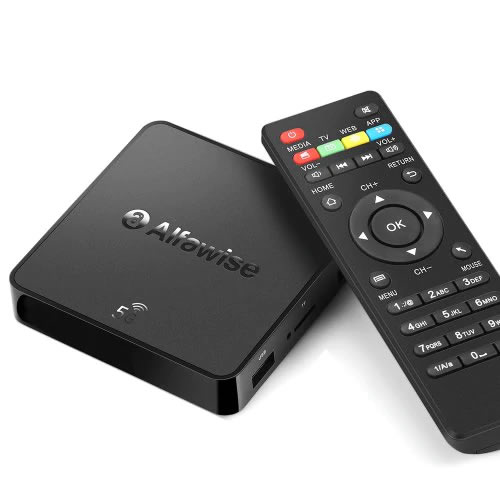
Alfawise A8 Pro Android TV Box
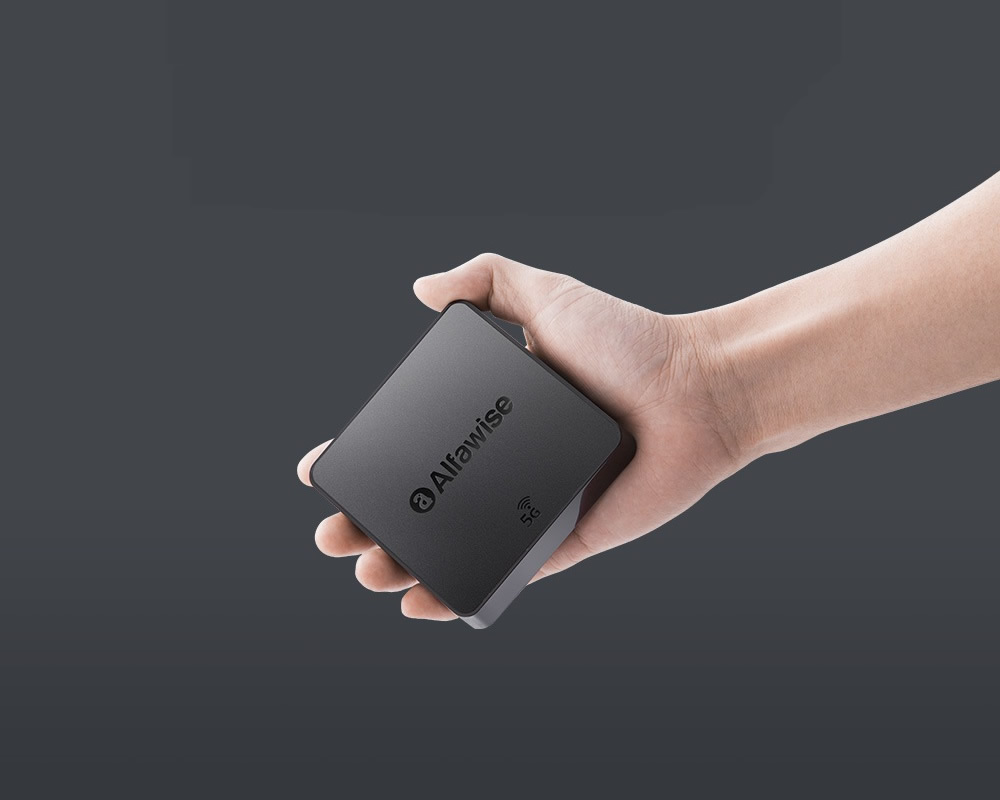
Apple TV, Fire or ChromeCast are the most popular TV boxes in the market. Smaller players like the Alfawise A8 pro device are not so popular but equally effective. It also come way cheaper than most TV box with the same features. The Android TV box comes with both 2.4G and 5G WiFi, provides a faster and more smooth data transmission, which makes it the ideal choice for cord-cutters.
From your A8 Pro Android TV box, you can download apps, watch local TV channels, connect to streaming apps such as Hulu and Netflix. Depending on where you live, you may even be able to connect to premium cable channels at no extra cost, especially if you have installed KODI software.
/cdn.vox-cdn.com/uploads/chorus_image/image/58541691/akrales_170919_1976_0104.0.jpg)
/cdn.vox-cdn.com/uploads/chorus_image/image/61618787/Fire_TV_Stick_4K_with_all_new_Alexa_Voice_Remote___Straight.0.jpg)
You must be logged in to post a comment.