Tag: 2go

  • 2go v1.0.16 – Download for Android

    2go v1.0.16 – Download for Android

    The 2go IM is currently on the Google Play Store but if for some reasons (probably best known to you) you don’t want to download it from the Store, then be my guest: I have uploaded it to this page and the application is all yours the moment you click the download button below this section.

    2go image

    Publisher Description

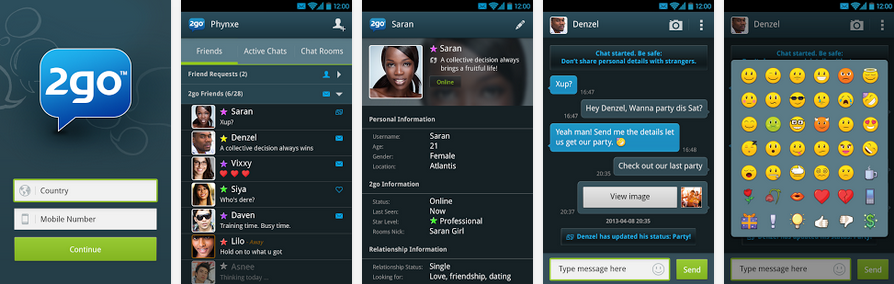
    2go is a mobile social network where you can chat and share with friends and meet new people!
    – Create your own profile and upload profile pictures
    – Share files and photos
    – Share contacts
    – Chat to friends on Facebook, Google Chat and Mxit

    What’s New on 2go?

    The Facebook gateway is available. Chat to all your Facebook friends in 2go!
    v1.0.16
    – Emoticons now selected from text box for easier access.
    – Preview gallery photos before sending.
    – Improved keyboard behaviour.
    – Improved online and offline notifications.
    – Numerous bug fixes and improvements!

    File Info

    – Release Date: October 24, 2013
    – Size: 2.3 MB
    – Version: 1.0.16
    – App Requirement: Android 2.2 and up
    – Age Rating: 16+

    For information on how to use Android 2go Application on PC or Mac click here, otherwise, click on the download button below to start your download.
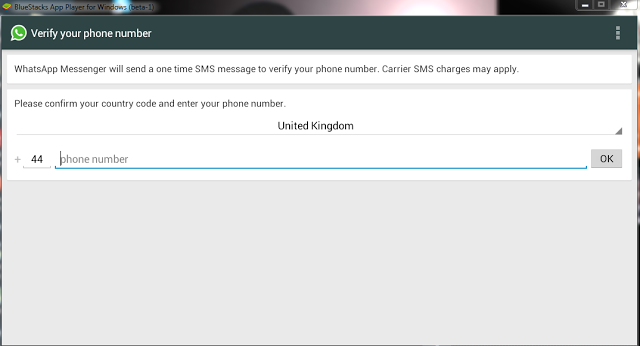
  • Use 2go, BBM & Whatsapp on your Windows PC or Mac

    Use 2go, BBM & Whatsapp on your Windows PC or Mac

    Although future generations of PCs are likely to be operated on Android OS with Lenovo’s latest invention, Windows PC and Mac users can still enjoy Android apps without installing Android OS.

    Bluestacks is a free software that allows you to use your favorite Android apps on a Windows PC or Mac. You can download apps like Angry Birds Space, 2go, Whatsapp or BBM to Go directly into Bluestacks, or sync the apps from your phone using the Bluestacks Cloud Connect Android app.

    Using Bluestacks is similar to using an Android tablet: It works a bit like a widget. When clicked, the BlueStacks App Player will display the ten apps that have already been pre-installed and application suggestions which can be installed using Google Play Store. You can install more application by clicking on More below the big + sign. Bluestacks can be viewed in minimized or full screen.

    Download Bluestacks

    To download Bluestacks, proceed to Bluestacks download page, click on the download button that fits your OS description. The Download Now link will download a small installer file to your desktop. Remain online and double-click the installer to proceed with the actual download.

    Please note that Bluestacks is currently in beta stage: Beta or prerelease software is not intended for inexperienced users, as the software may contain bugs or may potentially damage your system. I strongly recommend that users exercise caution and save all mission-critical data before installing or using this software.

    I have personally tried this software on Windows XP, Windows 7 & Windows 8, the performance is great and it is worth trying!

  • How to Connect your Twitter With your Gtalk, 2go, IM, Gmail

    How to Connect your Twitter With your Gtalk, 2go, IM, Gmail

    Twitter can be boring at time if you have a lots of  followers. I want to save you the stress of visiting your twitter to read and update tweets. I’m going to show you a proving way to update and read your tweets using your Instant Messenger or even your gmail account

    How does it work?

    The tweet.IM service sits between your Jabber or Google@Talk instant messaging account and your Twitter account and passes messages to and from, in both directions. As a result, you can create Twitter messages in your instant messaging application and send them direct to Twitter, without having to enter your Twitter account. You can also elect to receive tweets from users that you follow, directly in your instant messenger.

    HOW TO UPDATE YOUR TWITTER USING GTALK, GMAIL

    •  Visit www.twitter.com and sign in to your twitter account. Now, when you are Logged in, Go to www.tweet.im/ and click on the Sign in with twitter button.
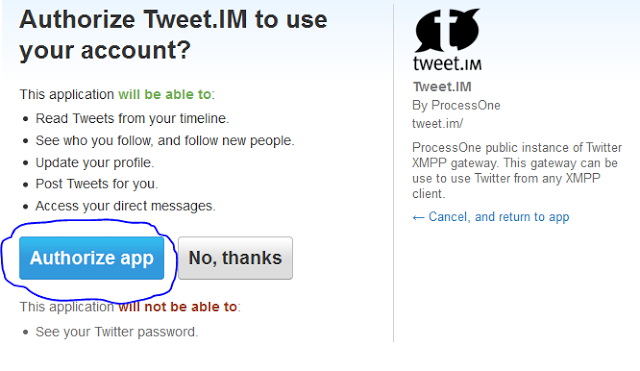
    • Click on Authorise App.
    •   Select Google Talk & put your E-mail address, then click ‘Register’
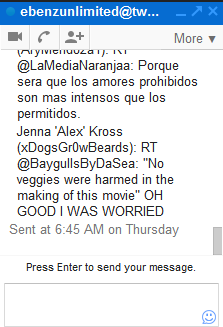
    • Login to your gmail account and you will find a box like this: This is your twitter updates   HOW TO CONNECT YOUR TWITTER ACCOUNT TO YOUR 2GO ACCOUNT
      • Open your 2go and go to Settings , click on Gateway and select Gtalk then activate using you gmail logins all in lower case.
      • Now go to your friend lists and you will see a request from Twitter, click and accept request and add Twiiter as a friend. That’s All.