Tag: Windows 11 update

  • How to Backup Files on Windows 10 and Windows 11

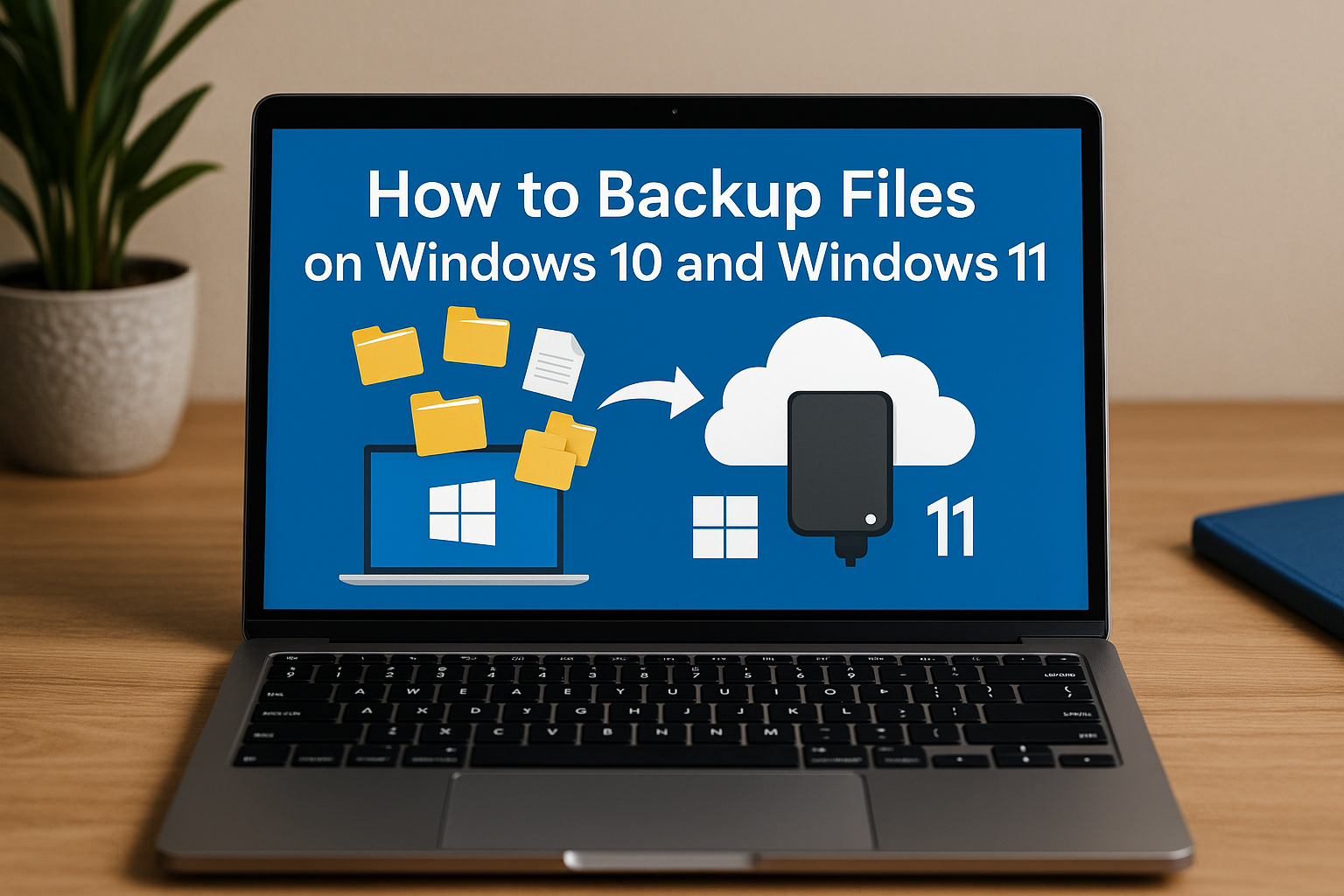
    How to Backup Files on Windows 10 and Windows 11

    Imagine turning on your computer one day only to find your files, photos, and work are all gone. It happens more often than you think, but it’s easily preventable with the right backup plan. Windows 10 and Windows 11 offer powerful tools to back up everything you care about, whether you use an external drive or cloud storage. This guide will walk you through the easiest ways to set up your backup and secure your digital life.

    1. How to Backup Files Using File History (Windows 10 and Windows 11)

    File History automatically backs up important folders like Desktop, Documents, Pictures, and Music. It’s an easy-to-use tool that helps you quickly recover files if they get lost or corrupted.

    Backup Windows 10 to External Drive

    • Step 1: Connect an external drive to your PC.
    • Step 2: Go to Settings > Update & Security > Backup.
    • Step 3: Click Add a drive and select your external drive.
    • Step 4: Turn on Automatically back up my files.
    • Step 5: Click More options to choose which folders to back up and how often.
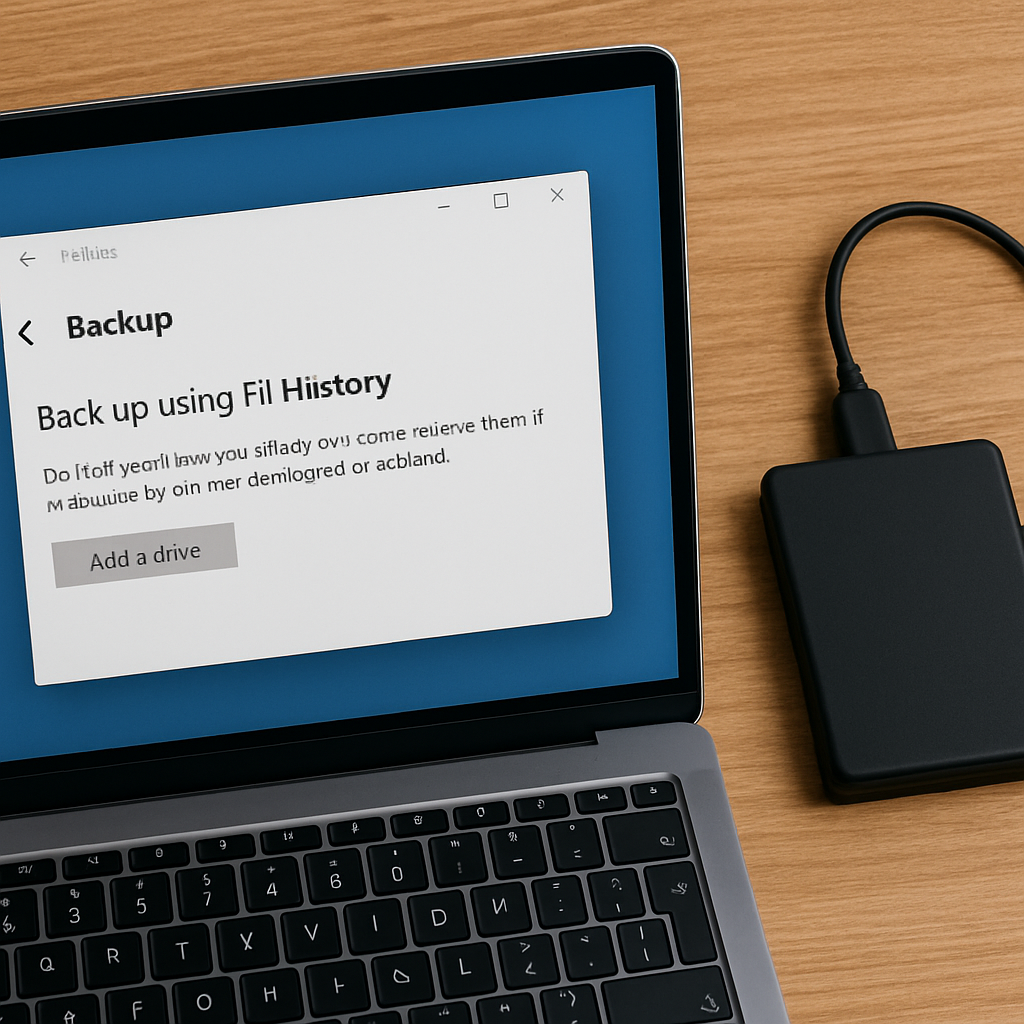
    How to back up Windows 10 and Windows 11

    Backup Windows 11 to External Drive

    • Step 1: Connect your external drive.
    • Step 2: Open the Search bar and type File History.
    • Step 3: Select File History from the search results.
    • Step 4: Click Select drive and choose your backup drive.
    • Step 5: Turn on File History to start backing up your files.

    Note: Windows 11 limits File History to certain folders. To back up other locations, move files into the default folders.

    2. How to Use Windows Backup App

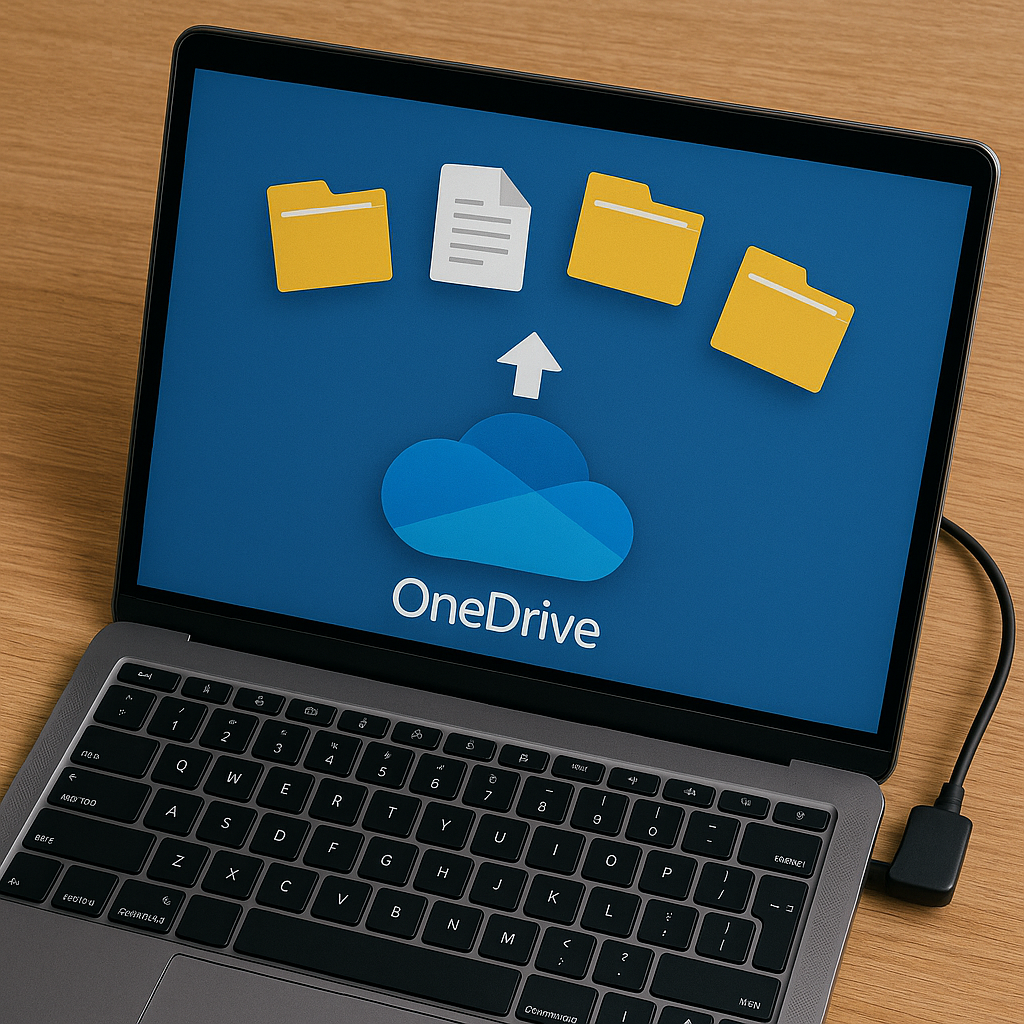
    The Windows Backup app lets you back up settings, files, and apps directly to the cloud (OneDrive). It’s a seamless option if you want to ensure your data is accessible from any device.

    How to Set Up Windows Backup

    • Step 1: Open Settings > Accounts > Windows backup.
    • Step 2: Sign in with your Microsoft account.
    • Step 3: Turn on the options for:
      • Remember my apps
      • Remember my preferences
      • Back up my files to OneDrive

    This makes switching to a new device or recovering files very easy.
    3. How to Create a Full System Image Backup (Windows 10/11)

    System Image Recovery creates a complete copy of your system, including Windows, settings, apps, and files. It’s a great way to ensure that if your system fails, you can quickly restore everything to its original state.

    Create a System Image Backup

    • Step 1: Connect an external hard drive (formatted as NTFS).
    • Step 2: Open the Control Panel.
    • Step 3: Go to Backup and Restore (Windows 7).
    • Step 4: Click Create a system image on the left.
    • Step 5: Choose your external drive or network location.
    • Step 6: Follow the prompts and click Start backup.

    Tip: You must create new system images regularly to keep your backup updated. Make sure your drive has enough space to store the image.

    4. Best Third-Party Backup Tool Option: EaseUS Todo Backup

    For users looking for more flexibility beyond the built-in Windows tools, third-party software like EaseUS Todo Backup can be considered. It offers a variety of features such as:

    • Backing up individual files, folders, entire partitions, or the full system.
    • Scheduling automatic backups based on your preferred frequency.
    • Cloning hard drives for easy migration or upgrades.
    • Saving backup copies to external drives, cloud services, or network storage (NAS).

    EaseUS Todo Backup has both free and paid versions available. Users can explore these options based on their backup needs and preferences.

    Frequently Asked Questions (FAQ)

    Q: How often should I back up my files on Windows?
    It’s recommended to set up automatic backups through File History or Windows Backup to back up your files daily or weekly, depending on your needs.

    Q: Can I back up my system to a cloud service like OneDrive?
    Yes, Windows allows you to back up important files to OneDrive using the Windows Backup app. However, a full system backup (like a system image) requires external or network storage.

    Q: What’s the difference between File History and System Image Recovery?
    File History backs up individual files and folders, allowing you to recover previous versions. System Image Recovery creates a complete snapshot of your entire system, including Windows, settings, and apps, which can be restored in case of major system failure.
  • Microsoft Copilot: Features, Availability, Pricing

    Microsoft Copilot: Features, Availability, Pricing

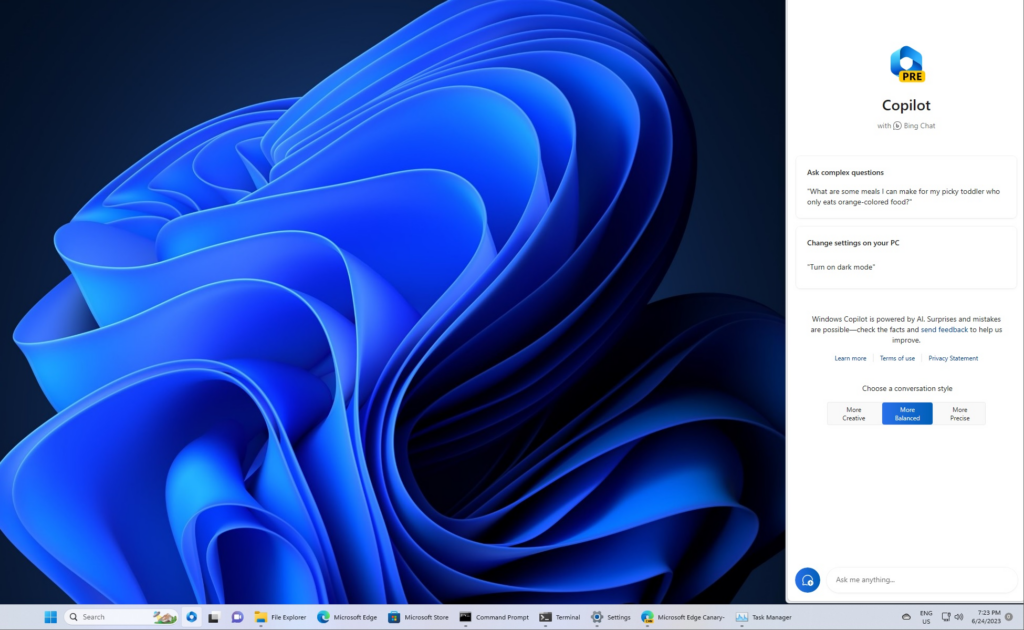
    Microsoft, the multinational technology company bridging the interaction between humans and technology has consolidated this with the introduction of Microsoft Copilot, an AI assistant. Microsoft claims Copilot is capable of assimilating insights from the web. Including data, and PC activities, all the while protecting user privacy and security. Integrated into Windows 11, Microsoft 365, Edge, and Bing, the first rollout of the AI assistant will be accessible as an application with a free update to Windows 11.

    This launch is on the sidelines of some amazing new products designed to amplify productivity and creativity. As well as help people and businesses realize their full potential. Bing and Edge are transforming; introducing the latest DALL.E 3 model from OpenAI to provide customized responses based on user search history and an AI-driven shopping experience. In addition to the product updates, Microsoft announced the launch of new Surface devices.

    Windows 11 Update 2023

    Microsoft Copilot AI Features Windows 11 update
    Windows 11 Update Credit: Windows Latest

    Updated on September 26 with over 150 new features, the new Windows 11 update brings the capabilities of Microsoft AI Copilot. Including File Explorer, widgets boards, paint, backup, etc. Paint has also received an upgrade with AI-driven features such as background removal and layers. Along with a preview of Cocreator. Another feature that benefits from Microsoft’s AI enhancements is Photos. Additions like Background Blur, and improved search capabilities to make locating photos stored in OneDrive a breeze.

    The Windows Snipping Tool now offers expanded content capture options, allowing for specific text extraction from images and providing tools for sensitive information redaction. Sound capturing via audio and microphone support has also been integrated, simplifying the creation of compelling videos and content.

    Clipchamp now boasts an auto-compose functionality, suggesting scenes, edits, and narratives based on your images and footage. In addition to empowering users to create professional-quality videos for sharing. Notepad now automatically saves your session state, allowing for seamless transitions without interruptions, ensuring you pick up right where you left off.

    The new Outlook for Windows offers simplified account management, merging several accounts in one app. Intelligent tools assist in crafting clear, concise emails, and help to easily attach important documents and photos from OneDrive. A modernized File Explorer interface for enhanced accessibility and a new Gallery feature for quick access to photo collections. Additionally, New text authoring experiences, voice access, and natural voices in Narrator are among the upgrades making Windows 11 the most accessible version yet. With Windows Backup, it’s very easy to move files, and applications to a new Windows 11 PC.

    Microsoft Copilot AI Features

    Microsoft Copilot AI Features
    Microsoft Copilot AI Features Credit: searchenginejournal

    Bing and Edge

    Bing and Edge now present features powered by the latest AI language models for a more advanced user experience. There are personalized answers from chat history that provide specific results based on preferences. Shopping via Bing or Edge not only feature customized buying guides, but also summarized reviews, and price match. Making it easier than ever to find what you’re looking for online.

    To improve image generation with greater detail and accuracy, the text-to-image AI model DALL.E 3 has been integrated into Bing Image Creator. Content Credentials for cryptographic markers to AI-generated images have also been added. With Bing Chat Enterprise receiving updates that extend to the Microsoft Edge mobile app.

    Microsoft Designer App

    Designer, the latest addition to our Microsoft 365 consumer apps, leverages AI to facilitate the creation of visually stunning content. Microsoft Designer is a design application that allows users to craft an amazing collection of visuals. From graphics, illustrations, and various other creative elements. This includes features powered by OpenAI’s Dall.E 3. Enabling tasks like generative to expand, fill, as well as erase for a more dynamic visual experience. Designer’s integration into Microsoft 365 Copilot for consumers, starting with Word, augments your document’s visuals with contextual suggestions. This creative tool revolutionizes content creation, providing immediate visual drafts with minimal prompts.

    Latest Surface Devices

    Microsoft also unveiled the latest Surface laptops to deliver exceptional AI experiences across Microsoft products and third-party platforms. It includes a Surface Pro 9 that comes with 5G and Windows Studio Effects. A Surface Laptop Go 3; the lightest and most portable Surface Laptop yet, featuring a responsive touchscreen display. The Surface Go 4 with unparalleled portability in a 2-in-1 form factor. And the 50″ Surface Hub 3 with innovative features like Portrait mode, Smart Rotation, and Smart AV. Opening up new dimensions for co-creation.

    FAQs

    What is Microsoft Copilot?

    Microsoft Copilot is Microsoft’s AI companion integrated into Microsoft 365, Windows 11, Edge, and Bing to streamline operations across them. With Copilot, users gain access to AI-powered assistance across various facets of their workflows within these applications.

    Is Microsoft Copilot Free?

    Starting November 1, enterprise customers can access Microsoft 365 Copilot at a rate of $30 per user per month. Although, the cost of Microsoft Copilot hinges on the application into which it is integrated.

    What is Microsoft 365 Chat?

    Microsoft 365 Chat is a chat interface with access to user data across various Microsoft work applications. This grants it the capability to respond to queries and assist with tasks. It can keep you up-to-date on meetings, locate documents, and provide answers based on the content within your documents, meetings, chats, and more.

    Is Microsoft Copilot Available Now?

    As of September 26, Microsoft Copilot is accessible on Windows 11.

    Can I use Copilot in Windows 10?

    Copilot can be used on Windows 10