Category: Softwares

  • New Release: Opera 16 Browser Has Been Launched

    New Release: Opera 16 Browser Has Been Launched

    The biggest news today is probably the introduction of shared photo album in Facebook. But opera has yet another thing to say in the technology world.

    Today, Opera Software ASA has released a new version of Opera browser just a few months after they released version 15.

    Opera 16 has better performance and improved support for HTML5 than any previous version of the opera browser. This release is also based on Chromium 29.

    Opera twitter update on the 23/08/2013

    The new release will introduce some interesting features such as:

    Feature of Opera 16 Browser

    • Jump List for Windows: Jump lists are now supported on Windows. Jump lists allow quicker navigation from the task bar, like getting an overview of your Speed Dial. 
    • Support for W3R Geolocation API: The geolocation API lets you share your location with trusted websites. When you visit a location-aware website, like foursquare, the browser will ask you to share your location. If you accept, Opera can tell the website where you are located.
    • Presentation Mode fo MAC: Browse the web with presentation mode to get a full-screen experience. Quick tip: you can go straight to presentation mode by pressing shift+CMD+F
    • Form Filler: Save time with the form filler. Simply input your information in the settings and then use to it to auto-fill forms on the web. 

    In  a browser reliability test last week, Mozilla Firefox 23 was flawless. What do you think of the new opera release? You can share your views in the comment section

    Download Opera Browser

    The latest opera release can be downloaded from their official website.   Download Opera 16 for Windows
    Download Opera 16 for Mac

  • Mozilla Firefox 23 Proved Flawless as IE Woes Continue

    Mozilla Firefox 23 Proved Flawless as IE Woes Continue

    In  a browser reliability test, the recent versions of Google’s Chrome and Mozilla’s Firefox are measurably less prone to crashes and errors than Microsoft’s Internet Explorer 10, a new analysis by applications testing firm Sauce Labs has found.

    If this looks like another stick to beat Microsoft’s browser with, it is worth pointing out that the firm’s study of around 55 million tests run using the Selenium platform found that all browsers showed extremely low levels of errors, in the order of 0.12 percent or lower for the “worst” performer, Apple’s Safari 6.

    On the same scale, Opera 12 scored 0.08 percent, IE10 at 0.05 percent, Chrome 27 under 0.02 percent, with Firefox was so low it effectively achieved a remarkable zero, that is to say no errors at all. IE lagged its main rivals but at levels that were already extremely low.

    As interesting as the reliability figures was the level of improvement shown by these recent versions, some only months or even weeks old.

    Internet Explorer 6 (released in 2001 with XP) and 7 (2007) had previously been the worst performers on 0.3 percent each, behind Firefox on Opera 10 (2009) and Firefox 7 (2011) and IE8 (2009) on just under 0.25 percent. It is remarkable that all of these are still used by small percentages of global browser users, but they are also aging software vulnerable to issues more serious than how often they might crash.

    “Half of the browser versions we analyzed had error rates lower than 0.07 percent. That’s pretty low, and suggests that browsers are getting more reliable as more versions come out,” said Luren Nguyen of Sauce Labs.

    Despite lagging slightly, IE had also shown major improvement over time.

    “Microsoft has really been pushing their new version of Internet Explorer as the most modern and high-performing version of IE. You’ve may have seen their nostalgia-tinged IE 10 commercial. The data we have on browser error rates suggests that their claims may have quite a bit of merit,” she said.

    The absolute level of errors in these tests is an imperfect way to measure browser reliability some might argue (can the errors be proved to be the browser’s fault and not the testing suite’s?), but the comparative measurement won’t be coincidence. Errors, which usually result in a crash of some kind, are caused by bugs in the browser code.

    Do error rates really matter? Only when they occur, which seems to be rarely these days.Credit: pcword.com

  • Download Windows Repair 1.5.3 “great freeware for fixing windows registry error”

    Download Windows Repair 1.5.3 “great freeware for fixing windows registry error”

    This great windows software works with all recent windows version both X86 & x64 bit in a “nutshell”
    Windows Repair is an all-in-one repair tool to help fix a large
    majority of known Windows problems including registry errors and file
    permissions as well as issues with Internet Explorer, Windows Update, Windows
    Firewall and more. Malware and installed programs can modify your default settings.
    With Windows Repair you can restore Windows original settings.
    Windows Repair can do the following:
    Reset Registry Permissions
    Reset File Permissions
    Register System Files
    Repair WMI
    Repair Windows Firewall
    Repair Internet Explorer
    Repair MDAC & MS Jet
    Repair Hosts File
    Remove Policies Set By Infections
    Repair Icons
    Repair Winsock & DNS Cache
    Remove Temp Files
    Repair Proxy Settings
    Unhide Non System Files
    Repair Windows Updates
    Repair CD/DVD Missing/Not Working
    and more…
    Windows Repair:
    When you first run the program you will be introduced to 4 steps before the
    repair options. These steps are highly recommend to do before attempting any
    repairs.
    Step 1. Clean Your System Of Infections.
    Trying to fix a system that is currently infected is obviously a very bad idea
    and can make things worse. An infection can hijack a machine and keep part of
    the repairs from running correctly. Since only part of a repair will work the
    other part that failed could end up causing problems. Rule of thumb before
    working on a system is to make sure it is clean. Even if you think your system
    is clean doing a scan before hand is a good idea.
    Step 2. Check File System
    Doing a check disk on the hard drive is a good idea. This will have Windows
    check the file system on the drive fixing any problem it finds. Corrupt files
    can break a lot of things, including the repairs. So making sure the file system
    is good is a must.
    Step 3. System File Check (SFC)
    The built in Windows system file checker is a tool that checks that the Windows
    files are intact, the correct versions and not corrupted. This is a good idea to
    do before doing repairs as if a file is corrupt and we try a repair that needs
    that file then the repair will fail.
    Step 4. System Restore
    Doing a system restore point is a great idea to do before doing any repairs. If
    any unforeseen problems happen after any repair than a system restore can put
    the system back to the way it was before the repairs. This is highly
    recommended.
    Start Repairs
    In this final step you can choose between 3 modes.
    Basic Mode: This will run only the most basic, safe repair options. Extra
    advanced repairs are disabled.
    Advanced Mode: Runs more advanced repairs while leaving a few disabled.
    Custom Mode: Every repair is available. The program will remember your repair
    choices the next time you choose custom mode.
    Download Windows Repair 1.5.3 from this link

  • Mozilla released Firefox 16.0.1

    Mozilla released Firefox 16.0.1

    Mozilla released Firefox 16.0.1 on Thursday in order to fix a publicly disclosed vulnerability and three other security flaws identified after the release of Firefox 16.

    Mozilla pulled down Firefox 16 from its website on Wednesday, one day after its release, because of a vulnerability that potentially allowed malicious Web pages to read the URLs of other websites accessed by visiting users. Such behavior should normally be prohibited by the browser’s security mechanisms.
    The issue was publicly disclosed by security researcher Gareth Heyes on Wednesday. Heyes published proof-of-concept code that, when loaded from an arbitrary Web page, could determine the user name of a user logged into Twitter.
    Mozilla determined that the issue found by Heyes only affects Firefox 16.0 and addressed it in Firefox 16.0.1.
    However, the new version of Firefox also fixes a separate vulnerability discovered by a Mozilla security researcher that can result in a similar behavior. In Firefox 15 and earlier versions this second security issue can also potentially lead to arbitrary code execution.
    In addition, Firefox 16.0.1 fixes two memory corruption bugs in the browser engine that can result in crashes and can potentially be exploited to execute arbitrary code. One of these bugs only affects the Android version of Firefox when running inside custom Android firmware like CyanogenMod.
    Thunderbird 16.0.1 and SeaMonkey 2.13.1 were also released on Thursday in order to address the same vulnerabilities that were patched in the desktop version of Firefox.

  • Mozilla pulls new Firefox version over security concerns

    Mozilla pulls new Firefox version over security concerns

    Less than a day after Mozilla released Firefox version 16 to the public, the browser had to be pulled from the Web over security concerns.

    hacker

    “Mozilla is aware of a security vulnerability in the current release version of Firefox,” Michael Coates, Mozilla’s director of security assurance, explained in a blog. “We are actively working on a fix and plan to ship updates [Thursday]. Firefox version 15 is unaffected.”
    According to Coates, the vulnerability could allow a malicious website to capture a person’s Web history, which could be subsequently used for mischief.

    “At this time we have no indication that this vulnerability is currently being exploited in the wild,” Coates wrote.
    Coates did not note when Mozilla became aware of the new vulnerability, or how it was discovered. Notes from a Mozilla meeting yesterday, however, show that the company was aware of it by 11 a.m. PT Wednesday, when it told developers that a “chemspill” — Mozilla’s term for an emergency update — was necessary.

    In a precautionary move, download versions of Firefox 16 have been removed from Mozilla’s installer page. Mozilla expects an updated version of Firefox that addresses the security vulnerability to be available Thursday.
    While Mozilla has taken down Firefox 16 from its website, the security-challenged version of the browser is still available on the Internet. For example, Yahoo is flogging Firefox 16 at its website and through ads in Google search results.
    If you have Firefox 16 on your computer, it will automatically be updated with the new version when it’s available. If you’re feeling squeamish about having Firefox 16 on your machine, Mozilla recommends that you downgrade your Firefox version to the 15.0.1 release of the software.
    While the version of Firefox 16 released Tuesday missed one vulnerability, it addressed a number of others including memory corruption and memory safety hazards, a buffer overflow bug and a spoofing and script-injection flaw.
    Update: Mozilla released Firefox 16.0.1 on Thursday, which fixes these security flaws. Read the report on this new version of Firefox.

  • Firefox 16 arrives with a raft of critical fixes

    Firefox 16 arrives with a raft of critical fixes

    Shortly after Firefox regained its No. 2 position in the browser arena, Mozilla on Tuesday unleashed the next version of its popular open source browser complete with fixes for numerous critical vulnerabilities

    Holes associated with a full 14 security advisories were closed in the new Firefox 16, in fact, 11 of them rated “critical.”
    Also notable about Firefox 16 are features including a new developer toolbar, early Web app support, preliminary VoiceOver support in the Mac OS X version, and a new Reader Mode in the Android version.
    ‘A growing set of novel features’
    Among the vulnerabilities fixed by Firefox 16 are memory corruption and memory safety hazards, a buffer overflow bug, and a spoofing and script-injection flaw.
    Most were also corrected in Thunderbird 16 and SeaMonkey 2.13, both of which were released on Tuesday as well, in addition to being backported to the business-oriented Extended Support Release (ESR) versions of Firefox and Thunderbird.

    With initial support for Web apps in the desktop Windows, Mac, and Linux versions of Firefox 16, meanwhile, developers can now begin building self-contained versions of their websites that are installed by the user, can run offline, and “don’t always require the chrome of a browser window,” Mozilla explains. Web apps also “have access to a growing set of novel features, such as synchronizing across all of a user’s devices,” it adds.

    Eventually, Web apps will be distributed through the forthcoming Mozilla Marketplace.
    ‘Removes all the clutter’
    Mac users will find that preliminary support for the VoiceOver screen reader is now turned on by default in Firefox 16, while new features in the Android version include a Safari-like Reader Mode that “removes all the clutter from Web pages and shows you only what you want to read in a minimalist UI,” as Firefox Mobile developer Lucas Rocha explained in a blog post this summer.
    Also new on the Android side are the ability to use a “Share” menu item to send tabs to other devices through the “Firefox Sync” option and a feature designed to ensure that malicious “tel: URLs” crafted to wipe the phone can no longer be opened.
    Ready to give the latest and greatest Firefox a try for yourself? It’s now available as a free download in desktop and mobile versions on the Mozilla site.

  • Firefox 15.0.1 Fixes Bug That Exposed Websites Visited in Private Browsing Mode

    Firefox 15.0.1 Fixes Bug That Exposed Websites Visited in Private Browsing Mode

    Mozilla released Firefox 15.0.1 on Thursday in order to fix a bug that potentially exposed the websites visited by users while in “Private Browsing” mode. The goal of the “Private Browsing” mode is to enable Firefox users to surf the Web without leaving any traces of the visited websites behind.
    According to a support article on Mozilla’s website, while running in Private Browsing mode the browser shouldn’t save visited pages, form and search bar entries, passwords, download entries, cookies, or temporary Internet files, which are collectively known as cached Web content.
    The cached Web content consists of images, script files and other resources downloaded automatically by the browser from visited websites. These files are saved and loaded directly from the disk when a Web page is revisited in order to decrease the page’s overall loading time.
    The bug addressed in Firefox 15.0.1 caused temporary Internet files to be saved inside the browser’s disk cache instead of its memory cache when browsing in private mode. Unlike the disk cache, the memory cache is automatically cleared when the browsing session is terminated.
    Because temporary files are saved inside the cache together with their original URLs, they can expose what websites users visited while the browser was running in Private Browsing mode.
    According to a discussion on Mozilla’s Firefox bug tracker, the bug was introduced in Firefox 15.0, but was also present in development builds of Firefox 16, 17 and 18.
    Users should be aware that when upgrading from Firefox 15.0 to Firefox 15.0.1, the temporary files already stored in the browser’s disk cache are not automatically removed.
    While in Private Browsing mode, Firefox 15.0.1 will no longer create temporary files on the disk, but the files already created because of the Firefox 15.0 bug will persist until manually removed.
    Instructions on how to clear the entire Internet cache in Firefox are described in a support article on Mozilla’s website.
    Users who want to review their disk cache entries can type about:cache in the browser’s address bar and click on the “List Cache Entries” link from “Disk cache device” section.

  • Universal Master Code Calculator: Unlocks Phone and Modems

    Universal Master Code Calculator: Unlocks Phone and Modems

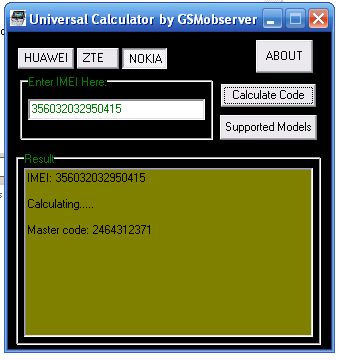
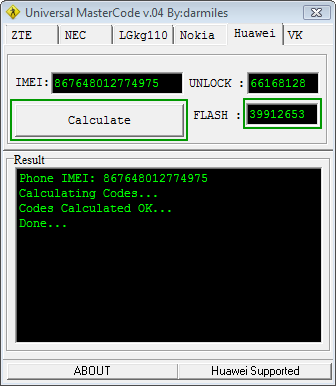
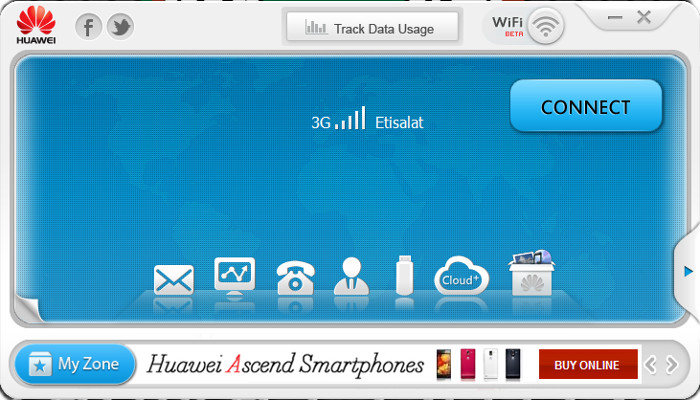
    Universal MasterCode Tool is a free software that can be used to calculate unlock codes for ZTE, NEC, LGk110, Nokia, Huawei and VK phones and USB modems. It’s one the tools required to unlock stubborn E303 Glo Bolt modems. Needless to say, the software can be used to unlock other USB modems including MTN, Etisalat, Airtel and Glo Modems. It has a very light, portable and user friendly interface. Even the biggest computer novice can use it.

    Universal Master Code Calculator to Unlock my Phone and Modems
    Universal Master Code Calculator to Unlock my Phone and Modems

    The try-to-success rate of the Universal Master Code Calculator app used for Unlocking several models of Phone and Modems is amazing for an app of this size.

    It answered the question of how to unlock my phone for us back in the days and so, should be a reliable tool for unlocking a wide range of modem and mobile internet devices.

    Huawei Supported Devices

    E156 E155, E1550 E1552, E156G E160, E160G E161 E166,
    169 E169G, E170, E172, E176 E1762 E180 E182E E196 E226 E270,
    E800,E870 E880 EG162 E880 EG162 EG162G EG602 EG602G,
    E271, E272, E510 E612 E618 E630 ,E620 E630+ E660 E660a,
    VODAFONE
    K2540, K3515 , K3520, K3565, K3520, K3565

    File Info

    Type of File: Application (.exe)
    Description: universal calculator
    Size: 540 KB (553,472 bytes)

    Click Here to Download Universal MasterCode Tool

  • Firefox 15 Beta Tackles Memory Leaks

    Firefox 15 Beta Tackles Memory Leaks

    Mozilla has released a beta version of the next version of its Firefox browser with better memory management and significant speed improvements. “Firefox 15 prevents most memory leaks caused by add-ons, including Firebug,” Nicholas Nethercote writes in a Mozilla blog. Firebug is a Firefox add-on for debugging web pages. “For many users with add-ons installed, this will significantly reduce Firefox’s memory consumption, without requiring upgrades to those add-ons,” he adds. “For those users, Firefox 15 is likely to be faster (sometimes drastically so) and less likely to crash, especially if they have multiple add-ons installed and/or keep Firefox running for a long time between restarts.” Nethercote explains that add-on memory leaks are caused by “zombie compartments,” where information from web pages is stored and remains after you close a page or depart from it. Firefox 15 cleans out those compartments, a move that its developers weren’t entirely sure would work. Much criticism has been leveled at Firefox since its inception over its piggish memory practices, but in recent months it has made great strides in its memory management. Last November, for instance, it put SpiderMonkey, the Javascript engine used by the browser, on a diet. And in May, it announced its campaign to plug memory leaks in add-ons.

    In addition to better memory management, Firefox 15 also supports theOpus audio format. The format, which can be played directly in Firefox 15, offers better compression formats like MP3, Ogg, or AAC; is good for both music and speech; can dynamically adjust bitrate, audio bandwidth and coding delay; and supports both interactive and prerecorded applications. “We think Opus is an incredible new format for web audio,” Timothy Terriberry writes in a Mozilla blog. “We’re working hard to convince other browsers to adopt it, to break the logjam over a common

    format.” The “prime time” version of Firefox 15 is scheduled for avaiability August 28.  

  • Mozilla Puts the Brakes on Thunderbird

    Mozilla Puts the Brakes on Thunderbird

    Mozilla may be best-known for its popular Firefox browser, but some 20 million users around the globe also know it for Thunderbird, its free and open source desktop email client.
    Just a month after the release of the latest version 13 of Thunderbird, however, a leaked email on Friday apparently forced Mozilla to admit that it’s putting the brakes on internal Thunderbird development.


    “Once again we’ve been asking the question: is Thunderbird a likely source of innovation and of leadership in today’s Internet life? Or is Thunderbird already pretty much what its users want and mostly needs some on-going maintenance?” wrote Mitchell Baker, chair of the Mozilla Foundation, in a blog post on Friday.
    Mozilla’s conclusion, it turns out, is that “ongoing stability is the most important thing, and that continued innovation in Thunderbird is not a priority for Mozilla’s product efforts,” Baker added.
    Accordingly, it has developed a plan that “provides both stability for Thunderbird’s current state and allows the Thunderbird community to innovate if it chooses,” she explained.
    Two Thunderbird Tracks
    Specifically, Mozilla will continue to provide security maintenance updates through an Extended Support Release (ESR) process similar to what it has for Firefox targeting large organizations that use the software.
    There is already a Thunderbird ESR version, and the next release of that software is due in November. “It will inherit the then-current Thunderbird feature-set,” Mozilla explains in an article on the MozillaWiki. “This release will be updated every six weeks, for the duration of the ESR cycle to ensure the best possible security and stability for organizations.”
    The non-ESR version of Thunderbird, meanwhile, will be released with the same feature set as Thunderbird ESR and will be updated every six weeks for security and stability. Unlike Thunderbird ESR, however, this version could evolve over time feature-wise if members of the community choose to work on it.
    Baker’s sentiments were largely echoed in a follow-up blog post on Sunday by Thunderbird Managing Director Jb Piacentino, who noted that Mozilla is increasingly shifting its focus towards Web and mobile projects such as FirefoxOS.
    A Final Plan in September
    Indeed, as Web-based email services skyrocket in popularity, it’s not entirely surprising to see Mozilla make this move.
    Still, as a longtime user of Thunderbird, I can’t help but feel a little sad. I hope that some passionate fans out there will pick up the project and keep it vibrant, but Baker doesn’t sound entirely confident that that will happen.
    Who knows? Maybe we’ll even see Ubuntu Linux maker Canonical step in, as at least one observer has suggested.
    In any case, Mozilla is interested in any feedback, particularly from potential developers interested in picking the project up. It aims to share a final plan of action in early September, Piacentino says. I’ll let you know if I hear any significant news before that.

  • The Arrival Of Firefox 14 Beta with an Extra Shot of Security

    The Arrival Of Firefox 14 Beta with an Extra Shot of Security

    Mozilla’s new Firefox 13 browser may have just barely landed on users’ PCs, but already forward-looking fans can check out the beta version of Firefox 14–and the Aurora version of Firefox 15, too.
    Most notable in Firefox 14 are new security features that “make it easier for users to control their Web experience,” according to the official announcement late last week on the Mozilla blog.
    Several new features in the upcoming version of this popular free and open source browser are designed to make life better for users, in fact. The final version isn’t expected until July, but here’s a rundown of some key improvements you can expect.

    1. HTTPS by Default

    In the new Firefox 14 beta, HTTPS is enabled by default for Google searches to help protect users “from network infrastructure that may gather data, modify or censor search results,” Mozilla explained. This feature also stops third-party sites from gathering search data when you click on items on a search results page. “We look forward to supporting additional search engines as they enable SSL searches,” Mozilla wrote.

    For sites with an EV certificate, Firefox 14 displays a green lock icon and the site owner’s name (Click image to enlarge.)2. A New ‘Red Flag’

    Also included in the latest Firefox beta is a new way to display the verified identity of a website in the browser’s Awesome Bar, or URL field. Specifically, a globe icon positioned next to the domain indicates a site not using SSL encryption, while sites with SSL encryption include a lock icon and show “https.” Sites that have an Extended Validation (EV) certificate, meanwhile, are indicated by a green lock icon and include the name of the site owner. Sites with mixed http and https content show a gray triangle icon as a warning. Bottom line: a quick visual guide to the security level of the site you’re visiting, making “spoofing” of secure sites much more difficult.

    3. More Control Over Plug-ins

    The upcoming Firefox 14 lets users control how plug-ins like Flash and Quicktime play through a new feature that can add a “play” button to all plug-in content; users can then simply click “play” to begin viewing immediately. “Future releases will include more specific customizations and a robust interface; for now, you can experiment with the feature by selecting plugins.click_to_play to ‘true’ in about:config,” Mozilla explained.

    4. Better Lion Support

    For Mac users, Firefox 14 now offers native full-screen support of OS X Lion 10.7, providing “a richer and more immersive browsing experience,” as Mozilla puts it.

    5. URL Auto-Complete

    Last but not least, Firefox 14’s Awesome Bar now auto-completes URL domains as you type them, potentially making the process quicker than ever.
    There are also a few key new features for developers in the Firefox 14 beta, including a pointer lock API and pseudo class lock.
    And what of Firefox 15? The Aurora version of that software is now available as well. The most notable new addition there is native PDF support–a feature Google’s competing Chrome browser has had for some time.
    Neither of these new browser releases is designed for production purposes, of course, but if you’re interested in checking them out, they’re both available as free downloads for Windows, Linux, and Mac. Firefox 14 beta can be found in Mozilla’s beta channel; the early Firefox 15 is on the Aurora page.

    Important Notice: Tweet this article with the bookmark social media share below to stand a chance to win an ipad or start making money with your twitter account (it works only with your twitter account and the more articles you tweet the more you stand a chance to win an Ipad)

  • Reasons to Download Firefox 13

    Reasons to Download Firefox 13

    Between its use of SPDY by default and speed gains through Mozilla’s “Project Snappy,” Firefox 13 has been generating excitement for some time already. Now, the final version of the software is here at last.

    Mozilla on Tuesday launched this latest version of its popular free and open source browser, which comes packed with numerous significant new features that promise to make life better for users in myriad ways.
    If you already use Firefox, this new update will likely be on its way to you automatically through Mozilla’s now nearly silent update process, which debuted in the Windows version of Firefox 12.

    If you’ve been using something else to browse the Web, though, this would be a great time to give Firefox a fresh look. The video below offers an overview of what’s new, but here are a few key reasons why Firefox 13 is well worth checking out.
    1. Speed
    Though SPDY has been included in Mozilla’s browser since Firefox 11, Firefox 13 marks the first time it’s been enabled by default. Designed as a successor to HTTP, SPDY reduces the amount of time it takes for websites to load, so “you will notice faster page load times on sites that support SPDY networking, like Google and Twitter,” according to today’s official announcement on the Mozilla blog.
    2. Security
    SPDY also delivers a boost in security to Firefox 13 thanks to the fact that it encrypts all communication with SSL so as to make browsing more secure.
    3. A New Home
    Those of us who have been using Firefox for some time will notice a freshly redesigned home page in version 13. Now included, for example, are icons at the bottom of the page that provide easy access to bookmarks, history, settings, add-ons, downloads, and sync preferences via one-click shortcuts.
    http://www.youtube.com/embed/HRp4a_24cp8?feature=player_embedded
    4. A New Tab Experience
    Firefox 13 also offers a better experience when you open a new tab, similar in many ways to how Google’s Chrome browser does it. Specifically, you’ll see thumbnails of your most recently and frequently visited sites. The software also lets you customize the New Tab page by adding or removing thumbnails based on the pages you visit most.
    5. More Speed
    I wrote last month about Mozilla’s “Project Snappy,” and several key improvements from that effort combine to give Firefox 13 yet more speed. For example, when restoring a browsing session, Firefox first loads the tab you are currently viewing, then it loads background tabs on demand when you click them. “It’s an improvement that makes Firefox start faster and use less memory,” Mozilla explains.
    Also resulting from Project Snappy are an improved mechanism for reducing Firefox’s memory usage, a faster “first paint” when the browser is launched, and several other improvements.
    6. It Speaks Your Language
    Last but not least, Firefox 13 adds support for the Khmer language, making the browser accessible to an additional 15 million users around the globe. Firefox is now available in more than 85 languages.
    Want to see the full release notes for Firefox 13? They’re available on the Mozilla site. Want to give the software a try? It’s a free download for Windows, Linux, or Mac.

    Important Notice: Tweet this article with the bookmark social media share below to stand a chance to win an ipad or start making money with your twitter account (it works only with your twitter account and the more articles you tweet the more you stand a chance to win an Ipad)

  • Total Freedom From iTunes With ‘Amazing’ Spotify Premium

    Total Freedom From iTunes With ‘Amazing’ Spotify Premium

    Spotify’s desktop application is a fantastic music manager and a good replacement for our itune. Here’s is a complete walkthrough on how to make spotify you default music application.

    Are you tired of your current music-management software? Invest in a Spotify membership and declare independence from iTunes, Google Music, or any other music app you’re fed up with. iTunes in particular is becoming pretty bloated, especially for Windows users–but I’ve barely seen it over the past few months thanks to Spotify and the new ability to upgrade my iOS software on my iPhone itself.

    As long as you’re already paying for Spotify Premium, make Spotify’s mobile app your phone’s default music player. Spotify’s hybrid approach–storing your most-played tunes on disk while letting you stream anything from its massive song library–gives you a much larger musical selection on the go. If you’re buying more than an album or two every month, it’ll also save you money.
    Here’s the fastest method to make Spotify your default music manager. Since iTunes is the thorniest music-management app to get rid of, I’ll use it as my example, but these methods should be just as easy (or even easier) on Android phones running other music-management apps.

    Initial Housecleaning

    The first step is to make room for Spotify to start managing your tunes by commanding your current music-management app to stop syncing your smartphone with your music collection. iTunes at least makes this process fairly easy: While your phone is synced to your PC, switch to the Music tab in the device management options, and uncheck Sync Your Music. iTunes will warn you that this action will delete all the music off your phone, but since that’s exactly what you want, click OK. Now you should have plenty of room to start syncing with Spotify.
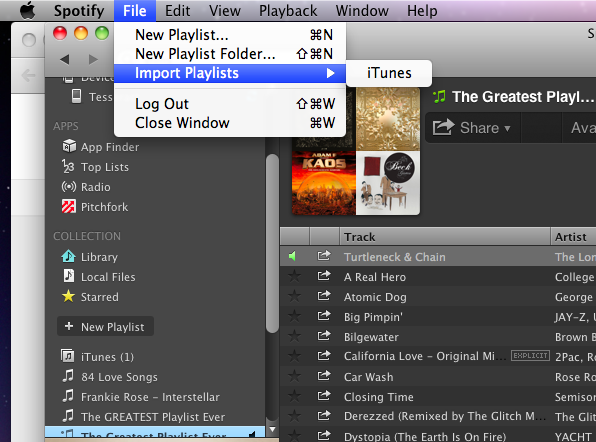
    Next, set up Spotify as an iTunes replacement. This step is simple, since Spotify asks whether you want to automatically import your iTunes library the first time you open it. This procedure will not only bring all your local files into the application (as long as you’ve linked them with your iTunes library) but also import all your iTunes playlists.
    Declare Independence From iTunes With Spotify Premium
    If you declined this option when you first started Spotify but want to import your iTunes library now, or if you merely want to import a library from another music manager, that’s simple enough. Open Spotify, navigate to File > Import Playlists, and then choose iTunes, Windows Media Player, or whatever other supported music application Spotify can find on your PC. Keep in mind that Spotify playlist imports sometimes require a bit of cleaning up; in my case, for example, Spotify attempted to sync the iTunes library of each of my computers separately, which resulted in quite a lot of copies of the same material. However, even with a manual check and some deletions, getting your Spotify application set up with all your iTunes music and playlists shouldn’t take more than 5 to 10 minutes.

    Syncing

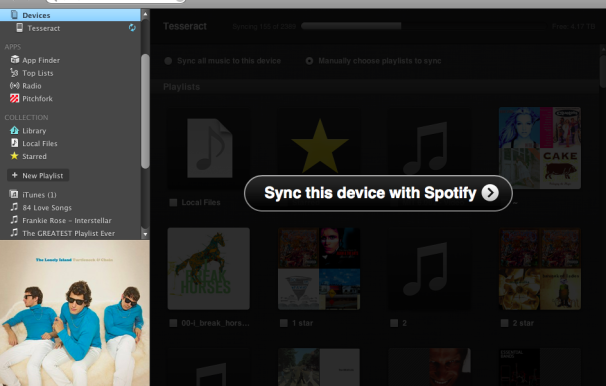
    Once Spotify is set up on your computer, it’s time to start syncing your files onto your phone. Again, Spotify makes this step fairly straightforward, but the process involves quite a few more pitfalls that you need to be ready for. First, the good news: All you have to do is connect your phone to the same wireless network as your computer, open Spotify on your PC, and then select your phone under the Devices tab in Spotify’s left navigation pane. Click the big Sync this device with Spotify button, and select the playlists you want to download to your phone.
    Declare Independence From iTunes With Spotify Premium
    The bad news is that Spotify syncing suffers from a few irritating hiccups. Since it syncs wirelessly, it’s much slower than iTunes syncing by USB. Syncing 3000 or so songs to the Spotify app on my phone took me almost 10 hours. By itself, that wouldn’t be a huge issue, since I could just leave my phone on overnight, but Spotify also stops syncing when you leave your smartphone inactive for too long. Here’s hoping that Spotify will patch this glaring error in a future update. For now, though, this limitation makes it difficult to have Spotify sync your whole library in the background. If you’re thinking of using Spotify as a straight replacement for your music app, and if you have a gigantic music library, syncing everything will be a time-consuming process.
    Instead, consider being more selective as to which playlists you listen to. Spotify syncing works much more elegantly if you don’t try to make it emulate iTunes exactly, so I suggest adding local files to Spotify gradually. Find 300 to 500 songs you know you’ll want to listen to regularly, and sync those first. Then, when you’re out and about, you can choose to save the music you find yourself streaming too often as an offline mode playlist. You probably won’t find more than 100 songs or so on any given day that you’ll want to add like this, so syncing them should be a fairly quick affair.
    Don’t worry about the syncing process eating up your bandwidth. Unless you explicitly tell it to sync over 3G, the Spotify mobile app will wait until you’re on a wireless network. You can just tell it what you want to have permanently downloaded, and it will add those items to your local library the next time you’re near a stable Internet connection.

    A Few More Obstacles

    You should keep some other small roadblocks in mind as you declare your phone’s independence from iTunes. Many of these obstacles are relatively minor and easily solved; you can’t delete the iOS default Music app, for instance, even if you don’t have any music synced with it. I suggest hiding it in a folder and ignoring it. Other issues, however, are slightly more serious.
    For the most part Spotify should import all of your music and give you access to Spotify’s library of millions of streaming songs, but if you’ve downloaded a lot of DRM-protected music from iTunes or another music store, things get more complicated. Since Spotify won’t be able to play your DRM-protected files, the service automatically matches those tracks with songs that reside in the global Spotify library. Thus, if you’ve bought, say, a Ratatat album with DRM on iTunes (as I did while writing this article), you should still be able to play it in Spotify by streaming it from Spotify’s library.
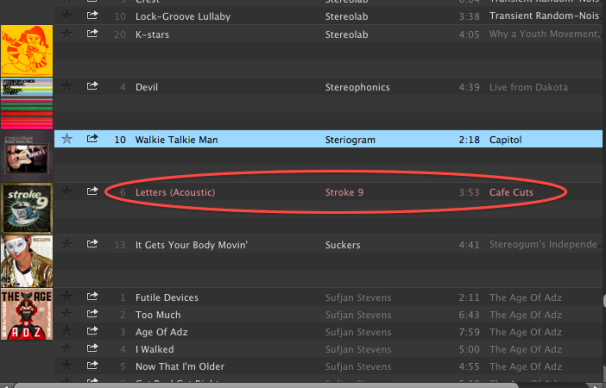
    Declare Independence From iTunes With Spotify PremiumOn rare occasions, Spotify won’t be able to find a match for your DRM-protected music in its online library.
    At times, however, Spotify won’t find a match for one of your DRM-protected songs, and you’ll be unable to play your music. This occurrence should be fairly uncommon (in my library of 7000 songs, I had a grand total of five unplayable tracks, three of which were free iTunes “Song of the Day” selections I haven’t listened to in years), and you can fairly easily resolve the problem by stripping the DRM off of your iTunes track. You’ll need to go through your library and look for tracks listed in red; these are the songs on which you’ll have to remove the DRM.
    Also, as much as this method frees you from iTunes for everything but backing up your data, it ties you heavily to Spotify. If you ever stop paying for Spotify Premium, you’ll lose access to offline mode, which means that any music you haven’t synced from your local computer–including Spotify copies of your DRM-protected music–won’t be available on your phone any longer.
    Nevertheless, as an iTunes replacement, Spotify Premium is a great choice. Spotify comes with its own set of inconveniences and annoyances, but once you get past the basic setup it’s hard to argue with on-demand access to Spotify’s music library on the go. Happy listening!

  • 7 Great Google Spreadsheet Gadgets

    7 Great Google Spreadsheet Gadgets

    7 Great Google Spreadsheet Gadgets
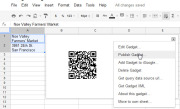
    Inside Google Docs’ spreadsheet component, you’ll find gadgets that endow the app with powers thatTurn text into a QR code.even Excel users will envy. Included are tools for creating animated pie charts, producing QR codes, generating organizational charts, and more. You can also plot data in color by country on a map, and you can publish a map with your office location marked on it. All of these tricks are easy to pull off–I’ll show you how.

    1. Make Your Own QR Codes

    QR codes are ubiquitous these days. They’re a great way to share contact details, URLs, product information, and other brief amounts of text. To create a QR code in a Google Docs spreadsheet, first type the text for the code into one or more adjacent cells in a column of the spreadsheet. Choose Insert > Gadget >All,locate the QR Code gadget, and click Add to spreadsheet. When the Gadget Settings dialog box appears, drag over the cells containing the text for the code, click OK, and then clickApply & Close. The generated QR code will display in the gadget dialog box. You can drag the gadget dialog box–as you can all gadget dialog boxes–and place it anywhere on the spreadsheet. To see the options for working with any gadget, click the down arrow in the top corner of the gadget dialog box. The options for the QR Code gadget include using ‘Publish Gadget’ to obtain some code that you can use on your website to display the QR code. You can also use Print Screen on the code and then insert it into a document or other publication.

    2. Make Your Own Custom Google Map
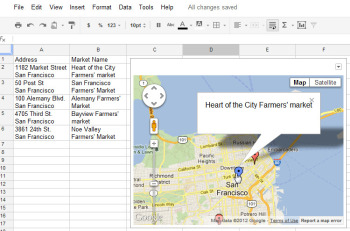
    7 Great Google Spreadsheet GadgetsThe Map gadget uses content from Google Maps to display the addresses you have entered as markers on the map.Pictures convey more information than words do, and a map offers the easiest way to show people where your office and other places of interest are located. The Map gadget lets you create a custom Google Map with pointers to the places you want to highlight, and it’s simple to use. To begin, type a list of addresses, one per row down a single column. If you want a tooltip to appear over the map location when someone hovers over the marker, type the text for this item in the cell to the right of the address. For example, to produce a map of local farmers’ markets, type each address in one cell and the name of the farmers’ market in the adjoining cell to the right. Choose Insert > Gadget >Maps, and click Add to Spreadsheet. Now select the range of cells containing your address and tooltip data, and then enter a title for the map in the Title box. If your data includes tooltips, select the Last Column as Tooltips checkbox, and then click theZoom Using Mouse Wheel checkbox. From the ‘Map type’ list, select the type of map–Normal is a good choice–and then click Apply & Close. The gadget dialog box will now show a map with the addresses plotted on it. As with the other gadgets, you can publish the Map gadget for use on your website to show your business locations or places of interest to your customers.

    3. Create Quick and Easy Organization Charts

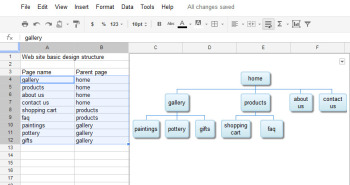
    Organization charts are handy for describing how your business is set up, but they also work well for diagramming website designs and displaying any other data in a hierarchical arrangement. 7 Great Google Spreadsheet GadgetsThe Organization Chart gadget can create a hierarchical chart showing the design for your website or the management structure of your business.
    4. Produce an Interactive Table
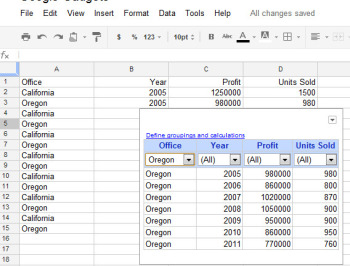
    7 Great Google Spreadsheet GadgetsAt its simplest, the Table gadget lets you filter data to see a subset of it.The Google Table gadget allows you to analyze data by creating a table that supports filtering, grouping, and even totaling. Insert the gadget by choosingInsert > Gadget > Tables > Add to spreadsheet. Select the range containing your data, including the heading row, and click OK. Click in the Title box and type a title for your tables. Select the checkboxes for Show Filters and Enable Grouping, and then click Apply & Close.To group the data by the contents of column A, for example, click the Define groupings and calculations link, select that column’s heading, and click the arrow to add it to ‘Group by Box’. Click Next, and select a column to calculate. To sum Profit, for instance, set the Profit entry to Total. You can apply calculations to multiple columns, if you desire, or to none at all if you just want to group the data.You’ll see a table appear in the gadget dialog box, with the headings over each column. Use the filter box at the top of each column to filter that column of data. Click OK, and the gadget will show you the grouped data, with any calculations appearing in the row above the appropriate group. You can collapse and expand the groups as necessary to see the values in the table.

    5. Create a Gantt Chart From Project Data
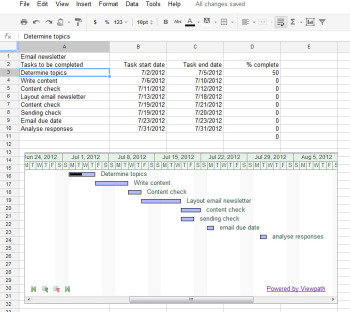
    7 Great Google Spreadsheet GadgetThe Gantt Chart gadget illustrates the tasks in a project and the time allotted for each of them.You can use a Gantt chart to display projects involving tasks that must be performed over time. To make this type of chart, you need three columns of data (with an optional fourth column). In the first column, place a list of the individual tasks in the overall project–the steps needed to create and publish an email newsletter, for example. In the second column, place the start date for each task; in the third column, insert the end date for the task. If you wish, you can add a fourth column containing the percentage completed for that task. To produce the Gantt chart, chooseInsert > Gadget > Charts. Locate the Gantt chart and click Add to spreadsheet. Select the data for the tasks, the start and end dates, and the completed percentage, and click OK. Set the Name column to the column containing the task names. Set the Start column, Finish column, and % Complete column to the column letters containing that data (typically columns B, C, and D), and click Apply & Close. The Gantt chart will present the tasks to be completed, their start and end dates, and the progress made toward their completion to date.

    6. Plot Data as Colors on a Map
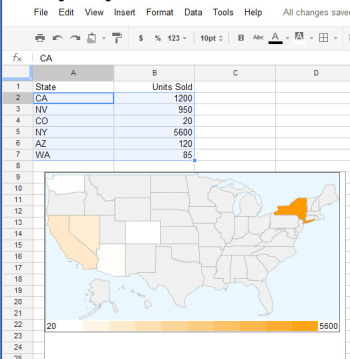
    7 Great Google Spreadsheet GadgetThe Heatmap gadget shows relative values as colors on a map.You can plot data related to states or countries on a heat map, with small values indicated by light colors and larger values rendered in darker and more saturated colors. To plot the data correctly, you must use ISO country codes (or, for U.S. states, the usual two-letter state codes). Place the data to plot in the cell to the right of each relevant state or country. Choose Insert > Gadget > Map > Heatmap, and then click Add to spreadsheet. Select the data–including the locations and the data to plot, but not the column headings–and click OK. Type a title for the heatmap in the Title box, select the map type from the Region box (click USA to plot data on a United States map), and click Apply & Close. The map will appear with the regions colored appropriately for the value of the data associated with each.

    7. Create an Animated Pie Chart
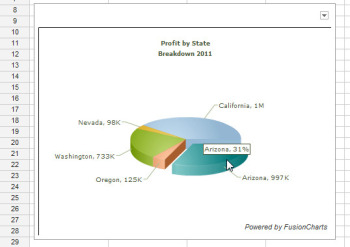
    7 Great Google Spreadsheet GadgetsDrag on a pie slice in the animated pie chart to offset it from the chart itself.Interactive charts are more interesting to look at than static graphs. You can create animated pie charts in a Google spreadsheet using a gadget. For this chart, you need only the categories and one set of data, because pie charts can plot only a single data series. Insert the gadget by choosing Insert > Gadget > Charts. Locate the FusionCharts Pie & Donut Widget, and click Add to spreadsheet. Click in the Range box, select the data to plot–omitting the column headings–and click OK. Now select the chart type, such as Pie 3D. Type a caption and subcaption for the chart to inform the viewer as to the information the chart is intended to convey. Enable the Animate checkbox, and, if you prefer, enable Values On and Labels On to show both labels and values for each pie slice. If you enable Tooltips, the mouse pointer will show a tooltip if the user hovers the mouse over a given slice. Select Format Number and set Decimals to No Decimal so that numbers will be constrained in size. Enabling Shorten Values will ensure that the chart presents large values legibly. Click Apply & Close. When the chart appears, you can drag on a pie slice to explode it from the chart. Right-click the chart and click Enable Rotation so that you can then rotate the chart with your mouse. Gadgets such as these add a range of extra functions to Google spreadsheets, allowing you to do new things with your data and display it in ways that can help your business.

    The first step in producing an organization chart is to create the data on which it will be based. In one column, type each employee’s name, or whatever other text should appear in each box in the chart. In each adjoining cell to the right, type the corresponding manager’s name, or whatever information you wish to display in the box at the next higher level in the chart. Don’t put any top-level information–such as the highest manager’s name or a website’s home page–in the first column, because they have nothing above them in the hierarchy. If you want two lines of text in a box, type one line and press Alt-Enter to start a second line. Confirm that the spelling of each name or box label is identical wherever you use it, or the chart won’t render correctly. If necessary, copy the contents of a cell rather than retyping it to make sure that each entry that should be identical–such as “home” in the example illustrated here–remains so. Now choose Insert > Gadget > Diagrams > Organization Chart, and click Add to spreadsheet. Select the cells in the two columns containing the data, and click OK. Type a title in the Title box, and click Apply & Close. The organization chart will appear in your spreadsheet.  

  • Huawei E303 Firmware Software Update.21.157.31.00.850 – Download

    Huawei E303 Firmware Software Update.21.157.31.00.850 – Download

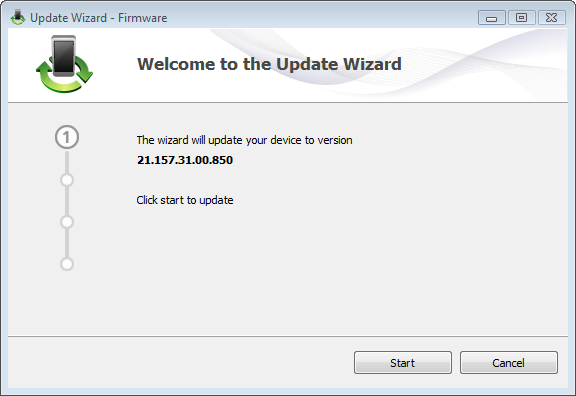
    Huawei E303 Firmware software can be used to update the firmware of your Huawei E303 USB Modem, including Glo Bolt and MTN E303 Modems. Together with the Universal Master Code Calculator tool, Huawei E303 Firmware may be required to unlock stubborn E303 Glo Bolt modems.

    Huawei E303 Firmware installation wizard
    Huawei E303 Firmware installation wizard

    File Info

    • File Name: E303 Firmware S Update.21.157.31.00.850
    • File Type: WinRAR ZIP archive (.zip)
    • File Size: 10.1 MB (10,694,218 bytes)

    Download E303 Firmware S Update Now

  • 15 Best Skins For Windows Media Player

    15 Best Skins For Windows Media Player

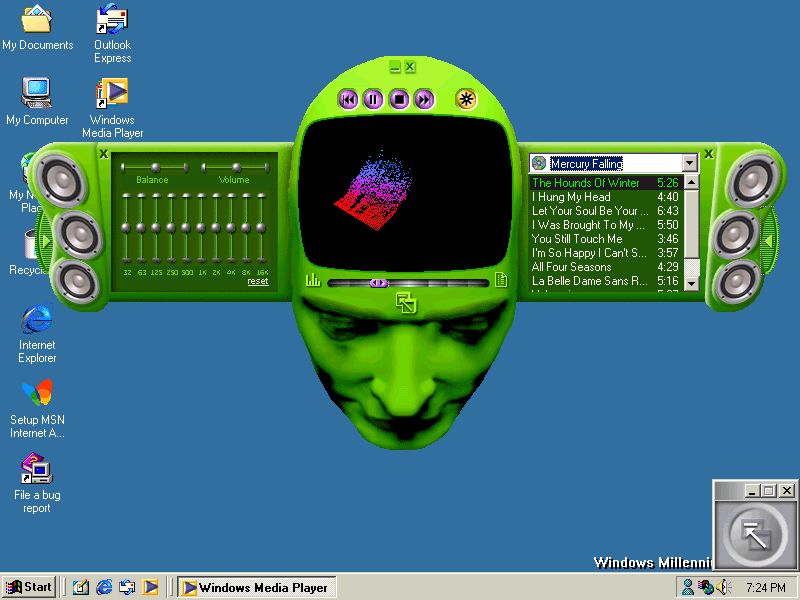
    Windows is the one of the widely used operating system world wide due its most easy interface and wide range of features. It doing grate jobs in almost every field, either in development, security or social media and of course  in entertainment. When we thought about entertainment Windows Media Player is at first number. Media Player is a proprietary digital media player and media library application developed by Microsoft that is used for playing audio, video and viewing images on personal computers running the Microsoft Windows operating system, as well as on Pocket PC and Windows Mobile-based devices. There are many versions available for it but we will discuss about the Windows Media Player 11 and Windows Media Player 12.
    Windows Media Player 11 and 12 have the many changes in features such as Instant Search, Cd Burning, Global Status, Support for ripping audio CDs to WAV and WMA 10 Pro formats (MPEG-4 Part 2 video formats, AAC audio and 3GP, MP4 and MOV container formats in 12th version) and much more from its earlier version. Now if you get bore from a same look window from a long time here are the best skins for Windows Media Player while using in Windows7 or earlier versions of windows.

    1.Sony Xplod

    Download

    2.Batman Begins

    Download

    3.Into One EMERALD

    Download

    4.WM Tab

    Download

    5.Ultimate Simple

    Download

    6.Sleek

    Download

    7.Papo fandangos

    Download

    8.STS Control

    Download

    9.Official DVD Profiler Skin

    Download

    10.Neon

    Download

    11.Alienware Invader

    Download

    12.L.C.D. 2.0

    Download

    13.OSX Media Player

    Download

    14.Xbox

    Download

    15.T3D WMP Skin

    Download

  • Apple Releases iTunes 10.6.3 Update

    Apple Releases iTunes 10.6.3 Update

    The new iTunes update, released Monday, adds support for iOS 6 beta and fixes several bugs.


    Alongside new MacBooks, an iOS 6 preview, and a Mountain Lion ship date, Apple also issued a minor update to iTunes on Monday.

    iTunes 10.6.3 (for some reason Apple skipped over 10.6.2 in its updating) offers a number of bug fixes:

    • Addresses a problem where iTunes may become unresponsive when syncing a first-generation iPad that contains an iBooks textbook
    • Fixes a problem where photos synced to a device may appear in an unexpected order
    • Resolves an issue where iTunes may unexpectedly delete playlists created on a device
    • Fixes issues where iTunes may unexpectedly delete apps on a device
    • Improves overall performance and reliability

    iTunes 10.6.3 is also required for developers running the iOS 6 beta also released on Monday.
    When this story was published, the iTunes update wasn’t showing up in Software Update, but is available on Apple’s iTunes download page.


    For more Macintosh computing news, visit Macworld. Story copyright © 2011 Mac Publishing LLC. All rights reserved

  • How to check if someone has blocked you on Google Talk

    How to check if someone has blocked you on Google Talk

    There is a great little instant messaging utility, Pidgin that helps to find who has blocked you in Google Talk. If you not sure how to configure Pidgin with Google Talk, I advice you to first visit this page.
    Ok, now when you are aware of how to configure Pidgin to work with Google Talk, I’ll guide how to make smart use of Pidgin to identify who has blocked you on Google Talk.
    It’s very simple. Just follow the steps:-

    1- Log in to your Gmail account on Pidgin.
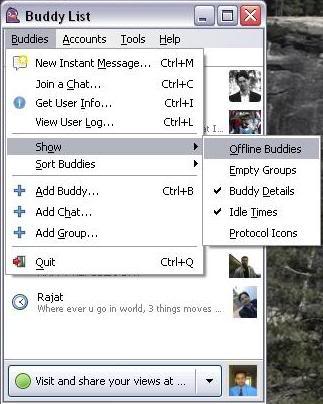
    2- Go to “Buddies” -> “Show Offline Buddies“. (A person who has blocked you must be showing offline to you. So you need to make all offline friends visible)
    3- Now all your contacts are visible to you. Pick any one of those.

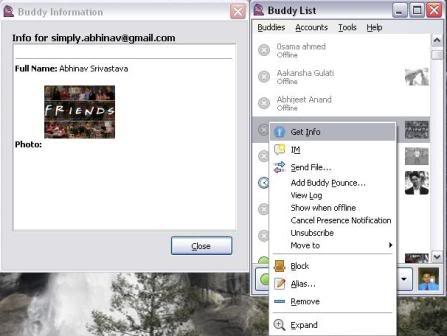
    4- Right Click on your chosen contact name and select “Get Info“.

    It will show you the brief information of your contact. Now, if any of your contact has blocked you on Google Talk, you will not be able to see his/her profile.
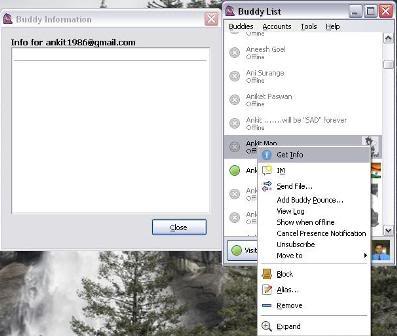
    6- Select a contact who you think may have blocked you. Again, Right Click on his/her name and select “Get Info“. You will not see anything. Not even the contact’s name.

    This goes to show that this particular contact has blocked you on Google Talk and don’t want to talk to you and so it appears to be offline always.
    Hope, you like this article. This is the only way I could able to find out to determine who has blocked you on Google Talk. What’s your comment on this?