Tag: Gmail

  • How to Filter your Gmail Sent Messages with ‘No Response’

    How to Filter your Gmail Sent Messages with ‘No Response’

    Alas! We are at the the brink of 2013. In the spirit of the holiday season, some messages you sent to your business associates, co-workers, family or friends might have gone unnoticed. Don’t you think it’s time you give your employer a nudge and remind him of the new contract deal this new year? This Gmail script makes it easy to find the emails you’ve sent to someone who could use a little nudging or reminder.
      The Gmail -No Response script, written by Jonathan Kim, combs through your emails that are between 5 and 14 days old where you were the last person to respond. It labels those emails “No Response” so you can easily check if any of those require a polite followup email. E.g., “Hi Joe, Just checking in to see what you think about this. Let me know if you have any questions.” (Note to PR folk: Not “Did you get my email??” times ten.)   To use the script, paste Kim’s code into a new Google Script and set it to run on a daily schedule. (I love these cron job-like scripts for Gmail.) You can add the “No Response” label to your inbox section for top-of-mind prompting.   One of the few reasons you might want to use this instead of, say, a service like Boomerang, is the labels are applied to email threads you’ve already sent. It pretty much just works automatically. Yes, you have to still check the No Response label, but short of getting a personal assistant to handle your email for you and follow up on all the loose threads, this is as good as it gets for now.
  • Google Quietly Updates Gmail for Android to Suite your Holiday Travels

    Google Quietly Updates Gmail for Android to Suite your Holiday Travels

    It’s always kind of a drag when your mobile email client doesn’t do all the things that your desktop client can. Google seems to be catching on to this, since the company rolled out a new update to Gmail for Android today with a few new features that have been previously reserved for its web users.

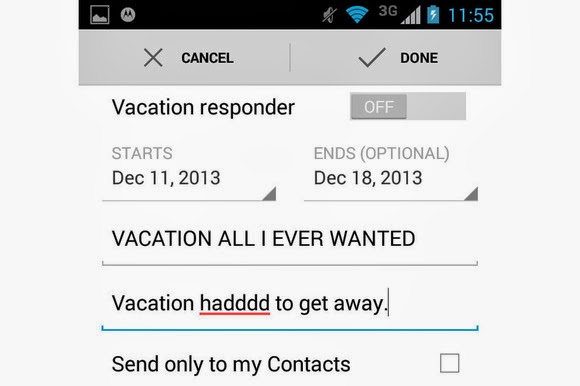
    Gmail 4.7 now lets you set up an away message with the Vacation Responder. Just as in the web client, you can set a start and end date for when the service should send out an automatic message that you’re out enjoying yourself. When you’re done having fun, you can easily toggle the messages on and off from within the app.

    Google also added the ability to send attachments from the mobile client, such as documents, PDFs, and .zip files.

    For those of you with Android 4.4. KitKat, the new Gmail includes native support for cloud printing. Devices with low memory will also notice a performance improvement within the app, which Google notes is a change made on behalf of Project Svelte.

    The Gmail update should be rolling out to an Android device near you, or you can try to grab it from the Google Play store.

  • New: Save your Message Attachments on Google Drive via your Gmail Interface

    New: Save your Message Attachments on Google Drive via your Gmail Interface

    Today, Google officially announced the release of a new update for Gmail users. The new update is set to allow users to view and save attachments to Google Drive directly from their mailbox.

    For those of you who are yet to use  Google Drive: It is a product that grants Google account owners free cloud service, that allows you to store upto 5GB data(s) in your free Google account and unlimited data for premium Google accounts.

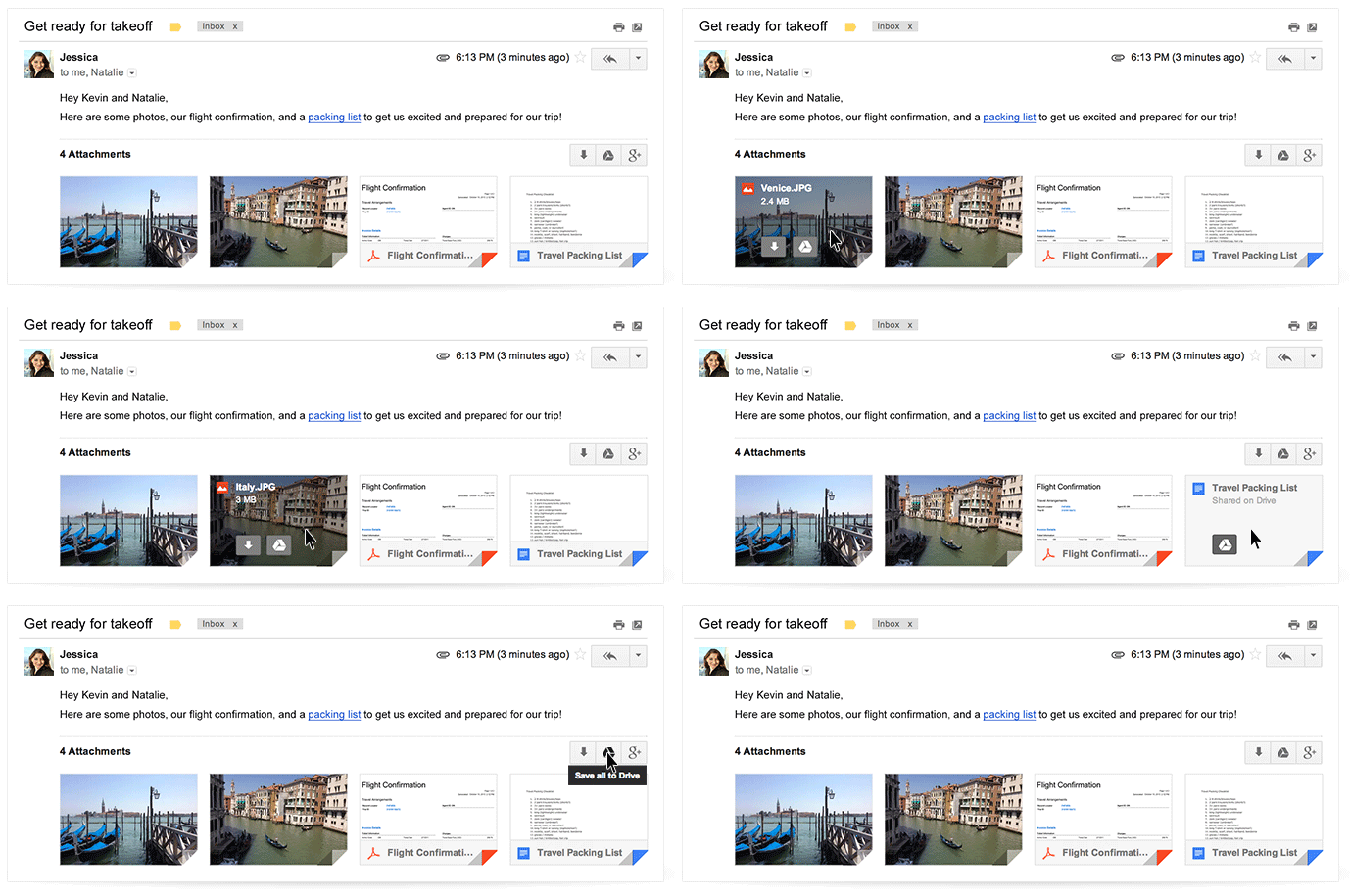
    According to a statement by Scott Johnston in the Google official blog ” The next time you open an email with attachments, you’ll see new previews of the files at the bottom of the email, from photos and videos to spreadsheets and PDFs.”
    image
    With the new Gmail interface, you can now access your email attachments from any device such as your mobile phone and tablets and save them in your Google Drive, hence, making them accessible via any other device, anywhere, anytime.

    The new Gmail also let you navigate through multiple attachments right through your inbox and of-course read and even search for a particular phrase.

    How to Save your Attachments to Google Drive

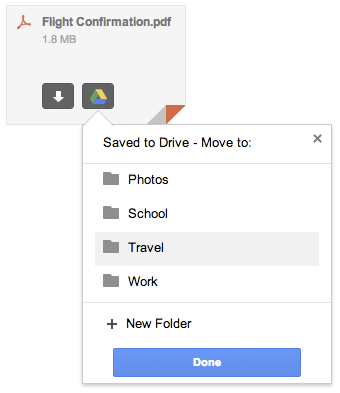
    To save your attachments:

    • Hover on the attachment preview
    • Click on the Google Drive icon that appears when you hover on the attachment.
    • Choose or create a folder for your attachment and click done
    image

    If you wish to save the attachment directly to your device, simply click the arrow icon (See image above).

    “This new attachment experience is available on desktop and will be rolling out over the next week. If you’re one of the more than 120 million active Drive users, you know that saving your files to Drive lets you get to them from any computer, phone or tablet. And if you aren’t taking advantage of Drive just yet, give it a try with your next Gmail attachment.” Scott added.

  • How to Connect your Twitter With your Gtalk, 2go, IM, Gmail

    How to Connect your Twitter With your Gtalk, 2go, IM, Gmail

    Twitter can be boring at time if you have a lots of  followers. I want to save you the stress of visiting your twitter to read and update tweets. I’m going to show you a proving way to update and read your tweets using your Instant Messenger or even your gmail account

    How does it work?

    The tweet.IM service sits between your Jabber or Google@Talk instant messaging account and your Twitter account and passes messages to and from, in both directions. As a result, you can create Twitter messages in your instant messaging application and send them direct to Twitter, without having to enter your Twitter account. You can also elect to receive tweets from users that you follow, directly in your instant messenger.

    HOW TO UPDATE YOUR TWITTER USING GTALK, GMAIL

    •  Visit www.twitter.com and sign in to your twitter account. Now, when you are Logged in, Go to www.tweet.im/ and click on the Sign in with twitter button.
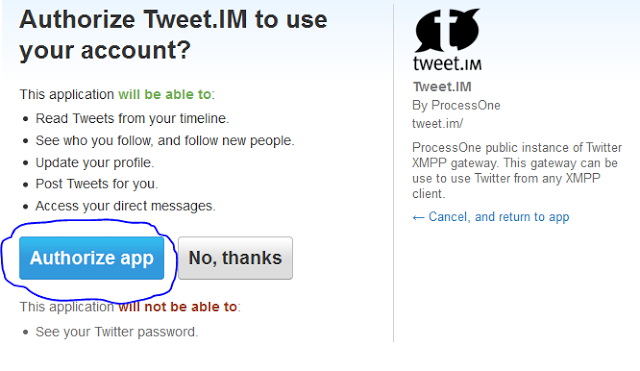
    • Click on Authorise App.
    •   Select Google Talk & put your E-mail address, then click ‘Register’
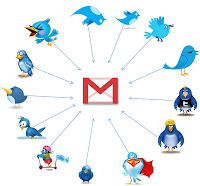
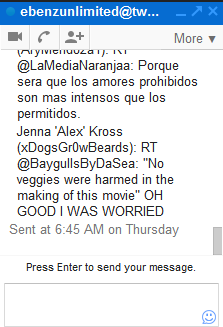
    • Login to your gmail account and you will find a box like this: This is your twitter updates   HOW TO CONNECT YOUR TWITTER ACCOUNT TO YOUR 2GO ACCOUNT
      • Open your 2go and go to Settings , click on Gateway and select Gtalk then activate using you gmail logins all in lower case.
      • Now go to your friend lists and you will see a request from Twitter, click and accept request and add Twiiter as a friend. That’s All.