Tag: Google

  • Apple & Microsoft-Backed Rockstar Consortium Battles Google and Samsung Over 7 Nortel Patents

    Apple & Microsoft-Backed Rockstar Consortium Battles Google and Samsung Over 7 Nortel Patents

    Well, at the moment, it does look like a ‘never ending’ war between this two parties. “The Rockstar consortium is an organization backed by Apple, Microsoft, BlackBerry, Ericsson and Sony. It purchased patents off of the defunct telecommunications company Nortel in 2011, in a bidding war with Google.

    Now, the consortium has filed suit against Google, ASUSTek, HTC, Huawei, LG, Pantech and ZTE over those patents. The suit was filed in a U.S. District Court of Eastern Texas today.

    “Google placed an initial bid of $900,000,000 for the patents-in-suit and the rest of the Nortel portfolio. Google subsequently increased its bid multiple times, ultimately bidding as high as $4.4 billion,” the filing states. “That price was insufficient to win the auction, as a group led by the current shareholders of Rockstar purchased the portfolio for $4.5 billion. Despite losing in its attempt to acquire the patents-in-suit at auction, Google has infringed and continues to infringe the patents-in-suit.”

    Google famously bid some not-so-random numbers before the end, including ‘pi’. The suit also involves a licensee of the ‘Associative Search Engine’ 6,098,065 patent, NetStar, Inc.

    The other patents are US 7,236,969, 7,469,245, 7,672,970, 7,895,178, 7,895,183 and 7,933,883. They’re mostly fairly dry stuff related to database searches, relevance in advertising presentation and data sorting, but exactly the kind of stuff that makes Google’s special sauce work. We can’t speak to the strength of the patents, but they certainly appear to be relevant.” said techcrunch on their website, “Google lost out in a heated bidding war against Rockstar and went on to acquire Motorola, a move that many attributed to a patent grab, but that was also about hardware in a lot of ways.

    Notably, HTC has a cross-licensing agreement with Apple on some patents, but apparently not these. News of the suit was first reported by Reuters today.”

  • Google App Indexing Can Improve your Search Results -Tech Crunch

    Google App Indexing Can Improve your Search Results -Tech Crunch

    A report ot techcrunch has explained how Google’s Search Results Can Deep-Link To Your Android Apps. Read the details below:


    “It should be clear by now that there’s much more at play in Android 4.4 KitKat than some early reports alluded to, and one of the more interesting (to me, anyway) tidbits managed to escape the early leak treatment.

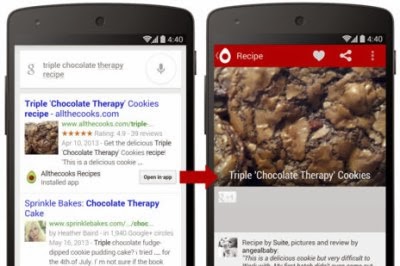
    Tucked away toward the tail-end of Google’s Nexus 5/KitKat presentation was a mention of a feature called App Indexing that should get companies (and the Android app developers that work for them) a little worked up. That’s because Google has developed a way to deep-link to the contents of an app from within a user’s Google search results with a feature it calls App Indexing.

    Tucked away toward the tail-end of Google’s Nexus 5/KitKat presentation was a mention of a feature called App Indexing that should get companies (and the Android app developers that work for them) a little worked up. That’s because Google has developed a way to deep-link to the contents of an app from within a user’s Google search results with a feature it calls App Indexing.

    Here’s how it works. Say you’re using the Google Search app to dig up some dirt on that Ender’s Game movie that doesn’t look very good. If you happen to have the IMDb app installed on your device while you search, you’ll be treated to an info card in that results stream that includes an “Open in app” button. Give it a quick tap and the IMDb app will spring to life and immediately direct you to its Ender’s Game listing.

    Naturally, the feature isn’t just limited to showing off movie details — so far the full list of supporters includes Allthecooks, AllTrails, Beautylish, Etsy, Expedia, Flixster, Healthtap, IMDb, Moviefone, Newegg (yes!), OpenTable, and Trulia.

    The way Google sees it, the move is all about providing these companies with a choice. If they think their mobile interfaces are enough to keep users engaged, they can simple go about their business. But if they already have an Android app (or are in the process of building one) that can do a better job of engaging with its users, a little extra work to implement those deep links may be well worth it.

    It’s not hard to look at this as a move to bolster Android app development, either. There’s little doubting that Android is a global force — which may be only compounded by the fact that Android 4.4 KitKat may drive device sales in developing markets by bringing a more advanced feature set to cheap hardware — and in many cases the Google Search app is going along for the ride. That means that with any luck, huge swaths of the global Android community will be searching for stuff using the Google search app and seeing those deep-linked “Open in app” buttons when they’ve got the right apps installed. Tell me that’s not a compelling reason for a company to develop an Android app if they haven’t already.

    Despite the buy-in from all those app partners, it’ll be some time before users like me will actually start getting those results in the wild. Google is testing the feature with those previously listed partners, but the updated cards that will display that information won’t actually roll out until some time in November.”

    A report ot techcrunch has explained how Google’s Search Results Can Deep-Link To Your Android Apps. Read the details below:


    “It should be clear by now that there’s much more at play in Android 4.4 KitKat than some early reports alluded to, and one of the more interesting (to me, anyway) tidbits managed to escape the early leak treatment.

    Tucked away toward the tail-end of Google’s Nexus 5/KitKat presentation was a mention of a feature called App Indexing that should get companies (and the Android app developers that work for them) a little worked up. That’s because Google has developed a way to deep-link to the contents of an app from within a user’s Google search results with a feature it calls App Indexing.

    Tucked away toward the tail-end of Google’s Nexus 5/KitKat presentation was a mention of a feature called App Indexing that should get companies (and the Android app developers that work for them) a little worked up. That’s because Google has developed a way to deep-link to the contents of an app from within a user’s Google search results with a feature it calls App Indexing.

    Here’s how it works. Say you’re using the Google Search app to dig up some dirt on that Ender’s Game movie that doesn’t look very good. If you happen to have the IMDb app installed on your device while you search, you’ll be treated to an info card in that results stream that includes an “Open in app” button. Give it a quick tap and the IMDb app will spring to life and immediately direct you to its Ender’s Game listing.

    Naturally, the feature isn’t just limited to showing off movie details — so far the full list of supporters includes Allthecooks, AllTrails, Beautylish, Etsy, Expedia, Flixster, Healthtap, IMDb, Moviefone, Newegg (yes!), OpenTable, and Trulia.

    The way Google sees it, the move is all about providing these companies with a choice. If they think their mobile interfaces are enough to keep users engaged, they can simple go about their business. But if they already have an Android app (or are in the process of building one) that can do a better job of engaging with its users, a little extra work to implement those deep links may be well worth it.

    It’s not hard to look at this as a move to bolster Android app development, either. There’s little doubting that Android is a global force — which may be only compounded by the fact that Android 4.4 KitKat may drive device sales in developing markets by bringing a more advanced feature set to cheap hardware — and in many cases the Google Search app is going along for the ride. That means that with any luck, huge swaths of the global Android community will be searching for stuff using the Google search app and seeing those deep-linked “Open in app” buttons when they’ve got the right apps installed. Tell me that’s not a compelling reason for a company to develop an Android app if they haven’t already.

    Despite the buy-in from all those app partners, it’ll be some time before users like me will actually start getting those results in the wild. Google is testing the feature with those previously listed partners, but the updated cards that will display that information won’t actually roll out until some time in November.”

    A report ot techcrunch has explained how Google’s Search Results Can Deep-Link To Your Android Apps. Read the details below:


    “It should be clear by now that there’s much more at play in Android 4.4 KitKat than some early reports alluded to, and one of the more interesting (to me, anyway) tidbits managed to escape the early leak treatment.

    Tucked away toward the tail-end of Google’s Nexus 5/KitKat presentation was a mention of a feature called App Indexing that should get companies (and the Android app developers that work for them) a little worked up. That’s because Google has developed a way to deep-link to the contents of an app from within a user’s Google search results with a feature it calls App Indexing.

    Tucked away toward the tail-end of Google’s Nexus 5/KitKat presentation was a mention of a feature called App Indexing that should get companies (and the Android app developers that work for them) a little worked up. That’s because Google has developed a way to deep-link to the contents of an app from within a user’s Google search results with a feature it calls App Indexing.

    Here’s how it works. Say you’re using the Google Search app to dig up some dirt on that Ender’s Game movie that doesn’t look very good. If you happen to have the IMDb app installed on your device while you search, you’ll be treated to an info card in that results stream that includes an “Open in app” button. Give it a quick tap and the IMDb app will spring to life and immediately direct you to its Ender’s Game listing.

    Naturally, the feature isn’t just limited to showing off movie details — so far the full list of supporters includes Allthecooks, AllTrails, Beautylish, Etsy, Expedia, Flixster, Healthtap, IMDb, Moviefone, Newegg (yes!), OpenTable, and Trulia.

    The way Google sees it, the move is all about providing these companies with a choice. If they think their mobile interfaces are enough to keep users engaged, they can simple go about their business. But if they already have an Android app (or are in the process of building one) that can do a better job of engaging with its users, a little extra work to implement those deep links may be well worth it.

    It’s not hard to look at this as a move to bolster Android app development, either. There’s little doubting that Android is a global force — which may be only compounded by the fact that Android 4.4 KitKat may drive device sales in developing markets by bringing a more advanced feature set to cheap hardware — and in many cases the Google Search app is going along for the ride. That means that with any luck, huge swaths of the global Android community will be searching for stuff using the Google search app and seeing those deep-linked “Open in app” buttons when they’ve got the right apps installed. Tell me that’s not a compelling reason for a company to develop an Android app if they haven’t already.

    Despite the buy-in from all those app partners, it’ll be some time before users like me will actually start getting those results in the wild. Google is testing the feature with those previously listed partners, but the updated cards that will display that information won’t actually roll out until some time in November.”

  • How to Make the Most of Google Maps

    How to Make the Most of Google Maps

    Everyone knows that Google Maps is the ruler when it comes to mapping services (Nokia map lies just somewhere by the side). There is no doubt about that whatsoever. You can use it in your mobile phone as an app or in a browser. Although Google Maps is loaded with tons of effective features, few of these useful features are widely veiled.  

    Here are some tips and tricks on how to make the most of Google Maps:

    1. View live traffic. It is a feature in which Google Maps displays live traffic feed on maps. This enables users to go by the current rate of traffic and plan their routes accordingly. In order to view live traffic, simply click on the ‘Satellite’ icon and then on the ‘Traffic’ option. This particular feature is operational through mobile apps.
    2. Google Now. This is yet another feature of Google Maps. Its integration enables the Google Maps Sync to function in a more enhanced manner than before. Searching for directions enables the feature to predict the desired location based on your web history. If Google is aware of your work or home locations, it will calculate and display the route and estimated time it will take to reach home or work.
    3. Route change. If Google Maps suggested routes are not according to your liking or convenience, you can click a point (it can be any point) present on the map and then drag it to some other place. By doing so, you can change your route.
    4. Mode of transit. Directions, whether for walking or driving, are available from whatever your current location. You can also access directions if traveling by bicycle or public transit. Whatever the case, Google Maps will provide you with three different routes. Varied directions help in selecting the best and most convenient route for you, whatever you’re preferred mode of transit.
    5. Routes with numerous destinations. If you want to stop on multiple destinations, you can make use of the ‘Add Destination’ feature. Through this link, you can add each of your desired destinations to your list. Google will then provide you with the most efficient and convenient route.
    6. Make maps for yourself. If there are vital locations available with you, you can create and make customized maps for yourself only. Visit Google Maps and go to ‘My Places’. Right under it, you will find the link ‘Create Map’.
    7. Locating places of interest. Try out the Tourist Path. Through this feature, you can get a display of historical sites, parks and restaurants on a customized Google Maps view.

    Using Google Maps is simply easy. All you need to do is fiddle with its many features and work with them until you get the desired results!

  • Google to Retire Google Checkout

    Google to Retire Google Checkout

    Over the recent months, there has been some rumors about google intention to retire google checkout. Finally, google has made an official release confirming that story. Yes! Google will retire checkout On November 20, 2013.

    If you are reading this, I know you are not happy about it. So are we and other merchants using the google checkout as a payment processor. Ofcourse, this will also mean that after November 20, 2013 you will no longer be eligible to use the blogger shopping cart powered by google checkout.

    If you are a merchant who sell digital goods or perform virtual services, you can migrate to  Google Wallet for digital goods before the deadline date. However, merchants selling through Google-hosted marketplaces (e.g. Google Play) will be unaffected by this development.

    DateProduct Change
    May 20th, 2013Last day to sign up for Google Checkout
    November 20th, 2013Last day to charge orders
    November 21st, 2013Last day to ship orders
    November 27th, 2013All outstanding orders will be cancelled
    December 20th, 2013Last merchant refunds permitted through Checkout

    If you are using the google checkout payment processor for selling physical goods (e.g: running an eCommerce site), you should consider switching to another payment processor.

    This is the fourth app being retired by google in 2013, what do you think about it? Do you think google is right to retire Google Checkout? Share this story with your friends and have your say on it!

  • Google search dominance may not last in mobile age

    Google search dominance may not last in mobile age

    For more than a decade, Google has become synonymous with search. Despite Microsoft’s well-funded efforts to get users to “Bing It,” people are still “googling” with wild abandon. However, there are some signs that the company’s dominance may not extend into the mobile age.
    According to a New York Times report, traditional web searches declined 3 percent in the second half of last year after rising for years, while searches on topical (“verticle”) search engines rose 8 percent over the same period.
    It’s not that people aren’t hungry for content. They are. But people are starting to alter their habits to search through curated content.
    Web users have learned that—as good as Google is at what it does—it is often and easier to go directly to a cloistered, curated segment of the Web to find what you want.

    Savy users know to search for items they want to purchase on Amazon or Target; or go straight to IMDB for information on that actress who was in that one thing from back in the day; or to Wikipedia to look up information on that far away country mentioned on the news.
    Google is an unnecessary and easily avoidable middleman standing between you and a trusted information source.
    This change in search behavior becomes more palpable in the mobile, app-centric era. Users are far more likely to search for weather information, news, or mapping information directly through relevant apps rather than googling first.
    This altering of the search landscape would explain Google’s moves in recent years to purchase content providers such as Zagat’s and Frommer’s (for food and travel respectively). Google wants to remain the default entry into the Internet and provide everything quickly and in as few steps as possible. Google is an unnecessary and easily avoidable middleman standing between you and a trusted information source.

    This one-stop-shopping strategy may prove wise as the mobile space moves into hands-free search via native apps like Siri and S-Voice or into strange new voice-activated devices like Google Glass. In these situations, a single entry into the Web may prove easier than accessing specific curated app gateways.
    For now, Google remains the dominant gatekeeper to rest of the Web. However, as Facebook pushes their new super app, we may be catching a glimpse of the future battlelines for mobile ubiquity.

  • Hands on with Google Handwrite, Google’s new search feature

    Hands on with Google Handwrite, Google’s new search feature

    Newton fans, rejoice: If you like writing your queries on a screen rather than typing them on a virtual keyboard, Google’s new project, Handwrite, should awe and delight.

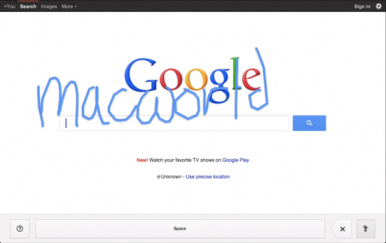
    Announced on Google’s blog Thursday morning, the company’s new beta project aims to make it easier to search, no matter where you are or what you’re doing. Handwrite allows you to block print or handwrite letters, words, and punctuation on the screen, where it will be instantly analyzed and converted into a search term.
    The feature is pretty simple to turn on: On an iPhone, scroll down to the Settings link on Google.com (on an iPad, click Search Settings from the Gear icon), enable Handwrite mode, then return to Google.com. Tap the new button in the lower right corner—it resembles a cursive lower-case g—to turn Handwrite on, and just start scribbling.

    On an iPhone or iPod touch, I found Handwrite a little finicky due to the small screen. (See my hands-on video, below.) The service will intelligently try to guess at your letters and words, though, so if you only write “dowag” before you run out of room, you can continue with “er” and it will put the letters together to make “dowager”—and suggest you might be looking for the Dowager Countess from Downton Abbey, at that.http://www.youtube.com/embed/iwZOhhul0YU?feature=player_embedded
    On an iPad, using Handwrite is a dream, especially if you use a stylus. There’s no worry of real estate crunch, and you have much more freedom in forming your letters.
    Unfortunately, I found that Google’s recognition engine was much poorer at analyzing cursive lettering than it was at block printing. I’m not sure whether that has to do with my own messy style of cursive or the engine itself, but I often found it dropping letters (it didn’t know what to do with a lower-case s or r) or misunderstanding words entirely. Luckily, Google’s search engine is good enough to more or less pick up the slack (turning “teasures” to “treasures,” for example), but it’s still a little annoying.
    For a beta feature, though, Handwrite is great fun, and something I could actually see myself using pretty often. My handwriting’s slow—but not as slow as my virtual keyboard touch-typing.
    Post Credit:
    For more Macintosh computing news, visit Macworld. Story copyright © 2011 Mac Publishing LLC. All rights reserved.

  • Tabletop Forge, Tabletop Gaming Tools for Google Hangouts

    Tabletop Forge, Tabletop Gaming Tools for Google Hangouts

    We sometimes like to shine a spotlight on deserving Kickstarter games but this week’s project is a little different. Instead of a game played on technology it’s a game played with technology, and it promises to make the online lives of tabletop gamers infinitely easier.
    Anyone that’s ever tried to run a game of Dungeons and Dragons or another tabletop roleplaying game online knows that trying to take your game to the Internet add an extra layer of complexity on top of an already complicated game. In addition to keeping track of all of the dice rolls, map positions and NPC information you normally need, you also have to figure out some way of selectively informing the other players of all the pertinent information without the convenience of them sitting right next to you to see it.


    However, the team at Tabletop Forge thinks they’ve found a solution. By adding some robust tabletop gaming tools to the Google+ Hangouts feature, the team believes they’ve found an ideal way to help tabletop gamers play online. Tabletop Forge adds great RP specific features to the group videoconferencing features of hangouts that allow you to use virtual dice rolling, battle maps for laying out combat quickly and easily online, and even a macro system so you can edit any commands the team might not have thought of into Tabletop Forge.
    The core Tabletop Forge system is already in working order, but the team is running a Kickstarter to get some professional art assets into the Forge so that gamers can quickly and easily pick out maps and monsters that are right for their campaign and get started playing faster.
    The team has already easily surpassed their initial $5000 goal and are in the home stretch to meet a final $38,000 stretch goal that will add even more features and maps to the Tabletop Forge arsenal. If you’re interested, head on over to their Kickstarter Page and take a look at their donation options.

    Important Notice: Tweet this article with the bookmark social media share below to stand a chance to win an ipad or start making money with your twitter account (it works only with your twitter account and the more articles you tweet the more you stand a chance to win an Ipad)

  • GOOGLE OFFERS FREE ONLINE CERTIFICATE COURSE

    GOOGLE OFFERS FREE ONLINE CERTIFICATE COURSE

    I got this information from one of our contributor’s site this morning and felt i should share this with you, my readers.
    A few days back google announced  a short online certificate course ‘Power Searching With Google’ this program is aimed at helping all Google users learn about the powerful advanced tools which Google provides to help the world find just the right information when the stakes are high.

    The certificate, according to Google will be emailed upon successful passing of the online course by participants.  Mobile phones according to Google will not be used for the classes.

    Course Details

    Power Searching with Google is a free online, community-based course showcasing search techniques and how to use them to solve real, everyday problems. It features:

    • Six 50-minute classes.
    • Interactive activities to practice new skills.
    • Opportunities to connect with others using Google Groups, Google+, and Hangouts on Air.
    • Upon passing the post-course assessment, a printable Certificate of Completion will be emailed to you.

    Ready to get started?

    • Registration is open from June 26, 2012 to July 16, 2012. We recommend that you register before the first class is released on July 10, 2012!
    • New classes will become available Tuesday, Wednesday, and Thursday starting on July 10, 2012 and ending on July 19, 2012.
    • Course-related activities will end on July 23, 2012.

    To register now for “Power Searching with Google Free Online Certificate Course” follow this link  Power Searching with Google Free Online Certificate Course After registration, remember to sign into your email to confirm that Google has sent you a confirmation of your registration and course dates with activities.

  • Google Reaction To Adobe Dropping Flash Player for Android

    Google Reaction To Adobe Dropping Flash Player for Android


    Adobe announced Thursday that it would not provide a version of Flash for Android 4.1, dubbed Jelly Bean, or any updates thereafter. Google introduced version 4.1 this week at its I/O conference in San Francisco. The OS will be available in July.
    The Flash Player has never posed much of a security risk, because hackers have not used it as a pathway to Android. “There hasn’t been a piece of malware using the Flash Player technology as a vector,” Tim Armstrong, malware researcher for Kaspersky Lab, said.

    Adobe’s decision to wind down Flash on Android is not surprising. The company said in November that it would switch to Adobe AIR as the cross-platform runtime environment for mobile applications. Adobe believes AIR is the better option as Web developers move to HTML5, the latest version of the markup language used for presenting content on the Web. The company will continue to develop the Flash Player for PCs.
    Whether the technologies replacing the Flash Player will pose a greater security risk is not yet known, Armstrong said. “We can’t say yet whether these technologies could be leveraged for malicious purposes,” he said.
    In general, dropping Flash with Jelly Bean is not expected to have much of an impact on Android users, because almost 90 percent are running versions 2.1 to 2.3.7. By the time they upgrade to version 4.1, Flash alternatives are expected to be firmly in place.
    Adobe has also decided to limit access of the Flash Player on Google Play, the official Android app store. Beginning Aug. 15, only Android phones already running Flash will be able to get newer versions in the store. “Devices that do not have Flash Player already installed are increasingly likely to be incompatible with Flash Player and will no longer be able to install if from the Google Play Store,” the company said in its blog.
    Adobe’s latest announcement only involves Android, because Apple doesn’t use Flash in the iPhone or iPad. In 2010, Apple Chief Executive Steve Jobs, who died in October of complications from cancer, bashed Flash as too slow and a battery hog, arguing that HTML5 would become the better platform for showing video and other multimedia content. Adobe initially fought back, but later realized development trends for mobile apps were against Flash.

  • Google Announces Google Drive for iOS and Offline Editing for Google Docs

    Google Announces Google Drive for iOS and Offline Editing for Google Docs

    A version of Chrome for iOS also was announced during the second day keynote for the company’s Google I/O conference.

    Google kicked off the second day of its I/O conference by announcing offline text editing for Google Docs, and a version of its Drive storage service for Apple’s iOS. The search giant also announced a

    version of its Chrome Web browser for iOS, and demonstrated it running on Apple’s iPad and iPhone.The offline text editing is available now in Google Docs, and Google is working on offline editing for its spreadsheet and presentation applications, the company said in its day-two keynote at the conference. The updates mean Google Docs users will be able to edit documents on a plane, for example, and then synch the changes to the cloud when they reconnect at the other end.
    The offline capabilities will step up the competition between Google and Microsoft. Google emphasized that Docs is a viable product for the enterprise as well as consumers: Five million businesses are using its cloud applications, it said. A Google Drive app for the iPhone, iPad and iPod Touch will be available from the App store later Thursday, Google said. It’s also developing a version for its own Chrome OS.

    Chrome OS Improvements

    Google Chrome OSIn Chrome, Google Drive operates as the local file system, said Clay Bavor, director of product management for Google Drive. He showed how a user can search through a folder of scanned receipts and find a particular receipt using a keyword search. The receipts are stored as image files, but the Drive application uses optical character recognition to index the text in the receipts.

    It can also index images. Bavor showed how a user can store their photos from a vacation in Egypt in Google Drive, for instance, and then search for “pyramid” and locate photos with pyramids in them, even though the photos are not tagged with the word “pyramid.”

    New Ways to Collaborate

    Google DocsGoogle also showed how Google Docs and Google Drive can work together to allow “real-time collaboration.” It showed how three users can edit a text document simultaneously from three different devices, and have the changes all appear on each of the three screens.

    Referring to users’ increasing tendency to use multiple devices, Sundar Pichai, Google’s senior vice president of Chrome and apps, said, “It’s not just at home: It’s the same person who leaves home and shows up at work, and they demand the same experience.”

    The company also announced an on-demand computing service called the Google Compute Engine, which will compete with Amazon Web Services’ EC2 offering.

    Follow my blog with Bloglovin

  • Google Nexus Q Hands-On Review: The Buggy Streaming Story

    Google Nexus Q Hands-On Review: The Buggy Streaming Story

    The Nexus Q has some pretty neat media streaming features, but is way too expensive–and the preview release is just plain buggy.

    I finally got hold of one of the new Android 4.1 (Jelly Bean) smartphones capable of running the Nexus Q app you need to operate the preview release of the new Google media streamer–and a PC World colleague armed with a second Jelly Bean handset came by to help me test the device’s social networking features. The verdict: While it has some nice features–it’s cool to see a light show when you stream music to an HDTV– the Nexus Q is at this point too buggy. We were unable to implement guest access despite trying for two hours, and even the primary controlling phone sometimes lost network connectivity. Initial setup on the first phone went fairly smoothly. I had already hooked up the Nexus Q to my HDTV and to my home network using an ethernet cable connecting to a powerline switch, so when I downloaded and installed the free Nexus Q app from the Google Play store, it immediately found the device and established a link by having me log in to my Google account. Because the Android app can control multiple Q’s on the same network–much like the Sonos system–you have to give each one a name; the app proposes several common household rooms (e.g. kitchen, living room, media center) in a menu that also has a custom entry option. The app by default sets My Home as the name for your Nexus Q collection–the term it uses to denote your entire Nexus Q network (each Q appears as an entry in the collection). But you can change this name in the settings.

    Sound and Light Show

    After that, when I went to Play Music and tapped a streaming media icon on the top of the screen, I was presented with the option of streaming to my phone or the Nexus name I’d just created. Because I was hooked up to an HDTV, when I played music, Nexus Q created pretty dancing visuals on the screen–and the LEDs on the edges of the Q’s dome also pulsed in color and in time to the music. You can change the look of the light show by choosing one of half a dozen themes (e.g. warm, cold, blue), make it brighter or dimmer, or eliminate it completely from the settings menu in the Q app. You can add songs to the Q’s queue (pun unavoidable) or play them immediately by tapping on options in a menu that appears when you tap a track listing. You can fiddle with the queue, moving or deleting tracks, by tapping an option in Play Music. To play YouTube videos, you go through much the same routine after tapping the Android’s YouTube app. You are already signed in to your Google account, so accessing favorites and new videos on channels you’ve subscribed to is a breeze. Quality was good, at least while the Nexus Q was connected to the network using the ethernet cable and powerline switch. I didn’t download any movies or TV shows to check out how well the device works with the Google Play movie and TV app.

    Guest Access Proves Elusive

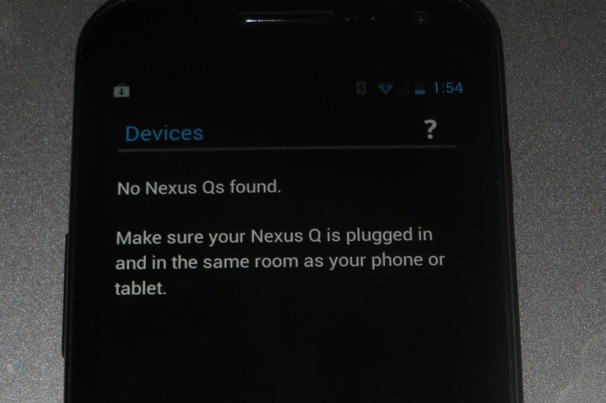
    So far, so good, but it was all downhill from there. I’m not sure what the issues are, but my colleague Mike was never able to put his Google Play music in the queue–and when we disconnected the ethernet cable to try connecting the Q via Wi-Fi, things really went south. Here’s how it’s supposed to work. In the Nexus Q app, I made sure a setting authorizing guest access was set to On, then tapped a link that created an e-mail message inviting Mike (using his Google account address) to play his music on my network. Mike got the message, which instructed him to download and install the Nexus Q app on his Android 4.1 phone. He then ran the app, which searches for existing Nexus Q devices. Once you find a Q that has granted you access, you can go to Play Music to add tracks to the queue via a pop-up menu and a streaming media icon, the same way I could from my phone. But the Nexus Q never showed up as a streaming device on Mike’s phone. He also got repeated messages saying the My Home collection and/or the Q itself was unavailable.

    And while we were doing the testing, my own ability to stream music was intermittently impaired. A troubleshooting guide suggested connecting the Q to the network via its built-in Wi-Fi, so I disconnected the ethernet cable and rebooted the Q to start from scratch. But while I was able to restore its factory settings, setting up my 802.11n Wi-Fi network as the Q’s connection proved difficult. I rebooted several times and reinstalled the app a couple of times before the Q mysteriously began streaming the same music it had effortlessly played with the ethernet connection. Even after that, the app intermittently would show the Q as being unavailable one minute and available the next. I live next to several high-rise apartment buildings in downtown San Francisco, and my guess is that the difficulties I encountered relate to 2.4GHz network overcrowding. You also need a router that can handle Wi-Fi multicasting so that the Q can connect to your router while other devices can connect to the Q; Google’s documentation already shows several incompatible routers. Mine wasn’t among them, but I suspect that it was too difficult for the network to sustain the multiple Wi-Fi connections required. I’ll repeat what I said in my earlier post: Google should have included 5GHz 802.11n support. Still, Mike and I were at a loss to explain why he couldn’t play any of his music on the Q–even when my collection and the Q both showed up as available, the Play Music app never displayed the Q as a streaming destination. Hopefully Google will work on these issues before it begins selling the Nexus Q to the general public. But even if you’re an Android fan willing to spend the $299 on a device with fairly limited functionality (it could at least have supported streaming media from other local network devices), I wouldn’t recommend the Q to anyone who is planning on Wi-Fi only connections in a city or a neighborhood with lots of Wi-Fi networks in range. That’s just asking for trouble.

  • 7 Great Google Spreadsheet Gadgets

    7 Great Google Spreadsheet Gadgets

    7 Great Google Spreadsheet Gadgets
    Inside Google Docs’ spreadsheet component, you’ll find gadgets that endow the app with powers thatTurn text into a QR code.even Excel users will envy. Included are tools for creating animated pie charts, producing QR codes, generating organizational charts, and more. You can also plot data in color by country on a map, and you can publish a map with your office location marked on it. All of these tricks are easy to pull off–I’ll show you how.

    1. Make Your Own QR Codes

    QR codes are ubiquitous these days. They’re a great way to share contact details, URLs, product information, and other brief amounts of text. To create a QR code in a Google Docs spreadsheet, first type the text for the code into one or more adjacent cells in a column of the spreadsheet. Choose Insert > Gadget >All,locate the QR Code gadget, and click Add to spreadsheet. When the Gadget Settings dialog box appears, drag over the cells containing the text for the code, click OK, and then clickApply & Close. The generated QR code will display in the gadget dialog box. You can drag the gadget dialog box–as you can all gadget dialog boxes–and place it anywhere on the spreadsheet. To see the options for working with any gadget, click the down arrow in the top corner of the gadget dialog box. The options for the QR Code gadget include using ‘Publish Gadget’ to obtain some code that you can use on your website to display the QR code. You can also use Print Screen on the code and then insert it into a document or other publication.

    2. Make Your Own Custom Google Map
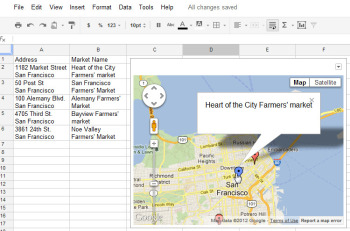
    7 Great Google Spreadsheet GadgetsThe Map gadget uses content from Google Maps to display the addresses you have entered as markers on the map.Pictures convey more information than words do, and a map offers the easiest way to show people where your office and other places of interest are located. The Map gadget lets you create a custom Google Map with pointers to the places you want to highlight, and it’s simple to use. To begin, type a list of addresses, one per row down a single column. If you want a tooltip to appear over the map location when someone hovers over the marker, type the text for this item in the cell to the right of the address. For example, to produce a map of local farmers’ markets, type each address in one cell and the name of the farmers’ market in the adjoining cell to the right. Choose Insert > Gadget >Maps, and click Add to Spreadsheet. Now select the range of cells containing your address and tooltip data, and then enter a title for the map in the Title box. If your data includes tooltips, select the Last Column as Tooltips checkbox, and then click theZoom Using Mouse Wheel checkbox. From the ‘Map type’ list, select the type of map–Normal is a good choice–and then click Apply & Close. The gadget dialog box will now show a map with the addresses plotted on it. As with the other gadgets, you can publish the Map gadget for use on your website to show your business locations or places of interest to your customers.

    3. Create Quick and Easy Organization Charts

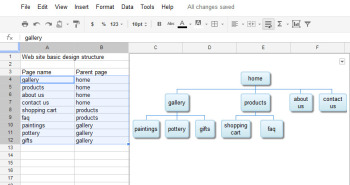
    Organization charts are handy for describing how your business is set up, but they also work well for diagramming website designs and displaying any other data in a hierarchical arrangement. 7 Great Google Spreadsheet GadgetsThe Organization Chart gadget can create a hierarchical chart showing the design for your website or the management structure of your business.
    4. Produce an Interactive Table
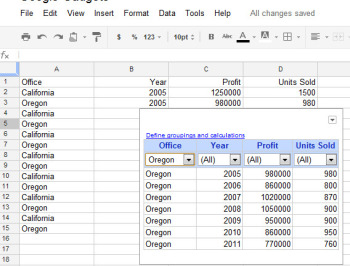
    7 Great Google Spreadsheet GadgetsAt its simplest, the Table gadget lets you filter data to see a subset of it.The Google Table gadget allows you to analyze data by creating a table that supports filtering, grouping, and even totaling. Insert the gadget by choosingInsert > Gadget > Tables > Add to spreadsheet. Select the range containing your data, including the heading row, and click OK. Click in the Title box and type a title for your tables. Select the checkboxes for Show Filters and Enable Grouping, and then click Apply & Close.To group the data by the contents of column A, for example, click the Define groupings and calculations link, select that column’s heading, and click the arrow to add it to ‘Group by Box’. Click Next, and select a column to calculate. To sum Profit, for instance, set the Profit entry to Total. You can apply calculations to multiple columns, if you desire, or to none at all if you just want to group the data.You’ll see a table appear in the gadget dialog box, with the headings over each column. Use the filter box at the top of each column to filter that column of data. Click OK, and the gadget will show you the grouped data, with any calculations appearing in the row above the appropriate group. You can collapse and expand the groups as necessary to see the values in the table.

    5. Create a Gantt Chart From Project Data
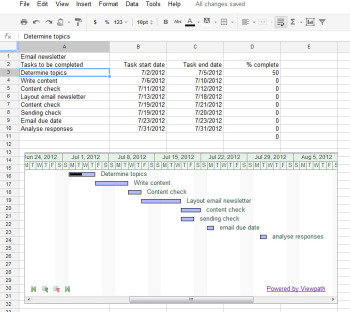
    7 Great Google Spreadsheet GadgetThe Gantt Chart gadget illustrates the tasks in a project and the time allotted for each of them.You can use a Gantt chart to display projects involving tasks that must be performed over time. To make this type of chart, you need three columns of data (with an optional fourth column). In the first column, place a list of the individual tasks in the overall project–the steps needed to create and publish an email newsletter, for example. In the second column, place the start date for each task; in the third column, insert the end date for the task. If you wish, you can add a fourth column containing the percentage completed for that task. To produce the Gantt chart, chooseInsert > Gadget > Charts. Locate the Gantt chart and click Add to spreadsheet. Select the data for the tasks, the start and end dates, and the completed percentage, and click OK. Set the Name column to the column containing the task names. Set the Start column, Finish column, and % Complete column to the column letters containing that data (typically columns B, C, and D), and click Apply & Close. The Gantt chart will present the tasks to be completed, their start and end dates, and the progress made toward their completion to date.

    6. Plot Data as Colors on a Map
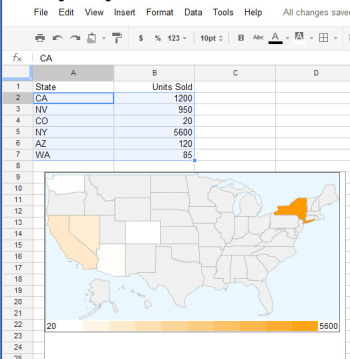
    7 Great Google Spreadsheet GadgetThe Heatmap gadget shows relative values as colors on a map.You can plot data related to states or countries on a heat map, with small values indicated by light colors and larger values rendered in darker and more saturated colors. To plot the data correctly, you must use ISO country codes (or, for U.S. states, the usual two-letter state codes). Place the data to plot in the cell to the right of each relevant state or country. Choose Insert > Gadget > Map > Heatmap, and then click Add to spreadsheet. Select the data–including the locations and the data to plot, but not the column headings–and click OK. Type a title for the heatmap in the Title box, select the map type from the Region box (click USA to plot data on a United States map), and click Apply & Close. The map will appear with the regions colored appropriately for the value of the data associated with each.

    7. Create an Animated Pie Chart
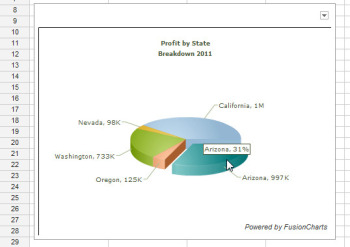
    7 Great Google Spreadsheet GadgetsDrag on a pie slice in the animated pie chart to offset it from the chart itself.Interactive charts are more interesting to look at than static graphs. You can create animated pie charts in a Google spreadsheet using a gadget. For this chart, you need only the categories and one set of data, because pie charts can plot only a single data series. Insert the gadget by choosing Insert > Gadget > Charts. Locate the FusionCharts Pie & Donut Widget, and click Add to spreadsheet. Click in the Range box, select the data to plot–omitting the column headings–and click OK. Now select the chart type, such as Pie 3D. Type a caption and subcaption for the chart to inform the viewer as to the information the chart is intended to convey. Enable the Animate checkbox, and, if you prefer, enable Values On and Labels On to show both labels and values for each pie slice. If you enable Tooltips, the mouse pointer will show a tooltip if the user hovers the mouse over a given slice. Select Format Number and set Decimals to No Decimal so that numbers will be constrained in size. Enabling Shorten Values will ensure that the chart presents large values legibly. Click Apply & Close. When the chart appears, you can drag on a pie slice to explode it from the chart. Right-click the chart and click Enable Rotation so that you can then rotate the chart with your mouse. Gadgets such as these add a range of extra functions to Google spreadsheets, allowing you to do new things with your data and display it in ways that can help your business.

    The first step in producing an organization chart is to create the data on which it will be based. In one column, type each employee’s name, or whatever other text should appear in each box in the chart. In each adjoining cell to the right, type the corresponding manager’s name, or whatever information you wish to display in the box at the next higher level in the chart. Don’t put any top-level information–such as the highest manager’s name or a website’s home page–in the first column, because they have nothing above them in the hierarchy. If you want two lines of text in a box, type one line and press Alt-Enter to start a second line. Confirm that the spelling of each name or box label is identical wherever you use it, or the chart won’t render correctly. If necessary, copy the contents of a cell rather than retyping it to make sure that each entry that should be identical–such as “home” in the example illustrated here–remains so. Now choose Insert > Gadget > Diagrams > Organization Chart, and click Add to spreadsheet. Select the cells in the two columns containing the data, and click OK. Type a title in the Title box, and click Apply & Close. The organization chart will appear in your spreadsheet.  

  • Google Explains The Difference Between Google Plus,  1 Button & Search

    Google Explains The Difference Between Google Plus, 1 Button & Search


    Google+ is the most recent player in the social networking field. When it first came, we reckoned it was just another attempt by Google to counter Facebook’s increasing dominance, and that it will fail like other projects from Google in the past such as Google Buzz, Orkut etc. But now, it seems that it is obviously here to stay. Google+ is a lot more than just a social networking website. The +1 button isn’t just another Like button, as you will see later in this post. Google+ is a site where you can show your interests, have connections, and build an identity. It’s a friend of webmasters, who can achieve a lot more by using this simple social site. In a way, Google is trying to provide a coherent experience to the users by introducing all their products such as Google Search, GMail, Google News, etc. And Google+ could be the glue that holds everything together to provide an uninterrupted and ‘seamless Google experience’ to the users. In this post, we will talk about how important Google+ is, and why should you use the +1 button, and how it all helps webmasters.

    Starting out with Google Plus
    First of all, you need to have a presence on Google+ for it to be of any use to you. Read our post on how to join Google+. A public profile on Google Plus is very important. You can also create a separate Google+ page or your blog or brand, just like a Facebook Page. Google+ then gives you many features. Here is a video by Google’s Developer Programs Tech Lead, Maile Ohye, who summarizes the concepts explained in this post.


    Intimacy; Create Circles, follow people, and Hang out!
    Google introduced this great feature of Circles. Circles can come in real handy if you want to do targeted marketing. You can share your updates with any of your circles, and the people in the remaining circles won’t get those updates. This way, you can only share your personal updates with your family circle, and brand related updates to its respective circle. Also, you can set up more circles and target a specific audience, such as only men, or only women etc.

    At Google+, you can follow anyone, just like Twitter. It doesn’t need confirmation. So if you would like to get updates from your favorite brand, you can simply follow them. On the other hand, if you don’t want someone to follow you, you can simply block them out!

    Another great feature that inspired change in Facebook is the Hangouts feature. With this, up to ten people can start a conference video call and talk to each other.
    Google+ Interaction
    Google+ Interaction allows you to edit any of your posts at any time, kinda like a blog post. You can also edit your comments. Unlike a blog post, however, which is always pushed down as new posts arrive, your posts on Google+ will remain on the top depending on their popularity and the comments on them.
    The +1 Button
    The +1 Button is more than just a Like button you normally find on Facebook. With it, you can build your reputation. It helps you to publicly recommend and share content you find useful. Unlike the Like button on Facebook which is limited to Facebook itself, the +1 information for a content is available throughout the web on search results, ads and sites. Hence, it isn’t just confined to Google+, but it extends over to all Google products. Also, you can track and manage all your +1s, so that you can revoke them at any time if you don’t like them anymore.

    The advantage of the +1 button is, you can +1 a post directly from search results. And if any of the people you know have +1’d a post, you will see it right below the search results. That way, if you +1 something, you’re indirectly recommending it to your followers.

    With the +1 button, you can also get great metrics from Google Analytics and Google Webmaster Tools. The +1s data on your Webmaster Tools will help you better understand your audience by seeing what gender or age group +1’d your posts the most etc. You can also see the +1s for particular pages on your website, and the +1s that were gives for certain pages from other sites on the web.All this shows how you are building your reputation.
    +1 Search Integration
    We already talked about how you can +1 a search result right from the SERPs. But there is one thing you need to know. While searching for your results, Google takes your +1 history into account. For example, if I search for ‘earning methods’ and +1 our sister blog smartearningmethods.com, the next time I search for ‘earning methods’, SmartEarningMethods will come up in the top spots. Also, if any of my friends has +1’d another blog, that will come up too. Hence, getting +1s on your posts could prove very useful to you, since Google returns tailored results for each individual.

    In search results, Google might also show who the author of a content is. This is where a profile comes in useful. If you have a profile linked to that content, Google might shows that as well, which increases your chances of getting followers.

    Google+ can project your brand far beyond your own reach. Users who +1 your content are actually recommending your content to their own followers, who in turn might +1 the content, and so on. Hence, a network builds up with your content at its center. Facebook also has a somewhat similar feature, but the reason Google+ is ahead in this area is, Facebook’s shares are limited to Facebook only, where as the +1 button shows up on search results and is accessible throughout the web.

    That was some basic information about Google+ and the +1 button you need to know. Google+ indeed is a a great new opportunity for you to grow your brand’s reach.