Heads up! In what feels like a throwback to the late 90s/early 2000’s, Microsoft has discovered one helluva bug in Microsoft Office. Executed properly, the bug could be exploited to take over your entire system running just about any version of Windows.
You can find Microsoft’s full disclosure on the bug here, but here’s the bulk of what you should know:
This bug is being exploited in the wild, though Microsoft only knows of “limited, targeted attacks” so far
It affects Windows Vista, Windows Server 2008, Windows 7, Windows 8, Windows Server 2012, and Windows RT. XP isn’t mentioned as Microsoft no longer supports it — but yeah, it’s probably affected too.
If executed properly, the exploit gives the attacker the same permissions on your system as whatever type of user you’re currently logged in as. If you’re an admin, that means full admin rights — code execution, app installs, etc.
If you have Window’s User Account Control feature enabled, it’ll throw up a prompt asking if the file is okay to execute. If you aren’t 100% sure that the file is legit, avoid doing so.
The bug is part of PowerPoint’s OLE system, which lets you embed things like spreadsheets into a presentation. It’s supposed to be fairly well sandboxed; alas, it looks like someone found a gap.
Microsoft says that hacked presentations e-mailed to users and hacked presentations sitting on the web are potentially dangerous. The short version: avoid all but the most-trusted PowerPoint presentations right now.
So just how gnarly is this bug? Says Microsoft (emphasis ours):
An attacker who successfully exploited this vulnerability could gain the same user rights as the current user. If the current user is logged on with administrative user rights, an attacker who successfully exploited this vulnerability could take complete control of an affected system. An attacker could then install programs; view, change, or delete data; or create new accounts with full user rights.
But should you panic?
Nah. Do a few things things, and you should be safe:
1) Play it smart about what presentations you open
2) If you’re on a build of Windows that has User Account Control as an option, enable it (it should be on by default, in most cases.) This won’t fix the bug outright, but it’ll throw up a big permissions prompt that’ll remind you not to open mystery files.
3) Check out this advisory page from Microsoft, which offers up a temporary patch until Microsoft finalizes a security update.
Earlier today Microsoft added Android to the list of mobile operating systems now supported by Office Mobile. But Office Mobile for Android only covers phones, not tablets, limiting its utility. The Android version, Office Mobile for Android, is also arguably the weakest of the bunch, in terms of compatibility with Microsoft Office. Microsoft is still tacitly encouraging users to buy Windows Phones, which come preloaded and activated with Windows Mobile and don’t require an Office 365 subscription to use. The problem is, within the Android world, there are a number of other office solutions that provide very good direct competition to Microsoft’s offering.
Nevertheless, Office Mobile for Android is free and downloadable from the Google Play Store. The only requirement is that your phone must contain Android 4.0 or higher, and you must already have purchased Office 365. In a break with Office Mobile for iPhone, Microsoft doesn’t even offer the option to purchase Office 365 from within the app; instead, users must sign up outside the application itself. And without Office 365, Office Mobile for Android is virtually useless. “The release of this app shows that we’re committed to keep providing additional value for Office 365 subscribers,” said Guy Gilbert, a senior product manager of the Office apps for Microsoft, in a blog post. Qualifying Office 365 plans include Office 365 Home Premium, Office 365 Small Business Premium, Office 365 Midsize Business, Office 365 Enterprise E3 and E4, Office 365 Education A3 and A4, Office 365 ProPlus, and Office 365 University. There are also Office 365 government plans that include Office Mobile. Users can also visit Office.com and sign up for a free 30-day trial, Microsoft said. While Microsoft eventually intends to make Office Mobile for Android available across 33 languages and in 117 markets, it’s only currently available for the United States. That will change over the next few weeks, Microsoft said.
What’s included
Like Office Mobile for iPhone, the Android version comes with mobile versions of Excel, PowerPoint, and Word; Office Mobile for Windows Phone adds OneNote as well. So far, Android users don’t have access to the Outlook Web App app that Microsoft recently released for the iPhone, either.
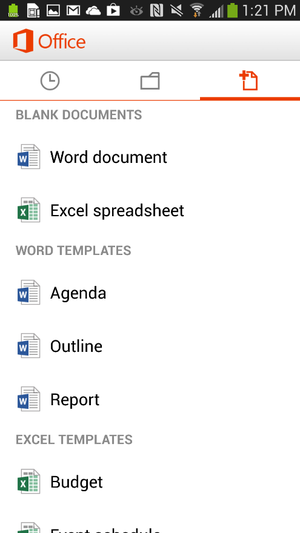
Office for Android users can create documents in Word or Excel.
Users can create new documents, edit those that they’ve already created, and save, load, or edit files saved to Microsoft’s SkyDrive or SkyDrive Pro—which on Tuesday received a few upgrades, as well. But the ability to create files only applies to Word and Excel; for now, you can review your PowerPoint slides and edit them, but not create a presentation from scratch. Users can also open a document via email. Office Mobile includes a couple of handy features designed for the phone; The software knows what documents you’ve recently accessed on your PC, and those are the first options presented when you choose to open a saved file. A feature that Microsoft calls Rapid Resume also works like Amazon’s Kindle, ‘fast-forwarding” you to the portion of the document last viewed on your PC. An “outline view” in Excel and Word allow you to quickly navigate through the document, and both apps allow annotations as well. Within the three supported apps, Microsoft has made efforts to make editing a snap; in Word (shown at top of story), for example, tapping the pencil brings up the most common editing functions. Excel allows you to filter and sort data and create charts, using the local processor to calculate data. Within PowerPoint, users can review slides and edit speaker notes, move and hide slides, and make text edits directly from the phone. Holding the phone in a portrait orientation allows edits to be made and includes a quick navigation bar; a landscape orientation serves as presentation mode.
Office Mobile for Android, displaying an Excel worksheet.
In general, Office Mobile for Android and Office Mobile for iPhone should function quite similarly, with two exceptions: Android users can not sign up for Office 365 within the app itself, and Android users may need to fully qualify documents that are accessed via an on-premise SharePoint server.
Buy Windows Phone—or a Surface
To date, however, Microsoft has been keenly cognizant that productivity apps are the foundation of the Windows platform, and users who purchase a Windows Phone will have these benefits:
Office Mobile will be preinstalled and activated;
users will be able to save documents to the phone itself, as well as SkyDrive or email;
WP users will be able to filter and search for documents;
Users can also easily open documents with permissions attached to them.
Office 365 includes a license of up to five mobile devices—but Windows Phones don’t count against that limit. The biggest annoyance, however, is that—like the iPad—tablets aren’t supported in either Office Mobile for the iPhone or the Android version, either. Those trying to hunt and peck at keys in the back of a jouncing taxi are likely to grit their teeth and muddle through; by doing so, however, Microsoft is tacitly encouraging customers in the direction of a Surface tablet—now at a new low, low, price—or even a full-fledged Windows 8 PC. (“Phablets” like the Samsung Galaxy Note II should still be supported, however.) “If you have an iPad or Android tablet, we recommend using the Office Web Apps, which provide the best Office experience on a tablet,” a spokeswoman for Microsoft said via email. “We have made lots of enhancements to Office Web Apps including a touch experience for tablet users.”
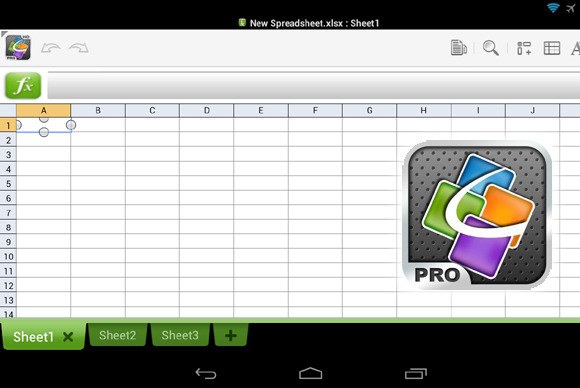
QuickOffice Pro provides one tablet-friendly alternative to Office Mobile for Android.
Microsoft also has native apps for OneNote, Lync, and SharePoint, in addition to supporting Exchange Active Sync for email, calendar and contacts, she said. ”I’m not sure how many people are going to want to do a lot of Office work on a phone,” Michael Silver, an analyst at Gartner, said recently. “A tablet’s going to be a lot more important.”
Alternatives
Of course, there’s no reason that users have to live in the world that Microsoft has created. Plenty of Android office apps allow document creation or editing, both on a phone or tablet: Google Drive, of course, allows for Google’s own documents to be created; and Google’s own QuickOffice, Documents to Go, and OfficeSuite Pro 7 are all arguably as good or better choices than Microsoft’s offerings. In one way, editing or creating an Office document on a mobile phone is counter-intuitive; too many people still append some sort of signature file on a mobile phone to explain away any typos or shorthand. Within a business document, however, typos simply shouldn’t appear. Office Mobile can certainly stand in to enable last-minute changes while on the go, but they shouldn’t be considered as serious tools for document creation. And that’s exactly how Microsoft appears to want it.
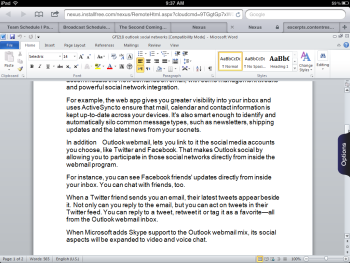
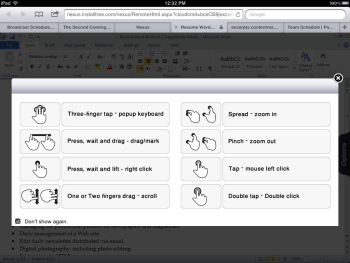
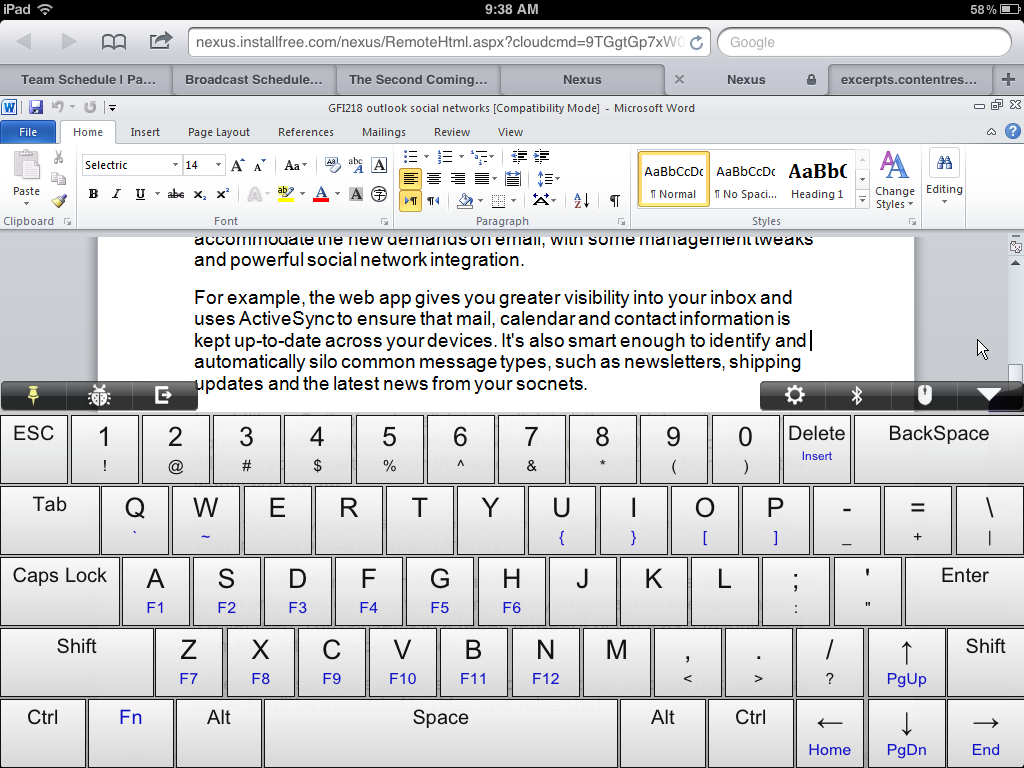
Earlier this year, the Internet was abuzz with what appeared to be a version of Microsoft Word running on the iPad. Today, we’re no closer to seeing Word as a native iPad app than we were when it was spotted briefly in the wild six months ago. That doesn’t mean that you can’t edit or create Word documents on an iPad. There are a number of offerings that bring the Microsoft Office experience to the iPad, such as DataViz’s Docs to Go or Quickoffice, as well as services such as CloudOn, Nivio Online Desktop and InstallFree Nexus. You can even use Microsoft’s web apps to edit Word documents in a pinch, if you have Google’s web browser, Chrome, installed on your iPad. Of the various alternatives available to Word lovers, InstallFree Nexus is an intriguing one, even though it seems to be ill named. Its use of “Nexus” is bound to get the app confused with Google-backed hardware of the same name. Moreover, there’s nothing to “install” — the service runs entirely from the cloud — and there’s nothing “free” for subscribers who want to use Microsoft Office apps from the service over the long haul. Joining the service is fast and easy. During the registration process you provide an e-mail address, create a password and associate a cloud storage service with your account. Storage services supported by InstallFree Nexus include Dropbox, Skydrive, Google drive and Box.com. Once logged in to InstallFree Nexus, you can swiftly import files from your cloud storage service then work on them in any Microsoft Office program. When you’re finished, you can save your file to your cloud storage and return to it from any device that can run a browser, including the iPad’s version of Safari. On the iPad, gestures can be used to work within Word or other applications. A three-finger tap, for instance, displays a virtual keyboard in Word with a traditional QWERTY layout, including numbers and symbols in the top row, and embedded function keys, F1-F12. Apple’s Bluetooth keyboard can also be used with Word in InstallFree Nexus. However, it does require that the virtual keyboard be shut off from the settings menu. A problem Word users will immediately find with using the word processor on the iPad is that most of the icons on the ribbon bar are too tiny to be very useful. And with the ribbon bar and keyboard displayed on the screen, very little text space is left on the tablet’s screen. As a service, InstallFree Nexus doesn’t seem ready for prime time either. Word crashed occasionally. Sometimes the site freezes. My link to Dropbox was dropped and I couldn’t access my files from within Word. And the performance within Word was sluggish. All of which added up to not a very pleasant experience. Currently, InstallFree Nexus is offering a free 60-day trial of its service that includes use of Office 2010 apps. After that, those apps are offered on a subscription basis: $4.99 a month/$49.99 a year for students; $19.99 a month/$199.99 a year for non-students. In addition to offering cloud access to Microsoft programs, InstallFree Nexus offers free access to the LibreOffice suite.