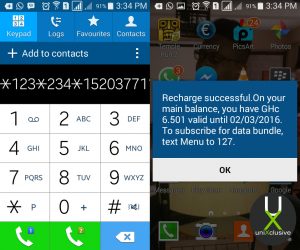
If you are a Nigerian studying or residing in any west African country where Glo coverage is available, you can now recharge a Nigerian Glo card in your Glo sim in that country.
To recharge a Nigerian Glo card on your Ghana line simply dial: *123*234*Recharge Code#
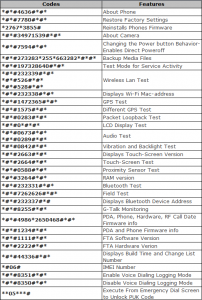
The domination of the global smartphone market by Android devices is no secret but only few can brag about knowing their in and out about their Android devices. Here, we have exactly what you need to explore and make maximum use of your Android mobile device.
Below is an image that illustrate the secret codes you can play with on your smart device!
Often, you have heard people tell you, ‘talk is cheap’, and you begin to wonder just how much you have spent on voice calls in the last decade. Here in Ghana, talking and just talking is part of our day to day affairs. Every now and then, we have been cut short in the middle of having a conversation on the phone. You can’t complain, you simply find the nearest kiosk, purchase a credit and continue talking from where you left off.
What if your car broke down in the middle of no-where? Your airtime balance is reading GH¢0.0, you have used your last Pesewas to say farewell to the girl you dropped off? This is where you need to borrow airtime.
The ‘borrow credit’ service in Ghana allows you to take a small loan (in form of airtime) from your network providers and pay back later. With this service, you are guaranteed to never be stranded again as long as you have your cell phone and network coverage in your location.
Even though this offer seems irresistible, the down side is that most network providers like MTN and Vodafone takes back their loan instantly on your next recharge – with Airtel and Tigo, you will need to dial a number to pay back your loan.
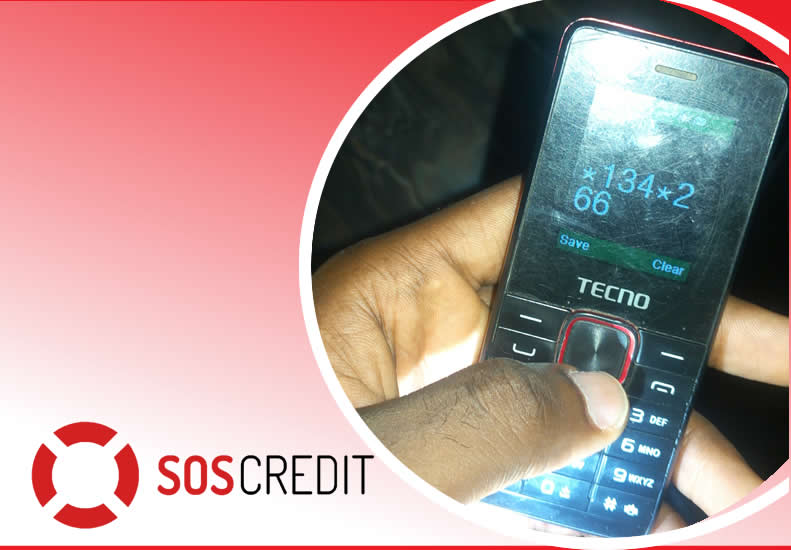
Vodafone SOS Credit
Get credit when you need it the most through Vodafone Ghana SOS Credit. Borrow credit when you have less than GHc 1 and pay back the next time you top up. You must be a Vodafone Ghana user for more than 15 days before you can access this service.
It’s simple! Just dial *505# to borrow credit. You can borrow GHc 2, GHc 5, GHc 10 and GHc 15. A service charge of 10% of the requested credit is charged as commission.
MTN Xtra Time
MTN Xtra Time is a service that allows MTN customers to borrow and use an overdraft amount based on the their spend and the no. of years on MTN. To borrow more talk time on MTN Ghana, dial *506# and select your option.
Glo Borrow Credit
To borrow credit on the Glo Ghana network, simply dial *5321# and select Borrow Credit. Select the amount you want to borrow and send.
Airtel Borrow Me
Dial *130#. A service fee will also be charged on the amount you borrow. You can track your usage of the borrowed credits by dialing *130*10#.
Borrow Credit from TIGO
Dial *188# or call 188 and follow the voice prompt to receive airtime to pay later upon recharge.
Remember you need to pay for your previous loan before requesting a new one!
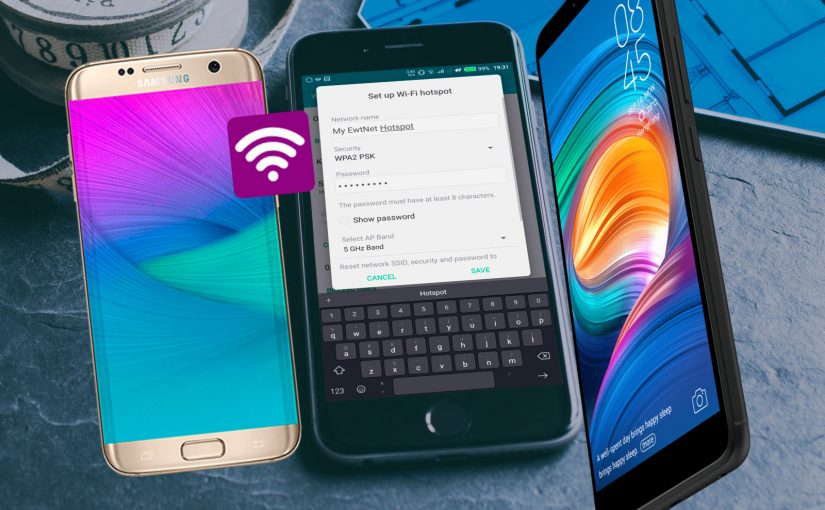
If you don’t have a home internet access, your best bet is to use your Android smartphone to distribute your cellular Internet connection to your other devices. Using our guidelines provided in video, picture gallery and text format you can learn how to configure Wi-Fi hotspot in an Android smartphone.
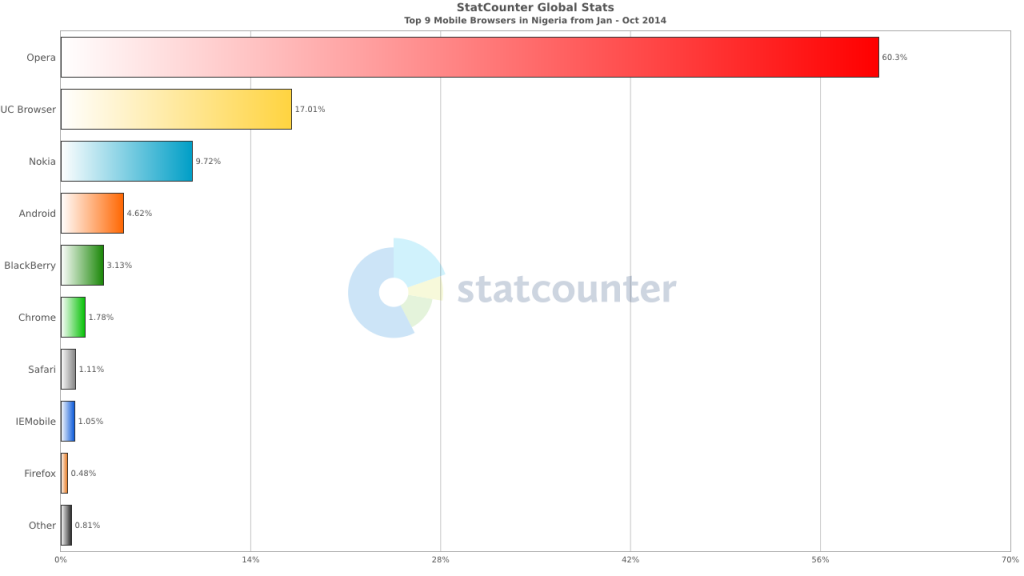
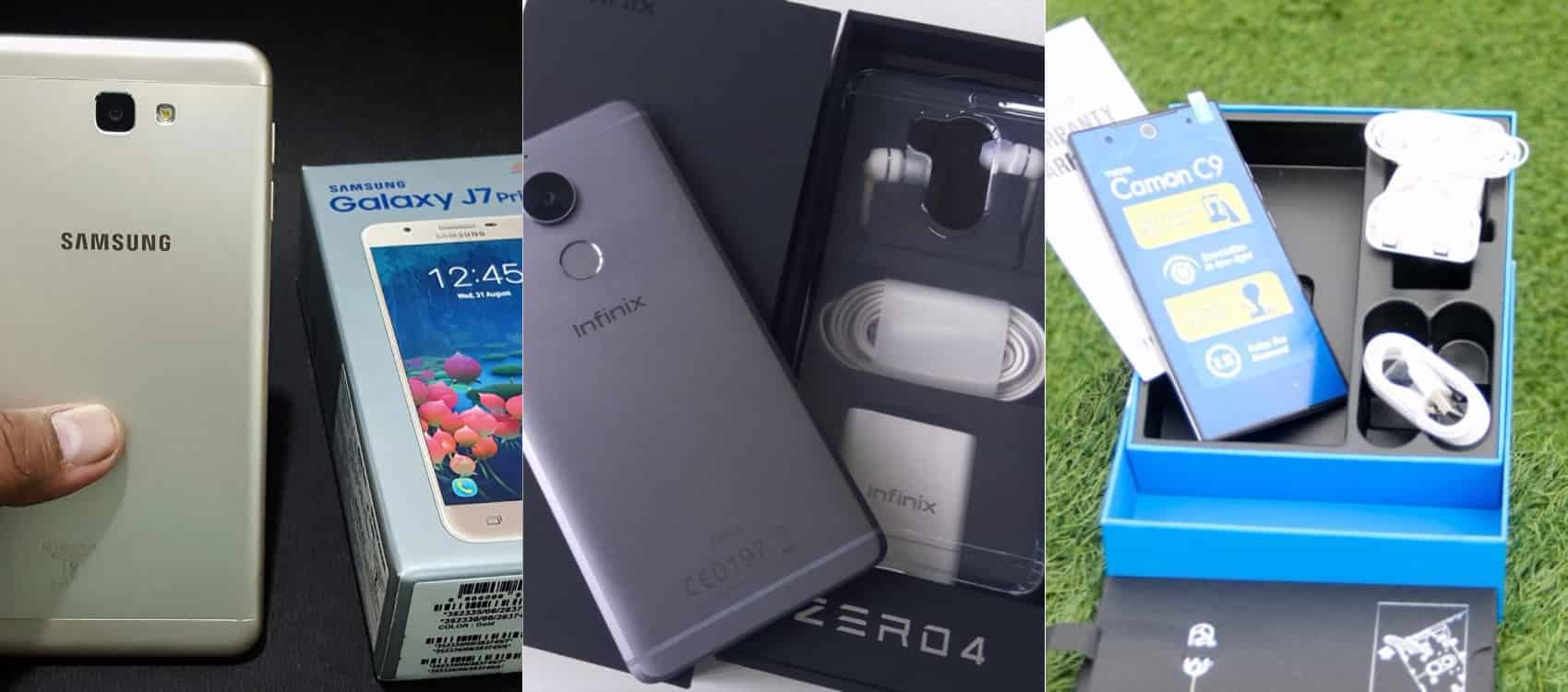
Smartphone usage statistics from Jan-Oct 2014 shows that Android OS is winning the smartphone war in Nigeria. Infinix, Tecno and Samsung smartphones are at the very top of the food chain in Android smartphone usage among Nigerians.
Since most internet users [in Nigeria] access the internet from the mobile data, it makes sense for Android users to get acquainted with the inbuilt portable hotspot facility that comes pre-installed in most Android devices.
Be it on Huawei Y6 Prime 2019, Samsung Galaxy S10+, Infinix Zero 5 or any Android smartphone out there, these guide is ready to get you started with portable hotspot on your device.
Click on any of the formats listed above to access this tutorial in that format.
How to use and configure Wi-fi on Samsung, Teno, Infinix and other Android smart phone?
Configure Wi-Fi hotspot on Samsung Galaxy S8
Time needed: 2 minutes
Follow this step to step guide to learn how to configure Wi-Fi Hotspot on your Samsung, Tecno, Infinix and any other Android smartphone.
Go to your Android phone’s settings
From the Home screen, tap the Application screens icon > Find and tap Settings.
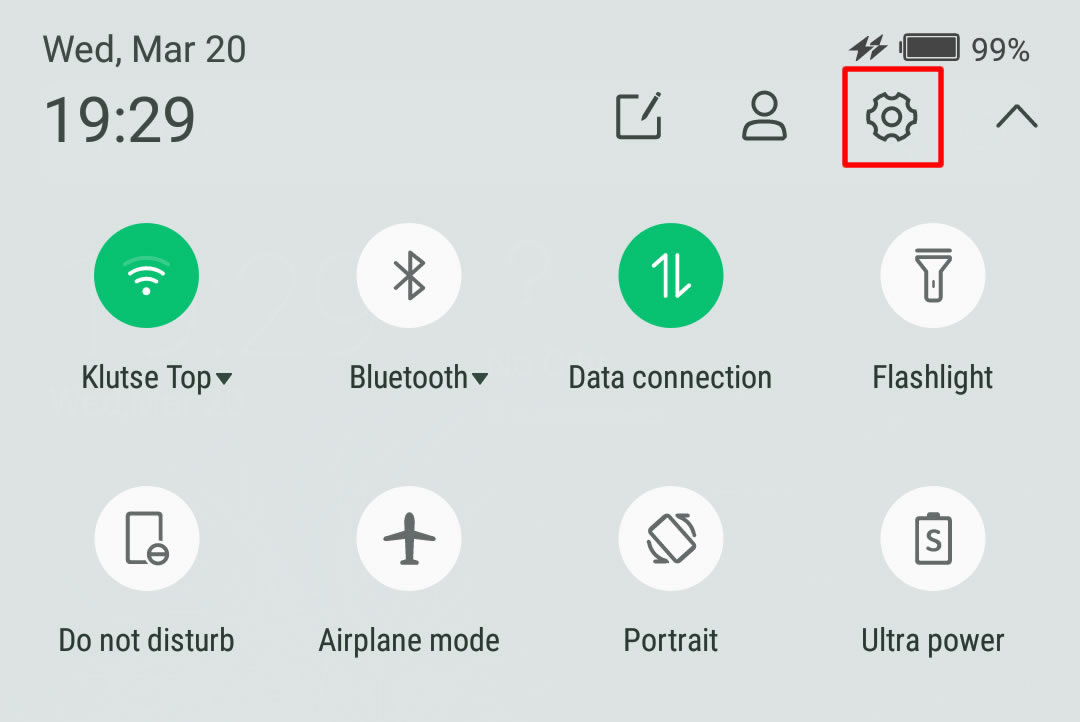
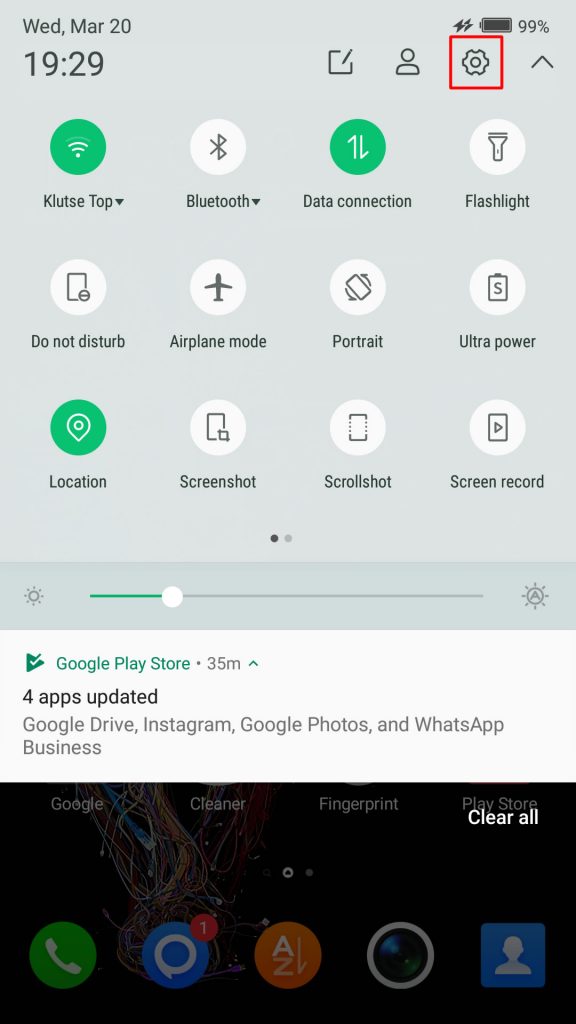
On newer versions of Android, you can simply pull down Android control panel and click on the gear icon.
Wireless & networks settings
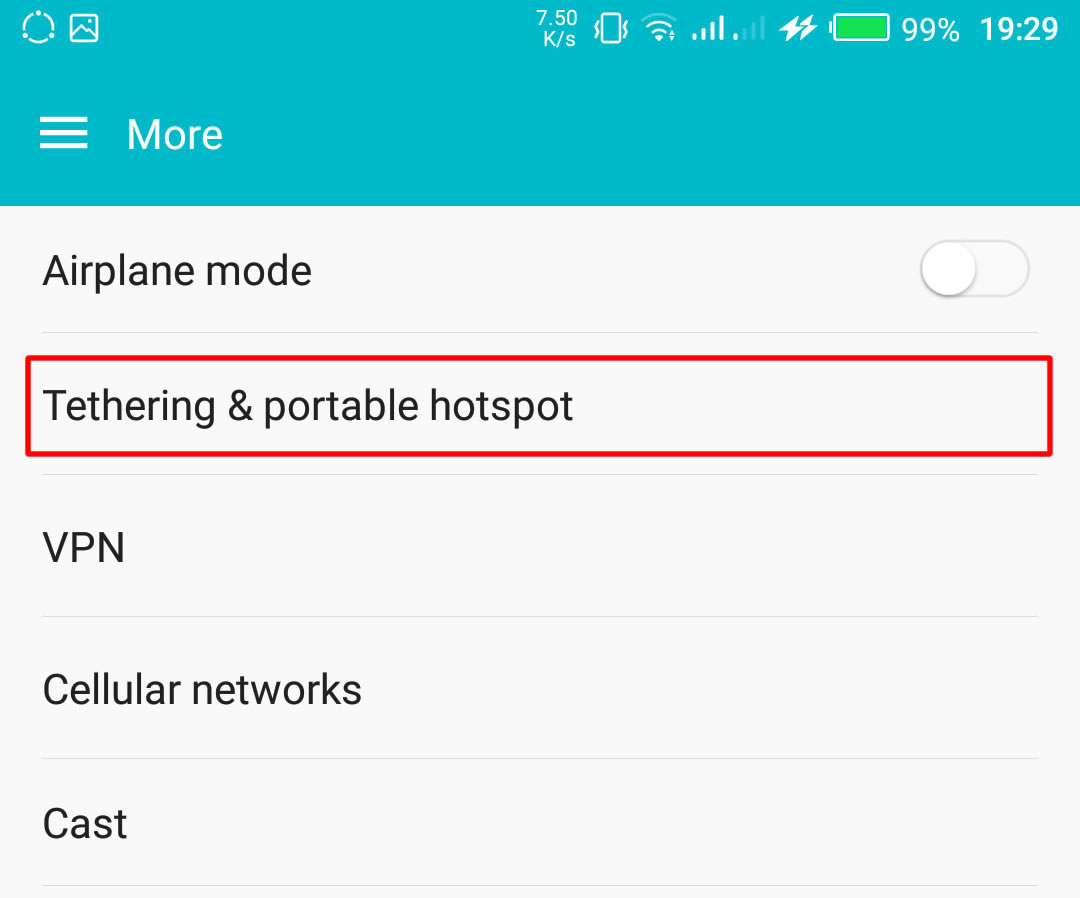
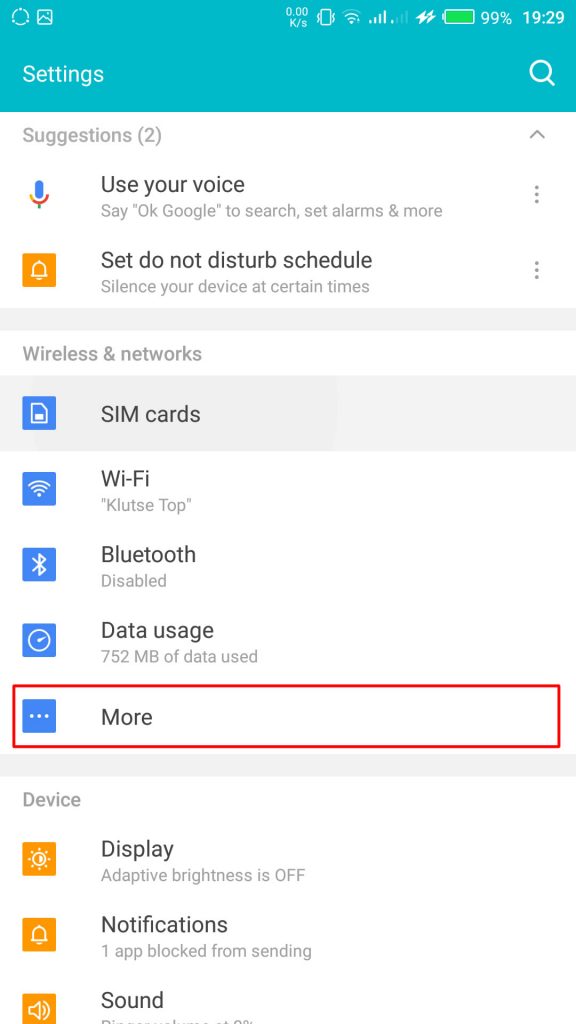
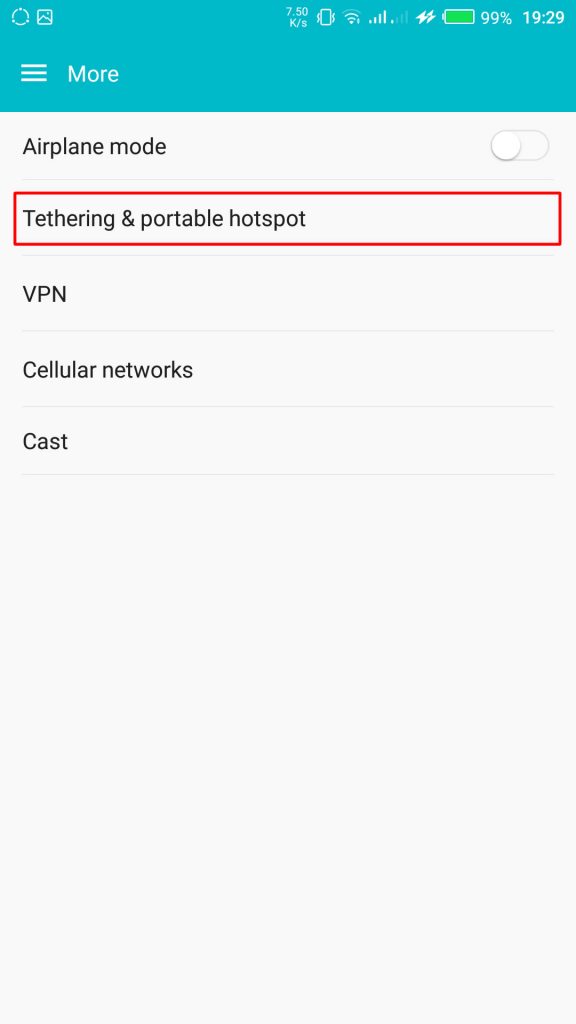
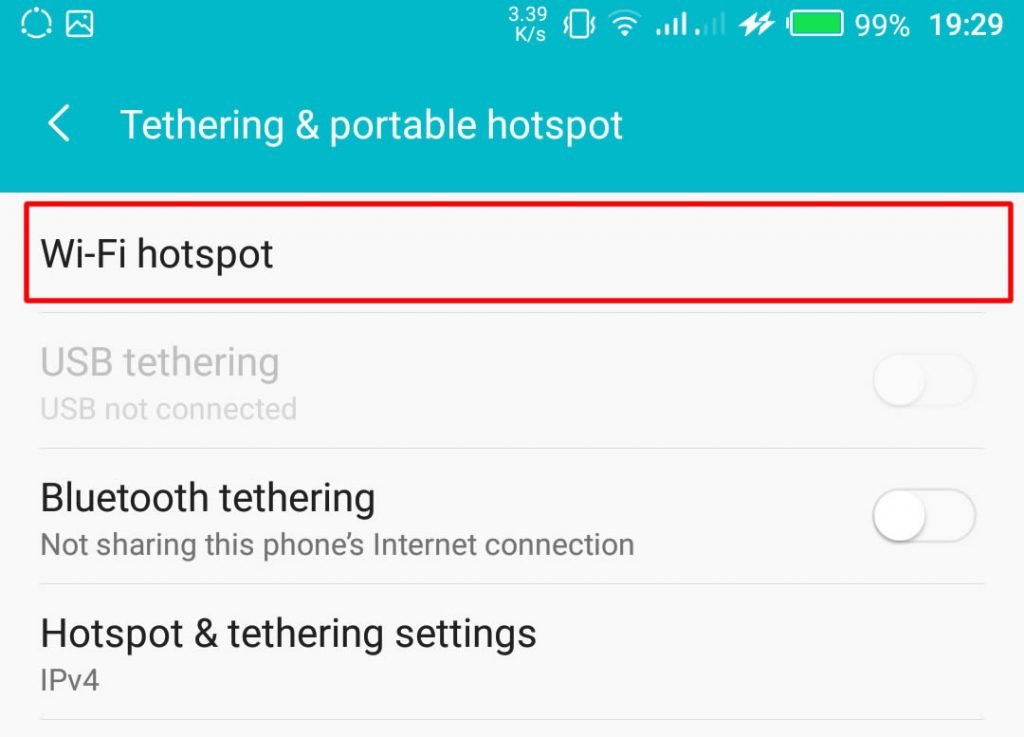
From your Settings screen, locate Wireless & Networks block and tap Tethering & Portable Hotspot. If you can’t find Tethering & portable hotspot on your settings home screen, tap More > Tethering and portable hotspot.
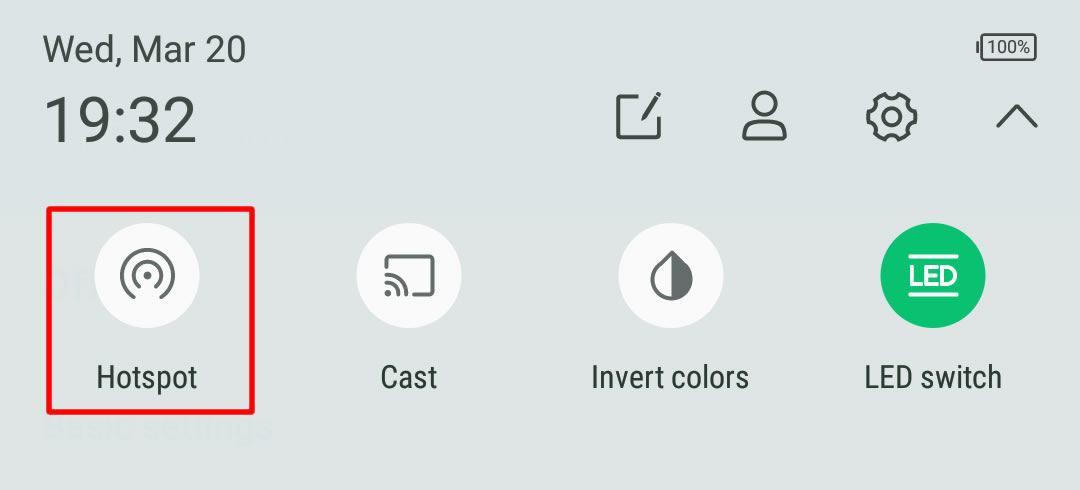
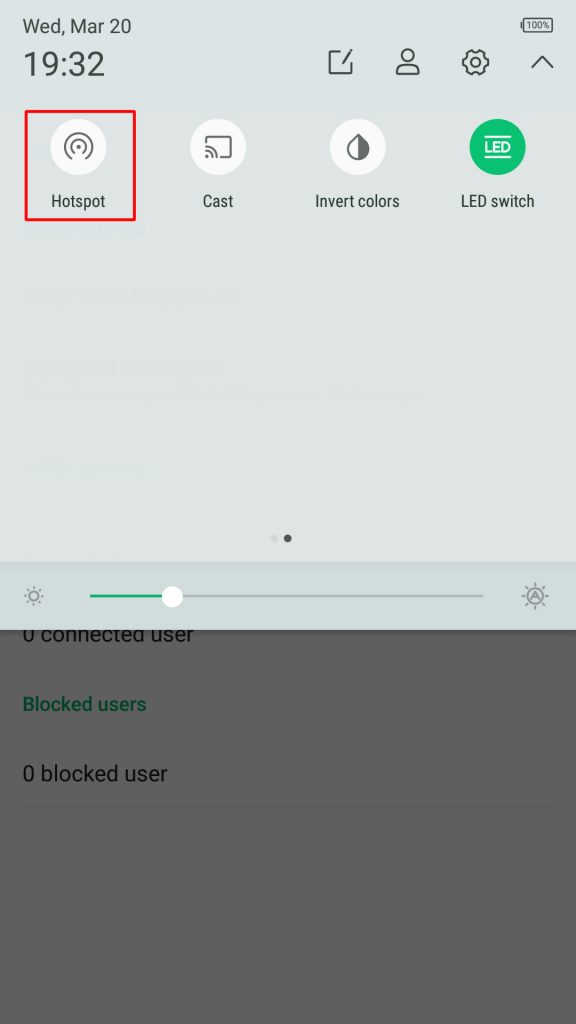
On some version of Android, you can hold the upper screen of your Infinix smartphone or Tecno smartphone and scroll down. Turn “On” hotspot from the menu. You will see a notification requesting you to touch to configure hotspot, just touch the notification.
Configure Wi-Fi Hotspot
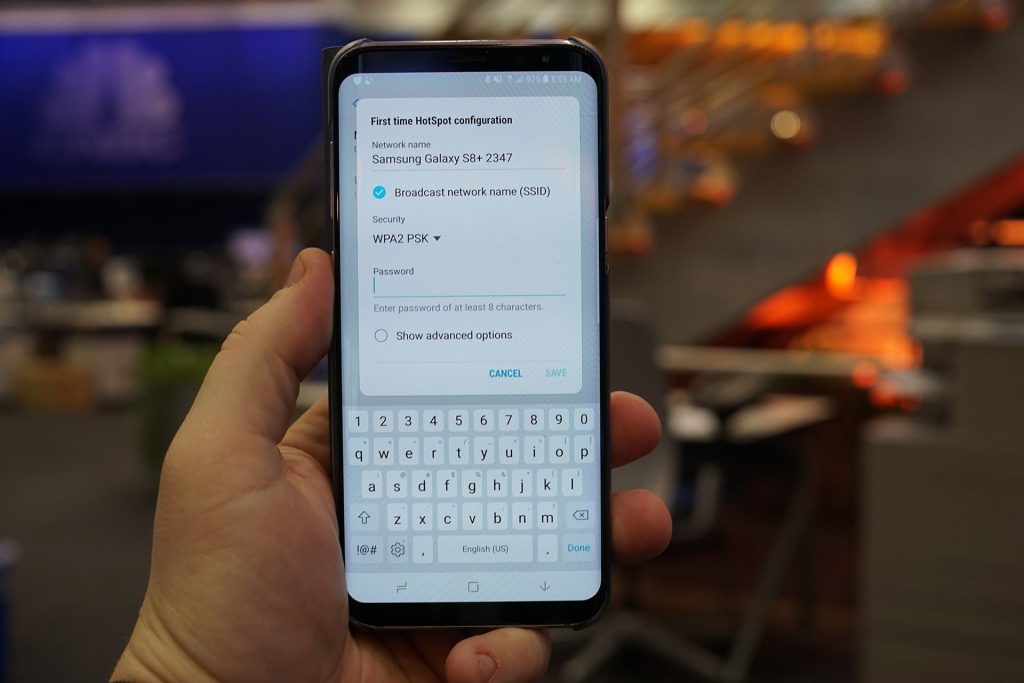
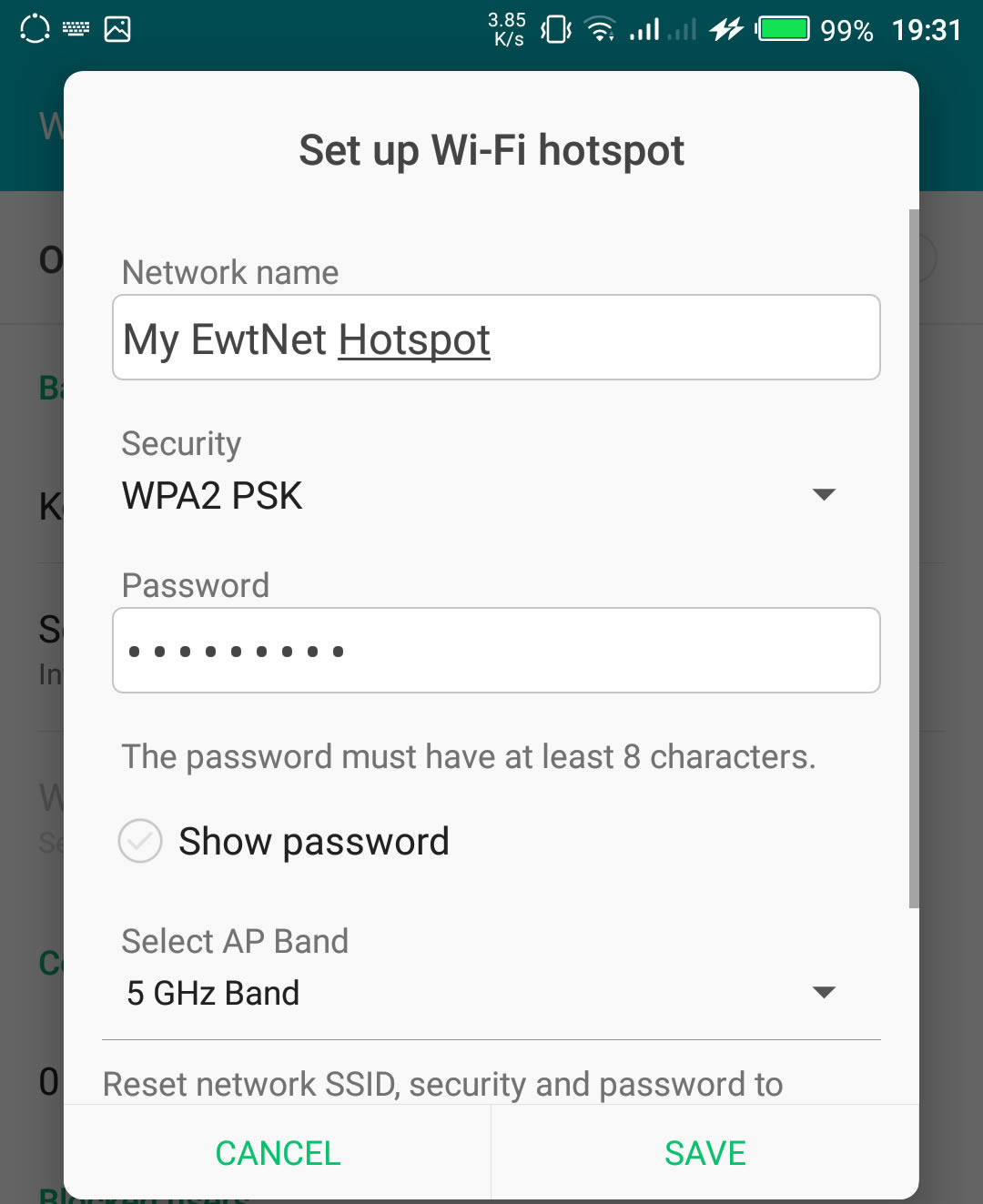
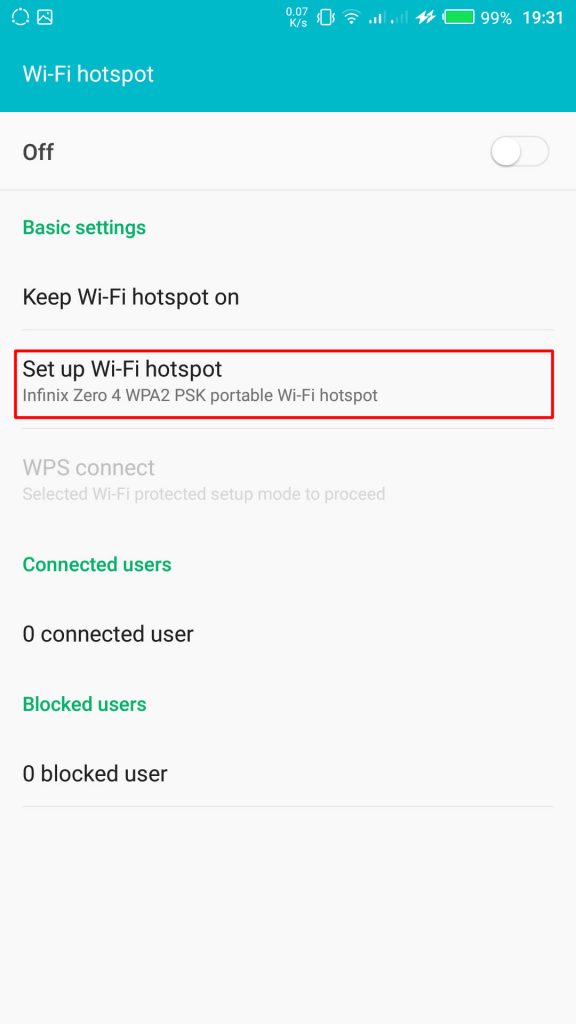
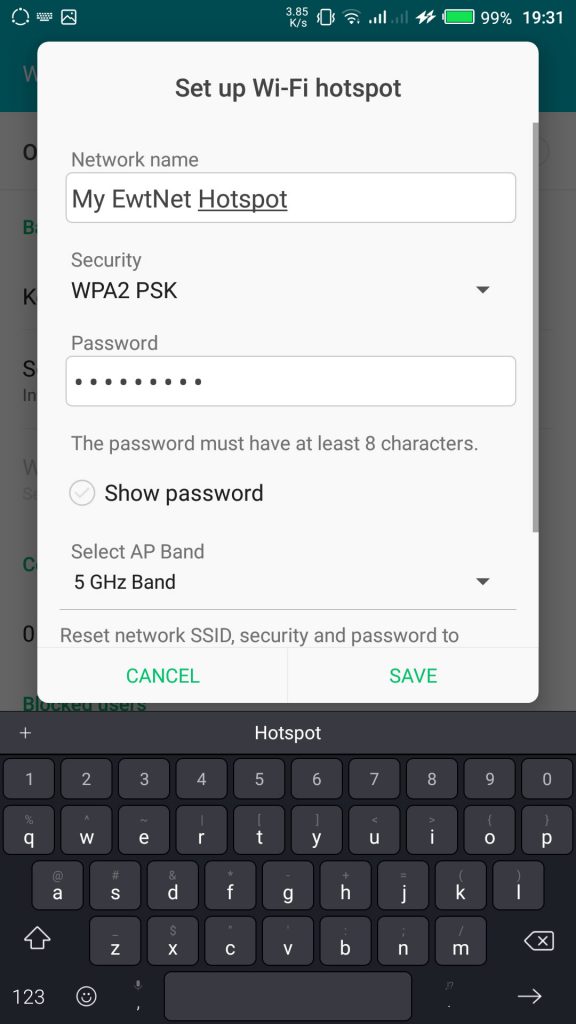
From the Tethering & portable hotspot screen, tap Wi-Fi hotspot and select Set up Wi-Fi hotspot. Here you can set your WIFI’s SSID and security.
The SSID or Network Name is the name of your Wi-Fi connection. Change the name to any name of your choice, the default name is usually “AndroidAp”
You can change the security option, to any of your choice, such as, “Open” which allows any WI-fi enabled device to connect to your smartphone without requesting for a password. While WPA PSK and WPA2 PSK allows you to put your preferred password.
Using Portable Wi-Fi hotspot on Android Smartphones
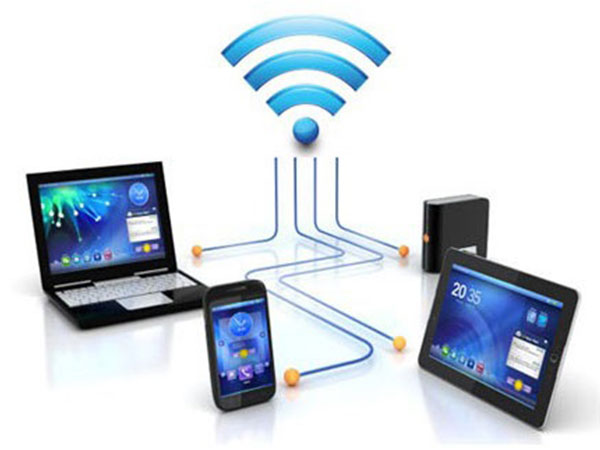
Your WIFI hotspot is now functional and can be used on basically every Android device that support WiFi connection including, Honor 8X, Infinix Diamond, Tecno Camon 11 Pro, Xiaomi Redmi Go, Tecno phantom and on any PC that has a WiFi adapter.
Turn on your Infinix WLAN hotspot and your laptop WLAN and search for available networks and connect. That’s all you need to configure your WLAN Hotspot and start using your Infinix smartphone to power your laptops and smartphones WLAN, up to multiple devices simultaneously
If you going to use your mobile data on your PC be ready to re-adjust your monthly data budget. Luckily, network providers in Nigeria and Ghana has improved their data offers in recent years.
How to use and configure Wi-Fi on Infinix smartphones in Pictures?
This picture walk-through guides you on how you can set up Wi-Fi hotspot on your Android smartphone using infinix example.
Click on the images to expand and use the arrow keys to browse.
Tap and drag down the top area of your Android phone to open the Android control panel > tap on the gear icon.
From your Settings screen, locate Wireless & Networks block. This is where configure network services like Bluetooth, Wi-Fi and mobile data. Tap More to open more network settings.
From More in Wireless and Networks settings, tap Tethering & Portable Hotspot. This will open the Tethering & Portable hotspot setting screen.
Tap Wi-Fi hotspot to open the hotspot management screen.
Ta Set up Wi-Fi hotspot to configure your Wi-Fi hotspot network name and password.
Here you can set your WIFI’s SSID and security. The SSID or Network Name is the name of your Wi-Fi connection. Change the name to any name of your choice, the default name is usually “AndroidAp”
You can change the security option, to any of your choice, such as, “Open” which allows any WI-fi enabled device to connect to your smartphone without requesting for a password. While WPA PSK and WPA2 PSK allows you to put your preferred password.
Once you’re done, get an Internet plan for your phone, turn on your mobile data and hotspot.
Your WIFI hotspot is now functional and can be used for multiple devices.
After you’re done, all you have to do is turn off the hotspot.
The same techniques will work on all Android devices. Using your mobile data on PC is obviously going to be more costly than Internet to the home bills, you may consider this data subscription plans to make an informed decision.
Video Guide on How to Use and Configure Wi-Fi Hotspot on Android Smartphones
The video demonstration is recorded on Infinix Zero 4 smartphone, but the same procedure is used to configure Wi-Fi hotspot on any Android device.
If you’ve ever wished that the screen on your Android phone or tablet stayed on longer before going to sleep, you’re not alone. Luckily, this can easily be adjusted in the settings with just a few taps. Not only that, you can prevent your Android device from sleeping while it’s charging, too.
The term ‘screen timeout’ refers to the time it takes for your smartphone or tablet to go to sleep (the screen turns off) after you’ve stopped interacting with it. The average screen timeout sits around 30 seconds to one minute, depending on your device. For many users, this is acceptable, but there are times that you might wish that your phone didn’t go to sleep so quickly.
Maybe you’re looking at a recipe on your tablet in the kitchen, your hands are covered in food, and you need to get to the next step. Maybe you’re reading a walkthrough for a video game and just want to glance over to see what to do next without pausing. Here’s how you get your screen to stay on longer.
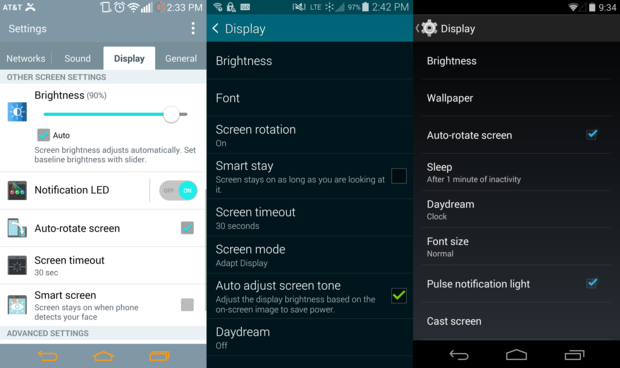
Depending on your phone, the Display Settings can appear in a tab or window, but will you give the same options.
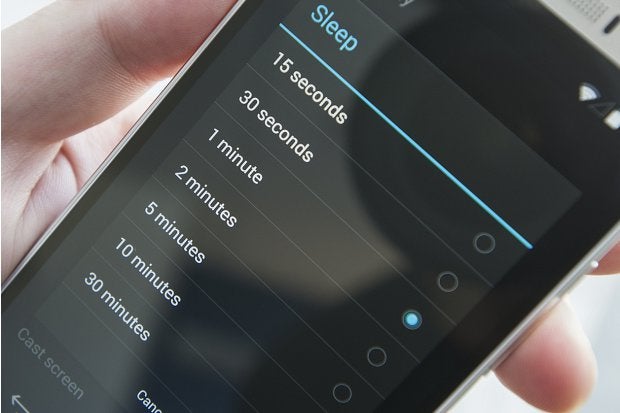
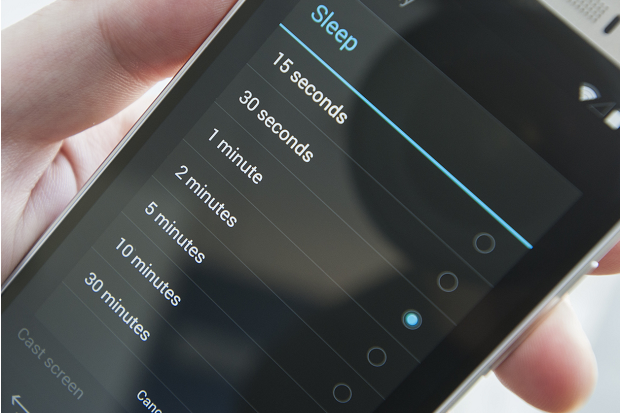
To get started, go to the Settings > Display. In this menu, you’ll find a Screen timeout or Sleep setting. Tapping this will allow you to change the time it takes your phone to go to sleep.
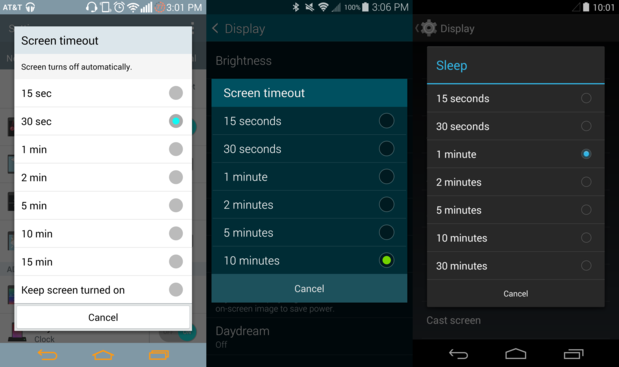
Certain phones offer more screen timeout options.
Select the timeout option that you’d like, and you’re done. Keep in mind that the display is one of the biggest battery hogs on your phone, and a longer screen timeout setting can, and likely will, lead to faster battery drain. Make your phone a night owl while charging
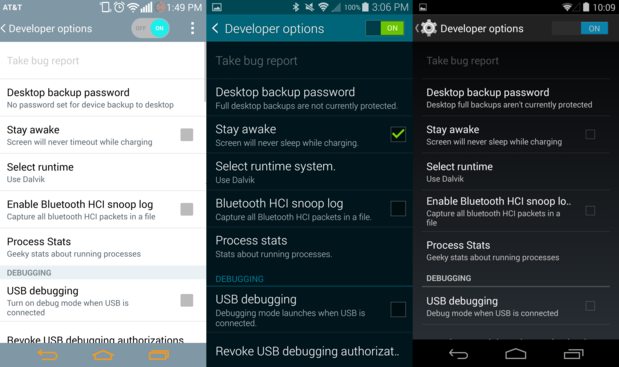
Daydream not good enough for you? Android gives you the option prevent your phone or tablet from sleeping while it’s charging. First, you need to unlock Developer options.
If you check the Stay Awake box in Developer options, the screen will never turn off while its charging unless you press the power button.
Once you have enabled the Developer options, check the Stay awake box to keep your phone from sleeping while you have it plugged in. Of course, pressing the power button will still turn the screen off, just in case you want to get some shut eye at night.
All rights reserved. Blake Stimac — Staff Writer, Greenbot [Image credit: Greenbot]
Google has begun pushing its “Auto Backup” photo archival software to Mac and Windows users via the company’s social networking platform, Google+. The promotion is new, we’ve confirmed, though the software itself was first launched back in December.
At that time, Google began offering the desktop utility as a part of its older Picasa photo-sharing platform, which confusingly (and oddly) somehow still has its own domain, despite the fact that Google has been integrating Google+ into everything it owns, from search to Gmail to YouTube. When the version of Picasa for Mac and Windows launched at the end of last year, a separate tool called “Auto Backup” appeared. This app runs in the background, similar to something like Google Drive or Google Music, in order to upload all your photos to Google+, including those from SD cards.
Now some users are noticing that a link to the same software is appearing on Google+, when they click into the “Photos” section of the social networking website.
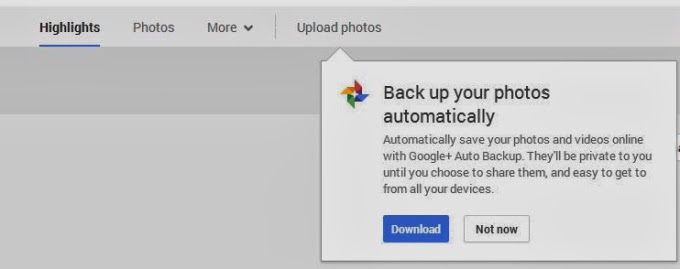
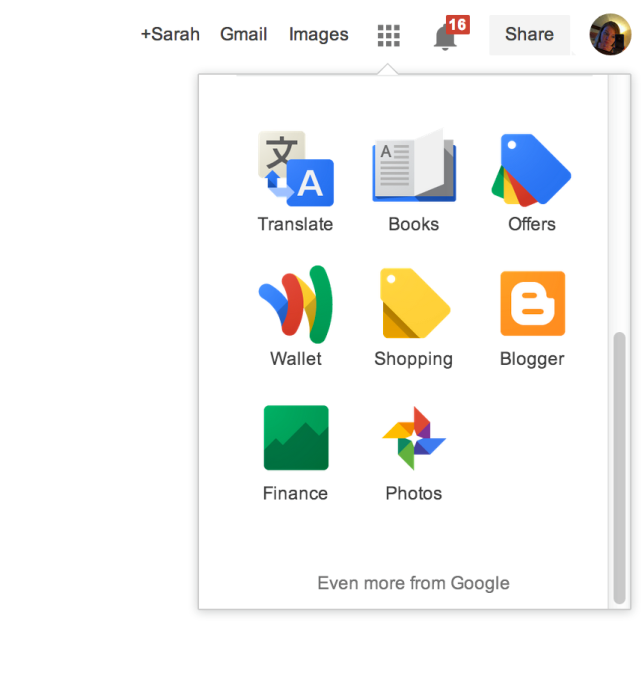
The prompt appears underneath the “Upload Photos” button from the Google+ Photos top-level navigation. Here, a dialog box explains that the software will automatically save your photos and videos to Google+, where they’ll be marked private unless you choose to share them. You can also access Google+ Photos to then see this prompt if you’re a Chrome user who clicks through on the “Photos” icon from the app launcher (the top-right square grid-like button).
After you download the utility, or dismiss the prompt in another way, it may be difficult to get the message to reappear, I’ve found. There doesn’t seem to be a website or section on Google+ where users can find links to directly download this software for themselves. For instance, the Google+ Photos “Take a Tour” page points to the “Auto Backup” app (which is actually just the Google+ app) on Google Play and the iTunes App Store, but links to “Auto Backup” for Mac and Windows are nowhere to be found.
For what it’s worth, if you do decide to take advantage of the utility, be aware that it will not respect the folder structure you may have in place on your computer. That is, it will take the photos from all the albums you point it to and place them in one album on Google+ where you could then choose to share or organize them as you like.
What the software’s appearance means in terms of Google’s larger plans to shutter the Picasa brand and domain remains to be seen, of course. For whatever reason, Google continues to develop and update its Picasa desktop software, despite its competition with Google+ in terms of feature set (photo editing, organization, etc.) and mindshare.
This post was first seen on Techcrunch. Images are as seen on the post page.
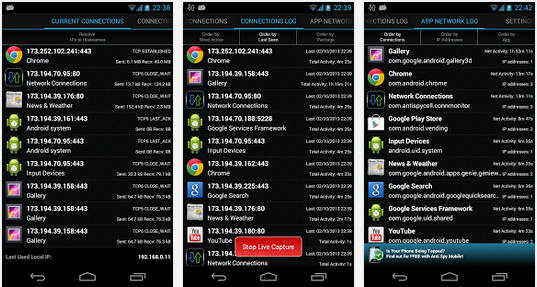
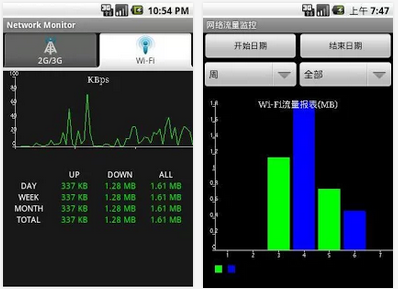
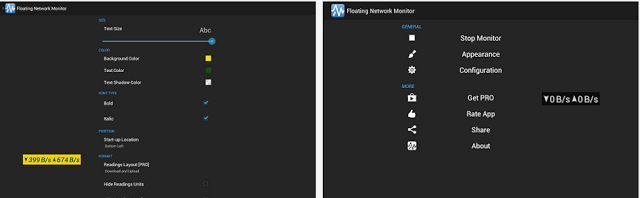
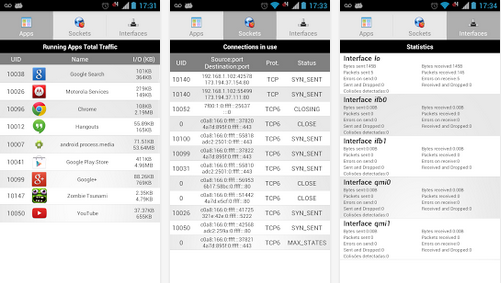
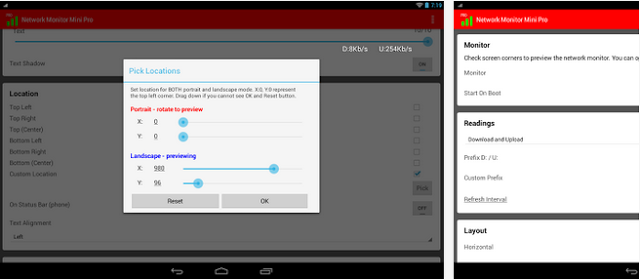
We all love to see live statistics; how much bandwidth was spent on upload and download, how much data was spent on each page you visit but unfortunately Android prefers to keep such information to itself.
Do you want to catch all the applications that is killing your bandwidth? In this list, we are going to look at some android apps that will help you monitor your network connection statistics on screen and find out exactly what app consume more bandwidth.
Me2U is a long existing service that lets you transfer airtime credit from one Airtel sim to another. The services was introduced in the days when the company we now know as Airtel NG today was ran by V.Mobile (a Nigerien telecommunication company).
Every Airtel subscriber is entitled to use the Me2u service; no activation is required. The password by default is set to 1234 and you can go ahead and perform transactions with this password.
However, to be on the safer side, it is recommended that you change this password to something that will be easy for you to remember and difficult for others to guess.
Security consciousness is” the first step of wisdom”, especially when the matter involves money. How do you ensure that a malicious person will not transfer your airtime credit when your phone is being stolen, or while you are charging your mobile phone at mama nkechi’s kiosk?
We shall find out, but first, let me show you how to change your default password.
How to reset Airtel Me2u password
To change your Me2U default password, send a message to 432 using the following format: PIN OldPin NewPin
For example if you want your new pin to be 3030, then send “PIN 1234 3030” to 432.
In the above example, OldPin is your current Airtel Me2U password. If you forgot your current Airtel Me2U password, consider tips on how to recover your Airtel Me2U password.
Password Tips for Airtel Me2u Service
It’s one thing to have a strong password, remembering this password is a different story altogether. Aritel will not hesitate to bar you from using the Me2u service the first time you enter a wrong password thrice. To save you the troubles of going through the rigorous process of unbarring your account, it is important to strike a balance between a strong password and a password you can remember.
With that being said, let’s take a long look at some of the effective tips that will help you maintain a healthy Me2u password and keep the thieves away.
Avoid using a straight password: A password like 2468, 1234, 9876 etc. will often be easy for anyone to guess as it involves the multiple of a single number, serial increase and decrease of a number respectively.
Do not use a single number for password: e.g. 1111, 2222, 9999 etc.
Do not use your year of birth: Someone who knew you were born on 1987 can easily assume that it’s your password. Just make sure you don’t fall for that mistake.
Beware of the last four digits of your phone number: Using the last four digit of your phone may sound like a good bargain but when all other methods fails, the thief might be tempted to try the last four digit of your phone number.
Any random four numbers is a good password, you can pick any four digit from your first flyer number, the last four digit of your first phone number or even the birth year of your grand mother.
Transferring Airtime Credit with Airtel Me2u
Did you just recharge the wrong sim? Or need to transfer some airtime credit to your daughter in high school? Just send a message to 432 using the following message format: 2U PhoneNumber Amount PIn
For instance, if you want to transfer N100 to 08020000000 and your pin is 1234, then send: “2U 08020000000 100 1234” to 432.
How to Transfer Airtime using Airtel STK
The SIM Application Toolkit (STK) is a standard application of the GSM system which enables the Subscriber Identity Module (SIM) to initiate actions which can be used for various value-added services.
The Airtel STK application comes with a service that allows you to transfer credit on Airtel to another Airtel subscriber.
Launch Airtel STK Application
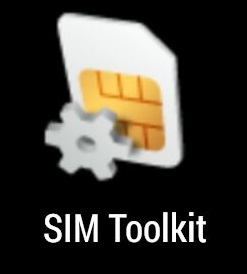
From the Airtel Menu on your SIM, select Airtel Services. If you are using a smart phone, locate the SIM Toolkit application from your applications drawer.
Select Me2U
Initialize the Airtel Me2u service by selecting Me2U from the list of services.
Send airtime credit.
Select the send airtime credit option from the menu.
Enter Amount
Enter the amount of credit you want to transfer. Remember that Airtel takes NGN10 transaction fee, i.e. If you are transferring N100, you must at least have N110 airtime balance for the transaction to be successful.
Choose or enter phone number
Select option to enter Phone Number or choose the Number from your address book.
Confirm the transaction
Check your transaction to make sure the subscriber phone number and airtime credit amount is correct.
Enter PASSWORD
Enter your secure password. If you have forgotten your password, kindly follow our tips below to recover your password.
Send
Finalize your transfer by hitting the send button.
Note: This service will cost an additional charge of N10. i.e. If you are transferring N100, you must at least have N110 airtime balance for the transaction to be successful.
How to unbar Airtel Me2u
If you enter a wrong pin more than thrice during a transfer, you are likely to be kicked out from further using the Me2u service. This is a security measure from Airtel to ensure that an intruder is not trying to make away with your money.
Unfortunately, there is no short code readily available to unbar me2u service on your Airtel line. Not to worry though, you can still unbar your account and continue enjoying Airtel Me2u service.
Follow the steps below to ubar Me2U service on your Airtel account. If you find yourself doing this too often, consider reading our tips for a healthy password.
Get your SIM pack ready. Your PUK may be required for identification.
Contact Airtel customer care number. Call 111 / 121 toll-free from an Airtel line. You can as well call +234-802-150-0111 from a non-airtel number or +234-802-150-0121 if you are calling from abroad.
Choose to speak to an agent.
Ask that you want to unblock your Me2U account.
To reset the pin, kindly provide the last 5 digits of the serial number on the sim, last recharge amount and length of usage.
SmartShare – How to Gift & Share Data using Airtel Data Me2U Service
Airtel allows you to share a data plan with family and friends across phones, tablets and laptops. Here are two ways to share an Airtel data plan:
Data Me2U (aka Data Share): You can “share” or “transfer” from the data allowance of an already purchased data bundle to another customer. For example, if you have purchased a 1.5GB Monthly, you can transfer 100MB to another customer.
· To share/transfer data, simply dial *141# and select the option for Gifting or Me2U.
Data Gifting: Data gifting allows you to buy a data bundle plan for another customer by paying with your own airtime. For example, if your friend/family runs out of data, you can just buy another data plan for the person.
· To gift data, simply dial *141# and select the option for Gifting or Me2U.
How do Data Me2U differ from Data Gifting?
The table below will guide:
SN
CRITERIA
DATA ME2U
DATA GIFTING
1
Default PIN, accessibly via *141#; Note that this PIN must be changed before sharing can occur
1234
1234
2
Subscription via USSD
Dial *141#. Select the Gift or Share Data option. Thereafter select Data Me2U.
Dial *141#. Select the Gift or Share Data option. Thereafter select Data Gifting.
3
Data Allowance shareable
Data size maximum of 200MB per day.
Restricted to regular data bundle plans.
4
Number of sharing instances possible
– Twice in a day to a maximum of two different people. – You can share data to the same person again only after that person finishes the first shared data. First rule above still applies.
As many times as possible.
5
Validity of bundle
Residual validity of Sender’s bundle
Validity of gifted bundle plan
6
Auto Renewal
No
No
7
Dta Balance Check
*140#
*140#
8
PIN Management
– PIN reset option is available on *141# USSD Menu – One PIN is applicable for Data Gifting & Data Me2U. – At the fifth pin attempt, the customer will be barred from using any of the services above. – This barring will be for 1 hour at a time. – Where 3 barring(s) happen to one MSISDN in a 24-hour period, customer has to call in to the Call Center for a reset.
*140#
Airtel Me2U Frequently Asked Questions
I forgot my Airtel Me2U PIN?
You can reset your Aitel Me2U by contacting Airtel customer support by calling 111 or 112. To reset the pin, you will need to provide the last 5 digits of the serial number on the sim, last recharge amount and length of usage.
How do I solve a problem of data not sent on Airtel Me2U?
If you are getting this error while using the phone USSD, try using the Airtel SIM Toolkit application. If problem persist, restart your phone or contact customer service.
What is Data Me2U?
Data Me2U also known as Data Share – allows you to transfer data from your existing data allowance to another Airtel customer. Recipient can be another customer e.g your friend, family etc or just your other device with an Airtel line.
How can I access Data Me2U?
By dialing *141#. Dialing this string returns a menu, then you select the option for Gifting or Me2U.
What data bundle plans are available for Data Me2U?
The regular data bundle plans – Weekly/Daily Bundles, Monthly Bundles and Mega Packs.
What is the validity of the shared data bundle?
The shared data will have the same validity as the original data. E.g If you have a bundle with validity end date of 1st Jan 2018, and you share some of that data; the recipient’s data will also expire on 1st Jan 2018.
Is the shared data auto-renewed?
No. You are not auto-renewed on a shared data.
How much data can be shared at a time?
You can share a maximum of 200MB data to one person.
How many people can I share data with?
You can share data with a maximum of 2 recipients daily. This means that you can share a maximum of 200MB each with 2 recipients daily.
Is this service available to both Post-Paid and prepaid customers?
Yes, Data Sharing is for both Prepaid and Postpaid customers.
What is Data Gifting?
Data Gifting allows you to buy a data bundle for another line.
How can I access Data Gifting?
By dialing *141#. Dialing this string returns a menu, then you select the option for Gifting or Me2U.
What data bundle plans are available for Data Gifting?
The regular data bundle plans – Weekly/Daily Bundles, Monthly Bundles and Mega Packs.
How frequently can I gift data?
You can gift data to as many people, as many times as you wish. There are no restrictions.
Is the gifted data auto-renewed?
No. You are not auto-renewed on a gifted bundle.
Will a customer on the receiving end pay for the shared or gifted data?
No. The recipients of Data Sharing/Gifting do not need to pay for the data or bundle received. The sender has already paid for it.
Tell me more about the Pin for Data Sharing.
· In order to prevent an unauthorized person from doing Data Sharing/Gifting from a customer’s phone, a Pin is required before you can share or gift data. · When you access Data Sharing/Gifting for the first time, you will be required to change your Pin from the default Pin to any Pin you desire to use.
Does a customer need to get a special SIM card to use this service?
No special SIM card is required as all newly activated SIMs are automatically data enabled. However, each SIM must have been KYC-ed without which data activity will be automatically disabled. Customers are advised to visit the nearest Airtel retail or partner outlets to perform KYC.
What is Smart-SHARE Service?
The Airtel Smart-Share service consists of a bouquet of offerings that allows internet data bundles to be used by more than one customer in any of the following ways: · Me2U-sending a bundle from your currently active bundle · Gifting-buy a bundle for another line In this regard, please note the following: · Internet bundles refer, in this case to Data, BlackBerry & Android bundles except where explicitly stated · Me2U is possible for only normal data bundles while Gifting is possible for all bundle types above
What constitutes the Airtel Smart-Share Service (AMI) service?
The Airtel Smart-Share Service can be accessed in any of the following ways: · Mobile Devices and Smartphones: Customers can send internet to 232 for settings to be automatically pushed to the respective handset. Settings can also be pushed by a call in to the Call Center or done manually at any of the Airtel shops. · Desktop or laptop: in which case, a USB data card/ modem will be required. This can be picked up from the nearest Airtel outlet at N3,990 and N3,500 respectively for the 7.2mbps and 3.6mbps speeds
Does a customer need to get a special SIM card to use this service?
No special SIM card is required as all newly activated SIMs are automatically data enabled. However, each SIM must have been KYC-ed without which data activity will be automatically disabled. Customers are advised to visit the nearest Airtel retail or partner outlets to perform KYC.
Can the internet be accessed through a Desktop or laptop anywhere in Nigeria?
Yes- over 98% of the locations in Nigeria are covered with at least EDGE data coverage while 3G coverage is at 100% in each of the state capitals and major townsYes- over 98% of the locations in Nigeria are covered with at least EDGE data coverage while 3G coverage is at 100% in each of the state capitals and major towns.
Can I access the internet on my handset or smart phone anywhere in Nigeria?
Yes- internet access is available ‘on the go’ on any handset anywhere in Nigeria as the handset has data capability
How are internet settings activated on a handset or smart phone?
· Sending SETTINGS to 232 via SMS · Call Toll Free number “111” for assistance · Visiting any Airtel shop for manual configuration
Will a customer have to pay for subscription after purchasing the data modem?
Subsequent to purchasing the data modem, a decision has to be taken on the AMI bundle service plan of choice. The default service plan is the Pay As You Use (PAYU) tariff which cost 5kobo per Kilobyte.
How do each of the Smart Share variants differ, one from the other?
Kindly refer to the table above.
How will the Smart Share service work?
Based on the definitions above, please note the following business rules: · The 2 variants of Smart Share will be accessible via SMS, USSD, *141# and *141*1# USSD Menus · There is only one PIN, which is usable across all the 3 variants · Auto renewal or Fall back pricing will not be applicable for Internet bundles that have been shared via Me2U or Sharing · Internet bundles that have been shared via Me2U will have maximum validity of 30 days while internet bundles that have been shared via Gifting and Sharing will have the validity of the associated bundles · Subscribers in the Staff and Spouse service classes should be able to receive Gifted bundles, Me2U or Data Bundle Sharing- the rule is to RECEIVE ONLY · Not all bundle types can be shared across the various service classes. The matrix below outlines the use cases across the 2 major service classes:
How does a customer currently confirm Data Account Balance?
By dialing *141*11*0# or *123*10#
Is there any other menu to take up Data Bundle or other plans?
Yes, by visiting the Airtel Smart Store accessible by dialing *141*1# or *141#. Dialing this string returns a menu & this menu is extremely user friendly
For quicker support, you can as well reach out to @AirtelNigeria on Twitter.
Bonus
To ask someone to send you airtime credit this season, simply dial *141*8*NUMBER# e.g. *141*8*0802000000#.
I wish you all Merry Xmass in advance! and stay safe 🙂
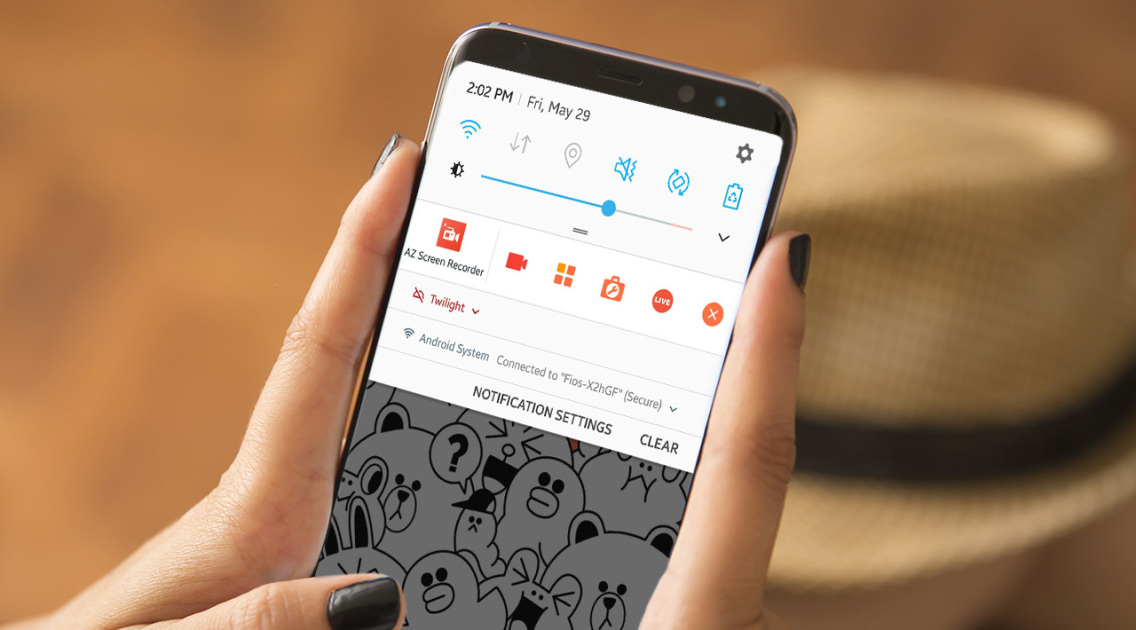
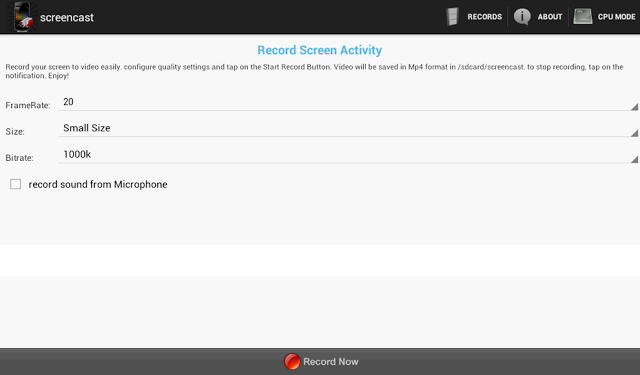
This application works with rooted Android phones only. It helps you record your screen into high quality videos. Recorded videos will be saved as MP4 on your device or SD card – you in turn, will be able to mail this video to a friend or share it on YouTube and social media.
The Screencast Pro is available to be downloaded free at the Google Play Store. However, if for reasons you would love to have a ‘raw’ copy of the application or you wish to use this Android app on PC or Mac, simply hit the download button just beneath this section.
Publisher’s Description
** Rooted phones only ** Screencast is a free screen recorder application. Record your screen into high quality video. Videos are saved as MP4 on your sdcard. Very usefull to create presentation or tutorials.
This application may works on some unrooted phones. Please tell us if it works for you. and if it doesn’t, please tell us too to help us improve this app.
If your phone is rooted and the app doesn’t work, please send us a message with your phone characteristics including processor information, thanks. This application doesn’t support all Tegra 2/3 based devices. Keywords: screenshot, screencast, video recorder, screen recorder, camtasia, screenrecorder
**This app uses FFMPEG application for the encoding process










You must be logged in to post a comment.