Tag: Wi-Fi

  • How to Boost PC Wi-Fi Connections and Improve Wi-Fi Range on a Laptop

    How to Boost PC Wi-Fi Connections and Improve Wi-Fi Range on a Laptop

    Despite the existence of laptops with built-in modems, majority of the laptops we have today rely on wi-fi connections, to gain access to the internet. Being the primary source of internet connectivity, having good wi-fi connections on laptops is very sacrosanct. Poor Wi-fi connections facilitate slow internet surfing, which is something the body wants.
    How to boost your WIFI connections on Laptop

    In this article, we look at a tutorial on how to boost your WIFI connections on your laptop. Boosting your wifi connection will facilitate faster internet surfing. This tutorial is applicable on laptops running Windows operating systems, and laptops running MAC OS.

    Reduce Distance Between Laptop and Router

    Due to variance in signal strength, is a widely known fact that bringing your laptop closer to the router, it is a sure way to boosting wifi connections on your laptop. This method works flawlessly, in cases where the router has a short signal range. The closer your laptop is to the router, the better the signal.

    Another way you can combat poor signals, as a result of router distance, is by making use of a mesh wifi system. This way, a mini router will be found in all rooms of your home. A mesh wifi system consists of the main router and its nodes. These nodes or satellite module feed from the signal of the main router, they conduct signals better. This way won’t have to bother about the distance of your laptop from the router.

    Update Your Router Software

    Updating your router software is another method you can employ to tackling poor wifi connections on your laptop. Routers feature a firmware that allows manufacturers to push an update to them, allowing manufacturers to fix bugs that may hinder the proper functioning of these routers. If you reduced the distance of your laptop from the router, and you are still experiencing poor wifi signal, the next step would be to update your router’s firmware.

    Update Your Laptop Software

    Still on software. After updating the firmware of your laptop, you should also consider updating the drivers of your laptop. Update the drivers that affect the wifi connectivity of your laptop. This can be done through the manufacturers’ website.

    Install and External Adapter
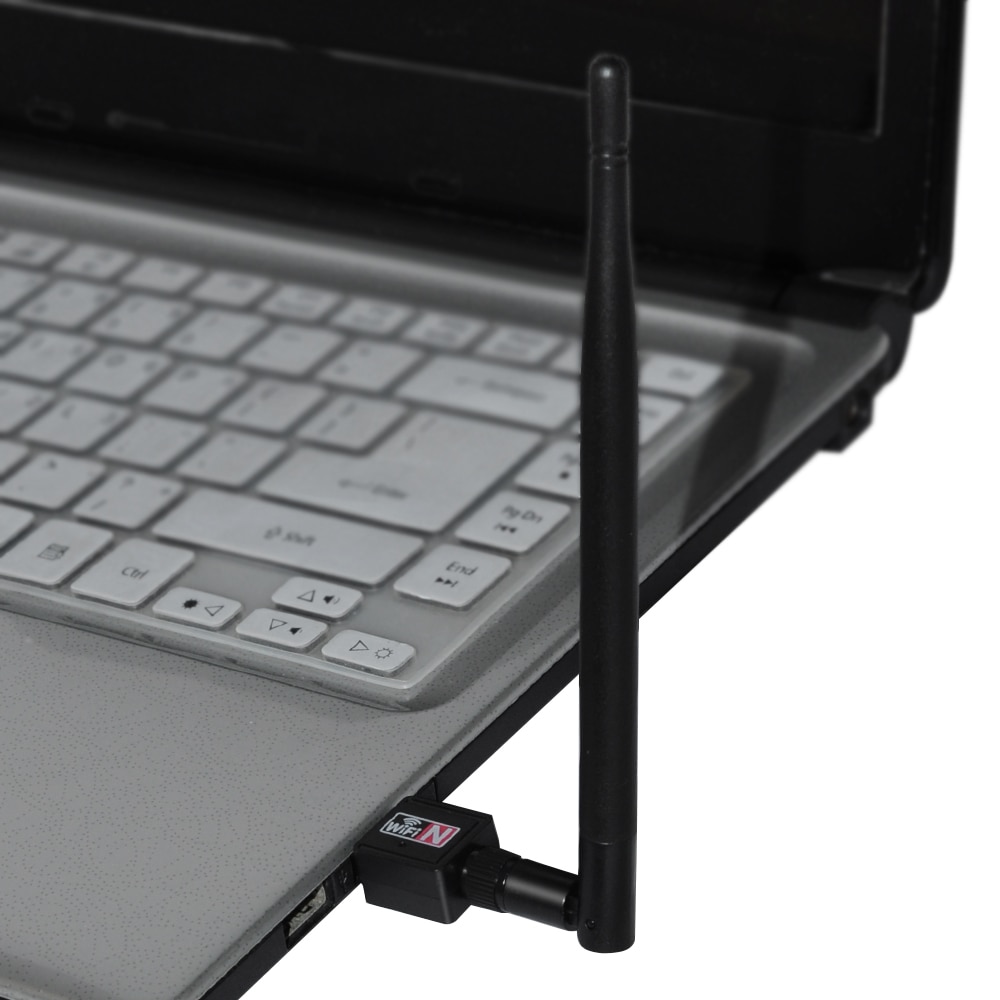
    Using an old laptop that runs slow on wifi connections? If yes, purchasing an external wifi adapter is very important. The effect of a very powerful wifi adapter won’t be felt on a laptop running an old wireless adapter.

    External wifi adapters usually feature a large antenna and make use of updated technologies, designed to improve wifi signals on your outdated laptops. Using these external wifi adapters, you will need to connect them to your laptop via a functioning USB port on your laptop.

    Disable the network hogs that run in the background

    Another way to boost wifi connections on your laptop is to reduce the apps using the wifi connection. Having many background apps that make use if the connection will hinder hitch free surfing. You are advised to reduce these background apps to boost wifi connection on your laptop.

    Check Your Transmission Power Settings

    Some network adapters allow users to edit transmission settings, if the setting is available on your network adapter, you are advised to tweak the transmission settings on your network adapter. You can access this setting through the adapter’s driver interface program.

    For better wifi signals, your transmission settings should be set to a maximum of 100 percent. Also, your power settings should be removed from the power saving mode.

    There you have it – a comprehensive tutorial on how to boost connections on your laptop. In troubling shooting, the cause of a poor wifi signal, the tips mentioned above will be of immense help. You try each tip until the wifi signal on your laptop improves.

  • How to Configure Wi-Fi Hotspot on Samsung, Xiaomi, Infinix Smartphones & Android Devices

    How to Configure Wi-Fi Hotspot on Samsung, Xiaomi, Infinix Smartphones & Android Devices

    If you don’t have a home internet access, your best bet is to use your Android smartphone to distribute your cellular Internet connection to your other devices. Using our guidelines provided in video, picture gallery and text format you can learn how to configure Wi-Fi hotspot in an Android smartphone.

    WiFi hotspot enables users with WiFi supported devices to tether internet connection across other devices. Although, there are few security concerns using Wi-Fi but with the right techniques and common-sense you can learn how to configure Wi-Fi hotspot and share internet from your Samsung, Tecno and Infinix smartphone to your PC or other mobile devices.

    Further Reading: How to boost WIFI connections on Your Laptop

    Why Android?

    Browsers Usage in Nigeria
    Top 9 Mobile Browsers in Nigeria (Jan – Oct 2014)

    Smartphone usage statistics from Jan-Oct 2014 shows that Android OS is winning the smartphone war in Nigeria. Infinix, Tecno and Samsung smartphones are at the very top of the food chain in Android smartphone usage among Nigerians.

    How to use and Configure Wi-Fi Hotspot in Samsung, Tecno & Infinix Smartphones

    Since most internet users [in Nigeria] access the internet from the mobile data, it makes sense for Android users to get acquainted with the inbuilt portable hotspot facility that comes pre-installed in most Android devices.

    Further Reading: 6 Premium Android phones or tablets you can purchase for  ₦9,999+ 

    Formats

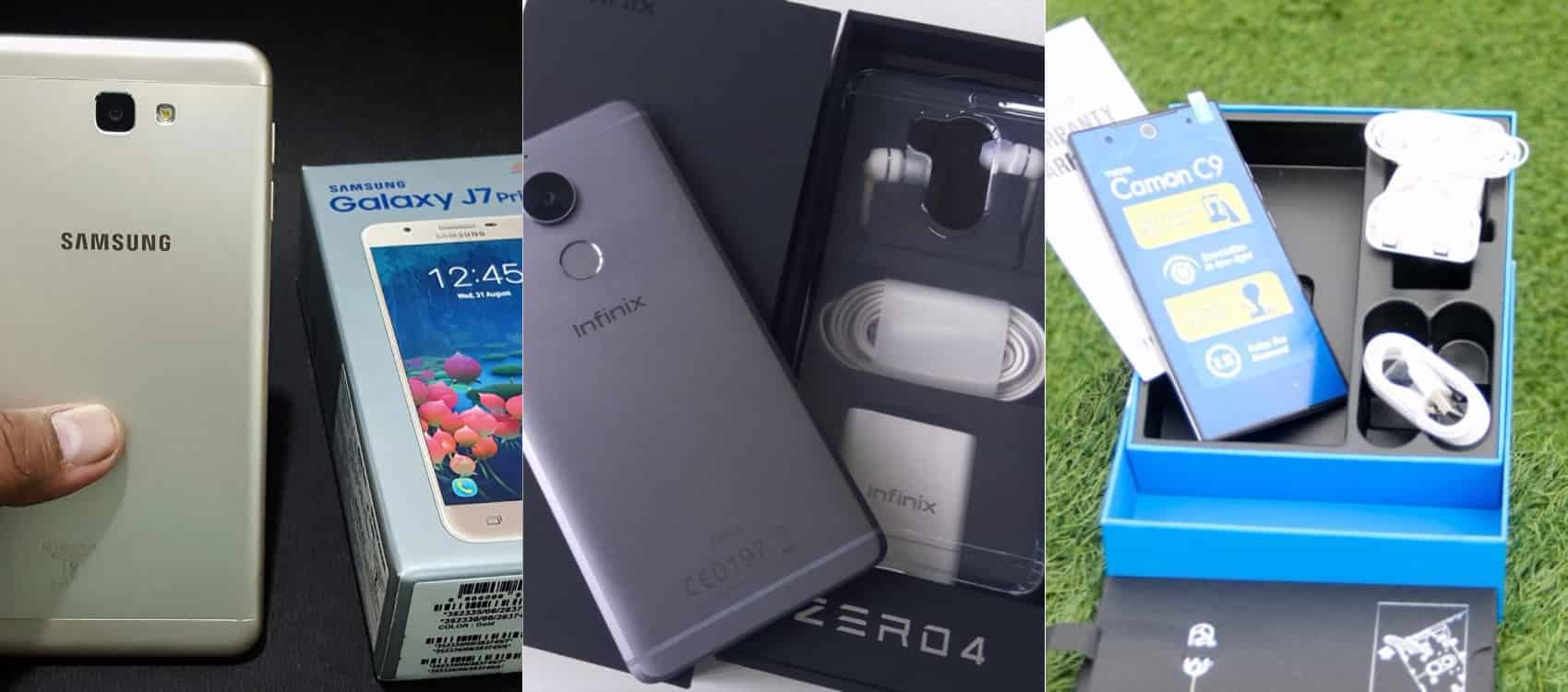
    Be it on Huawei Y6 Prime 2019, Samsung Galaxy S10+, Infinix Zero 5 or any Android smartphone out there, these guide is ready to get you started with portable hotspot on your device.

    Click on any of the formats listed above to access this tutorial in that format.

    How to use and configure Wi-fi on Samsung, Teno, Infinix and other Android smart phone?

    Configure Wi-fi hotspot on Samsung Smartphone
    Configure Wi-Fi hotspot on Samsung Galaxy S8

    Time needed: 2 minutes

    Follow this step to step guide to learn how to configure Wi-Fi Hotspot on your Samsung, Tecno, Infinix and any other Android smartphone.

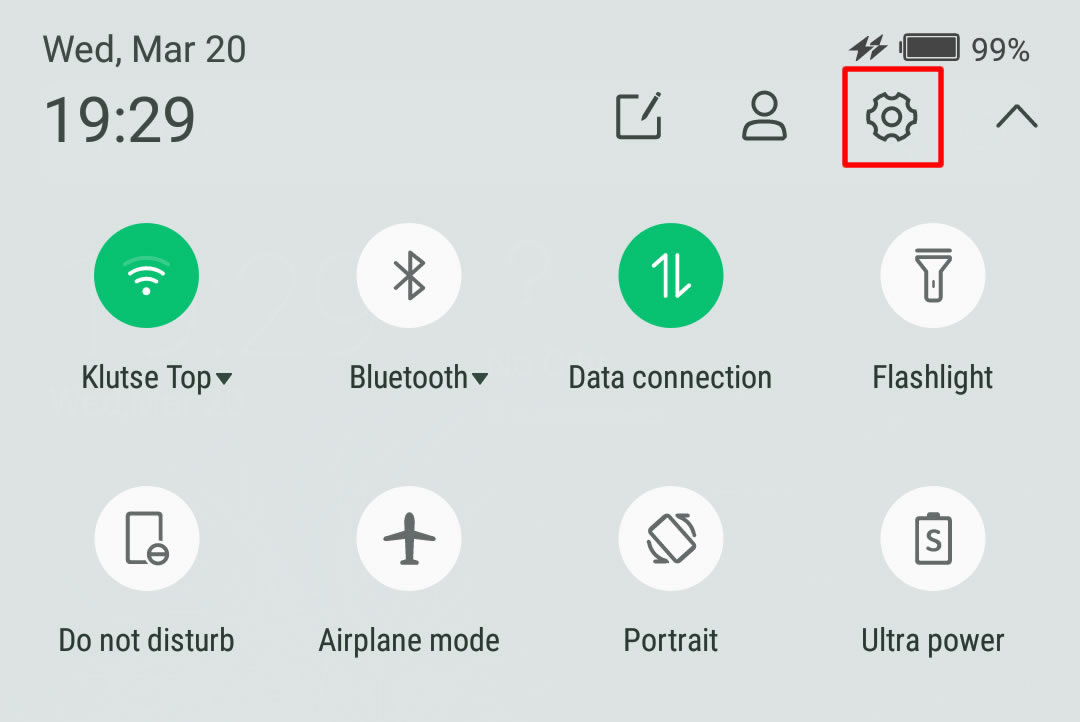
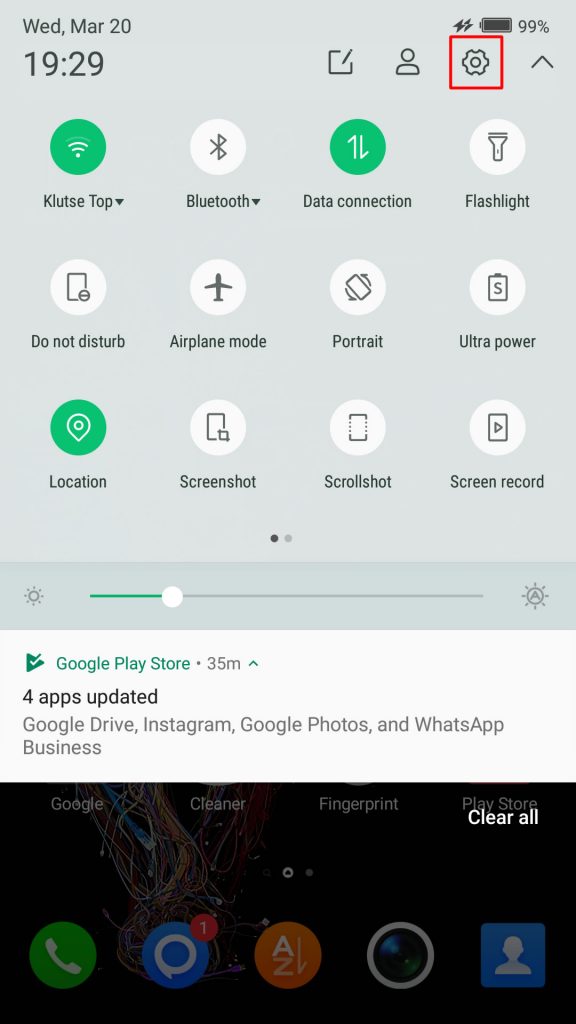
    1. Go to your Android phone’s settings

      From the Home screen, tap the Application screens icon > Find and tap Settings.

      On newer versions of Android, you can simply pull down Android control panel and click on the gear icon.

    2. Wireless & networks settings

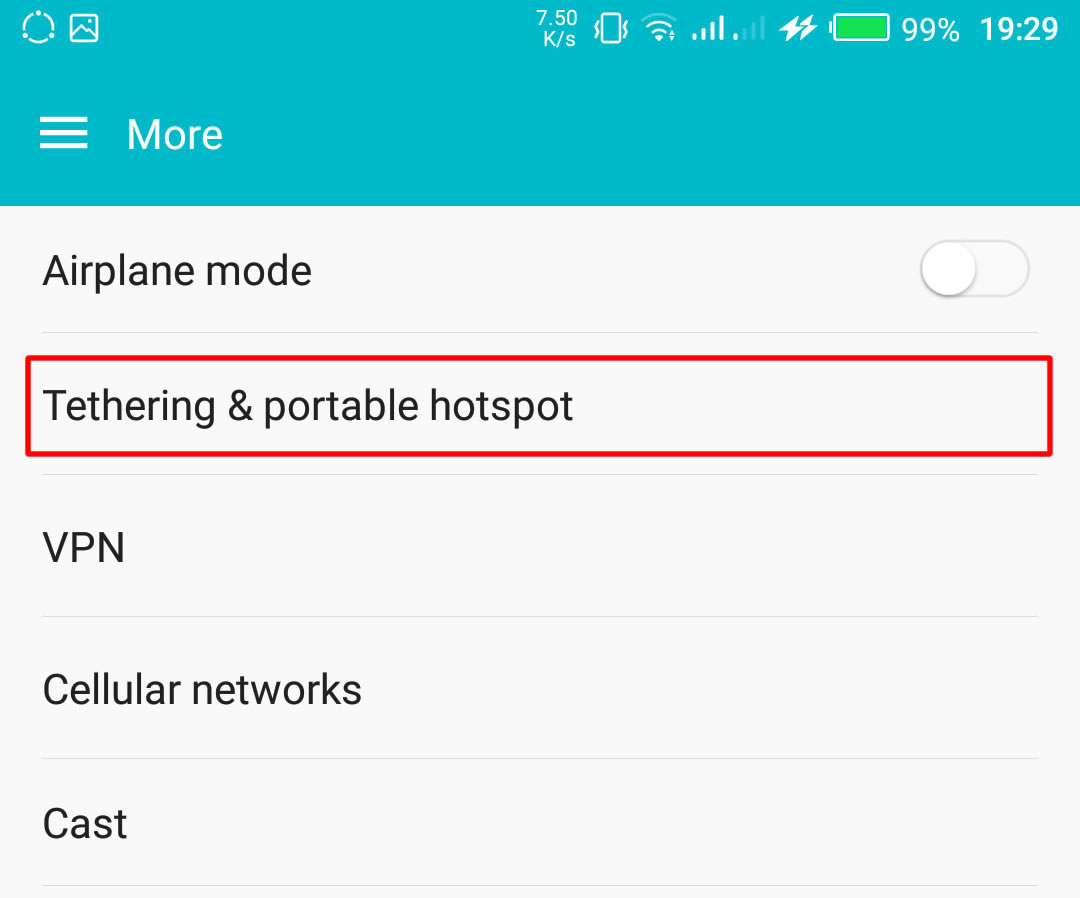
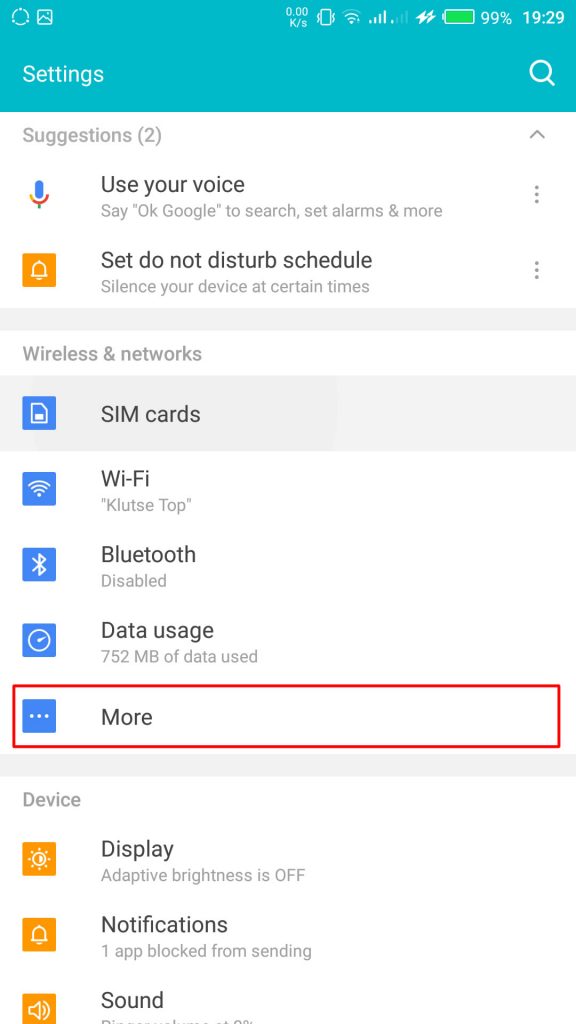
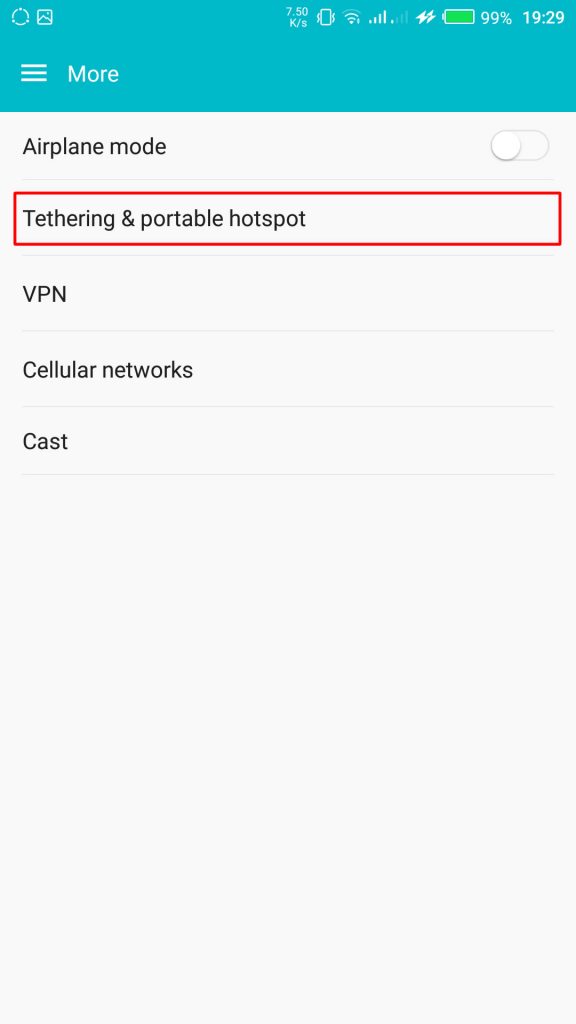
      From your Settings screen, locate Wireless & Networks block and tap Tethering & Portable Hotspot. If you can’t find Tethering & portable hotspot on your settings home screen, tap More > Tethering and portable hotspot.

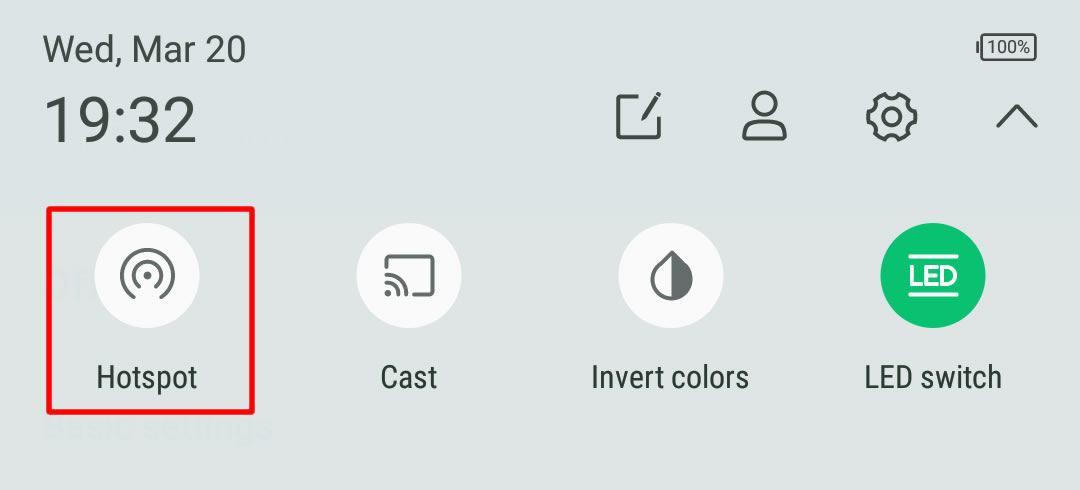
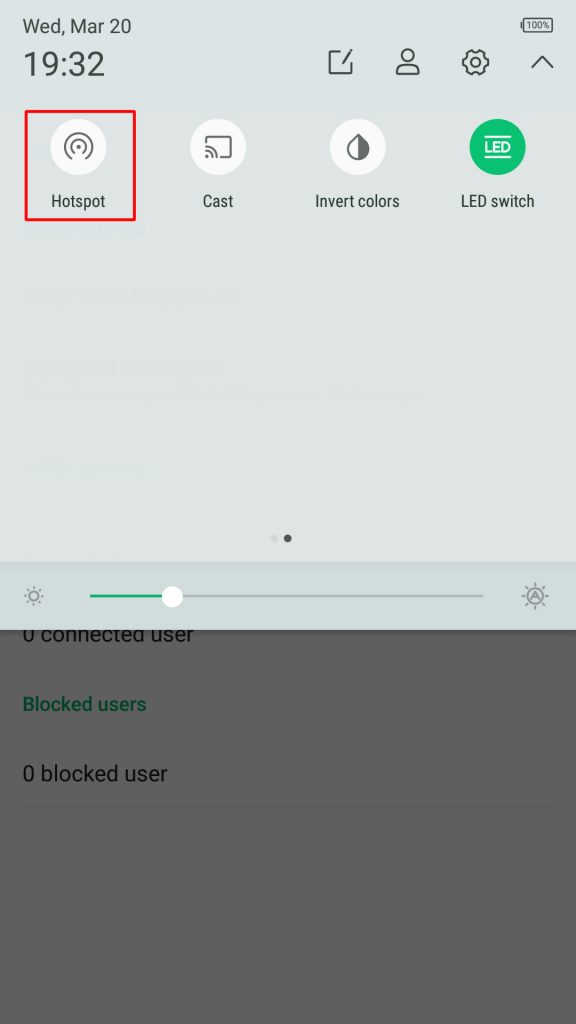
      On some version of Android, you can hold the upper screen of your Infinix smartphone or Tecno smartphone and scroll down. Turn “On” hotspot from the menu. You will see a notification requesting you to touch to configure hotspot, just touch the notification.Wireless & networks settings

    3. Configure Wi-Fi Hotspot

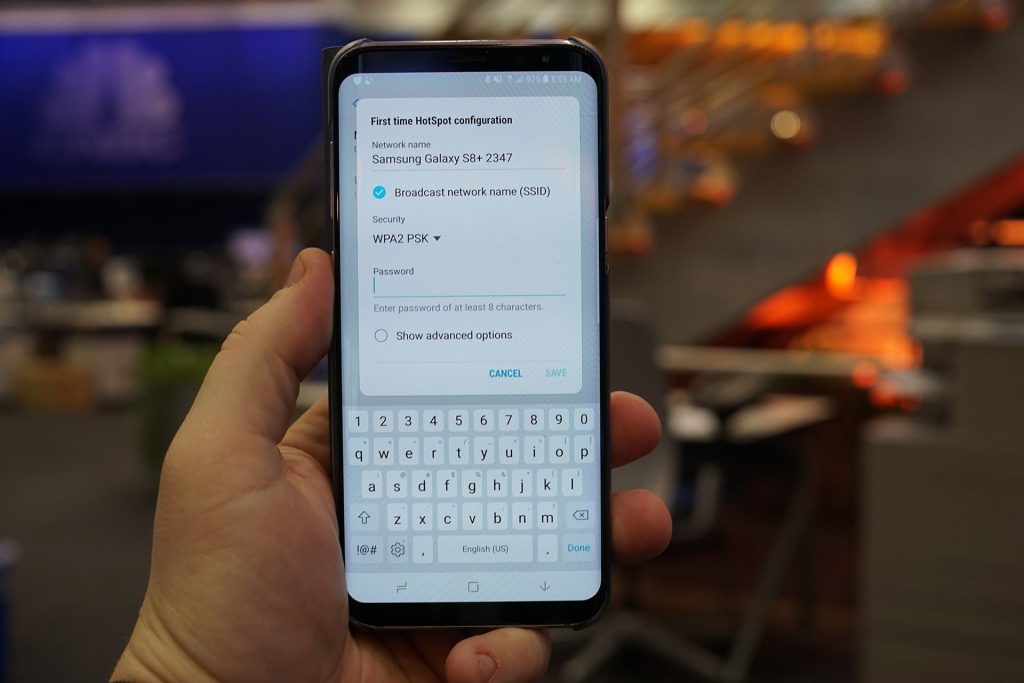
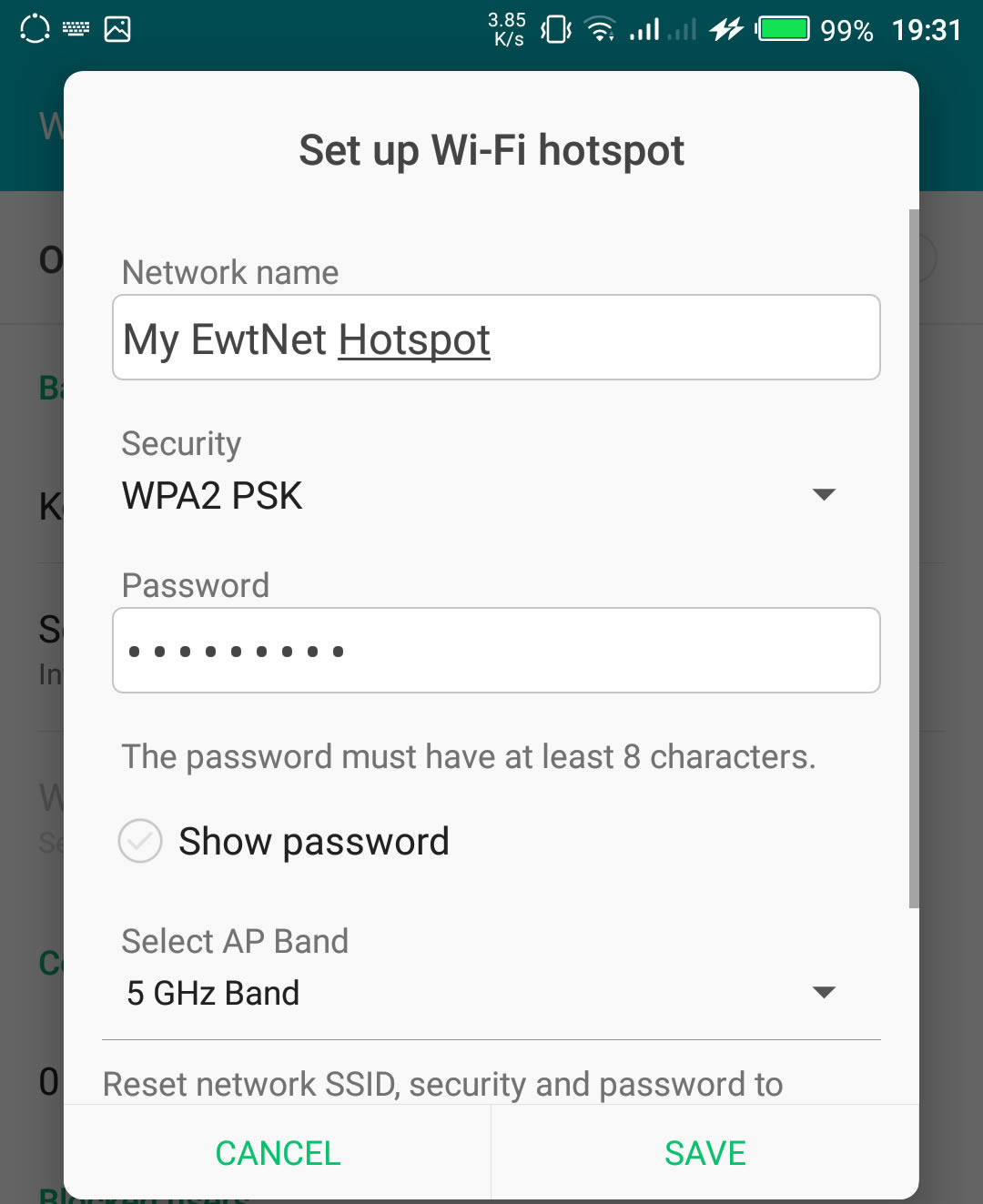
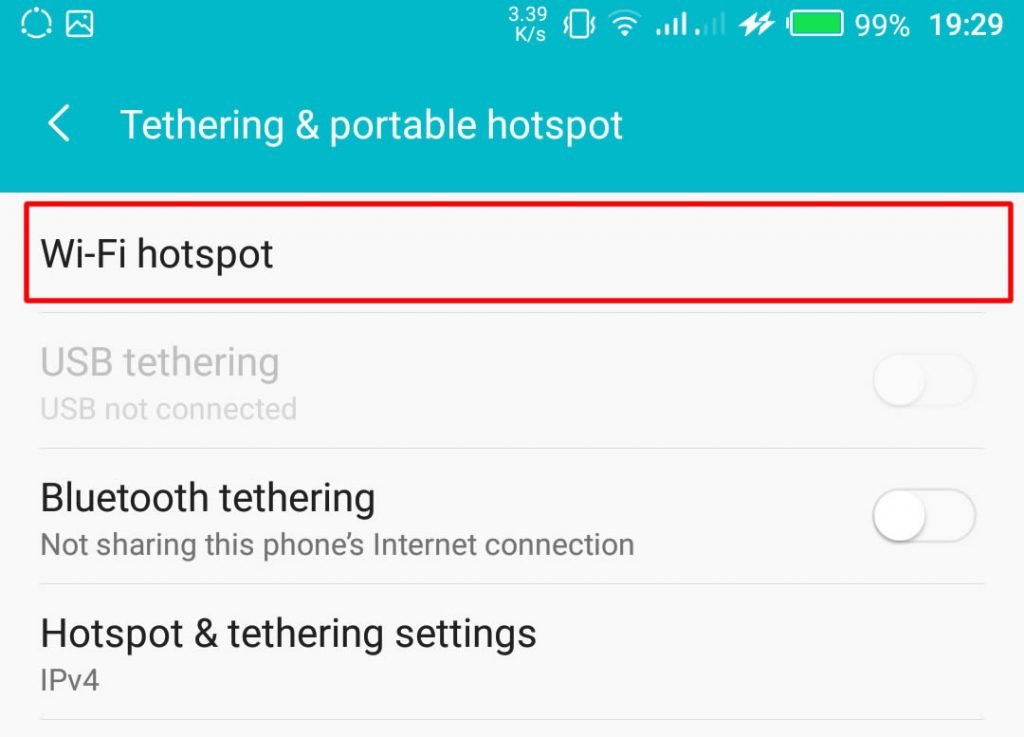
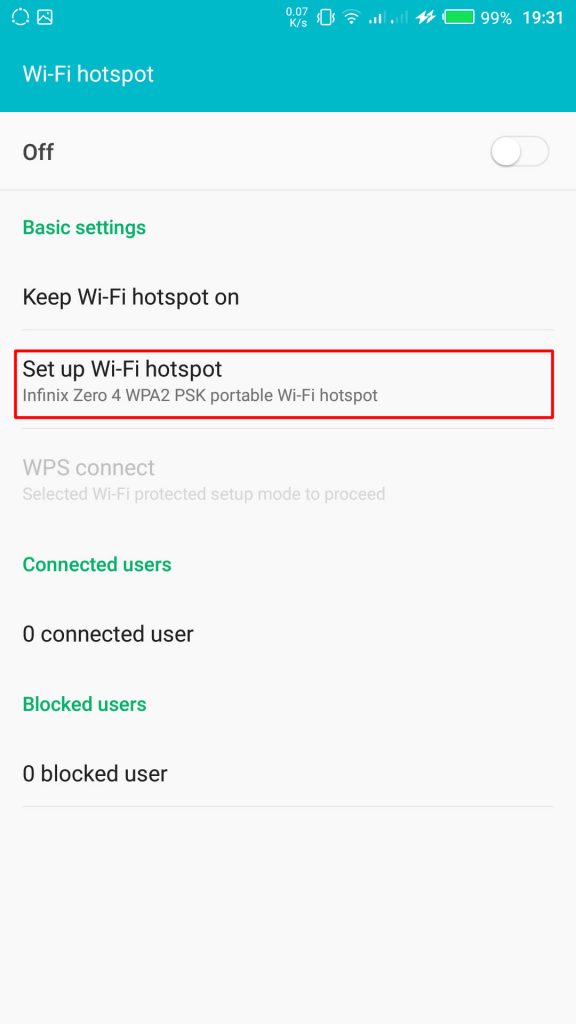
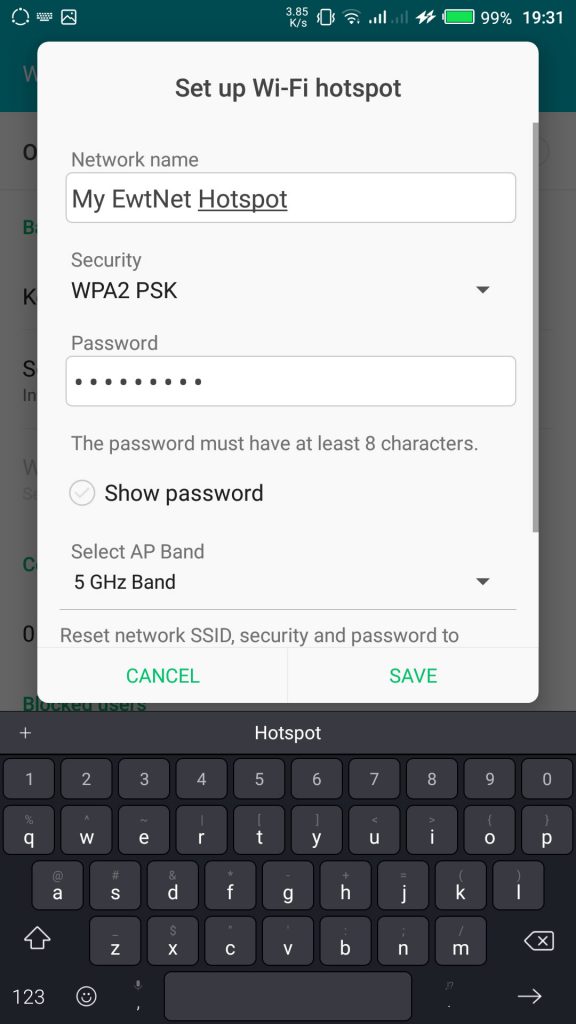
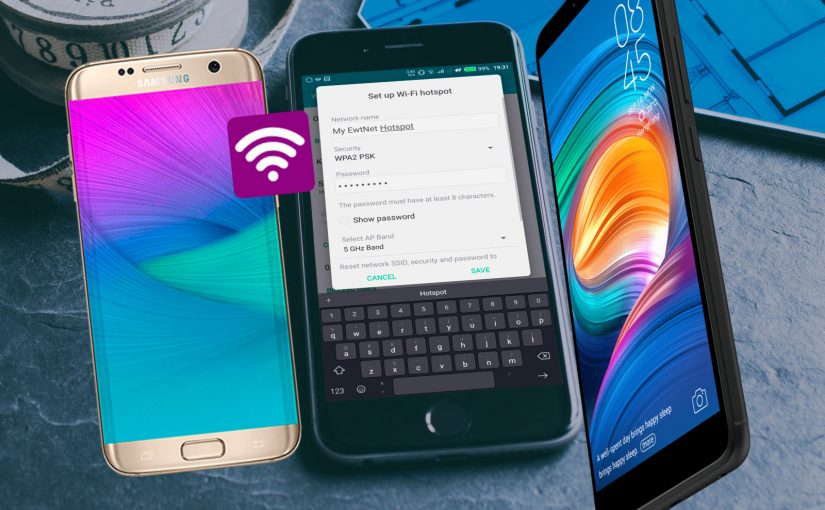
      From the Tethering & portable hotspot screen, tap Wi-Fi hotspot and select Set up Wi-Fi hotspot. Here you can set your WIFI’s SSID and security.
      SSID Wi-Fi Hotspot Setting on Infinix Smartphones

    The SSID or Network Name is the name of your Wi-Fi connection. Change the name to any name of your choice, the default name is usually “AndroidAp”

    You can change the security option, to any of your choice, such as, “Open” which allows any WI-fi enabled device to connect to your smartphone without requesting for a password. While WPA PSK and WPA2 PSK allows you to put your preferred password.

    Using Portable Wi-Fi hotspot on Android Smartphones

    Once you’re done, subscribe to an Internet plan for your smartphone, turn on your mobile data and hotspot. If you are in Qatar, Vodafone offers some of the most flexible data plans in Qatar. Glo Ghana data and Glo Nigeria data are more prominent in Ghana and Nigeria respectively.

    Turn on Wi-Fi Hotspot on Infinix Smartphones

    Your WIFI hotspot is now functional and can be used on basically every Android device that support WiFi connection including, Honor 8X, Infinix Diamond, Tecno Camon 11 Pro, Xiaomi Redmi Go, Tecno phantom and on any PC that has a WiFi adapter.

    Turn on your Infinix WLAN hotspot and your laptop WLAN and search for available networks and connect. That’s all you need to configure your WLAN Hotspot and start using your Infinix smartphone to power your laptops and smartphones WLAN, up to multiple devices simultaneously

    Make sure you are applying this common-sense Wi-Fi tips to protect your devices against Wi-Fi ‘virus’ and other malicious attacks. After you’re done, all you have to do is turn off the hotspot.

    Data plans for PC Users

    If you going to use your mobile data on your PC be ready to re-adjust your monthly data budget. Luckily, network providers in Nigeria and Ghana has improved their data offers in recent years.

    What are the best mobile data plans in Nigeria?

    In the last few years, network providers in Nigeria have undertaken a revolution in upgrading their data plans. Glo has upgraded. MTN has upgraded. And Airtel was last to arrive at the party – all featuring data plans with a bandwidth of 12GB – 48GB at giveaway prices.

    I’m in Ghana, are there affordable data plans?

    Glo Mobile Ghana offers the most affordable data in Ghana. Indeed, the tech giant has launched various revolutionary data bundles, including Glo Unlimited Data 24/7 Pack, for instance, which gives you unlimited data and voice call for a whole month.

    How do I subscribe to Vodafone Qatar internet package?

    Here is a list of Vodafone Qatar internet pack activation and deactivation codes. We have selected all the offers in place and grouped them into daily, weekly and monthly plans.

    This picture walk-through guides you on how you can set up Wi-Fi hotspot on your Android smartphone using infinix example.

    Click on the images to expand and use the arrow keys to browse.

    The same techniques will work on all Android devices. Using your mobile data on PC is obviously going to be more costly than Internet to the home bills, you may consider this data subscription plans to make an informed decision.

    Video Guide on How to Use and Configure Wi-Fi Hotspot on Android Smartphones

    The video demonstration is recorded on Infinix Zero 4 smartphone, but the same procedure is used to configure Wi-Fi hotspot on any Android device.

  • Wi-Fi ‘virus’ could be used to attack wireless access points

    Wi-Fi ‘virus’ could be used to attack wireless access points

    Dense concentrations of Wi-Fi access points and routers in large cities could be attacked by malware able to spread silently from node to node, researchers at the University of Liverpool have shown for the first time.

    In the experiment conducted by Jonny Milliken, Valerio Selis and Professor Alan Marshall, a specially-crafted virus called ‘Chameleon’ was pitted against a range of common access points with poorly-secured management interfaces (i.e. using default passwords). Once access had been achieved, Chameleon then attempted to take control of the device by re-flashing its firmware with a replacement, open source OpenWrt.

    Attackers gaining control in this way would be able to monitor traffic for credentials or other data but the team’s real discovery was that Chameleon would also be able to spread and infect other routers in its neighbourhood in a manner similar to an “airborne virus.”

    Having proved the concept in the lab, the team modelled the attack against the sort of Wi-Fi density found in two cities, Belfast and London, finding that even using an infection rate of five to ten percent, Chameleon would be able to infect several thousand access points within a few months.

    Outbreak…and resistance

    Although this sounds like a small number and a long timescale, in a large city each one of these access points could be serving anything from a handful to many thousands of people, so attackers would have gained access to potentially large amounts of valuable data.

    Most striking of all, because many access points are left untouched and unmanaged, the attack would be hard to detect. Access points using encryption would offer a small challenge to the extent that re-flashing them would destroy the embedded key. This would need to be captured first.

    The team doesn’t reveal which brands or classes of access point or router were vulnerable to Chameleon but were in no doubt that the re-flashing attack would work in the real world.

    “In some cases it will work, in some cases it will fail; some are resilient against it, some are not,” Professor Alan Marshall told Techworld.

    “It was assumed that it wasn’t possible to develop a virus that could attack WiFi networks but we demonstrated that this is possible and that it can spread quickly. We are now able to use the data generated from this study to develop a new technique to identify when an attack is likely,” said Marshall.

    Attack the weakest (access) points

    “Whilst many APs are sufficiently encrypted and password protected, the virus simply moved on to find those which weren’t strongly protected including open access WiFi points common in locations such as coffee shops and airports.”

    According to Marshall, the solution is to embed intrusion prevention technology into access points, something he was pursuing through Queen’s University Belfast spin-out, Traffic Observation and Management.

    The research highlights the unprotected state of router/access point technology, which rely on correctly-configured encryption and management to keep out attackers. But there is growing evidence that even without direct wireless attacks, these devices are riddled with vulnerabilities.

    Only days ago, a study by security firm Tripwire found most of the top 50 best-selling home routers had software flaws that would allow a remote attacker to gain control of the device even if it was secured.

  • Download Connectify Hotspot PRO v3.7.1.25486 Full Version – Free

    Download Connectify Hotspot PRO v3.7.1.25486 Full Version – Free

    If you are searching for older versions of Connectify Hotspot PRO, I bet you have a good reason for that and if you are thinking what I am thinking, then, you are at the right place: This file contains the full version of Connectify Hotspot PRO in .iso format. After downloading, simply extract its content with winrar before running ConnectifyHotspotInstaller.exe.

    What will Connectify do for me?

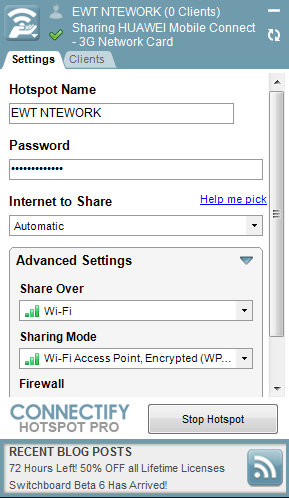
    Connectify Hotspot PRO converts your PC into a hotspot. Allowing you to share internet from your PC to other devices and PCs through WIFI.
    Some of the features of this program include:

    • Custom Hotspot Name
    • Secured Hotspot
    • Sharing Mode
    • Firewall

    You have full control over your wireless network all the time, so you will know exactly who is connected to your server. Among its advanced features, Connectify enables you to explore shared resources from the devices that are paired with your system.   DOWNLOAD CONNECTFY

  • Common-Sense While Using WI-FI Hot Spots

    Common-Sense While Using WI-FI Hot Spots

    Wi-Fi hotspots are nothing more than just a wireless access point, which grants internet accessibility to network devices in various public locations, such as cafes, restaurants, hotels and airports. Schools and businesses are also opting for the Wi-Fi hotspots and using them for their intranet or internet networks.
    Same Wi-Fi technology is utilized in wireless networks at home. Devices get connected to Wi-Fi hotspots via the use of a Wi-Fi network adapter. In fact, today the latest laptops and computers are designed with built-in adapters. The hotspots that are used in public locations usually require paid subscriptions and credit cards.
    Neighborhood cafes, universities and similar places are opting to use the free Wi-Fi hotspots. With this, more and more users are connecting to the public Wi-Fi networks. As a result, security risks are increasing. In fact, Wi-fi hotspots are more like unsecured networks, which provide opportunities for hackers to take complete advantage of the technology. Your personal information is under threat if you access personal account information and passwords while using a public Wi-Fi hotspot.
    So, prior to using the local internet or WiFi hotspots from a restaurant or a café, do make sure to follow the following rules:

    • Always keep in mind that these networks are not secured and safe. They are always unsecured network connections. If you have to provide passwords or log onto something, do think twice and keep your guard on. 
    • Make use of built-in security tools, Windows and Mac OS X have. They come with inbuilt features that enable firewall of a user and keep a check of the incoming traffic. The feature only helps to keep the hackers or unethical entities away from your system and personal information.
    • Disable file sharing.
    • Keep a tab on padlock. The sites that make use of HTTPS are capable of encrypting your activities. Users doing anything on the sites are confidential. Opt for the padlock, which is present on the address bar. You can also download and install HTTPS Everywhere.
    • Hackers are capable of retrieving even saved passwords that from your installed keyloggers or Registry. Therefore, try to protect and secure your passwords. Install features like LastPass or similar add-ons, whereby you can store your passwords safely in the cloud.
    • Hackers use different techniques and gimmicks to lure their victims. They might also use fake networks and grab hold of their victims online. Therefore, check the name of the network or better, ask and confirm the same with the employees of the concerning place.

    Bottom line, it is always required to make use of your common sense whenever opting for public Wi-Fi hotspots or networks. If you sense any threat to security, immediately keep your guard on and avoid shopping or doing online activities where sharing personal details is a mandatory.