Search results for: “microsoft”

  • How to Install Windows 7 Without the Disc

    How to Install Windows 7 Without the Disc

    How to Install Windows 7 Without the Disc

    Here’s how to legally download Windows 7 and make your own install disc.

    Many computers ship without Windows 7 installation discs. Instead they come with “recovery” discs and/or partitions that claim to restore your PC to its “factory fresh” state, but include a ton of bloatware (free trials, media players, useless utilities, and the like) along with Windows. Removing each piece of bloat is time-consuming, and just not the same as truly starting fresh.

    In this article, you’ll learn how to make your own Windows 7 installation disc (or USB flash drive) and use the valid product key you already have to perform a fresh reinstallation. The following method is effective and legal, and doesn’t require a lot of technical expertise
    However, we don’t recommend that you delete your recovery partition or throw away your existing recovery discs. Although many people have had success with the following procedure, others have not. Some users have not been able to activate their copy of Windows even after entering a valid product key, while others own PCs that require software not included in a Windows 7 ISO. You have no way to know whether this procedure will work for you until you try, and you need a backup plan in case it doesn’t.
    Also, save your files and drivers to external media before you start. Reinstalling Windows wipes out all personal data and causes a loss of functionality in devices for which Windows lacks an adequate built-in driver. Plan on loading the latest device drivers from media you create before reinstalling Windows.

    Reinstalling Windows 7, Step by Step

    1. Find your Windows 7 product key: Typically this 25-character alphanumeric string is printed on a sticker affixed to your PC or on documentation included with your PC. Alternatively, you can use a keyfinder program such as Magical Jelly Bean Keyfinder to pull your product key from the Registry. You need your product key to reinstall Windows.
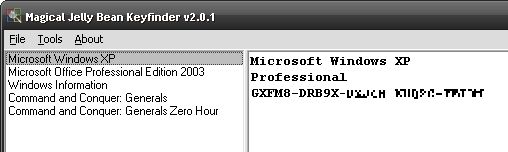
    Magical Jelly Bean Keyfinder helps you round up your serial numbers.Magical Jelly Bean Keyfinder helps you round up your serial numbers.
    2. Download the ISO file for the version of Windows 7 you own:

    The above links point to Digital River, a licensed distributor of Microsoft software. These downloads are each over 3GB, and your product key will work only with your edition of Windows, so make sure to select the right one.
    3. Download the Windows 7 USB/DVD download tool. This utility lets you copy your Windows 7 ISO file to a DVD or USB flash drive. Whether you choose DVD or USB makes no difference; just confirm that your PC can boot to the media type you select.
    4. Boot your computer using the Windows 7 DVD or USB flash drive. Follow the prompts to prepare the destination hard drive and install Windows.
  • Try Windows 8 Without Losing Windows 7

    Try Windows 8 Without Losing Windows 7

    Anderson7 asked the Windows forum for the safest way to install Windows 8 on a system already running Windows 7.
    I wrote my opinion of Windows 8 last month. Many readers voiced their own, differing opinions. You can make up your own mind by installing the Windows 8 Consumer Preview.
    But you shouldn’t replace your current OS with one that’s not yet ready to be sold commercially. You want to install Windows 8 in a way that leaves Windows 7 unharmed.

    That’s why I recommend installing it in a virtual machine (VM). Virtual machine software imitates an actual, physical computer, onto which you can install another operating system. This is by far the easiest and safest way to try out an operating system.
    I recommend Oracle VM VirtualBox for creating and running your Windows 8 VM. It’s free, open-source, powerful, and it already supports Windows 8. (It’s main free competitor, VMWare Player, doesn’t support Windows 8 as I write this.)
    You’ll also need to download the .iso file version of the Windows 8 preview. This page contains both 32- and 64-bit editions; unlike previous Windows versions, you can’t install the 32-bit version on 64-bit hardware (at least I couldn’t). You’ll also find the product key here; you’ll need that during installation.
    Once everything is downloaded and you’ve installed VirtualBox, follow these directions:

    1. Load VirtualBox, the click the New icon in the upper-left corner.
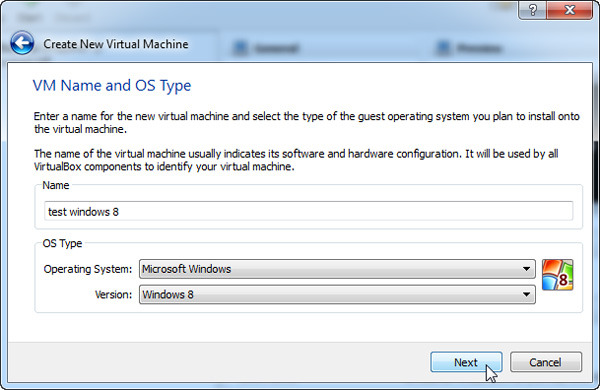
    2. This starts a wizard. Click Next.
    3. On the “VM Name and OS Type” page, enter a name that includes the phrase windows 8. Otherwise, “Windows 8” won’t show up as a Version option.
    4. Stick to defaults for the result of the wizard, even when asked if you want to “Create new hard disk.” Don’t worry, it’s just a virtual disk.
    5. When the Wizard finishes and closes, double-click the new virtual machine.
    6. Read the message about the Auto capture keyboard, then click OK.
    7. The First Run Wizard will start. When you’re asked for Installation Media, click the folder icon on the right and select your downloaded .iso file.
    8. The installation will begin after you click Start.
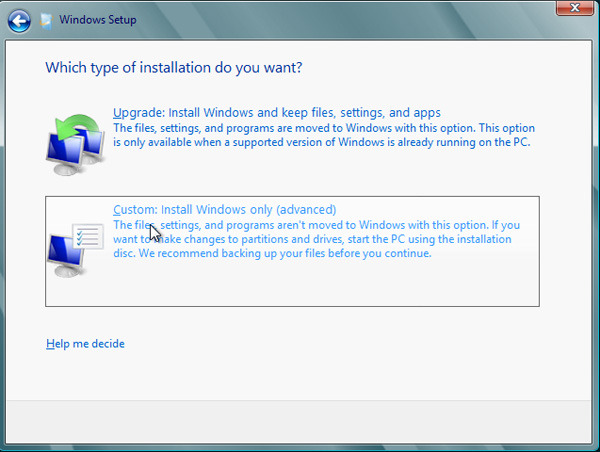
    9. When asked for a type of installation, select Custom. Don’t worry about overwriting files. The only hard drive the installation sees is the empty, virtual one.

    When you’re done, you’ll be able to run Windows 8 inside Windows 7.

  • 15 Best Skins For Windows Media Player

    15 Best Skins For Windows Media Player

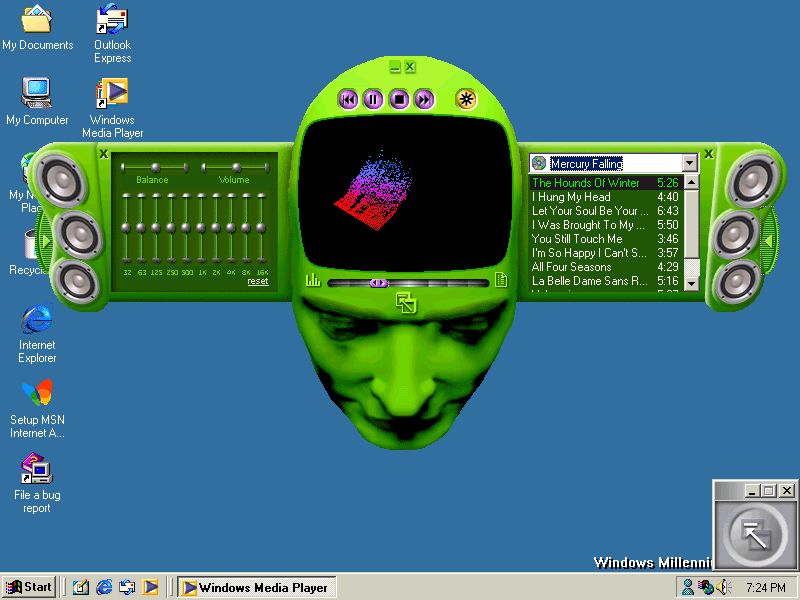
    Windows is the one of the widely used operating system world wide due its most easy interface and wide range of features. It doing grate jobs in almost every field, either in development, security or social media and of course  in entertainment. When we thought about entertainment Windows Media Player is at first number. Media Player is a proprietary digital media player and media library application developed by Microsoft that is used for playing audio, video and viewing images on personal computers running the Microsoft Windows operating system, as well as on Pocket PC and Windows Mobile-based devices. There are many versions available for it but we will discuss about the Windows Media Player 11 and Windows Media Player 12.
    Windows Media Player 11 and 12 have the many changes in features such as Instant Search, Cd Burning, Global Status, Support for ripping audio CDs to WAV and WMA 10 Pro formats (MPEG-4 Part 2 video formats, AAC audio and 3GP, MP4 and MOV container formats in 12th version) and much more from its earlier version. Now if you get bore from a same look window from a long time here are the best skins for Windows Media Player while using in Windows7 or earlier versions of windows.

    1.Sony Xplod

    Download

    2.Batman Begins

    Download

    3.Into One EMERALD

    Download

    4.WM Tab

    Download

    5.Ultimate Simple

    Download

    6.Sleek

    Download

    7.Papo fandangos

    Download

    8.STS Control

    Download

    9.Official DVD Profiler Skin

    Download

    10.Neon

    Download

    11.Alienware Invader

    Download

    12.L.C.D. 2.0

    Download

    13.OSX Media Player

    Download

    14.Xbox

    Download

    15.T3D WMP Skin

    Download

  • How to Upgrade Windows 7 Starter into Windows 7 Home/ Professional/ Ultimate FREE!

    How to Upgrade Windows 7 Starter into Windows 7 Home/ Professional/ Ultimate FREE!

    I just got my new netbook 2 weeks ago, but I was greatly disappointed with the fact that it came with Microsoft Windows 7 Starter edition only not Windows 7 Home Premium, Professional or Ultimate. As we all know, Windows 7 starter is the cheapest version of Windows 7 series and you can’t even change to your favorite background wallpaper or I would suggest a handicapped version of Windows 7. Eventually my search for the upgrade begin!

    Initially I was thinking of formatting my whole hard disk and get a fresh new copy of Windows 7 Ultimate (cracked ver). But after reading some forums and comment by some of the users, I found out that we can actually upgrade our current version of Windows without going to the formatting path. Instead it could be easily upgraded to any version you prefer as easy as 1 2 3. Here go the step:

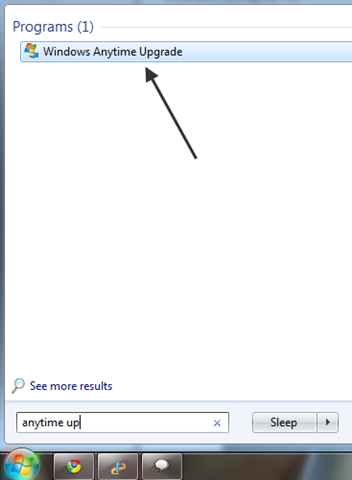
    Step 1. Enter “Anytime Upgrade” in the Start menu search,and select Windows Anytime Upgrade.

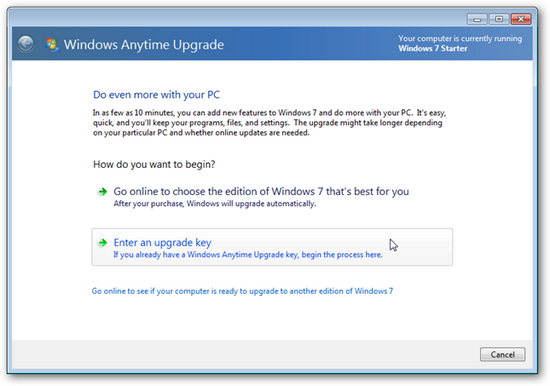
    Step 2. Select “Enter an upgrade key” from the screen.

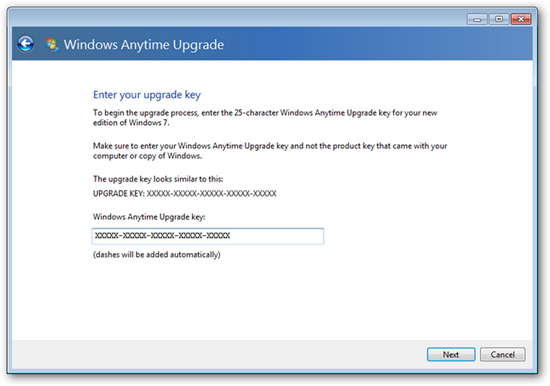
     Step 3. Download Windows 7 Anytime Upgrade keygen at Hotfile and key in the key generated into the space and click “Next”.


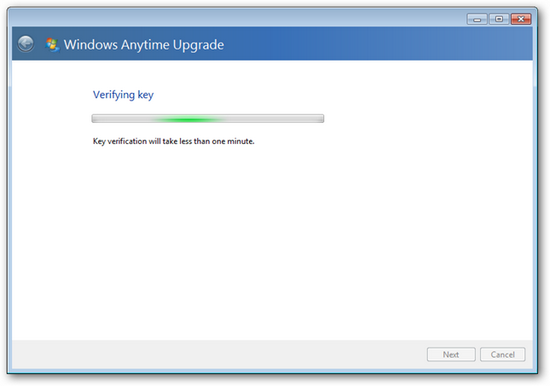
    Step 4. The key will be verified as a valid key, and Windows Anytime Upgrade will automatically choose the correct edition of Windows 7 based on your product key.  Click Next when this is finished.

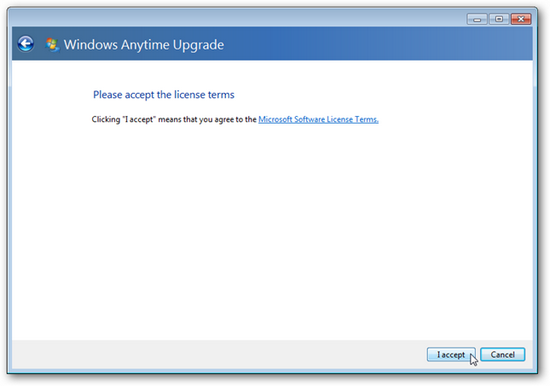
    Step 5. Click “I accept” to accept the license agreement.

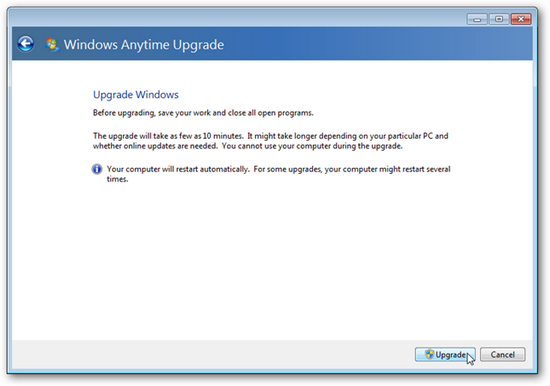
    Step 6. Click “Upgrade” to initiate the upgrade process.

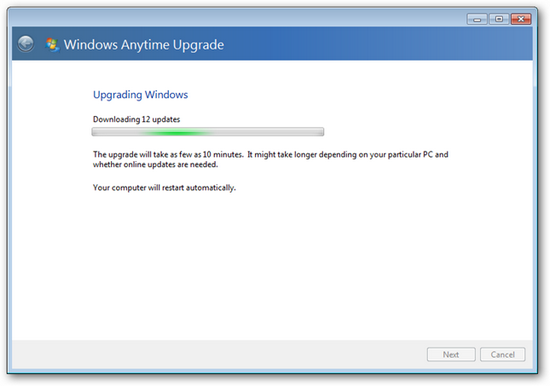
    Step 7. Wait for the Windows 7 to be installed. As stated the upgrade will take about 10 minutes but it may vary according to your connection speed.

    Step 8. Windows 7 will start installing all the feature into your computer.
    Well, you are done. You have successfully upgraded your Windows 7 Starter edition.

  • How to configure Firefox address bar with Search Engines

    How to configure Firefox address bar with Search Engines

    Your Firefox address bar can not only be used for opening websites but also for searching as well. Yes, you can configure the Firefox address bar with various search engines like Google, Yahoo, Microsoft’s Live, and Wikipedia etc.
    By default, whenever you type anything in address bar and hit enter or press the GO button, Firefox checks whether the entered string is valid address or not. If it’s a valid address Firefox tries to load corresponding site for you. Now, if the entered string is an invalid URL, it will be submitted to Google Search and search results are returned.

    What if you want to change the Default search engine? Of course, Google is everybody’s first choice search but having said that it depends on person to person. Or, if you have Google Toolbar (that provides inbuilt google search box) installed then you may want to configure the address bar with some other Search Engine.
    The following steps will guide you how to configure your Firefox address bar with Search Engines of your choice.
    1- Open Mozilla Firefox and type in the address bar about:config.
    2- Next type keyword.URL in the Filter box which is appeared after the first step is completed successfully. As you type the above text, the long list will be trimmed down to one line. (You will see only 1 entry (keyword.URL) under the Preference Name section)
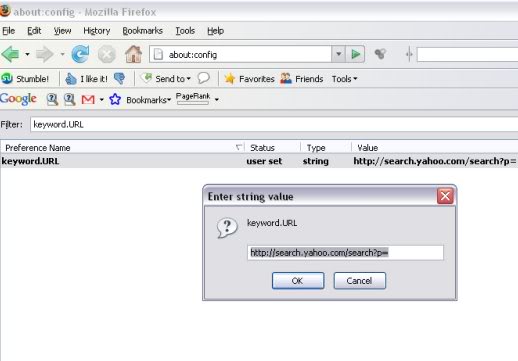
    3- Now right click that single entry and select modify. A box will appear. Refer the image given below.
    4- Choose your Search Engine type and accordingly enter the string value of various Search Engines given below.
    5- There is no 5th step.
    Enjoy!!!

    List of Various Search Engines is as follows:-
    (Copy any of the below strings and paste it into the box that appear in STEP 3 above)
    Default Google Search

    http://www.google.co.in/search?btnG=Google+Search&q=

    Google Search with I’m Feeling Lucky

    http://www.google.co.in/search?btnI=I%27m+Feeling+Lucky&q=

    Yahoo search

    http://search.yahoo.com/search?p=

    Microsoft’s Live Search

    http://search.live.com/results.aspx?q=

    Wikipedia
    http://en.wikipedia.org/wiki/Special:Search?fulltext=Search&search=