A smart TV is only as smart as the person controlling it. So if the person in control is a hacker, the owner could have a problem. Researchers at security consultancy ReVuln say some smart TVs are vulnerable to hacking. It is another example of what experts say is the ever-expanding attack surface of devices that traditionally never faced the Internet, but are now “smart.” The researchers at the Malta-based company said they found a vulnerability in a number of smart TVs made by Samsung Electronics that gave them root access to the TV and any attached USB drives. They posted a video titled “The TV is Watching You,” which appears on a number of security vendor websites, including Kasperky Lab’s Threatpost. While there is no voiceover, the video shows the researchers accessing the TV settings and channel lists, SecureStorage accounts, widgets and their configurations, the history of USB movies, the ID, firmware, whole partitions and any attached USB drives. They were also able to retrieve the drive image, mount it locally and check for information like usernames, passwords, financial documents, or any other type of material on USB drives. Luigi Auriemma of ReVuln told the IDG News Service that hackers could even use the integrated webcam and microphone to watch the victim. And he said the vulnerability is not confined to the single model that ReVuln tested.
What is affected
“The vulnerability affects multiple models and generations of the devices produced by this vendor, so not just a specific model as tested in our lab at ReVuln,” the report said. Samsung did not respond to a request for comment, but ReVuln emailed a statement saying there is no firmware update yet, “as the details regarding this vulnerability have not been shared with the vendor.” The statement added that ReVuln has only tested Samsung, but said: “We think that other brands of TV may be affected by similar issues.” James Arlen, senior security consultant with Leviathan Security Group and a hacking expert, said the TV is just one example of the “Internet of Things” and other non-computer resources in homes that amount to “a huge new attack surface.” “I recently counted the number of IP addresses in my house and came up with all kinds of new things that require Internet access – not just the computers, game systems, tablets and music players, but also the bathroom scale, the thermostat and more,” he said. “Televisions are one of many, but also the most likely to have lots of interconnection possibilities.” He said the problem is not new, noting that, “printers got smarter and became a threat,” and that the number of smart devices continues to expand. Dan Frye, general manager of services at MAD Security, agrees. “A common way to get into enterprise networks is through printers attached to the corporate network. A TV on the corporate net is really the same thing,” he said. “In essence, you’ve got a computer inside some device, whether it be a printer, a TV, a toaster, the Coke machine, etc., and that computer is just as vulnerable to attacks as a normal computer would be.” “Any new piece of technology that connects to the Internet is a probable attack surface,” said Matt Johansen, WhiteHat Security threat research manager. “Look at the recent research by Barnaby Jack about insulin pumps and pacemakers.” “Who would have thought these devices would ever be susceptible to hackers?” Johansen said. “But if a hacker gets their hands on any device long enough, they’ll figure out a way to break it. It was hotel door locks, slot machines in the past and it will be the smart toasters and refrigerators in the future.” Gary McGraw, CTO of Cigital, said most people don’t think of their TV or other household devices as computers, but they are. “Your TV is just a computer with a monitor,” he said. “And it knows a lot about you—what you’ve watched, whether you were home at the time.” There is some disagreement over how much of a priority security is for devices that have only recently begun to face the Internet. “Focus on delivering the product to market means that the ‘Ship It’ award is more important than ‘Is it Hackable?’” Arlen said. Frye agrees that security standards for such devices are “immature.” But he said vulnerabilities are found “everywhere, all the time, in products that certainly take security into account. Microsoft, Google, and Apple are all great examples.” McGraw said while the vulnerability discovered by ReVuln is real, he doesn’t think Samsung is necessarily lax on security. “They make the most popular Android phone out there,” he said. “So they are in the [security] wars.” To deal with the ongoing threats, both consumers and enterprises need to “control your exit path,” Arlen said. “Most consumers are unaware of what traffic passes in or out of their primary systems, so they’re going to be even more unaware of the traffic to and from devices that are ‘furniture’ rather than computers.” “More manufacturers across lots of industries need to employ or engage with the “hacker-ish” community to solve the problems prior to the shipping of the product,” he added. Frye said that once products are released, manufacturers need to treat them like computers, and “have a way for people to report vulnerabilities and a way for patches to be deployed out to their consumers.”
Samsung’s bug bounty
Samsung has begun treating smart devices like computers. “Samsung has actually taken a step in a great direction with a TV bug bounty program for researchers to submit bugs to receive a reward ($1,000), which has been useful for the likes of Google, Facebook, Mozilla, and even PayPal,” Johansen said. However, every computing device is potentially vulnerable, and with “The Internet of Everything” there will be more of them all the time. “This problem will only get worse as we integrate more things into our home networks,” Frye said. “It’s the TV now, but smart devices, smart meters for our power, the toaster, thermostat—they’re all at risk in the same way.”
The clamshell laptop is finally joining the beige desktop in the museum of computer artifacts. The basic hinged design made its first appearance in a device called the Grid Compass way back in 1982, so no one can scoff at the clamshell’s longevity. Nonetheless, times are finally changing, which means it’s time for the pure clamshell laptop to ride off into the sunset. The traditional clamshell is being replaced by a wide variety of designs that merge tablets and laptops into a single physical package. These Windows 8 hybrid devices should directly appeal to PC users who might otherwise buy thin-and-light laptops. First-generation hybrids are already shipping, and most of them are flawed in some way, but they nonetheless bring new use-case scenarios to a mobile computing paradigm that hasn’t changed much in 30 years. Sure, there have been attempts to upend the clamshell. Take Microsoft’s Tablet PC initiative during the Windows XP era. But those early efforts were hobbled by bolting touch control onto an operating system that was poorly suited for touch interfaces. Windows 8 and Windows RT, however, are designed from the ground up for the touch experience. Now that we’ve reviewed a good number of Windows 8 portables, it’s time to step back, name the best models, and put them all in context. Given their intrinsic design compromises, none of them is a clear winner as a do-it-all system. But we can still look at five innovative designs, walk you through why you’d want one, and suggest which usage models may best apply to you.
Primarily a PC: IdeaPad Yoga
The Yoga’s screen rotates to a “tent” mode for easy presentations.
Sometimes you really need a full laptop keyboard, but you’d like to couple it with a Windows 8 touch experience. And, occasionally, you may need to use your system as a pure tablet—but you don’t anticipate that being the machine’s primary use. If any of this resonates with your personal needs, consider Lenovo’s IdeaPad Yoga. It’s an excellent 13.3-inch Ultrabook that includes a multitouch, capacitive touchscreen for all the cool new gestures built into Windows 8. The Yoga has what it takes to be a solid ultraportable laptop. The keyboard is excellent for touch typists. The battery life approaches 6 hours. The sound quality of the speakers is surprisingly good. And it weighs less than 3.5 pounds. However, it’s the display that really sets the Yoga apart. It’s a full 1600 by 900 pixels, offering a good balance in pixel density between 1366 by 768 and 1080p (or 1920 by 1080, by any other name). The panel rotates 180 degrees, allowing the Yoga to be used as a full tablet (albeit with its keyboard exposed) or in the “tent mode,” where you can use it to give presentations or easily share content.
The business traveler’s hybrid: ThinkPad Twist
The ThinkPad Twist’s display rotates around a single hinge.
Road warriors need work machines that are lightweight, rugged and reliable. Lenovo has long promised these qualities in the ThinkPad, a laptop line that was first conceived by IBM in 1992, and has been targeted at business users ever since. And now we have the ThinkPad Twist, which brings Windows 8 touch gestures and a clever hybrid design to a laptop legacy that’s always been a bit buttoned-up and stodgy. As with most ThinkPads, the Twist is a tad heavier than a consumer-grade laptop. And at 3.5 pounds, the Twist—even with its 12.5-inch, 1366 by 768 display—is a bit heavier than Lenovo’s IdeaPad Yoga, which has a larger, higher-resolution screen. But what’s nifty about the Twist’s display is its hinge design, which lets this hybrid engage a tablet mode while still keeping the machine’s keyboard protected. This makes the Twist more robust in tablet mode than the Yoga, whose keyboard remains exposed. The base-model Twist ships with a 500GB hard drive and a 24GB caching SSD. Working together, the two drives deliver speedy startup times and copius storage. Lenovo does offer one model with a traditional SSD intended for storage, but it’s a fairly scant 128GB. This SSD option, however small, will likely play well in larger businesses, where IT departments tend to lock down which applications can be installed. Overall, the Twist brings the ruggedness of the ThinkPad line with some of the most usable features of Windows 8 tablets. The only significant omission is a 3G/4G mobile broadband option, which would make the Twist a more attractive hybrid for frequent travelers. Nevertheless, the Lenovo Twist is compact and reasonably light, which should allow it to travel well.
Almost a tablet: Sony Duo 11
The Son Duo 11 is a tablet with slider keyboard built in.
The Sony Duo 11 looks like a tablet—most of the time. When you carry it around in its folded state, a seam conceals a sliding keyboard hidden underneath the bottom of the display. It’s the laptop version of those old-school slider phones, complete with a compact, Chiclet-style keyboard. Make no mistake: Touch typists will not like the keyboard on the Duo 11. Really, the most postiive thing I can say about the keyboard is that it’s functional, offers tactile feedback, and is a little easier to use than an on-screen keyboard. For the most part, however, the keyboard is cramped and uncomfortable. Luckily, the sliding hinge seems durable enough. And given that that the Duo 11 will likely be used more in tablet mode than laptop mode, the slider bit works pretty well. The entire affair weighs 2 pounds, 13 ounces—under 3 pounds, in other words. The 11.6-inch screen is an IPS display offering full HD (1080p) resolution. Sony also includes an N-trig stylus that supports 256 pressure levels, making it a useful adjunct for artistically inclined users. If what you need is a tablet for touch-sensitive art applications, the Duo 11 bears closer scrutiny.
PC performance in a tablet design: Acer Iconia W700
Acer’s Iconia W700 is a high-performance Ultrabook in tablet guise.
In the Iconia W700, Acer crams an Ultrabook into a relatively thin tablet. No one will mistake this device for an iPad or Microsoft’s Surface RT, but in weight and thickness, it’s pretty close to what Microsoft’s Surface Pro will be. It’s also 2.1 pounds; while that’s significantly lighter than the Sony Duo 11, it still means that lugging it around propped on your forearm (as many tablet users do) may get tiring. The tradeoff for the weight is robust, PC-like performance and features, including USB 3.0 and mini-HDMI video output. As with most tablets, it’s got both forward-facing and rear-facing cameras. As with Sony’s Duo 11, the Iconia includes a full HD, 1920-by-1080 display. This delivers gorgeous-looking images and text, but it’s also problematic for touch use when running desktop applications. It’s simply difficult to put one’s finger on desktop buttons and window bars that render so small. While Acer bundles a Bluetooth keyboard, the only pointing device is the touch interface itself—no mouse is included, and the keyboard lacks a trackpad. The W700 is really the purest, most recent incarnation of Bill Gates’ vision of the Tablet PC. But the real problem lies with the overall size, bulk, and weight. An 11.6-inch tablet, particularly with a 16:9 aspect ratio, will always be a little awkward to hold and use in landscape mode. Portrait mode is a little more usable, but often won’t accommodate documents at their full width. Nonetheless, despite all these caveats, if you’re looking for a pure tablet that offers PC-like performance, the W700 delivers. It’s a nice product, but we expect the Microsoft Surface with Windows 8 Pro to eclipse the W700 early next year.
The pure tablet: Microsoft Surface RT
Microsoft’s Surface RT offers covers with built-in keyboards
The Surface RT is Microsoft’s bid for the tablet space currently owned by Apple’s iPad. Sure, Android tablets may cost a little less and aspire to the same market, but none have been able to come close to the iPad in terms of ease-of-use and user adoption. While the aspect ratio is more widescreen than Apple’s, the 10.6-inch display seems a little more usable than the slightly unbalanced, 11.6-inch displays that dominate the Windows 8 tablet market. Windows RT is fast and responsive on the ARM-based, Nvidia Tegra processor. The Surface’s 1366-by-768 resolution doesn’t match the beauty of Apple’s iPad Retina display, but most users probably won’t notice. In the Surface RT, Microsoft has introduced some clever touches, such as a built-in kickstand and the optional Type Cover, which integrates a flat, tactile-free, but extremely thin keyboard. The company also bundles a reduced version of Microsoft Office, but using those Office apps kicks you into desktop mode, which feels very weird on a device that’s really meant to be a pure tablet. On the Surface RT, the Windows Start Screen is the native interface, and seems capable and usable.
Like every new Windows release, Windows 8 is more secure than the operating systems that came before it. That’s due in large part to three major enhancements: An increased emphasis on UEFI Secure Boot optimizations, the extension of the SmartScreen Filter across the operating system, and the default inclusion of a more robust version of Windows Defender, which now protects against all kinds of malware—not just spyware.
Windows Defender’s increased scope doesn’t sit well with computer manufacturers, however. OEMs make beaucoup bucks by installing those trial versions of McAfee, Norton and other security suites you’ll find bundled on boxed PCs. Windows Defender’s default installation threatens that gravy train.
Microsoft tossed its partners a bone by allowing OEMs to deactivate Windows Defender in order to ship boxed PCs with alternative security solutions installed. That’s all well and good from a “variety is the spice of life” perspective, but one side-effect that isn’t so hot is what happens when you fail to register that third-party security software: Windows 8 doesn’t automatically reactivate Windows Defender by default. In other words, your pretty new prepackaged PC is wide open and vulnerable to all the nasties of the ‘Net.
Fortunately, activating Windows Defender is a snap. Here’s how to do it.
Activate Windows Defender in Windows 8
Windows Defender isn’t subtle about being deactivated.
First, head to the modern-style Start screen and type “Windows Defender” to have Windows search for the program, then click on the Windows Defender icon when it appears in the results. A Windows Defender window will appear on the classic desktop. If Microsoft’s security software is disabled, you’ll seen a lot of scary red tones alongside an “At risk” warning and an image of a computer screen with a big X on it. Subtle, eh?
Next, click on the Settings tab at the top of the window. Make sure “Real-time protection” is selected in the left pane, then check the box next to “Turn on real-time protection (recommended).” Finally, click Save Changes at the bottom of the Window.
How you want your Settings tab to look!
You’ll know it worked when the terrifying red “At risk” bar at the top of the Windows turns a much more soothing shade of green and switches to “PC Status: Protected.”
Check for leaks
You’re not quite done yet. Now it’s time to make sure your PC is actually malware-free! Click the Update tab, then click on the big Update button in the middle of the Window to download the latest malware definitions Microsoft has on file.
Next, open the Home tab and select the “Full” radio button in the Scan Options list. All you have to do now is click Scan Now, then sit back and wait while Windows Defender checks the nooks and crannies of your PC for any hidden baddies. Grab a cup of coffee; it may take some time. While you’re waiting, we recommend checking out your Windows 8 antivirus options.
What if windows eight doesn’t meet our expectations?
Microsoft launches Windows 8 later this month after a year of gradually making the new operating system more and more available, hoping for a big hit that will drive sales this holiday season and beyond, and giving the company new hope of grabbing a bigger share of tablet sales. But what if Windows 8 flops? For businesses, the problem won’t be that dire, says Paul DeGroot, principal consultant at Pica Communications. Businesses that are Microsoft shops already have an operating system, likely Windows 7, but if not, Windows XP with a plan to adopt Windows 7 soon before support for XP ends next spring. If Windows 8 is a complete bust, enterprises can stick with Windows 7 and wait until Microsoft picks itself up and does a better job with Windows 8 service packs or Windows 9 (or whatever it calls the next major release), he says. After all that’s what happened with Windows Vista, says Matthew Casey, an analyst with Technology Business Research, and Microsoft can handle a disappointing Windows 8. In fact that is a likely scenario, DeGroot says. “Most of the companies I work with are standardising on Windows 7. They are not going to be migrating to Windows 8.” He says many businesses will license Windows 8 but end up reimaging their networks with Windows 7, similar to how many enterprises licensed Vista but installed XP. Casey says a Microsoft stumble with Windows 8 will be handled by businesses the same way the performance of Windows Vista was handled. “If that’s the case we’ll see a similar reaction from Microsoft,” he says “It’s not going to be them closing their doors.” The company will press on with Windows 8 and its fundamental architecture. The impact on consumers won’t be that great, either. If Windows 8 doesn’t catch on a big part of the reason will be that consumers are buying some other tablet platform they like better, so they’ll be happy. But according to Gartner, Microsoft will be missing a big opportunity to make its mark in mobile devices if the Windows 8 gamble doesn’t pay off. “It is a risk that Microsoft must take to stay relevant in a world where mobile devices with new modern experiences are becoming the norm,” Gartner says in a research note “Is Windows 8 in Your Future?” The popularity of smartphones and tablets has Microsoft playing catch up, particularly with Apple, whose iPad dominates in tablets and whose iPhone holds down big large chunk of smartphones. “With Windows 8, Microsoft tries to address the excitement of the tablet market by adding a tablet interface to Windows,” Gartner says. If Windows 8 does become popular with consumers and finds its way into enterprises via the bring-your-own-device phenomenon it will still have hurdles to clear with IT departments. Ultrabooks and tablets still need to establish themselves in the corporate world where their use raises questions, Casey says. Who will pay for them? How will they be secured? “These are pieces that need to fall into place in the enterprise planning cycle,” he says. It’s also questionable whether they will gain traction as platforms for business applications, DeGroot says. “I think that is going to be a very tough sell,” DeGroot says, because the apps have to be vetted by the Microsoft Store before they will be allowed on closed Windows 8 devices. Businesses won’t want to leap that hurdle nor will they want to side-load apps on devices to get around the restriction that Windows 8 apps must be reviewed by and sold through the store. “I have some difficulty imagining many organizations are going to want to do that.” Beyond that, developers are not prepared to write for Windows 8; their training and experience leans toward traditional enterprise applications for conventional desktops without touch capabilities, DeGroot says. Touchscreen can actually be a barrier. With Windows 8 Microsoft is overhauling the underpinnings of its operating system with the introduction of Windows Runtime, a new architecture that gives a common footing to applications across a range of devices. Such applications can support both x86 and ARM hardware, potentially opening up the possibility of writing apps once that can run on any device. Microsoft hopes it can write its next major chapter with Windows 8 and Windows Runtime, Gartner says, and that is what makes a Windows 8 success – and avoiding a flop – so important. Windows 8 is simply the biggest turning point for Microsoft in decades. “Windows 8 is not your normal low- or even high-impact major release of the OS,” the research firm says. “We believe it’s the start of a new era for Microsoft, the Windows RT era, which follows the Windows NT era that began in 1993 and is just starting to wane.”
It is rare to find a new PC that doesn’t come with additional bells and whistles in addition to the operating system itself. The “bloatware” that PC vendors add on often includes useful tools like third-party security software. It seems, though, that some PCs also come with something more insidious—pre-installed malware. Microsoft researchers investigating counterfeit software in China were stunned to find that brand new systems being booted for the first time ever were already compromised with botnet malware right out of the box. Microsoft has filed a computer fraud suit against a Web domain registered to a Chinese businessman. The suit alleges that the Nitol malware on the new PCs points the compromised systems to 3322.org. Microsoft believes the site is a major hub of malware and malicious online activity. Microsoft claims that site in question hosts Nitol, as well as 500 other types of malware. A Washington Post report states that it’s the largest single repository of malicious software ever encountered by Microsoft.
Most users—particularly most users of the Microsoft Windows operating systems—are aware of the many online threats. They’ve been conditioned to install antimalware and other security software, and update it frequently to ensure it can detect and block the latest, emerging threats. It’s a problem, though, if the PC is already compromised with malware before the antimalware software is even installed or enabled. Part of the concern lies in how the pre-installed malware works, or how deeply embedded it is. Most malware can still be identified and removed by security software after the fact. However, malware threats that are planted at the kernel level of the operating system, or in the PC BIOS operate at a level that is too deep, and can avoid detection by most antimalware tools. Malicious software is big business, and the criminals running the business are often quite clever and innovative when it comes to finding new ways to spread it. Planting malware in PCs, smartphones, or tablets before they’re even purchased and unboxed is certainly one way to go about it. What can you do then to defend against these threats? For starters, buy your PC, tablet, or smartphone hardware from established, respected vendors. If you buy an HP, Dell, Acer, Sony, or other such brand name PC the odds of it being compromised with pre-installed malware out of the box are pretty low. If you buy an Apple iPad, Google Nexus 7, or Amazon Kindle Fire you will most likely get a device free of malware infections. But, if you go bargain shopping online and buy a PC or knock-off tablet from a shady, unknown site the risk is higher. Regardless, don’t assume that just because your PC or mobile device is brand new that it must be safe and free from malware. And, you might not want to trust the pre-installed security software, either, since you can’t verify that it’s legitimate and free from malware itself. Make sure you install a reliable cross-device security tool to detect and identify malware that may already be present.
Microsoft has taken its server OS a giant step forward with Tuesday’s release of Windows Server 2012, making this version the first that can be controlled remotely so it is more suitable for data centers.“Microsoft has delivered on the promise of an operating system that can be completely managed from the command line,” said Don Jones, an author of a series of Windows 2012 instructional videos that have been released by the training firm CBT Nuggets. “The technologies are in place to manage 100 servers as easily as you can manage one server.” The first major upgrade since 2009 features a bevy of new features, most designed to make it more suitable for large-scale data-center deployments. Satya Nadella, Microsoft president for Server and Tools, has touted this release as Microsoft’s “Cloud OS.” Microsoft’s Hyper-V virtualization can now support up to 64 virtual processors and 1TB of memory for guests, a marked improvement from the old limit of four virtual processors and 64GB of memory. The Server Message Block (SMB) network communication protocol has been updated to handle faster data transfers and the OS’s Server Manager has been updated to handle multiple servers at once. But perhaps the most significant enhancement is one that may not be noticed among these flashy new features. Thanks to the inclusion of the PowerShell, first introduced six years ago, this will be the first version of Windows Server that can be completely controlled through the command line, making it controllable remotely. PowerShell provides the Windows similar capabilities that chief competitor Unix has long offered, such as the ability to forward, or pipe, the output of one process to the input of another process. It even adds a few new tricks, such as the ability to handle software objects, which have come about from studying Unix’s limitations. “It is an incredibly well-designed shell,” Jones said. Of course, the GUI is still available for those who require it, but “you can remove the GUI and it will be a fully functional server,” Jones said. Doing away with the need for a GUI (graphical user interface) means that servers can be managed more efficiently in multiple numbers, Jones said. “If you are still using management techniques where you are still physically touching the server, you need to move to the 21st century and managing it like a server in a data center.” For instance, an administrator may now have to execute a routine task on a server once a week — such as backing up data — by clicking through a series of options on a graphical program. With the command line, the administrator can write a script in PowerShell to run though all of those steps automatically and that script can run against multiple machines. PowerShell may require some studied learning for those used to GUIs, but it is time well invested, Jones said, adding that his videos were designed to help give users an introduction to the technology. In addition to PowerShell, Windows Server 2012 also features a data-center-friendly installation method called Server Core, which provides a way to install the OS over the network. One hardware partner, Dell, has wasted no time in updating its line of servers to run Windows Server 2012. The company designed its PowerEdge 12th generation (12G) servers around Windows Server 2012. The new blade, rack and tower servers run Intel Xeon E5-2600 processors and feature extreme memory density, hot-swappable hard drives and solid state drives, and a range of advanced features to support networking. Microsoft “engineered the Windows Server 2012 for the private cloud. Our part of the equation is to deliver hardware and systems that are enabled for virtualization,” said Brian Payne, executive director of Dell PowerEdge servers. The 12G was designed to host the many multiple virtual machines that Hyper-V can host, he noted. Dell also designed software to take advantage of Windows Server 2012’s ODX (Offload Data Transfer) protocol, which allows data to be moved among different server nodes without the need of the server CPU.
Now a days, the need to communicate and distribution information is very high. People are always looking for ways to share information at a cheaper, more convenient, and faster means. Bulk SMS is a way of sharing information to thousands of people at a time using special customized names as sender id. It is also relatively cheap. While most people keep going online to send this messages to organizations for free, some few has started it as a venture. I will further tell you that one can make a considerable amount of money rendering this service.
Starting a Bulk SMS business is very cheap and requires you to put a little time and money into it. It requires you to have no special skills what so ever, all you need is internet connection (I will suggest A cyber café ). Now lets get started
Goto www.googlebulksms.com or www.linkosms.com (They sell at very affordable prices), register with them and locate the pricing page. Depending on the quantity you are starting with, the price of each unit can range from N1 – N1.5. Start by buying 2-3000 units which will cost about N2,500. Payment most times is made either through bank deposit or using your local ATM card.
Its not buying the SMS that matters, it what you do with it. Next thing you need to do is to spread the word, you can do that by posting simply hand bills. You do not need to goto any press to do this, just type on Microsoft word and print it then make multiply photocopies and post it around.
In most cases, the people that use this service are Churches, Mosques and Schools. Prepare proposal and send to all of them. You proposal should be very interesting and versatile. Tell them they get to send the SMS with Customized Name of their own organization and it is also at a very affordable price too.
Submit your proposal to as much organizations as possible and you will get more profit from it.
When charging them from the service, charge from N4 –N10 per sms. You bought at N1 per SMS. When you send to about 500 people from a particular organization, you make up to N4000.
Start now and write a proposal and send out. You will make over N10 -50000 once you get start with this little venture
Email often straddles a fine line between help and hindrance. It’s an invaluable tool, no doubt about it, but sometimes it can be a stubborn, unwieldy, and intrusive monster—maybe even a security threat. So who’s in charge around here—you or your inbox? With the right tools, services, and knowledge you can tame the unruly email beast. It’s time to evolve from email user to email power user, and we’ve got just the six tips you need. Start by learning how to add a snooze button to your inbox, then wrangle Gmail to make it smarter and more cooperative. Keep your inbox free of spam with disposable email addresses, then check to make sure your primary addresses haven’t been compromised by hackers. Finally, become a master of email signatures, and learn how to send giant files that would normally choke a mail server.
Set Your Email to ‘Snooze’ So It Comes Back Later
Here’s how to make messages bubble back to the top of your inbox—on your schedule. A crowded inbox can be a productivity killer, if for no other reason than that important messages can get pushed out of sight by newer ones. What you need is a kind of “remind me later” button for email, a way to defer selected messages to a later date or time before they drop “below the fold.” Outlook and Gmail users should check out Baydin’s Boomerang, which lets you reschedule email with just a few clicks. Or, if you’re not a fan of plug-ins, services like Followup.cc and NudgeMail work with any email system: You just forward a message to a specialized address ([email protected], for example, or [email protected]), and you’re done. The email will reappear in your inbox at the designated time and date. And if you’re still not ready to act on the message, just click one of the embedded “snooze” options and go back to sleep—er, work. Boomerang for GMail can help keep important messages you can’t read right away from getting buried by newer mail. Both Followup.cc and NudgeMail are free. Boomerang for Outlook costs $30, though you can try it free for 30 days. Boomerang for Gmail offers its Basic plan (ten messages per month) free of charge; you can upgrade to a Personal plan (unlimited messages) for $5 monthly.
Tame Gmail With Priority Inbox and Dethreaded Conversations
GMail Priority InboxPriority Inbox is Gmail’s answer to email overload. By evaluating your reading and replying habits, it predicts which messages are most important and “floats” them to the top of your inbox, corraling the less-important stuff for later viewing. (You can tweak the prediction accuracy by clicking a “plus” or “minus” button for any given email.) It’s kind of like having a personal assistant who separates the email wheat from the email chaff. To enable Priority Inbox, head to your Gmail settings, click the Inbox tab, and then choose Priority Inbox from the “Inbox type” drop-down menu. Then click Save Changes and return to your inbox. Alternatively, while you’re in the settings area, consider turning off one of Gmail’s most controversial features: Conversation View, which groups together messages with the same subject line. The longer a message thread gets, and the more people who participate in it, the harder it becomes to find the newest addition—or to review earlier replies. In other words, these “conversations” can quickly turned into muddled, incomprehensible, frustrating messes. To turn off Conversation View—which will make messages appear one after another (as in most traditional email systems)—click over to the General tab, then set Conversation View to off. Click Save Changes when you’re done.
Protect Your Privacy With Disposable Email Addresses
You know the routine: There’s some new service, promotion, or online freebie that requires your email address–but you don’t want the inevitable deluge of ads, updates, and other inbox spam. How can you sign up without actually sharing your email address? Mailinator is simple and free to use.What you need is a disposable address, one that won’t negatively impact your inbox. Suppose you’re staring at a registration form and don’t want to use your regular email account. Just make up an address (like “ihatespam”) and tack on @mailinator.com. Then head to the free Mailinatorservice and sign in using the address you just created; you’ll find a Web-accessible inbox you can use to retrieve your promotional code, download link, or whatever. All Mailinator mail gets deleted within a day. Mailinator isn’t the only disposable-email game in town. Services like 10 Minute Mail, Humaility, and YopMail offer similarly convenient registration-free addresses. And if you’re a Firefox user, Less Spam, Pleaseintegrates with these services, generating a disposable, reusable email address when you right-click in an email field and choose Insert a temporary mail address. Doesn’t get much easier than that.
Instantly Paste Your Choice of Email Signatures
An email signature is a great way to share snippets of contact information: your phone number, Facebook/Twitter addresses, website, and so on. But with most email systems and programs, it’s an all-or-nothing affair: signatures are either “on” or “off,” and you’re limited to just one appended block of text. What if you want to add your signature to some emails but not others? And what if you want to share different contact blurbs with business associates than you do with friends and family? The solution: an “autotext” or macro program that quickly and automatically turns abbreviated text into expanded blocks of text. For example, you could create a custom signature that you’ll use only with clients and customers, and designate it “bizsig.” Then, when you’re done composing an email, you just type bizsig at the end. Presto: The autotext program instantly inserts your full business signature. You could take the same approach for a more generalized signature, designating it “sig1” or the like, then just paste it in as needed. And that’s the beauty of this approach: You apply a signature when you want one and skip it when you don’t. A number of programs afford this kind of macro-powered convenience; two of the most popular are AutoHotKey and PhraseExpress. Both are free, but the latter is definitely the more user-friendly of the two. (AutoHotKey requires a bit of scripting.)
Find Out If Your Email Account Has Been Hacked
It seems that every day we hear about another email database being compromised by hackers. The “good” news is that these petty thieves often post the stolen databases online. The bad news is, there’s no way to know for sure if your email address has been compromised. There is now: HackNotifierchecks your email address against the growing number of publicly available “hacked” email databases. Just type in your address and click Have I been hacked? If the results are negative, you can rest easy–though you should continue to be diligent about using strong passwords and varying them from site to site. Verify that your e-mail account hasn’t been hacked with HackNotifier. If the news is not good, HackNotifier will tell you which accounts were compromised and provide more information about the leaks. The service also offers 24/7 account monitoring for $5 per year ($7 if you want instant notification via text message). What it doesn’t do is offer any instructions on how to safeguard your email security if an account has been hacked. Check out numerous ways of Creating an effective password
Send Super-Huge File Attachments
As a general rule, mail servers don’t like large file attachments. While some can accommodate files as large as 25MB, others balk if they exceed just 5MB. In these days of mammoth videos, photo libraries, PDFs, and the like, that doesn’t always cut it. What you need is a file-sharing service that bypasses your mail server. Countless options are available, including such cloud-storage stalwarts as Dropbox and SugarSync(which give you 2GB and 5GB of free space, respectively). You simply upload your file(s) to a public folder, copy the “share” link, and paste that link into an email. The recipients will be able to download the file(s) via the link, effectively taking mail servers out of the equation. SugarSync is a perennial favorite for storing and sharing files online. If you’d rather not sign up for yet another service, or you just want a more straightforward way to share your big files, try Ge.tt. In about the time it takes to read this sentence, you can upload a file and get a link to hand out—no registration, software, or plug-ins required. Files remain available for 30 days, or 90 if you elect to sign up for an account (which is free). That account also gives you real-time sharing statistics, something you definitely can’t get from email. On the other hand, if you prefer the traditional (some would say easier) email-attachment method, file-sharing service YouSendIt offers a free Microsoft Outlook plug-inthat does an end run around your mail server, while still making big-file sharing as simple as creating an attachment. Note, however, that the maximum file size is 50MB unless you sign up for a Pro account ($10 monthly or $50 per year), which raises the maximum to 2GB. With these tools in your arsenal, it won’t be long before you’re sending and sorting email like a pro.
A final copy of Windows 8 leaked to the Internet on Thursday, just a day after Microsoft stamped the new operating system as finished. Identified as Windows 8 Enterprise N — the “N” marks it as aimed at European users — on several BitTorrent file-sharing websites, it was unclear yesterday whether the leaked build was legitimate. Although some who downloaded the leaked copy asserted it was an invalid build, the consensus early Friday was that it was the real deal. “Legitimate. It works. Looks real,” said one commenter on a popular file-sharing site. Numerous downloaders posted screenshots to back up their contention that the leak was the actual Windows 8. Others vouched for it as well, including “Canouna,” the nickname used by an administrator of the WinLeaked forum. The copy is an English-language version, but according to the file-sharing sites is non-booting, meaning pirates must create installation media. Instructions for generating a DVD- or USB flash drive-based installer were posted on some of the file-sharing websites, and available elsewhere on the Internet. Microsoft’s N editions omit Windows Media Player, and are distributed throughout most of Europe as part of the mandate by European Union antitrust regulators after a 2004 decision that concluded Microsoft’s bundling of the player program was anti-competitive.
More choices in original programming are surfacing on Hulu and PlayStation 3. Who needs TV? The assault on traditional TV continues. While things over in the Netflix camp have been relatively quiet (their last big news was that Breaking Bad Season 4is now available for streaming) Hulu has continued to announce new shows.
For instance, last week Larry King returned to the small screen with the launch of Larry King Now on Hulu. King says (on Hulu’s blog) that it was the capturing of Osama Bin Laden that convinced him to come out of retirement. When coverage was all over the airwaves and King wasn’t part of it, he missed the rush and knew he had to get back in the business. Dramatic story, but I’m not sure how it fits in with his first guest being Family Guy’s Seth MacFarlane. We’ll see what kinds of guests King on Hulu can draw.
Hulu has also announced its first international co-production. It is partnering with the BBC to produce a fourth season of satirical comedy show The Thick Of It. If, like me, you’re unfamiliar with the series you’ll be happy to learn that Hulu will start running the first 3 seasons on July 29.PaidContent has more info. Stepping away from Hulu, Sony has announced another streaming app coming to the Playstation 3. This time it’s The Laugh Factory. This app will offer stand-up routines from the Hollywood-based comedy club of the same name. It goes live on September 1 and will be free for all PS3 owners until December. After that it’ll cost $3/month.
Apple and Samsung have been locked in unceasing patent battles over their offerings, and now some people are accusing Samsung of even ripping off the design of Apple’s retail stores. But Apple doesn’t own the corner on using an open floor design and it certainly didn’t invent the idea of minimalism. And any retail store that sells phones and gadgets is going to have tables for playing with them. Microsoft stores do. Samsung recently opened its first North American retail store in Burnaby’s Metropolis at Metrotown, Vancouver, British Columbia and it can’t be denied that it does resemble an Apple Store with its open floor space, demo tables, and blue-shirted staff. But is Samsung intentionally copying Apple Store design?
Image compilation from Apple/Vancouver, B.C. SunImage from BetaNews.com Apple uses wood tables and Samsung has gone with white. Big deal? Not really. From what I’m seeing, Samsung’s store looks similar to countless exhibits you’d see at CES. As for the blue shirts that both Apple Store and Samsung Store employees wear, it’s worth remembering that Samsung’s company color is blue. This is hardly the first time Apple and Samsung have tangled. The former managed to get the latter’s Galaxy Nexus smartphone and Galaxy Tab 10.1 pulled from store shelves recently. A graphic from BetaNews’ Joe Wilcox is a great summation of the attitude many people have regarding Apple’s incessant insistence that other companies, Samsung in particular, are ripping it off. What’s your impression? Does it look to you as if Samsung intentionally cloned the Apple Store in its new retail location?
Could things really be this bad? From the embarrassing hack of a conversation between the FBI and Scotland Yard to a plethora of data breaches, security snafus have ruled the first half of 2012. Here’s a look at some of the worst snafus month-by-month.
The year started off with the FBI raiding the cloud file-sharing and storage Megaupload site, based in Hong Kong and founded by 38-year-old New Zealand resident Kim Dotcom, on content piracy charges to the tune of $175 million. And that action, supported by the U.S industries which hailed it as bringing down a big fish that was devouring their intellectual property, has triggered a year’s worth of lawsuits and retributions from all even remotely involved. It turned confrontational when outraged users of Megaupload were invited by hactivist group Anonymous to attack law enforcement and industry websites supporting the raid by downloading do-it-yourself denial-of-service software such as Slowloris. But by March it was apparent some of this DoS advice came from hackers who were merely tricking users into downloading Trojan software, such as Zeus, from infected links. Another twist: A New Zealand judge in March ruled an order granted to law enforcement allowing them to seize luxury cars and other personal effects of Dotcom is invalid mainly because the local police commissioner applied for the wrong type of seizure order that was requested by the U.S. That ruling mean Dotcom has a chance to get back some of his enormous bling, like his Rolls-Royce and pink Cadillac, seized during his arrest at his mansion outside Auckland. But of course, attorneys for the U.S. are arguing otherwise,. Dotcom, free on bail but subject to electronic monitoring, is expected to undergo extradition proceedings in August. Other January Snafus: ” Online retailer Zappos disclosed hackers had likely broken into its network and stolen information on Zappos.com customers, including name, address, billing and shipping address, phone number and the last four digits of credit-card numbers and cryptographically scrambled passwords stored in hash form. Zappos informed customers all passwords were expired and customers should create a new one. ” Researchers from Seculert discovered what they say is a botnet command-and-control serverholding 45,000 login credentials Facebook users exploited by a pervasive worm, Ramnit, infectingWindows and designed to infect computers and steal social networking usernames and passwords. ” Source code used in older Symantec enterprise security products, Symantec Endpoint Protection 11.0 and Symantec AntiVirus 10.2, as well as older versions of pcAnywhere and Norton Internet Security, was exposed online by hackers calling themselves Lords of Dharmaraja with a leader named Yama Tough in Mumbai. The gang claimed to obtain the code from a third-party associated with the Indian military. Symantec, acknowledging the authenticity of the source code, also said the security firm had been subject to the hackers vainly trying to extract an extortion payment of about $50,000 in exchange for not posting the stolen code. Symantec engaged in a cat-and-mouse game to catch them, with help from law enforcement — but so far without apparent success. Symantec said it isn’t certain where the hackers obtained the stolen cache of source code, and the security incident did prompt Symantec to devise security patches it advised some customers using older software to apply, with additional outreach to customers around the incident related to the stolen source code. FebruaryRight in the midst of a conference call the FBI was having with its agents and law-enforcement officials overseas at Scotland Yard, cybercriminals hacked their way into the phone conversation, recorded it and posted it online. The conversation was about hackers facing charges in the U.K. The group Anonymous took credit for the intercepted call. The FBI said it appeared likely the cybercriminals may have hacked into a law-enforcement official’s email to get the information for the conference call dial-in. Other February Snafus: ” Brazilian banks were targets for distributed denial-of-service attacks, with massive assaults against HSBC Brazil, Banco da Brasil, Itau Unibanco Multiplo SA and Banco Bradesco SA. Hactivists took credit for the DDoS spree. ” Whistleblowing website Cryptome.org, dedicated to exposing confidential information, was compromised by an intruder that loaded an attack code that tried to launch drive-by exploits at visitors to the site. ” The University of Florida had to notify 719 individuals that their Social Security numbers were improperly stored on a state website operated by the Bureau of Unclaimed Property for more than six years. ” Verizon had to acknowledge the Verizon 4G LTE network was knocked offline again just two months after its last serous outage. The outage on Feb. 22 lasted from about 10 a.m. to 1:20 p.m. ” Microsoft’s Azure cloud infrastructure and development service experienced a serious worldwide outage on Feb. 29. Microsoft later blamed the outage on a “Leap Year Bug” that was triggered in a key server housing a certificate that had expired on midnight on Feb. 28, and a time-calculation control hadn’t taken into account the extra day in the month of February this year. ” Taiwan-based Apple supplier Foxconn was hacked by a hacker group calling itself Swagg Security, apparently in protest related to media reports about poor working conditions at the electronics manufacturer’s factories in China. The hackers posted usernames and passwords that they said would allow attackers to place fraudulent orders under other companies’ names, including Microsoft, Apple, IBM, Intel and Dell. ” The FBI arrested a computer programmer in New York and charged him with stealing proprietary software code from the Federal Reserve Bank of New York (FRBNY). The software is known as the Government-Wide Accounting and Reporting Program (GWA), which handles all kinds of U.S. government financial transactions, and it cost over $9 million to develop. The accused thief, Bo Zhang, a contract employee at FRBNY, used the GWA code in a private business he ran to train individuals in computer programming. Zhang, a Chinese citizen in the U.S. on a work visa since 2000, is also known as “Bryan Zhang,” and in a plea agreement in April he pled guilty to theft of government property, admitting he’d copied the code onto an external hard drive and then transferred the GWA program to a home computer, knowing that was wrong. March At least 228,000 Social Security numbers were exposed in a March 30 breach involving a Medicaid server at the Utah Department of Health, according to officials from the Utah Department of Technology Services and Utah Department of Health, which theorized that attacks from Eastern Europe bypassed security controls because of configuration errors. In May, Utah CIO Steven Fletcher resigned because of it. Other March snafus: ” The Vatican found its websites and internal email servers subject to a weeklong attack after the Anonymous collective said it was felt justified in this by the fact that the Vatican Radio System has powerful transmitters in the countryside outside Rome that allegedly constituted a health risk, including supposedly “leukemia and cancer,” to people living in the vicinity. Another justification given were claims the Vatican allegedly helped the Nazis, destroyed books of historic value and that the clergy sexually molested children. ” Hackers in the LulzSec group associated with the broader Anonymous movement found the tables turned when they were arrested by the FBI and European law-enforcement agencies — and it was LulzSec leader Hector Xavier Monsegur, alias “Sabu,” who turned in his friends as part of a deal to work as a stooge for the FBI after being arrested in New York City last year. ” By the end of March, LulzSec claimed to be “reborn” and took credit for hacking a dating website for military personnel, MilitarySingles.com, leaking more than 160,000 account details from its database. ” Dutch police arrested a 17-year-old suspected of compromising the account data on hundreds of servers belonging to telecommunications operator KPN. The teenager, arrested in the Dutch town of Barendrecht, “made a confession,” according to Dutch authorities. In the wake of the hacking spree, KPN said it would appoint a chief security officer and set up a permanent control center to monitor its systems. ” A flaw was discovered in Barclays contactless bank cards that could allow customers’ data to be stolen and used fraudulently with them knowing about it, according to an investigation by ViaForensics in conjunction with Channel 4 News. But Barclays dismissed the claims as inaccurate. ” Security firms knew there was trouble when Kaspersky Lab identified code-signed Trojan malware dubbed Mediyes that had been signed with a digital certificate owned by Swiss firm Compavi AG and issued by Symantec. Symantec said it found out that the digital certificate’s private key held by Compavi had indeed been stolen; whether by an insider or an outside attacker wasn’t known. ” A security firm based in Slovakia, ESET, asserted a website operated by the country of Georgia has been used as part of a botnet to conduct cyber-espionage against that country’s residents. But ESET researchers admitted they aren’t sure whether the Win32/Georbot they have been monitoring is being directly operated by the Georgian government or by cyber-spies through a compromised Georgian agency. AprilThe Federal Communication Commission fined Google $25,000, asserting the search-engine giant impeded an investigation into how Google collected data while taking photos for its Street View mapping feature. The FCC maintained in a report that Google “deliberately impeded and delayed” the investigation for months by not responding to requests for information and documents. But the FCC also said it won’t take action against Google over its data collection because it still has questions it wants answered. The FCC had subpoenaed an unnamed Google engineer — now known to be Marius Milner — but he had apparently declined to testify, invoking his Fifth Amendment rights against incriminating himself. Other April snafus: ” Hactivist group Anonymous brought down the websites of trade groups U.S. Telecom Association and TechAmerica, apparently for their support of the cybersecurity bill proposed by Rep. Mike Rogers that would allow the private companies and the government to share any information “directly pertaining to a vulnerability of, or threat to” a computer network. Privacy advocates, including the ACLU and Center for Democracy and technology, contend the bills shreds privacy protections. ” A U.S. grand jury charged two residents of China with 46 criminal counts, including infringing software copyrights and illegally exporting technology to China, for allegedly operating a website that sold pirated software used in engineering, manufacturing, space exploration, aerospace simulation and design, and other fields, with a commercial value of other $100 million. Xiang Li, 35, was earlier arrested by agents from the U.S. Immigration and Customs Enforcement’s Homeland Security Investigations in Saipan, Northern Mariana Islands. Chun Yan Li remains at large. Both face charges in the U.S. District Court for the District of Delaware. ” A 31-year-old Russian national living in New York, Petr Murmylyuk, was charged with hacking into accounts at Fidelity, Scottrade, E*Trade and Schwab in a complex scheme that involved making unauthorized trades that profited the gang he recruited to open bank accounts to receive the illegal proceeds. The brokerage firms said they lost $1 million because of Murmylyuk’s fraud. ” VMware’s ESX source code was stolen and posted online, but VMware said the code, amounting to a single file from sometime around 2003 or 2004, doesn’t mean any increased risk to VMware customers. Security firm Kaspersky said it believes the code was stolen from a Chinese company called China Electronics Import & Export Corporation during a March breach. ” A terminal at New Jersey’s Newark Liberty International Airport was shut down for more than an hour on April 27 after officials discovered that a baby hadn’t been properly screened. The baby in question had been handed back and forth between the parents after a metal detector went off sounding an alarm with the mother holding the baby. The father had already gone through the screening, and the parents and baby left the checkpoint to head to the gate. But Transportation Security Administration officials decided to “err on the side of caution” to shut down the terminal and go locate the baby to make sure it went through screening. Some passengers that had already boarded flights said they had to evacuate it and go through security screening again. Speaking of the TSA, one of the agency’s critics, security expert Bruce Schneier, who is involved in a lawsuit with the agency to get them to stop the TSA’s full-body scanner program, had been invited to testify before Congress about the TSA but the House Committee on Oversight and Government Report then “uninvited” Schneier last March after the TSA formally complained about him, obviously preferring not to be challenged directly by him right in front of Congress. ” Automotive manufacturer Nissan admitted a data breach involving employee user account credentials had occurred, and that it had to spend some time cleaning its network of the malware apparently responsible for that before disclosing the breach. ” The hacker who stole Facebook’s source code, Glenn Mangham of York, England, offered an explanation of why he did it, saying, “I was working under the premise it is sometimes better to seek forgiveness than to ask permission.” He said he did little to hide his actions and that even if he got caught, Facebook would let him off the hook. But that didn’t happen, and Mangham was sentenced to eight months in prison in February, though the sentence was reduced to four months by an appeals court in April. He said he only had the source code for three weeks, but never had any intention of selling it to anyone who might exploit it for scams, for example. Mangham even made the grandiose claim that his basic good intentions saved Facebook from “potential annihilation.” ” Payments processing services company Global Payments acknowledged a data breach of up to 1.5 million card numbers had been stolen in a data breach, and in June also said it was investigating whether a server containing merchant applicants’ information had also been breached. Global Payments said its PCI compliance status had been revoked by some of the card brands because of the breach and it was working to regain it. MayHackers claimed to have breached the systems of the Belgian credit provider Elantis and threatened to publish confidential customer information if the bank did not make an extortion payment of $197,000. Elantis confirmed the data breach but said the bank will not give in to extortion threats. Meanwhile, Anonymous claimed it hacked a U.S. Department of Justice website server tied to the U.S. Bureau of Justice Statistics and claimed to release 1.7GB of stolen data from it, with the statement, “We are releasing it to end the corruption that exists, and truly make those who are being oppressed free.” The data was offered on The Pirate Bay. And then Yahoo accidentally leaked the private key that was used to digitally sign its new Axis extension for Google Chrome. Axis is a new search and browsing tool from Yahoo. Security blogger Nik Cubrilovic discovered the package included the private crypto key used by Yahoo to sign the extension, noting it offered a malicious attacker the ability “to create a forged extension that Chrome will authenticate as being from Yahoo.” Yahoo was forced to release a new version of its Axis extension for Google Chrome after that. June The University of Nebraska in Lincoln acknowledged a data breach that exposed information of more than 654,000 files of personal information on students and employees, plus parents and university alumni. The information was stolen from the Nebraska Student Information Systems database; a student is the suspected culprit. Other June snafus: ” Hacker gang Swagger Security strikes again, this time breaching the networks of Warner Bros. and China Telecom, releasing documents and publishing login credentials. The group said it notified China Telecom of the hack by planting a message in the company’s network. “Fortunately for them, we did not destroy their infrastructure and rendered [stet] millions of customers without communications,” Swagger Security, also known as SwaggSec, said in a note. ” About 6.5 million cryptographic hashes of LinkedIn user passwords were stolen and posted online, a breach LinkedIn acknowledged though it didn’t discuss specific numbers, which may be much less due to duplicates. LinkedIn invalidated the passwords of impacted users and the company said emails will be sent to users whose passwords were compromised, though it warned about updating passwords via links sent in email. ” Right after the LinkedIn fiasco, dating site eHarmony also confirmed a breach of 1.5 million passwords that were hashed. ” The Federal Trade Commission announced that data broker Spokeo will pay $800,000 to settle FTC charges it sold personal information it gathered from social media and other Internet-based sites to employers and job recruiters without taking steps to protect consumers required under the Fair Credit Reporting Act. ” The New York Times article asserting that the cyber-weapon Stuxnet is a creation of the U.S. with Israel, and was launched in a covert action authorized directly by President Barack Obama against an Iranian facility suspected of developing a nuclear weapon, has stirred up a firestorm of controversy in Washington about leaked information. Now that another cyber-weapon for espionage, Flame, has been discovered and linked directly with Stuxnet, there’s more concern, with the United Nations division International Telecommunication Union warning countries that Flame is dangerous, and some saying the U.S. is losing the moral high ground as its secret cyberwar efforts become known. Ellen Messmer is senior editor at Network World, an IDG publication and website, where she covers news and technology trends related to information security. For more information about enterprise networking, go to NetworkWorld. Story copyright 2011 Network World Inc. All rights reserved.
New GPS tech can track your every move. Should you fear it or embrace it?
Privacy fans, take note: A new technology, called Indoor Positioning System, could push your worry meter to the max. IPS allows pinpoint tracking of any Wi-Fi-enabled device, such as a smartphone or tablet, within a building. This means that an IPS service could easily track you–right down to, say, the table you’re occupying in a mall’s food court–as long as your mobile devices’ Wi-Fi is turned on. And, if you’re a typical device user, your Wi-Fi is always on, right? In short, we’ve moved far beyond using regular old GPS for location tracking. Indoor environments are challenging for low-cost location systems such as GPS, because the ways in which buildings are constructed–not to mention physical obstacles and even people’s bodies–interfere with GPS’s ability to pinpoint a location. Navizon ITS logoOne example of the new technology is the Navizon Indoor Triangulation Service, which MIT’s Technology Review blog discussed recently. Location services company Navizon says that ITS can provide accurate tracking of Wi-Fi-enabled devices, including smartphones, tablets, and laptops, anywhere inside a building or throughout a campus. (Triangulation by Wi-Fi hotspots helps to make location services more accurate.) As such services begin to grow, they might threaten your privacy. So, in many instances, if you don’t want an entity knowing the location of your mobile device, you should shut it off or ditch it completely. At the same time, however, device tracking could become hugely useful to you. Innovators have figured out how to take GPS-like navigation indoors so that people can not only quickly find the restroom in a department store or their departure gate at the airport, but also receive deals and discounts from retailers upon stepping over a shop’s threshold. Navizon wouldn’t comment for this article, but some of its competitors did. Let’s take a look at other companies working on IPS services.
Skyhook
Skyhook developed the first hybrid location system to use Wi-Fi positioning, GPS, and cell-tower triangulation to determine the coordinates of a device, even indoors. Since then, Apple (Skyhook’s biggest customer) and Google (Skyhook’s biggest competitor) have emulated the hybrid approach for their respective mapping apps. All sorts of mobile devices on the market–phones, laptops, ebook readers, digital cameras, and gaming devices–are location aware. In many cases, that’s because Skyhook software is baked into them. For instance, Apple, Dell, and HP laptops use the Skyhook system to change their clocks automatically when users take them across time zones. The laptops also let users pull up real-time information about what’s happening in a neighborhood that they happen to be in, and they can broadcast their location so that users can find them in case of theft. Skyhook’s SpotRank data-intelligence service predicts the density of people in predefined urban square-block areas worldwide at any hour, any day of the week. Image: Courtesy of SkyhookBut what’s really interesting about Skyhook is its ability to profile individual devices–not identifiable people, as CEO Ted Morgan is quick to point out–and know which ones are associated with certain kinds of people. For instance, if Skyhook sees that a device shows up at Wrigley Field four times in a season, it assumes that the person using the laptop is a sports fan. Or if a laptop or smartphone is detected in an airport several times a month, Skyhook guesses that the user is most likely a business traveler. “Because we’ve been running the location on about 100 million devices for the last four or five years, we have a tremendous amount of knowledge into overall human behavior–about where people are throughout the day, where they go, which street corners are busy, which ones are not at different times of the day,” Morgan says. Over time, Skyhook also figures out where all these devices live. Then, by mixing into device profiles publicly available data from the U.S. Census, for example, it adds demographic data such as age and ethnicity. This is a veritable gold mine of data that Skyhook can then package and offer to marketers who want to reach only select segments of consumers, or to developers and device makers who can use the software to deliver highly relevant real-time content to users. “We’re able to see at an aggregate level what 100,000,000 people are doing, so we can predict what areas of a city are getting busy or less busy, what types of people are in different areas of the city,” Morgan says. “So, if you want to know where to go out in Seattle tonight, I can tell you what the most active street corner is going to be, and I can tell you the high-level breakout of the type of people who will be there, because they’ve done that every Friday night for the last three years.” So just how does Skyhook do all this profiling of individual devices while maintaining the anonymity of the people using them? Morgan says that the company does not use device MAC addresses or phone numbers. “Every time a new phone registers on our system, we give it an ID like a license plate. There’s no way for you to know what it is. There’s no way for anyone to see it. If you were able to look into our system and see what my phone’s ID was, the only thing you’d ever find out about me is that I’m a middle-aged white guy who makes over $100,000,” Morgan says. “It would never say my name. It would never say where I’m from. There’s nothing that could ever figure out the user, and that’s the bar we have for privacy. Nobody could get into our system, even ourselves, to figure out the name of a user.”
Skyhook and Google
The main thing you need to know here is that Skyhook is suing Google currently. “Google recognized [the value of mapping the country’s Wi-Fi] and decided it wanted to have a similar system, so it copied the model,” says Morgan. “And because Google brings so much else to the table, where it’s giving away things for free [such as] maps and search and email, they became a competitor to us.” The problem, Morgan says, came about after Skyhook won deals with Motorola and Samsung, and Google forced those companies to back out of their contracts. Google did not respond to a request for comment. Even so, maps are undeniably a brilliant gem in Google’s crown–its turn-by-turn navigation is something that Android users universally adore. It only makes sense that the company would get involved in IPS services. In November, Google announced that it was taking Google Maps indoors. Now, if you go to select U.S. shopping malls, airports, and retail locations, or certain Japanese transit stations, you can use your Android mobile device to see where you are. The idea is similar to the physical kiosk maps you see in malls, except this one is on your phone and adds Google’s famous little blue pin so that you can quickly figure out how to get from the shoe department in Macy’s, for example, over to the men’s department.
Google Maps 6.0 for Android updates your indoor location as you move, and will even refresh the map when you move to a different floor. Image: Courtesy of Google Google Maps 6.0 for Android updates your location as you move, and it will even refresh the map when you move to a different floor. It also labels all sorts of helpful information, such as bathroom locations, ATMs, and airport gates. At launch, the application included floor plans for Tokyo’s Narita and 17 U.S. airports; stores of the retail chains Bloomingdales, Home Depot, Ikea, and Macy’s; and malls such as the Mall of America in Bloomington, Minnesota, Times Square Mall in Mt. Vernon, Illinois, and Liberty Fair Mall in Martinsville, Virginia. To enable indoor mapping, Google created a desktop tool that lets venue owners and business owners upload the floor plans of their locations. After doing so, they download an app from Google Play that lets them share publicly broadcast GPS, cell-tower, and Wi-Fi information with Google. With that radio-signal information in hand, Google can allow Android users to track their indoor locations on its maps. Currently Google isn’t pushing ads, discounts, or offers to consumers who use its IPS service. Since Google makes gobs of money on advertising, however, one can only imagine that we may very well see something like that at some point in the future. As for whether the service profiles devices the way Skyhook does, Google’s new privacy policy doesn’t exactly say. It does state that the company keeps a consolidated record of how you use its services so that it can improve them as well as serve you more-relevant search results and ads. Regarding location information specifically, Google’s privacy policy states: “When you use a location-enabled Google service, we may collect and process information about your actual location, like GPS signals sent by a mobile device. We may also use various technologies to determine location, such as sensor data from your device that may, for example, provide information on nearby Wi-Fi access points and cell towers.”
Wifarer
Wifarer is another company using IPS. Unlike Google, which so far provides only indoor maps and location awareness to users, Wifarer wants to give its users heaps of content, discounts, and deals related to where they are located. The company says that its service is essentially a private, customized version of Google’s IPS offering that lets venues control the content, the branding, and various ways to make money from their digital space. The Wifarer app for Android gives users heaps of content, discounts, and deals related to where they are located. Image: Courtesy of WifarerThe Wifarer software works with Wi-Fi systems that exist in public places such as malls, museums, and airports–that is, any location where it might help you to know your whereabouts so as to better find your way and receive relevant information or offers. If you have the Wifarer app installed on your Android phone (Apple has yet to allow the app into its ecosystem), the fingerprint radio frequency-based system determines your phone’s position within a few feet of where you’re using it. Currently beta testing in 25 venues, Wifarer expects to be up and running in 400 additional places by the end of this year. “One of the things about indoor positioning systems is that they open up a new vein of [intellectual property],” says Wifarer CEO Philip Stanger. That means IPS is seeing a tremendous amount of development; Stanger says that some exciting things will be coming down the pipeline in the next several months to a year. He won’t divulge what those developments might be, although they could include inventions such as displays that employ augmented reality and are triggered by users’ locations. Stanger, like many other people in the business of phone-finding technology, maintains that his product keeps user privacy intact. “Without giving away core IP and proprietary processes, I can say that the app calculates and displays its own positioning and location information entirely from within the app. This occurs when the app is turned on, and only when the app is turned on,” Stanger says. “Upon first download, a new user is given an anonymous user ID, and neither their MAC ID nor their IMEI number is ever recorded, monitored, or tracked. From then on, all transactions with and downloads from our system are identified by this UI (user ID) alone. Occasionally, and only when the app is on, location information of the UI is reported back to the system, mainly to verify positioning accuracy.” The fact that Wifarer works at all is pretty impressive, considering the technical hurdles involved. “The challenges are many, but most revolve around the variability of Wi-Fi due to environmental considerations,” Stanger says. “For instance, most Wi-Fi broadcasts at around 2.4GHz. Unfortunately the resonating frequency of water is also 2.4GHz, and people are comprised of mostly water. So, the more that people congregate, the more the Wi-Fi radio patterns vary. So the question becomes, how can we normalize patterns when the very usage we envisage generates disruptions to those patterns?” Stanger isn’t saying how his company has done it, only that it involves proprietary coding.
Nokia
Phone maker Nokia is also working on an interesting way to determine location in an indoor environment. As part of a consortium of 17 technology and media companies, Nokia recently participated in a demo showing how unused portions of the TV spectrum can deliver information to people according to their location. At the Imperial War Museum hangar in Duxford, UK, Scott Probasco, a Nokia senior manager, shows how a Nokia smartphone can connect to the Internet via TV white spaces and use an app to grab information about the planes on display. Image: Courtesy of NokiaAt the Imperial War Museum hangar in Duxford, UK, Nokia recently showed how a radio system box operating in UHF TV bands can connect to a TV white-space database to pinpoint which TV channels are available. From there, a Nokia smartphone can connect to the Internet via the TV white space and use an app to grab content. In the case of the museum demo, the content was information about the planes on display. This type of arrangement would allow museum visitors, for example, to gain access to a vast amount of information about exhibits depending on where they are standing–far more than the museum could ever include on physical signage. A similar system could be built out to push content to people in other places, such as retail locations; in this case, shoppers could receive offers and coupons, and participate in loyalty programs, just by walking around with an app on their phones. That isn’t going to happen overnight, however. Before services can use TV white spaces for location finding and content distribution, the necessary technology–including mass-produced chips inside phones and special wireless access points–must be standardized, which likely won’t occur for at least a few years. In addition, the system isn’t terribly precise, as the accuracy is good only at 25 feet to 50 feet. “We can use several well-known methods to refine this coarse location, for example taking signal-strength measurements from several access points and then mathematically combining these signals to estimate the location of the phone a bit more accurately,” says Scott Probasco, a senior manager at Nokia.
Broadcom
Before the end of the year, a new chip made by Broadcom, called the BCM4752, will be integrated in certain mobile devices coming to market. Although the company won’t identify the devices, the technology looks to be pretty mind-blowing.
Broadcom’s BCM4752 chipDesigned for smartphones, tablets, portable media players, and portable navigation devices, the BCM4752 chip is a Global Navigation Satellite System (GNSS) product that communicates with the U.S.-based GPS as well as with three of that system’s counterparts–the Russian GLONASS, the in-progress Quasi-Zenith Satellite System (QZSS) in Japan, and SBAS constellations of satellites. Access to more satellites means better location awareness, but what’s really fascinating about the Broadcom location platform is that, in addition to supporting IPS through Wi-Fi, Bluetooth, and NFC, it integrates measurements from device sensors–the accelerometer, gyroscope, magnetometer, and altimeter–into its positioning engine. Essentially, that means Broadcom’s technology can find your location without being connected to any kind of network. For example, after recording your GNSS coordinates as you enter a building, the technology could continue to track your device’s location simply based on these sensor outputs–how many steps you’ve taken, in what direction you took them, and at what altitude. According to Scott Pomerantz, GM and VP of Broadcom’s GPS line of business, the technology makes use of intelligent location software known as the Hybrid User Location Application to integrate measurements from GNSS, inertial sensors, its Wi-Fi products, its cellular modem, and many other RF components found in smartphones today. “We want to be able to do all of the position location locally, not necessarily depending on outside databases or other information; but, just with the device in your hand, we can recognize [the data that is] available and how to render [its] position,” Pomerantz says. While it’s one thing to have a phone capable of doing incredible things and quite another to build out infrastructure and applications that actually use it, Pomerantz says many location-aware apps will be able to make great use of the BCM4752 chip. The companies I spoke with represent just a sampling of those carrying out the location tracking of mobile devices. If this topic interests you, check out Polaris Wireless as another example: It provides high-accuracy, software-based systems for finding the location of mobile phones, and it can serve not only for activities like push advertising and social networking but also for asset tracking and fleet tracking, plus lawful interception by government agencies.
How Much Should You Worry About Privacy Issues?
Should it bother you that so many entities can see where you’re using your mobile device, or do features such as vastly improved navigation trump any such privacy concerns? I posed the question to a couple of experts well versed in the implications of this advanced technology. Rob Enderle, principal analyst for Enderle Group, sees the tracking of individuals as particularly useful for companies that have high security requirements or have issues with employee theft or time-card cheating. And, he says, when physical danger is an issue, knowing a person’s exact location can mean that help comes faster. “In those instances, when implemented properly, the reward clearly exceeds the risk,” Enderle says. “The utility and convenience for commercially available location-based services and wireless tracking usage outweigh, at this moment in time, individualistic notions of privacy,” says T. Jeff Vining, VP of government research and geospatial surveillance operational technology for Gartner, a technology research firm. “But when data is aggregated, then it will become a concern for privacy advocates and governments.” In short, this is a subject you’re going to want to track
A version of Chrome for iOS also was announced during the second day keynote for the company’s Google I/O conference.
Google kicked off the second day of its I/O conference by announcing offline text editing for Google Docs, and a version of its Drive storage service for Apple’s iOS. The search giant also announced a
version of its Chrome Web browser for iOS, and demonstrated it running on Apple’s iPad and iPhone.The offline text editing is available now in Google Docs, and Google is working on offline editing for its spreadsheet and presentation applications, the company said in its day-two keynote at the conference. The updates mean Google Docs users will be able to edit documents on a plane, for example, and then synch the changes to the cloud when they reconnect at the other end. The offline capabilities will step up the competition between Google and Microsoft. Google emphasized that Docs is a viable product for the enterprise as well as consumers: Five million businesses are using its cloud applications, it said. A Google Drive app for the iPhone, iPad and iPod Touch will be available from the App store later Thursday, Google said. It’s also developing a version for its own Chrome OS.
Chrome OS Improvements
In Chrome, Google Drive operates as the local file system, said Clay Bavor, director of product management for Google Drive. He showed how a user can search through a folder of scanned receipts and find a particular receipt using a keyword search. The receipts are stored as image files, but the Drive application uses optical character recognition to index the text in the receipts.
It can also index images. Bavor showed how a user can store their photos from a vacation in Egypt in Google Drive, for instance, and then search for “pyramid” and locate photos with pyramids in them, even though the photos are not tagged with the word “pyramid.”
New Ways to Collaborate
Google also showed how Google Docs and Google Drive can work together to allow “real-time collaboration.” It showed how three users can edit a text document simultaneously from three different devices, and have the changes all appear on each of the three screens.
Referring to users’ increasing tendency to use multiple devices, Sundar Pichai, Google’s senior vice president of Chrome and apps, said, “It’s not just at home: It’s the same person who leaves home and shows up at work, and they demand the same experience.”
The company also announced an on-demand computing service called the Google Compute Engine, which will compete with Amazon Web Services’ EC2 offering.
How to install Windows 7 on your Mac: The Complete Walkthrough Using Boot Camp to install Windows 7 on your Mac: The Complete Walkthrough
Somewhat similar to the Using Boot Camp to install Vista on your Mac walkthrough, this tutorial will take you every step of the way through installing Microsoft Windows 7 on your Intel Mac (running 10.5 or later), using Boot Camp. Note: if you’d rather not dual boot OS X and Windows 7, you can always install Windows 7 in a virtual environment using Parallels Desktop 6.0 for Mac. To install Windows 7 on your Mac using Boot Camp you will need the following:
All firmware updates installed on your Mac (use Apple Button -> Software Update… to check) A Windows 7 installation DVD Your OS X Leopard or Snow Leopard installation DVD Around 30GB of empty hard drive space on your Mac. You can probably get away allocating less than 30GB to Windows 7, but it will leave very little room to install anything in Windows. An hour if all goes well, up to 5 hours if not Though not absolutely required, it’s a VERY good idea to have a complete and up to date Time Machine backup of OS X – it really came in handy for me. Because part of the process involves partitioning your drive, there’s always the distinct chance something will go wrong and everything will be wiped out. Patience, possibly a great deal of it. Having a book handy will also help kill time during the partitioning, installing etc).
Installing Windows 7 via Boot Camp
Here goes. First thing – close absolutely every open program you can. That includes those things running in the Apple Menu that you always forget about. Don’t worry about killing the Dock or Dashboard – having those running is fine. Now open a Finder and navigate to Applications -> Utilities and double-click Boot Camp Assistant. Click Continue on the initial Introduction screen. Ignore the fact that it doesn’t mention Windows 7 as a possible OS to install. Now you have to decide how much space you want to allocate to Windows 7. You might be able to get away with going as low as 10GB, but I would highly advise against it. You’ll have almost no space left over to install software, and your page file in Windows might cause frequent crashes. I opted for 20GB, which left me with just a bit over 16GB to use after installing Windows 7.
To change the amount of space to dedicate to Windows 7, click the small divider between Mac OS X and Windows, and drag it to the left. Once you’ve determined how much space you want to allocate to Windows 7, click the Partition button. The partitioning itself doesn’t take particularly long. If you receive an error, proceed to step 10 of the “How to install Vista with Boot Camp” tutorial. It provides all the troubleshooting info you need to resolve partitioning issues. Once you’ve cleared up any problems, or if everything just goes smoothly, proceed with the next step in this tutorial. Once completed you’ll notice a new BOOTCAMP drive on your desktop. Now insert your Windows 7 DVD and click the Start Installation button. Your Mac will restart, and Windows 7 will boot. You’ll be prompted with a window asking you which partition you want to install Windows on. Select the one with BOOTCAMP in the Name column. Selecting anything else may wipe out OS X or cause serious problems. Then select the Drive options(advanced) link. With the BOOTCAMP volume still selected, click the Format link. Click OK. And Windows 7 will begin to install. It’s a fairly boring process, so you may want to grab yourself a cup of coffee or your beverage of choice. But don’t go too far away, because when your system reboots, you’ll need to remove the Windows 7 DVD. With the Windows 7 DVD removed, your Mac will automatically boot back into Windows 7, and the installation will complete. You’ll be prompted to select your language, keyboard layout etc. The rest of the Windows 7 installation process is very straight forward. Once the installation has completed and your Mac has restarted again, you’ll be able to use Windows 7. WiFi will work immediately (no drivers to install) so connect to the Internet. Windows 7 will then begin to download updates, including the proper video card driver. Let it do its thing. Once completed, you’ll be prompted to reboot yet again. Do so. Once Windows 7 boots back up again, you’ll notice the resolution is much better, and you can enable the advanced graphics features. But if you check for sound, you’ll notice there are no sound drivers installed. Insert your OS X Leopard (or Snow Leopard) DVD. When prompted, select Runsetup.exe. Note: If you’re using Snow Leopard and a message pops up saying “Remote Install Mac OS X”, close that window and eject the CD. Put the CD in again and this time select “Open folder to view files”, navigate to the Bootcamp folder, and run setup.exe. The Boot Camp installer will launch. Click Next to begin. Select I accept the terms in the license agreement and then click Next again. Make sure that Apple Software Update for Windows is checked, and click Install. The Boot Camp installer will do its thing, and install all the required drivers. Notifications will pop up with each driver that gets installed. Once completed, click Finish. And yet again you’ll be prompted to reboot. Remove your OS X Leopard DVD from the drive, and click Yes to restart. At this point most of the hardware on your Mac should be working in Windows. However, some iMacs and MacBook Pro’s will have to update to the 3.1 version of Boot Camp for Windows. To do so, just follow the few steps in this tutorial. Note: If you still have problems with sound not working, you’ll need to install the Realtek drivers. That’s it, you’re done! When your Mac boots, hold down the Option key to select which Operating System you want to boot into.
How to install Vista on your Mac: The Complete Walkthrough Using Boot Camp to install Vista on your Mac: The Complete Walkthrough This walkthrough will take you through every step of installing Microsoft Windows Vista on your Intel Mac (running 10.5 or later), using Boot Camp. It will cover a number of possible errors that you may encounter, and how to get around them. Each time I bring up an error I will explain in detail what you’ll need to do to resolve the issue and continue installing Vista. It’s up to you to decide if it’s worth the time and effort (for example, you may need to completely wipe your hard drive clean and restore from a Time Machine backup). It’s also possible that everything will go perfectly smoothly and you’ll wonder why you even needed a guide.
To install Vista on your Mac you will need the following:
All firmware updates installed on your Mac (use Apple Button -> Software Update… to check) A Vista installation DVD (Home Basic, Home Premium, Business or Ultimate) Your OS X Leopard installation DVD At least 10GB of empty hard drive space on your Mac (you can probably get away with less but you’ll have almost no room to install anything other than the OS) An hour and a half if all goes well, up to 5 hours if not Though not absolutely required, it’s a VERY good idea to have a complete and up to date Time Machine backup of OS X – it really came in handy for me Patience, possibly a great deal of it. Having a book handy will also help kill time during the partitioning, installing etc).
Installing Vista via Boot Camp
Here goes. First thing – close absolutely every open program you can. That includes those things running in the Apple Menu that you always forget about. Don’t worry about killing the Dock or Dashboard – having those running is fine. Now open a Finder and navigate to Applications -> Utilities and double-click Boot Camp Assistant. It’s not a bad idea to have the Setup Guide handy, just in case you need it. Click the Print Installation & Setup Guide button. Click OK If you have another computer around, and would like to save half a tree (printing the guide will use 20-something pages) – select the PDF button and choose Save as PDF If you don’t want to download my copy, enter the appropriate info (most importantly, the download location so you can find it) and click Save. Transfer the PDF to your other PC/Mac so you can access it while actually installing Vista. Back at the Introduction page of the Boot Camp Assistant, click Continue. Now you have to decide how much space you want to allocate to Windows Vista. You might be able to get away with going as low as 6GB, but I would highly advise against it. You’ll have almost no space left over to install software, and your page file in Windows might cause frequent crashes. I opted for 20GB, which left me with just a bit over 15GB to use after installing Windows Vista Ultimate and upgrading to SP1.
To change the amount of space to dedicate to Vista, click the small divider between Mac OS X and Windows, and drag it to the left. When you’re happy with the amount of space that Vista will have, click Partition. Watch the little status indicator.. and hold your breath that no errors occur. If you’re presented with a Start Windows Installation screen, proceed with step #11 below (and consider yourself very lucky). If you get an error, keep reading.
The most common error is that OS X couldn’t move a file and the partition could not be created. There are a couple of things that could be wrong, and I’ll outline how to fix them from the fastest method to the longest method. Cross your fingers that the fastest one will resolve your problem.
Close out of the Boot Camp Assistant and launch the Disk Utility by selecting Applications -> Utilities -> Disk Utility.
Select your Mac drive, or the partition you were trying to install Boot Camp on (if you have more than one). Click the Verify Disk Permissions button, then the Repair Disk Permissions button. Once that’s done, click the Verify Disk button, then the Repair Disk button if it’s available. Now go back to step #1 and try it all over again (except you don’t need to print out the PDF twice). If you were able to create the partition, excellent, continue with step #11. If you got the same “can’t move file” error, download and install OnyX Once installed, launch it (you’ll probably be prompted for your password) and select the Maintenance tab. Click the Execute button and wait. Once again, go back to step #1 and start all over again. If it worked this time, excellent, proceed to step #11. If it didn’t, you have another couple of choices. Neither is much fun. First, you can purchase defragging software (I’m not aware of any that are free/open source) such as iDefrag and hope that it resolves your problem (it might not). Second – and this is what I opted to do – re-install OS X by formatting the entire drive (all data will be lost), run software update to get all the firmware updates, install Vista via Boot Camp, and then restore OS X from a Time Machine backup. Like I said, not great choices. If you do decide to go the format and re-install route, I’ll outline it with a few more details –
Know that you might lose all of your data. Time Machine could fail, your roommate might decide now would be a good time to smash your backup drive – any number of problems could occur. This is my way of saying that I will NOT be held responsible if this method causes you all kinds of nightmares. With all of that said, it worked perfectly fine for me. Make sure you have a 100% up to date Time Machine backup. Open Time Machine and select Back Up Now. If you opted not to back up certain folders, make sure you have the contents of those folders backed up – or remove them from the “don’t back these folders up” section of Time Machine. Put your OS X Leopard DVD in your DVD drive, and restart your Mac. Hold down the c key as your Mac restarts – this will force your Mac to boot from the DVD rather than the hard drive. Follow the walk-through to install OS X. Make sure you select the “format this drive then install OS X” option Once you’ve re-installed OS X, start your Mac and run the Software Update to make sure everything is up to date. Once completed, you’ll be prompted to reboot. Do so. Once again, run the Boot Camp Assistant. This time you should have no problems at all Carry on with step #11 below, and once you’ve completely finished installing Vista, perform a Time Machine restore. To do so, boot from the OS X DVD (hold down c as your Mac starts up) and from the Utilities menu, select Restore from Time Machine (or something like that, I forget right now). Let Time Machine do its thing (boring, takes forever) and once it’s done, reboot yet again. You’ll finally have a dual boot Mac w/ Vista and OS X.
Alright, time to install Vista. Put your Vista DVD in your DVD drive and click Start Installation. A bunch of things will happen on their own. Don’t interfere with them. You’ll eventually land at a screen asking where you want to install Windows. Make sure, and I mean make sure you select the BOOTCAMP partition. Selecting anything else is going to force you to re-install OS X, and unless you have a recent Time Machine backup, you’ll lose all of your data.
Now click the Drive options (advanced) link/button. Click Format and once it’s done, click OK. Now you can click Next. Now Vista will install. It takes a while and it’s not particularly entertaining. Vista will restart itself at least once during the installation. If by some chance – and this shouldn’t happen – when Vista restarts itself, and you end up back in OS X instead of Vista, restart again and this time hold down the Option key as your Mac starts. You’ll be presented with a number of drive icons to choose from. Double-click the Windows icon.
And now Vista has finished installing, you’ve setup your “account” in Vista, and you think you’re done. You’re not. Eject you Vista DVD from your DVD drive (if you have problems ejecting it go to the Computer view in Vista, click once on your DVD drive, and then select the Eject link that will show up in the menu. Now pop in your OS X Leopard DVD. You’ll be prompted “Install or run program” – click the Run setup.exe button. You might be told that a system restart is pending and you can’t install anything yet. I never said this was a short process. Restart your Mac and make sure to boot into Vista. This time when you Run setup.exe you’ll get the “Welcome to the Boot Camp installer” screen. Click Next. Place a check in the “I agree” part, and click Next. Make sure Apple Software Update for Windows is selected, and click Install. Sit back and watch. Don’t interfere. Your screen may flicker, ignore it. Also ignore any pop-ups that might appear in your System tray. Almost done.. And now you’re done. Click Finish. Restart yet again. Note: when Vista boots, you might encounter a couple screens full of error messages (Unrecognized partition table for for drive 80, can’t boot from NTLDR from drive=0×80 etc). Ignore them, and let Vista continue to boot. I have a (bad) camera phone picture of some of the errors below. This time when Vista starts, you’ll notice a new icon in the System tray – it’s the Boot Camp software. Click it once and a pop-up menu will appear.Select Boot Camp Control Panel…. On the first tab, Startup Disk you can select which Operating System you want to boot into by default. Just high-light the one you want – but remember – you can also choose to boot to the other OS by holding down the Option key while your Mac starts. Note: you can also define which OS you want to boot into by default in your Mac. Just select the Startup Disk option in your System Preferences. Click the Brightness tab to adjust – you got it – the screen brightness. Click the Remote tab. From here you can disable or enable the use of a remote infrared receiver. Your choice. Select the Keyboard tab to make some keyboard changes. Boring. And finally, select the Power tab. Do you want to automatically restart after a power failure? Here’s where you decide. When you’re done reviewing all of the Boot Camp Control Panel options, click OK. And one last thing. Remember – no matter which Operating System, Vista or OS X, you decide to have as the one you automatically boot into when your Mac is turned on, you can select the other one by holding down the Option key as your Mac starts.
Android Tablets Beating Out iPad in Business: Apple’s iPad may still be considered the king of tablets in many quarters, but new research data casts a shadow of doubt over how long that will continue. that will continue.
In fact, a full 44 percent of first-time tablet buyers in business and IT plan to purchase an Android Tablets in the upcoming 12 months, compared with just 27 percent planning to go with an iPad, according to a new study from IDG Connect (IDG Connect is part of IDG, which owns PCWorld.com). “The rise in tablet usage and increasing prevalence of BYOD is set to have a fundamental impact on IT and business over the next few years,” said Kathryn Cave, editor at IDG Connect, in a press release announcing the results. “These findings signify changes in work mobile consumption and market leadership in the tablet arena.” Only Three Percent Opt for Windows 8 To conduct its research, IDG Connect recently surveyed 3,124 IT and business professionals around the globe. Seventy-one percent of respondents said they already own a tablet, and 51 percent of those reported having an iPad, IDG Connect reported.
Android Tablets Beating Out iPad in Business
For future purchases, though, Android was clearly the preferred choice, with 44 percent of respondents saying they’d choose a device that uses the Linux-based operating system. Only three percent of respondents said they’d opt for Windows 8, and 21 percent said they weren’t sure. Global Variations The research results are even more interesting when broken down geographically. In Africa, 44 percent indicated they’d choose an Android tablet, compared with only 21 percent planning to buy an iPad. Similarly, in Europe, 23 %of new buyers said they plan to buy an iPad, compared with a full 49 percent who have set their sights on an Android tablet. North America and Australia/New Zealand, interestingly, showed the lowest preference for Android tablets, only 30 percent of North American buyers and 35 percent of those in Australia/New Zealand choosing them over iPads.
Windows 7 one of the most successful operating system from Microsoft so far. Using windows 7 on your personal computer or laptop gives a new experience to its users. There are many themes, widgets, layout option in this operating system which makes it different from other windows like 98, XP. Themes are the best way to enhance your screen layout and here we are going to share best and free themes for windows 7 which you must have to try on your PC or Laptop.
Windows 7 is latest operating system from Microsoft and also without any doubt, a very successful operating system yet. It has many amazing features and have a big improvement with built application like Media player , Games , Internet Explorer and some other menu items. But here I would like to share with you some of the best must have applications for Windows 7 without which it is just like incomplete for the purpose for which it is designed.
1.Mozilla Firefox
Mozilla Firefox is one of the most famous and used web browser application at the time and thousands of the people’s are using it as their default browser. Firefox have a lot of extensions which makes your internet accessing easy and better. The latest version of Firefox now available Mozilla Firefox 4.0 with a new look as compare to its old versions. In latest Firefox have features include tabbed browsing, spell checking, incremental find, live bookmarking, a download manager,private browsing, and more. Download
2. AVG Anti-Virus 2011 Free Edition
AVG anti-virus is a most popular antivirus in market and also have a good response by users. It protects your computer from many kinds of viruses. It is a total security which can make the scans are faster, it does install more quickly, and some tweaks to the interface have made it easier to use. The big improvement in this edition is Link Scanner, E-Mail scanner , an Update Manager Anti-Rootkit and PC Analyzer to provide more protection and better performance of your pc. Download
3. VLC Media Player
VLC is a free and open source cross-platform multimedia player and framework that plays most multimedia files and completes all your needs. You can play DVDs, VCD’s, Audio CD’s, web streams, TV cards and much more. It is a Simple, Powerful and Fast media player which Plays most codecs with no codec packs needed and all there for totally free. Download
4. CCleaner
CCleaner is the most easy tool for cleaning your Windows PC. It protects your privacy online and makes your computer faster and more secure. It is very Easy to use and a small, fast download. CCleaner removes Temporary files, history, cookies, Auto complete from history, index.DAT, Recycle Bin, Recent Documents, Temporary files and Log files from your PC and an advanced features to remove unused and old registry entries. In other words we can say it works as a sweeper for Internet Explorer , Mozilla Firefox, Google Chrome, Opera, Safari and Windows. Download
5. Internet Download Manager
Internet Download Manager is used to download any thing from any site. It shows on-screen download links, which makes your internet surfing easy and fast. You can make your downloading file Pause and Resume. You can also add a new URL to download manually. Download
6. Winamp
Winamp is also another media player used widely after Windows Media Player. It is a free media player that plays mp3 and other audio files, syncs your iPod, subscribes to Podcasts and more. It have amazing in-built loaded equalizer setting which makes a good quality of sound for listeners. You can also download more skins and visualization effects and able to customize them. Download
7.Microsoft Security Essentials
Microsoft Security Essentials provides real-time protection for your home or small business PC that guards against viruses, spyware, and other malicious software. Microsoft Secure Essentials is a free and download from Microsoft that is simple to install, easy to use, and is automatically updated to protect your PC with the latest technology. It runs quietly and efficiently in the background so that you are free to use your Windows-based PC the way you want without any interruptions or long computer wait times. Download
8.CDBurnerXP
is a free application to burn CDs and DVDs, including Blu-Ray and HD-DVDs. Though it includes XP in name but works like a charm in Windows 7. It includes the feature to create and burn all kinds of discs,audio-CDs with or without gaps between tracks,ISO files,bootable discs. It also provide the option for data verification after burning process. Not even this, it has multi-language interface and also available different operating systems such as Windows 2000/XP/2003 Server/Vista/2008/Win7 (x86 / x64). Download
9.Digsby
Digsby is multi messenger which lets you to make instant messaging easy with various social network sites. It is an e-mail notification and social networking tool that lets you chat with all your friends on AIM, Facebook, MSN, Yahoo, ICQ, Google Talk, and Jabber. You can manage you buddy list in simple way.You can Customize digsby with application skins to give it a personal look and feel and also manage your Hotmail, Gmail, Yahoo Mail, AOL/AIM Mail, IMAP, and POP accounts right from it. Download
10. Photo Scape
If you have low system configuration and can’t run Photoshop then here is an alternative for it. Photo Scape is a great free photo editing software application which supports RAW, as well as all other major image formats from JPEG and PNG to animated GIF’s. It comes with rebuilt templates for users to create photo collages, fumetti, and Web comics, and has a standard set of red-eye removal, light/shadow, and contrast-editing features. You can also batch edit images, combine them, and print them out one at a time or several at once. All this for free and with a small use of memory . Download
SIUC asked the Windows forum about running software intended for Windows XP in Windows 7. For the most part, it should just work. I’ve rarely run into programs that run fine in XP but have trouble in Windows 7. But if you’ve run into one of those rare programs, try running it in XP Compatibility Mode:
Right click the .exe file or the shortcut and select Properties.
Click the Compatibility tab.
Check Run this program in compatibility mode for and select an appropriate option.
If this doesn’t work, there’s another work-around: XP Mode. (And yes, I know it’s silly that the two solutions are called XP Compatibility Mode and XP Mode.) Unfortunately, this option is only available for Windows 7 Professional and Ultimate editions. You’ll need to download and install Windows XP Mode and Windows Virtual PC (be patient; it’s a big download). Once you’re finished, you’ll be able to actually run XP inside a virtual machine in Windows 7. It’s not as smooth as simply running the programs in Windows 7–you’re in an entirely different environment. Even the hard drive that XP boots from and runs off of is a virtual one. But you won’t be entirely cut-off from Windows 7. You will be able to access the real hard drive from within XP, and both versions of Windows will share the same clipboard.
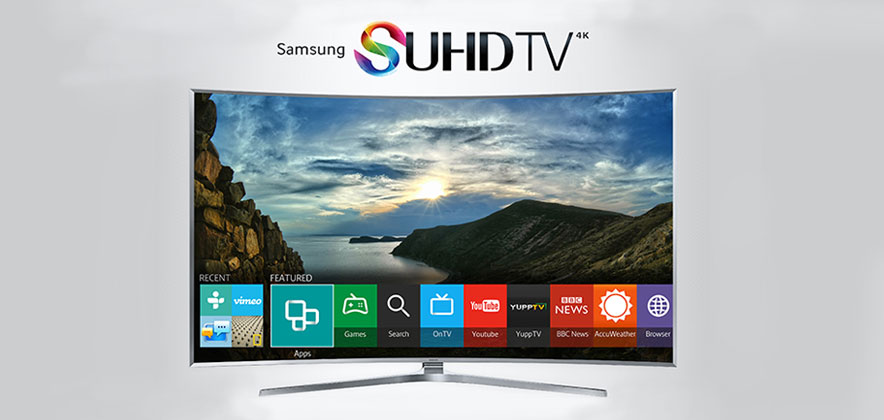
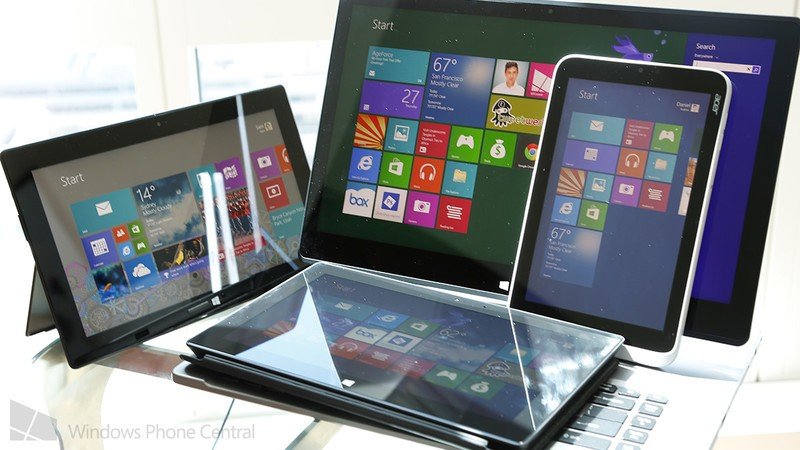
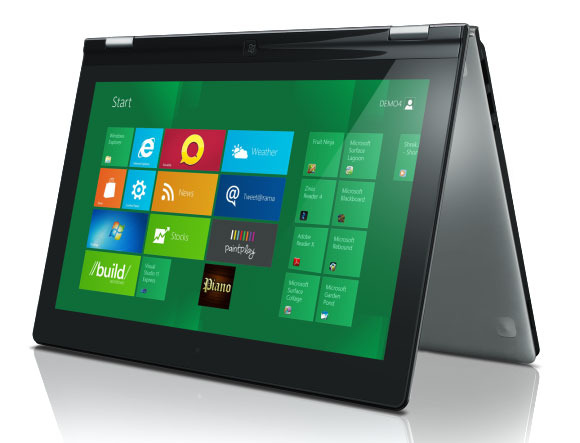
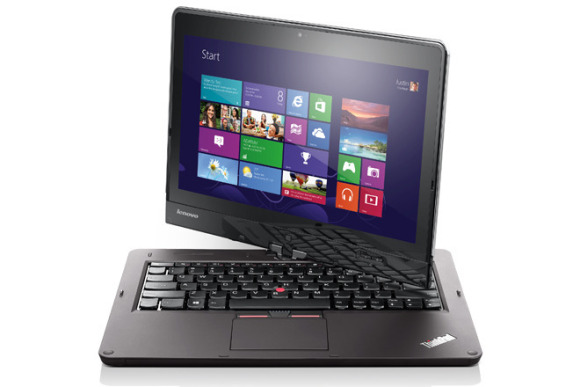
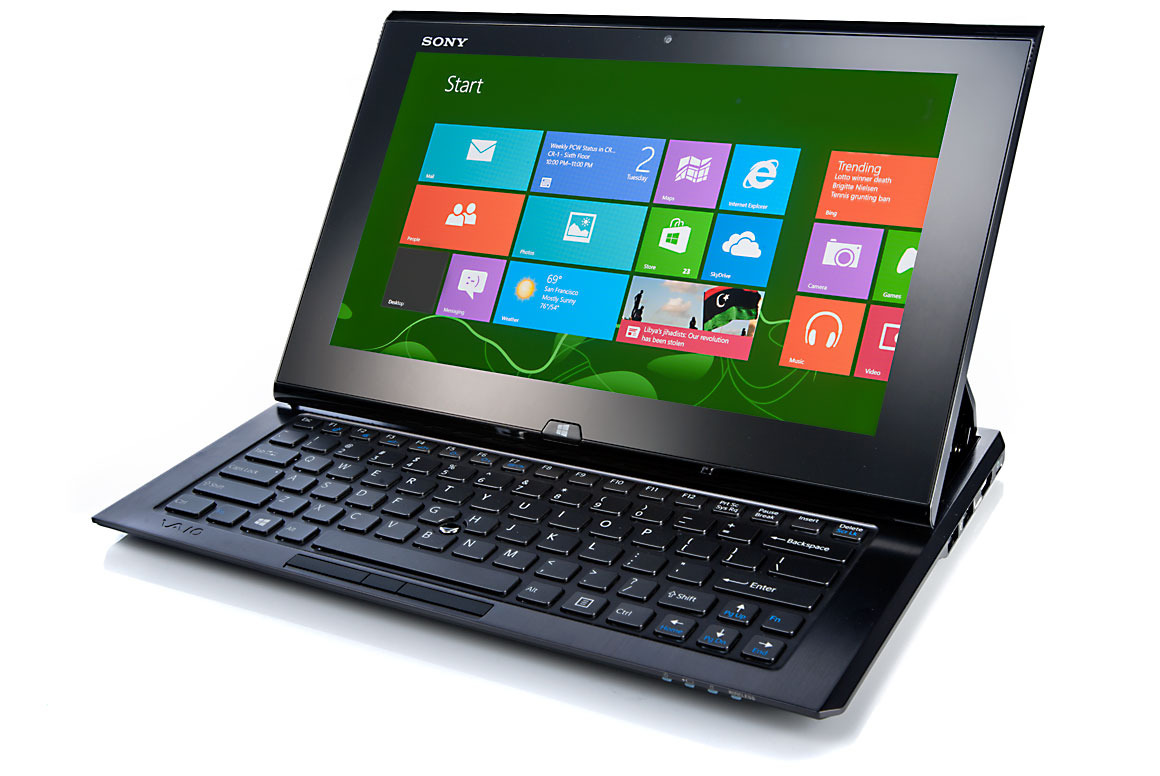
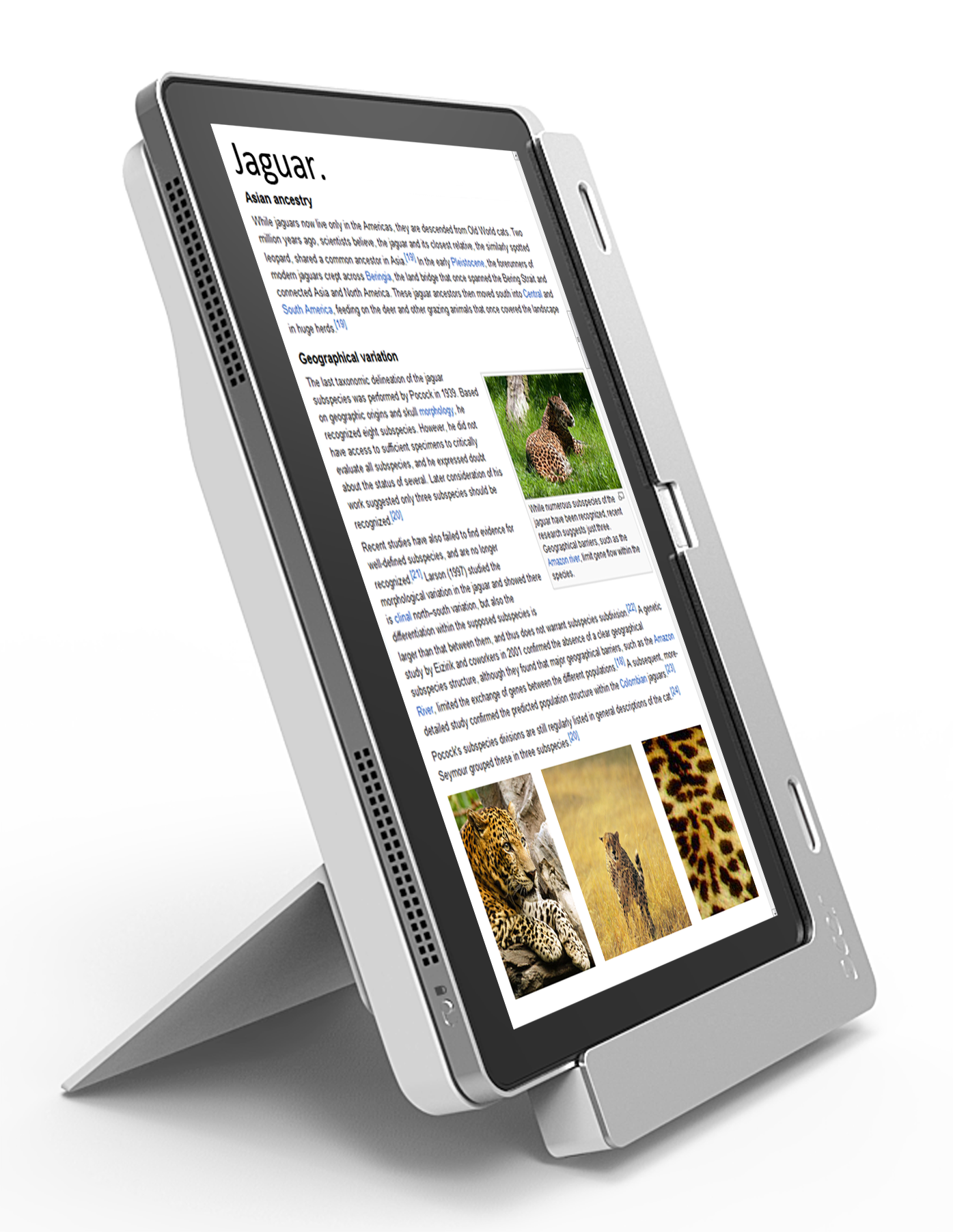
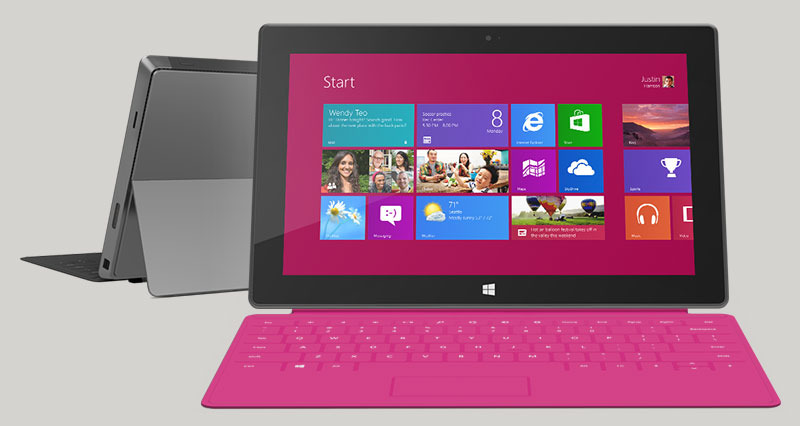
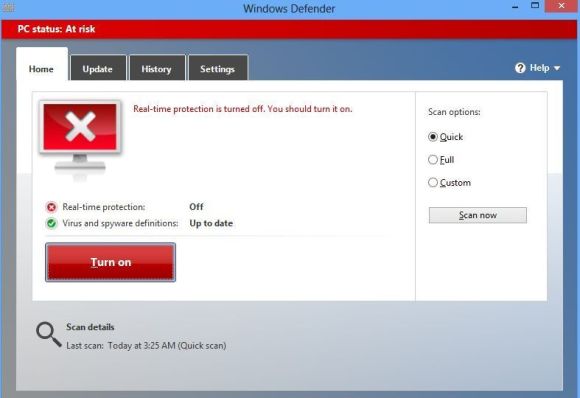
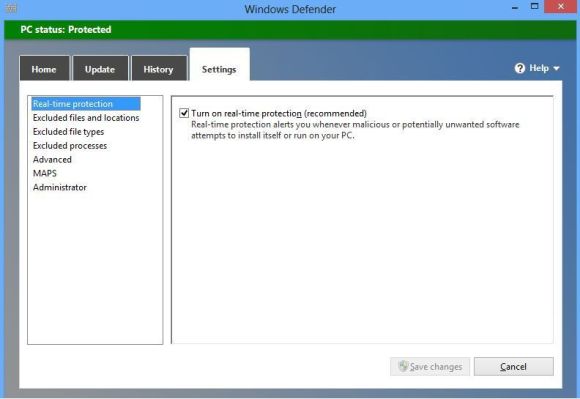
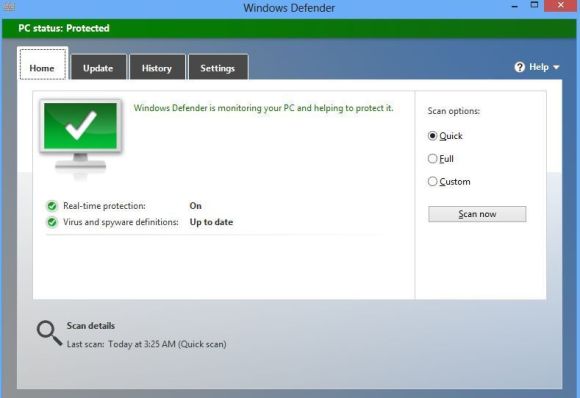
 Microsoft launches Windows 8 later this month after a year of gradually making the new operating system more and more available, hoping for a big hit that will drive sales this holiday season and beyond, and giving the company new hope of grabbing a bigger share of tablet sales.


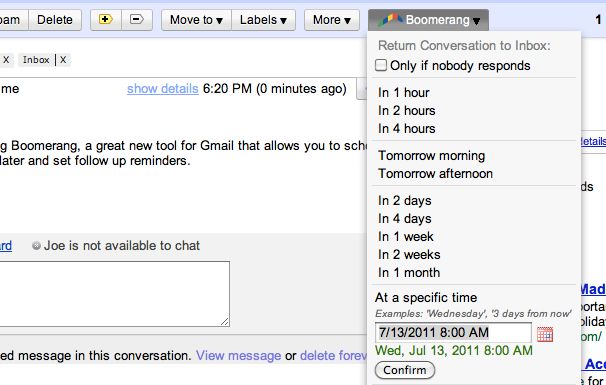 Boomerang for GMail can help keep important messages you can’t read right away from getting buried by newer mail.



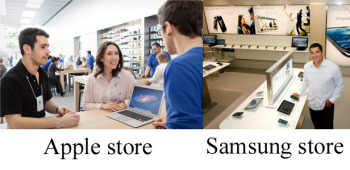 Image compilation from Apple/Vancouver, B.C. Sun
 Image from BetaNews.com Apple uses wood tables and Samsung has gone with white. Big deal? Not really. From what I’m seeing, Samsung’s store looks similar to countless exhibits you’d see at CES. As for the blue shirts that both Apple Store and Samsung Store employees wear, it’s worth remembering that Samsung’s company color is blue. This is hardly the first time Apple and Samsung have tangled. The former managed to get the latter’s Galaxy Nexus smartphone and Galaxy Tab 10.1 pulled from store shelves recently. A graphic from

 ” Online retailer Zappos disclosed hackers had likely broken into its network and stolen information on Zappos.com customers, including name, address, billing and shipping address, phone number and the last four digits of credit-card numbers and cryptographically scrambled passwords stored in hash form. Zappos informed customers all passwords were expired and customers should create a new one. ” Researchers from Seculert discovered what they say is a botnet command-and-control
  Right in the midst of a conference call the FBI was having with its agents and law-enforcement officials overseas at Scotland Yard, cybercriminals hacked their way into the phone conversation, recorded it and posted it online. The conversation was about hackers facing charges in the U.K. The group Anonymous took credit for the intercepted call. The FBI said it appeared likely the cybercriminals may have hacked into a law-enforcement official’s email to get the information for the conference call dial-in. Other February Snafus: ” Brazilian banks were targets for distributed denial-of-service attacks, with massive assaults against HSBC Brazil, Banco da Brasil, Itau Unibanco Multiplo SA and Banco Bradesco SA. Hactivists took credit for the DDoS spree. ” Whistleblowing website Cryptome.org, dedicated to exposing confidential information, was compromised by an intruder that loaded an attack code that tried to launch drive-by exploits at visitors to the site. ” The University of Florida had to notify 719 individuals that their Social Security numbers were improperly stored on a state website operated by the Bureau of Unclaimed Property for more than six years. ” Verizon had to acknowledge the Verizon 4G LTE network was knocked offline again just two months after its last serous outage. The outage on Feb. 22 lasted from about 10 a.m. to 1:20 p.m. ” Microsoft’s Azure cloud infrastructure and development service experienced a serious worldwide outage on Feb. 29. Microsoft later blamed the outage on a “Leap Year Bug” that was triggered in a key server housing a certificate that had expired on midnight on Feb. 28, and a time-calculation control hadn’t taken into account the extra day in the month of February this year. ” Taiwan-based Apple supplier Foxconn was hacked by a hacker group calling itself Swagg Security, apparently in protest related to media reports about poor working conditions at the electronics manufacturer’s factories in China. The hackers posted usernames and passwords that they said would allow attackers to place fraudulent orders under other companies’ names, including Microsoft, Apple, IBM, Intel and Dell. ” The FBI arrested a computer programmer in New York and charged him with stealing proprietary software code from the Federal Reserve Bank of New York (FRBNY). The software is known as the Government-Wide Accounting and Reporting Program (GWA), which handles all kinds of U.S. government financial transactions, and it cost over $9 million to develop. The accused thief, Bo Zhang, a contract employee at FRBNY, used the GWA code in a private business he ran to train individuals in computer programming. Zhang, a Chinese citizen in the U.S. on a work visa since 2000, is also known as “Bryan Zhang,” and in a plea agreement in April he pled guilty to theft of government property, admitting he’d copied the code onto an external hard drive and then transferred the GWA program to a home computer, knowing that was wrong. March At least 228,000 Social Security numbers were exposed in a
  ” Hackers in the LulzSec group associated with the broader Anonymous movement found the tables turned when they were arrested by the FBI and European law-enforcement agencies — and it was LulzSec leader Hector Xavier Monsegur, alias “Sabu,” who turned in his friends as part of a deal to work as a stooge for the FBI after being arrested in New York City last year. ” By the end of March, LulzSec claimed to be “reborn” and took credit for hacking a dating website for military personnel, MilitarySingles.com, leaking more than 160,000 account details from its database. ” Dutch police arrested a 17-year-old suspected of compromising the account data on hundreds of servers belonging to telecommunications operator KPN. The teenager, arrested in the Dutch town of Barendrecht, “made a confession,” according to Dutch authorities. In the wake of the hacking spree, KPN said it would appoint a chief security officer and set up a permanent control center to monitor its systems. ” A flaw was discovered in Barclays contactless bank cards that could allow customers’ data to be stolen and used fraudulently with them knowing about it, according to an investigation by ViaForensics in conjunction with Channel 4 News. But Barclays dismissed the claims as inaccurate. ” Security firms knew there was trouble when Kaspersky Lab identified code-signed Trojan malware dubbed Mediyes that had been signed with a digital certificate owned by Swiss firm Compavi AG and issued by Symantec. Symantec said it found out that the digital certificate’s private key held by Compavi had indeed been stolen; whether by an insider or an outside attacker wasn’t known. ” A security firm based in Slovakia, ESET, asserted a website operated by the country of Georgia has been used as part of a botnet to conduct cyber-espionage against that country’s residents. But ESET researchers admitted they aren’t sure whether the Win32/Georbot they have been monitoring is being directly operated by the Georgian government or by cyber-spies through a compromised Georgian agency. April
 The Federal Communication Commission fined Google $25,000, asserting the search-engine giant impeded an investigation into how Google collected data while taking photos for its Street View mapping feature. The FCC maintained in a report that Google “deliberately impeded and delayed” the investigation for months by not responding to requests for information and documents. But the FCC also said it won’t take action against Google over its data collection because it still has questions it wants answered. The FCC had subpoenaed an unnamed Google engineer — now known to be Marius Milner — but he had apparently declined to testify, invoking his Fifth Amendment rights against incriminating himself. Other April snafus: ” Hactivist group Anonymous brought down the websites of trade groups U.S. Telecom Association and TechAmerica, apparently for their support of the cybersecurity bill proposed by Rep. Mike Rogers that would allow the private companies and the government to share any information “directly pertaining to a vulnerability of, or threat to” a computer network. Privacy advocates, including the ACLU and Center for Democracy and technology, contend the bills shreds privacy protections. ” A U.S. grand jury charged two residents of China with 46 criminal counts, including infringing software copyrights and illegally exporting technology to China, for allegedly operating a website that sold pirated software used in engineering, manufacturing, space exploration, aerospace simulation and design, and other fields, with a commercial value of other $100 million. Xiang Li, 35, was earlier arrested by agents from the U.S. Immigration and Customs Enforcement’s Homeland Security Investigations in Saipan, Northern Mariana Islands. Chun Yan Li remains at large. Both face charges in the U.S. District Court for the District of Delaware. ” A 31-year-old Russian national living in New York, Petr Murmylyuk, was charged with hacking into accounts at Fidelity, Scottrade, E*Trade and Schwab in a complex scheme that involved making unauthorized trades that profited the gang he recruited to open bank accounts to receive the illegal proceeds. The brokerage firms said they lost $1 million because of Murmylyuk’s fraud. ” VMware’s ESX source code was stolen and posted online, but VMware said the code, amounting to a single file from sometime around 2003 or 2004, doesn’t mean any increased risk to VMware customers. Security firm Kaspersky said it believes the code was stolen from a Chinese company called China Electronics Import & Export Corporation during a March breach. ” A terminal at New Jersey’s Newark Liberty International Airport was shut down for more than an hour on April 27 after officials discovered that a baby hadn’t been properly screened. The baby in question had been handed back and forth between the parents after a metal detector went off sounding an alarm with the mother holding the baby. The father had already gone through the screening, and the parents and baby left the checkpoint to head to the gate. But Transportation Security Administration officials decided to “err on the side of caution” to shut down the terminal and go locate the baby to make sure it went through screening. Some passengers that had already boarded flights said they had to evacuate it and go through security screening again. Speaking of the TSA, one of the agency’s critics, security expert Bruce Schneier, who is involved in a lawsuit with the agency to get them to stop the TSA’s full-body scanner program, had been invited to testify before Congress about the TSA but the House Committee on Oversight and Government Report then “uninvited” Schneier last March after the TSA formally complained about him, obviously preferring not to be challenged directly by him right in front of Congress. ” Automotive manufacturer Nissan admitted a data breach involving employee user account credentials had occurred, and that it had to spend some time cleaning its network of the malware apparently responsible for that before disclosing the breach. ” The hacker who stole Facebook’s source code, Glenn Mangham of York, England, offered an explanation of why he did it, saying, “I was working under the premise it is sometimes better to seek forgiveness than to ask permission.” He said he did little to hide his actions and that even if he got caught, Facebook would let him off the hook. But that didn’t happen, and Mangham was sentenced to eight months in prison in February, though the sentence was reduced to four months by an appeals court in April. He said he only had the source code for three weeks, but never had any intention of selling it to anyone who might exploit it for scams, for example. Mangham even made the grandiose claim that his basic good intentions saved Facebook from “potential annihilation.” ” Payments processing services company Global Payments acknowledged a data breach of up to 1.5 million card numbers had been stolen in a data breach, and in June also said it was investigating whether a server containing merchant applicants’ information had also been breached. Global Payments said its PCI compliance status had been revoked by some of the card brands because of the breach and it was working to regain it. May
 Hackers claimed to have breached the systems of the Belgian credit provider Elantis and threatened to publish confidential customer information if the bank did not make an extortion payment of $197,000. Elantis confirmed the data breach but said the bank will not give in to extortion threats. Meanwhile, Anonymous claimed it hacked a U.S. Department of Justice website server tied to the U.S. Bureau of Justice Statistics and claimed to release 1.7GB of stolen data from it, with the statement, “We are releasing it to end the corruption that exists, and truly make those who are being oppressed free.” The data was offered on The Pirate Bay. And then Yahoo accidentally leaked the private key that was used to digitally sign its new Axis extension for Google Chrome. Axis is a new search and browsing tool from Yahoo. Security blogger Nik Cubrilovic discovered the package included the private crypto key used by Yahoo to sign the extension, noting it offered a malicious attacker the ability “to create a forged extension that Chrome will authenticate as being from Yahoo.” Yahoo was forced to release a new version of its Axis extension for Google Chrome after that. June The University of Nebraska in Lincoln acknowledged a data breach that exposed information of more than 654,000 files of personal information on students and employees, plus parents and university alumni. The information was stolen from the Nebraska Student Information Systems database; a student is the suspected culprit. Other June snafus: ” Hacker gang Swagger Security strikes again, this time breaching the networks of Warner Bros. and China Telecom, releasing documents and publishing login credentials. The group said it notified China Telecom of the hack by planting a message in the company’s network. “Fortunately for them, we did not destroy their infrastructure and rendered [stet] millions of customers without communications,” Swagger Security, also known as SwaggSec, said in a note. ” About 6.5 million cryptographic hashes of LinkedIn user passwords were stolen and posted online, a breach LinkedIn acknowledged though it didn’t discuss specific numbers, which may be much less due to duplicates. LinkedIn invalidated the passwords of impacted users and the company said emails will be sent to users whose passwords were compromised, though it warned about updating passwords via links sent in email.
  ” Right after the LinkedIn fiasco, dating site eHarmony also confirmed a breach of 1.5 million passwords that were hashed. ” The Federal Trade Commission announced that data broker Spokeo will pay $800,000 to settle FTC charges it sold personal information it gathered from social media and other Internet-based sites to employers and job recruiters without taking steps to protect consumers required under the Fair Credit Reporting Act. ” The New York Times article asserting that the cyber-weapon Stuxnet is a creation of the U.S. with Israel, and was launched in a covert action authorized directly by President Barack Obama against an Iranian facility suspected of developing a nuclear weapon, has stirred up a firestorm of controversy in Washington about leaked information. Now that another cyber-weapon for espionage, Flame, has been discovered and linked directly with Stuxnet, there’s more concern, with the United Nations division International Telecommunication Union warning countries that Flame is dangerous, and some saying the U.S. is losing the moral high ground as its secret cyberwar efforts become known. Ellen Messmer is senior editor at Network World, an IDG publication and website, where she covers news and technology trends related to information security. For more information about enterprise networking, go to

 Navizon ITS logoOne example of the new technology is the Navizon Indoor Triangulation Service, which MIT’s Technology Review blog discussed recently. Location services company Navizon says that ITS can provide accurate tracking of Wi-Fi-enabled devices, including smartphones, tablets, and laptops, anywhere inside a building or throughout a campus. (Triangulation by Wi-Fi hotspots helps to make location services more accurate.)
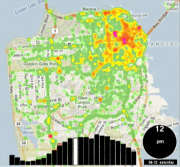 Skyhook developed the first hybrid location system to use Wi-Fi positioning, GPS, and cell-tower triangulation to determine the coordinates of a device, even indoors. Since then, Apple (Skyhook’s biggest customer) and Google (Skyhook’s biggest competitor) have emulated the hybrid approach for their respective mapping apps.
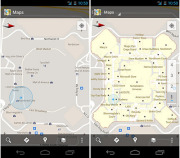 The main thing you need to know here is that Skyhook is suing Google currently.
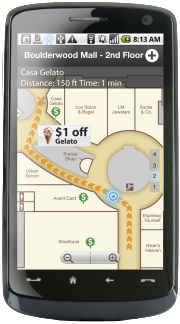 Wifarer is another company using IPS. Unlike Google, which so far provides only indoor maps and location awareness to users, Wifarer wants to give its users heaps of content, discounts, and deals related to where they are located.
 Phone maker Nokia is also working on an interesting way to determine location in an indoor environment.
 Before the end of the year, a new chip made by Broadcom, called the
 In Chrome, Google Drive operates as the local file system, said Clay Bavor, director of product management for Google Drive. He showed how a user can search through a folder of scanned receipts and find a particular receipt using a keyword search. The receipts are stored as image files, but the Drive application uses optical character recognition to index the text in the receipts.
 Google also showed how Google Docs and Google Drive can work together to allow “real-time collaboration.” It showed how three users can edit a text document simultaneously from three different devices, and have the changes all appear on each of the three screens.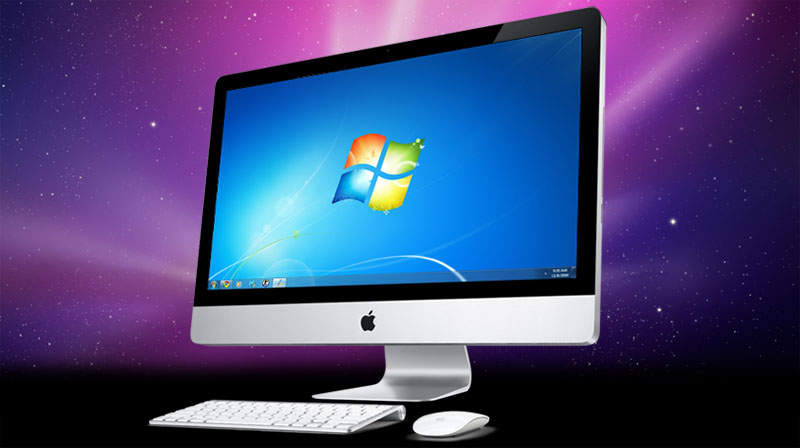

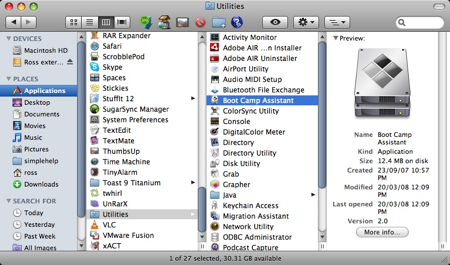
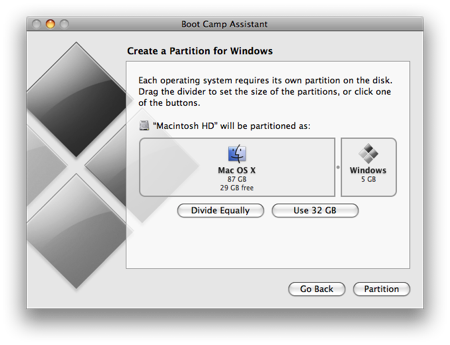
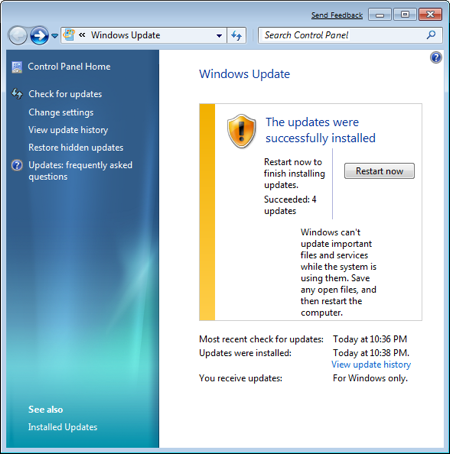
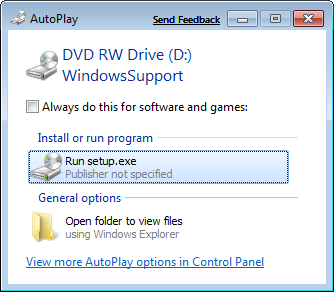

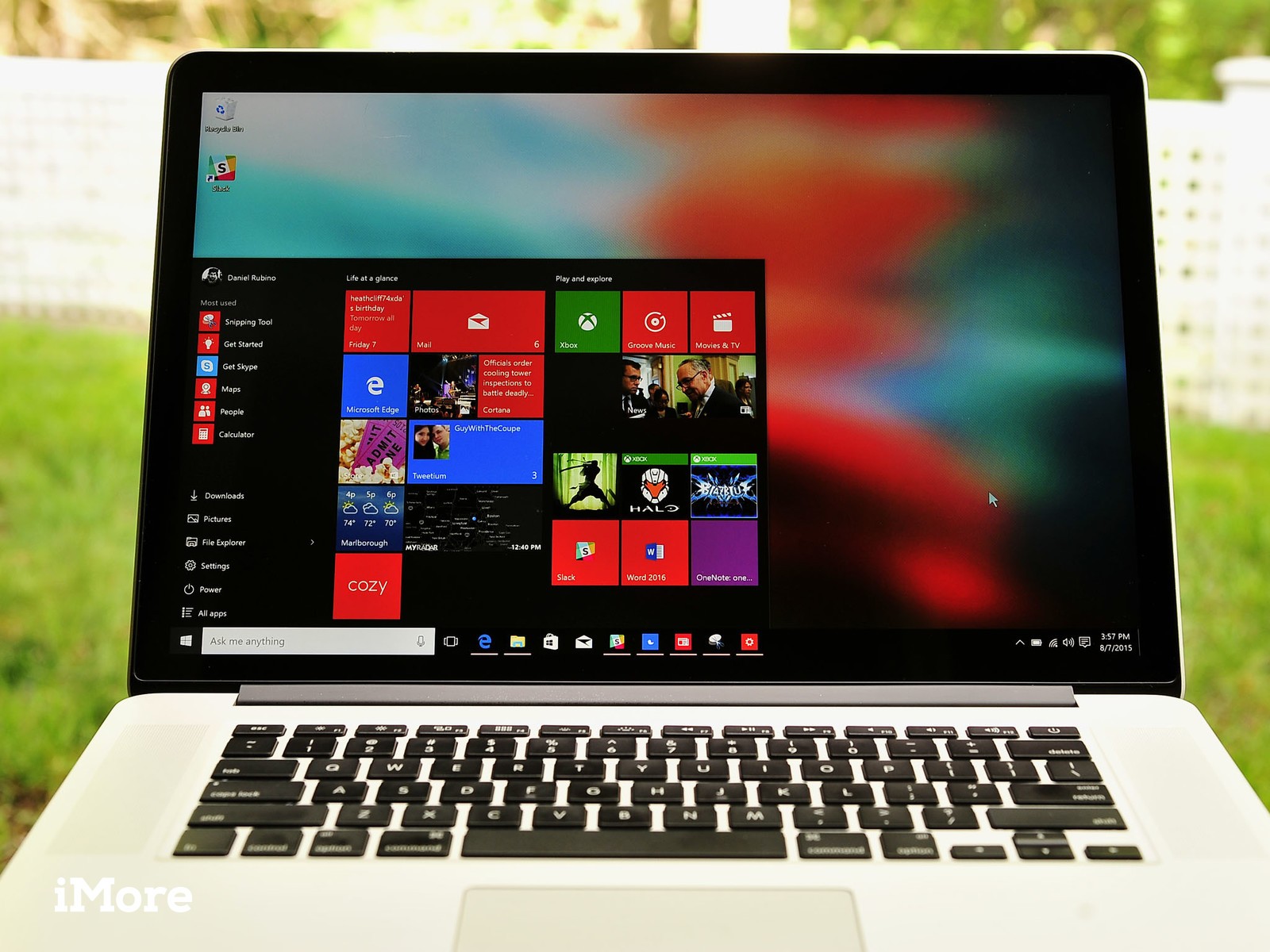
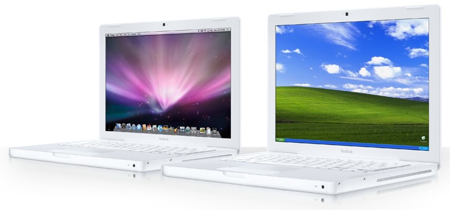
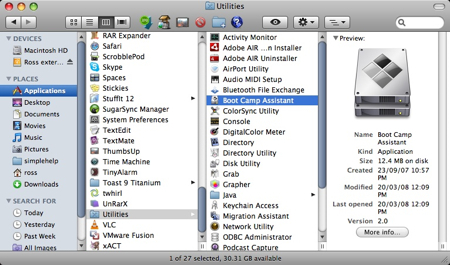
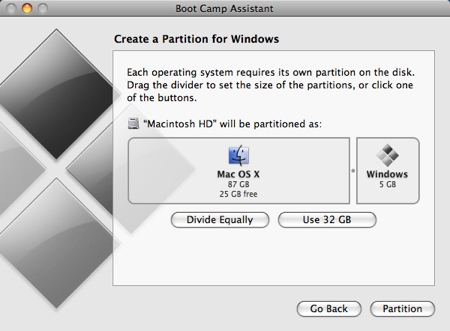
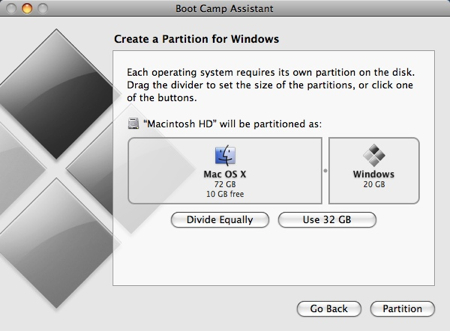
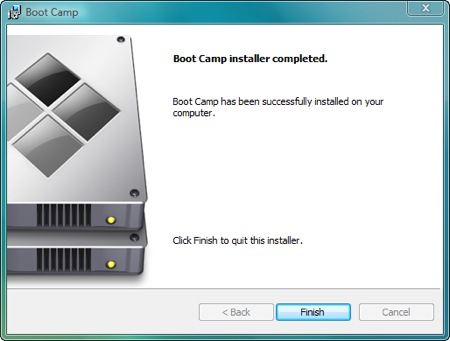
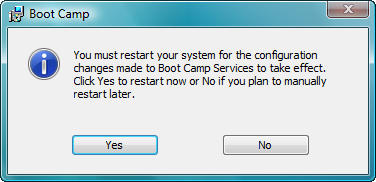
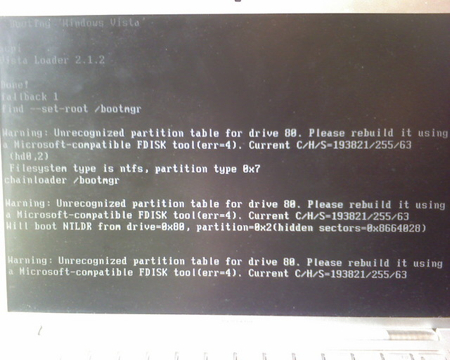
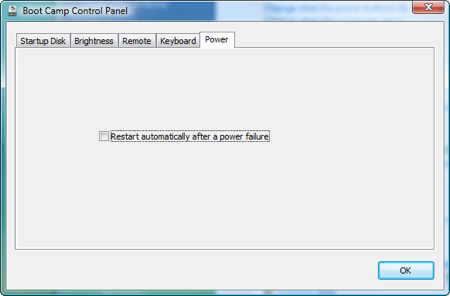
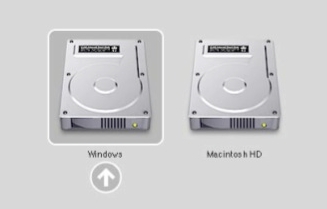
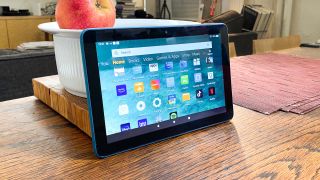
 For future purchases, though, Android was clearly the preferred choice, with 44 percent of respondents saying they’d choose a device that uses the Linux-based operating system. Only three percent of respondents said they’d opt for Windows 8, and 21 percent said they weren’t sure. Global Variations The research results are even more interesting when broken down geographically. In Africa, 44 percent indicated they’d choose an Android tablet, compared with only 21 percent planning to buy an iPad. Similarly, in Europe, 23 %of new buyers said they plan to buy an iPad, compared with a full 49 percent who have set their sights on an Android tablet. North America and Australia/New Zealand, interestingly, showed the lowest preference for Android tablets, only 30 percent of North American buyers and 35 percent of those in Australia/New Zealand choosing them over iPads.



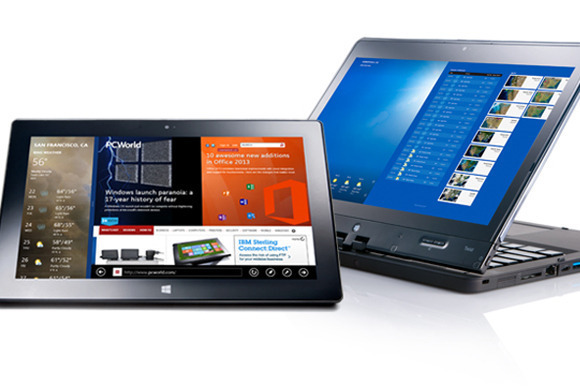



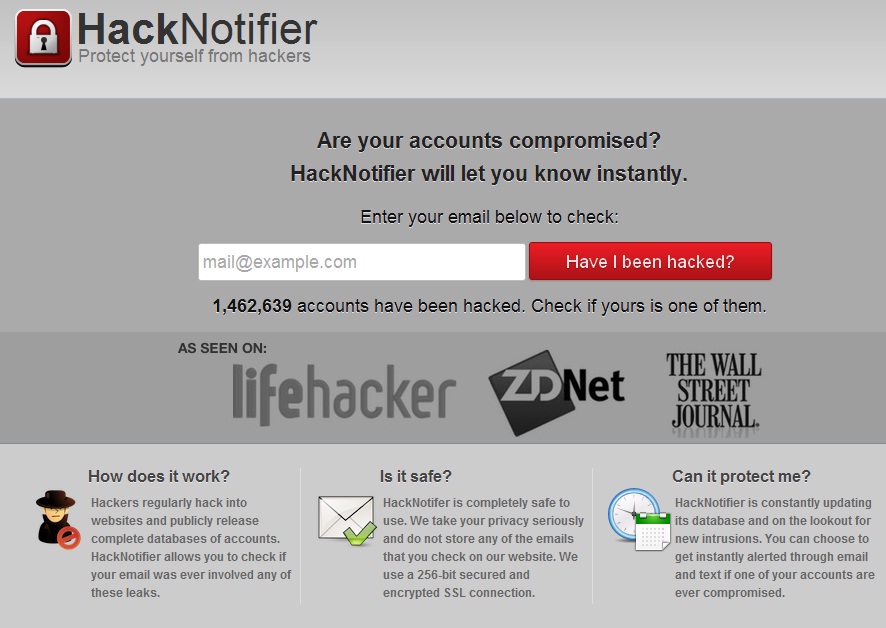
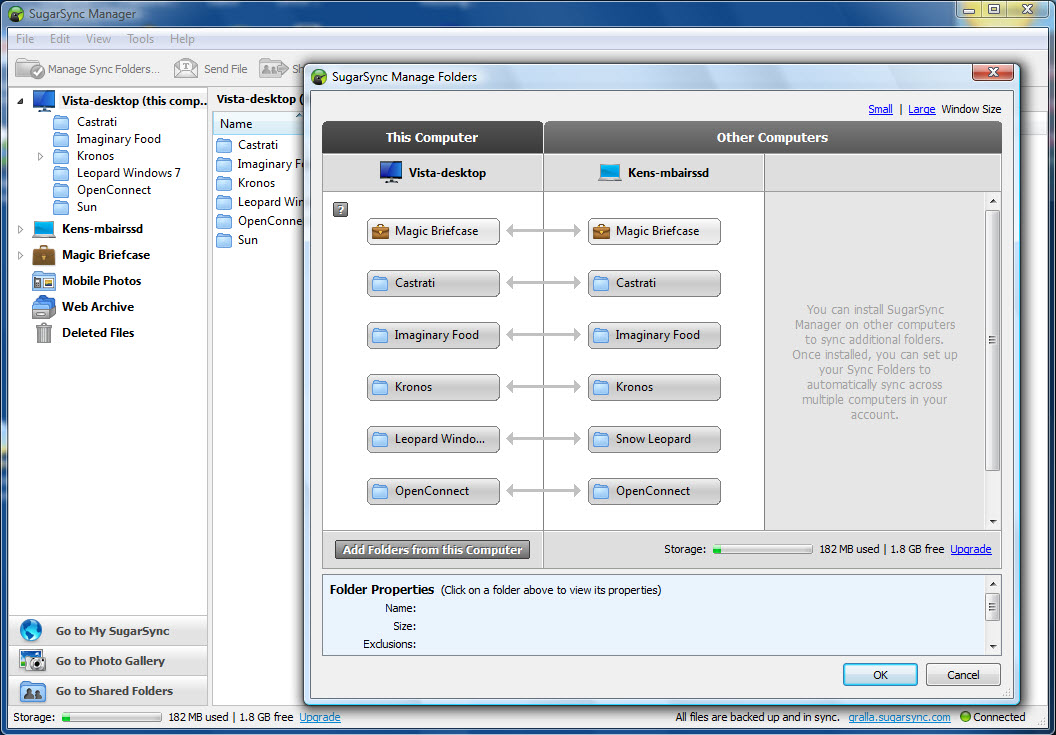
You must be logged in to post a comment.