Tag: windows 8

  • Install Windows 10/8/7 From USB Flash Drive with UEFI Support

    Install Windows 10/8/7 From USB Flash Drive with UEFI Support

    When you are planning to install Windows 10, Windows 8.1 or Windows 7 on a PC, one of the requirements involves creating media to boot your computer into the setup wizard. This is especially true if you are performing a fresh installation of Windows. In which case, your boot options are DVDs and USB drives.

    Since most PC these days hardly come with an in-built DVD drive, your options are further limited to either using an external DVD drive or a USB flash drive.

    A lot of people, including me, will favor using a USB flash drive to install Windows 10. However, if you have newer hardware, it’s likely that you’re using Unified Extensible Firmware Interface (UEFI), instead of the legacy Basic Input/Output System (BIOS). If this is the case, you also have to ensure that the bootable media supports the firmware type before you can proceed with the installation.

    How is UEFI different from BIOS?

    The BIOS will soon be dead: Intel has announced plans to completely replace it with UEFI on all their chipsets by 2020. But what is UEFI, and how is it different from the BIOS we’re all familiar with?

    Both UEFI and BIOS are low-level software that starts when you boot your PC before booting your operating system, but UEFI is a more modern solution, supporting larger hard drives, faster boot times, more security features, and—conveniently—graphics and mouse cursors.

    Fortunately, if your device features a UEFI firmware, you have multiple ways to create a USB bootable media to install Windows 10, Windows 8.1 or Windows 7. You can use the Media Creation Tool, which is an easy-to-use utility made by Microsoft that downloads and copies the installation files onto a removable drive with support UEFI and BIOS. Or you can use WinToFlash, which is a freely available third-party tool that allows you to quickly create a media with support for UEFI firmware.

    [Further Reading: Create a Bootable Mac OS X Flash Drive]

    In this guide, we’ll try to walk you through the steps to create a bootable USB flash drive with support for both BIOS and UEFI. First we will try without a software, this should work for Windows 10, Windows 8.1 & Windows 7. However, some BIOS may not recognize your USB flash drive as a boot media, using the Media Creation Tool or WinToFlash software will resolve this.

    Supported Windows OS

    This guide has been tested with the following OS:
    Note, If you are performing a fresh installation of Windows 10 on a PC, you can skip straight to how to create a Windows 10 UEFI boot media using Microsoft Media Creation Tool.

    [Further Reading: How to Upgrade Windows 7 Starter into Windows 7 Home/ Professional/ Ultimate FREE!]

    You can always fall back to our troubleshooting guides should you encounter any problems while creating your bootable USB flash drive.

    What you need

    Before you begin, make sure you have an internet connection if you don’t already have a copy of the Windows OS install in a DVD, .iso or in a folder. You should also have sufficient data storage available on a computer, USB or external drive for the download. Other requirements may include:

    • A copy of the Windows OS install .iso, in a folder or DVD. You can use this page to download a disc image (ISO file) that can be used to update or install Windows 10, Windows 8.1 or Windows 7. The image can also be used to create installation media using a USB flash drive or DVD. Windows software download is free on the Microsoft OS download page but you might need to purchase a license for usage.
    • A blank USB flash drive with at least 5GB (or 4GB for Windows 8.1 and below) free space. This drive will be formatted, so make sure it doesn’t contain any important files.
    • Technician PC – Windows PC that you’ll use to format the USB flash drive
    • Destination PC – A PC that you’ll install Windows on

    Boot Windows from your USB flash drive

    Having met all the requirements above, any of the three methods below will get you a bootable USB flash drive. Make sure to pay close attention and ask any questions you may have on the comment section.

    Troubleshooting: file copy fails

    One of the most important thing to watch out for is the storage capacity of your USB flash drive. Windows 10 October release will require your flash drive to have at least 5GB storage capacity.

    Also, if you are using a modern PC and your device features a UEFI firmware, you will need to format your USB flash drive using FAT32 file system which has a file size limit of 4GB. The Windows image file (sources/install.wim) in Windows 10 October release exceeds this limit.

    Follow our Widows 10 boot media troubleshooting guide to walk around this problem.


    Create a Windows 10, 8 & 7 Bootable USB Flash Drive without using a Software

    Here’s how to create a bootable Windows installation USB drive starting with a Windows .iso file or a Windows Setup DVD without using a third-party software or Windows Media Creation Tool.

    Step 1 – Format the drive and set the primary partition as active

    • Connect the USB flash drive to your technician PC.
    • Open Disk Management: Right-click on Start and choose Disk Management.
    • Format the partition: Right-click the USB drive partition and choose Format. Select the FAT32 file system to be able to boot either BIOS-based or UEFI-based PCs.
    • Set the partition as active: Right-click the USB drive partition and click Mark Partition as Active.

    Step 2 – Copy Windows Setup to the USB flash drive

    Use File Explorer to copy and paste the entire contents of the Windows product DVD or ISO to the USB flash drive.

    Step 3 – Install Windows 10 / Windows 8.1 / Windows 7 to the new PC

    • Connect the USB flash drive to a new PC.
    • Turn on the PC and press the key that opens the boot-device selection menu for the computer, such as the Esc/F10/F12 keys. Select the option that boots the PC from the USB flash drive.
    • Windows Setup starts. Follow the instructions to install Windows.
    • Remove the USB flash drive.

    How to create a Windows 10, 8 & 7 UEFI boot media using WinToFlash Software
    Windows 10 WinToFlash software
    WinToFlash creates a bootable USB with any modern Windows Desktop [PHOTO CREDIT: EBENEZER OBASI]

    If for some reasons, copying Windows through file explorer didn’t work, you can use the WinToFlash tool to create an installation media with UEFI support. Of course, the Windows Media Creation Tool will equally work if your target is to install Windows 10 on a PC. However, it’s faster to use this tool if your already have a copy of the Windows OS install in a DVD, .iso or in a folder.

    To create a Windows install media with support for UEFI, connect a USB flash drive with at least 5GB (or 4GB for Windows 8.1 and below) of space, and then use these steps:

    Step 1 – Download & Install WinToFlash Software.

    Download the free lite edition of WinToFlash from the official website. Under “Download,” click Lite edition Setup Download.
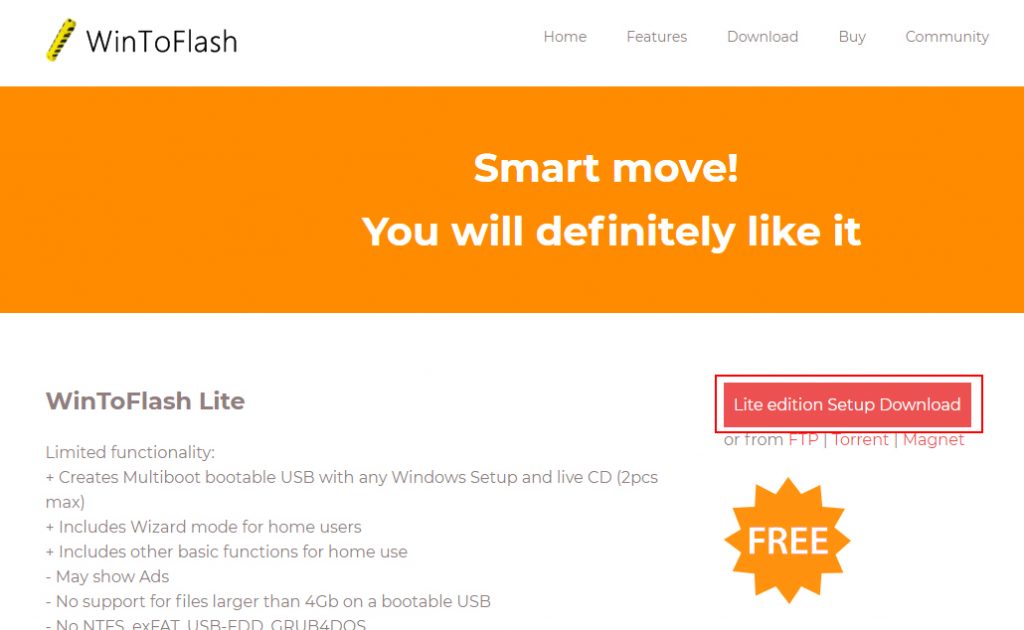
    After download is complete, open your download path and double-click the Novicorp WinToFlash Lite [The Bootable USB Creator] x.x.x Setup.exe file to launch the installation wizard.
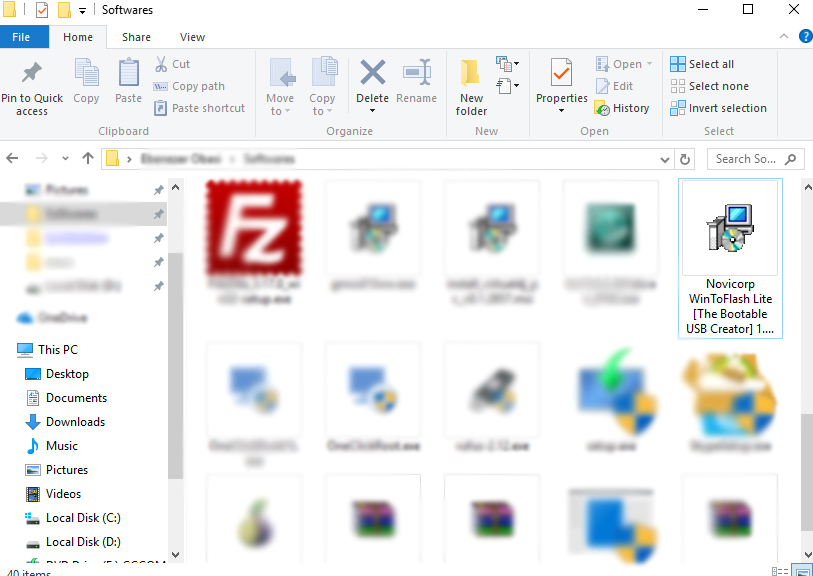
    Follow the installation wizard to install WinToFlash on your PC.

    Step 2 – Set Windows source and destination media
    After installation, click on the Novicorp WinToFlash icon from your desktop to launch the WinToFlash tool and install Windows 10 OS and below from your USB Flash Drive.

    From the application start screen, click Windows Setup Bootable USB Wizard. Select the installation source of the Windows, if you have downloaded an ISO file or loading from a folder.
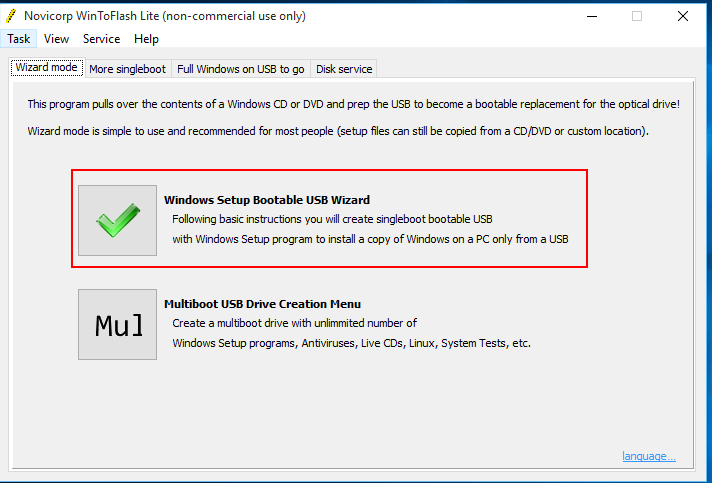
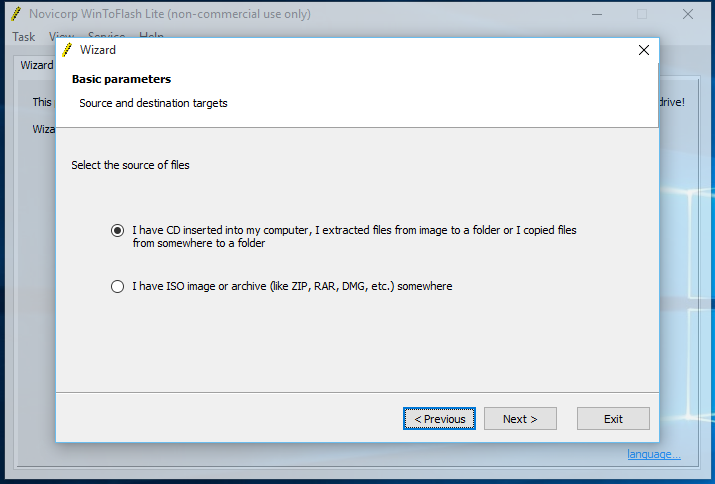
    Startup screen of WinToFlash tool. Select Windows Setup Bootable USB Wizard to load a single OS to your boot media.
    Specify Windows source path or file. If your OS is in a CD or extracted from image to a folder, go with the first option. Select the second option if the Windows software is an ISO image or archive.

    Click next to setup your Windows source and destination path.
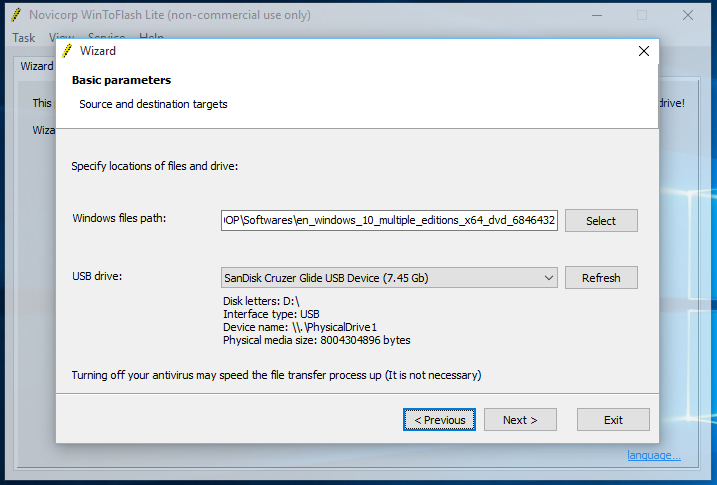
    Source and destination targets
    • The ‘Windows files path‘ specifies the path to the Windows installation files on your PC. This can be an ISO – archive or folder – CD path, depending on your selection on the previous screen.
    • Use the ‘USB drive’ drop-down to select the media you want to make bootable.

    Step 3 – Wrapping things up

    Click next and review all parameters. Make sure that you have chosen the right USB drive.
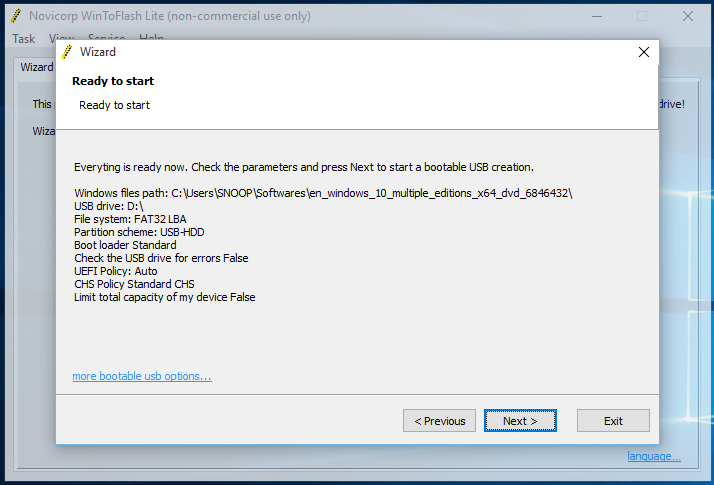
    Parameters overview
    Ensure that you have chosen the right media to avoid wiping important files from your flash drive.

    Complete settings by confirming to wipe USB flash drive and accepting WinToFlash terms (click on the images below to expand).
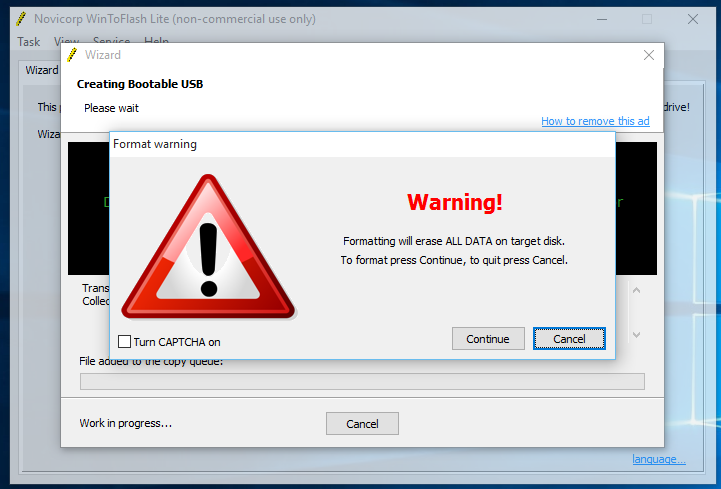
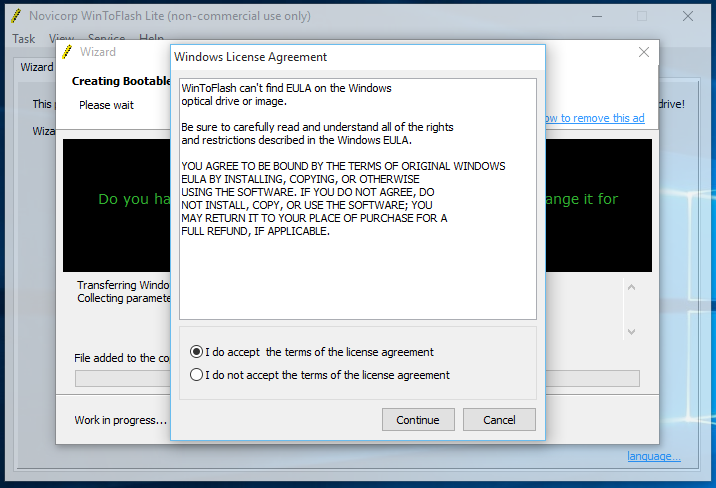
    After completing the steps, the WinToFlash tool will create a bootable media, which you can then use to install Windows 10 on devices using UEFI.
    Windows 10 installation progress on WinToFlash
    Windows 10 installation progress on WinToFlash.

    Once the USB bootable with support for UEFI has been created, you can start your device with the installation media to perform an upgrade or clean installation of Windows 10.


    How to create a Windows 10 UEFI boot media using Media Creation Tool

    If you’re planning to upgrade or install a fresh copy of Windows 10 on a system using BIOS or UEFI, you can use the Media Creation Tool to create a compatible bootable media. Just insert a USB flash drive with at least 5GB of storage to your computer, and then use these steps:

    • Open the official page.
    • Under “Create Windows 10 installation media,” click the Download tool now button.
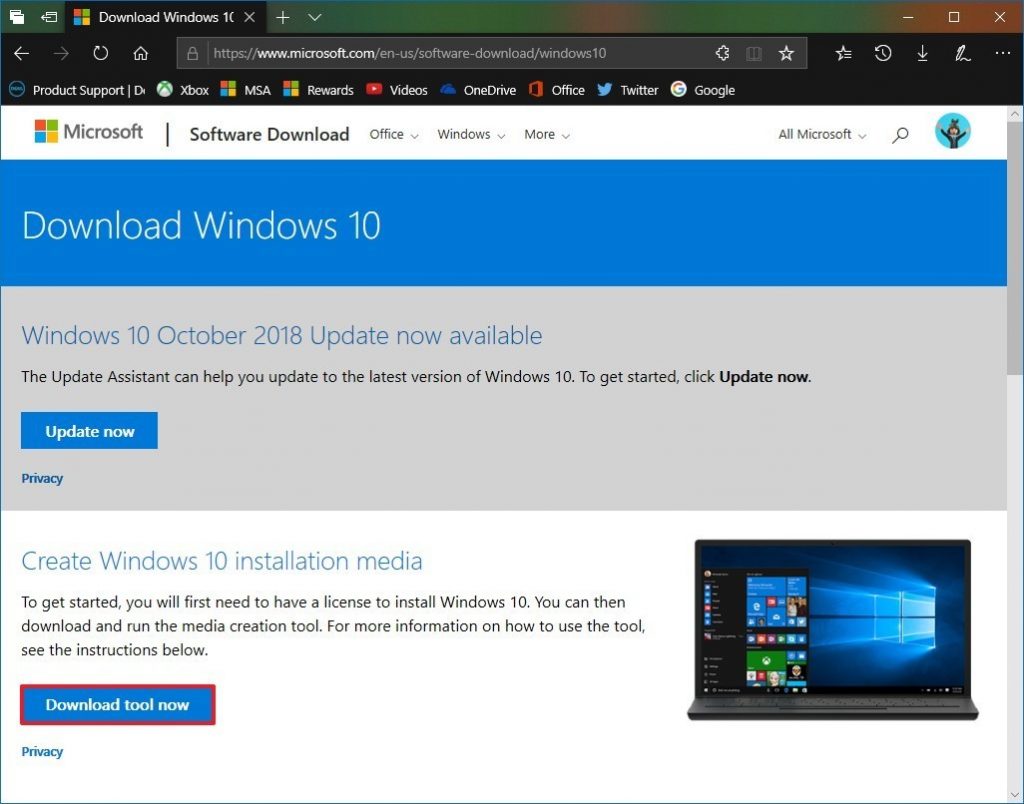
    • Click the Save button.
    • Click the Open folder button.
    • Double-click the MediaCreationToolxxxx.exe file to launch the utility.
    • Click the Accept button to agree to the Microsoft terms.
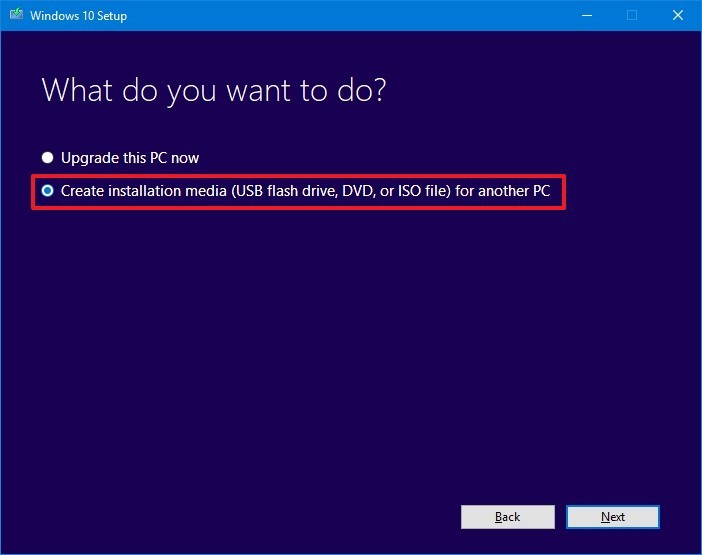
    • Select the Create installation media (USB flash drive, DVD, or ISO file) for another PC option.
    • Click the Next button.

    Select the correct language, architecture, and edition of Windows 10 if the default selection doesn’t reflect the desired options.
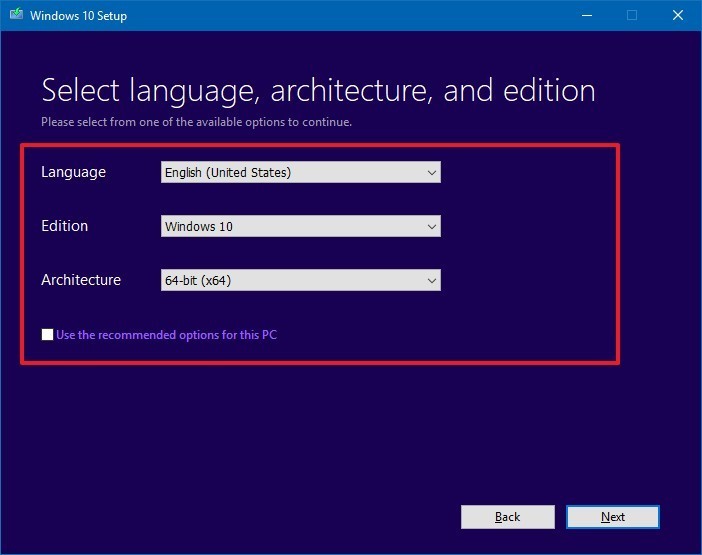
    Quick Tip: Under “Architecture,” you can select the Both option to create a bootable media that will work for devices using 64-bit and 32-bit processors. Also, if you’re unable to change these settings, make sure to clear the Use the recommended options for this PC option.

    • Click the Next button.
    • Select the USB flash drive option. (If you don’t see the drive, click the Refresh drive list option.)
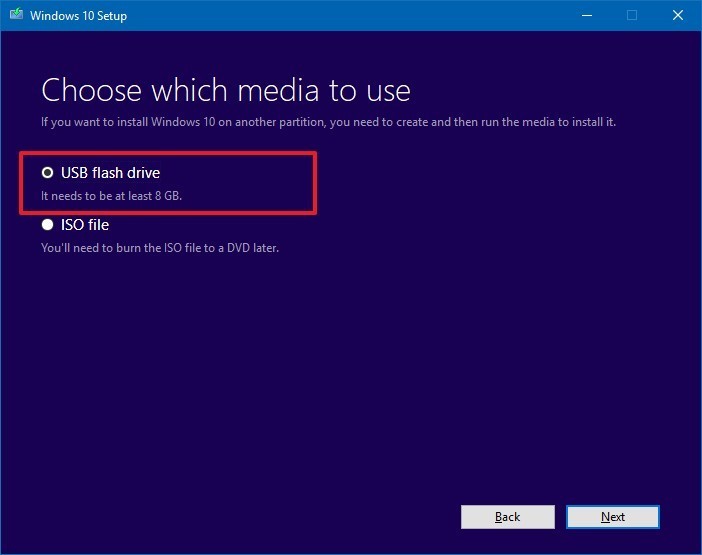
    • Click the Next button.
    • Select the removable drive from the list.
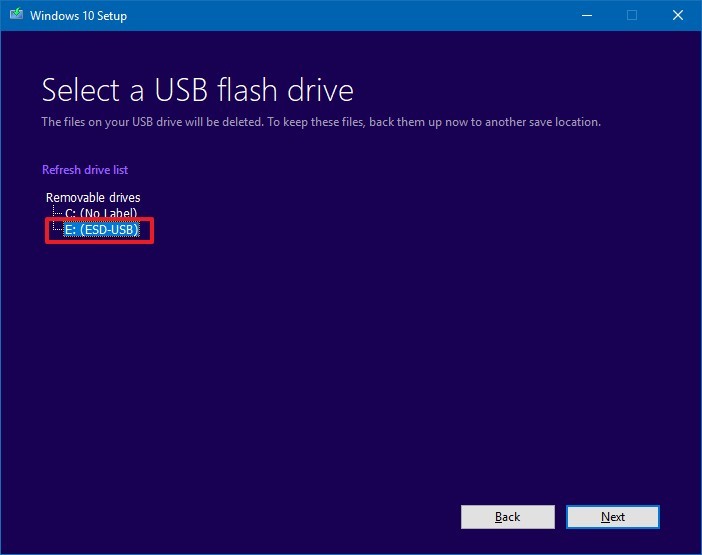
    Click the Next button. Once you’ve completed these steps, the wizard will download the Windows 10 installation files, and it’ll create the bootable media with support for UEFI as well as legacy BIOS.

    Troubleshooting Windows 10, 8 & 7 Boot Media

    UEFI systems cannot boot from NTFS and instead the device needs to be formatted with FAT32 which has a 4GB maximum size. If copy fails, it’s likely that the install.wim file on the media is larger than this file size limit. The solution is to split the WIM into multiple files using DISM.

    Split the Windows image

    Split a Windows image (.wim) file into a set of smaller (.swm) files. Use this procedure when you’re installing Windows from media that can’t handle the Windows image file size, for example:

    • DVDs (A standard single-sided DVD stores 4.7GB).
    • USB keys formatted as FAT32. FAT32 is required to boot many modern (UEFI-based) PCs, but has a maximum file size of 4GB.

    Split the file

    • Mount your Windows distribution ISO.
    • Launch Windows Command Prompt. The quickest and easiest way to do that is to type “CMD” into your Windows search box.
    • Right click on the resulting “Command Prompt” and “Run as Administrator”.
    • Copy everything except the Windows image file (sourcesinstall.wim) to the USB drive. Either drag from the mounted ISO and drop on the flash drive, or use the command below:
    robocopy D: E: /s /max:3800000000

    Where D: is the mounted ISO and E: is the USB flash drive.

    • Split the Windows image file into smaller files, and put the smaller files onto the USB drive:
    Dism /Split-Image /ImageFile:C:sourcesinstall.wim /SWMFile:C:sourcesinstall.swm /FileSize:3700

    where:

    • C:sourcesinstall.wim is the name and the location of the image file that you want to split.
    • C:sourcesinstall.swm is the destination name and the location for the split .swm files. The first split .swm file is named install.swm file. The file names for the next files include numbers, for example, install2.swm file, install3.swm file, and so on.
    • 3700 is the maximum size in MB for each of the split .swm files to be created. Kepp the size of the files below 4000 (4GB) to avoid getting the error 87 (invalid parameters) error.

    Note, Windows Setup automatically installs from this file, so long as you name it install.swm.
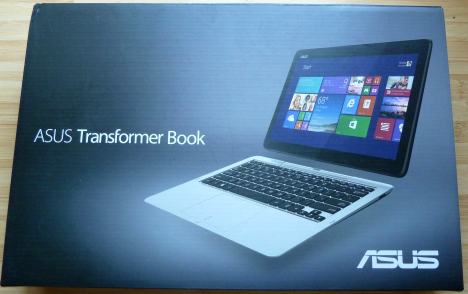
  • Ultraportable ASUS Transformer Book – Review & Spec

    Ultraportable ASUS Transformer Book – Review & Spec

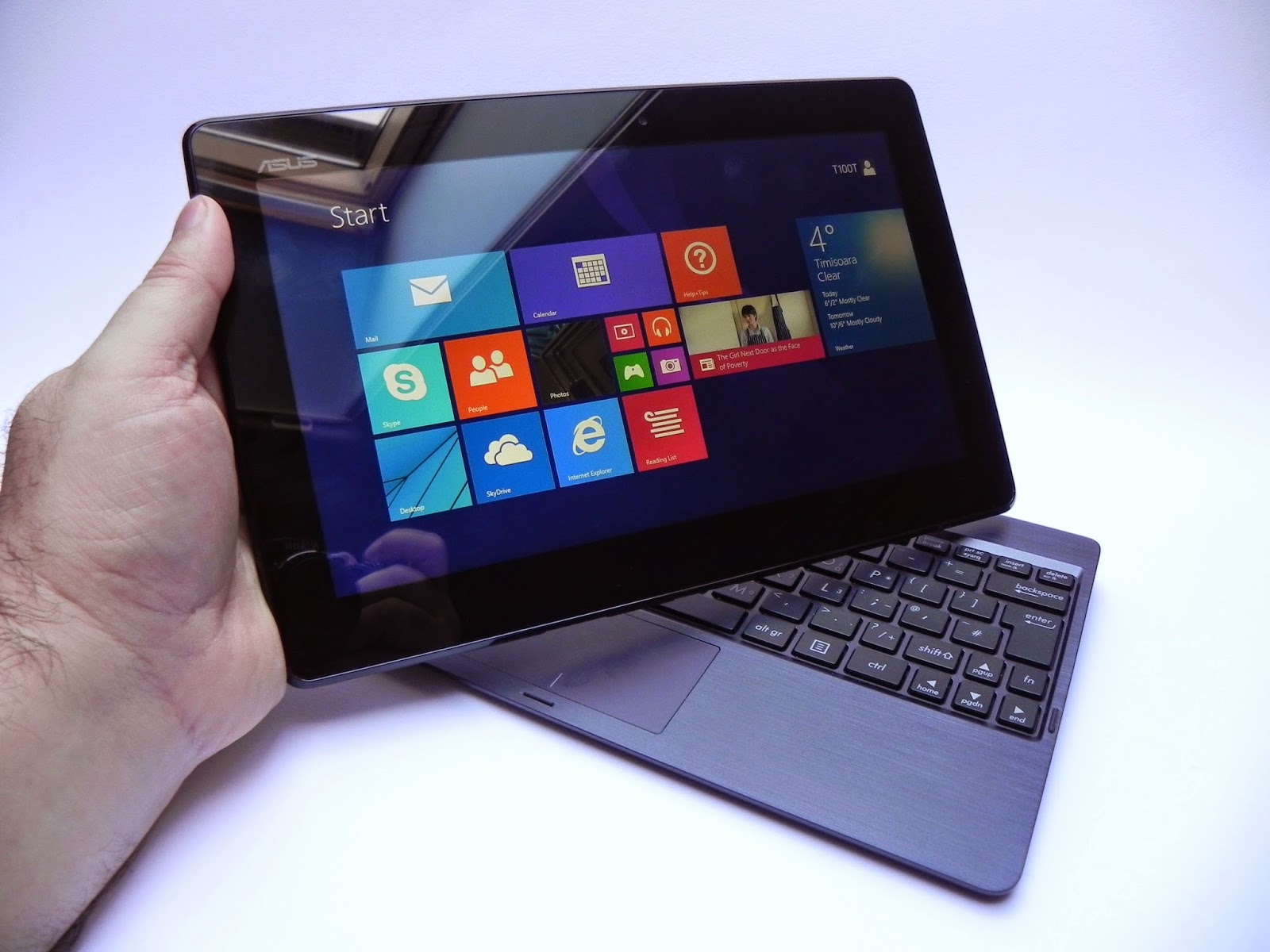
    The Asus transformer Book T100TA is a beautiful ultraportable 10.1-inch tablet  with Windows 8.1 pre-installed.

    You can detach the tablet to work and play anywhere, dock to enjoy the comfortable keyboard, smart gesture-enabled touchpad and advanced connectivity. Style, power and convenience. this beautiful device Transformer Book T100 is sleek, slim and also light — measuring less than 1 inch thin and a mere 2.4lbs docked.

    When you need to travel even lighter, simply detach the 10.1-inch tablet and you’re all set to go, with full sized keyboard which can be used on tv screens, stream and watch from a distance with family and friends

    Key Specifications

    • 10.1 inches Display Screen with a Max Screen Resolution of 1366 x 768 pixels
    • 1.33 GHz Atom Z2760 Processor
    • 2 GB DDR3 RAM
    • 64 GB Hard Drive
    • Intel HD Graphics Graphics Coprocessor
    • Bluetooth Wireless Device
    • 1 USB 2.0 Ports
    • 1 USB 3.0 Ports
    • 11 hours Average Battery Life (in hours).
    • Windows 8.1 Operating System
    • 1 pounds Weight
    • 1 x 1 x 1 inches Dimensions L x W x H
    • 64.0 Flash Memory Size
    • 1 RPM Hard Drive Rotational Speed
    • No optical drive
    • 1 Lithium ion batteries required. (included)

    Purchase this product from Amazon

  • Lenovo G505, HP 255 and 5 budget laptops for Nigerian college students—we picked the best

    Lenovo G505, HP 255 and 5 budget laptops for Nigerian college students—we picked the best

    Going to  college in Nigeria could be financially cumbersome towards the end of each semester—especially when it is imperative to get a new laptop and you didn’t manage your finance during the semester.

    Your bank account is nearly tapped out, and you still need to buy text books, handouts and lay in enough ramen noodles to last through the winter.

    Yeah, we’ve all been there. Fortunately, Moore’s Law is still in play, so today’s budget notebook is yesterday’s workhorse. Pretty much any modern laptop can handle the gamut of productivity chores—word processing, number crunching, email, and the like—but all of the machines in this roundup can also tackle media editing and encoding sessions, and deliver respectable entertainment experiences.

    To strike the best balance between performance and affordability, I gathered the top five laptops I could find for ₦60,000 or less. Benchmark busters they’re not, but they aren’t budget busters, either.

    Also Read: Infinix Diamond, Ankara Q2 and 6 ‘Premium’ Affordable Android Phones/Tablets you can buy for ₦9,999+

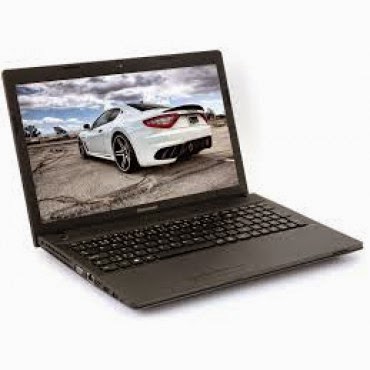
    Lenovo G505 (₦58,000) — Buy Online

    Working on an environment that demands great sound system? Lenovo G505 offers you the best option. Thanks to its stereo speakers with Dolby® Advanced Audio™ v2, graphics card options up to the speedy AMD Radeon 8570M VRAM, and optical disk drive options up to a Blu-ray Disc™ combo, the G505 offers stunning, stutter-free visuals and immersive sound for a fuller, more satisfying home entertainment experience.

    The AMD E1-2100 APU Processor powered laptop comes with a Windows 8 operating system and a RAM of 2GB. The pre-installed Bitdefender Anti‎‐Virus Plus gives maximum security to the user for 1 year and can be renewed afterward.

    Key Specifications:

    • Windows 8 OS
    • 4GB DDR3 RAM
    • 1TB (1,000GB) Hard Drive
    • AMD E1-2100 APU Processor
    • 15.6-Inch, HD Display
    • Inbuilt Wireless Adapter
    • AMD Radeon Graphics
    • DVD RW Optical Drive

    The actual price for Lenovo G505 is currently ₦86,400 but can be bought online for ₦58,000 (discount rate). See product page for full specification and purchase.

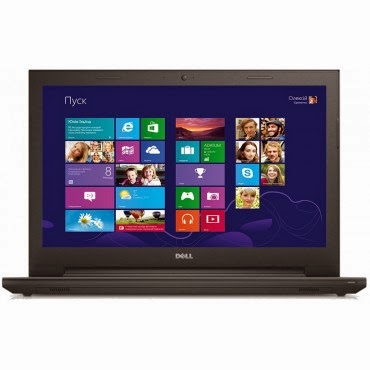
    Dell Inspiron 3541  (₦59,990) — Buy Online

    Dell Inspiron 3541 is a well packaged Windows 8.1 laptop with an AMD E1-6010 Dual Core Processor, Free Dell Sleeve, Microsoft Office 365 Personal, 8GB Flash Drive and 2 years free call service with Skype.

    The device is suitable for gaming and performing high resolution display tasks, boasting of 15.6-Inch (1366×768) HD display unit and AMD R2 dedicated graphics card.

    Key Specifications:

    • Windows 8.1 OS
    • 2GB DDR3 RAM
    • 500GB Hard Drive
    • AMD E1-6010 Dual Core Processor
    • 15.6-Inch (1366×768) HD
    • DVD RW Optical Drive
    • Inbuilt Wireless Adapter

    You can purchase or see complete features and specification of Dell Inspiron 3541 on the product page.

    HP 255 G2 (₦58,600) — Buy Online

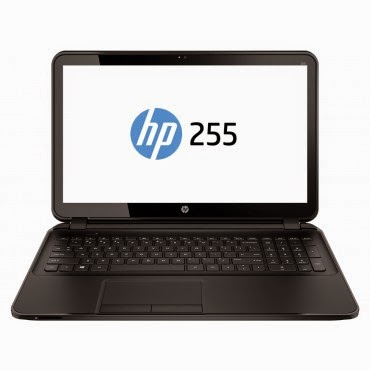
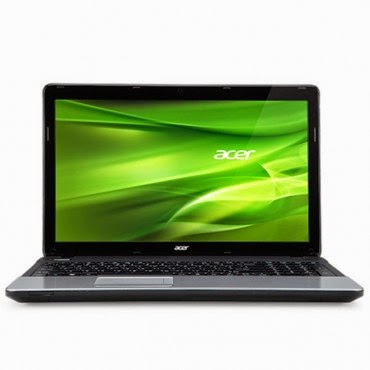
    HP 255 is a multi-tasks Windows 8 laptop powered by a 1 GHz, AMD E1-2100 Dual Core Processor and 2 GB RAM, certainly not the fastest PC on this list but the 15.6 Inch, HD display unit will make up for its shortcoming.

    The laptop has a 500 GB storage space, DVD RW Optical Drive and yes, it has an inbuilt wireless adapter.
    Key Specifications

    • Windows 8.1 OS
    • 2GB RAM
    • 500GB Hard Drive
    • AMD Dual-Core E1-2100 APU with Radeon HD 8210 Graphics (1 GHz, 1 MB cache)
    • 15.6-Inch (1366×768) HD
    • Intel HD Graphics
    • DVD RW Optical Drive
    • Inbuilt Wireless Adapter

    The actual amount for this device is ₦75,000 but can be purchased online for just ₦58,600. See pricing and full specifications.

    Also Read: Sony & Samsung Tablets Dominate the Top 5 Most Expensive Android Tablets in Nigeria

    Acer Aspire E1-510 (₦53,500) — Buy Online

    When it comes to producing quality PCs, Acer is second to no one. Acer Aspire E1-510 carries the same DNA, featuring a durable plastic case and a 4-cell Li-Ion with extended life capacity—if you are in an area where electricity is an issue, you might want to stick with this product.
    The practical yet stylish notebook is loaded with powerful and useful features like multimedia tools and convenient connectivity features‎‎.‎‎ This is a stylish notebook which comes with 15.6 inch, HD LED Backlit display‎‎,‎‎ powered by Intel Pentium processor with Linux OS to provide a faster and user friendly experience‎‎.‎‎ It has Intel HD Graphics that deliver ultimate graphics needed for gaming‎‎,‎‎ 500GB Hard disk drive also provides ample space for storage‎‎,‎‎ HDMI and USB 3.0 ports for faster data transfer.‎‎
    Key Specifications
    • Linux OS (Windows 8.1 & 7 OS Compatible)
    • 4GB DDR3 RAM
    • 500GB Hard Drive
    • Intel Celeron Processor
    • 15.6 Inch, Active Matrix TFT Color LCD
    • 4-cell Li-Ion Battery
    • DVD RW Optical Drive
    • Inbuilt Wireless Adapter
    The researcher friendly laptop is on sale for ₦53,500 online and ₦71,500 in most shops offline. See full product specifications and pricing.

    Acer V5-123 Mini Laptop (₦49,900) — Buy Online

    If you think the products listed above are a little above your budget and you don’t mind sacrificing the option of listening to another Davido’s single, you can bite the bullet and go with an Acer mini laptop without a CD Drive.
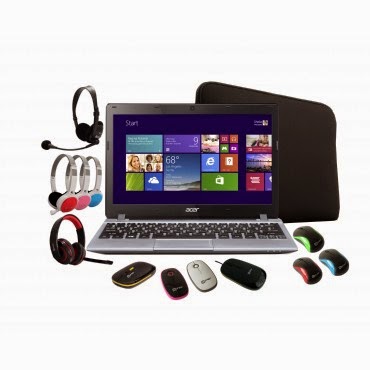
    The Aspire V5 Series puts inspiring performance in a thin and light form. A choice of elegant views adds to the charm. Breathe life into your entertainment and enjoy hands-on control with Acer Aspire V5-123. Its built-in speakers sweeten the deal with splendid sound. The laptop features;11.6-Inch WXGA HD, AMD Radeon trade; HD display with 2GB RAM and a 500GB hard drive which provides enough space for you to store your files, data, photos, and music. You can connect to the world wherever you are with your laptop, the WiFi enables you to browse and surf the web, you can also transfer data to other devices via bluetooth. This laptop comes with a free mouse, bag and headset.
    Key Specifications:
    • Windows 8.1 OS
    • 2GB RAM
    • 500GB Hard Drive
    • 11.6-Inch WXGA HD Display
    • Intel HD Graphics
    • Inbuilt WiFi 802.11 bgn Adapter
    Although Acer Aspire V5-123 has no CD Drive, you can still connect a CD Drive via the USB port. Saving over ₦10,000 compared to other products listed above. Purchase or see more about this product on its product page.
  • Windows 9 will be free to Windows 8 users; Microsoft Indonesian president says

    Windows 9 will be free to Windows 8 users; Microsoft Indonesian president says

    Yes, you’ve heard right. According to a recent article from an Indonesia news website “Detik.com,” the Windows Indonesian president Andreas Diantoro said, rather confirmed, that Windows 9 will be available for free to users of Windows 8(8.1). According to Andreas, the “update will be automatic” for Windows 8 systems. Whether this update will occur also for Windows 7/Vista users is yet to be announced nor confirmed.

    While this can surely be just rumors, we might get the 101% confirmation when Microsoft unveils its new OS at an event at San Francisco tomorrow (September 30th, 2014). This all comes ahead of an announced “preview edition” of Windows 9 which is expected to come round October of this year.

    Why would Microsoft make their new OS free?
    Well, some should take in account of how much negative feedback that was received to Windows 8, their OS that released two years ago; reason of the hate to it happened to be that Windows 8 removed the traditional start menu popup, and gave everyone a “Retro Start Menu” in its place. Not only that, but it is an OS solely aimed at mobile systems, and I think it’s safe to say that the design may have been a wrong choice, given the stop coming to the production/support of Windows 8 and Windows 7.8 phones.

    Anyways, with the hate, their blunder of the Xbox One reveal, and more; Microsoft is letting fan and/or user loyalty slip away and they do this even more by not standing for support of free OS support. Apple’s updates to OS X’s are always free to owners of previous versions, however with Microsoft’s “Windows,” the case hasn’t been the same. No one got a free update from Windows 7 right to Windows 8, or from any other versions that preceded it. Some believe that giving Windows 8/8.1 a free update to Windows 9 or “Threshold” (official name still unknown) will be an incentive of Microsoft saying something like “sorry we’ve screwed you over recently.” This could also be them contributing to being more free on OS’; this can definitely gain them some big media points, along with their names eventually hitting all game systems thanks to their acquisition of Mojang: the creators of Minecraft.

    So, all-in-all it’s only right to give some incentive back to their users that stayed with them even through the muck of the buggy, unattractive to most; Windows 8.
    What are your thoughts on the announcement of the free upgrade? Let us know in the comments below.

    Sources:
    PC World – Microsoft Indonesia president; Windows 9 will be free to Windows 8 users
    PC Gamer – Windows 9 will be free to windows 8 users, according to report By Jake Brunton, 2014.

  • Launcher 8 for Android Review: Turn your Android into Windows 8

    Launcher 8 for Android Review: Turn your Android into Windows 8

    Launcher 8 (fake wp8) is a Android application that turns your boring, dull Android home UI into a fluid, mock-up UI of that of a Windows 8 phone! Developed by the QiHang Team, this application has been downloaded over 5 million+ times, and really turns your Android into something else! Now, I (Jake) of EWT will go into detail of my review and thoughts of the app!  

    Installation

    The installation process is very easy, smooth, and simple. Just download from the Google Play Store, install, and press your home button and set Launcher 8 as your main action for “Home.” Wa-la! There’s no hacking, modding, or rooting needed to install this application.   Installation is very simple, great work there.  

    New UI & Logics

    The app’s added new ui and logics is very helpful and astonishing! After installation, you instantly have the power of an Android phone with the look and options of a Windows phone. There are many themes users have made that you can effortlessly download and install, or you can customize yourself!   You can add/edit/remove tiles, re-size, and even use special “widget” tiles that are included in the app. You can bind your installed applications to tiles, change individual tile background colors, names, and more. This application truly gives you control over everything! It also is programmed to work with certain apps, such as SMS, Phone, and Facebook – showing the number of new notifications, missed calls, and new SMS messages. It’s very convenient! The app also has a setting for a customizable lockscreen, which completely overrides the default Android lock screen – you can add custom backgrounds, change the layout, etc to it and add a password. The only problem with the lockscreen in this app is if you had a lock screen set up on the default Android UI before this installation, applications like “Camera” and such will not work correctly, and pressing your Home button will try and take you to the original Android lock screen rather than the Launcher 8 lock screen.    You can, however, fix this by simply going to System Settings -> Security -> Passwords and turning off any locks, pins, etc. You can set your lockscreen pin for Launcher 8 in the Launcher 8 settings.  

    Effect on Battery

    One of the main, if not the only, downside to this application is the power consumption. You’ll be loosing more and more phone battery life every 2 to 3 minutes even if you’re in idle mode. However, the QiHang team brags that their Pro version is more power efficient. This application really does take a toll on your battery life, my Android has been on the charger more then often since the install.   

    Final Thoughts

    I believe this is a great Android application for those who want the power of Android/Google products but the look and feel of a Windows product. It has great potential, and I believe it would be even more widely popular if the free version was less battery-consuming. It could use some literary work (the grammar for settings are poor), and some of the ads are a bit mis-placed and annoying, but all around it’s pretty amazing and I’m sure to never uninstall it!  

    Final Rating

    Price When Rated:

    $2.58Free

    Our Rating: 4.5

    Requires Android:

    2.0 and up

    Content Rating:

    Low Maturity This is a great app, and does everything that it says in it’s description. However, there is room for improvement and the battery drainage is what really kills it from being 5 stars.

    Pros:

    • Complete customization; Easy to customize to your liking
    • Downloadable themes; For those living in the fast lane
    • Beautiful and fluid; Includes smart widgets and is beautiful with live tiles
    • Free with minimal ads, and many options and settings to configure

    Cons:

    • Drains the battery of your device VERY fastly
    • Lockscreen issues occur if you have the default Android lockscreen already set up
    • Can be a bit laggy once you first boot up your Android

    Download So, what are you waiting for? Go download Launcher 8 now, you won’t regret it!

  • Pick the Best Windows 8 Phone!

    Pick the Best Windows 8 Phone!

    While Apple’s iOS and the Android dominate the mobile phone’s operating systems, Microsoft’s Windows, particularly Windows 8, is growing increasingly popular not only with Nokia but Samsung and HTC have taken interest.

    Now the consumers are met with the question, “Which is the best Windows 8 phone“ in the market right now?. While we want to give you an answer, it would be best to let you decide. However, we can give you our best 5 Windows 8 phones to check for yourselves, based on the considerations of the phone’s basic functionality, look, capacity and price.

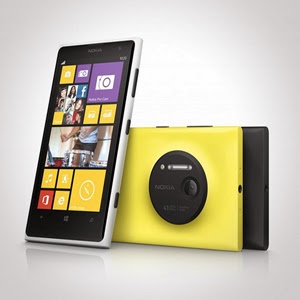
    Nokia Lumia 925/1020

    Let us begin with Nokia. It has an array of amazing units. Nokia Lumia 925 is perfect for photography. It is equipped with Nokia’s Pureview and 6 Carl Zeiss lenses to provide 8.7megapixels with Optical Image Stabilization that allows you to capture images even on low light environments. It is somewhat lined up up there with the Iphones and Samsung Galaxy S4 with its touch-screen technology of PureMotion HD + Amoled offering you 1280×768 pixels resolution. Nokia Lumia 1020 is the video and photography professional. With its main feature of 41MP camera, your videos and photos are taken in top-class clarity and detail. It is backed by the Nokia Rich Recording that provides distortion-free and stereo sound on your videos.

    HTC 8x/8s

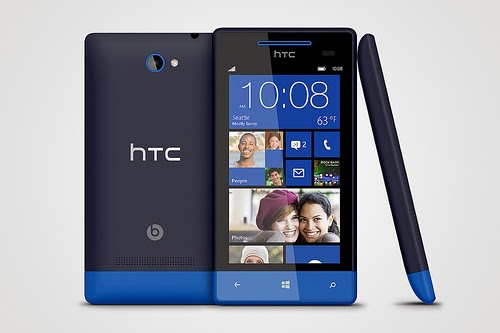
    HTC also has its wonders with Windows 8 units. It has windows phone 8X and 8S. Windows phone 8X considered as one of the best Windows 8 phone for its high end quality. It has world class camera, perfect fit design, and wide screen with 1,280×720 pixels resolution. Its dual core 1.5GHz processor is capable enough, but there is no option for expanding its memory just like most Windows 8 phones. There is also the HTC Windows phone 8S.Its boldly colored design makes it classy and attractive. It has a high performing battery. Moreover, it has a superb studio quality sound and entertainment. Great photo qualities and camera options are also featured in this one of the best Windows 8 Phone.


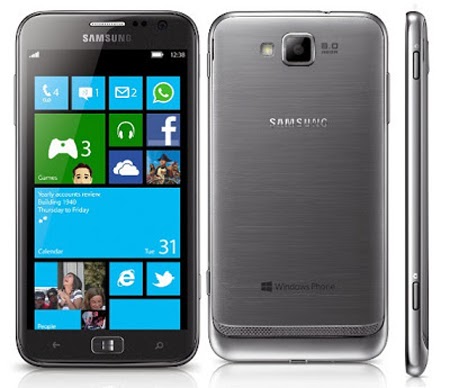
    Samsung ATIV S Neo

    Next stop is the Samsung ATIV S Neo. It is Samsung’s best Windows 8 phone, because of its affordability and good performance. It has a wide screen display of 720 x 1280 pixels, 4.77 inches for easy touch and visuals. It definitely provides a good windows 8 experience. It has long life battery of up to Up to 15 h and it has good camera features 8 MP, 3264 x 2448 pixels, autofocus that can capture sharp details. However, the phone is a little bulky and heavy. It is not much of a style but still a high end one with reasonable price.


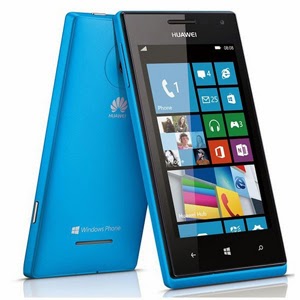
    Huawei Ascend W1

    If you are looking for a very affordable prepaid Windows 8 phone then Huawei Ascend W1 will be the best choice. It may not be a perfect device for some applications, but it has a strong battery life and expandable memory. However, this device has several drawbacks. It has a low internal storage of only 4 GB and low camera specs 5 MP, 2592*1944 pixels. Still, being affordable and practical, this might be perfect for some people who don’t want to stretch more of their budget.

    These are the top choices that we can have varying from different types of needs and lifestyle. Windows 8 had made these phones far better than usual ones. Check them out!

  • Bill Gates may be on his way Out of Microsoft; Satya Nadella to be named Microsoft CEO

    Bill Gates may be on his way Out of Microsoft; Satya Nadella to be named Microsoft CEO

    Microsoft’s cloud chief, Satya Nadella, will lead the company as its next chief executive, according to a report from Bloomberg.

    Microsoft’s board is “preparing to name” Nadella chief executive, Bloomberg reported Thursday afternoon. Nadella, whose official title is executive vice president of Microsoft’s Cloud and Enterprise group, had been one of the front-runners in the race to replace current chief executive Steve Ballmer, who said last August that he planned to step down within a year.

    But the board is also considering replacing Bill Gates as chairman of the company, Bloomberg reported, ousting the company’s co-founder and possibly replacing him with John Thompson, Microsoft’s lead independent director. If Gates is to go, as PCWorld suggested last year, it would remove two of Microsoft’s iconic employees from the software giant.

    The problem with replacing Ballmer or Gates, is that no one executive at Microsoft has traversed the range of the company’s products, which include consumer businesses like the Xbox, cloud services such as Azure, the company’s Windows business, server and development services like Visual Studio, and an emerging mobile business, too.

    Nadella, 44, is an Indian-born engineer with degrees in electronics, computer science (from the University of Wisconsin–Milwaukee), and business administration (from the University of Chicago). Nadella has worked since 1992 at Microsoft, and is credited with launching BizTalk, Microsoft’s Commerce Server, and Microsoft’s Office Small Business products.

    However, Nadella is most famous for having overseen Microsoft’s online initiatives, where he transformed Windows Live Search into Bing. The market share for Microsoft’s search offering stands at 18.2 percent, according to Microsoft’s recent earnings.

    One problem that naysayers point to: Nadella has no experience as a chief executive, unlike internal rivals like Tony Bates, who ran Skype, and external candidates like Alan Mulally of Ford, who took himself out of the running in early January, saying he was committed to Ford.

    So far, Ballmer’s commitment has been to a “devices and services” strategy. If Nadella is named CEO, its unclear whether he’d commit to that direction. On the other hand, his track record indicates that he can fulfill at least one half of that strategy.

  • How to clean up File Explorer’s cluttered Ribbon menu in Windows 8

    How to clean up File Explorer’s cluttered Ribbon menu in Windows 8

    Does the cluttered ribbon menu in windows 8 annoy you? Ian Paul – PC World will tell us exactly how to clean it up.

    When it comes to Windows, there is nothing I love more than Microsoft’s infamous Ribbon interface—and nothing I hate more. Using it in Microsoft Office is great, but adding Ribbon to Windows 8’s file explorer was a bit much for me.


    So I decided to pare File Explorer down a little and put the features I might need front and center, while banishing the rest of the Ribbon from my sight. If you’re tired of dealing with a Ribbon-loaded File Explorer, here’s a quick way to simplify your menu hopping.

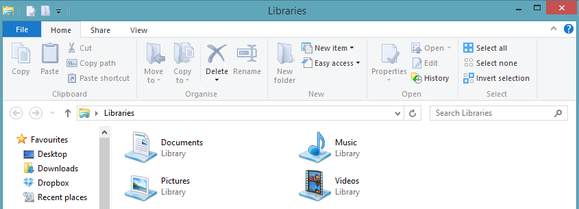
    The Home tab of Windows 8’s stock Ribbon interface.

    But first…

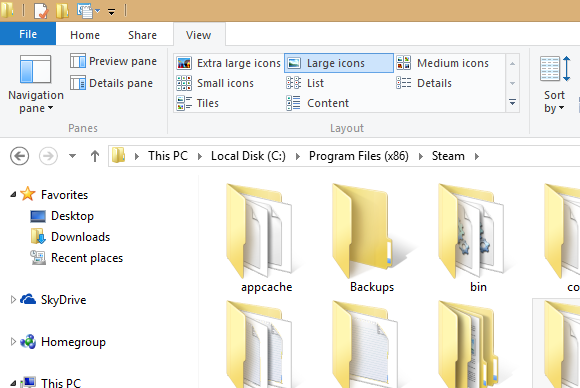
    Before we get going, let’s run down some basic anatomy of Windows Explorer. At the very top of the window you’ll see a file folder icon in the upper left corner. Next to that are a few icons and a downward facing arrow. That small set of icons is known as the Quick Access Toolbar (QAT).

    Below that, where you see menu options for File, Home, Share, and View—each with their own mess of icons—is the infamous Ribbon we were talking about earlier.

    And now, on with the show…

    How to clean up the Ribbon interface

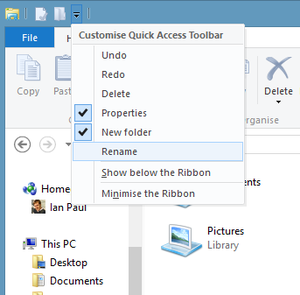
    First, click on the QAT’s downward arrow to show the functions you can add to the Quick Access Toolbar, including undo, redo, delete, properties, new folder, and rename. Some of these should already be selected. Add the feaures you use on a regular basis; they should appear in the QAT immediately.   Fear not if you don’t see a beloved function: The QAT can have any Ribbon UI feature you want. To add your favorites, just right-click the option in the Ribbon and select “Add to Quick Access Toolbar” in the pop-up menu that appears.

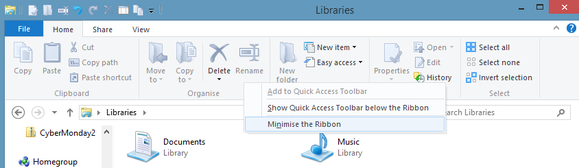
      That’s it!   Now that you’ve got your QAT fine-tuned, it’s time to give it a more prominent placement and banish the Ribbon UI. Right-click the Ribbon and select “Show Quick Access Toolbar below the Ribbon.” Next, right-click the Ribbon again and select “Minimize the Ribbon.”

    Click “Minimize the Ribbon” to, well, you know.

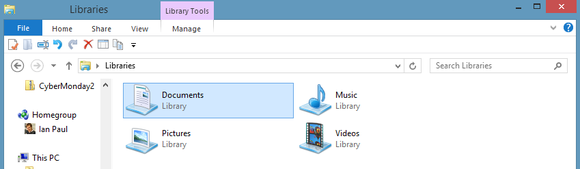
    Windows 8’s File Explorer should now look similar to what you see below, with the Ribbon pushed to the background as much as possible and the Quick Access Toolbar front and center with all your favorite menu options.

    Well, that’s much less of an eyesore. 

    Forgotten, but never gone

    The Ribbon may be banished, but it’s not gone for good. Anytime you need to access the Ribbon, simply click on the menu option you need (File, Home, etc.,) and the Ribbon interface will briefly reappear. If you want the Ribbon back permanently, just right-click the Ribbon’s menu options and deselect “Minimize the Ribbon.”   You can put the QAT up at the top again by right-clicking it and select “Show Quick Access Toolbar above the Ribbon.”   These few simple steps can make File Explorer a lot easier to use—and a tiny bit closer to the standard menu interface found in previous versions of Microsoft’s OS. The same basic procedure can help you clean up Microsoft Office’s Ribbon UI, if you consider it an eyesore, too. I hope it helps!   Full credit to this article goes to Ian Paul and PC World

  • Windows 8.x Busts Past 10% Market Share As Windows 7 Rises, XP Falls

    Windows 8.x Busts Past 10% Market Share As Windows 7 Rises, XP Falls

    According to Net Applications, Windows 8.x crossed the 10% barrier in December of 2013. Windows 8 and Windows 8.1 ended the year with 6.89% and 3.60% apiece for a combined 10.49% total market share.

    In the month, Windows 7 picked up 0.88% market share, as Windows XP fell below the 30 percent mark, shedding 2.24% to land at 28.98% in the month. While Windows 8.x’s market share growth is probably still under what Microsoft wants, enterprise adoption of Windows 7 appears strong as the end of Windows XP approaches.

    Windows 8 gained 0.23% market share in December, an almost surprising figure given the general availability of Windows 8.1, a free upgrade. The latter did pick up 0.96% in the month.

    It will be interesting to see how Windows 8.x’s growing market share converts into downloads of applications through the Windows Store. Previously, the Windows developer portal provided detailed download numbers. However, this morning I was unable to load the usual set of analytics through the system. Microsoft may have removed the capability.

    If so, we will not be able to correlate downloads with market share, which will limit our ability to vet Microsoft’s ability to convert new Windows 8.x users to its new application platform. That’s a shame.

    To wrap 2013, Windows 8.x manages a new threshold as Windows 7 manages to accelerate the end of Windows XP. Not a bad way to start 2014.Top Image Credit: Flickr Article Source: Techcrunch.

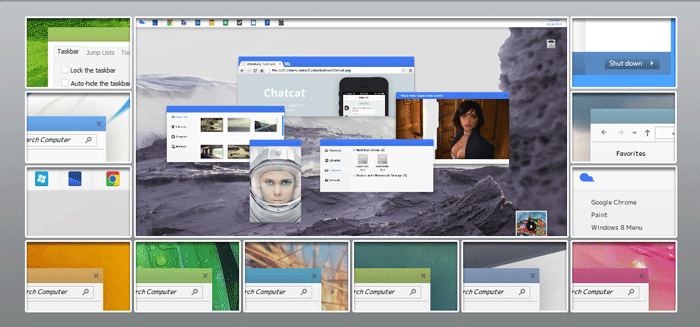
  • 25 Best ‘Free’ Elegant Windows 8 Themes

    25 Best ‘Free’ Elegant Windows 8 Themes

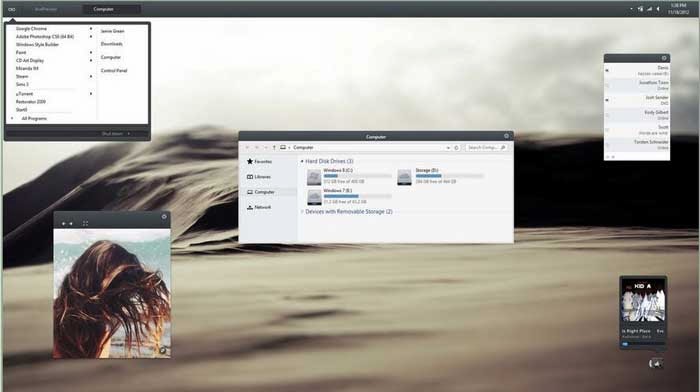
    Bill & Microsoft has made many structural changes by implementing Metro UI and Start Screen in Windows 8. But the PC side of Windows 8 has not seen any dramatic changes except the removal of Start Menu and Aero Glass Transparency feature. Windows 8 like Windows 7 and others before them, has a lot of customization features that helps you define an entirely new look for your Windows PC .

    Sometimes, the quest for customizing the desktop look can consume a lot of time; so you don’t have to actually customize your windows 8 PC, rather you can download many custom windows 8 themes and use them on your windows 8 PC (Check out 25 best themes for Windows 7)  .

    Most of these windows 8 themes are the products of talented artists/developers who make these themes available as a free download for everyone . But like most windows programs , windows 8 themes download from un-trusted sites might contain malware in them . So it is always advisable to download windows 8 themes from reputed sources only .

    As a tradition that has been laid by the predecessors, Windows 8 does not allow the installation of third-parties themes by default, hence, it is recommended you read How to Install Third-Party Windows 8 Themes before you proceed to the next section of this article.

    Image

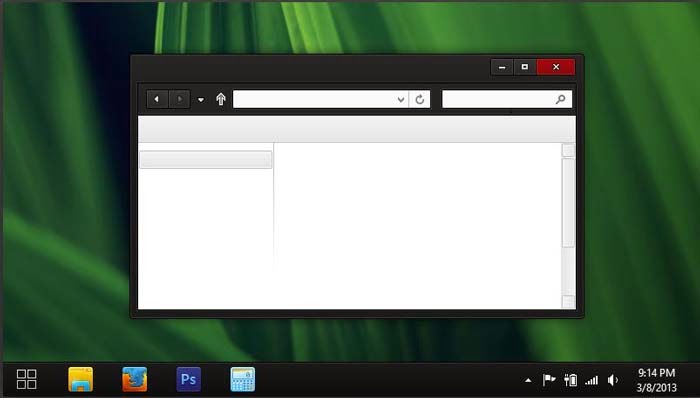
    In this article, we shall consider the top 25 most-outstanding Windows 8 themes you can apply on your desktop.

    1) Space Blueberries 4.8

    Image

    Theme Name: Space Blueberries 4.8
    OS Version: Windows 8
    Artist: Neiio

    DOWNLOAD

    Description: Space Blueberries is an awesome Windows 8 theme which has dark shadowed visual style and has design tweaks.

    2) Base for Windows 8

    Theme Name: Base for Windows 8
    OS Version: Windows 8
    Artist: Link6155

    DOWNLOAD

    Description: Base for Windows 8  is pixel perfect quality Windows 8 Dark Theme which offers a nice set of Metro Icons and dark style skins.  

    3) Work for Windows 8

    Theme Name: Work for Windows 8
    OS Version: Windows 8
    Artist: Neiio

    DOWNLOAD

    Description: Work is one of the best Windows 8 theme which has glowing dark interface. It gives you breathing space while working on multiple documents.  

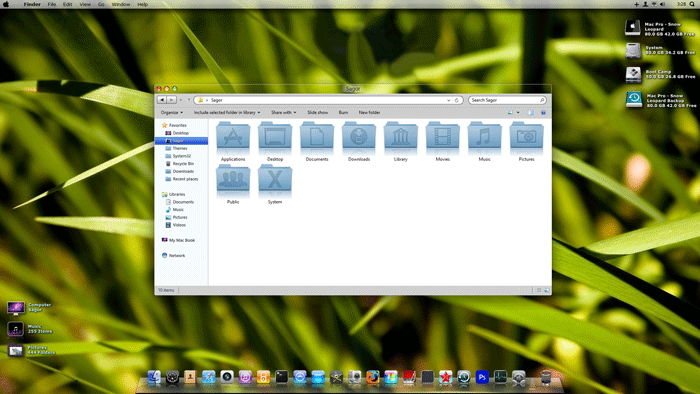
    4) Snow Leopard glass

    Theme Name: Snow Leopard glass
    OS Version: Windows 8
    Artist: Sagorpbd

    DOWNLOAD

    Description: Snow Leopard glass is an elegant Windows 8 theme with clean and simple layouts. Quite an ideal theme for ‘simplicity’ fans.  

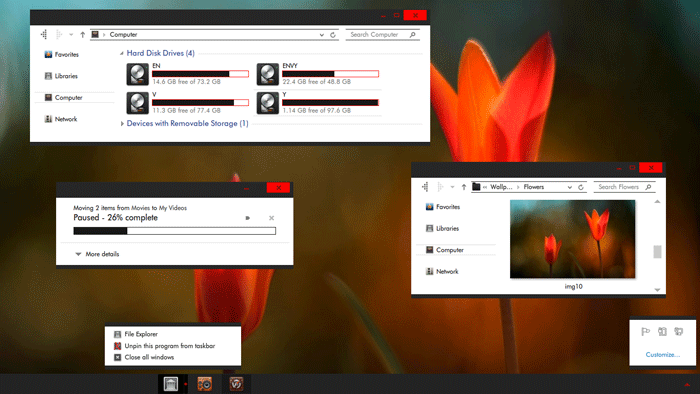
    5) Incomplete VS

    Theme Name: Incomplete VS
    OS Version: Windows 8
    Artist: Sinopt

    DOWNLOAD

    Description: Incomplete VS is a simple theme but cute Windows 8 desktop theme with red & black color scheme.

    6) Snowy V 3.0

    Theme Name: Snowy V 3.0
    OS Version: Windows 8
    Artist: Carborunda

    DOWNLOAD

    Description: Snowy is a nice Glossy Windows 8 Theme which supports all colors of Windows 8. Snowy has the Minimalistic design and looks soft for eyes.

    7) WhiteDior

    Theme Name: WhiteDior
    OS Version: Windows 8
    Artist: Ridkurn

    DOWNLOAD

    Description: WhiteDior is a nice Minimalistic Windows 8 Theme With icon sets and skins.

    8) Win 8 – Thrives

    Theme Name: Win 8 – Thrives
    OS Version: Windows 8
    Artist: Neiio

    DOWNLOAD

    Description: Another good work by Neiio. The Win 8 – Thrives Window 8 theme is made up of basic color scheme and attractive layout.

    9) Aero8 Glow

    Theme Name: Aero8 Glow
    OS Version: Windows 8
    Artist: Mrgrim01

    DOWNLOAD

    Description: Aer08Glow is a port of the default Windows 7 theme with a few modifications. This theme has glow on the caption buttons and 2 styles: one with square corners and one with rounded corners. To use this theme with rounded corners you have to enable Aero Glass Transparency in Windows 8.

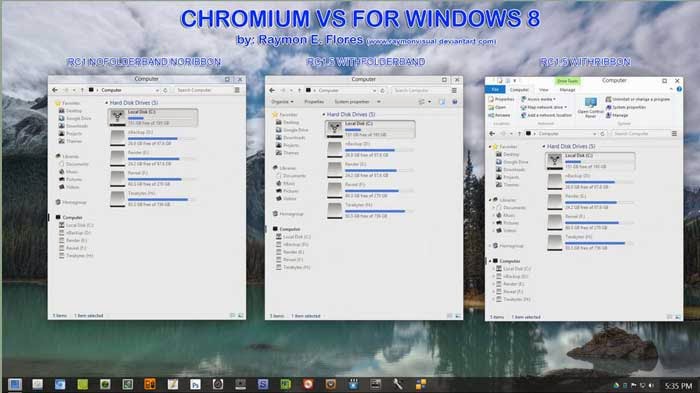
    10) Chromium

    Theme Name: Chromium
    OS Version: Windows 8
    Artist: Reymonvisual

    DOWNLOAD

    Description: Transform your Windows 8 system  to Google’ Chromium OS Style.

    11) Simplex RC

    Theme Name: Simplex
    OS Version: Windows 8
    Artist: Link6155

    DOWNLOAD

    Description: Simple Windows 8 theme which features a new frame, search & address bar, taskbar, and various of other changes.  

    12) Glow Dark

    Theme Name: Glow Dark
    OS Version: Windows 8
    Artist: Seahorsepip

    DOWNLOAD

    Description: It won’t be long before darkness falls: The Glow Dark Windows 8 theme lightens your way amidst of darkness.  

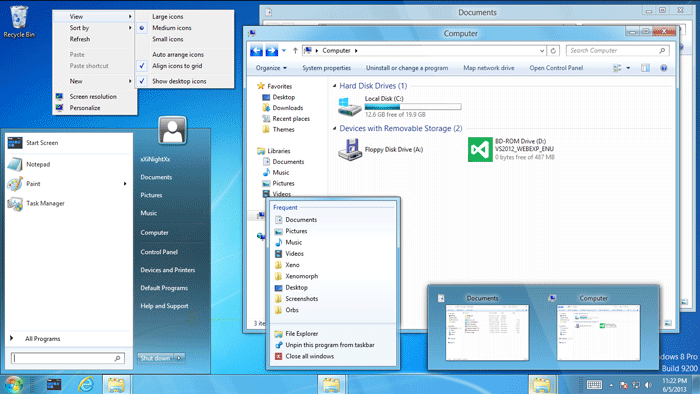
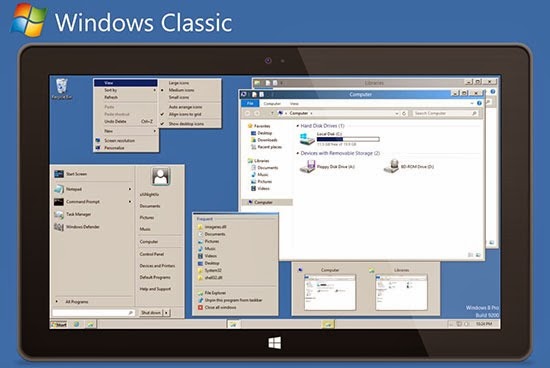
    13) Windows Classic Vs

    Theme Name: Windows Classic Vs
    OS Version: Windows 8
    Artist: xXiNightXx

    DOWNLOAD

    Description: Begin from the beginning with Windows Classic Vs: Windows 8 theme. Bring back the old memories of older Windows!

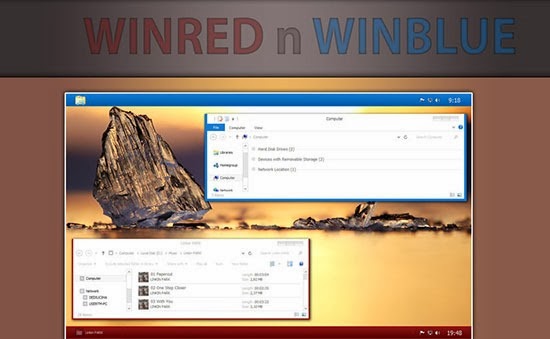
    14) Win Blue n Red

    Theme Name: Win Blue n Red
    OS Version: Windows 8
    Artist: S4r1n994n

    DOWNLOAD

    Description: Be greeted by the sweetness of the rising sun every moment your PC is booted. Win Blue n Red Windows 8 theme is the perfect blend for ‘red’ in ‘blue’, with a perfect ‘black’ to see off the dark sides.

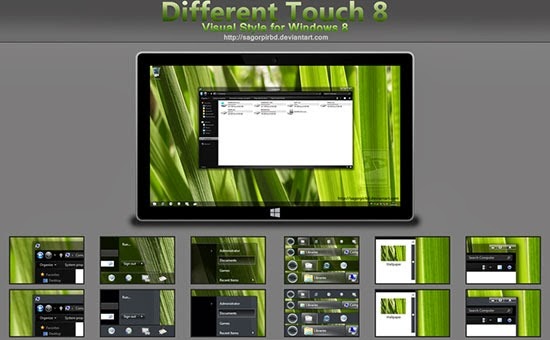
    15) Different Touch 8

    Theme Name: Different Touch 8
    OS Version: Windows 8
    Artist: Sagorpirbd

    DOWNLOAD

    Description: Different Touch 8 is a dark Windows 8 theme with clean surface, cute icons and soft to the eye.  

    16) White Update

    Theme Name: White Update
    OS Version: Windows 8
    Artist: s4r1n994n

    DOWNLOAD

    Description: Enough cannot be said on this exclusive Windows 8 theme: “Experience”, they said, “it’s the best teacher”.  

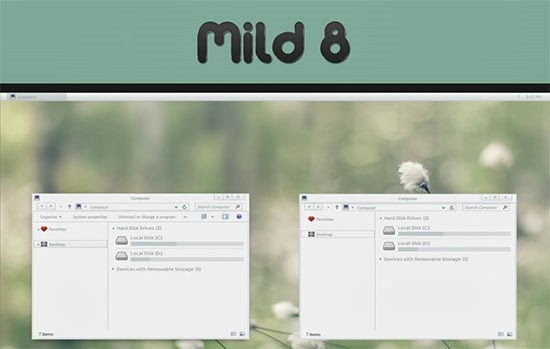
    17) Mild 8

    Theme Name: Mild 8
    OS Version: Windows 8
    Artist: dIzzEE94

    DOWNLOAD

    Description: Gentle, easy-going, and low temper is the true definition of this Windows 8 theme. Cut your edges clean and enjoy the cool atmosphere.  

    18) Gray8 new red

    Theme Name: Gray8 new red
    OS Version: Windows 8
    Artist: gsw953onDA

    DOWNLOAD

    Description: Darkness has overshadowed light! The new ‘red’ brightens the appearance of your Windows 8 theme. Gray8 new red is an easy going theme with boundless customization.

    19) Twentythirteen

    Theme Name: Twentythirteen
    OS Version: Windows 8
    Artist: sand-and-mercury

    DOWNLOAD

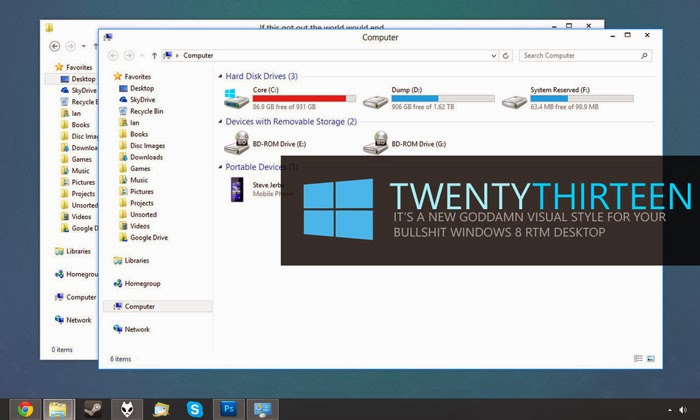
    Description: Twentythirteen is a new Goddamn visual style for your bullshit Windows 8 RTM desktop.

    20) Abisso

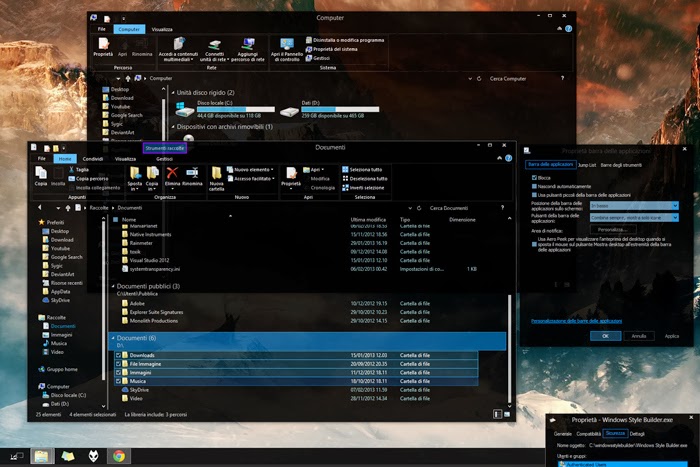
    Theme Name: Abisso OS Version: Windows 8 Artist: Ezio   DOWNLOADDescription: Abisso is one word for ‘true transparency’: The Windows 8 theme has a clean dark background with blue color scheme.

    21) Elune

    Theme Name: Elune
    OS Version: Windows 8
    Artist: Neiio

    DOWNLOAD

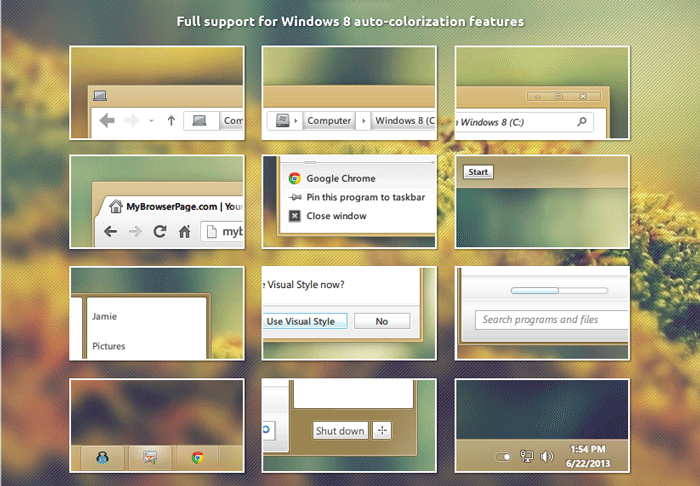
    Description: Elune is an easy going Windows 8 theme with full support for Windows 8 auto-colorization features.

    22) duMBaSS Windows 8 themes

    Theme Name: duMBaSS Windows 8 themes
    OS Version: Windows 8
    Artist: Neiio

    DOWNLOAD

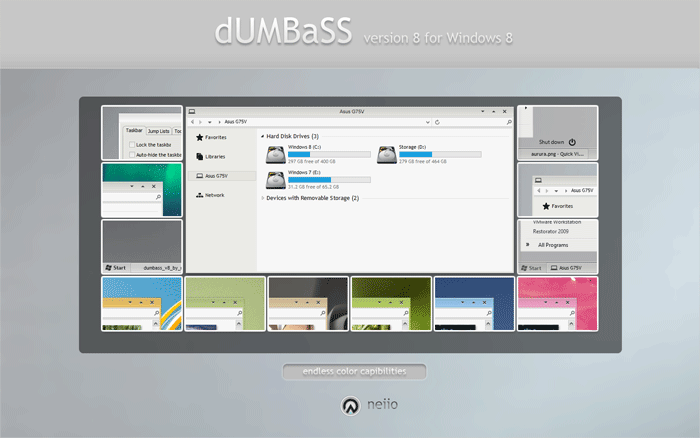
    Description: Get kicked in the ass with this amazing Windows 8 theme.

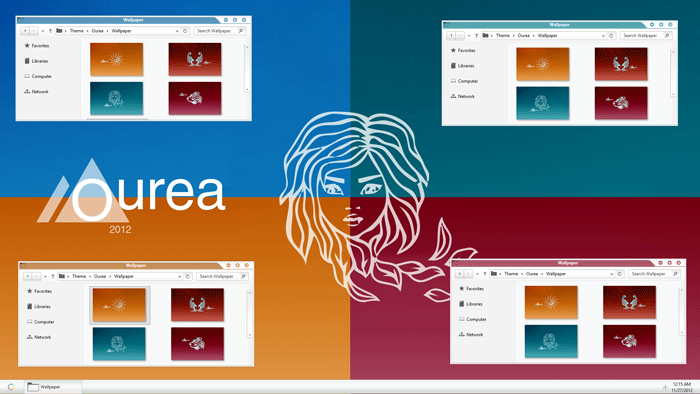
    23) Ourea windows 8 themes

    Theme Name: Ourea windows 8 themes
    OS Version: Windows 8
    Artist: Neiio

    DOWNLOAD

    Description: Gradually drift away from the original look of Windows 8. With Ourea windows 8 themes; the future is in your hands.

    24) Alduin Windows 8 themes

    Theme Name: Alduin Windows 8 themes OS Version: Windows 8 Artist: Charleston2378   DOWNLOADDescription: This list cannot be completed without the inclusion of the beautiful work of Charleston. Alduin is a Windows 8 minimalistic theme with deep dark background.  

    25) Nimbus

    Theme Name: Nimbus
    OS Version: Windows 8
    Artist: Neiio

    DOWNLOAD

    Description: Closing our list of top 25 elegant Windows 8 themes today is: Nimbus. This theme has an extra-ordinary layout that allows you to choose from various color schemes and background.

  • How to Install Third-Party Windows 8 Themes

    How to Install Third-Party Windows 8 Themes

    When it is down to the customization of your Windows PC, it goes beyond the changing of icons and wallpaper. Windows 8, 7, XP and those before them, allows you to install custom themes of your preference, however, due to the fact that most of the themes developed by third-parties developers may contain malwares which are harmful to your PC; Microsoft has disallowed the ability to install themes from third-parties developer, hence, this tutorial.

    With this tutorial, you will be able to install any third-party theme on Windows 8 PC, however, it is essential to only install themes from trusted websites and developers (Check out 25 best themes for Windows 8 from trusted developers).

    Image

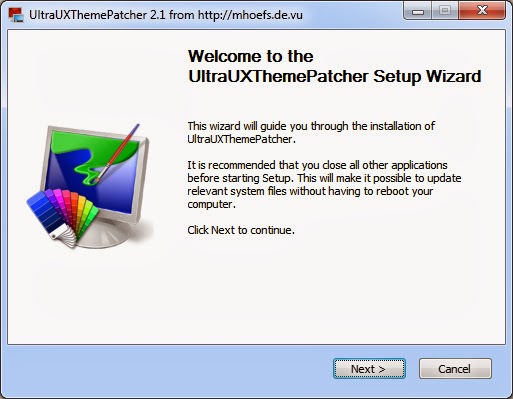
    Among our numerous contenders, Ultra UXTheme Patcher stands out as the best Windows 8 Themes application program. All you have to do is install it on your system and it will automatically modify the required items.

    Once you have installed the program you can then use any custom Windows 8 themes on your PC . Just download any custom windows 8 themes  and copy it over to this directory in your windows PC:

    C:WindowsResourcesThemes

    Note: Some themes might require a few additional instructions to install . Check the description of the themes  for any addition instructions .

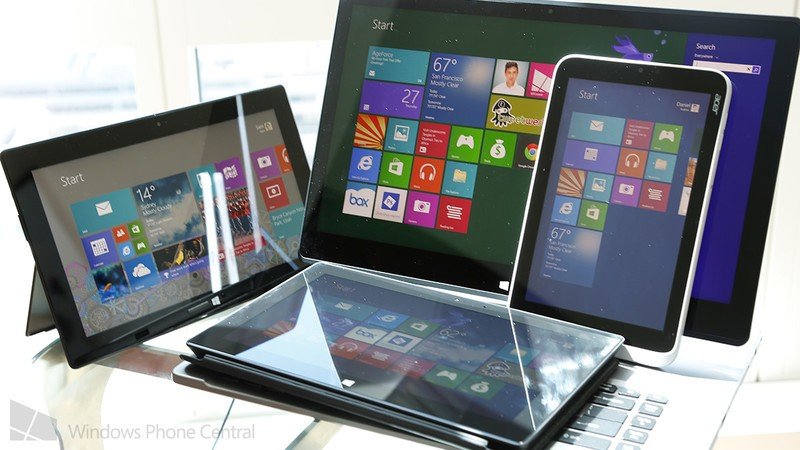
  • Top 5 Windows 8 tablets and laptops you can buy.

    Top 5 Windows 8 tablets and laptops you can buy.

    The clamshell laptop is finally joining the beige desktop in the museum of computer artifacts. The basic hinged design made its first appearance in a device called the Grid Compass way back in 1982, so no one can scoff at the clamshell’s longevity. Nonetheless, times are finally changing, which means it’s time for the pure clamshell laptop to ride off into the sunset.
    The traditional clamshell is being replaced by a wide variety of designs that merge tablets and laptops into a single physical package. These Windows 8 hybrid devices should directly appeal to PC users who might otherwise buy thin-and-light laptops. First-generation hybrids are already shipping, and most of them are flawed in some way, but they nonetheless bring new use-case scenarios to a mobile computing paradigm that hasn’t changed much in 30 years.
    Sure, there have been attempts to upend the clamshell. Take Microsoft’s Tablet PC initiative during the Windows XP era. But those early efforts were hobbled by bolting touch control onto an operating system that was poorly suited for touch interfaces. Windows 8 and Windows RT, however, are designed from the ground up for the touch experience.

    Now that we’ve reviewed a good number of Windows 8 portables, it’s time to step back, name the best models, and put them all in context. Given their intrinsic design compromises, none of them is a clear winner as a do-it-all system. But we can still look at five innovative designs, walk you through why you’d want one, and suggest which usage models may best apply to you.

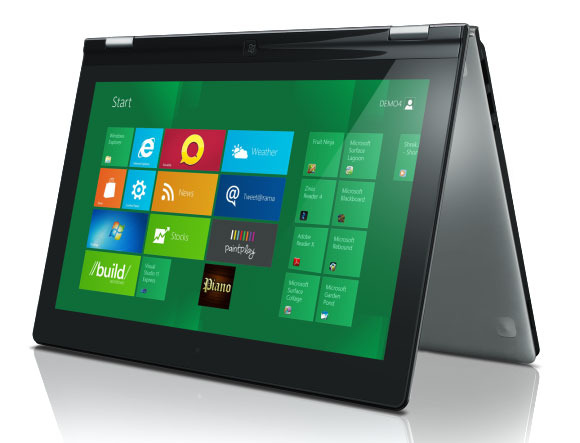
    Primarily a PC: IdeaPad Yoga

    The Yoga’s screen rotates to a “tent” mode for easy presentations.

    Sometimes you really need a full laptop keyboard, but you’d like to couple it with a Windows 8 touch experience. And, occasionally, you may need to use your system as a pure tablet—but you don’t anticipate that being the machine’s primary use. If any of this resonates with your personal needs, consider Lenovo’s IdeaPad Yoga. It’s an excellent 13.3-inch Ultrabook that includes a multitouch, capacitive touchscreen for all the cool new gestures built into Windows 8.
    The Yoga has what it takes to be a solid ultraportable laptop. The keyboard is excellent for touch typists. The battery life approaches 6 hours. The sound quality of the speakers is surprisingly good. And it weighs less than 3.5 pounds.
    However, it’s the display that really sets the Yoga apart. It’s a full 1600 by 900 pixels, offering a good balance in pixel density between 1366 by 768 and 1080p (or 1920 by 1080, by any other name). The panel rotates 180 degrees, allowing the Yoga to be used as a full tablet (albeit with its keyboard exposed) or in the “tent mode,” where you can use it to give presentations or easily share content.

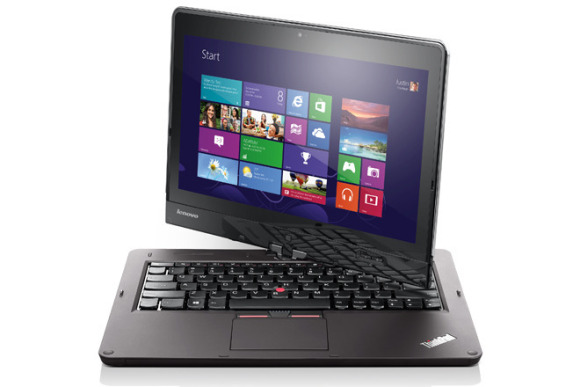
    The business traveler’s hybrid: ThinkPad Twist

    The ThinkPad Twist’s display rotates around a single hinge.

    Road warriors need work machines that are lightweight, rugged and reliable. Lenovo has long promised these qualities in the ThinkPad, a laptop line that was first conceived by IBM in 1992, and has been targeted at business users ever since. And now we have the ThinkPad Twist, which brings Windows 8 touch gestures and a clever hybrid design to a laptop legacy that’s always been a bit buttoned-up and stodgy.
    As with most ThinkPads, the Twist is a tad heavier than a consumer-grade laptop. And at 3.5 pounds, the Twist—even with its 12.5-inch, 1366 by 768 display—is a bit heavier than Lenovo’s IdeaPad Yoga, which has a larger, higher-resolution screen. But what’s nifty about the Twist’s display is its hinge design, which lets this hybrid engage a tablet mode while still keeping the machine’s keyboard protected. This makes the Twist more robust in tablet mode than the Yoga, whose keyboard remains exposed.
    The base-model Twist ships with a 500GB hard drive and a 24GB caching SSD. Working together, the two drives deliver speedy startup times and copius storage. Lenovo does offer one model with a traditional SSD intended for storage, but it’s a fairly scant 128GB. This SSD option, however small, will likely play well in larger businesses, where IT departments tend to lock down which applications can be installed.
    Overall, the Twist brings the ruggedness of the ThinkPad line with some of the most usable features of Windows 8 tablets. The only significant omission is a 3G/4G mobile broadband option, which would make the Twist a more attractive hybrid for frequent travelers. Nevertheless, the Lenovo Twist is compact and reasonably light, which should allow it to travel well.

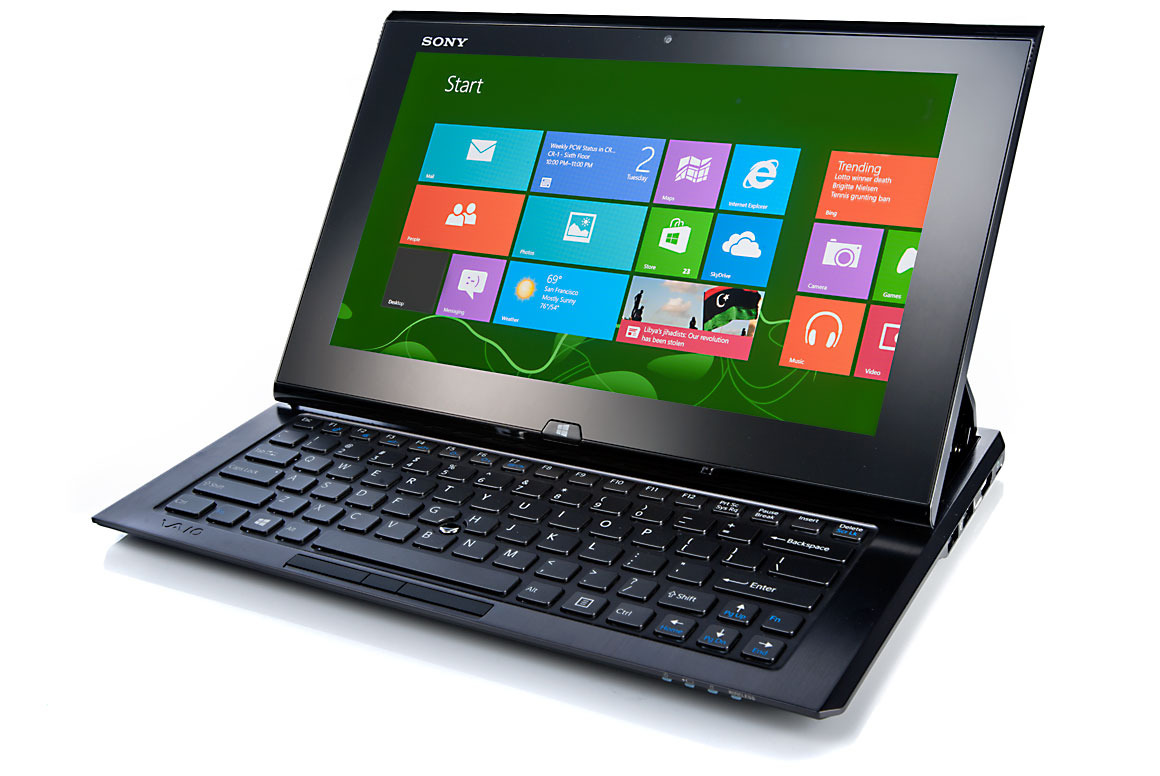
    Almost a tablet: Sony Duo 11

    The Son Duo 11 is a tablet with slider keyboard built in.

    The Sony Duo 11 looks like a tablet—most of the time. When you carry it around in its folded state, a seam conceals a sliding keyboard hidden underneath the bottom of the display. It’s the laptop version of those old-school slider phones, complete with a compact, Chiclet-style keyboard.
    Make no mistake: Touch typists will not like the keyboard on the Duo 11. Really, the most postiive thing I can say about the keyboard is that it’s functional, offers tactile feedback, and is a little easier to use than an on-screen keyboard. For the most part, however, the keyboard is cramped and uncomfortable. Luckily, the sliding hinge seems durable enough. And given that that the Duo 11 will likely be used more in tablet mode than laptop mode, the slider bit works pretty well.
    The entire affair weighs 2 pounds, 13 ounces—under 3 pounds, in other words. The 11.6-inch screen is an IPS display offering full HD (1080p) resolution. Sony also includes an N-trig stylus that supports 256 pressure levels, making it a useful adjunct for artistically inclined users. If what you need is a tablet for touch-sensitive art applications, the Duo 11 bears closer scrutiny.

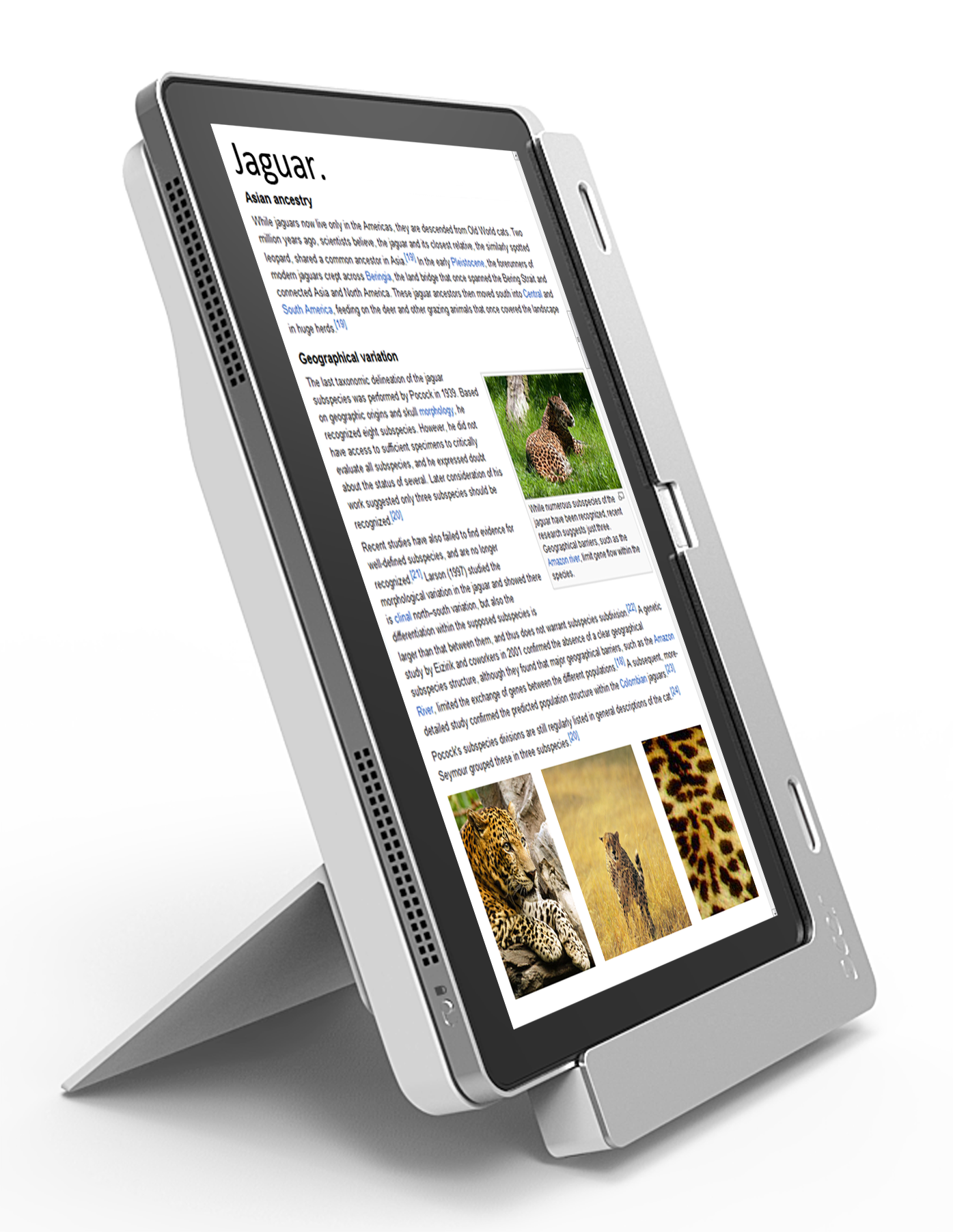
    PC performance in a tablet design: Acer Iconia W700

    Acer_w700_image_by_acer
    Acer’s Iconia W700 is a high-performance Ultrabook in tablet guise.

    In the Iconia W700, Acer crams an Ultrabook into a relatively thin tablet. No one will mistake this device for an iPad or Microsoft’s Surface RT, but in weight and thickness, it’s pretty close to what Microsoft’s Surface Pro will be. It’s also 2.1 pounds; while that’s significantly lighter than the Sony Duo 11, it still means that lugging it around propped on your forearm (as many tablet users do) may get tiring.
    The tradeoff for the weight is robust, PC-like performance and features, including USB 3.0 and mini-HDMI video output. As with most tablets, it’s got both forward-facing and rear-facing cameras.
    As with Sony’s Duo 11, the Iconia includes a full HD, 1920-by-1080 display. This delivers gorgeous-looking images and text, but it’s also problematic for touch use when running desktop applications. It’s simply difficult to put one’s finger on desktop buttons and window bars that render so small. While Acer bundles a Bluetooth keyboard, the only pointing device is the touch interface itself—no mouse is included, and the keyboard lacks a trackpad. The W700 is really the purest, most recent incarnation of Bill Gates’ vision of the Tablet PC.
    But the real problem lies with the overall size, bulk, and weight. An 11.6-inch tablet, particularly with a 16:9 aspect ratio, will always be a little awkward to hold and use in landscape mode. Portrait mode is a little more usable, but often won’t accommodate documents at their full width.
    Nonetheless, despite all these caveats, if you’re looking for a pure tablet that offers PC-like performance, the W700 delivers. It’s a nice product, but we expect the Microsoft Surface with Windows 8 Pro to eclipse the W700 early next year.

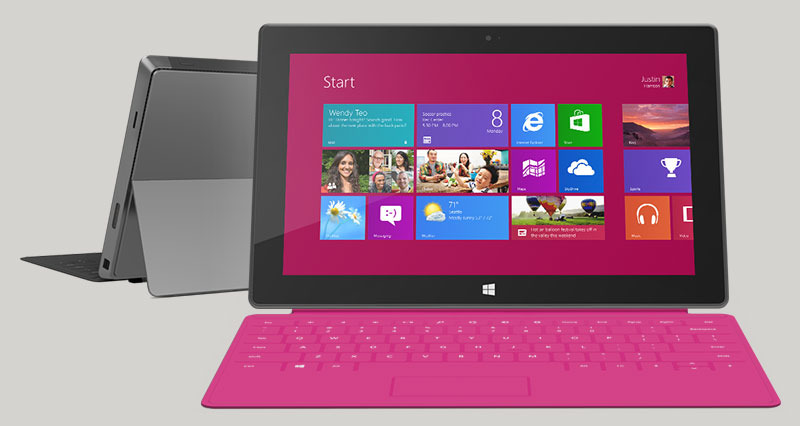
    The pure tablet: Microsoft Surface RT

    Microsoft’s Surface RT offers covers with built-in keyboards

    The Surface RT is Microsoft’s bid for the tablet space currently owned by Apple’s iPad. Sure, Android tablets may cost a little less and aspire to the same market, but none have been able to come close to the iPad in terms of ease-of-use and user adoption.
    While the aspect ratio is more widescreen than Apple’s, the 10.6-inch display seems a little more usable than the slightly unbalanced, 11.6-inch displays that dominate the Windows 8 tablet market. Windows RT is fast and responsive on the ARM-based, Nvidia Tegra processor. The Surface’s 1366-by-768 resolution doesn’t match the beauty of Apple’s iPad Retina display, but most users probably won’t notice.
    In the Surface RT, Microsoft has introduced some clever touches, such as a built-in kickstand and the optional Type Cover, which integrates a flat, tactile-free, but extremely thin keyboard. The company also bundles a reduced version of Microsoft Office, but using those Office apps kicks you into desktop mode, which feels very weird on a device that’s really meant to be a pure tablet. On the Surface RT, the Windows Start Screen is the native interface, and seems capable and usable.

  • How to activate Windows Defender in Windows 8

    How to activate Windows Defender in Windows 8

    Like every new Windows release, Windows 8 is more secure than the operating systems that came before it. That’s due in large part to three major enhancements: An increased emphasis on UEFI Secure Boot optimizations, the extension of the SmartScreen Filter across the operating system, and the default inclusion of a more robust version of Windows Defender, which now protects against all kinds of malware—not just spyware.
    Windows Defender’s increased scope doesn’t sit well with computer manufacturers, however. OEMs make beaucoup bucks by installing those trial versions of McAfee, Norton and other security suites you’ll find bundled on boxed PCs. Windows Defender’s default installation threatens that gravy train.

    Microsoft tossed its partners a bone by allowing OEMs to deactivate Windows Defender in order to ship boxed PCs with alternative security solutions installed. That’s all well and good from a “variety is the spice of life” perspective, but one side-effect that isn’t so hot is what happens when you fail to register that third-party security software: Windows 8 doesn’t automatically reactivate Windows Defender by default. In other words, your pretty new prepackaged PC is wide open and vulnerable to all the nasties of the ‘Net.
    Fortunately, activating Windows Defender is a snap. Here’s how to do it.

    Activate Windows Defender in Windows 8

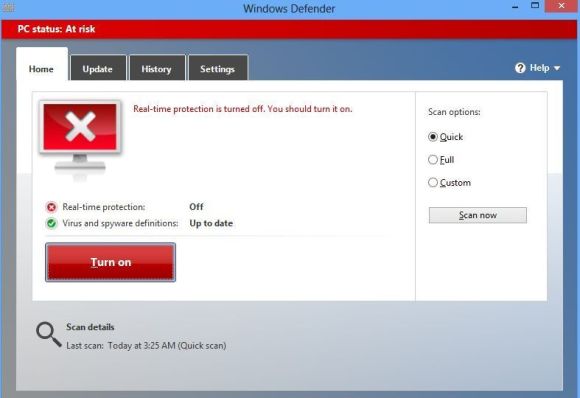
    Windows Defender isn’t subtle about being deactivated.

    First, head to the modern-style Start screen and type “Windows Defender” to have Windows search for the program, then click on the Windows Defender icon when it appears in the results. A Windows Defender window will appear on the classic desktop. If Microsoft’s security software is disabled, you’ll seen a lot of scary red tones alongside an “At risk” warning and an image of a computer screen with a big X on it. Subtle, eh?
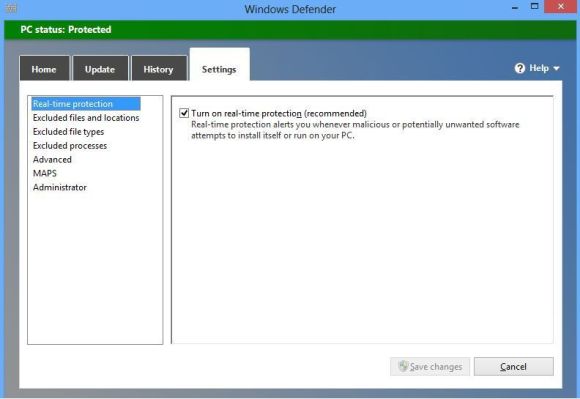
    Next, click on the Settings tab at the top of the window. Make sure “Real-time protection” is selected in the left pane, then check the box next to “Turn on real-time protection (recommended).” Finally, click Save Changes at the bottom of the Window.

    How you want your Settings tab to look!

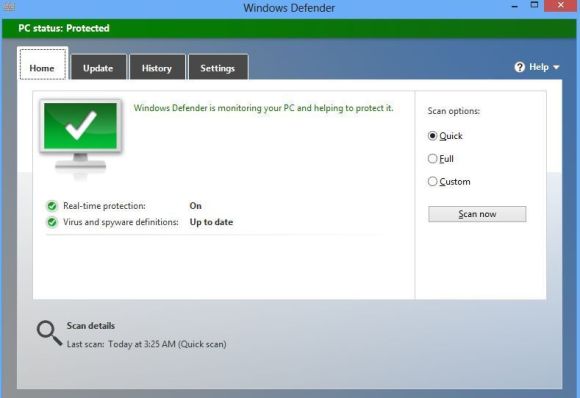
    You’ll know it worked when the terrifying red “At risk” bar at the top of the Windows turns a much more soothing shade of green and switches to “PC Status: Protected.”

    Check for leaks

    You’re not quite done yet. Now it’s time to make sure your PC is actually malware-free! Click the Update tab, then click on the big Update button in the middle of the Window to download the latest malware definitions Microsoft has on file.
    Next, open the Home tab and select the “Full” radio button in the Scan Options list. All you have to do now is click Scan Now, then sit back and wait while Windows Defender checks the nooks and crannies of your PC for any hidden baddies. Grab a cup of coffee; it may take some time. While you’re waiting, we recommend checking out your Windows 8 antivirus options.

    Ah, you have seen it right?.
  • What if Windows 8 flops?

    What if Windows 8 flops?

    What if windows eight doesn’t meet our expectations?


    Microsoft launches Windows 8 later this month after a year of gradually making the new operating system more and more available, hoping for a big hit that will drive sales this holiday season and beyond, and giving the company new hope of grabbing a bigger share of tablet sales.
    But what if Windows 8 flops?
    For businesses, the problem won’t be that dire, says Paul DeGroot, principal consultant at Pica Communications. Businesses that are Microsoft shops already have an operating system, likely Windows 7, but if not, Windows XP with a plan to adopt Windows 7 soon before support for XP ends next spring.

    If Windows 8 is a complete bust, enterprises can stick with Windows 7 and wait until Microsoft picks itself up and does a better job with Windows 8 service packs or Windows 9 (or whatever it calls the next major release), he says. After all that’s what happened with Windows Vista, says Matthew Casey, an analyst with Technology Business Research, and Microsoft can handle a disappointing Windows 8.
    In fact that is a likely scenario, DeGroot says. “Most of the companies I work with are standardising on Windows 7. They are not going to be migrating to Windows 8.” He says many businesses will license Windows 8 but end up reimaging their networks with Windows 7, similar to how many enterprises licensed Vista but installed XP.
    Casey says a Microsoft stumble with Windows 8 will be handled by businesses the same way the performance of Windows Vista was handled. “If that’s the case we’ll see a similar reaction from Microsoft,” he says “It’s not going to be them closing their doors.” The company will press on with Windows 8 and its fundamental architecture.
    The impact on consumers won’t be that great, either. If Windows 8 doesn’t catch on a big part of the reason will be that consumers are buying some other tablet platform they like better, so they’ll be happy. But according to Gartner, Microsoft will be missing a big opportunity to make its mark in mobile devices if the Windows 8 gamble doesn’t pay off.
    “It is a risk that Microsoft must take to stay relevant in a world where mobile devices with new modern experiences are becoming the norm,” Gartner says in a research note “Is Windows 8 in Your Future?”
    The popularity of smartphones and tablets has Microsoft playing catch up, particularly with Apple, whose iPad dominates in tablets and whose iPhone holds down big large chunk of smartphones. “With Windows 8, Microsoft tries to address the excitement of the tablet market by adding a tablet interface to Windows,” Gartner says.
    If Windows 8 does become popular with consumers and finds its way into enterprises via the bring-your-own-device phenomenon it will still have hurdles to clear with IT departments.
    Ultrabooks and tablets still need to establish themselves in the corporate world where their use raises questions, Casey says. Who will pay for them? How will they be secured? “These are pieces that need to fall into place in the enterprise planning cycle,” he says.
    It’s also questionable whether they will gain traction as platforms for business applications, DeGroot says. “I think that is going to be a very tough sell,” DeGroot says, because the apps have to be vetted by the Microsoft Store before they will be allowed on closed Windows 8 devices. Businesses won’t want to leap that hurdle nor will they want to side-load apps on devices to get around the restriction that Windows 8 apps must be reviewed by and sold through the store. “I have some difficulty imagining many organizations are going to want to do that.”
    Beyond that, developers are not prepared to write for Windows 8; their training and experience leans toward traditional enterprise applications for conventional desktops without touch capabilities, DeGroot says. Touchscreen can actually be a barrier.
    With Windows 8 Microsoft is overhauling the underpinnings of its operating system with the introduction of Windows Runtime, a new architecture that gives a common footing to applications across a range of devices. Such applications can support both x86 and ARM hardware, potentially opening up the possibility of writing apps once that can run on any device. Microsoft hopes it can write its next major chapter with Windows 8 and Windows Runtime, Gartner says, and that is what makes a Windows 8 success – and avoiding a flop – so important. Windows 8 is simply the biggest turning point for Microsoft in decades.
    “Windows 8 is not your normal low- or even high-impact major release of the OS,” the research firm says. “We believe it’s the start of a new era for Microsoft, the Windows RT era, which follows the Windows NT era that began in 1993 and is just starting to wane.”

  • Microsoft is going all in with Windows 8 and Windows Phone 8

    Microsoft is going all in with Windows 8 and Windows Phone 8

    It’s a huge year for Microsoft. The venerable tech giant is essentially reinventing itself from the ground up for 2012. A new server OS, new desktop OS, new Microsoft Office suite, new mobile platform, and new tablet hardware are all being launched virtually simultaneously. To say Microsoft has a lot riding on the success of the new products is an understatement. Apparently, Microsoft is willing to put its money where its proverbial mouth is, though, and lead its customers by example. There are reports that Microsoft plans to accelerate its normal PC refresh cycle to give all employees new Windows 8 desktops and laptops. But, wait—there’s more! Microsoft is also allegedly issuing new Windows Phone 8 smartphones and Surface RT tablets to all employees as well.
    Microsoft allegedly plans to give all employees their very own Surface RT tablet.

    Aside from Microsoft playing Santa Claus (or Oprah—choose your own benevolent icon), and bringing Christmas to employees a tad early, the move also demonstrates Microsoft’s confidence in the new platforms and software. It is arguably the most extreme example of the “eat your own dog food” mantra ever implemented. It’s probably not entirely altruistic, though. It seems safe to assume that there is a deeper business strategy behind the decision.
    Onuora Amobi, editor of Windows8Update.com, thinks it’s a brilliant move by Microsoft. Aside from fostering loyalty and good will with employees, it allows Microsoft to do a massive real-world test of its manufacturing and distribution channels, and it enables Microsoft to demonstrate–on a massive, global scale—that Windows 8 and Windows Phone 8 are ready for enterprise customers to roll out themselves.
    From a marketing and consumer standpoint, the strategy makes sense as well. With more than 90,000 employees carrying and using Windows 8 smartphones and Surface RT tablets, the devices will get a huge boost in exposure. The friends and family of those 90,000 employees will have a chance to touch and feel the new Windows 8 smartphones and tablets, and the word of mouth marketing will be much more invaluable to Microsoft than any advertising it can buy.
    Of course, Microsoft followed a similar strategy a couple years ago when it gave all employees Windows Phone 7 smartphones. Despite the word of mouth marketing and excitement that should’ve been generated among Microsoft family and friends, the Windows Phone platform has still been struggling to earn a seat at the table with other mobile platforms like iOS and Android.
    Microsoft is putting its money on the line in other ways as well, though. Previous versions of Windows have cost consumers hundreds of dollars to upgrade, but with Windows 8 Microsoft is offering the upgrade for a mere $40 for a limited time. There’s also a rumor that Microsoft could price its Surface RT tablet at around $200—a very aggressive price for a tablet of that caliber, and something, which is sure to draw attention if it proves true.
    Microsoft isn’t just developing incremental tweaks to existing product lines. The operating systems, platforms, software and devices Microsoft is unleashing this year represent a bold departure from traditional Microsoft products and strategies. Much of what Microsoft is doing is essentially a gamble—but it’s a gamble that Microsoft is going all in on.
    We’ll see if the strategy pays off.

  • Windows 8 Leaked in Final Form

    Windows 8 Leaked in Final Form

    A final copy of Windows 8 leaked to the Internet on Thursday, just a day after Microsoft stamped the new operating system as finished.
    Identified as Windows 8 Enterprise N — the “N” marks it as aimed at European users — on several BitTorrent file-sharing websites, it was unclear yesterday whether the leaked build was legitimate.
    Although some who downloaded the leaked copy asserted it was an invalid build, the consensus early Friday was that it was the real deal.
    “Legitimate. It works. Looks real,” said one commenter on a popular file-sharing site. Numerous downloaders posted screenshots to back up their contention that the leak was the actual Windows 8.
    Others vouched for it as well, including “Canouna,” the nickname used by an administrator of the WinLeaked forum.

    The copy is an English-language version, but according to the file-sharing sites is non-booting, meaning pirates must create installation media. Instructions for generating a DVD- or USB flash drive-based installer were posted on some of the file-sharing websites, and available elsewhere on the Internet.
    Microsoft’s N editions omit Windows Media Player, and are distributed throughout most of Europe as part of the mandate by European Union antitrust regulators after a 2004 decision that concluded Microsoft’s bundling of the player program was anti-competitive.

    Prerelease with Precedent

    Leaks of upcoming Windows releases are not uncommon. In the run-up to Windows 7’s launch three years ago, pirated copies appeared regularly, from the October 2008 leak of an “alpha” version Microsoft meant only for developers to Windows 7 Release Candidate, which went public about two weeks before Microsoft officially launched the preview.
    The company has avoided much of that with Windows 8, although a Chinese edition of the operating system made it to the Internet three days before Microsoft shipped the Release Candidate, the final public preview, in late May.
    Previously, Microsoft has warned users not to install leaked builds, claiming that they can be infected with malware.
    Some customers can obtain a non-pirated copy of Windows 8 as soon as August 15, when the RTM, or “release to manufacturing” milestone — the same code as will be installed on new PCs — reaches the MSDN (Microsoft Developers Network) and TechNet services.
    Enterprises with Software Assurance licensing plans — Software Assurance is essentially an annuity that gives companies the right to run any version of a product — will be able to grab Windows 8 starting August 16, as will members of the Microsoft Partner Network.
    Windows 8 will launch October 26, with two editions in retail — Windows 8 and Windows 8 Pro — and another, the Enterprise edition that leaked yesterday, targeting corporations with volume licensing agreements.
    Credit:
    For more enterprise computing news, visit Computerworld. Story copyright © 2011 Computerworld Inc. All rights reserved.  

  • Try Windows 8 Without Losing Windows 7

    Try Windows 8 Without Losing Windows 7

    Anderson7 asked the Windows forum for the safest way to install Windows 8 on a system already running Windows 7.
    I wrote my opinion of Windows 8 last month. Many readers voiced their own, differing opinions. You can make up your own mind by installing the Windows 8 Consumer Preview.
    But you shouldn’t replace your current OS with one that’s not yet ready to be sold commercially. You want to install Windows 8 in a way that leaves Windows 7 unharmed.

    That’s why I recommend installing it in a virtual machine (VM). Virtual machine software imitates an actual, physical computer, onto which you can install another operating system. This is by far the easiest and safest way to try out an operating system.
    I recommend Oracle VM VirtualBox for creating and running your Windows 8 VM. It’s free, open-source, powerful, and it already supports Windows 8. (It’s main free competitor, VMWare Player, doesn’t support Windows 8 as I write this.)
    You’ll also need to download the .iso file version of the Windows 8 preview. This page contains both 32- and 64-bit editions; unlike previous Windows versions, you can’t install the 32-bit version on 64-bit hardware (at least I couldn’t). You’ll also find the product key here; you’ll need that during installation.
    Once everything is downloaded and you’ve installed VirtualBox, follow these directions:

    1. Load VirtualBox, the click the New icon in the upper-left corner.
    2. This starts a wizard. Click Next.
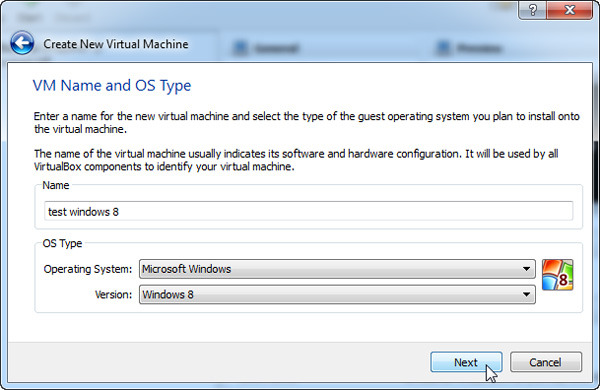
    3. On the “VM Name and OS Type” page, enter a name that includes the phrase windows 8. Otherwise, “Windows 8” won’t show up as a Version option.
    4. Stick to defaults for the result of the wizard, even when asked if you want to “Create new hard disk.” Don’t worry, it’s just a virtual disk.
    5. When the Wizard finishes and closes, double-click the new virtual machine.
    6. Read the message about the Auto capture keyboard, then click OK.
    7. The First Run Wizard will start. When you’re asked for Installation Media, click the folder icon on the right and select your downloaded .iso file.
    8. The installation will begin after you click Start.
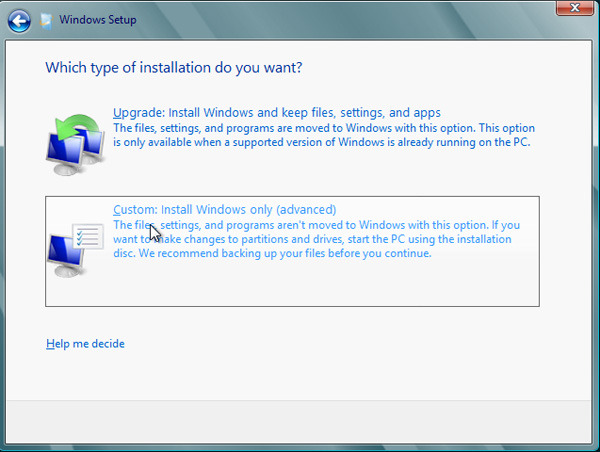
    9. When asked for a type of installation, select Custom. Don’t worry about overwriting files. The only hard drive the installation sees is the empty, virtual one.

    When you’re done, you’ll be able to run Windows 8 inside Windows 7.