Tag: YouTube

  • Best Ad Blocker for YouTube on iPhone & Android

    Best Ad Blocker for YouTube on iPhone & Android

    Are you on the lookout for the best YouTube ad blocker? Then this post is exactly what you need.

    YouTube is one of the most popular online video-sharing platforms in the world, with over 2.1 billion monthly active users. Giving creators, artists, and businesses the opportunity to promote and grow their audience. It also presents students with inexhaustible streams of information. The cherry on the cake? It’s completely free to watch and upload content on YouTube.

    Yet, YouTube video ads and pop-ups can be ridiculously frustrating. Viewers find it difficult to stream content on YouTube without irksome ads flying all over their screens. It slows traffic, increases data usage, and makes you susceptible to online threats, spear phishing, and other malware.

    Below, we compiled a detailed list of some of the best YouTube ad blockers to aid your free streaming on YouTube and protect your device from trackers.
    Best Ad Blocker for YouTube on Android, Mac, And iOS

    1. AdBlock

    AdBlock is an open-source software that gives users control over unwanted YouTube ads and pop-ups. With over 60 million users worldwide, it blocks third-party trackers and enhances privacy.

    Key features include:

    • Custom ad blocking rules with filters, whitelists, and dark mode.
    • Advanced privacy protection against malicious ads, scams, and phishing sites.
    • Ad substitution—replace ads with images of animals, objects, or landscapes.
    • Faster browsing with accelerated page load times.
    • Cross-device compatibility, working on Android, iOS, and 40+ languages.

    2. AdGuard

    As the name implies, AdGuard blocks incredibly annoying ads and pop-ups on browsers and apps, particularly YouTube. It works by enabling a safe, web-browsing experience for users. AdGuard equally allows users high-level privacy protection from online malware and other threats harmful to their computers, networks, or servers.

    Here are some key features of the AdGuard for YouTube ad-free experience:

    • AdGuard is available on Android and iOS, going as far as offering compatibility with various other platforms such as Chrome Extension, Windows, and Mac.
    • The YouTube ad blocker protects its users’ data from web trackers, consequently preventing personal information from being disseminated to unwanted sites.
    • One significant benefit of AdGuard is that it filters adult content via parental control options that limit children’s exposure to unsuitable content.
    • AdGuard also maintains web page functionality, ensuring pages load faster and limit traffic.

    3. Luna

    Luna is one of the top-rated mobile ad blockers, designed to block YouTube ads and pop-ups across apps and browsers without compromising user safety.

    Key features include:

    • Broad compatibility, blocks ads on Spotify, Instagram, Reddit, Facebook, TikTok, Snapchat, Chrome, Firefox, and more.
    • Data-efficient browsing for a smoother experience.
    • Full support for Android and iOS, with both Wi-Fi and cellular data connections.

    4. Adblock Plus

    Adblock Plus is a free, open-source ad blocker designed to enhance the web browsing experience by eliminating video ads, pop-ups, and flashing banners.

    Key features include:

    • Faster page loading by blocking intrusive ads.
    • Protection from online trackers, scams, and malware.
    • Selective ad blocking allows support for non-intrusive ads that help websites generate revenue.
    • Compatibility with desktop browsers and Android devices.

    5. Ghostery

    Ghostery is a powerful YouTube ad blocker designed specifically for Mozilla Firefox. It helps users eliminate unwanted ads, videos, and pop-ups, creating a smoother and distraction-free browsing experience.

    Beyond ad blocking, Ghostery enhances web page speed and offers robust protection against spear phishing, spoofing, and other cyber threats.

    Key Features:

    • Customizable ad blocking – Choose which ads to block.
    • AI-powered filtering for smarter, more efficient protection.
    • Advanced privacy protection & anti-tracking to safeguard personal data.
    6. StopAd

    For those searching for the best YouTube ad blocker, StopAd is a powerful solution that does exactly what its name suggests—completely stops ads. Beyond YouTube, it blocks intrusive ads across various streaming platforms, ensuring a seamless viewing experience.

    Compatible with iOS, Mac, and Android, StopAd offers:

    • Full ad blocking – Eliminates all ad URLs, scans CSS, and filters HTML codes.
    • Robust web protection – Shields against ID theft, bank phishing, and online scams.

    7. YouTube AdBlock

    YouTube AdBlock is a dedicated ad blocker for Microsoft Edge, designed to eliminate ads, prevent scams, and reduce data usage while browsing. This Edge-exclusive extension not only blocks all types of YouTube ads but also protects users from third-party tracking, spear phishing, and spoofing attempts.

    Key features include:

    • Unlimited YouTube ad-blocking for a seamless viewing experience.
    • Enhanced privacy protection to prevent tracking activities.
    • Cross-platform installation authorization for multiple operating systems.
    • 30-day money-back guarantee for subscribers.

    8. Total Adblock

    Total Adblock is the ultimate YouTube ad blocker, designed to eliminate intrusive ads, pop-ups, alerts, and auto-play ads instantly. Available as a Chrome extension, it provides seamless browsing by blocking unwanted distractions on YouTube and other platforms.

    Key features include:

    • Advanced ad blocking – Removes ads, notifications, and third-party trackers.
    • Award-winning antivirus – Enhances security against malware and online threats.
    • Faster browsing – Improves page load speed for a smoother experience.
    • Customizable filters – Allows users to tailor acceptable ads for better control.

    Compatible with multiple browsers and social media platforms like Facebook, Total Adblock ensures a secure and ad-free browsing experience.

    Credit: pexels.com@fauxels youtube ad blocker

    9. AdBlocker Ultimate

    AdBlocker Ultimate is a top-tier YouTube ad blocker designed to eliminate ads, pop-ups, and notifications for an uninterrupted browsing experience. While it’s highly rated for iOS devices, it also supports Android and Windows, offering robust protection against phishing, malware, hackers, and other online threats.

    Key features include:

    • Cross-platform compatibility – Available for iOS, Android, and Windows.
    • Browser extension support – Works on Chrome, Firefox, Opera, and more.
    • Advanced security – Blocks intrusive ads while safeguarding against cyber threats.
    • Custom whitelisting – Allows users to personalize ad preferences for trusted sites.

    With AdBlocker Ultimate, users enjoy safer, faster, and ad-free browsing across devices.

    Finding the best YouTube ad blocker depends on your device and browsing preferences. Whether you need a mobile ad blocker for YouTube, a fast YouTube pop-up blocker, or advanced privacy protection, these top-rated options ensure an ad-free, secure, and smooth streaming experience.

  • Want To Download A YouTube Video? Here’s How To Do It

    Want To Download A YouTube Video? Here’s How To Do It

    Want to download a YouTube video safely on your device but can’t? Check out these easy methods and steps to download that YouTube video for free.

    Since its inception in 2005, YouTube has grown into one of the most in-demand streaming platforms on the web. Daily providing creators, businesses, and organizations a platform to showcase content to a huge audience. The platform boasts a staggering 2 billion active users monthly. And because one of YouTube’s primary benefits is its wide reach, a lot of people can upload their videos to the platform and potentially reach millions of people worldwide. This has greatly enabled millions of people to gain exposure, build their brands and businesses, and increase their followers

    YouTube has not only provided creators with a platform to express themselves creatively without the limitations of traditional media, but it has made it easy for them to earn money from their content through YouTube monetization. Additionally, it has facilitated the development of communities where different people can collaborate, share knowledge, grow their skills, and support one another.

    However, YouTube’s ads and campaigns can be quite challenging. We are aware that creators, businesses, and brands need to make money off YouTube via ads, but most times, these ads can be frustrating. You can’t watch a single clip without dozens of ads and popups interrupting your streaming time. And we get it, saving these videos to watch at your convenience would have been the ideal option if it weren’t for youtube’s stringent policies. Downloading videos from YouTube is deliberately made difficult by YouTube to protect the rights of copyright owners. While there are YouTube ad blockers to remove these ads, nothing beats having the videos saved on your devices for later.

    Why can’t I download YouTube videos?

    How To Download Any YouTube Video In 2023

    If YouTube is cool and all that, why can’t users download videos on their phones, Macs, or PCs?. There are several reasons people find it difficult to download videos from YouTube. According to YouTube’s terms of service, users are prohibited from downloading videos from YouTube using third-party apps. Also, without a YouTube Premium membership subscription, it’s a colossal problem streaming videos on the platform. Then to top it off, when the download isn’t available to users, they can only watch the videos, but not download them for later. Sad right? But the good news is, there is a way around it and we call it a free downloader for Youtube.

    How To Download Any YouTube Video In 2023

    YouTube Video Downloader

    It’s simple, visit the app store(either Google Play store or Apple App store) to download your preferred free downloader app. In most cases, you might not easily download a free downloader on the app stores. This is due to Google and Apple’s policies that prohibit the download of videos illegally, especially from YouTube. In this situation, the best bet is to install the app from an alternative source—by sideloading.

    To sideload a free downloader for YouTube, ensure to perform a background check on the app and its developers and scrutinize it for signs of malicious threats. Proceed to trusted sites that store APKs and install the app. Other options for installing a free downloader app without an app store include rooting (for android) and jailbreaking (for iOS). Note that Google and Apple protect your devices from cybersecurity attacks and choosing to install third-party applications from unknown sources puts your device at risk.

    Once the download or installation is complete, go to the YouTube web browser and search for the video you want to download. Copy the URL of the video and paste it into your installed free downloader app for YouTube. Choose the quality and resolution of the video, then click the download button.

    Use Desktop Software To Download

    To get the highest quality version of that YouTube video you wish to download, utilize third-party software.
    To do this simply requires copying and pasting the YouTube video URL into the software of your choice. The software then searches and retrieves the best available version of the video.

    For high-definition videos in 1080p format, the software generally downloads an MP4 file, meanwhile, for 4K or 8K videos, the file format is usually MKV. Before now, FLV files were common downloads for Flash-based YouTube videos, but they may be difficult to playback. MP4 files, on the other hand, are widely compatible with different devices and platforms.

    MKV is a container format, meaning it can contain video content that employs various codecs. To ensure seamless playback of all MKV files, the VLC Media Player is a reliable option available for Windows, macOS, and Linux platforms. For downloading videos, various software options are available, and VLC Media Player is a free and recommended choice.

    VLC Media Player To Download YouTube Video

    VLC media player is one of the most popular open-source media players and streaming software that is compatible across different operating systems such as Windows, Mac, and Linux. One of its main features is the ability to download a YouTube video. Although the download process on VLC can be a bit tricky. As most people encounter some issues while trying to download YouTube videos. In the eventuality that you experience difficulties while using VLC, it’s advised to perform a full re-install of the VLC player software and clear your device cache to resolve the problem.

    Now, to download a YouTube video using VLC, first, copy the URL of the video you want to download. Then, open VLC and navigate to the Media menu and select Open Network Stream (or Ctrl+N). Paste the URL copied into the field and click Play. Once the video begins playing, go to Tools > Codec Information. At the bottom of the window, you’ll find a box labeled “Source” that contains a temporary URL. Copy this URL and paste it into your browser’s address bar to play the video. To download the video, click the download option in your browser’s menu or right-click the video and select Save Video As.

    VLC only saves the downloaded YouTube video in 1080p resolution, it doesn’t matter if the original YouTube video was available in higher resolutions like 1440p or 2160p (4K). Also, it’s important to note that VLC isn’t capable of converting videos to other formats. So if you need these features, you’ll have to use different desktop software.

    4K Video Downloader

    4K Video Downloader (4KVD) is a reliable and frequently updated software that allows users to easily download videos up to 8K in quality from streaming platforms such as YouTube, Vimeo, and Facebook. The software has a simple interface that allows users to copy and paste a YouTube URL to initiate the download process.

    One of the best features of 4KVD is its ability to collect subtitles, entire playlists, and all videos from subscribed channels. While the sites supported are limited to major platforms, this should be sufficient for most users. The free version of the software displays a large banner advertisement and is limited to 30 downloads per day.

    4KVD also has a Smart Mode that allows one-click downloads in your preferred format. If you need to download more than 30 videos per day or subscribe to YouTube channels for instant downloads, you will need to upgrade to the paid version.

    The program can also extract audio to MP3 format, eliminating the need for additional software. However, if you prefer a separate YouTube to MP3 converter, the price is the same as 4KVD. Overall, the 4K Video Downloader is a reliable and user-friendly software for downloading high-quality videos from major websites.

    VideoProc Converter

    The VideoProc software is an all-in-one tool available in two editions – the editor and the converter, which provides users with advanced editing features, effects, and an efficient downloader capable of handling downloads in 4K quality from over 1,000 platforms, such as YouTube and TikTok. With hardware acceleration, VideoProc assures users of a fast and reliable video processing experience.

    To use VideoProc to download YouTube videos, the software needs to scan your hardware to be able to determine acceleration options to enhance processing speed. Users can then click on the Downloader button, add as many URLs as they want, and download the videos in batches or choose to download an entire YouTube playlist or live stream.

    FlixGrab

    If you’re looking for how to download your favorite videos from streaming platforms in 2023, then check out FlixGrab Video Downloader. This software is the ultimate solution for all video downloading needs. With FlixGrab Video Downloader, you can easily download short or full-length movies, TV shows, documentaries, comedy skits, tutorials, and lots of other video content from streaming platforms like Netflix, Amazon Prime, Disney Plus, HBO, Instagram, Twitter, and of course, YouTube.

    FlixGrab Video Downloader is equally packed with several cool features and also delivers a user-friendly interface that makes it super easy to use.

    Here’s how to quickly use FlixGrab for youtube downloads. Simply open the FlixGrab app on your device, find the video or movie you want to download, and copy the URL. Then, paste the URL into the “Paste” section of the app, and choose the video quality or resolution that you want. Then click the “Download” button. After that, the download should begin immediately. It’s that easy.

    5KPlayer

    5KPlayer is a video downloader that offers much more than any average video downloader. It boasts an impressive integrated downloader while also promising users a safe and ad-free experience. However, registration is required to access the full range of download options for over 300 streaming platforms. Except for YouTube, registration is not required for downloading 4K videos from YouTube.

    When downloading, the 5KPlayer program attempts to simplify the entire download process by only showing a few download options, but users can access more options by clicking on the gear icon. And then click the Show All button. 5KPlayer also supports DLNA server playback and AirPlay for quick playback to Apple devices. Videos in the library can be easily converted to MP4, MP3, or ACC.

    Despite these features, 5KPlayer has a very confusing interface and slow download speeds, which may be a drawback for some users. Also, the player may experience buffering issues when playing back large 4K files. While there are certainly many positives to 5KPlayer, it may not be the best option for those seeking a user-friendly and efficient downloading experience.

    Browser Extensions To Download YouTube Video

    Using browser extensions can be a convenient way to save time, but downloading videos from YouTube may present some challenges. Especially if you rely on Chrome as your primary browser. The Chrome Web Store, which is the primary source for Chrome extensions, is overseen by Alphabet/Google, the parent company of YouTube.

    Despite having extensions designed for downloading videos from YouTube, the Chrome Store’s regulations prohibit direct downloads from the site. Generally, Chrome extensions cannot download videos that use RTMP protocol or are streaming videos, including those on YouTube. Nonetheless, extensions can still be used on other video hosting websites.

    Video Download Helper Sites

    Video DownloadHelper is widely recognized as one of the top browser extensions for downloading media files across Firefox, Google Chrome, and Edge. It seamlessly works with the majority of websites that you frequent. And provides a fast and stress-free method for preserving your desired video content. In addition, Video DownloadHelper extends its capabilities to include video encoding and other related functions.

    If you would like to avoid the hassle of installing software to download YouTube videos, then, you can use video-download helper sites and they’ll do the work for you. The basic function of these helper sites is to parse a YouTube URL and offer you a selection of download sizes. As well as providing a link to the download once you’ve made your choice.

    These sites are compatible with all platforms and can even work on mobile devices without requiring installation. While it may take longer to download a video depending on its size and quality, the convenience cannot be beaten. However, the drawback is that you cannot always trust these sites. There are hundreds of such sites in existence, and many may become suspicious or untrustworthy. Particularly if they gain popularity and the owner decides to profit from your visits.

    That’s it for how to download youtube videos on a laptop, Mac, or phone. Those who love surfing the net or streaming tons of videos without restriction will love this compilation of free downloaders for YouTube. As well as the best YouTube ad blockers in 2023.


  • Free Downloader For YouTube Videos & Music In 2023

    Free Downloader For YouTube Videos & Music In 2023

    Those who love surfing the net or streaming tons of videos without restriction will love this compilation of free downloader for YouTube.

    The no 1 video-sharing platform in the world is YouTube and we don’t need geniuses to tell us why. YouTube has everything from podcasts, life hacks, music videos, comedy skits, beauty and fashion, and educational videos for both young and old. YouTube’s popularity stems from the millions of users across the globe, uploading and watching videos every single day. Most of these users receive payment from YouTube when they upload quality content.

    If YouTube is cool and all that, why can’t users download videos on their phones, Macs, or PCs?. There are several reasons people find it difficult to download videos from YouTube. According to YouTube’s terms of service, users are prohibited from downloading videos from YouTube using third-party apps. Also, without a YouTube Premium membership subscription, it’s a colossal problem streaming videos on the platform. Then to top it off, when the download isn’t available to users, they can only watch the videos, but not download them for later. Sad right? But the good news is, there is a way around it and we call it a free downloader for Youtube.

    What Is A Video Downloader?

    What Is A Video Downloader?

    Video downloaders are apps or sites that enable users to download videos from various social media platforms like YouTube, Instagram, Facebook, TikTok, etc. These videos are downloaded directly into your device for offline viewing. There are two types of video downloaders available; paid and free. Each of these apps has unique features and capabilities. The paid video downloader usually offers advanced features like faster download speed, unlimited video downloads, frequent upgrades of some features, etc.

    Contrary to paid downloaders, free video downloader apps or sites allow users to download videos from the internet for free. Although the drawbacks of using a free downloader for YouTube or any other platform include annoying ads, slow speed, limited downloads, payment for advanced features, or removing irksome ads.

    How Does A Free Downloader For YouTube Work?

    It’s simple, visit the app store(either Google Play store or Apple App store) to download your preferred free downloader app. In most cases, you might not easily download a free downloader on the app stores. This is due to Google and Apple’s policies that prohibit the download of videos illegally, especially from YouTube. In this situation, the best bet is to install the app from an alternative source—by sideloading.

    To sideload a free downloader for YouTube, ensure to perform a background check on the app and its developers and scrutinize it for signs of malicious threats. Proceed to trusted sites that store APKs and install the app. Other options for installing a free downloader app without an app store include rooting(for android) and jailbreaking(for iOS). Note that Google and Apple protect your devices from cybersecurity attacks and choosing to install third-party applications from unknown sources puts your device at risk.

    • Once the download or installation is complete, go to the YouTube web browser and search for the video you want to download.
    • Copy the URL of the video and paste it into your installed free downloader app for YouTube.
    • Choose the quality and resolution of the video, then click the download button.

    Now, to the crux of the matter. Here are our top picks of free downloaders for youtube videos and music on android, PC, and Mac.

    Best Free YouTube Downloader For Mac, PC & Android

    Free Downloader For YouTube Videos & Music

    There are 10 popular free apps and sites on our list for downloading videos and music from YouTube to your devices.

    1. 4K Video Downloader
    2. Any Video Converter Free
    3. Free YouTube Download
    4. YTD Video Downloader
    5. Freemake Video Downloader
    6. YouTube Downloader HD
    7. Fast Video Downloader
    8. YouTube MP3 Downloader
    9. YouTube Song Downloader
    10. Free YouTube to MP3 Converter

    4K Video Downloader

    4K video downloader is one of the most popular free video and music downloaders for YouTube. Users can not only download videos but music playlists and bulk videos. The app is also surprisingly ad-free and allows users to download quality videos or music from YouTube. Aside from downloading entire music playlists or videos, users can equally extract audio from videos.

    One of the best things about the 4K video downloader is the video formats. Which include an MP4, MKV, and 3GP all in a 4K resolution. All you need to do is install the app, and copy the URL of the video you wish to download as shown above. The entire process is very easy. 4K video downloader is the best free youtube downloader and it’s ideal for Windows, Mac, and PCs.

    YTD Video Downloader

    YTD Video Downloader is another popular free YouTube downloader with even cooler features. With YTD, you can watch and download videos from YouTube, Vimeo, etc into your mobile devices for free. Users can equally convert playlists or videos to other formats, such as MP3 and MP4. YTD is very easy to use and allows video downloads in several formats such as 3GP, MP4, FLV, AVI, etc. It supports Mac and Windows platforms.

    Any Video Converter Free

    Another free youtube downloader for windows and mac platforms is Any Video Converter Free. This YouTube downloader not just downloads videos and music to your device, but it can convert videos to audio. How cool is that?. It’s super easy to use and offers various video formats. Including MP4, MPEG, VOB, WMV, H264, H265, 3GP, 3G2, MKV, MOD, M2TS, RMVB, AVI, MOV, FLV, etc. Any Video Converter is popular across the internet and is one of the best video downloaders.

    Free YouTube Download

    For bulk video downloads or conversions, Free YouTube Download is the ideal downloader. It comes with an auto download option which means once you copy and paste the URLs, the downloads begin. There are also several videos and music formats that the Free YouTube Download supports, like AVI MP4, MP3, etc. The resolution is in 4K, although video formats pretty much depend on the quality of the videos or music being downloaded.

    Freemake Video Downloader

    Freemake Video Downloader is a popular YouTube video and audio downloader. It’s also a very handy video and audio converter. Freemake allows you to download videos and music from YouTube, Facebook, Vimeo, Vevo, etc in high-quality resolution. The range of formats that Freemake supports includes AVI, MP4, WMV, MKV, FLV, 3GP, MPEG, DVD, Blu-ray, etc.  

    YouTube Downloader HD

    YouTube Downloader HD is a free software for users to download videos in 4K Ultra HD, Quad HD, or Full HD quality from YouTube. It is lightning-fast, super easy to use, and also has very flexible bulk download options. The software is compatible with windows and supports numerous video formats, including MP4, FLV, and AVI.

    Fast Video Downloader

    If you want to download videos from YouTube, Dailymotion, Vimeo, Facebook, Bing, etc, just use Fast Video Downloader. With Fast Video Downloader, you can download videos from websites and platforms directly into your device. The program also supports Windows 7 and 10. Although there are limited features in the free version, it still comes with some features that are more advanced than other downloaders. It can schedule the time of downloads, has HD playback when streaming, etc. Fast Video Downloader is the best free video downloader for pc windows 10.

    YouTube MP3 Downloader

    For audio conversions, YouTube MP3 will do the magic. Short for YtMp3, YouTube MP3 is a web application for downloading both music and videos. Users can even download up to 90 minutes long videos. It’s compatible with desktop, tablet, and mobile devices. YtMp3 is simply the best youtube downloader for audio.

    YouTube Music Downloader

    YouTube Music Downloader is a web application from SaveFrom. It also allows users to download music from YouTube for free. The downloader works well with various browsers on almost all devices. It’s one of the best youtube audio downloaders for PC, tablets, and mobile phones. YouTube music downloader downloads music from a number of popular social media platforms such as YouTube, Facebook, Instagram, Twitter, etc. There’s an extension for desktop browsers, as well as an  MP3 downloader app for Android users.

    • Check out our list of best YouTube Adblockers for iPhones and Androids here.
  • 3 Easy Ways to Download YouTube Videos on your PC

    3 Easy Ways to Download YouTube Videos on your PC

    The fact that youtube doesn’t allow users to download videos is not news anymore. This has been the case for a very long time. By prohibiting download of their videos, youtube can monetize their videos. This way users can stream videos, alongside the ads that play before the actual video itself.

    Putting aside the awesome streaming service youtube offers, users still desire to download youtube videos directly to their devices, for a lot of obvious reasons. Take for example you wish to start learning java off a java playlist, having to return to previous videos when you forget a particular step, can be very stressful, especially in scenarios where you have a poor internet connection. Hence the need to download youtube videos directly to your device. Downloading the java tutorial videos from youtube will make the whole revision process seamless.

    Image result for youtube

    Thanks to thoughtful thinking from a lot of developers around the world, downloading youtube videos has become a reality. In this article, we explore a tutorial, containing three easy ways to downloading youtube videos on your PC. These methods apply to both Windows and MAC computers. Methods are listed below.

     Download Youtube videos on PC, Using 4k Video Downloader

    1. Visit 4K downloader official website and download the 4k downloader software to your PC, Via this link.. 4K downloader is available on both Windows and MAC platform.

    Image titled 4K Video Downloader; 2.png

    2. Install and launch 4k Video downloader on your PC:

    On Windows computers, you are required to double click the setup file and then click yes when prompted. after which you are to follow the on-screen prompts

    On MAC, you are also expected to double click the setup file, verify the installation if necessary, and then drag the 4k video downloader icon to the ”Applications folder”, after which you are to follow on-screen prompts.

    3. Visit Youtube.com, using the browser on your PC and then navigate to the video you want to download.

    4. Copy the URL of the youtube video you wish to download. On windows, you can hold Ctrl+A  to copy video URL. While on MAC you are required to hold ⌘ Command+A to copy fully select the URL and then hold Ctrl+C or ⌘ Command+C to copy URL.

    Image titled 4K Video Downloader; 5.png

    5. Launch 4k downloader on your PC: Normally, the 4k downloader automatically opens when you copy a youtube URL. In case it doesn’t open automatically, you are required to launch it by your self. 6. Paste Video link in 4k downloader: To paste the copied youtube video link, you are required to click the ”+” icon covered engrossed on green color. 4k Downloader will then extract the youtube address.

    Image titled 4K Video Downloader; 7.png

    7. Select the video format and video quality you desire. Note: Downloading with a video quality higher than what your PC can resolve is pointless, as you won’t get the true quality of the video. If your PC maxes at 1080p, download 1080p. If your PC maxes at 4k, you can download videos with 4k resolution. 

    Image titled 4K Video Downloader; 8.png

    8. Click the download button, and select the folder you want to place the downloaded video.

    Download Youtube videos on PC, Convert2MP3

    Convert2MP3 is another platform that allows users to download youtube videos to their devices. Unlike the 4K downloader, Convert2MP3 is not an app; it can only be accessed via the website. convert2mp3.com. Steps to downloading Youtube videos on PC using the Convert2MP3 platform is given below:

    1. Visit youtube.com on your PC using an internet browser and then navigate to the video you wish to download.  

    2. Copy the URL of the youtube video you want to download. On windows, you can hold Ctrl+A  to copy video URL. While on MAC you are required to hold ⌘ Command+A to copy fully select the URL and then hold Ctrl+C or ⌘ Command+C to copy URL.

    3. Visit http://convert2mp3.com on your browser

    4. Paste the video URL in the box provided. To paste a video link, press either Ctrl+V (Windows) or ⌘ Command+V (Mac)

    5. Select Mp3 or Mp4. If you desire to convert the video to mp3 format, to be played as audio, you should select mp3 format. If you want to play the youtube video in video format, select the mp4 format.

    6. Select video quality. Convert2MP3 video quality maxes at 1080p. You are advised to download the video quality your PC can output. 

    7. Click the convert button on the right side of the page. The youtube address would be converted to a downloadable MP4 or MP3 file.

    8. Click on download and the youtube video will start downloading. 

    Note: If you the video quality you chose is higher the original video quality of the video or you tried downloading a copyrighted video, the video won’t download. You will be given an error message, before the video finish processing.

    Download Youtube videos on PC, VLC Player

    1 Visit youtube.com on your PC using an internet browser and then navigate to the video you wish to download

    2. Copy the URL of the youtube video you want to download. On windows, you can hold Ctrl+A  to copy video URL. While on MAC you are required to press ⌘ Command+A to copy entirely select the URL and then holdCtrl+C or ⌘ Command+C to copy URL.

    3. Open VLC player on your PC. In case you have not downloaded VLC player, you can download VLC player from this link. VLC is available on both Windows and MAC OS platform.

    4. Open Aa new network stream on your VLC player. Network stream allows users to play content from your web browser in VLC. To access the network stream on your VLC player follow these steps

    • Windows – Click Media, and then proceed to click Open Network stream
    • MAC – Click file, and then continue to click open Network

    5. Paste the copied URL in the box provided. Paste the video URL in the box provided. To paste a video link, press either Ctrl+V (Windows) or ⌘ Command+V (Mac)

    6. Click on the play button below the video. The youtube video will open VLC 

    7. View codec information. To view codec information, follow these steps:

    • Windows — Click Tools, and then click Codec Information
    • MAC click the window and then click on Media Information.

    8. Copy the “Location” field. At the bottom of the window, you’ll see a long address that you’ll need to copy:

    • For Windows — Right-click the “Location” text field, click Select All, and then right-click it again and click Copy.
    • For MAC — Right-click (or Control-click) the “Location” text field and click Open URL.

    9. Open a new browser tab and then paste the copied URL in the URL box and click enter 10. Download the video: To download the video, you are required to the right click the video and click save the video. The video will automatically start downloading as an MP4 on your PC There you have it – a comprehensive tutorial on three ways to download youtube videos on your PC. If you have any questions, feel free to drop them in the comment section below.

  • YouTube will no longer auto post User’s actions on Social Networks

    YouTube will no longer auto post User’s actions on Social Networks

    You don’t want anyone to know what videos you are uploading, watching, liking, commenting on or any of your activity from YouTube to show on your Google+ page or stream.

    The good news is, there is an update concerning that, YouTube will no longer automatically post your activity (uploads, liked videos and so on) on twitter and Google+,

    In an email sent “After January 31st, the ability to automatically post YouTube activity (uploads, liked videos, etc.) on Twitter and Google+ will no longer be available. We’ve found that sharing these actions with a custom message (instead of through automatically generated posts) provides a better experience for the sharer and their followers on other social networks.”

    The email went ahead to say that “You can continue to easily share videos to your social network” by using the Share button on a video’s watch page.”

  • YouTube’s demonetization finally recognized; popular creators mad

    YouTube’s demonetization finally recognized; popular creators mad

    YouTube (the behemoth video website and subsidiary of Google [GOOG]) has been the home for many of the world’s at-home entertainment for years. At its inception, YouTube was a simple video sharing website where people can host their video content on the web. The idea caught on eventually when the first ever viral videos made their way to the young website, and content creators like Smosh began to make creative videos on the website.

    Going from 2005, YouTube became a major hub of videos of all types and it saw a very large audience flocking to its service everyday to enjoy an array of content from an even larger array of uploaders/channels. And it is only natural for a new leader of a market to attract the attention of large companies like Google, who bought the company in 2006 for $1.65 billion in stock. And much like anything Google touches (well, almost everything), YouTube became great. It is great, and has been great since its inception.

    With the what seems somewhat successful YouTube Red, and the plethora of advertisers and high-quality content creators, YouTube has had many successful quips under its name (even though it still doesn’t make any money for Google), but it has just an equal amount of not-so popular choices. Choices like these include: the forced Google+ integration, introduction of the buggy content-ID system, and now: the demonetization mechanic.

    Now, the demonetization feature isn’t new to YouTube: it has been a part of the website since 2012. It is essentially a system that takes the tags and information of uploaded videos applied for monetization, and will remove their monetization (or deliver less of it) if the video results in being “not advertiser friendly.” However, it wasn’t until about last week that popular YouTuber content creators began to take notice of the system: and that was because YouTube finally began to inform creator’s that the system has edited their video’s advertising state.

    You could say the fire of this month’s YouTube drama began with creator Philip DeFranco’s video discussing the demonetization of his videos. From there on, multiple other popular YouTubers made videos regarding the concerns, and many others made videos announcing how this was a form of “censorship.” While the publicity of the system has definitely made many content creator’s upset (and has essentially “screwed” over others in some cases), the question about others stating this as “censorship” is quite a hot topic among the community. What many do not know, however, is this is in fact not a form of censorship, and is just the system applying the guidelines for monetization to videos.

    The outcry from creators and their arguments of “censorship” have triggered a factory line of similar videos discussing how someone needs to make a new site like YouTube where “free speech” still reigns supreme. These concerns were acknowledged by video site Vid.me in a humorous trailer playing off of the entire trend. However, what many have not taken into account is the difficulty of managing a service like YouTube, and the fact that the demonetization stands and is not censorship.

    As aforementioned, this system simply reduces the targeted ads (or removes them altogether) on videos who include tags that are rather brash, racial, harmful, offensive, etc. Tags such as “sex,” or “death” would be ones that fall subject to the demonetization system. And many popular content creators have published several videos that used tags within these categories once or twice. This isn’t a form of censorship, as the videos will remain online but rather it protects ads from being presented to the wrong audience and ensures quality for those engaged in Google’s Adwords system.

    Putting to rest the worries isn’t enough however, as the software for this system is still messed up and many videos that are clean for advertisers will still fall victim: reminiscent of the YouTube Content-ID system. And the fact that it took this long for the company to address the demonetization of a creator’s video truly has no justification on YouTube’s part. At the end of the day, this revelation is much like many in YouTube’s career: where the creators and community discover a flaw, creators are effected, the community is enraged, and then the facts are laid out on the table.

    This essentially points YouTube out as a still young and somewhat broken service. It lacks in properly educating its creators on the finer points of its legal terms, and it fails to correctly communicate with the creators that care for the platform. YouTube should strive to improve how it handles its community, and to improve its automated systems.

    To learn more about YouTube’s demonetization, check out this write by the Internet Creators Guild.


    An original article by Jake Brunton

  • Revealed! YouTube to Demonstrate 4K Video Next Week

    Revealed! YouTube to Demonstrate 4K Video Next Week

    If you’re looking for more content for your 4K TV, you’ll soon have somewhere new to turn: YouTube. The Google-owned company will demonstrate 4K video next week at the International CES show as it moves forward with offering next-generation video.

    YouTube will serve up 4K (a.k.a. Ultra HD or UHD) in a new format called VP9, a royalty-free codec that will also reportedly offer a better experience with Google Hangouts, according to GigaOm. VP9 consumes considerably less data than other, commercial codecs (such as H.265), YouTube said, letting the service stream higher-quality streams with less bandwidth.

    However, hardware must support the format before consumers can view the streams. Google is reportedly working on that, too; it will demo streamed 4K content on TVs from LG, Panasonic and Sony. Several other partners, including Samsung, ARM and Intel, have signed up to build hardware that supports VP9.

    This isn’t the first time YouTube has experimented with 4K. The service first ventured into supporting the format, which is typically 3,840 x 2,160 or 4x the pixel resolution of full HD, in 2010. Though the 4K streams appeared to work for Mashable’s Christina Warren when she watched them over a 50Mbps connection, she couldn’t verify the clarity since 4K monitors were a rarity four years ago.

    That has changed, with several manufacturers offering 4K TVs and displays — some at impressively low prices. The challenge now is bringing true 4K content to consumers. YouTube is addressing this along with the likes of Netflix, which tested offering 4K videos, and Sony, which offers a 4K download service to owners of its 4K TVs.

  • YouTube’s All-seeing Robot Eye Tagets Video-game Content

    YouTube’s All-seeing Robot Eye Tagets Video-game Content

    If you enjoy watching video-game content on YouTube, today is not your day.

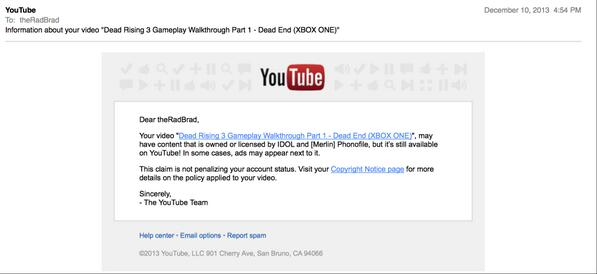
    PC World reports that the site recently activated its Content ID copyright infringement detection system on affiliates of YouTube’s Multi-Channel Networks (MCNs), and the results are far-reaching. Since YouTube updated its terms in an effort to deter copyright infringement, video games channels have received thousands of copyright claims, particularly concerning video games content.

    Video games are (as the name implies) a visual form, so it’s no surprise that video content has grown exponentially in recent years. Both the new Xbox One and PlayStation 4 consoles have integrated support for video output, and the Most-Viewed and Most-Subscribed channel on YouTube belongs to one Felix Kjellberg, a.k.a. PewDiePie, who plays through and discusses video games on his channel.

    YouTube has been an important outlet for game videos because of its affiliate program, which allows content creators to earn money based on their channel views. For the most popular YouTube stars, this can amount to a significant amount of cash—potentially up into the tens of thousands of dollars.

    Until this week.

    Copyright claims

    YouTube’s decision to implement Content ID included affiliates of MCNs (such as Machinima (one of the largest MCNs devoted to games). Game videos are always in a Fair Use gray area—many provide an unedited look at entire hours of a game, with only voiceover commentary added by the video creator. These efforts are easy targets for copyright claims, and publishers have laid down rules about what can be streamed in the past—rules they’ve rarely enforced.

    Polygon reports that some channel operators have already lost up to 15% of their libraries to claims. Copyright claims are particularly damaging because they divert revenue from video views to whoever initiated the claim. You’d guess that the likely culprits in this case would be game publishers. Except the game publishers say no.

    One recipient’s reaction to YouTube’s action

    Capcom, Deep Silver, Ubisoft, and more have gone on record to state that they’ve filed zero copyright claims this week, and Capcom even said it’s fighting over this with YouTube.

    Publishers tend to like it when fans make online video content because it’s free marketing—their games get exposure to enormous audiences, with little effort on the publisher’s part.

    These claims appear to have originated from far weirder sources, which, in some cases, includes companies that don’t really exist anymore.

    Popular games personality TotalBiscuit tweeted, “Apparently THQ is putting out a lot of copyright claims, which is impressive since it no longer exists.” THQ went out of business earlier this year.

    Other channels received copyright claims from third-party companies with no discernible relation to the games in question, but YouTube allowed the claims to go through regardless.

    YouTube, for its part, defended the new system, reiterating that—despite publisher’s claims to the contrary—copyright infringement policies are set by content owners.

    A YouTube spokesman said in an email: “We recently enabled Content ID scanning on channels identified as affiliates of MCNs. This has resulted in new copyright claims for some users, based on policies set by the relevant content owners. As ever, channel owners can easily dispute Content ID claims if they believe those claims are invalid.”

    Implications

    Whether this spells the end of video-games content on YouTube, or whether the system will automatically course correct after a few days of volatility remains to be seen. If YouTube sticks to this path though, it may leave a door open for a competitor to take over games content.

    Judging from the state of Twitter on this subject today (see tweets from theRadBrad and Jim Sterling as examples), some people would welcome a change.

  • How to erase YouTube clutters with AdBlock Plus

    How to erase YouTube clutters with AdBlock Plus

    The introduction of AdBlock Plus add-on has brought about some level of sanity to the nature at which most pages are being rendered. The popular browser add-on is set to extend it’s tentacles a little beyond the blocking of online ads (except for the whitelisted ones) to bringing sanity to popular social networks.

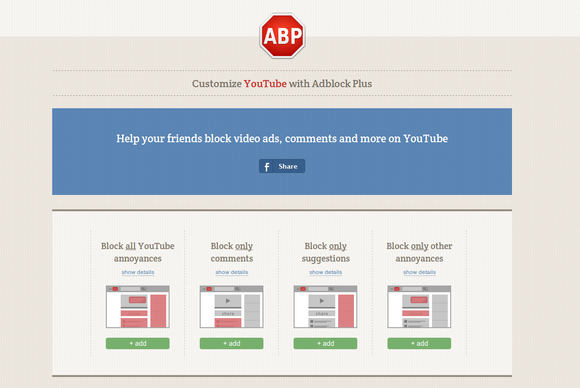
    You Tube of late, has been really annoying; prompting ABP’s editorial pen to introduce YouTube Customizer site, a feature that helps you banish all the bits of the video site that annoy you, while keeping the ones you enjoy.
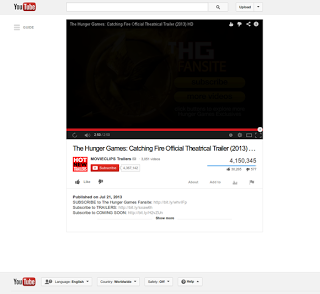
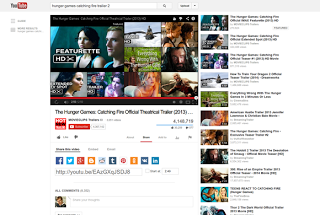
    YouTube Customizer site allows you to control which youtube component you want your browser to render. If you’re generally annoyed with the current state of YouTube you can block everything but the video you’re watching. The list of banished items includes comments, suggested videos, featured and recommended videos in the end screen, the sharing tab in the description, in-video annotations, and channel recommendations.
    Just for the record, that’s a breathtaking list of YouTube cruft and dumping it all may be a step too far for most of us. What good is YouTube, after all, if you can’t waste the afternoon following an endless stream of recommended videos.

    Instead of blocking everything, ABP includes options to only block comments, or only suggestions and recommendations, or only the sharing tab and in-video annotations.

    Getting Started

    To get started, make sure you have AdBlock Plus installed on your browser. If you do not have the add-on installed on your browser, simply download it by clicking on your browser link below.
    Next, just visit AdBlock’s YouTube customization page to start blocking YouTube’s various “features.”
    You could also block some mixture of the above—for example, blocking comments and annotations but leaving recommendations intact. If you have any YouTube pages open after you add AdBlock’s customizations you may have to refresh the page for your changes to take effect. And if you ever want to return YouTube to the data buffet it once was, check out ABP’s instructions on how to remove your customizations.
    Note that your changes only work on the browser where you have AdBlock Plus installed and first added the YouTube filters.