Search results for: “google ”

  • How to configure Firefox address bar with Search Engines

    How to configure Firefox address bar with Search Engines

    Your Firefox address bar can not only be used for opening websites but also for searching as well. Yes, you can configure the Firefox address bar with various search engines like Google, Yahoo, Microsoft’s Live, and Wikipedia etc.
    By default, whenever you type anything in address bar and hit enter or press the GO button, Firefox checks whether the entered string is valid address or not. If it’s a valid address Firefox tries to load corresponding site for you. Now, if the entered string is an invalid URL, it will be submitted to Google Search and search results are returned.

    What if you want to change the Default search engine? Of course, Google is everybody’s first choice search but having said that it depends on person to person. Or, if you have Google Toolbar (that provides inbuilt google search box) installed then you may want to configure the address bar with some other Search Engine.
    The following steps will guide you how to configure your Firefox address bar with Search Engines of your choice.
    1- Open Mozilla Firefox and type in the address bar about:config.
    2- Next type keyword.URL in the Filter box which is appeared after the first step is completed successfully. As you type the above text, the long list will be trimmed down to one line. (You will see only 1 entry (keyword.URL) under the Preference Name section)
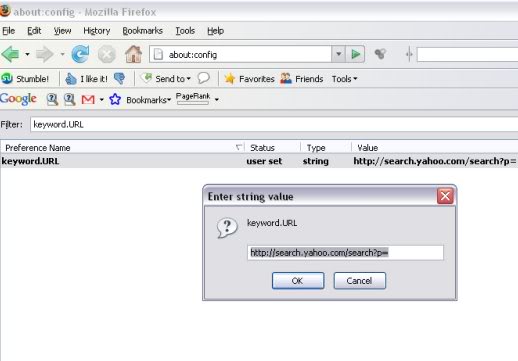
    3- Now right click that single entry and select modify. A box will appear. Refer the image given below.
    4- Choose your Search Engine type and accordingly enter the string value of various Search Engines given below.
    5- There is no 5th step.
    Enjoy!!!
    List of Various Search Engines is as follows:-
    (Copy any of the below strings and paste it into the box that appear in STEP 3 above)
    Default Google Search

    http://www.google.co.in/search?btnG=Google+Search&q=

    Google Search with I’m Feeling Lucky

    http://www.google.co.in/search?btnI=I%27m+Feeling+Lucky&q=

    Yahoo search

    http://search.yahoo.com/search?p=

    Microsoft’s Live Search

    http://search.live.com/results.aspx?q=

    Wikipedia
    http://en.wikipedia.org/wiki/Special:Search?fulltext=Search&search=

  • How to Recover Deleted Pictures and Files from Memory Cards

    How to Recover Deleted Pictures and Files from Memory Cards

    Few days back, a friend of mine has accidently deleted quite a few recent pics from my Nokia N97 Memory Card and she was feeling pretty much disgraced about that. We recently went for an excellent trip, captured all those fun moments in the camera and yes if those memories get deleted, everyone will feel disgusted about that. It is at that time, I googled and finally found a recovery software that not only recovered ALL THE PICTURES from my memory card but also it was absolutely FREE to use as well. Amazing right?

    PC Inspector Smart Recovery is just the right software that can do wonders for you. Believe me, it works perfectly fine although takes a bit of time (when I say “bit of time” that means hours and hours…) to recover all those accidently deleted pictures and files. The software is very easy to use and even if you are not a computer savvy person, you can use it without much discomfort.

    PC INSPECTOR Smart Recovery works with Flash Card™, Smart Media™, SONY Memory Stick™, IBM™ Micro Drive, Multimedia Card, Secure Digital Card or any other data carrier for Digital Cameras. I have tried this software on my Phone Memory Card as well and it recovered all the pictures that got accidently deleted.
    If you have unintentionally deleted or formatted pictures, videos or sound files on your data carrier or have pulled it out during a write operation, no matter – PC INSPECTOR smart recovery can easily, quickly and absolutely reliably reconstruct the lost data. It supports the following picture formats: .jpg, .amr, .tif, .bmp, .gif, Canon .crw , Fuji .raf , RICOH .raw, Olympus .orf (E-XX), Olympus .orf (C5050), Nokia 3gp, Kodak .dcr, Minolta .mrw, Nikon .nef (D1H/D1X), Nikon .nef (D2H/D2X), Nikon .nef (E5000/E5700), Sigma – Foveon .x3f, mp4, QuickTime .mov (Konica Minolta). Video files in .avi, QuickTime .mov format and audio files in .wav, .dss format can also be recovered.
    A Word of Caution – If you have deleted the files by mistake and want to recover most of those, PLEASE STOP TAKING ANY MORE PICTURES from your digital camera or mobile phone. That’s because the more you write new data on your memory card, the chances of recovering old and deleted data becomes less.
    Please let us know if you face any problem in using this software or if you are aware of any other better software for recovering lost data from memory cards, please share that with us in Comments Section below. Also, if you are the one among many who got benefited by this great little utility, please share your thoughts as well.  Awaiting reply…
    Download it for FREE (File Size – 5.8 MB)

  • Submit your Websites to Search Engines for Free (Oxwall, WordPress, Joomla, Etc)

    Submit your Websites to Search Engines for Free (Oxwall, WordPress, Joomla, Etc)

    The inrtoduction of internet to the modern age has really made this age a real “information and technology age”. An age where someone can simply find answers to most problem without lifting a foot.

    Since answers do not show up without being asked search engines plays major role in every person who is searching for answers on the internet hence putting webmasters and bloggers alike in good position to provide those answers.

    Fortunately for this generation, hundreds of websites are been added to the web everyday, making it difficult for search engines to locate and index all this pages in a short period of time. However, you can help the three major search engines locate and index your website quicker by following the links below.

    Google

    Yahoo!

    Bing/MSN