Category: Review

  • Samsung Galaxy Fold: what you need to know about the Samsung foldable Smartphone

    Samsung Galaxy Fold: what you need to know about the Samsung foldable Smartphone

    Samsung has unveiled a foldable smartphone,tablet-like display and would be able to run up to three apps at once.

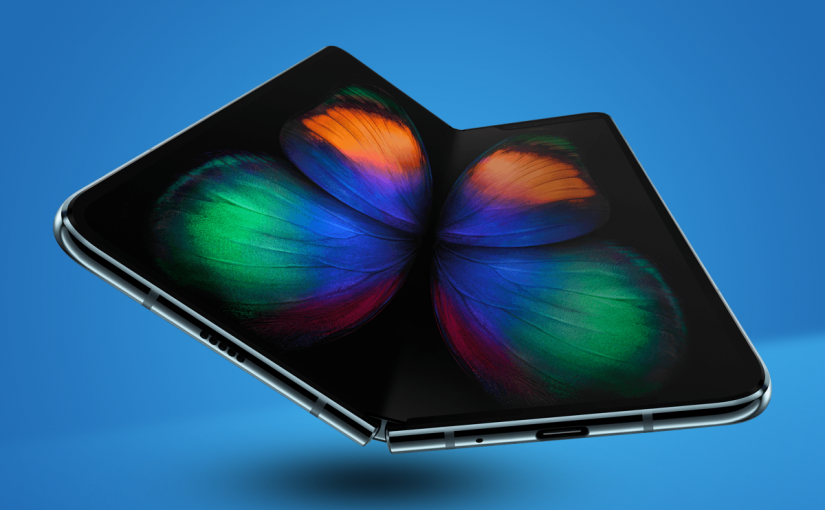
    The design doesn’t just stand out. It stands apart.The highly anticipated Galaxy Fold is a new foldable device that features the world’s first 7.3-inch Infinity Flex Display, which folds into a compact device with a cover display.

    The handset will be available in Space Silver, Cosmos Black, Martian Green and Astro Blue colour schemes.

    Galaxy Fold Release Date and Pricing

    The Galaxy Fold is set to go on sale on April 26, 2019 and will start at $1,980.

    Galaxy Fold Features

    • Android 9.0
    • Power: 4380mAh battery, split over two separate cells. Ready to go all day.
    • Six cameras, one on the cover, three on the rear and dual front selfie cameras.
    • 12GB RAM, 512GB storage
    • 7.3-inch Infinity Flex Display
    • Fingerprint sensor
    • Foldable display, wireless charging.

    Galaxy Fold offers a powerful new way to multitask, watch videos, play games, and chat at once – bringing to life new experiences and possibilities.

  • Portable Drone X Pro with HD Camera Helps you Film and take Pictures

    Portable Drone X Pro with HD Camera Helps you Film and take Pictures

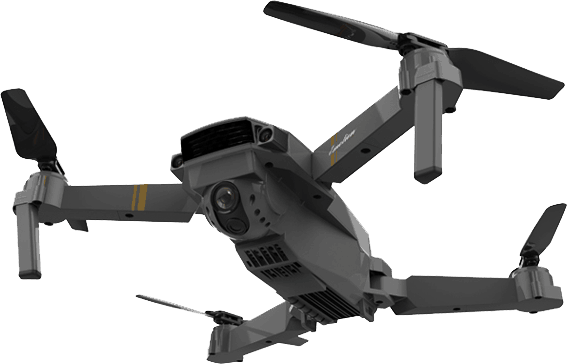
    Drone X pro is a new type of drone made so that anyone can fly it. It is perfect for making the ultimate selfies. It can live stream and record video clips on your phone.

    The main advantages of Drone X PRO are its portability (It will fit into every pocket or a backpack), ease of use, HD camera and price, which goes for $99. It Create videos from different angles and impress you with the coolest selfies.

    How Drone X Pro Works

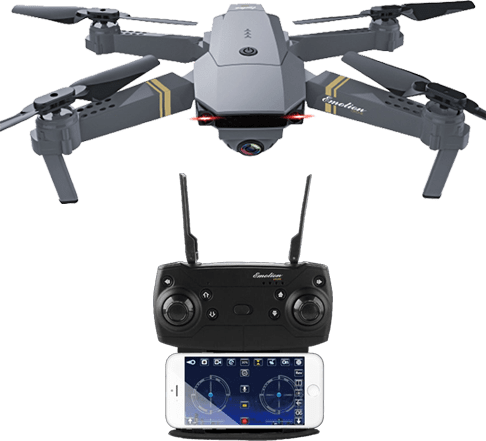
    To operate drone X pro, first, you will need to install an app. Once you have done that, just plug in the battery. You will power it on and then do a one-button touch in order to get it to take off.  Then, you will use a two-joystick remote control to guide the craft.

    Drone X Pro

    The Drone X Pro app will be use to view the camera footage the drone is taking as it flies. There is a pair of buttons on the remote control that provides auto take-off and auto-landing.

    The drone X pro site says it can fly “at a speed of 12 metres per second with a top transmission distance of 2km.”  And can “fly and film for up to 12 minutes, without having to touch the ground or change batteries”

    It also has Sensors that detect the ground and other obstacles and change the flying course automatically to avoid collision

    The drone’s camera has a frame-per-second rate of 120. A frame rate of this speed allows you to turn your videos into slow-motion videos while maintaining quality.

    Drone X Pro Camera Features

    • Can take 12MP photos
    • Has a 120-degree viewing range
  • Gjemeni Dual USB Port means you can now Charge your Devices from the Comfort of your Couch

    Gjemeni Dual USB Port means you can now Charge your Devices from the Comfort of your Couch

    In this era of mobile and internet devices, there is always something to charge and having that extra USB charging port everywhere you go can make such a massive difference. This is why Kingsonsmaking digital laptop bags with USB charging port—and Gjemeni has taken to put those vital utilities exactly where you need them.

    I mean, what better way to charge your device than the comfort of your couch while watching a TV show and replying your WhatsApp messages?

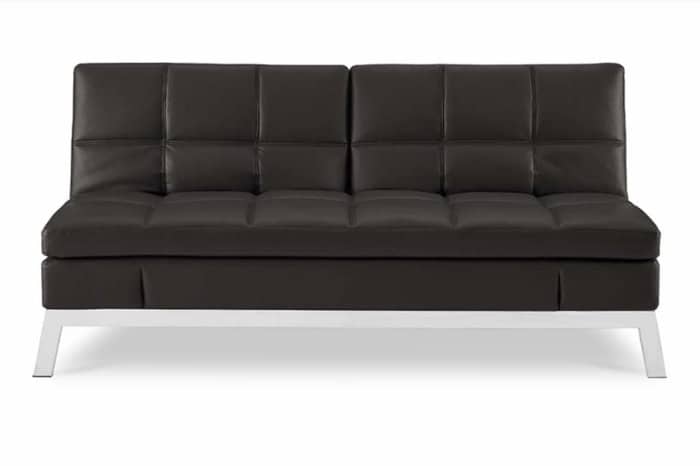
    Gjemeni offers decidedly tech-forward furniture that comes in a single box and can be assembled by anyone in a few minute. It is simple, stylish and innovative.

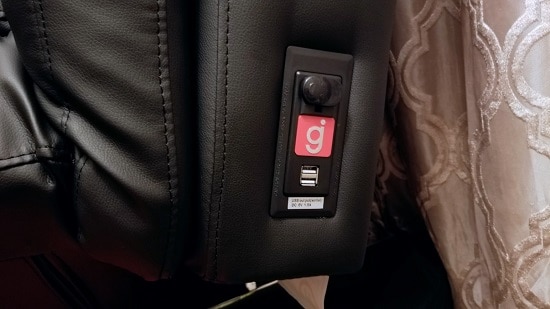
    Gjemeni couch comes with two USB charging ports and one 110-volt grounded AC outlet on each side of its backrest. These ports make it easier for you to charge your phones, laptops, speaker without having to get up and do them.

    There’s one 110-volt AC outlet and two 1.5-amp USB charging ports on each side of he couch’s backrest.

    The couch is priced at $599. You will need to plug a single cord into a grounded outlet on an adjacent wall to power everything. Gjemeni couch is flexible, durable, and comfortable. It can be used as bed as well.

    Accord to Gjemeni, to set up, no tools required. Just four clicks and a flip and your Gjemeni will be ready. This couch also comes in different colors; black, white and red.

    The only downside is that, the USB ports are rated to deliver 1.5 amps of power; as such, they are not capable of fast-charging devices that support that feature.

    Some of the advantages of Gjemeni Dual USB Port Couch

    • Well made with a steel frame and layered memory foam
    • Bonded leather is easy to clean
    • Dual back and side adjustments make it very versatile
    • Safely produced AC and USB ports on each side for up to six devices
    • Looks modern and chic

  • Plan your Week Ahead: 7 Must Have Android Applications for the Week

    Plan your Week Ahead: 7 Must Have Android Applications for the Week

    Happy Sunday to all EWT readers! This is the 7th month of the year and I hope everything’s going according to plan? If it’s not, it’s not too late to start afresh. One of our major objectives this year is to provide you with valuable information that will help you reach your ambitions in as much as it is tech related.

    Regardless of your social class, occupation or belief this apps will help you manage your weekdays effectively and subsequently giving you a memorable week in the end. Keep your eyes fixed as we take you down the stream.

    Pheed –Download

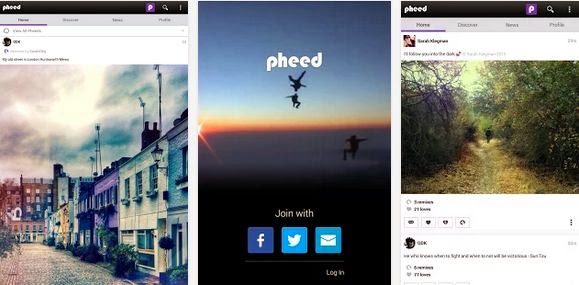
    The more I think of Sunday is the more I think of social networking. What other way would you rather spend a cool Sunday evening aside saying hello to your co-workers, leaving a voice note to your classmate or even sharing your awesome videos, musics and photos with your distant family and friends? Pheed is the Android application that lets you achieve all this without lifting a foot.
    The free social networking application lets you share voice-notes, musics, videos, photos and text with your followers.

    Magisto Video Editor & Maker –Download

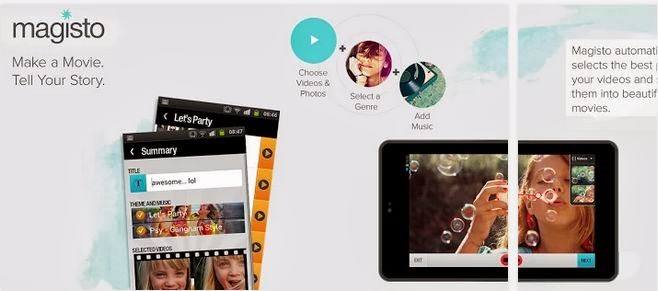
    A free app to quickly convert video clips and photos into awesome editable movie; you can add your custom background music, graphics and movie effects.

    Binu –Download

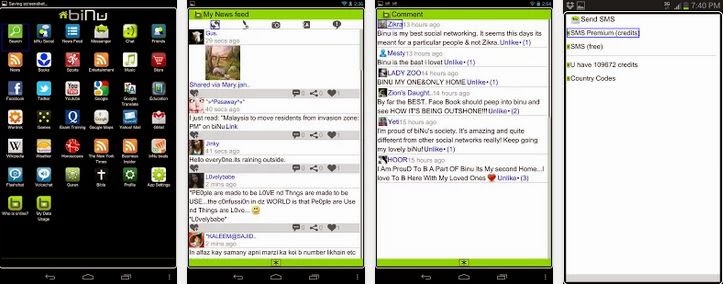
    Imagine having everything you need in one app. This is what Binu is all about. The application serves as a valuable resource for news in your locality. You can also add links to your favourite news website and the app gives recent updates from the websites you have added.
    Binu has an in-built chat messenger, 15 credit to send SMS to any phone number globally, sport news resources, dictionary, bible, quran, wikipedia, etc. The application is free, very portable and easy to use.

    OfficeSuite Pro 7 (PDF & HD) –Download

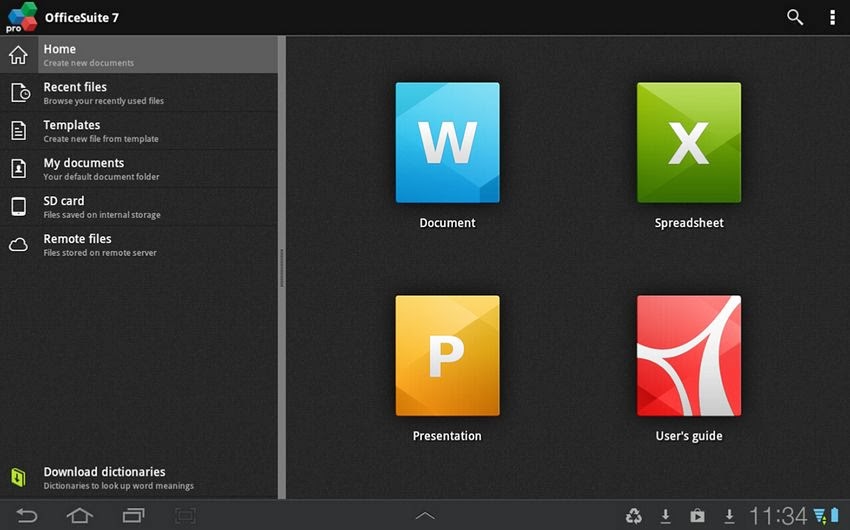
    Talking of having a mobile branch of your office, all it takes is $14.99 – OfficeSuite Pro allows you to view, create, edit, print and share Microsoft Word, Excel and PowerPoint files on the go. You can also open attachments and see PDF files on an Android based phone or tablet with our feature-rich mobile office solution.
    OfficeSuite Pro includes a File Browser and integration with Cloud service leaders: Box, DropBox, Google Drive, SkyDrive and SugarSync to give users a multitude of options on how to manage files and attachments.

    Callist – Call manager –Download

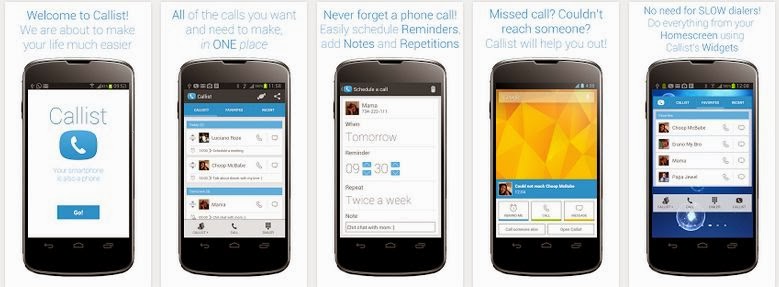
    With the great features of smartphones we often forget that it is actually a phone. Callist Call Manager ensure that you don’t miss that important call you want to make. With the application you can keep a list of the people you want and need to talk to, schedule call reminders, add notes and repetitions, add to, delete from and organise your Callist with simple touch gestures, call, text and email your favorite contacts and contacts you recently talked to.
    The application also deliver after call pop ups e.g. If you had a missed call or you could not reach someone Callist will show you a popup from which you can easily add a call reminder directly into your Callist (Can be done automatically, if you’d like).
    Above all, this app is free, ads-free and easy to use.

    Friday: Automated Journal –Download

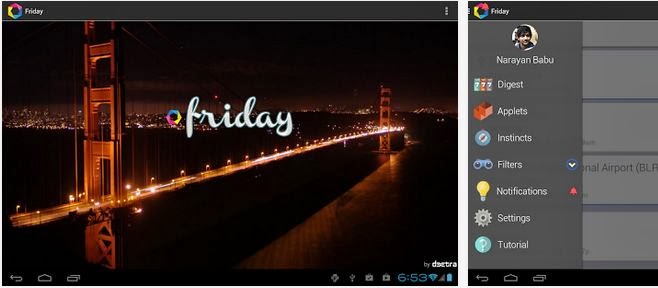
    This application will take note of all your activities this week: The people you talk to, the places you visit, the images you capture, and the songs you listen to, etc. And like your brain, it initiates thoughts and ideas for you, it helps you remember information and tries to anticipate adequate actions.

    Camera ZOOM FX –Download

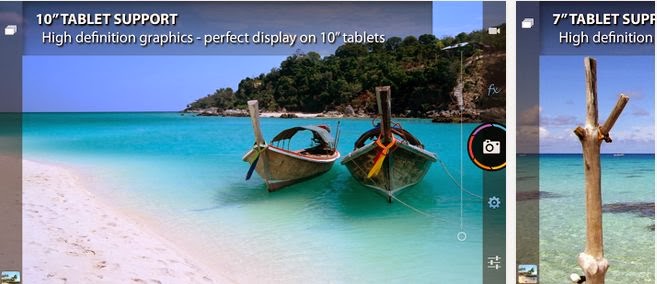
    Do not loose this app: You will need it at the weekend. Camera ZOOM FX could easily be the best replacement for the N5 camera application which lacks a lot of options like 16:9 highres shot for example. It takes only $2.95 to preserve that decent memory. If Camera ZOOM FX doesn’t sound like a great app to you, you might as well hang on to any of the awesome camera app that made our best android camera app list.
  • 6 Must Have Android Apps for Science Students

    6 Must Have Android Apps for Science Students

    The festive period is almost over and it is my believe that you have already made arrangements to live a healthy live, have a good time and enjoy a prosperous life in this new year.

    In less than two weeks from now it will be ‘back to school’ for every college student. As usual, you have made your usual commitments; top your class, be the smartest kid on board or even eyeing a spot in any of the ten ‘2014 scholarships to study abroad’ watch list. I’m also aware that most of you have gone through the games that rocked in 2013 and have decided to take your hands off the gaming pads.

    If you have made any of the above resolutions, I am here to show you how to work towards them using your Android smartphone. Sit back, get a pen and let me walk you through the top six Android apps that you need as a science college student.

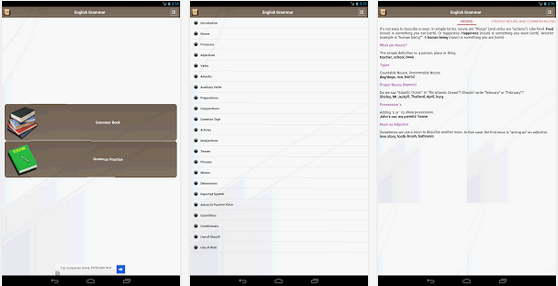
    English Grammar Book –Download

    Master the use of English language. Slate’s Matthew Yglesias recently complained that far too many people in the U.S. don’t know how to read English, in a speech intended to oppose President Obama’s “learn programming” mandate. Whether you are a student or you just want to improve your use of English Grammar  this free Android app will help you achieve your goal.

    Pocket Physics –Download

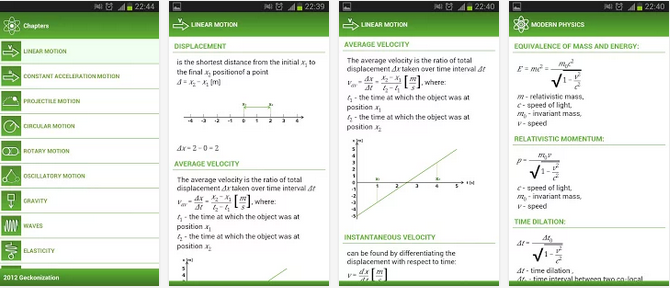
    You don’t want to carry a gigantic physics text book to everywhere you go to but you can always carry your Android smartphone around and with this application in it, you can rock Physics from anywhere and anytime.
    The application covers most of physical formulas with descriptions and images. It is perfect for students to do physics homework quickly and accurately.

    MathHelper: Algebra & Calculus –Download

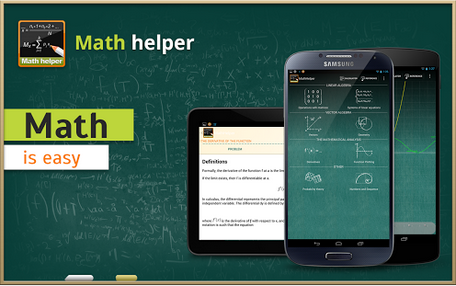
    Though this app will cost you a cup of coffee but $3.63 is enough to save you from your algebra & calculus hassles.
    Math Helper allows you not only to see the answer or result of a math or algebra problem, but you can also obtain a detailed step-by-step solution so that you may learn how to do the problems rather than just getting the answers.

    Biology Dictionary –Download

    If you don’t know what for example enzymes means, then this is a great choice. ;). Just avoid as many pop up ads as possible, you really don’t blame them for embedding so many pop up ads, do you? It’s a great app for any student offering biology as a subject or course.

    Chemistry Helper –Download

    Nice to brush up your knowledge on chemistry and is indeed very helpful. Includes a periodic table with links to wikipedia also allows students to perform simple grams/moles calculations, calculate mass percents and do stoichiometry with that compound.
    The application arrays variety of useful tools arranged in tabular forms. The tabular forms are easy for quick remembrance.

    Scientific Calculator –Download

    At the end, you need a scientific calculator – not the one in your school bag rather a portable version you
     can carry around in your smartphone. Convert your smartphone into a calculator with this free application.
    The ball is now in your court. What other application do you think we should have listed here? Tell us in the comment section.
    Images were extracted from Google Play Store.
  • My [condensed] experience with Windows 10 so far…

    My [condensed] experience with Windows 10 so far…

    On November 11th, 2015, “TH 2” was released for Windows 10 users to download and install. Basically, TH 2 (using the abbreviation for the Windows 10 nickname ‘Threshold‘) is the first big update for the still in-development OS. The update came with an abundance of things, for both the personal user, and DEFINITELY for enterprise users. So, given this I figured it would be appropriate to share a condensed rambling of my experience with Windows 10 so far.

    Using their Media Creation Tool, I downloaded and installed the first release version of Windows 10 onto my then Windows 8.1 HP laptop, excited to see all of the new features it boasted. I grabbed it sometime near the ending of July or beginning of August. After the semi-painful several hours it took to download and install, I was ready to become a user! Here I am now in November, and at the moment, I feel…slightly impressed.

    Don’t let my words fool you to think I dislike the operating system – trust me when I say Windows 10 is definitely one of my favorites of the Windows Family! I was also very excited for its free download release and was super excited to setup my personalization, settings, and Start Menu. However, after having plenty of time to be more than acquaintances with the OS (and with the TH 2 update), I’ve began to realize that, at the moment, my personal experience with Windows 10 Home has fallen a bit short of my own expectations.

    Since I like to discuss negatives (well, these or more less “personal opinions” rather than “cons”) and then the positives, I will do just that; and since I’ve had a good deal to experience with the system, I’ll try my best to condense the experience report.

    1 – Start Menu & Taskbar

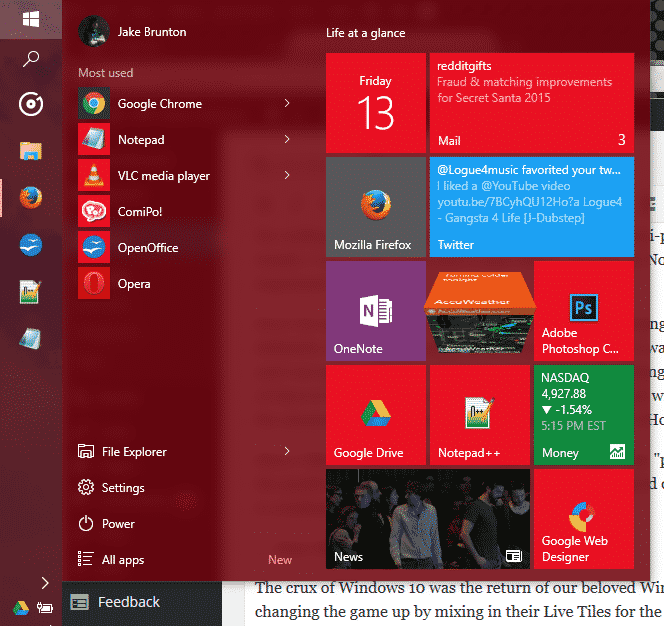
    EWTWIN10_1The crux of Windows 10 was the return of our beloved Windows Start Menu. However, Microsoft was changing the game up by mixing in their Live Tiles for the Windows Store Apps to be placed in up to 3 columns on the right side of menu. It was all great, and worked quite well. Design options are well fitted, and since TH 2, the context menus for changing up your Live Tiles are grand. But on the technical side, I find myself feeling slightly encumbered by the Start Menu.  Simply put, it has its glitches and little bugs, but the one that caught me the most is that amount of time it takes for my machine to open this awesome and modern menu up. About 0.90 seconds approximately. As for the taskbar, it still has that pesky universal problem of sometimes keeping hovered icons focused on even without your mouse hovered over it.

    2 – Windows Store Apps

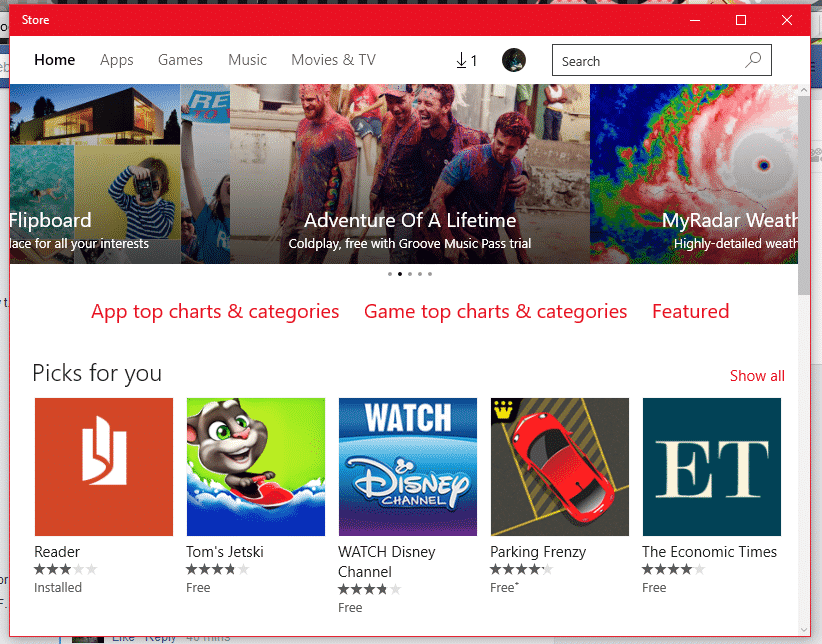
    EWTWIN10_2This is pretty much my other problem with my Windows 10 experience so far. The Windows Store offers a bunch of apps, no doubt; unfortunately only a good handful of them here and there and designed nicely and work with the system and its available APIs and standards. But the recurring problem I have here is one I’ve had since standard Windows 8. A lot of the time, apps from the app store like to either 1)close themselves immediately (and not just close, but end their own program and task(s)) and/or 2)be unresponsive (especially when communicating with servers).

    3 – Windows Search

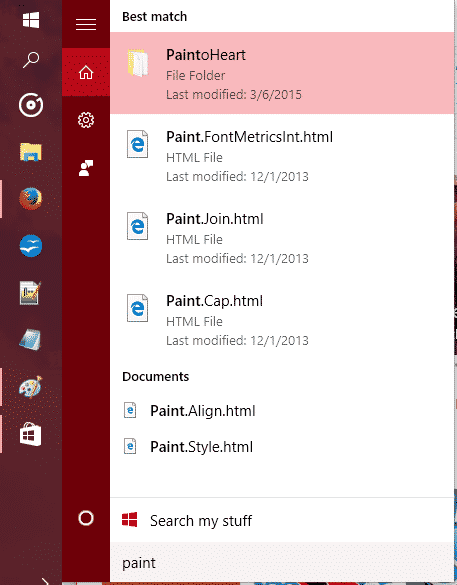
    EWTWIN10_3The new search has Cortana so you can search (and now even Send Text Messages!) with your voice. It’s all great and good. However, Cortana still stands for some good improvements, and the actual search stands for some major improvements.

    So, out of everything, those three points are the ones that have caused the most hindrance on my experience as a whole. There are other little things I come across sometimes that takes some small jabs to that ‘hype’ I had for Windows 10 as a whole, but they’re easy to look over.

    On the flip side, I still love Windows 10 so far, and love the TH 2 update. It is my favorite Windows OS to date, and it DOES have so much goodies with it. The whole Start Menu and Live Tiles, despite their usual buginess, are great altogether! And while I don’t use the feature, Cortana and the voice commands are very convenient for quick search, note taking, emailing, events, and even calling/sending texts. Faster boot times are something that is great, along with improved programs performance, virtual desktops, an activity center, and tablet mode – Windows 10 is definitely a budding operating system.

    The improved performance has helped me boost my productivity, though I will not lie when I say that the discovery of Flow Free and a third-party reddit app has held me accountable to some good procrastination. So, at the moment I recommend upgrading to Windows 10 if you have 8.1/8/7 if you want to try it out while the update is still free. If you end up disliking it, they give you a one-month use on their rollback tool to switch back onto your old OS.


    Make sure to follow EWT Net for more news and blog posts related to Microsoft, and Windows 10!

  • Top 10 messaging apps for your Android Wear watch

    Top 10 messaging apps for your Android Wear watch

    Google has certainly beefed up the feature set of Hangouts on Android Wear since launch, but just because Hangouts is the default messaging client on most Android phones doesn’t mean it’s your only option for messaging from your wrist.

    There are plenty of great messaging apps with their own Android Wear modules. Let’s check out the best ones.

    Coffee

    Coffee is an interesting app because it’s an SMS client designed exclusively for Wear. The phone side is only used for configuring settings, adding quick responses, and organizing your contacts. Messages that come in on your phone are displayed on the watch with cool quick-reply features. The watch app includes dozens of pre-configured quick-reply snippets, but you don’t have to scroll through them all. They’re split up into categories, and similar statements are grouped together so you can build a reply in a few taps. There’s also voice input, of course. All the same messaging options are available if you want to send a new message from the watch—just open Coffee and select a contact.

    Coffee (free)

    Skype

    You won’t (thankfully) be doing video calls on your watch any time soon, but the Skype app has support for messaging on Android Wear. You’ll need to be logged into the Skype app on your phone and have it running in the background, but you can reply to all your messages from the watch. Replies are handled by voice, canned responses, or by drawing an emoji.

    Skype (free)

    WhatsApp Messenger

    WhatsApp is one of the most popular messaging services in the world, as evidenced by the more than 1 billion installs it has on the Play Store. WhatsApp was fast to add Wear support after Google’s wearable platform launched last year. Messages show up in full on the watch, and you can reply by voice. There’s no dedicated wearable app to select contacts or conversations, so all your messages have to be initiated by voice.

    WhatsApp Messenger (free)

    WearResponses

    Unlike most other messaging apps for your wrist, WearResponses doesn’t try to take over for your main messaging app. Instead, it grafts new capabilities onto the existing SMS reply functionality. Android Wear still doesn’t have customized canned replies for SMS, and that’s what WearResponses provides. You simply add your desired text to the app, and when messages arrive on the watch via WearResponses, they’ll have your custom text as quick reply options. It’s best to turn off Wear notifications for your default SMS app so you don’t get duplicates. The free version limits you to three custom responses, but the $2.99 paid version is unlimited.

    WearResponses (free / $2.99)

    Wear Messenger

    The tiny screen on your watch is not very conducive to typing, but Wear Messenger makes the experience not terrible, which is probably the best you can hope for. This app has a full wearable app that can be launched at any time to see all the active conversations and type out new replies with one of several keyboard options. You have to enable the keyboard in the phone settings app—the best one is FlickKey You tap or swipe each block of letters to get the ones you want. It’s not fast, but it’s feasible to shoot off short messages entirely from the watch. Wear Messenger also has full notification text and voice replies. It will cost you a little under $2.

    Wear Messenger ($1.62)

    Facebook Messenger

    Despite the sorry state of the main Facebook app, the Messenger client is actually quite well-supported. Facebook Messenger notifications on your Android Wear watch have full text previews, as well as the ability to respond by voice or by drawing an emoji. Want something more immediate? Next to the reply button is one that just sends a thumbs up emoji.

    Facebook Messenger (free)

    Telegram

    Telegram is a lot like WhatsApp in that it serves as a data-based replacement for SMS, but it’s free, open source, and end-to-end encrypted. It was also quick to add support for Android Wear, which entails expanded notification text and the option to reply via voice or by drawing an emoji. There’s no standalone Telegram app in the Wear launcher, though.

    Telegram (free)

    Messages for Android Wear

    You want a full QWERTY keyboard on your watch? That’s what you get with Messages for Android Wear. It’s not as insane as it sounds, and this app has a ton of functionality for sending and reading your SMS. When messages arrive, you can view not only the current one, but the entire conversation via the wearable app. If you reply, there’s a voice option or a scrolling keyboard with text prediction. It’s possible to tap out a few words when speaking to the watch or using your phone isn’t an option. A $1.49 upgrade adds canned responses, a custom signature, and more.

    Messages for Android Wear (free)

    Evolve SMS

    EvolveSMS is a full-featured SMS app for your phone, but it also has a great Android Wear client. It’s available in the app list and shows you all active conversations. Replies are handled only by voice—no fancy (or awkward) keyboards here. EvolveSMS also supports expanded message text on the watch when new messages arrive, and instant voice replies. The app is free, but if you want features like backup and themes, it’s $3 via in-app purchases.

    Evolve SMS (free)

    Google Messenger

    Hangouts has SMS support, but Google also (for some reason) has a dedicated SMS app. I’m willing to forgive the overlap, though, because Google Messenger is fantastic. It doesn’t have a full Wear app in the launcher, but notifications on the watch have an expanded conversation view and the ability to reply by voice or with a quick response. It even has MMS image preview. Like all other Google apps, Messenger is free.

    Google Messenger (free)

  • Sony Xperia Z3 – Cons, Pros and Why You Should Own One

    Sony Xperia Z3 – Cons, Pros and Why You Should Own One

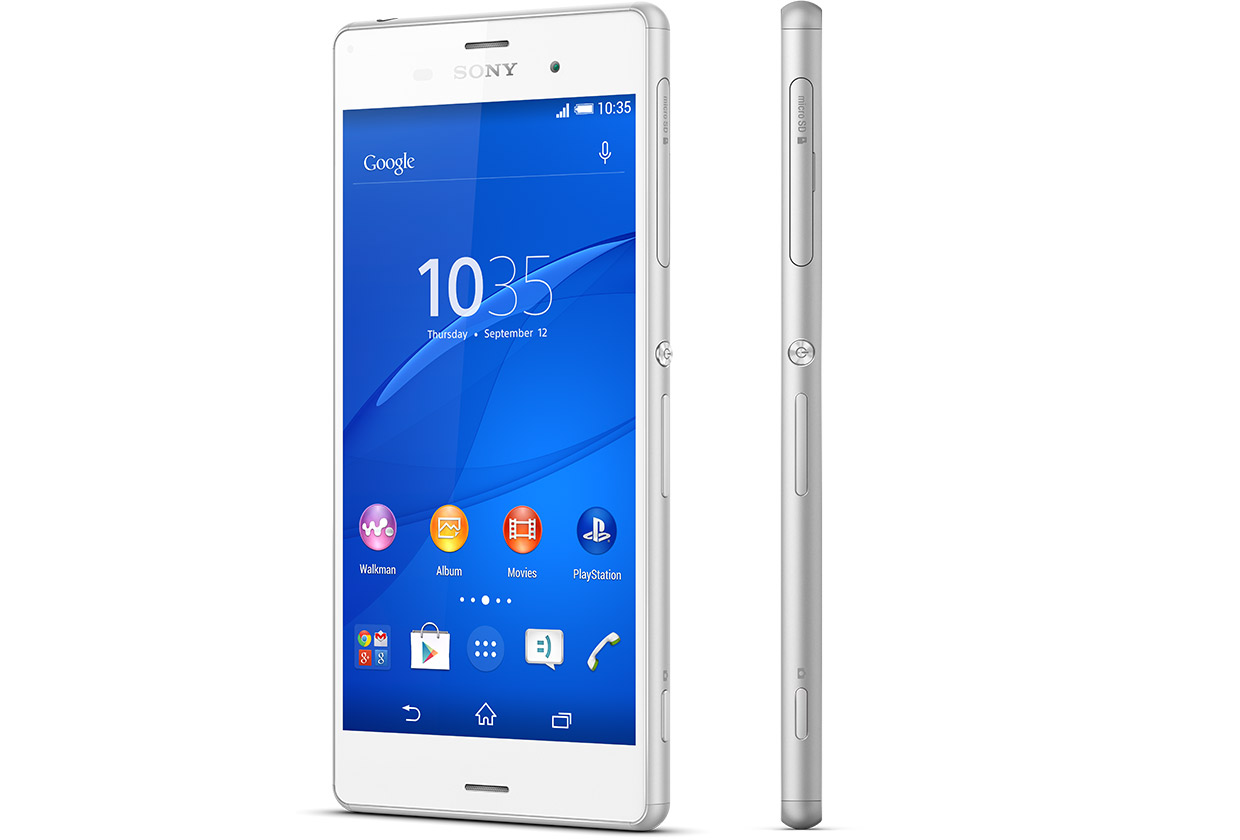
    Sony is set to make a difference in our in world today by bringing about the newest smartphone Xperia Z3.

    The high competitions between reputable phone companies had driven Sony into researching and coming up with the latest Sony Xperia Z3, that has the latest premium design and highest waterproof rating capacity. the Xperia Z3 is the premium smartphone that does more by making life more easy and comfortable.

    A premium smartphone

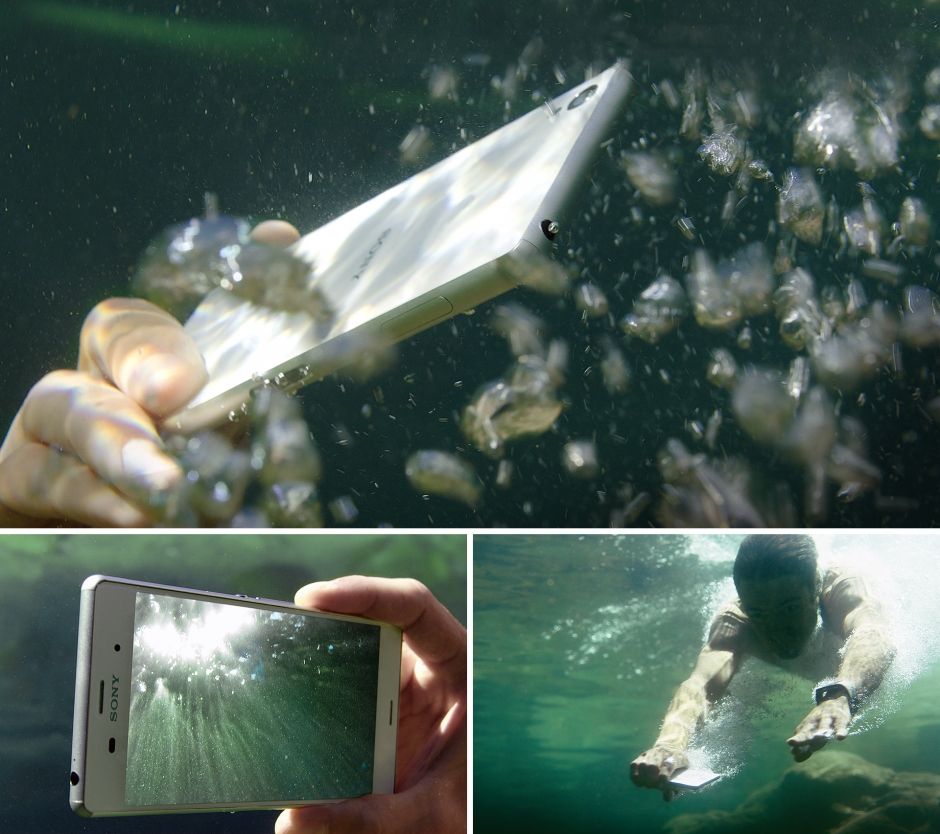
    This phone has been designed to withstand water for over 30 mins. Today you dive into pool on a hot sunny day, running when it’s raining, taking pictures in a downpour or underwater or wipe your phone when an unexpected spill occur, without considering to drop your phone or with the fear that it’s going to get damaged.


     In compliance with IP65 and IP68, the Xperia Z3 is protected against the ingress of dust and is waterproof. Provided that all ports and covers are firmly closed, the phone is (i) dust tight and (ii) protected against low-pressure jets of water from all practicable directions in compliance with IP65; and/or (iii) can be kept under 1.5 m of fresh water for up to 30 minutes in compliance with IP68. 

    Use the Xperia Z3 in the rain or in the pool

    Do you want to make great pictures and videos even better?

    You can unleash your creativity with our widest ever choice of unique Xperia camera apps. It’s our best smartphone camera yet, to make sure your memories are as vibrant as real life.

    PS4 Remote Play

    Xperia Z3 is the only phone with a PS4 game. The Xperia Z3 matches the latest gaming with the best Sony technologies. With a super-bright display and digital noise-cancelling technology, immersing yourself in your game has never been easier.


    Products Highlight


    • GSM / 4G LTE Capable
    • 20.7MP 1/2.3″ Exmor RS Camera Sensor
    • 25mm Sony G Lens + BIONZ Processor
    • 2.5 GHz Quad-Core Snapdragon 801 Chipset


    Additional Features


    • Performance battery life offering up to 2-days of regular usage
    • HighAdreno 330 GPU
    • Display Technology: TRILUMINOS Display for Mobile, Live Color LED, X-Realty for mobile, IPS display
    • Display Construction: Durable tempered glass
    • Sensors: Accelerometer, ambient light sensor, barometer, game rotation vector, geomagnetic rotation vector, gyroscope, magnetometer, step counter, step detector, significant motion detector, proximity
    • Playback/Record Supported Format: 3GPP, MP4, AVI
    • Compatible with the Sony Game Control Mount and wearable tech watches

    Sony Xperia Z3 can be purchased from Amazon or any retail store near you. To see more details or purchase this item, click here.

  • Ultraportable ASUS Transformer Book – Review & Spec

    Ultraportable ASUS Transformer Book – Review & Spec

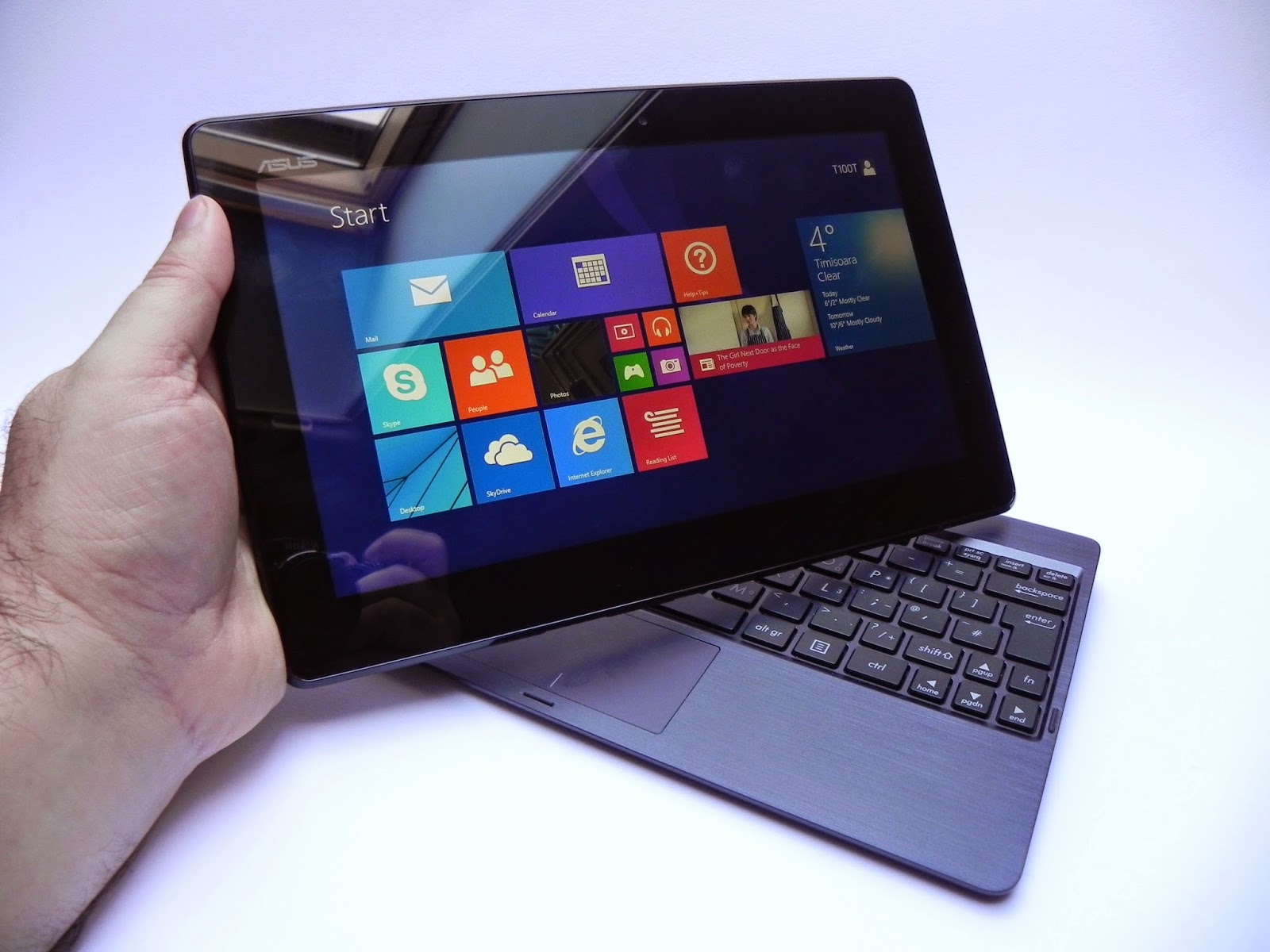
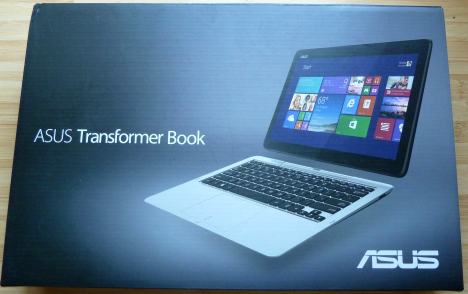
    The Asus transformer Book T100TA is a beautiful ultraportable 10.1-inch tablet  with Windows 8.1 pre-installed.

    You can detach the tablet to work and play anywhere, dock to enjoy the comfortable keyboard, smart gesture-enabled touchpad and advanced connectivity. Style, power and convenience. this beautiful device Transformer Book T100 is sleek, slim and also light — measuring less than 1 inch thin and a mere 2.4lbs docked.

    When you need to travel even lighter, simply detach the 10.1-inch tablet and you’re all set to go, with full sized keyboard which can be used on tv screens, stream and watch from a distance with family and friends

    Key Specifications

    • 10.1 inches Display Screen with a Max Screen Resolution of 1366 x 768 pixels
    • 1.33 GHz Atom Z2760 Processor
    • 2 GB DDR3 RAM
    • 64 GB Hard Drive
    • Intel HD Graphics Graphics Coprocessor
    • Bluetooth Wireless Device
    • 1 USB 2.0 Ports
    • 1 USB 3.0 Ports
    • 11 hours Average Battery Life (in hours).
    • Windows 8.1 Operating System
    • 1 pounds Weight
    • 1 x 1 x 1 inches Dimensions L x W x H
    • 64.0 Flash Memory Size
    • 1 RPM Hard Drive Rotational Speed
    • No optical drive
    • 1 Lithium ion batteries required. (included)

    Purchase this product from Amazon

  • Android 5.0 Lollipop Review: Yet another OS Android Developers will Love

    Android 5.0 Lollipop Review: Yet another OS Android Developers will Love

    Yes, you heard right! Google has decided to put an end to the speculations of a new Android OS and officially pulled the curtain on its new OS version Android 5.0 Lollipop. 

    Two days ago, the company announced the release of a new Android version 5.0 Lollipop on their official blog – An OS designed to “work on all your devices and to be customized for you the way you see fit.”

    Android 5.0 Lollipop featured image. Credit to Google official blogspot
    Android 5.0 Lollipop featured image. Credit to Google official blogspot

    Android has a face only an engineer could love. At least, that’s the reputation it has earned over the past few years. Google’s mobile OS is a hotbed of mobile innovation and new technologies, but its interface doesn’t have the friendly consumer-centric design of iOS or Windows Phone. With Android 5.0 Lollipop, Google aims to overhaul this shortcoming, while baking-in a handful of nifty new features.


    Google stated that “Lollipop is designed to be flexible, to work on all your devices and to be customized for you the way you see fit.” That may be true to some extent but the plastic surgery is incomplete. While iOS7 is easily identifiable by its flat bright colors and lightweight fonts, and Windows Phone carries on with Live Tiles, the Lollipop interface has no single recongnizable trait. Yes, it’s flatter and brighter, but what isn’t these days? Worse, the redesign seems pushed out the door too early. Scratch beneath the surface, and you’ll find built-in apps and menus that haven’t been udpated to the new look. There’s a lot to like in Google’s name-branded OS release, but this sweet treat isn’t quite ready to be unwrapped.

    New Cosmetic Look

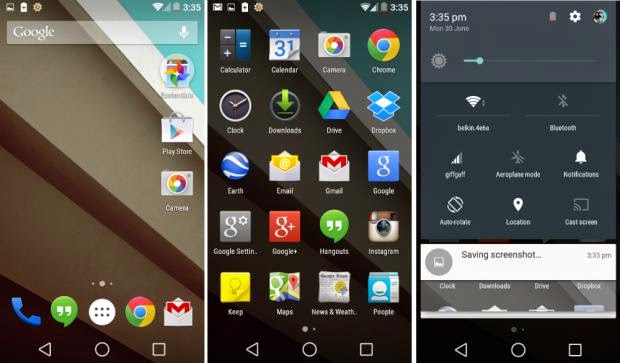
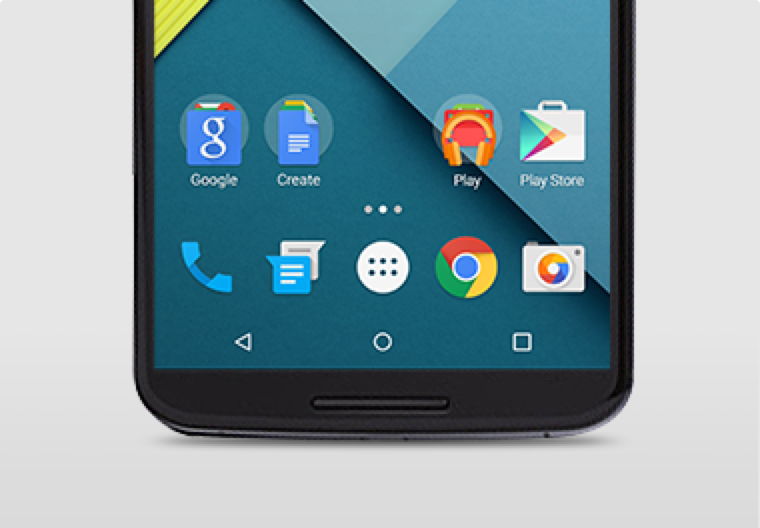
    Android 5.0 Lollipop has a new vibrant look, otherwise called Material Design. Google has finally ditched the traditional look of the Android soft keys at the bottom of the screen and has adopted something rather more stylish.

    New Soft Keys. Image by Knowyourmobile
    New Google Now Launcher. Image by Android

    The “Home” symbol is now a circle, while the multitasking menu is a square. The back button is a reversed arrow that looks like it has been lifted from a 1980’s tape player or VCR unit. It’s quite a drastic change and does take some getting used to, especially if you’ve been using Android since day one.

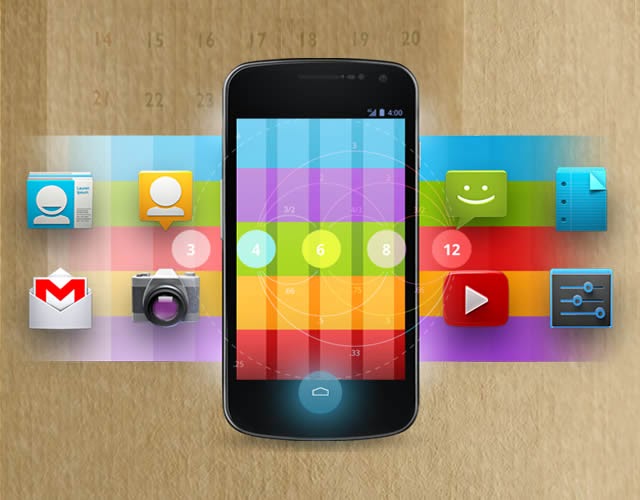
    The new OS is also bundled with a new launcher. A clean, simple, customizable home screen that comes with the power of Google Now: traffic alerts, weather, and much more, just a swipe away.

    Extensive Battery Life Saver

    Android L brings with it Project Volta, Google’s attempt at giving developers more visibility on what aspects of their apps are draining the most juice. While it’s early days here, the majority of the apps we tested had not been configured to make use of Volta, it’s a solid move by the Big G, as it gives you a more accurate indication of how long your phone is going to last and what apps are sucking up most power.
    Another nice touch is that when you’re charging your phone, you’re told how long it will take for the battery to be fully topped up. While we’ve perhaps not spent enough time with Android Lollipop to get a complete picture, it did seem to give our Nexus 5 more stamina than KitKat.
    Finally, we have Battery Saver mode. How this works is simple, although the service isn’t anything particularly new – plenty of OEMs already build similar features into their hardware. The idea here is to conserve battery life, so when your battery hits a certain percentage, you can set the Battery Saver mode to kick in and throttle the performance of the phone to ensure that juice lasts a little bit longer.

    Newly Improved Notification & Lock Screen

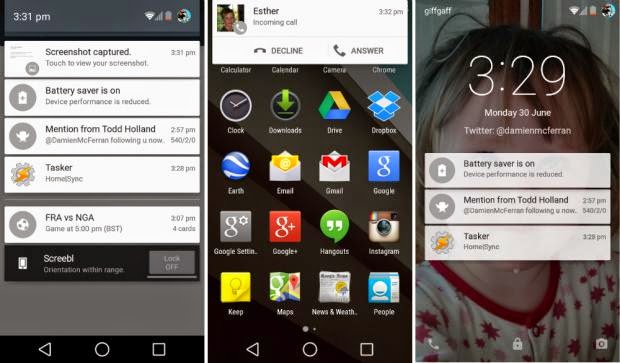
    This is perhaps the biggest area of change in Android Lollipop. Notifications have undergone a complete overhaul, and now look a lot like Google Now’s card-based system. Notifications are displayed directly on the lock screen, and tapping a card allows you to unlock the device and jump straight to that area. You can even expand cards to see more details, such as a list of emails, with the phone still in its locked state (If you don’t like the idea of people being able to snoop on your personal messages then you can enable a feature which locks away the detailed info).
    Newly improved notification and lock screen. image by Knowyourmobile
    It’s a very clever move by Google, and one that brings you even closer to the content you need on your handset. Even if you have a security lock in place, the fact that you can tap the notification you wish to see, unlock the phone and then leap straight into the relevant information makes the whole process seem a lot smoother. You can also swipe away and dismiss notifications without actually unlocking your device.
    When the phone is unlocked, notifications can be displayed by sliding a finger down from the top of the screen. Rather than showing the data in a slide-down panel, as was the case in previous versions of Android, a series of cards flow over the top of your current view, which can be seen behind the cards at all times. This “flowing” cascade of cards is set to be one of Android L’s most striking visual changes. As before though, the slide-down notifications panel has two stages: your finger swipe shows notifications, while a second swipe pulls down the quick settings menu.
    While Google is giving notifications a face-lift, it’s also making them less obtrusive. If your phone is unlocked and you’re involved in another activity, such as browsing emails or playing a game, the call details appear at the top of the display. You can accept or reject the call without having to pause what you’re currently doing. Another welcome addition is the Do Not Disturb function, which you can quickly enable to stop you being bugged by your phone.
    However, Lock-screen widgets have been removed entirely, so if you’re a fan of browsing your emails without unlocking your phone, then you might be disappointed.

    Lollipop is Pretty Good & Tasty

    From its list of features, Lollipop sounds tasty, and Android 5.0 is certainly a step in the right direction. Its interface is bright and inviting and the newly added secondary features like “People” app and a new Dialer application should help make stock Android even more consumer friendly. You also have top-level access to Google+ and Google Now, so there’s no excuse not to take advantage of Google’s most hottest features.
    A lot of popular phones will get upgraded to Lollipop in the next couple months, though Google has recently launched Nexus 6, Nexus 9 and Nexus Player, all powered by Lollipop. Hopefully by the time Lollipop makes its way to your device, Google will have tied up some the loose ends—adopting the new design in all of its core apps and consolidating the myriad of new settings. Or, it can continue to torture us like it did with Kitkat by making only incremental changes to the entire Android package with each release, spacing out core app updates by months.
  • Sony Xperia Z2 – Review, Spec & Images

    Sony Xperia Z2 – Review, Spec & Images

    Sony’s smartphones rarely get the credit they deserve in the U.S. market. With the exception of a few, the company’s smartphones are usually limited to unlocked and online sales only, which doesn’t help them gain consumer mindshare. It’s unfortunate, as Sony has crafted some impressive phones, and it’s latest flagship, the Xperia Z2, is no different.

    At $700, the AT&T and T-Mobile-only smartphone is going to be a non-starter for some people. Still, the Xperia Z2 is just as good as any other top-tier smartphone today, featuring a solid camera and great design, imbued with Sony’s unique style.

    Sony Xperia Z2 key specifications

    • 5.2-inch display with a resolution of 1080 x 1920 pixels
    • Quad-core 2.3 GHz Krait 400 processor
    • 3GB RAM
    • 16GB of internal storage, expandable up to 128GB via microSD card
    • 20.7 MP rear camera
    • Shatter proof glass
    • Android OS, v4.4.2 (KitKat)
    • Non-removable Li-Ion 3200 mAh battery
    • 2G, 3G, 4G, Wi-Fi, Bluetooth 4.0, Wi-Fi hotspot
    • Micro SIM support

    A solid performer

    Just about every aspect of the Z2’s design has been changed for the better.

    The Xperia Z2 has “flagship” written all over it. Shipping with a 5.2-inch 1080p HD Triluminos display, 2.3GHz quad-core Qualcomm Snapdragon 801 processor, 3GB of RAM, and a 20.7 megapixel camera, it seems as though the smartphone will still be a viable option well into the next year.

    Rounding out the specs, the Z2 comes with the usual suspects: Wi-Fi, aGPS, NFC, Bluetooth 4.0, and a large, 3,200 mAh (embedded) battery to keep you powered up.

    The Z2 has slimmed down compared to it’s older brother, the Z1. Sony managed to throw a larger display in a slightly thinner narrower frame by shrinking down the oversized bezels found on its predecessor. The one area that the Z2 has grown in is height: it’s almost 3mm taller than the Z1.

    The layout of the Z2 is basically identical to the Z1. Ports remain in the same place (complete with lanyard holes), though the Z2 has a few tweaks that go a long way. First, the speakers have been moved to the front, which will make watching videos on the Z2 that much better. They don’t produce the same stellar sounds as the HTC One (M8), but it’s still miles better than most smartphone speakers today.

    Sony introduces digital noise cancellation with the Z2, which requires the included MDR-NC31EM headphones. Also available separately for $60 at the Sony Store, the packaged headphones are just another perk you’ll get with the Z2.
    Star of the pool party
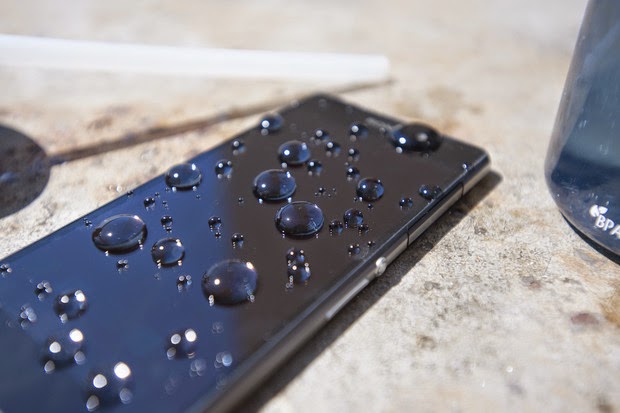
    Thanks to its water resistance, you can be assured that H20 is no match for the Z2.

    Sony was one of the first of the major OEMs to add water and dust protection to its flagship smartphones. The Z2 continues in this tradition with an IP55/58 rating, allowing it to be submerged under 5 feet of water for up to 30 minutes. This is a great trend among manufacturers, and the Z2 is somewhat functional while submerged: you can use the camera underwater, thanks to the dedicated camera button.

    A downside to all of the water resistant powers of the Z2 is that most ports have big flaps covering them to protect from water getting in. It’s a necessary evil, I suppose, but it’s not terribly elegant.
    A significantly improved display over the Z1

    The Z2 ships with Sony’s Triluminos display, but now includes the addition of Live Color LED tech, which vastly improves the vibrancy of colors, viewing angles, and contrast. While not comparable with OLED, the blacks are blacker and colors pop more.

    Sony’s X-Reality imagine processing engine returns to enhance your viewing experience for movies. By analyzing almost every aspect of an image, the engine will fill in missing pixels, sharpen edges, and boost the richness of colors, even with low quality video. For the most part, it does a good job at enhancing video, but it can also, at times, be a bit too intense. If you find that it’s not to your liking, you can always disable the optional feature.
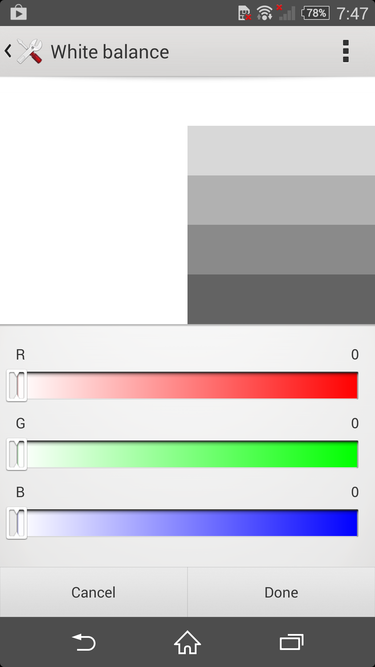
    Whether you’re seeing red or want to cool it down, you can change the white balance settings on the Z2 easily.

    The default white balance of the Z2’s display is spot on in my opinion, but Sony will let you tweak it to your heart’s content in the display settings. So, if you want to give your screen a warmer or cooler look, you can do just that. The display settings also give you the option to enable the Glove Mode and Tap to Wake features, which are self explanatory, and pretty great.
    Omnibalance is still a beautiful design aesthetic
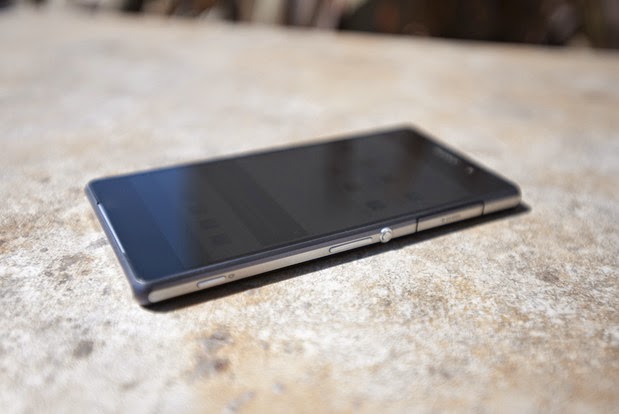
    The Omnibalance design on the Z2 is ultra minimal.

    Despite the larger-than-normal bezels on the Xperia Z and Z1, I’ve always admired Sony’s Omnibalance design approach. The subtle design language may look underwhelming to some, but it strikes a nice harmony between industrial and modern design.

    From the two glass panels on the front and back to the one-piece aluminum frame that holds them together, the Z2 not only looks like premium hardware, it feels great in the hand. While the glass on both sides of the phone are certainly fingerprint magnets, the cold smooth feeling of glass will always best any polycarbonate casing.

    While the glass panels on the Z2 feel nice, they also give off the feeling that the phone is fragile, because, well, glass breaks. The metal frame surrounding the smartphone certainly won’t protect the glass, so you might want to get a case for the Z2 if you don’t want to treat it like an antique.

    Sony managed to shrink the bezels on the Z2, which also allowed them to increase the size of the display without adding too much heft. It’s is still a large phone, though. Just slightly taller and narrower, the Z2 is in line with the size of the LG G3, which comes with a larger, 5.5-inch display.
    The best of Sony is found in its software
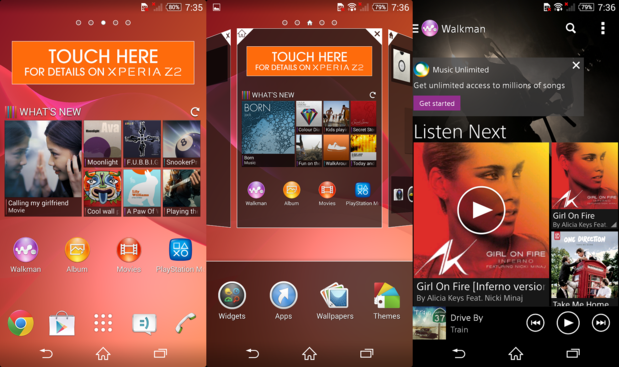
    The software on the Z2 is a nice blend of Sony and Android in an easy to use package

    Sony’s custom user interface for Android is one of my favorites because it’s not overwrought with useless customization. It’s a unique take on the Android operating system that uses some of the design values Google suggests, along with a many of it’s own, which makes for an interesting experience.

    The Z2 ships with a custom user interface that’s wholly Sony, and has an elegance to it that a majority of the other OEM skins lack. It’s quite apparent that some of the UI elements are influenced by the PlayStation, which I enjoy. The default live wallpaper and touch sounds seem to be ripped right from the PlayStation 3.

    Like most OEMs, Sony provides its users with a handful of its own apps, like Albums, Walkman, and Movies. The music and movie apps are tied into Sony’s ‘Unlimited’ services, so you can purchase content right within the apps. Of course, you’ll still have access to everything the Google Play Store has to offer.
    An impressive but inconsistent camera
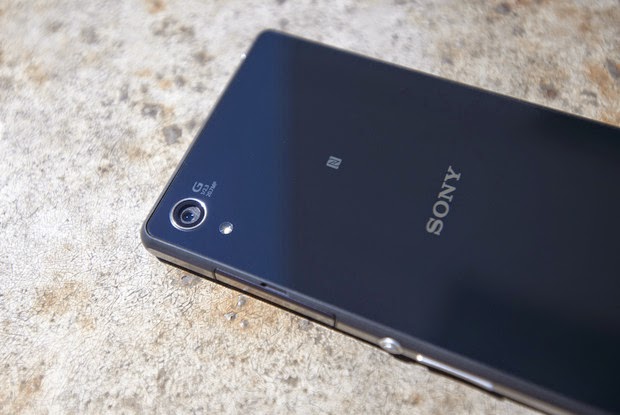
    It’s not perfect, but the 20.7 megapixel camera can produce beautiful shots.

    The 20.7 megapixel camera on the Z2 is almost identical to the shooter found on the T-Mobile Z1S, with one exception. The camera on the Xperia Z2 can record 4K video.

    There are a handful of different modes you can choose from in the camera software. From the useless but fun AR Effect to modes like Timeshift, Vine, and the great Superior Auto mode, you’ll have a good time with all of the Z2’s camera features. However, if you think you can combine these modes with the 20.7 megapixel shooter, you’d be wrong. Unfortunately, most of the nifty modes can only be used when the camera is set to 8 megapixels or lower.

    Even with some great optics in the camera, the photos from the Z2 can look pretty soft at the edges and tend to be grainy. Focusing is also an area that the camera struggled with. Taking a picture of a paper cup a foot away from me, the Z2 either never focused and reset or was completely blurry.

    Like most modern smartphone camera, the Z2 performs very well in good lighting. Compared to the G3, the color representation was more accurate, with LG’s flagship oversaturating the overall image. It performs well in low-light, too, though the softness at the edges and graininess returns.

    Overall, the camera on the Z2 is quite the performer, and can take one of the best shots you’ve seen on a camera one second, then produce an average photo the next.
    All day and all night battery

    Thanks to the massive 3,200 mAh battery powering the Z2, this is a smartphone that should last longer than the competition. In our HD video test, the Z2 squeeze out just over 10 hours of playback while in airplane mode with the display set at 100 lumens. Not only will this give you ample real-world use time, but you’ll also be able to take advantage of Sony’s low battery and Stamina mode to get you through the tough times when you don’t have a charger on hand.
    It’s not too late to love this phone
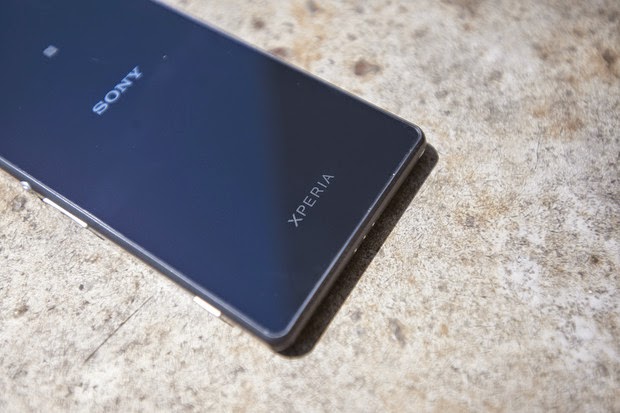
    The glass panels add to the premium design of the Z2.

    I really like this phone. In fact, had I not recently purchased the G3, and the Z2 was available on AT&T, it might be in my pocket. I can live with the big port covers and the sometimes finicky camera, as the whole package is still very appealing. Of course, if it were in the market this second, I’d struggle with buying the Z2 and waiting for the next Xperia flagship, coming this fall.

    There are a few caveats to purchasing a Z2, and they have little to do with the phone itself. With IFA right around the corner, there’s a very good chance that Sony might unveil the Xperia Z3.

    The other elephant in the room is the fact that the Z2 is only available online, unlocked, and unsubsidized, for $700. That’s a hard pill to swallow. Of course, this is how much smartphones actually cost, allowing you to live a real contract-free life, and not some “on-contract” carrier payment plan that locks you in for a couple years.

    Overall, if you like Sony’s style and have the money to burn for an unlocked phone on T-Mobile or AT&T, the Z2 should be on your list to check out.
  • Mercury mTAB Star M831G Tablet – Review & Spec

    Mercury mTAB Star M831G Tablet – Review & Spec

    Mercury mTab Star m830G Dual Core-1.2GHz (1GB RAM ,8GB HDD, 3G), Dual SIM 7-Inch Android Tablet

    COMMENT: Mercury might not be biggest name in the tablet segment but are set to make a statement with their new 7 inches mTAB Star tablet.

    NIGERIA – As the competition within the tablet segment continues to rage, SamsungTecno and the big guns manufacturers are lining up new and improved models of their existing stock. Not only are they, in most cases, manufacturing less expensive devices, but others like Kobian, are also loading on the features and trying their hardest to maintain a competitive price structure. Kobian launched their first Mercury Tablet the mTab, back in the tail quarter of 2011. It proved to be just above average, however, in the budget tablet division, while keeping the price under N30, 000 ($185.29). Their latest announcement is of the upgraded version of the same device only now infused with 3G capabilities and dual SIM support.

    The Mercury mTab Star M831G features a 7-inch display with a resolution of 1024×600 pixels. The device is powered by a 1GHz dual core Cortex A9 processor and is based on the MediaTek chipset. It comes with 1GB of RAM and 8GB of internal storage that can be expanded up to 32GB with the help of a microSD card. It runs on Android 4.2.2 Jelly Bean. The tablet is encased in a metal body and weighs 400grams.

    The tablet comes with Dual SIM card support complete with voice & video calling functionality. The tablet is far from being the ideal device for explorers and vacationist as it can only boast of a 2.0-megapixel rear camera with LED flash and a VGA front-facing camera. Connectivity options on the tablet include Wi-Fi, Bluetooth, Micro-USB, HDMI and 3G. While also supporting tethering & hotspot. Other features include a 3.5mm audio jack, built-in speakers, Flash 11 support and SGX531 3D graphics engine. The tablet includes a 3000mAh battery.

    The device will be sold out for around N21, 995 – N25, 000 in most retail stores and less than N21, 000 in online stores such as Jumia.

    Mercury mTab Star key specifications

    • 7-inch display with a resolution of 1024×600 pixels
    • 1.2GHz dual core Cortex A9 processor
    • 1GB RAM
    • 8GB of internal storage, expandable up to 32GB via microSD card
    • 2.0-megapixel rear camera
    • VGA front camera
    • Android 4.2.2 Jelly Bean
    • 3000mAh battery
    • 3G, Wi-Fi, Bluetooth
    • Dual SIM support

    In the Pack & Rooting mTAB Star M831G

    When you open your brand new device pack, you will find the following items:

    • 16 pages user manual
    • A USB data connectivity cable
    • Battery charger
    • USB tablet adapter
    • A pair of cable headset
    The tablet comes with Whatsapp, Temple Run, OfficeSuite & Angry Bird pre-installed. Of course, to ensure master control of your device you might consider rooting it. We have tried the Kingo Rooting software and it works perfectly for this device.
  • Unlocking your Android Phone could be that easy with Device Unlock App

    Unlocking your Android Phone could be that easy with Device Unlock App

    Recently, Obama granted smartphone users the freedom to unlock their devices and T-Mobile has made this  freedom even more remarkable with a new Android app that lets you unlock your smartphone with one click or maybe two.

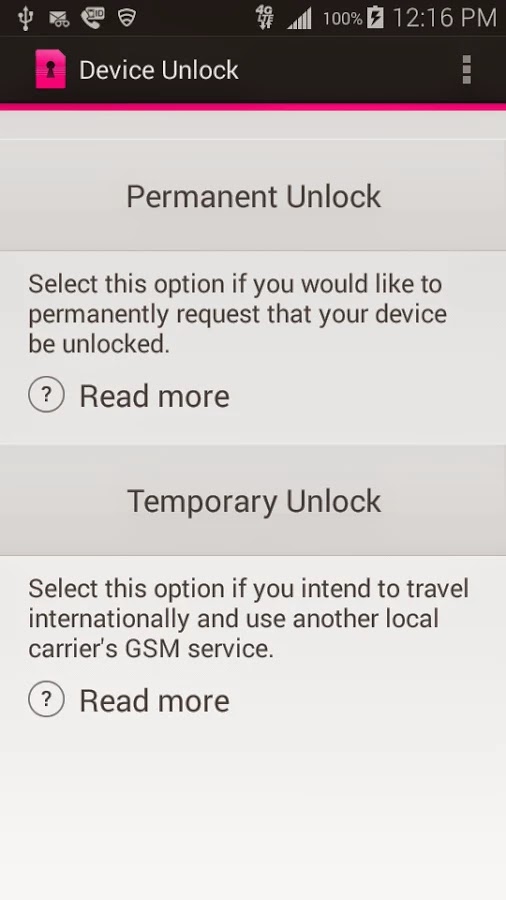
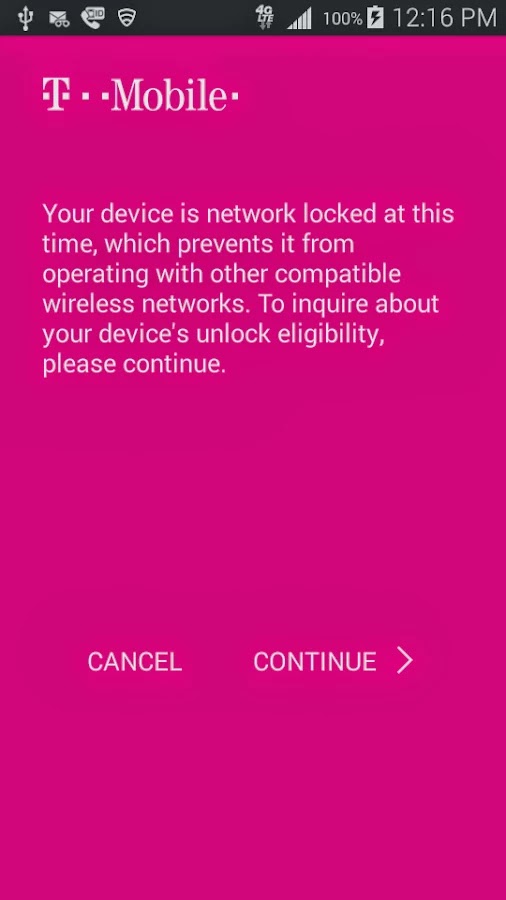
    Device Unlock is an application that allows you to request and apply a Mobile Device Unlock directly from the device. For many of you Android users out there, you probably know your way around, but there are many out there with tied-down phones who have no idea where to start. And since unlocked phones are basically a civil liberty for the time being, T-Mobile plans to help them.

    Note: Unlocking your smartphone is completely different from rooting your Android device. For walk-through on how to root most Android devices, kindly read: 3 Steps to Root any Android Phone with 1 Click

    A Coin of Two Sides

    The Device Unlock App offers you two options: one that permanently unlocks a device, for those who want complete freedom from the carrier, and a temporary unlock, which frees the phone for 30 days so you an use it overseas. The permanent unlocking option will check to see if your device is actually eligible for it before it completes the process.

    The Downside

    While the functionality of this app remains flawless, the limitation of supported devices remains the Achilles heel: So far, the application may install successfully on devices like T-mobile variant of the LG G3 but only works on Samsung Avant devices as clearly stated on the Play Store description. This has earned it a number of criticism among Android users in the Play Store. However, according to TmoNews.com, the US’s fourth biggest carrier is working on an app that lets its users easily unlock their phones with the literal touch of a button. It’s a really smart idea, and it’s probably how the carrier plans to appeal to all the novice smartphone users out there.

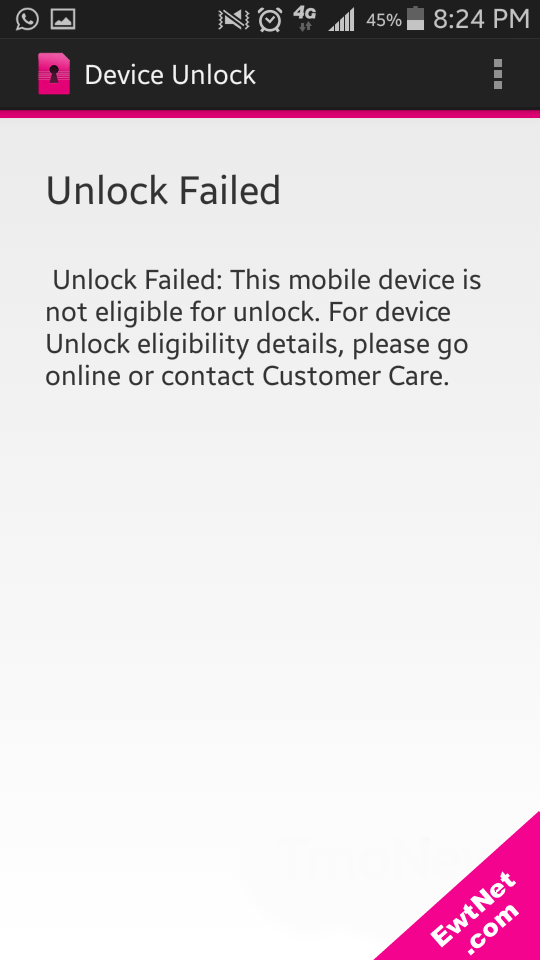
    When unlocking is unsuccessful an alert pops up with details on why the your unlocking failed (See screenshot above).

  • Entourage to Outlook Converter – Worth Tool to Change MBOX Files in PST Form

    Entourage to Outlook Converter – Worth Tool to Change MBOX Files in PST Form

    MBOX Converter is an apt solution that can be used as an Entourage to Outlook converter though the application works only on Windows Operating System, whereas Microsoft Entourage is an email client that was developed for Macintosh OS 8.5 and higher. But the release of Entourage has been discontinued with the release of ‘MS Office for Mac 2011.’ Rather it can be said that ‘Outlook for Mac’ or Outlook 2011 has replaced Entourage mail client that was developed specifically for Mac systems.

    Here in this page we will be reviewing MBOX Converter version-2.1 and check into the useful attributes of the tool that makes it suitable to be employed as an Entourage to Outlook converter; that requires the conversion of MBOX files to PST format. But before we exactly go for the inspection of the software it is necessary to know how to perform transition from Entourage to Outlook for Windows, with the assistance of the application.

    How to Migrate and Access Entourage Mail in Outlook?

    The tool whose performance is being examined in this page converts MBOX files to PST format and also functions only on Windows OS instead of Mac. The Entourage folder structure is stored at the following location in Apple Macintosh OS X:
    ‘Hard Disk Name/Users/user_name/Documents/Microsoft User Data/Office 2008 Identities/Main Identity’
    Therefore, to use the tool as Entourage to Outlook converter, following steps need to be followed:

    1. Copy the Main Identity folder to a Windows system because when this is practiced, MBOX files are created for individual mail folders.
    2. Import the exported PST file in Outlook mail client once the conversion of MBOX files to PST format is complete by running/ executing the software program.

    Installation Prerequisite

    The application seeks some basic minimum system requirements and they are:

    System Requirement SysTools
    Support Windows 8.1 & Below versions
    Available Hard Disk Space 10 MB
    Processor 1GHz
    Memory (RAM) 512MB

    Acquaintance with Some Key Attributes Of the Converter

    • Scans the emails in short span of time
    • Previews emails along with attachments
    • Can merge multiple MBOX files into single PST
    • Can create single Outlook PST file for each MBOX data file
    • Outlook installation is not needed to convert MBOX to PST form
    • Can convert multiple MBOX files to PST/EML/MSG format in bulk
    • Both demo and full version of the converter is available

    Detailed Description of Characteristic Features of the Software

    • Exports MBOX File In Bulk – The tool has the exportation potential of converting and exporting multiple MBOX file all together at a time in batch.
    • Multiple Forms Of MBOX File Backed – MBOX file is an ordinarily used format created by a number of mail clients in different forms such as .mbox, .mbx and MBOX file without any extension. The application backs all these MBOX file forms.
    • 2 Conversion Choices Except Outlook PST – MBOX files can also be exported in 2 different file formats such as EML and MSG excluding PST format.
    • Supports Different Mail Clients MBOX Files – The tool has the ability to convert about 17+ email clients (e.g. Entourage, Thunderbird, etc.) MBOX files to MS Outlook PST, EML and MSG file type.
    • Capability To Create Multiple PST File – While converting MBOX to PST file type, the Entourage to Outlook converter provides two different options so as to create either single or multiple PST. Note – With ‘Create single PST file’ option, all MBOX files can be merged into a single common PST file whereas with ‘create multiple PST file’ choice one PST file can be produced  for each MBOX file.
    • Files & Folders Selectivity Choices – Either all or selected Entourage emails can be converted and exported to Outlook PST or other supported formats.
    • Various File Naming Convention Available – When exporting emails, the software provides alternative to choose an appropriate naming pattern to save each email. The different file naming patterns that are available are: Save as subject, DD-MM-YY, DD-MM-YYY, MD5, Auto incremental and many more.

    Demo and Full Release Comparison

    Almost all features explained above are provided in both the demo version and full version. Though there are some exceptions in the demo edition which is provided for trial purpose so that the execution of the program is well known before purchasing the license. The comparison is shown in form of the table given below:

    Features Demo Version Full Version
    Auto Scan MBOX files Yes Yes
    Preview MBOX emails with attachments Yes Yes
    Windows 8 & below versions supported Yes Yes
    Advanced Naming Convention No Yes
    Export MBOX file as PST, EML, MSG No(Limited) Yes

    It is inferred from the comparison table that demo version of Entourage to Outlook converter does not fulfill the exportation of all emails if the number of emails is more than 25. Also naming convention feature is not enabled in free edition. Thence, to avail all the facilities, license of the third party application has to be purchased.

    Activation Key Of Full Versions: Personal License, Business License, Enterprise License

    Extended Client Assistance

    To make the users completely satisfied with the product and to assist users Chat as well as Email optionhas been provided to the customers. Users can log on to: www.mboxtooutlook.org and avail the facilities 24*7.

    • Chat – Clients can chat with the support technicians to clear their doubts or any uncertainties.
    • Email – Clients can drop a line at: [email protected]
  • Launcher 8 for Android Review: Turn your Android into Windows 8

    Launcher 8 for Android Review: Turn your Android into Windows 8

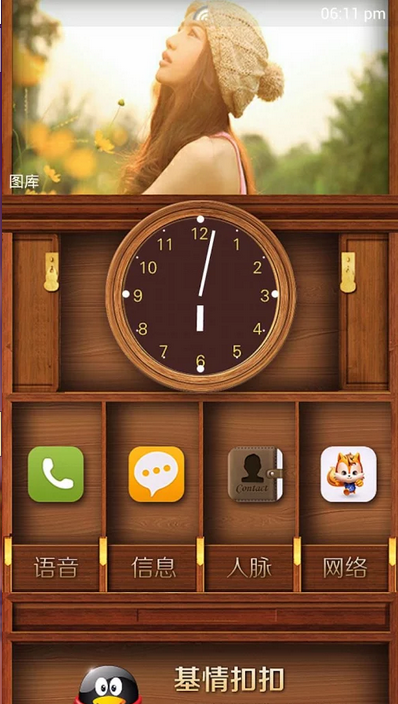
    Launcher 8 (fake wp8) is a Android application that turns your boring, dull Android home UI into a fluid, mock-up UI of that of a Windows 8 phone! Developed by the QiHang Team, this application has been downloaded over 5 million+ times, and really turns your Android into something else! Now, I (Jake) of EWT will go into detail of my review and thoughts of the app!  

    Installation

    The installation process is very easy, smooth, and simple. Just download from the Google Play Store, install, and press your home button and set Launcher 8 as your main action for “Home.” Wa-la! There’s no hacking, modding, or rooting needed to install this application.   Installation is very simple, great work there.  

    New UI & Logics

    The app’s added new ui and logics is very helpful and astonishing! After installation, you instantly have the power of an Android phone with the look and options of a Windows phone. There are many themes users have made that you can effortlessly download and install, or you can customize yourself!   You can add/edit/remove tiles, re-size, and even use special “widget” tiles that are included in the app. You can bind your installed applications to tiles, change individual tile background colors, names, and more. This application truly gives you control over everything! It also is programmed to work with certain apps, such as SMS, Phone, and Facebook – showing the number of new notifications, missed calls, and new SMS messages. It’s very convenient! The app also has a setting for a customizable lockscreen, which completely overrides the default Android lock screen – you can add custom backgrounds, change the layout, etc to it and add a password. The only problem with the lockscreen in this app is if you had a lock screen set up on the default Android UI before this installation, applications like “Camera” and such will not work correctly, and pressing your Home button will try and take you to the original Android lock screen rather than the Launcher 8 lock screen.    You can, however, fix this by simply going to System Settings -> Security -> Passwords and turning off any locks, pins, etc. You can set your lockscreen pin for Launcher 8 in the Launcher 8 settings.  

    Effect on Battery

    One of the main, if not the only, downside to this application is the power consumption. You’ll be loosing more and more phone battery life every 2 to 3 minutes even if you’re in idle mode. However, the QiHang team brags that their Pro version is more power efficient. This application really does take a toll on your battery life, my Android has been on the charger more then often since the install.   

    Final Thoughts

    I believe this is a great Android application for those who want the power of Android/Google products but the look and feel of a Windows product. It has great potential, and I believe it would be even more widely popular if the free version was less battery-consuming. It could use some literary work (the grammar for settings are poor), and some of the ads are a bit mis-placed and annoying, but all around it’s pretty amazing and I’m sure to never uninstall it!  

    Final Rating

    Price When Rated:

    $2.58Free

    Our Rating: 4.5

    Requires Android:

    2.0 and up

    Content Rating:

    Low Maturity This is a great app, and does everything that it says in it’s description. However, there is room for improvement and the battery drainage is what really kills it from being 5 stars.

    Pros:

    • Complete customization; Easy to customize to your liking
    • Downloadable themes; For those living in the fast lane
    • Beautiful and fluid; Includes smart widgets and is beautiful with live tiles
    • Free with minimal ads, and many options and settings to configure

    Cons:

    • Drains the battery of your device VERY fastly
    • Lockscreen issues occur if you have the default Android lockscreen already set up
    • Can be a bit laggy once you first boot up your Android

    Download So, what are you waiting for? Go download Launcher 8 now, you won’t regret it!

  • Become Ten times Smarter with Android Smart Tools

    Become Ten times Smarter with Android Smart Tools

    Have you ever thought of making your smartphone much more smarter than it is?

    Going outdoors or camping, but not knowing exactly where to start? Or you just want to feel secured with a full suite of tools covering lots of different things – measurements of all sorts, flashlights and more?

     Smart Tools has everything you might need in your day-to-day life! On more than one occasion, this awesome android app has got me out of a traffic jam, so it comes highly recommended.

    Smart Tools Version 1.7

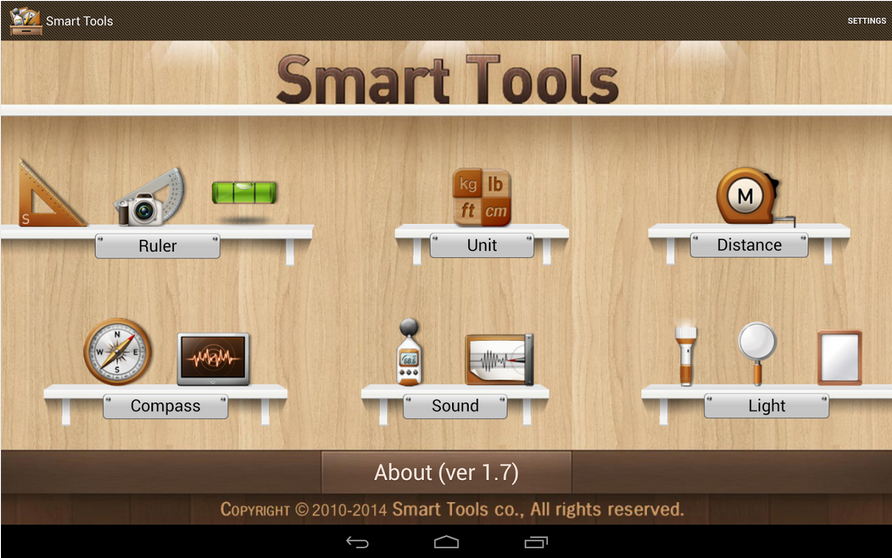
    The latest version of Android Smart Tools comes with 5 Pro sets for a total of 16 tools. In a word, All-in-One

    • Set 1: Length, Angle, Slope, Level, Thread – Smart Ruler Pro 
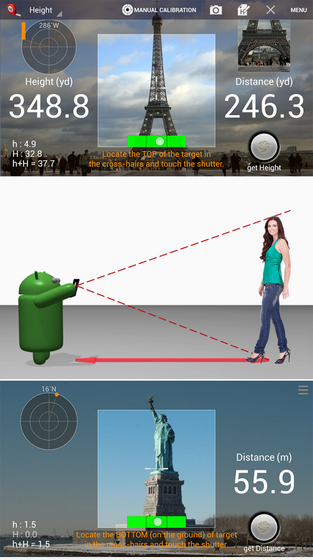
    • Set 2: Distance, Height, Width, Area – Smart Measure Pro
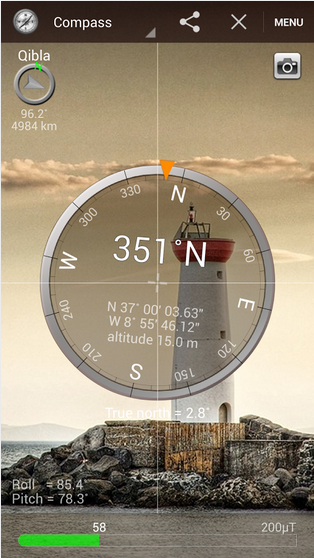
    • Set 3: Compass, Metal detector, GPS – Smart Compass Pro
    • Set 4: Sound level meter, Vibrometer – Sound Meter Pro
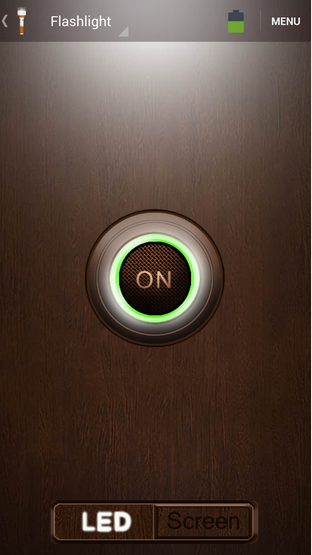
    • Set 5: Flashlight, Magnifier, Mirror – Smart Light Pro
    • Set 6: Unit – Unit Converter

    Cons

    The heaviest downside of this app is the lack homescreen shortcuts to individual tools. Maybe it’s just me but you pay for this app then realize there are no shortcuts then the author wants you to buy the individual tool apps or be pledged with adverts!  

    Pros

    This app basically helps you deal with any measurement problem you may encounter. It’s affordable price tag will also give it an edge over similar apps in the play store.  

    The best way to understand this app is probably by experimenting with it. Nonetheless, I can guarantee that your $2.55 will be worth it.

    Price When Rated:

    $3.00$2.55

    Our Rating: 3.5

    Requires Android:

    2.2 and up

    Content Rating:

    Low Maturity Download

  • Top 7 Best Photo Editing App for iPhone

    Top 7 Best Photo Editing App for iPhone

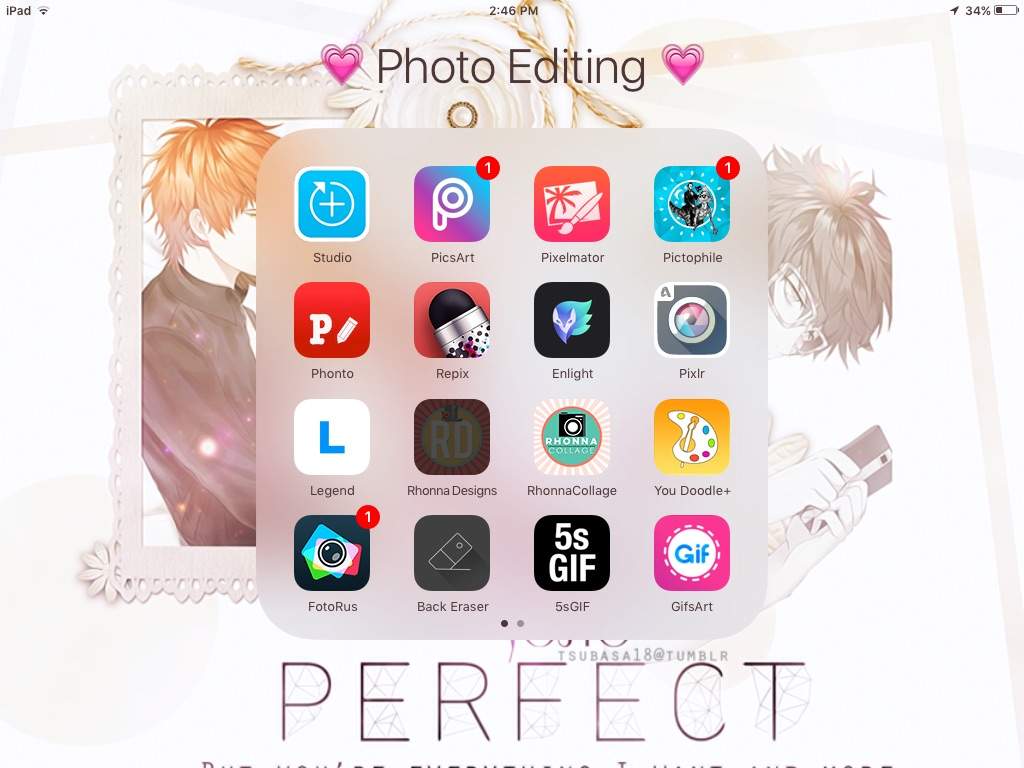
    The best photo editing app for iPhone is determined by the purpose for which the app is used. Instagram has become an established brand though there is stiff competition in the market. Although these apps are not perfect Graphic software, they make user experiences much easier and create more independence with regards to quick editing and can be used on iOS and Android operated phones. There is a wide variety of photo editing apps to choose from but here are the 7 best photo editing app for iPhone on the market at the moment.

    PicsArt

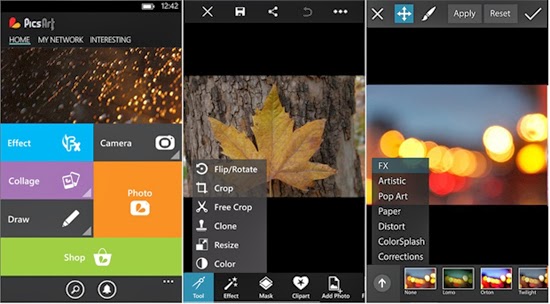
    Apart from being a photo editing app PicsArt serves the purpose of being a social network for sharing photos. Editing tasks like color adjustments, re sizing and cropping can be undertaken by using the Photo button. Other salient features include Effects that issue specialized tools like red-eye removal, watercolor, pastel and cartoonizer that you can brush on to the image. Conversely, you can snap pictures with a camera tool and paint or draw on an image using a layer-based interface with the Draw tool. It has one of the widest collections of image manipulation tools.

    Pixlr Express

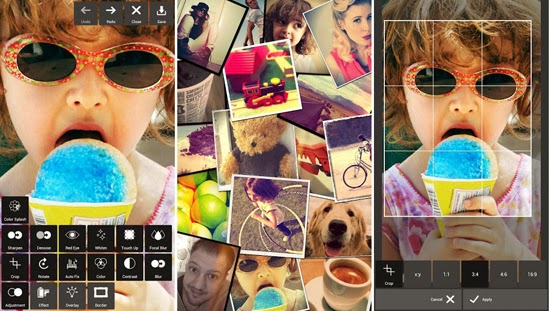
    Pixlr Express is an all-round photo editor & one of the best photo editing app for iPhone. It has facilities that ensure resizing, cropping and basic cleanup. Other specialized tools providing additional enhancements to your photos include one-touch cleanups, Autofix, teeth whitening and red-eye removal. Striking improvements are ensured by lighting effects and overlays in addition to colour adjustment and other tools that are done with fine-grained control.

    Repix

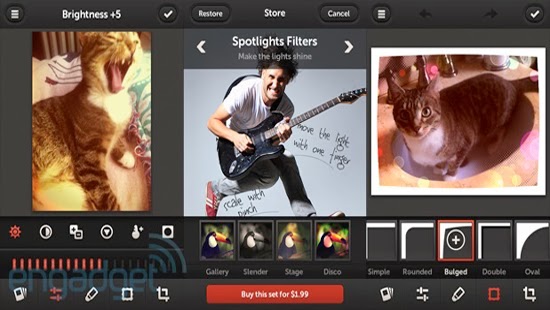
    If you are looking for artistic and classical images, this is the right photo editor app for your iPhone. Salient features include adjustment tools and frames including fast and rough image filters. Custom effect brushes are at your fingertips to selectively paint on special effects. Repix is compatible with Samsung’s S-Pen that provides brushes, frames, filters in addition to other tools that are available as in-app purchases.

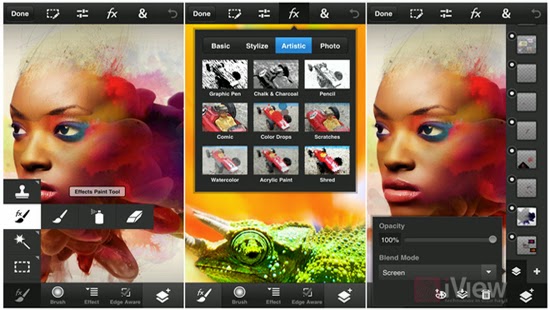
    Adobe Photoshop Touch

    This photo editing app incorporates some desktop functions that are employed with the larger app. These include filters, adjustments, selection tools and layers. During editing, there is no loss of detail because there is no downscaling while editing up to 12 megapixels when working on high-resolution photos. Despite being slightly advanced for the novice, this is a powerful editor that makes an exceptional choice.

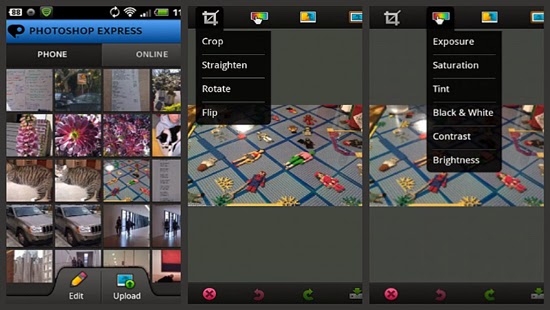
    Adobe Photoshop Express

    For those in need of a basic photo editing app, Adobe Photoshop Express is the right tool. Its properties include one-touch filters and Auto-fix for quick edits including slider controls for image enhancements such as shadows, exposure and contrast. In-app purchases allow for the incorporation of additional features like image utilities, special features and advanced filters. The basic package is mostly sufficient for simple editing manoeuvres that include cropping, resizing and red-eye correction.

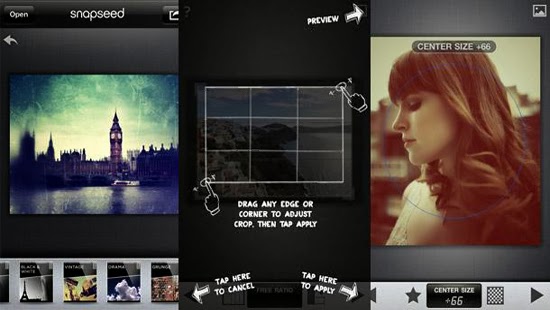
    Snapseed Mobile

    Snapseed mobile provides more selective tools with one-touch enhancement through exceptional usability and power. Essential attributes allow you to fine-tune the image using a simple slider as well as quick boosts to colour and contrast including photo clean ups with Auto Correct. Other features provided are ‘Selective Adjust’ mode enabling you to tune concentrated portions of the image using saturation edits, colour and brightness in addition to the Tune Image tool that allows you to alter a variety of image effects like warmth, shadows and brightness. Tilt-shift provides a wide selection of tools and filters as well.

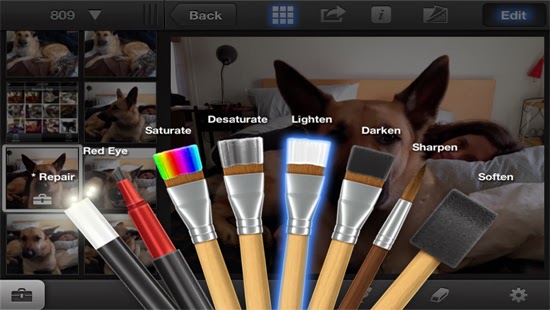
    iPhoto

    iPhoto is a high-end photo editing app for iOS featuring smart organizational tools that enable you to tag and sort out your photos as well as touch-based tools for adding special effects and cleaning up photos. Brush-based editing tools give you the leeway to use your fingertip in sharpening, darkening or lightening images. You can selectively edit pictures by employing gesture-based and multi-touch tools. Users can order custom photo prints or photo books while you can share photos online as slideshows or web journals.

    We believe the list above features best photo editing app for iPhone, we hope this article can help you choose the right app , as always we’d love to hear your comments, suggestions…

  • The Best Camera Apps for Android

    The Best Camera Apps for Android

    Tons of camera apps has been made since the foundation of Android OS. While many blogs and websites has had their say on which app is best, we are going to consider seven Android camera apps that can easily fit in as the best among it’s kind.

    In this list we are going to consider features that makes them stand out among the crowd and reasons why they are better than your preferred camera app. From 1 – 7, let’s get the list rolling.

    Camera360 Ultimate – The Best Camera App

    For sometimes now the position of Camera360 Ultimate has been unquestionable in the marquee of best Android camera apps. The free mobile application is arguable the best camera app around this days and could easily replace any smartphone default camera app.

    Features

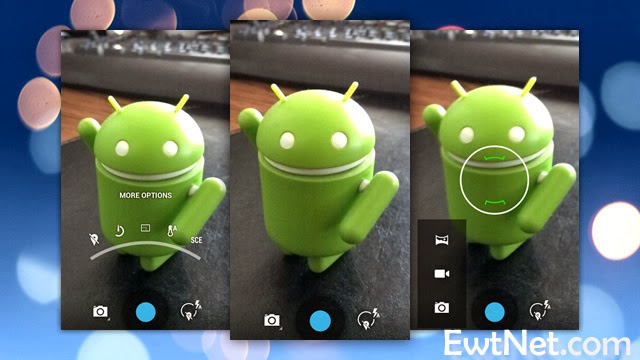
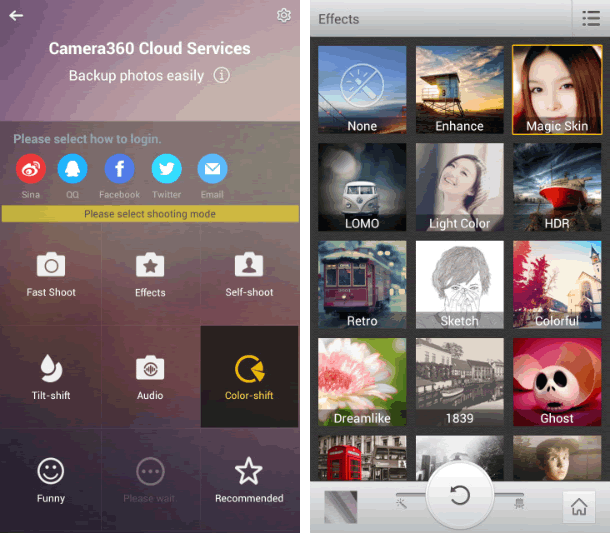
    Camera360 Ultimate of course, was only an upgrade on the old Camera360 app, which was mostly known for its HDR shooting mode. The recent version still has it in there, among some other useful features like photo effects, quick sharing, support for phone-mountable Sony lenses, and a very easy-to-use interface.
    • Easy-to-use Interface
    • Support for Phone Mountable Sony Lenses
    • Photo Effects
    • New Camera Store
    • Basic editing tools, including crop, rotate, etc
    • Photos are classified by time in Camera360 album for easy photo search and management.
    • Safe and smart cloud album for photo storing, managing, editing, sharing and more.
    • Free photo editor featuring tons of filters, unique shot modes, and extras not found in other apps from the genre
    • 1-tap upload to Facebook, Twitter, Flickr, and more
    • HDR Shooting Mode
    • Real-time digital zoom
    • Hardware tweaking options, including white balance, night shooting modes, ISO, focus metering, exposure, contrast, saturation, and more (as long as your hardware supports it)

    The Awesome

    The application compared to its competitors is worth over $4 – $5 but has been made totally free by its producers. Camera360 Ultimate makes it easier to choose between normal shot and special effects shooting mode allowing it to function properly on almost every Android device including low end Tecno Android phones.
    The latest version of Camera360 Ultimate is loaded with amazing photo tools and features. The good thing about the application is the new camera store where you can manage and add new features to your camera app. You can add features such as Effect Cam, Selfie Cam, Easy Cam, Scene Cam, Funny Cam, Tilt-shift Cam, Color-shift Cam, Audio Cam, etc. Free of charge.

    Where It Falls Short

    Camera360 Ultimate’s interface is great at guiding you right to the type of shooting mode you may want, but the problem with the app is that it’s gotten progressively bloated and bogged down with features that aren’t too useful and have little or nothing to do with taking good photos—just gimmicky ones. It’s also gotten to be a big of a storage hog, weighing in at 21mb.

    6 Worthy Alternative of Camera360 Ultimate

    Camera ZOOM FX ($3.00) has been the preferred camera app for many android users but will always face stiff competition against free top crooners like Camera360 Ultimate. The camera app has features such as:
    • Auto-focus and tap-to-focus modes
    • Hardware tweaking options, including white balance, night shooting modes, ISO, focus metering, exposure, contrast, saturation, and more (as long as your hardware supports it)
    • Gesture and multitouch support, including pinch to zoom, tap to focus, and tap to shoot
    • Burst shooting mode that supports up to 20 shots/second
    • Customizable grid overlays (so you can make use of the rule of thirds, the golden ratio, or other composition techniques)
    • Horizon level indicator (never take tilted photos again)
    • Stable shot meter and shooting mode (with crosshairs that flash red when the camera is moving)
    • Customize all the hardware buttons on your phone and assign them to camera functions, e.g. zooming with the volume controls
    • Support for time lapse shots and long exposures
    • Self Timer
    • Voice and sound-activated triggers: Clap or speak to take a picture
    • Silent photo shooting and shutter sound control
    • Over 40 different photo filters and effects, like tilt-shift, vignette, LOMO, retro, toy camera, and Polaroid
    • Dozens of photo presets for one-touch personalization
    • Real-time digital zoom
    • Geo-tagging of photos using your phone’s GPS
    • Preserves EXIF and other metadata with your photos
    • Auto-save of images when you take them
    • Live previews of photo effects and filters before you apply them
    • Basic editing tools, including crop, rotate, etc
    • Non-destructive photo editing features
    • Collage shooting modes, so you can build an instant collage of photos you’ve just taken
    • Quick social media share
    Works a bit better than the stock app and offers ISO mode control. Unfortunately, all the photos are cropped to 4:3 instead of 16:9, and there doesn’t appear to be any way to fix it. With its amazing features as mentioned above, Camera ZOOM FX can comfortably sit in our second place for best Android camera app.
    ProCapture ($3.99, Free ‘Lite’ Version) is a great camera app for niche photo shooting. The application supports multiple advanced camera shooting modes such as: Timer, Burst, Reduced Noise, Wide Shot and Panorama.

    Action Snap Pro ($3.85, Free ‘Lite’ Version) is another niche photo shooting app. Allows you to use both front and primary camera of your android device. ActionSnap supports combining 4 or 9 photos. You can choose a time interval from 0.1s to 5s and start capturing photos by one click only, or you can use the custom mode to take photos one by one.

    Camera FV-5 ($4.13, Free “Lite” version) has been around for sometime, but only recently did it get good enough to grab our attention—and boy did it get good. Loaded with tons of features, and the developers has added a lot of useful shooting features over filters and effects. You can now control hardware settings like white balance, exposure time, aperture, light metering, and so on, and the viewfinder even has an RGB histogram right there, updating in real-time. You’ll find all of the other useful features from Camera360 ultimate and other apps here too—tilt-shift shooting, auto-focus and tap-to-focus, long exposure support, the works. Its only drawback is that the interface can be a bit overwhelming as a result of all of the features.

    Vignette ($3) midst stiff competition is still around and kicking, and is an excellent option if you’re looking for an elegant shooting interface and more filters and post-processing effects than you can shake a stick at. It looks great, is a joy to use, and like Camera FV-5 can do a lot of things the other apps here can do, including tilt-shift photography, cross process, duotone, LOMO, toy camera, and more. Vignette’s only drawback is that in being elegant and useful, it’s also a bit lighter on features and shooting modes. Still, if other camera apps are overkill but you still want a step up from stock, try it out.

    Focal Camera (Free), pretty much at the beta stages and good enough to decorate the bottom area of our awesome list. The application is loaded with  features like HDR shooting, panorama shooting, photospheres, burst shooting modes, self and auto-timers, and more. It’s a bit buggy on some devices, is definitely still a beta, and doesn’t support anything running less than Jelly Bean 4.2, but if you need HDR or panoramas, it’s more than worth a look.

  • Samsung Galaxy Note Pro Review and Spec

    Samsung Galaxy Note Pro Review and Spec

    PROS Large, vivid screen Excellent battery life and performance Office and videoconferencing apps are built inCONS No wired display connection Flip cover doubles as a flimsy stand Avoid using it for pictures Exceptionally high price

    AT A GLANCE

    Spending $750 for an Android tablet seems exorbitant. But the Samsung Galaxy Note Pro offers a larger screen, excellent battery life, and access to the Android and Samsung app stores. When one considers the wealth of inexpensive Android tablets available, the idea of paying $750 for a 12-inch Android tablet seems inconceivable. But if now isn’t the time for consumers to start thinking of large Android tablets as legitimate Windows laptop replacements, that day isn’t far off.
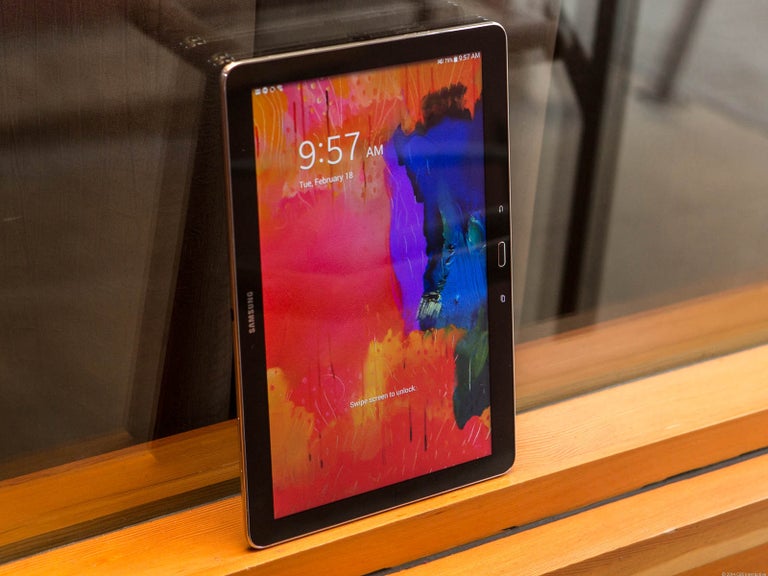
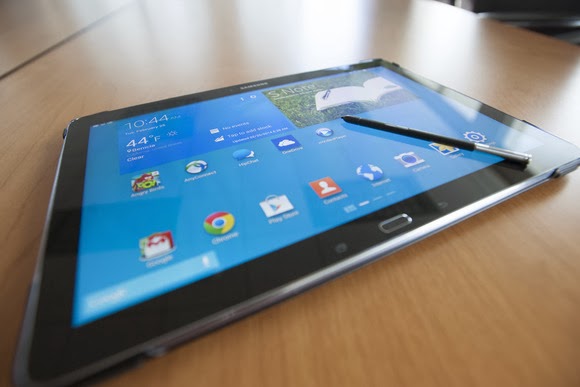
    That’s right: a Windows laptop replacement. That’s the only way to consider the Samsung Galaxy Note Pro, a massive tablet that, like the Microsoft Surface, works best on a desk. Samsung’s 12.2-inch Galaxy Note Pro (7.95 mm thick, 1.65 pounds) is virtually identical to the Galaxy Tab Pro, save for the addition of an S-Pen stylus.

    This is not a competitor to smaller tablets like the Nexus 7. Indeed, if last year’s Galaxy Note 3 smartphone doubles as a reporter’s notebook, then the new Galaxy Note Pro is something akin to an electronic legal pad. And with a surprisingly complete selection of productivity apps in both Google Play and Samsung’s own app store, this massive Android tablet can help you get real work done.

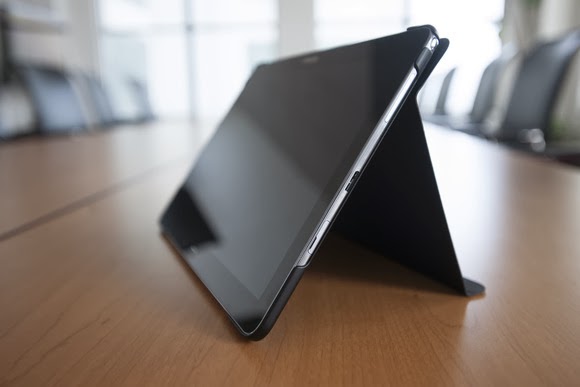
    The Galaxy Note Pro lacks an integrated keyboard, and the cover, which does double duty as a stand, is a little flimsy.

    The Note Pro is available for either $750 for a 32GB model, or $850 for 64GB of onboard storage. So far, Samsung has yet to announce the price for a model with an integrated LTE WLAN chip. According to Samsung, the Wi-Fi version of the Note Pro houses a 1.9GHz quad-core ARM Cortex A15 chip, powering Android 4.4 (KitKat). Our performance tests produced a Sunspider score of 0.97 seconds (which hits the upper echelons of the tablet market), and a PeaceKeeper score of 815. For the sake of comparison, the iPad 3 managed 516 in PeaceKeeper, and the Dell XPS 10 hit 324 (higher scores are better).

    The Samsung ‘Surface’

    It’s not much of a stretch to consider the Note Pro as Samsung’s response to Microsoft’s Surface 2 Pro, which starts at $899 for 64GB of onboard storage. Both the Note Pro and the Surface Pro 2 ship with foldable keyboard covers; the Note Pro’s can be configured so that it wakes up and unlocks the tablet when flipped back. But while the Note Pro’s cover actually doubles as a stand, it’s not immediately obvious that it does so.

    The Note Pro also lacks an integrated keyboard, such as the Surface’s Type and Touch Covers. In fact, to use it as a laptop replacement, you’ll need to buy a Bluetooth keyboard and possibly a mouse. That completely eliminates its use as a “lap top” computer.
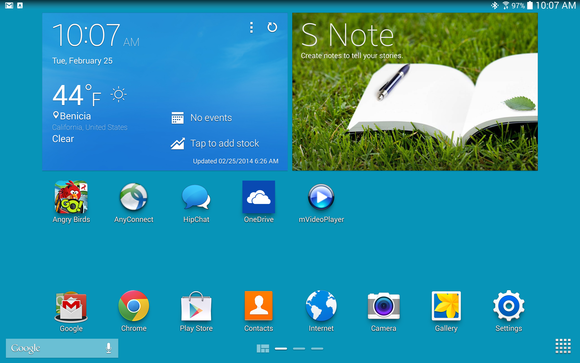
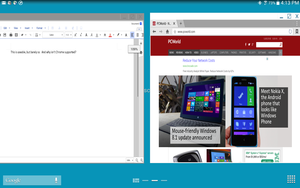
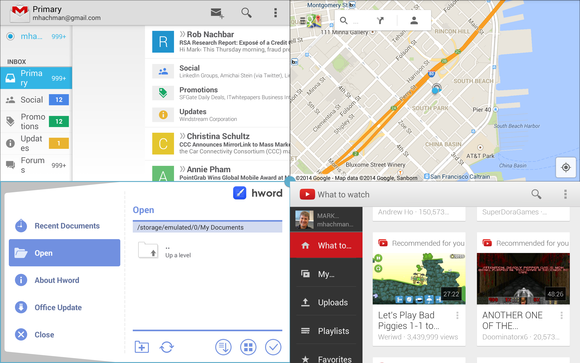
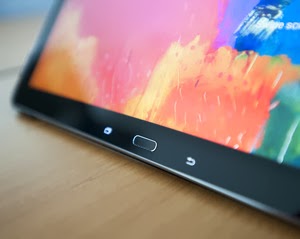
    Physically, the Note Pro looks like a Note 3, flipped on its edge. The tablet is designed to be held in landscape mode, with the physical home button mounted between the back and applications buttons. Near the top sits the 2-megapixel front-facing camera, with an 8-megapixel camera at the back. (Unfortunately, the cover lacks a rear camera cutout, so when thumbing the camera button, you’ll have to awkwardly hold up the cover.) Volume and power switches sit on the top, while an all-important microSD card slot sits on the side.

    An underrated productivity tool

    Like the Note 3, the Note Pro uses the new USB 3.0 connector, collecting juice through a high-output charging plug. Charging the Note Pro takes about three to four hours, but battery life is excellent: You’ll see two, possibly even three days or so of casual use from its integrated 9,500 mAh battery, and our looping video test ran down the battery in 8 hours, 37 minutes. That’s on par with the Dell XPS 10 tablet.

    Unfortunately, you won’t be able to use the Note Pro on long flights. The tablet, its stand and a Bluetooth keyboard will take up too much room on a seat-back tray. But you can still use the tablet for mid-flight video playback in your hands. The 12.2-inch display boasts a 2560×1600 resolution and 247 ppi pixel density, and you can even hook up an external monitor care of an optional external HDMI dongle for $39.99.

    One of the problems with Samsung’s latest devices, beginning with the Galaxy S4 smartphone, is their overwhelming number of largely extraneous features, such as the “smart pause” feature that supposedly pauses video playback when you look away. You’ll see a number of these still hidden deep within the Note Pro’s settings menus—but thankfully turned off.

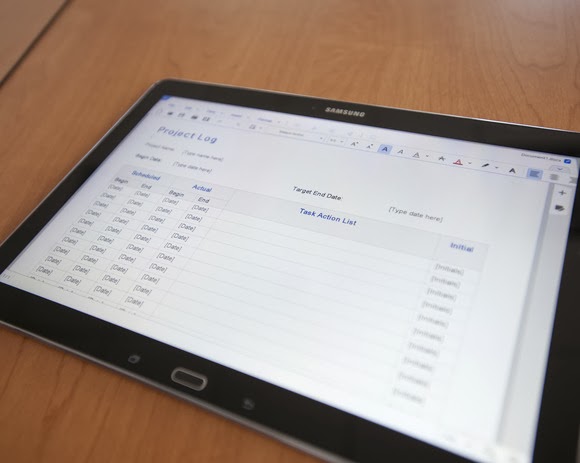
    Feel free to mix and match entertainment and work apps—the Note Pro can handle both.

    The default home screen contains a giant reminder widget for S Note, so that you don’t forget the S Pen. Equally useless New York Times and Twitter widgets can be tossed out. And, fortunately, a collection of news and entertainment apps, such as WatchON and a version of Samsung’s Flipboard-like My Magazine app, are confined on the peripheral screens.

    You can use the pen to draw your own windows,
    as I did, using the S Pen.

    As with the Note phones, pulling out the S Pen triggers several options, including an Action Memo; the ability to save content into a Scrapbook; and my favorite, the Pen Window. The Pen Window lets you run a second app inside a window, providing Android with a desktop-like multitasking environment. You simply draw a box, and when it’s done, select the app you want to fill the space.

    Samsung, however, now has a better option: Multi Window mode, which Samsung has made available on only the largest Galaxy Tab and Note tablets. To trigger Multi Window mode, you swipe in from the right-hand side, via a list of supported apps. (YouTube is supported, for example, but Angry Birds is not. And, inexplicably, Chrome is not supported by Pen Window mode, but it is under the Multi Window view.) Dragging one app to the main screen fills it. Dragging a second “snaps” the screen into two halves—and so on, up to a total of four screens. On a smaller tablet, this is a gimmick, but on a larger tablet like the Note Pro, it’s surprisingly useful.

    Multi Window can show four apps at once, or you can snap two. This is amazingly useful.

    A viable office suite

    More impressive are the numerous productivity apps that are either available via the Note Pro itself or via Samsung’s own app store. Apps such as Cisco’s WebEx, a Samsung Remote PC app (an alternative to Microsoft’s own Android app, Microsoft Remote Desktop), and the Hancom Viewer are all included. On Google Play, Hancom’s Hanword, a word processor, cost over $17 at press time, but on the Note Pro, it’s free, as are similar apps to view and edit PowerPoint and Excel documents.

    The Hancom apps ship in both “viewer” and editable versions, and the Note Pro tends to open files in the “viewer” version first without an option to choose the editing app, which is annoying. Google’s own Quickoffice is also installed. Aside from some possible font compatibility issues, the Hancom apps seemed to work surprisingly well.

    Keep in mind one thing: With the Note Pro, these productivity apps are free. If you purchase a Surface Pro 2, you’ll also need to pay for a subscription to Office 365 or a standalone copy of Office 2013. That pushes the long-term cost up.

    Hancom’s app suite makes the Note Pro a viable productivity tablet.

    Samsung inexplicably omitted the VPN app that it included on the Note 3, meaning that you’ll need to search out an Android version, such as Cisco’s Easy Connect, on the Play Store. In all, though, I found Android versions of virtually every productivity app I wanted from either the Samsung or Google Play, giving me a PC-like experience on an Android tablet.

    This is the bottom line. Windows PCs and Macs represent the power-user extremes of the computing experience, owning everything from Adobe Photoshop to the latest first-person shooters. But tablets are for centrist users: Android tablets and iPads dominate casual gaming, and more and more light-productivity apps are being written for those platforms.

    The sum of its parts—a large screen, excellent fantastic battery life, multi-app windows, and equivalent PC software—not only make the Note Pro a viable choice for a tablet enthusiast, but a jumping-off point for an adventuresome road warrior to leave the Windows world entirely. If only Samsung could knock another $150 or so off the price.

  • Huawei Ascend G6 4G smart phone Review and Spec

    Huawei Ascend G6 4G smart phone Review and Spec

    Earlier this week one of the leading leading global information and communications technology (ICT) giants Huawei registered a new name, Huawei Ascend G6 4G smart phone to the already populated smartphone industry. The 4G LTE-enabled Android device is set to face tough competitions from the likes of Samsung Galaxy S5 and Tecno P5 in the smartphone market, especially in Africa, Asia & Middle East where the the later has left it’s mark.

    The smartphone device will be featuring the latest version of 4G technology – CAT 4 – giving you a super speedy internet connection.

    Inside Ascend G6

    The new 4G LTE-enabled smartphone brings ease of use back to smartphone ownership and opens up a world of fun and colorful new ways to stay connected without boundaries.

    With a 4.5-inch qHD display, 5-megapixel front-facing camera and Emotion UI 2.0 , the product is an ideal companion for those who want to share better.

    With the product, there are also endless opportunities to explore surroundings with multi-shot capture, horizontal shooting and panoramic functions, thanks to the five plastic elements (5P) lens of the 8-megapixel AF BSI f/2.0 aperture rear-facing camera.

    Alternatively, the voice-activated hands-free ‘selfie’ function shows off camera-ready poses.

    Describing the product, , Richard Yu, CEO, Huawei Consumer Business Group, said it is stylish, colorful, and lightning fast smartphone designed to break down barriers.

    With its handy 4G LTE connectivity, he said that it is easy-to-use interface and dynamic cameras offering a multitude of photographic opportunities.

    Interestingly, filming or photographing in low light is a breeze with Ascend G6 4G’s in-built Sony IMX134 sensor, blue glass infrared filter and integrated camera flash for sharp, clear images.

    Featuring the latest version of the intuitive, easy-to-use interface, Emotion UI 2.0, HUAWEI Ascend G6 4G brings smartphone use within reach for everyone

    However, the phone brings vibrant color to life with its crystal clear 4.5-inch qHD 960 x 540 LCD display and 245PPI. At 7.85mm slim and weighing 115g, Ascend G6 4G builds upon the stylish ‘double C’ design of the popular Ascend P6 smartphone and is available in a range of colors including black with light gunmetal grey or rose gold highlights, or in white with pink or champagne gold .

    Unsurprisingly for a phone which is going to come in at under $330 the Huawei Ascend G6 sports an all plastic construction, although it is solid and the thick, faux-metal band which runs round the circumference keeps everything together nicely.

    Available in black, white, pink, gold or blue colors, the product runs on a powerful quad-core 1.2 GHz processor and robust 2000 mAh lithium polymer battery with up to 30 percent power saving, HUAWEI Ascend G6 4G is 4G LTE-enabled to make connectivity faster and more reliable than ever before.

    Movies can be downloaded in minutes and work files uploaded in seconds with speeds of up to 150 Mbps. Smart photo album, internet, notification and permission management provides full control over the information shared.

    In addition, the ‘one key scan’ function maintains peak performance through ‘phone speed tracking’, ‘power conservation’, ‘storage cleaning’ and ‘harassment filter.’ Ascend G6 4G also supports NFC sharing for mobile payments.

    The product offers an enhanced smartphone camera experience with Huawei’s proprietary self-focus tips and preview screen.

    The four plastic element (4P) lens featured on the 5-megapixel front-facing camera provides audio controlled spontaneous snapping, auto-scene recognition and auto-facial enhancement. Featuring 88 degree wide-angle shooting, Ascend G6 4G enables you to take all-inclusive photos that will wow family and friends.

    Add an extra dimension to photos with the ‘Voice Photo’ function that takes photos accompanied by 10-second audio clips that can be shared via Facebook and WeChat, such as at a wedding when you capture the bride and groom saying “I do.” Price When Rated: $350$330 Our Rating: 3.5   Operating System: OS Android 4.3 Jelly Bean