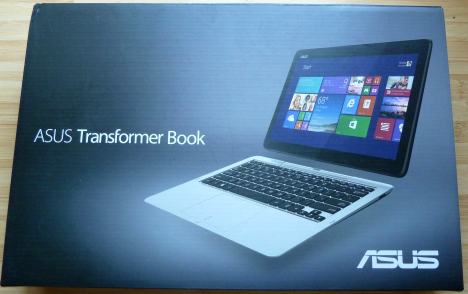
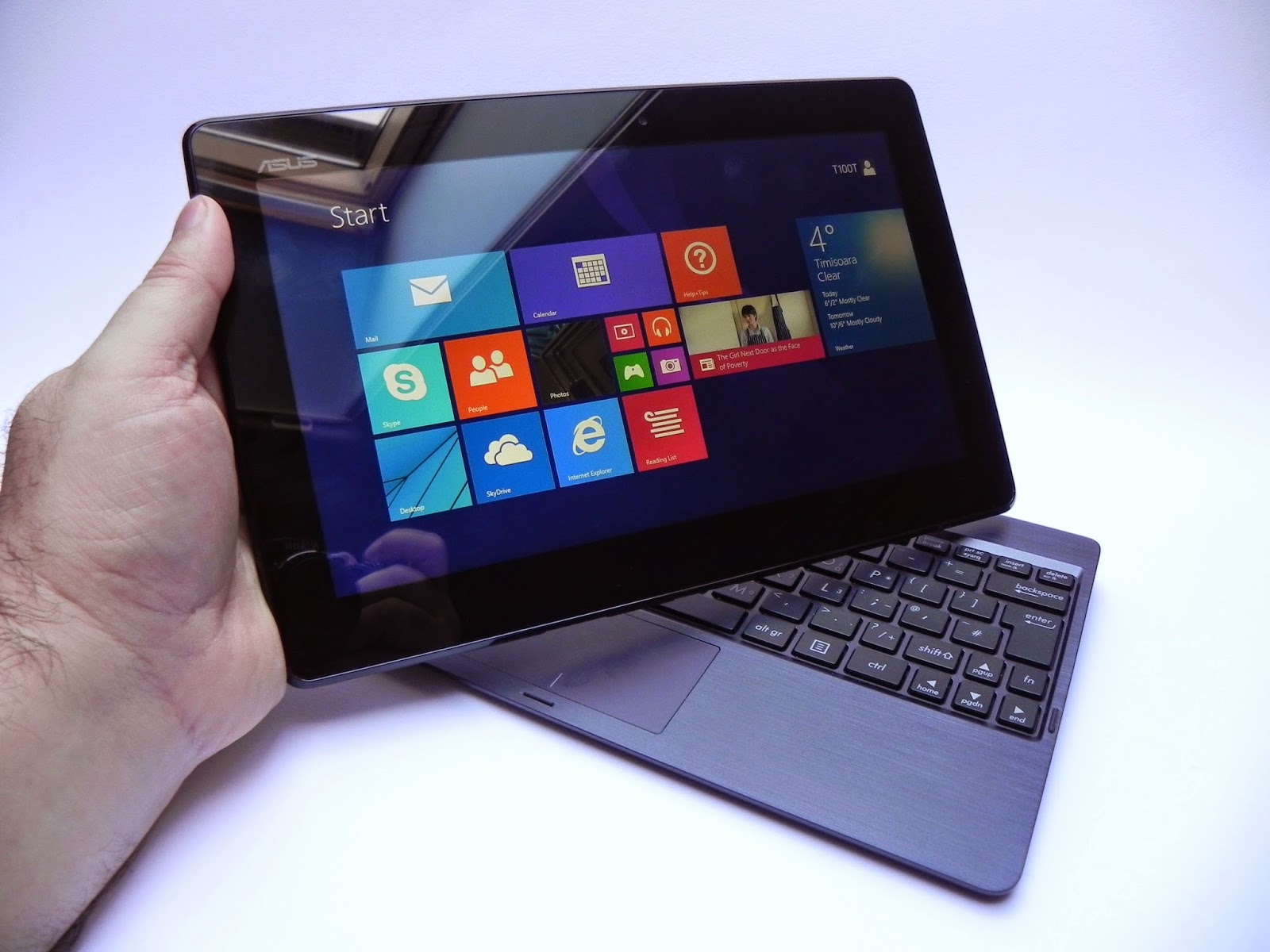
The Asus transformer Book T100TA is a beautiful ultraportable 10.1-inch tablet with Windows 8.1 pre-installed.
You can detach the tablet to work and play anywhere, dock to enjoy the comfortable keyboard, smart gesture-enabled touchpad and advanced connectivity. Style, power and convenience. this beautiful device Transformer Book T100 is sleek, slim and also light — measuring less than 1 inch thin and a mere 2.4lbs docked.
When you need to travel even lighter, simply detach the 10.1-inch tablet and you’re all set to go, with full sized keyboard which can be used on tv screens, stream and watch from a distance with family and friends
Key Specifications
10.1 inches Display Screen with a Max Screen Resolution of 1366 x 768 pixels
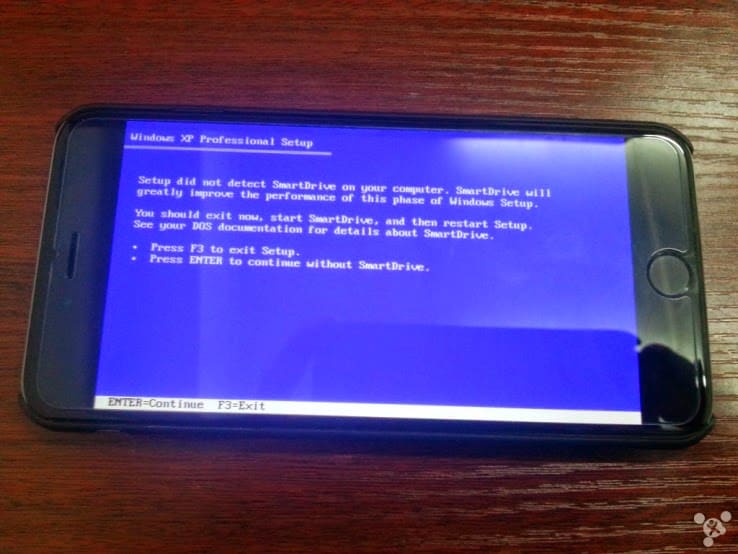
What did you do when you first got your iPhone 6 Plus device? Today in “putting stuff onto things on which they don’t belong,” a certain Chinese developer prefered to try out Windows 95 on his brand new iPhone 6 Plus.
He used a tool called iDos, an open source DOSBox-like app to install the OS. He found that most of it worked fine but he was unable to upgrade to Windows XP. And we can assume he was also able to play Doom.
There’s is very little new about this whole process – people have been putting emulators on things since the original VAX machines – but it’s cool to see resurrected software run so readily on new hardware. While I can’t imagine a real world use case for this (maybe you really need to run a copy of Mavis Beacon?) it’s a great theoretical exercise.
Here is the poorly translated FAQ:
1.Q: Can I install WINDOWS XP? A: The answer is yes you can, but certainly not by idos, because idos simply simulate the DOS environment is not the true sense of the virtual machine, so the system is more difficult to run the DOS and idos simulation environment and do not have XP running basic environmental needs, so later if transplanted XP system, then I will make use of their leisure time with friends ios platform to write a plug-in to run XP virtual machine system.
2.Q: Why are you doing this? Why not use Remote Desktop. A: First, to show that this kind of thing tall Remote Desktop is currently no support on win98 systems, not to use during system installation and tool methods have sent me here.
3.Q: Why is the process I installed the explorer process wrong? A: Because idos simulator only simulates the 16’s dos environment, although win98 16/32 hybrid system but Explorer and exe process large part needed is a 32-bit environment, so when they need 32 program calls some system environment variables and support libraries when an error occurs, LZ modify some of the resource is designed to allow him to run in idos environmental good, However, this modification will change the part of the machine, which has led some device errors when using LZ modify the good image. After LZ according to everyone’s feedback slowly improve!
There are full instructions on his post if you can read Chinese. If not, I leave the installation as an exercise for the reader.
What if you are giving a chance to live your life again? Or should I say, what if you are giving a chance to see what Windows computers look like 25 years ago?
Let me walk you back to somewhere within 1992 and 1995 and unveil the hilarious Window that never was, Windows 93
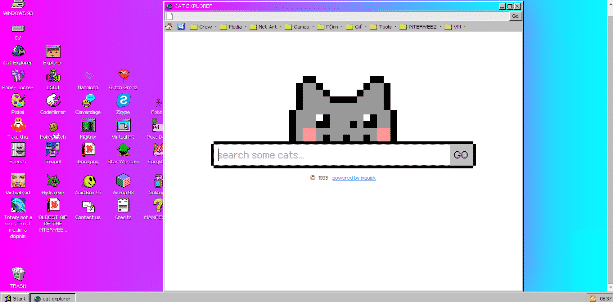
Windows93 might not have existed as a Microsoft Windows series. But if Microsoft released an operating system in the chasm between Windows 3.1 and Windows 95 it might look something like Windows 93, an interactive art project by Jankenpopp and Zombectro that you can try right in your web browser.
The experience of the OS is hard to put into words—it’s Windows imagined in some parallel universe, with plenty of retro homages to the weird OS quirks of yore.
The hard drive defragger comes with a funky MIDI beat so head-bobbingly enticing that you’ll wonder why it wasn’t implemented in the first place. Perhaps familiar to some, a horribly sad “Virtual Girl” can sit on your desktop, though instead of flirting or stripping via 16-bit animation, this one lays there as lifeless as a paper doll. You can watch a video of Star Wars right on your desktop (the catch: it’s rendered in ASCII). And then there’s the “Totally not a virus. Trust me..im a dolphin” icon that’s pretty much a must-click, harkening back to the good old days when viruses were as much about pranking you as they were stealing your data. Though, for the record, that virus is nowhere as devastating as the army of Clippys that will randomly show up.
It’s surprising just how deep you can dig in Windows 93, thanks to content like GameBoy emulators and pixel editors that have actually been pulled from various sources across the web. I spent a shameful amount of time giggling nostalgically, until suddenly, a beach ball of death showed up on my screen. At first, I figured it was just another one of Windows 93’s jokes until, moments later, Chrome froze and then crashed.
Oh how far we’ve come in the last 20 years!
You can experience the thrill of Windows93 for yourself. Try it here.
Microsoft announced this morning that it crossed the 1 million tester mark for the technical preview of its Windows 10 operating system. I had expected a higher number would opt for the new code, given how extensively the media (guilty) covered the rollout of the nascent operating system.
According to the company, more than 200,000 “pieces of user-initiated feedback” have reached its ears. The breakdown of builds that are run virtually and natively is about one-third and two-thirds, respectively, according to Microsoft. Microsoft has a long way to go with Windows 10, but with 1 million current registrants and several beta cycles yet to go, things seem to be off to a decent start. You will have to vet the strength of the million figure yourself.
I’ve been using Windows 10 as a daily driver at home for a few days now, with a docked Surface Pro 3 hooked up to a 24-inch external screen, and an external mouse and keyboard. It’s a decent operating system in firm need of debugging, and the unshackling of its Metro alter-ego. But all things told, I am roughly as happy with it in desktop mode as I was Windows 7. And like with Windows 7, in Windows 10 I don’t use the Start Menu much. If you haven’t gone hands-on with the code, it’s worth a spin.
How long until 2 million people are using Windows 10?
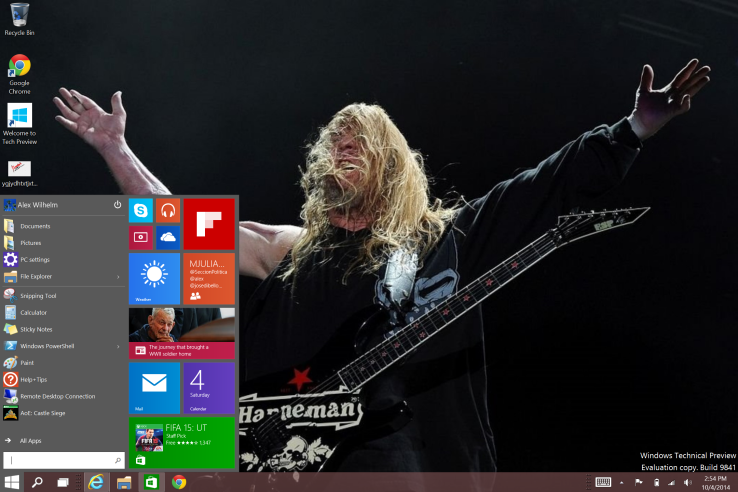
Windows 10 adds all sorts of nifty new features designed to appeal to PC power users, but it also includes some nifty newcomers that you can’t actually see—fresh keyboard shortcuts!
The details come courtesy of Brandon LeBlanc of Microsoft’s Blogging Windows blog. If you install Windows 10 be sure to check these out.
Snapping window: Windows key + Left or Right — LeBlanc says: “(Can be used with UP or DOWN to get into quadrants.)” Quadrants is the new Snap view mode that pins apps to the four quarters of the screen.
Switch to recent window: Alt + Tab – LeBlanc says: “Hold shows new Task View window view, let go and switches to app.”
Task view: Windows + Tab – LeBlanc says: “New Task view opens up and stays open.”
Create new virtual desktop: Windows key + Ctrl + D
Close current virtual desktop: Windows key + Ctrl + F4
Switch virtual desktop : Windows key + Ctrl + Left or Right
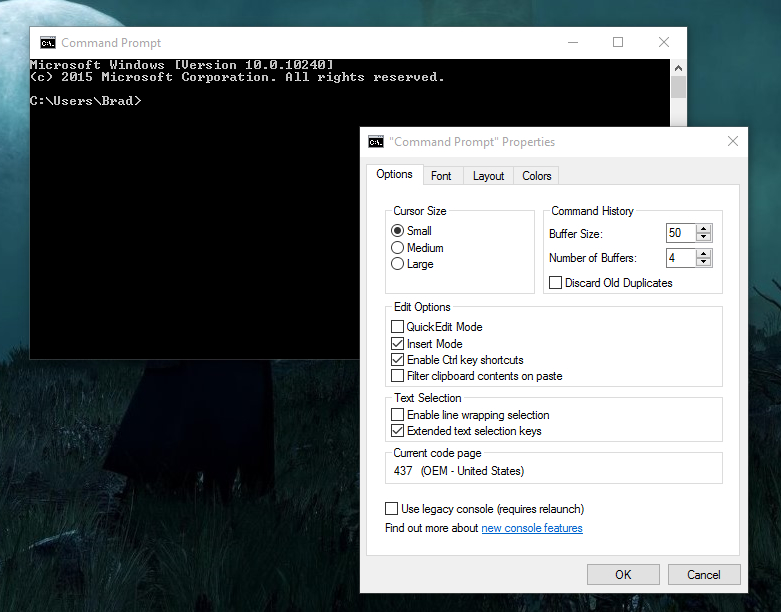
The Command Prompt and its Experimental Properties tab in Windows 10.
If you want to start using Windows 10’s greatly enhanced Command Prompt hotkeys (copy-pasting via the keyboard, yesssss) then be sure to check out Scott Hanselman’s extensive post on the topic.
Windows 10’s newfound support for keyboard shortcuts in the Command Prompt isn’t enabled by default, however. To enable it, right-click the Command Prompt’s title bar and select Properties. Open the new-to-Windows-10 “Experimental” tab and check the box next to “Enable experimental console features.” Finally, check the boxes next to “Enable new Ctrl key shortcuts” and “Extended edit keys,” then click OK.
Yes, you’ve heard right. According to a recent article from an Indonesia news website “Detik.com,” the Windows Indonesian president Andreas Diantoro said, rather confirmed, that Windows 9 will be available for free to users of Windows 8(8.1). According to Andreas, the “update will be automatic” for Windows 8 systems. Whether this update will occur also for Windows 7/Vista users is yet to be announced nor confirmed.
While this can surely be just rumors, we might get the 101% confirmation when Microsoft unveils its new OS at an event at San Francisco tomorrow (September 30th, 2014). This all comes ahead of an announced “preview edition” of Windows 9 which is expected to come round October of this year.
Why would Microsoft make their new OS free? Well, some should take in account of how much negative feedback that was received to Windows 8, their OS that released two years ago; reason of the hate to it happened to be that Windows 8 removed the traditional start menu popup, and gave everyone a “Retro Start Menu” in its place. Not only that, but it is an OS solely aimed at mobile systems, and I think it’s safe to say that the design may have been a wrong choice, given the stop coming to the production/support of Windows 8 and Windows 7.8 phones.
Anyways, with the hate, their blunder of the Xbox One reveal, and more; Microsoft is letting fan and/or user loyalty slip away and they do this even more by not standing for support of free OS support. Apple’s updates to OS X’s are always free to owners of previous versions, however with Microsoft’s “Windows,” the case hasn’t been the same. No one got a free update from Windows 7 right to Windows 8, or from any other versions that preceded it. Some believe that giving Windows 8/8.1 a free update to Windows 9 or “Threshold” (official name still unknown) will be an incentive of Microsoft saying something like “sorry we’ve screwed you over recently.” This could also be them contributing to being more free on OS’; this can definitely gain them some big media points, along with their names eventually hitting all game systems thanks to their acquisition of Mojang: the creators of Minecraft.
So, all-in-all it’s only right to give some incentive back to their users that stayed with them even through the muck of the buggy, unattractive to most; Windows 8. What are your thoughts on the announcement of the free upgrade? Let us know in the comments below.
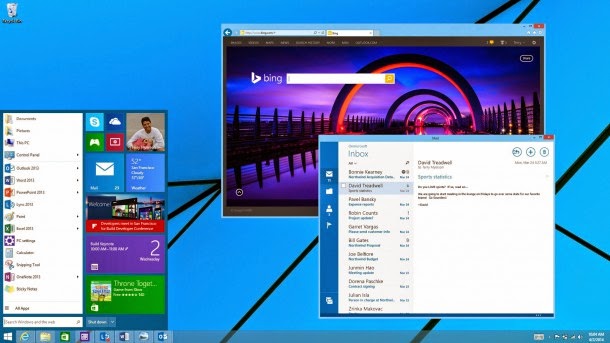
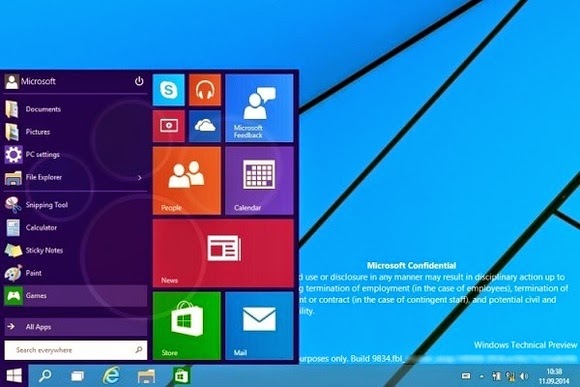
A batch of leaked screenshots from the next version of Windows reveals just how far Microsoft will go to win back desktop users.
The update, codenamed Threshold and possibly called Windows 9 or just plain Windows, takes some features from Windows 8 and grafts them onto the classic desktop. While we’ve known for some time that Windows 9 will have a pop-up Start menu and the ability to run modern apps in windowed mode, the new screenshots from Computer Base and WinFuture.de give even greater detail on how things will work.
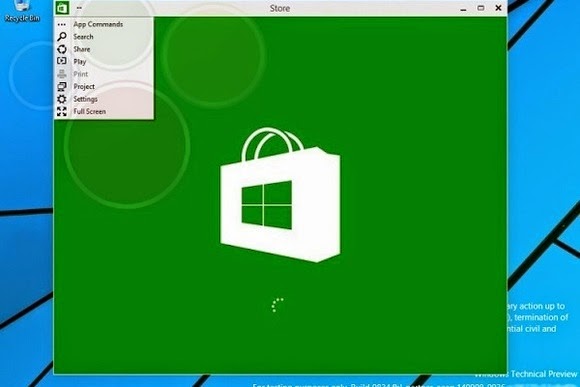
When running in windowed mode, Windows Store apps will get a button in the top-left corner. Clicking the button brings up a list of functions that previously appeared in the Charms bar, including Search, Share, Play, Project and Settings. This menu lets users switch the app to full screen mode as well.
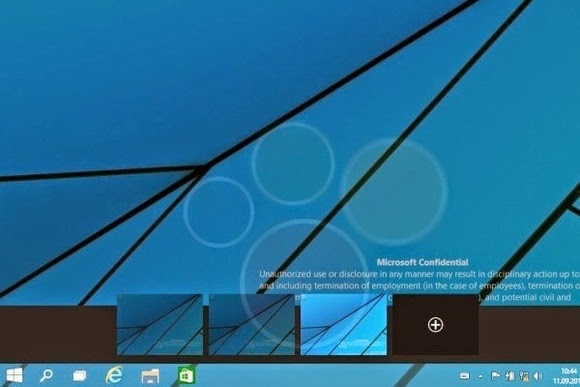
Microsoft is also adding a few new buttons to the desktop taskbar. A search button sits immediately to the right of the Start button, followed by a button for switching between multiple desktops. The latter feature, possibly called “virtual desktops,” will let users switch between several sets of desktop apps and layouts in nod to Ubuntu Linux’s longstanding “Workspaces.”
Near the right side of the taskbar, users will find a new notifications button, with a pop-up menu that will presumably show messages from Windows Store apps.
The screenshots don’t reveal any other major features, but they do give away a few more minor details. Despite rumors that the Charms bar is dead, the screenshots show that users can still bring up Charms by pointing to the upper-right corner, or bring up a recent apps list by pointing to the upper-left corner. Those options and others will be available through Taskbar and Start Menu Properties.
Of course, all of these details are subject to change as Microsoft hasn’t even released a public beta yet. The leaks likely come from Microsoft partners, who according to Neowin started receiving Windows builds a few weeks ago. A public “Technical Preview” is expected to arrive later this month or early next month.
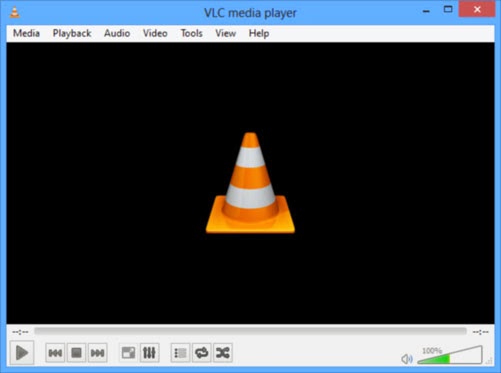
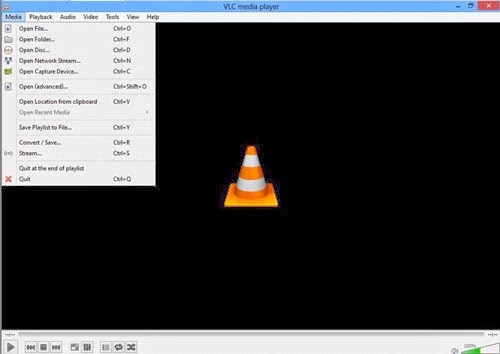
VLC media player is one of the popular video player out there, it is a open source product which makes it free to download customize the as per your requirements , you could download VLC player for windows,mac,android,IOS devices. VLC media player project has been active from a long time and a series of updates has been pushed to fix error and improve product quality.
It supports large number of input,video,audio formats, specially which aren’t compatible with windows media players, I tunes. This feature make VLC more adaptable and possibly one of the reason for it being so very popular. VLC also has subtitle feature which can be added or removed as and when you need it. it also offers many customization features with awesome skin and interfaces available. VLC has good input & output streaming options too.
Some of benefits to Download vlc player
Supports multiple input formats
Mozilla/Firefox plugin
Supports multipe Video formats
Supports multipe Audio formats
Subtitle/Tag formats
A/V outputs
A/V filters
Choose different interfaces, Skins
Active X plugin support
Streaming options
To Download VLC player click on the download button below.
While Apple’s iOS and the Android dominate the mobile phone’s operating systems, Microsoft’s Windows, particularly Windows 8, is growing increasingly popular not only with Nokia but Samsung and HTC have taken interest.
Now the consumers are met with the question, “Which is the best Windows 8 phone“ in the market right now?. While we want to give you an answer, it would be best to let you decide. However, we can give you our best 5 Windows 8 phones to check for yourselves, based on the considerations of the phone’s basic functionality, look, capacity and price.
Nokia Lumia 925/1020
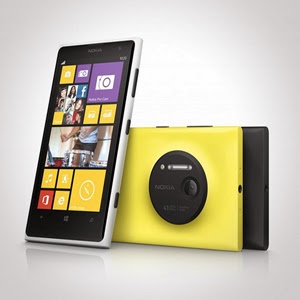
Let us begin with Nokia. It has an array of amazing units. Nokia Lumia 925 is perfect for photography. It is equipped with Nokia’s Pureview and 6 Carl Zeiss lenses to provide 8.7megapixels with Optical Image Stabilization that allows you to capture images even on low light environments. It is somewhat lined up up there with the Iphones and Samsung Galaxy S4 with its touch-screen technology of PureMotion HD + Amoled offering you 1280×768 pixels resolution. Nokia Lumia 1020 is the video and photography professional. With its main feature of 41MP camera, your videos and photos are taken in top-class clarity and detail. It is backed by the Nokia Rich Recording that provides distortion-free and stereo sound on your videos.
HTC 8x/8s
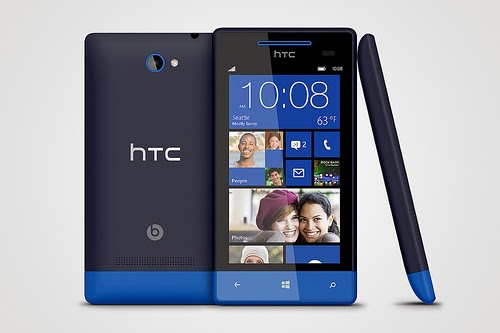
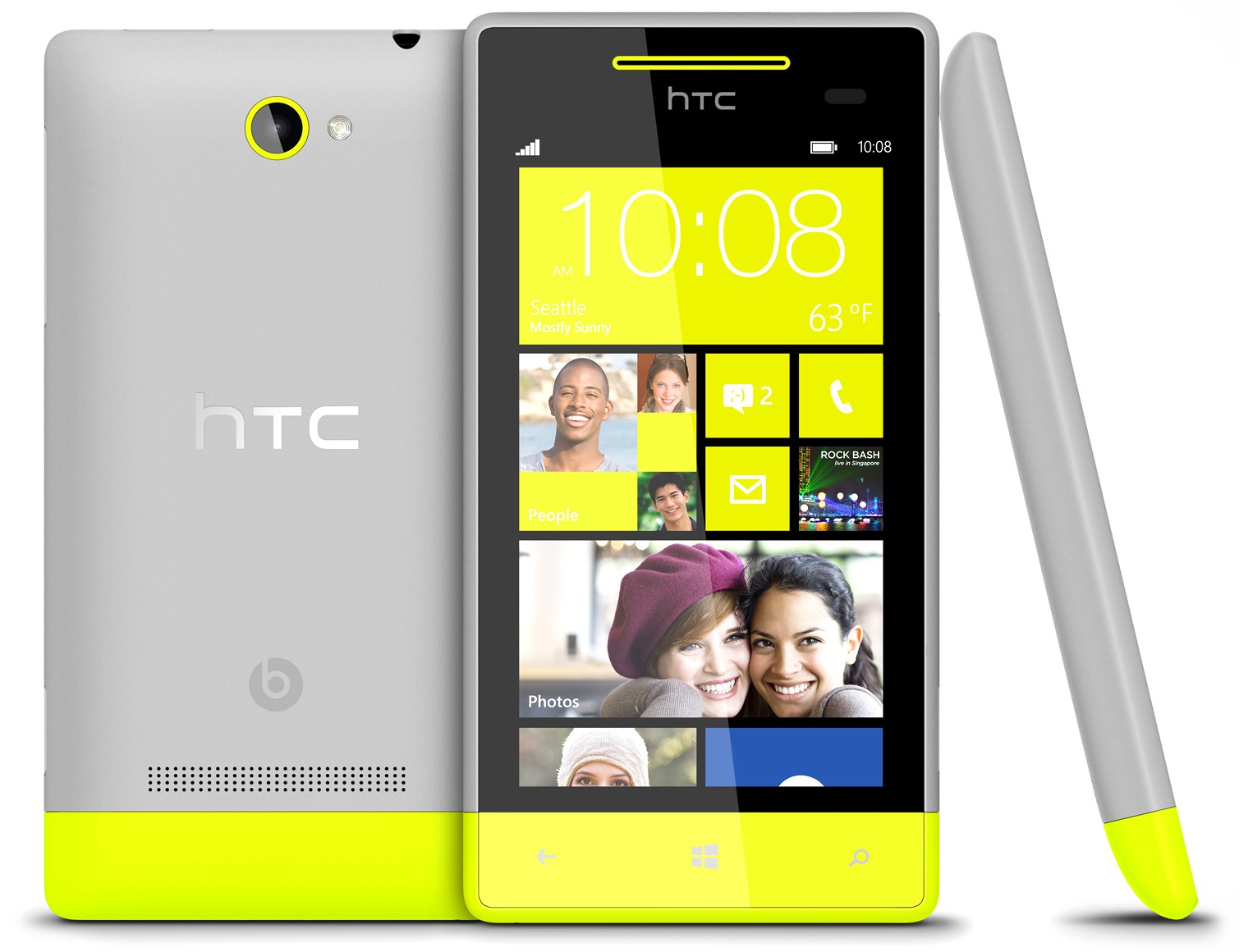
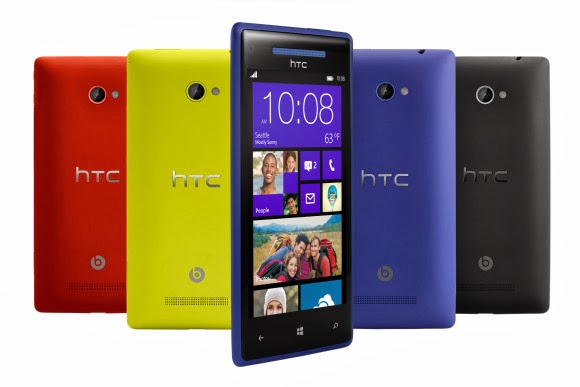
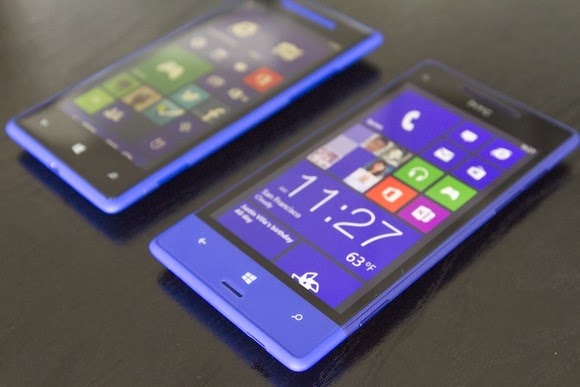
HTC also has its wonders with Windows 8 units. It has windows phone 8X and 8S. Windows phone 8X considered as one of the best Windows 8 phone for its high end quality. It has world class camera, perfect fit design, and wide screen with 1,280×720 pixels resolution. Its dual core 1.5GHz processor is capable enough, but there is no option for expanding its memory just like most Windows 8 phones. There is also the HTC Windows phone 8S.Its boldly colored design makes it classy and attractive. It has a high performing battery. Moreover, it has a superb studio quality sound and entertainment. Great photo qualities and camera options are also featured in this one of the best Windows 8 Phone.
Samsung ATIV S Neo
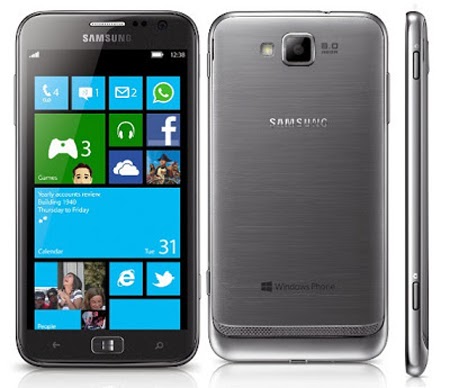
Next stop is the Samsung ATIV S Neo. It is Samsung’s best Windows 8 phone, because of its affordability and good performance. It has a wide screen display of 720 x 1280 pixels, 4.77 inches for easy touch and visuals. It definitely provides a good windows 8 experience. It has long life battery of up to Up to 15 h and it has good camera features 8 MP, 3264 x 2448 pixels, autofocus that can capture sharp details. However, the phone is a little bulky and heavy. It is not much of a style but still a high end one with reasonable price.
Huawei Ascend W1
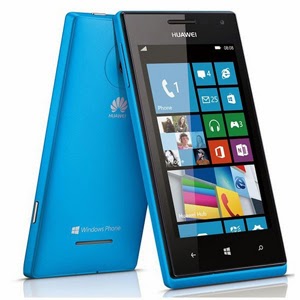
If you are looking for a very affordable prepaid Windows 8 phone then Huawei Ascend W1 will be the best choice. It may not be a perfect device for some applications, but it has a strong battery life and expandable memory. However, this device has several drawbacks. It has a low internal storage of only 4 GB and low camera specs 5 MP, 2592*1944 pixels. Still, being affordable and practical, this might be perfect for some people who don’t want to stretch more of their budget.
These are the top choices that we can have varying from different types of needs and lifestyle. Windows 8 had made these phones far better than usual ones. Check them out!
Microsoft has again painted a grim picture for customers who remain on Windows XP and Office 2003 after it ends support for the old OS and suite in early April, but it’s unclear if the company is succeeding in its campaign to convince holdouts to upgrade.
In a blog post on Wednesday, Microsoft reiterated that consumers and businesses that stick with the products past the April 8 deadline will face severe security risks and be unable to take advantage of technical advances. “Computers currently running Windows XP and Office 2003 won’t stop working on April 9, but over time security and performance will be affected,” reads the post.
Specifically, Windows XP PCs won’t be able to run many “newer” applications or work with new hardware due to unsupported drivers. Additionally, PCs running the OS will become easy prey to malware, because Microsoft won’t release new security updates and bug fixes for it, nor offer support services and technical content updates. Office 2003, on the other hand, can’t provide modern mobility and cloud capabilities, according to Microsoft.
Unsurprisingly the solution the company offers is for customers to adopt Windows 8.1 and Office 365, while acknowledging that in most instances PCs running Windows XP lack the hardware specs to run the new OS. “The majority of PCs running Windows XP are not capable of upgrading to Windows 8.1 due to the age of the hardware,” the post reads.
Windows XP remains quite popular despite its age—it was first released in 2001. According to the latest figures from NetApplications, Windows XP has an almost 30 percent share of the desktop OS market, second only to Windows 7 which has about 47 percent. By contrast, Windows 8, which started shipping in October 2012, and its 8.1 update, released a year later, have a combined share of about 10.6 percent.
Windows 8 and its update have drawn criticism for their touch-optimized interface and a series of disruptive bugs. Microsoft is promising another update for the spring that will make the OS friendlier for mouse-and-keyboard users, but the impression in the marketplace is that Microsoft has struggled to get Windows 8 right. The most pessimistic critics have likened Windows 8 to the disastrous Windows Vista, released in 2007 and generally panned.
Office 2003 is also still heavily used. According to the results of a Forrester Research survey released in October, Office 2003 was in use in 28 percent of businesses polled, behind Office 2007 (51 percent) and Office 2010 (85 percent). The latest version of Office—called Office 2013 when sold via traditional perpetual license and Office 365 when sold via an annual subscription—was at the time used in 22 percent of companies polled, and with a slower adoption than Office 2010 at a comparable stage of release, according to Forrester.
IDG NEWS SERVICE – HTC didn’t do much to fan the flames of future Windows Phones on Friday, stating that “nothing concrete” is in the works regarding future products.
HTC executives took to the pages of Reddit for an “Ask Me Anything” session that covered the company’s product strategy, with regards to features like its use of the Sense UI versus its Google Play Edition.
Unfortunately, the company was vague when talking about the future of Windows Phone. User “0157h7” asked, point blank, “Is HTC done with Windows Phone?”
Leigh Momii, a product manager for HTC, weighed in.
To say “done with Windows Phone” is a pretty blanket statement. I don’t think a company such as ourselves can ever say that point blank. As strong partners of Microsoft, we’re working with Microsoft on the Blue update on Windows Phone 8X and will continue to take new products into consideration. Nothing concrete right now, but who knows!
Or, as user “jpspiderman” put it: “So far they’ve said that they haven’t written off Windows Phone completely but that’s all they’ve said — no real commitment.”
“What he said,” the HTC team replied.
The future of Windows Phone may be from Nokia, not HTC.
It wouldn’t be unusual if HTC decided to put its Windows Phone plans on hold, or scuttle them completely. When Microsoft announced the $7.17 billion deal last year, IDC had just reported that Nokia made 81.6 percent of all Windows Phones sold. “Clarity helps make the market for all Windows Phones,” Microsoft said, a bit of doublespeak that implied that acquiring Nokia would actually promote diversity among Windows Phone partners. That in turn prompted several analysts to question the deal and its long-term effects on the Windows Phone ecosystem.
If nothing else, it appears that HTC 8X users will at least be receiving the Windows Blue update, another name for Windows Phone 8.1. But if you’re looking for new Windows Phone hardware, it seems like you should stay focused on Nokia and phones like its new Lumia Icon, for now.
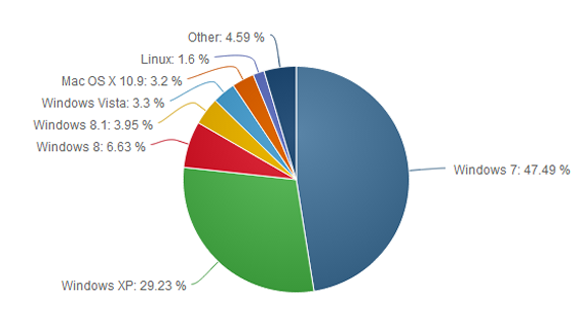
Microsoft is almost ready to put Windows XP out to pasture, but the popular operating system refuses to die. The latest worldwide numbers from Net Applications show Windows XP market share actually grew by 0.25 percentage points in January, compared to the month previous.
This is the first time Windows XP has gained in market share based on Net Applications’ freely available data, which reaches back to 2009.
We’ve dropped a line to Net Applications to see if the company has any explanation about why Windows XP might have bounced back in January, and we’ll update this story accordingly.
With the deadline for Windows XP’s end of life looming in April, it’s tempting to see the old system’s apparent resurgence as an embarrassment for Microsoft as Windows 8 stumbles in the market place. But could there be another, less sinister reason for the bounce?
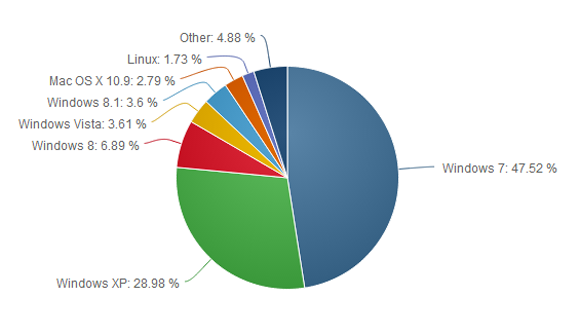
In December 2013, the browser usage numbers from Net Applications showed Windows XP with a 28.98 market share. But check out the next pie chart…
The surge may not be real
First, if you look at the top of Net Applications’ report for January 2014 it says, “This report contains preview data that has NOT been reviewed by Quality Assurance.” So there’s that.Also, StatCounter, a a competing metrics service, registered a 0.64 percent decline for Windows XP during the same time. So who should we believe?
Perhaps neither. There are problems with how Net Applications and StatCounter measure market share. Both companies rely on browser hits to determine OS popularity, so the companies are really counting the number of Windows XP, Vista, 7, 8, and 8.1 computers that go online during a given month.
That method may be generally accurate since today’s PCs (including Windows XP machines) are essentially web browsing machines. But when you’re looking at modest gains for a particular flavor of Windows, relying on browser data may not be perfectly trustworthy.
One month later, Windows XP shows a modest surge, possibly explained by people digging out old machines from closets to work on them before the XPocalypse.
But what if it’s true?
Assuming Net Applications is spot on, it’s also easy to see why a bunch of Windows XP machines might suddenly go online. As I wrote above, Windows XP’s end of life is just around the corner on April 8. When that happens, Microsoft will cease delivering security patches for the system.
So enterprises and small businesses may be yanking old Windows XP machines out of closets, warehouses, and backrooms as they take stock of company hardware and any data stored on antiquated computers.
Factor in curious home users wondering if they can upgrade their machine to Windows 8 or install a Linux variant on their aging hardware, and it’s easy to see where the modest uptick came from.
That’s all speculation mind you, but it makes a certain amount of sense.
The XP problem
Nevertheless, it’s undeniable that Windows XP still has a massive install base, second only to Windows 7. It’s likely there will still be a huge user base for Windows XP later in 2014, and tech companies are preparing to support the system in a limited fashion after April.
To help out Windows XP users who refuse to quit, Google will support Chrome for Windows XP until April 2015. And Microsoft says Windows XP’s anti-malware engine will continue to get updates until July 14, 2015. But security software can only detect malware attacks, and won’t permanently fix any critical flaws after April 8—and there will be flaws in Windows XP, bet on it.
If you do plan on sticking with the aging OS, we’ve just published a primer on what you should do to remain as safe as possible with Windows XP. But if you’re able to quit the system, you should do so very soon.
Is longer a secret, it’s been over a decade since Windows XP came into being. It’s true, time has changed; newer technologies has been introduced, even the guys up there are already getting tired of it. Yet, I want to stick with Window XP.
What you are asking for is quite a difficult one. Microsoft has already decided to end it’s support for the OS come April, 2014 and to continue using it, will open your PC to various security vulnerability. Psst! Listen to my brief advice and implement it with caution. I really understand why you might not be able to give up your Windows XP. Your business may depend on a specialized application that won’t run on Windows 7 or 8. Or you may not be able to afford a new PC and your old one isn’t powerful enough for an upgrade. Perhaps you’re just stubborn.
Reluctantly, I’m going to advise you on protecting a Windows XP computer after Microsoft’s updates stop. But I give this advice with a warning: This is not perfect protection. You’ll be better off giving up on XP.If you absolutely can’t or won’t give up XP, consider disconnecting that particular PC from the Internet. Use it the old-fashioned way: as a truly personal computer with no connection to the outside world. Then buy another PC or a tablet for email and browsing.
If that isn’t practical, follow these suggestions to make your XP computer more secure:
Get a full security suite: A simple antivirus program won’t be enough. Buy a heavy-duty suite with a two-way firewall and exploit protection in addition to antivirus. I like Kaspersky Internet Security, but there are several solid security suites, as we found in our recent roundup.
Get a second opinion: Now that you have a powerful security suite, don’t trust it. Augment your regular antivirus program with Malwarebytes Anti-Malware Free. Run it once a week to scan for malware that your suite may have missed.
Use Firefox or Chrome: An out-of-date browser is an open door for malware, and any version of Internet Explorer that runs on XP is very out of date indeed. But the latest versions of Firefox and Chrome can still run on your machine.
Protect your browser: Scripts are a dangerous malware delivery system, and the right browser add-ins can block them. And yes, you can tell the add-ins to make exceptions and allow scripts from sites that you trust. If you use Firefox, install NoScript Security Suite. For Chrome, go with NotScripts.
And remember that eventually, the security suites and browsers will stop supporting XP, as well. This can’t go on forever.
Microsoft’s cloud chief, Satya Nadella, will lead the company as its next chief executive, according to a report from Bloomberg.
Microsoft’s board is “preparing to name” Nadella chief executive, Bloomberg reported Thursday afternoon. Nadella, whose official title is executive vice president of Microsoft’s Cloud and Enterprise group, had been one of the front-runners in the race to replace current chief executive Steve Ballmer, who said last August that he planned to step down within a year.
But the board is also considering replacing Bill Gates as chairman of the company, Bloomberg reported, ousting the company’s co-founder and possibly replacing him with John Thompson, Microsoft’s lead independent director. If Gates is to go, as PCWorld suggested last year, it would remove two of Microsoft’s iconic employees from the software giant.
The problem with replacing Ballmer or Gates, is that no one executive at Microsoft has traversed the range of the company’s products, which include consumer businesses like the Xbox, cloud services such as Azure, the company’s Windows business, server and development services like Visual Studio, and an emerging mobile business, too.
Nadella, 44, is an Indian-born engineer with degrees in electronics, computer science (from the University of Wisconsin–Milwaukee), and business administration (from the University of Chicago). Nadella has worked since 1992 at Microsoft, and is credited with launching BizTalk, Microsoft’s Commerce Server, and Microsoft’s Office Small Business products.
However, Nadella is most famous for having overseen Microsoft’s online initiatives, where he transformed Windows Live Search into Bing. The market share for Microsoft’s search offering stands at 18.2 percent, according to Microsoft’s recent earnings.
One problem that naysayers point to: Nadella has no experience as a chief executive, unlike internal rivals like Tony Bates, who ran Skype, and external candidates like Alan Mulally of Ford, who took himself out of the running in early January, saying he was committed to Ford.
So far, Ballmer’s commitment has been to a “devices and services” strategy. If Nadella is named CEO, its unclear whether he’d commit to that direction. On the other hand, his track record indicates that he can fulfill at least one half of that strategy.
Yesterday Paul Thurrottenumerated a number of tweaks that will appear in the upcoming Windows 8.1 update. Screenshots from WZor confirm a few of Paul’s earlier notes on upcoming changes to Windows 8.x that are worth discussing.
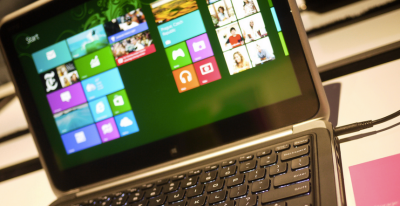
The gist is that Microsoft wants to unify the desktop and Metro environments, especially in the context of apps. The better the apps work between the two, the more people might use applications from the Windows Store. This is tacit admission that people love the desktop environment that they have used for decades, and have been slow to switch over to the Metro environment.
So, if people love the desktop and you want them to use more Metro apps, you bring the Metro apps to their desktops. Paul previously reported that you would be able to run Metro apps on the desktop, but WZor screenshots show it in action. Surprise? No.
There is more: “I can confirm one new feature: Metro apps will now include a close box, similar to that seen on desktop applications, which can be clicked with a mouse so that the app closes completely.” Thank god. Getting rid of Metro apps when you are done with them has been a constant Windows 8.x headache.
The divide between the “new” in Windows 8.x (the Metro side of the fence) and the “old” (the Windows 7 bits of Windows 8.x) is being blurred. That’s probably good, given that the old is popular and Microsoft wants the new to become more so.
We’ll see more before Build, given the current pace of leaks. It seems that Microsoft wants to patch the weaker parts of Windows 8.x while keeping its main thrust in place. You can’t have mobile Windows without the Metro interface, and you need an app store as well. But you can heal the cracks on traditional PCs, I suppose.
Does the cluttered ribbon menu in windows 8 annoy you? Ian Paul – PC World will tell us exactly how to clean it up.
When it comes to Windows, there is nothing I love more than Microsoft’s infamous Ribbon interface—and nothing I hate more. Using it in Microsoft Office is great, but adding Ribbon to Windows 8’s file explorer was a bit much for me.
So I decided to pare File Explorer down a little and put the features I might need front and center, while banishing the rest of the Ribbon from my sight. If you’re tired of dealing with a Ribbon-loaded File Explorer, here’s a quick way to simplify your menu hopping.
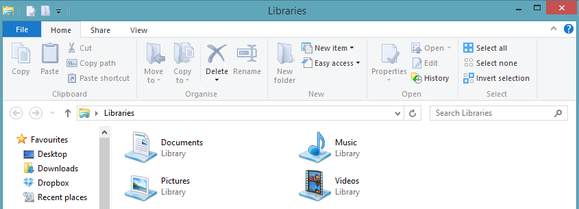
The Home tab of Windows 8’s stock Ribbon interface.
But first…
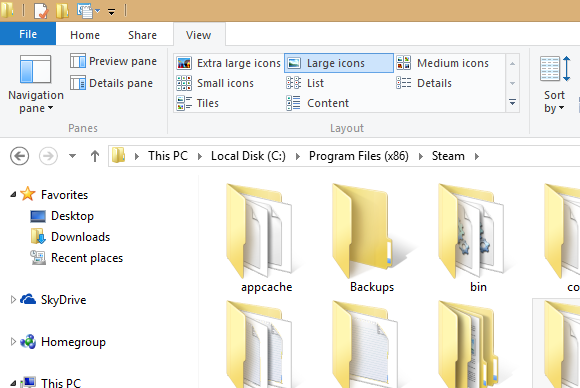
Before we get going, let’s run down some basic anatomy of Windows Explorer. At the very top of the window you’ll see a file folder icon in the upper left corner. Next to that are a few icons and a downward facing arrow. That small set of icons is known as the Quick Access Toolbar (QAT).
Below that, where you see menu options for File, Home, Share, and View—each with their own mess of icons—is the infamous Ribbon we were talking about earlier.
And now, on with the show…
How to clean up the Ribbon interface
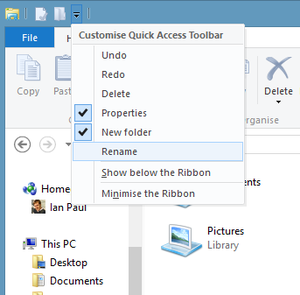
First, click on the QAT’s downward arrow to show the functions you can add to the Quick Access Toolbar, including undo, redo, delete, properties, new folder, and rename. Some of these should already be selected. Add the feaures you use on a regular basis; they should appear in the QAT immediately. Fear not if you don’t see a beloved function: The QAT can have any Ribbon UI feature you want. To add your favorites, just right-click the option in the Ribbon and select “Add to Quick Access Toolbar” in the pop-up menu that appears.
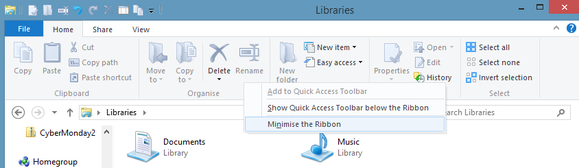
That’s it! Now that you’ve got your QAT fine-tuned, it’s time to give it a more prominent placement and banish the Ribbon UI. Right-click the Ribbon and select “Show Quick Access Toolbar below the Ribbon.” Next, right-click the Ribbon again and select “Minimize the Ribbon.”
Click “Minimize the Ribbon” to, well, you know.
Windows 8’s File Explorer should now look similar to what you see below, with the Ribbon pushed to the background as much as possible and the Quick Access Toolbar front and center with all your favorite menu options.
Well, that’s much less of an eyesore.
Forgotten, but never gone
The Ribbon may be banished, but it’s not gone for good. Anytime you need to access the Ribbon, simply click on the menu option you need (File, Home, etc.,) and the Ribbon interface will briefly reappear. If you want the Ribbon back permanently, just right-click the Ribbon’s menu options and deselect “Minimize the Ribbon.” You can put the QAT up at the top again by right-clicking it and select “Show Quick Access Toolbar above the Ribbon.” These few simple steps can make File Explorer a lot easier to use—and a tiny bit closer to the standard menu interface found in previous versions of Microsoft’s OS. The same basic procedure can help you clean up Microsoft Office’s Ribbon UI, if you consider it an eyesore, too. I hope it helps! Full credit to this article goes to Ian Paul and PC World
According to Net Applications, Windows 8.x crossed the 10% barrier in December of 2013. Windows 8 and Windows 8.1 ended the year with 6.89% and 3.60% apiece for a combined 10.49% total market share.
In the month, Windows 7 picked up 0.88% market share, as Windows XP fell below the 30 percent mark, shedding 2.24% to land at 28.98% in the month. While Windows 8.x’s market share growth is probably still under what Microsoft wants, enterprise adoption of Windows 7 appears strong as the end of Windows XP approaches. Windows 8 gained 0.23% market share in December, an almost surprising figure given the general availability of Windows 8.1, a free upgrade. The latter did pick up 0.96% in the month.
It will be interesting to see how Windows 8.x’s growing market share converts into downloads of applications through the Windows Store. Previously, the Windows developer portal provided detailed download numbers. However, this morning I was unable to load the usual set of analytics through the system. Microsoft may have removed the capability.
If so, we will not be able to correlate downloads with market share, which will limit our ability to vet Microsoft’s ability to convert new Windows 8.x users to its new application platform. That’s a shame.
To wrap 2013, Windows 8.x manages a new threshold as Windows 7 manages to accelerate the end of Windows XP. Not a bad way to start 2014.Top Image Credit: Flickr Article Source: Techcrunch.
Although future generations of PCs are likely to be operated on Android OS with Lenovo’s latest invention, Windows PC and Mac users can still enjoy Android apps without installing Android OS.
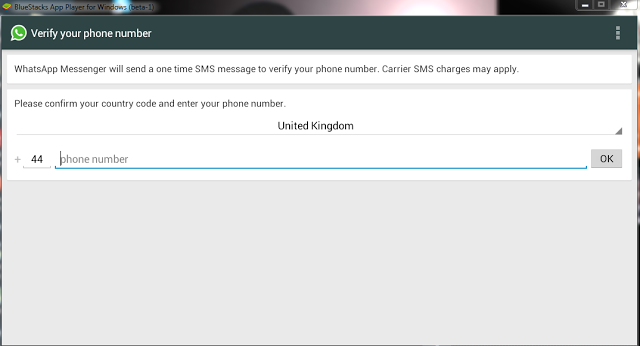
Bluestacks is a free software that allows you to use your favorite Android apps on a Windows PC or Mac. You can download apps like Angry Birds Space, 2go, Whatsapp or BBM to Go directly into Bluestacks, or sync the apps from your phone using the Bluestacks Cloud Connect Android app.
Using Bluestacks is similar to using an Android tablet: It works a bit like a widget. When clicked, the BlueStacks App Player will display the ten apps that have already been pre-installed and application suggestions which can be installed using Google Play Store. You can install more application by clicking on More below the big + sign. Bluestacks can be viewed in minimized or full screen.
Download Bluestacks
To download Bluestacks, proceed to Bluestacks download page, click on the download button that fits your OS description. The Download Now link will download a small installer file to your desktop. Remain online and double-click the installer to proceed with the actual download.
Please note that Bluestacks is currently in beta stage: Beta or prerelease software is not intended for inexperienced users, as the software may contain bugs or may potentially damage your system. I strongly recommend that users exercise caution and save all mission-critical data before installing or using this software.
I have personally tried this software on Windows XP, Windows 7 & Windows 8, the performance is great and it is worth trying!
You really, really need to dump Windows XP. No, really. Windows XP was great, and many users still love the operating system, but…it’s more than a decade old. At the rate technology evolves, that makes Windows XP a near-relic. Although it may still appear to work fine, the mantra of “if it ain’t broke, don’t fix it” doesn’t really apply to Windows XP. It’s broken in many ways, and when Microsoft officially stops supporting it next April, it really will be broken.
You don’t even need to upgrade to Windows 8. Windows 7 would be fine. Whether you or a stubborn holdout you know still needs convincing, these three reasons should do the trick.
1. Productivity
From a 10,000-foot view, Windows XP seems productive enough. It runs the applications you need it to run. It checks email. It surfs the Web. When you take a closer look, though, the newer versions of Windows have features that help you work more efficiently.
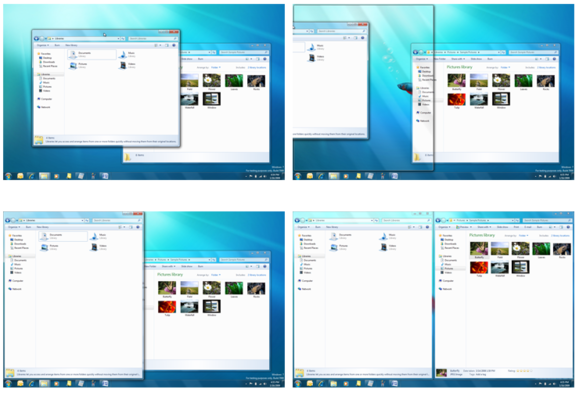
The Aero Snap feature makes moving and organizing windows simple by letting you just drag them to the edge of the display.
Aero Snap, which appeared in Windows 7, makes maximizing, minimizing, and organizing windows as simple as dragging them to the edge of the display. You can drag up to maximize, drag down to minimize, and drag to the left or right to snap the window to the respective half of the display. When you first start using Aero Snap, it seems like a novelty with little real value, but it quickly becomes second nature. After using Aero Snap for awhile, you’ll discover that it streamlines your work, and you’ll regret all the time you spent dragging windows here and there in XP.
Windows 8 has another feature that can save you even more time. File History is similar to the Time Machine function in Mac OS X. It scans your files every hour and stores copies of the incremental changes over time. If you accidentally overwrite a crucial presentation, or you decide to scrap your changes and want to go back to the way things were a few hours ago, it’s easy to restore a file from any point in the history.
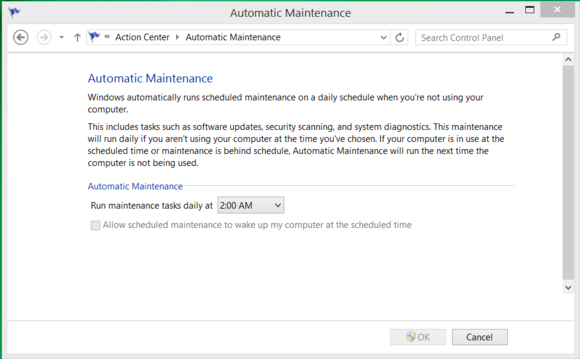
Another timesaver in Windows 8 is Automatic Maintenance. Managing the little things that keep your PC tuned and optimized—like defragmenting your storage, antimalware scans, updating the operating system, and performing diagnostic tests—can be tedious. Automatic Maintenance takes care of all of those things for you while you sleep.
Windows 8 can automate many tasks to keep your system updated and optimized.
Once you get used to the features in Windows 7 or Windows 8, you’ll wonder how you got by without them for so long.
2. New technology
Using an operating system that’s more than a decade old can also paint you into a corner when it comes to the peripherals and devices you can use with it. As new technologies are developed, they’re generally engineered with the latest operating systems in mind, and unlikely to be supported on Windows XP.
USB 3.0 is a prime example. Most USB 3.0 devices will still work—in a technical sense—with Windows XP because they’re backward-compatible. However, they will fall back to USB 2.0 compatibility and transfer data at about one-tenth of the potential speed of USB 3.0. Also note that even USB 3.0 is getting long in the tooth and will eventually be replaced by even faster technologies that Windows XP will not be able to take advantage of.
Whether you’re looking at wireless printers, Bluetooth keyboards, or 4K monitors, it will be challenging if not impossible to find drivers and support to make new technologies work with Windows XP.
3. Security
This is the big one. Windows XP is inherently more risky even now, and when Microsoft stops supporting the venerable OS next April, your PC will be virtually defenseless.
Just last week, Microsoft released a security advisory warning users about a zero-day vulnerability in Windows XP. The flaw is reportedly being actively exploited in the wild, but it doesn’t affect the newer versions of Windows.
Security experts believe that cybercriminals may already be hoarding Windows XP flaws, waiting hungrily for the expiration of Microsoft support. At that point, there will be no more Patch Tuesday security bulletins, and no patches or updates from Microsoft to address critical security concerns in Windows XP. It will be open season.
Tim Rains, director of Trustworthy Computing for Microsoft, has warned Windows XP users of another potential concern. Attackers often wait for a vendor to release a patch and then reverse-engineer it to discover the flaw and craft an exploit to take advantage of it. Once Microsoft support for Windows XP expires, malware developers will reverse-engineer Microsoft’s Windows 7 and Windows 8 patches and then verify whether those same flaws exist in Windows XP. In many cases, they will—and there will be no patch available to protect Windows XP.
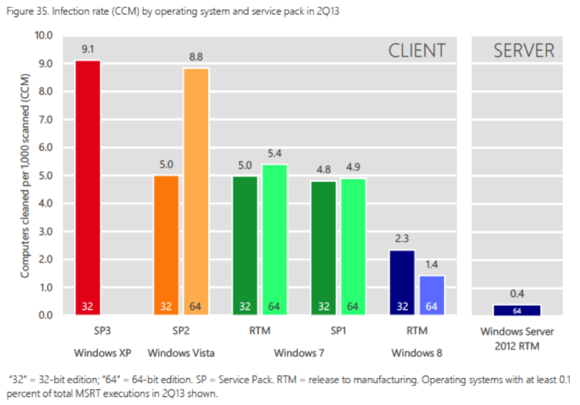
Volume 15 of the Microsoft Security Intelligence Report found that Windows XP systems were infected at more than six times the rate of those running 64-bit Windows 8.
The most recent Security Intelligence Report from Microsoft shows that when exposed to a similar volume of potential threats, Windows XP SP3 has a malware infection rate nearly double that of Windows 7, and a whopping 650 percent greater than 64-bit Windows 8. Windows XP systems are more likely to be compromised than ones running newer versions of Windows, the effects of the compromise are typically more insidious, and eradicating the threat and resolving a malware incident takes longer. It was great fun, but…
Windows XP was an awesome operating system. It was arguably the single best version in the history of the operating system. Windows 7 is a worthy successor to the Windows XP legacy, though, and Windows 8.1 is a tremendous operating system as well. Also, by clinging to Windows XP, you’re missing out on new features and technologies that could help you work more efficiently and simplify your life. Even if that doesn’t sway you, though, the reality is that Windows XP is going to be a security nightmare when support ends, and continuing to use it will be impractical—if not impossible.
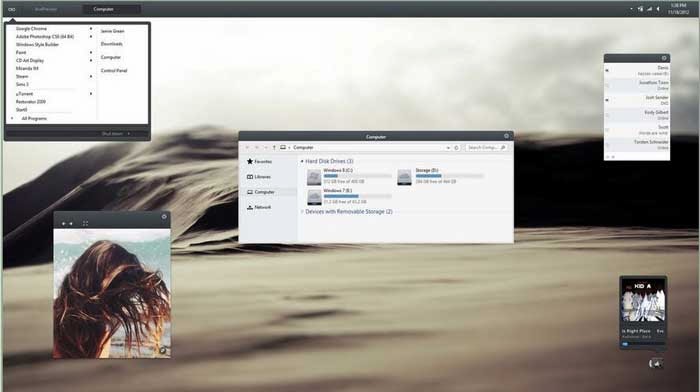
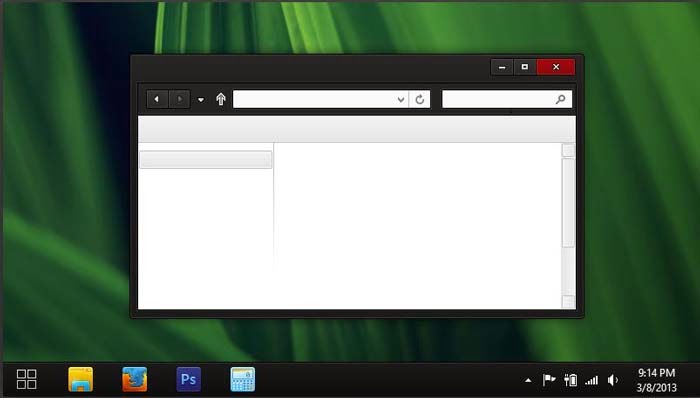
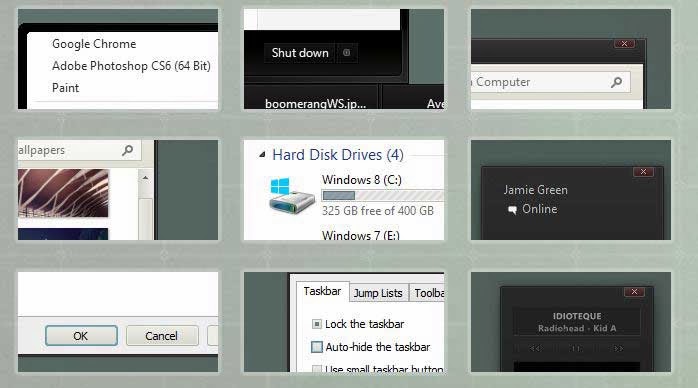
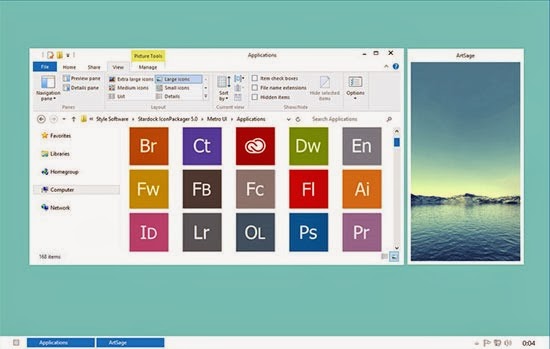
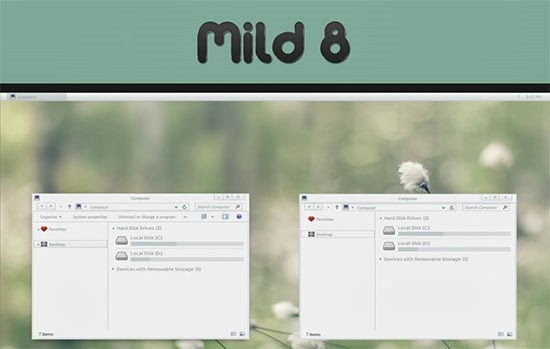
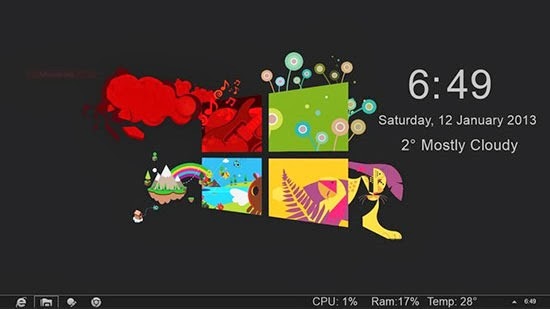
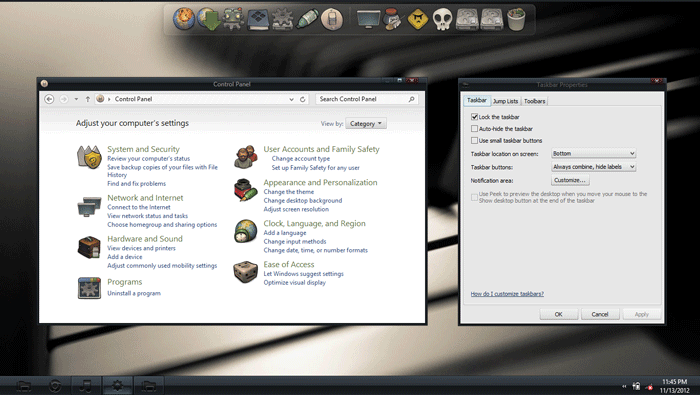
Bill & Microsoft has made many structural changes by implementing Metro UI and Start Screen in Windows 8. But the PC side of Windows 8 has not seen any dramatic changes except the removal of Start Menu and Aero Glass Transparency feature. Windows 8 like Windows 7 and others before them, has a lot of customization features that helps you define an entirely new look for your Windows PC .
Sometimes, the quest for customizing the desktop look can consume a lot of time; so you don’t have to actually customize your windows 8 PC, rather you can download many custom windows 8 themes and use them on your windows 8 PC (Check out 25 best themes for Windows 7) .
Most of these windows 8 themes are the products of talented artists/developers who make these themes available as a free download for everyone . But like most windows programs , windows 8 themes download from un-trusted sites might contain malware in them . So it is always advisable to download windows 8 themes from reputed sources only .
As a tradition that has been laid by the predecessors, Windows 8 does not allow the installation of third-parties themes by default, hence, it is recommended you read How to Install Third-Party Windows 8 Themes before you proceed to the next section of this article.
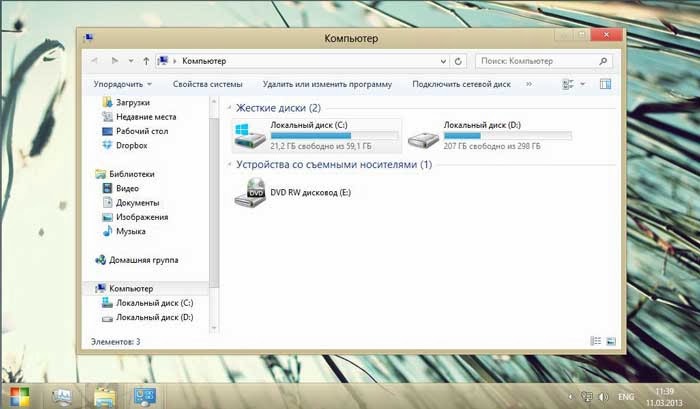
In this article, we shall consider the top 25 most-outstanding Windows 8 themes you can apply on your desktop.
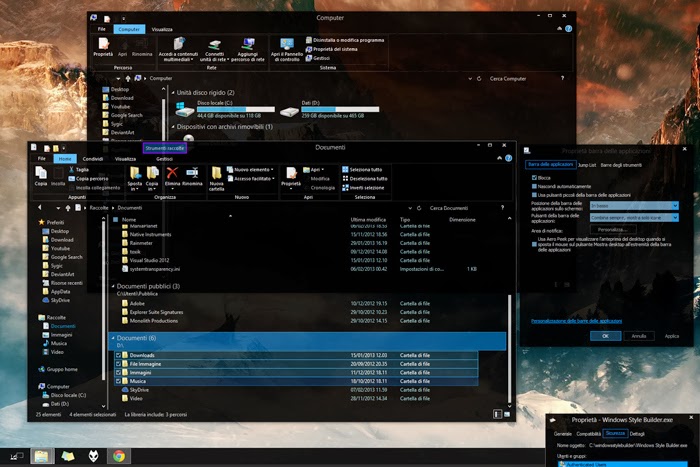
1) Space Blueberries 4.8
Theme Name: Space Blueberries 4.8 OS Version: Windows 8 Artist: Neiio
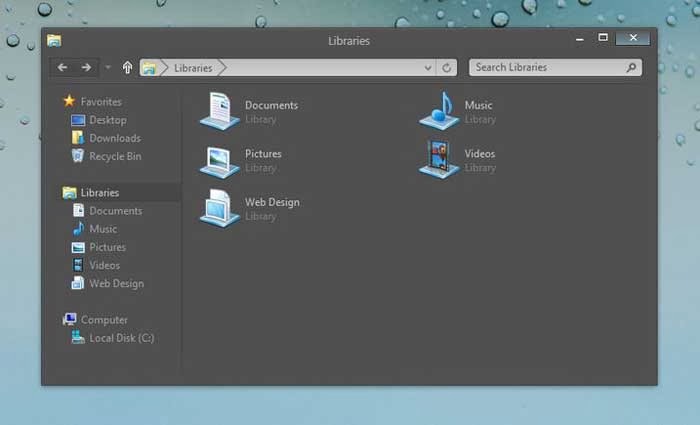
Description: Work is one of the best Windows 8 theme which has glowing dark interface. It gives you breathing space while working on multiple documents.
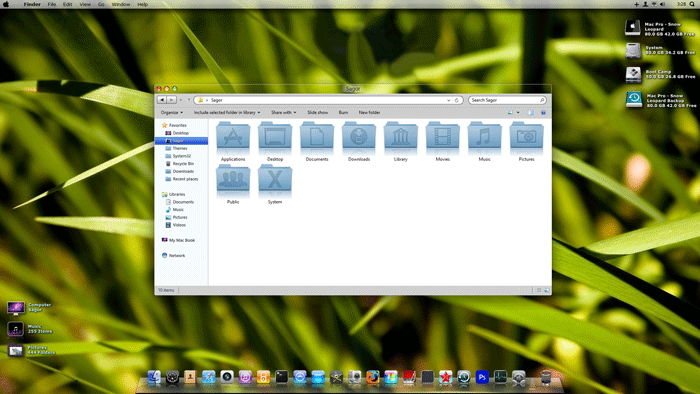
4) Snow Leopard glass
Theme Name: Snow Leopard glass OS Version: Windows 8 Artist: Sagorpbd
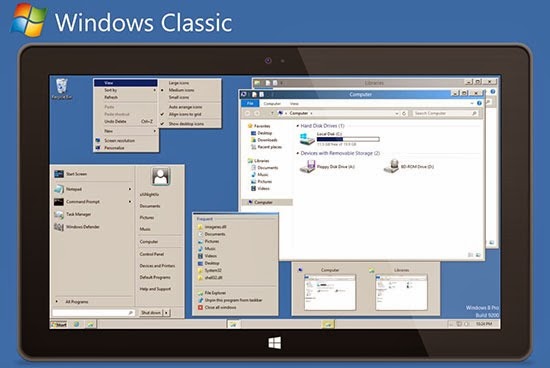
Description: Aer08Glow is a port of the default Windows 7 theme with a few modifications. This theme has glow on the caption buttons and 2 styles: one with square corners and one with rounded corners. To use this theme with rounded corners you have to enable Aero Glass Transparency in Windows 8.
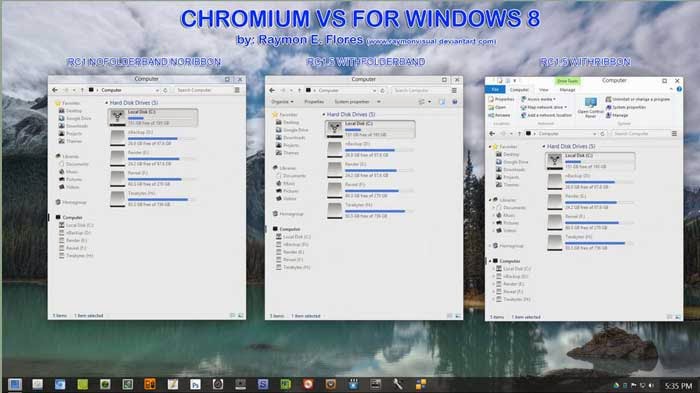
10) Chromium
Theme Name: Chromium OS Version: Windows 8 Artist: Reymonvisual
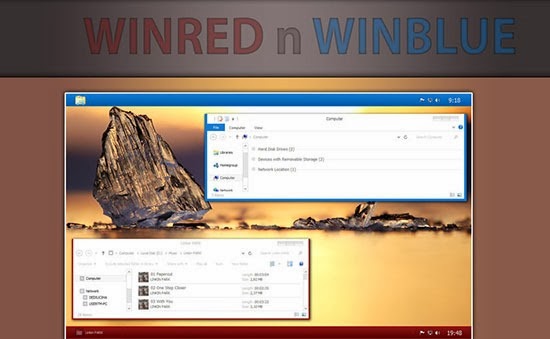
Description: Be greeted by the sweetness of the rising sun every moment your PC is booted. Win Blue n Red Windows 8 theme is the perfect blend for ‘red’ in ‘blue’, with a perfect ‘black’ to see off the dark sides.
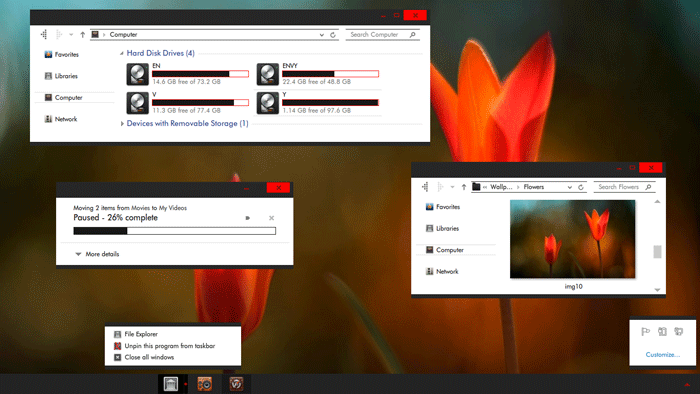
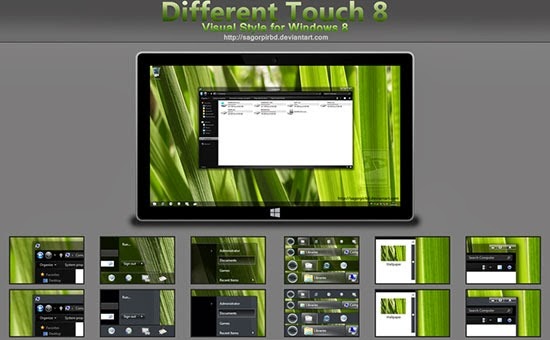
15) Different Touch 8
Theme Name: Different Touch 8 OS Version: Windows 8 Artist: Sagorpirbd
Description: Darkness has overshadowed light! The new ‘red’ brightens the appearance of your Windows 8 theme. Gray8 new red is an easy going theme with boundless customization.
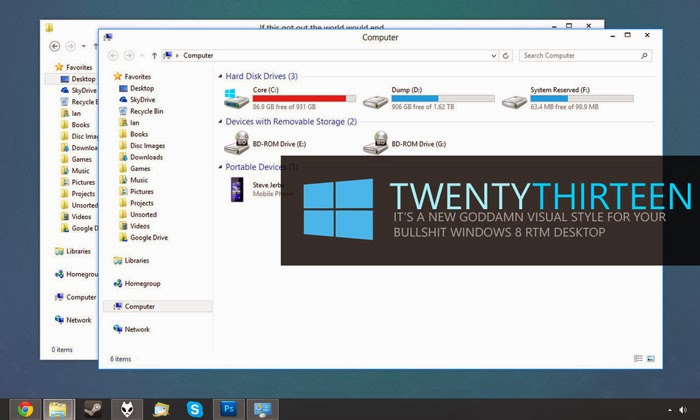
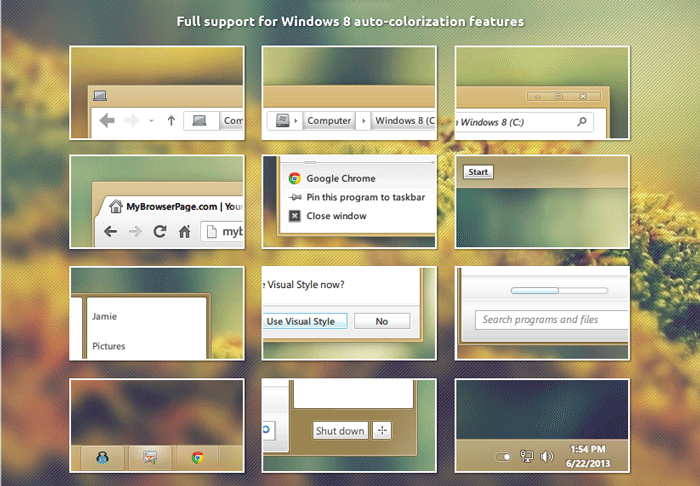
19) Twentythirteen
Theme Name: Twentythirteen OS Version: Windows 8 Artist: sand-and-mercury
Description: Twentythirteen is a new Goddamn visual style for your bullshit Windows 8 RTM desktop.
20) Abisso
Theme Name: Abisso OS Version: Windows 8 Artist: Ezio DOWNLOADDescription: Abisso is one word for ‘true transparency’: The Windows 8 theme has a clean dark background with blue color scheme.
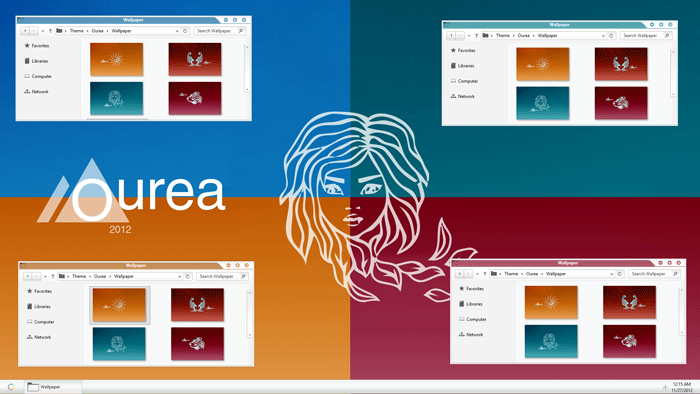
21) Elune
Theme Name: Elune OS Version: Windows 8 Artist: Neiio
Description: Gradually drift away from the original look of Windows 8. With Ourea windows 8 themes; the future is in your hands.
24) Alduin Windows 8 themes
Theme Name: Alduin Windows 8 themes OS Version: Windows 8 Artist: Charleston2378 DOWNLOADDescription: This list cannot be completed without the inclusion of the beautiful work of Charleston. Alduin is a Windows 8 minimalistic theme with deep dark background.
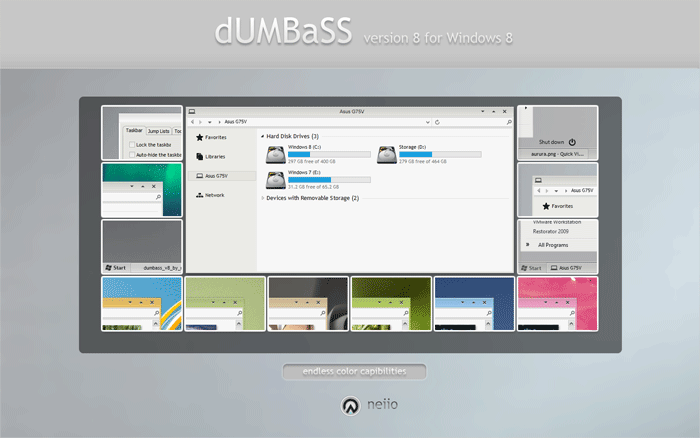
25) Nimbus
Theme Name: Nimbus OS Version: Windows 8 Artist: Neiio
Description: Closing our list of top 25 elegant Windows 8 themes today is: Nimbus. This theme has an extra-ordinary layout that allows you to choose from various color schemes and background.


 The gist is that Microsoft wants to unify the desktop and Metro environments, especially in the context of apps. The better the apps work between the two, the more people might use applications from the Windows Store. This is tacit admission that people love the desktop environment that they have used for decades, and have been slow to switch over to the Metro environment.

You must be logged in to post a comment.