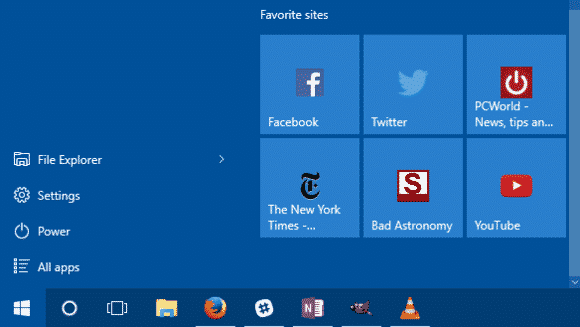
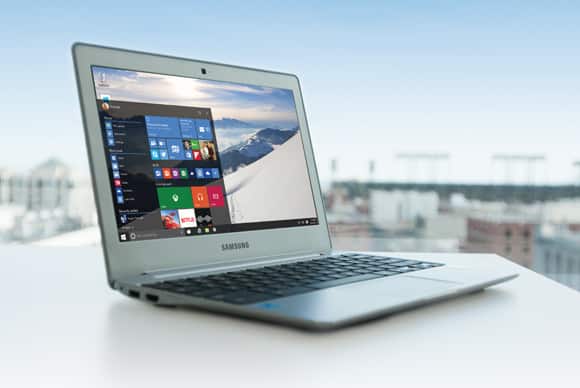
How organized is your Windows 10 start menu? Do you have everything you frequently use on the start menu? What about your favorites site? Windows 10 offers tons of choices for desktop programs, and apps from the Windows Store can be useful too. But there are still probably a few key webpages you turn to every day instead of a desktop program or modern UI app.
Wouldn’t it be nice to have those lovely websites available to you on the Windows 10 Start menu? Here’s how to do that.
The Edge way
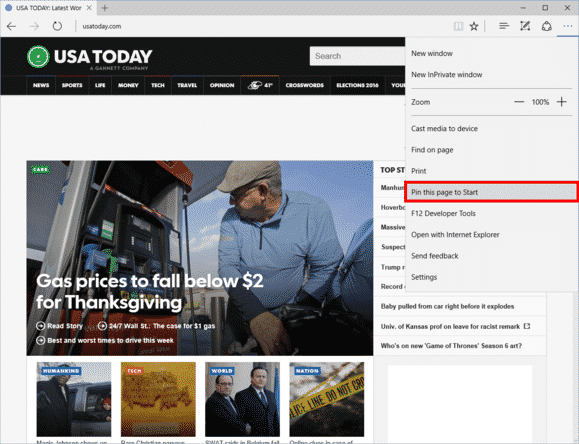
Microsoft Edge in Windows 10 has pin-to-Start functionality built-in.
Open Microsoft Edge and then navigate to the page you want to add. In the upper right-hand corner, click the three horizontal dots, and then from the drop down menu select Pin this page to Start. A pop-up window will appear asking you to confirm. Click Yes and you’ll find the site at the bottom of the live tile section in your Start menu.
The downside? This method is that links will only open in Edge. Fortunately, there’s a way around that. If you want links to open in your default browser instead of Edge, you have to use a little bit of trickery, but nothing too complicated.
The non-Edge way
Open Internet Explorer and navigate to the webpage you want to add to Start. For our purposes, let’s say it’s Facebook.
Once you’re on Facebook, right-click in an open space on the site and select Create shortcut from the context menu. IE will then show a pop-up window asking if you want to create a desktop shortcut. Click Yes.
To do the same thing in Chrome and Firefox, go to the address bar and click-and-drag the icon to the left of “http,” and drop it on the desktop. The icon will either be a green lock, a rectangular piece of paper, or a globe.
Pro Tip: In my experience, you’ll generally get better looking icons using Internet Explorer for this step.
Next, right-click the desktop icon you just created and select Copy.
Add to Start
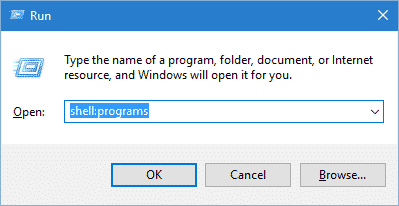
Now type “run” into the Cortana/search box. The top choice should be the Run desktop app.
Once Run opens, type inshell:programs, click OK, and an Explorer window will open.
Now just right-click in the main part of that window (be careful not to accidentally open a folder) and selectPaste.
Your website is now in Start but it’s buried in the “All apps” list. To remedy this, just clickStart > All apps and scroll down to the listing in the alphabetical list. Since we’re doing Facebook we’ll look under “F”.
Once you find it, just click-and-drag it onto the live tiles (right) side of the Start menu and you’re done.
After you’ve added your webpages to Start, feel free to delete your shortcuts from the desktop.
If you’d like to take this a step further and add an entire section of websites to Start, check out our earlier tutorial on customizing the Windows 10 Start menu. This will teach you how to group tiles together.
The catch with websites using the non-Edge method is you can’t remove them from Start through the right-click context menu. Instead, you have to type shell:programs into Run and then delete the shortcuts in the Explorer window that opens.
This is something that is almost synonymous with Apple devices. However, this time, Microsoft is taking over the spotlight with their new ‘Find My Device’ feature introduced in November Windows 10 update. The new Microsoft invention is not just for tablets or phones. Any Windows 10 device can take advantage of the new feature, including desktops and laptops.
Although the current version of ‘find my device’ may not take your breath away or have your tablet make a sound, lock itself, erase data, or anything like that when stolen – it’s still a great feature to keep tabs of your device’s location and capture its thief – if needed.
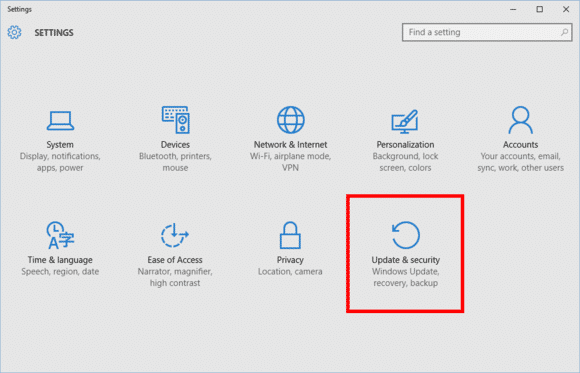
Find My Device is buried under Settings > Update & Security.
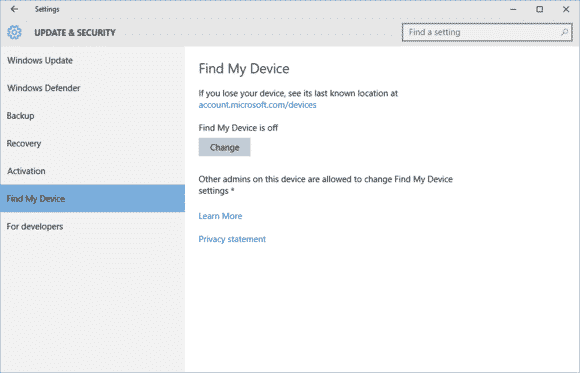
To active this feature go to Start > Update & Security > Find My Device.
On this screen you’ll see a big Change button under the heading “Find My Device is off.”
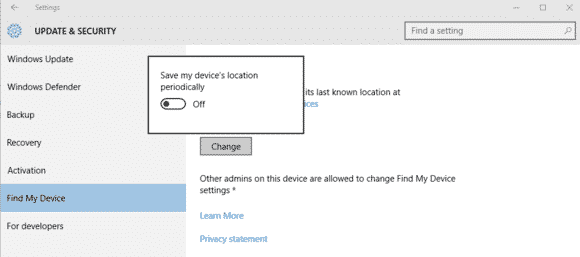
Turn this slider to On and you’re done.
Once you click Change you’ll see a pop-up panel that says “Save my device’s location periodically.” Turn the slider to On and you’re done.
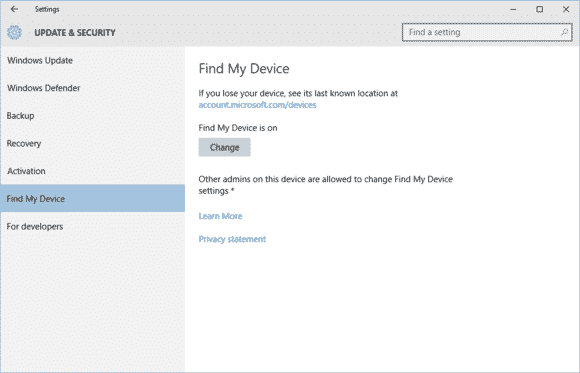
Find My Device is now on.
You should now see that the Find My Device screen has changed to “Find My Device is on” as seen above.
To make sure everything is working, login to account.microsoft.com/devices with your Microsoft account and you should see the name of your PC listed under “Your devices.”
If you don’t know the name of your device, right-click on the Start button and selectSystem. In the Control Panel window that opens you’ll see it under “Computer name.”
Ars Technica ran benchmarks on November 13th of the Steam Machine, against Windows 10. The result was pretty much the fresh operating system processing gaming much faster than the machine meant for a couch-convenient PC gaming experience. The two systems are relatively close when it comes to the mechanics for gaming, but the Steam Machine was found to lag way behind the new Microsoft operating system when it came to real gameplay. You could end up losing frames and detail of graphics depending on which game you’re playing on the SteamOS versus Windows 10, according to the tests.
The tests were run with a playable, modest setup: a dual-core 3GHz Pentium with an old GeForce GTX 660; which could pose a problem when handling more major and demanding games.
The SteamOS’ foundation is based on Linux, which is an operating system not well fitted with custom video cards/specialized gaming cards unlike Windows and Mac Pro systems. The implementations of the software is simply keeping the hardware from excelling to its true potential, and that could change with a little bit of refinement and fine-tuning from Valve.
Until that time comes, we’ll stick with sitting at our computer desks for our PC experience.
On November 11th, 2015, “TH 2” was released for Windows 10 users to download and install. Basically, TH 2 (using the abbreviation for the Windows 10 nickname ‘Threshold‘) is the first big update for the still in-development OS. The update came with an abundance of things, for both the personal user, and DEFINITELY for enterprise users. So, given this I figured it would be appropriate to share a condensed rambling of my experience with Windows 10 so far.
Using their Media Creation Tool, I downloaded and installed the first release version of Windows 10 onto my then Windows 8.1 HP laptop, excited to see all of the new features it boasted. I grabbed it sometime near the ending of July or beginning of August. After the semi-painful several hours it took to download and install, I was ready to become a user! Here I am now in November, and at the moment, I feel…slightly impressed.
Don’t let my words fool you to think I dislike the operating system – trust me when I say Windows 10 is definitely one of my favorites of the Windows Family! I was also very excited for its free download release and was super excited to setup my personalization, settings, and Start Menu. However, after having plenty of time to be more than acquaintances with the OS (and with the TH 2 update), I’ve began to realize that, at the moment, my personal experience with Windows 10 Home has fallen a bit short of my own expectations.
Since I like to discuss negatives (well, these or more less “personal opinions” rather than “cons”) and then the positives, I will do just that; and since I’ve had a good deal to experience with the system, I’ll try my best to condense the experience report.
1 – Start Menu & Taskbar
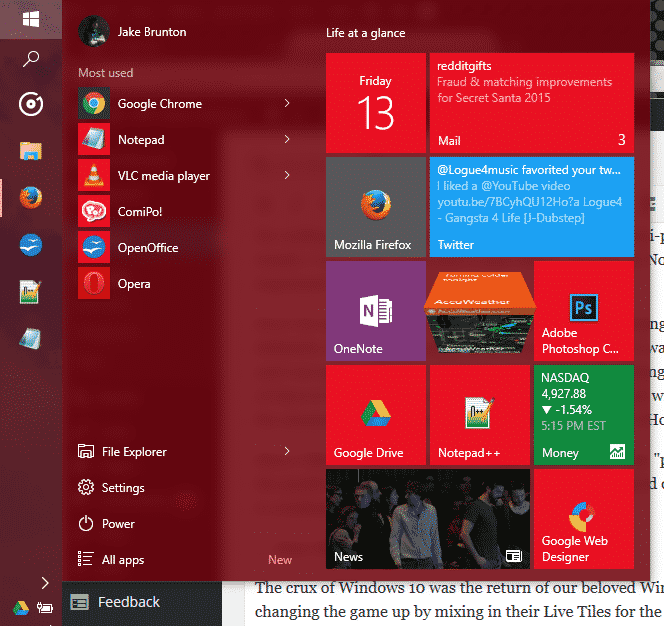
The crux of Windows 10 was the return of our beloved Windows Start Menu. However, Microsoft was changing the game up by mixing in their Live Tiles for the Windows Store Apps to be placed in up to 3 columns on the right side of menu. It was all great, and worked quite well. Design options are well fitted, and since TH 2, the context menus for changing up your Live Tiles are grand. But on the technical side, I find myself feeling slightly encumbered by the Start Menu. Simply put, it has its glitches and little bugs, but the one that caught me the most is that amount of time it takes for my machine to open this awesome and modern menu up. About 0.90 seconds approximately. As for the taskbar, it still has that pesky universal problem of sometimes keeping hovered icons focused on even without your mouse hovered over it.
2 – Windows Store Apps
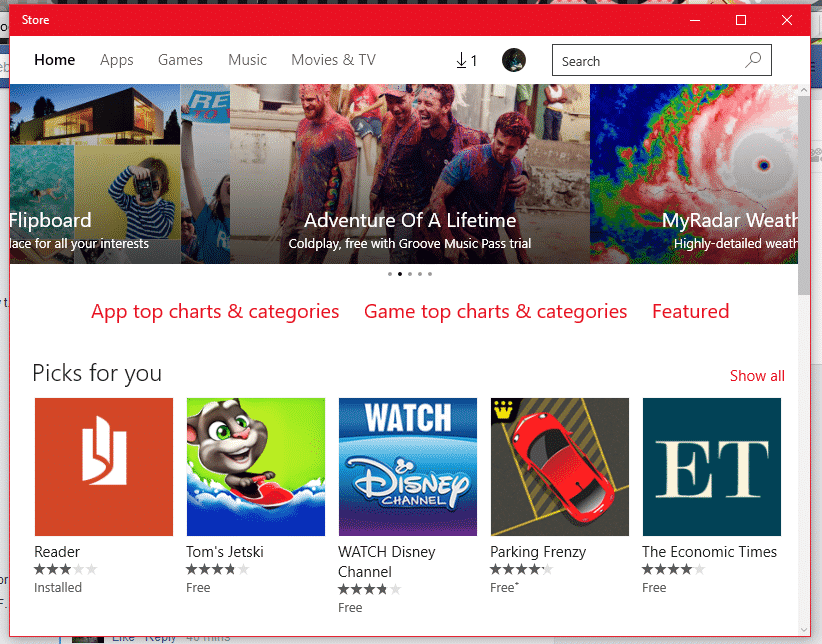
This is pretty much my other problem with my Windows 10 experience so far. The Windows Store offers a bunch of apps, no doubt; unfortunately only a good handful of them here and there and designed nicely and work with the system and its available APIs and standards. But the recurring problem I have here is one I’ve had since standard Windows 8. A lot of the time, apps from the app store like to either 1)close themselves immediately (and not just close, but end their own program and task(s)) and/or 2)be unresponsive (especially when communicating with servers).
3 – Windows Search
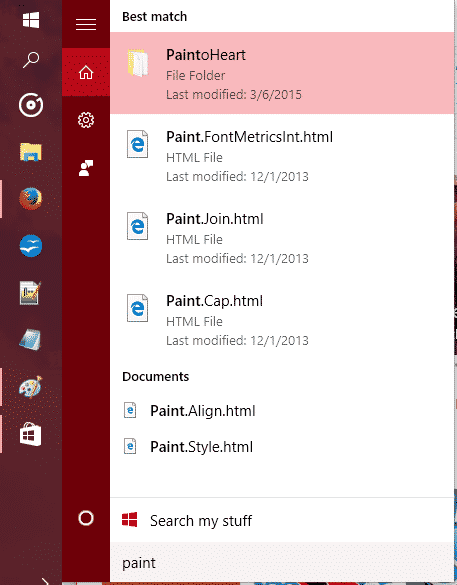
The new search has Cortana so you can search (and now even Send Text Messages!) with your voice. It’s all great and good. However, Cortana still stands for some good improvements, and the actual search stands for some major improvements.
So, out of everything, those three points are the ones that have caused the most hindrance on my experience as a whole. There are other little things I come across sometimes that takes some small jabs to that ‘hype’ I had for Windows 10 as a whole, but they’re easy to look over.
On the flip side, I still love Windows 10 so far, and love the TH 2 update. It is my favorite Windows OS to date, and it DOES have so much goodies with it. The whole Start Menu and Live Tiles, despite their usual buginess, are great altogether! And while I don’t use the feature, Cortana and the voice commands are very convenient for quick search, note taking, emailing, events, and even calling/sending texts. Faster boot times are something that is great, along with improved programs performance, virtual desktops, an activity center, and tablet mode – Windows 10 is definitely a budding operating system.
The improved performance has helped me boost my productivity, though I will not lie when I say that the discovery of Flow Free and a third-party reddit app has held me accountable to some good procrastination. So, at the moment I recommend upgrading to Windows 10 if you have 8.1/8/7 if you want to try it out while the update is still free. If you end up disliking it, they give you a one-month use on their rollback tool to switch back onto your old OS.
Make sure to follow EWT Net for more news and blog posts related to Microsoft, and Windows 10!
When the Supreme Court issued its historic ruling on Friday legalizing same-sex marriage across the U.S., many of the biggest technology companies embraced the decision with characteristic flair through social media, on their sites, and with tools that others could use to show their support as well.
Companies like Google, Microsoft, Motorola Mobility, Uber and Airbnb, their chief executives, and their venture capitalist funders all took to Twitter to post celebratory tweets about the ruling, often accompanied by the hashtags #LoveWins or #Pride, plus GIFs. Companies also changed the colors of their profile pictures on Twitter to those of a rainbow, conjuring the symbol of lesbian, gay, bisexual or transgender pride.
Twitter, which called Friday “a monumental day for equal rights,” released two new rainbow emojis, of a flag and a heart, that users could post by tweeting the aforementioned hashtags.
Google, in a tweet, said it was proud to celebrate marriage equality. The company included a GIF of a green Android robot waving a rainbow flag.
Given the likely impact of the Supreme Court’s ruling, and rising support among the public, same-sex marriage has become a safer issue for technology companies to support. Liberal social values in the parts of California where many tech companies are based made their reactions not much of a surprise.
And yet the ruling comes at a time of heightened sensitivity around issues of diversity in the tech industry. Whether it’s leveraged this way or not, the Supreme Court ruling offers a convenient opportunity for companies to cast their brands in the light of openness and acceptance.
Mark Zuckerberg, CEO at Facebook, said the ruling represented another step toward achieving the founding promise of the U.S. that all people are created equal.
Josh Elman, a venture capitalist at Greylock Partners in Silicon Valley, offered this observation: “Rainbow flags going up. Confederate flags coming down. Feeling the arc of progress and humanity in how we respect each other,” referring to growing opposition to the flag associated with racism in the South.
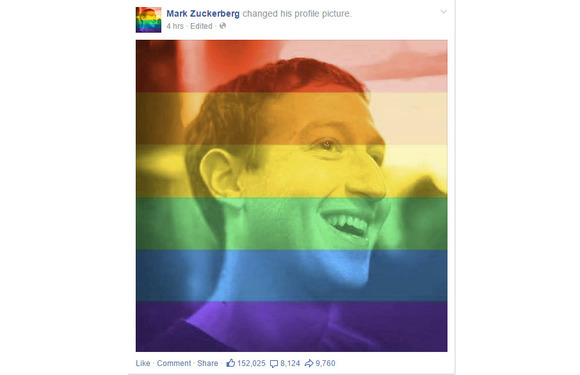
Meanwhile, some technology companies offered tools or features meant to celebrate marriage equality. Facebook released a filter that people could use to overlay a rainbow on their profile picture. The tool appears to have been developed for Pride events around the country this weekend; the Supreme Court ruling hastened its arrival. It can be accessed at www.facebook.com/celebratepride.
Google, for its part, added a banner to the top of its search results page showing people holding hands and a rainbow heart. The banner only appeared for certain searches like “marriage equality” or “gay marriage.” The banner did not appear for a search for just “marriage.”
Snapchat got in on the action, too. The photo-sharing app created a themed Live Story around the ruling, called “Marriage Equality,” which let users post photos and videos to a feed that everyone else could see. Part of the feed contained a video showing people celebrating outside the Supreme Court.
Interest in the ruling, at least initially, appeared to be higher in the U.S. than in other countries. Google searches around gay marriage were concentrated primarily in the U.S. and Canada, according to a Google Trends report.
But the Snapchat feed was made available to users globally, as was the Facebook rainbow filter.
Over the past 18 months, Intel has been striking on the Chromebook market as the said market grows as more and more content is placed and trusted to the cloud. The company, that makes many CPU chips and graphics, wants to help customers switching to a Chromebook device to have a much easier time with their switch.
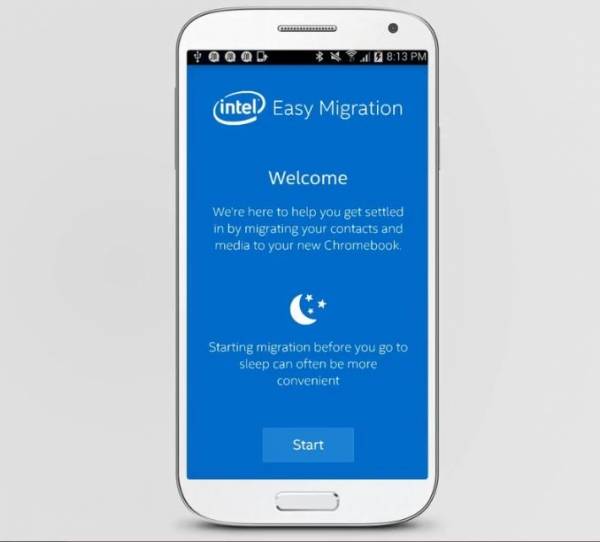
With their app, conveniently named Intel Easy Migration, users can easily migrate files from their mobile devices or PCs to Intel-powered Chromebooks. The app can move all sorts of files like photos, videos, and audio to even contacts and more. The Intel Easy Migration app let’s the customer move any of said files from their mobile Apple iOS or Google Android device to their Chromebook or even files from their Intel-powered Windows computers.
According to Intel officials, the customer can use the Quick Migration function to have all of their files sent over to the targeted destination, or manually select the files they want to have migrated. The user can also pause the migration whenever they wish to. The app is available in the Google Play and Apple App Store online stores, or can be downloaded for Microsoft Windows systems. Through the software, users can migrate their local and Hotmail contacts to Google Contacts, and their photos and videos to Google+ Photos. The app will also show how much space on their Google Drive is being used during the migration.
The new app by Intel comes shortly after the popularity for the Chromebook grew, the trend continuing through 2014. In July, analysts with NPD Group found that during the first half of the year, Chromebook sales in the U.S. commercial channel jumped 250 percent from the same period in 2013 and accounted for 35 percent of the notebook sales in the channel.
“Building on last year’s surprising strength, Chrome’s unit strength ahead of this year’s education buying season shows how it has become a legitimate third platform alongside Windows and Mac OS X and iOS,” Stephen Baker, vice president of industry analysis at NPD, said in a statement at the time.
Analysts also look at the Chromebook as a key reason – alongside Microsoft cancelling Windows XP support – for the decline of global PC sales this year. Intel has been aggressive in pursuing the Chromebook market as part of its larger efforts to gain inroads in the mobile device space against ARM and its manufacturing partners and to extend the reach of its chip portfolio into as many computing devices as possible. That includes supporting a broad range of operating systems, including Windows, Android and Chrome.
What if you are giving a chance to live your life again? Or should I say, what if you are giving a chance to see what Windows computers look like 25 years ago?
Let me walk you back to somewhere within 1992 and 1995 and unveil the hilarious Window that never was, Windows 93
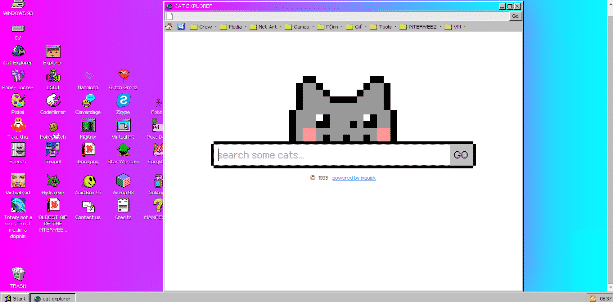
Windows93 might not have existed as a Microsoft Windows series. But if Microsoft released an operating system in the chasm between Windows 3.1 and Windows 95 it might look something like Windows 93, an interactive art project by Jankenpopp and Zombectro that you can try right in your web browser.
The experience of the OS is hard to put into words—it’s Windows imagined in some parallel universe, with plenty of retro homages to the weird OS quirks of yore.
The hard drive defragger comes with a funky MIDI beat so head-bobbingly enticing that you’ll wonder why it wasn’t implemented in the first place. Perhaps familiar to some, a horribly sad “Virtual Girl” can sit on your desktop, though instead of flirting or stripping via 16-bit animation, this one lays there as lifeless as a paper doll. You can watch a video of Star Wars right on your desktop (the catch: it’s rendered in ASCII). And then there’s the “Totally not a virus. Trust me..im a dolphin” icon that’s pretty much a must-click, harkening back to the good old days when viruses were as much about pranking you as they were stealing your data. Though, for the record, that virus is nowhere as devastating as the army of Clippys that will randomly show up.
It’s surprising just how deep you can dig in Windows 93, thanks to content like GameBoy emulators and pixel editors that have actually been pulled from various sources across the web. I spent a shameful amount of time giggling nostalgically, until suddenly, a beach ball of death showed up on my screen. At first, I figured it was just another one of Windows 93’s jokes until, moments later, Chrome froze and then crashed.
Oh how far we’ve come in the last 20 years!
You can experience the thrill of Windows93 for yourself. Try it here.
Going to college in Nigeria could be financially cumbersome towards the end of each semester—especially when it is imperative to get a new laptop and you didn’t manage your finance during the semester.
Your bank account is nearly tapped out, and you still need to buy text books, handouts and lay in enough ramen noodles to last through the winter.
Yeah, we’ve all been there. Fortunately, Moore’s Law is still in play, so today’s budget notebook is yesterday’s workhorse. Pretty much any modern laptop can handle the gamut of productivity chores—word processing, number crunching, email, and the like—but all of the machines in this roundup can also tackle media editing and encoding sessions, and deliver respectable entertainment experiences.
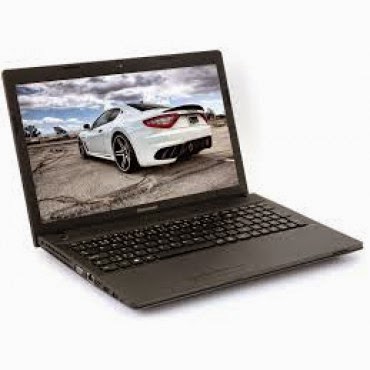
Working on an environment that demands great sound system? Lenovo G505 offers you the best option. Thanks to its stereo speakers with Dolby® Advanced Audio™ v2, graphics card options up to the speedy AMD Radeon 8570M VRAM, and optical disk drive options up to a Blu-ray Disc™ combo, the G505 offers stunning, stutter-free visuals and immersive sound for a fuller, more satisfying home entertainment experience.
The AMD E1-2100 APU Processor powered laptop comes with a Windows 8 operating system and a RAM of 2GB. The pre-installed Bitdefender Anti‐Virus Plus gives maximum security to the user for 1 year and can be renewed afterward.
Key Specifications:
Windows 8 OS
4GB DDR3 RAM
1TB (1,000GB) Hard Drive
AMD E1-2100 APU Processor
15.6-Inch, HD Display
Inbuilt Wireless Adapter
AMD Radeon Graphics
DVD RW Optical Drive
The actual price for Lenovo G505 is currently ₦86,400 but can be bought online for ₦58,000 (discount rate). See product page for full specification and purchase.
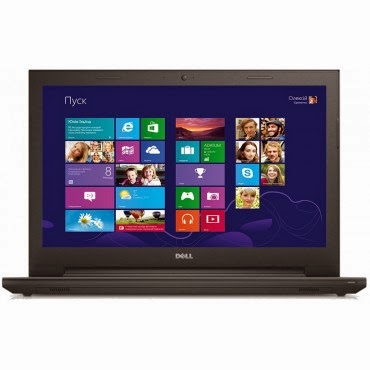
Dell Inspiron 3541 is a well packaged Windows 8.1 laptop with an AMD E1-6010 Dual Core Processor, Free Dell Sleeve, Microsoft Office 365 Personal, 8GB Flash Drive and 2 years free call service with Skype.
The device is suitable for gaming and performing high resolution display tasks, boasting of 15.6-Inch (1366×768) HD display unit and AMD R2 dedicated graphics card.
Key Specifications:
Windows 8.1 OS
2GB DDR3 RAM
500GB Hard Drive
AMD E1-6010 Dual Core Processor
15.6-Inch (1366×768) HD
DVD RW Optical Drive
Inbuilt Wireless Adapter
You can purchase or see complete features and specification of Dell Inspiron 3541 on the product page.
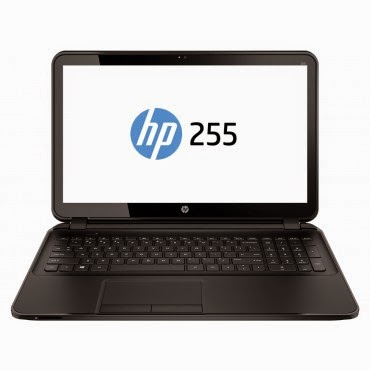
HP 255 is a multi-tasks Windows 8 laptop powered by a 1 GHz, AMD E1-2100 Dual Core Processor and 2 GB RAM, certainly not the fastest PC on this list but the 15.6 Inch, HD display unit will make up for its shortcoming.
The laptop has a 500 GB storage space, DVD RW Optical Drive and yes, it has an inbuilt wireless adapter.
Key Specifications
Windows 8.1 OS
2GB RAM
500GB Hard Drive
AMD Dual-Core E1-2100 APU with Radeon HD 8210 Graphics (1 GHz, 1 MB cache)
When it comes to producing quality PCs, Acer is second to no one. Acer Aspire E1-510 carries the same DNA, featuring a durable plastic case and a 4-cell Li-Ion with extended life capacity—if you are in an area where electricity is an issue, you might want to stick with this product.
The practical yet stylish notebook is loaded with powerful and useful features like multimedia tools and convenient connectivity features. This is a stylish notebook which comes with 15.6 inch, HD LED Backlit display, powered by Intel Pentium processor with Linux OS to provide a faster and user friendly experience. It has Intel HD Graphics that deliver ultimate graphics needed for gaming, 500GB Hard disk drive also provides ample space for storage, HDMI and USB 3.0 ports for faster data transfer.
If you think the products listed above are a little above your budget and you don’t mind sacrificing the option of listening to another Davido’s single, you can bite the bullet and go with an Acer mini laptop without a CD Drive.
The Aspire V5 Series puts inspiring performance in a thin and light form. A choice of elegant views adds to the charm. Breathe life into your entertainment and enjoy hands-on control with Acer Aspire V5-123. Its built-in speakers sweeten the deal with splendid sound. The laptop features;11.6-Inch WXGA HD, AMD Radeon trade; HD display with 2GB RAM and a 500GB hard drive which provides enough space for you to store your files, data, photos, and music. You can connect to the world wherever you are with your laptop, the WiFi enables you to browse and surf the web, you can also transfer data to other devices via bluetooth. This laptop comes with a free mouse, bag and headset.
Microsoft announced this morning that it crossed the 1 million tester mark for the technical preview of its Windows 10 operating system. I had expected a higher number would opt for the new code, given how extensively the media (guilty) covered the rollout of the nascent operating system.
According to the company, more than 200,000 “pieces of user-initiated feedback” have reached its ears. The breakdown of builds that are run virtually and natively is about one-third and two-thirds, respectively, according to Microsoft. Microsoft has a long way to go with Windows 10, but with 1 million current registrants and several beta cycles yet to go, things seem to be off to a decent start. You will have to vet the strength of the million figure yourself.
I’ve been using Windows 10 as a daily driver at home for a few days now, with a docked Surface Pro 3 hooked up to a 24-inch external screen, and an external mouse and keyboard. It’s a decent operating system in firm need of debugging, and the unshackling of its Metro alter-ego. But all things told, I am roughly as happy with it in desktop mode as I was Windows 7. And like with Windows 7, in Windows 10 I don’t use the Start Menu much. If you haven’t gone hands-on with the code, it’s worth a spin.
How long until 2 million people are using Windows 10?
Windows 10 adds all sorts of nifty new features designed to appeal to PC power users, but it also includes some nifty newcomers that you can’t actually see—fresh keyboard shortcuts!
The details come courtesy of Brandon LeBlanc of Microsoft’s Blogging Windows blog. If you install Windows 10 be sure to check these out.
Snapping window: Windows key + Left or Right — LeBlanc says: “(Can be used with UP or DOWN to get into quadrants.)” Quadrants is the new Snap view mode that pins apps to the four quarters of the screen.
Switch to recent window: Alt + Tab – LeBlanc says: “Hold shows new Task View window view, let go and switches to app.”
Task view: Windows + Tab – LeBlanc says: “New Task view opens up and stays open.”
Create new virtual desktop: Windows key + Ctrl + D
Close current virtual desktop: Windows key + Ctrl + F4
Switch virtual desktop : Windows key + Ctrl + Left or Right
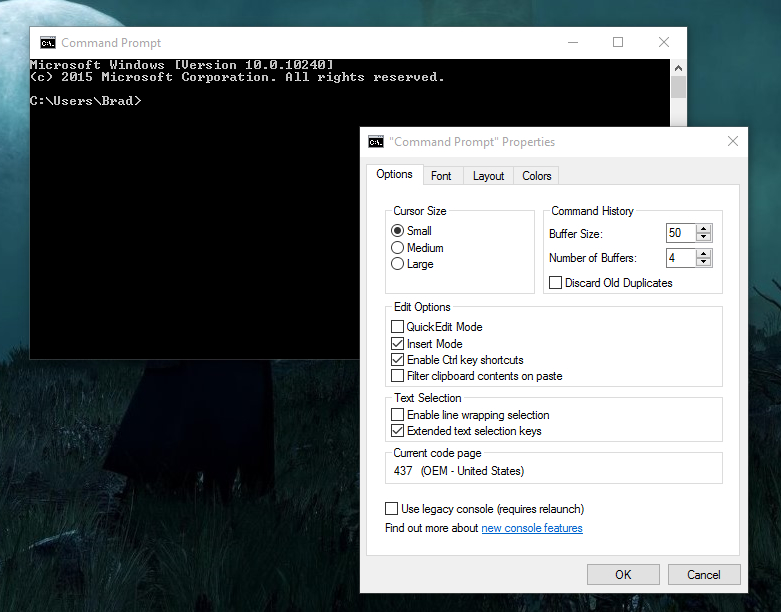
The Command Prompt and its Experimental Properties tab in Windows 10.
If you want to start using Windows 10’s greatly enhanced Command Prompt hotkeys (copy-pasting via the keyboard, yesssss) then be sure to check out Scott Hanselman’s extensive post on the topic.
Windows 10’s newfound support for keyboard shortcuts in the Command Prompt isn’t enabled by default, however. To enable it, right-click the Command Prompt’s title bar and select Properties. Open the new-to-Windows-10 “Experimental” tab and check the box next to “Enable experimental console features.” Finally, check the boxes next to “Enable new Ctrl key shortcuts” and “Extended edit keys,” then click OK.
A batch of leaked screenshots from the next version of Windows reveals just how far Microsoft will go to win back desktop users.
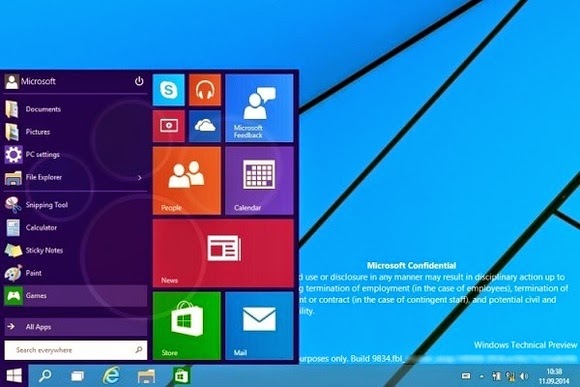
The update, codenamed Threshold and possibly called Windows 9 or just plain Windows, takes some features from Windows 8 and grafts them onto the classic desktop. While we’ve known for some time that Windows 9 will have a pop-up Start menu and the ability to run modern apps in windowed mode, the new screenshots from Computer Base and WinFuture.de give even greater detail on how things will work.
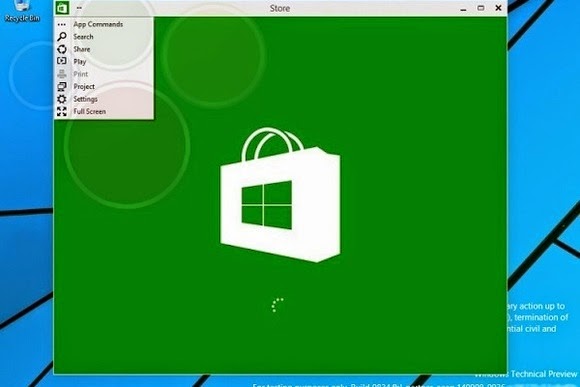
When running in windowed mode, Windows Store apps will get a button in the top-left corner. Clicking the button brings up a list of functions that previously appeared in the Charms bar, including Search, Share, Play, Project and Settings. This menu lets users switch the app to full screen mode as well.
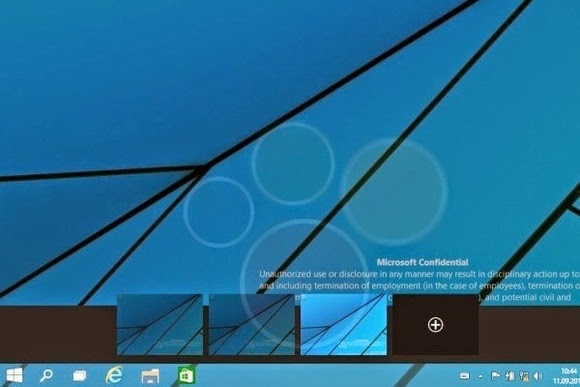
Microsoft is also adding a few new buttons to the desktop taskbar. A search button sits immediately to the right of the Start button, followed by a button for switching between multiple desktops. The latter feature, possibly called “virtual desktops,” will let users switch between several sets of desktop apps and layouts in nod to Ubuntu Linux’s longstanding “Workspaces.”
Near the right side of the taskbar, users will find a new notifications button, with a pop-up menu that will presumably show messages from Windows Store apps.
The screenshots don’t reveal any other major features, but they do give away a few more minor details. Despite rumors that the Charms bar is dead, the screenshots show that users can still bring up Charms by pointing to the upper-right corner, or bring up a recent apps list by pointing to the upper-left corner. Those options and others will be available through Taskbar and Start Menu Properties.
Of course, all of these details are subject to change as Microsoft hasn’t even released a public beta yet. The leaks likely come from Microsoft partners, who according to Neowin started receiving Windows builds a few weeks ago. A public “Technical Preview” is expected to arrive later this month or early next month.
MBOX Converter is an apt solution that can be used as an Entourage to Outlook converter though the application works only on Windows Operating System, whereas Microsoft Entourage is an email client that was developed for Macintosh OS 8.5 and higher. But the release of Entourage has been discontinued with the release of ‘MS Office for Mac 2011.’ Rather it can be said that ‘Outlook for Mac’ or Outlook 2011 has replaced Entourage mail client that was developed specifically for Mac systems.
Here in this page we will be reviewing MBOX Converter version-2.1 and check into the useful attributes of the tool that makes it suitable to be employed as an Entourage to Outlook converter; that requires the conversion of MBOX files to PST format. But before we exactly go for the inspection of the software it is necessary to know how to perform transition from Entourage to Outlook for Windows, with the assistance of the application.
How to Migrate and Access Entourage Mail in Outlook?
The tool whose performance is being examined in this page converts MBOX files to PST format and also functions only on Windows OS instead of Mac. The Entourage folder structure is stored at the following location in Apple Macintosh OS X: ‘Hard Disk Name/Users/user_name/Documents/Microsoft User Data/Office 2008 Identities/Main Identity’
Therefore, to use the tool as Entourage to Outlook converter, following steps need to be followed:
Copy the Main Identity folder to a Windows system because when this is practiced, MBOX files are created for individual mail folders.
Import the exported PST file in Outlook mail client once the conversion of MBOX files to PST format is complete by running/ executing the software program.
Installation Prerequisite
The application seeks some basic minimum system requirements and they are:
System Requirement
SysTools
Support
Windows 8.1 & Below versions
Available Hard Disk Space
10 MB
Processor
1GHz
Memory (RAM)
512MB
Acquaintance with Some Key Attributes Of the Converter
Scans the emails in short span of time
Previews emails along with attachments
Can merge multiple MBOX files into single PST
Can create single Outlook PST file for each MBOX data file
Outlook installation is not needed to convert MBOX to PST form
Can convert multiple MBOX files to PST/EML/MSG format in bulk
Both demo and full version of the converter is available
Detailed Description of Characteristic Features of the Software
Exports MBOX File In Bulk – The tool has the exportation potential of converting and exporting multiple MBOX file all together at a time in batch.
Multiple Forms Of MBOX File Backed – MBOX file is an ordinarily used format created by a number of mail clients in different forms such as .mbox, .mbx and MBOX file without any extension. The application backs all these MBOX file forms.
2 Conversion Choices Except Outlook PST – MBOX files can also be exported in 2 different file formats such as EML and MSG excluding PST format.
Supports Different Mail Clients MBOX Files – The tool has the ability to convert about 17+ email clients (e.g. Entourage, Thunderbird, etc.) MBOX files to MS Outlook PST, EML and MSG file type.
Capability To Create Multiple PST File – While converting MBOX to PST file type, the Entourage to Outlook converter provides two different options so as to create either single or multiple PST. Note – With ‘Create single PST file’ option, all MBOX files can be merged into a single common PST file whereas with ‘create multiple PST file’ choice one PST file can be produced for each MBOX file.
Files & Folders Selectivity Choices – Either all or selected Entourage emails can be converted and exported to Outlook PST or other supported formats.
Various File Naming Convention Available – When exporting emails, the software provides alternative to choose an appropriate naming pattern to save each email. The different file naming patterns that are available are: Save as subject, DD-MM-YY, DD-MM-YYY, MD5, Auto incremental and many more.
Demo and Full Release Comparison
Almost all features explained above are provided in both the demo version and full version. Though there are some exceptions in the demo edition which is provided for trial purpose so that the execution of the program is well known before purchasing the license. The comparison is shown in form of the table given below:
Features
Demo Version
Full Version
Auto Scan MBOX files
Yes
Yes
Preview MBOX emails with attachments
Yes
Yes
Windows 8 & below versions supported
Yes
Yes
Advanced Naming Convention
No
Yes
Export MBOX file as PST, EML, MSG
No(Limited)
Yes
It is inferred from the comparison table that demo version of Entourage to Outlook converter does not fulfill the exportation of all emails if the number of emails is more than 25. Also naming convention feature is not enabled in free edition. Thence, to avail all the facilities, license of the third party application has to be purchased. Activation Key Of Full Versions: Personal License, Business License, Enterprise License
Extended Client Assistance
To make the users completely satisfied with the product and to assist users Chat as well as Email optionhas been provided to the customers. Users can log on to: www.mboxtooutlook.org and avail the facilities 24*7.
Chat – Clients can chat with the support technicians to clear their doubts or any uncertainties.
While Apple’s iOS and the Android dominate the mobile phone’s operating systems, Microsoft’s Windows, particularly Windows 8, is growing increasingly popular not only with Nokia but Samsung and HTC have taken interest.
Now the consumers are met with the question, “Which is the best Windows 8 phone“ in the market right now?. While we want to give you an answer, it would be best to let you decide. However, we can give you our best 5 Windows 8 phones to check for yourselves, based on the considerations of the phone’s basic functionality, look, capacity and price.
Nokia Lumia 925/1020
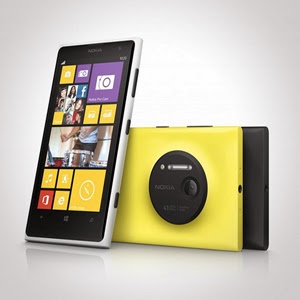
Let us begin with Nokia. It has an array of amazing units. Nokia Lumia 925 is perfect for photography. It is equipped with Nokia’s Pureview and 6 Carl Zeiss lenses to provide 8.7megapixels with Optical Image Stabilization that allows you to capture images even on low light environments. It is somewhat lined up up there with the Iphones and Samsung Galaxy S4 with its touch-screen technology of PureMotion HD + Amoled offering you 1280×768 pixels resolution. Nokia Lumia 1020 is the video and photography professional. With its main feature of 41MP camera, your videos and photos are taken in top-class clarity and detail. It is backed by the Nokia Rich Recording that provides distortion-free and stereo sound on your videos.
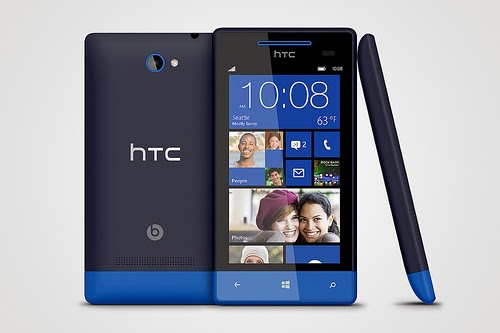
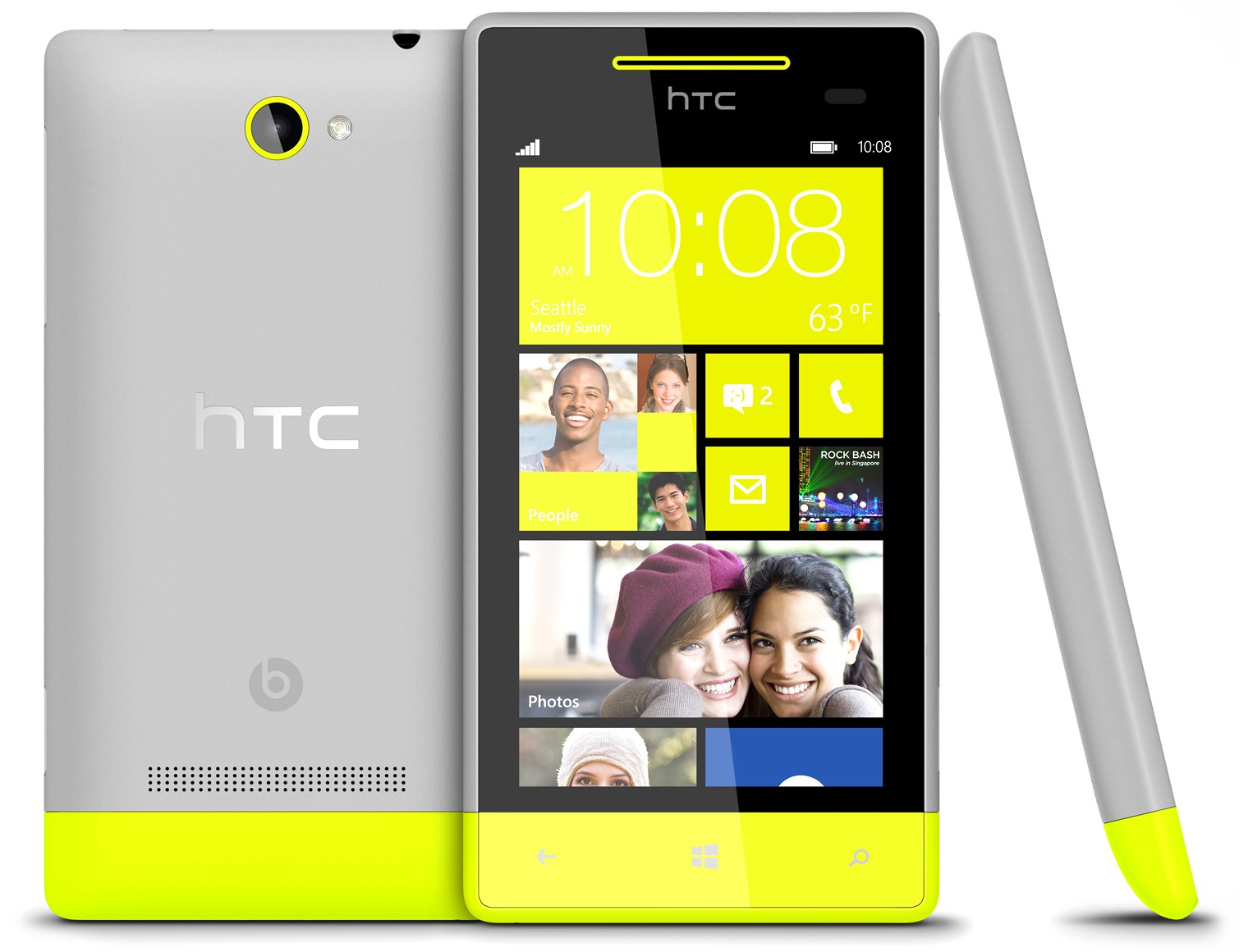
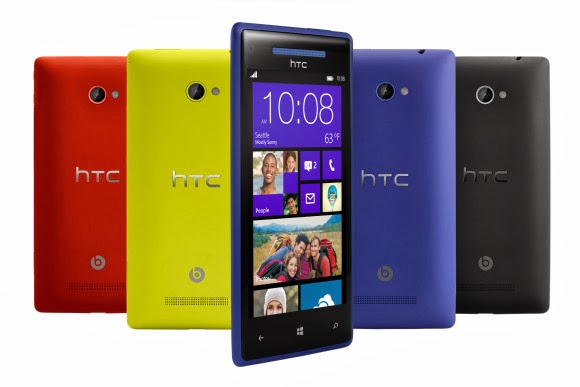
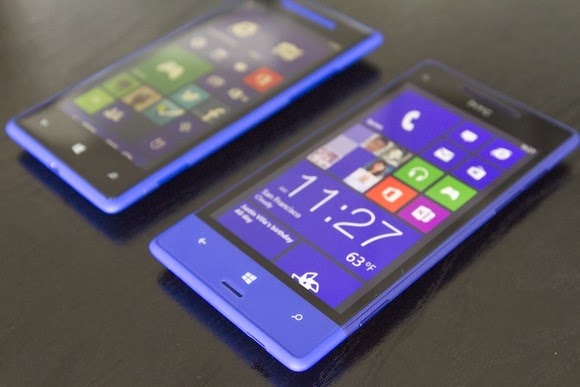
HTC 8x/8s
HTC also has its wonders with Windows 8 units. It has windows phone 8X and 8S. Windows phone 8X considered as one of the best Windows 8 phone for its high end quality. It has world class camera, perfect fit design, and wide screen with 1,280×720 pixels resolution. Its dual core 1.5GHz processor is capable enough, but there is no option for expanding its memory just like most Windows 8 phones. There is also the HTC Windows phone 8S.Its boldly colored design makes it classy and attractive. It has a high performing battery. Moreover, it has a superb studio quality sound and entertainment. Great photo qualities and camera options are also featured in this one of the best Windows 8 Phone.
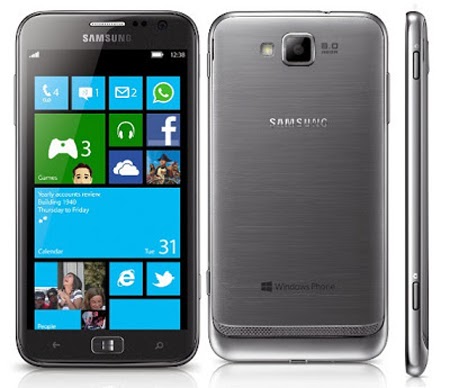
Samsung ATIV S Neo
Next stop is the Samsung ATIV S Neo. It is Samsung’s best Windows 8 phone, because of its affordability and good performance. It has a wide screen display of 720 x 1280 pixels, 4.77 inches for easy touch and visuals. It definitely provides a good windows 8 experience. It has long life battery of up to Up to 15 h and it has good camera features 8 MP, 3264 x 2448 pixels, autofocus that can capture sharp details. However, the phone is a little bulky and heavy. It is not much of a style but still a high end one with reasonable price.
Huawei Ascend W1
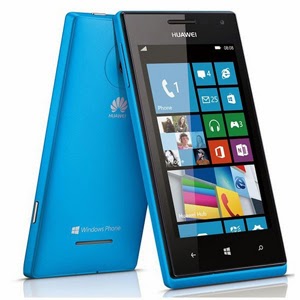
If you are looking for a very affordable prepaid Windows 8 phone then Huawei Ascend W1 will be the best choice. It may not be a perfect device for some applications, but it has a strong battery life and expandable memory. However, this device has several drawbacks. It has a low internal storage of only 4 GB and low camera specs 5 MP, 2592*1944 pixels. Still, being affordable and practical, this might be perfect for some people who don’t want to stretch more of their budget.
These are the top choices that we can have varying from different types of needs and lifestyle. Windows 8 had made these phones far better than usual ones. Check them out!
PROS Large, vivid screen Excellent battery life and performance Office and videoconferencing apps are built in
CONS No wired display connection Flip cover doubles as a flimsy stand Avoid using it for pictures Exceptionally high price
AT A GLANCE
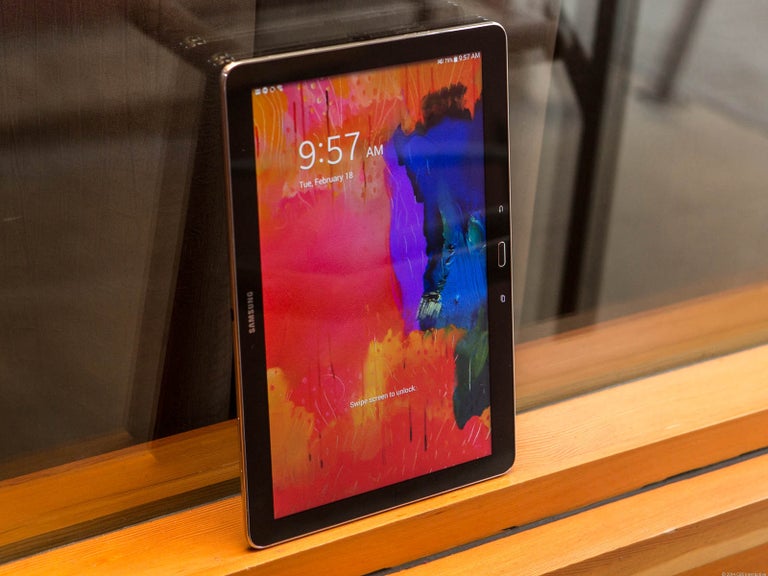
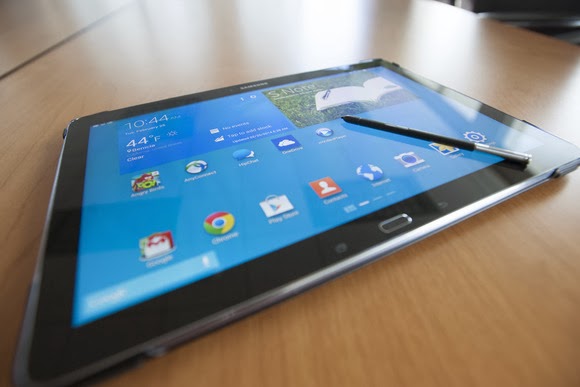
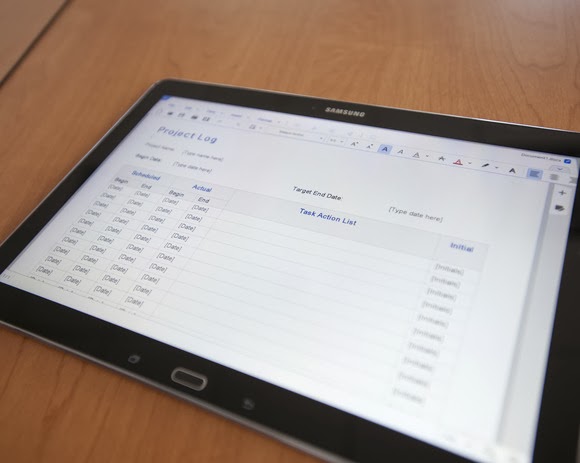
Spending $750 for an Android tablet seems exorbitant. But the Samsung Galaxy Note Pro offers a larger screen, excellent battery life, and access to the Android and Samsung app stores. When one considers the wealth of inexpensive Android tablets available, the idea of paying $750 for a 12-inch Android tablet seems inconceivable. But if now isn’t the time for consumers to start thinking of large Android tablets as legitimate Windows laptop replacements, that day isn’t far off. That’s right: a Windows laptop replacement. That’s the only way to consider the Samsung Galaxy Note Pro, a massive tablet that, like the Microsoft Surface, works best on a desk. Samsung’s 12.2-inch Galaxy Note Pro (7.95 mm thick, 1.65 pounds) is virtually identical to the Galaxy Tab Pro, save for the addition of an S-Pen stylus.
This is not a competitor to smaller tablets like the Nexus 7. Indeed, if last year’s Galaxy Note 3 smartphone doubles as a reporter’s notebook, then the new Galaxy Note Pro is something akin to an electronic legal pad. And with a surprisingly complete selection of productivity apps in both Google Play and Samsung’s own app store, this massive Android tablet can help you get real work done.
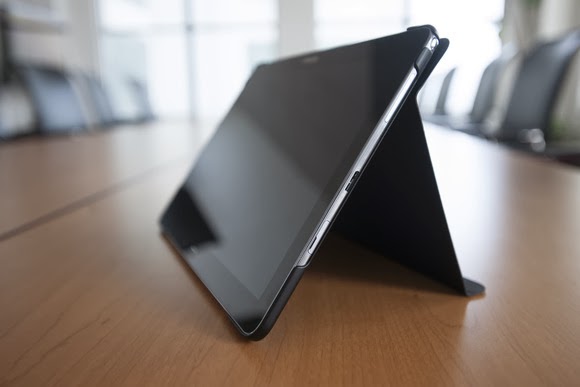
The Galaxy Note Pro lacks an integrated keyboard, and the cover, which does double duty as a stand, is a little flimsy.
The Note Pro is available for either $750 for a 32GB model, or $850 for 64GB of onboard storage. So far, Samsung has yet to announce the price for a model with an integrated LTE WLAN chip. According to Samsung, the Wi-Fi version of the Note Pro houses a 1.9GHz quad-core ARM Cortex A15 chip, powering Android 4.4 (KitKat). Our performance tests produced a Sunspider score of 0.97 seconds (which hits the upper echelons of the tablet market), and a PeaceKeeper score of 815. For the sake of comparison, the iPad 3 managed 516 in PeaceKeeper, and the Dell XPS 10 hit 324 (higher scores are better).
The Samsung ‘Surface’
It’s not much of a stretch to consider the Note Pro as Samsung’s response to Microsoft’s Surface 2 Pro, which starts at $899 for 64GB of onboard storage. Both the Note Pro and the Surface Pro 2 ship with foldable keyboard covers; the Note Pro’s can be configured so that it wakes up and unlocks the tablet when flipped back. But while the Note Pro’s cover actually doubles as a stand, it’s not immediately obvious that it does so.
The Note Pro also lacks an integrated keyboard, such as the Surface’s Type and Touch Covers. In fact, to use it as a laptop replacement, you’ll need to buy a Bluetooth keyboard and possibly a mouse. That completely eliminates its use as a “lap top” computer.
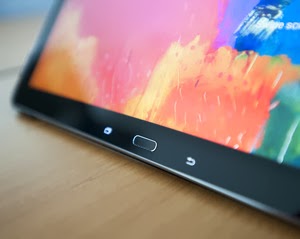
Physically, the Note Pro looks like a Note 3, flipped on its edge. The tablet is designed to be held in landscape mode, with the physical home button mounted between the back and applications buttons. Near the top sits the 2-megapixel front-facing camera, with an 8-megapixel camera at the back. (Unfortunately, the cover lacks a rear camera cutout, so when thumbing the camera button, you’ll have to awkwardly hold up the cover.) Volume and power switches sit on the top, while an all-important microSD card slot sits on the side.
An underrated productivity tool
Like the Note 3, the Note Pro uses the new USB 3.0 connector, collecting juice through a high-output charging plug. Charging the Note Pro takes about three to four hours, but battery life is excellent: You’ll see two, possibly even three days or so of casual use from its integrated 9,500 mAh battery, and our looping video test ran down the battery in 8 hours, 37 minutes. That’s on par with the Dell XPS 10 tablet.
Unfortunately, you won’t be able to use the Note Pro on long flights. The tablet, its stand and a Bluetooth keyboard will take up too much room on a seat-back tray. But you can still use the tablet for mid-flight video playback in your hands. The 12.2-inch display boasts a 2560×1600 resolution and 247 ppi pixel density, and you can even hook up an external monitor care of an optional external HDMI dongle for $39.99.
One of the problems with Samsung’s latest devices, beginning with the Galaxy S4 smartphone, is their overwhelming number of largely extraneous features, such as the “smart pause” feature that supposedly pauses video playback when you look away. You’ll see a number of these still hidden deep within the Note Pro’s settings menus—but thankfully turned off.
Feel free to mix and match entertainment and work apps—the Note Pro can handle both.
The default home screen contains a giant reminder widget for S Note, so that you don’t forget the S Pen. Equally useless New York Times and Twitter widgets can be tossed out. And, fortunately, a collection of news and entertainment apps, such as WatchON and a version of Samsung’s Flipboard-like My Magazine app, are confined on the peripheral screens.
You can use the pen to draw your own windows, as I did, using the S Pen.
As with the Note phones, pulling out the S Pen triggers several options, including an Action Memo; the ability to save content into a Scrapbook; and my favorite, the Pen Window. The Pen Window lets you run a second app inside a window, providing Android with a desktop-like multitasking environment. You simply draw a box, and when it’s done, select the app you want to fill the space.
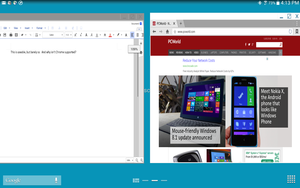
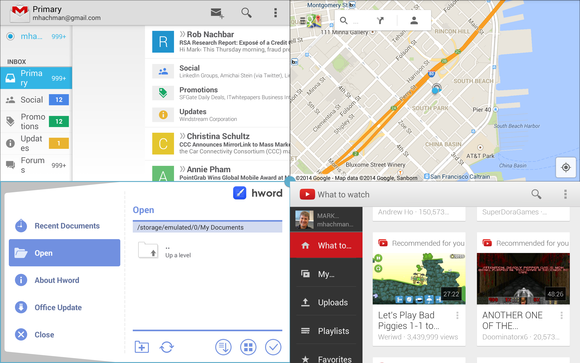
Samsung, however, now has a better option: Multi Window mode, which Samsung has made available on only the largest Galaxy Tab and Note tablets. To trigger Multi Window mode, you swipe in from the right-hand side, via a list of supported apps. (YouTube is supported, for example, but Angry Birds is not. And, inexplicably, Chrome is not supported by Pen Window mode, but it is under the Multi Window view.) Dragging one app to the main screen fills it. Dragging a second “snaps” the screen into two halves—and so on, up to a total of four screens. On a smaller tablet, this is a gimmick, but on a larger tablet like the Note Pro, it’s surprisingly useful.
Multi Window can show four apps at once, or you can snap two. This is amazingly useful.
A viable office suite
More impressive are the numerous productivity apps that are either available via the Note Pro itself or via Samsung’s own app store. Apps such as Cisco’s WebEx, a Samsung Remote PC app (an alternative to Microsoft’s own Android app, Microsoft Remote Desktop), and the Hancom Viewer are all included. On Google Play, Hancom’s Hanword, a word processor, cost over $17 at press time, but on the Note Pro, it’s free, as are similar apps to view and edit PowerPoint and Excel documents.
The Hancom apps ship in both “viewer” and editable versions, and the Note Pro tends to open files in the “viewer” version first without an option to choose the editing app, which is annoying. Google’s own Quickoffice is also installed. Aside from some possible font compatibility issues, the Hancom apps seemed to work surprisingly well.
Keep in mind one thing: With the Note Pro, these productivity apps are free. If you purchase a Surface Pro 2, you’ll also need to pay for a subscription to Office 365 or a standalone copy of Office 2013. That pushes the long-term cost up.
Hancom’s app suite makes the Note Pro a viable productivity tablet.
Samsung inexplicably omitted the VPN app that it included on the Note 3, meaning that you’ll need to search out an Android version, such as Cisco’s Easy Connect, on the Play Store. In all, though, I found Android versions of virtually every productivity app I wanted from either the Samsung or Google Play, giving me a PC-like experience on an Android tablet.
This is the bottom line. Windows PCs and Macs represent the power-user extremes of the computing experience, owning everything from Adobe Photoshop to the latest first-person shooters. But tablets are for centrist users: Android tablets and iPads dominate casual gaming, and more and more light-productivity apps are being written for those platforms.
The sum of its parts—a large screen, excellent fantastic battery life, multi-app windows, and equivalent PC software—not only make the Note Pro a viable choice for a tablet enthusiast, but a jumping-off point for an adventuresome road warrior to leave the Windows world entirely. If only Samsung could knock another $150 or so off the price.
IDG NEWS SERVICE – HTC didn’t do much to fan the flames of future Windows Phones on Friday, stating that “nothing concrete” is in the works regarding future products.
HTC executives took to the pages of Reddit for an “Ask Me Anything” session that covered the company’s product strategy, with regards to features like its use of the Sense UI versus its Google Play Edition.
Unfortunately, the company was vague when talking about the future of Windows Phone. User “0157h7” asked, point blank, “Is HTC done with Windows Phone?”
Leigh Momii, a product manager for HTC, weighed in.
To say “done with Windows Phone” is a pretty blanket statement. I don’t think a company such as ourselves can ever say that point blank. As strong partners of Microsoft, we’re working with Microsoft on the Blue update on Windows Phone 8X and will continue to take new products into consideration. Nothing concrete right now, but who knows!
Or, as user “jpspiderman” put it: “So far they’ve said that they haven’t written off Windows Phone completely but that’s all they’ve said — no real commitment.”
“What he said,” the HTC team replied.
The future of Windows Phone may be from Nokia, not HTC.
It wouldn’t be unusual if HTC decided to put its Windows Phone plans on hold, or scuttle them completely. When Microsoft announced the $7.17 billion deal last year, IDC had just reported that Nokia made 81.6 percent of all Windows Phones sold. “Clarity helps make the market for all Windows Phones,” Microsoft said, a bit of doublespeak that implied that acquiring Nokia would actually promote diversity among Windows Phone partners. That in turn prompted several analysts to question the deal and its long-term effects on the Windows Phone ecosystem.
If nothing else, it appears that HTC 8X users will at least be receiving the Windows Blue update, another name for Windows Phone 8.1. But if you’re looking for new Windows Phone hardware, it seems like you should stay focused on Nokia and phones like its new Lumia Icon, for now.
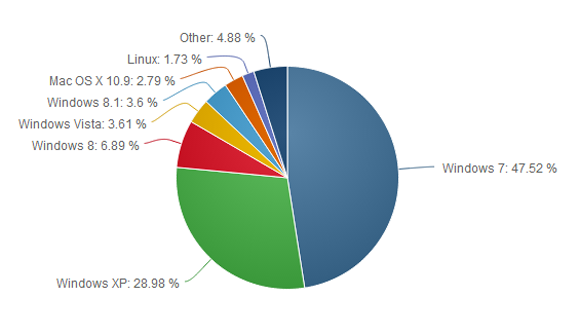
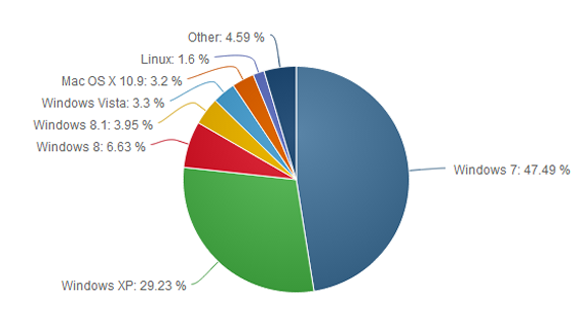
Microsoft is almost ready to put Windows XP out to pasture, but the popular operating system refuses to die. The latest worldwide numbers from Net Applications show Windows XP market share actually grew by 0.25 percentage points in January, compared to the month previous.
This is the first time Windows XP has gained in market share based on Net Applications’ freely available data, which reaches back to 2009.
We’ve dropped a line to Net Applications to see if the company has any explanation about why Windows XP might have bounced back in January, and we’ll update this story accordingly.
With the deadline for Windows XP’s end of life looming in April, it’s tempting to see the old system’s apparent resurgence as an embarrassment for Microsoft as Windows 8 stumbles in the market place. But could there be another, less sinister reason for the bounce?
In December 2013, the browser usage numbers from Net Applications showed Windows XP with a 28.98 market share. But check out the next pie chart…
The surge may not be real
First, if you look at the top of Net Applications’ report for January 2014 it says, “This report contains preview data that has NOT been reviewed by Quality Assurance.” So there’s that.Also, StatCounter, a a competing metrics service, registered a 0.64 percent decline for Windows XP during the same time. So who should we believe?
Perhaps neither. There are problems with how Net Applications and StatCounter measure market share. Both companies rely on browser hits to determine OS popularity, so the companies are really counting the number of Windows XP, Vista, 7, 8, and 8.1 computers that go online during a given month.
That method may be generally accurate since today’s PCs (including Windows XP machines) are essentially web browsing machines. But when you’re looking at modest gains for a particular flavor of Windows, relying on browser data may not be perfectly trustworthy.
One month later, Windows XP shows a modest surge, possibly explained by people digging out old machines from closets to work on them before the XPocalypse.
But what if it’s true?
Assuming Net Applications is spot on, it’s also easy to see why a bunch of Windows XP machines might suddenly go online. As I wrote above, Windows XP’s end of life is just around the corner on April 8. When that happens, Microsoft will cease delivering security patches for the system.
So enterprises and small businesses may be yanking old Windows XP machines out of closets, warehouses, and backrooms as they take stock of company hardware and any data stored on antiquated computers.
Factor in curious home users wondering if they can upgrade their machine to Windows 8 or install a Linux variant on their aging hardware, and it’s easy to see where the modest uptick came from.
That’s all speculation mind you, but it makes a certain amount of sense.
The XP problem
Nevertheless, it’s undeniable that Windows XP still has a massive install base, second only to Windows 7. It’s likely there will still be a huge user base for Windows XP later in 2014, and tech companies are preparing to support the system in a limited fashion after April.
To help out Windows XP users who refuse to quit, Google will support Chrome for Windows XP until April 2015. And Microsoft says Windows XP’s anti-malware engine will continue to get updates until July 14, 2015. But security software can only detect malware attacks, and won’t permanently fix any critical flaws after April 8—and there will be flaws in Windows XP, bet on it.
If you do plan on sticking with the aging OS, we’ve just published a primer on what you should do to remain as safe as possible with Windows XP. But if you’re able to quit the system, you should do so very soon.
Is longer a secret, it’s been over a decade since Windows XP came into being. It’s true, time has changed; newer technologies has been introduced, even the guys up there are already getting tired of it. Yet, I want to stick with Window XP.
What you are asking for is quite a difficult one. Microsoft has already decided to end it’s support for the OS come April, 2014 and to continue using it, will open your PC to various security vulnerability. Psst! Listen to my brief advice and implement it with caution. I really understand why you might not be able to give up your Windows XP. Your business may depend on a specialized application that won’t run on Windows 7 or 8. Or you may not be able to afford a new PC and your old one isn’t powerful enough for an upgrade. Perhaps you’re just stubborn.
Reluctantly, I’m going to advise you on protecting a Windows XP computer after Microsoft’s updates stop. But I give this advice with a warning: This is not perfect protection. You’ll be better off giving up on XP.If you absolutely can’t or won’t give up XP, consider disconnecting that particular PC from the Internet. Use it the old-fashioned way: as a truly personal computer with no connection to the outside world. Then buy another PC or a tablet for email and browsing.
If that isn’t practical, follow these suggestions to make your XP computer more secure:
Get a full security suite: A simple antivirus program won’t be enough. Buy a heavy-duty suite with a two-way firewall and exploit protection in addition to antivirus. I like Kaspersky Internet Security, but there are several solid security suites, as we found in our recent roundup.
Get a second opinion: Now that you have a powerful security suite, don’t trust it. Augment your regular antivirus program with Malwarebytes Anti-Malware Free. Run it once a week to scan for malware that your suite may have missed.
Use Firefox or Chrome: An out-of-date browser is an open door for malware, and any version of Internet Explorer that runs on XP is very out of date indeed. But the latest versions of Firefox and Chrome can still run on your machine.
Protect your browser: Scripts are a dangerous malware delivery system, and the right browser add-ins can block them. And yes, you can tell the add-ins to make exceptions and allow scripts from sites that you trust. If you use Firefox, install NoScript Security Suite. For Chrome, go with NotScripts.
And remember that eventually, the security suites and browsers will stop supporting XP, as well. This can’t go on forever.
Yesterday Paul Thurrottenumerated a number of tweaks that will appear in the upcoming Windows 8.1 update. Screenshots from WZor confirm a few of Paul’s earlier notes on upcoming changes to Windows 8.x that are worth discussing.
The gist is that Microsoft wants to unify the desktop and Metro environments, especially in the context of apps. The better the apps work between the two, the more people might use applications from the Windows Store. This is tacit admission that people love the desktop environment that they have used for decades, and have been slow to switch over to the Metro environment.
So, if people love the desktop and you want them to use more Metro apps, you bring the Metro apps to their desktops. Paul previously reported that you would be able to run Metro apps on the desktop, but WZor screenshots show it in action. Surprise? No.
There is more: “I can confirm one new feature: Metro apps will now include a close box, similar to that seen on desktop applications, which can be clicked with a mouse so that the app closes completely.” Thank god. Getting rid of Metro apps when you are done with them has been a constant Windows 8.x headache.
The divide between the “new” in Windows 8.x (the Metro side of the fence) and the “old” (the Windows 7 bits of Windows 8.x) is being blurred. That’s probably good, given that the old is popular and Microsoft wants the new to become more so.
We’ll see more before Build, given the current pace of leaks. It seems that Microsoft wants to patch the weaker parts of Windows 8.x while keeping its main thrust in place. You can’t have mobile Windows without the Metro interface, and you need an app store as well. But you can heal the cracks on traditional PCs, I suppose.
How much do you know about IPTV Networking? Time to put your skills in use: Prodeco Limited Nigeria has declared an open door for qualified candidate to occupy the position of IPTV Solutions Specialist in their local firm.
The Job is only available for qualified candidates within Nigeria. Details of qualifications and requirement are stated below.
Job description
This is a hands-on position. The successful candidate will be responsible for our IPTV network operations. This network consists of Set Top Boxes (STBs) at the customer end, and streamers and servers (VPN, VOD, IPTV, EPG, Middle-ware, etc) at the head-end, distributed via a GPON network. This position will provide technical support to internal staff as well as limited customer technical support.
Duties include:
Operations and maintenance of the IPTV Head-end services to ensure quality of service delivery to customers
Planning to ensure that resources are available for capacity expansion, spares and new configurations.
Meeting and working with vendors to support our IPTV Head-end requirements
Testing and implementation of upgrades, channels or system requirements.
Support satellite downlinks, IP streams, and terrestrial incoming feeds for the IPTV services.
Manage the infrastructure and housekeeping of the IPTV Head-end System.
Planning of the recovery and continuity plan/procedure of the IPTV services.
Participating in meetings to improve on workflow and operation for the IPTV services.
Develop and maintain customer user guides/manuals for current and future IPTV features, such as website functions and account management, STB operation, STB Install, STB Reboot, etc.
Develop and maintain documentation on all IPTV equipment inventory, their connectivity to the network, VLAN information, and switch ports information, etc.
Develop and maintain up to date topology drawings of IPTV head-end connections, including content sources, Splitters, Streamers, Server, and Access Switches.
Develop and maintain daily, weekly, and monthly IPTV Operations reports
Communicate with vendors regarding updates/patches and deployment of updates/patches
Liaison with Information Systems, Network, and Support teams.
Any other duties as required
Desired Skills and Experience
A bachelor’s degree in Computer Science/Engineering, Electrical Engineering or equivalent, or a minimum of 10 years operational experience
Experience in operations and maintenance of IPTV Head-end systems, including both software and hardware
Experience in GPON networks preferred, especially with Huawei OLT and ONT.
Strong experience with service provider routing and switching protocols and technologies (BGP, OSPF, MPLS/VPLS, VRF/VPN, PIM, STP)
Experience with high-end Cisco IOS/IOS-XR routers and switches (6509, 7609, ASR, Nexus) desired
Strong experience designing and configuring QoS/CoS for multi-play service provider offerings
Ability to work in a 24 x 7 environment and have an operational readiness mindset.
Strong experience authoring network specifications and diagrams (MS Word/Visio or equivalent)
Experience working with multicast and next-generation Video delivery technologies (IPTV, ABR HLS, Smooth Streaming, etc.)
Experience with Web technologies and protocols (HTTP, SSL, HTML, etc.)
Experience with tools for stress testing of networks and related equipment
Experience with packet/protocol fault analysis for common IP and Ethernet protocols using network traces or sniffer captures
Experience configuring and maintaining content delivery systems such as caches, streamers, origin servers, request routing systems, load balancers, log aggregation systems, etc. desired
Familiarity with Windows and Linux system administration and related tools
Familiarity with programming and/or a working knowledge of scripting languages used in UNIX and Web systems
Familiarity with configuring common Internet services and applications (Web, DNS, SFTP, etc.)
Strong Microsoft Visio, Word, PowerPoint skills
Strong understanding of the Service Provider technical challenges including intimate knowledge of the end-user needs.
Strong ability to work in a complex environment, effectively building and sustaining relationships at multiple levels with the customer as well as internally.
Proactive, self-motivating with a good grasp of the key business drivers.
Fluent in English
Strong team and people skills, with both Nigerian and international exposure.
The tablet has had a remarkable run the past few years. But it is important to note that in the majority of use cases tablet are not replacing PCs but rather are extending the life of PCs.
We know from our data as well as a number of other firms’ research that over 90% of tablets sold today have been sold to existing PC owners. And in nearly every supporting data point I have, those tablets are being used to accompany the PC not to replace it. (By PC, I generally mean notebooks).
So it begs the question whether the PC-killing tablet is a valid narrative or not. I’d contend that this is not a valid narrative and, more importantly, it could affect tablet sales to a degree in 2014.
A key point about tablet sales is that the vast majority sold are 8″ or smaller. Which means that the vast number of tablets bought by consumers are not even contenders to replace the PC. In fact, when you look at tablet usage data you notice that they are used heavier during the evening hours while PCs are used heavier during the day time/work hours.
Think of it this way: PC by day, tablet by night. Oh sure, lots of people use their tablets during the day for both entertainment and business reasons (e.g. sales people and other road warriors), but I think this sums up the use case for most tablet owners.
Now, if we acknowledge the point that the vast majority of tablets on the market are used in conjunction with PCs, then we acknowledge that the PC is still used and valued by a large number of consumers. If this is true, those PCs will still need to replaced. So the question then becomes: When will this happen and could it have an effect on the tablet market?
The evidence is clear that 2013 was the lost year for the PC. One of the steepest declines on record, as it has been a stable growth market since the early 2000s. We believe that 2014 could mark a turnaround for the PC sector and catch many by surprise.
Part of the logic for this is the number of PCs in the market being used that are 4 years or older. Depending on whose estimates you use, the number is around 300-350 million. A good percentage of these customers got away with not refreshing their PCs due to their tablet purchases. Those who have not refreshed their PC for school, work, home, etc., simply can’t wait much longer. A PC refresh is coming and it could impact tablet sales.
The tablet/PC hybrid
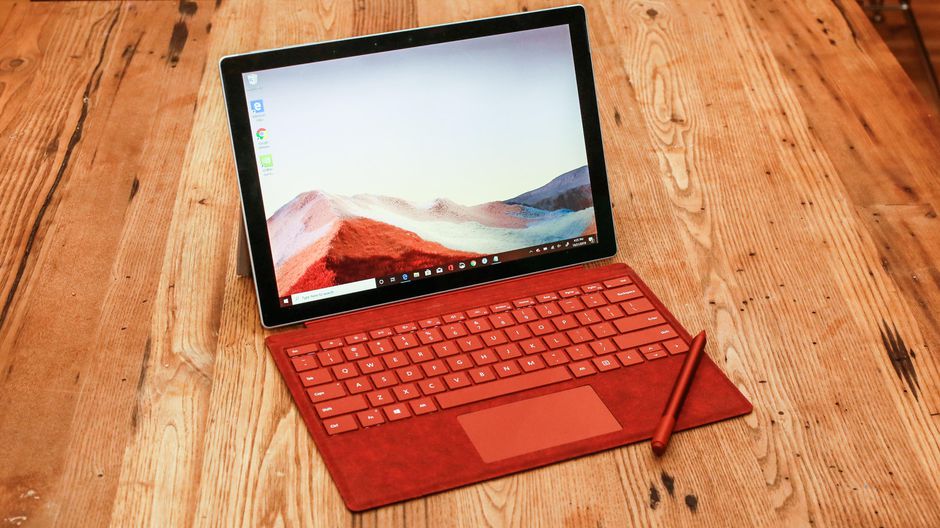
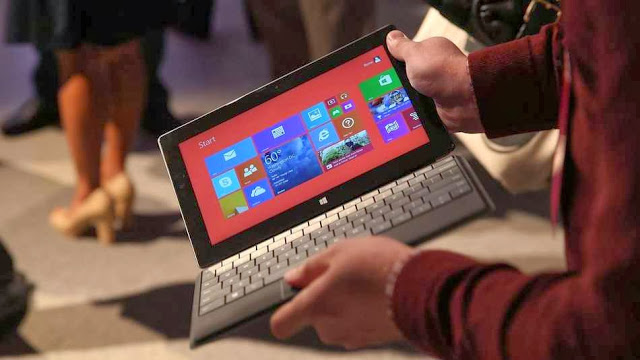
A caveat to this thinking is that consumers will find the idea of a tablet and PC combined together as an attractive option. Perhaps when a consumer looks to replace their PC they will find something like Microsoft’s Surface an attractive offering. Many in the PC ecosystem are hoping this is the case but I am still skeptical.
I think what corporate employees, small business workers, and even consumers want is the best PC for their needs and the best tablet for their needs. This means they will continue to buy two separate devices that are each best for all the things they want.
While I applaud the efforts of Microsoft, Intel, and others in the PC ecosystem to work to build 2-in-1 PCs and tablets, I’m not optimistic that they will appeal to the masses. I believe some segments of both business and consumer customers will gravitate to these form factors but I don’t believe they will make up the majority of sales of either PCs or tablets.
I believe the market for PCs and tablets will swing like a pendulum. The years that PCs aren’t being refreshed as much tablets sales will boom higher and vice-versa. For everyone who cares about hardware, from IT to the OEMs who make the devices, managing refresh rates and building products that take advantage of refresh years will be critical.
But of course truly innovative products and lower price points could produce a hot seller in either camp regardless of refresh cycles. Given the product maturity on the PC side, I think another breakout tablet is far more likely.
![My [condensed] experience with Windows 10 so far…](https://ewtnet.com/wp-content/uploads/2015/11/windows-10-logo.jpg)


 The laptop has a 500 GB storage space, DVD RW Optical Drive and yes, it has an inbuilt wireless adapter.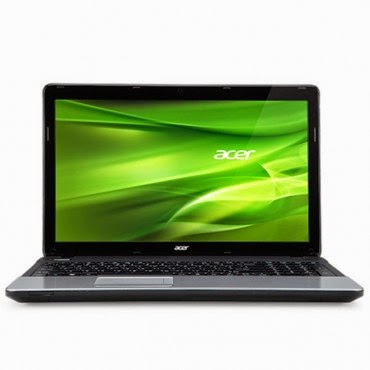
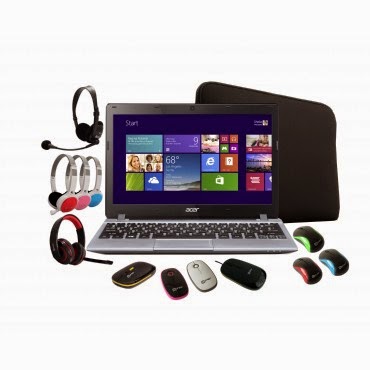 The Aspire V5 Series puts inspiring performance in a thin and light form. A choice of elegant views adds to the charm. Breathe life into your entertainment and enjoy hands-on control with Acer Aspire V5-123. Its built-in speakers sweeten the deal with splendid sound. The laptop features;11.6-Inch WXGA HD, AMD Radeon trade; HD display with 2GB RAM and a 500GB hard drive which provides enough space for you to store your files, data, photos, and music. You can connect to the world wherever you are with your laptop, the WiFi enables you to browse and surf the web, you can also transfer data to other devices via bluetooth. This laptop comes with a free mouse, bag and headset.
 The Note Pro also lacks an integrated keyboard, such as the Surface’s Type and Touch Covers. In fact, to use it as a laptop replacement, you’ll need to buy a Bluetooth keyboard and possibly a mouse. That completely eliminates its use as a “lap top” computer.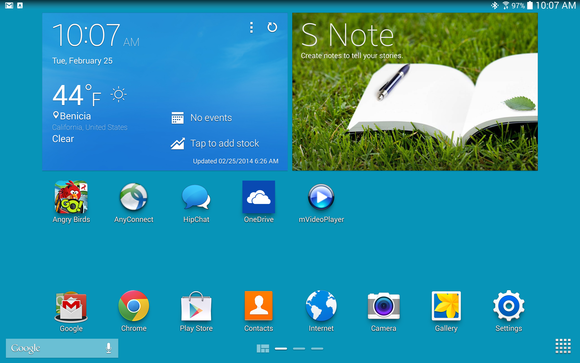
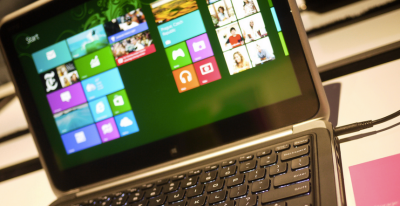 The gist is that Microsoft wants to unify the desktop and Metro environments, especially in the context of apps. The better the apps work between the two, the more people might use applications from the Windows Store. This is tacit admission that people love the desktop environment that they have used for decades, and have been slow to switch over to the Metro environment.
You must be logged in to post a comment.