Tech Hive – Don’t be alarmed. Samsung’s leadership is launching a religious movement, but its goal isn’t to change everything you believe about good, evil or the meaning of life. It simply wants control of all your mobile platform needs.
It’s an ambitious plan, and Samsung needs true believers—an army of street soldiers who can evangelize the mission, and indoctrinate new converts. The company began assembling the ranks when it introduced Samsung Apps, its own Android app store, with the release of the Galaxy S4 Smartphone earlier this year. And to further increase its headcount, the company held its first annual Samsung Developers Conference this week in San Francisco to entice startups and indie developers to build apps specifically for Samsung devices.
The goal wasn’t just to evangelize and showcase what the company has accomplished with its partnerships, but also to demonstrate that Samsung is serious about building its own full-fledged app ecosystem—a marketplace it wants you to visit before you drop into Google Play.
The world has gone app store crazy, and Samsung would be damned if it has to play second fiddle to anyone. And it really doesn’t have to, since it already has a solid hardware foundation built on every imaginable phone and tablet screen size from the 4.3-inch Galaxy S4 Mini to the 6.3-inch Galaxy Mega to the 10.1-inch Galaxy Note 10.1. At this point, Samsung really only needs to increase its flock of developers.
Hence the recruiting drive at the Samsung Developers Conference. It’s the one true path to mobile salvation.
Enticing devs with carrots
Samsung launched its Mobile SDK to get developers to make apps specifically for its mobile devices.
In its conference keynote, Samsung hit developers with two compelling arguments in support of native app development: The company has tremendous reach around the world, including footholds in China, Southeast Asia, Japan, and Australia, and it’s also the number one Smartphone maker in most of those markets.
The message resonated with Matt Nutt, VP of Business Development and Operations of Cie Games, an independent mobile game company that was featured as a part of an introductory video during the keynote. “They do have many devices, but they’re doing a lot to reduce the fragmentation of devices in terms of share on the Android marketplace,” Nutt told TechHive. “[We can’t ignore] any opportunities to leverage the marketing prowess of somebody like Samsung.”
But before you can get developers to populate your app store, you have to give them something to work with. So during its keynote, Samsung introduced five new APIs. These include a multi-screen gaming API that puts mobile games on TV screens; a Smart TV SDK that helps share mobile device content with Samsung TVs; and an SDK that supports more S-Pen controls, better handwriting recognition, and an improved multi-window feature.
If developers take advantage of the SDKs, it means you’ll find more features and apps for your Samsung devices—along with more incentive for you, the consumer, to stick with Samsung hardware. And it’s all a blueprint for ecosystem propagation, where software boosts hardware sales, and hardware sales give life to more software downloads. Connect all the dots, and it begins to seem amazing that Samsung is only holding its first developer’s conference in 2013.
A leg up on Google with the little things
To help show would-be converts all the benefits of playing on Team Samsung, the company has been busy making native apps of its own. And some of them are ahead of native Android features, at least in terms of introducing new tricks to the mobile game.
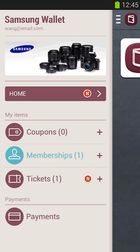
Samsung Wallet has all the functionality that Google Wallet doesn’t.
Take Samsung’s ChatON messaging applications, which let users chat with one another across all mobile and desktop platforms, send group messages, and chat in other languages with an auto-translate function. While Google has added features like SMS messaging to its Hangouts app, Android is still behind in features when compared to iOS’s iMessage, and Hangouts is only usable between the web and Android devices.
Google Wallet must also play catch-up to match Samsung’s Wallet 2.0, which borrows much of its aesthetic and functionality from Apple’s Passbook. Samsung’s mobile payments app was released earlier this year on the Google Play store with features like the ability to store loyalty and gift cards (which Google just recently took out of its Wallet app). Samsung’s wallet app also enables geo-fencing for coupons to pop up when you’re near a store. Samsung’s app is also available to users overseas, while Google’s services are still limited to the United States, and only from specific carriers, like Sprint and US Cellular (which aren’t a part of the Isis mobile payment alliance formed by AT&T, Verizon, and T-Mobile).
While Samsung’s in-house app development team may not match Google’s in size, it can still get developers with great ideas to work on features that Google doesn’t offer. Case in point: Samsung has partnered with Rabbit, an online video platform that lets you not only video chat with friends, but also watch video with them on external services like Hulu—all in real-time from your computer and (in due time) mobile devices. The upshot is that Rabbit will be featured front-and-center on Samsung hardware, and its neat features might make you consider it over Google’s own video-chat services on Android. Rabbit also trumps Google Hangouts in group conversations by allowing up to 20 people to chat in a room.
And from ecosystem success flows… money
Samsung to devs: Stick with us and we’ll get your app far.
At the beginning of his Monday keynote, Gregory Lee, President of Samsung Telecommunications of America, was excited. “We never expected a big crowd,” he told the audience. “We expected a small one.”
According to Nicholas Reichenbach, co-founder and president of Rabbit, there’s a reason for the positive turnout. “Samsung’s marketshare had a lot to do with the attendance,” he said in a phone call. “Whatever Samsung is doing is very attractive to developers.”
And what can be more “attractive” to an up-and-coming app developers than sales revenue? As Smartphone users, we often scoff at the apps that device manufacturers load on our phones. And we often bristle when we’re asked to visit yet another app marketplace, when we already have Google Play. But Reichenbach says one of the key attractions of Samsung Apps is that developers are seeing better monetization through Samsung’s mobile products.
”It’s always been difficult to monetize [on the Android] platform,” he says, “but with Samsung devices, we’re starting to see the monetization equal to other platforms.” And since Samsung’s high unit sales means it has more marketshare, app developers have more chances to make more money. “It’s starting to grow—potentially even greater than other platforms that are leading the market,” Reichenbach says.
How much disruption makes sense?
With more than 1,300 attendees at this week’s conference, it’s obvious there are at least a few developers who are interested in building for Samsung’s ecosystem. Indeed, Samsung can offer small, independent developers something that Google can’t right now: Prominent positioning in an app store that’s a lot less crowded than Google Play. So one can see why so many lost souls are interested in joining the Samsung effort.
But where Samsung could really have a winning hand is not in courting small, independent developers, but in striking exclusive deals with big-name app powerhouses. It’s already teamed up with triple-A app developers like Twitter and Flipboard, and similar deals could compel you to buy the next Galaxy phone instead of a handset from HTC.
Samsung is clearly forging full-steam ahead in its effort to become more than a device manufacturer, but it needs to figure out how to do so without continually disrupting the current Android marketplace. It may be helping to reduce friction within its own device family, but by branching off into its own ecosystem, it will just make fragmentation worse for Android as a whole.
But maybe that’s the point. You can only have one religion—and Samsung wants to be yours.
PCWORLD – A story posted on pcworld today has confirmed that we are likely to see a new generation of PC anytime soon. With microsoft paying more interest in the production of windows 8 smartphones, it is now clear to everyone that windows are likely to swap places with the android OS in the technology world.
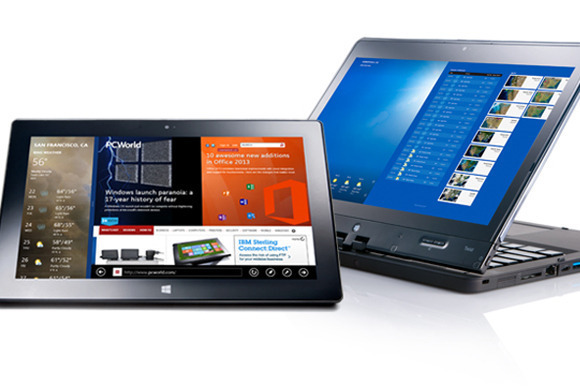
Accidentally leaked user manuals from PC maker Lenovo show that the company is preparing a new laptop that runs Android instead of Windows.
Called the IdeaPad A10, the laptop has a 10.1 inch HD screen and is listed as an Android device, according to the manuals uploaded on Lenovo’s site.
The laptop’s 10-inch display also functions as a touchscreen. It can be opened up to 300 degrees, supporting the screen for reading or touching while the keyboard rests face down. In addition, the keyboard has signature Android buttons for “home screen”, “previous” and “apps screen”, found on the bottom of many phones and tablets running the Google OS.
Lenovo had planned on making an official announcement for the device, said Chris Millward, a spokesman for the company, on Thursday. But somehow, Lenovo unintentionally leaked the user manuals online, he added.
“The product has not been canceled. It will be going out to the market,” he said. Lenovo will later announce launch dates and pricing information.
The laptop’s specs show that it could be a budget product. It has an Arm quad-core 1.6GHz processor from Chinese firm Rockchip, 1GB or 2GB of RAM, and 16GB or 32GB of storage. There is also a 0.3 megapixel camera, a microSD card slot and an HDMI port.
Tech vendors are increasingly experimenting with Android at a time when demand for traditional Windows PCs has been waning. Earlier this year, Acer and Hewlett-Packard showed all-in-one desktops using the Google operating system. HP’s product, called the Slate 21, has a price of $399.
On the convertible PC side, Asus has shown a hybrid device that can run both Windows and Android. Called the Transformer Book Trio, the product operates as a stand-alone Android tablet, but when attached to its keyboard it can also boot up Windows.
When given a choice between Android and Apple, we start to think and scratch our head. It is difficult to choose between the two since both operating systems offer some of the best and effective smartphone features currently available. As a result, both have a strong and loyal user base. Most of the smartphone programs and apps are compatible on apple and android platforms and users can gain accessibility to vital online projects by using either iOS or Android.
Online businesses and their operations, especially on a mobile platform, demand the use of a smartphone platform, which is effective and capable of meeting requirements as well as being compatible with the nature of business. You need to make use of a platform that best complements and meets your needs because you will be depending on mobile phones for your business appointments, tasks, deals, etc.
So, if you are fretting over the decision of choosing between Android and Apple then take these points into heed first:
Determine the type of apps you make use of most in your business. When accessing online features and programs through mobile phones or other handheld devices, dependency on efficiency is high. Today, you will come across many apps that are made and designed especially for businesses. You can download and install such apps easily. If you are looking for highly innovative apps, an Android platform would be the best option.
Stability of OS is another point to lookout for. Apple is the best option for you if you are looking to use a smartphone on a long-term basis or one that keeps up with your fast paced online business and lifestyle. Products from Apple are designed and crafted to become compatible even amidst changes and upgrades in software. Android phones and mobile devices are not as quick moving.
If you have a business that is highly dependent on merchant services, such as e-commerce or payment transactions, then making use of Apple would be the best option to choose. You will find specific apps that are merchant-related and designed and created for iOS mobile devices that enable users to process different payments through debit or credit cards and make payments without any hassle.
Using smartphones and the latest handheld devices for business purposes are also usable for personal purposes. Apps, like music, entertainment, and gaming are best found under Android.
Let’s get to the bottom line then. If you are looking for a platform strictly to house your business needs, then the platform of Apple overpowers Android. The sole reason behind this revelation is that doing online business is not only about innovation, but also about prolonged stability. The platform of android does offer features for business purposes but one has to be selective about the apps and features from Android. Remember, business which is done within a stabilized mobile framework flourishes more than a business that is not based on such a platform – making Apple the winner, hands down!
The rise of mobile-payment apps is due in part to the rise of consumer demand for payment options on mobile phones. This is the main reason behind the increase in using mobile payment options worldwide. In the US alone more than 50% have accepted making payments through mobile phones for services and products. Consumers today are more sensitive and aware about the worth of money. They are ready to make investments on energy and time in order to find the right service or product. However, consumers prefer institutions for providing mobile payment means through wallets and apps in order to gain the confidence and trust in mobile payment security.
At least 60% of consumers have accepted that they will become more willing to accept mobile payment apps if certain financial institutions offered them the right resources. Mobile payment apps have increased worldwide because the majority of payment resources are realizing the importance of smartphones and features that are being made. They also understand how consumers are becoming comfortable with the entire process of mobile payments today more than ever before.
With the mass use of tablets and smartphones, the entire world is reaching the phase where everything will become mobile. We are moving away from card based and fixed point transactions and opting for mobile resources. Mobile payments examine and analyze the mobile payment state and how they will match up with the card readers. Credit card companies, traditional banks, card processors and similar institutions are seeing mobile payments as a tough competition and threat.
The majority of brands are switching to the mobile payment mode. For example, Starbucks is switching its debit and credit card processing system to Square. Another recent development is that mobile payments are becoming a part of the huge mobile commerce market and it is bound to explode soon.
Android phone users are engaging and using mobile payment apps and the trend has grown to 8%, a 35% increase from last year. Mobile wallet and payment solutions are at the peak of its development. Consumers are using it to make basic payments, from bill payments and account management to moving money. They are also using their phones to make payments of services and goods of limited value, including the purchasing of movie tickets or getting coffee.
Success and rise in mobile payment apps completely depends on the changing trend in consumer behavior and their shifting reliance and dependence on the use of mobile payment apps and wallets.
Android spy apps allow one to point out the location of target phone with all the details. You can find your lost or stolen android phone by installing one of the blow GPS apps. The difference in tracking lies in the fact that the Android phone is located by making use of the Wi-Fi and other satellite connections, even when GPS has been turned off. Yet again, the price of installation of this package depends on the time period for which the user wants to spy on the other person.
1. Mobistealth
Mobistealth’s spy app offers different packages for its users, ranging from the most basic spying features to the most detailed ones. Be it phone calls and text messages on cell phones or tracking for Android, its spy app has managed to fulfill all the requirements of its customers.
As for the tracking features for the android, mobistealth’s spy app can do this job. The package which is known as the Android spy Lite allows one to know where the person who is being subjected to spying is at. This package uses the GPS system for tracking. It allows the user to know where his or her target person is at any point in time, or where he or she was and for how long.. This package is available for installation at different prices, depending on the period of use. If someone wishes to use this package for the basic tracking details for 3 months, he or she can buy this package for $49.99 USD, meanwhile those who plan on continuing the use for 6 months and 12 months have to pay $69.99 USD and $99.99 USD respectively.
2. Mobile-Spy
This is not all. Mobile-spy has introduced new package with which one can track the location of the person in whose phone the app is downloaded with more efficiency. The package known as the Android spy Advance which comes with a feature which can track the location of the Android without GPS. This is useful when the target people decide to turn off the GPS of their Android phone. It is compatible with almost all of android phones. The price is under $300 USD.
3. Flexispy
Another spy app is Flexispy app which also comes with different affordable packages. The price of Flexispy PRO is different than that of Android Spy Lite because of the difference in the features. One can install to monitor target phone’s activities without letting know target user. All the activities can be viewed on an online which is provides you after downloading this app. The price of Flexi-shield package is $39 (one time) as mentioned on its website.
Trends get a bad blow, mostly since they are frequently associated with fashions. However trends can be significant, particularly those long in the making. If a lot of clever individuals are ready to spend years of their lives and millions of dollars on an idea, there is perhaps something to it.
Currently, we are on the edge of a new digital paradigm, where the abilities of our machinery are beginning to outshine our own.
Computers are deciding which products to store on shelves, carrying out legal detection and even winning game shows. Very soon they will be driving our cars and making medical diagnoses. Here are 5 trends that are driving it all.
#1. No-Touch Interfaces:
We have become accustomed to the notion that computers are machines which we control with our hands. Just as the Generation X became contented with keyboards and mouse, today’s millennial peer group has learned to text at an extremely high speed. Every new restatement of technology has required new abilities to use it competently. That is why the new trend towards no-touch lines is so basically different. From Microsoft’s Kinect to Apples Siri to Google’s Project glass, people are beginning to expect the computers to get used to them instead of the other way round.
#2. Native Content:
Though over the past several years technology has become more indigenous, social and portable, the new digital combat zone will be fought in the sitting room with Netflix, Amazon, Microsoft, Google, Apple and the cable companies all competing to create a leading model for delivering customer entertainment. One developing approach is to develop unique programming so as to attract and uphold a subscriber base.
#3. Massively Online:
In the last decade, enormously multi-player online games for instance World of Warcraft became all the rage. Instead of simply playing against the computer, you could play with thousands of others in real time. It can be extremely interesting, though somewhat disturbing when you realize that the spiteful Philistine you have been prowling around with is in fact a 14 year-old girl. The massively online trend has even entered into politics, with President Obama recently reaching out to average voters through Google Hangouts and twitter.
#4. The Web of Things:
This is perhaps the most universal trend, where almost everything we interact with becomes a quantifiable unit. Our homes, cars and even items on the street will intermingle with our Smartphones and with each other, perfectly. What will drive the trend in the future are two corresponding technologies: Near Field Communication, which lets for reciprocal data communication with close devices and ultra-low power chips that can harvest energy in the environment, which will put quantifiable objects just about everywhere you can think of. Still, as computing stops to be something we do seated at a desk and becomes an ordinary, typical way of relating to our environment, you cannot tell what the effect will be.
5. Consumer Driven Supercomputing:
Everyone knows the frustration of calling a customer service line and having to cope with computerized interface. They work very well, though it takes some determination. There lies the next great challenge of computing. While we used to wait for our desktop computers to process our commands and then waited for what seemed like infinity for web pages to load, we now struggle with ordinary language boundaries that just can’t quite work like we would like them to.
In conclusion, technology companies are becoming more and more consumer-driven, capitalizing on things like native content in order to get us aboard their platform, from which we will sign onto enormously online services to amuse and educate ourselves. The future of technology is, paradoxically, all too human.
Andrea Jayson
Author Biography:
Andrea is a Blogger and Write from UK. She loves to write articles on various categories like Finance, Technology, Travel and Health. As If not she is doing a research work on ukba.
Until now, Apple’s iPhone has only been available in white and black. New reports have declared that the next generation of iPhone is debuting in gold. The iPhone 5S will not be made of complete gold but a rather subtle and sheer champagne color. It will be almost the same tint as the gold iPod mini.
Across the internet, many sites have already published pictures of champagne colored iPhones. In the meanwhile, Ming-Chi Kuo, analyst of KGI Securities, has put all rumors to rest by offering accurate and legit details about the product plans of Apple and also published a note where he claims that the iPhone 5S devices will most definitely be available in gold.
Kuo made forecasts about the new model, which will be available with a new look and enhanced features, like 128GB storage. Apple unveiled the iPhone 5S on September 10th at a media event.
The new iPhone 5S will be inclusive of an A7 system on a chip or SOC, which will be on the basis of 64-Bit ARMv8 architecture of ARM. The 64-bit chips generally offer more memory and is more enhanced than the other software in demand. The A7 will also boost and enhance the performance level of the A6. The iPhone 5S will be built with a rear camera, kept with a 8MP sensor and will also have a large aperture of f/2.0. The camera is said to match the efficiency of HTC One and will be available with dual LED Flash!
Ming-Chi Kuo also claimed that the iPhone will come with a sapphire home button, built with a fingerprint sensor. With rumors of iPhone 5S being made available in different colors, including golden color, as well as green, pink, white and blue, the eagerness is increasing more than ever.
This will be the first time that the tech giant will launch a smartphone in color, aside from black or white. Reports are also citing that Apple further plans to offer many variation as well as cheaper series of the expensive iPhone, in order to expand the market and rake in more customers.
The clamshell laptop is finally joining the beige desktop in the museum of computer artifacts. The basic hinged design made its first appearance in a device called the Grid Compass way back in 1982, so no one can scoff at the clamshell’s longevity. Nonetheless, times are finally changing, which means it’s time for the pure clamshell laptop to ride off into the sunset. The traditional clamshell is being replaced by a wide variety of designs that merge tablets and laptops into a single physical package. These Windows 8 hybrid devices should directly appeal to PC users who might otherwise buy thin-and-light laptops. First-generation hybrids are already shipping, and most of them are flawed in some way, but they nonetheless bring new use-case scenarios to a mobile computing paradigm that hasn’t changed much in 30 years. Sure, there have been attempts to upend the clamshell. Take Microsoft’s Tablet PC initiative during the Windows XP era. But those early efforts were hobbled by bolting touch control onto an operating system that was poorly suited for touch interfaces. Windows 8 and Windows RT, however, are designed from the ground up for the touch experience. Now that we’ve reviewed a good number of Windows 8 portables, it’s time to step back, name the best models, and put them all in context. Given their intrinsic design compromises, none of them is a clear winner as a do-it-all system. But we can still look at five innovative designs, walk you through why you’d want one, and suggest which usage models may best apply to you.
Primarily a PC: IdeaPad Yoga
The Yoga’s screen rotates to a “tent” mode for easy presentations.
Sometimes you really need a full laptop keyboard, but you’d like to couple it with a Windows 8 touch experience. And, occasionally, you may need to use your system as a pure tablet—but you don’t anticipate that being the machine’s primary use. If any of this resonates with your personal needs, consider Lenovo’s IdeaPad Yoga. It’s an excellent 13.3-inch Ultrabook that includes a multitouch, capacitive touchscreen for all the cool new gestures built into Windows 8. The Yoga has what it takes to be a solid ultraportable laptop. The keyboard is excellent for touch typists. The battery life approaches 6 hours. The sound quality of the speakers is surprisingly good. And it weighs less than 3.5 pounds. However, it’s the display that really sets the Yoga apart. It’s a full 1600 by 900 pixels, offering a good balance in pixel density between 1366 by 768 and 1080p (or 1920 by 1080, by any other name). The panel rotates 180 degrees, allowing the Yoga to be used as a full tablet (albeit with its keyboard exposed) or in the “tent mode,” where you can use it to give presentations or easily share content.
The business traveler’s hybrid: ThinkPad Twist
The ThinkPad Twist’s display rotates around a single hinge.
Road warriors need work machines that are lightweight, rugged and reliable. Lenovo has long promised these qualities in the ThinkPad, a laptop line that was first conceived by IBM in 1992, and has been targeted at business users ever since. And now we have the ThinkPad Twist, which brings Windows 8 touch gestures and a clever hybrid design to a laptop legacy that’s always been a bit buttoned-up and stodgy. As with most ThinkPads, the Twist is a tad heavier than a consumer-grade laptop. And at 3.5 pounds, the Twist—even with its 12.5-inch, 1366 by 768 display—is a bit heavier than Lenovo’s IdeaPad Yoga, which has a larger, higher-resolution screen. But what’s nifty about the Twist’s display is its hinge design, which lets this hybrid engage a tablet mode while still keeping the machine’s keyboard protected. This makes the Twist more robust in tablet mode than the Yoga, whose keyboard remains exposed. The base-model Twist ships with a 500GB hard drive and a 24GB caching SSD. Working together, the two drives deliver speedy startup times and copius storage. Lenovo does offer one model with a traditional SSD intended for storage, but it’s a fairly scant 128GB. This SSD option, however small, will likely play well in larger businesses, where IT departments tend to lock down which applications can be installed. Overall, the Twist brings the ruggedness of the ThinkPad line with some of the most usable features of Windows 8 tablets. The only significant omission is a 3G/4G mobile broadband option, which would make the Twist a more attractive hybrid for frequent travelers. Nevertheless, the Lenovo Twist is compact and reasonably light, which should allow it to travel well.
Almost a tablet: Sony Duo 11
The Son Duo 11 is a tablet with slider keyboard built in.
The Sony Duo 11 looks like a tablet—most of the time. When you carry it around in its folded state, a seam conceals a sliding keyboard hidden underneath the bottom of the display. It’s the laptop version of those old-school slider phones, complete with a compact, Chiclet-style keyboard. Make no mistake: Touch typists will not like the keyboard on the Duo 11. Really, the most postiive thing I can say about the keyboard is that it’s functional, offers tactile feedback, and is a little easier to use than an on-screen keyboard. For the most part, however, the keyboard is cramped and uncomfortable. Luckily, the sliding hinge seems durable enough. And given that that the Duo 11 will likely be used more in tablet mode than laptop mode, the slider bit works pretty well. The entire affair weighs 2 pounds, 13 ounces—under 3 pounds, in other words. The 11.6-inch screen is an IPS display offering full HD (1080p) resolution. Sony also includes an N-trig stylus that supports 256 pressure levels, making it a useful adjunct for artistically inclined users. If what you need is a tablet for touch-sensitive art applications, the Duo 11 bears closer scrutiny.
PC performance in a tablet design: Acer Iconia W700
Acer’s Iconia W700 is a high-performance Ultrabook in tablet guise.
In the Iconia W700, Acer crams an Ultrabook into a relatively thin tablet. No one will mistake this device for an iPad or Microsoft’s Surface RT, but in weight and thickness, it’s pretty close to what Microsoft’s Surface Pro will be. It’s also 2.1 pounds; while that’s significantly lighter than the Sony Duo 11, it still means that lugging it around propped on your forearm (as many tablet users do) may get tiring. The tradeoff for the weight is robust, PC-like performance and features, including USB 3.0 and mini-HDMI video output. As with most tablets, it’s got both forward-facing and rear-facing cameras. As with Sony’s Duo 11, the Iconia includes a full HD, 1920-by-1080 display. This delivers gorgeous-looking images and text, but it’s also problematic for touch use when running desktop applications. It’s simply difficult to put one’s finger on desktop buttons and window bars that render so small. While Acer bundles a Bluetooth keyboard, the only pointing device is the touch interface itself—no mouse is included, and the keyboard lacks a trackpad. The W700 is really the purest, most recent incarnation of Bill Gates’ vision of the Tablet PC. But the real problem lies with the overall size, bulk, and weight. An 11.6-inch tablet, particularly with a 16:9 aspect ratio, will always be a little awkward to hold and use in landscape mode. Portrait mode is a little more usable, but often won’t accommodate documents at their full width. Nonetheless, despite all these caveats, if you’re looking for a pure tablet that offers PC-like performance, the W700 delivers. It’s a nice product, but we expect the Microsoft Surface with Windows 8 Pro to eclipse the W700 early next year.
The pure tablet: Microsoft Surface RT
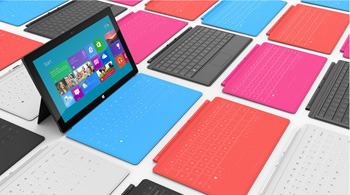
Microsoft’s Surface RT offers covers with built-in keyboards
The Surface RT is Microsoft’s bid for the tablet space currently owned by Apple’s iPad. Sure, Android tablets may cost a little less and aspire to the same market, but none have been able to come close to the iPad in terms of ease-of-use and user adoption. While the aspect ratio is more widescreen than Apple’s, the 10.6-inch display seems a little more usable than the slightly unbalanced, 11.6-inch displays that dominate the Windows 8 tablet market. Windows RT is fast and responsive on the ARM-based, Nvidia Tegra processor. The Surface’s 1366-by-768 resolution doesn’t match the beauty of Apple’s iPad Retina display, but most users probably won’t notice. In the Surface RT, Microsoft has introduced some clever touches, such as a built-in kickstand and the optional Type Cover, which integrates a flat, tactile-free, but extremely thin keyboard. The company also bundles a reduced version of Microsoft Office, but using those Office apps kicks you into desktop mode, which feels very weird on a device that’s really meant to be a pure tablet. On the Surface RT, the Windows Start Screen is the native interface, and seems capable and usable.
In the year 2012, we have seen a great revolutionary trend in the smartphones. With the release of Samsung Galaxy S III, Galaxy Note II, computing and connectivity has been taken to a new level. Apple’s iPhone 5 has generated a phenomenal buzz with its latest features, gaining popularity among the several. “How would the next generation smartphones be?” this was the first thought that has entered my mind when I see the features. For all those questions here is a sneak peek into the next generation android phone features: Larger Display Screen : In the year 2013, we are likely to see phones with a larger display. The screen size might be increased to provide a better viewing experience. You can see high definition pictures on your mobile phone. The colours would be more brilliant and vibrant providing us with life like picture quality. You might expect better size and display with the increase in the colour pixels. Faster OS : Although most phones haven’t updated android 4.1 OS, Google has already started working on its new version. It is all set to launch the new android 4.2 Key Lime Pie in the year 2013. The operating system is believed to be faster and better than the current existing one. Better Designs: Android phones in the coming generations may view a great change in their body designs. The body might pass through various changes to bring out that best design which could ‘wow’ the crowds. It might be sleeker, thinner which weighs less. Processors: With the present processors speeding up our work and cut shorting the time taken to upload or open a web page. Presently there are various processors are used such as 1.4 GHz ARM Cortex A9, 1.2 GHz Exynos, 1.5 GHz Scorpion, 1.2 GHz dual-core TI OMAP and many others. But the grapevine is buzzing with talks that they might increase the speed or might continue with the existing ones Camera: This feature is one among the waited features. Currently smartphones come with 8 megapixels, 5 megapixel for the rear camera and 1.3 megapixels for the front but there are talks that this could be increased to 13 megapixels for the rear and 3 megapixels for the front to provide better clarity and to produce complete HD quality pictures. Memory Storage: This is another check out feature. The current memory provided by android phones is 16GB/34GB/64GB with 1GB ram but the future phones might come with 16GB, 32GB, 64GB and 128GB variant might be included and might also have 3GB ram. This provides you with a large storage area where all your files can be easily stored without much problem. With all these great features, the phone might be heavy on the pockets so in case you want to buy them and lack finances opt payday loans. The above-mentioned are a few features that might be enhanced. Technology is updated regularly.
Maria Benson
Author Biography:
This guest post was written by Maria Benson, who loves to write articles on various topics like finance, health, technology. Previously she has done research on ppi claims currently she is focusing on technology related articles.
What if windows eight doesn’t meet our expectations?
Microsoft launches Windows 8 later this month after a year of gradually making the new operating system more and more available, hoping for a big hit that will drive sales this holiday season and beyond, and giving the company new hope of grabbing a bigger share of tablet sales. But what if Windows 8 flops? For businesses, the problem won’t be that dire, says Paul DeGroot, principal consultant at Pica Communications. Businesses that are Microsoft shops already have an operating system, likely Windows 7, but if not, Windows XP with a plan to adopt Windows 7 soon before support for XP ends next spring. If Windows 8 is a complete bust, enterprises can stick with Windows 7 and wait until Microsoft picks itself up and does a better job with Windows 8 service packs or Windows 9 (or whatever it calls the next major release), he says. After all that’s what happened with Windows Vista, says Matthew Casey, an analyst with Technology Business Research, and Microsoft can handle a disappointing Windows 8. In fact that is a likely scenario, DeGroot says. “Most of the companies I work with are standardising on Windows 7. They are not going to be migrating to Windows 8.” He says many businesses will license Windows 8 but end up reimaging their networks with Windows 7, similar to how many enterprises licensed Vista but installed XP. Casey says a Microsoft stumble with Windows 8 will be handled by businesses the same way the performance of Windows Vista was handled. “If that’s the case we’ll see a similar reaction from Microsoft,” he says “It’s not going to be them closing their doors.” The company will press on with Windows 8 and its fundamental architecture. The impact on consumers won’t be that great, either. If Windows 8 doesn’t catch on a big part of the reason will be that consumers are buying some other tablet platform they like better, so they’ll be happy. But according to Gartner, Microsoft will be missing a big opportunity to make its mark in mobile devices if the Windows 8 gamble doesn’t pay off. “It is a risk that Microsoft must take to stay relevant in a world where mobile devices with new modern experiences are becoming the norm,” Gartner says in a research note “Is Windows 8 in Your Future?” The popularity of smartphones and tablets has Microsoft playing catch up, particularly with Apple, whose iPad dominates in tablets and whose iPhone holds down big large chunk of smartphones. “With Windows 8, Microsoft tries to address the excitement of the tablet market by adding a tablet interface to Windows,” Gartner says. If Windows 8 does become popular with consumers and finds its way into enterprises via the bring-your-own-device phenomenon it will still have hurdles to clear with IT departments. Ultrabooks and tablets still need to establish themselves in the corporate world where their use raises questions, Casey says. Who will pay for them? How will they be secured? “These are pieces that need to fall into place in the enterprise planning cycle,” he says. It’s also questionable whether they will gain traction as platforms for business applications, DeGroot says. “I think that is going to be a very tough sell,” DeGroot says, because the apps have to be vetted by the Microsoft Store before they will be allowed on closed Windows 8 devices. Businesses won’t want to leap that hurdle nor will they want to side-load apps on devices to get around the restriction that Windows 8 apps must be reviewed by and sold through the store. “I have some difficulty imagining many organizations are going to want to do that.” Beyond that, developers are not prepared to write for Windows 8; their training and experience leans toward traditional enterprise applications for conventional desktops without touch capabilities, DeGroot says. Touchscreen can actually be a barrier. With Windows 8 Microsoft is overhauling the underpinnings of its operating system with the introduction of Windows Runtime, a new architecture that gives a common footing to applications across a range of devices. Such applications can support both x86 and ARM hardware, potentially opening up the possibility of writing apps once that can run on any device. Microsoft hopes it can write its next major chapter with Windows 8 and Windows Runtime, Gartner says, and that is what makes a Windows 8 success – and avoiding a flop – so important. Windows 8 is simply the biggest turning point for Microsoft in decades. “Windows 8 is not your normal low- or even high-impact major release of the OS,” the research firm says. “We believe it’s the start of a new era for Microsoft, the Windows RT era, which follows the Windows NT era that began in 1993 and is just starting to wane.”
Here are the best pieces of computing facts & advice we’ve ever heard. Useful information never goes out of style.
While the computer technologies seem so ordinary and familiar there are still some facts about them which may surprise you. The internet was born 40 years ago, in a lab at the University of California, Los Angeles. Today it wraps the entire planet and features in the daily routine of more than 1.5 billion people. Of course, it’s easy to take the internet for granted and forget that it’s very much a work in progress. So what forces are shaping it, how big has it grown, and will it ever evolve a mind of its own? Here’s a collection of facts you probably didn’t know about the computers and the internet. Check them out.
TAKE A BREAK…… Technology never stops moving foward. Hardware gets faster, and operating systems gain new features and (we hope) finesse. This is natural computing law.But just because computers are one big exercise in evolutionary progress, that doesn’t mean certain computing maxims ever go out of style. Take, for example, the nuggets of wisdom in the following list. All of these things are as true today as they were 2, 5, and in some cases even 10 or 20 years ago. Below, we give you the best pieces of computing advice we’ve ever heard. Have we left anything out? Share your suggestions in the comments section of this article.
1) When in doubt, punch out
If something isnt working on your PC, dont wring your hands and yell at the screen. Just restart the system. That simple act alone will fix many of the problems you may be experiencing. When your PC restarts, it clears out all the temporary files in the RAM and relaunches the operating system. This wipes away any files that may have been giving your PC fitsand the operating system starts fresh and unfettered by whatever was affecting it. If you want to do these things without restarting, click Start, then Run, and type %temp% into the command line.
2) Expect your battery to let you down
It’s simply Murphy’s Law: Your laptop or tablet will poop out the moment you need it most. That is life. Always bring your power cables with you on the road, and if possible invest in backup and secondary battery options.
3) Crowdsource your troubleshooting
Chances are, the help resources at your device manufacturers website wont address your exact headache, but if you type an error message or problem you’re having into Google, you’ll inevitably find helpful information from poor souls who have encountered the very same issue.
4) Back everything up
Never get caught with just one copy of anything that you want to keep. Always back up your data, and then back up your backups. Consider backing up both to an external drive and to a cloud storage service. Its a good idea to keep separate system and data partitions to back up your data partition daily, and back up your system partition (Windows as well as your installed programs) at least quarterly.
5) Remember that thumb drives are your friends
Its very easy to lose track of the recovery discs that come with a new PC, so keep a USB drive with recovery software on it in case something goes wrong. Store it away in a safe, easy-to-remember place. And in that same safe place, keep both electronic and print copies of all your software keys.
6) Look to last years model for a better value
Tech manufacturers always charge a premium for the latest and greatest hardware and typically you don’t really need the world’s fastest processor, graphics card, or I/O technology. So do yourself a favor and consider buying hardware that was best-in-class during a previous manufacturing cycle. It will likely be heavily marked down, but still wholly capable and packed with performance.
7) Skip the extended warranty
Don’t be a sap. Extended warranties are designed to prey on your fear that the hardware you just purchased is already on its death bed. From a return-on-investment perspective, extended warranties almost never pay offexcept for the companies that sell them.
8) Read the manual
You might be surprised at what you can learn by reading user manuals. Its natural to just jump right in and begin doing the things you expect a device or application to do, but I’ve found that by reading the manual I can learn about features and functions I didn’t know existed. Reading the manual can increase the benefit you derive from your device, and make you feel a whole lot better about buying it.
9) Consider the total cost of ownership
This maxim mostly applies to purchases of printers and subsidized phones. If you intend to do a lot of printing, pay close attention to the cost and efficiency of consumables, namely the ink or toner. And if you’re investing in a new smartphone plan, consider what you’ll be paying month to month…to month…to month…
10) Resist the urge to impulse-shop
A tech geek is never more dangerous than when perusing the aisles of a brick-and-mortar hardware store. If you absolutely must purchase a new toy in person, make sure to do your research beforehand. Don’t be swayed by the razzle-dazzle of salespeople, and arm yourself with deep product knowledge before you enter a store. Also, always ask the retailer to match lower Internet pricing, if you can find it. (You’ll want to bring your smartphone with you.)
11) Keyboard shortcuts: Use them, love them, live them
You can work far faster (and look way cooler) by mastering keyboard shortcuts for the programs, services, and operating systems you use every day. To learn these shortcuts, check out our Forum’s numerous articles containing keyboard shortcuts for every major OS and many popular applications. Get started with Windows 7 shortcuts.
12) Build your own
In many cases, building your own PC can be a less expensive proposition than buying a prefab systemand even when it isn’t cheaper, building your own ensures that you get the precise configuration that fits your needs (this is especially true for gaming PCs).
13) Keep your software up-to-date
The message windows reminding you to update your software can get annoying, but its a good idea to stop what youre doing and click the ‘Update now’ button. You’ll get the all the functionality the software has to offer, and you’ll also obtain vital security patches that can protect your system from software crashes and data loss.
14) Use an ergonomic keyboard and mouse tray
You might not realize how much time you spend at your desk. Hours can fly by when you re in the zone, and those hours of typing and mousing add up. Carpal-tunnel syndrome and other repetitive-stress injuries are a real risk for the information workers of today, and they can cost you dearly in pain and missed work. A small investment in adjustable, ergonomic keyboard and mouse trays, coupled with some research on correct positioning, can save you a lot of trouble.
15) Encrypt sensitive stuff
Encrypt any file you wouldn’t want to share with a thief, including email. My program of choice: TrueCrypt. But don’t bother to encrypt the entire drive. Just create a TrueCrypt volume and keep your sensitive files there.
16) Label your power bricks
Every time you buy a new device, you wind up with a new power adapter. They collect under desks, behind PCs, and in boxes in the closet. It’s almost as if they’re breeding. Its easy to lose track of which one goes to which device, and its possible to harm your gear by using the wrong power cable. So the first thing you should do after buying new gear is to label the power brick, permanently pairing it with the right device.
17) Hide those cables
The tangled mess of cables and wires under your desk will only get worse and worseand you wont realize how much it bugs you until you finally clean it all up. You can bundle groups of wires by running them through toilet paper tubes, or binding them with pipe cleaners or small bands of velcro, and then use binder clips to tie the bundled wires to the underside of your desk, or any place where theyre out of sight.
18) Stay wired when you want to connect
Wired ethernet will always be faster and more reliable than wireless networking. If you regularly do something (for work or play) on your home computer that relies on a constant Web connection, you may be better off using a wired internet connection. Wired connections are capable of far faster data speeds and are simply not subject to the many factors that can disrupt a wireless connection.
19) Put your router in the middle
Position your wireless router as close as you can to the center of your home. This action can help ensure that all the wireless devices in your home are within range of the access point. Youll also find that the signals coming from your router are more likely to reach their destination if the antenna is elevated off the floor a few feet.
20) Stop thieves
People store gigabytes of vital information on their portable devices, yet they rarely think about protecting their devices from theft. One of the best things you can do is to install a GPS-enabled antitheft program on your laptop, tablet, or phone. If your device goes missing, the software will lock the OS, report the device’s location to you via GPS, and in some cases even capture and send some photos of the thief.
21) Investigate crashes
If your PC seems to crash frequently, the Windows Reliability Monitor (Control Panel > System and Security > Action Center > Reliability Monitor) can help isolate the cause. The utility keeps track of all hardware and software crashes and warnings, organising them by date. By clicking on one, you can see the full details of what happened.
22) For gamers: Update your drivers
Confirm whether you have the latest drivers for your PC’s graphics and sound hardware. Game developers create their titles using the latest features and functionality in graphics cards. If youre using older drivers, your graphics card might not be up to the task of rendering the game properly on screen.
23) Take a screenshot
Save a screenshot (or snap a photo and save it to Evernote) of every weird problem or crash you see. Having an image can help immensely if the problem becomes chronic and you need assistance in fixing it.
24) Use two-factor authentication
Two-factor authentication simply means that logging in to a given service requires two separate forms of authentication: something you know (such as a password) and something you own, typically your smartphone. For example, you can enable two-factor authentication for your Gmail account. Doing so will require you to have your smartphone nearby every time you try to log in to your account so that the service can send you a unique alphanumeric code via SMS, but the arrangement makes it much more difficult for hackers to break into your account.
25) Change your router’s default SSID
The easiest thing you can do to improve the security of your wireless network is to change both the login and the password for your router to unique alphanumeric phrases that only you know. Since finding the default login and password for almost every router on the market is child’s play online, leaving your router at the defaults allows anyone to gain access to the wireless network in your home or small business.
26) Shun ‘Free Public Wi-Fi’
The ‘Free Public Wi-Fi’ network you might see listed on your Windows PC when you’re in various public places is the result of an old Windows XP bug that causes the OS to set up an ad hoc data-sharing network for connected PCs if it can’t connect to a trusted wireless network automatically. Connecting to this type of device-to-device ad hoc network rarely poses any immediate danger, but it won’t get you onto the Web, either. And malicious users could spy on the connection and steal valuable information from you.
27) Say no to cookies
Enable the Do Not Track feature on your browser. This feature will send a message to the websites you visit that it is not okay for them to install cookies in your browser that will record your movements around the Web. Unless you want that to happen, of course.
28) The best tip of all: Take a break
Every so often, take an electronic sabbatical. Go 24 hours without looking at a screen. It’s good for your eyes, and it reduces the chance of burnout. It also reminds you of how powerful personal computers of all shapes and sizes have become and that thought alone might make everyone a little more tolerant and patient when problems arise.
Here are the best pieces of computing facts & advice we’ve ever heard. Useful information never goes out of style.
While the computer technologies seem so ordinary and familiar there are still some facts about them which may surprise you. The internet was born 40 years ago, in a lab at the University of California, Los Angeles. Today it wraps the entire planet and features in the daily routine of more than 1.5 billion people. Of course, it’s easy to take the internet for granted and forget that it’s very much a work in progress. So what forces are shaping it, how big has it grown, and will it ever evolve a mind of its own? Here’s a collection of facts you probably didn’t know about the computers and the internet. Check them out.
TAKE A BREAK…… Technology never stops moving foward. Hardware gets faster, and operating systems gain new features and (we hope) finesse. This is natural computing law.But just because computers are one big exercise in evolutionary progress, that doesn’t mean certain computing maxims ever go out of style. Take, for example, the nuggets of wisdom in the following list. All of these things are as true today as they were 2, 5, and in some cases even 10 or 20 years ago. Below, we give you the best pieces of computing advice we’ve ever heard. Have we left anything out? Share your suggestions in the comments section of this article.
1) When in doubt, punch out
If something isnt working on your PC, dont wring your hands and yell at the screen. Just restart the system. That simple act alone will fix many of the problems you may be experiencing. When your PC restarts, it clears out all the temporary files in the RAM and relaunches the operating system. This wipes away any files that may have been giving your PC fitsand the operating system starts fresh and unfettered by whatever was affecting it. If you want to do these things without restarting, click Start, then Run, and type %temp% into the command line.
2) Expect your battery to let you down
It’s simply Murphy’s Law: Your laptop or tablet will poop out the moment you need it most. That is life. Always bring your power cables with you on the road, and if possible invest in backup and secondary battery options.
3) Crowdsource your troubleshooting
Chances are, the help resources at your device manufacturers website wont address your exact headache, but if you type an error message or problem you’re having into Google, you’ll inevitably find helpful information from poor souls who have encountered the very same issue.
4) Back everything up
Never get caught with just one copy of anything that you want to keep. Always back up your data, and then back up your backups. Consider backing up both to an external drive and to a cloud storage service. Its a good idea to keep separate system and data partitions to back up your data partition daily, and back up your system partition (Windows as well as your installed programs) at least quarterly.
5) Remember that thumb drives are your friends
Its very easy to lose track of the recovery discs that come with a new PC, so keep a USB drive with recovery software on it in case something goes wrong. Store it away in a safe, easy-to-remember place. And in that same safe place, keep both electronic and print copies of all your software keys.
6) Look to last years model for a better value
Tech manufacturers always charge a premium for the latest and greatest hardware and typically you don’t really need the world’s fastest processor, graphics card, or I/O technology. So do yourself a favor and consider buying hardware that was best-in-class during a previous manufacturing cycle. It will likely be heavily marked down, but still wholly capable and packed with performance.
7) Skip the extended warranty
Don’t be a sap. Extended warranties are designed to prey on your fear that the hardware you just purchased is already on its death bed. From a return-on-investment perspective, extended warranties almost never pay offexcept for the companies that sell them.
8) Read the manual
You might be surprised at what you can learn by reading user manuals. Its natural to just jump right in and begin doing the things you expect a device or application to do, but I’ve found that by reading the manual I can learn about features and functions I didn’t know existed. Reading the manual can increase the benefit you derive from your device, and make you feel a whole lot better about buying it.
9) Consider the total cost of ownership
This maxim mostly applies to purchases of printers and subsidized phones. If you intend to do a lot of printing, pay close attention to the cost and efficiency of consumables, namely the ink or toner. And if you’re investing in a new smartphone plan, consider what you’ll be paying month to month…to month…to month…
10) Resist the urge to impulse-shop
A tech geek is never more dangerous than when perusing the aisles of a brick-and-mortar hardware store. If you absolutely must purchase a new toy in person, make sure to do your research beforehand. Don’t be swayed by the razzle-dazzle of salespeople, and arm yourself with deep product knowledge before you enter a store. Also, always ask the retailer to match lower Internet pricing, if you can find it. (You’ll want to bring your smartphone with you.)
11) Keyboard shortcuts: Use them, love them, live them
You can work far faster (and look way cooler) by mastering keyboard shortcuts for the programs, services, and operating systems you use every day. To learn these shortcuts, check out our Forum’s numerous articles containing keyboard shortcuts for every major OS and many popular applications. Get started with Windows 7 shortcuts.
12) Build your own
In many cases, building your own PC can be a less expensive proposition than buying a prefab systemand even when it isn’t cheaper, building your own ensures that you get the precise configuration that fits your needs (this is especially true for gaming PCs).
13) Keep your software up-to-date
The message windows reminding you to update your software can get annoying, but its a good idea to stop what youre doing and click the ‘Update now’ button. You’ll get the all the functionality the software has to offer, and you’ll also obtain vital security patches that can protect your system from software crashes and data loss.
14) Use an ergonomic keyboard and mouse tray
You might not realize how much time you spend at your desk. Hours can fly by when you re in the zone, and those hours of typing and mousing add up. Carpal-tunnel syndrome and other repetitive-stress injuries are a real risk for the information workers of today, and they can cost you dearly in pain and missed work. A small investment in adjustable, ergonomic keyboard and mouse trays, coupled with some research on correct positioning, can save you a lot of trouble.
15) Encrypt sensitive stuff
Encrypt any file you wouldn’t want to share with a thief, including email. My program of choice: TrueCrypt. But don’t bother to encrypt the entire drive. Just create a TrueCrypt volume and keep your sensitive files there.
16) Label your power bricks
Every time you buy a new device, you wind up with a new power adapter. They collect under desks, behind PCs, and in boxes in the closet. It’s almost as if they’re breeding. Its easy to lose track of which one goes to which device, and its possible to harm your gear by using the wrong power cable. So the first thing you should do after buying new gear is to label the power brick, permanently pairing it with the right device.
17) Hide those cables
The tangled mess of cables and wires under your desk will only get worse and worseand you wont realize how much it bugs you until you finally clean it all up. You can bundle groups of wires by running them through toilet paper tubes, or binding them with pipe cleaners or small bands of velcro, and then use binder clips to tie the bundled wires to the underside of your desk, or any place where theyre out of sight.
18) Stay wired when you want to connect
Wired ethernet will always be faster and more reliable than wireless networking. If you regularly do something (for work or play) on your home computer that relies on a constant Web connection, you may be better off using a wired internet connection. Wired connections are capable of far faster data speeds and are simply not subject to the many factors that can disrupt a wireless connection.
19) Put your router in the middle
Position your wireless router as close as you can to the center of your home. This action can help ensure that all the wireless devices in your home are within range of the access point. Youll also find that the signals coming from your router are more likely to reach their destination if the antenna is elevated off the floor a few feet.
20) Stop thieves
People store gigabytes of vital information on their portable devices, yet they rarely think about protecting their devices from theft. One of the best things you can do is to install a GPS-enabled antitheft program on your laptop, tablet, or phone. If your device goes missing, the software will lock the OS, report the device’s location to you via GPS, and in some cases even capture and send some photos of the thief.
21) Investigate crashes
If your PC seems to crash frequently, the Windows Reliability Monitor (Control Panel > System and Security > Action Center > Reliability Monitor) can help isolate the cause. The utility keeps track of all hardware and software crashes and warnings, organising them by date. By clicking on one, you can see the full details of what happened.
22) For gamers: Update your drivers
Confirm whether you have the latest drivers for your PC’s graphics and sound hardware. Game developers create their titles using the latest features and functionality in graphics cards. If youre using older drivers, your graphics card might not be up to the task of rendering the game properly on screen.
23) Take a screenshot
Save a screenshot (or snap a photo and save it to Evernote) of every weird problem or crash you see. Having an image can help immensely if the problem becomes chronic and you need assistance in fixing it.
24) Use two-factor authentication
Two-factor authentication simply means that logging in to a given service requires two separate forms of authentication: something you know (such as a password) and something you own, typically your smartphone. For example, you can enable two-factor authentication for your Gmail account. Doing so will require you to have your smartphone nearby every time you try to log in to your account so that the service can send you a unique alphanumeric code via SMS, but the arrangement makes it much more difficult for hackers to break into your account.
25) Change your router’s default SSID
The easiest thing you can do to improve the security of your wireless network is to change both the login and the password for your router to unique alphanumeric phrases that only you know. Since finding the default login and password for almost every router on the market is child’s play online, leaving your router at the defaults allows anyone to gain access to the wireless network in your home or small business.
26) Shun ‘Free Public Wi-Fi’
The ‘Free Public Wi-Fi’ network you might see listed on your Windows PC when you’re in various public places is the result of an old Windows XP bug that causes the OS to set up an ad hoc data-sharing network for connected PCs if it can’t connect to a trusted wireless network automatically. Connecting to this type of device-to-device ad hoc network rarely poses any immediate danger, but it won’t get you onto the Web, either. And malicious users could spy on the connection and steal valuable information from you.
27) Say no to cookies
Enable the Do Not Track feature on your browser. This feature will send a message to the websites you visit that it is not okay for them to install cookies in your browser that will record your movements around the Web. Unless you want that to happen, of course.
28) The best tip of all: Take a break
Every so often, take an electronic sabbatical. Go 24 hours without looking at a screen. It’s good for your eyes, and it reduces the chance of burnout. It also reminds you of how powerful personal computers of all shapes and sizes have become and that thought alone might make everyone a little more tolerant and patient when problems arise.
Outdated software is the weak spot of Android phones, according to a security firm’s recent study that finds more than half of the Android-powered devices checked have unpatched vulnerabilities, putting their users at risk of mobile malware. Duo Security, a Michigan-based company whose investors include Google, gathered data from more than 20,000 Android devices around the world that loaded its free app, X-Ray, released two months ago. Unlike traditional mobile antivirus software that scans for known malware, X-Ray scans Android devices to see whether they have unpatched vulnerabilities that may put them at risk.
The firm found that more than half of Android devices worldwide have unpatched vulnerabilities that could be exploited by rogue apps. The X-Ray FAQ explains that a number of such vulnerabilities have been discovered in the core Android platform, affecting nearly all Android devices. Even more are found in manufacturer-specific extensions that may affect a smaller subset of Android users. “Yes, it’s a scary number, but it exemplifies how important expedient patching is to mobile security and how poorly the industry (carriers, device manufacturers, etc.) has performed thus far,” says Jon Oberheide, CTO at Duo Security, in the company’s blog posting about its research. “We feel this is actually a fairly conservative estimate based on our preliminary results, the current set of vulnerabilities detected by X-Ray, and the current distribution of Android versions globally.” Oberheide was recently named one of Forbes’ “30 under 30” for his Android security research.
Carriers are very conservative in rolling out patches to fix vulnerabilities in the Android platform, users’ mobile devices often remain vulnerable for months and even years,” Oberheide adds. Apple releases software patches for its iOS software regularly and users have immediate access to any updates, but the nature of Android means that carriers and device manufactures hold the key when it comes to updating phones. Sometimes Android updates are not rolled out to all phones in order to entice users to buy newer devices. If you’re one of those people running an older version of Android, make sure to take extra precaution when installing apps or browsing the Web on your device. Never install apps from sources you don’t trust, and take some time to grab a mobile security app like Lookout, TrustGo, or Norton Mobile Security. While you may not be able to close the holes in the OS itself, you can at least prevent apps that use these exploits from getting onto your device. More than 500 million Android devices are activated, according to Google’s own stats, and the majority of them (57 percent) run on Gingerbread (2.3.X), a version introduced in late 2010, while only 1.2 percent run on the latest Jelly Bean (4.1) update. Just under 20 percent of Android devices run older versions of Android, dating back to 2009. Post Credit: techhive.com
It’s a huge year for Microsoft. The venerable tech giant is essentially reinventing itself from the ground up for 2012. A new server OS, new desktop OS, new Microsoft Office suite, new mobile platform, and new tablet hardware are all being launched virtually simultaneously. To say Microsoft has a lot riding on the success of the new products is an understatement. Apparently, Microsoft is willing to put its money where its proverbial mouth is, though, and lead its customers by example. There are reports that Microsoft plans to accelerate its normal PC refresh cycle to give all employees new Windows 8 desktops and laptops. But, wait—there’s more! Microsoft is also allegedly issuing new Windows Phone 8 smartphones and Surface RT tablets to all employees as well. Microsoft allegedly plans to give all employees their very own Surface RT tablet.
Aside from Microsoft playing Santa Claus (or Oprah—choose your own benevolent icon), and bringing Christmas to employees a tad early, the move also demonstrates Microsoft’s confidence in the new platforms and software. It is arguably the most extreme example of the “eat your own dog food” mantra ever implemented. It’s probably not entirely altruistic, though. It seems safe to assume that there is a deeper business strategy behind the decision. Onuora Amobi, editor of Windows8Update.com, thinks it’s a brilliant move by Microsoft. Aside from fostering loyalty and good will with employees, it allows Microsoft to do a massive real-world test of its manufacturing and distribution channels, and it enables Microsoft to demonstrate–on a massive, global scale—that Windows 8 and Windows Phone 8 are ready for enterprise customers to roll out themselves. From a marketing and consumer standpoint, the strategy makes sense as well. With more than 90,000 employees carrying and using Windows 8 smartphones and Surface RT tablets, the devices will get a huge boost in exposure. The friends and family of those 90,000 employees will have a chance to touch and feel the new Windows 8 smartphones and tablets, and the word of mouth marketing will be much more invaluable to Microsoft than any advertising it can buy. Of course, Microsoft followed a similar strategy a couple years ago when it gave all employees Windows Phone 7 smartphones. Despite the word of mouth marketing and excitement that should’ve been generated among Microsoft family and friends, the Windows Phone platform has still been struggling to earn a seat at the table with other mobile platforms like iOS and Android. Microsoft is putting its money on the line in other ways as well, though. Previous versions of Windows have cost consumers hundreds of dollars to upgrade, but with Windows 8 Microsoft is offering the upgrade for a mere $40 for a limited time. There’s also a rumor that Microsoft could price its Surface RT tablet at around $200—a very aggressive price for a tablet of that caliber, and something, which is sure to draw attention if it proves true. Microsoft isn’t just developing incremental tweaks to existing product lines. The operating systems, platforms, software and devices Microsoft is unleashing this year represent a bold departure from traditional Microsoft products and strategies. Much of what Microsoft is doing is essentially a gamble—but it’s a gamble that Microsoft is going all in on. We’ll see if the strategy pays off.
It hasn’t been the best of months for Anonymous, the loose hacktivist collective that likes to view itself as the most potent threat on the Web to big government, big business, and those who do not share its views on pretty much anything — law enforcement, the environment, internet freedom, copyright laws, politics etc. Several of its recent claims have been exposed as not just inflated, but outright fabrications.
The group claimed to have personal mailing addresses and phone numbers besides the UDIDs, plus device tokens for the Apple Push Notification Service (APNS) for numerous types of Apple devices such as iPhones, iPads and iPod Touches. The FBI immediately denied that any of its computers had been compromised. Apple said it had never provided UDIDs to the FBI. And, as Michael Mimoso noted on the Kaspersky Labs blog Threatpost, David Schuetz, a senior consultant with Intrepidus Group, found that the real source of the breach was BlueToad, a Florida based technology provider for digital publishers. “[Schuetz] found a password dump online for BlueToad dated March 14, the same week AntiSec said it had breached the FBI computer. Any hesitancy Schuetz had regarding BlueToad’s connection to the breach was evaporating,” Mimoso wrote. Earlier this week, BlueToad CEO Paul DeHart publicly confirmed via the company’s blog that it was the source of the breach, that it had contacted law enforcement and was cooperating in the investigation.
Then there was the claim last month that Anonymous was looking to break into the communication system between NASA and the Mars rover Curiosity. That didn’t even pass the laugh test for most security professionals, who viewed it as a bad joke or a weak attempt at trolling. Last March, LulzSec, which operated under the Anonymous umbrella, after the FBI arrested and then flipped its leader, Hector Xavier Monsegur, who went by the hacker name of “Sabu.” Does all this mean that the Anonymous brand has been undermined? Do its boasts and threats have any credibility in the security community?
Anonymous uneven
Yes and no, say those who track its exploits. Most agree with Cole Stryker, an author who has researched Anonymous and who The New York Timesquoted describing it as “a handful of geniuses surrounded by a legion of idiots.” Those idiots, say experts, are going to make a host of errors and laughable claims. But that does not mean there is no danger from the core group.
“What we have here is a bunch of kids, largely in UK and here and dozens of other places such as Brazil, Turkey, Iran, China, Ukraine, Romania and lesser numbers in other places across the planet — a bunch of really bored kids who want to be a part of something, but have no clue,” said Kevin McAleavey, cofounder of the KNOS Project and a malware and hacking expert.
“How seriously do I take Anonymous’s claims? About as seriously as I take ‘The Daily Show,’” he said. “Yes, there are a handful of really dangerous people who those kids admire and who occasionally feed them a breath mint. One or two of them have already been apprehended. The rest have gone back to collecting exploits and writing malware, and selling them to criminals and government spooks for real cash. They won’t touch Anonymous any more because the heat is too high.” Nick Selby, a Texas police officer and information security consultant who runs a police-led intelligence blog, noted at the time of the LulzSec bust that there is essentially no barrier to claim membership in Anonymous. “It doesn’t require massive technical skills — just reasonable knowledge and a willingness to break the law,” he said. But Aaron Cohen, founder of the Hacker Academy, said he thinks it would be foolish to discount the group’s skill and power. He said he has a hard time talking about Anonymous, “because we don’t know who they are. People are out there doing things under the name of Anonymous, but you don’t really know if that’s true.” Cohen said the whole idea of an Anonymous brand misses the point. “They’re not looking for branding,” he said. “They’re doing it under a pseudo name. There is no call to arms to get somebody. But if one person says they’re going to get a company, then everybody tends to rally around that person.” But Cohen adds that he thinks Anonymous has been “pretty reliable so far,” in both its claims and its threats. And he said whether it is Anonymous or some other group, good hackers are proof that “if people want to break into something badly enough, they can.” “So if you’re a target, it’s best to tighten up,” he said.
It is rare to find a new PC that doesn’t come with additional bells and whistles in addition to the operating system itself. The “bloatware” that PC vendors add on often includes useful tools like third-party security software. It seems, though, that some PCs also come with something more insidious—pre-installed malware. Microsoft researchers investigating counterfeit software in China were stunned to find that brand new systems being booted for the first time ever were already compromised with botnet malware right out of the box. Microsoft has filed a computer fraud suit against a Web domain registered to a Chinese businessman. The suit alleges that the Nitol malware on the new PCs points the compromised systems to 3322.org. Microsoft believes the site is a major hub of malware and malicious online activity. Microsoft claims that site in question hosts Nitol, as well as 500 other types of malware. A Washington Post report states that it’s the largest single repository of malicious software ever encountered by Microsoft.
Most users—particularly most users of the Microsoft Windows operating systems—are aware of the many online threats. They’ve been conditioned to install antimalware and other security software, and update it frequently to ensure it can detect and block the latest, emerging threats. It’s a problem, though, if the PC is already compromised with malware before the antimalware software is even installed or enabled. Part of the concern lies in how the pre-installed malware works, or how deeply embedded it is. Most malware can still be identified and removed by security software after the fact. However, malware threats that are planted at the kernel level of the operating system, or in the PC BIOS operate at a level that is too deep, and can avoid detection by most antimalware tools. Malicious software is big business, and the criminals running the business are often quite clever and innovative when it comes to finding new ways to spread it. Planting malware in PCs, smartphones, or tablets before they’re even purchased and unboxed is certainly one way to go about it. What can you do then to defend against these threats? For starters, buy your PC, tablet, or smartphone hardware from established, respected vendors. If you buy an HP, Dell, Acer, Sony, or other such brand name PC the odds of it being compromised with pre-installed malware out of the box are pretty low. If you buy an Apple iPad, Google Nexus 7, or Amazon Kindle Fire you will most likely get a device free of malware infections. But, if you go bargain shopping online and buy a PC or knock-off tablet from a shady, unknown site the risk is higher. Regardless, don’t assume that just because your PC or mobile device is brand new that it must be safe and free from malware. And, you might not want to trust the pre-installed security software, either, since you can’t verify that it’s legitimate and free from malware itself. Make sure you install a reliable cross-device security tool to detect and identify malware that may already be present.
Smartphones and tablets are vulnerable to attack, too. Here’s what to look for in a comprehensive security solution. By now you should already know the basics of online security: Don’t send money to a Nigerian prince, don’t click on that picture of Britney in a bikini, don’t call the Rev. Father from senegal and don’t run your PC without a security suite. All those basics still apply, but as technology moves forward, so do threats to your privacy and your devices. Today, we need to protect not only our computers, but also our smartphones and tablets. Fortunately, protecting yourself and all your devices can be easy with the help of some sound practices and good software. The first step, however, is to understand what threats are out there. Never forget that your smartphone or tablet is actually a full-fledged computer in a smaller package. You can surf the web with it; check email; and use it to download and upload documents, photos, mp3s, videos, and software in the form of apps. That’s why we love handheld devices, of course, but it also means they are susceptible to attacks just like PCs are. To make matters worse, your phone or tablet can be the seed that carries an attack to all the hardware devices in your network, as well as those of anyone you email, text, or share data with. Know The Threats There are so many different kinds of threats out there, it can be hard to keep track: worms, botnets, viruses, spyware, phishing… You’ve probably heard of all of these without knowing exactly what they look like or how they work. They’re all basically different types of software threats, known collectively as “malware,” or malicious software.
A worm is malware that is designed to spread itself from computer to computer across the Internet. Once it’s in your system, device, or network, it can make your computer perform unwanted actions.
A botnet is malware that turns infected hardware (like your PC or phone) into an unwitting host for its creator. You won’t necessarily know you’re infected, but meanwhile your hardware is being used as part of a large, powerful network of similar “bots” that their programmer weaves together into one big system. Botnets can be used to attack other networks, such as the “denial of service” attacks on the news to sites like Amazon, Citibank, and even the U.S. government.
A virus is self-replicating malware that is usually attached to legitimate programs or files, so that when you launch the infected program or file, the virus launches too. Similar to a virus is a Trojan horse, which starts out as a file that you feel confident opening, such as a picture or presentation file, but is actually a virus in disguise. Once a virus is on your computer, it can make a wide variety of unwanted changes to your files.
Spyware is any type of software that collects information about the user of an infected device. Some spyware can be legitimate—parents or others might install spyware to monitor how a computer is being used. When spyware installs as a threat, it often arrives as a Trojan horse or through adware, which is any advertisement that installs malware after it is clicked.
Phishing is a type of threat that requires you to interact with it. Typically, the purpose of a phishing attack is to collect your information—like your web logins, passwords, and credit card or bank account information. Phishing attacks are often disguised as emails or websites for large banks or online retailers, prompting you to click a link to log in and enter personal information. If you do as prompted, you will be giving your login info away to a predator.
Why You Should Care All of these types of attacks can compromise smartphones and tablets just as readily as they can hit your PC. These threats can come to you through email, text message, social networks, QR codes, or even through cloud computing—all of which you probably use on a regular basis, if you’re like most people with a PC, smartphone, or tablet. So, what can happen if you fall prey to these threats? First of all, most threats will slow your device down because they are using up memory running malware. Sometimes they even install programs that can make it impossible to use your device. And many of these threats can steal your personal data and use it for fraudulent purposes. Your information might even be used to give someone a passport or government identification using your name, social security number, and other details. In milder cases, your Facebook login, email account, and other personal data can fall under the control of malicious strangers intent on stealing from you and your friends. Solve It with Software Now that you know the worst of it, what can you do to stop these threats? Good security software can keep you off the victims list, and there are also several simple things you can do just by changing how you use your device settings. Start by buying a trusted security suite that protects all of your connected devices. Be sure to choose a product that will protect smartphones and tablets in addition to your computer. Considering the number of things we plug into our computers these days—from “thumb” drives to smartphones—having single, trusted source of protection is a huge advantage. If you choose separate antivirus protection for each piece of hardware, you’ll lose the advantage of having a single place to see and control all of the threats on your network. A single piece of software also has the advantage of only having to “learn” a threat once, rather than risking that it will be caught every time it hits one of your devices. Good security software should be highly customizable, so that it can automatically run checks on your system as often as you like and check exactly what you ask it to check. Some software will even watch over you as you surf the web and signal that a given site or link is safe to use. These automatic checks can even extend into your social networks, showing which posted links are safe. If you need to check an individual site to find out if it’s safe, you should only be a click away, with icons for the software appearing on your desktop and in your browser. Buying and using antivirus software is critical, but it’s also important to use good sense as you use your online devices. Many threats come in predictable forms: attachments in email, links that set off malicious downloads or lead to malicious apps, or QR codes from unknown sources. All of these have one thing in common: You have to set them off. Without your input, these threats are harmless. Learning just a little about malware and phishing can give you almost everything you need to beat these threats on your own. Almost, that is. Unfortunately, the folks who build malware tend to be pretty sneaky, so it’s essential that you have up-to-date software on all your devices to back you up. Full Service, Please In addition to security scanning, backup is another feature your full-service security software should offer you. By backing up your data automatically into the cloud, you can be sure that regardless of what happens to your hardware—broken, lost, stolen, or hacked—you will have access to all of your files. What about protecting the files left on a lost device? You’ll want to look for the ability to remotely lock your device and wipe your files from it. With these software features, your loss is minimized to merely hardware instead of all your valuable data. Smartphones and mobile computing have solved many problems in modern life, but they have created some new ones, too. Everyone knows someone who has lost his phone or had her computer stolen from a public place. Harassing calls and texts, whether from bill collectors or angry exes, are also a 21st century problem. A robust software solution should give you the ability to track a lost device via GPS mapping, as well as to filter calls or text messages from an unwanted source. Mobile computing, whether by laptop, tablet, or smartphone, has permanently changed how we live our lives, mostly for the good, but there are new threats as well. To protect yourself, learn all you can about the threats that exist, use common sense practices, and, most importantly, find a turnkey antivirus software that protects all of your devices and offers a wide range of services to access your devices remotely. Relying on one good cross-device software solution will make responding to threats fast and easy, giving you peace of mind as you bravely go forth to surf the web.
Universal MasterCode Tool is a free software that can be used to calculate unlock codes for ZTE, NEC, LGk110, Nokia, Huawei and VK phones and USB modems. It’s one the tools required to unlock stubborn E303 Glo Bolt modems. Needless to say, the software can be used to unlock other USB modems including MTN, Etisalat, Airtel and Glo Modems. It has a very light, portable and user friendly interface. Even the biggest computer novice can use it.
Universal Master Code Calculator to Unlock my Phone and Modems
The try-to-success rate of the Universal Master Code Calculator app used for Unlocking several models of Phone and Modems is amazing for an app of this size.
It answered the question of how to unlock my phone for us back in the days and so, should be a reliable tool for unlocking a wide range of modem and mobile internet devices.
If you’re one for setting the perfect mood in your home by brightening or dimming the lights, you’ll know how annoying it can be when you need to get up to adjust the light. Thanks to smartphone apps and Bluetooth, though, you can actually continue to recline.
[Credit: Bluetooth Bulb]
The Bluetooth Bulb is probably one of the weirdest gadgets you’ll install in you home. Like a typical bulb, you just screw it in to get it to light up the room. But this light bulb, as the name suggests, can be controlled from your phone via Bluetooth. Not only does this light bulb-app combo let you adjust the brightness in a room from your phone,it also comes available as an RGB bulb, so you can pick a number of colors to light your room. Tinkerers can also easily change the chips (useful if it stops working, too) or play with the software, so you can have it do things like automatically switch off at a specified time. Unfortunately, there is a small catch. The light uses Bluetooth 4.0, so only a small handful of phones or computers can work with support it. At present, you’d need an iPhone 4S, iPad 3, Samsung Galaxy S III, Droid RAZR, Mac Mini, or MacBook Air in order to use the Bluetooth Bulb. Also, the light can only be controlled within 164 feet–that’s the length of an Olympic swimming pool. If the above doesn’t put you off though, or you think it’ll make a great addition to your home automation project, the impressive-sounding bulb will be available within the next two months from Bluetooth Bulb‘s online store. [Bluetooth Bulb]
Apple and Samsung have been locked in unceasing patent battles over their offerings, and now some people are accusing Samsung of even ripping off the design of Apple’s retail stores. But Apple doesn’t own the corner on using an open floor design and it certainly didn’t invent the idea of minimalism. And any retail store that sells phones and gadgets is going to have tables for playing with them. Microsoft stores do. Samsung recently opened its first North American retail store in Burnaby’s Metropolis at Metrotown, Vancouver, British Columbia and it can’t be denied that it does resemble an Apple Store with its open floor space, demo tables, and blue-shirted staff. But is Samsung intentionally copying Apple Store design?
Image compilation from Apple/Vancouver, B.C. SunImage from BetaNews.com Apple uses wood tables and Samsung has gone with white. Big deal? Not really. From what I’m seeing, Samsung’s store looks similar to countless exhibits you’d see at CES. As for the blue shirts that both Apple Store and Samsung Store employees wear, it’s worth remembering that Samsung’s company color is blue. This is hardly the first time Apple and Samsung have tangled. The former managed to get the latter’s Galaxy Nexus smartphone and Galaxy Tab 10.1 pulled from store shelves recently. A graphic from BetaNews’ Joe Wilcox is a great summation of the attitude many people have regarding Apple’s incessant insistence that other companies, Samsung in particular, are ripping it off. What’s your impression? Does it look to you as if Samsung intentionally cloned the Apple Store in its new retail location?
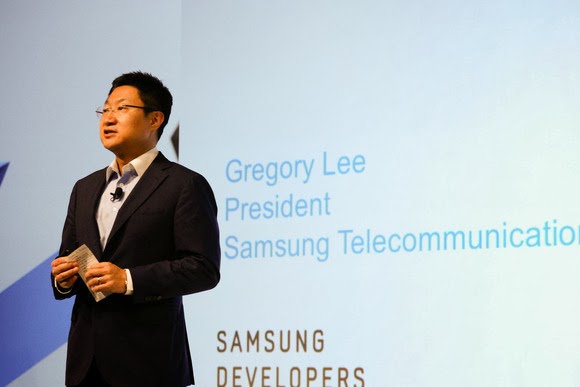
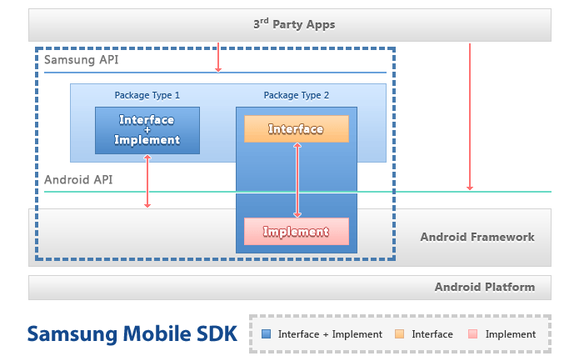
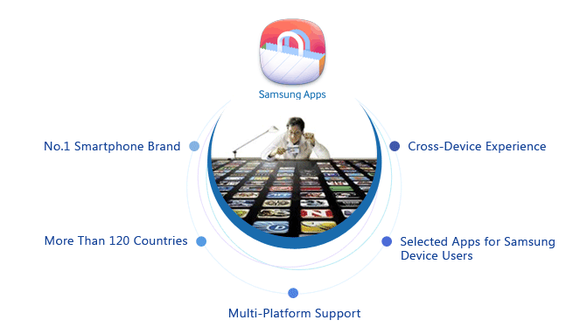
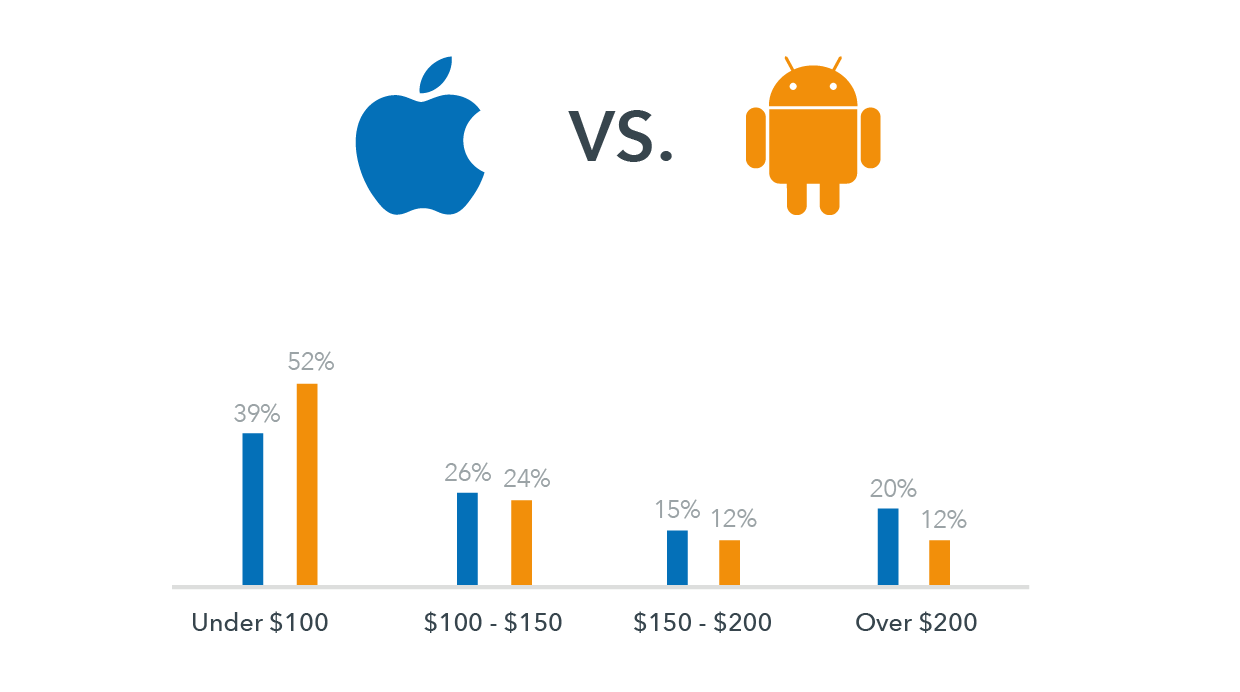
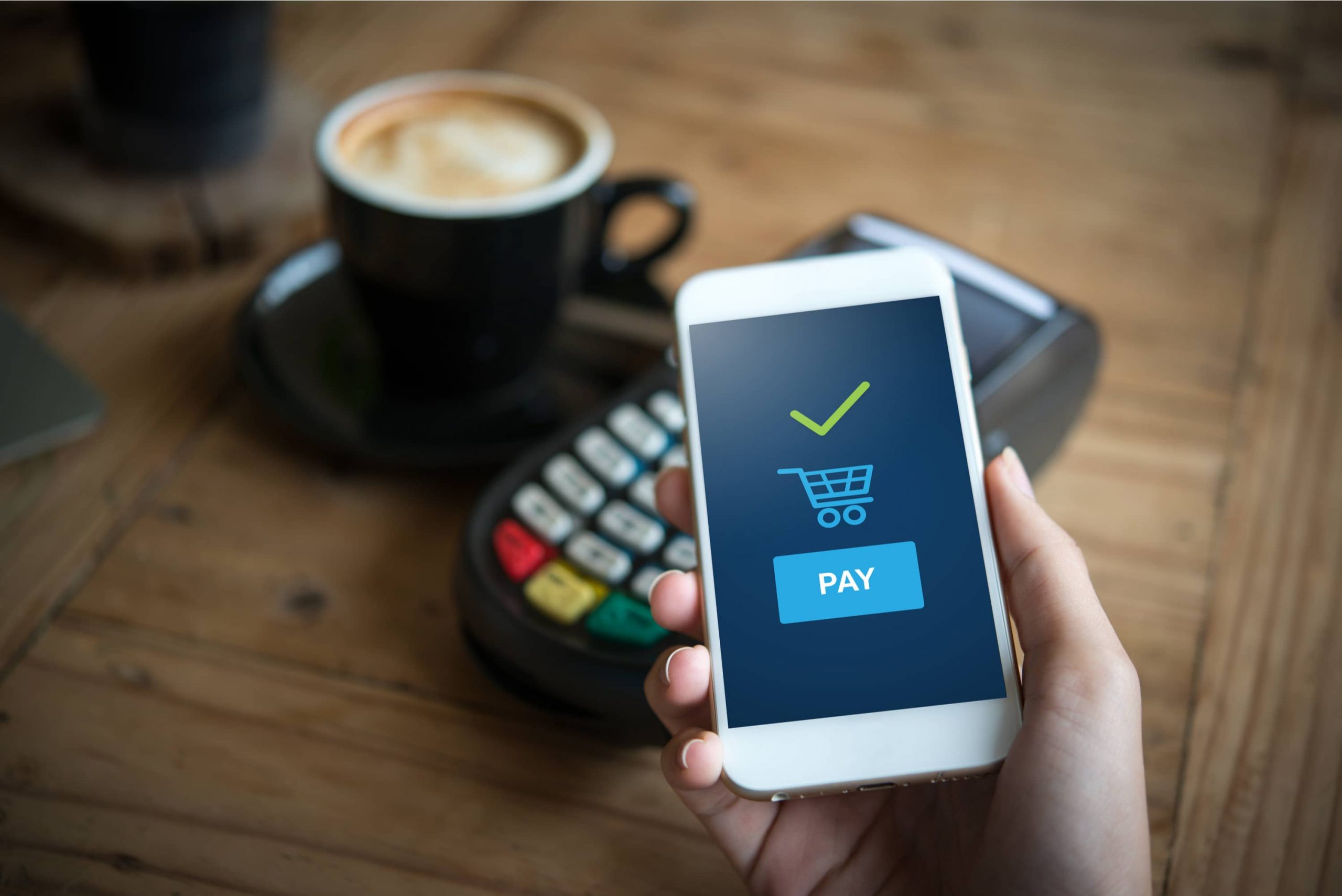
 At least 60% of consumers have accepted that they will become more willing to accept mobile payment apps if certain financial institutions offered them the right resources. Mobile payment apps have increased worldwide because the majority of payment resources are realizing the importance of


 Currently, we are on the edge of a new digital paradigm, where the abilities of our machinery are beginning to outshine our own.
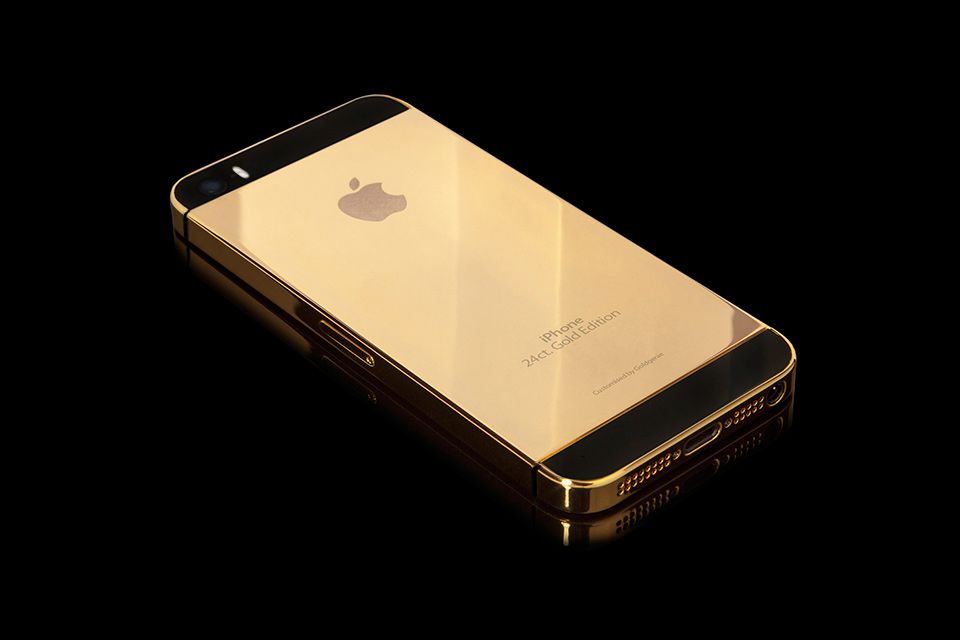
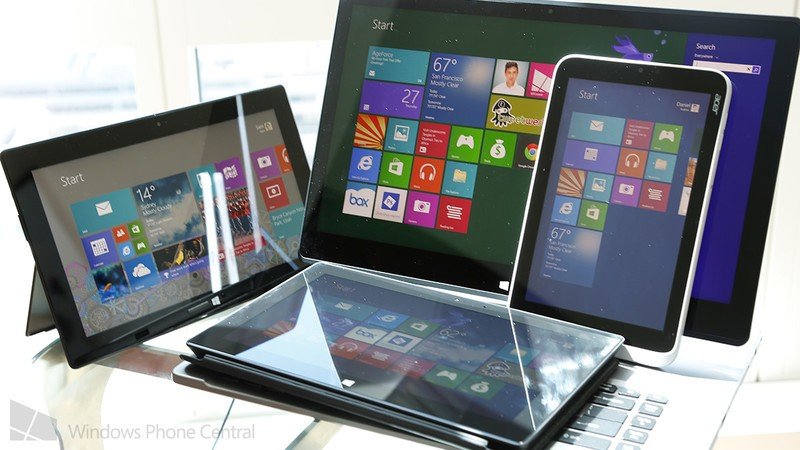
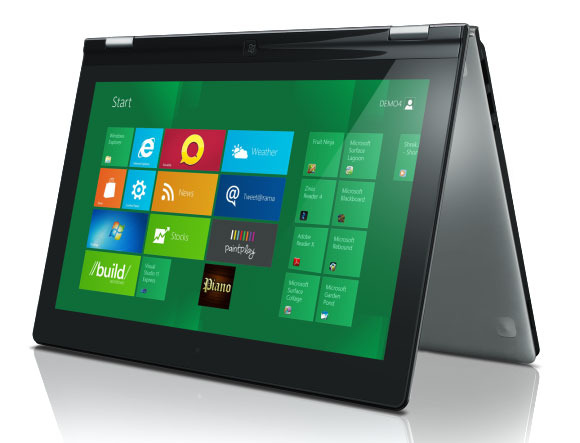
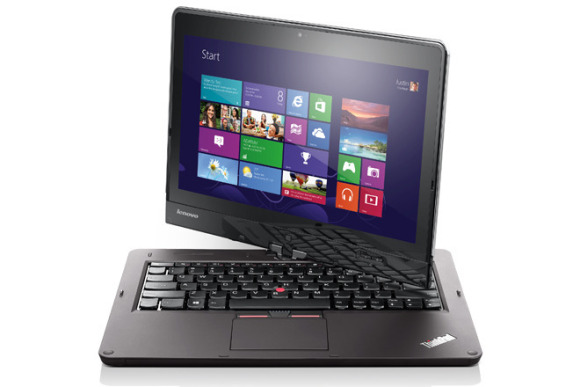
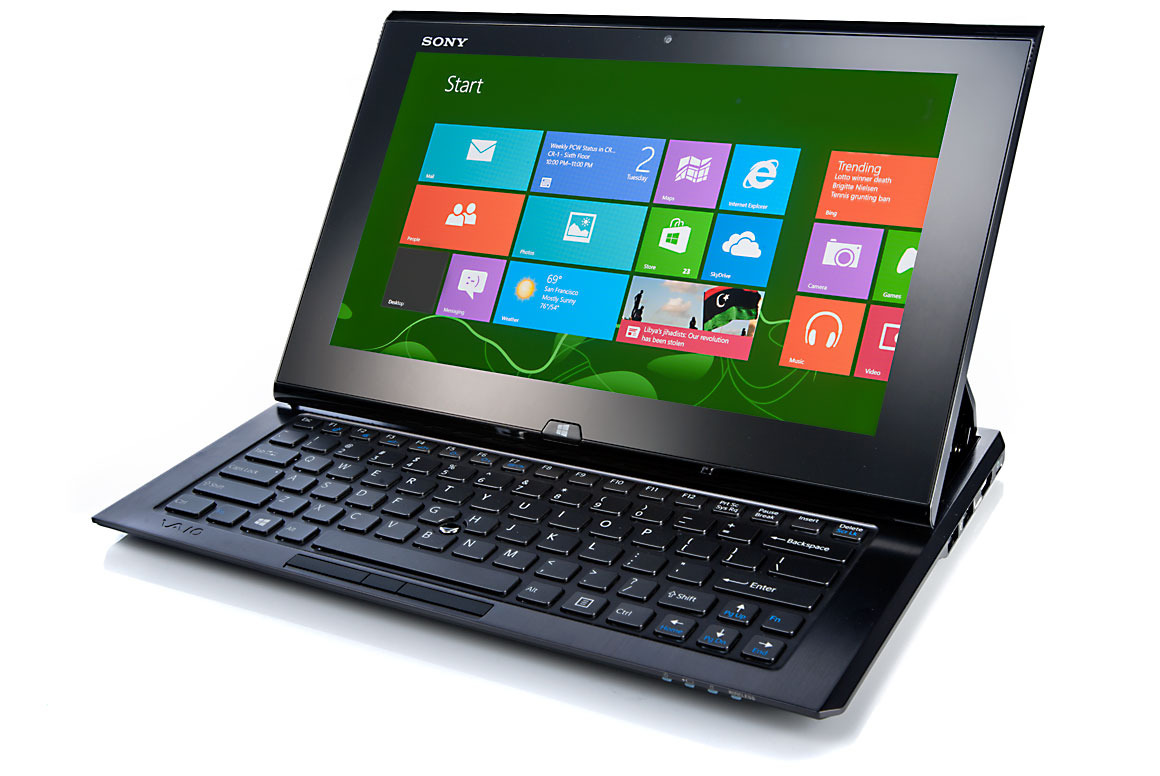
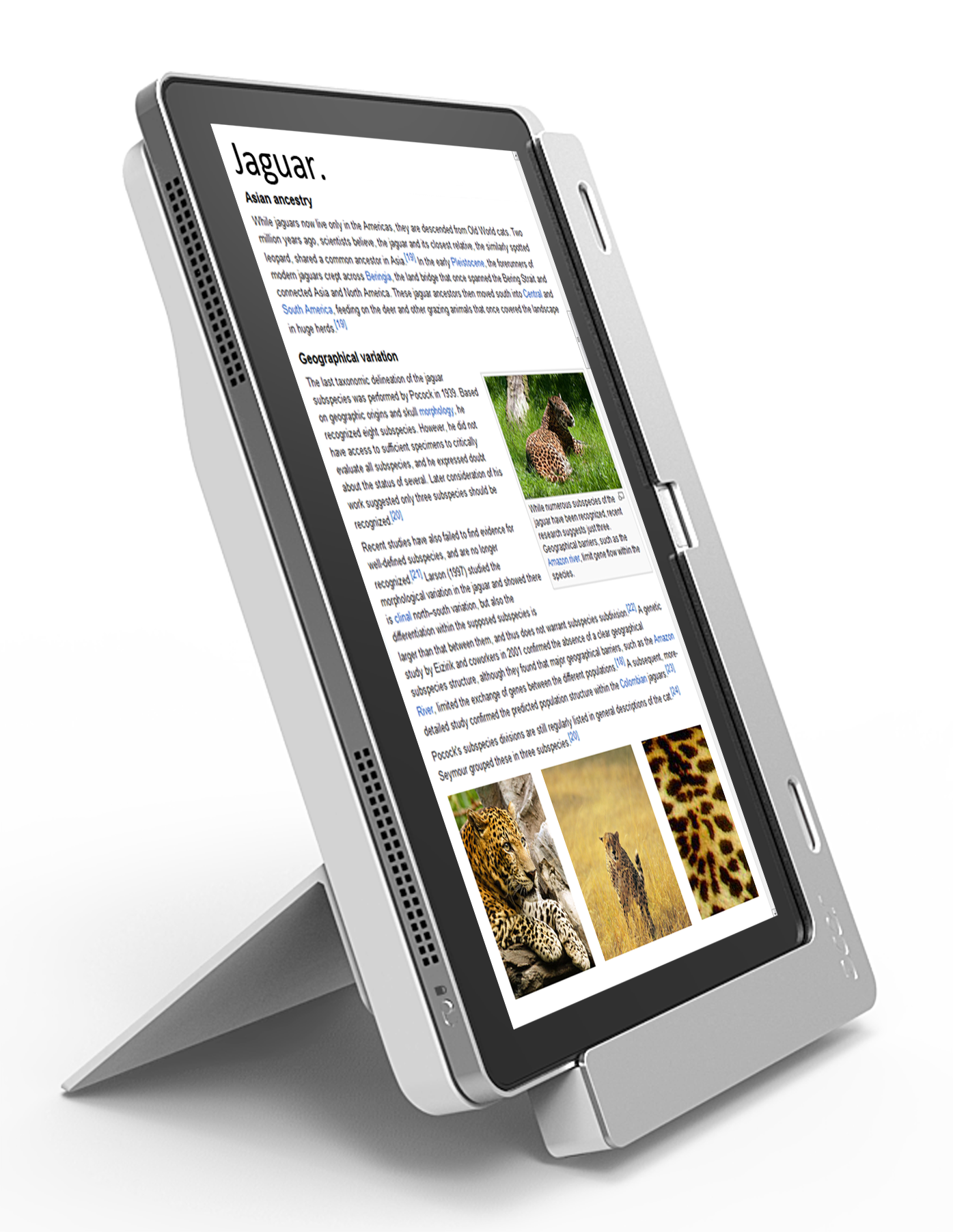
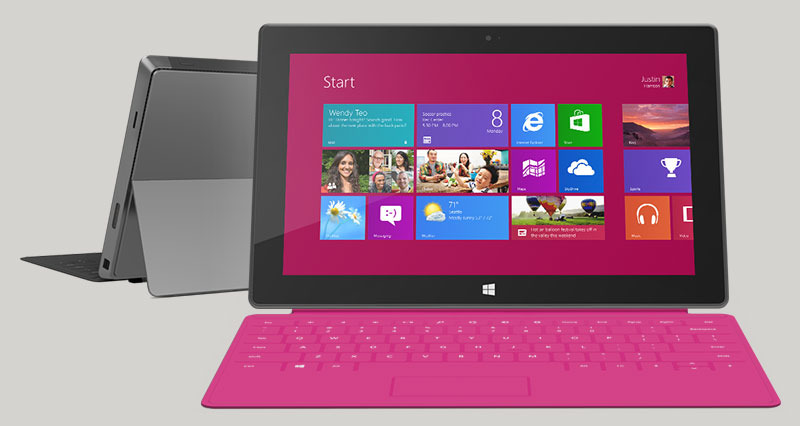
 Microsoft launches Windows 8 later this month after a year of gradually making the new operating system more and more available, hoping for a big hit that will drive sales this holiday season and beyond, and giving the company new hope of grabbing a bigger share of tablet sales.


 Outdated software is the weak spot of Android phones, according to a security firm’s
  The firm found that more than half of Android devices worldwide have unpatched vulnerabilities that could be exploited by rogue apps. The
  Apple releases software patches for its iOS software regularly and users have immediate access to any updates, but the nature of Android means that carriers and device manufactures hold the key when it comes to updating phones. Sometimes Android updates are not rolled out to all phones in order to entice users to buy newer devices.
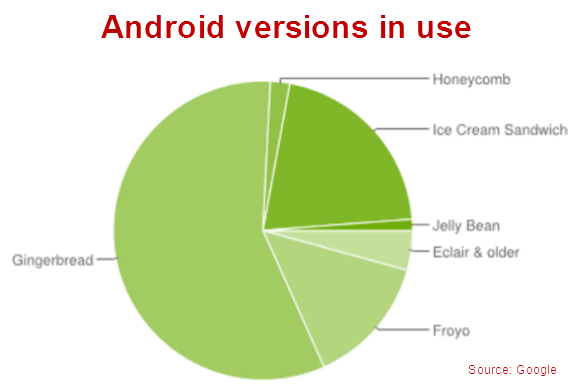 Post Credit: techhive.com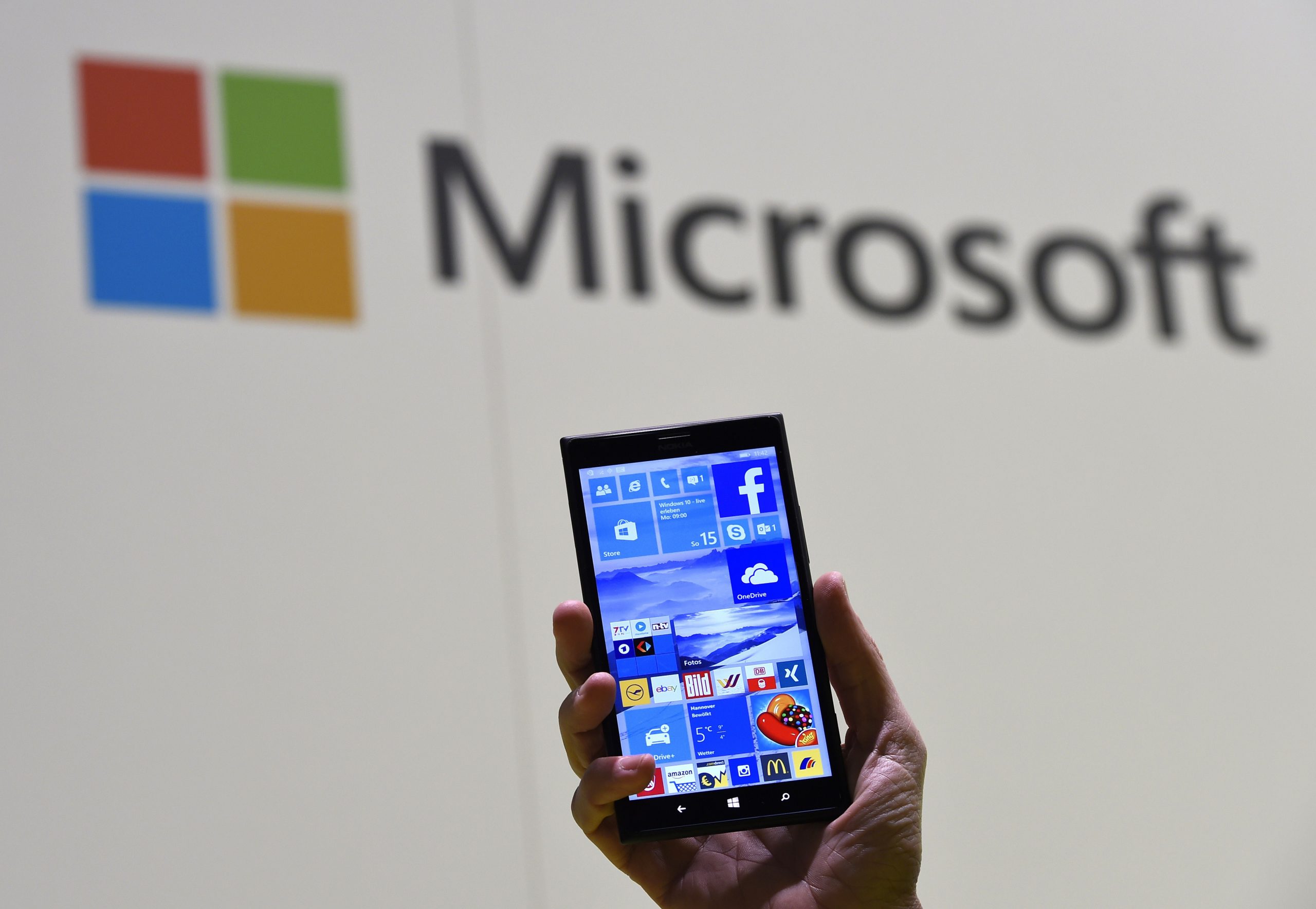



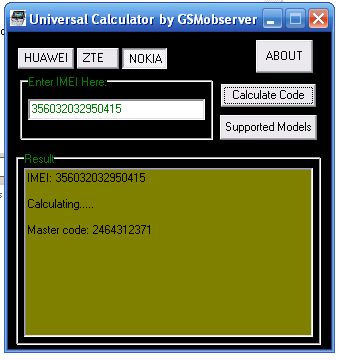

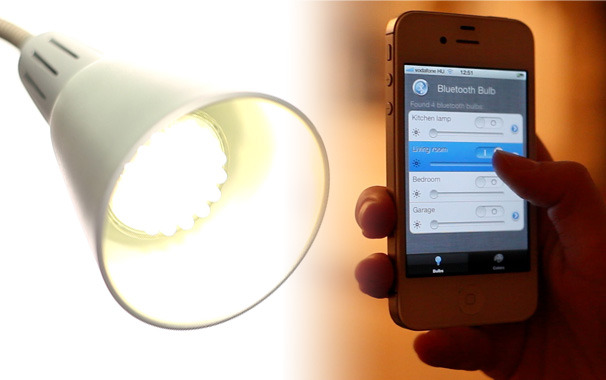

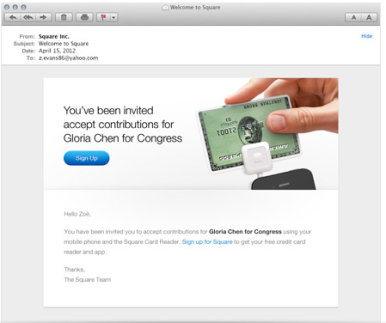 With the 2012 election campaign heating up,
  Campaigns have grown increasingly sophisticated about using online resources in recent years; Barack Obama’s 2008 election campaign, for example,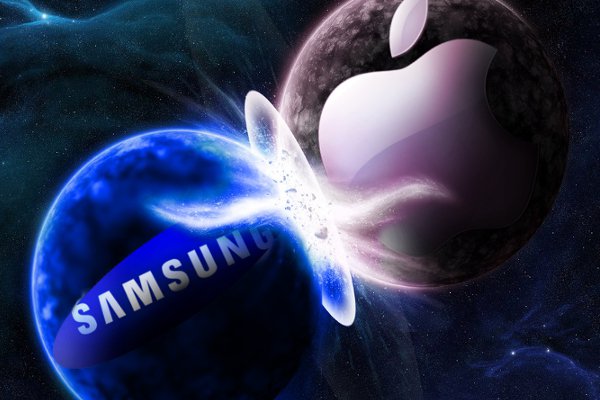
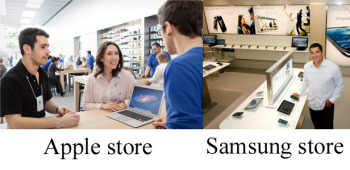 Image compilation from Apple/Vancouver, B.C. Sun
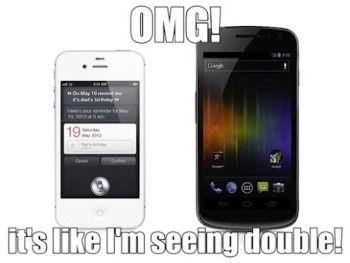 Image from BetaNews.com Apple uses wood tables and Samsung has gone with white. Big deal? Not really. From what I’m seeing, Samsung’s store looks similar to countless exhibits you’d see at CES. As for the blue shirts that both Apple Store and Samsung Store employees wear, it’s worth remembering that Samsung’s company color is blue. This is hardly the first time Apple and Samsung have tangled. The former managed to get the latter’s Galaxy Nexus smartphone and Galaxy Tab 10.1 pulled from store shelves recently. A graphic from