Slow-loading websites can be incredibly frustrating for users. A website that takes an eternity to load in a fast-paced digital era like the one we’re in can prompt users to abandon such sites and search for alternatives that provide the desired information faster. Users expect seamless browsing experiences and instant access to information. It is essential for website owners to understand the impact of slow website speeds and take measures to optimize their site’s performance. To address this, we’ll look at 5 tools to test the speed of a website.
Before then, what causes websites to load slowly?. There are a number of reasons a site won’t load at lightning speed. First, the number and size of media files on the website can contribute to slow speeds. Second, the presence of numerous plugins can also slow down a website since these plugins recover data from external sites.
Also, an excessive number of ads on a website can lengthen loading times and frustrate users. Using lighter plugins, limiting the number of ads, and optimizing computer programs and media file sizes can help improve website speed. Using caching techniques and a reliable web host can equally improve website performance.
5 tools to test the speed of a website
Google PageSpeed Insights
PageSpeed Insights is Google’s brainchild and a free versatile tool for testing the speed of a website. This tool can generate tests for both desktop and mobile versions of any website. To test the speed of a website, Google PageSpeed Insights assesses the website against Google’s core web vitals. Analyzing the time taken by the site to load each page.
This tool offers suggestions for improving the website’s overall performance, and the suggested changes can be made on the spot. It further provides a detailed understanding of page load and its impact on user experience. Considering that even the slightest delay when a website is loading can affect visitor retention.
GTMetrix Tool For Testing the Speed of A Website
GTMetrix is a popular and user-friendly online speed test tool, particularly suited for novice website owners. It effectively breaks down performance analysis while keeping things simple. After completing the test, users usually acquire two primary assessments. One is the performance; which is a combination of Google’s Lighthouse score and GTMetrix’s checks. The second assessment is the layout; which evaluates the optimization progress of the site’s pages.
The tool offers additional features such as an illustrated outline displaying page load for each core web vital. An assessment to optimize web pages and charts that display loading times for each page component. Once site owners login, they have access to a free account that can perform multiple tests across different web browsers, geographic locations, and connections.
SpeedCurve
Another great tool for testing the speed of a website is SpeedCurve. A real-time web monitoring solutions that a whole slew of top organizations and brands like BBC, Shopify, Zillow, Casper, and Expedia make use of. Some of the standout features of SpeedCurve include but are not limited to site performance monitoring.
Website owners assess and measure the experiences of their visitors and SpeedCurve’s advanced debugging features can spot the littlest issues plaguing websites. Then site owners are provided with practical suggestions to fix these technical or SEO problems that will help to improve their site speed.
Among the other capabilities of the SpeedCurve tool is the tracking of Google’s Core Web Vitals based on field data. As well as other metrics like A/B tests, conversion rates, and cart sizes. Once a poor report from the analysis is received, there are recommendations to help improve the visibility on search engine results pages.
UpTrends
An all-in-one site performance tracking tool that is not limited to geographic locations. Which is a huge challenge when choosing the right website speed monitoring tool. UpTrends uses features like RUM and Synthetics to identify and demystify underlying technical glitches and errors slowing websites down. This is instrumental in tracking down site elements that contribute to the slow site speed.
The tool is developed with features that are capable of monitoring user experience metrics in web applications. It can monitor real browsers against Core Web Vitals, test API calls, and alert users through various online channels against potential issues.
Dotcom Monitor
What makes an ideal website performance testing tool is the ability to give accurate real-time reports on sites, provide suggestions for improvement, and a user-friendly interface. All of which DotCom is equipped with for effectual performance monitoring and site visibility.
As the name “Dotcom” implies, Dotcom Monitor is focused on driving massive traffic and visibility to websites. By improving the performance, usage, and uptime of websites and applications, along with erasing susceptibility to glitches and errors. it equally allows for integration of third-party software such as Slack, Zapier, Microsoft Azure, etc.
We all have those important websites we frequent regularly on web browsers like Google Chrome for online updates. And we employ different methods to keep track of some of the information on these websites for future reference. Since it’ll be stressful committing all the URLs to memory or scribbling them down each time we visit, the most convenient way to save them is by bookmarking.
By bookmarking these websites, Chrome users can easily access them whenever they want, and these bookmarks can be synchronized across multiple devices. While bookmarking these sites on Chrome is a breeze, importing, and exporting bookmarks from google chrome can present a challenge of its own.
Export Chrome Bookmarks
If you wish to transfer your Chrome bookmarks to another computer or browser, you have the option to export it as an HTML file on a Flash or hard drive. OR you can use third-party Google Chrome extensions (available on Chrome Web Store) to share them. Or even transfer bookmarks using Google Collections on the Google app. Another alternative is to send the HTML file as an attachment to your personal email.
Let’s export your bookmarks from Google Chrome as a HTML file:
Open Chrome and access the browser menu by clicking the icon with three dots in the top-right corner.
Navigate to the Bookmarks section in the pop-up menu.
Open the Bookmark Manager by selecting it from the options that pop up.
In the new tab that opens, locate the icon with dots next to the Bookmarks search bar, below the Chrome address bar.
Click on the icon and choose the Export Bookmarks option.
Click on the icon and select the Export Bookmarks option.
Select a name and location you want to save the bookmarks(flash drive, desktop, etc).
Click Save to finalize the process. The bookmarks are saved as HTML files.
Import Bookmarks From Chrome
After successfully following and completing the above steps to export your bookmarks, the next thing is to import those bookmarks you saved as an HTML file into the browser of your choice. It could be Mozilla Firefox, Safari, Brave, Microsoft Edge, etc.
Below are the steps to import Chrome bookmarks:
Open the Google Chrome browser
Locate the menu icon with three dots at the top-right corner of the Chrome window.
From the menu that appears, go to “Bookmarks” and select “Bookmark Manager.”
In the Bookmark Manager, find the three-dot menu icon located next to the search bar, below the Chrome address bar.
Select the three-dot icon, and a drop-down menu will appear.
From the menu, choose “Import Bookmarks” and your computer’s Open File dialog box will pop open.
In the dialog box, navigate to where you saved the HTML file containing your exported bookmarks.
Select the file and hit “Open.” This will initiate the import process, and all your bookmarks will be imported into Chrome.
Over the past few decades, gaming laptops have witnessed wickedly cool advancements. These substantial tweaks surpass previous models in several ways. From memory, and power to larger displays, portability, graphics cards, performance, etc. For one, the power and efficiency of some of the latest gaming laptops have significantly improved with the integration of the latest generation Intel and AMD processors. Upgrading to PCIe Gen 5.0 data storage has equally improved speed and performance by far. There are lots of other advanced features and specifications that we’ll be delving into shortly.
7 Gaming Laptops to Buy in 2023
Here are 7 of our best picks for the best gaming laptops of 2023. Based entirely on upgrades to displays, storage, processors, etc. Including budget-friendly gaming laptops. It is important to note that most of these gaming laptops run on Microsoft Windows 11 Operating System.
ASUS ROG Zephyrus G15
Asus
At the pinnacle of gaming laptops, the ASUS ROG Zephyrus G15 reigns supreme. Featuring an AMD Ryzen 7 processor and an NVIDIA GeForce RTX 30 series graphics card, this laptop packs a punch in a compact 15-inch form factor. With extraordinary battery life and a unique Quad HD display. Anyone who uses Asus products can testify to the portability of Asus laptops. Their phones are equally some of the best budget smartphones in the market.
Ports: 1 x HDMI, 3.2 Gen 2 USB Type-C, 3 x USB Type-A 3.2 Gen 2, 1 x MicroSD, 1 x RJ45 Ethernet, 1 x 3.5mm combo jack, 1 x lock
Connectivity: Wifi 6, Bluetooth
Camera: None
Weight: 4.19lbs (1.9kg)
Size (W x D x H): 13.97 x 9.59 x 0.78 ins (355 x 243.5 x 19.9 mm)
Battery: 90 WHr with fast charge
Alienware m18
Dell Alienware m18
When it comes to gaming laptops, very few can match the extraordinary capabilities of the 18-inch Alienware m18 gaming beast from Dell. Another powerful gaming laptop on this list of best gaming laptops in 2023. The m18 boasts some very remarkable features such as an 18-inch display with two resolution options: 2,560×1,600 pixels with a 165Hz refresh rate. And 1,920×1,200 pixels with a flaming 480Hz refresh rate. The laptop is equally equipped with an Intel Core i9-13980HX CPU, Nvidia GeForce RTX 4090 graphics card, 32GB of RAM, and a 1TB solid-state drive.
In terms of performance, the Alienware m18 delivers impressive results. You can play games at full graphics settings and resolutions with high frame rates. Although the Alienware m18 offers excellent performance and a stunning display, it does, however, have some drawbacks. One is that the color options are considered less vibrant compared to those of the previous generation.
Another major drawback is that the fans can become loud during intense gaming sessions. Lastly, the laptop weighs around 8.7 pounds, which if you ask us, is bulky and not ideal for portability.
Full Specifications:
CPU: Intel Core i9-13980HX
GPU: Nvidia GeForce RTX 4090
Display: 18-inch QHD+ (2560 x 1600) 165Hz
RAM: 32 GB
Storage: 1TB SSD
Ports: 1x USB 3.2 Type-C Gen 2, 2x USB 3.2 Type-A Gen 1, 2x Thunderbolt 4, 1x HDMI 2.1, 1x mini-DisplayPort, 3.5mm headphone jack, 2.5 GbE, SD slot.
Dimensions: 16.1 x 12.6 x 1.05 inches
Weight: 8.5 – 8.9 pounds
Camera: 1080p
Battery: 97 WHr
Razer Blade 14
Razer
The Razer Blade 14 is a compact and lightweight gaming laptop that offers impressive gaming performance at both 1080p and 1440p resolutions, with a vibrant 165Hz display and a good selection of physical ports.
The keyboard may feel cramped due to its small size, but not to worry, it makes up with other fantastic features. Its battery life is quite decent, and the design is durable. The only downside is the steep price.
Although due to its price, it may not be for everyone, if you can afford it, the Razer Blade 14 is one of the best options among some of the portable gaming laptops to buy this 2023.
Full Specifications:
CPU: AMD Ryzen 6900HX
Graphics: Nvidia GeForce RTX 3070 Ti
RAM: 16GB DDR5-4800
Screen: 14-inch 2560×1440, 165Hz
Storage: 1TB PCIe Gen4 SSD
Ports: 2x USB-A 3.2 Gen 2, 2x USB-C 3.2 Gen 2, 1x HDMI 2.1, combi audio jack
Connectivity: Wi-Fi 6E, Bluetooth 5.3
Camera: 1080p IR webcam
Weight: 1.78 kg
Size: 1.7 x 32.0 x 22.0 cm
MSI GF63 Thin
MSI
The MSI GF63 Thin is one of the exceptional budget gaming laptops with impressive features sold at $615. It is powered by an 11th Gen Intel Core i7 processor and Nvidia GeForce RTX 3050 – 3050 Ti graphics. This is one of those gaming laptops that deliver when it comes to functionality regardless of its low-end hardware components and its affordable price.
Although this model still has a few of the previous model’s features, such as the 11th-gen Intel Core i7 CPU and PCIe 3.0 SSD, the developers foresaw the need for the inclusion of an Nvidia RTX 3000 GPU to further enhance the laptop’s capabilities.
As obvious as it is that it may not match the capabilities of several high-end laptops out there, the GF63 Thin can also hold its own down in ways other gaming laptops within this price range cannot. Its 15.6-inch FHD display with a 144Hz refresh rate further complements and makes it a suitable choice for gaming.
Full Specifications:
CPU: Intel Core i7-11800H
Graphics: Nvidia GeForce RTX 3050 Ti
RAM: 8GB DDR4-3200
Screen: 15.6-inch 1920×1080 IPS-level, 144Hz
Storage: 512GB PCIe Gen3 SSD
Ports: 3x USB-A 3.2 Gen 2, 1x USB-C 3.2 Gen 2, 1x HDMI 2.1, RJ-45 Ethernet, 3.5mm mic in, 3.5mm headphone out
Connectivity: Wi-Fi 6, Bluetooth 5.2
Camera: 720p webcam
Weight: 1.86 kg
Size: 2.2 x 35.9 x 25.4 cm
Corsair Voyager a1600
Corsair
The Corsair Voyager a1600 is a high-end gaming laptop that impresses with its faultless aluminum build, Cherry MX mechanical keyboard, and unique streaming-focused touch macro bar.
The 16-inch, 16:10 aspect ratio screen with a 2,560-by-1,600-pixel resolution delivers detailed visuals and features like a 240Hz refresh rate and AMD FreeSync Premium enhances the gaming experience.
The macro bar with 10 touch buttons and a customizable display is a standout feature. The Voyager a1600 also boasts other cool features. Such as a high-quality webcam, a fingerprint reader, Dolby Atmos-tuned speakers, a notably large and precise touchpad, Thunderbolt 4 ports, Wi-Fi 6E, and Bluetooth.
However, its performance falls short compared to competitors like some Acer and Lenovo products, which offer better Intel and Nvidia hardware at a lower price.
Nevertheless, it reflects Corsair’s elegant and modern design and the laptop’s aluminum chassis reveals excellent craftsmanship. Indeed one of the excellent gaming laptops in the market in 2023.
Full Specifications:
Display: 16-inch 2,560 x 1,600 display
CPU: 3.2GHz AMD Ryzen 7 6800HS CPU
Memory: 32GB DDR5 4,800MHz RAM
Graphics: 12GB AMD Radeon RX 6800M Graphics
Storage: 2TB PCIe NVMe SSD
Operating system: Microsoft Windows 11 Pro
Weight: 5.3 pounds (2.4kg)
Lenovo Legion Pro 7i
Lenovo
The Lenovo Legion Pro 7i Gen 8 is the ideal gaming laptop if you want efficiency and power. It’s not one of their next-generation rollable concept laptops but it’s extraordinary. The Legion Pro 7i features a colorful and brilliant 240Hz display, a full HD webcam, a keyboard with RGB lighting, various ports, and additional cool features. As well as nice upgrades to the previous Lenovo Legion 6 and 7 models.
The Legion Pro 7i is powered by an Intel Core i9-13900HX processor and an Nvidia GeForce RTX 4080 mobile graphics chip, that provide outstanding gaming performance. It also supports multiple 4K monitors.
Now, let’s talk about the downsides. The Lenovo Legion Pro 7i is on the expensive side, so it might not fit everyone’s budget. It also has a relatively short battery life, lasting only about two and a half hours which sucks we know. Then to top it off, it’s very heavy, hence it’s not the most portable option.
But hey, if you’re all about performance and don’t mind sacrificing aesthetics, this laptop is definitely worth it.
Full Specifications:
CPU: Intel Core i9-11980HK
Graphics: Nvidia GeForce RTX 3080
Memory: 32GB DDR4-3200
Storage: 1TB NVMe M.2 SSD
Display: 16-inch, 16:10, 2560 x 1600, 165Hz, IPS
Ports: 2x Thunderbolt 4, 1x USB 3.2 Gen 1 Type-C, 3x USB 3.2 Gen 1 Type-A, 1x RJ-45 Ethernet, 1x HDMI 2.1, 1x 3.5mm Headphone/Mic Combo Jack
Camera: 720p
Battery: 800Wh
Weight: 5.5 pounds (2.49 kg)
Acer Nitro 5
Acer
The Acer Nitro 5 is another reliable gaming laptop in the market that offers good performance at an affordable price of $899. It features a large 15.6-inch 144Hz display, a 12th gen Intel Core i5 processor, and an Nvidia GeForce RTX 3050 Ti GPU. One limitation is weight. Compared to some other gaming laptops out there, the bulkiness of the Nitro 5 makes it less portable,
But that can be overlooked since it offers decent mid-range performance and customizable RGB backlighting. It is a suitable choice for budget-conscious gamers who are willing to compromise on some features.
Here are the full specifications:
Display: 15.6-inch FHD (1,920 x 1,080 pixels) 144Hz
At the start of 2022, we got wind of a high-tech ultrabook that was dubbed the “best alternative to some high-end PCs like Macbook Air M2” because of its unbelievable weightlessness. The Zenbook S 13 OLED from Asus. Approximately one year later, the good people at Asus analyzed the Asus ZenBook S 13 OLED, and apparently uncovered what we all knew but were reluctant to verbalize — the lightweight 2022 model can be made even lighter.
Now, the Zenbook S 13 OLED is not just compared side by side with Apple’s MacBook Air, it’s competing for space at the top of the global PC market. Already one of the lightest laptops in the world, the sleek 13.3-inch OLED ultrabook sports mighty impressive features such as a 13th-generation Intel i7 processor, replacing its 2022 model’s AMD processor. It has also been redesigned with several other cool features that we’ll be delving into in this article.
Asus ZenBook S 13 OLED Review (ZenBook S 13 Series)
Compared to its predecessor, the Asus Zenbook S 13 Ultrabook is slimmer and lighter. Although the weight is slightly more than what we see on the spec sheet. And the display specifications remain unchanged. With a 13.3-inch OLED touchscreen with a refresh rate of 60 Hz and a resolution of 2,880 x 1,800 pixels. The panel has a new ID, and the image quality remains excellent with no opalescent effect.
Asus has equally introduced a new design and material for the case of their 2023 Zenbook S 13 model. Featuring an ErgoLift mechanism that rotates the panel up to meet the display, improving typing comfort for users. The sleek and elegant Zenbook S 13 case comes in two color options: Ponder Blue and Basalt Grey. The lid is made of aluminum and is coated with a layer of plasma ceramic material. This improves resistance to wear and corrosion, and the surface texture also conceals fingerprints perfectly.
Additionally, Asus has equipped the Zenbook S 13 with a fast PCIe 4.0 SSD from Samsung, providing a storage capacity of 1 TB. The battery capacity is slightly lower than that of the old model, with a battery life of almost 14 hours. The laptop has two USB-C ports. A USB-A port, and a full-size HDMI port, which is more suitable for everyday use. The laptop uses the AZ211 WLAN module from Intel, which supports the most current Wi-Fi 6E WLAN standard and Bluetooth 5.2. The Ultrabook feels premium and is very perfect for creative users.
Let’s breeze through the full specifications of the Asus Zenbook S 13 OLED.
Asus ZenBook S 13 OLED UX5304 Full Specs
Processor – Intel Core i7-1355U 10 x 1.2 – 5 GHz, 44 W PL2 / Short Burst, 17 W PL1 / Sustained, Raptor Lake-U
The death of 96 year old British monarch, Queen Elizabeth II has sparked several rumours and debates both on and off the media. While the Queen who was head of United Kingdom for 70 years and 214 days received adulation during her reign for being generous and benevolent, emerging stories suggests she was anything but kind.
Elizabeth II, the eldest daughter to King George VI who died in his sleep became successor to the King. She was thousands of miles away on a holiday trip in Kenya with her husband Prince Philip when she got news of his death. Upon her return, she took over rulership after her coronation at Westminster Abbey in central London on June 2, 1953.
Queen Elizabeth II poses for a portrait at home in Buckingham Palace in December 1958 in London, England. (Photo by Donald McKague/Michael Ochs)
Many tech industry leaders have taken to social media to express their condolences at the Queen’s passing. Among the business leaders who shared their sentiments includes Bill Gates, Jeff Bezos, Bob Iger, Sundar Pichai, etc.
Microsoft cofounder Bill Gates tweeted “I feel honored to have met HM Queen Elizabeth, and I am very sad to hear of her passing.”
There is nothing more noble than to devote your life to the service of others,” Apple’s CEO Tim Cook tweeted.
“The world has lost an extraordinary person, Queen Elizabeth,” Disney CEO Bob Iger also tweeted.
The founder and executive chairman of Amazon, Jeff Bezos equally shared his condolences “I can think of no one who better personified duty,” Bezos said. “My deepest condolences to all the Brits mourning her passing today.”
Jeff Bezos And Professor Uju Anya Spar Over Queen Elizabeth II
On September 8, 2022, it was a battle of wills on Twitter space when a tweet by Uju Anya sparked an uproar. Nigerian-born professor of Applied Linguistics, anti-racist and feminist, Uju Anya poured gasoline over the Queen’s grave and ignited it.
Uju Anya Credit: Daily Post
In a now deleted tweet which claimed to have “violated the Twitter rules,” Uju Anya expressed antipathy towards the Queen. The self-acclaimed, anti-racist Nigerian professor said “I heard the chief monarch of a thieving raping genocidal empire is finally dying. May her pain be excruciating.”
This controversial tweet has provoked an outrage across Twitter and other social media platforms. It was a savagely cruel thing to say to a dead person, especially one beloved by all. Regardless, Anya maintained her stance with a follow up tweet amid cheers and verbal onslaughts.
“If anyone expects me to express anything but disdain for the monarch who supervised a government that sponsored the genocide that massacred and displaced half my family and the consequences of which those alive today are still trying to overcome, you can keep wishing upon a star,” Uju Anya tweeted.
Reacting to the initial tweet, Bezos tweeted “This is someone supposedly working to make the world better? I don’t think so. Wow,”
The institution where Uju Anya works expressed displeasure toward the offensive message following the stir Uju’s tweet caused. “We do not condone the offensive and objectionable messages posted by Uju Anya today on her personal social media account,”
Carnegie University opposed the tweet but sang that, freedom of expression is one of their unswerving beliefs. “Free expression is core to the mission of higher education, however, the views she shared absolutely do not represent the values of the institution nor the standards of discourse we seek to foster.”
Why Did Uju Anya Make That Tweet About The Queen?
The alleged role of the British empire in supplying the Nigerian government with arms and ammunition during the Nigerian Civil War between 1967 and 1970. Over a million people, mostly from the southeast region were killed during the war.
Following Uju’s tweet, several Nigerians have made similar tweets on the negative effects of British colonialism in Nigeria and Africa. The British takeover, slavery, stolen artifacts, rape, hunger, the Igbo landing, etc.
How the Igbo people showed strength and unity in the face of persecution in ancient times Source: BBC Igbo
Yet another subject of resentment towards the Queen is her crown, adorned with the jewels stolen from Britain’s many colonies. Neither Queen Elizabeth II nor any member of the Royal Family ever apologised for the British imperial crimes committed in the past.
Africans still mourn the loss of what the British colonial masters took from them. Among them is Muthoni Mathenge, a Kenyan woman in her 90s who was tortured with an ax by British soldiers in 1952 for protecting her husband and resisting the British control. Muthoni recounted how she and several others were forced to bury their fellow comrades who were killed by the British.
Muthoni Mathenge with a photo of her husband credit: The Star
It might be hard to dispel these rumours, as so many Africans are reminiscing the subjugation of the British government. It is however important to note that Queen Elizabeth II cannot be held solely accountable for all the barbarousness of Britain over the years.
In many cases, the decisions made by the British government did not come directly from her. However, as the Monarch, everyone’s resentment, rage and hatred was targeted towards her.
The Queen never found it politically beneficial to apologise for the wrongs of the British government, hence, she never did.
To acquire the ‘wealthiest person on earth’ title or enter the ‘World’s Richest Men’ list demands more than just a homogeneous portfolio. Billionaires are stinking rich individuals, with assets ranging from cash and cash equivalents, real estate, as well as business and personal properties.
You’re never going to amass such wealth being a white collar worker. Even if you work a hundred jobs, you might wither off before you enjoy said wealth. These rich as Croesus entities sink their money in the unpredictable oceans of stocks, bonds, and other types of stable investments. They take impossibly high and calculated risks.
Who Publishes The World’s Richest Men List?
Photo Credit: Pexels
The Real-Time Billionaires List otherwise known as World’s Billionaires List is the ranking of the world’s wealthiest billionaires based on their recorded net worth. It is curated and published annually every March by American business magazine Forbes. The inaugural edition of the list was released in March 1987.
The net total worth of each person on the list is approximated and specified in US dollars. This is based on their documented assets and accounting for debt and other determinants. These lists only show the top 10 wealthiest billionaires for each year. Although, excluded from these lists are Royalties and Dictators who amass wealth from their status.
It’s Not Just Men On The Billionaires List
To most people, the richest individuals alive are men and contrary to this otherwise spurious impression, women are snugly nestling at the top of Forbes’ elite ladder. There were 328 women on the world’s billionaires list as of 17 March 2021 and 327 as at 2022. Below are some of the top three richest women in the world.
Françoise Bettencourt Meyers
Photo Credit: The Business Standard
The billionaire heiress, Françoise is the richest woman in the world, with an estimated net worth of $74.6B as of August 2022. Born and raised catholic, she’s the granddaughter of L’Oréal founder, Eugène Schueller. Her mother Liliane Bettencourt died in 2017 and Françoise inherited her wealth despite all the scandals, tragedies and controversies. The French businesswoman is married to Jean-Pierre Meyers, the grandson of a rabbi murdered at Auschwitz and they have two kids. Françoise is also a writer, philantrophist, pianist and has written various commentaries on the bible.
Alice Walton
Photo Credit: Ironside Photography
Second on the list is Alice Walton. An American heiress and the only daughter of Walmart founder and magnate, Sam Walton. She’s ranking 19th on the Forbes Real Time list with a whooping net worth of $61.7B as of August 2022, making her the 20th-richest person, and the second richest woman in the world. The 72 year old billionaire’s interest in art led her to develop the Crystal Bridges Museum Of American Art. In 2019, she lost the top spot on the list to L’Oréal heiress, Francoise Bettencourt Meyers. Also, in September 2016, she owned over US$11 billion in Walmart shares and Walton has donated millions of her shares to arts and other charitable causes.
Julia Koch
Photo Credit: Pulse NG
Julia Margaret Flesher Koch is the third richest woman in the world. She inherited 42% stake in Koch industries when her husband David Koch died in August 2019 at age 79. Julia Koch’s family came from a farming background in Iowa. She worked her way up from her parent’s clothing store, as a model, fashion designer’s assistant to becoming one of the wealthiest women on earth. As at August 2022, her net worth is $57.9B and she ranks 21 on forbes real time billionaires list.
Here are the list of the world’s richest men according to Forbes real time billionaires list 2022
Profile Of The World’s Richest Men 2022
Elon Musk
Photo Credit: Bio
Business mogul Elon Musk is the richest man in the world, with a staggering net worth of $272B as of August 2022. The industrialist surpassed Jeff Bezos, the founder of Amazon, who was in the number one position in 2021. He co-founded six companies including electric car maker Tesla, rocket producer SpaceX and tunnelling startup Boring Company. SpaceX, founded in 2002, is worth $127 billion while the Boring Company, which aims to defeat traffic, is worth $5.675 billion. Twitter’s board agreed to sell the company to Musk for $44 billion in April 2022, after he disclosed a 9.1% stake and threatened a hostile takeover.
Bernard Arnault family
Photo Credit: Reuters
Next on the world’s richest men list is Bernard Jean Étienne Arnault with a net worth of $171.4B. The French business magnate, investor, and art collector is the co-founder and CEO of LVMH, Louis Vuitton and Sephora. Recently, he acquired Tifanny & Co for $15.8 billion and these are just a few of his multitudinous investments.
Jeff Bezzos
Photo Credit: The Ladders
Right out of his garage, business tycoon Jeffrey Preston Bezos built his empire. He is the founder, executive chairman and former president and CEO of Amazon which he almost named “Cadabra”, thankfully he didn’t. He is the third on the world’s richest men list.
Jeff Bezos equally has a net worth of $167.1B as of august 2022,. Meanwhile in August 2020, Bezos became the first person in contemporary history to accumulate a fortune of over $200 billion. Also in 2018, he was the wealthiest person in the world in 2018 when his net worth doubled, jumping from $81.5 billion in October 2017 to $160 billion the following October, thanks to Amazon’s soaring stock price. The Amazon bigwig stepped down in 2021 from his position as CEO to become Executive Chairman of the Amazon Board. His rationale for this action was to focus Day 1 Fund, Bezos Earth Fund, Blue Origin, The Washington Post, among his other interests.
Gautam Adani & family
Photo Credit: Trade Brains
The 4th richest man in the world is Indian billionaire industrialist GautamShantilal Adani worth around $135.9B. He is the richest man in India and all of Asia. Gautam Adani is the CEO of Adani Group which deals on ports development, real estate as well as power generation and transmission. The infrastructure tycoon has plans of becoming the world’s largest producer of green energy and has also said he will invest up to $70 billion on renewable energy projects.
Bill Gates
Photo Credit: Cgiar
William Henry Gates III is an American business mogul, software developer, investor, author, philanthropist and co-founder of Microsoft. He wrote his first software program at 13 and when he was 19, started Microsoft with his now late childhood friend Paul Allen. From 1995 to 2017, he held the Forbes title of the richest person in the world every year. In 2017, Amazon founder Jeff Bezos outranked Gates to become the wealthiest in 2017. He later resigned as the Chairman of Microsoft to focus on his philanthropic endeavours on climate change, global health, and education. He was married to Melinda gates until the duo parted in 2021 amid a myriad of unhealthy reasons.
Larry Ellison
Photo Credit: CNBC
Lawrence Joseph Ellison is the co-founder, chief technology officer and former CEO of American colossal software company, Oracle. The college dropout started out by building databases for the CIA and also expanded to purchasing and owning stakes in NetSuite, Tesla, Astex Pharmaceuticals among others. After 37 years reins on the technology company, Ellison assumed the position of CTO and executive chairman. His current net worth is $109.9B and he’s the 6th world’s richest men list. In addition, Ellison has donated several million dollars to charitable causes. He has been married and divorced four times with four kids but is currently in a relationship.
Warren Buffet
Photo Credit: CBNC
We cannot curate a list of successful people in the world without including the eminent Warren Edward Buffett. He is an investor and the current CEO of Berkshire Hathaway, a holding company for a multitude of businesses in insurance, freight retail transportation, energy generation and distribution, manufacturing etc. Warren is currently the seventh on the world’s richest men list with a net worth of $106.6B. He is popularly known as the ‘Oracle of Omaha’ and aims to donate 99% of his wealth to philanthropic causes.
Larry Page
Photo Credit: AF24 News
American computer scientist Lawrence Edward Page is the eight richest man in the world. He is worth over $103.5B . The alpha geek co-founded Google with Sergey Brin and was the CEO from 1997 until 2001. Page subsequently moved to google’s parent company Alphabet and was the CEO before stepping down in 2019. Page has invested in Tesla and several other investments including renewable energy technology.
Sergey Brin
Photo Credit: Bio
Ninth on the list is Sergey Mikhailovich Brin. An American business tycoon, computer scientist, and internet entrepreneur. He was born to Russian Jewish parents and his father is a retired mathematics professor at the University of Maryland. Sergey co-founded Google with Larry Page in 1998 after the two met at Stanford University while studying for advanced degrees in computer science. In 2015 he became the CEO of Alphabet, Google’s parent company and later gave up his role as president in 2019 but still remains a shareholder and board member. Sergey has been married and divorced twice with three children. His estimated net worth as at August is $100.4B.
Mukesh Ambani
Photo Credit: Siasat
Mukesh Dhirubhai Ambani is our tenth wealthiest man in the world with a current net worth of $96.2B. He is the founder and chairman of Reliance Industries, a business his later father who was a textile trader back in the 70s started. After obtaining a degree in Chemical Engineering, he enrolled for an MBA at Standford University but withdrew in 1980 to help his father start Reliance. Mukesh launched reliance’s Jio, a 4G phone and broadband service in 2016 and today, investors in Jio include Google and Facebook.
Apps for your Mac. Mac OS is a series of graphical user interface-based operating systems developed by Apple Inc. for their Macintosh line of computer systems. The Mac OS has been pre-installed on almost every Macintosh computer sold. It was first invented in 1984 and now many of its upper versions are ailable.
There are a ton of MacOS applications that you can find on the App Store on your Mac or on internet and some of them are commonly used by many Mac users, but here are the 10 best and must have apps for you Mac.
Backup & Time Machine
The very first thing to do your Mac is to create a backup solution. It will be ill-advised or even stupid not to do so.
latest MacOS comes with a built-in backup feature Time Machine which allows you to automatically back up your personal data, including apps, music, photos, email, and documents. Having a backup allows you to recover files that were deleted, or that were lost because the hard disk (or SSD) in your Mac needed to be erased or replaced.
Having a third party backup application may not be necessary but if you are looking for a reliable alternative to Time Machine, Silverkeeper is your best bet.
SilverKeeper is a Backup application for Mac. It automates backups to external storage devices like hard drives, and other removable storage devices that have SATA/eSATA, IDE, ATA/ATAPI, SCSI, USB, or FireWire interfaces connected with Mac and the backup can be stored as disc image backups to network storage devices.
Audacity is the one of the most popular open source digital audio editor available for Mac. It is a multiplatform, open-source editor Audacity has leaped to the top of our list with its clean interface, excellent features, and support for 32-bit floating-point audio. This editor offers you to record and play sounds and import and export WAV, AIFF, MP3, and OGG files with some ultimate features of mix tracks, or apply effects to your recordings, cut, copy and past (also able to undo). It also has effects like echo, fade, modulation, normalization, reverse, tempo and Publishing Options.
VLC media player is a free and open source media player and multimedia framework. It is a highly portable multimedia player for various video formats, including MPEG-1, MPEG-2, MPEG-4 and DivX as well as for DVDs, VCDs, and various streaming protocols. It is not just a video player, has ability to play many audio formats, including OGG, MP2, MP3 and MP4.
GIMP is a free software raster graphics editor. GIMP becomes the one of the most powerful general-purpose image editors around, the upgrades make the GNU Image Manipulation Program eminently comparable to Photoshop with its amazing features. The advanced scripting interface allows everything from the simplest task to the most complex image manipulation procedures to be easily scripted.
Gimp is easy to learn for beginners and easier to use. Overall, GIMP is a must-have application for Mac.
Apps for your Mac, FileZilla is an easy-to-use FTP client that allows you to view, edit, upload, download, and delete files from a Website or network.
FileZilla is a FTP (File Transfer Protocol) based application. Its easy-to-use interface makes locating and editing files on your website easy. You can also upload or download files with a single button click. It also allows you to synchronize the navigation of a local folder with a remote folder, saving you time and reducing the risk of uploading to the wrong folder.
If you are a developer, consider installing VS Code for your code editing.
Google Chrome may be the most popular, fast, secure and widely used as default web browser. Opera on the other hand is redefining the purpose of web browsers and taking browsing experience to new heights.
Facebook Messenger on Opera browser
Released in 2019, Opera 75 is built on Chromium engine; same technology as Google Chrome at the core. Chromium is an open-source browser project that aims to build a safer, faster, and more stable way for all users to experience the web.
One of the most important improvements is that the browser now support an instant messaging feature that supports multiple IM networks, including Facebook Messenger, WhatsApp, Telegram, Instagram, Twitter, and VK. You can use these IMs without leaving the browser window or opening a browser tab.
Apps for your Mac, the Unarchiver is a free data decompression frontend of libxad, which supports more formats than Archive Utility (formerly known as BOMArchiveHelper), the built-in archive unpacker program in Mac OS X. It supported file formats include Zip, Tar-GZip, Tar-BZip2, RAR, 7-zip, LhA, StuffIt and many other old and obscure formats. Download
8. Anxiety
Anxiety is a super-lightweight To-do list application for Mac OS X Leopard that synchronizes with iCal and Mail. Its aim is to provide a streamlined, easily accessible interface to add and check off your tasks, while remaining poised to melt into the background at a moments notice. Anxiety also makes it very easy to create and add new notes in a second and you can also choose to have the program’s icon appear either in your menu bar or on the Dock. Download
9. LibreOffice
LibreOffice is your Mac substitute of Microsoft Office. Well, not really, but it’s a free office package for your Mac. Its clean interface and feature-rich tools help you unleash your creativity and enhance your productivity.
Apps for your Mac ,Don’t take your work as a boring thing. Play Angry Birds on your Mac OS , one the most famous game, playing world wide. There is no definition, no any discussion and no need for any disruption. It’s a wonderful game for all kind of users. Which once start make our better and interesting. Download
Windows Media Player is the one of the default softwares which comes with all the windows operating systems like windows 7, XP, Vista, 98. It is the default application in windows for playing videos & audio but it has certain limitations too. So, I am going to share some of the best alternatives of windows media player which you can use at free of cost for playing your audio & videos.
1.VLC media player
VLC media player is a free and open source media player and multimedia framework. It is a cross-platform media player, with versions for Microsoft Windows, Mac OS X, GNU, Linux, BeOS, MorphOS, BSD, Solaris, iOS and eComStation.The toolbars are fully customizable, so you can have only the buttons you need in the interface, there are AirTunes streaming, and there’s better integration in Gtk environments. A a wide range of video and audio formats can be played, including OGG, MP2, MP3, MP4, DivX, HD codecs like AES3, Raw Dirac, and even support for playing back zipped files. Download
2. Media Player Classic
Media Player Classic (MPC) is a compact media player for 32-bit and 64-bit Microsoft Windows a lightweight Media Player. This single player easily replaces the four or five video players installed on most systems. The Media Player Classic is available in many different languages (English, Belarusian, Catalan, Portuguese (Brazilian), Mandarin Chinese, Czech, Dutch, French, German, Hungarian, Italian, Japanese, Korean, Polish and more).This program also plays most audio formats.Media Player Classic also easily loads and plays DVDs. We liked how you can easily increase or decrease playback speed. Download
3.Winamp
Winamp is the one of the most famous and widely used media player designed for Windows, Linux and Android. Winamp supports music playback using MP3, MIDI, MOD, MPEG-1 audio layers 1 and 2, AAC, M4A, FLAC, WAV and WMA. Winamp was one of the first common music players on Windows to support playback of Ogg Vorbis by default.Winamp have ability to sync non-DRMed files to your PC from your device, an optional new interface layout and a built-in browser for media discovery.Winamp have playlist options to make playlists while playing media another effective feature it have inbuilt equalizer setting. Winamp has thousands of skins and plug-ins that allow you to change the look-and-feel of the player, as well as add new features.If you want MP3 encoding and full-speed CD burning, you have to shell out $19.95 for the Pro version. Download
4.RealPlayer
RealPlayer is a cross-platform media player by RealNetworks that plays a number of multimedia formats including MP3, MPEG-4, QuickTime, Windows Media, and multiple versions of proprietary RealAudio and RealVideo formats.RealPlayer for Windows already had most of that down, offering a sweeping array of features, from one-click video downloading to automatic transcoding to social network sharing.The latest version of the software adds even more devices to the ever-expanding list of compatible handsets. Plus, RealPlayer now shows USB-connected smartphones and cameras inside the library in the main app window, allowing users to quickly and easily transfer content to the devices via drag-and-drop. It have hundreds of Plug-ins. Download
5.ALL Player
ALL Player is a most popular program for watching movies with matching subtitles freeware media player. Unlike other media players, it does not use Windows Media Player to play media, but rather asks DirectX directly. The amazing features, Detection of missing codecs needed to open a media file, Integration with a reader (a speech synthesizer) for subtitles reading, Intelligent subtitles, in which the time they are displayed is dependent on how fast users can read them, Password protection of media, Creating a menu, Automatically downloading subtitles from the internet, Downloading video files from YouTube, Playlists. ALL Player is available in different languages (English, Polish, Russian, German, French, Spanish, Czech, Chinese, Hungarian, Italian, Portuguese, Slovak and more). Download
40 Firefox Extensions: Firefox is one of the best browsers at this time which is being used by thousands of peopleheir default browser. one of the great perks of Firefox is that there are tons of extensions present that enhance the user experience. These extensions are either used for time saving, quick browsing, and for best user experience. Basically Firefox extensions are small add-ons that add new functionality to Mozilla, which makes it more popular among the users. Today on internet roughly 30% of the users are using Firefox Extensions, which is next to IE. There are a lot of extensions present on the internet but here i am going to show the best collection of Firefox extension which on my experience, are very handy to use it in our daily surfing.
Video Download Helper Firefox Extension
The Download Helper gives you an easy way to download and convert Web videos from hundreds of YouTube-like sites. This works also for audio and picture galleries. Download
No Script
The best security you can get in a web browser. Allow active content to run only from sites you trust, and protect yourself against XSS and Clickjacking attacks. Download
Adblock Plus
Annoyed by adverts? Troubled by tracking? Bothered by banners? Install Adblock Plus now to regain control of the internet and change the way that you view the web. Download
FlashGot
Download all the links, movies and audio clips of a page at the maximum speed with a single click, using the most popular, lightweight and reliable external download managers. Download
Greasemonkey Firefox Extensions
Customize the way a web page displays or behaves, by using small bits of JavaScript. Download
Personas Plus
Free, easy-to-install “skins” for Firefox Extensions. Choose from over 180,000 cool designs, including art from Harry Potter and Bob Marley. Join over 8 million people from around the world who are asking themselves: “What Will My Browser Wear Today?” Download
FoxTab
3D in your browser! FoxTab brings innovative 3D functionality to your Firefox. Download
Easy You Tube Video Downloader Firefox Extensions
Easiest You tube video downloader ever, single click non-intrusive direct download buttons for FLV, 3GP, MP3, MP4, 720p HD and 1080p Full-HD qualities. Download
Download Statusbar Firefox Extensions
View and manage downloads from a tidy status bar without the download window getting in the way of your web browsing. Download
I’m Translator
Online Translator performs real-time translation for Albanian, Arabic, Bulgarian, Catalan, Chinese (Simp.), Chinese (trad.), Croatian, Czech, Danish, Dutch, English, Estonian, Filipino, Finnish, French, Galician, German, Greek, Hebrew, Hindi, Hungarian, Indonesian, Italian, Japanese, Korean, Latvian, Lithuanian, Maltese, Norwegian, Polish, Portuguese, Romanian, Russian, Serbian, Slovak, Slovenian, Spanish, Swedish, Thai, Turkish, Ukrainian, Vietnamese languages and their combinations. Download
Web of Trust – Safe Browsing Tool
Firefox Extensions: Web of Trust is the leading website reputation rating tool and one of Mozilla’s most popular add-ons. Our safe surfing tool uses an intuitive traffic-light style rating system to help you see which websites are trusted when you search, surf and shop online. Download
Stylish
User styles are themes for web sites. User styles empower your browsing experience by letting you customize web sites. Take out irrelevant content, change colors, or completely redesign the entire site. You can even use user styles as themes on the interface of Firefox, Thunderbird, and SeaMonkey themselves. Download
Xmarks Sync
Xmarks is the #1 bookmarking add-on. It takes only a moment to get up and running with Xmarks. After you install the add-on, click on the notification to set up Xmarks and start backing up and synchronizing your bookmarks. Install Xmarks on each computer you use, and it seamlessly integrates with your web browser and keeps your bookmarks safely backed up and in sync Download
Ant Video Downloader and Player
With the Ant.com Video Downloader, you can download video from Youtube or any other streaming site. Rare are the sites you will not be able to download from. We have integrated a flash video player too, so that you can play your files immediately. Download
Web Developer
The Web Developer extension adds various web developer tools to a browser. Download
Speed Dial
With Speed Dial, you can easily access your most used websites. To show the Speed Dial tab, use the Speed Dial button (which can be added to the toolbar), or enter “chrome://speeddial/content” in your location bar. Download
Firefox Sync
Free browser add-on that lets you stay in sync with your Firefox. Access your history, passwords, bookmarks and even open tabs across all your devices. Download
Foxy Proxy Standard
Foxy Proxy is an advanced proxy management tool that completely replaces Firefox’s limited proxying capabilities. It offers more features than Switch Proxy, Proxy Button, Quick Proxy, xyz proxy, Proxy Tex, Tor Button, etc. Download
Fire FTP
Fire FTP is a free, secure, cross-platform FTP/SFTP client for Mozilla Firefox which provides easy and intuitive access to FTP/SFTP servers Download
Tab Mix Plus
Tab Mix Plus enhances Firefox’s tab browsing capabilities. It includes such features as duplicating tabs, controlling tab focus, tab clicking options, undo closed tabs and windows, plus much more. It also includes a full-featured session manager with crash recovery that can save and restore combination of opened tabs and windows. Download
Fastest Fox – Browse Faster
Save time by speeding up repetitive tasks. Get faster, parallelized downloads, see definitions, auto-load the next page, improve searching, and more. Fastest Fox will dramatically enhance your productivity! Download
Flash Video Downloader (You Tube Downloader)
Flash Video Downloader helps you to download flash video (.flv) from You Tube, Daily motion, Break.com and other 200+ video sharing websites in one click. You can download, mp4 (iPod), avi and other media formats. Flash games download available. Download
Cooliris
The Cooliris 3D Wall — The fastest and most stunning way to browse photos and videos from the Web or your desktop. Effortlessly scroll an infinite “3D Wall” of content from Facebook, Google, YouTube, Flickr, and more. Even watch TV shows & movies. Download
AddThis
With one click, AddThis enables you to instantly share and bookmark web pages, blogs, news, photos, videos, and any other content to the most popular destinations. And it’s free! Download
Screengrab
Firefox Extensions: Screengrab! saves webpages as images, It will capture what you can see in the window—the entire page, just a selection, a particular frame, basically it saves webpages as images – either to a file or to the clipboard. It captures Flash too! Download
Cool Previews
Browse faster — Preview links and images without leaving your current page or tab. Just mouse over any link, and a separate preview window appears to show you the content. (TIP: Mouse over subsequent links while the preview window is still open!) Download
iacros for Firefox
i Mros was designed to automate the most repetitious tasks on the web. If there’s an activity you have to do repeatedly, just record it in i Macros. The next time you need to do it, the entire macro will run at the click of a button! With i Macros, you can quickly and easily fill out web forms, remember passwords, create a web mail notifier, download information from other sites, scrape the Web (get data from multiple sites), and more Download
PDF Download
Use PDF Download to do whatever you like with PDF files on the Web. Regain control and eliminate browser problems, view PDFs directly in Firefox as HTML, and use the all-new Web-to-PDF toolbar to save and share Web pages as high-quality PDF files. Download
Element Hiding Helper for Adblock Plus
You simply select the element you want to hide and then choose which attributes of this element should be taken into account when hiding it in the future. The element hiding rule is generated and added automatically. Download
YouTube to MP3
Adds links to convert and download Youtube, MyVideo, Clipfish, Sevenload, Dailymotion, MySpace videos as MP3 files. This addon uses the free service of Video2mp3.net. Download
Similar Web
The easiest way to find the best websites on the Internet! As you browse the internet, find the most interesting related sites on the web by similarity and category and get the latest articles and buzz on every website you visit. Download
Stumble Upon
Stumble Upon helps you discover great websites that match your interests. Simply click the Stumble button and see the best websites. There are over 500 topics to choose from, and, the more you use it, the better your recommendations become! Download
Forecast fox Weather
Get international weather forecasts from AccuWeather.com and display them in any toolbar or status bar with this highly customizable and unobtrusive extension. Download
Bit Defender Quick Scan
The quickest way to find out if your computer is infected! BitDefender QuickScan is a very fast antivirus scanner, able to determine in a matter of seconds (up to 1-2 minutes on first-time scans) if a system is infected with malware. Download
Read It Later
Save pages to read later with just one click. When you have time, access your reading list from any computer or phone, even without an internet connection Download
Addon Fox
Automatically install the best Firefox addons! Includes over one hundred hand-picked addons from the following categories: Customization, Downloads, Fun, Languages, Media, Programming, Security, Privacy, Social, and Visual. Easily choose which addons you want and get them installed all at once. Download
Google Shortcuts
Display all Google services as buttons or as a space-saving dropdown menu next to your address bar. Reach services like Gmail, Google reader, Google maps, Google calendar, and many more in a single click from your browser Download
Image Zoom
Easily zoom in, zoom out, fit image to screen or set custom zoom on individual images within a web page. All this can be done by using the context menu or a combination of mouse buttons and scroll wheel. Handy to see the finer details of smaller pics or to make very large pics fit within your screen. Download
1-Click You Tube Video Download
You Tube download in a single click. Download You Tube videos in FLV, 3GP and MP4 (both High Definition and iPod compatible High-Quality). The simplest You Tube Video Downloader for all You Tube Flash sites, period. Download
Fire Download
The Fire Download extension for Firefox and Wyzo lets you manage and accelerate your web downloads up to 10x faster! With Fire Download, download acceleration is seamlessly displayed within the downloads window. Try the ultimate download accelerator! Download
As you might already know, the Windows Movie Maker is a video editing software developed by Microsoft. It lets users create and edit videos, it also lets them publish videos created directly to OneDrive, Facebook, Vimeo, Youtube, and Flickr. The Windows Movie Maker software is very efficient in performing the task it was created for, but just like other software, there are times you experience glitches. In this article, we explore a tutorial on how to fix one of the popular glitches you might experience when using this software. Here you learn how to fix a corrupted video file om Windows Movie Maker.
There is no exact cause facilitating the corruption of videos files on the Windows Movie Maker. Corruption of these video files is caused by different things. Since there exact cause of video corruption, you would have to troubleshoot the problem using different methods, which will be listed in this article. Apart from these methods for troubleshooting video corruption on the Windows Movie Maker, there is third-party software that solves the fixes corrupted video files, with few clicks, we also explore a tutorial on how to fix corrupted video files using this third-party software. Before we dive into the tutorial proper, here is a list of potential facilitators causing Windows Movie Maker videos to get corrupt.
Potential Causes of Movie Maker videos getting corrupted
Corruption in the hard drive
Virus or malware
Faulty video codecs
Outdated video card drivers
Use of unreliable video converter
Media player not supporting Movie Maker video file
Abrupt computer shutdown while saving/working on Movie Maker video
How To Fix A Corrupted Video File on Windows Movie Maker Using Remo Repair MOV Tool
As mentioned earlier, there is third-party software, that helps fix corrupted video files, with just a few simple steps. The Remo Repair MOV tool is an example of such third-party software. Here are the steps to fixing a corrupted video file using the Remo Repair MOV tool:
Download and install Repair MOV software to your Windows machine.
Run the Remo and follow the on-screen
Browse and open your movie file to be repaired as well as a healthy reference file using Healthy File option.
Click Repair option, to begin movie file repair
After the file has been repaired, the tool shows the fixed MOV video file along with its component details. The software also allows you to preview the fixed file using “Preview Repaired File” option.
Save Repaired Movie Maker File using the SAVE REPAIRED FILE option
Troubleshoot: Repair Windows Live Essentials
If you are unable to get access to any third-party video file fixer, you can go ahead to doing manual troubleshooting. The first thing to look out for, when troubleshooting this problem, is Windows live essentials. Corrupt file error messages can
Corrupt file’ error messages can also pop up when your Windows Movie Maker program has corrupted. To fix it repair Windows Live Essentials and then access your video file in Movie Maker to edit.
Steps to repair Windows Live Essentials:
· Press Windows + R Keys to open Run command
· Type Control Panel. Click on OK
· Under Programs, Click on Uninstall a program
· Go to Windows Live Essentials and right click on it
· Click on uninstall/change
· Select option repair all Windows Live Essentials
Repair corrupt videos with VLC Media Player
VLC Media Player can often repair corrupt or damaged video files. You can try this method to fix minor video corruptions while for severely corrupt video files seek Stellar repair software.
Upgrade Your Ram
Setting aside the already mentioned potential causes of corrupt videos, insufficient RAM may also facilitate the corrupt video error. Insufficient RAM facilitates slow computer speeds and can lead to corruption of videos. This holds sway if your videos are stored in MOV or.WMV. You are advised to consider getting a higher RAM.
Install a Codec Pack
An incompatible Codec may also lead to this error. If your media player is using an Incompatible code, the Video will not play. You are advised to install a codec pack on your PC. Here you will video formats, that will make your computer compatible with all file formats.
Update Video Drivers
Out-dated video drivers is another common facilitator of the corrupted video error. There is very high chances that the video won’t play on your computer If your drivers are outdated. So if you have tried all the steps listed above, and none of them worked. There is a high chance, that the problem is caused by outdated drivers.
Be rest assured that one of the fixes listed in this article on how to fix corrupted video file on windows movie maker, will fix the corrupted video file on your computer. All you have to do is test these fixes, one of them is the solution to your problem.
The presence of a yellow exclamation mark on your windows connectivity icon means just one thing, your network connection has issues. As simple as resolving it may sound, there may be some occasions where resolving such network issues becomes very difficult. This is where the Network Diagnostics tool comes into play. The network diagnostic helps windows users troubleshoot network problems, and also provides solutions to fixing them. In this article, we explore a tutorial on how to run Windows Network Diagnostics.
The windows diagnostics tool is a highly recommended tool, in troubleshooting fixing the network problem. It is very effective in fixing DNS problems and also helping users find the cause of network termination.
The procedures for using the Windows Network diagnostics tool is a very easy and straight forward. These steps are listed below.
1. Click the start button on your keyboard, and type ”fix network” in the search box provided.
2. From the list of search results provided, click ” Find and fix networking and connection problems “
3. In the Network diagnostics window, click on the advanced option and run the program as an administrator. There is an option to apply repairs automatically here, you tick it if you want repairs to be applied automatically.
4. Choose the type of connection you want to diagnose for troubleshooting and click on the next. here windows will try to locate the network connectivity problem.
Note: Once the problem has been detected by the windows network diagnostics tool, you have the options of solving the problem yourself, contacting Microsoft online support, to get the problem solved remotely or restoring your windows machine to its default settings. You can also seek the help of a local technician, to help you fix the network problem.
There you have it – a complete and comprehensive tutorial on how to run Windows Network Diagnostics. if you have other questions, feel free to drop them in the comment section below.
As a windows OS user, there are times where you will be faced with the unidentified network error. The Error appears sometimes when you try to connect to a network, using your windows machine. There is no actual method of solving this problem, as this Error may be caused by a lot of things. In this article on how to fix unidentified network access on windows, we shall explore a list of troubleshooting steps you should follow when trying to fix this error on your windows machine. This these steps are listed below.
1. Turn Off Airplane Mode
The first step in the troubleshooting process is to disable Airplane mode. As you might already know, Airplane mode when activated, disable all network access, this means you will not be able to access any network on your windows machine. In turn, this may result in the unidentified network no network access error on your windows machine. To turn off the airplane on your windows machine, please follow the steps listed below:
Press Windows key + A. This opens the ‘Action Center’.
Toggle off the airplane mode button.
2. Update Network Card Drivers
Outdated network card drivers could also facilitate the unidentified network error in windows operating system. If you already toggled off the Airplane mode switch, and you are still experiencing the problem, you are advised to update your network card drivers. Steps to update your network card drivers are listed below.
Press Windows + X or right-click on the Start button.
Click on Device Manager to open it.
Look for ‘Network Adapters’ and click on the forward pointing arrow to expand the list. Right click on all the Network drivers and update them one by one.
3. Disable the Security software temporarily
In the quest to giving your computer absolute protection, security software may disable your internet connectivity. This is common with Anti-virus software or Firewall software. In solving the unidentified network error, you also advised troubleshooting your security software, by temporarily disabling it, to see if the problems stop. To disable your security software, you are to right click on the Anti-virus icon located in your system tray icon section. Once you have disabled it, you are to try connecting to a network to see if it worked. If it didn’t, you can continue with the next step in troubleshooting
4. Switch off the Fast Startup feature
Microsoft has been able to make booting on the Windows operating system faster, using the fast startup feature. The fast startup feature is found on a recent version of the Windows operating system. The fast startup features is another facilitator of the unidentified network access error. Having tried the steps listed above, with no positive results, you are advised to turn off the fast startup feature on a windows machine., using the steps listed below:
Search for ‘Power Options’ in the Windows search bar. Open the Power Options window and among the tabs on the left, click on choose what the power button does.
Click on ‘Change settings that are currently unavailable’.
Uncheck ‘Turn on fast startup’. Shut down the system and reboot after 30 seconds.
5. Change your DNS servers
Your current DNS server may just be the reason your windows machine is plagued with the unidentified network access error. To change your DNS servers, follow the steps listed below:
Press Windows + X or right-click on the start button.
Click on ‘Network Connections’.
Right-click on your network connection (Ethernet or Wifi) and click on properties. It might prompt for administrator credentials.
Double-click on Internet Protocol Version 4.
Select ‘Use the following DNS server addresses’ and set but the preferred and alternate DNS server address as follows to use Google Public DNS:
Preferred DNS server: 8.8.8.8
Alternate DNS server: 8.8.4.4
6. Use Command Prompt
Already tried the steps listed above, and nothing seems to be changing, there are some commands you can run in command prompt, to salvage the situation. You are required to try the commands listed below, one by one, one at a time. Once you have successfully ran all the commands, you are to restart your windows machine.
ipconfig /release
ipconfig /renew
netsh winsock reset
netsh int ip reset
ipconfig /flushdns
ipconfig /registerdns
netsh int tcp set heuristics disabled
netsh int tcp set global autotuninglevel=disabled
netsh int tcp set global rss=enabled
netsh int tcp show global
7. Diagnose The Network
The network Diagnose feature, is another handy tool, that helps troubleshoot the problem of your network. You can diagnose the network using the features listed below:
Press Windows + X or right-click on the start button.
Click on ‘Network Connections’.
Right-click on your network connection (Ethernet or Wifi) and click on ‘Diagnose‘. It will start an automatic troubleshooter.
8. Change the Ethernet cable
Tried troubleshooting with the steps already listed above, and nothing seems to be changing? Your Ethernet cable may just be faulty. You are also advised to troubleshoot your ethernet cable. Try using another one. If the problem persists, you can proceed to the next step.
9. Set a static IP address
Press Windows + X or right-click on the start button.
Click on ‘Network Connections’.
Right-click on your network connection (Ethernet or Wifi) and click on properties. It might prompt for administrator credentials.
Double-click on Internet Protocol Version 4.
Select the radio button at ‘Use the following IP address’.
Check the IP address settings for others using the same network as yours and change your settings to the same.
Click OK to save the settings and exit.r
10. Use an external Network Adapter
Your Network chip may just be the facilitator of the problem. Having a faulty network chip on your windows machine can crumble your internet connection, you are advised to troubleshoot your network chip, using an external network adapter.
11. Restart your modem and router
Switch off both your modem and router keeping them physically connected.
Start the modem. Wait for 30 seconds after all the lights turn green.
Start the router.
This is called power-cycling.
12. Upgrade the router firmware
Having an outdated router firmware can also crumble your network connection, leading to the unidentified network error on your windows machine. You are advised to update the firmware on your router and try connecting again.
13. Disable Virtual Network Adapters
Launch Device manager on your windows machine
Navigate to Network Adapters and expand it
Right-click and disable them
14. Run the built-in troubleshooters
Having exhausted the troubleshooting steps listed above, and nothing seems to change, running the built-in troubleshooters on your windows machine, may just be the answer to your problem. Here are the steps to running the built-in troubleshooters on your windows machine. To activate the run box on your windows machine, simply hold windows key and R together i.e windows key + R.
In the run box, you are to run each of the commands independently.
msdt.exe -id NetworkDiagnosticsWeb
To open the Incoming Connections Troubleshooter
msdt.exe -id NetworkDiagnosticsInbound
To open the Network Adapter Troubleshooter:
msdt.exe -id NetworkDiagnosticsNetworkAdapter
Conclusion: Upon troubleshooting your device, with the steps listed in this article on how to fix unidentified network access on windows , there is a high chance you might solve the unidentified error on your windows machine. If the problem persists, you are advised to contact windows support theme or visit a technician.
To the uninformed, ethical hacking is a criminal practice criminal minds use to tap the data of innocent people. Though it may have some truth in it, Ethical hacking has played a huge role in the world of cybersecurity today. It has helped firms fortify their security and also helped government official gain access to fortified criminal data. In this article, we explore a list of best tools for ethical hacking. These tools are listed below:
1. NMAP
Popular amongst infosec professionals, Nmap (Network Mapper) is an open source security tool that is used by infosec professionals to manage and audit network and operating system security for both local and remote hosts. Despite being more than twenty years, NMAP has constantly been updated. These updates have made NAMP remain relevant in the ethical hack business.
NMAP helps professionals Audit device security, helps detect open ports on remote hosts, helps network mapping and enumeration. NMAP helps find vulnerabilities inside any network, it helps professionals launch massive DNS queries against domains and subdomains. NMAP is supported on MAC OS X, Linux OpenBSD, and Solaris and Microsoft Windows
2. Metasploit
Metasploit is an open source cyber-security tool, that is used as a penetration testing tool to discover remote software vulnerabilities. It is also used as an exploit module development platform.
Metasploit features a framework developed using Ruby. This framework can be used to develop, test and execute exploits easily. The Metasploit framework features a set of security tools that can be used to evade detection system, run security vulnerability scans, execute remote attacks, enumerate networks and hosts. Metasploit is available on Windows, Mac OS X, and Linux
3. Burp Suit
Burp Suite is a tool used in performing security testing of web applications. It houses tools, that work in collaboration to support the entire testing process, om initial mapping and analysis of an application’s attack surface, through to finding and exploiting security vulnerabilities.
Burp suit offers an easy to use interface, giving the administrator full control to combine advanced manual techniques with automation for efficient testing. Burp settings allow for easy configuration. It houses features designed to help users with their work, assistance that aids both the beginner and the professional.
4. Wire Shark
Wire shark is yet another open-source software that can be used to analyze network traffic seamlessly. Wire Shark is popular for its ability to detect security problems in any network, as well as its effectiveness in solving general networking problems.
Wire Shark allows users to intercept and read results in human-readable format while sniffing the network. This makes it easy to identify potential problems, threats, and vulnerabilities.
Wire Shark saves analysis for offline inspection, it features a packet browser, powerful GUI, Rich VoIP analysis. Wireshark Inspects and decompresses gzip files, exports results to XML, PostScript, CSV, or plain text and lots more.
5. Open AVS
Popularly referred to as Nessus, OpenVAS is an open source network scanner that is used by professionals to detect remote vulnerabilities in any host. OpenVAS is famous for its ability to scan network vulnerability.
OpenVAS features a powerful web-based interface, over 50,000 network vulnerability tests, simultaneous multiple host scanning. OpenVAS has the ability to stop, pause and resume scan tasks. OpenVAS features a very powerful CLI available. OpenVAS is fully integrated with Nagios monitoring software.
6. IronWASP
Still, on the topic of best tools for ethical hacking, IronWASP is yet another awesome hacking tool, designed for professionals. IronWASP is a free and multi-platform tool, that makes ethical hacking fun.
IronWASP offers a very intuitive GUI, designed for both the expert and the beginner. It lets users perform full scans from a few clicks. IronWASP features web scan sequence recording, exports results into HTML and RTL format. IronWASL features false positive and negative management. It has full Python and Ruby support for its scripting engine. It is supported on Windows, Linux with Wine, and MacOS using CrossOver
7. Nikto
Niko is yet another ethical hacking tool, that is used to scan web serves. It lets users perform a different type of test against the specified remote host. It features a clean and simple command line interfaces, that makes it easy to launch any vulnerability test against your target.
Nikto detects default installation files on any OS, it also detects outdated software applications. Nikto can be used to run XSS vulnerability tests. Nikto can be used to launch dictionary-based brute force attacks. Nikto can be integrated with the Metasploit framework.
8. SQLMap
Written in python, SQLMAP is a cybersecurity tool, that helps security researchers launch SQL code injection test against remote hosts. SQLMAP can be used to test different types of SQL based vulnerabilities, helping professionals harden the security of apps and servers.
SQLMAP features a Multiple database server support: Oracle, PostgreSQL, MySQL and MSSQL, MS Access, DB2 or Informix. It has automatic code injection capabilities, password hash recognition, dictionary-based password cracking, user enumeration and lots more.
9. SQL Ninja
SQL Ninja is a vulnerability scanner, that is bundled with Kali Linux distribution. SQL Ninja is a tool used to target and exploit web apps that use MS SQL server as the backend database server.
SQL Ninja can be run in different modes. Examples of such modes include: Test mode, verbose mode, fingerprint remote database mode, brute force attack with a word list, direct shell & reverse shell, canner for outbound ports, reverse ICMP Shell and NS tunnelled shell
10. Wapiti
Last but not least, Wapiti is yet another ethical tool designed for professionals. It open-source command line based vulnerability scanner written in python. It is famous for its ability to find security flaws in many web applications.
Wapiti can be used to detect security holes like XSS attacks, SQL injections, XPath injections, XXE injections, CRLF injections, Server-Side request forgery. Wapiti has the ability to pause and resume scans, it highlights vulnerabilities found inside the terminal, generates reports and export into HTML, XML, JSON, and TXT activates and deactivates multiple attack modules, Removes parameters from certain URLs. Wapiti can be used to bypass SSL certificate verification, URL extractor from javascript, timeout configuration for large scans and lots more.
There you have it – A comprehensive list of the best tools for ethical hacking. If you have other recommendations, feel free to drop them in the comment section below. we would love to hear from you.
When you are planning to install Windows 10, Windows 8.1 or Windows 7 on a PC, one of the requirements involves creating media to boot your computer into the setup wizard. This is especially true if you are performing a fresh installation of Windows. In which case, your boot options are DVDs and USB drives.
Since most PC these days hardly come with an in-built DVD drive, your options are further limited to either using an external DVD drive or a USB flash drive.
A lot of people, including me, will favor using a USB flash drive to install Windows 10. However, if you have newer hardware, it’s likely that you’re using Unified Extensible Firmware Interface (UEFI), instead of the legacy Basic Input/Output System (BIOS). If this is the case, you also have to ensure that the bootable media supports the firmware type before you can proceed with the installation.
How is UEFI different from BIOS?
The BIOS will soon be dead: Intel has announced plans to completely replace it with UEFI on all their chipsets by 2020. But what is UEFI, and how is it different from the BIOS we’re all familiar with?
Both UEFI and BIOS are low-level software that starts when you boot your PC before booting your operating system, but UEFI is a more modern solution, supporting larger hard drives, faster boot times, more security features, and—conveniently—graphics and mouse cursors.
Fortunately, if your device features a UEFI firmware, you have multiple ways to create a USB bootable media to install Windows 10, Windows 8.1 or Windows 7. You can use the Media Creation Tool, which is an easy-to-use utility made by Microsoft that downloads and copies the installation files onto a removable drive with support UEFI and BIOS. Or you can use WinToFlash, which is a freely available third-party tool that allows you to quickly create a media with support for UEFI firmware.
In this guide, we’ll try to walk you through the steps to create a bootable USB flash drive with support for both BIOS and UEFI. First we will try without a software, this should work for Windows 10, Windows 8.1 & Windows 7. However, some BIOS may not recognize your USB flash drive as a boot media, using the Media Creation Tool or WinToFlash software will resolve this.
You can always fall back to our troubleshooting guides should you encounter any problems while creating your bootable USB flash drive.
What you need
Before you begin, make sure you have an internet connection if you don’t already have a copy of the Windows OS install in a DVD, .iso or in a folder. You should also have sufficient data storage available on a computer, USB or external drive for the download. Other requirements may include:
A copy of the Windows OS install .iso, in a folder or DVD. You can use this page to download a disc image (ISO file) that can be used to update or install Windows 10, Windows 8.1 or Windows 7. The image can also be used to create installation media using a USB flash drive or DVD. Windows software download is free on the Microsoft OS download page but you might need to purchase a license for usage.
A blank USB flash drive with at least 5GB (or 4GB for Windows 8.1 and below) free space. This drive will be formatted, so make sure it doesn’t contain any important files.
Technician PC – Windows PC that you’ll use to format the USB flash drive
Destination PC – A PC that you’ll install Windows on
Boot Windows from your USB flash drive
Having met all the requirements above, any of the three methods below will get you a bootable USB flash drive. Make sure to pay close attention and ask any questions you may have on the comment section.
One of the most important thing to watch out for is the storage capacity of your USB flash drive. Windows 10 October release will require your flash drive to have at least 5GB storage capacity.
Also, if you are using a modern PC and your device features a UEFI firmware, you will need to format your USB flash drive using FAT32 file system which has a file size limit of 4GB. The Windows image file (sources/install.wim) in Windows 10 October release exceeds this limit.
Step 1 – Format the drive and set the primary partition as active
Connect the USB flash drive to your technician PC.
Open Disk Management: Right-click on Start and choose Disk Management.
Format the partition: Right-click the USB drive partition and choose Format. Select the FAT32 file system to be able to boot either BIOS-based or UEFI-based PCs.
Set the partition as active: Right-click the USB drive partition and click Mark Partition as Active.
Step 2 – Copy Windows Setup to the USB flash drive
Use File Explorer to copy and paste the entire contents of the Windows product DVD or ISO to the USB flash drive.
Step 3 – Install Windows 10 / Windows 8.1 / Windows 7 to the new PC
Connect the USB flash drive to a new PC.
Turn on the PC and press the key that opens the boot-device selection menu for the computer, such as the Esc/F10/F12 keys. Select the option that boots the PC from the USB flash drive.
Windows Setup starts. Follow the instructions to install Windows.
Remove the USB flash drive.
How to create a Windows 10, 8 & 7 UEFI boot media using WinToFlash Software
WinToFlash creates a bootable USB with any modern Windows Desktop [PHOTO CREDIT: EBENEZER OBASI]
If for some reasons, copying Windows through file explorer didn’t work, you can use the WinToFlash tool to create an installation media with UEFI support. Of course, the Windows Media Creation Tool will equally work if your target is to install Windows 10 on a PC. However, it’s faster to use this tool if your already have a copy of the Windows OS install in a DVD, .iso or in a folder.
To create a Windows install media with support for UEFI, connect a USB flash drive with at least 5GB (or 4GB for Windows 8.1 and below) of space, and then use these steps:
Step 1 – Download & Install WinToFlash Software.
Download the free lite edition of WinToFlash from the official website. Under “Download,” click Lite edition Setup Download.
After download is complete, open your download path and double-click the Novicorp WinToFlash Lite [The Bootable USB Creator] x.x.x Setup.exe file to launch the installation wizard.
Follow the installation wizard to install WinToFlash on your PC.
Step 2 – Set Windows source and destination media
After installation, click on the Novicorp WinToFlash icon from your desktop to launch the WinToFlash tool and install Windows 10 OS and below from your USB Flash Drive.
From the application start screen, click Windows Setup Bootable USB Wizard. Select the installation source of the Windows, if you have downloaded an ISO file or loading from a folder.
Startup screen of WinToFlash tool. Select Windows Setup Bootable USB Wizard to load a single OS to your boot media.
Specify Windows source path or file. If your OS is in a CD or extracted from image to a folder, go with the first option. Select the second option if the Windows software is an ISO image or archive.
Click next to setup your Windows source and destination path.
The ‘Windows files path‘ specifies the path to the Windows installation files on your PC. This can be an ISO – archive or folder – CD path, depending on your selection on the previous screen.
Use the ‘USB drive’ drop-down to select the media you want to make bootable.
Step 3 – Wrapping things up
Click next and review all parameters. Make sure that you have chosen the right USB drive.
Ensure that you have chosen the right media to avoid wiping important files from your flash drive.
Complete settings by confirming to wipe USB flash drive and accepting WinToFlash terms (click on the images below to expand).
After completing the steps, the WinToFlash tool will create a bootable media, which you can then use to install Windows 10 on devices using UEFI.
How to create a Windows 10 UEFI boot media using Media Creation Tool
If you’re planning to upgrade or install a fresh copy of Windows 10 on a system using BIOS or UEFI, you can use the Media Creation Tool to create a compatible bootable media. Just insert a USB flash drive with at least 5GB of storage to your computer, and then use these steps:
Under “Create Windows 10 installation media,” click the Download tool now button.
Click the Save button.
Click the Open folder button.
Double-click the MediaCreationToolxxxx.exe file to launch the utility.
Click the Accept button to agree to the Microsoft terms.
Select the Create installation media (USB flash drive, DVD, or ISO file) for another PC option.
Click the Next button.
Select the correct language, architecture, and edition of Windows 10 if the default selection doesn’t reflect the desired options.
Quick Tip: Under “Architecture,” you can select the Both option to create a bootable media that will work for devices using 64-bit and 32-bit processors. Also, if you’re unable to change these settings, make sure to clear the Use the recommended options for this PC option.
Click the Next button.
Select the USB flash drive option. (If you don’t see the drive, click the Refresh drive list option.)
Click the Next button.
Select the removable drive from the list.
Click the Next button. Once you’ve completed these steps, the wizard will download the Windows 10 installation files, and it’ll create the bootable media with support for UEFI as well as legacy BIOS.
Troubleshooting Windows 10, 8 & 7 Boot Media
UEFI systems cannot boot from NTFS and instead the device needs to be formatted with FAT32 which has a 4GB maximum size. If copy fails, it’s likely that the install.wim file on the media is larger than this file size limit. The solution is to split the WIM into multiple files using DISM.
Split the Windows image
Split a Windows image (.wim) file into a set of smaller (.swm) files. Use this procedure when you’re installing Windows from media that can’t handle the Windows image file size, for example:
DVDs (A standard single-sided DVD stores 4.7GB).
USB keys formatted as FAT32. FAT32 is required to boot many modern (UEFI-based) PCs, but has a maximum file size of 4GB.
Split the file
Mount your Windows distribution ISO.
Launch Windows Command Prompt. The quickest and easiest way to do that is to type “CMD” into your Windows search box.
Right click on the resulting “Command Prompt” and “Run as Administrator”.
Copy everything except the Windows image file (sourcesinstall.wim) to the USB drive. Either drag from the mounted ISO and drop on the flash drive, or use the command below:
robocopy D: E: /s /max:3800000000
Where D: is the mounted ISO and E: is the USB flash drive.
Split the Windows image file into smaller files, and put the smaller files onto the USB drive:
C:sourcesinstall.wim is the name and the location of the image file that you want to split.
C:sourcesinstall.swm is the destination name and the location for the split .swm files. The first split .swm file is named install.swm file. The file names for the next files include numbers, for example, install2.swm file, install3.swm file, and so on.
3700 is the maximum size in MB for each of the split .swm files to be created. Kepp the size of the files below 4000 (4GB) to avoid getting the error 87 (invalid parameters) error.
Note, Windows Setup automatically installs from this file, so long as you name it install.swm.
Windows 10 comes with a lot of amazing features but not all of them are readily available. Let’s dig a little deeper and unveil new tweaks, tricks and features that will change the way you use your PC.
With it being free, and Microsoft pushing the update to users, most of you probably already have migrated to Windows 10. Its constantly evolving nature means fresh features arrive twice per year, and with all the new goodies come a legion of new tweaks and tricks—some of which unlock powerful functionality hidden to everyday users. Others simply let you mold the Windows 10 experience into the shape you see fit. Here are some of the most useful tweaks, tricks, and tips that we are able to put together.
However, you need to brace yourself as some of these may break as the operating system evolves given Microsoft’s new “Windows as a service” mentality. The idea is to keep this page updated overtime to reflect the OS’s current status.
Activate Windows 10 Night Light
If you use an iPhone, iPad or macOS system you may use the built-in blue light feature ‘Night Shift’.
The Night Light feature you’ll find in Windows 10 is pretty much Night Shift for Windows.
Night Light makes the screen warmer in the evenings as it reduces the amount of blue light emitted.
Various scientific studies show that exposure to blue light in the evening makes it harder to fall asleep because (like all artificial light) it affects the circadian rhythms that manage our body clock.
Once preserve of late-night caffeine fuelled coders and over-worked, under-fed writers, screen temperature features have since become mainstream. Google’s Android and ChromeOS operating systems have one, as do iOS and macOS from Apple, and Microsoft’s Windows 10.
Like those features, Windows 10 Night Light automatically warms the temperature of your display after sunset. This makes your laptop screen or PC monitor easier on your eyes and reduces disruption to your circadian rhythm, helping it to tick along nicely.
In the morning, your display returns to its regular settings.
Night Light is a system feature; you do not need to install a separate application like Flux to use it. This makes it very easy to automatically adjust the screen temperature in Windows 10.
Night Light for Ubuntu will automatically adjust the amount of blue light your monitor or laptop display emits based on your location and the time of day.
These features are said to help reduce eye strain by adjusting your screen’s color temperature during after-dark computing sessions. That makes it easier to fall asleep when you’re done.
To activate Night Light, head to Settings > System > Display. Once you’ve done so, open the feature’s settings to fine-tune its behavior.
Scroll any window even when they’re inactive
It used to be that Windows only allowed you to scroll active windows. Now in Windows 10, you can set an option to scroll both active and inactive windows by just hovering with the mouse cursor over a window.
This feature is not a ground-breaking Windows 10 hack or tweak but it comes quite handy when time is in essence and your need to peek through your to-do list.
Windows 10 inactive scroll feature is enabled by default, but if it’s not, go to Settings > Devices > Mouse & touchpad, and make sure to enable the Scroll inactive windows when I hover over them option.
Find the hidden images
The lock screen and logon screen have some really cool images, which as it turns out, by default both rotate AND change.
It may seems Microsoft has a CDN that updates these images based on what you click that you like or not. Want to save one or more of those images for future use? Here’s where they are hiding!
Open Explorer and browse to:
%localappdata%PackagesMicrosoft.ContentDeliveryManager_[custom string of characters]LocalStateAssets
Copy all of the files to a new directory.
Open a command prompt in that directory.
Run this command ren . *.png and [enter]
Browse through them and find the ones you like!
Make Cortana’s ears perk up
Cortana’s finally made the leap to the PC in Windows 10, assuming many of the operating system’s search functions and dishing out just as much sass as the Windows Phone version. But by default, she doesn’t listen for your commands. But by default, she doesn’t listen for your commands.
If you’d like to be able to just shout commands at your PC, launch Cortana by clicking the search field in the taskbar and select the three-lined options menu in the upper-left corner. Select Settings for the list, then simply enable the “Let Cortana respond when you say ‘Hey Cortana’” option. You’ll need an active microphone for this to work, of course.
While you’re poking around Cortana’s options, you can dive into the Notebook menu to fine-tune exactly what personal data Microsoft’s digital assistant can access. Remember, however, that like Google Now, Cortana’s effectiveness is directly related to how much she knows about you.
Enabling Cortana on the Windows lock screen lets you use voice commands to view and edit your schedule at a glance. It’s pretty handy! To turn on the feature, open Cortana and head to “Cog” icon > Settings > Use Cortana even when my device is locked.
Secret, powerful new command line tools
Windows 10 packs a slew of nifty new command line features, including—hallelujah!—the ability to copy and paste inside the command prompt with Crtl + C and Crtl + V.
To activate the goodies, open the command prompt. Right-click its title bar, then select Properties. You can find and enable the new features under the Edit Options section of the Options tab.
Bash comes to Windows
If you got all hot and bothered over the ability to use keyboard shortcuts to paste text in the Command Prompt, wait until you get a load of this.
The Windows 10 Anniversary Update added the full, legendary Bash shell to Microsoft’s operating system, thanks to a partnership with Canonical, the company that guided Ubuntu Linux’s development. And it’s running natively, without virtual machines or containers. With the right tricks, you can even use Bash to run graphic Linux applications or even the Unity desktop itself right inside Windows—though those unintended features are definitely limited. Look for Ubuntu, Fedora, and SUSE Linux entries in the Windows Store to start using Bash in Windows.
Windows 10 Audio Source Switching
Windows 10’s in-taskbar volume controls pack a niche, yet nifty touch: selectable sources. Clicking the audio device name in the volume controls summons a list of all connected audio outputs, meaning you can switch from your headphones to your speakers and back again without having to dive into the Control Panel. Yay!
The April 2018 Update added more granular audio options to the Settings app too, breaking them away from the Control Panel even further.
Activate Windows 10 Spatial Sound
That’s not the only audio trick lurking within Windows 10. Windows Sonic for Headphones offers a virtual surround sound format that can make the audio coming from your headset feel more lush and atmospheric. The effectiveness of the feature varies depending on your gear and how sensitive you are towards audio cues.
To activate Windows Sonic, right-click the speaker/audio icon in the system tray on the right side of your task bar, then select Spatial sound (none). In the window that opens, click the drop-down menu and select Windows Sonic for Headphones. Click , then OK, and you’re done!
Windows Timeline
Timeline helps you pick up where you left off. Clicking the Task View button in the taskbar or pressing Windows Key + Tab summons the feature, which displays a—you guessed it—time line of your activity in supported apps, stretching back over the past. Even more handily, Microsoft lets you group related apps together into “Activities” in Timeline, so that when you open that week-old budget document, for example, the presentations and websites you referenced at the time can be easily summoned as well. This even syncs across devices, so it could be especially useful if you use multiple PCs.
The fly in the ointment: Only a limited number of apps work with Timeline currently, though Microsoft offers tools for developers to bake in support. That includes Office, Adobe’s Creative Cloud, and native Windows 10 apps like News and Maps, but Microsoft Edge is the only compatible browser. Bummer. You can deactivate Timeline by heading to Settings > Privacy > Activity History.
Cloud clipboard
Windows 10’s copy and paste functionality has been hit and miss for years, but now you can deploy that bugginess across multiple PCs with cloud clipboard—a genuinely useful feature introduced in the October 2018 Update. Head to Start > Settings > System > Clipboard and enable “Sync across devices” to start copying data on one PC and pasting it on another PC.
While you’re in this menu, enabling “Clipboard history” lets you save multiple items to the clipboard so you can use them again later. Nifty stuff.
Your Phone
Want to tie your phone and PC closer together? Download Microsoft’s Your Phone companion app for Android, and link it to your PC using the new Your Phone app from the Microsoft Store.
Your Phone lets you open, view, copy, and share photos that you took on your phone, as well as send and reply to texts right on your PC. There’s an iOS version as well, but it’s much, much more limited.
Snip & Sketch
The firmly entrenched Snipping Tool within Windows is finally getting replaced and upgraded. The October 2018 Update added Snip & Sketch, a new tool that lets you select a portion of the screen to copy when you press Windows + Shift + S. After doing so, the selected screenshot will be copied to your clipboard, so you can paste it into any image editing software—including the standalone Snip & Sketch app, which lets you annotate and share your marked-up images.
Near Share
Near Share makes it easy to share files and URLs with local PCs over the air, negating the need for flash drives or chat apps to pass something along. If you open the Share interface in Microsoft Edge or File Explorer, you’ll see PCs with Nearby Sharing enabled appear as an option if you have the April 2018 Update installed. Recipients receive a pop-up notification when something is sent. Think of it as an alternative to Apple’s Airdrop, albeit one without any mobile support.
To use Near Share, your computer needs both Bluetooth and Wi-Fi working, and you’ll have to enable the Nearby Sharing option in Settings before you can start using it. Transfer speeds were pretty slow and Bluetooth-like in our tests, so you may still want to resort to alternative means to pass especially large files around. Microsoft says the feature automatically chooses to use Wi-Fi or Bluetooth depending on what’s available, and what’s faster.
Ransomware protection
Ransomware is a growing problem. It infects PCs, encrypts your files, and holds everything hostage until you pay a ransom—hence the name. The best defense against ransomware is frequent backups and strong security software, but Windows 10 now includes basic protection right in your operating system.
Controlled Folder Access “protects your files and folders from unauthorized changes by unfriendly applications.” Your Documents, Pictures, Movies, and Desktop folders are protected by default, though you can block other folders manually or whitelist trusted software to access your locked-down info. You can tweak Controlled Folder Access by opening the Windows Security app (formerly Windows Defender), heading to the Virus & threat protection tab, and clicking the “Manage ransomware protection” link at the bottom.
Dark theme
If you love dark themes, you love dark themes. Light themes sear your eyeballs. Fortunately, Windows 10 now supports a dark theme.
Head to Start > Settings > Personalization > Color and select the “dark” option under “Choose your default app mode.” The Windows 10 October 2018 Update extended the dark theme to include File Explorer, too. Enjoy!
Enable Windows 10 Dynamic Lock
Say goodbye to Windows + L. Dynamic Lock is a handy feature that pairs your PC with your phone over Bluetooth, then automatically locks your computer when you wander away from it.
To start using it, marry the two devices in Control Panel > Hardware and Sound > Devices and Printers, then activate Dynamic Lock at Settings > Account > Sign-in options.
Game Bar
If you’re into playing around on your PC, Windows 10’s Game Bar—summoned by pressing Windows + G in-game—holds all sorts of nifty extras. It’s always been able to take screenshots or videos of gameplay clips, but as of the Windows 10 Creators Update, the Game Bar also offers easy-peasy Beam game streaming and the intriguing Game Mode, which can improve performance on resource-limited systems. The October 2018 Update overhauled the interface yet again, adding inline volume controls.
The Game Bar’s handy even if you don’t actually play, as it can be used to record video of any app—not just games. Windows 10 also has a dedicated Gaming section in its Start menu Settings to let you tinker with options, including Xbox networking and parental controls.
Per-app GPU management
The Windows 10 April 2018 Update added the ability to tell Windows which graphics hardware—discrete or integrated—to use when you open specific apps. It sounds niche, but the feature could prove pretty helpful if you’ve got a gaming laptop and want it to last longer.
By default, booting up a game switches over to discrete graphics, which use a lot more energy than the graphics cores integrated in Intel chips and AMD Ryzen APUs. But a lot of indie and retro games play just fine on integrated graphics. With Windows 10’s per-app GPU management, you can manually tell the system to stick to the more power-efficient option for games that don’t need the extra oomph.
Go to Settings > Display, then click the Graphics settings link at the very bottom of the page to start tinkering.
OneDrive Files on Demand
It’s back, huzzah! OneDrive Files on Demand resurrects Windows 8.1’s “placeholder” feature for the cloud storage service baked into Windows 10. OneDrive Files on Demand shows all of the files you have stored in OneDrive in a folder on your PC, but they’re just pointers synced with the cloud—not actually files installed on your PC. Unless you want them to be. You can select which files and folders to make available locally.
Storage Sense
Over time, your PC can quietly fill with needless junk without your even realizing it, as the Recycle Bin and temporary files suck up your storage. Storage Sense helps combat the creep. Head to Settings > System > Storage and enable the Storage Sense option to have Windows start automatically clearing out unneeded temporary files, and deleting any files in your Recycle Bin over 30 days old. You can tweak those options using the Change how we free up space link underneath the option.
The October 2018 Update added the ability to have Storage Sense send long-untouched files from anywhere on your computer to your OneDrive cloud storage, freeing up space on your hard drive. It could be a useful addition if you’re close to filling up your local storage, but keep an eye on your available OneDrive space—cloud storage isn’t free. Fortunately, the feature includes granular controls.
Mixed Reality
The Fall Creators Update added “Mixed Reality” to Windows 10. The most obvious use for it is in the legion of new Windows Mixed Reality headsets, but you can check out the benefits even if you don’t have one of those. The Mixed Reality Viewer app lets you drag digital 3D objects you’ve created in the Paint 3D app into the real world, using the combined might of your device’s camera and display. It’s not really augmented reality since you can’t interact with the objects, but it’s closer to “Mixed Reality” than the headsets are.
Somewhat related, the nifty Story Remix tool in the Photos app lets you add fantastic 3D animations to videos you’ve captured, among many other talents. It’s pretty sweet!
Start menu folders
What’s old is new again: You can create basic Start menu folders in Windows 10, organizing Live Tiles into clusters. Simply drag your Start menu apps on top of each other to create folders that expand when clicked on. As of the October 2018 Update, you can now name the folders you create, but you have to expand it open to see the option.
Troubleshooting, troubleshot
The Windows 10 Creators Update added a helpful touch for distressed PC users. The operating system’s consolidated all of its troubleshooting tools in a single location: Home > Update & Security > Troubleshoot. If you run into trouble, run there first.
Turn off File Explorer’s Quick Access view
When you open File Explorer in Windows 10, it defaults to a new Quick Access view that shows your most frequently accessed folders and recently viewed files. I love it, personally, but if you’d rather File Explorer defaulted to the “This PC” view found in Windows 8, here’s how.
Open File Explorer, then select View > Options from the Ribbon. A Folder Options window will open. Click the “Open File Explorer” drop-down menu at top, then select the “This PC” option. Click OK and you’re done!
Manage notifications
Windows 10’s Action Center houses and manages the notifications spawned by your system’s various apps. You might not want every Windows Store app you install barking at you all the time, however, or maybe you don’t want to see any notifications while you’re in presentation mode. You might just want to silent the annoying ads that the Get Office app spawns. Fortunately, those are easy to tweak.
To tinker with you your notification settings, head to Start menu > Settings > Systems > Notifications and actions. Individual Windows Store apps, like the Mail app, tend to have more granular notification options in the Settings menus inside the apps themselves.
Schedule your restarts
This is wonderful. If you’ve got pending updates that require you to reboot your PC, Windows 10 will allow you to schedule a specific time for it to do so. Finally!
Open the Settings option in the Start menu, then head to Updates and Recovery > Windows Update > Restart options to see the scheduling screen above.
Get Windows updates from other sources
But the Windows Update upgrades don’t end there. Windows 10 introduces a new option that lets you download updates using peer-to-peer technology, rather than Microsoft directly. It could help you get that hot security patch faster when everybody’s hammering Microsoft’s dedicated servers, or save you bandwidth in a computer-crowded house—just download the new patch once from Microsoft, then share it among the PCs under your care.
To tinker with the setting, head to Start > Settings > Update & Recovery > Delivery Optimization. By default, “Get updates from more than one place” is enabled and configured to grab updates from PCs on both your local network and the Internet at large. If you don’t like the idea of your PC using your bandwidth to share Windows Updates with strangers, be sure to disable it. If you leave it active, the “Advanced options” link lets you fine-tune how Windows uses your network to download and share updates, as you can see above.
Seize control of Windows Updates
While the ability to schedule installation times for updates is very welcome indeed, not everyone is happy about the way Windows 10 handles patches—specifically, that you can’t refuse them. Windows 10 Pro users—but not Windows 10 Home users—can delay downloading updates for some time, but eventually, Microsoft will force them on you.
There are some actions you can take to exert control over your Windows Update experience, however. Most notably, if you’re using Wi-Fi for connectivity, you can set Windows 10’s Wi-Fi connections as metered to download updates when you’d like to, rather than when Microsoft wants you to. The Active Hours feature lets you tell Windows specific times not to install updates. And if you ever encounter a borked update that refuses to play nice with your PC, Microsoft’s released a tool that allows you to choose individual updates so they won’t be downloaded again.
Those workarounds aren’t a replacement for being able to manually choose the Windows Update you’d like to install, but they should help ease the sting a little, at least.
Fresh keyboard shortcuts!
Windows 10 packs a handful of fresh keyboard shortcuts, all tied to newfound abilities inside the revamped operating system. There are many more than we can list here, so head over to our guide to Windows 10’s keyboard shortcuts to learn all about them. If you really want to get fancy, augment those hotkeys with Windows 10’s new touchpad gestures for true shortcut mastery.
Declutter your taskbar
Two of Windows 10’s standout features are its Cortana search integration and newly added virtual desktop support—but they claim a sizeable chunk of your taskbar. If you don’t care about either (or don’t mind using Windows key + Tab to leap through virtual desktops) you can reclaim that onscreen real estate.
Everything starts by right-clicking an empty section of your taskbar. Select Cortana, and choose to Show Cortana icon only. You can also remove the Cortana and Task View buttons from the same Taskbar menu.
Thank You!
We feel the need to thank you following through with this long episode of top 30 Windows 10 trick, tips and tweaks. The article doesn’t stop here; share your ideas with us on the comment section.
If you really want to get fancy, augment those hotkeys and use Windows 10 like a ninja, try new Windows 10 touchpad gestures for laptop.
Microsoft changed Windows for the better when it introduced trackpad gestures in Windows 8. The new gestures made controlling your PC a far more fluid experience, helping you get things done more efficiently without the need for mouse-like buttons at the top of the touch area.
In Windows 10, Microsoft improved on Windows 8’s foundation. Beyond integrating existing gestures, the company added new touch controls and dumped items that wouldn’t make any sense in Windows 10, like swiping in from the right edge for the Charms bar (since Windows 10 doesn’t have a Charms bar).
The only requirement for using these gestures is that you have a precision touchpad, so some older laptops won’t be able to use them.
If you’re not sure if your touchpad supports gestures, open the Settings app and go to Devices > Mouse & touchpad. Under the “Touchpad” heading it will say “Your PC has a precision touchpad” if you can swipe and tap instead of clicking.
Select an item: Tap on the touchpad
Scroll: Place two fingers on the touchpad and slide horizontally or vertically
Zoom in and out: Place two fingers on the touchpad and pinch in or stretch out.
Right-click: Tap the touchpad with two fingers, or press on the bottom right corner
Open Task View: Place three fingers on the touchpad and swipe up (away from you).
Show desktop: Place three fingers on the touchpad and swipe down (towards you). Reverse the movement to get all your windows to return.
Switch between open windows: Place three fingers on the touchpad and swipe right or left (this is the same as pressing Alt + Tab).
Drag an open window: Double-tap and then drag from the title bar
Open Cortana: Tap the touchpad with three fingers. If you’d rather this gesture opened Action Center instead, you can change this default in Settings > Devices > Mouse & touchpad.
“Recover lost partition” isn’t exactly the latest catchphrase these days. We’re living in times where data loss and system disasters are about as rare as a unicorn sighting.
This positive trend (or not so positive for companies in the business of data recovery) can be attributed to the widespread availability of multiple cloud storage solutions for both PC and mobile users.
Although creating backups remains the most reliable method to prevent data loss, the use of data recovery software becomes invaluable for retrieving files that were not backed up to the cloud.
Moreover, for more severe situations such as damaged systems or HDD partitions, tools like EaseUS Data Recovery Wizard offer effective recovery solutions.
EaseUS Data Recovery Tool Capabilities
Now a days, the problems that we have while saving our data in our devices is that it might get a virus and all of our data is lost. So, many of the software kings worked on creating a better and easy recovery software. In the software world, data recovery is a system or software by which you can easily get you deleted, or you can also filter your corrupted data.
The data is mostly retained by recovering the devices that have info or your precious data in it. The devices are hard drives, SD cards, Magnetic tapes, CDs, DVDs, and many others. It was introduced because most of the time the operating system failed which causes lots of problem to the user. Also, malfunction of a storage device also leads to some other work in this field.
By going through all the problems that humans face to recover their deleted data, we have thought it wise to introduced EaseUS: an App that’s used to get your deleted files again from your SD card, Hard disk, and other devices.
EaseUS Data Recovery Wizard is a free data recovery software that helps you get your accidentally deleted files from Windows PC, Mac OS X machines and Mobile devices. It can recover lost partitions in just a few clicks.
Most commonly used feature of this software is the one used in androids and IOS. With the advancement of technology, we prefer to use mobile phones much more than other devices. That’s why the software is installed on mobile phones frequently.
Why is EaseUS Data Recovery Softwareunique?
Because it has an SD card recovery function which makes the life of its user very simple and easy. Another important feature of EaseUS is that it can be used for all kind of platforms. Also, it supports major file formats. You can use this software free or also by paying for it. In other words, it works on a Freemium model.
Steps to Recover Lost Partition with EaseUS Data Recovery Tool
First of all, you’d need to buy or download the software from their official URL. Without it, you cannot get your information back. If you have any doubt about it, you can go for a free trial and check it right there.
This software takes care of your security. People are usually very sensitive about their data or information saved in the various devices. So next step is to use the license code that’s sent to your email.
The important part is to know how this software will work. For getting your results, you need to connect the device you are thinking of recovering to your PC.
Check the files which you want to recover and then click on the recover button. This is the unique part because you need to choose carefully which files you want to recover because there are some cases where people recover viruses by mistake too. Make a new folder for the recovered files.
For partition recovery, you’d need use the advanced option and allow the software to run comprehensively. Once completed, you can go from the preview, and then choose the files you’d like to recover. That’s all.
Wrap Up:
That’s all that’s needed to recover your lost files, damaged partition and/or accidentally deleted files with EaseUS Data Recovery suite. Still need a help with getting back your deleted files? Please do let us know about it in comments.
From time memorial, man has indulged himself into seeking out ways to improve his living standard. The application of this science into practical purposes is what is termed ‘technology’.
The constant evolution of technology has affected every part of human existence: information is more accessible, we enjoy good roads, better & healthy living. We can also admit that the introduction of some technology has shortened our existence on earth; with the worldwide life expectancy age just lying above 70 years, life is indeed very short.
Games such as Awale are not only there for our entertainment, it also improve family and friendship bonding. These days, we have school and work commitments which make it increasingly difficult to enjoy the thrills that gaming brings. That is where online gaming platforms steps in, providing online gaming platforms where you can play countless games online, with the added benefit of betting.
My business here today is to discuss 3 important games, with historic background that technology has presented us in a platter of gold – playable in your mobile devices at your convenience.
Awale
Awale also known as Ókwè, Alancho, Ayoayo, Oware or Ise, has its root in Africa and played worldwide. A common name in English is Awari but one of the earliest Western scholars to study the game, R.S. Rattray, used the name Wari.
The game is considered the national game of the Ashanti kingdom in Ghana; it is also played traditionally in Nigeria, especially in the Igbo-speaking tribes. Known to encourage family bonding, Awale is one on the most social two-player abstract.
Backgammon is one of the oldest board games known to man. It goes down to the ages when human bones were used for dice and Emperor Nero and Claudius making a fortune through gambling.
Just before technology stepped in, the church and government banished backgammon because of the gambling aspect of it. However, some Good Samaritan in the 1920s introduced doubling to rekindle interest in the game.
In recent years, backgammon has been studied with great interest by computer scientists. Owing to this research, backgammon software has been developed that is capable of beating world-class human players (see TD-Gammon for an example). More developers are also pushing out backgammon games you can play both on your Android and iOS devices.
You can find backgammon games you can play for free on Android here and here, for iOS.
Chess
The Chess game needs no introduction. The game has been around ever since the 6th AD. It’s thought to have originated from India with its modern version (Romantic Era of Chess) characterized by swashbuckling attacks, clever combinations, brash piece sacrifices and dynamic games. Winning was secondary to winning with style.
According to a survey in 2012, “chess players now make up one of the largest communities in the world: 605 million adults play chess regularly”. Chess is played at least once a year by 12% British people, 15% Americans, 23% Germans, 43% Russians, and 70% Indian people.
What’s more? Technology has ensured that the new era of chess can be taking anywhere with you. Thousands of chess games have been developed for both PC and mobile. Even the famous Microsoft Windows 7 Ultimate edition comes with the Chess game as one of the pre-packaged system application.
Owing to the modern trend of mobile technology, mobile application developers has delivered by making countless Chess games you can download both on the Android store and Apple store.
Happy Sunday to all EWT readers! This is the 7th month of the year and I hope everything’s going according to plan? If it’s not, it’s not too late to start afresh. One of our major objectives this year is to provide you with valuable information that will help you reach your ambitions in as much as it is tech related.
Regardless of your social class, occupation or belief this apps will help you manage your weekdays effectively and subsequently giving you a memorable week in the end. Keep your eyes fixed as we take you down the stream.
The more I think of Sunday is the more I think of social networking. What other way would you rather spend a cool Sunday evening aside saying hello to your co-workers, leaving a voice note to your classmate or even sharing your awesome videos, musics and photos with your distant family and friends? Pheed is the Android application that lets you achieve all this without lifting a foot.
The free social networking application lets you share voice-notes, musics, videos, photos and text with your followers.
A free app to quickly convert video clips and photos into awesome editable movie; you can add your custom background music, graphics and movie effects.
Imagine having everything you need in one app. This is what Binu is all about. The application serves as a valuable resource for news in your locality. You can also add links to your favourite news website and the app gives recent updates from the websites you have added.
Binu has an in-built chat messenger, 15 credit to send SMS to any phone number globally, sport news resources, dictionary, bible, quran, wikipedia, etc. The application is free, very portable and easy to use.
Talking of having a mobile branch of your office, all it takes is $14.99 – OfficeSuite Pro allows you to view, create, edit, print and share Microsoft Word, Excel and PowerPoint files on the go. You can also open attachments and see PDF files on an Android based phone or tablet with our feature-rich mobile office solution.
OfficeSuite Pro includes a File Browser and integration with Cloud service leaders: Box, DropBox, Google Drive, SkyDrive and SugarSync to give users a multitude of options on how to manage files and attachments.
With the great features of smartphones we often forget that it is actually a phone. Callist Call Manager ensure that you don’t miss that important call you want to make. With the application you can keep a list of the people you want and need to talk to, schedule call reminders, add notes and repetitions, add to, delete from and organise your Callist with simple touch gestures, call, text and email your favorite contacts and contacts you recently talked to.
The application also deliver after call pop ups e.g. If you had a missed call or you could not reach someone Callist will show you a popup from which you can easily add a call reminder directly into your Callist (Can be done automatically, if you’d like).
Above all, this app is free, ads-free and easy to use.
This application will take note of all your activities this week: The people you talk to, the places you visit, the images you capture, and the songs you listen to, etc. And like your brain, it initiates thoughts and ideas for you, it helps you remember information and tries to anticipate adequate actions.
Do not loose this app: You will need it at the weekend. Camera ZOOM FX could easily be the best replacement for the N5 camera application which lacks a lot of options like 16:9 highres shot for example. It takes only $2.95 to preserve that decent memory. If Camera ZOOM FX doesn’t sound like a great app to you, you might as well hang on to any of the awesome camera app that made our best android camera app list.
Microsoft’s Edge browser, which came out alongside their Windows 10 update, is quite the browser. Fast, fluid, responsive; but despite its usefulness, it has falling points by being limited to Windows, and by foremost not having any extension support. The company had announced, in response, that extension support would be provided before the end of the year, only to go on and say they’d delay it until next year.
However, all has seemed to change. Twitter user WalkingCat said Microsoft had accidentally made two extensions for Edge available for a short while. The page to access said extensions now leads to a simple error message.
Credit @WalkingCat
According to the post and images, the first two extensions were Pinterest’s “Pin it” button, and the Reddit Enhancement Suite. However, nothing has been stated nor confirmed from Microsoft. This, along with the intention of bringing third-party extension support next year makes this evidence rather fuzzy. However, if the former is not true, then it shows a positively wonderful amount of progress for the young Edge browser.



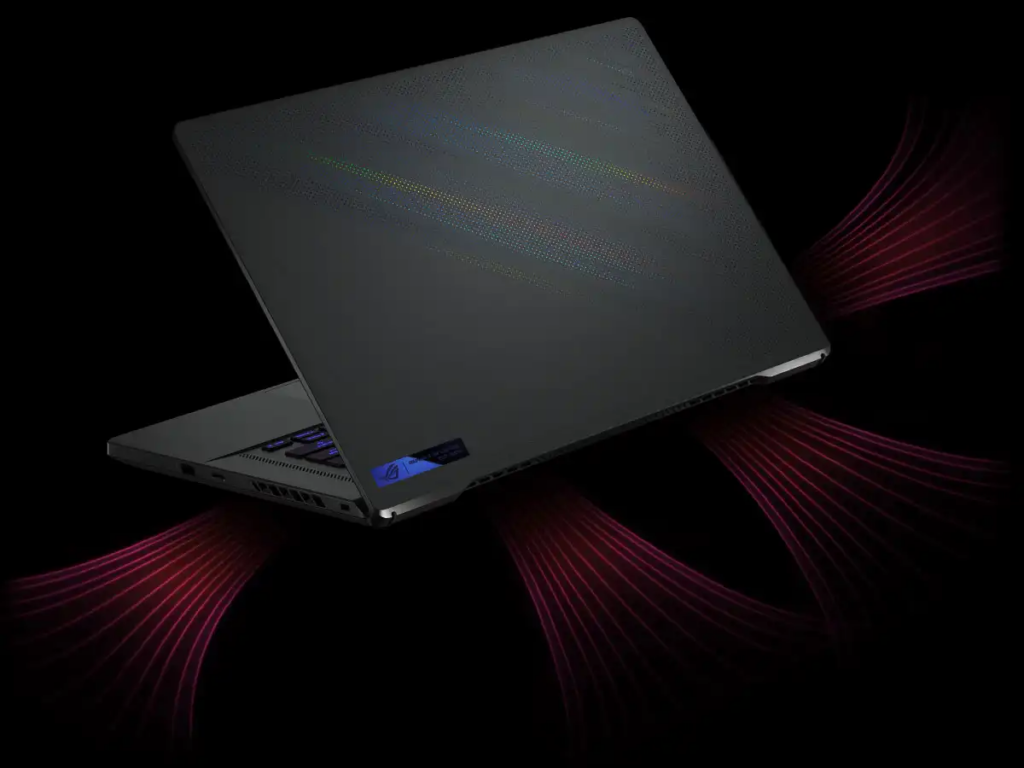
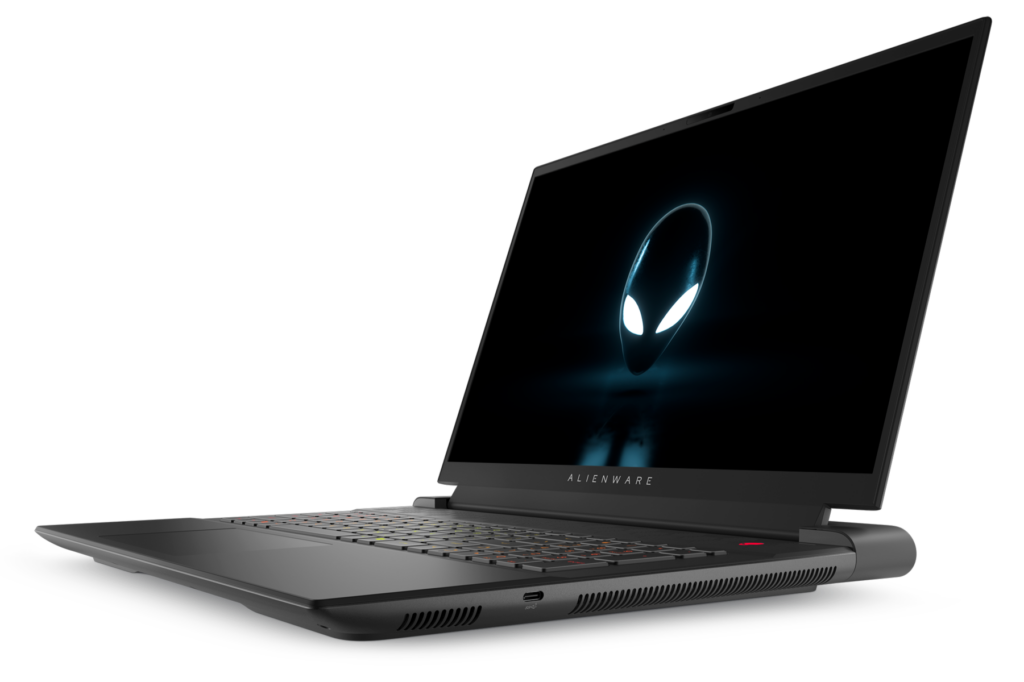
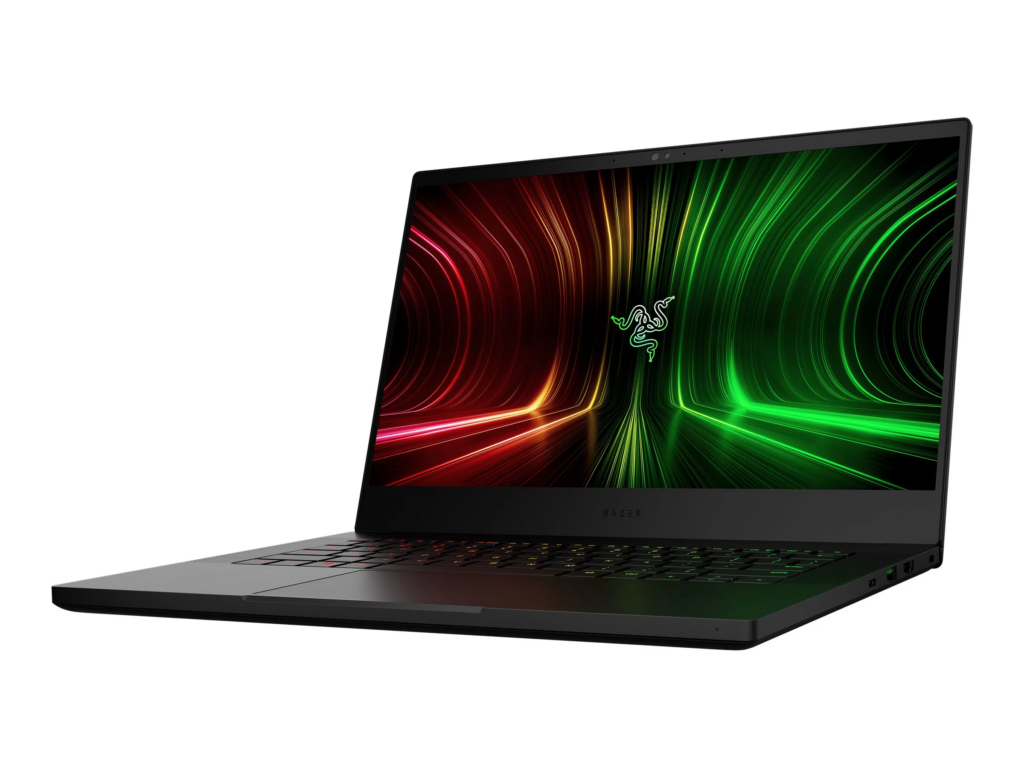
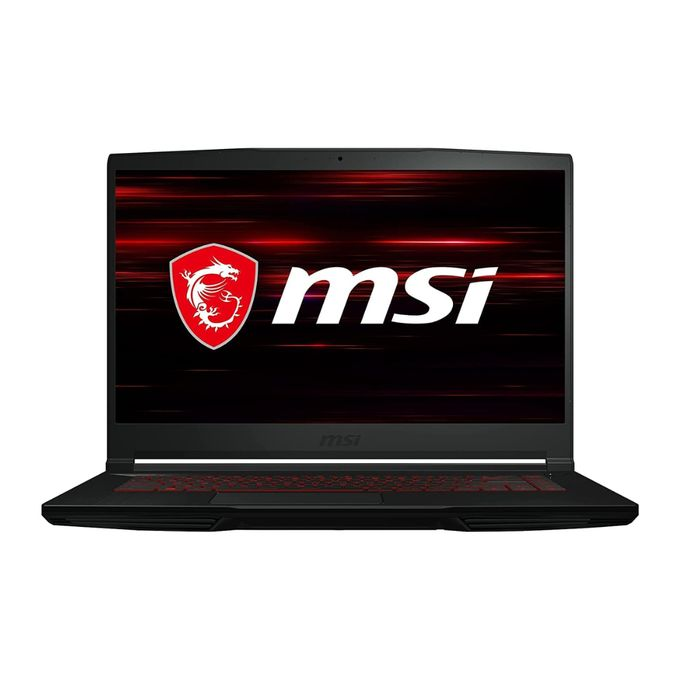
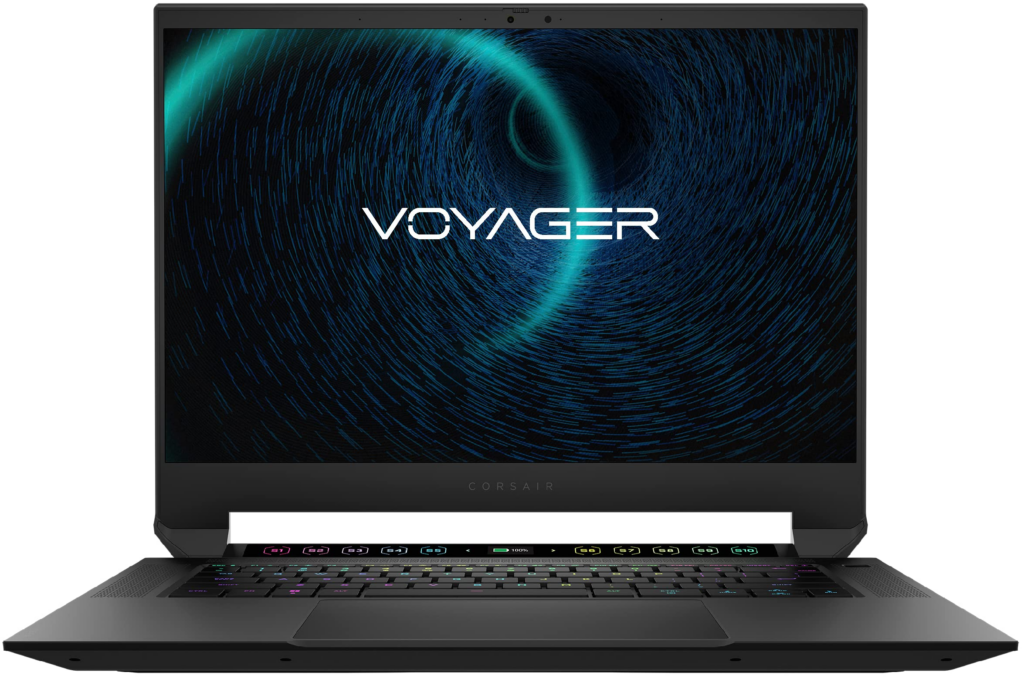
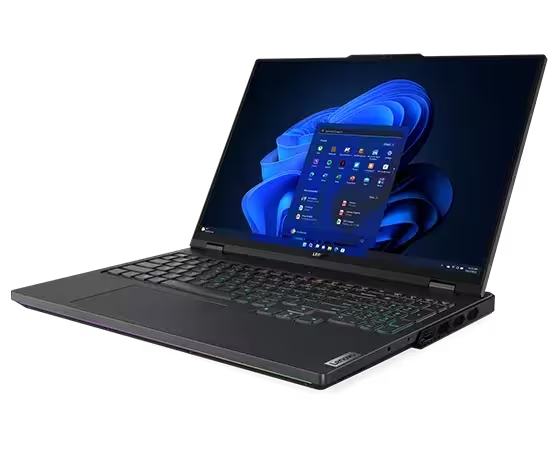
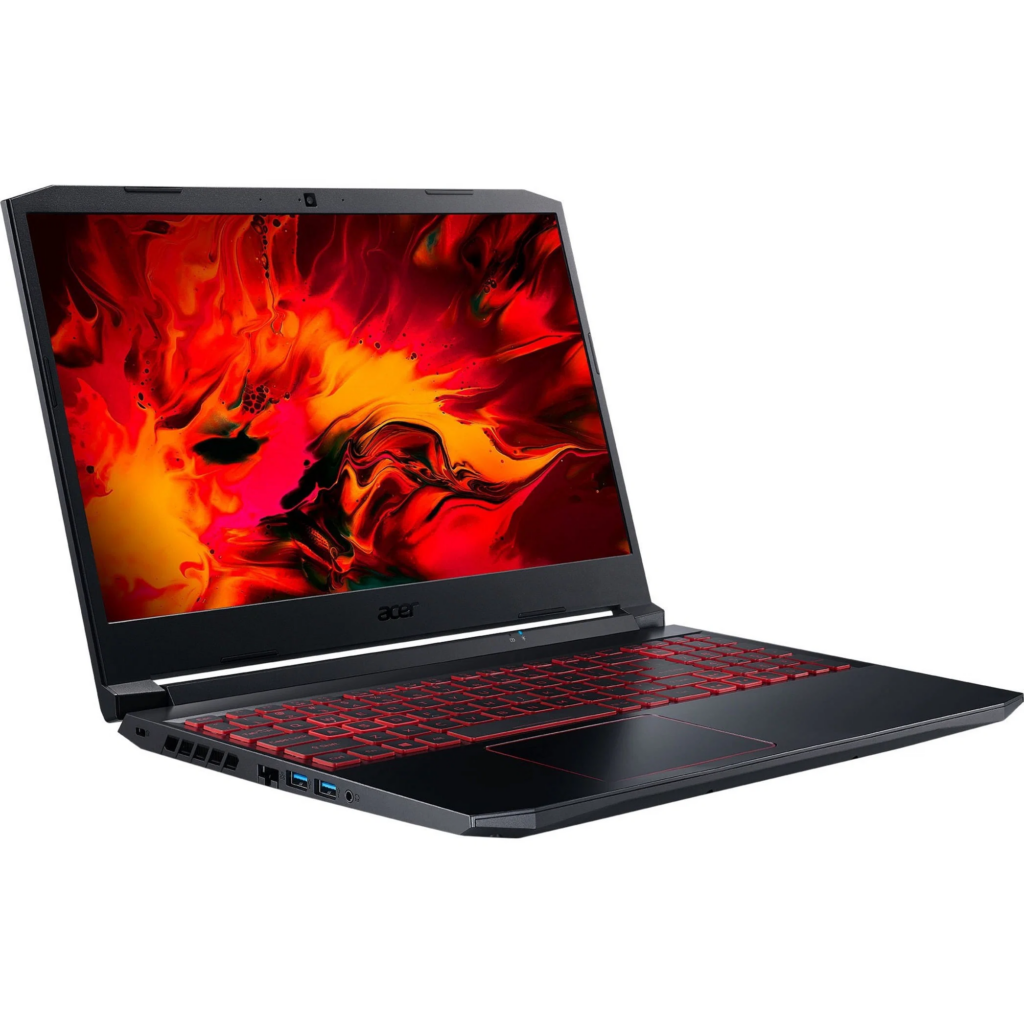
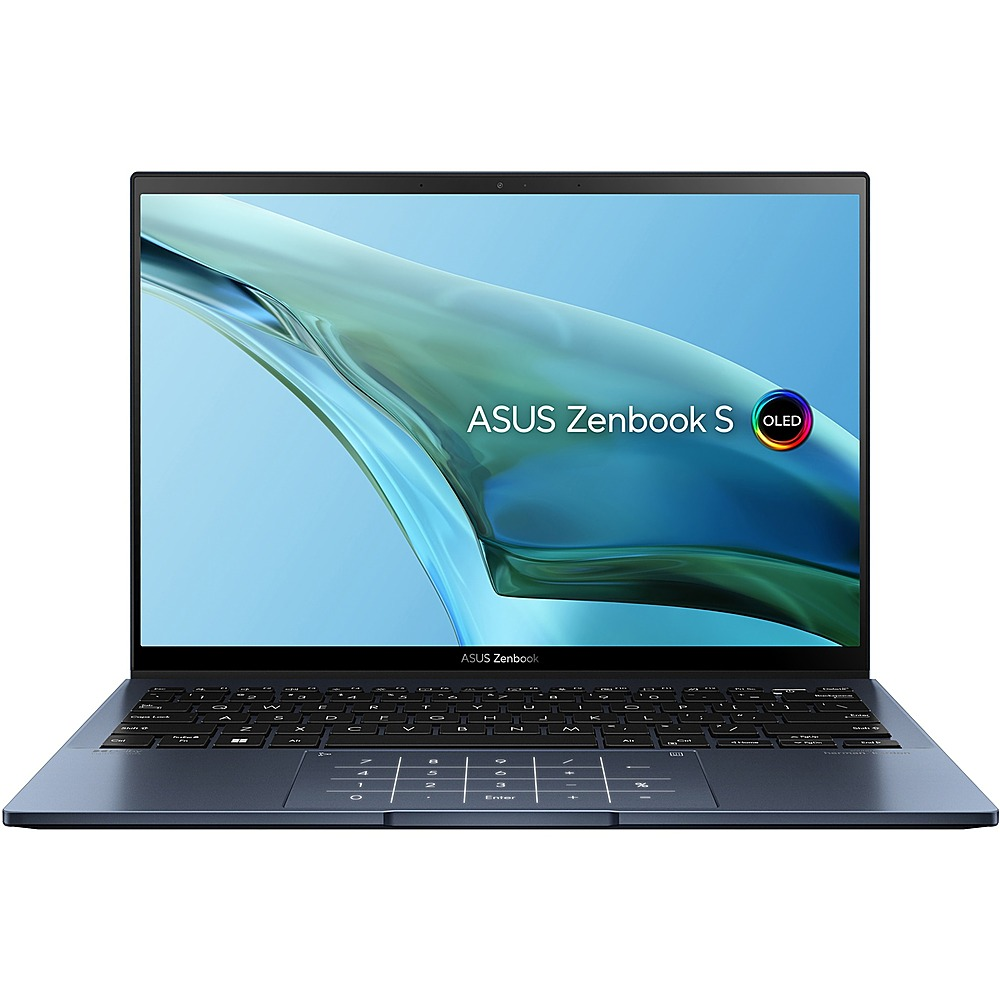
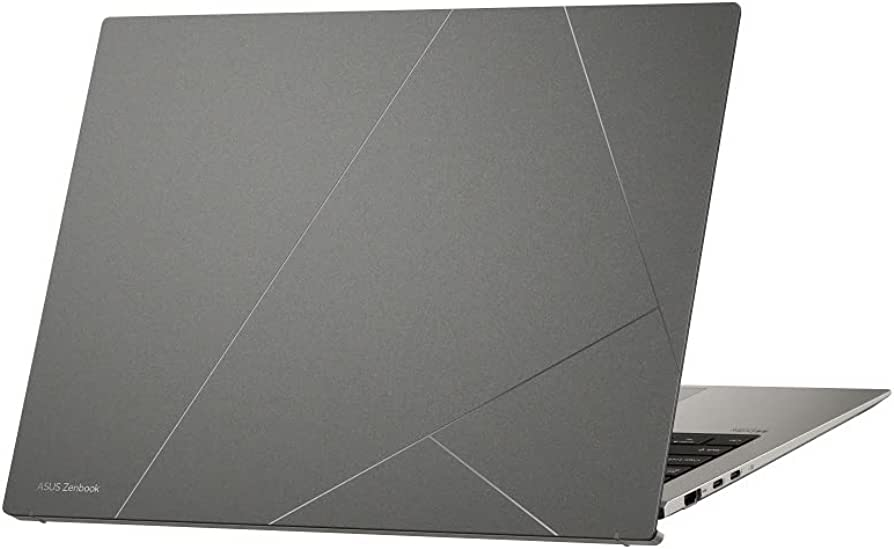




















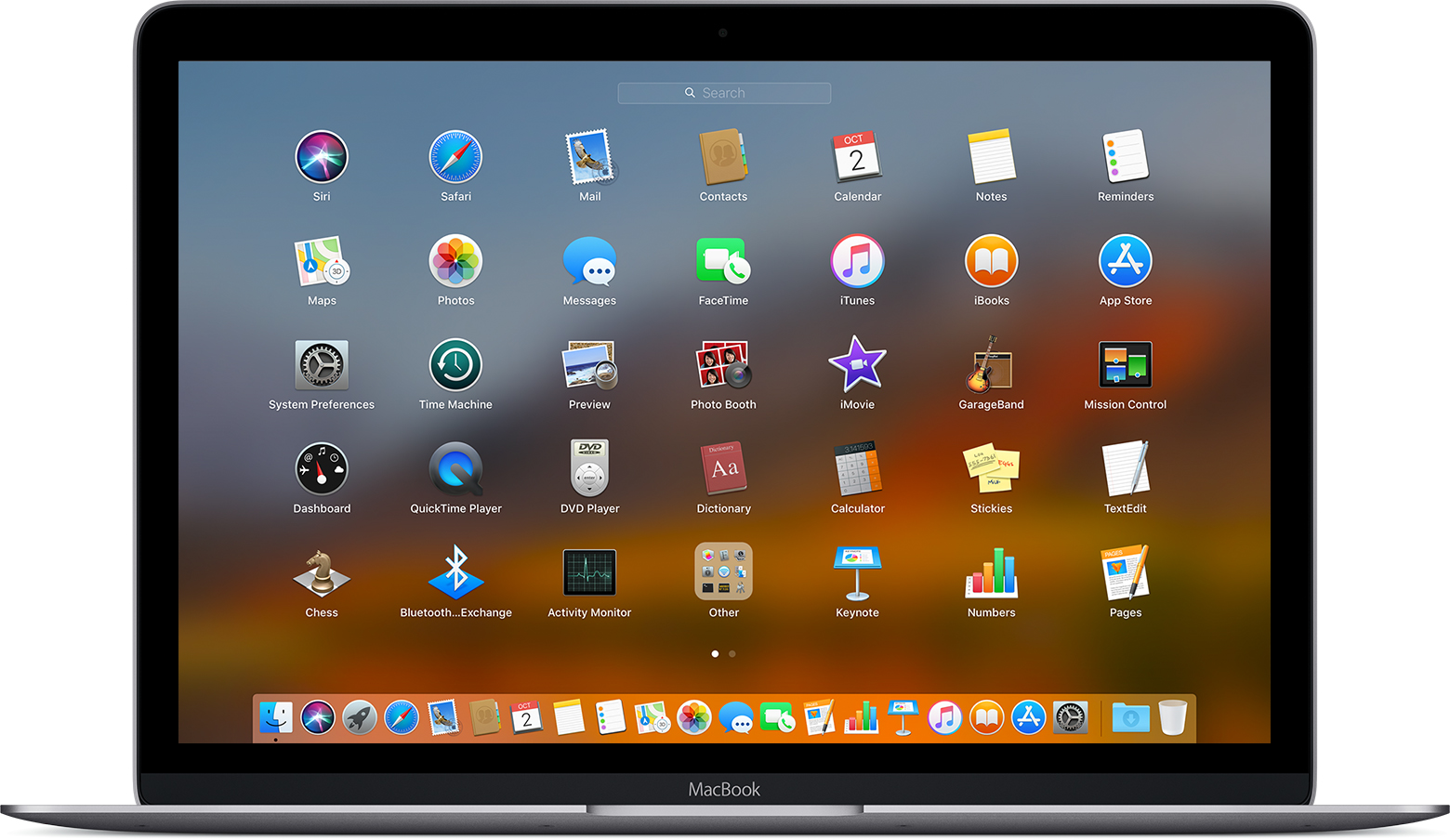
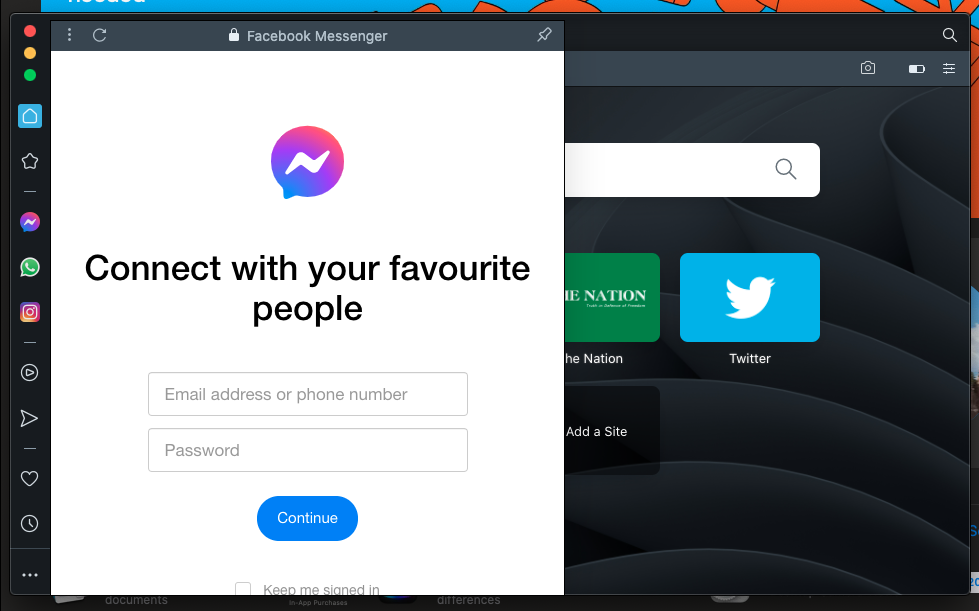
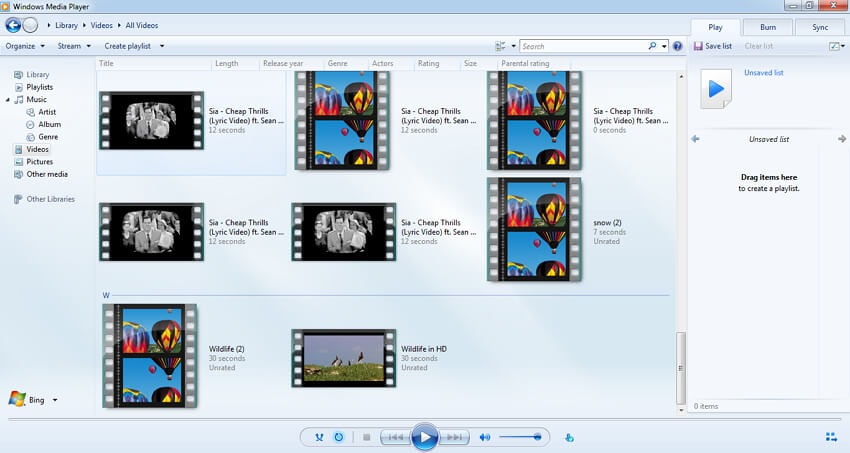

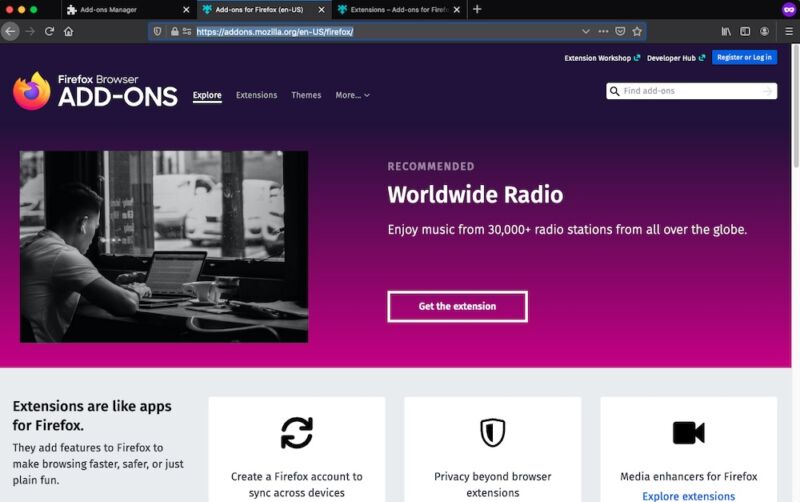
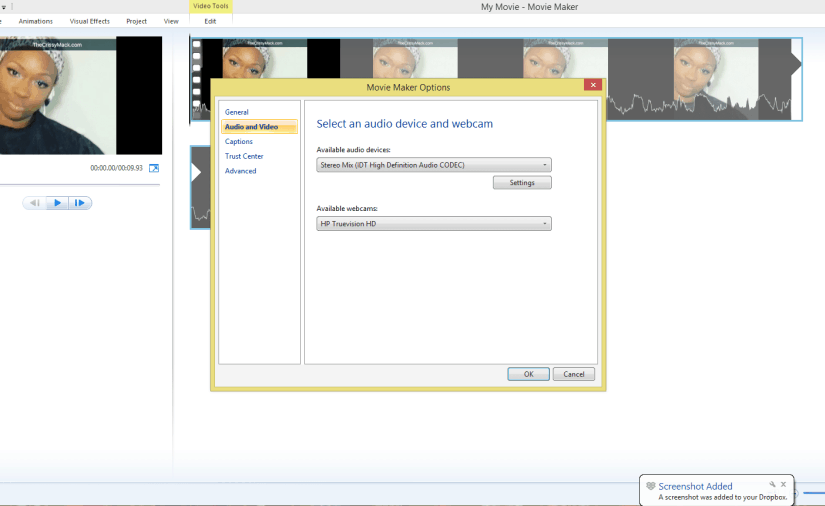



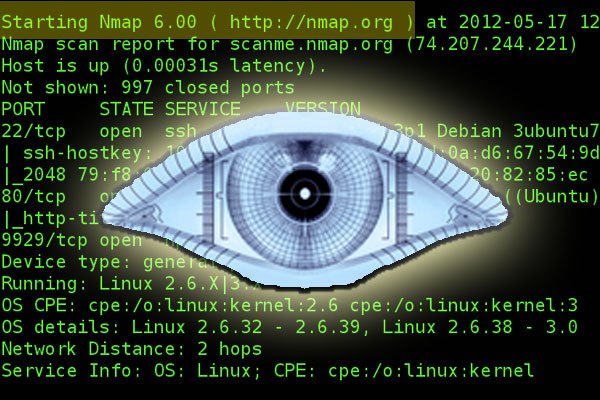


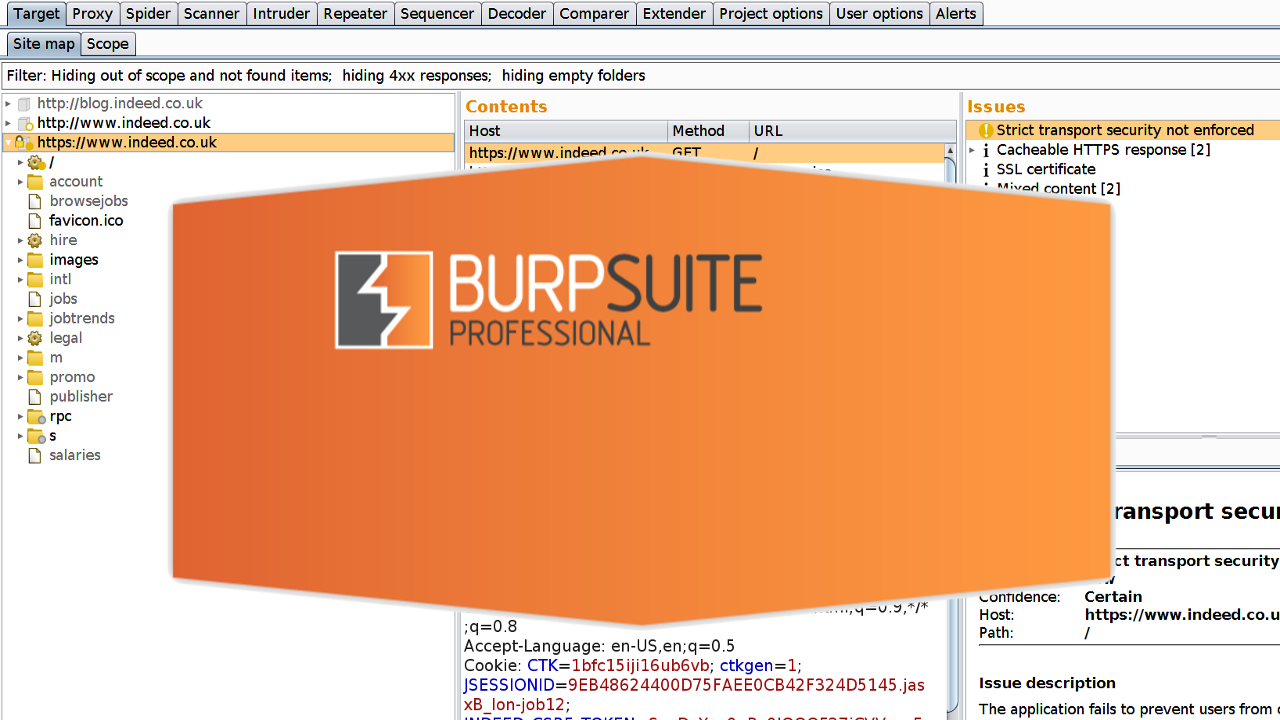
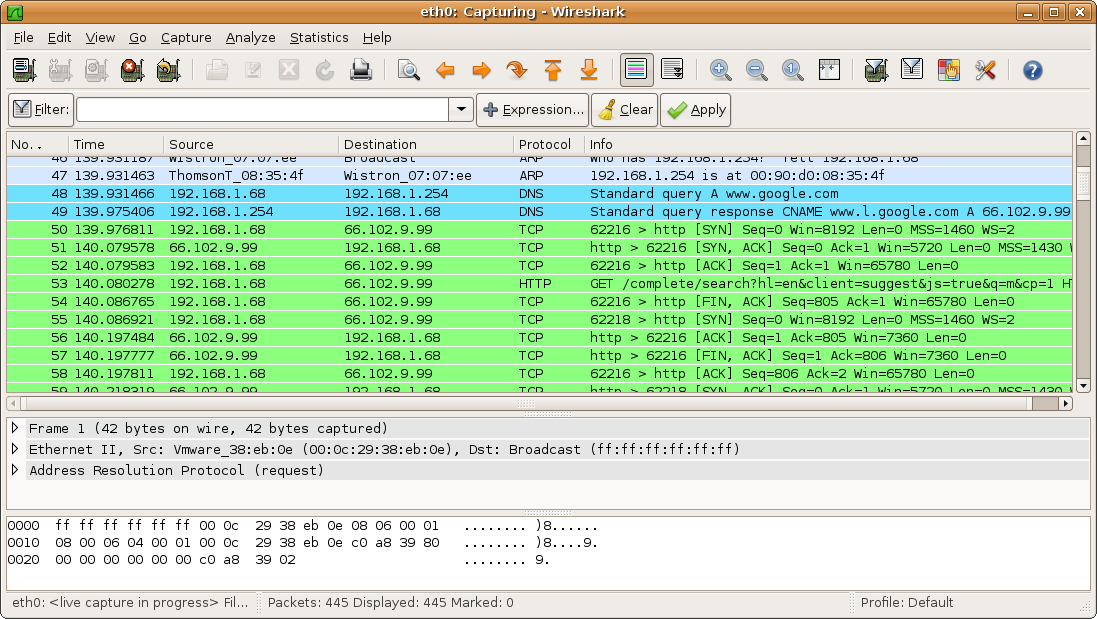


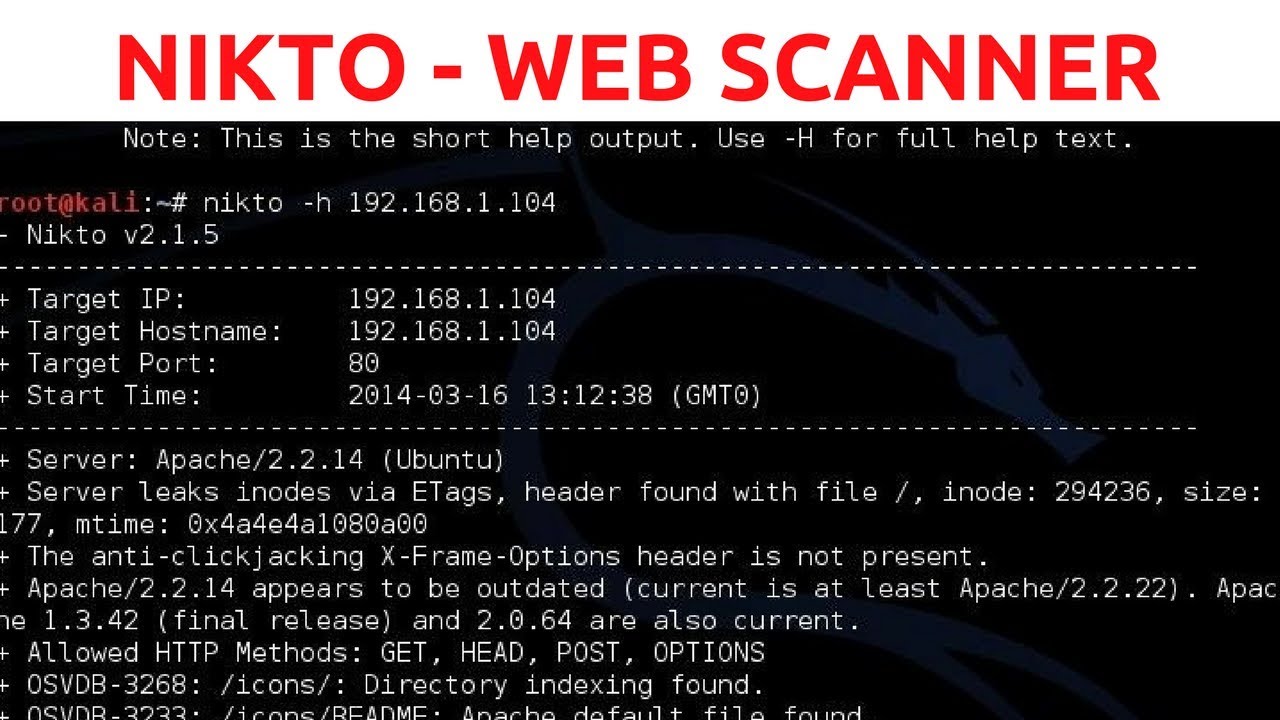
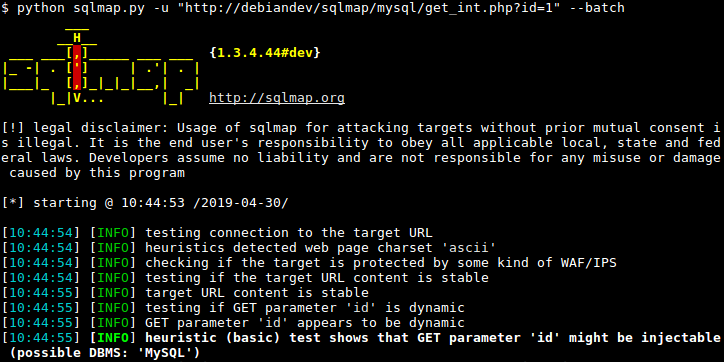


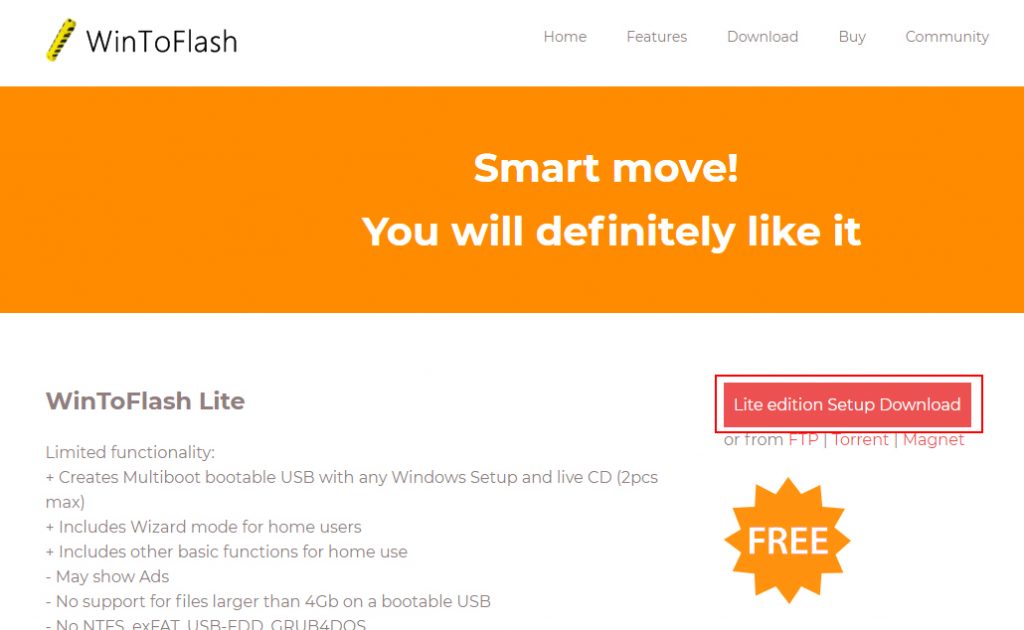
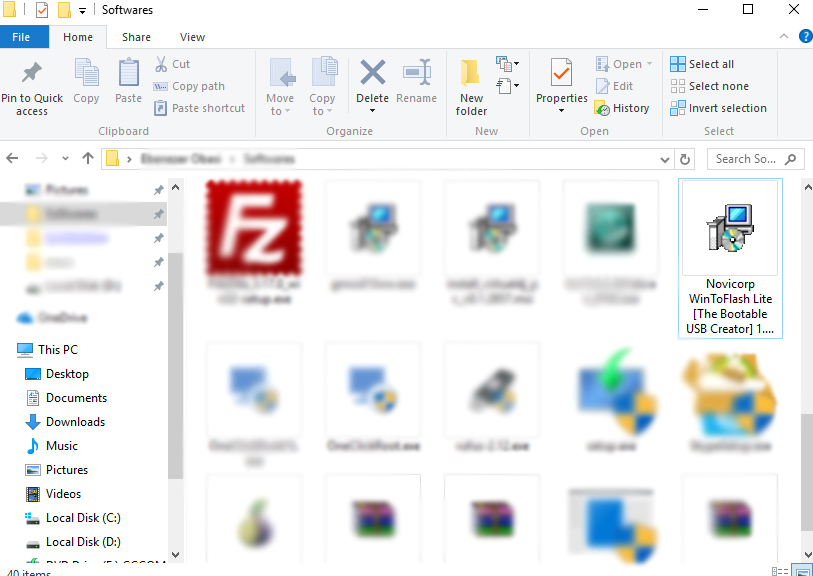
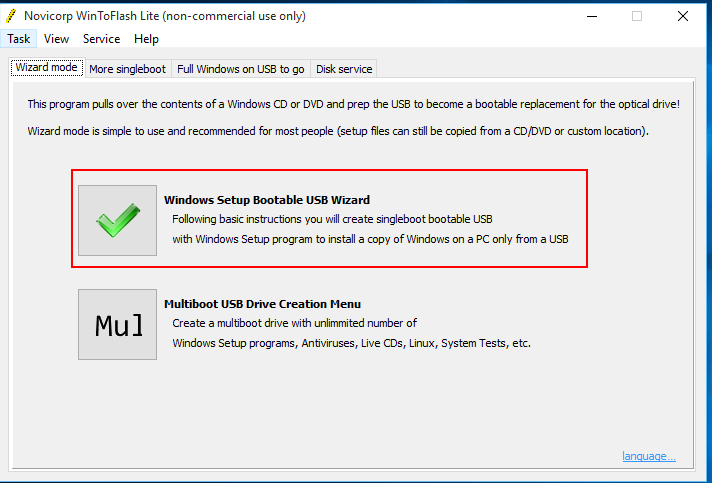
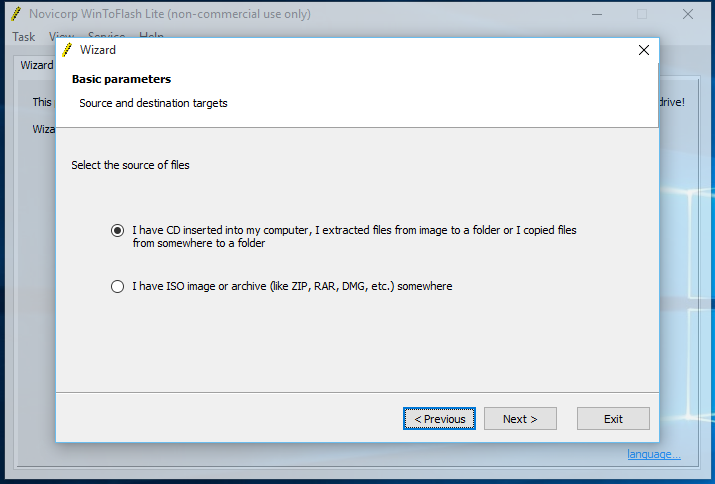
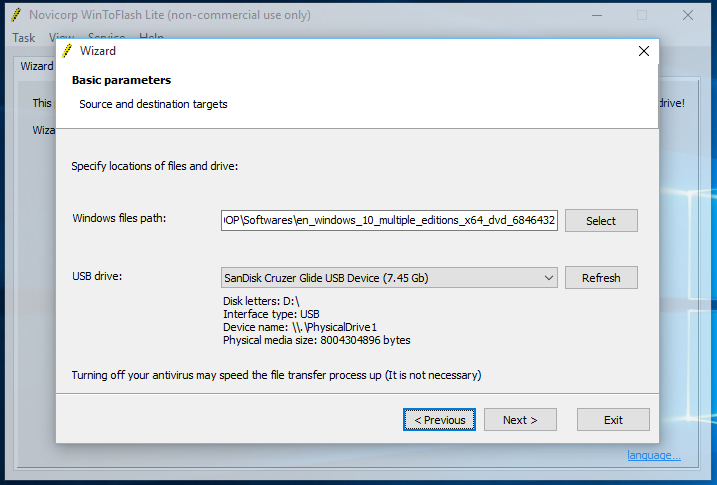
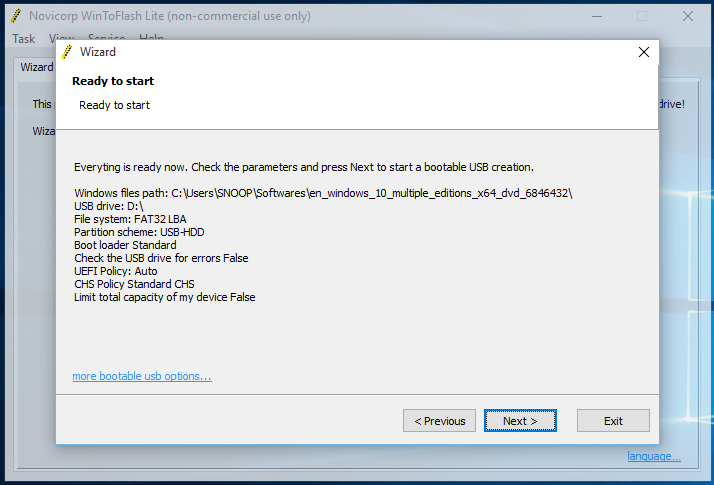
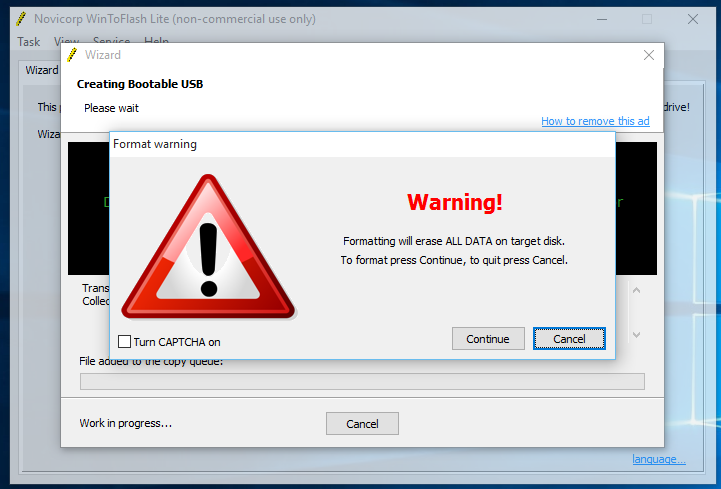
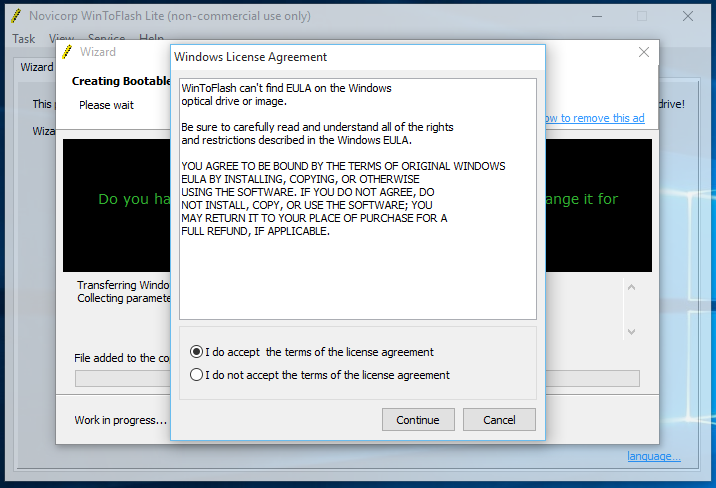
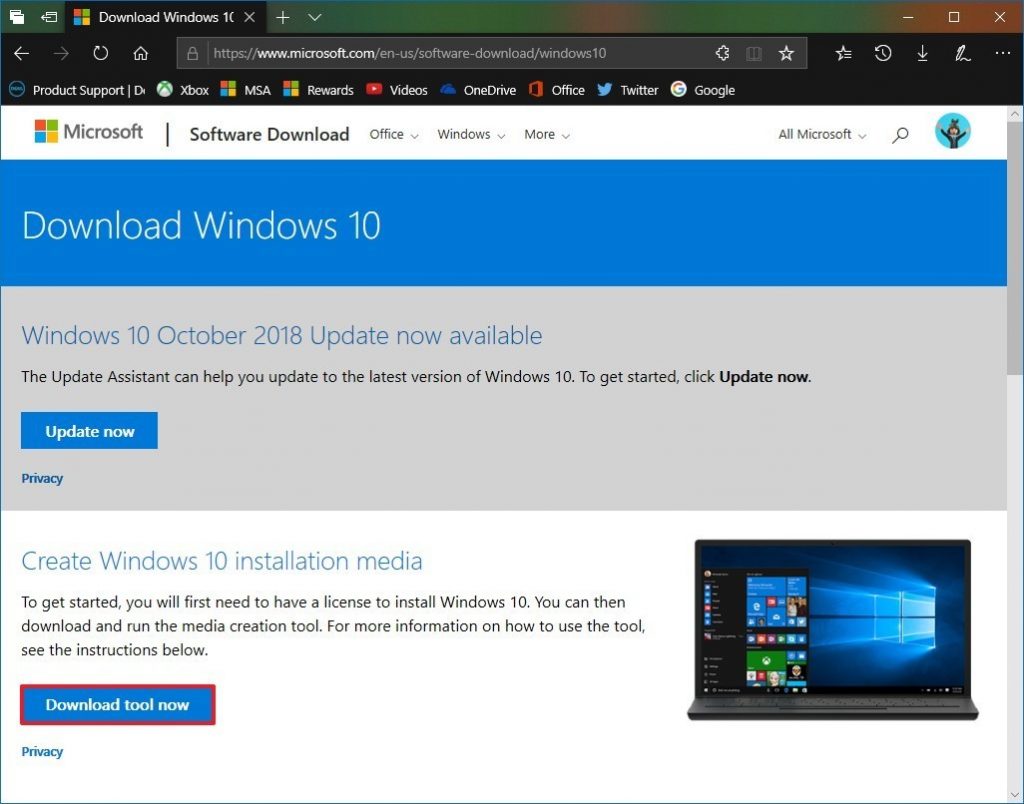
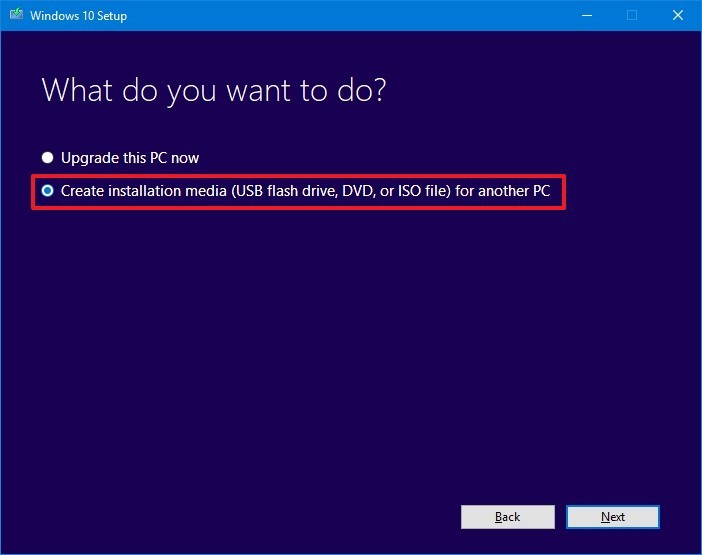
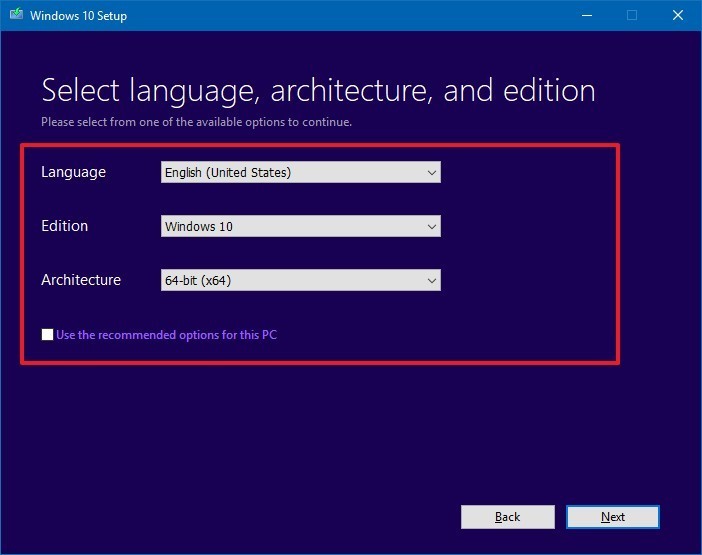
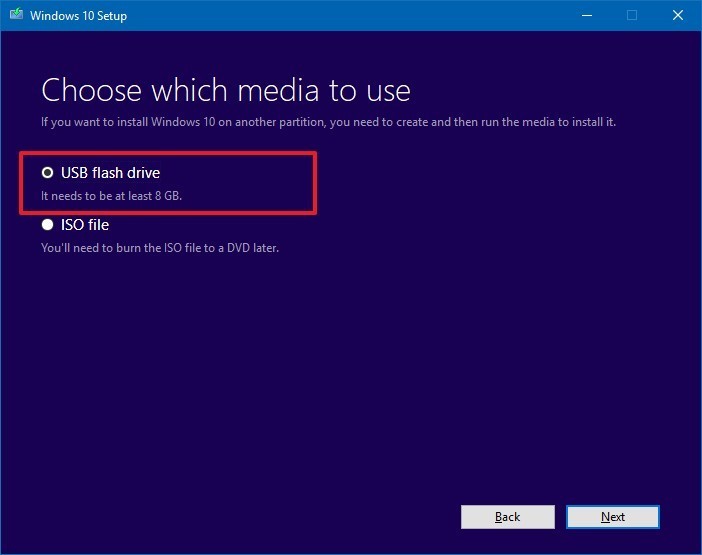
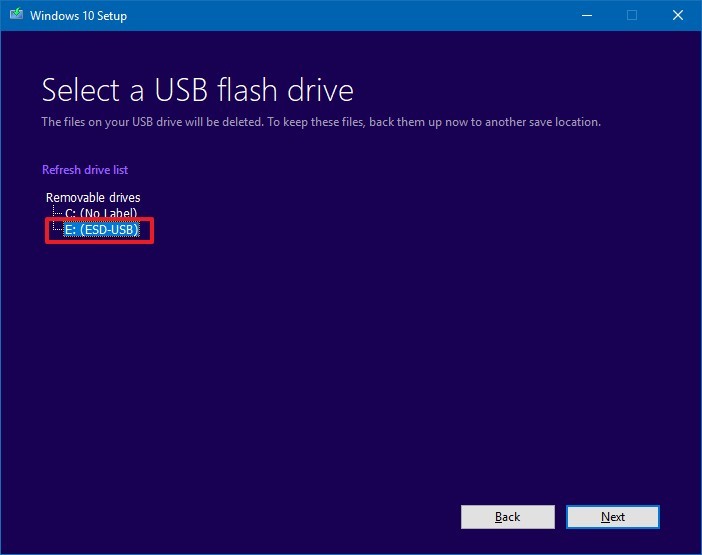
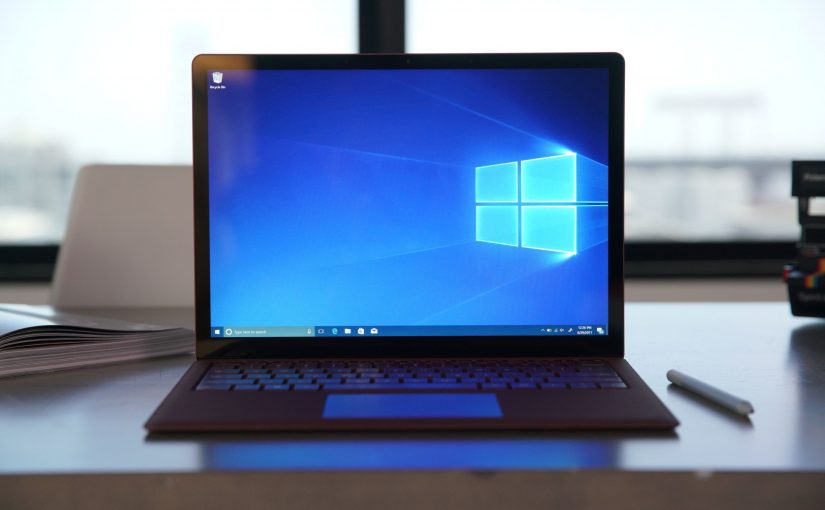


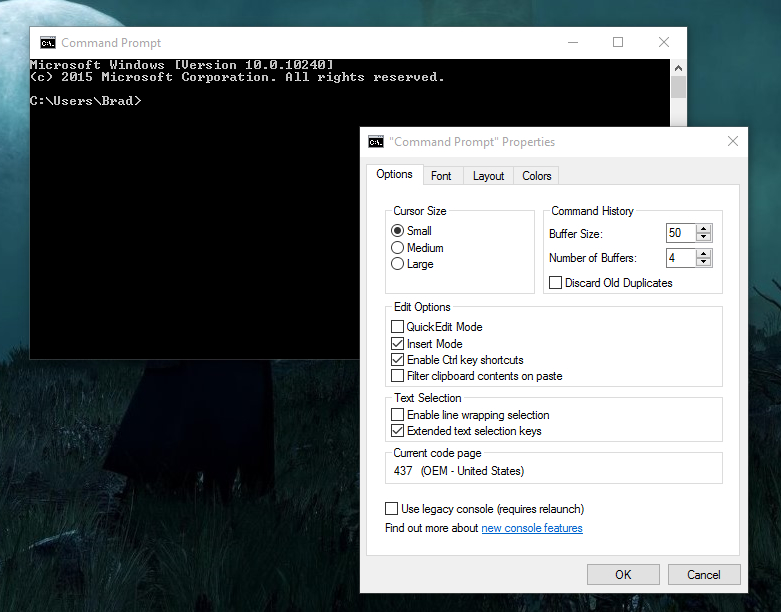
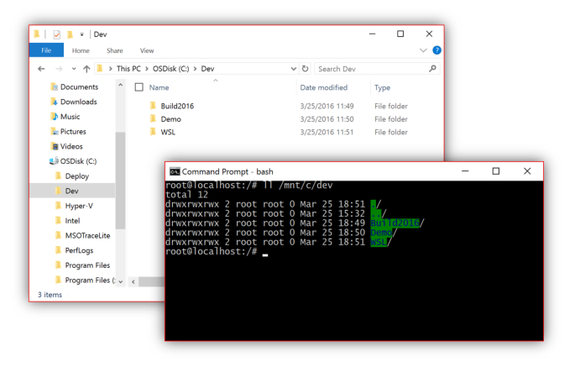
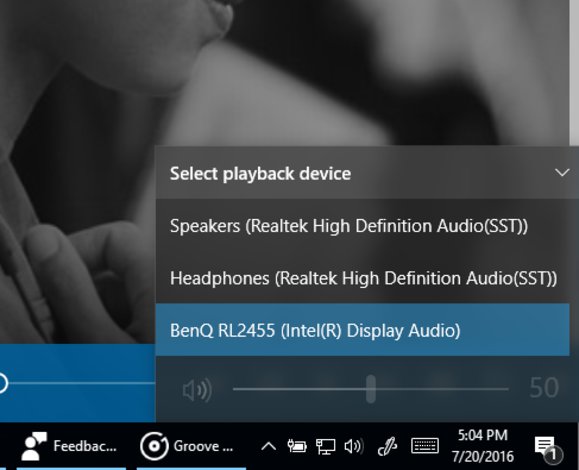

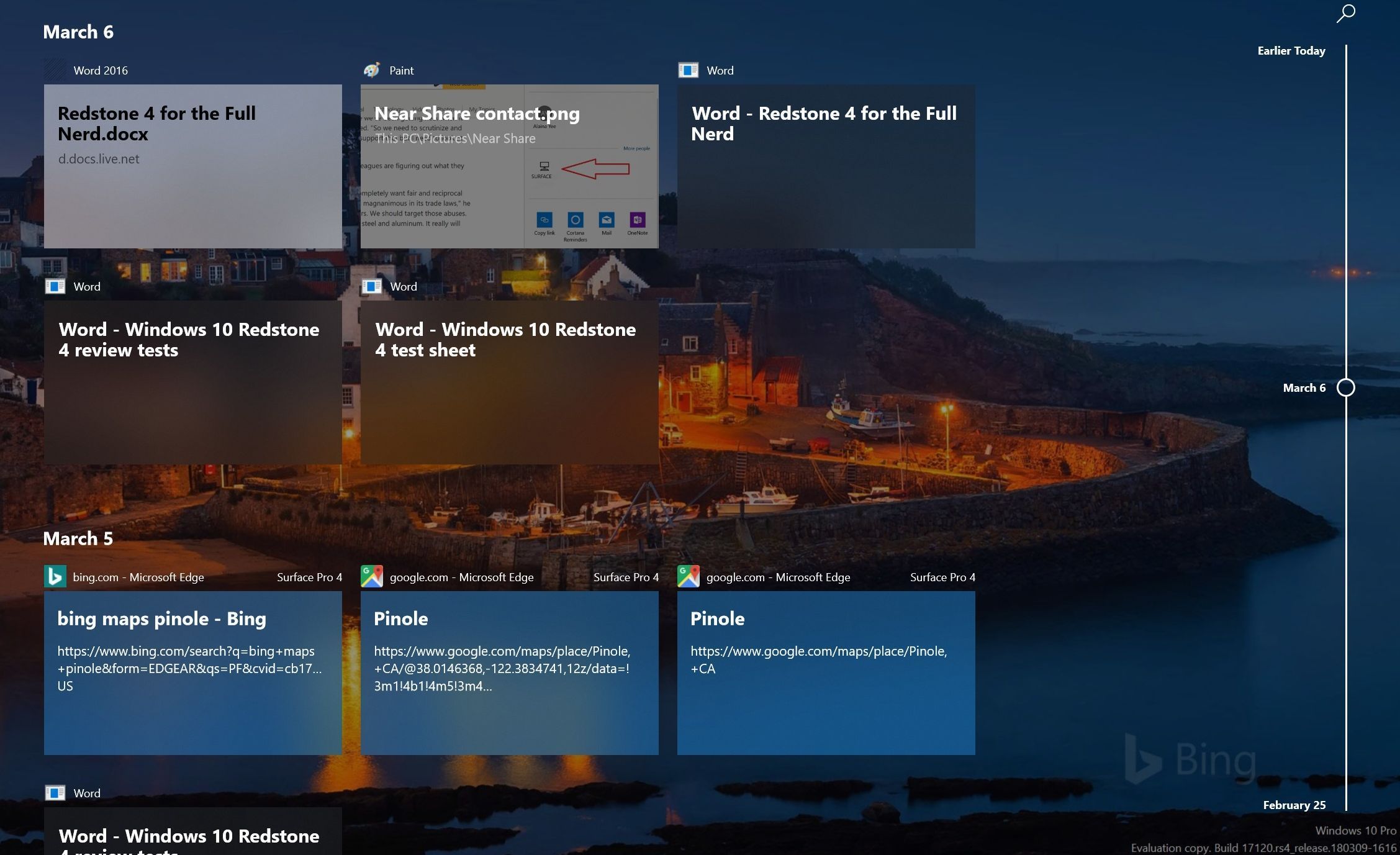
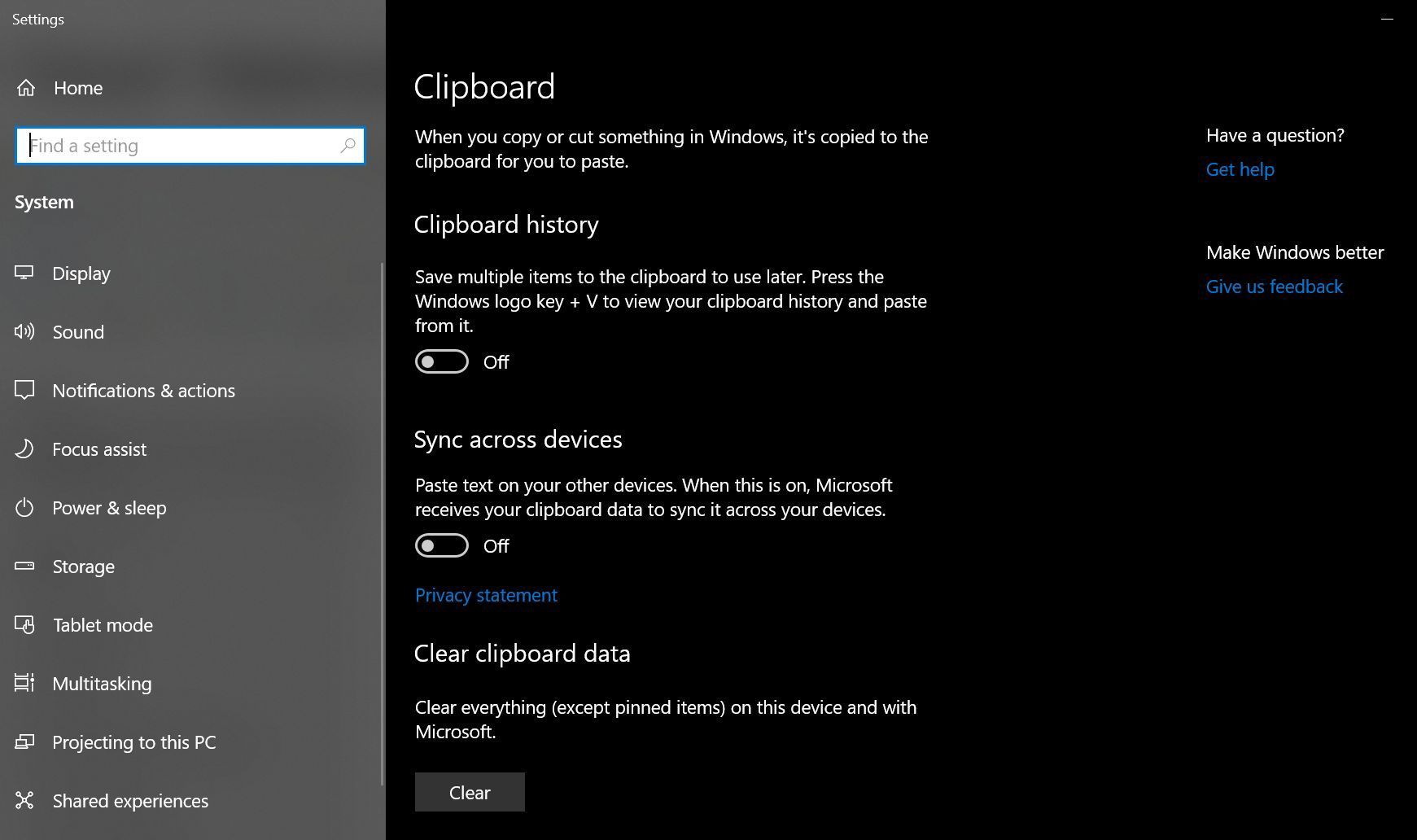
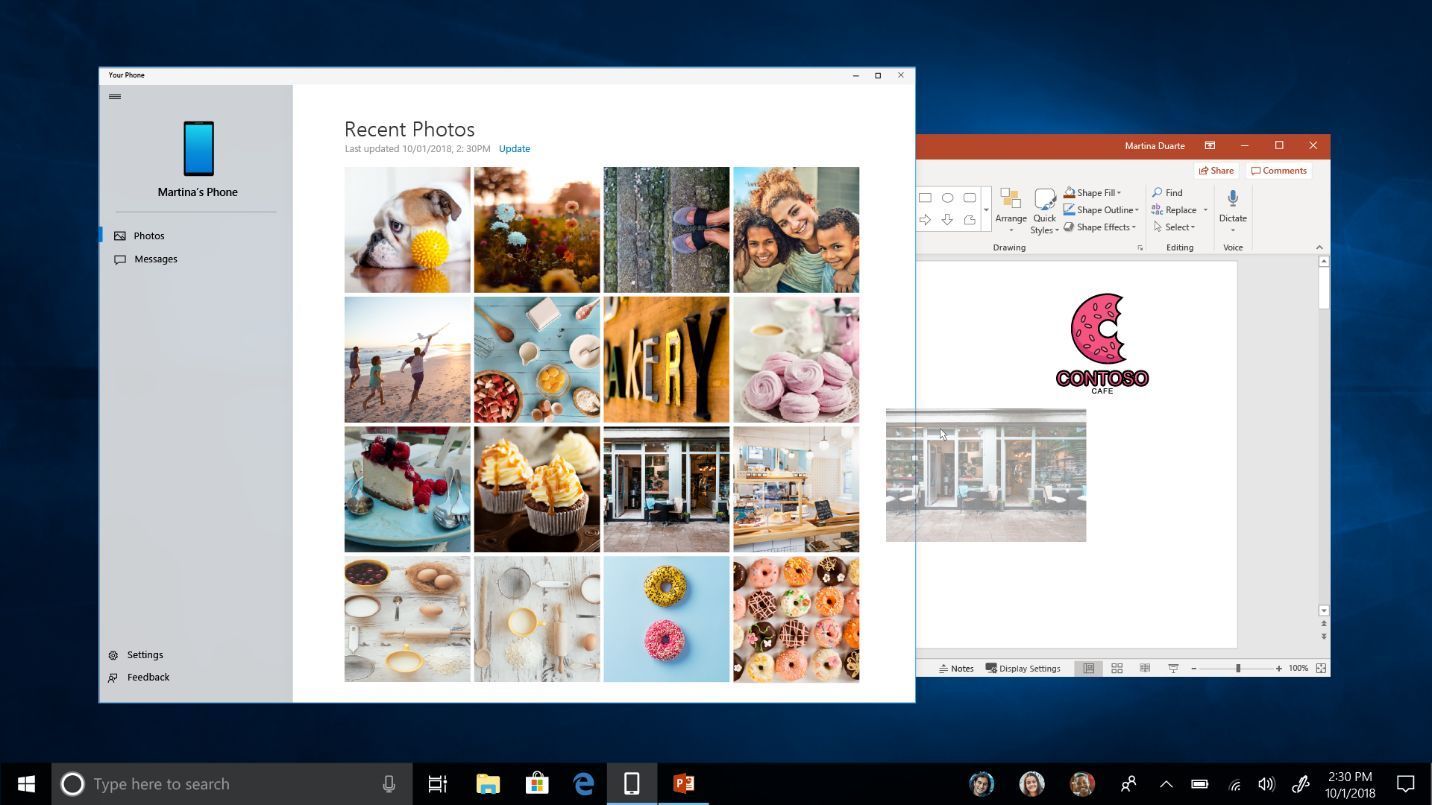
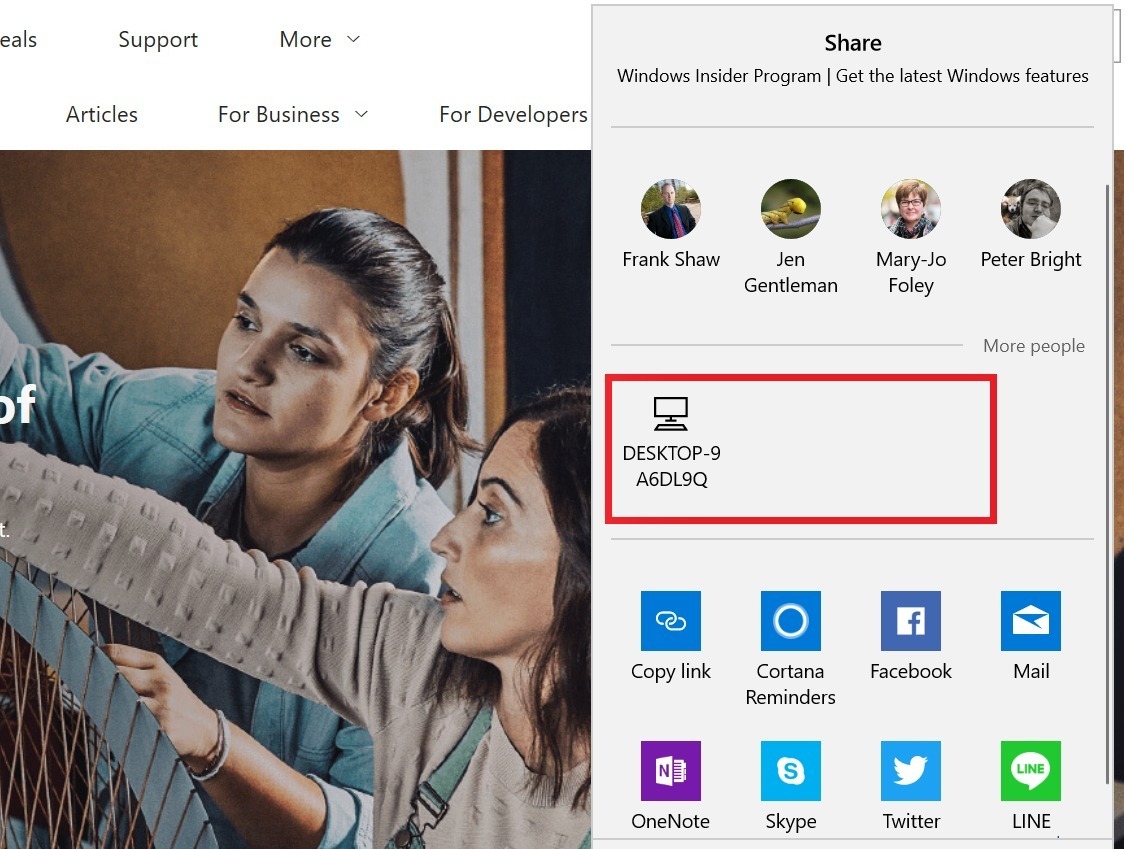
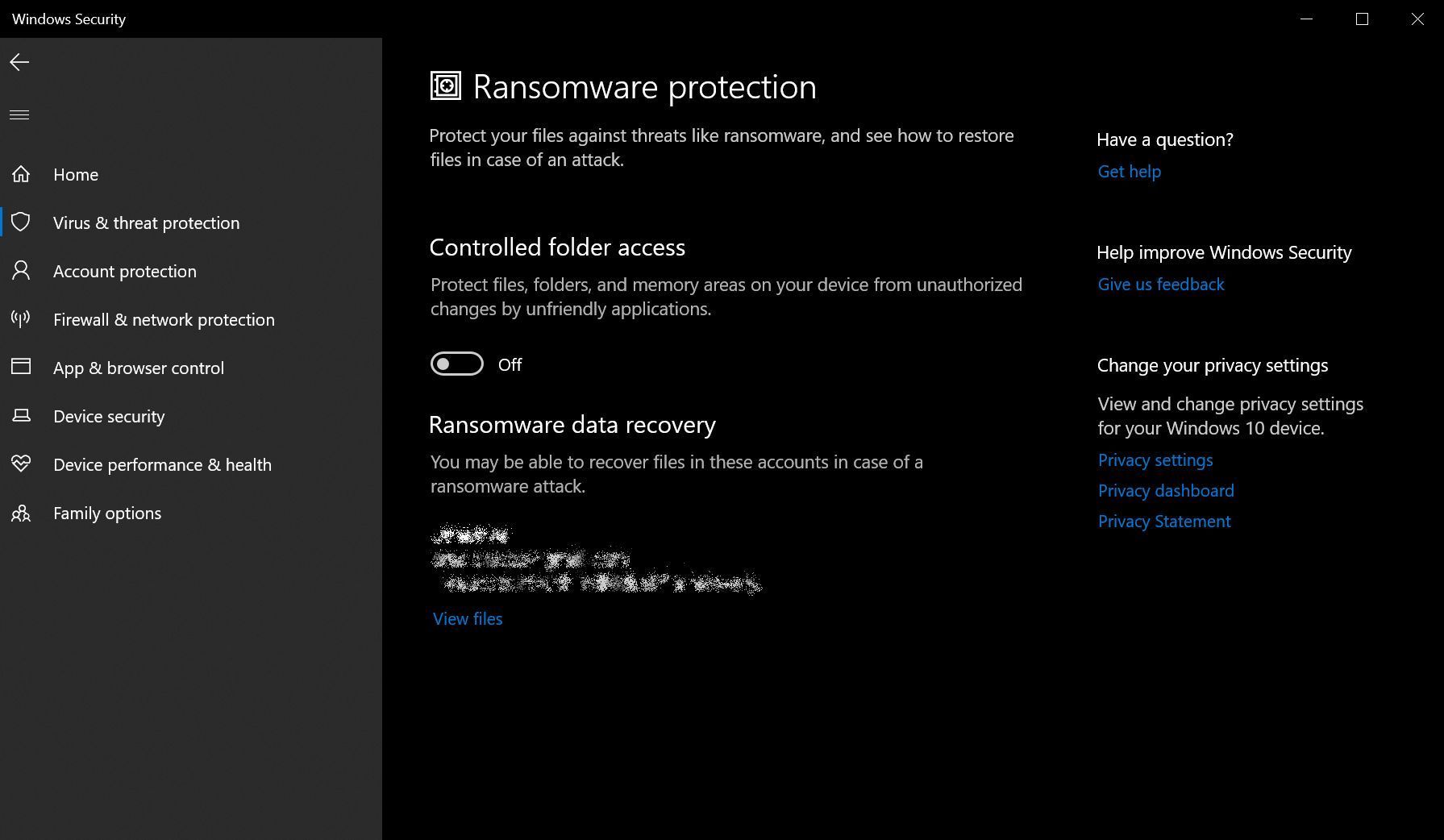
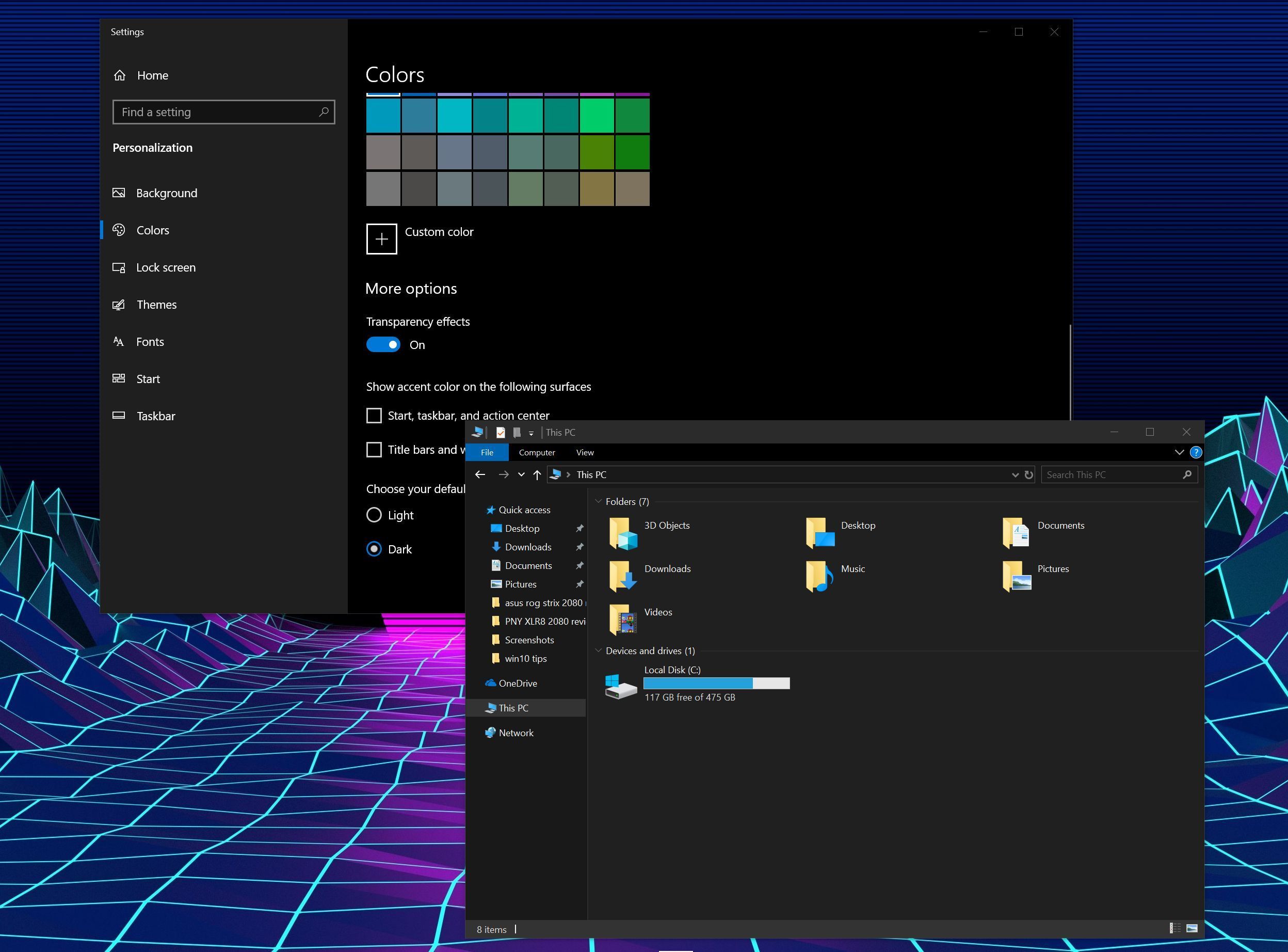
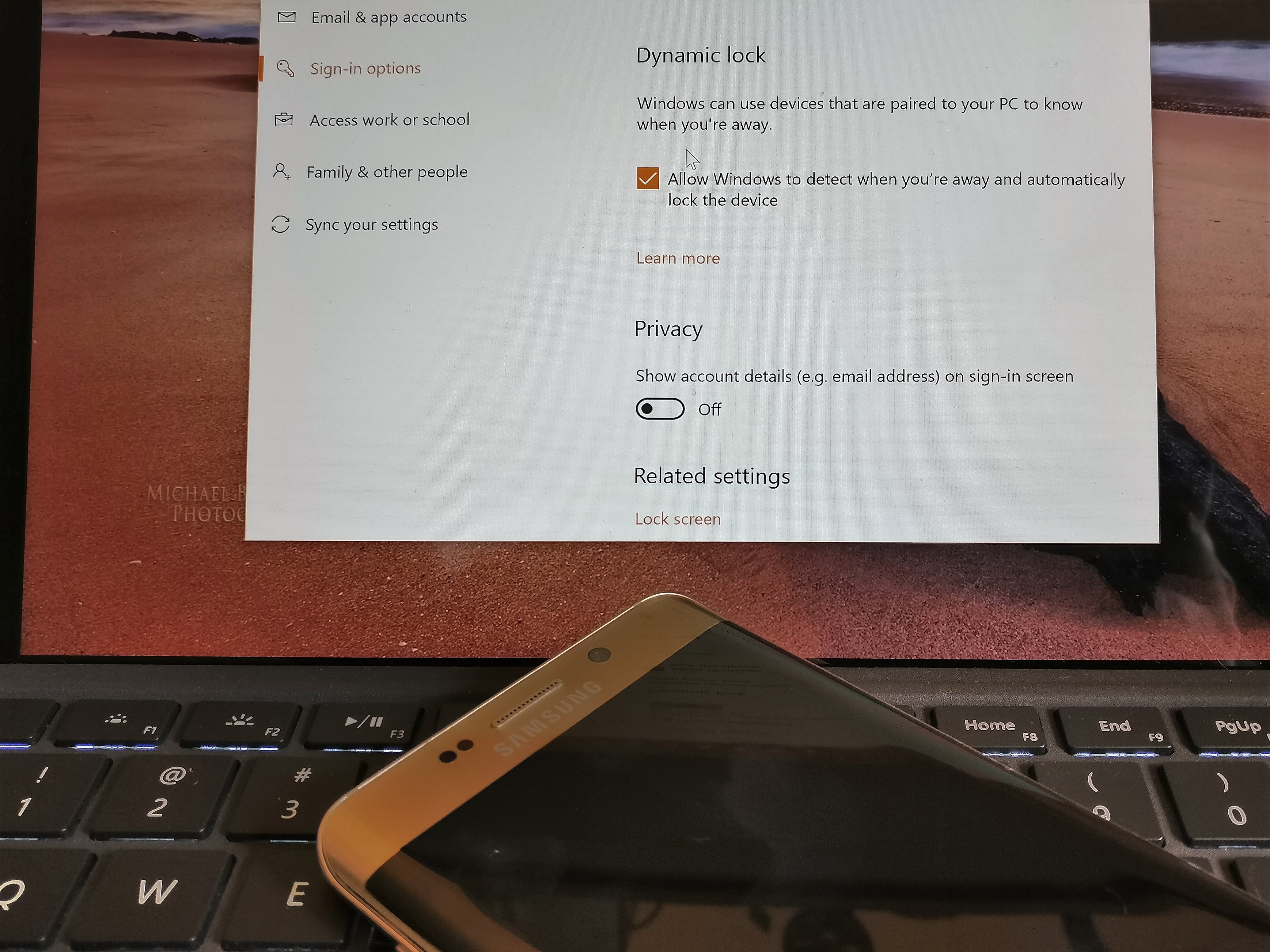
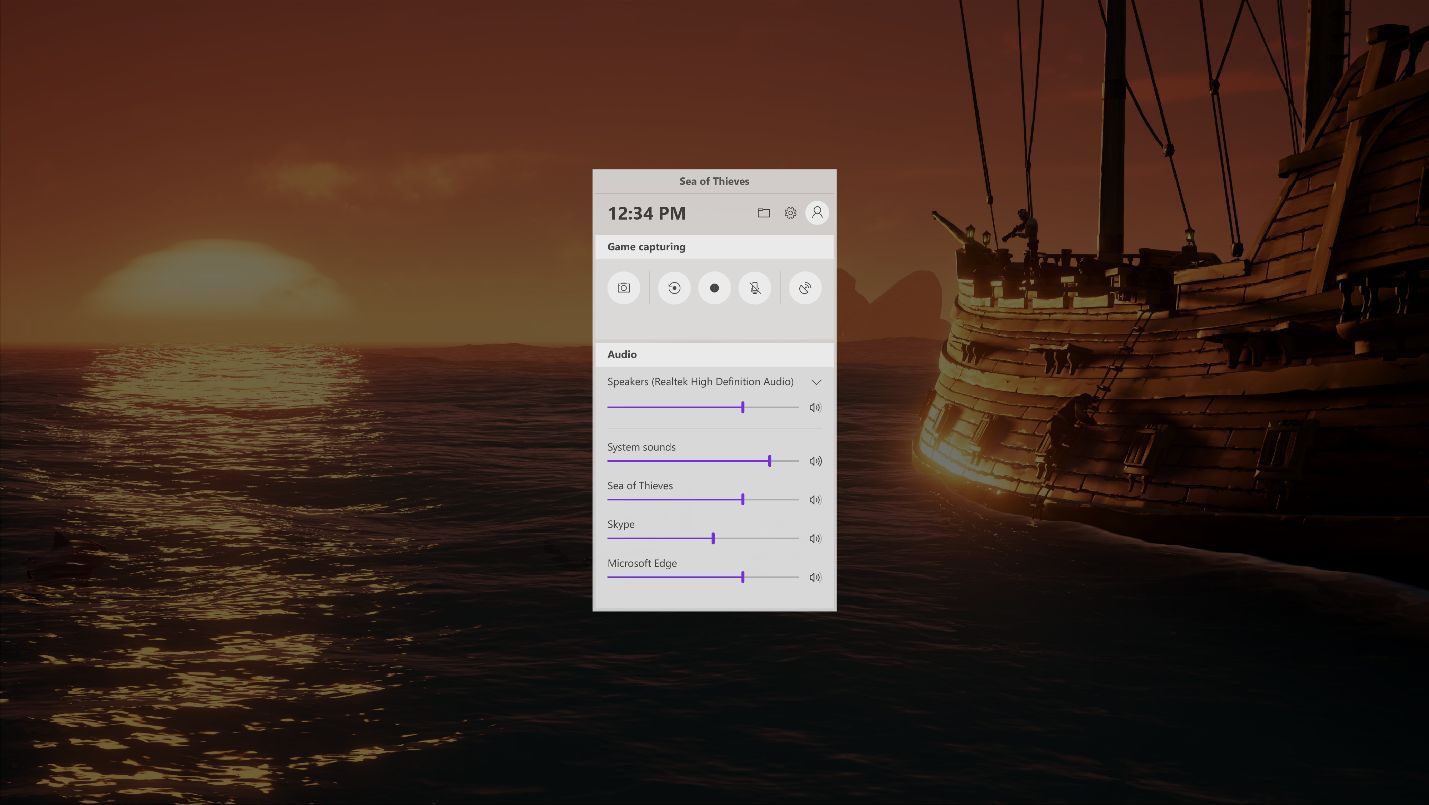
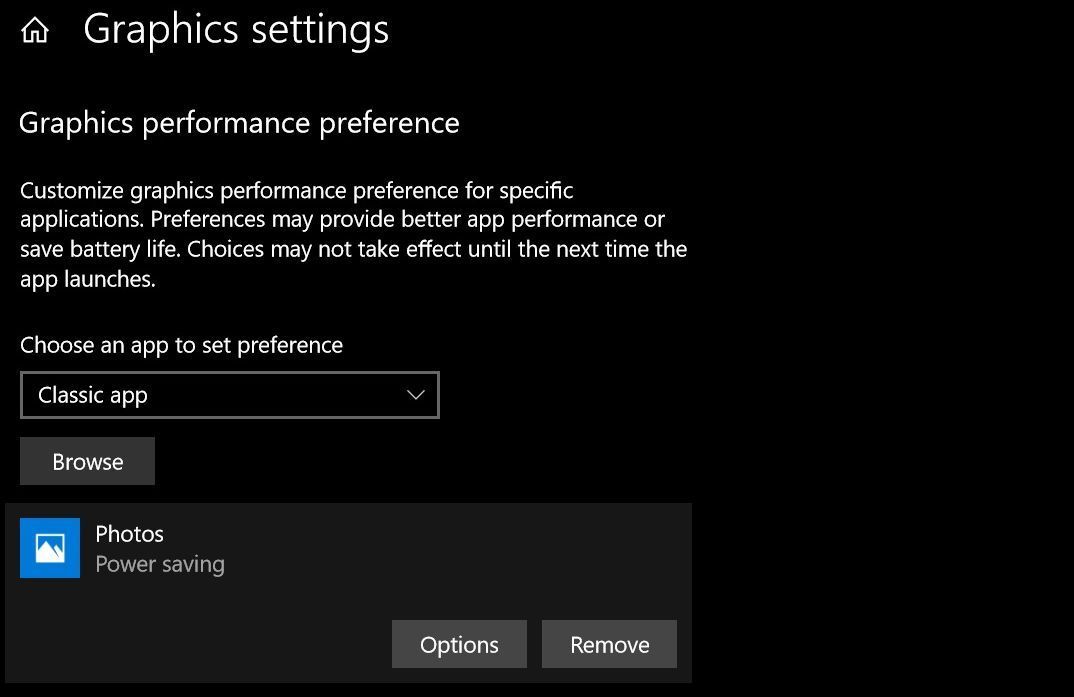
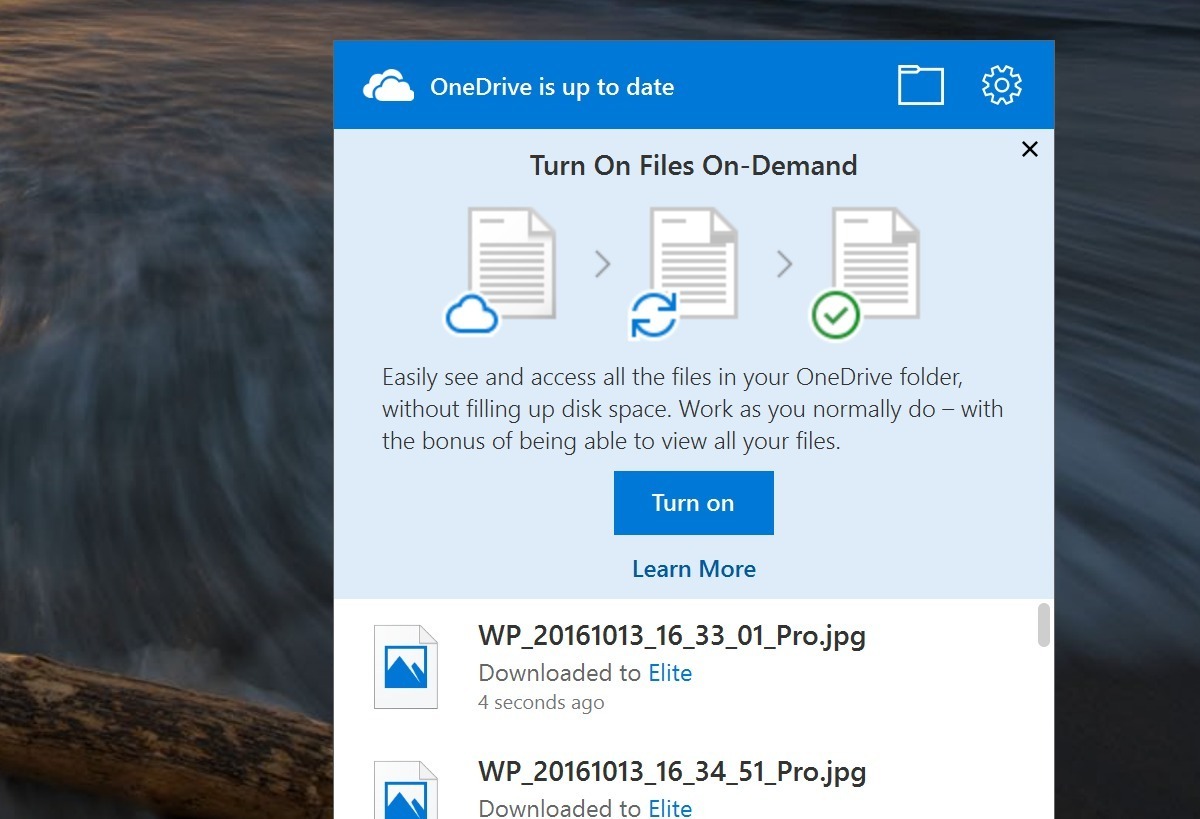
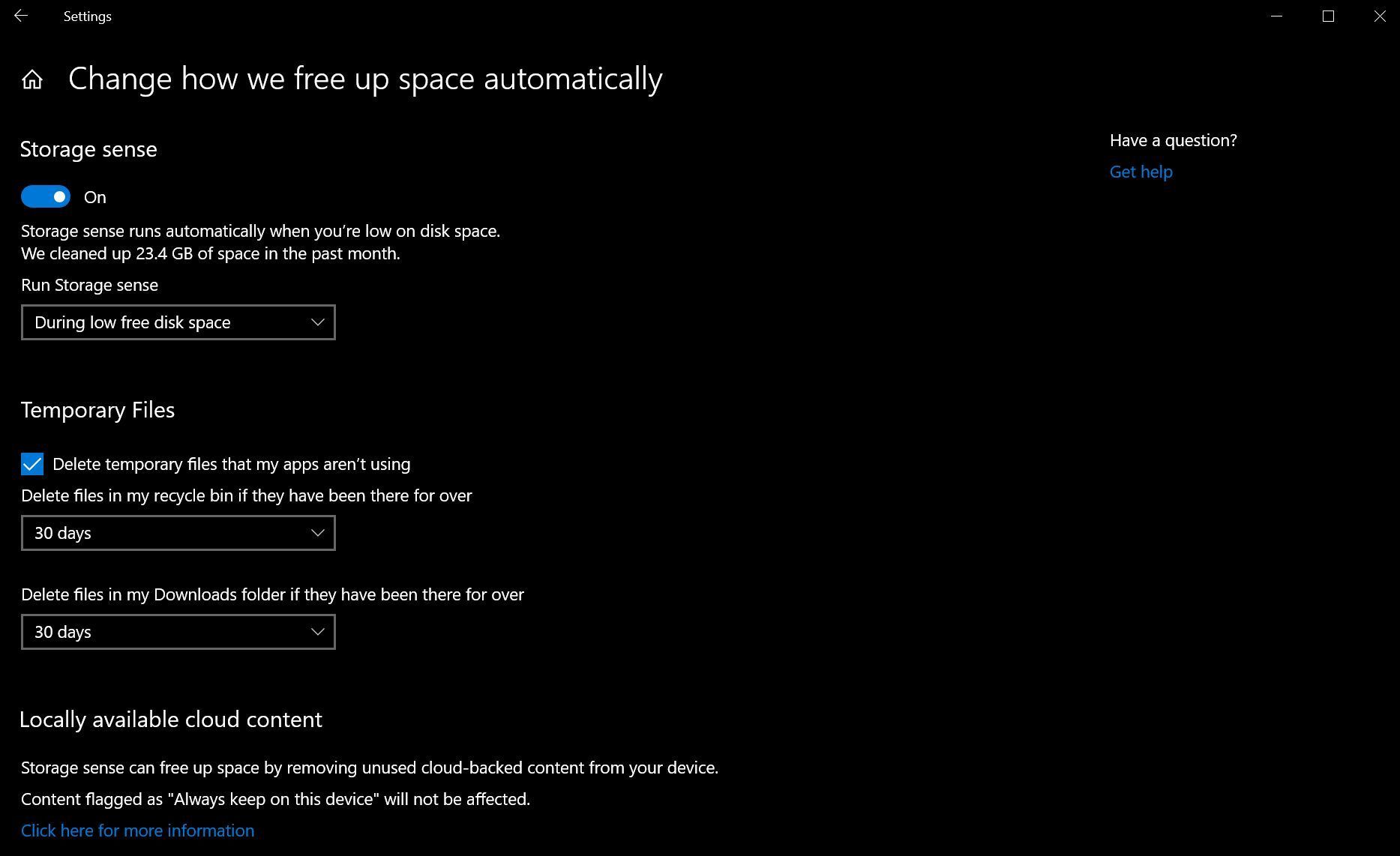
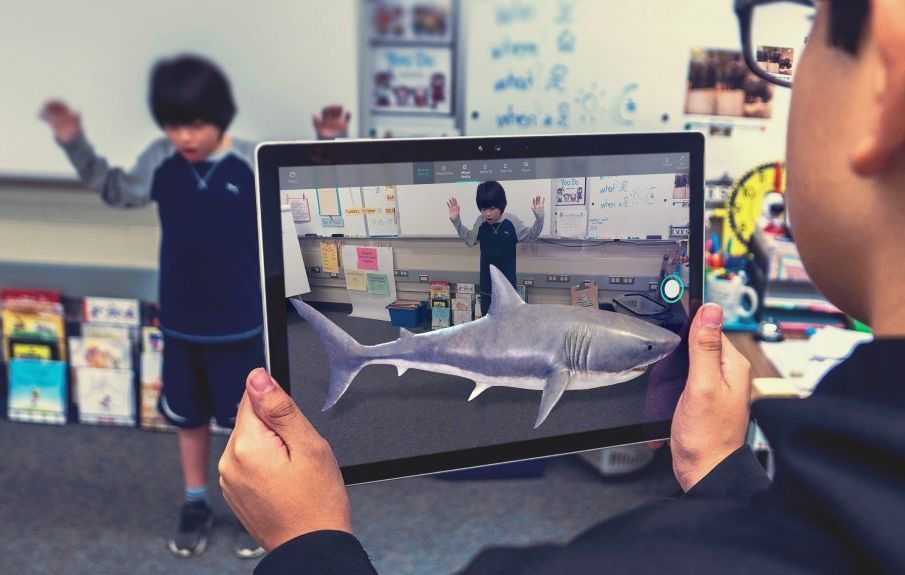
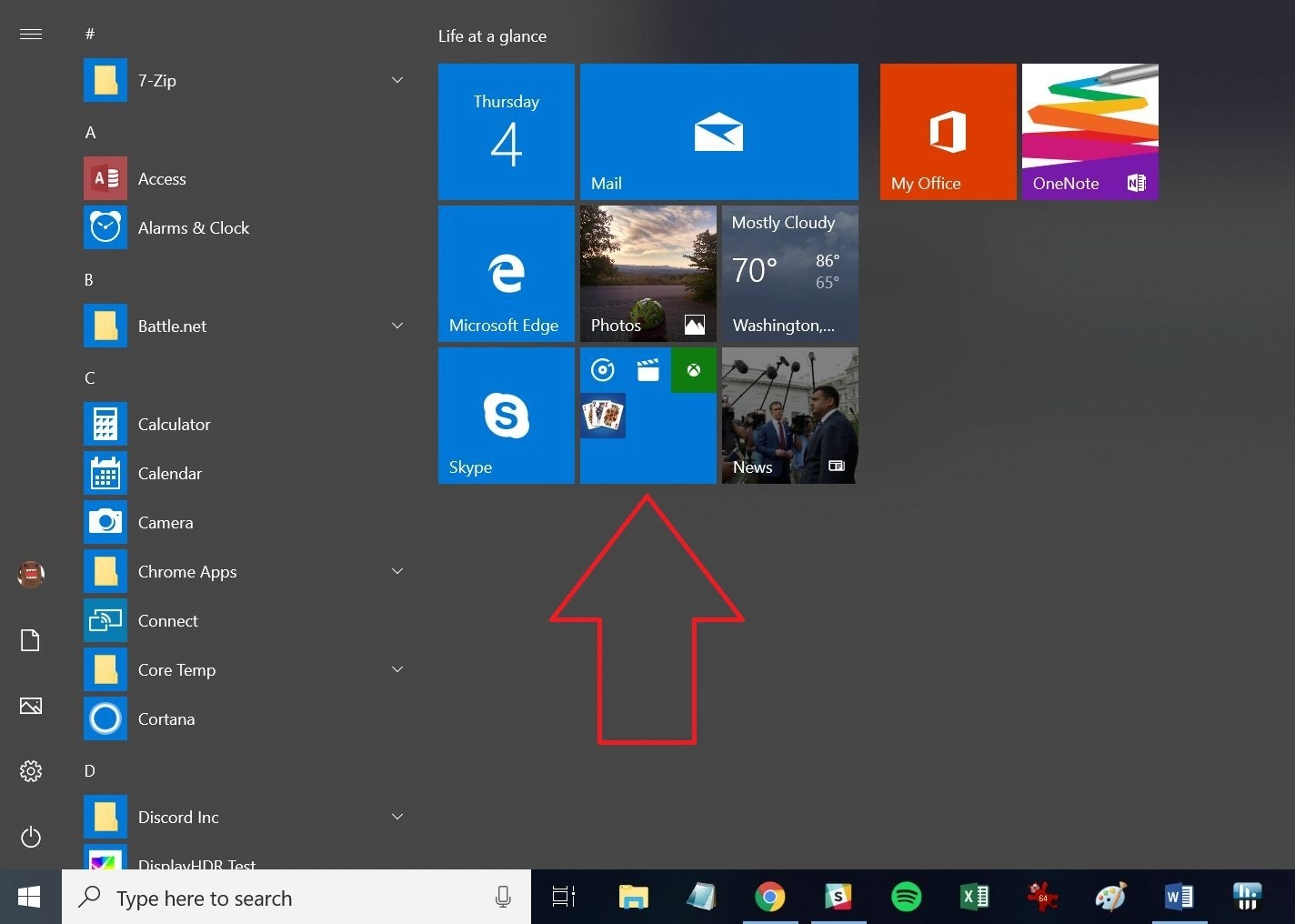
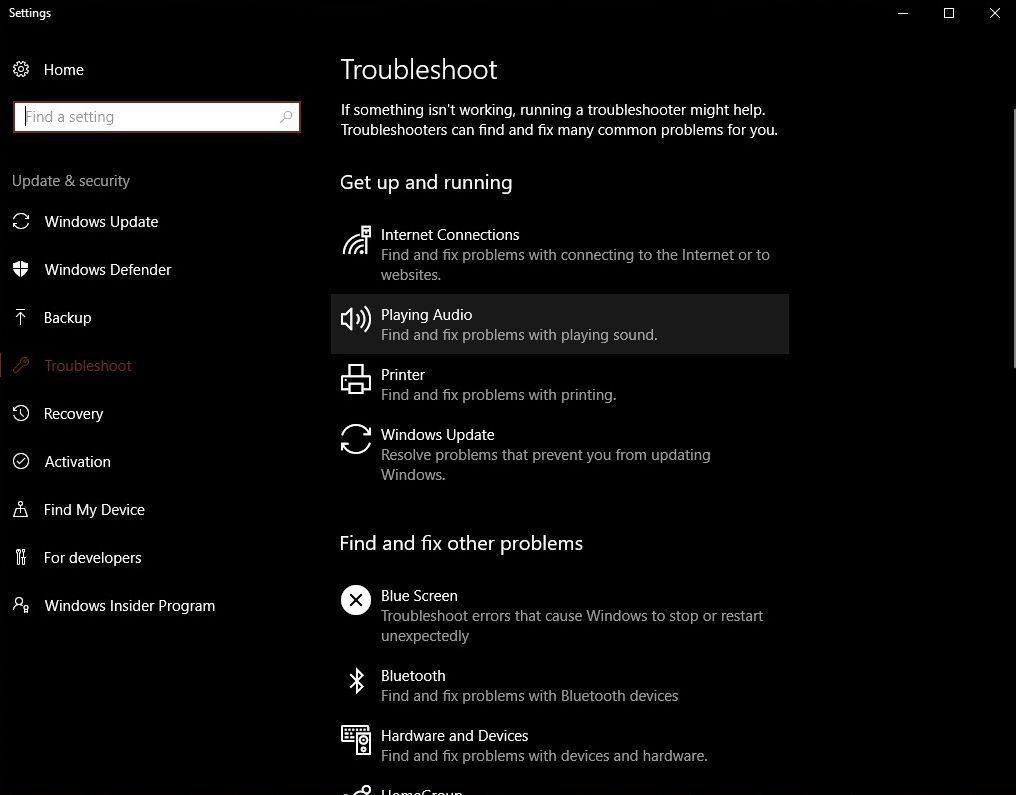
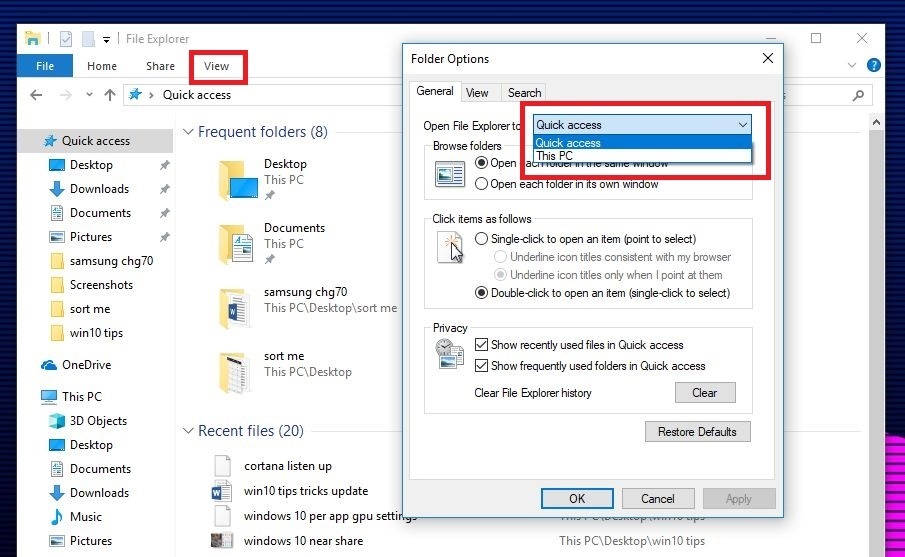
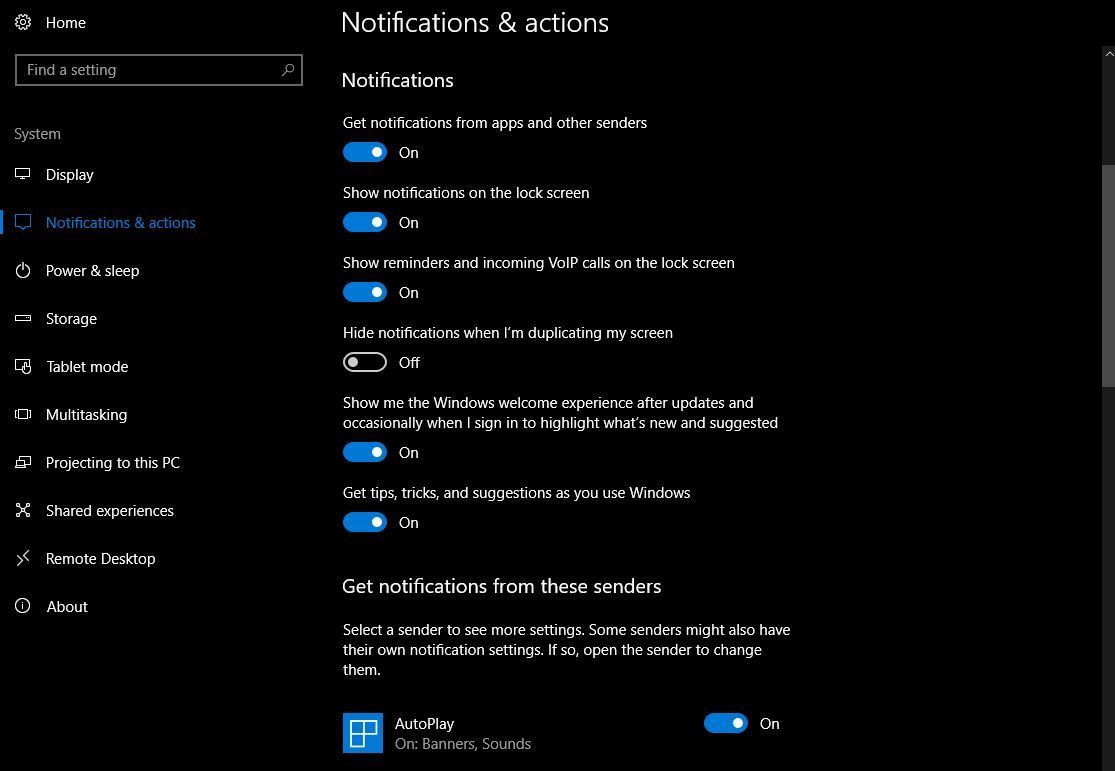
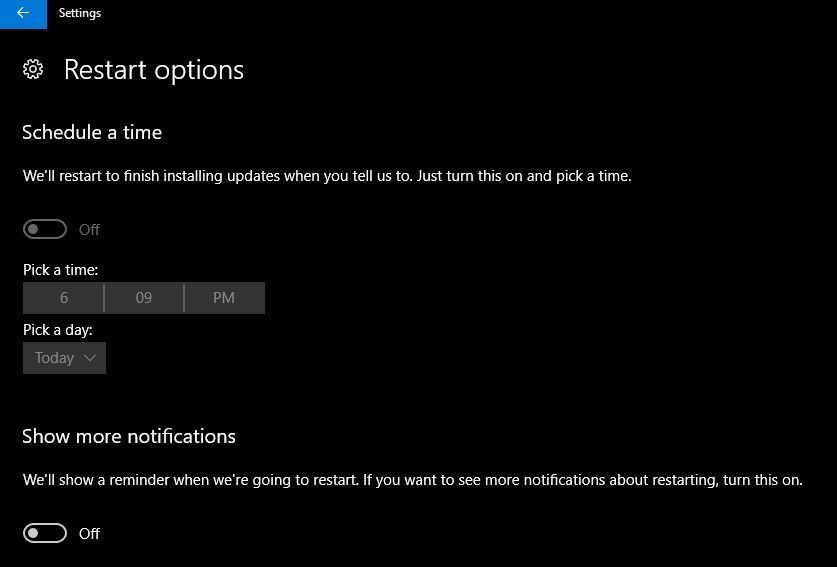
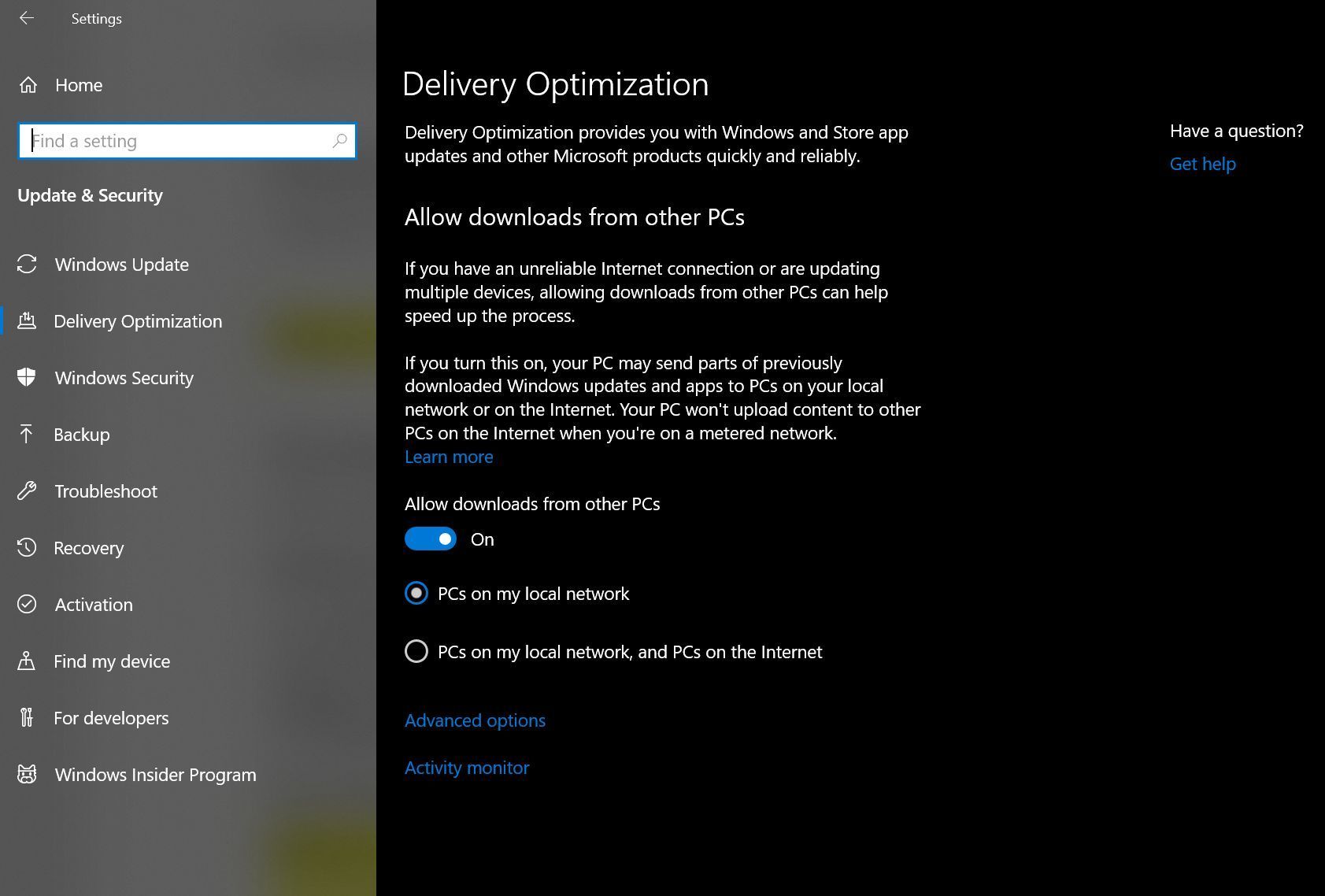

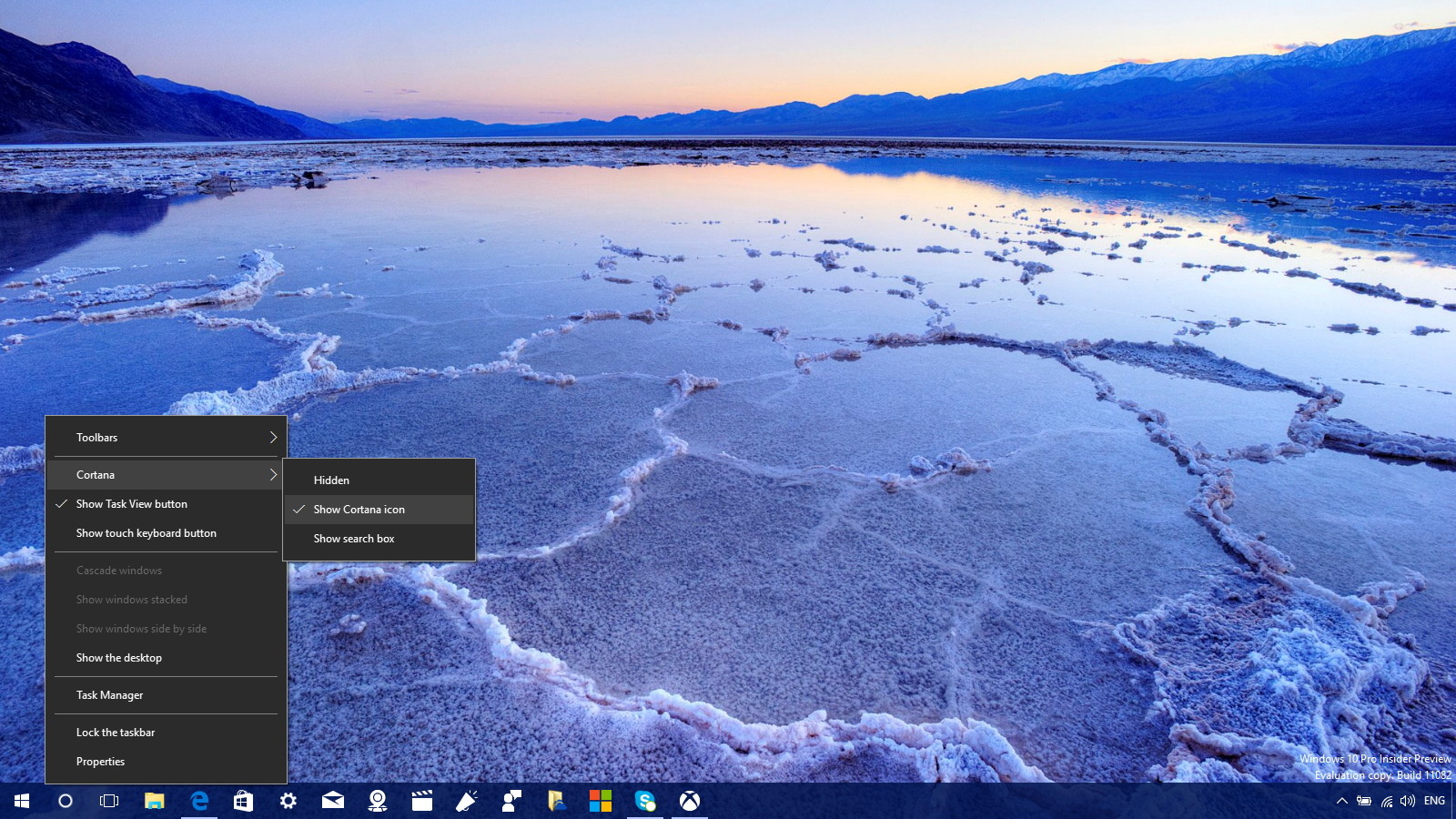







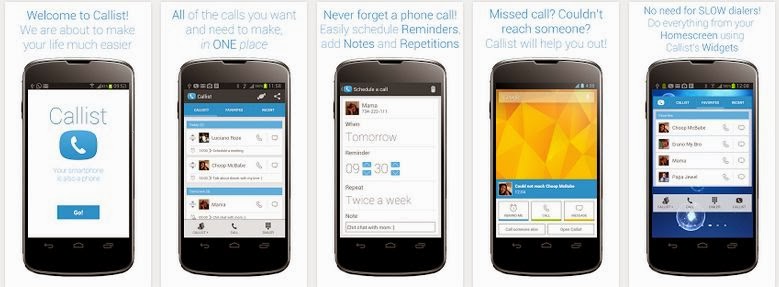
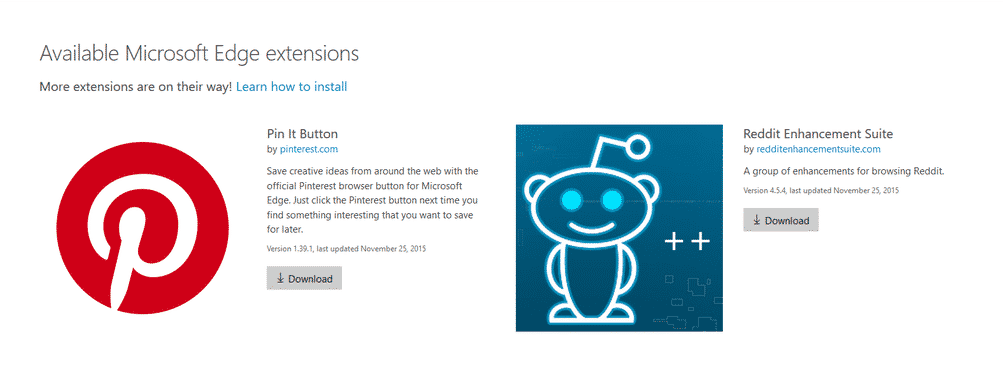
You must be logged in to post a comment.