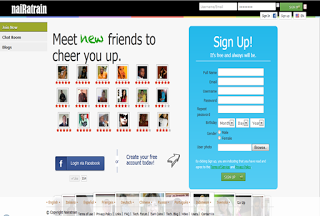
 Introduction: Just four days before Google started updating website page ranks, I launched my social network to mark my 19th birthday and to create an atmosphere for you guys to reach out to people even more easily.
What to expect:
The Nairatrain Social Network comes with a lot of amazing features that favors webmasters
& bloggers, programmers, internet marketers and the masses at large.
Some of these amazing and rare features will include but not limited to the following:
- An advance discussion board: This feature will be widely applauded for the atmosphere it creates for users. It is more or less a platform for users to share their views on the following related subjects.
Subjects Description Education/Carrier In these board, all educational, carrier and health matters will be discussed. Internet/Webmaster Discuss blogging tutorials, Internet tip, news and update, webmaster tools and seo tips in this board. Entertainment
Looking for someone/something to put a smile on your face? here is the board for you.
These are the few major boards, others may include Love/Romance/Tradition, Joke, Scam Alert, Politics etc.
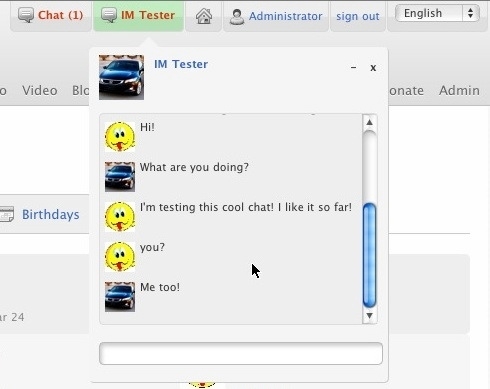
- Live Chat: We cannot talk about Nairatrain.com without throwing lights on it’s amazing live text and video chat feature just like the one you use on facebook.. Here is a preview of the chat web application.
- Pages: The issue of creating pages in social networks should not be over emphasized, however this is not just another custom page in a social network, Nairatrain.com gives you full access towards customizing your page to your test and provides you with nice tools for your page.
- Blog: The blogging feature of Nairatrain.com is an important feature that should not be over looked by blog owners and users who share interest in blogging.
- Media: Upload and share your favorite photos and videos, View and rate your friends photos.
- Friend Finder: Find your friend from high school, college, universities, place of work etc. either with their username, real name, phone numbers, location, date of birth or their interest on Nairatrain.com.
- Links: Share your favorite links on Nairatrain.com.
Your Privacy: Nairatrain respect your privacy as we have included in our privacy policy, however the concept of protecting your privacy totally depends on you, as Nairatrain.com has provided the necessary options to control who sees your profile info.