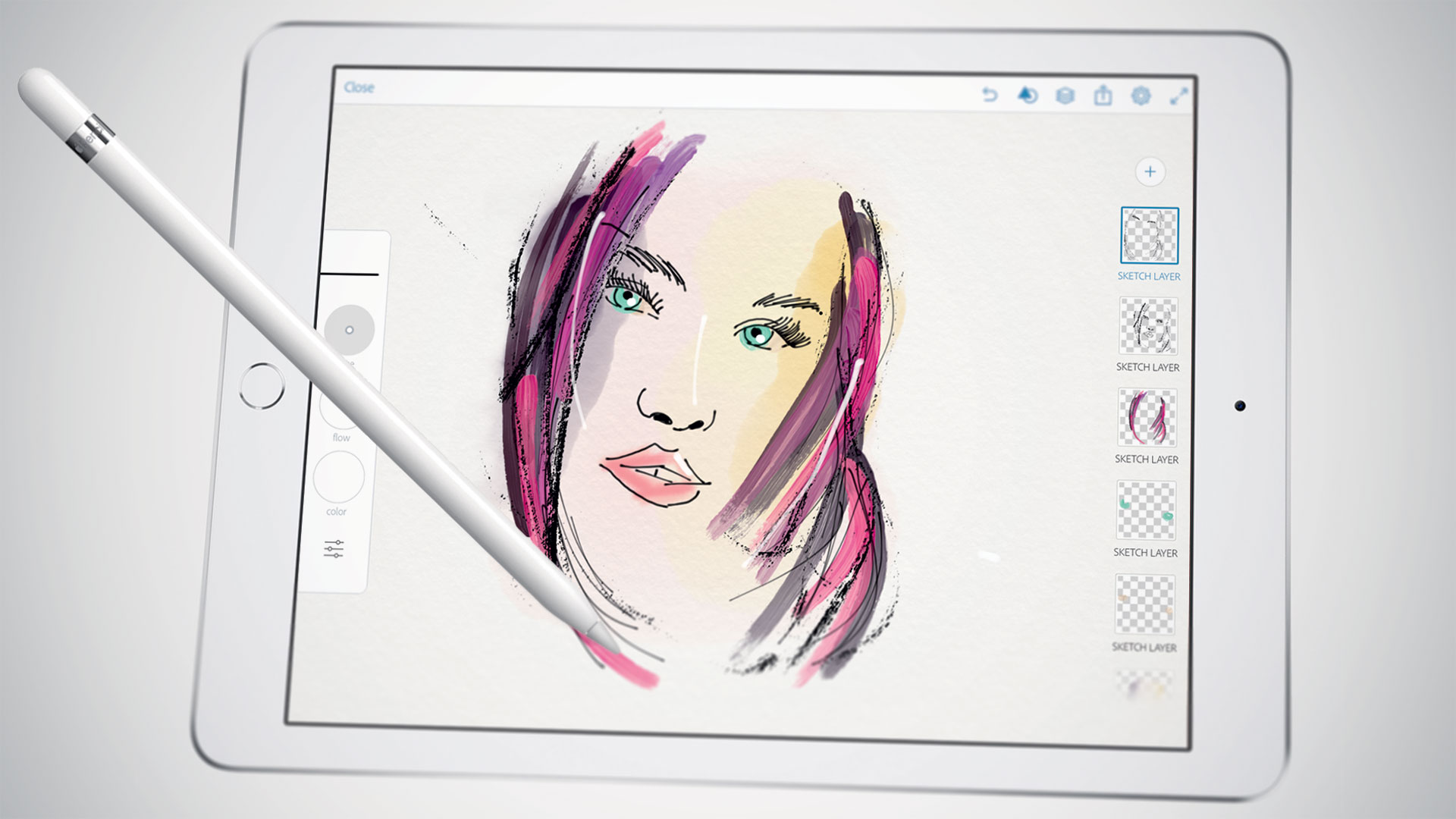
iPad is a great tool for sketching out ideas on the go, and Forge is a digital work space for visual thinking or is an app that makes sketching process a little easier by working less like a drawing app and more like a brainstorming tool.
Forge puts more of a concentration on brainstorming than drawing. You can save multiple drafts of drawings so you can iterate on ideas quickly and then see all those drawings on a big project board. That said, it still comes packed with a ton of adjustable brush sizes and color palettes. The app’s also free to check out, then $3.99 if you end up needing more projects.
Do you sometimes get afraid of your iPad device, or you feel like your iPad is in control of how you should use it? Here is a chance to take charge over your device by using the following steps.
these lesson is to teach the user of an iPAD few of the advanced features of the iPad, such as how to organize your iPad, how to launch apps without hunting for the app icon and skipping the keyboard altogether by using voice dictation. If you are still learning the basics, be sure to visit the iPad 101 class before taking on these tips.
iPad Control Center – Quick & Convenient Access to Common Settings on Your iPad
Center gives you quick, convenient access to several settings on your iPad. You’ll find controls for audio, wireless options, do not disturb (DND), rotation lock and brightness, as well as handy buttons for the timer, camera and AirDrop. You’ll also find AirPlay if you have AirPlay capable devices such as Apple TV. You can call up Control Center at any time, even when the iPad is locked.
You activate Control Center by swiping up from beneath the bottom of the screen. Place your finger below the display on the bezel or frame around the screen. Then flick up. The image above shows the entire Control Center. Let’s divide it into three sections, look more closely at each of those sections and address the controls you’re likely to use most often.
In the left section we see playback or transport controls to play and pause content, such as a song or video. Below that you’ll find the title of the item being played or the name of the app that’s generating the sound. This part of the control center gives you a quick way to pause playback or lower volume. This is especially handy when content is “mysteriously” playing and you’re confused about the source of the noise.
In the middle section we find three network (wireless) buttons as well as DND and screen rotation lock. These buttons are toggles. A tap turns each one on or off. When the button is white, the function is active. (Wi-Fi and Bluetooth show as active in the diagram above). Tap Airplane mode to disable all wireless connections: Wi-Fi, Bluetooth, cellular and GPS. You can use this option to comply with directions from flight attendants when aboard an aircraft. You can also use this feature to extend battery life, since each of these “radios” draw power. Just remember to turn Airplane mode off when your aircraft lands or when you need to be connected again. When Airplane mode is active, you’ll see a tiny airplane icon in the upper left corner in the status bar of your iPad.
The crescent moon is DND (Do Not Disturb). DND silences alerts, notifications, phone calls and FaceTime calls. This feature is useful when you’re in a meeting or public performance or if you keep your device on your bed stand at night. Once again, remember to deactivate DND when you no longer need it. When DND is active, you’ll see a tiny crescent moon icon in the upper right corner in the status bar of your iPad. Lock rotation prevents your iPad screen from switching between landscape and portrait modes. So when you want your iPad to keep the same screen orientation, activate lock rotation. AirDrop and Airplay require deeper explanations. I’ll deal with those in a later article.
On the top right right you see a slider to set screen brightness. This brightness control saves you a trip to Settings. Below you get instant access to two apps, the alarm/stopwatch/timer app and the camera app. When you need to set or measure a timed event, you can do it quickly right here. You’ll find a world clock under the timer app too. These are the same four tools found in the Clock app. The Camera button immediately activates the Camera app on your iPad. Need to snap a photo or capture a video in a hurry while your iPad or iPhone is locked? Do it from here. You may miss a great shot if you take time to swipe to unlock, enter your passcode and start the Camera app.
To put the Control Center away without making a selection, tap the handle or touch the screen anywhere but the Control Center.
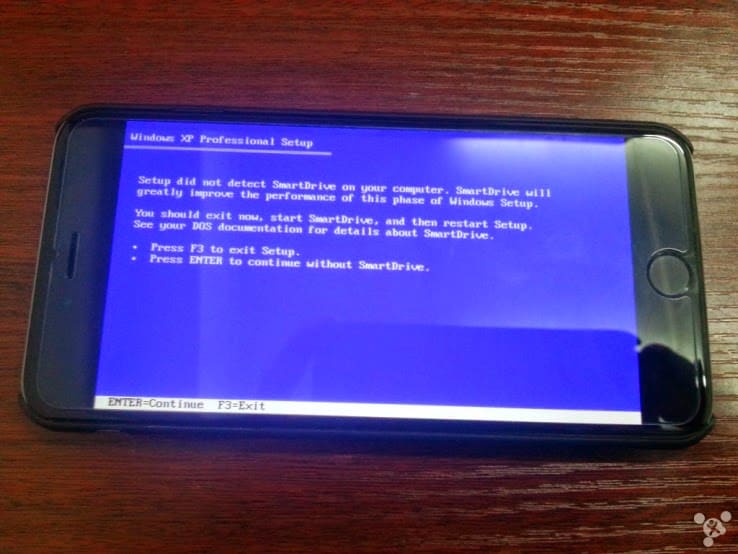
What did you do when you first got your iPhone 6 Plus device? Today in “putting stuff onto things on which they don’t belong,” a certain Chinese developer prefered to try out Windows 95 on his brand new iPhone 6 Plus.
He used a tool called iDos, an open source DOSBox-like app to install the OS. He found that most of it worked fine but he was unable to upgrade to Windows XP. And we can assume he was also able to play Doom.
There’s is very little new about this whole process – people have been putting emulators on things since the original VAX machines – but it’s cool to see resurrected software run so readily on new hardware. While I can’t imagine a real world use case for this (maybe you really need to run a copy of Mavis Beacon?) it’s a great theoretical exercise.
Here is the poorly translated FAQ:
1.Q: Can I install WINDOWS XP? A: The answer is yes you can, but certainly not by idos, because idos simply simulate the DOS environment is not the true sense of the virtual machine, so the system is more difficult to run the DOS and idos simulation environment and do not have XP running basic environmental needs, so later if transplanted XP system, then I will make use of their leisure time with friends ios platform to write a plug-in to run XP virtual machine system.
2.Q: Why are you doing this? Why not use Remote Desktop. A: First, to show that this kind of thing tall Remote Desktop is currently no support on win98 systems, not to use during system installation and tool methods have sent me here.
3.Q: Why is the process I installed the explorer process wrong? A: Because idos simulator only simulates the 16’s dos environment, although win98 16/32 hybrid system but Explorer and exe process large part needed is a 32-bit environment, so when they need 32 program calls some system environment variables and support libraries when an error occurs, LZ modify some of the resource is designed to allow him to run in idos environmental good, However, this modification will change the part of the machine, which has led some device errors when using LZ modify the good image. After LZ according to everyone’s feedback slowly improve!
There are full instructions on his post if you can read Chinese. If not, I leave the installation as an exercise for the reader.
Conventional wisdom suggests that the vast majority of mobile malware cases impact Android devices. Or at least that those who do not jailbreak their iPhones are safe most threats — even Apple CEO Tim Cook has bashed Android for “dominating” the mobile malware market. Yet a new virus found in China by US-based researchers could herald the first serious security threat to Apple devices.
A report from Palo Alto Networks (hat tip The Verge) claims that a new family of malware is getting past Apple’s settings to potentially infect secure (i.e. not jailbroken) iOS devices using infected software for Macs. Dubbed ‘WireLurker’, it was found in the wild in the Maiyadi App Store, a third-party Mac store in China, where it is said to have infected 467 apps. Infected versions of these programs have been downloaded more than 350,000 times and are likely to have affected “hundreds of thousands” of users, according to Palo Alto Networks. Apple tells us that it has blocked infected apps from working — the company’s full statement is at the bottom of this post.
The malware works by repacking legitimate Mac applications. Once downloaded to a Mac, that software will then install malicious and third-party applications on any iOS device that is connected to the infected machine using a USB cable. What’s most interesting — or, indeed, worrying for Apple customers — is that once on an iOS device, WireLurker reportedly uses a range of sophisticated techniques to modify existing apps for malicious purposes.
While the aim of its creators is not clear yet, Palo Alto Networks reports, WireLurker has been found to steal “a variety of information” from inside rewritten apps. Since it surfaced in China, it is targeting Alibaba’s hugely popular Taobao shopping and AliPay payment apps — where a phone owner’s credit card and bank details are retained — but the security firm says the way it operates could usher in a “new era” of malware for Apple devices.
In particular, Palo Alto Networks says it is “the first in-the-wild malware to install third-party applications on non-jailbroken iOS devices through enterprise provisioning.”
The security firm recommends its own product to help prevent WireLurker, but — as ever — the best pieces of advice are to avoid downloading apps from third-party sources, and use officially approved USB cables. The former is more difficult in China, where third-party app store are well established and hugely popular — though that’s more the case for Android than Mac or iOS.
The full report from Palo Alto Networks has additional advice for Apple customers in the enterprise space, who could be most at risk given WireLurker’s characteristics.
Apple says it has taken action against the infected apps in China:
We are aware of malicious software available from a download site aimed at users in China, and we’ve blocked the identified apps to prevent them from launching. As always, we recommend that users download and install software from trusted sources.
Roughly 1000 transactions were made with Apple. Some Bank of America customers have been double-charged for purchases made with Apple Pay, the payment system Apple launched on Monday.
Roughly 1,000 transactions made with Apple Pay were logged twice in customer accounts, said Tara Burke, a spokeswoman with Bank of America, which is one of the largest U.S. banks and was an Apple Pay launch partner.
“We apologize for the inconvenience and are correcting the problem,” said Burke.
The duplicate transactions should be removed by the end of Wednesday.
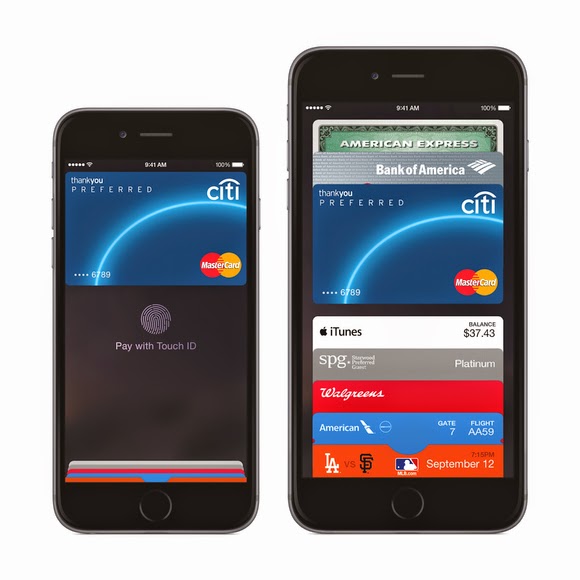
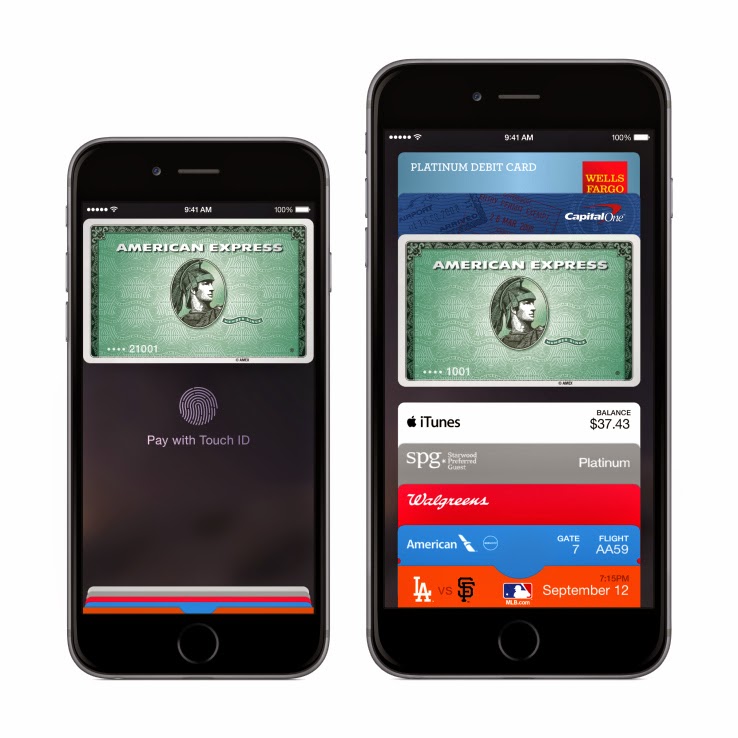
Apple Pay utilizes a secure chip inside Apple’s new iPhone 6 that enables the phone to emulate an NFC (near field communications) payment card. When the Apple Pay app is loaded with a customer’s credit or debit card, payments can be made at NFC terminals by bringing the phone close to the terminal.
Roughly 1000 Transactions. The system is being positioned as easier and more secure than current payment cards because the card number is not passed to the retailer’s terminal. Instead, a substitute number called a token is offered to the merchant, which sends it on to the card issuer for approval.
The token can only be used once, so if it’s stolen it should prove useless to cyberattackers. It’s tied to the actual card number deeper in the financial services network, further away from the retailer terminals that have been the target of so much hacking recently.
Apple Pay is compatible with existing NFC payment terminals, which can be found in around 200,000 shops and taxis across the U.S.
Apple Pay is now available for anyone to use, provided they’ve got all the prerequisites, both for physical stores and for online transactions.
But you can’t just walk up to your local brick-and-mortar store and wave your iPhone and walk out with whatever you want – that would be theft. Instead, you’ll need the following to be in place to have a happy Apple Pay experience.
Hardware: iPhone 6 or 6 Plus for retail; iPad Air 2 or mini 3, or iPhone 6 or 6 Plus for in-app transactions
Touch ID set up on your device with at least one stored fingerprint
A credit or debit card from one of Apple’s launch payment partners
An iCloud account
After you’ve got all that in place, you can opt to either use the cards you’ve already got on file in iTunes to pay, or add a new one. Adding a new one is as easy as snapping a pic of your plastic, and then manually entering the security code around back. You can also manually enter all the information, if you’d rather not use the camera. If the card is compatible, it will verify and make it available for purchases. If it isn’t, call your bank and ask them to get with the program.
If you’re using a card already on file, you’ll just need to enter the security code found on the back to authorize its use, and then agree to the Apple Pay terms of service. Once that’s complete, you’re ready to roll.
Apple Pay in stores should be available at participating launch retailers, which include Aéropostale, American Eagle Outfitters, Babies”R”Us, BJ’s Wholesale Club, Bloomingdale’s, Champs Sports, Chevron and Texaco retail stores including ExtraMile, Disney Store, Duane Reade, Footaction, Foot Locker, House of Hoops by Foot Locker, Kids Foot Locker, Lady Foot Locker, Macy’s, McDonald’s, Nike, Office Depot, Panera Bread, Petco, RadioShack, RUN by Foot Locker, SIX:02, Sports Authority, SUBWAY, Toys”R”Us, Unleashed by Petco, Walgreens, Wegmans and Whole Foods Market.
Online, apps are already rolling out that also support Apple Pay, so check your updates column, or stay tuned to the “Featured” page, where Apple will be surfacing many of them. You can authenticate the purchases using your fingerprint, so long as you’ve registered it with Touch ID, or using your passcode if that doesn’t work for some reason. Apple Pay is secure thanks to the system it uses to store and transmit payment information, which doesn’t actually share any credit card details over NFC with the merchant, and it works with your existing cards, including rewards programs, etc.
We’ll have a first-hand account of how Apple Pay works in the real world shortly, but early reports from Twitter seem to indicate things are working smoothly with the newly launched
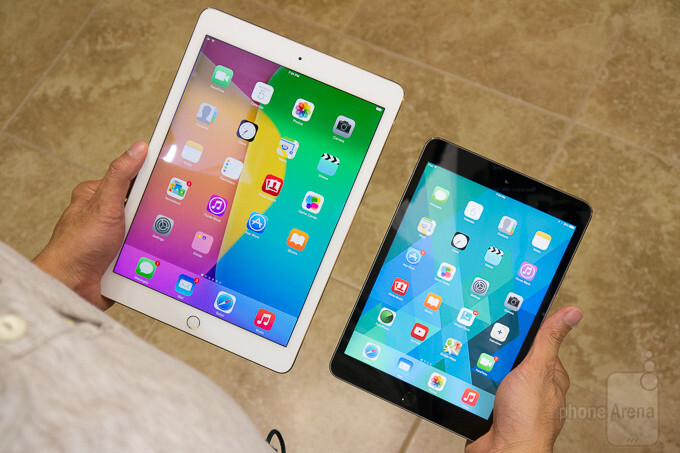
Apple revealed new iPad models on Thursday, and they all go on sale starting today via Apple’s online store. Today is just the beginning of pre-sales, with iPads officially shipping to pre-order customers and arriving in stores sometime “late next week,” according to Apple.
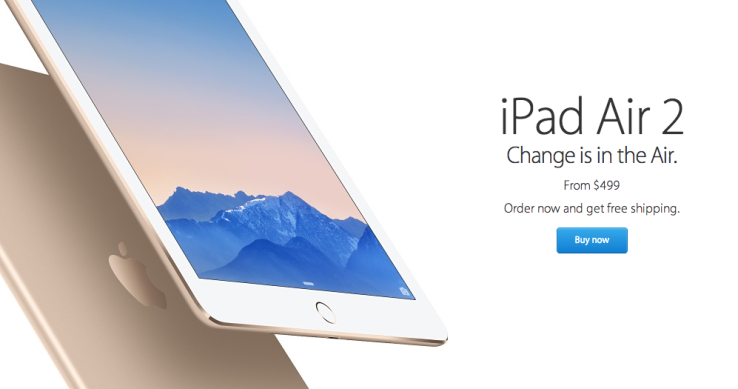
Pricing for the new iPad mini, which is essentially the same as the existing model with Touch ID added and a new gold color option, starts at $399, while the iPad Air 2, with its full external and internal overhaul, begins at $499. Configuration options include 16, 64 and 128GB options, with both Wi-Fi only and LTE-capable models of each.
Delivery time for the new iPads is listed as October 23, which partly helps explain why the date wasn’t set in stone on stage. Apple seems to want to get these out the door as soon as possible, instead of staging a defined, singular street date, so they could be shipping them in batches as soon as they come off the line.
Our own initial impressions of the new iPads found that the iPad Air 2 is a marked upgrade even from last year’s version, but as for the iPad mini 3, unless you have a burning desire for Touch ID or you’re upgrading from a first-gen Mini, it might be worth holding off on a purchase.
The best way to start a new week is starting with fun. Not to worry, we do not intend to scare you with Android horror games—but it’s okay if horror is fun to you—what we are interested in are three most relaxing games you must rock this week on your Android or iOS devices.
If you happen to find your favourite game in this list, you are in luck. If not, it’s time to try other games and see what you have been missing. The games in our list here today is available for both iOS and Android devices and adaptable to any screen size.
When London-based Tribesports — a social network for people doing rather than watching various sports — rebooted its business model last year, kickstarting what it calls the world’s first “community-powered” sportswear brand, you’d be forgiven for thinking the young company had become less tech and more clothes-maker.
But, actually, Tribesports very much still sees itself as a creator of social web and mobile applications, which underpin its 200,000+ user base, and in turn enable those users to become co-creators and co-marketers of its new sportswear range. It’s a model that, perhaps, defies conventional corporate thinking whereby “we need an app” is often little more than a marketing afterthought.
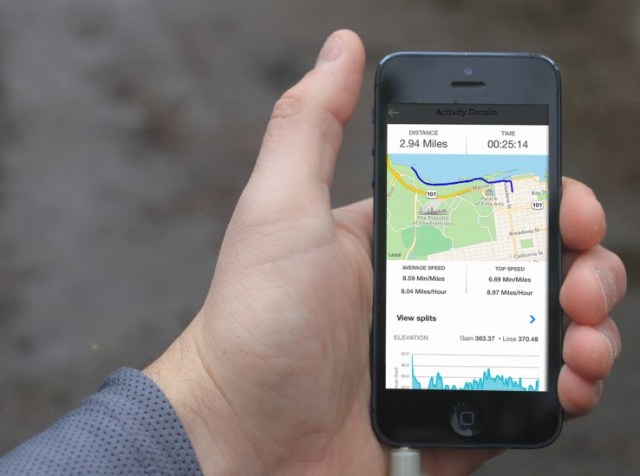
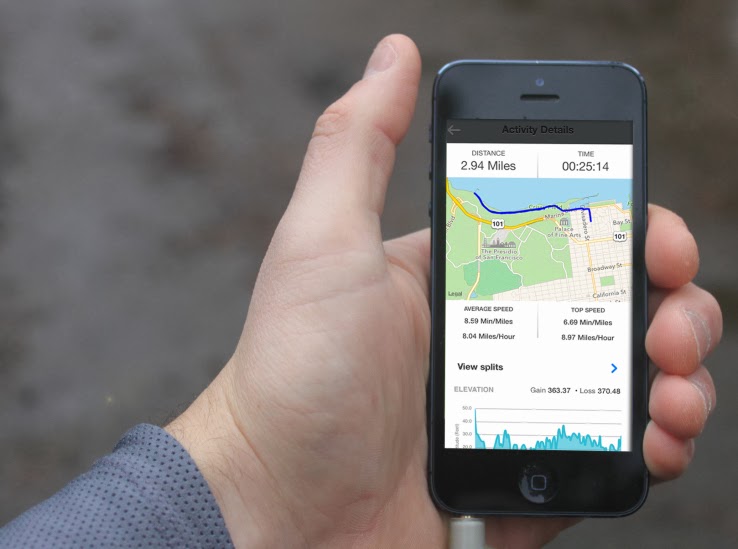
Today Tribesports is launching a new iOS app dedicated to training. The app, which is completely free, shunning paid-for add-ons or other premium pricing, lets you track, analyse and review your training, and, unlike something like Runkeeper, has been designed to work across multiple sports — something the company thinks reflects how many of its users actually train.
Naturally, the app ties into the existing Tribesports community, allowing you to follow the training sessions/workouts of other users, as well as browse thousands of community uploaded workouts or share you own.
In some ways, the Tribesports Training app offers a subset of features found in the main Tribesports app but redesigned to focus on mobile training, including, of course, a heavy use of GPS. It’s also no doubt designed to appeal to users who may not want to join and participate in a dedicated sports social network.
The GPS tracking features enable you to track and analyse your running, cycling, walking and more, underpinned by weekly, monthly and all-time-best graphs. You can also take in-app photos, which are then uploaded as part of logging your training session. All in all, over 900 different sports and exercises are available to log in workouts and training sessions out of the box, and there’s the option to customise your own and share these templates.
Of course, if Tribesports can get a greater number of people engaging with its technology wares, it can also introduce those same users to its own big brand-busting sportswear.
The ‘wonder’ Apple technology has ensured that it’s thief will not go uncaught. Last week saw the house of Mr. Tunde Makhinde, a Lagos based Nigerian visited by some robbers who took his iPad among other things. Little did they know that the iPad will eventually turn out to be the nail to their coffin: The tech whiz had activated the tracking device on his iPad, and within a matter of days, had gone with law enforcement agents to catch the thieves red handed.
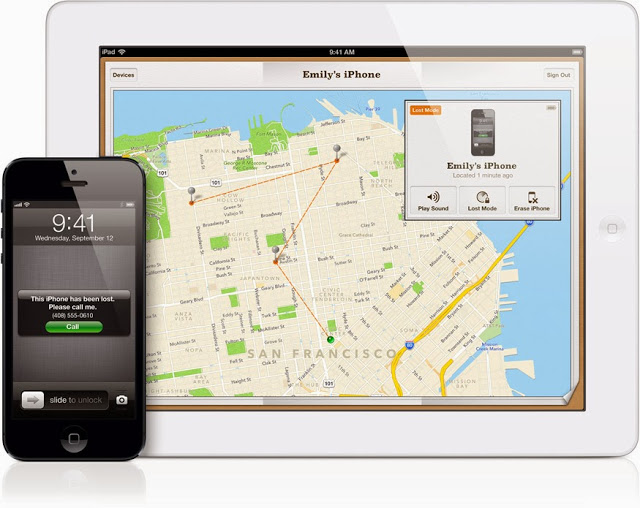
Recently, an amazing app, Find my iphone, was used to track down a stolen iPad and the man who allegedly took it from underneath a family’s Christmas tree in the US. The victim on the ‘Find my iPhone’ app that sends out a signal to the device.Using his computer, the victim was then able to locate the iPad on a map, and alerted police to its whereabouts – just a few houses away.
Even the burglar who broke into Steve Jobs’ house was caught last year two weeks after the crime thanks to the technology in one of the late Apple founder’s own inventions. He might never have been caught if he hadn’t logged onto iTunes on one of Jobs’ personal iPads. Investigators say they were tipped off about the perpetrator when one of the stolen devices connected to Apple servers.
What if…?
‘But I am no tech whiz!” you might say. That doesn’t matter. How smart would smart technology be if it can’t holler at its owner when it gets stolen? There are simple ways to be two steps ahead of the thief. The ‘Find My iPhone’ application can be used if an Apple device is stolen or misplaced. It does not come installed but can be downloaded for free.
The user then signs in with their unique Apple ID.a device goes missing, the owner can activate the app on a computer. Signals ‘ping’ the device and its whereabouts can be seen on a map online.can then choose to display a message on its screen, play a sound for two minutes at full volume, lock the device or erase all of its data.can be used on iPhones, iPads, Apple computers and iPods.
iOS 7 includes a new feature called Activation Lock, which makes it more difficult for anyone to use or sell your iPhone, iPad, or iPod touch once it’s gone missing or has been stolen. And it starts working the moment you turn on Find My iPhone in iOS 7. Turning off Find My iPhone or erasing your device requires your Apple ID and password. And your Apple ID and password are required before anyone can reactivate it.
But what happens if you find your device on a location you can’t reach? Go for second best-initiate a remote wipe to delete your personal data and restore your iPhone, iPad, iPod touch, or Mac to its factory settings. With iOS 7, Find My iPhone can continue to display your custom message, even after your device has been erased. And if you do retrieve your device, you can restore it from your iCloud backup. iCloud is not just for backup, it can help you find your apple device on the map. If one of your Apple devices goes missing, iCloud can help you figure out where it is. Just sign in at iCloud.com or use the Find My iPhone app to see your missing iPhone, iPad, iPod touch, or Mac on a map.
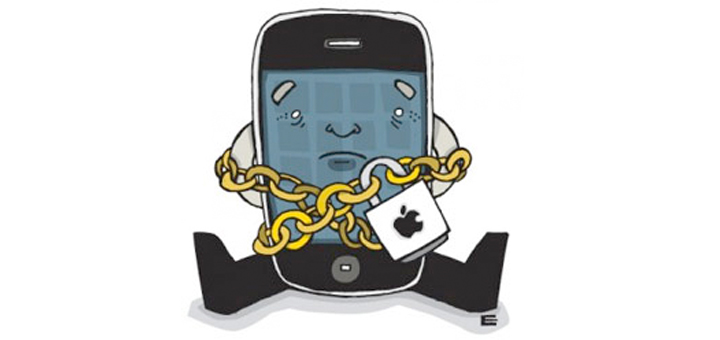
Before we proceed to this topic proper, I will like to explain what jailbreaking your device means.Naturally, Apple’s rules for AppStore are way too limiting. Some apps are not allowed to be listed in the AppStore since they break one or more of Apple’s rules. These rules keep control of the device platform in Apple’s control. Some of these rules include: patching system files such as SpringBoard, allowing apps to run in the background, running apps out of the “sandbox”, and simply doing things Apple decided that they don’t want you to do often for reasons to their benefit, not yours (such as tethering).
Jailbreaking is not unlocking! It is risk free and totally legal. Everything that works before jailbreaking continues to work after. Jailbreaking only adds features. Jailbreaking is risk free and cannot void your warranty. You can simply restore in iTunes at anytime to get back to a factory state. You are not alone, many people are doing it.
If you ever consider jailbreaking your Apple’s iPad, iPhone or iPod Touch then Sprint should be your prominent choice. It offer the most easiest and quickest jailbreak ever as Sprint takes the process to a whole new level compare to what other software like JailbreakMe has to offered. After you follow the step below to jailbreak your iDevice you will have the ability to install unapproved, third-party applications which are unavailable in the Apple’s iTunes App Store.
What You Need to Know about Spirit Before Jailbreak
Spirit is an untethered jailbreak for iPad, iPhone, and iPod Touch on firmware 3.1.2, 3.1.3, and 3.2. Your iPhone, iPod Touch, or iPad must be activated. Your device must not be stuck on the Connect to iTunes logo or emergency call screen. It will work on any version of iTunes 9 (including 9.1.1). Spirit will not unlock your iPhone. If you are currently using a tethered jailbreak, you have to restore in order to use Spirit. Do not upgrade if you unlocked your iPhone 3G or 3GS (if you have the SHSH blobs for 3.1.2, you can restore to it). While Spirit is stable for all devices, your iPad may act a little funny due to packages that have not been updated for it yet.
Connect your iPad / iPhone / iPod Touch to your PC using USB cable.
Back up your iDevice to your iTunes library, and sync it. (make sure that your iTunes revision is at least version 9)
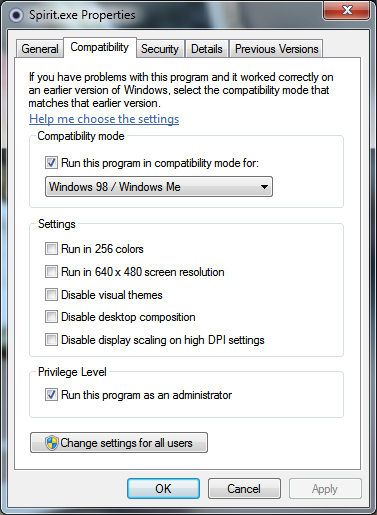
If you are using Windows 7, Right Click on Spirit.exe and Select Compatibility mode to “Windows 98/ME”.
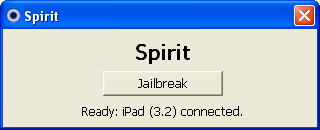
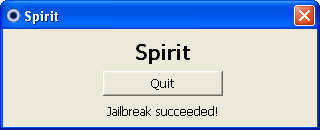
Now double click the Spirit.exe and click on “Jailbreak”.
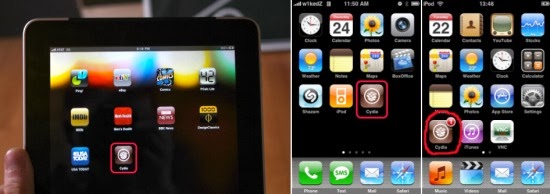
In a few seconds your iDevice will reboot and you will be presented with jailbroken “Cydia” icon on your springboard, See Screenshot below. From here, you have access to all the unapproved, third-party applications.
Congrats, you have just jailbroke your iPad / iPhone / iPod Touch using Spirit.
Error and Troubleshooting
Windows Vista or Windows 7 users may get the error code c0000005 while performing the action. To avoid this error, you have to run Spirit.exe in compatibility mode. Follow the step as below:
Right click on Spirit.exe and select Properties
Select the compatibility tab
Check the “Run this program in compatibility mode for” box and select Windows 98 / Windows ME
Note: Spirit is not a “carrier unlock” which allows the iPhone to be used with carriers other than AT&T. It is a jailbreak only. Source: iPhone Download Blog
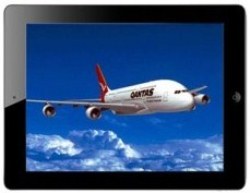
Australian airline Qantas has announced that it will be giving its pilots iPads for use during flights. Qantas has teamed up with mobile provider Telstra to bring more than 2200 64GB iPads to the cockpit to enable pilots to access operational information digitally, replacing paper charts, flight plans, manuals and forms for good, reports GeekZone. Currently, Qantas prints around 18,000 pages a day, a figure that will be reduced to just 3000 pages with the introduction of iPads. Plus, the weight of the paper on board will drop by 44 pounds (20 kilograms). Each of the iPads will have two apps that have been developed specifically for use by pilots. One app is for flight charts and the other is developed by Qantas itself for other flight information. “The revolutionary capabilities of iPad technology, combined with the powerful customized apps, give our pilots the ability to replace cumbersome hard copies — saving time, resources and costs,” said Qantas Technical Pilot, Captain Alex Passerini. Several other airlines have also been scrapping paper for iPads over the past couple of years, including Alaska Air. It’s not just pilots that are getting their hands on iPads, U.K. officials are also being given iPads as desktop PC and laptop replacements in order to reduce printing costs. Scientists are also getting equipped with Apple’s tablet. Qantas already provides iPads for passengers on board certain of its flights, as do several other airlines.
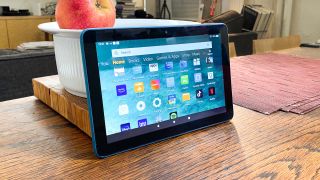
Android Tablets Beating Out iPad in Business: Apple’s iPad may still be considered the king of tablets in many quarters, but new research data casts a shadow of doubt over how long that will continue. that will continue.
In fact, a full 44 percent of first-time tablet buyers in business and IT plan to purchase an Android Tablets in the upcoming 12 months, compared with just 27 percent planning to go with an iPad, according to a new study from IDG Connect (IDG Connect is part of IDG, which owns PCWorld.com). “The rise in tablet usage and increasing prevalence of BYOD is set to have a fundamental impact on IT and business over the next few years,” said Kathryn Cave, editor at IDG Connect, in a press release announcing the results. “These findings signify changes in work mobile consumption and market leadership in the tablet arena.” Only Three Percent Opt for Windows 8 To conduct its research, IDG Connect recently surveyed 3,124 IT and business professionals around the globe. Seventy-one percent of respondents said they already own a tablet, and 51 percent of those reported having an iPad, IDG Connect reported.
Android Tablets Beating Out iPad in Business
For future purchases, though, Android was clearly the preferred choice, with 44 percent of respondents saying they’d choose a device that uses the Linux-based operating system. Only three percent of respondents said they’d opt for Windows 8, and 21 percent said they weren’t sure. Global Variations The research results are even more interesting when broken down geographically. In Africa, 44 percent indicated they’d choose an Android tablet, compared with only 21 percent planning to buy an iPad. Similarly, in Europe, 23 %of new buyers said they plan to buy an iPad, compared with a full 49 percent who have set their sights on an Android tablet. North America and Australia/New Zealand, interestingly, showed the lowest preference for Android tablets, only 30 percent of North American buyers and 35 percent of those in Australia/New Zealand choosing them over iPads.







 For future purchases, though, Android was clearly the preferred choice, with 44 percent of respondents saying they’d choose a device that uses the Linux-based operating system. Only three percent of respondents said they’d opt for Windows 8, and 21 percent said they weren’t sure. Global Variations The research results are even more interesting when broken down geographically. In Africa, 44 percent indicated they’d choose an Android tablet, compared with only 21 percent planning to buy an iPad. Similarly, in Europe, 23 %of new buyers said they plan to buy an iPad, compared with a full 49 percent who have set their sights on an Android tablet. North America and Australia/New Zealand, interestingly, showed the lowest preference for Android tablets, only 30 percent of North American buyers and 35 percent of those in Australia/New Zealand choosing them over iPads.
You must be logged in to post a comment.