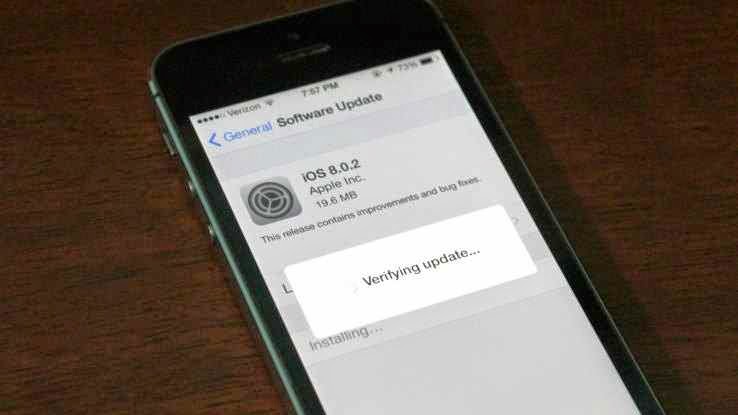
Apple has moved quickly to release iOS 8.0.2, the update that fixes iOS 8.0.1’s problem of zapping cellular reception on iPhone 6 and 6 Plus devices. It also includes all the fixes listed in iOS 8.0.1 originally, including a fix for the HealthKit bug that held up release of compatible Health apps in iOS 8.
It also addresses a problem whereby third-party keyboards wouldn’t stick when activated in apps, meaning it would default back to Apple’s stock keyboard. Apple released the following statement alongside the update:
iOS 8.0.2 is now available for users, it fixes an issue that affected iPhone 6 and iPhone 6 Plus users who downloaded iOS 8.0.1, and includes improvements and bug fixes originally in iOS 8.0.1. We apologize for inconveniencing the iPhone 6 and iPhone 6 Plus users who were impacted by the bug in iOS 8.0.1.
Apple says that less than 40,000 iPhone and iPhone 6 Plus devices were affected by the bad release, which was up for just over an hour until the company pulled it to investigate.
To get the update, simply plug your phone in and check for updates in iTunes or navigate to Settings>General and tap Software Update.
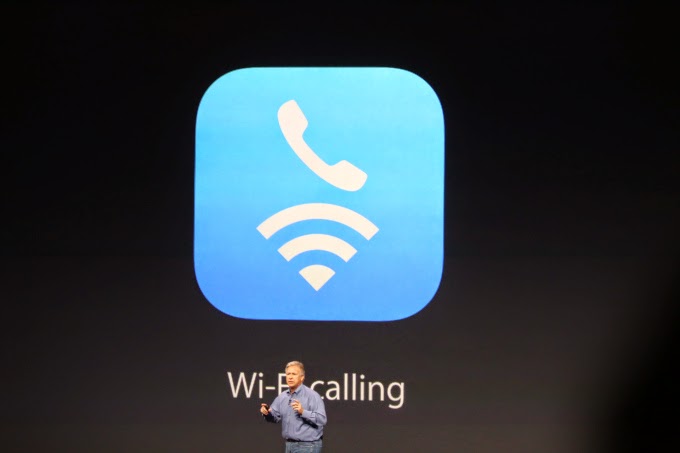
The iPhone 6 supports WiFi calling. But does your carrier support it?
If you’re in the U.S., the answer to that is probably “not yet”.
(For the unfamiliar, WiFi Calling essentially turns any WiFi router you’ve got access to into a private extension of your carrier’s cell network. As long as you’re on WiFi, you’ll be able to make standard voice calls and send texts regardless of whether or not your carrier’s signal is up to snuff in that spot.)
For now, the only U.S. carrier that can officially say they’ll support iOS 8’s new Voice Over WiFi functionality is T-Mobile — hence their big event about it just one day after Apple’s announcement.
But fear not, AT&T customers! You’ll be getting in on the WiFi fun too… eventually.
Speaking at an event in New York this afternoon, AT&T CEO Ralph de la Vega mentioned it almost in passing: AT&T will support Voice over WiFi sometime in 2015.
So, why the hold up? The short version: for WiFi calling to work properly, your carrier’s network also needs to support Voice Over LTE (VoLTE). This is what allows for a seamless handoff — that is, it’s what allows you to start a call on your WiFi network, leave your house, and seamlessly continue the call on the cellular network without having to redial.
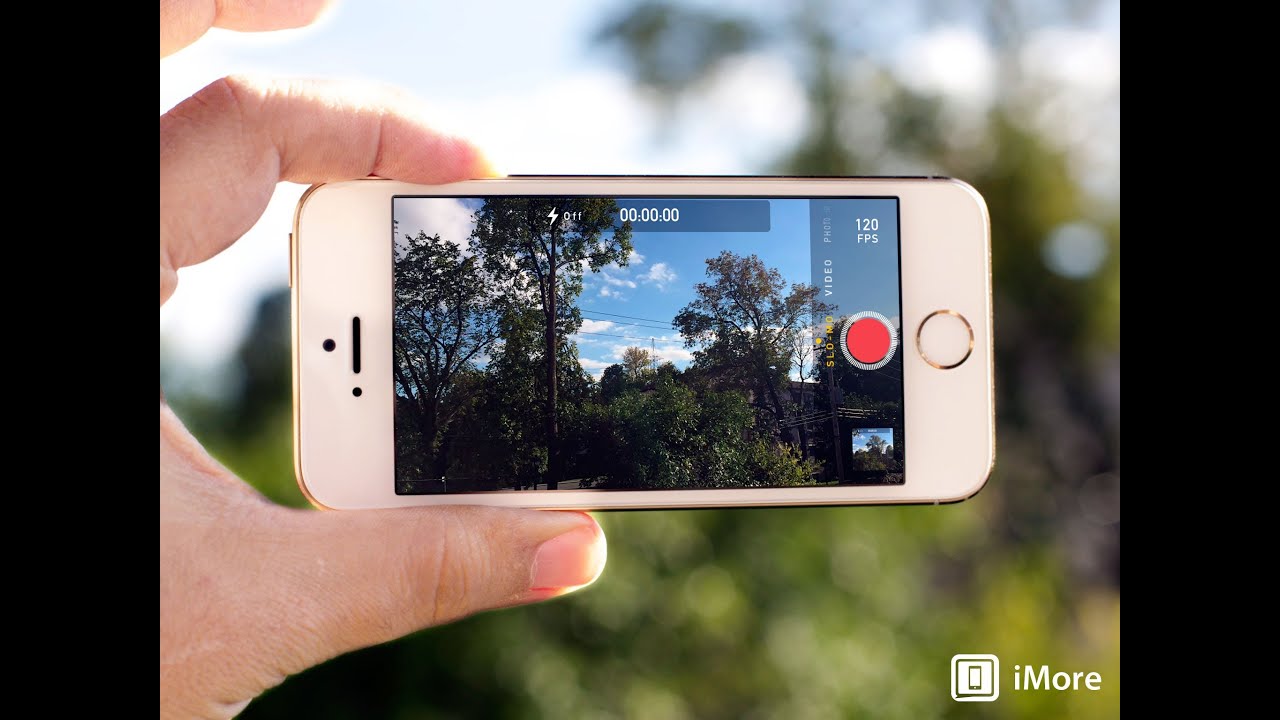
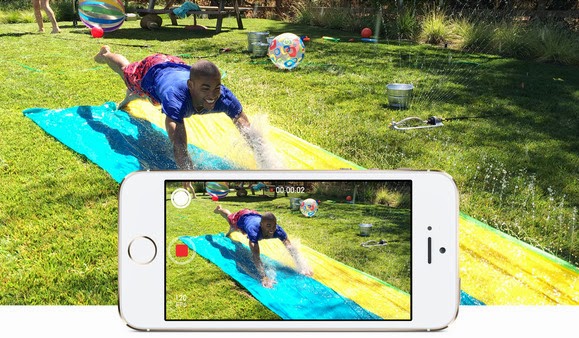
If you haven’t yet played around with Apple’s slo-mo feature on the iPhone 5s, now’s a perfect time to start. This week’s video tip has Macworld associate editor Serenity Caldwell demonstrating how to shoot slo-mo video, preview it on your own device, and share it with others.
Transcript: One of the great features of the iPhone 5s is its slow motion video mode. To use this mode, just swipe over while in the Camera app to the Slo-Mo setting.
To begin shooting a slow-motion video, make sure you’ve got your target focused, then press the record button. Your video will begin recording in what looks like real time, but don’t be fooled: there’s some slow-motion magic yet to come.
If you just want to view your masterpiece yourself, you can open up the Camera Roll. There, two new blue edit handles will drop down, allowing you to phase in and out of slow motion. But if you’d actually like to send those videos to anyone, you have to move over to iMovie, Apple’s free software for editing and sharing home movies.
iMovie automatically lists all the videos from your Camera Roll that you’ve taken. To create a project from one of them, just select the clip in question, then press the Share button, followed by Create Movie. From there, you’ll enter the Edit screen.
Unlike the Camera Roll, you can’t automatically phase in and phase out slow motion. We actually have to make some cuts first to do that. Scroll through your clip and decide where you’d like the slow motion to start.
Tap the clip, and then swipe down on it to create a cut. Once you’ve made your cut, double-tap on the clip to the right and select the Speed option. This allows you to slow down that new clip to 1/4 its original speed.
Now you’ve slowed down the middle of your future video, but you still need to create an end clip to take you out of the slow motion. When you’ve decided where your ending spot should be, select the clip and swipe downward to make a second cut. The clip to the right keeps the same speed as the clip it’s been separated from; as such, we still have a slowed clip where we’ve made our cut, and we need to speed it back up again before we can finish our movie. Once you’re happy with how your slow-motion video has come together, tap the arrow in the upper left corner of the screen. That brings you back to the Projects area, where you can tap the Share button and then tap Save Video to send your masterpiece back to the Camera Roll.
When your slow motion movie finishes exporting, you can send it to friends via Messages, email, Instagram, Facebook, and more.
This video and it’s description is the property of IDG Consumer & SMB and was originally published on TechHive.
Your iPhone is remarkable in many ways, but its camera will simply never capture photos with a deliciously shallow depth of field like your DSLR. And unless Apple finds a way to cram a much, much larger sensor into the phone, that will always be the case. You can simulate that luxuriant, shallow depth of field effect through software, though. Tadaa SLR does just that.
Actually, Tadaa doesn’t simply let you artificially tweak the depth of field; it lets you change the focus point of the photo. And it does that after you’ve taken the image, not unlike what you can do with the innovative Lytro camera.
You start Tadaa in camera mode; compose and take your shot. If you want to start with an existing photo, you can alternately choose one from your camera roll. There are a few widgets: Display a line of thirds grid, switch between a square or wide shot, and turn the flash on and off. Tadaa even gives you access to both the front and rear cameras.
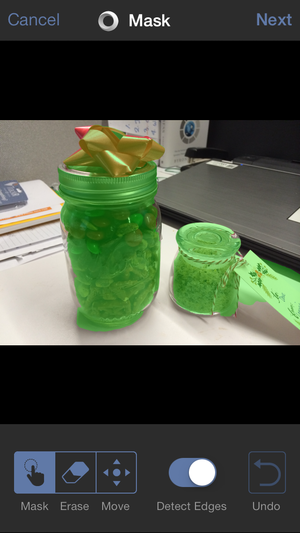
After taking the shot, you paint a mask over whatever object you want to be in sharp focus. Tadaa has pretty smart edge detection, so you can just dab with your finger and the app selects the whole subject for you. If that’s not working—and I did run into some subjects that Tadaa refused to select in their entirety—you can turn off edge detection and do the painting manually. In general, though, the trick is to slightly overpaint your subject so that Tadaa can find the edges.
Paint a mask over the parts of the image you want to be in focus.
After that, a slider lets you choose the aperture, which translates into the intensity of the depth of field effect. You can vary the effect from nothing, which gives you the deep depth of field the iPhone shoots automatically, to a very blurry background like you’d get from setting a DSLR to f/2.
And here’s where Tadaa distinguishes itself from other blur apps like AfterFocus, for example. You can tap anywhere in the image to adjust the focus. Tap the background, for example, and it snaps into focus, simultaneously blurring the foreground objects that you’ve previously masked. This is a fun feature that lets you explore what a photo would look like if you shot the scene several times, varying the focus in each. Unlike the Lytro, though, you eventually need to make a choice and save the image—you can’t continue to interactively change the focus after saving.
Tadaa even can give you a bokeh effect.
Another unique tool in Tadaa’s bag of tricks: You can add and tweak bokeh. Bokeh can be a difficult concept to wrap your head around; it’s the visual quality of the out-of-focus areas of a photo, and it often manifests itself as glowing blurs around reflective elements in the background. Using a pair of sliders—highlights and gloss—you can dial in an excellent simulation of bokeh, and get just the amount that you want. If you have every looked longingly at examples of bokeh in DSLR photography, you’ll love fiddling with the bokeh in Tadaa; it delivers an effect that is essentially impossible to achieve with an iPhone in the usual way.
Completed photos are automatically saved to your camera roll, and you can optionally upload it to Twitter or Facebook from within the app. Tadaa SLR is one of several apps that let you simulate shallow depth of field in an iPhone photo, but it does so in an elegant and flexible way.
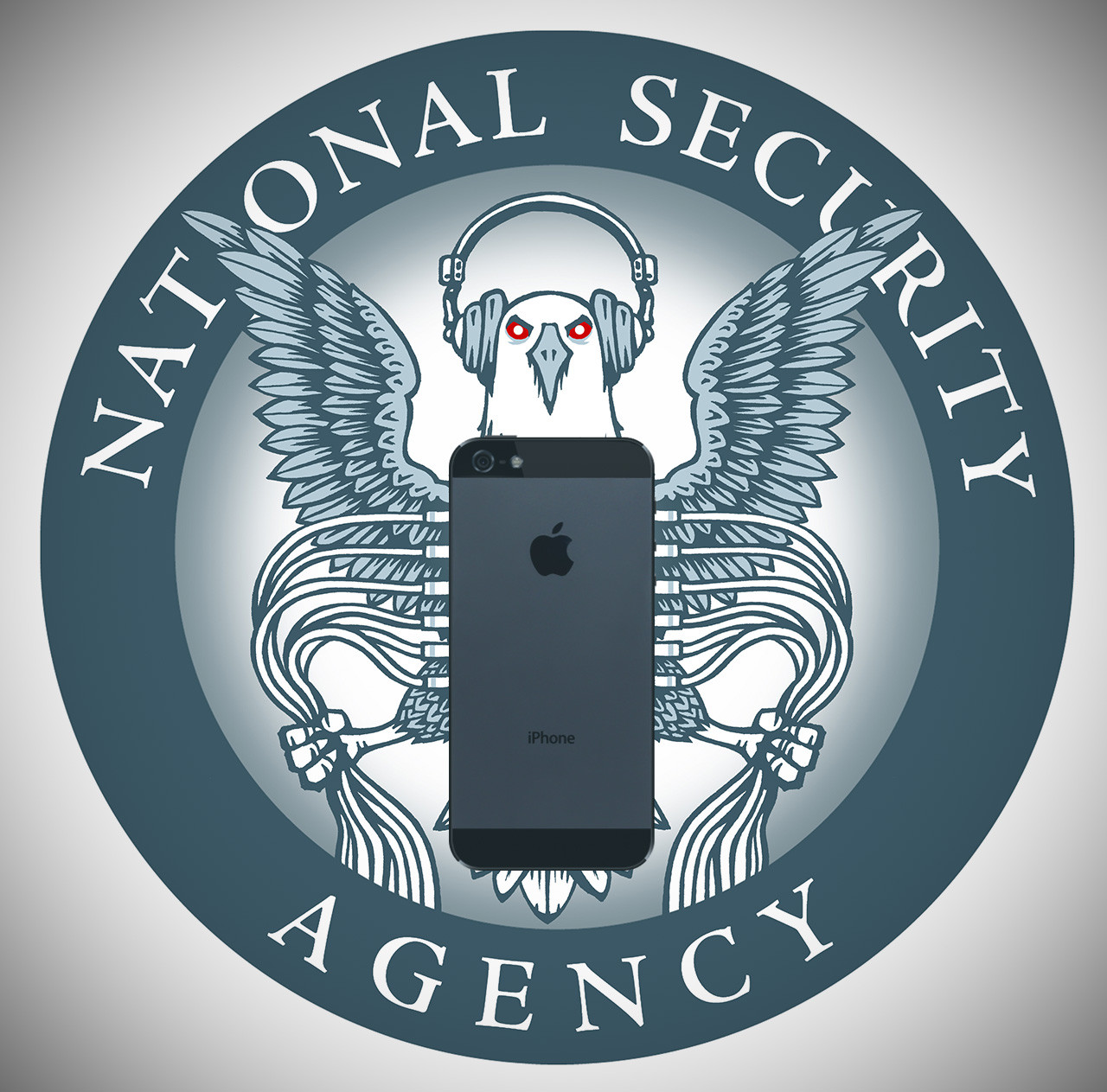
The U.S. National Security Agency was developing in 2008 a software implant for Apple iPhones that allowed the agency to take almost total control of the device, including retrieving text messages and voicemail and remotely turning on its microphone and camera, according to a report by the German magazine Der Spiegel.
The implant, code-named DROPOUTJEEP, was “in development” and initially intended for “close access” installation on a phone, with remote installation being planned for a future release, according to an alleged NSA document with the date October 1, 2008, that Der Spiegel included in a graphic with its recent NSA report. DROPOUTJEEP’s other capabilities included remotely pushing and pulling files from an iPhone, retrieving the phone’s contact list and identifying the device’s location and the location of the nearest cell tower, the document said. The implant could do all this without the phone user’s knowledge, over SMS (Short Message Service) or a GPRS (General Packet Radio Service) data connection. All the software implant’s communications would be “covert and encrypted,” the document said.
GPRS was a pre-3G mobile data technology with speeds much lower than today’s LTE networks. The first-generation iPhone was introduced in 2007, and the iPhone 3G came out in mid-2008.
Apple could not immediately be reached for comment on the report. In a statement reported by the Wall Street Journal, the company said it was unaware of the project and had never worked with the NSA and had never worked with the agency to create a backdoor to any of its products.
The alleged NSA document describing DROPOUTJEEP was included in an interactive graphic published alongside a December 30 Der Spiegel report on a special hacking unit of the agency, which reportedly intercepts deliveries of computer equipment and installs spyware on it before it’s delivered to the recipients. The report cited internal NSA documents that Der Spiegel said it had viewed. The graphic included links to numerous documents about technologies that the hacking unit developed for infiltrating servers, firewalls, routers, wireless LANs, PCs, peripherals and cellphone networks.