The term ” Gaming Laptop” is used to describe laptops with very powerful hardware, that allows users to play high-end games, do intense video editing, as well as other power-intensive tasks. Despite the fact that Gaming Laptops feature High-end specs, the fact that they usually feature poor battery life is unarguable. This fact is attributed to the power consumed by their high-end components. Despite the fact that most gaming laptops have been characterized by poor battery life, there are some gaming laptops that feature impressive battery life, despite their power consuming components. In this article, we explore a comprehensive list of best gaming laptops with strong battery life .
1. Dell Inspiron 15 7000
Seeking for a very good gaming laptop, that features a long-lasting battery and an affordable price, the Dell Inspiron 15 7000 may just be the laptop you have been looking for. It houses all the essentials you will need for gaming, without being too flashy.
The Inspiron 15 7000 features an Intel Core i5-73000 processor, 8GB RAM, 256GB SSD, 1TB hard drive storage and an Nvidia GTX 1060 graphics card, with 6GB of VRAM. These specs put together makes the Inspiron 15 7000 a very awesome laptop to game on, and also an excellent machine for video editing and graphics design. In addition, the Inspiron 15 7000 is VR ready. You can buy from Amazon or Jumia ng.The Inspiron 15 7000 features a battery rated for 7 and a half hours.
2. Acer Predator Helios 300
The Helios 300, is a laptop that offers powerful hardware for gaming, without sacrificing battery life. It was designed to allow gamers game for long without plugging their power brick into an outlet. It lets users game on the go.
The Helios 300 features an Intel Core i7-700 Processor, 16GB RAM, 256GB SSD, A Nvidia GTX 1060 graphics card. The Helios 300 is VR ready, allowing you to play VR titles. These specs put together allows users to play favorite games seamlessly. You also have the option of increasing Ram and storage, to suit your needs. Buy from Amazon or Jumia ng.The Helios 300 offers 8 hours of battery life.
3. MSI GS65 THIN
The MSI GS65 thin is a gaming laptop that provides users with an entirely different feeling. Unlike most gaming laptops, the MSI GS65 offers a more professional look. It is one of those gaming laptops you can take into a conference room, without looking odd.
It features a relatively thin chassis that makes carriage easy. The MSI GS65 features an 8th gen core-i7 processor, 16GB RAM, 1 TB HDD, 512GB SSD, an Nvidia GTX 1060 MAX Q graphics card. This Graphics card allows MSI to achieve a lot using a thin chassis, avoiding overheating problems. With the MSI GS65 you are getting 5 hours 40 minutes of battery life.
4. GIGABYTE AERO 15X
Still, on the topic of best gaming laptops with a strong battery, the Aero 15X is yet another awesome gaming laptop that offers an impressive battery life. The Aero 15X is one of those gaming laptops that offers excellent gaming hardware, without sacrificing battery life.
The Aero 15X is powered by an Intel Core – i7 87050H, 16GB of RAM, 512GB SSD, an Nvidia GTX 1070 max Q graphics card. The Aero 15X features a 144 Hz 4k display, that makes gameplay smoother. The Aero 15X features a 94WH battery, which will power it up to 10 hours.
5. Razer Blade Stealth 13.3
Razer is one of the highly sought after brands we have today when it comes to gaming laptop choice. Their products have shown high efficiency, in offering quality gaming experience, allowing gamers to game seamlessly. The Razer Blade stealth 13.3 is no exception.
The Razer blade stealth 13.3 was built to allow gamers to game on the Go, without being restricted by the size and weight of the laptop or Battery life. The Razer blade stealth 13.3 is a 13-inch laptop that is powered by a 7th gen intel processor Core – i7, 8GB Ram, 256 SSD. The Balde stealth 13.3 offers approximately 8 hours of battery life.
6. Acer Nitro 5
Last but not least, the Acer Nitro 5 is yet another highly recommended gaming laptop with a strong battery. It is another stealth gaming laptop, that fits into a conference room and works excellently
The Acer Nitro 5 is powered by an Intel Core i5-7300HQ processor, A Nvidia 1050Ti graphics card with 5GB of VRAM, 8GB of DDR4 RAM and 256GB SSD. It features a 15.6-inch display with a screen resolution of 1920 X 1080 resolution. The Acer Nitro 5 features a 48WH battery.
There you have it – a comprehensive list of best gaming laptops with strong battery life. As already mentioned these laptops offer quality gaming hardware without sacrificing excellent battery life.
Windows 10 comes with a lot of amazing features but not all of them are readily available. Let’s dig a little deeper and unveil new tweaks, tricks and features that will change the way you use your PC.
With it being free, and Microsoft pushing the update to users, most of you probably already have migrated to Windows 10. Its constantly evolving nature means fresh features arrive twice per year, and with all the new goodies come a legion of new tweaks and tricks—some of which unlock powerful functionality hidden to everyday users. Others simply let you mold the Windows 10 experience into the shape you see fit. Here are some of the most useful tweaks, tricks, and tips that we are able to put together.
However, you need to brace yourself as some of these may break as the operating system evolves given Microsoft’s new “Windows as a service” mentality. The idea is to keep this page updated overtime to reflect the OS’s current status.
Activate Windows 10 Night Light
If you use an iPhone, iPad or macOS system you may use the built-in blue light feature ‘Night Shift’.
The Night Light feature you’ll find in Windows 10 is pretty much Night Shift for Windows.
Night Light makes the screen warmer in the evenings as it reduces the amount of blue light emitted.
Various scientific studies show that exposure to blue light in the evening makes it harder to fall asleep because (like all artificial light) it affects the circadian rhythms that manage our body clock.
Once preserve of late-night caffeine fuelled coders and over-worked, under-fed writers, screen temperature features have since become mainstream. Google’s Android and ChromeOS operating systems have one, as do iOS and macOS from Apple, and Microsoft’s Windows 10.
Like those features, Windows 10 Night Light automatically warms the temperature of your display after sunset. This makes your laptop screen or PC monitor easier on your eyes and reduces disruption to your circadian rhythm, helping it to tick along nicely.
In the morning, your display returns to its regular settings.
Night Light is a system feature; you do not need to install a separate application like Flux to use it. This makes it very easy to automatically adjust the screen temperature in Windows 10.
Night Light for Ubuntu will automatically adjust the amount of blue light your monitor or laptop display emits based on your location and the time of day.
These features are said to help reduce eye strain by adjusting your screen’s color temperature during after-dark computing sessions. That makes it easier to fall asleep when you’re done.
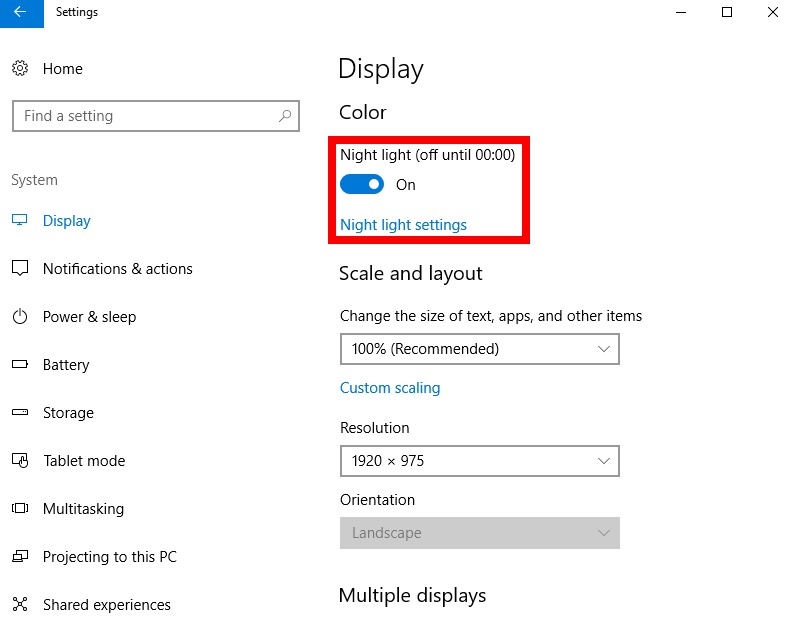
To activate Night Light, head to Settings > System > Display. Once you’ve done so, open the feature’s settings to fine-tune its behavior.
Scroll any window even when they’re inactive
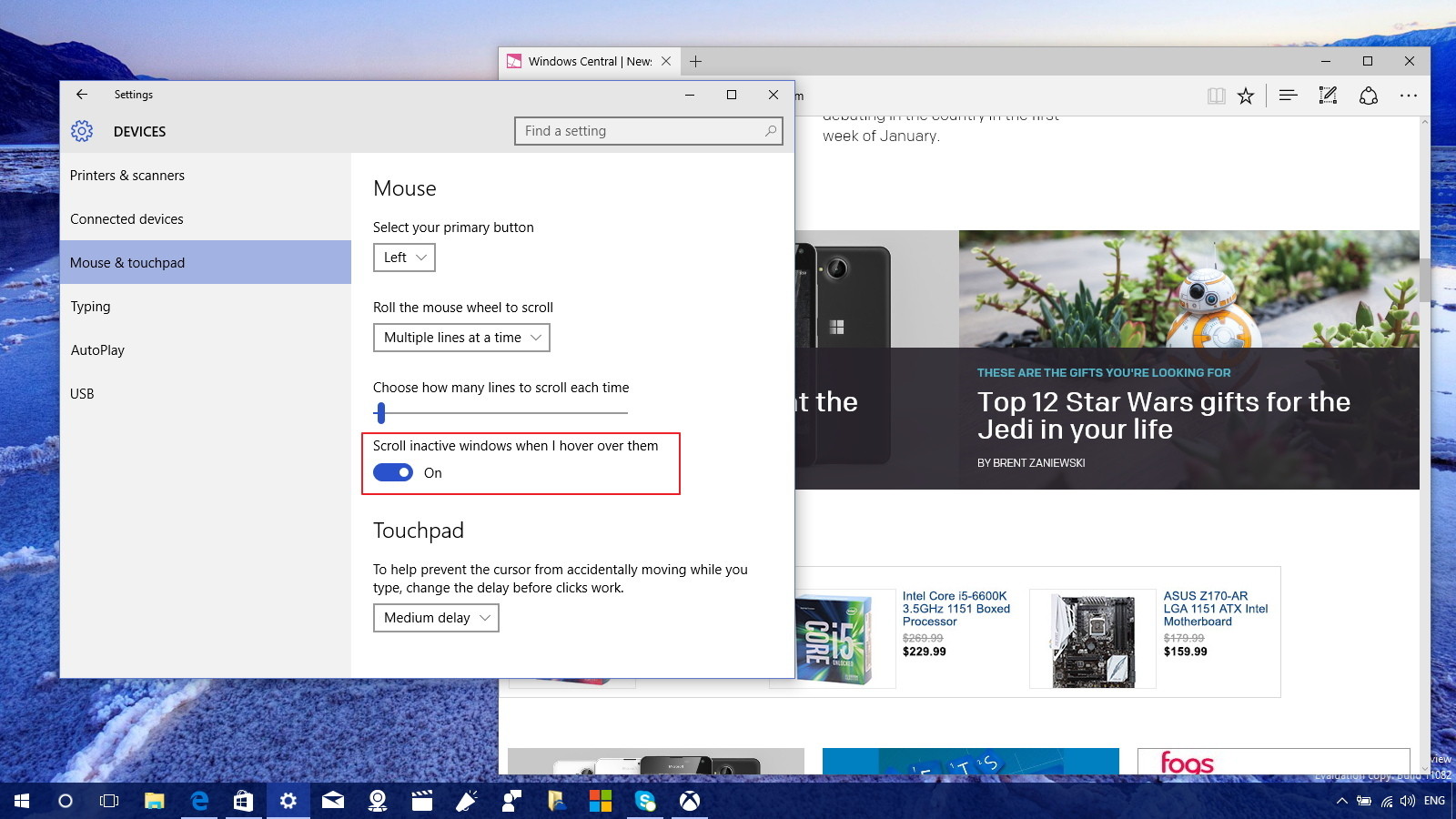
It used to be that Windows only allowed you to scroll active windows. Now in Windows 10, you can set an option to scroll both active and inactive windows by just hovering with the mouse cursor over a window.
This feature is not a ground-breaking Windows 10 hack or tweak but it comes quite handy when time is in essence and your need to peek through your to-do list.
Windows 10 inactive scroll feature is enabled by default, but if it’s not, go to Settings > Devices > Mouse & touchpad, and make sure to enable the Scroll inactive windows when I hover over them option.
Find the hidden images
The lock screen and logon screen have some really cool images, which as it turns out, by default both rotate AND change.
It may seems Microsoft has a CDN that updates these images based on what you click that you like or not. Want to save one or more of those images for future use? Here’s where they are hiding!
Open Explorer and browse to:
%localappdata%PackagesMicrosoft.ContentDeliveryManager_[custom string of characters]LocalStateAssets
Copy all of the files to a new directory.
Open a command prompt in that directory.
Run this command ren . *.png and [enter]
Browse through them and find the ones you like!
Make Cortana’s ears perk up
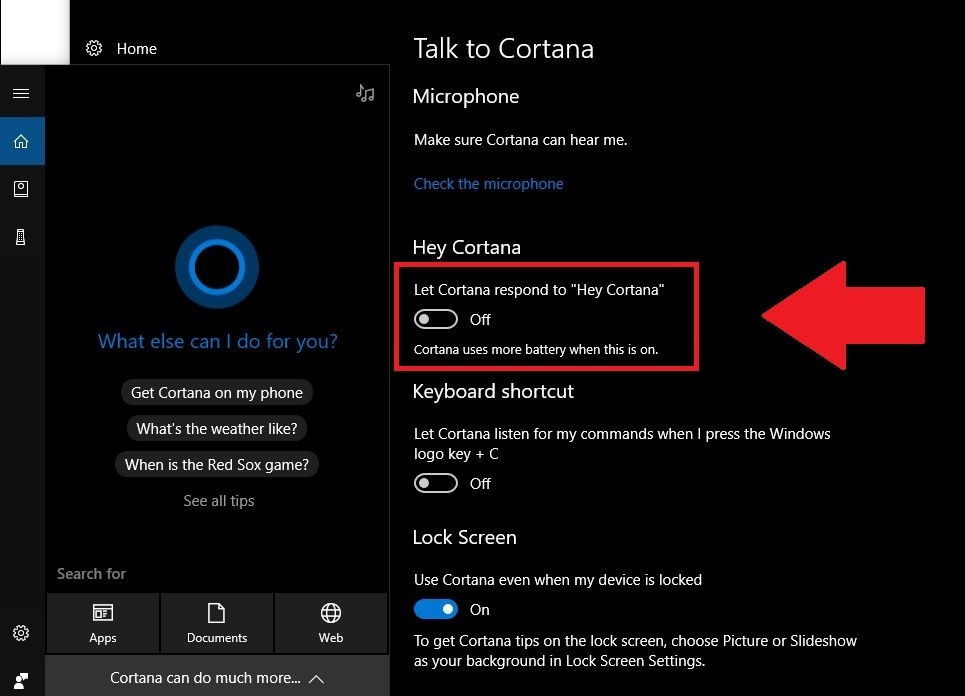
Cortana’s finally made the leap to the PC in Windows 10, assuming many of the operating system’s search functions and dishing out just as much sass as the Windows Phone version. But by default, she doesn’t listen for your commands. But by default, she doesn’t listen for your commands.
If you’d like to be able to just shout commands at your PC, launch Cortana by clicking the search field in the taskbar and select the three-lined options menu in the upper-left corner. Select Settings for the list, then simply enable the “Let Cortana respond when you say ‘Hey Cortana’” option. You’ll need an active microphone for this to work, of course.
While you’re poking around Cortana’s options, you can dive into the Notebook menu to fine-tune exactly what personal data Microsoft’s digital assistant can access. Remember, however, that like Google Now, Cortana’s effectiveness is directly related to how much she knows about you.
Enabling Cortana on the Windows lock screen lets you use voice commands to view and edit your schedule at a glance. It’s pretty handy! To turn on the feature, open Cortana and head to “Cog” icon > Settings > Use Cortana even when my device is locked.
Secret, powerful new command line tools
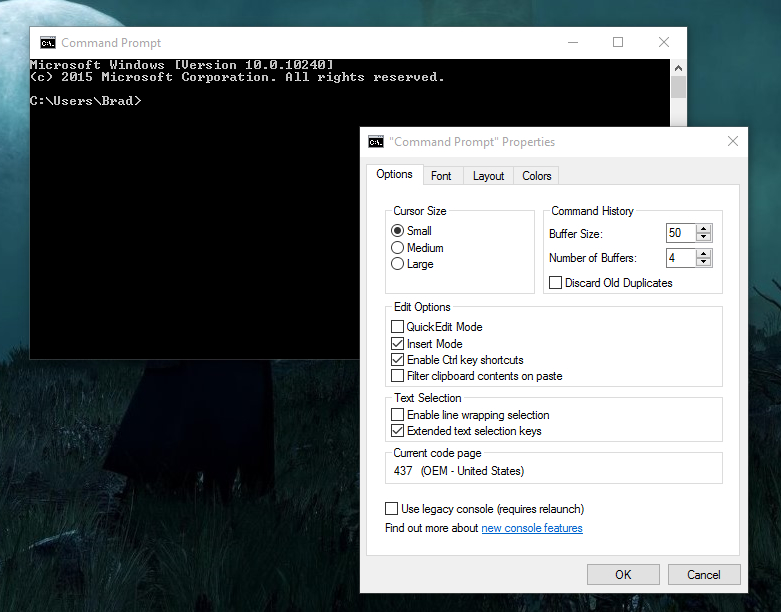
Windows 10 packs a slew of nifty new command line features, including—hallelujah!—the ability to copy and paste inside the command prompt with Crtl + C and Crtl + V.
To activate the goodies, open the command prompt. Right-click its title bar, then select Properties. You can find and enable the new features under the Edit Options section of the Options tab.
Bash comes to Windows
If you got all hot and bothered over the ability to use keyboard shortcuts to paste text in the Command Prompt, wait until you get a load of this.
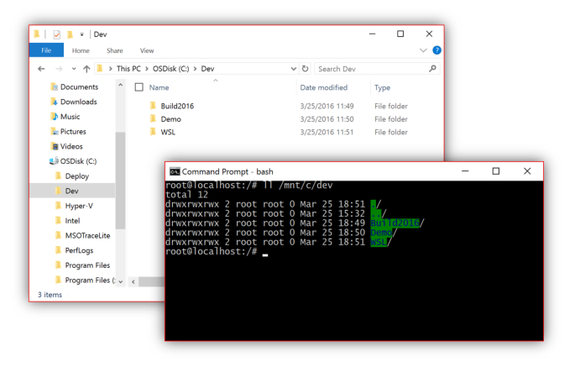
The Windows 10 Anniversary Update added the full, legendary Bash shell to Microsoft’s operating system, thanks to a partnership with Canonical, the company that guided Ubuntu Linux’s development. And it’s running natively, without virtual machines or containers. With the right tricks, you can even use Bash to run graphic Linux applications or even the Unity desktop itself right inside Windows—though those unintended features are definitely limited. Look for Ubuntu, Fedora, and SUSE Linux entries in the Windows Store to start using Bash in Windows.
Windows 10 Audio Source Switching
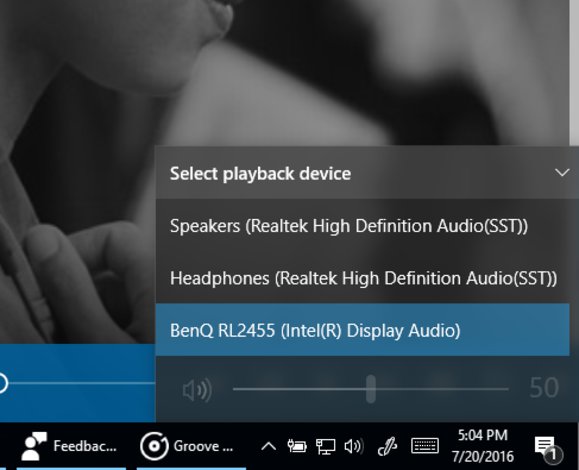
Windows 10’s in-taskbar volume controls pack a niche, yet nifty touch: selectable sources. Clicking the audio device name in the volume controls summons a list of all connected audio outputs, meaning you can switch from your headphones to your speakers and back again without having to dive into the Control Panel. Yay!
The April 2018 Update added more granular audio options to the Settings app too, breaking them away from the Control Panel even further.
Activate Windows 10 Spatial Sound
That’s not the only audio trick lurking within Windows 10. Windows Sonic for Headphones offers a virtual surround sound format that can make the audio coming from your headset feel more lush and atmospheric. The effectiveness of the feature varies depending on your gear and how sensitive you are towards audio cues.
To activate Windows Sonic, right-click the speaker/audio icon in the system tray on the right side of your task bar, then select Spatial sound (none). In the window that opens, click the drop-down menu and select Windows Sonic for Headphones. Click , then OK, and you’re done!
Windows Timeline
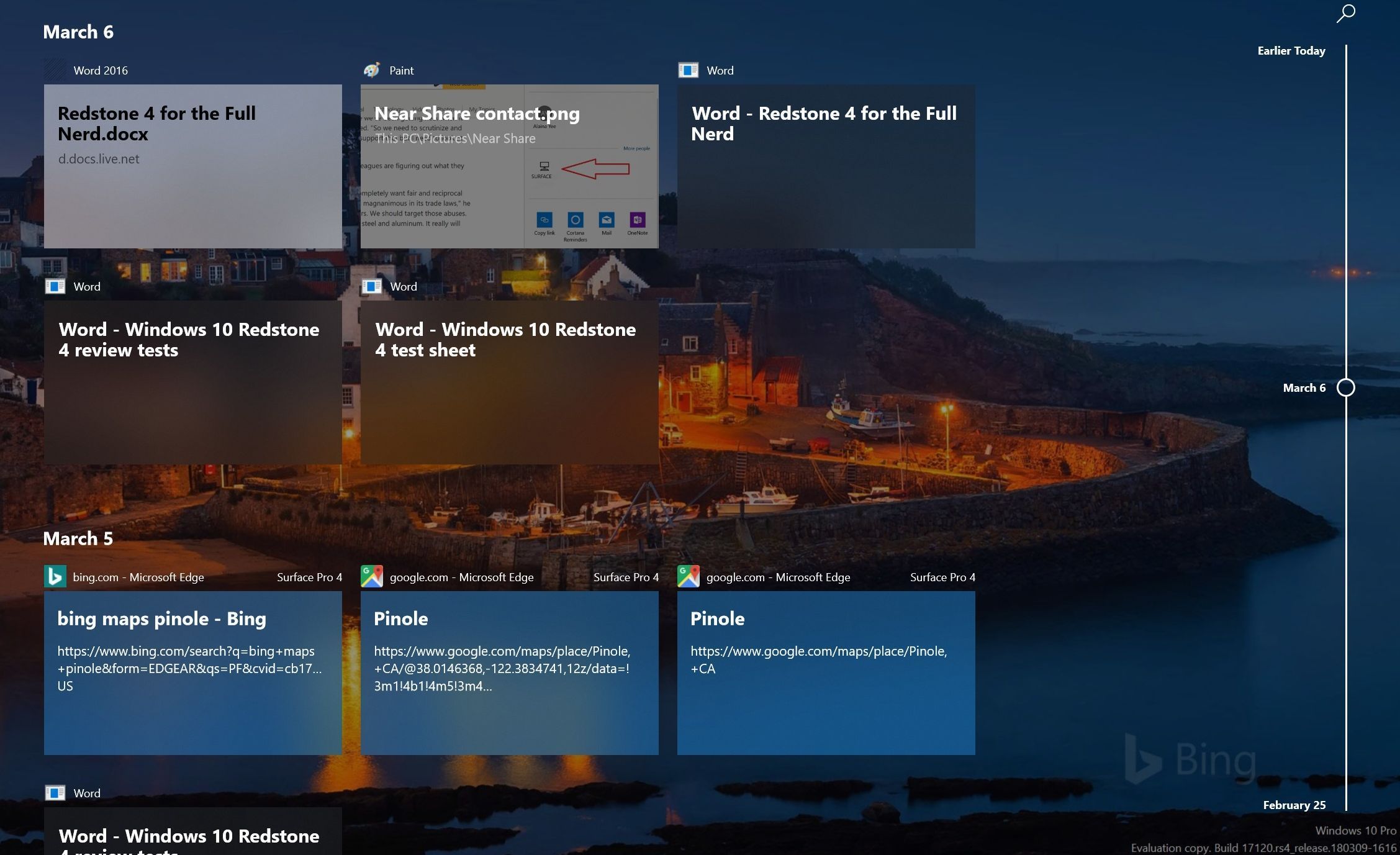
Timeline helps you pick up where you left off. Clicking the Task View button in the taskbar or pressing Windows Key + Tab summons the feature, which displays a—you guessed it—time line of your activity in supported apps, stretching back over the past. Even more handily, Microsoft lets you group related apps together into “Activities” in Timeline, so that when you open that week-old budget document, for example, the presentations and websites you referenced at the time can be easily summoned as well. This even syncs across devices, so it could be especially useful if you use multiple PCs.
The fly in the ointment: Only a limited number of apps work with Timeline currently, though Microsoft offers tools for developers to bake in support. That includes Office, Adobe’s Creative Cloud, and native Windows 10 apps like News and Maps, but Microsoft Edge is the only compatible browser. Bummer. You can deactivate Timeline by heading to Settings > Privacy > Activity History.
Cloud clipboard
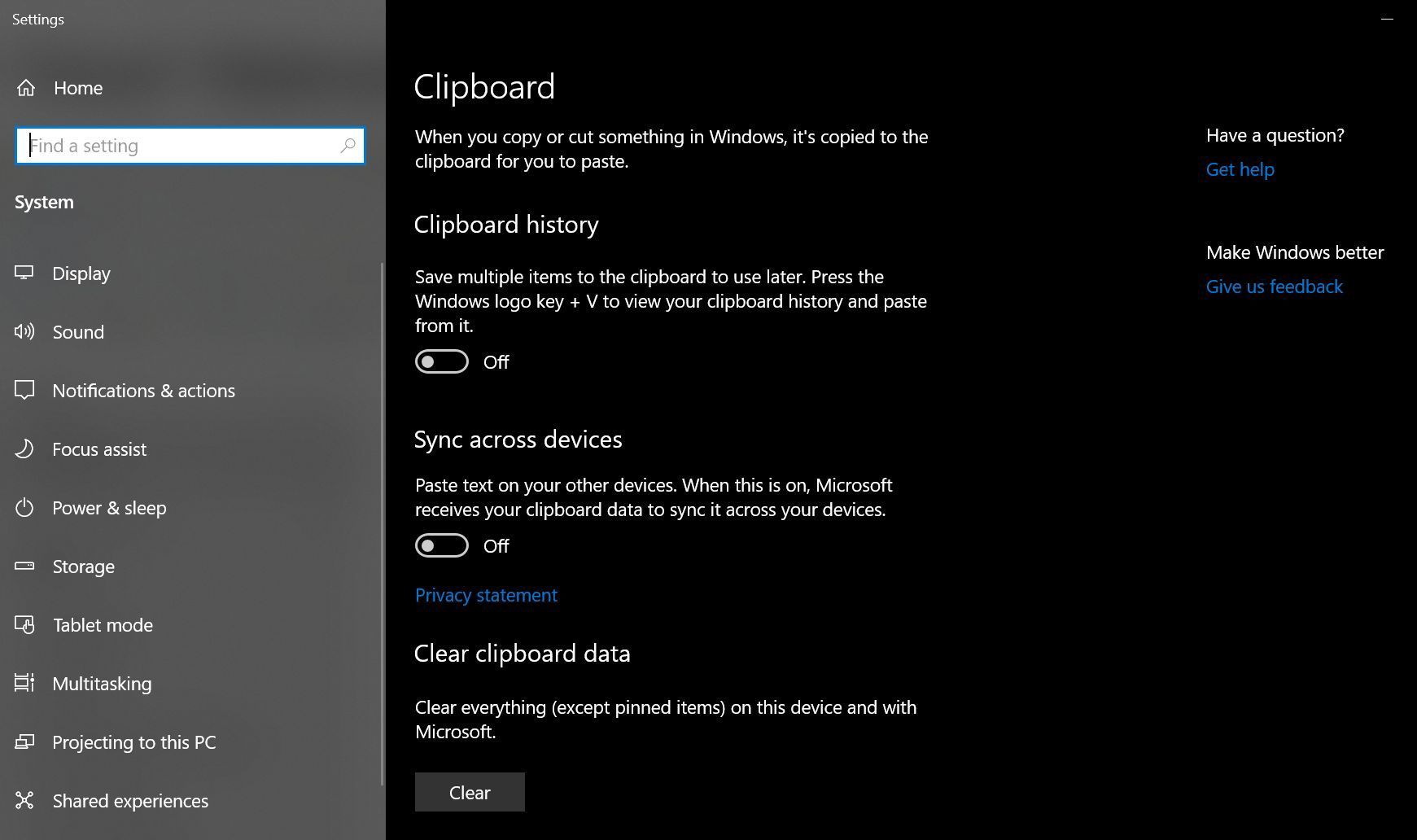
Windows 10’s copy and paste functionality has been hit and miss for years, but now you can deploy that bugginess across multiple PCs with cloud clipboard—a genuinely useful feature introduced in the October 2018 Update. Head to Start > Settings > System > Clipboard and enable “Sync across devices” to start copying data on one PC and pasting it on another PC.
While you’re in this menu, enabling “Clipboard history” lets you save multiple items to the clipboard so you can use them again later. Nifty stuff.
Your Phone
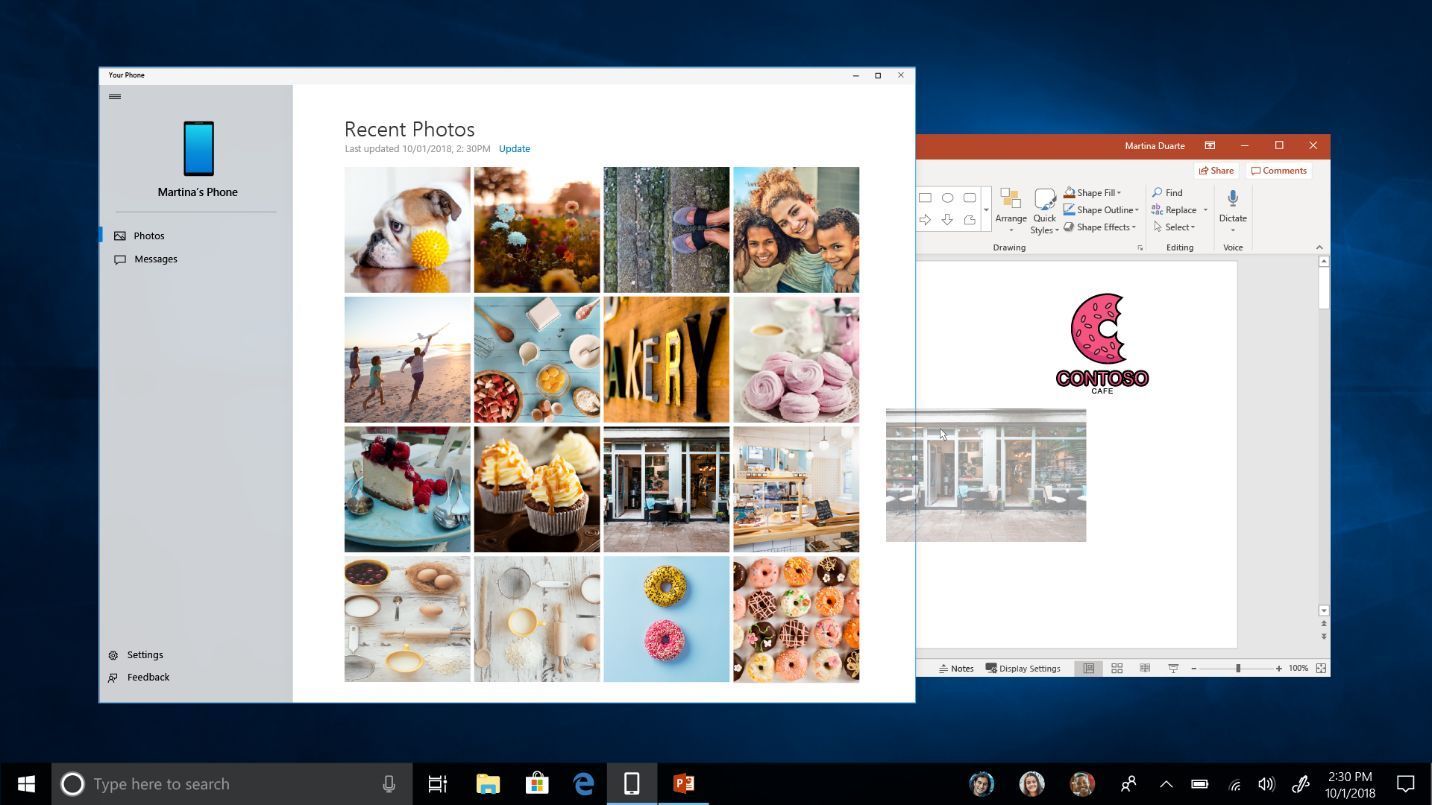
Want to tie your phone and PC closer together? Download Microsoft’s Your Phone companion app for Android, and link it to your PC using the new Your Phone app from the Microsoft Store.
Your Phone lets you open, view, copy, and share photos that you took on your phone, as well as send and reply to texts right on your PC. There’s an iOS version as well, but it’s much, much more limited.
Snip & Sketch
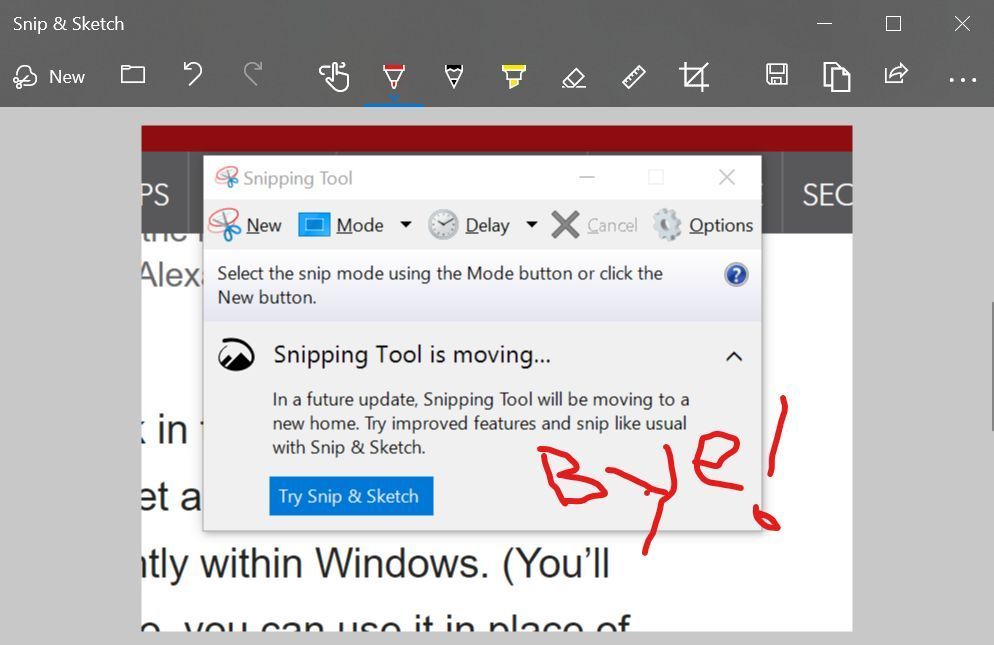
The firmly entrenched Snipping Tool within Windows is finally getting replaced and upgraded. The October 2018 Update added Snip & Sketch, a new tool that lets you select a portion of the screen to copy when you press Windows + Shift + S. After doing so, the selected screenshot will be copied to your clipboard, so you can paste it into any image editing software—including the standalone Snip & Sketch app, which lets you annotate and share your marked-up images.
Near Share
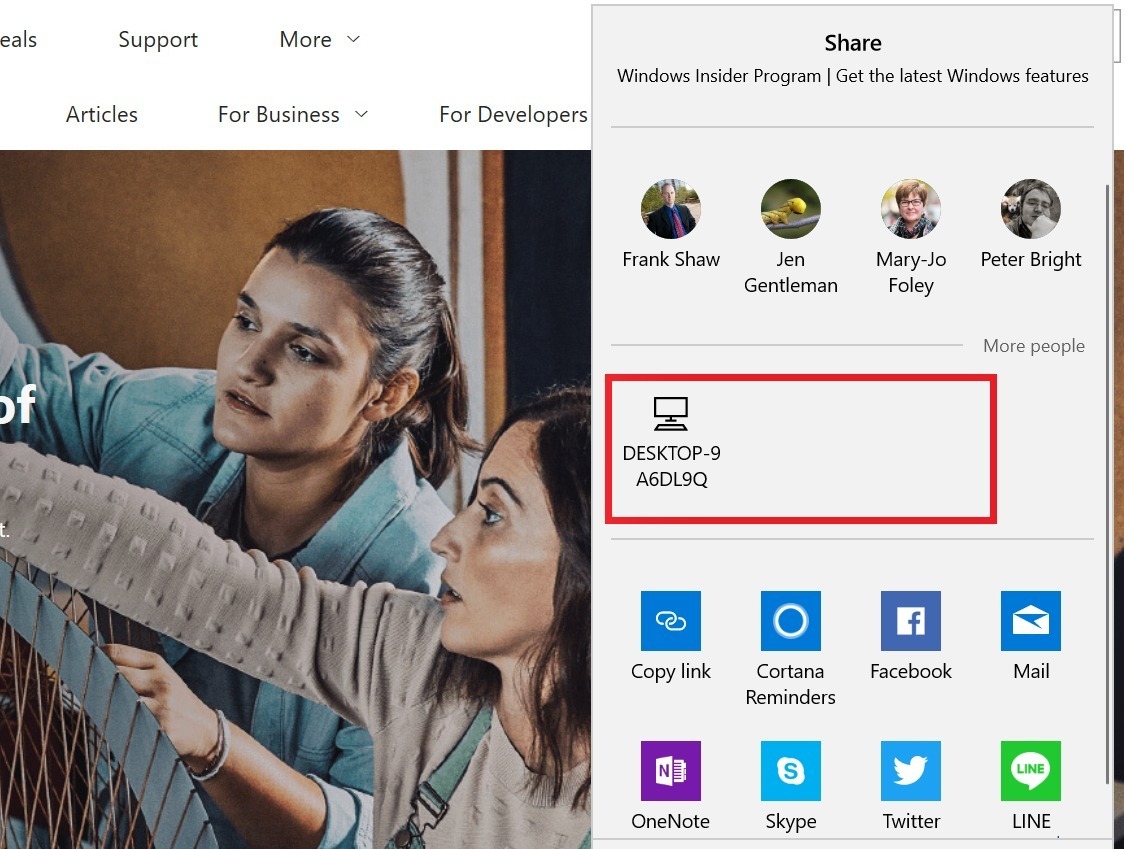
Near Share makes it easy to share files and URLs with local PCs over the air, negating the need for flash drives or chat apps to pass something along. If you open the Share interface in Microsoft Edge or File Explorer, you’ll see PCs with Nearby Sharing enabled appear as an option if you have the April 2018 Update installed. Recipients receive a pop-up notification when something is sent. Think of it as an alternative to Apple’s Airdrop, albeit one without any mobile support.
To use Near Share, your computer needs both Bluetooth and Wi-Fi working, and you’ll have to enable the Nearby Sharing option in Settings before you can start using it. Transfer speeds were pretty slow and Bluetooth-like in our tests, so you may still want to resort to alternative means to pass especially large files around. Microsoft says the feature automatically chooses to use Wi-Fi or Bluetooth depending on what’s available, and what’s faster.
Ransomware protection
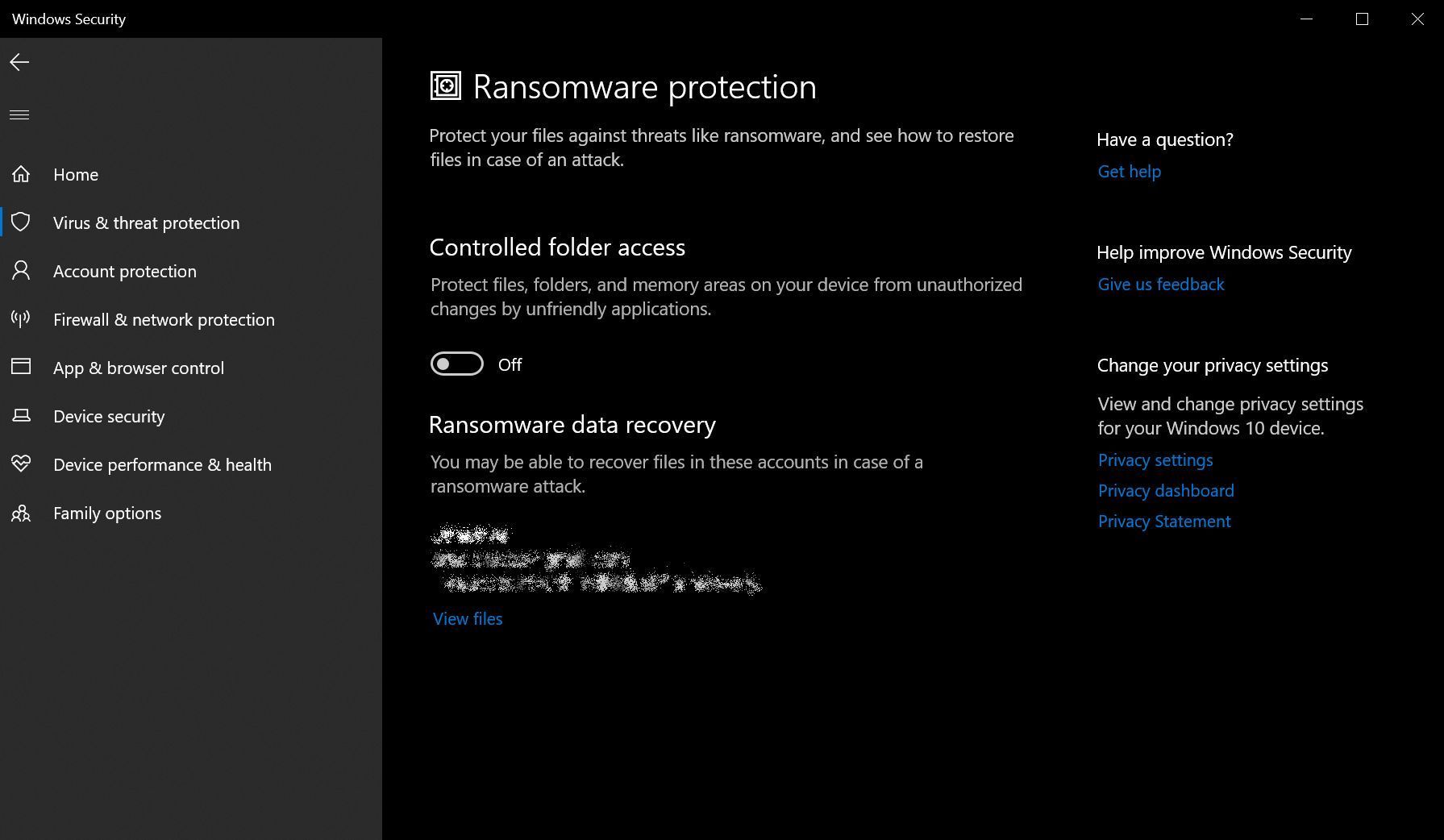
Ransomware is a growing problem. It infects PCs, encrypts your files, and holds everything hostage until you pay a ransom—hence the name. The best defense against ransomware is frequent backups and strong security software, but Windows 10 now includes basic protection right in your operating system.
Controlled Folder Access “protects your files and folders from unauthorized changes by unfriendly applications.” Your Documents, Pictures, Movies, and Desktop folders are protected by default, though you can block other folders manually or whitelist trusted software to access your locked-down info. You can tweak Controlled Folder Access by opening the Windows Security app (formerly Windows Defender), heading to the Virus & threat protection tab, and clicking the “Manage ransomware protection” link at the bottom.
Dark theme
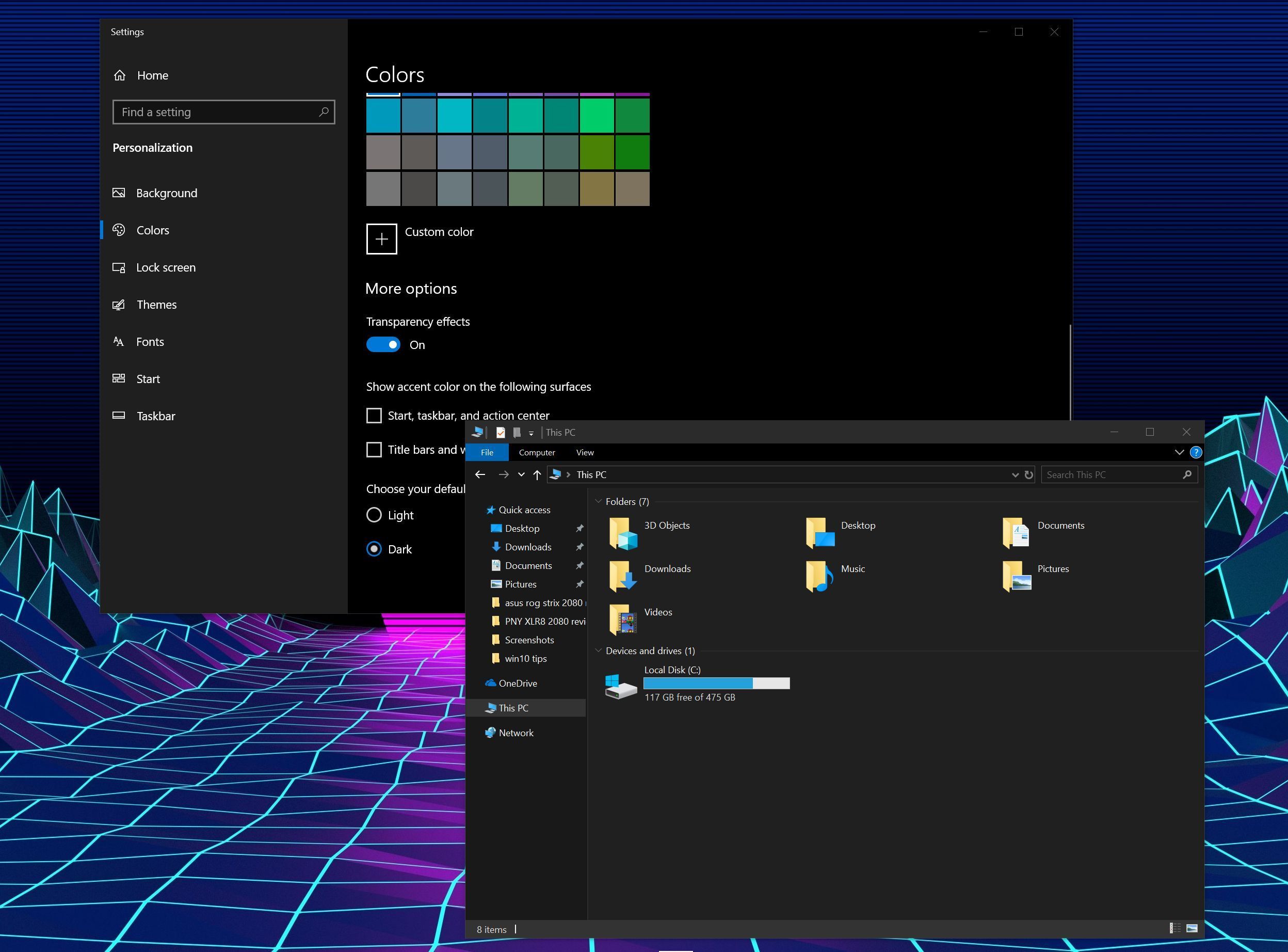
If you love dark themes, you love dark themes. Light themes sear your eyeballs. Fortunately, Windows 10 now supports a dark theme.
Head to Start > Settings > Personalization > Color and select the “dark” option under “Choose your default app mode.” The Windows 10 October 2018 Update extended the dark theme to include File Explorer, too. Enjoy!
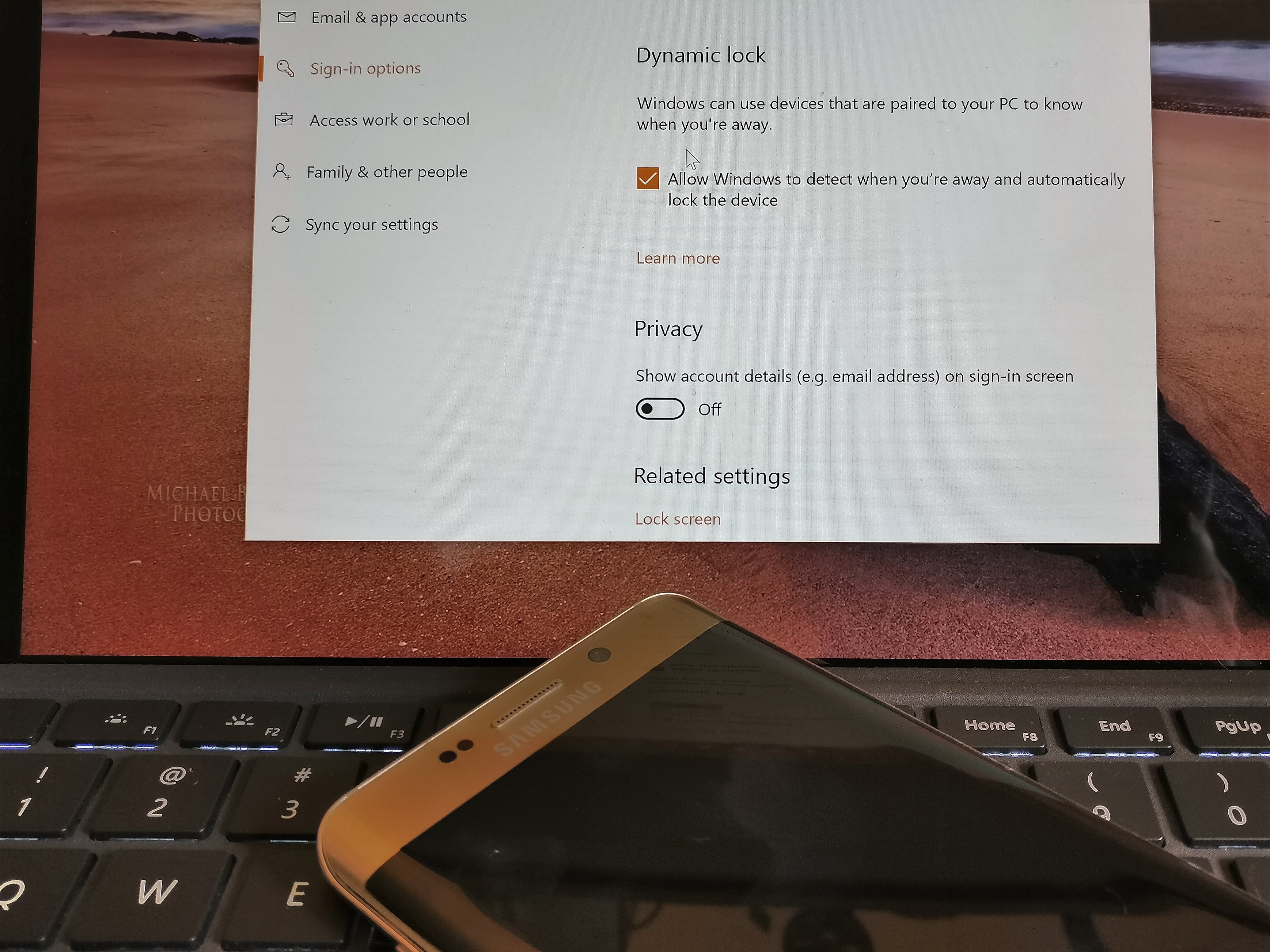
Enable Windows 10 Dynamic Lock
Say goodbye to Windows + L. Dynamic Lock is a handy feature that pairs your PC with your phone over Bluetooth, then automatically locks your computer when you wander away from it.
To start using it, marry the two devices in Control Panel > Hardware and Sound > Devices and Printers, then activate Dynamic Lock at Settings > Account > Sign-in options.
Game Bar
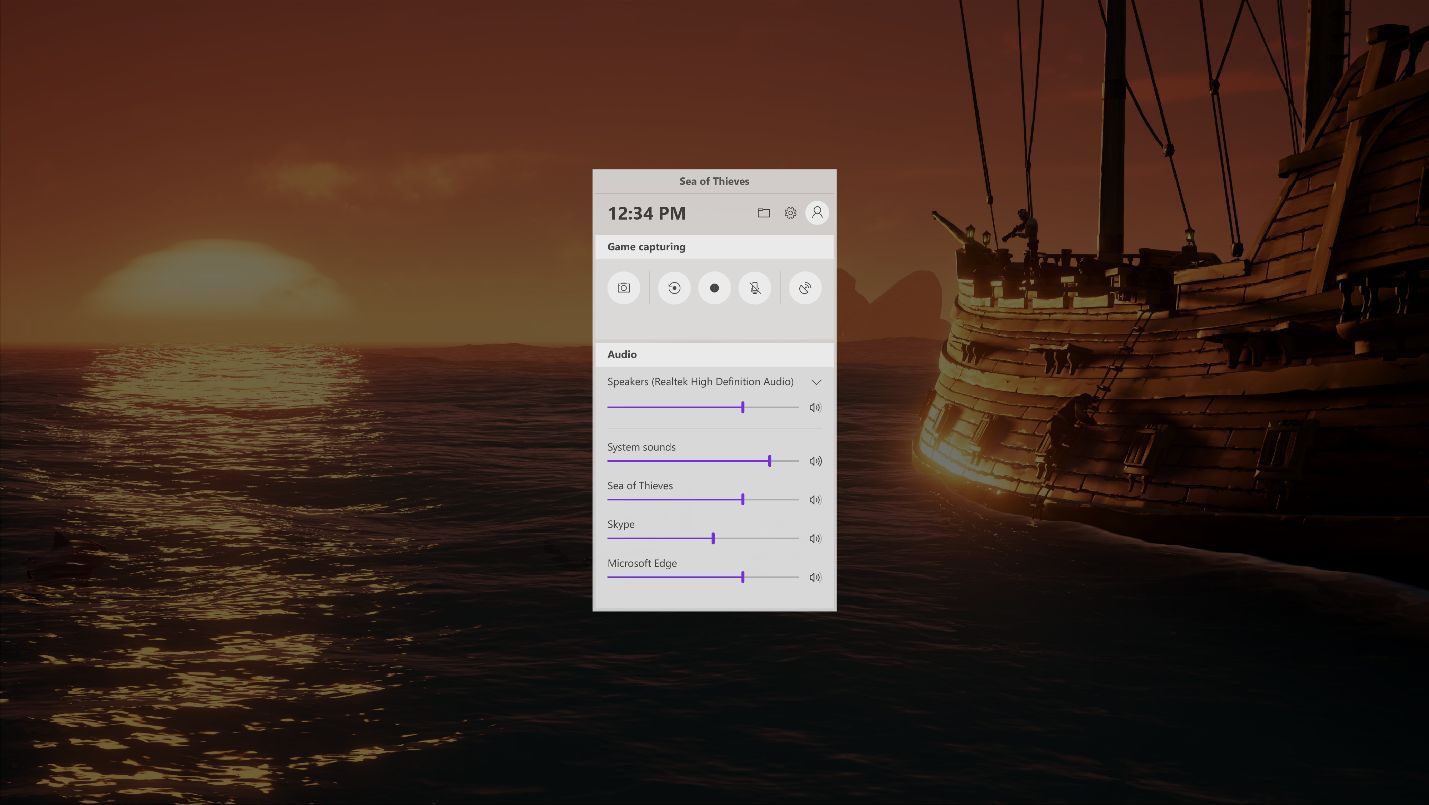
If you’re into playing around on your PC, Windows 10’s Game Bar—summoned by pressing Windows + G in-game—holds all sorts of nifty extras. It’s always been able to take screenshots or videos of gameplay clips, but as of the Windows 10 Creators Update, the Game Bar also offers easy-peasy Beam game streaming and the intriguing Game Mode, which can improve performance on resource-limited systems. The October 2018 Update overhauled the interface yet again, adding inline volume controls.
The Game Bar’s handy even if you don’t actually play, as it can be used to record video of any app—not just games. Windows 10 also has a dedicated Gaming section in its Start menu Settings to let you tinker with options, including Xbox networking and parental controls.
Per-app GPU management
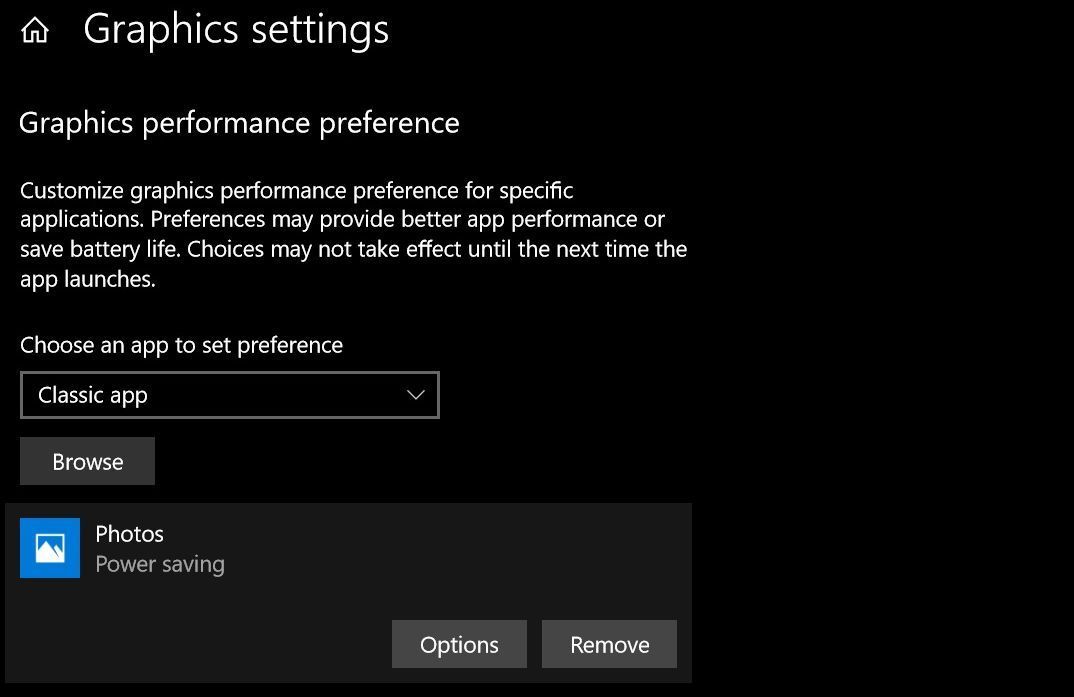
The Windows 10 April 2018 Update added the ability to tell Windows which graphics hardware—discrete or integrated—to use when you open specific apps. It sounds niche, but the feature could prove pretty helpful if you’ve got a gaming laptop and want it to last longer.
By default, booting up a game switches over to discrete graphics, which use a lot more energy than the graphics cores integrated in Intel chips and AMD Ryzen APUs. But a lot of indie and retro games play just fine on integrated graphics. With Windows 10’s per-app GPU management, you can manually tell the system to stick to the more power-efficient option for games that don’t need the extra oomph.
Go to Settings > Display, then click the Graphics settings link at the very bottom of the page to start tinkering.
OneDrive Files on Demand
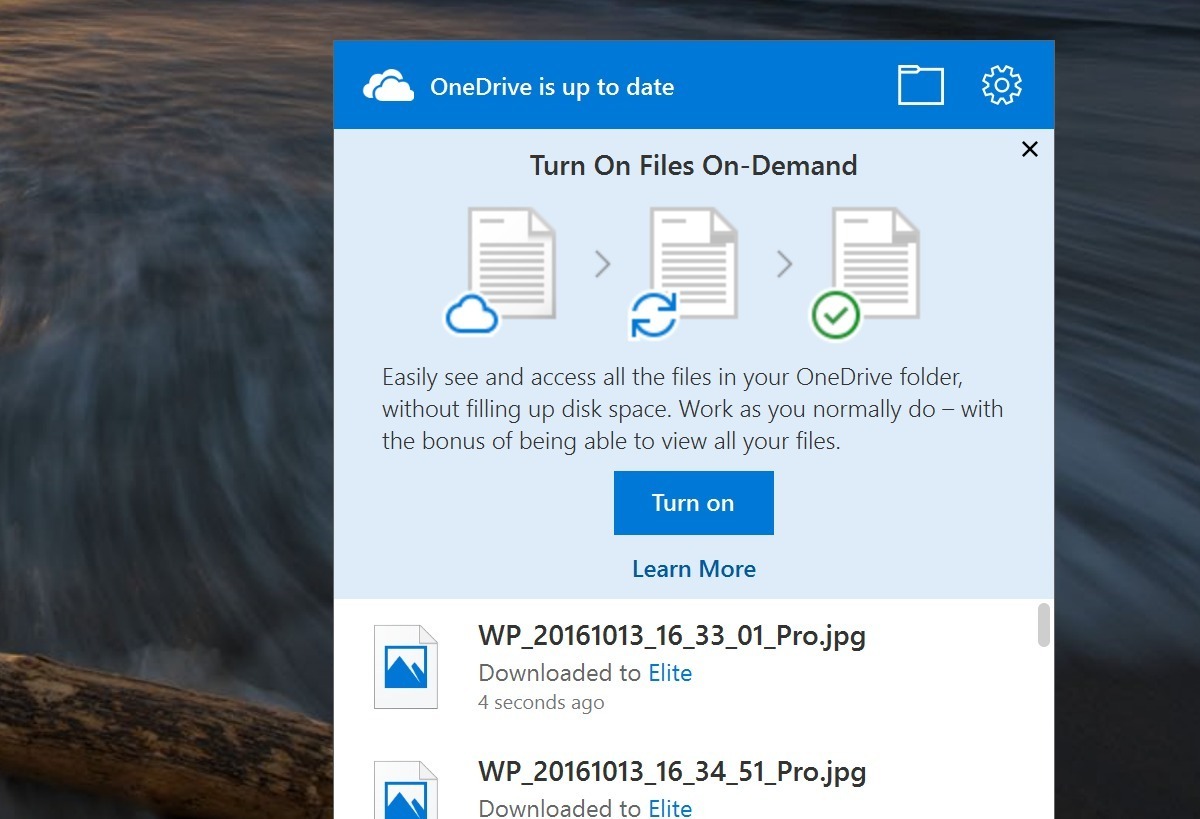
It’s back, huzzah! OneDrive Files on Demand resurrects Windows 8.1’s “placeholder” feature for the cloud storage service baked into Windows 10. OneDrive Files on Demand shows all of the files you have stored in OneDrive in a folder on your PC, but they’re just pointers synced with the cloud—not actually files installed on your PC. Unless you want them to be. You can select which files and folders to make available locally.
Storage Sense
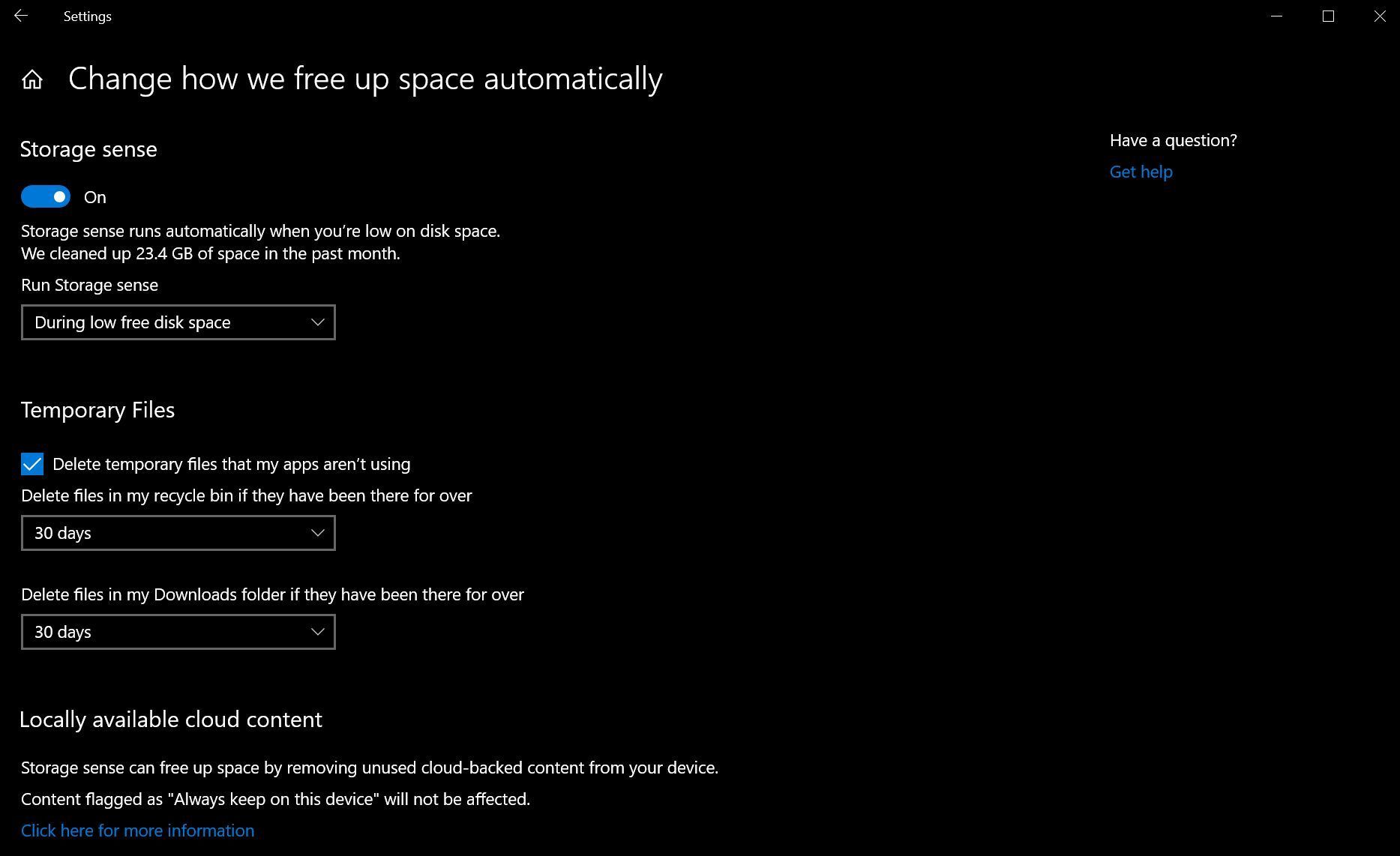
Over time, your PC can quietly fill with needless junk without your even realizing it, as the Recycle Bin and temporary files suck up your storage. Storage Sense helps combat the creep. Head to Settings > System > Storage and enable the Storage Sense option to have Windows start automatically clearing out unneeded temporary files, and deleting any files in your Recycle Bin over 30 days old. You can tweak those options using the Change how we free up space link underneath the option.
The October 2018 Update added the ability to have Storage Sense send long-untouched files from anywhere on your computer to your OneDrive cloud storage, freeing up space on your hard drive. It could be a useful addition if you’re close to filling up your local storage, but keep an eye on your available OneDrive space—cloud storage isn’t free. Fortunately, the feature includes granular controls.
Mixed Reality
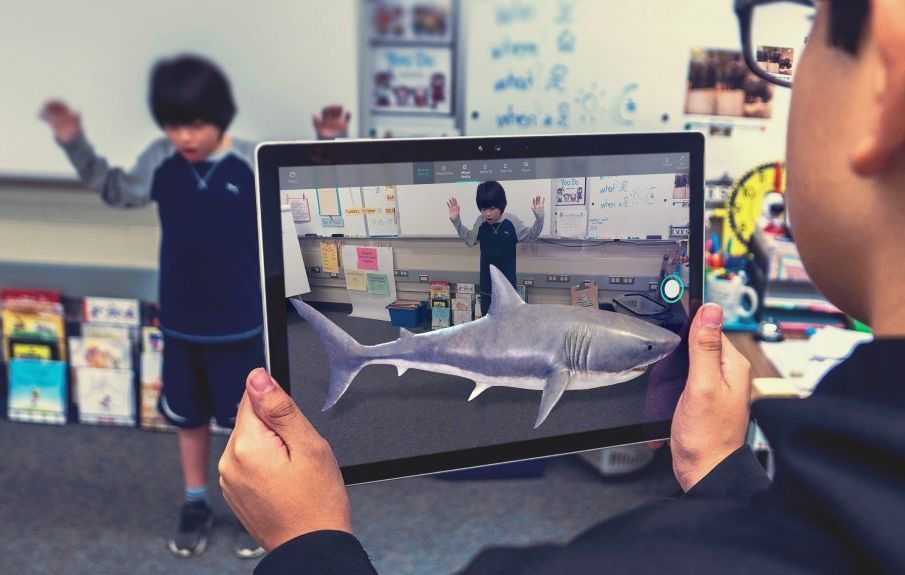
The Fall Creators Update added “Mixed Reality” to Windows 10. The most obvious use for it is in the legion of new Windows Mixed Reality headsets, but you can check out the benefits even if you don’t have one of those. The Mixed Reality Viewer app lets you drag digital 3D objects you’ve created in the Paint 3D app into the real world, using the combined might of your device’s camera and display. It’s not really augmented reality since you can’t interact with the objects, but it’s closer to “Mixed Reality” than the headsets are.
Somewhat related, the nifty Story Remix tool in the Photos app lets you add fantastic 3D animations to videos you’ve captured, among many other talents. It’s pretty sweet!
Start menu folders
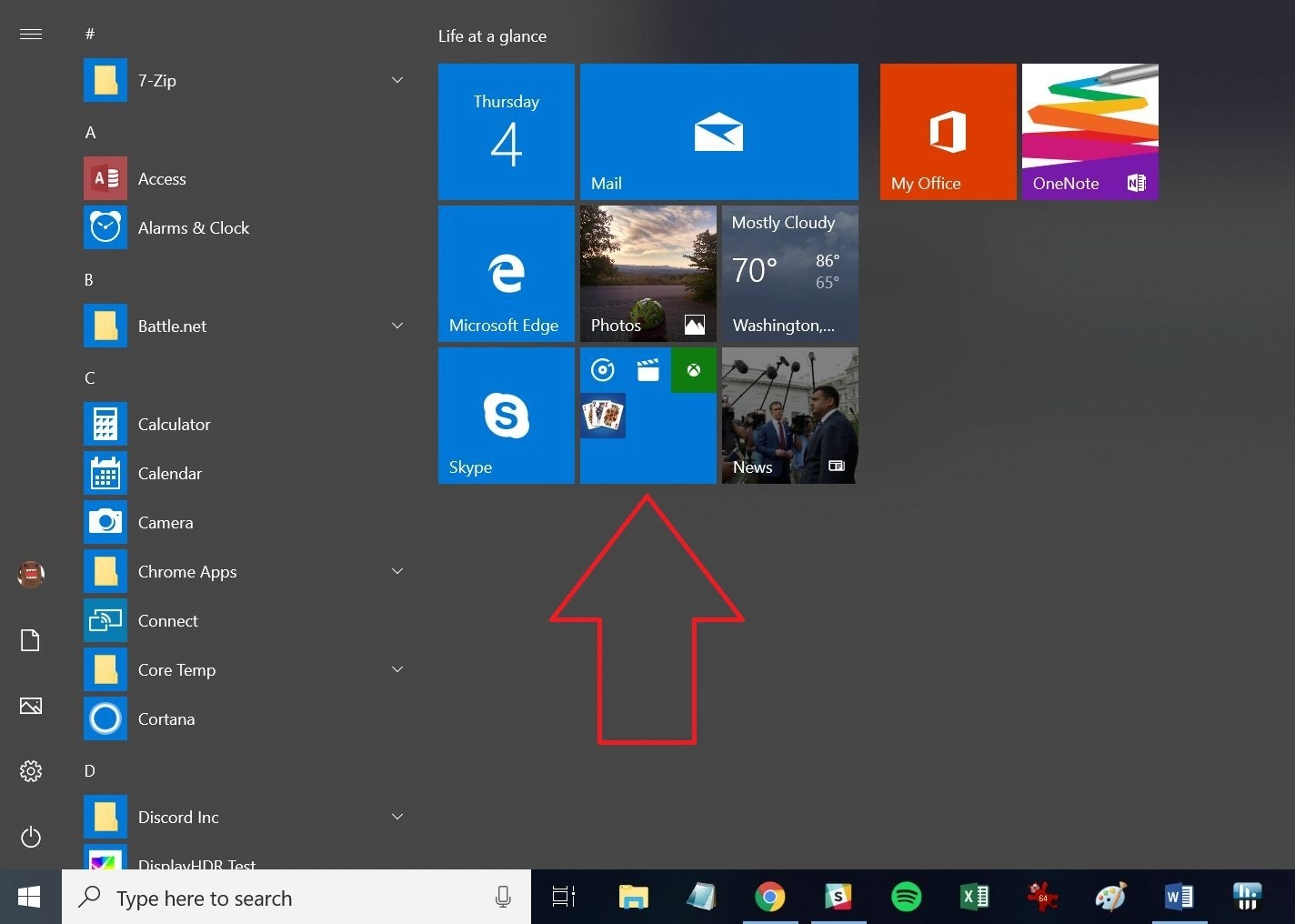
What’s old is new again: You can create basic Start menu folders in Windows 10, organizing Live Tiles into clusters. Simply drag your Start menu apps on top of each other to create folders that expand when clicked on. As of the October 2018 Update, you can now name the folders you create, but you have to expand it open to see the option.
Troubleshooting, troubleshot
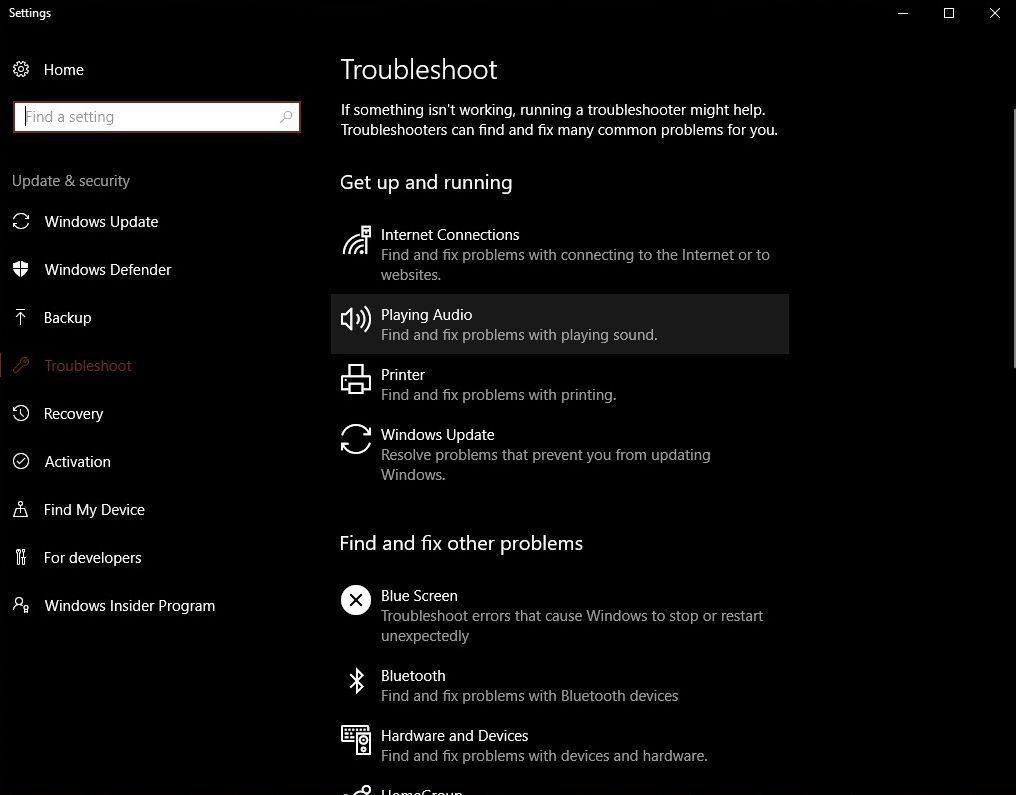
The Windows 10 Creators Update added a helpful touch for distressed PC users. The operating system’s consolidated all of its troubleshooting tools in a single location: Home > Update & Security > Troubleshoot. If you run into trouble, run there first.
Turn off File Explorer’s Quick Access view
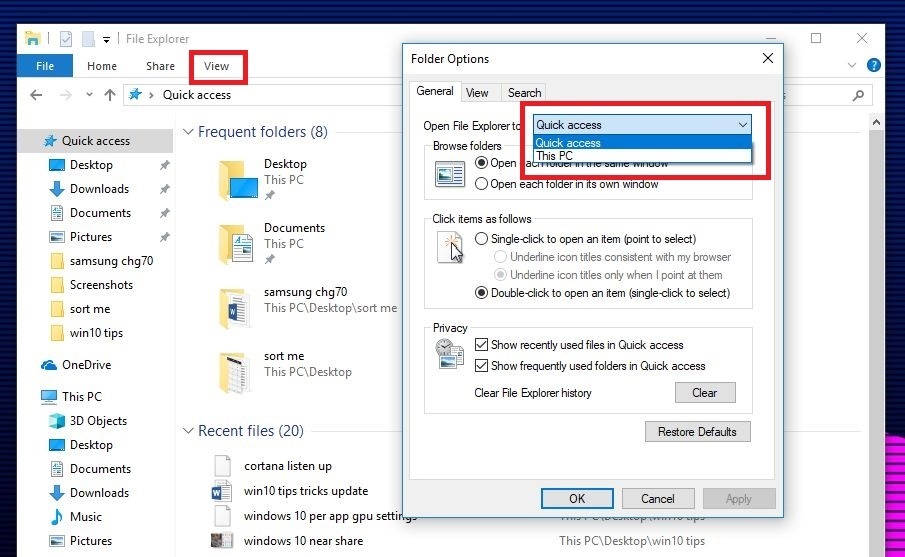
When you open File Explorer in Windows 10, it defaults to a new Quick Access view that shows your most frequently accessed folders and recently viewed files. I love it, personally, but if you’d rather File Explorer defaulted to the “This PC” view found in Windows 8, here’s how.
Open File Explorer, then select View > Options from the Ribbon. A Folder Options window will open. Click the “Open File Explorer” drop-down menu at top, then select the “This PC” option. Click OK and you’re done!
Manage notifications
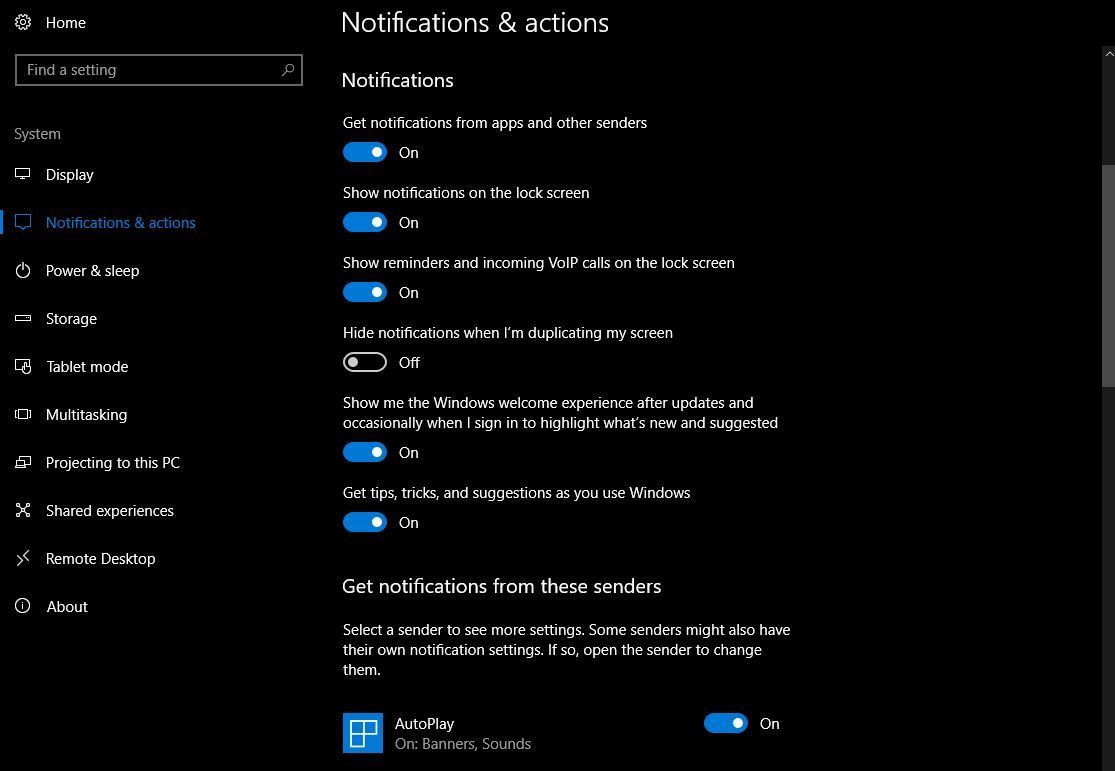
Windows 10’s Action Center houses and manages the notifications spawned by your system’s various apps. You might not want every Windows Store app you install barking at you all the time, however, or maybe you don’t want to see any notifications while you’re in presentation mode. You might just want to silent the annoying ads that the Get Office app spawns. Fortunately, those are easy to tweak.
To tinker with you your notification settings, head to Start menu > Settings > Systems > Notifications and actions. Individual Windows Store apps, like the Mail app, tend to have more granular notification options in the Settings menus inside the apps themselves.
Schedule your restarts
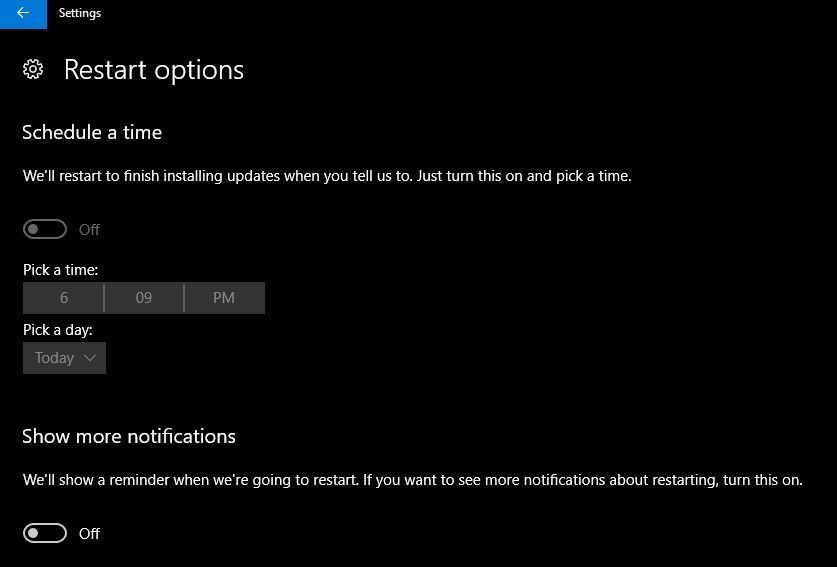
This is wonderful. If you’ve got pending updates that require you to reboot your PC, Windows 10 will allow you to schedule a specific time for it to do so. Finally!
Open the Settings option in the Start menu, then head to Updates and Recovery > Windows Update > Restart options to see the scheduling screen above.
Get Windows updates from other sources
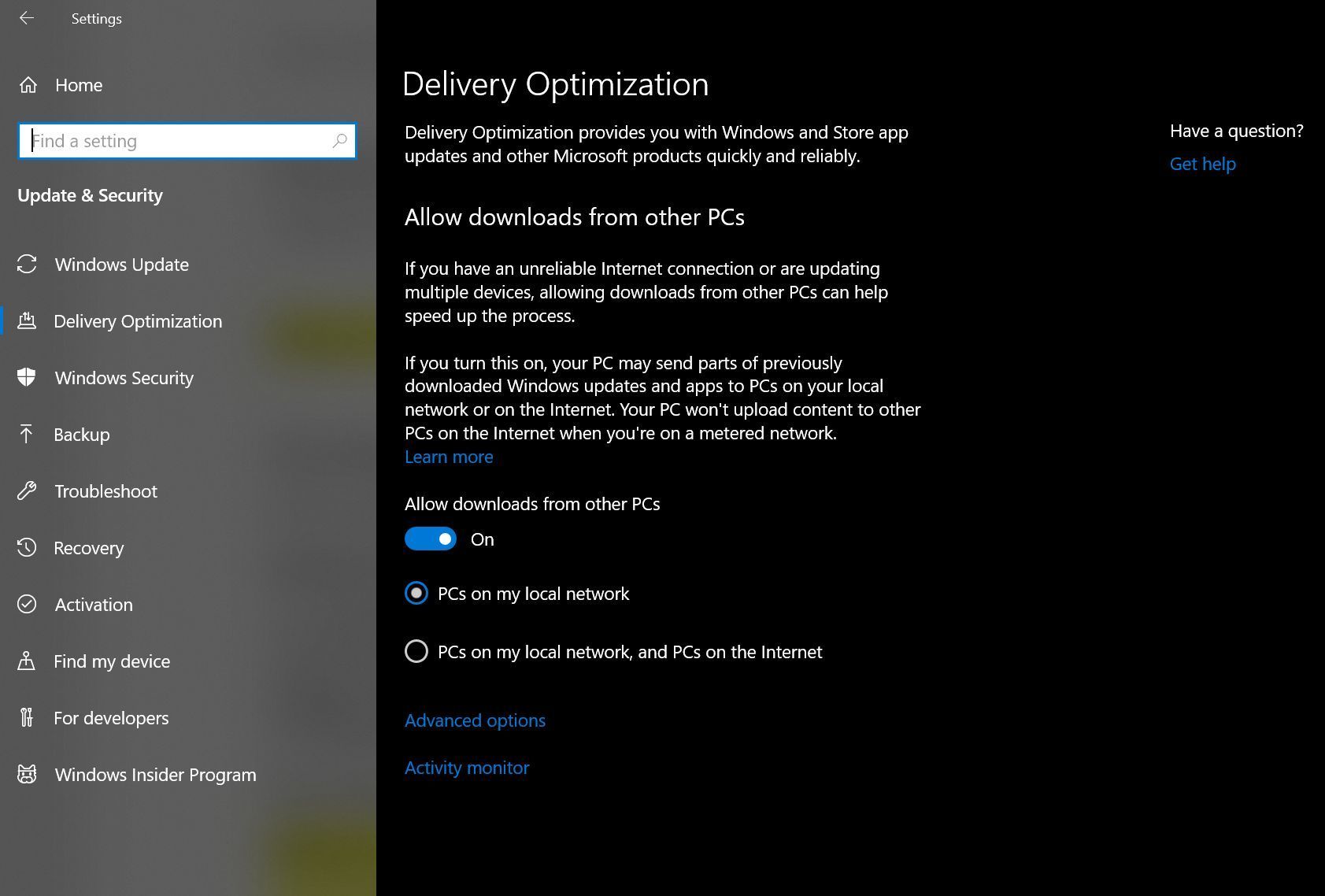
But the Windows Update upgrades don’t end there. Windows 10 introduces a new option that lets you download updates using peer-to-peer technology, rather than Microsoft directly. It could help you get that hot security patch faster when everybody’s hammering Microsoft’s dedicated servers, or save you bandwidth in a computer-crowded house—just download the new patch once from Microsoft, then share it among the PCs under your care.
To tinker with the setting, head to Start > Settings > Update & Recovery > Delivery Optimization. By default, “Get updates from more than one place” is enabled and configured to grab updates from PCs on both your local network and the Internet at large. If you don’t like the idea of your PC using your bandwidth to share Windows Updates with strangers, be sure to disable it. If you leave it active, the “Advanced options” link lets you fine-tune how Windows uses your network to download and share updates, as you can see above.
Seize control of Windows Updates
While the ability to schedule installation times for updates is very welcome indeed, not everyone is happy about the way Windows 10 handles patches—specifically, that you can’t refuse them. Windows 10 Pro users—but not Windows 10 Home users—can delay downloading updates for some time, but eventually, Microsoft will force them on you.
There are some actions you can take to exert control over your Windows Update experience, however. Most notably, if you’re using Wi-Fi for connectivity, you can set Windows 10’s Wi-Fi connections as metered to download updates when you’d like to, rather than when Microsoft wants you to. The Active Hours feature lets you tell Windows specific times not to install updates. And if you ever encounter a borked update that refuses to play nice with your PC, Microsoft’s released a tool that allows you to choose individual updates so they won’t be downloaded again.
Those workarounds aren’t a replacement for being able to manually choose the Windows Update you’d like to install, but they should help ease the sting a little, at least.
Fresh keyboard shortcuts!
Windows 10 packs a handful of fresh keyboard shortcuts, all tied to newfound abilities inside the revamped operating system. There are many more than we can list here, so head over to our guide to Windows 10’s keyboard shortcuts to learn all about them. If you really want to get fancy, augment those hotkeys with Windows 10’s new touchpad gestures for true shortcut mastery.
Declutter your taskbar
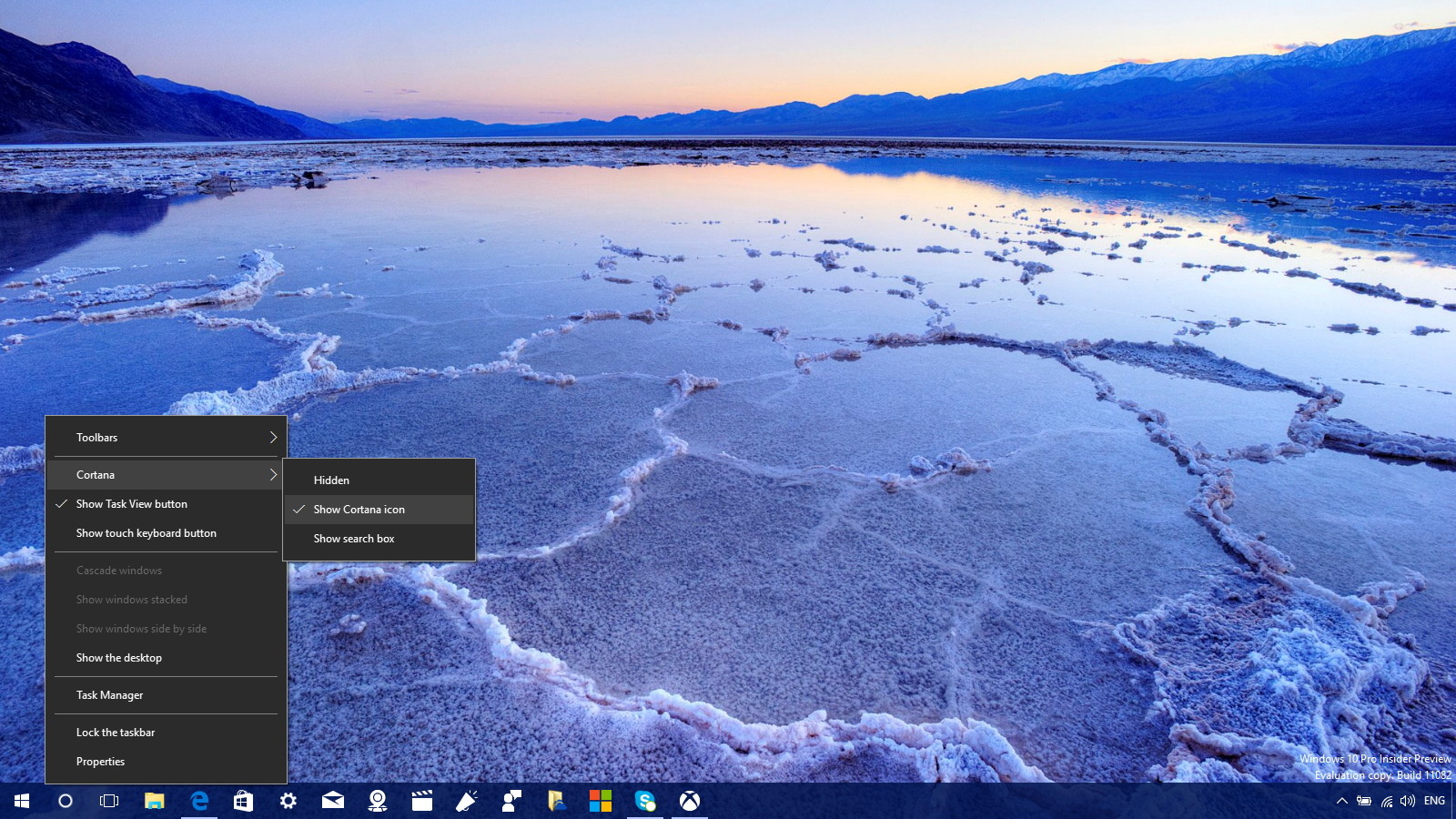
Two of Windows 10’s standout features are its Cortana search integration and newly added virtual desktop support—but they claim a sizeable chunk of your taskbar. If you don’t care about either (or don’t mind using Windows key + Tab to leap through virtual desktops) you can reclaim that onscreen real estate.
Everything starts by right-clicking an empty section of your taskbar. Select Cortana, and choose to Show Cortana icon only. You can also remove the Cortana and Task View buttons from the same Taskbar menu.
Thank You!
We feel the need to thank you following through with this long episode of top 30 Windows 10 trick, tips and tweaks. The article doesn’t stop here; share your ideas with us on the comment section.
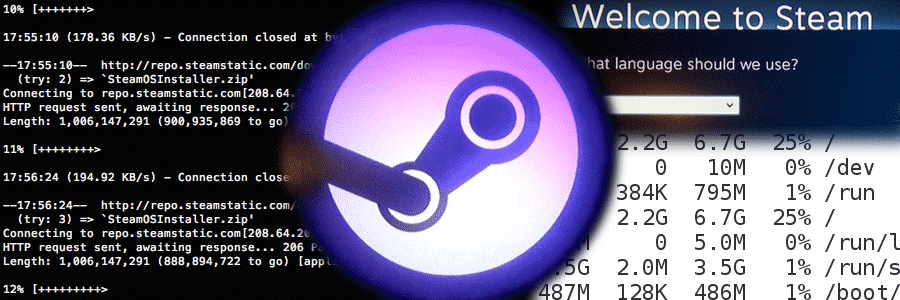
Ars Technica ran benchmarks on November 13th of the Steam Machine, against Windows 10. The result was pretty much the fresh operating system processing gaming much faster than the machine meant for a couch-convenient PC gaming experience. The two systems are relatively close when it comes to the mechanics for gaming, but the Steam Machine was found to lag way behind the new Microsoft operating system when it came to real gameplay. You could end up losing frames and detail of graphics depending on which game you’re playing on the SteamOS versus Windows 10, according to the tests.
The tests were run with a playable, modest setup: a dual-core 3GHz Pentium with an old GeForce GTX 660; which could pose a problem when handling more major and demanding games.
The SteamOS’ foundation is based on Linux, which is an operating system not well fitted with custom video cards/specialized gaming cards unlike Windows and Mac Pro systems. The implementations of the software is simply keeping the hardware from excelling to its true potential, and that could change with a little bit of refinement and fine-tuning from Valve.
Until that time comes, we’ll stick with sitting at our computer desks for our PC experience.
“All work without play” they said, “makes Jack a dull boy”. 2013 would have been incomplete without all the fun in it. Today, EWT is bringing your attention to the top 20 PC games that branded our 2013.
The games shortlisted here can easily contend for the ‘best game of the year’ award. If your most preferred game is not listed here, you are free to include it on the comment section. The qualifications for contention: The game must be a stand-alone product that you can buy on its own, and it must run on a PC.
DayZ is a gritty, authentic, open-world survival horror hybrid-MMO game, in which players follow a single goal: to survive in the harsh post-apocalyptic landscape as long as they can. Players can live through powerful events and emotions arising from the ever-evolving emergent gameplay.
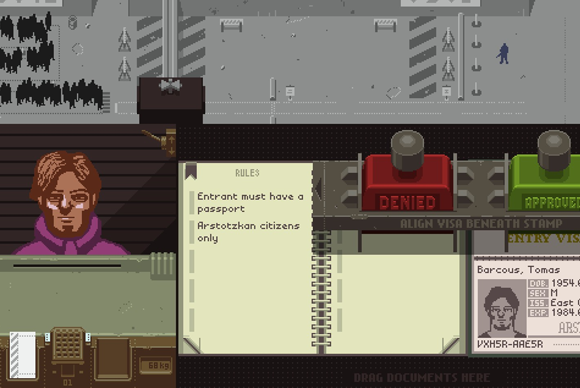
In Papers, Please, you win the lottery. Unfortunately, it’s the labor lottery, and you’re pressed into service as a border-crossing guard for your vaguely Eastern Bloc country Arstotzka. Your job is to examine people’s passports and—as drab days stretch into miserable weeks—make sure no criminal scum is trying to get into the country using falsified documents. Of course, the “criminal scum” is often people just like you—like the man who immigrates with no problem but whose wife has counterfeit papers. Do you let her in anyway? Or do you do your job and reject her? Keep in mind that if you let her in, there’s a good chance your pay will get docked and your family won’t eat tonight. Papers, Please is brutal. Unforgiving. Bleak.
After a swift fall from grace with the last two middling chapters of the Assassin’s Creed franchise (Revelations and III), I thought I was done. Burned out. Imagine my surprise when I put 15 hours into Black Flag my first day. Sailing around the Caribbean, sinking boats just to cause chaos, with my crew of pirates belting out sea chanties—I liked being a pirate. Star of the show Edward Kenway is the most affable protagonist the series has ever had. While some lament the lack of plot progression in the overarching series, I’m actually glad proceedings are less self-serious this time around. Assassin’s Creed IV is pure, unadulterated fun. Just make sure to keep a bottle of rum close at hand. Or this weird nonalcoholic rum for all you youngsters.
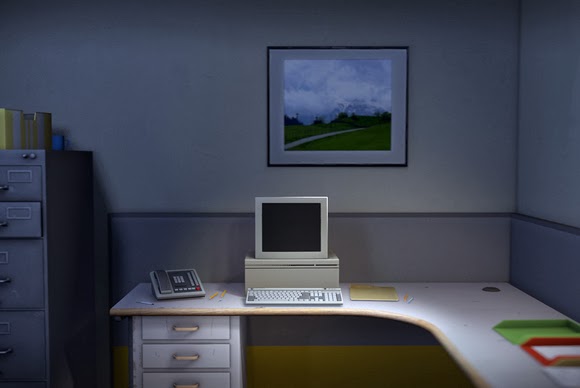
The Stanley Parable, once a mod for Half-Life 2, is now a stand-alone game. If you don’t know what The Stanley Parable is about, I highly recommend that you skip the rest of this entry and just go download the demo. Choice is the operative word in The Stanley Parable. You play Stanley, a hapless office worker who suddenly realizes that all his coworkers are missing. Also, a British guy narrates everything. “Stanley came to two doors and walked through the one on the right, towards his boss’s office,” the narrator says cheerfully. Do you listen to him, or do you rebel and walk through the door on the left? Do you stand there, paralyzed by choice, for minutes on end? Or do you contemplate how utterly meaningless life is? Let’s be honest: It’s probably the last one.
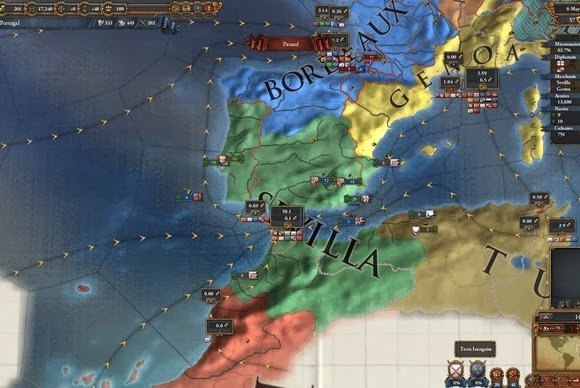
Eu não falo Português. Still, that didn’t stop me from becoming eternal king of the Portuguese Empire, a globe-spanning operation that discovered the Americas before Columbus was even born, and that grew to control the entire New World. In Europa Universalis IV, you take control of a country in the early Renaissance era and guide it toward empire. Or don’t. It’s a giant political sandbox. Want to know what would’ve happened if Ireland had thrown in with the French during the Hundred Years’ War? Or if the Holy Roman Empire had become an exceptional naval power? Go ahead and try it. The complexity of Europa Universalis IV’s grand-strategy approach takes some getting used to, but stick with it and you’ll suddenly find you’re making political decrees at four in the morning, wearing a crown you fashioned from an old pizza box. Perfect.
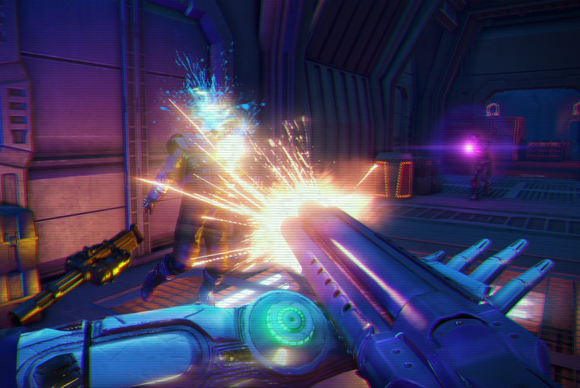
Look at your shelf of films (or your Netflix account or wherever they live). Are a good portion of your favorites neon-soaked, 1980s action films? Ones that feature spandex, an abundance of one-liners, and cheesy synthesizer and saxophone music? Far Cry 3: Blood Dragon takes place in a post-nuclear-war 2007. Your name is Sergeant Rex Power Colt. You have an electronic eye and a cybernetic arm. Your character is voiced by Michael “Kyle Reese” Biehn. It’s basically the same game as Far Cry 3, except way more pink. And way more amazing.
It’s been months, and I still don’t quite know how to put my experience with Gone Home into words—or perhaps I don’t want to. The experience is intensely personal, and not everyone is going to get as much out of it as I did. Gone Home is not, despite outward appearances, a horror game. There are no enemies to encounter, no middle act where you blow up the house and save the universe. Gone Home is a story of a family—and the secrets the family members keep even from one another, secrets that are hidden in the backs of old drawers and stashed under beds. What can you learn from the letter your mother uses for a bookmark? How about the box of papers in the basement? Or the details of an old rejection slip addressed to your dad? A lot, it turns out. Gone Home takes people as its premise, and people are fascinating.
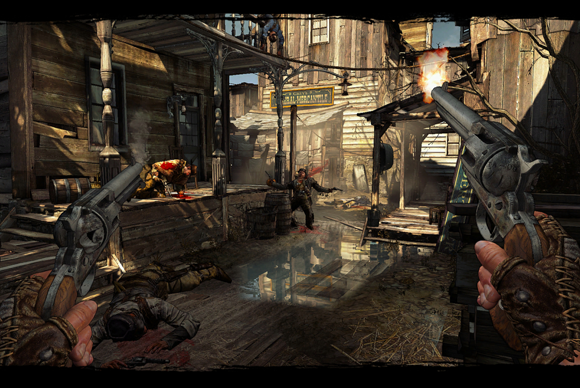
8. Call of Juarez: Gunslinger
Call of Juarez: Gunslinger abandons the self-seriousness of the last Call of Juarez game (The Cartel) and returns to the Old West, winning it the title of best arcade-style shooter of the year. You play as Silas Greaves, a grizzled bounty hunter and legend of the Old West. Greaves is actually the narrator of Gunslinger, relating his tales to a crowd of saloon patrons. And, as you can imagine, his tales are a bit…tall. Yes, you play the unreliable narrator of your own stories. The other people in the bar will call Greaves out on his lies, and the game world changes accordingly. “Now hang on, I didn’t say they were Apaches, I said they fought like Apaches!” Greaves says, and suddenly the Apache enemies turn into generic bandits. It’s a refreshing approach—toying with game tropes without taking itself too seriously. And for only $15? It’s a steal.
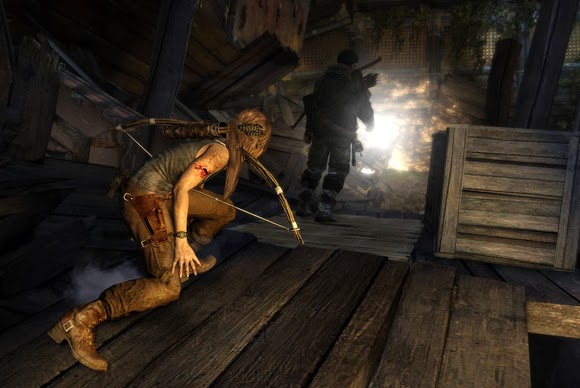
9. Tomb Raider
I never thought that in 2013 I’d be putting a Tomb Raider title on the Game of the Year list, but here we are. Developed by Crystal Dynamics, the new Tomb Raider is (like so many things these days) a dark, gritty reboot of the franchise. In this case, however, it’s a gritty reboot that works. The iconic Lara Croft is younger here, not as sure of herself. She’s shipwrecked on a mysterious island where the locals are less than friendly, and from there the game plays a bit like an open-world Uncharted. And I mean that comparison in the most favorable way. Tomb Raider’s mechanics just feel right: The game has dozens of collectibles scattered around the world, and for the first time in a long, long while, I actually snagged them all, just so I could keep playing.
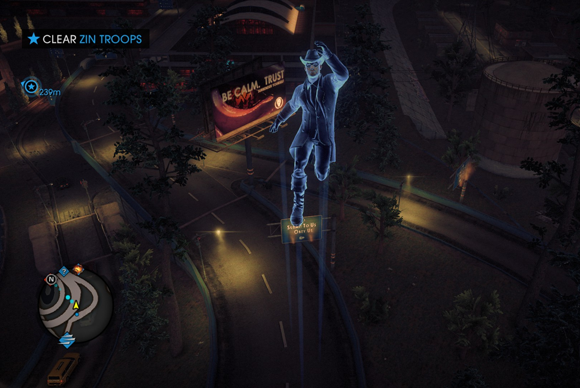
10. Saints Row IV
If Saints Row were a presidential candidate, it would endorse Fun. Capital F. “Restrict guns? No, I want the entire world to have guns,” says President Saints Row IV. “Oh, and here are some superpowers and a kickin’ soundtrack and—you know what, let’s just remake Crackdown, but make it silly.” I love Crackdown. Remake Crackdown but set it in the anything-goes, Saints Row universe, where every moment is a new pop-culture reference, and one of your many superpowers lets you turn yourself into a nuclear explosion? Awesome. Plus, I think there’s an unspoken rule that any game prominently featuring Aerosmith’s perennial classic “I Don’t Want to Miss a Thing” has to make the GOTY list.
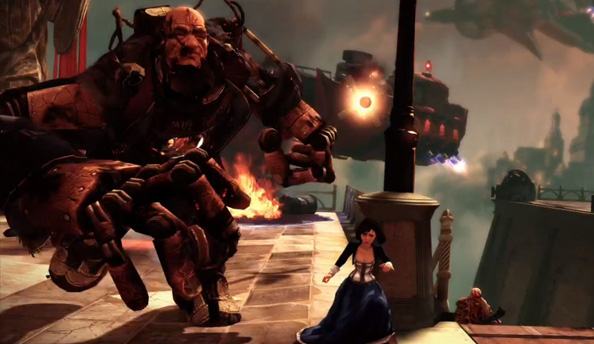
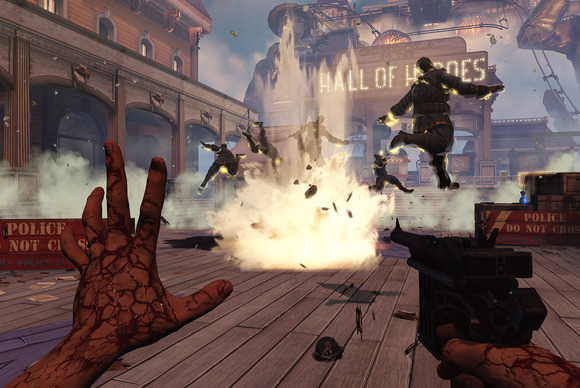
BioShock Infinite didn’t match its potential. Set aside the fact that the middle chapter is a drag, and you’re still left with an extremely problematic story that never quite gets a handle on any of its themes. And yet there were moments (particularly this one) that provided brief glimpses of the game it might have been, and even those brief glimpses were better than a lot of games. BioShock Infinite didn’t “save video games,” and it certainly didn’t have the same impact as the original BioShock, but those sky-high expectations were always unrealistic. It’s a shooter with a story that’s marginally better than those of most other shooters, set in a high-concept world that occasionally falters and shows its seams.
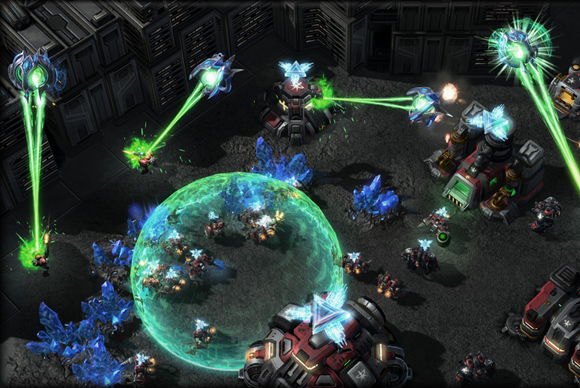
Starcraft II: Heart of the Swarm is the first expansion pack to Starcraft II, and the second chapter in a planned trilogy of games. The game’s campaign takes place after the events of the first game and you take on the role of Sarah Kerrigan and the Zerg race in an all new single-player campaign. Like the first game, you’ll decide how to proceed through the campaign by choosing your missions and your army’s upgrades—which now in the form of Zerg evolutionary enhancements. The multiplayer portion of the game, which is arguably what most people are going to get the game for, is also getting some major additions with new buildings, units, and associated strategies.
Battlefield 4 is being developed on a powerful next-gen engine and features Destruction 4.0 — allowing for Battlefield: Bad Company 2 style effects — tessellation and dynamic weather effects. As with Battlefield 3, the next entry in the series’ primary platform will be PC. More than just a yearly upgrade, the game will come with a host of improvements to the way its maps are set. For instance, each map in the game will be subject to various weather conditions including fog, sandstorms, rain and haze with these being completely random according to the leak. This, and a dedicated single-player campaign will be part and parcel of the next-gen Battlefield 4 experience.
SimCity is one of our most wanted games of 2013 for the PC. Heck, it’s been one of our most wanted games for a decade now. We’ve wanted a proper, current-generation sequel to SimCity 4, a game which has—thus far—remained uncontested by the likes of too many city simulations that simply fail to compete. The new SimCity offers a city simulation with more detail than ever before thanks to the powerful Glassbox engine it runs on, which simulates everything from underground water tables to the spread of fire, pollution, and crime. Beyond that, it’s got detail that’ll make use of high-end PC hardware to their max, pushing the boundaries of what’s possible in a simulation. It’s got its share of problems, but they’ve been fixed. Aside from the game’s always online requirement, most of its issues that were around during its launch have since been alleviated, making it one of the best city simulation games of all time.
Total War: Rome II is set to be the latest and greatest title in Creative Assembly’s Total War series of real-time strategy games. As the eight standalone title in the series, Rome II is set in the classical antiquity with a focus on the Roman Republic. The game is set to offer a much larger campaign than any previous Total War title, encompassing the extent of the Roman Empire and its environs. This time around however, players will be prompted with a variety of decisions to make throughout their campaign. For the first time ever, players will have to make decisions which affect how the campaign plays out by assigning traits to their legions, customizing their loadouts, and more. Additionally, the game’s developers also seek to capture the uniqueness of the different cultures and fighting forces of the time so you won’t simply be commanding cloned armies to fight one another. Each unit in the game will have a unique look and feel associated to its culture, and a technological tree that makes historical sense.
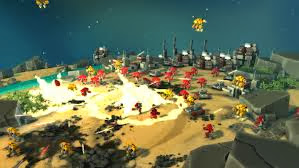
Planetary Annihilation can be best described as the spiritual successor to Total Annihilation and Supreme Commander, offering real-time strategy battles that take place on a planetary scale. Games are expected to vary from half-hour 2-player battles to large scale, and lengthy 40-player matches. The game is set to feature a planet-based map system spanning over multiple star systems, different types of planets, and even asteroids. Players will be able to conquer planets and even entire solar systems in their war for galactic dominance.
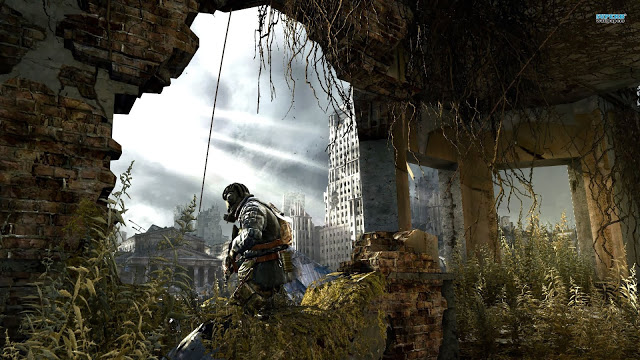
Metro: Last Light is the sequel to Metro 2033, taking place a year after the events of the first game. Originally slated for release in 2012, the game has since been delayed to an early 2013 release. The writer of the books, Dmitry Glukovsky has been signed on to work with the developers on the game. Like Metro 2033, the game is expected to make full use of the PC’s capabilities to offer better visuals than its console counterparts.
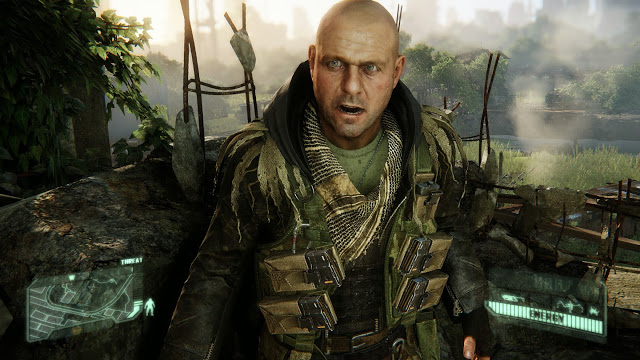
Crysis 3 may be getting released on consoles, but it’s a game that finds its home on the PC as its developers plan to make full use of the PC’s powerful hardware. Veering away from the corridor shooter gameplay of the second Crysis, Crysis 3 is set to offer wide open spaces in a New York City overrun by flora and fauna. Much like the first Crysis and Far Cry before it, players can expect to be able to utilize free-form strategies against AI opponents as they traverse through the wide open areas.
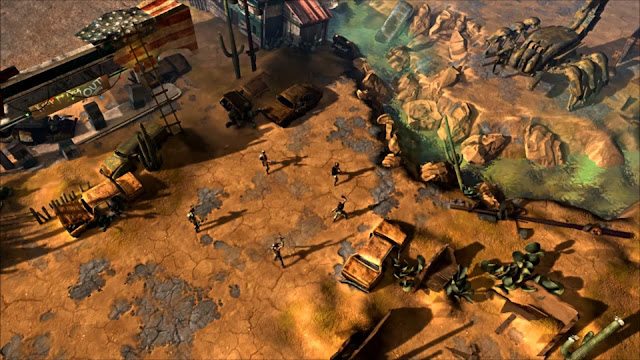
Wasteland 2 is a tactical turn-based and party-based RPG with an “old school” isometric view in which players take control of a party of up to seven characters (three of which are NPCs), and all of whom are highly customizable. Wasteland 2 comes from the makers of Fallout and the original Wasteland—precursors to just about every other modern RPG. As one of the first major games to be funded by Kickstarter, Wasteland 2’s development is entirely independent from the machinations and meddling of marketing departments and corporate big-wigs.
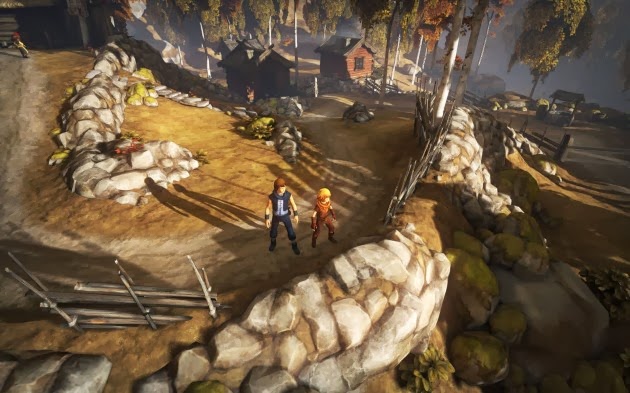
Brothers – A Tale of Two Sons is a videogame developed by Starbreeze Studios in partnership with 505 Games. A lovely game just enough to squeak in at the bottom of the list.













You must be logged in to post a comment.