Tag: skype

  • Skype To Shutdown After Two Decades

    Skype To Shutdown After Two Decades

    Microsoft has confirmed it will be shutting down Skype, the once-dominant internet-based phone and video service, in May.

    In an announcement on X, the company assured users they would soon be able to access Microsoft Teams’ free tier using their Skype login credentials.

    Skype’s closure comes 14 years after Microsoft acquired the platform for $8.5 billion in cash—its largest-ever purchase at the time. Since then, the tech giant has integrated Skype into various products, including Office and the now-defunct Windows Phone.
    “Skype shaped modern communications and created countless meaningful moments, and we honor being part of its journey,” said Jeff Teper, Microsoft’s president of collaborative apps and platforms, in a blog post.

    He added, “We’re excited about the new opportunities that Teams brings and remain committed to helping you stay connected in new and meaningful ways.”

    A Changing Communications Landscape

    Once the go-to platform for online calls, Skype’s influence has waned in recent years, despite a brief resurgence during the pandemic. The rise of competing services—including Zoom, Google Meet, and Cisco Webex—has further pushed Skype into the background. Meanwhile, Apple’s FaceTime and Meta’s WhatsApp have cemented their places as key players in the video calling space.

    At the same time, Microsoft has been shifting its focus to Teams, which offers many of Skype’s features along with additional business-oriented tools.

    A Legacy of Innovation

    Skype launched in 2003 in Estonia and quickly attracted users as a free alternative to costly international phone calls. The service’s rapid growth led eBay to acquire it for $2.6 billion in 2005. However, the partnership was short-lived, and eBay sold a majority stake in Skype to an investor group for $1.9 billion in 2009.

    Microsoft’s 2011 acquisition marked a significant investment in the future of digital communication. However, the company has struggled to maintain Skype’s relevance in an increasingly crowded market. With Microsoft now prioritizing Teams, Skype’s shutdown marks the end of an era for a platform that once revolutionized the way people connected across the globe.


  • Skype’s social media accounts hijacked by Syrian Electronic Army

    Skype’s social media accounts hijacked by Syrian Electronic Army

    Skype said its social media properties were targeted, with a group styling itself as the Syrian Electronic Army appearing to claim credit for the hacks.

    ”You may have noticed our social media properties were targeted today,” Skype said in a Twitter message late Wednesday. “No user info was compromised. We’re sorry for the inconvenience.”


    Skype’s Twitter account, blog and Facebook page appeared to have been attacked by the SEA, a group that supports the Syrian government, according to reports. The Skype blog was still inaccessible late Wednesday and redirected users to the Skype homepage.

    The SEA reproduced in a Twitter message a copy of what appeared to be its message using the Skype account on Twitter. The message read: “Don’t use Microsoft emails(hotmail,outlook),They are monitoring your accounts and selling the data to the governments.More details soon #SEA.” It did not figure by late Wednesday on Skype’s Twitter feed.

    SEA later posted on Twitter contact information purportedly of Microsoft CEO Steve Ballmer, stating: “You can thank Microsoft for monitoring your accounts/emails using this details.”

    The attack on Skype’s social media accounts appears to be linked to disclosures through newspapers by former U.S. National Security Agency contractor Edward Snowden that Internet companies allegedly provide the agency real-time access to content on their servers for surveillance purposes.

    The SEA has targeted previously many high-profile websites and Twitter accounts. In August, an attack purportedly by SEA on Melbourne IT, an Australian domain registrar, affected the websites of The New York Times, Twitter and other top companies.

  • Explore Skype Keyboard Shortcuts Like a Ninja!

    Explore Skype Keyboard Shortcuts Like a Ninja!

    Ofcours, everyone wants to navigate more fluently on skype while using a computer but not everyone knows it’s “hotkeys”. The use of keyboard shortcuts helps you navigate easily and save time while using the VoIP service.


    “It makes you a Ninja” but unfortunately, not everyone knows how to setup this all important keyboard shortcuts. In this tutorial, I’m going to take you on a walk-through on how to setup and personalize your keyboard shortcut for skype.

    #1. Enabling Keyboard Shortcut in Skype

     These are keyboard shortcuts for when you want to:

    • Answer a call
    • Answer a call with video
    • Ignore a call
    • End a call
    • Take a snapshot during video calls
    • Focus on Skype
    • Search for people on Skype
    • Mute your microphone
    • Toggle mute (Push-to-talk)
    • Switch view

    If you have already enabled keyboard shortcut for your skype skip this part, otherwise:

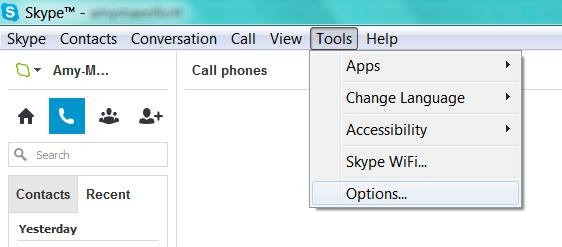
    • Locate tools on your skype interface
    • Click on options
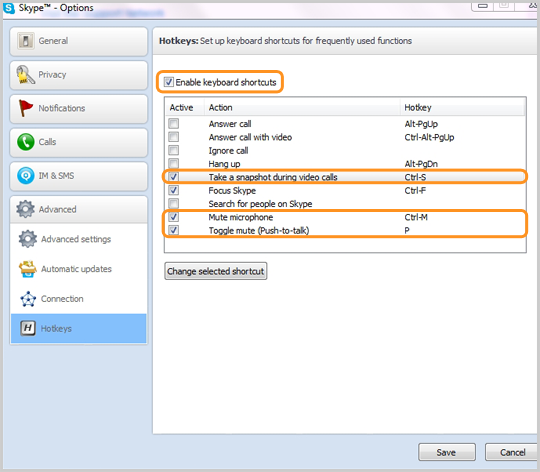
    • At the bottom of the list, click on the advance tab and
    • Select hotkeys (is represented with 
    • Check the box next to “Enable keyboard shortcuts.” Do not close the window.
    • Check the actions you want to enable hotkeys for.

    #2. Personalize your Keyboard Shortcuts

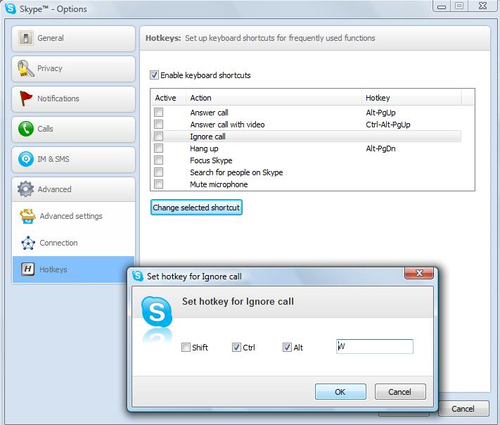
    In the “hotkey” window you will find a couple of hotkey commands already set up, but you can personalize all the actions with shortcuts of your own preference. 

    • Simply click on the check box next to an action, 
    • Click on Change selected shortcut
    • Add your own shortcut key sequence into a pop-up window.

      The number of shortcuts you want to setup depends on you, Avoid using complex key combination that will be difficult for you to remember, I suggest using hotkey commands that you’re already familiar with, e.g., “Control” + “F” for search. Once you’ve personalized the hotkeys to your taste, click “Save” at the bottom of the window.

    •  Finally, click save and enjoy skype like a ninja!