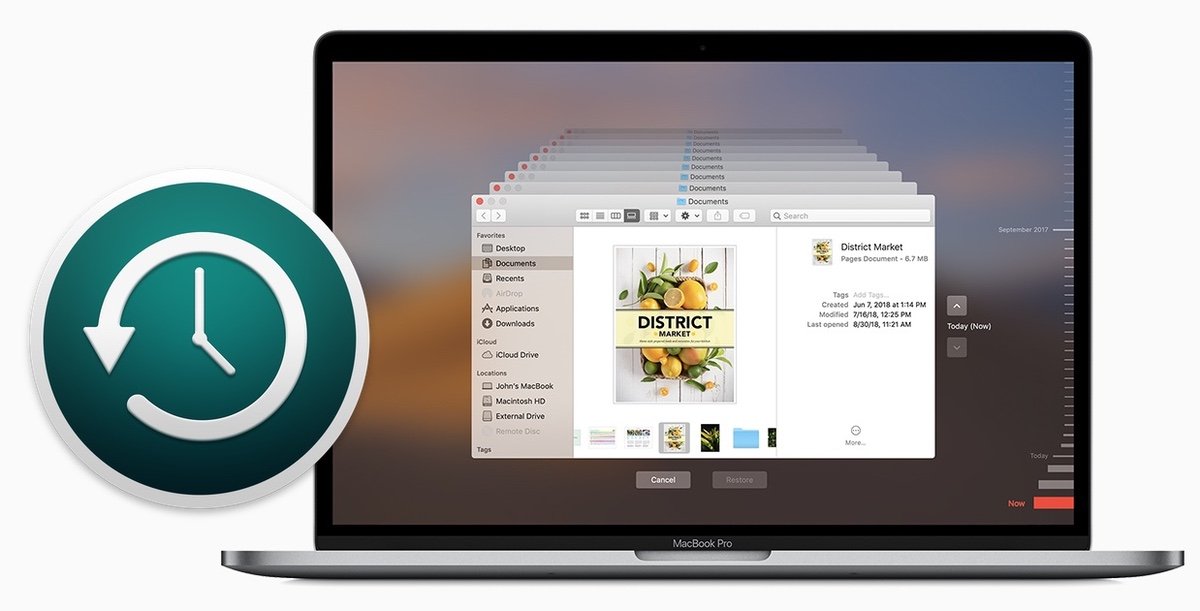
Creating a backup of your Mac is the only guarantee you can have of never losing your data and Apple has made it incredibly easier for you with Time Machine.
Time Machine is a built-in backup feature of your Mac, to automatically back up your personal data, including apps, music, photos, email, and documents. Having a backup allows you to recover files that were deleted, or that were lost because the hard disk (or SSD) in your Mac needed to be erased or replaced.
To create backups with Time Machine, all you need is an external storage device. After you connect the storage device and select it as your backup disk, Time Machine automatically makes hourly backups for the past 24 hours, daily backups for the past month, and weekly backups for all previous months. The oldest backups are deleted when your backup disk is full.
External drive connected to your Mac, such as a USB or Thunderbolt drive
Network-attached storage (NAS) device that supports Time Machine over SMB
Mac shared as a Time Machine backup destination
AirPort Time Capsule, or external drive connected to an AirPort Time capsule or AirPort Extreme Base Station (802.11ac)
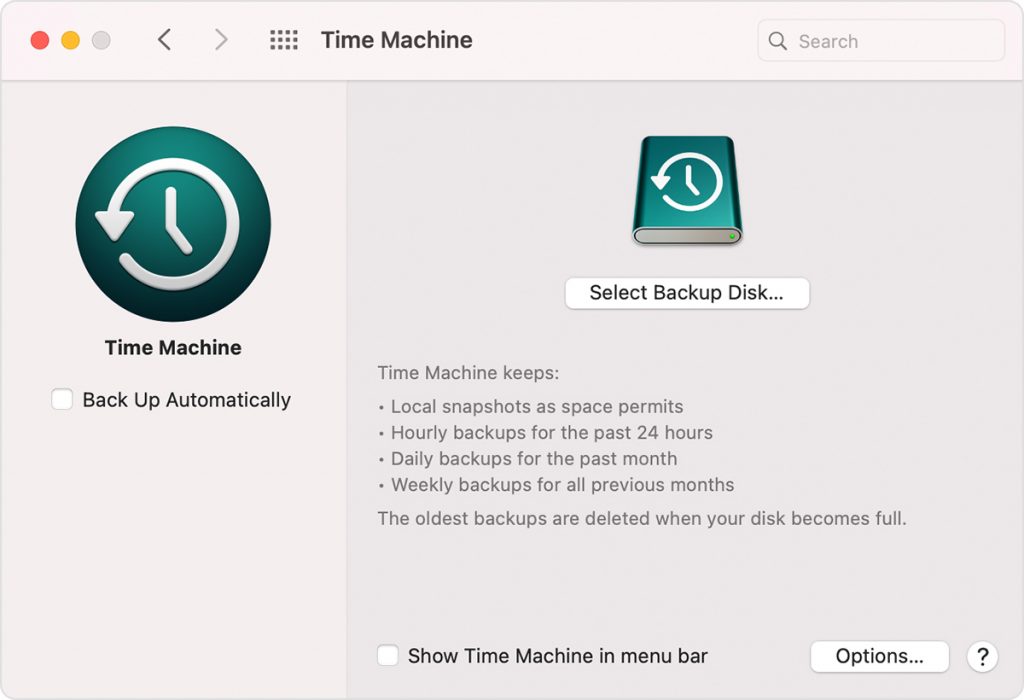
Select your storage device as the backup disk
Open Time Machine preferences from the Time Machine menu in the menu bar. Or choose Apple menu > System Preferences, then click Time Machine.
Click Select Backup Disk.
Enjoy the convenience of automatic backups
After you select a backup disk, Time Machine immediately begins making periodic backups—automatically and without further action by you. The first backup may take a long time, but you can continue using your Mac while a backup is underway. Time Machine backs up only the files that changed since the previous backup, so future backups will be faster.
To start a backup manually, choose Back Up Now from the Time Machine menu in the menu bar. Use the same menu to check the status of a backup or skip a backup in progress.
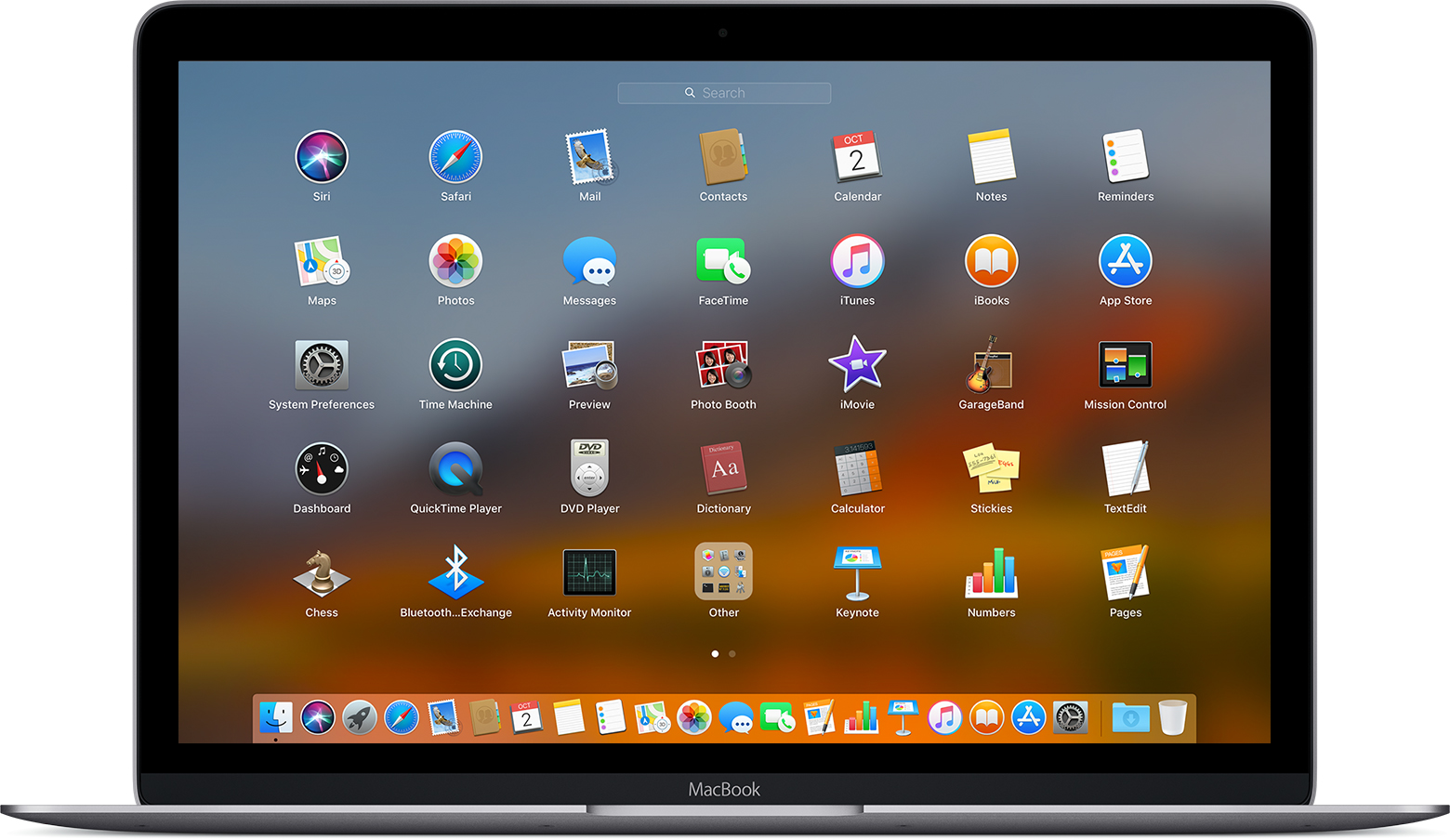
Apps for your Mac. Mac OS is a series of graphical user interface-based operating systems developed by Apple Inc. for their Macintosh line of computer systems. The Mac OS has been pre-installed on almost every Macintosh computer sold. It was first invented in 1984 and now many of its upper versions are ailable.
There are a ton of MacOS applications that you can find on the App Store on your Mac or on internet and some of them are commonly used by many Mac users, but here are the 10 best and must have apps for you Mac.
Backup & Time Machine
The very first thing to do your Mac is to create a backup solution. It will be ill-advised or even stupid not to do so.
latest MacOS comes with a built-in backup feature Time Machine which allows you to automatically back up your personal data, including apps, music, photos, email, and documents. Having a backup allows you to recover files that were deleted, or that were lost because the hard disk (or SSD) in your Mac needed to be erased or replaced.
Having a third party backup application may not be necessary but if you are looking for a reliable alternative to Time Machine, Silverkeeper is your best bet.
SilverKeeper is a Backup application for Mac. It automates backups to external storage devices like hard drives, and other removable storage devices that have SATA/eSATA, IDE, ATA/ATAPI, SCSI, USB, or FireWire interfaces connected with Mac and the backup can be stored as disc image backups to network storage devices.
Audacity is the one of the most popular open source digital audio editor available for Mac. It is a multiplatform, open-source editor Audacity has leaped to the top of our list with its clean interface, excellent features, and support for 32-bit floating-point audio. This editor offers you to record and play sounds and import and export WAV, AIFF, MP3, and OGG files with some ultimate features of mix tracks, or apply effects to your recordings, cut, copy and past (also able to undo). It also has effects like echo, fade, modulation, normalization, reverse, tempo and Publishing Options.
VLC media player is a free and open source media player and multimedia framework. It is a highly portable multimedia player for various video formats, including MPEG-1, MPEG-2, MPEG-4 and DivX as well as for DVDs, VCDs, and various streaming protocols. It is not just a video player, has ability to play many audio formats, including OGG, MP2, MP3 and MP4.
GIMP is a free software raster graphics editor. GIMP becomes the one of the most powerful general-purpose image editors around, the upgrades make the GNU Image Manipulation Program eminently comparable to Photoshop with its amazing features. The advanced scripting interface allows everything from the simplest task to the most complex image manipulation procedures to be easily scripted.
Gimp is easy to learn for beginners and easier to use. Overall, GIMP is a must-have application for Mac.
Apps for your Mac, FileZilla is an easy-to-use FTP client that allows you to view, edit, upload, download, and delete files from a Website or network.
FileZilla is a FTP (File Transfer Protocol) based application. Its easy-to-use interface makes locating and editing files on your website easy. You can also upload or download files with a single button click. It also allows you to synchronize the navigation of a local folder with a remote folder, saving you time and reducing the risk of uploading to the wrong folder.
If you are a developer, consider installing VS Code for your code editing.
Google Chrome may be the most popular, fast, secure and widely used as default web browser. Opera on the other hand is redefining the purpose of web browsers and taking browsing experience to new heights.
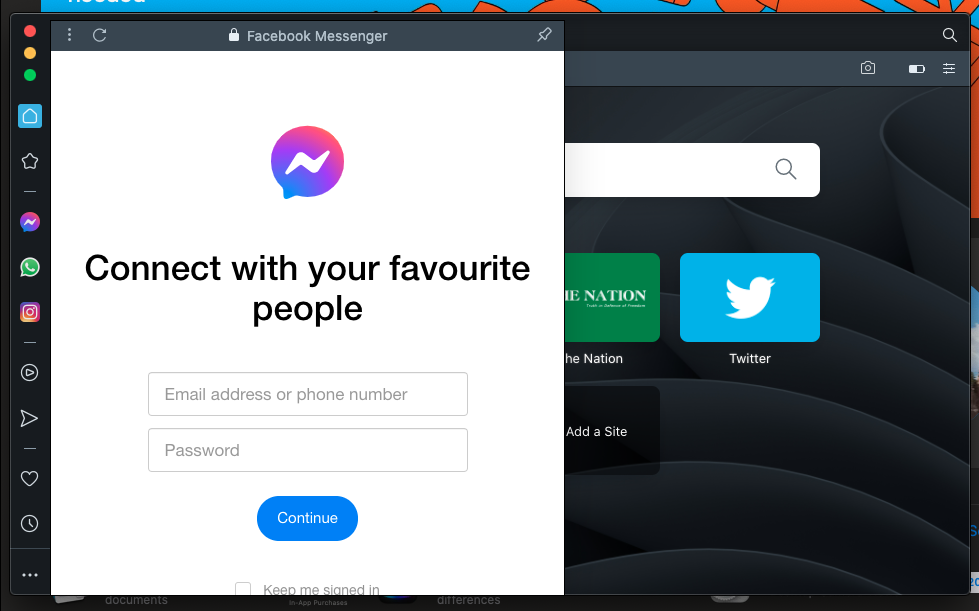
Facebook Messenger on Opera browser
Released in 2019, Opera 75 is built on Chromium engine; same technology as Google Chrome at the core. Chromium is an open-source browser project that aims to build a safer, faster, and more stable way for all users to experience the web.
One of the most important improvements is that the browser now support an instant messaging feature that supports multiple IM networks, including Facebook Messenger, WhatsApp, Telegram, Instagram, Twitter, and VK. You can use these IMs without leaving the browser window or opening a browser tab.
Apps for your Mac, the Unarchiver is a free data decompression frontend of libxad, which supports more formats than Archive Utility (formerly known as BOMArchiveHelper), the built-in archive unpacker program in Mac OS X. It supported file formats include Zip, Tar-GZip, Tar-BZip2, RAR, 7-zip, LhA, StuffIt and many other old and obscure formats. Download
8. Anxiety
Anxiety is a super-lightweight To-do list application for Mac OS X Leopard that synchronizes with iCal and Mail. Its aim is to provide a streamlined, easily accessible interface to add and check off your tasks, while remaining poised to melt into the background at a moments notice. Anxiety also makes it very easy to create and add new notes in a second and you can also choose to have the program’s icon appear either in your menu bar or on the Dock. Download
9. LibreOffice
LibreOffice is your Mac substitute of Microsoft Office. Well, not really, but it’s a free office package for your Mac. Its clean interface and feature-rich tools help you unleash your creativity and enhance your productivity.
Apps for your Mac ,Don’t take your work as a boring thing. Play Angry Birds on your Mac OS , one the most famous game, playing world wide. There is no definition, no any discussion and no need for any disruption. It’s a wonderful game for all kind of users. Which once start make our better and interesting. Download
You must be logged in to post a comment.