On September 8, 2022, Apple unveiled the new iPhone 14 and iPhone 14 Plus. A next-generation smartdevice with the A15 Bionic chipset, emergency satellite SOS, and crash detection, all integrated with iOS 16 features.
The 6.1″ inch screen and a 6.7” inch larger screen display allow for HDR content. Apple’s iPhone 14 and 14 Plus are available in midnight, blue, starlight, purple and red. Also in 128GB, 256GB, and 512GB storage capacities. The US models of the iPhone also come with an eSIM, meaning there is no physical SIM tray.
In the meantime, the tech community is abuzz with the special iOS 16 features and availability dates of high-end devices across the world. Technophiles worldwide are already pre-ordering iPhone 14 and iPhone 14 Plus. Find out the specifications and features below.
Credit: IG @cellcompanycat
iPhone 14 Emergency SOS Feature
The new safety feature called emergency SOS via satellite is a feature that Apple introduced on both recently unveiled iPhone 14 models. The feature claims to get one in touch with emergency services in areas where there’s no reception.
In dire situations when you’re out of cellular and Wi-Fi coverage, you can send messages via satellites to get the help you need.
How To Use The Emergency SOS Via Satellite Feature
Firstly, to access the emergency SOS feature, an iPhone 14 model is required, alongside an iOS 16 software update.
Secondly, try calling emergency services. Another prerequisite to using emergency SOS via satellite is no cellular and Wi-Fi coverage. There has to be an actual disturbance in the network connection before utilizing the emergency feature. Once the above-mentioned details are covered, proceed to;
Tap Emergency Text via Satellite.
Tap Report Emergency.
Answer the necessary emergency questions to provide details about your situation.
You can also choose to notify your emergency contacts regarding the nature of your emergency.
Then follow the onscreen instructions to connect to a satellite.
While the connection is successful, be sure to keep following the onscreen instructions so the message can deliver.
Credit: Apple Inc.
Note that once connected to an emergency service, iPhone 14 starts a text conversation with emergency responders. It goes as far as sharing critical information like your Medical ID and emergency contact information (that’s if you’ve previously set up one). The nature of the emergency, your location, and the remaining battery life of the iPhone will also get to the emergency services.
Which Location Is Emergency SOS via satellite available?
Apple’s emergency satellite feature is only available in the US and Canada as at the launch of the iPhone. This includes Puerto Rico and US Virgin Islands, but not Guam or American Samoa. The feature is equally unavailable on iPhone models that you acquire in China mainland, Hong Kong, or Macao.
iPhone 14 / iPhone 14 Plus Features And Specifications
Windows Media Player is the one of the default softwares which comes with all the windows operating systems like windows 7, XP, Vista, 98. It is the default application in windows for playing videos & audio but it has certain limitations too. So, I am going to share some of the best alternatives of windows media player which you can use at free of cost for playing your audio & videos.
1.VLC media player
VLC media player is a free and open source media player and multimedia framework. It is a cross-platform media player, with versions for Microsoft Windows, Mac OS X, GNU, Linux, BeOS, MorphOS, BSD, Solaris, iOS and eComStation.The toolbars are fully customizable, so you can have only the buttons you need in the interface, there are AirTunes streaming, and there’s better integration in Gtk environments. A a wide range of video and audio formats can be played, including OGG, MP2, MP3, MP4, DivX, HD codecs like AES3, Raw Dirac, and even support for playing back zipped files. Download
2. Media Player Classic
Media Player Classic (MPC) is a compact media player for 32-bit and 64-bit Microsoft Windows a lightweight Media Player. This single player easily replaces the four or five video players installed on most systems. The Media Player Classic is available in many different languages (English, Belarusian, Catalan, Portuguese (Brazilian), Mandarin Chinese, Czech, Dutch, French, German, Hungarian, Italian, Japanese, Korean, Polish and more).This program also plays most audio formats.Media Player Classic also easily loads and plays DVDs. We liked how you can easily increase or decrease playback speed. Download
3.Winamp
Winamp is the one of the most famous and widely used media player designed for Windows, Linux and Android. Winamp supports music playback using MP3, MIDI, MOD, MPEG-1 audio layers 1 and 2, AAC, M4A, FLAC, WAV and WMA. Winamp was one of the first common music players on Windows to support playback of Ogg Vorbis by default.Winamp have ability to sync non-DRMed files to your PC from your device, an optional new interface layout and a built-in browser for media discovery.Winamp have playlist options to make playlists while playing media another effective feature it have inbuilt equalizer setting. Winamp has thousands of skins and plug-ins that allow you to change the look-and-feel of the player, as well as add new features.If you want MP3 encoding and full-speed CD burning, you have to shell out $19.95 for the Pro version. Download
4.RealPlayer
RealPlayer is a cross-platform media player by RealNetworks that plays a number of multimedia formats including MP3, MPEG-4, QuickTime, Windows Media, and multiple versions of proprietary RealAudio and RealVideo formats.RealPlayer for Windows already had most of that down, offering a sweeping array of features, from one-click video downloading to automatic transcoding to social network sharing.The latest version of the software adds even more devices to the ever-expanding list of compatible handsets. Plus, RealPlayer now shows USB-connected smartphones and cameras inside the library in the main app window, allowing users to quickly and easily transfer content to the devices via drag-and-drop. It have hundreds of Plug-ins. Download
5.ALL Player
ALL Player is a most popular program for watching movies with matching subtitles freeware media player. Unlike other media players, it does not use Windows Media Player to play media, but rather asks DirectX directly. The amazing features, Detection of missing codecs needed to open a media file, Integration with a reader (a speech synthesizer) for subtitles reading, Intelligent subtitles, in which the time they are displayed is dependent on how fast users can read them, Password protection of media, Creating a menu, Automatically downloading subtitles from the internet, Downloading video files from YouTube, Playlists. ALL Player is available in different languages (English, Polish, Russian, German, French, Spanish, Czech, Chinese, Hungarian, Italian, Portuguese, Slovak and more). Download
She is a mother, she is a sister, she is a wife, she is an entrepreneur, she is a caretaker, she is a professional, she is a boss. Whatever the case, women are unique and special beings due to what they represent and the role they play in the society that has ensured peace, stability, and the progress of homes, nations globally.
However, the abuse on women never stops. The focus has been on violence such as napping, physical attacks, dangerous stalking or harassment, and sexual abuse which has been on the rise despite police patrol, despite surveillance cameras, despite the laws against the act.
In fact, the National Sexual Violence Report Center established that, “majority of female victims of completed or attempted rape first experienced such victimization early in life, with 81.3% (nearly 20.8 million victims) reporting that it first occurred prior to age 25.”
While this exposes the danger that lots of women face at early age or at any stage of life, the statistics also reviews that, there is a need to take measures to protect women from such violence. To this end, Lipstick stun gun, cell phone stun gun, smack key-chain stun gun is an invention for self-defense for women who feel the need to have it, use it, and get to safety.
The Lipstick Stun Gun
Lipstick Stun Gun
The lipstick stun guns are made in the shape of a lipstick-like tube. It is not an actual gun per say but a device that act “as a deterrent and, then, shock.” When in use, the lipstick and other Stun guns “can disable an attacker temporarily a non-lethal, high-voltage electric shock” said Women on Guard.
Because, it looks like a lipstick, it means you can carry it anywhere everywhere and you can even recharge it when the power runs low. Disguised as a lipstick and relatively low ($30 USA dollars), it is alleged can help women for self-defense.
Cell Phone Stun Gun
Cell Phone Stun Gun
This design is made like cell phones but again they are not actual guns and they are not cell phones either. The idea is to disguise that you carry a weapon like device with you. This particular Stun gun “has the highest voltage” more than others and it is easy to carry around.
The Razor Stun Gun
Razor Stun Gun
This particular design takes the shape of a car key especially for the safety of women that gets napped while trying to drive or while packing their cars or anything related to isolated environment. the device has a “built-in 130dB alarm and a light” to alert others that you are in danger should self-defense fails.
A key chain Stun Gun
Key Chain Stun Gun
This design is also made like a car key. The device has “22 million Volts and can be concealed in the palm of your hand, purse or pocket.” Basically, the Stun Gun shape can be anything in the future but the idea is to keep it simple, less expensive and easy to carry in disguise.
The question is, do women really need it, does it really serve the purpose of self-defense like it should, or can rather put the woman in more danger via her resistance.
Women on guard reassure that, the product has been reviewed by many buyers and that man or woman, “personal security is important to everyone” and “the best self-defense product is their Stun Guns.”
With the advancement of the digital world, our data has been digitized too. Now, we have our important data in our phones, laptops, and tablets, etc. Sometimes, we need to convert one format to another and this task can be challenging, time-consuming, and troublesome in the absence of file converters.
If you think that you have to buy numerous file converters for different formats then trust me it’s not like that.
The Top 5 Online Free Converters
There are countless online free file converters are available for every format which you can use without spending money. By being free if you feel, these online converters are not reliable then you are not right. These are not only trust-worthy but also don’t compromise on quality.
Prism Video Converter
It is one of the top online converters which convert video into other formats in an easy way. It is straightforward to use because it has a simple interface. It can convert the videos into many formats within no time.
This online converter converts many files at a time. In the conversion of video files through prism video converter, you can adjust settings such as; compression, resolution, and encoder rates, etc.
It allows the user to change the size of your video and add watermark as well. Text overlay and rotation of the videos are also possible.
This is an easy-to-use online converter which is the right choice for any type of file format. It enables you to convert various formats like
Video
Audio
Images
Documents
PDF
Archive
eBooks, etc.
It is suitable to use in home as well as in office. If you have a lot of data to be converted then you have to purchase its monthly or yearly packages.
Freemake Video Converter
Freemake video converter is also included in the list of the best video converters. It supports many languages to provide convenience to users. It is compatible with Windows operating system.
You can download the videos for conversion for different websites like Facebook, YouTube as well as from your computer. Its process of conversion is not complicated so anyone can use it.
It also offers you some features like editing, resizing, compressing the video, etc. Unprotected DVDs are also ripped by using this free converter.
7-PDF Maker
It is an online converter through which you can convert many formats into PDF like;
Documents
Images
Math
AutoCAD
This file converter is straightforward to use so you can transform your files into PDF without any difficulty. It doesn’t provide you many features but it is an ideal free converter for a compact PDF conversion.
Go4Convert
It is the online converter through which you can convert various formats into EPUB. For example;
Word to EPUB
PDF to EPUB
HTML to EPUB
MOBI to EPUB
Text to EPUB
It gives you the convenience to convert more than one file simultaneously without compromising the quality. In the conversion procedure, all the data, images, graphics, tables, columns, and hyperlinks, etc. are saved.
Tech Gadgets generally are tools, that makes our everyday tasks seamless. They reduce the stress in carrying out everyday tasks activities. Thanks to technological advancements, there are different gadgets for different fields. In this article, we explore a comprehensive list of must use home and office tech gadgets. Gadgets featured in this list, are gadgets are essentials you will need as a tech enthusiast.
1. Satechi Aluminum Type C USB Clamp
The Satechi Aluminium USB adapter clamps to your computer, providing you with lot more ports in I/O. It makes connecting peripherals to your computer a whole lot easier. You do not have to lean to connect peripherals. The ports on this adapter face the user, making it easy to fix and remove peripherals. The 2017 iMac and iMac Pro models feature additional Thunderbolt slots.
2. Logitech MX Vertical Ergonomic Mouse
The importance of a very ergonomic mouse cannot be overemphasized, it is needed for smooth workflow on your PC, it makes navigation a whole lot Logitech MX vertical ergonomic mouse, takes comfort to a whole new level. This mouse reduces the pain associated with continuous use of a mouse, to the barest minimum. The Logitech MX vertical ergonomic mouse keeps your hand in a natural handshake position, which eliminates the strain caused by using the mouse sideways. With a 4000 DPI, this mouse is a very high precision mouse.
3. Norton Core Router
Having a good router that outputs good wifi Signals for the internet, is very imperative. In this Era of the internet of things, the internet has become very essential in powering a lot of devices that we use today. Whether it’s your home or your office, you are certainly going to need a Wifi router.
Speaking on Wifi Routers, the Norton core router is a highly recommended router. It is one of those WIFI routers, that is very resistant to malware like VPN filter, a malware that has plagued more than half a million routers in more than 50 countries. Apart from being a very powerful router, the Norton core router features a very beautiful and intuitive design, that can easily blend into your surroundings, be it your office or your home.
4. Shinola Power Supply ( 5 Ports)
Be it your office or your home, good power extensions are very important, they let us power ower devices. If you are someone that has a lot of devices with different prongs or connectors, you are certainly going to need an extension with universal ports.
The Shinola power supply is a very good example of the kind of power extension you would want to purchase. It features 5 port + Dual USB ports, which lets you plug your smartphones and other USB using devices, directly to the power supply, which will, in turn, facilitate faster charge.
5. Brookstone Wi-fi Scanner
The Brookstone Wi-Fi scanner is very portable scanner, that lets you scan documents, directly to your PC, via WIFI. Unlike other scanners, the Brookstone Wi-Fi scanner is a very portable scanner, that can be easily transported, it fits into your pocket perfectly. Its portability and size save you a lot of space.
6. Anker Nebula Portable Projector
Over the years, we have witnessed the widespread use of projectors instead of TV. These days people find it super convenient to use projectors instead of conventional television. This Anker projector makes the process a whole lot sweeter. The Anker Nebula projector is a portable projector that can be used anywhere in the home or in the office, provided there is a screen. This projector maxes out at 720p resolution, features 300 ANSI of brightness and DLP Intellibright technology.
7. Beoplay M5 Speaker
A Bluetooth connected speaker is a very important piece of the gadget eco-system of any home or office. At some point, you may just desire to play songs or watch an informative clip, this is where these Bluetooth speakers come in. Instead of searching for AUX cords, you can just connect your devices to these Bluetooth speakers and begin jamming.
The Beoplay M5 is one of those Bluetooth speakers you would want in your office or home, it provides rich sounds, that satisfies the auditory needs of your ears. The M5 Bluetooth speaker was manufactured by Bang & Olufsen’s.
8. Grovemade Walnut Speakers
Looking for a very powerful table speaker, with a design that blends with the furniture of your home or office? The Grovemade speaker may just be what you need. It features an aesthetics that makes you mistake it for carved wood. I was designed by Grovemade and industrial designer Joey Roth, together they worked to harness the acoustic properties of wood to create a full and bright sound. This speaker also features trimmed leather mounts on stainless steel stands.
9. Bose QuietComfort 35 Series II
Generally, headphones are gadgets that convey sounds from their sources to our ears. So if tabletop speakers aren’t your thing, you should look into getting a good Bluetooth headphone. The Bose QuietComfort 35 Series 11 headphone, fondly referred to as the Bose QC35, is one of the most sought after noise canceling headphones we have today. it is a wireless headphone, with up to 20 hours of wireless play time. If you need complete immersion, this headphone may just be what you need.
10. Henge Docks Stone Tethered Laptop Dock
Last but certainly not least, is a gadget designed for Macbook users. The scarcity of ports on Apple MacBooks isn’t news anymore. The Henge Docks stone fixes this problem. It adds a wide range of ports to your Apple Macbook. Here you will find three USB 3.1 ports, Mini DisplayPort, audio, ethernet, power supply, and an SD Card reader.
There you have it – A comprehensive list of must use home and office tech gadgets. If you have other recommendations, feel free to drop them in the comment section below.
Over the years, there has been an observable increase in the size of a smartphone and tablet display. Smartphones and tablets have grown into gadgets that we can use to entertain ourselves using media content. Despite these observable increase in the size of smartphone and tablet display, there comes a time when you desire to project stuff from your smartphone or tablet display onto a bigger display. In this article, we explore a tutorial on how to connect your mobile phone to a smart TV, allowing you to view contents on your smartphones unto a bigger screen.
In this tutorial, we explore four different methods for connecting your mobile phone to your smart TV. This Tutorial covers how to connect Android mobile phones to smart TV’s and how to connect iPhone’s to smart TV’s.
How To Connect Your Mobile Phone To Your Smart TV Using HDMI Cable
Connecting your smartphone to your smart TV using an HDMI cable, is a universal method of connecting smartphones to a smart TV. It works for both Android and IOS devices. It is a very reliable method to project content from your mobile phone to a smart TV. It lets you transfer both audio and video from the same source.
Some smart TVs feature HDMI 2.1 while others feature HDMI 2.0. The minimum requirement to stream 8K content from your mobile phone to a smart TV is an HDMI 2.0 port.
Smartphones usually do not feature HDMI ports, so you are required to purchase an HDMI to USB C, Micro USB or Lightning ports. You connect one side of the HDMI cable to your smart TV and the other part housing the adapter to your mobile phone.
Connect Your Mobile Phone to Your Smart TV Using USB Cable
Just the way you connect pen drives to your smart TV, you can also connect your mobile phone to your smart TV using USB cables. Smartphones usually come with cables, with one end featuring either a USB A, USB C or lightning and the other end being USB A.
You are required to connect the USB A port to your smart TV and the other end of the cable to your mobile phone. Your smart TV will then read your mobile phone as a storage device. You will be able to view photos, audio files, and video from your mobile phone.
Connect Your Mobile Phone to With Wireless Casting on Android
Casting eliminates cords. Casting lets you connect your mobile phone to your smart TV without using cords. Casting is a process of wireless streaming content from your mobile phone or tablet, by connecting to the same WiFi network as your television.
Some mobile phones come with inbuilt casting features, while other mobile phones require you to download third-party apps. In case your mobile phones need third-party apps, Allcast is a highly recommended app for casting.
Apart from using casting apps on mobile phones, there are streaming devices you can use to add the functionality to your smart TV. Google Chromecast is an example of such streaming devices.
Using Apple Airplay
Similar to casting on Android, Airplay is a feature designed for devices running any OS designed by Apple. It lets you connect your iPhone to your Smart TV wirelessly.
Airplay only works between Apple devices. You are not allowed to wirelessly connect your iPhone to smart TV’s not made by apple. Similar to casting on Android, both the Apple TV and iPhone must be connected to the same network.
There you have it – a comprehensive tutorial connect your phone to your smart TV. If you have questions, feel free to drop them in the comment section below.
Smart TVs generally are advanced television sets, that possess more functions when compared to ordinary TV sets. Xiaomi Mi smart TV 4 is one of the Smart TVs that allow users surf the internet, allow the installation of apps supported on the OS they feature, and most importantly smart TVs allow users to stream content from a wide range of streaming services available today. In the presence of these smart TV essentials, it is very obvious that purchase facilitators have gone beyond screen size and resolution.
But if you have a digital TV and you want to convert it to a smart TV, you can check out on how to go about it.
In this article on what to watch out when buying your Smart TV set, we look at the different parameters to look out for when purchasing a Smart TV. These parameters determine the power of a Smart TV. These parameters are listed below.
Size (screen resolution)
One obvious detail you should consider is your preferred screen resolution (size) of a smart TV which most of the time is affected by your budget. Most standard Tv sets come with a 3840 by 2160pixel resolution and a screen is made up of dots or pixels and the more the pixel, the sharper the screen displays detail. The 3840 X 2160pixels is a 4k display or an ultra HD display. Please note that if you desire to enjoy 4k resolution in its full glory, you will need a larger inches smart TV.
The Fact that Ultra HD resolution A.K.A 4K resolution has become a standard is unarguable. Major streaming platforms today support 4K streaming, Streaming platforms like Netflix, Amazon Video including Youtube support 4k Streaming. This indicates the importance of having a Smart TV. In a bid to future proof your Smart TV, you are strongly advised to purchase a Smart TV with support for 4K content.
Display Technology
For display technology, we have two good options: the LED LCD and OLED l. You must note that the OLED screen technology is more expensive compared to LED LCD but the good thing is they are both use the same technology for LED illumination but their graphics are tweaked differently and that gives an advantage over the other depending on your choice and your budget
Software platform
The main difference between Smart TV’s and Ordinary TV’s is software. Smart TV feature a software platform not present in ordinary TV’s. The software platform featured on Smart TV’s make all their features come alive. Just picture a Smart TV, as a big tablet on your wall. A big tablet, that doesn’t make calls, but can be used to access the internet, play media files and stream media content from streaming platforms available.
Just the way tablets, smartphones, and laptops have different operating system, Smart TVs have different operating systems. Samsung Smart TVs feature the Tizen operating system, LG smart TVs feature WEB OS, the list goes on and on. When purchasing a smart TV, you should make sure the operating system on the Smart TV, has support for major streaming platforms, and also have a wide range of supported apps.
Refresh Rate
The refresh rate is a parameter that describes how many times per second a picture is refreshed on your screen. The refresh rate is expressed in Hertz (Hz). Please note that the standard refresh rate is 60 Hertz. Having a Smart Tv with a low refresh rate, usually output blurry images, in scenes of rapidly moving objects.
A Smart TV with 60 Hertz refresh rate won’t give you the very best, but you are gonna be satisfied, as long as you do not set your eyes on a Smart Tv with refresh rate more than 60 Hertz.
Some Smart TV’s feature High-Frame Rate support (HFR). Smart TVs with HFR have higher frame rates, and also added support for content higher than 60Hz. If your money isn’t a constraint, I advise you for TVs with HFR support. Also, you should take note of TVs with effective frame rates. Effective frame rate means the actual frame rate is half the stated frame rate. If a Smart TV has an effective frame rate of 60Hz, it means you will be able to stream content with 30 frames per seconds.
HDMI and Connections
Availability of connection ports is another important parameter, you should pay attention to when purchasing a Smart TV. Apart from being able to stream content, surf the internet, A good Smart TV should feature a generous amount of ports, for connections. These ports allow users to connect Speakers, decoders, game console and lots more. A good Smart TV should also feature an HDMI port, for the connection of external streaming devices. Make sure the HDMI ports on the Smart TV, is HDMI 2.0, and also make sure the Smart TV has at least 4 HDMI ports.
As already mentioned, if you desire to purchase a Smart TV, you should consider the parameters listed above. Take note of the minimum requirements for each parameter. You shouldn’t purchase Smart TVs with specs lower than the mentioned.
Android Apps to watch full TV episodes: Over the years, smartphones have managed to make our lives easier than they were before their existence. It has made us independent of a lot of things. For example, before smartphones and tablets existed, the only option we had to watch movies was our Television set. We had to stay glued to them until the movie ended. Thanks to smartphones, we can now watch movies on the Go using our smartphones. This has made leisure time a lot better.
This article explores a comprehensive list of the best Android apps to watch TV episodes. These apps allow users to stream their favorite TV episodes on their smartphones. These apps are listed below.
1. Showbox Apps
Looking to watch full TV episodes on your Android device? Showbox may just be the app you have been searching for. Despite not be available in the Google PlayStore, Showbox is unarguably one of the most used media and video stream apps available on the Android platform.
Showbox lets users stream movies and TV series for free on their Android device. There are no hidden charges, you don’t have to pay any monthly or annual fee. Apart from allowing users stream media content, Showbox also lets users download movies and TV series to be watched later. Showbox offers movies and TV series in high definition quality, giving uses crisp and clear content to stream. As earlier mentioned, the Showbox app is not available in the Google Play store for download, to download the Showbox app, click here
2. Netflix Android Apps
Netflix is undoubtedly the most popular streaming platform we have today. From Movies to TV Episodes, Netflix is the most sought after app streaming app we have today. Despite offering a subscription for service, the top-notch content they have set them apart from others.
The Netflix app bears a very intuitive interface, designed to make navigation as easy as possible. Locating your favorite movies is as easy as possible here. Chances of you running out of content to watch is very low here because Netflix is loaded with a lot of exciting contents to stream. The Netflix app can be downloaded from the Google Play Store.
3. Stremio
Stremio offers a platform for users to stream movies, TV series and TV shows directly on their smartphone. The Stremio app features a very intuitive interface, making navigation very easy. It was designed to help users find their favorite movies easily.
Stremio lets users streaming videos from a lot of services, which includes the popular ones we are familiar with. Example of such services includes Netflix, iTunes, HBO, Youtube, Twitch and lots more. With support for these streaming services, you are assured of seamless streaming of movies, series and lots more.
4. Tubi
Tubi is a legal streaming service, that allows users stream movies, TV series on their Android smartphones, without having to pay any fee. Tubi services are absolutely free of charge. You are not required to pay any monthly fee or annual fee. It’s simple, select the movie you want to watch, and start streaming.Streaming with Tubi, you are offered content from Comedy, Drama, Kiddies show, Korean movies, Anime, British series and lots more. Tubi is constantly updated, delivering the latest content to its users. The Tubi app is available for downloads on the Google Play store.
5. iFlix
iFlix is an Android app, designed to provide top-notch streaming experience to users. iFlix houses loads of exciting and popular TV Series and moves, for free streaming. If you desire to continue watching your favorite TV episodes on the go, iFlix is the app you need.
It also has a section that lets you discover new movies, TV series and lots more. Unlike the already mentioned apps, iFlix requires a pay a monthly fee, to enjoy streaming. The iFlix app is available on the Google Play store for downloads.
6. Showmax
Still on the topic of best Android Apps to watch full Tv episodes, Showmax is yet another awesome app, that allows users to stream TV episodes and movies on their Android devices. Showmax offers a huge selection of TV show, TV episodes, kids shows and documentaries for a monthly fee. It is supported on devices running Android operating system, including Android TV.
Apart from streaming, Showmax also allows users to download movies to their devices, to be watched later. Showmax features a bandwidth capping feature that reduces data consumption when streaming. The Showmax app is available on the Google Play store for downloads.
7. Amazon Prime Video
Amazon Prime Video lets you stream and download popular movies and TV shows, including Amazon exclusives, like the Grand tour, The Man in the High Castle, and Emmy award winner Tumble Leaf and lots more. This app also lets you stream content from special channels like HBO, SHOWITIMEm STARZ, and CINEMAX. The Amazon prime video app is available for downloads on the Google Play Store.
8. ZEE5
ZEE5 is a streaming app dedicated to providing the best from Bollywood. ZEE5 lets users stream TV shows, Web series, International shows, Acclaimed plays, from the comfort of their smartphones. ZEE5 features over 80 live TV channels and 00,000+ hours of video content.
Video content on the ZEE5 Video content dubbed in 5 languages including Hindi, Bengali, Malayalam, Tamil, and Telugu. Apart from allowing users stream media content, ZEE5 also allows users to download content for offline viewing. The ZEE5 app can be downloaded from the Google Play Store.
9. SnagFilms
SnagFilms is yet another app that lets users stream movies and TV episodes from the comfort of their Android smartphones. Snagfilm is a free app. All movies and TV episodes featured in their library can be accessed for free, without paying any subscription fee.
Snagfilm features over 5,000 Independent movies, TV Shows and documentaries. In their library, you will find content under comedy, action-filled and documentaries categories. The Snagfilms can be downloaded from the Google Play Store.
10. IROKOtv
Last but not least, is is the IROKO TV app. IROKO TV is a Nigerian based channel, that offers content from Nigeria’s media sector.
IROKO TV serves users with the best from Nollywood, and Nigerian TV series. You will also find Ghanian Films and TV series here. Apart from allowing users stream content via the internet, IROKO TV also lets users download content to be viewed offline. The IROKO TV app can be downloaded from the Google PlayStore.
There you have it – The best Android Apps to watch full Tv episodes. If you have other favorites, feel free to drop them in the comment section below.
Famous for its smartphones, Xiaomi is a technology company that offers so much for so little. This fact has played a significant role in the success of their company. Price tags featured on their products facilitate questions, regarding the price worth of products from other manufacturers. Still Speaking on offering so much for so little, the Xiaomi Mi smart tv 4, is an example of products manufactured by Xiaomi, that provides so much, for a price tag not relative. The TV is Xiaomi’s first foray into the smart TV market. For a newbie in the Smart TV market, Xiaomi isn’t doing poorly at all.
The smart TV meets all the requirements of a modern TV, that suits its generation. It features a modern design, as well as top-notch hardware specs and software, that facilitates top-notch user experience.
In this article, we explore the features, specs, and pricing of the Mi TV, giving you a clearer insight into why the Xiaomi Mi smart tv 4 is a must-have.
Xiaomi TV Build
As earlier mentioned, it was designed to meet all the requirements of a modern smart TV. It features a very modern design that is going to keep you staring. With a thickness of 4.9 mm, the Xiaomi Mi 4 is a fragile device. The Smart TV 4 claimed the Red Dot Award last year for having a thickness of 4.9 mm.
Having a thickness of 4.9mm doesn’t limit the ports of the Xiaomi Mi smart Tv 4. The Xiaomi 4 comes with a good number of ports for connectivity. The Xiaomi smart tv 4 features three HDMI ports, two USB A ports, one of them is a USB 3.0 port, the other is not. Still on ports, the Xiaomi Mi 4 smart Tv features port for audio video input, Ethernet port, and an Antenna port.
To provide users with an immersive experience when streaming, the Xiaomi Mi smart tv 4 features an integrated Mi TV bar with ten speakers a subwoofer and two wireless rear satellite speakers. It also supports Dolby Atmos audio technology with two up-firing speakers for an unbeatable audio experience.
Xiaomi Mi Smart TV 4 Display
The Xiaomi Mi Smart TV features a 55 inch 4k HDR 10-bit display panel, with a screen resolution of 3840 x 2160. The display has a 60Hz refresh rate, with a response time of 8ms. To feat into the modern smart TV market, this smart tv features a near bezels display, the bezels on this tv is very thin, it’s difficult to see to when watching content on it. The Xiaomi Mi Smart TV blends into your surrounding, creating the illusion that its a wallpaper.
Xiaomi Mi Smart TV 4 Hardware Specs
Being a smart TV, you should expect all the essentials needed for streaming and functioning of supported apps. The Xiaomi Mi smart tv does justice to that.
The Xiaomi Mi Smart TV is powered by a 64-bit quad-core Mlogic processor, a Mali-T830 MP2 GPU, 2GB RAM, and 8GB of Ram. The Xiaomi Mi Smart TV 4 features blue 4.0 with low energy, 2GHz / 5GHz wifi for internet connectivity.
Software / Interface
The primary reason Smart TVs were created, is to provide users with a powerful TV software, that allows users to stream content, use supported apps and surf the net. The ease using these features is hinged on the type of software the TV features and the fluidity of the interface.
The Xiaomi Mi TV 4 features on the PatchWall interface. The PatchWall interface is an Android-based user-interface, that does away with a lot of Android essentials. This TV doesn’t come with Google PlayStore and Youtube and doesn’t support them. The PatchWall interface was designed to be as fluid as possible, doing away with all the features that slow down Android-based Smart TV.
Launching the home screen on the PatchWall UI, you are presented with a tile interface for the channels. When you search for a show, you are provided with the content, as well as information on when scheduled shows will be aired. The patchWall UI also suggests contents based on your viewing habits.
Remote Control
Just like any TV would, the Xiaomi Smart TV 4 does come with remote control. I am giving you remote access to the TV. The Remote features minimalistic buttons that are very easy to understand. This is similar to what we get on most high-end TVs today. On the remote, you will find the standard Android Home, Return and menu button. You will also find volume controller buttons, the Navigation button, and the power button. This remote connects to the TV through Bluetooth. It allows you to control the TV, without directly pointing the remote at it. Apart from being able to control this smart TV, this remote can control your Set Top Box, Mi Android Box, and some other devices.
Conclusion
Despite being a foray, the Xiaomi Mi Smart TV 4 actually packs a lot of impressive features, from its display to hardware specs, to software, there is hardly a thing you would miss when using this smart TV. Although it doesn’t measure shoulders with the top smart TVs we have today, with a price tag for Rs 39,999, the Xiaomi Mi Smart TV 4 is a good buy, with excellent value for the money.
Viruses on Android devices may not be common, but they do exist. Spotting viruses on Android devices may be very difficult for some, but to the enlightened, it is a straightforward thing. When Your Android device is infected, Your Android device begins to malfunction. Browsing through the web, you begin to see add pop-ups, you may; It to porn sites on different occasions. These are some of the signs that a virus has infected your Android device.
Clearing viruses for Android device, you are provided two options. Its either you perform a full system wipe, or you make use of an Antivirus app, to treat the viruses. Using Antivirus apps is a more natural option. There are many Antivirus apps available in the Google PlayStore today. In this article, we explore a comprehensive list of best free antivirus applications for Android devices.
1. Kaspersky
Kaspersky is unarguably one of the best and also one of the most used Antivirus applications we have today. A lot of apparent reasons facilitates this fact. The Kaspersky Antivirus app helps users keep their Android devices safe from Malware and viruses. Kaspersky lets users can use their Android devices for Malware and Viruses free of charge. Upgrading to its premium package, Kaspersky provides real-time protection, anti-theft, anti-phishing, and an app locker. Kaspersky Also features a call filter, find my phone feature and lots more. The Kaspersky app can be downloaded from the Google Play Store.
2. Avast Mobile Security
Avast mobile security is yet another famous Antivirus app. Over the years, the Avast Mobile security app has been able to build a reputation for itself. The Avast mobile security app lets users scan their smartphone for dangerous or infected apps and trojans. Avast antivirus provides total protection against spyware and viruses.
Unlike the Kaspersky antivirus app, Avast mobile security offers all its essential feature for free. Although Avast offers its features for free, it features in-app purchases. These in-app purchases remove ads and provide users with the app lock feature, ass well sim security, camera tap and lots more. The Avast mobile security app can be downloaded from the Google Play Store.
3. Bitdefender Antivirus Free
Bitdefender Antivirus is an app designed to secure your Android devices from all malware and Antiviruses. Bitfender makes use of cloud scanning technology, to offer users top-notch security on their Android devices. Bitdefender Antivirus is one of the Antivirus apps that don’t slow down or drain your battery when functioning.
Still, on the features of Bitdefender Antivirus, it features an Integrated VPN for accessing blocked websites, features a smart unlock for unlocking apps when connected to trusted wifi, it features web protection for scanning adware, malware when browsing. The Bitdefender Antivirus app can be downloaded from the Google PlayStore.
4. Norton Security & Anti-Virus
Famous for its efficiency in detecting malware and spyware, and Viruses, Norton Security is yet another credible Antivirus app for Android devices. Apart from detecting and treating viruses, Norton security can also be used to find missing Android devices. You can use the app to trigger an alarm on the lost device remotely. You can also use this app to remotely lock the missing device, to prevent data theft.
Still, on the features of the Norton Security app, It can be used to scan wi-fi connections, allowing you to detect unsecured wi-fi connections. Norton security can be used for safe Search for flagging unsafe websites during browsing, It can also be used as a call blocker, to block spam and unwanted calls.
5. Sophos Mobile Security
Sophos Mobile security is yet another free Antivirus application that offers all the essentials for free. Sophos mobile security is one of the few free Antivirus apps that doesn’t show in-app ads. Sophos mobile security protects Android devices from malware and viruses. It features loss and theft protection, an app locker, security adviser, which gives you useful security tips, call blocker and lots more.
Still, on the features of the Sophos Mobile security app, the Mobile Sophos security app features a web filter for blocking malicious websites, it houses an app locker, wi-fi security to protect you from snooping.
6. Security Master
As its name depicts, the Security master app is an app designed to give its users optimal security of their smartphones. Security master is the upgraded version of the CM security app. The Security master app keeps your smartphone safe from malware and viruses. The free version of the app offers awesome features like app locker, scanner, message security, Wi-Fi security, junk cleaner, notification cleaner, phone booster, CPU cooler, battery saver, call blocker and lots more.
Still, on the features of this app, the Security master app lets users browse their favorite sites safely within the app. This way, you rest assured of not getting your information leaked or your location tracked. The Security master app houses a safe-connect VPN for accessing websites that are blocked in your region, Anti-theft alarm, message security for hiding notification previews and intruder selfie or capturing intruders. Similar to the already mentioned apps, the security master app can be downloaded from the Google PlayStore.
7. McAfee Mobile Security & Lock
Still, on the topic of Best Free Antivirus Application for Android Devices, McAfee is yet another highly recommended antivirus app for Android device. It is a famous antivirus app that has been able to live up to the hype.
The McAfee Mobile security app houses anti-theft features, security lock, wi-fi security, a battery optimizer, memory cleaner and lots more. Still, on the characteristics of this app, the McAfee mobile security app allows users to remote wipe of data on their smartphone, in case of theft, it also has a feature that prevents a thief from uninstalling the McAfee antivirus app from your phone.
8. DFNDR Security
DFNDR Security is one of the top antivirus apps we have today on Android, with top ratings from AV-Test institute, you rest assured of optimal security of your Android device.
The DFNDR security app provides total protection fro viruses. It also has houses anti-hacking and anti-phishing features. DFNDR security can be used to speed up internet connection by closing background apps that compete for bandwidth. The DFNDR security app is available for download from the Google play store.
9. Avira Antivirus Security
Avira Antivirus security is yet another reliable Antivirus app, that can be used to secure your Android device against spyware, malware, and Viruses. Avira Antivirus scans external storage unit and shows how each app rates on a private scale.
The Avira Antivirus security app can be used as a phone tracker, to track missing smartphones. The premium version of the Avira Antivirus security app offers camera & Mic protection, additional browser security and lots more. The Avira Antivirus security app can be downloaded from the Google PlayStore.
10. AVG Antivirus
Last but certainly not least is the AVG Antivirus app for Android. AVG Antivirus is a sturdy security app, that offers users total protection of their devices. Similar to the already mentioned apps, AVG features all the essentials needed in securing your Android device. It features periodic scan feature, Wi-Fi security, junk cleaner, ram booster, call blocker, power saver and lots more.
The AVG Antivirus app features a dual-engine antivirus for removing viruses and other malicious content; it features a performance booster, photo vault for locking photographs and lots more. AVG Antivirus can be downloaded from the Google PlayStore.
There you have it – a Comprehensive list of Best Free Antivirus Application for Android Devices. If you have other recommendations, feel free to drop them in the comment section below.
Tired of using your stock text messaging app? Do you desire a better text messaging app that offers a ton of exciting features? In this article, we explore a list of top text messaging apps for Android. Text messaging apps featured in this article have been designed to be better alternatives to stock messaging apps. These text messaging apps are listed as follows:
1. Textra SMS
Looking for a third party text messaging app to replace your default messaging app, The extra SMS app may be all you need. The Textra SMS app lets you send SMS and MMS to contacts on your smartphone. It also enables you to schedule the time text messages will be sent. The Textra SMS app features GIFs, 21 text sizes, message blocker/blacklisting, pin-to-top, over 3000 Android, Twitter, Emoji One & iOS style emojis automatic video & picture compression and lots more.
The Textra SMS app has a very appealing user interface. It lets users tweak the appearance of the app to their taste. The Textra SMS app features more than 180 material design themes, bubble & app icon colors. The Textra SMS app can be set to automatically switch between dark and light modes, depending on your schedule.
2. Chomp SMS
Having over 10 million downloads, Chomp SMS is an Android app designed exclusively for sending text messages. It was intended to act as an alternative for your stock Android messaging app. It lets users send text messages as well as MMS seamlessly, in a very intuitive interface. The Chomp SMS app, allows users send scheduled text messages, messages that will be delivered on schedule. You can schedule birthday messages and lots more. Still, on the features of the Chomp text messaging app, this app features a privacy lock, privacy options, ability to stop messages while sending, SMS backup, blacklisting, text snippets, over 3000 Android, Twitter, Emoji One & iOS style emojis and lots more.
3. Evolve SMS
Evolve is yet another power text messaging app designed for Android. It provides an interface that is entirely different from stock messaging apps. It features a highly customizable interface that lets users customize the app to suit their taste. The evolve SMS app features a navigation system, that makes accessing contacts very easy.
The Evolve SMS app features a wide range of themes to choose from, a theme store, gifs, lot of emojis. Similar to the already mentioned apps, the Evolve SMS app is available for download on the Google PlayStore.
4. Handcent Next SMS
Are you tired of using your default text messaging app? The Handcent, Next SMS app, may be the app you need. The Handcent Next SMS app was designed to be a replacement default messaging apps on Android. It features a very appealing interface that meets the needs of its users.
The Handcent Next SMS app lets users send text messages, as well as MMS to contacts on their Android smartphone. This app features quick reply pop-ups, Vacards, themes, backup, restore the system and lots more. The Handcent Next SMS is available on the Google PlayStore for downloads.
5. Google Messages
Despite the fact that this article is all about alternatives to stock messaging apps, the fact that Google has one of the best messaging apps we have today is unarguable.
The Google Messages app is Google’s official messaging app. It comes pre-installed on most Android smartphones. It lets users send SMS, MMS and RCS chats, allowing you to send and receive messages over wifi or cellular data. It lets you stay in touch with your friends and family, allowing you to send text messages seamlessly without stress. The interface of the Google Messages app may not be customizable, but it features clean and intuitive designs. If your Android smartphone doesn’t come with the Google Messages app pre-installed, you download it from the Google Play Store.
6. Go SMS Pro
Still on the topic of best text messaging apps for Android, the Go SMS Pro app, is yet another awesome third-party app, designed to replace stock Android messaging apps. It hs all the essential features needed in text messaging apps. Similar to some of the already mentioned apps, the Go SMS Pro app lets you customize the interface; it also comes with themes that help users design the interface to their taste.
The Go SMS pro app features an Auto-reply feature, Spam blocking feature, scheduled message feature and lots more. This app can be downloaded from the Google PlayStore.
7. Pulse SMS
The Plusle SMS app was designed to be a very good alternative of stock messaging apps. It houses most of the features you wished you stock text messaging app featured. All these features are housed in a highly customizable interface.
The Pulse SMS app features an Unparalleled design and fluid animations, password protection for private conversations, lets you share GIfs, features a powerful searching through messages and communications, automatic message backup and restore, enables you to preview web links, backlists pesky spammers and lots more. The Pulse SMS app can be downloaded from the Google PlayStore.
8. QkSMS
The QkSMS app is an app that offers one of the most beautiful interfaces for text messaging. It was designed to be a better alternative to stock text messaging apps. It makes sending text messages more fun.
Qksms lets users send SMS and MMS via a highly customizable interface, with a wide range of in-built themes. QKSMS has dual sim support, allowing you send messages using any of the sims on your smartphone. It features a pre-contact notification, that allows you to prioritize and distinguish your messages. It also lets you backup and restores messages easily. This app can be downloaded from the Google PlayStore.
9. YAATA SMS
YAATA SMS is a third party app that continues the stock design of stock text messaging apps on Android. Using the YAATA app, you are offered a very familiar interface, with a lot of new features. The YAATA SMS app can be best described as an upgrade of your stock text messaging app.
The YAATA SMS app lets users send SMS/MMS. It has multimedia messaging support that allows users to send media files ranging from videos, Audio, Vcards, and GIFs. It also houses a group chat feature, scheduled messages, allows users to convert SMS to MMS, blacklisting and lots more. This app can be downloaded from the Google PlayStore.
10. Mood Messenger
Still, on the topic of best text messaging apps for Android, the Mood Messanger is yet another awesome text messaging app, designed to replace your stock messaging app. It is an ad-free app that offers a ton of exciting features.
The Mood messenger app lets users send and receive SMS and MMS, in a highly customizable interface. It even features a typing indicator. Mood messenger features over 100 themes, allows users to change text and font size, Animated Emojis – iOS, Android or Emoji One style emojis, animated GIf library, chat encryption and lots more. This app can an excellent from the Google PlayStore.
11. Yippeee Messenger
Yipeee lets you send and receive text messages and MMS. Similar to all the already mentioned apps, the Yipeee app was designed to replace the stock messaging app on your Android smartphone. The Yipeee features a super light and intuitive interface. Yipeee lets you customize the interface to suit your taste.
The Yipeee text messaging app lets you share pictures and audio. it features a spam box that enables you to filter spam messages from essential messages. It has a search feature that allows you easily navigate through contacts and conversations.
12. Dual SMS Messenger
Dual SMS Messanger is a super-fast and highly customizable alternative to stock text messaging app. It offers an exciting and intuitive interface to send text messages and MMS. In addition, Dual SMS Messanger lets users customize its interface, to suit their needs.
Dual SMS Messanger Lets users block unwanted messages; it houses a spam filter feature that lets users filter important messages from spam messages. This app is available on the Google Play Store for downloads
13. New Switch
Are you thinking of replacing your stock text messaging app? The New Switch app is yet another awesome app, that can replace the stock messaging app on your Android device. It features a minimal and intuitive interface that makes sending text messages fast and seamless. The New Switch app provides users with the power to customize their interface, allowing them to design the interface to their taste. It features a vast collection of themes that make customization faster. The new switch app has support RCS messaging, allowing users to send messages over wifi.
14. Messaging SMS
The Messaging SMS app is yet another app that offers an interface very similar to what we have on stock text messaging app. Using this app, you are provided a familiar interface with a lot of new and exciting features.
This app lets users send SMS and MMS seamlessly in real time. It also houses security features that let users encrypt their messages. This app is available on the Google Play Store for downloads.
15. MySMS SMS Text Messaging
Last but not least, the My SMS app, is yet another app that provides users with an exciting and intuitive interface to send text messages. It is a very good alternative to stock text messaging apps.
The My SMS app can be synced to your computer, allowing you to view text typed on any of the devices. It supports remote typing, lets users create MMS group chat, lets users send multimedia messages and lots more. This app is available on the Google Play store for download.
There you have it – The best text messaging apps for Android. If you have other recommendations, please let us know in the comment section below.
Windows 10 comes with a lot of amazing features but not all of them are readily available. Let’s dig a little deeper and unveil new tweaks, tricks and features that will change the way you use your PC.
With it being free, and Microsoft pushing the update to users, most of you probably already have migrated to Windows 10. Its constantly evolving nature means fresh features arrive twice per year, and with all the new goodies come a legion of new tweaks and tricks—some of which unlock powerful functionality hidden to everyday users. Others simply let you mold the Windows 10 experience into the shape you see fit. Here are some of the most useful tweaks, tricks, and tips that we are able to put together.
However, you need to brace yourself as some of these may break as the operating system evolves given Microsoft’s new “Windows as a service” mentality. The idea is to keep this page updated overtime to reflect the OS’s current status.
Activate Windows 10 Night Light
If you use an iPhone, iPad or macOS system you may use the built-in blue light feature ‘Night Shift’.
The Night Light feature you’ll find in Windows 10 is pretty much Night Shift for Windows.
Night Light makes the screen warmer in the evenings as it reduces the amount of blue light emitted.
Various scientific studies show that exposure to blue light in the evening makes it harder to fall asleep because (like all artificial light) it affects the circadian rhythms that manage our body clock.
Once preserve of late-night caffeine fuelled coders and over-worked, under-fed writers, screen temperature features have since become mainstream. Google’s Android and ChromeOS operating systems have one, as do iOS and macOS from Apple, and Microsoft’s Windows 10.
Like those features, Windows 10 Night Light automatically warms the temperature of your display after sunset. This makes your laptop screen or PC monitor easier on your eyes and reduces disruption to your circadian rhythm, helping it to tick along nicely.
In the morning, your display returns to its regular settings.
Night Light is a system feature; you do not need to install a separate application like Flux to use it. This makes it very easy to automatically adjust the screen temperature in Windows 10.
Night Light for Ubuntu will automatically adjust the amount of blue light your monitor or laptop display emits based on your location and the time of day.
These features are said to help reduce eye strain by adjusting your screen’s color temperature during after-dark computing sessions. That makes it easier to fall asleep when you’re done.
To activate Night Light, head to Settings > System > Display. Once you’ve done so, open the feature’s settings to fine-tune its behavior.
Scroll any window even when they’re inactive
It used to be that Windows only allowed you to scroll active windows. Now in Windows 10, you can set an option to scroll both active and inactive windows by just hovering with the mouse cursor over a window.
This feature is not a ground-breaking Windows 10 hack or tweak but it comes quite handy when time is in essence and your need to peek through your to-do list.
Windows 10 inactive scroll feature is enabled by default, but if it’s not, go to Settings > Devices > Mouse & touchpad, and make sure to enable the Scroll inactive windows when I hover over them option.
Find the hidden images
The lock screen and logon screen have some really cool images, which as it turns out, by default both rotate AND change.
It may seems Microsoft has a CDN that updates these images based on what you click that you like or not. Want to save one or more of those images for future use? Here’s where they are hiding!
Open Explorer and browse to:
%localappdata%PackagesMicrosoft.ContentDeliveryManager_[custom string of characters]LocalStateAssets
Copy all of the files to a new directory.
Open a command prompt in that directory.
Run this command ren . *.png and [enter]
Browse through them and find the ones you like!
Make Cortana’s ears perk up
Cortana’s finally made the leap to the PC in Windows 10, assuming many of the operating system’s search functions and dishing out just as much sass as the Windows Phone version. But by default, she doesn’t listen for your commands. But by default, she doesn’t listen for your commands.
If you’d like to be able to just shout commands at your PC, launch Cortana by clicking the search field in the taskbar and select the three-lined options menu in the upper-left corner. Select Settings for the list, then simply enable the “Let Cortana respond when you say ‘Hey Cortana’” option. You’ll need an active microphone for this to work, of course.
While you’re poking around Cortana’s options, you can dive into the Notebook menu to fine-tune exactly what personal data Microsoft’s digital assistant can access. Remember, however, that like Google Now, Cortana’s effectiveness is directly related to how much she knows about you.
Enabling Cortana on the Windows lock screen lets you use voice commands to view and edit your schedule at a glance. It’s pretty handy! To turn on the feature, open Cortana and head to “Cog” icon > Settings > Use Cortana even when my device is locked.
Secret, powerful new command line tools
Windows 10 packs a slew of nifty new command line features, including—hallelujah!—the ability to copy and paste inside the command prompt with Crtl + C and Crtl + V.
To activate the goodies, open the command prompt. Right-click its title bar, then select Properties. You can find and enable the new features under the Edit Options section of the Options tab.
Bash comes to Windows
If you got all hot and bothered over the ability to use keyboard shortcuts to paste text in the Command Prompt, wait until you get a load of this.
The Windows 10 Anniversary Update added the full, legendary Bash shell to Microsoft’s operating system, thanks to a partnership with Canonical, the company that guided Ubuntu Linux’s development. And it’s running natively, without virtual machines or containers. With the right tricks, you can even use Bash to run graphic Linux applications or even the Unity desktop itself right inside Windows—though those unintended features are definitely limited. Look for Ubuntu, Fedora, and SUSE Linux entries in the Windows Store to start using Bash in Windows.
Windows 10 Audio Source Switching
Windows 10’s in-taskbar volume controls pack a niche, yet nifty touch: selectable sources. Clicking the audio device name in the volume controls summons a list of all connected audio outputs, meaning you can switch from your headphones to your speakers and back again without having to dive into the Control Panel. Yay!
The April 2018 Update added more granular audio options to the Settings app too, breaking them away from the Control Panel even further.
Activate Windows 10 Spatial Sound
That’s not the only audio trick lurking within Windows 10. Windows Sonic for Headphones offers a virtual surround sound format that can make the audio coming from your headset feel more lush and atmospheric. The effectiveness of the feature varies depending on your gear and how sensitive you are towards audio cues.
To activate Windows Sonic, right-click the speaker/audio icon in the system tray on the right side of your task bar, then select Spatial sound (none). In the window that opens, click the drop-down menu and select Windows Sonic for Headphones. Click , then OK, and you’re done!
Windows Timeline
Timeline helps you pick up where you left off. Clicking the Task View button in the taskbar or pressing Windows Key + Tab summons the feature, which displays a—you guessed it—time line of your activity in supported apps, stretching back over the past. Even more handily, Microsoft lets you group related apps together into “Activities” in Timeline, so that when you open that week-old budget document, for example, the presentations and websites you referenced at the time can be easily summoned as well. This even syncs across devices, so it could be especially useful if you use multiple PCs.
The fly in the ointment: Only a limited number of apps work with Timeline currently, though Microsoft offers tools for developers to bake in support. That includes Office, Adobe’s Creative Cloud, and native Windows 10 apps like News and Maps, but Microsoft Edge is the only compatible browser. Bummer. You can deactivate Timeline by heading to Settings > Privacy > Activity History.
Cloud clipboard
Windows 10’s copy and paste functionality has been hit and miss for years, but now you can deploy that bugginess across multiple PCs with cloud clipboard—a genuinely useful feature introduced in the October 2018 Update. Head to Start > Settings > System > Clipboard and enable “Sync across devices” to start copying data on one PC and pasting it on another PC.
While you’re in this menu, enabling “Clipboard history” lets you save multiple items to the clipboard so you can use them again later. Nifty stuff.
Your Phone
Want to tie your phone and PC closer together? Download Microsoft’s Your Phone companion app for Android, and link it to your PC using the new Your Phone app from the Microsoft Store.
Your Phone lets you open, view, copy, and share photos that you took on your phone, as well as send and reply to texts right on your PC. There’s an iOS version as well, but it’s much, much more limited.
Snip & Sketch
The firmly entrenched Snipping Tool within Windows is finally getting replaced and upgraded. The October 2018 Update added Snip & Sketch, a new tool that lets you select a portion of the screen to copy when you press Windows + Shift + S. After doing so, the selected screenshot will be copied to your clipboard, so you can paste it into any image editing software—including the standalone Snip & Sketch app, which lets you annotate and share your marked-up images.
Near Share
Near Share makes it easy to share files and URLs with local PCs over the air, negating the need for flash drives or chat apps to pass something along. If you open the Share interface in Microsoft Edge or File Explorer, you’ll see PCs with Nearby Sharing enabled appear as an option if you have the April 2018 Update installed. Recipients receive a pop-up notification when something is sent. Think of it as an alternative to Apple’s Airdrop, albeit one without any mobile support.
To use Near Share, your computer needs both Bluetooth and Wi-Fi working, and you’ll have to enable the Nearby Sharing option in Settings before you can start using it. Transfer speeds were pretty slow and Bluetooth-like in our tests, so you may still want to resort to alternative means to pass especially large files around. Microsoft says the feature automatically chooses to use Wi-Fi or Bluetooth depending on what’s available, and what’s faster.
Ransomware protection
Ransomware is a growing problem. It infects PCs, encrypts your files, and holds everything hostage until you pay a ransom—hence the name. The best defense against ransomware is frequent backups and strong security software, but Windows 10 now includes basic protection right in your operating system.
Controlled Folder Access “protects your files and folders from unauthorized changes by unfriendly applications.” Your Documents, Pictures, Movies, and Desktop folders are protected by default, though you can block other folders manually or whitelist trusted software to access your locked-down info. You can tweak Controlled Folder Access by opening the Windows Security app (formerly Windows Defender), heading to the Virus & threat protection tab, and clicking the “Manage ransomware protection” link at the bottom.
Dark theme
If you love dark themes, you love dark themes. Light themes sear your eyeballs. Fortunately, Windows 10 now supports a dark theme.
Head to Start > Settings > Personalization > Color and select the “dark” option under “Choose your default app mode.” The Windows 10 October 2018 Update extended the dark theme to include File Explorer, too. Enjoy!
Enable Windows 10 Dynamic Lock
Say goodbye to Windows + L. Dynamic Lock is a handy feature that pairs your PC with your phone over Bluetooth, then automatically locks your computer when you wander away from it.
To start using it, marry the two devices in Control Panel > Hardware and Sound > Devices and Printers, then activate Dynamic Lock at Settings > Account > Sign-in options.
Game Bar
If you’re into playing around on your PC, Windows 10’s Game Bar—summoned by pressing Windows + G in-game—holds all sorts of nifty extras. It’s always been able to take screenshots or videos of gameplay clips, but as of the Windows 10 Creators Update, the Game Bar also offers easy-peasy Beam game streaming and the intriguing Game Mode, which can improve performance on resource-limited systems. The October 2018 Update overhauled the interface yet again, adding inline volume controls.
The Game Bar’s handy even if you don’t actually play, as it can be used to record video of any app—not just games. Windows 10 also has a dedicated Gaming section in its Start menu Settings to let you tinker with options, including Xbox networking and parental controls.
Per-app GPU management
The Windows 10 April 2018 Update added the ability to tell Windows which graphics hardware—discrete or integrated—to use when you open specific apps. It sounds niche, but the feature could prove pretty helpful if you’ve got a gaming laptop and want it to last longer.
By default, booting up a game switches over to discrete graphics, which use a lot more energy than the graphics cores integrated in Intel chips and AMD Ryzen APUs. But a lot of indie and retro games play just fine on integrated graphics. With Windows 10’s per-app GPU management, you can manually tell the system to stick to the more power-efficient option for games that don’t need the extra oomph.
Go to Settings > Display, then click the Graphics settings link at the very bottom of the page to start tinkering.
OneDrive Files on Demand
It’s back, huzzah! OneDrive Files on Demand resurrects Windows 8.1’s “placeholder” feature for the cloud storage service baked into Windows 10. OneDrive Files on Demand shows all of the files you have stored in OneDrive in a folder on your PC, but they’re just pointers synced with the cloud—not actually files installed on your PC. Unless you want them to be. You can select which files and folders to make available locally.
Storage Sense
Over time, your PC can quietly fill with needless junk without your even realizing it, as the Recycle Bin and temporary files suck up your storage. Storage Sense helps combat the creep. Head to Settings > System > Storage and enable the Storage Sense option to have Windows start automatically clearing out unneeded temporary files, and deleting any files in your Recycle Bin over 30 days old. You can tweak those options using the Change how we free up space link underneath the option.
The October 2018 Update added the ability to have Storage Sense send long-untouched files from anywhere on your computer to your OneDrive cloud storage, freeing up space on your hard drive. It could be a useful addition if you’re close to filling up your local storage, but keep an eye on your available OneDrive space—cloud storage isn’t free. Fortunately, the feature includes granular controls.
Mixed Reality
The Fall Creators Update added “Mixed Reality” to Windows 10. The most obvious use for it is in the legion of new Windows Mixed Reality headsets, but you can check out the benefits even if you don’t have one of those. The Mixed Reality Viewer app lets you drag digital 3D objects you’ve created in the Paint 3D app into the real world, using the combined might of your device’s camera and display. It’s not really augmented reality since you can’t interact with the objects, but it’s closer to “Mixed Reality” than the headsets are.
Somewhat related, the nifty Story Remix tool in the Photos app lets you add fantastic 3D animations to videos you’ve captured, among many other talents. It’s pretty sweet!
Start menu folders
What’s old is new again: You can create basic Start menu folders in Windows 10, organizing Live Tiles into clusters. Simply drag your Start menu apps on top of each other to create folders that expand when clicked on. As of the October 2018 Update, you can now name the folders you create, but you have to expand it open to see the option.
Troubleshooting, troubleshot
The Windows 10 Creators Update added a helpful touch for distressed PC users. The operating system’s consolidated all of its troubleshooting tools in a single location: Home > Update & Security > Troubleshoot. If you run into trouble, run there first.
Turn off File Explorer’s Quick Access view
When you open File Explorer in Windows 10, it defaults to a new Quick Access view that shows your most frequently accessed folders and recently viewed files. I love it, personally, but if you’d rather File Explorer defaulted to the “This PC” view found in Windows 8, here’s how.
Open File Explorer, then select View > Options from the Ribbon. A Folder Options window will open. Click the “Open File Explorer” drop-down menu at top, then select the “This PC” option. Click OK and you’re done!
Manage notifications
Windows 10’s Action Center houses and manages the notifications spawned by your system’s various apps. You might not want every Windows Store app you install barking at you all the time, however, or maybe you don’t want to see any notifications while you’re in presentation mode. You might just want to silent the annoying ads that the Get Office app spawns. Fortunately, those are easy to tweak.
To tinker with you your notification settings, head to Start menu > Settings > Systems > Notifications and actions. Individual Windows Store apps, like the Mail app, tend to have more granular notification options in the Settings menus inside the apps themselves.
Schedule your restarts
This is wonderful. If you’ve got pending updates that require you to reboot your PC, Windows 10 will allow you to schedule a specific time for it to do so. Finally!
Open the Settings option in the Start menu, then head to Updates and Recovery > Windows Update > Restart options to see the scheduling screen above.
Get Windows updates from other sources
But the Windows Update upgrades don’t end there. Windows 10 introduces a new option that lets you download updates using peer-to-peer technology, rather than Microsoft directly. It could help you get that hot security patch faster when everybody’s hammering Microsoft’s dedicated servers, or save you bandwidth in a computer-crowded house—just download the new patch once from Microsoft, then share it among the PCs under your care.
To tinker with the setting, head to Start > Settings > Update & Recovery > Delivery Optimization. By default, “Get updates from more than one place” is enabled and configured to grab updates from PCs on both your local network and the Internet at large. If you don’t like the idea of your PC using your bandwidth to share Windows Updates with strangers, be sure to disable it. If you leave it active, the “Advanced options” link lets you fine-tune how Windows uses your network to download and share updates, as you can see above.
Seize control of Windows Updates
While the ability to schedule installation times for updates is very welcome indeed, not everyone is happy about the way Windows 10 handles patches—specifically, that you can’t refuse them. Windows 10 Pro users—but not Windows 10 Home users—can delay downloading updates for some time, but eventually, Microsoft will force them on you.
There are some actions you can take to exert control over your Windows Update experience, however. Most notably, if you’re using Wi-Fi for connectivity, you can set Windows 10’s Wi-Fi connections as metered to download updates when you’d like to, rather than when Microsoft wants you to. The Active Hours feature lets you tell Windows specific times not to install updates. And if you ever encounter a borked update that refuses to play nice with your PC, Microsoft’s released a tool that allows you to choose individual updates so they won’t be downloaded again.
Those workarounds aren’t a replacement for being able to manually choose the Windows Update you’d like to install, but they should help ease the sting a little, at least.
Fresh keyboard shortcuts!
Windows 10 packs a handful of fresh keyboard shortcuts, all tied to newfound abilities inside the revamped operating system. There are many more than we can list here, so head over to our guide to Windows 10’s keyboard shortcuts to learn all about them. If you really want to get fancy, augment those hotkeys with Windows 10’s new touchpad gestures for true shortcut mastery.
Declutter your taskbar
Two of Windows 10’s standout features are its Cortana search integration and newly added virtual desktop support—but they claim a sizeable chunk of your taskbar. If you don’t care about either (or don’t mind using Windows key + Tab to leap through virtual desktops) you can reclaim that onscreen real estate.
Everything starts by right-clicking an empty section of your taskbar. Select Cortana, and choose to Show Cortana icon only. You can also remove the Cortana and Task View buttons from the same Taskbar menu.
Thank You!
We feel the need to thank you following through with this long episode of top 30 Windows 10 trick, tips and tweaks. The article doesn’t stop here; share your ideas with us on the comment section.
In this era of mobile and internet devices, there is always something to charge and having that extra USB charging port everywhere you go can make such a massive difference. This is why Kingsons—making digital laptop bags with USB charging port—and Gjemeni has taken to put those vital utilities exactly where you need them.
I mean, what better way to charge your device than the comfort of your couch while watching a TV show and replying your WhatsApp messages?
Gjemeni offers decidedly tech-forward furniture that comes in a single box and can be assembled by anyone in a few minute. It is simple, stylish and innovative.
Gjemeni couch comes with two USB charging ports and one 110-volt grounded AC outlet on each side of its backrest. These ports make it easier for you to charge your phones, laptops, speaker without having to get up and do them.
There’s one 110-volt AC outlet and two 1.5-amp USB charging ports on each side of he couch’s backrest.
The couch is priced at $599. You will need to plug a single cord into a grounded outlet on an adjacent wall to power everything. Gjemeni couch is flexible, durable, and comfortable. It can be used as bed as well.
Accord
to Gjemeni, to set
up, no tools required. Just four clicks
and a flip and your Gjemeni will be ready. This couch also comes in different colors; black, white and
red.
The
only downside is that, the USB ports are rated to deliver 1.5 amps of power; as
such, they are not capable of fast-charging devices that
support that feature.
Some of the advantages of Gjemeni Dual USB Port Couch
Well made with a steel frame and layered memory foam
Bonded leather is easy to clean
Dual back and side adjustments make it very versatile
Safely produced AC and USB ports on each side for up to six devices
“Recover lost partition” isn’t exactly the latest catchphrase these days. We’re living in times where data loss and system disasters are about as rare as a unicorn sighting.
This positive trend (or not so positive for companies in the business of data recovery) can be attributed to the widespread availability of multiple cloud storage solutions for both PC and mobile users.
Although creating backups remains the most reliable method to prevent data loss, the use of data recovery software becomes invaluable for retrieving files that were not backed up to the cloud.
Moreover, for more severe situations such as damaged systems or HDD partitions, tools like EaseUS Data Recovery Wizard offer effective recovery solutions.
EaseUS Data Recovery Tool Capabilities
Now a days, the problems that we have while saving our data in our devices is that it might get a virus and all of our data is lost. So, many of the software kings worked on creating a better and easy recovery software. In the software world, data recovery is a system or software by which you can easily get you deleted, or you can also filter your corrupted data.
The data is mostly retained by recovering the devices that have info or your precious data in it. The devices are hard drives, SD cards, Magnetic tapes, CDs, DVDs, and many others. It was introduced because most of the time the operating system failed which causes lots of problem to the user. Also, malfunction of a storage device also leads to some other work in this field.
By going through all the problems that humans face to recover their deleted data, we have thought it wise to introduced EaseUS: an App that’s used to get your deleted files again from your SD card, Hard disk, and other devices.
EaseUS Data Recovery Wizard is a free data recovery software that helps you get your accidentally deleted files from Windows PC, Mac OS X machines and Mobile devices. It can recover lost partitions in just a few clicks.
Most commonly used feature of this software is the one used in androids and IOS. With the advancement of technology, we prefer to use mobile phones much more than other devices. That’s why the software is installed on mobile phones frequently.
Why is EaseUS Data Recovery Softwareunique?
Because it has an SD card recovery function which makes the life of its user very simple and easy. Another important feature of EaseUS is that it can be used for all kind of platforms. Also, it supports major file formats. You can use this software free or also by paying for it. In other words, it works on a Freemium model.
Steps to Recover Lost Partition with EaseUS Data Recovery Tool
First of all, you’d need to buy or download the software from their official URL. Without it, you cannot get your information back. If you have any doubt about it, you can go for a free trial and check it right there.
This software takes care of your security. People are usually very sensitive about their data or information saved in the various devices. So next step is to use the license code that’s sent to your email.
The important part is to know how this software will work. For getting your results, you need to connect the device you are thinking of recovering to your PC.
Check the files which you want to recover and then click on the recover button. This is the unique part because you need to choose carefully which files you want to recover because there are some cases where people recover viruses by mistake too. Make a new folder for the recovered files.
For partition recovery, you’d need use the advanced option and allow the software to run comprehensively. Once completed, you can go from the preview, and then choose the files you’d like to recover. That’s all.
Wrap Up:
That’s all that’s needed to recover your lost files, damaged partition and/or accidentally deleted files with EaseUS Data Recovery suite. Still need a help with getting back your deleted files? Please do let us know about it in comments.
Are you a college student who is need of extra cash?
Do you know how to use the internet?
Are you skillful and talented?
Not really, you don’t have to be a college student to do these online jobs. Times are rough and everyone can use a couple of extra bulks, especially as a college student. Having been in a college myself, I understand how it feels when you are ‘broke’ and desperately in need of some extra cash.
Fear not though, the internet is to the rescue (sort of, as long as you are willing to spend some valuable time behind your computer screen) with platforms that let you earn real money doing online jobs.
There’s certainly no shortage to choose from; in fact, far too many to choose from, but I have limited my list to 16 online jobs that can fetch you the best value given the investment of time required and not scam.
16 Online Jobs for College Students
First, you don’t have to be a college student to do any of this online job. Mothers at home and part time workers are also welcome.
Second, this is not a straight up path to riches. While some of this platform will earn you quick ‘coffee cash’ in the short term, patience, dedication and a well built portfolio will let you earn even more in the longer term.
Article Writing
Are you someone who loves writing? Article write is one of the most common online jobs since internet came being. You could write up articles on various sites. If you are someone who has a passion for writing and also have a good knowledge on English Language then you can make money through your articles.
If you have a good knowledge on some subject matters such as Education, Politics, Health, Technology. You can write up articles on topics of various subject matters.
Do you have the passion or zeal to teach a set of people? You can do this online. If you have the required skills needed to teach students, then you can be an online tutor. If you are good in different subjects, you could start online classes. Tutoring college and also high school students.
Do you really have the interest to coach students online? If yes then you need to check out these tutor sites, where you would be paid cash to tutor students online.
A blog is a discussion or informational website published on the World Wide Web consisting of discrete, often informal diary-style text entries (“posts”).
When you make money from your own website or blog it is known as blogging. Nowadays, everybody seems to own a blog site, you could also create your own blog site. You need to ensure you have a passion for writing and also good English skills.
You could discuss different issues or topics on you blog site. Blogging means to blog, whereby you share your thoughts, views and also interest online through the internet. You share out your views on what is going on the economy, your idea on some other delicate issues. Many top officials started their career through blogging, where they shared their thoughts and opinions. Also to give solutions on problems.
In your blog you need to ensure that when you write up on issues or problems, you also bring out possible solutions which can resolve the issue or problem.
In order to make money through your blog site, you need to ensure that your write up is unique and also useful to your online users, they can get solutions to problems. When your blog site is useful and unique you would have more visitors on your site.
Topics you can write on your blog site.
Publish some little or unknown facts.
Write a story.
Write inspirational or motivational posts with popular quotes.
Software and gadgets.
Create a list of things (such as current songs, books, movies, etc.)
Online Typing Jobs
If you are good and fast in typing documents, then you can get an online job which requires your typing skills.
You can be at your home and commence on your online typing. In order to do this ensure you have a good internet connection. Also, there is a requirement of your typing speed, how fast you are when typing. A fast typing speed of at least 30Wpm.
You could go to any online typing job sites. In the online typing job sites, you would be paid genuinely for solving captcha. You could find more details and information on the online typing job sites which would help in generating income for you.
Do you love coding? If yes, then you can get an online job. You can be a programmer or web developer for organisations.
Using the HTML and also the CSS you can design your own website. PHP can be used for website development.
In order to improve your skills, you could enroll for HTML, Java, classes. Web coding is something which requires your full concentration and time.
Ensure you keep on making use of your good skills in the developing of websites and also web coding.
If you are fully self-motivated, you would be able to design your websites, ensure not to take off your eyes from your computer screen and also be ready and willing to put in more time and long hours in the web design.
If you do all this, you would definitely get a good result or output. Your website would be created and also you would get users and also people who would want you to design their websites.
If you a Bachelor degree in Java, Photoshop and CSS you could also apply for online jobs. Individuals with a Bachelor degree are also going for extra lessons so as to improve their skills.
Note that you need to know how to work with JavaScript, Photoshop and CSS in the development of your website and they are also the main requirements.
You can earn money online by playing games. If you are someone who loves playing games, you could go online and play games for game developers. Nowadays, we all play games online. There are sites which pays for playing games.
How do you earn money by playing games online?
Game developers now are looking for people who would play the games which they have developed.They want to test their games, they tend to hire players who would play the games. You play the game, give them your review or report about the game and you get paid.
A list of sites which you can play online games and be paid is listed below
If you have the skills needed to create a resume, then you can be a resume writer for people who are in need of jobs.
There are people out there who are in search of a job and they need good resumes. Also, students who just graduated and are looking for a job. You could earn money online by writing good resumes which are needed by people who are in search of a job. Check out these sites
Data Entry job is one of the easiest jobs for college students. It doesn’t require skills or experience.
The job requirement is entering of data for the organisation. All you need to do is enter the data as per the requirement and you would be paid. You can do this job while at as a college student. Check out the various sites where you can apply for Data Entry jobs.
Nowadays you get to watch different clips on Youtube. People now go on to Youtube to watch videos on how they get to do various tasks or find solutions to problems they don’t know how to overcome.
You can create your own Youtube channel where you can make money online. You make videos and upload your videos on Youtube.
If you have skills on cooking, dancing, singing, teaching, you could make videos on them and upload on Youtube. For example, if you know how to cook, you could make a video on how to prepare delicacies. If you know how to teach, you can create a tutorial video on different subjects and topics.
Also, if you are skilled in hand crafts like knitting, bead making, sewing, you can make tutorial videos on how to create different kinds of products and designs. Products like Bags, Scarfs, Dresses.
For an individual who has skills on coding or web designing. You can upload video tutorials on how to develop a website, how to install and uninstall applications on your laptop. Also create comedy or prank videos and upload on Youtube.
Freelance Photography
Everywhere you can go now you see people with smartphones, android phones in their hands. These phones possesses different sizes of camera resolutions. People nowadays tend to take picture of wherever they are or what they see.
Do you love taking pictures or want to be a photographer? You can earn money online by posting pictures taken either on your smartphone or your camera.
All you need to do is create an account online and upload your pictures where people would pay when they download and also buy your pictures.
Here are some sites where you can create an account and upload your pictures.
Virtual Assistant is an online job, a virtual assistant is a personal assistant. Someone who works for various clients, you can do this job at home and also the hours which are convenient for you. It is involved with secretarial duties and it is done online. Activities involved includes receiving phone calls, arranging business meetings, arranging emails and also setting up events.
You can work for different clients, you don’t need to go to the office you can easily work at home. Apply for virtual assistant on these sites.
This is a job you can do online as well, it involves you listening and writing. You are to listen to an audio and write out what is being said in the audio. It is a job you can do at home and also at your own time and ensure that you have good listening skills, you need to make sure you listen carefully so you don’t miss any information.
As a college student you definitely have had a project where you need to create a powerpoint presentation. You can earn money online by designing powerpoint presentations for organisations or business men and women. There are people who need to create a powerpoint presentation for meetings, seminars, events and they actually need someone who can create a nice design for them.
You need to ensure that you have good skills in powerpoint in order to do this job. You can apply on any freelancer sites.
Sales of Your Crafty Materials
For someone who has extra skills, such as knitting, bead making, sewing, shoemaking, drawing, to mention a few. You can make money online with your crafts. All you need to do is after making them, take a clear picture of them so that people can see the product clearly. After taking a picture of the product you post it online.
To know the price at which you would sell your crafts, make sure you calculate the time spent in the creation of the product. Also, make sure you include the expenses made to buy the materials needed.
You can advertise your products on Instagram, Twitter, Facebook, you can also create a web page for your products.
Affiliate Marketing
What do you do in your spare time? How about promoting products, brands, or services in exchange for real cash? If this online job sound interesting, you might as well love affiliate marketing.
This online job involves you writing referrals or promoting products that are sold online. All you need to do is first and foremost sign up or register in any of these companies that sells their products online. After registering, you create a referral or affiliate link for yourself. Whereby, when you write a review or promote a product, your readers can purchase the product through the link you created and you would be paid by the company. For every buyer that purchases products through your referral link, you would be paid.
You can do this job for more than one organisations. You can register on Amazon associate, Jumia affiliate, Upwork.com and any freelancer site.
Other Freelance Online Jobs
I have mentioned a few freelance jobs, there are other freelance jobs you can do apart from the ones I have mentioned above. Other freelance jobs such as designing logos, create your own plug-ins, video editing, audio editing, selling of your books, just to mention a few.
You can look up on any freelancer site and search for other freelance jobs which you can do online.
Happy Sunday to all EWT readers! This is the 7th month of the year and I hope everything’s going according to plan? If it’s not, it’s not too late to start afresh. One of our major objectives this year is to provide you with valuable information that will help you reach your ambitions in as much as it is tech related.
Regardless of your social class, occupation or belief this apps will help you manage your weekdays effectively and subsequently giving you a memorable week in the end. Keep your eyes fixed as we take you down the stream.
The more I think of Sunday is the more I think of social networking. What other way would you rather spend a cool Sunday evening aside saying hello to your co-workers, leaving a voice note to your classmate or even sharing your awesome videos, musics and photos with your distant family and friends? Pheed is the Android application that lets you achieve all this without lifting a foot.
The free social networking application lets you share voice-notes, musics, videos, photos and text with your followers.
A free app to quickly convert video clips and photos into awesome editable movie; you can add your custom background music, graphics and movie effects.
Imagine having everything you need in one app. This is what Binu is all about. The application serves as a valuable resource for news in your locality. You can also add links to your favourite news website and the app gives recent updates from the websites you have added.
Binu has an in-built chat messenger, 15 credit to send SMS to any phone number globally, sport news resources, dictionary, bible, quran, wikipedia, etc. The application is free, very portable and easy to use.
Talking of having a mobile branch of your office, all it takes is $14.99 – OfficeSuite Pro allows you to view, create, edit, print and share Microsoft Word, Excel and PowerPoint files on the go. You can also open attachments and see PDF files on an Android based phone or tablet with our feature-rich mobile office solution.
OfficeSuite Pro includes a File Browser and integration with Cloud service leaders: Box, DropBox, Google Drive, SkyDrive and SugarSync to give users a multitude of options on how to manage files and attachments.
With the great features of smartphones we often forget that it is actually a phone. Callist Call Manager ensure that you don’t miss that important call you want to make. With the application you can keep a list of the people you want and need to talk to, schedule call reminders, add notes and repetitions, add to, delete from and organise your Callist with simple touch gestures, call, text and email your favorite contacts and contacts you recently talked to.
The application also deliver after call pop ups e.g. If you had a missed call or you could not reach someone Callist will show you a popup from which you can easily add a call reminder directly into your Callist (Can be done automatically, if you’d like).
Above all, this app is free, ads-free and easy to use.
This application will take note of all your activities this week: The people you talk to, the places you visit, the images you capture, and the songs you listen to, etc. And like your brain, it initiates thoughts and ideas for you, it helps you remember information and tries to anticipate adequate actions.
Do not loose this app: You will need it at the weekend. Camera ZOOM FX could easily be the best replacement for the N5 camera application which lacks a lot of options like 16:9 highres shot for example. It takes only $2.95 to preserve that decent memory. If Camera ZOOM FX doesn’t sound like a great app to you, you might as well hang on to any of the awesome camera app that made our best android camera app list.
The festive period is almost over and it is my believe that you have already made arrangements to live a healthy live, have a good time and enjoy a prosperous life in this new year.
In less than two weeks from now it will be ‘back to school’ for every college student. As usual, you have made your usual commitments; top your class, be the smartest kid on board or even eyeing a spot in any of the ten ‘2014 scholarships to study abroad’ watch list. I’m also aware that most of you have gone through the games that rocked in 2013 and have decided to take your hands off the gaming pads.
If you have made any of the above resolutions, I am here to show you how to work towards them using your Android smartphone. Sit back, get a pen and let me walk you through the top six Android apps that you need as a science college student.
You don’t want to carry a gigantic physics text book to everywhere you go to but you can always carry your Android smartphone around and with this application in it, you can rock Physics from anywhere and anytime.
The application covers most of physical formulas with descriptions and images. It is perfect for students to do physics homework quickly and accurately.
Though this app will cost you a cup of coffee but $3.63 is enough to save you from your algebra & calculus hassles.
Math Helper allows you not only to see the answer or result of a math or algebra problem, but you can also obtain a detailed step-by-step solution so that you may learn how to do the problems rather than just getting the answers.
If you don’t know what for example enzymes means, then this is a great choice. ;). Just avoid as many pop up ads as possible, you really don’t blame them for embedding so many pop up ads, do you? It’s a great app for any student offering biology as a subject or course.
Nice to brush up your knowledge on chemistry and is indeed very helpful. Includes a periodic table with links to wikipedia also allows students to perform simple grams/moles calculations, calculate mass percents and do stoichiometry with that compound.
The application arrays variety of useful tools arranged in tabular forms. The tabular forms are easy for quick remembrance.
Like 2016, 2015 started with a lot of promises and big time resolution for technology companies, but unfortunately, not all those technologies made it through the year.
A large number of services/technologies either died, discontinued or gradually faded away in 2015. For every success recorded in 2015, there was a complementing failure. There is no shame in it, after all, the market is a battlefield. Some technology will fall to a better competition, others will simply fail to replicate the first spark there product generated or just not good enough in the modern trend. However, before we welcome what 2016 have in stock for us, let’s pause to remember five notable products and services whose death in 2015 will forever remain in our memory.
Replaceable batteries (c. 1954-2015)
Replaceable batteries (c. 1954-2015)
The 61 long years of replaceable batteries finally came to an unexpected end in 2015 – well, in a way. If you used Samsung smartphone in 2013 then you are no stranger to short battery life, but then, you can at least carry 3 backup batteries in your pack… Not anymore!
The movement was first started when Apple decided that it could reduce the weight of devices by sealing non-removable batteries in their systems. Introducing the non-removable battery technology with the original iPhone and the first MacBook Air, and it has since stuck with this plan.
Today, no Apple products feature replaceable batteries, and neither does much of anything else. This year even the Samsung Galaxy Note line, long known for replaceable batteries, ditched them too. Today, the LG G4 is the only mainstream smartphone left that has one. We’re calling it dead except in niche or corporate products as of this year.
Windows RT (2012-2015)
Windows RT (2012-2015)
Microsoft had only 3 years to surrender their failed attempt to create a cheap lite version of disastrous Windows 8. This “lite” version of Windows 8 was created for lower-power, cheaper tablets that couldn’t run the full-fledged OS.
RT-powered Windows tablets met with immediate disdain due to performance problems, a lack of software, and compatibility issues. Development on the OS ended in 2013, and when the Surface 2 was discontinued in February, Windows RT breathed its last. All Windows RT support formally ends in January 2018.
Mozilla Firefox OS for Smartphone (2013 – 2015)
Mozilla Firefox OS for Smartphone (2013 – 2015)
In February 2013, Mozilla founded an initiative that let you have an open, web-based framework that anyone could work with, instead of closed platforms and apps – Firefox OS.
Firefox OS proved the flexibility of the Web, scaling from low-end smartphones all the way up to HD TVs. However, the OS couldn’t stand the competition from other tech giants or “weren’t able to offer the best user experience possible” as the owners claimed and hence the death of this initiative.
Even if Mozilla has maintained that they are still willing to “experiment” with the software on smart devices — they just won’t be the kind of devices that make phone calls.
Amazon Fire Phone (2014-2015)
Amazon Fire Phone (2014-2015)
After upending publishing, retail, and cloud services, Amazon took on the cell phone industry in 2014 with its first-ever smartphone.
It will probably be its last.
The idea wasn’t particularly bad in concept: The Fire Phone was ambitious, designed to integrate with the retailer’s various offerings and make it easier to take advantage of the many services available to Amazon Prime members, along with more standard Android features. But for a phone focused on media consumption, the Fire Phone was undercooked and complicated, and its unique features just didn’t work well enough. Massive discounts began within months, and Amazon pulled the plug barely a year after launch.
Internet Explorer (1995-2015)
Internet Explorer (1995-2015)
The death of Microsoft Internet Explorer will probably be celebrated as the death of a tyrant by some PC users. Can it be that we’ve suffered for a full 20 years with good ol’ “Internet Exploder?” Designed as a competitor to Netscape—Netscape!—back in 1995, IE once boasted market share of over 90 percent, and as recently as 2009 still had a share of over 60 percent.
The dramatic rise of Chrome and, to a lesser extent, Safari killed IE, but the death blow has been delivered by Microsoft itself. While some of its code is still buried inside the guts of Windows 10, IE is effectively no more, replaced by Microsoft Edge—which was developed entirely separately from IE—as the default Windows browser. Microsoft has already announced restricted support plans for IE and will sunset it along with older versions of Windows.
BlackBerry (BBRY) is a mobile company that has been failing miserably to keep up with relevance with competitors like Android and iPhone. Several months back, however, BlackBerry took the oath of “if you can’t be em’: join em’” and released the BlackBerry Priv: their first Android powered smartphone with classic BBM apps, and Android 5.0 Lollipop; all while boasting touchscreen and the classic keyboard.
While some folks have had their doubts about the phone, or BlackBerry’s chance to become relevant again in the market have been quite slim, news today from Walmart and Best Buy retailers show that the Android-powered device is garnishing a reputation. The two stores (while not immediately sharing sale figures/comments) have restocked the device onto the shelves on Friday – all this while the stock priced jumped up 7% alonside the news.
The Priv has become the surprising hit from a company who has had many failures in their lineup; and this could be partly due to its unique design (touchscreen + keyboard) and/or Android 5.0 Operating System. With the stock jump and stock shipment, BlackBerry might be in for a very good future of possibly becoming known in the mobile market again; and hopefully bringing challenge to fellow Android product developers, such as Samsung and LG. However, it could take just one major mistake in the Priv device or a quick lack of interest to cause the company to consider leaving mobile hardware all together.
“Anyone who has been watching closely at what I’ve been trying to do at BlackBerry has surely heard me say that we would not stay in the device business if we were not profitable,” CEO John Chen wrote in a blog post earlier this year. “That said, we are doing everything possible to make our devices profitable.”
What are your thoughts on the sales of the rather new BlackBerry Priv? Leave your thoughts below.
The buzz is real! Mozilla is putting an end to the development of Firefox OS for smartphone.
Following rumours and tweets in the social media, Techcrunch has published a post that confirms that Firefox OS will no longer be developed for smartphones. This unwillingness of Mozilla to continue their quest for mobile phone democracy which let you have an open, web-based framework that anyone could work with, instead of closed platforms and apps was triggered due to the team’s inability to deliver “best user experience possible”, the statement reads.
“We are proud of the benefits Firefox OS added to the Web platform and will continue to experiment with the user experience across connected devices. We will build everything we do as a genuine open source project, focused on user experience first and build tools to enable the ecosystem to grow.
Firefox OS proved the flexibility of the Web, scaling from low-end smartphones all the way up to HD TVs. However, we weren’t able to offer the best user experience possible and so we will stop offering Firefox OS smartphones through carrier channels.
We’ll share more on our work and new experiments across connected devices soon.”
Although the mobile OS was massively use in some part of Africa and South America, mostly because of its price, the brand was unable to maintain their stand in the smartphone market with other cheaper alternatives emerging from every corners of the world.
However, Mozilla has maintained that they are still willing to “experiment” with the software on smart devices — they just won’t be the kind of devices that make phone calls.
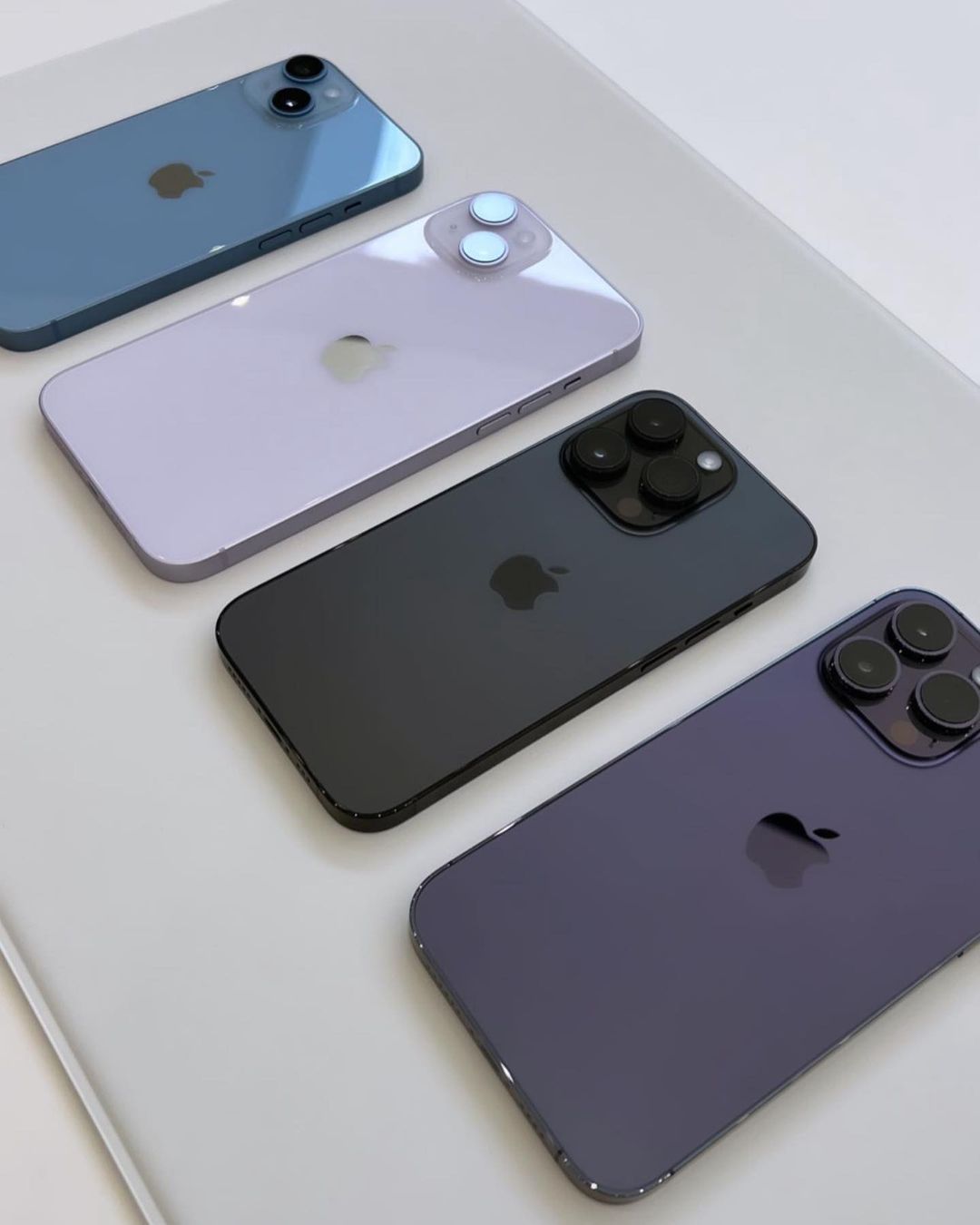
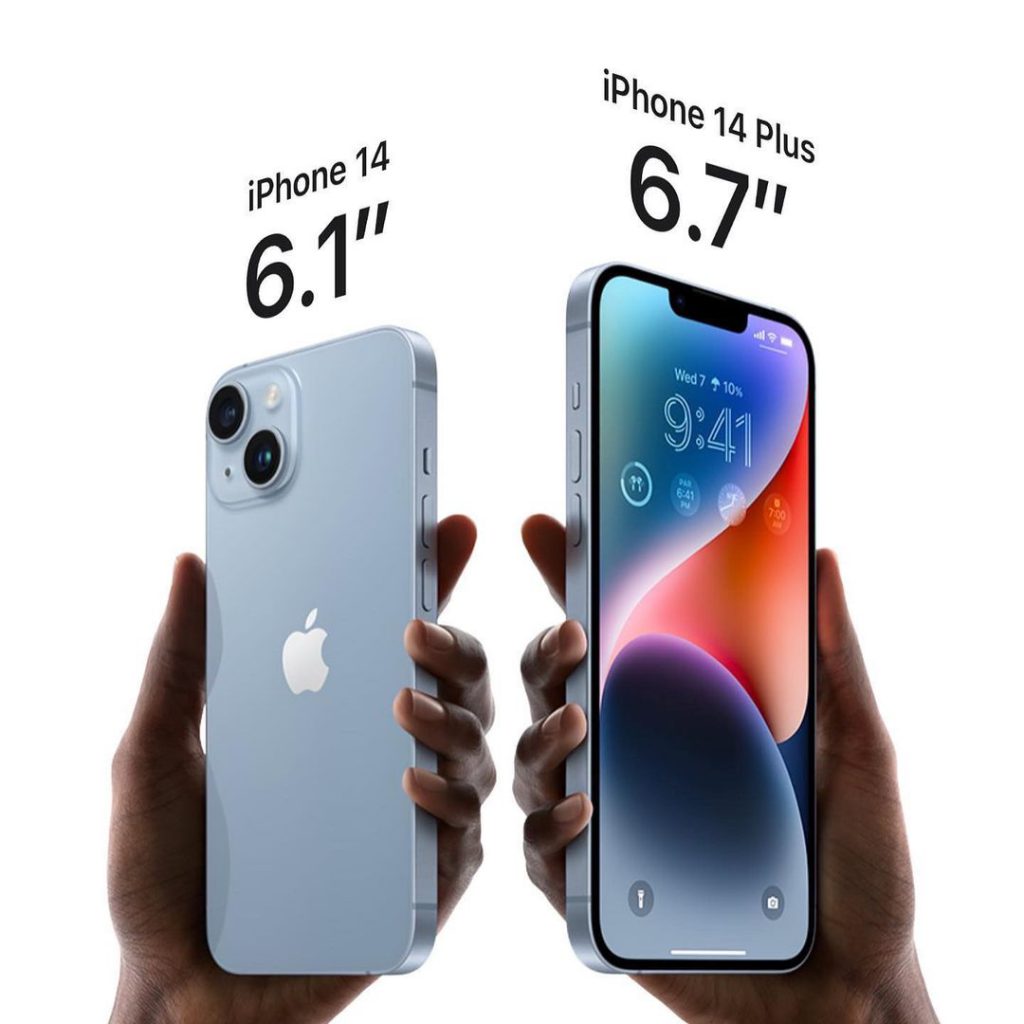
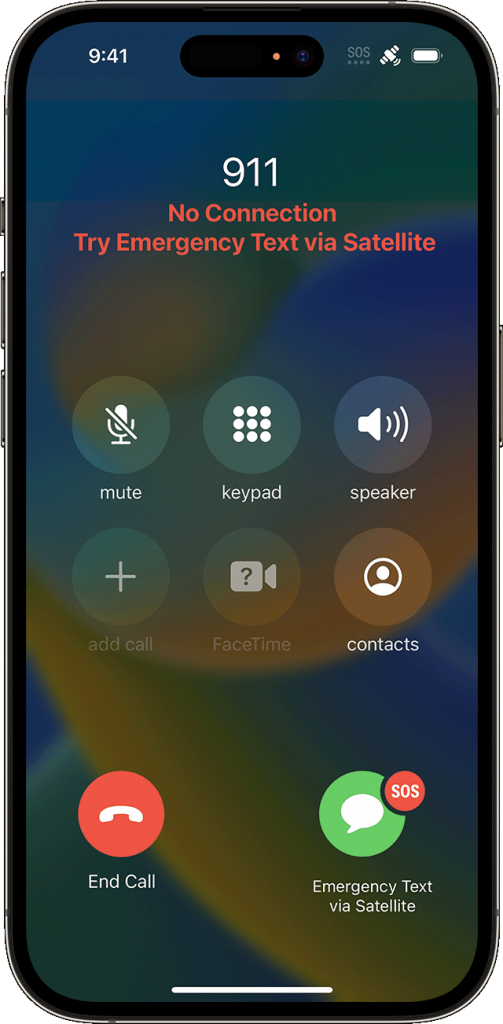
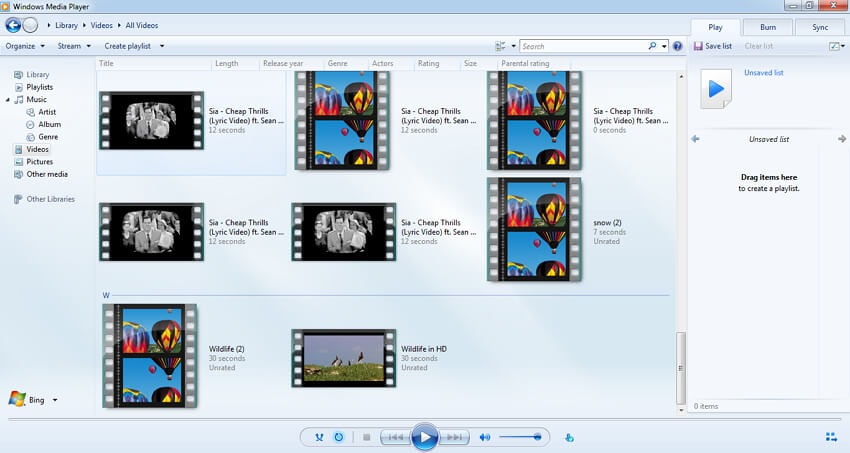



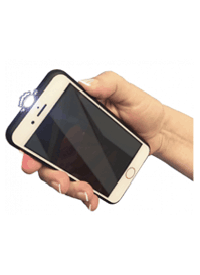


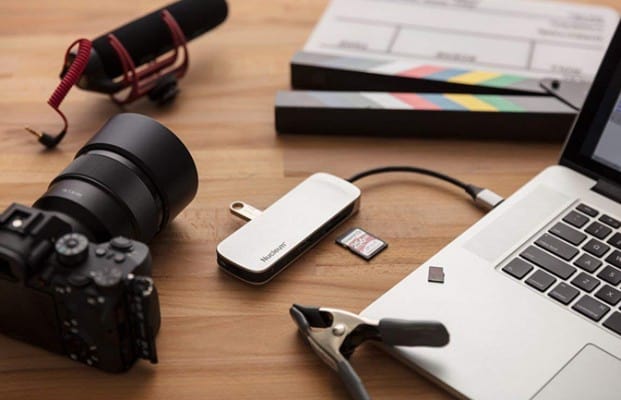
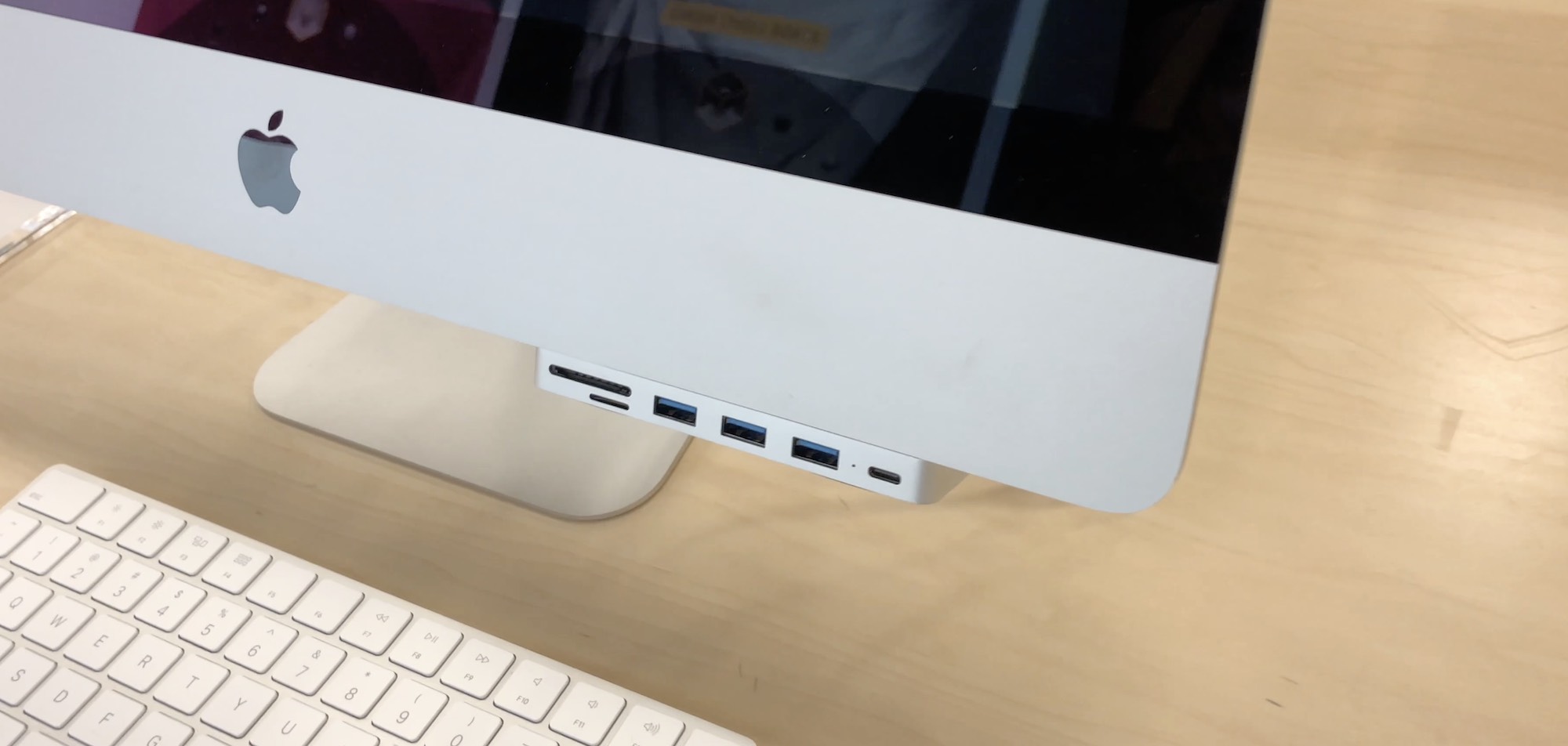

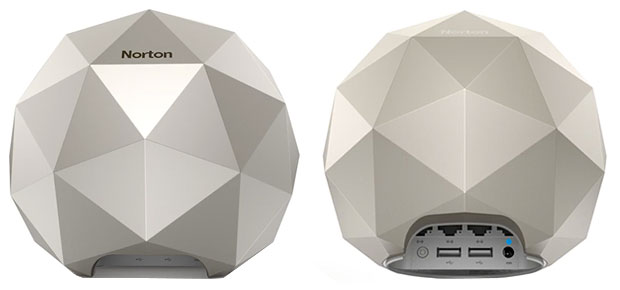

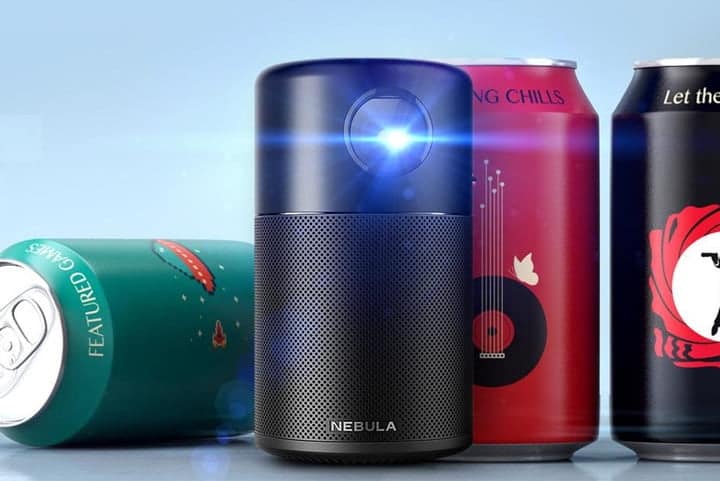
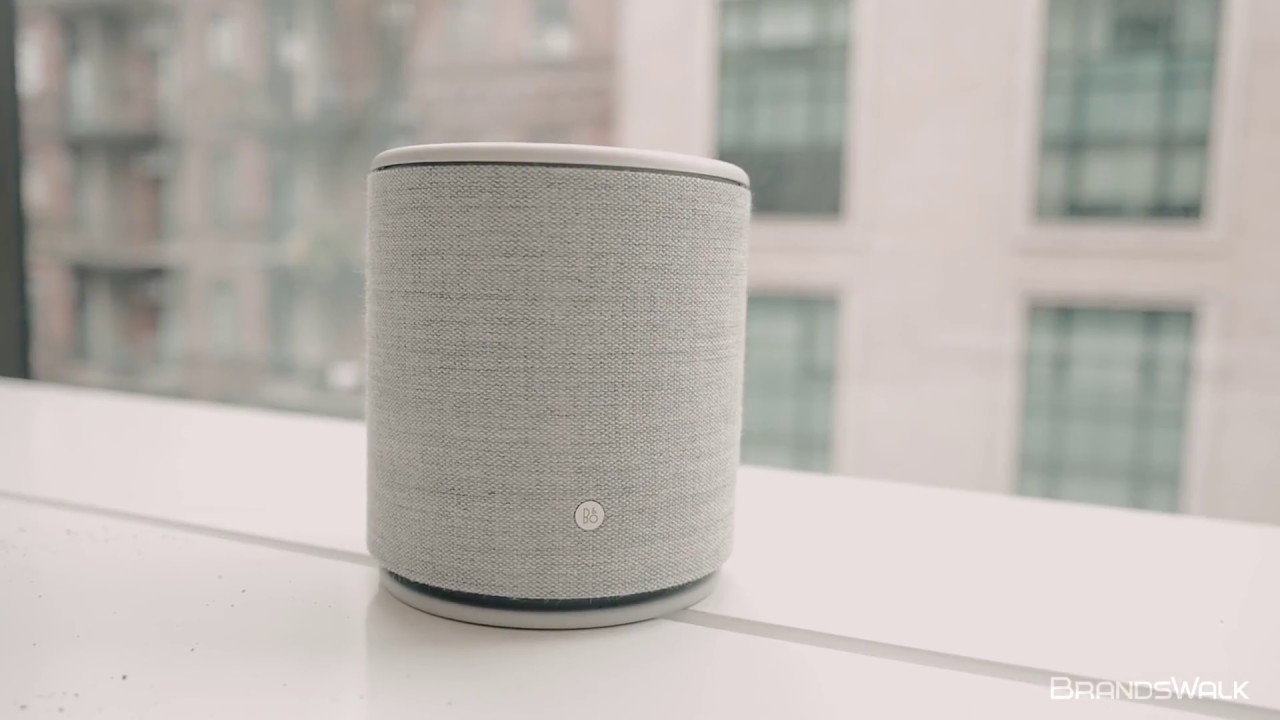


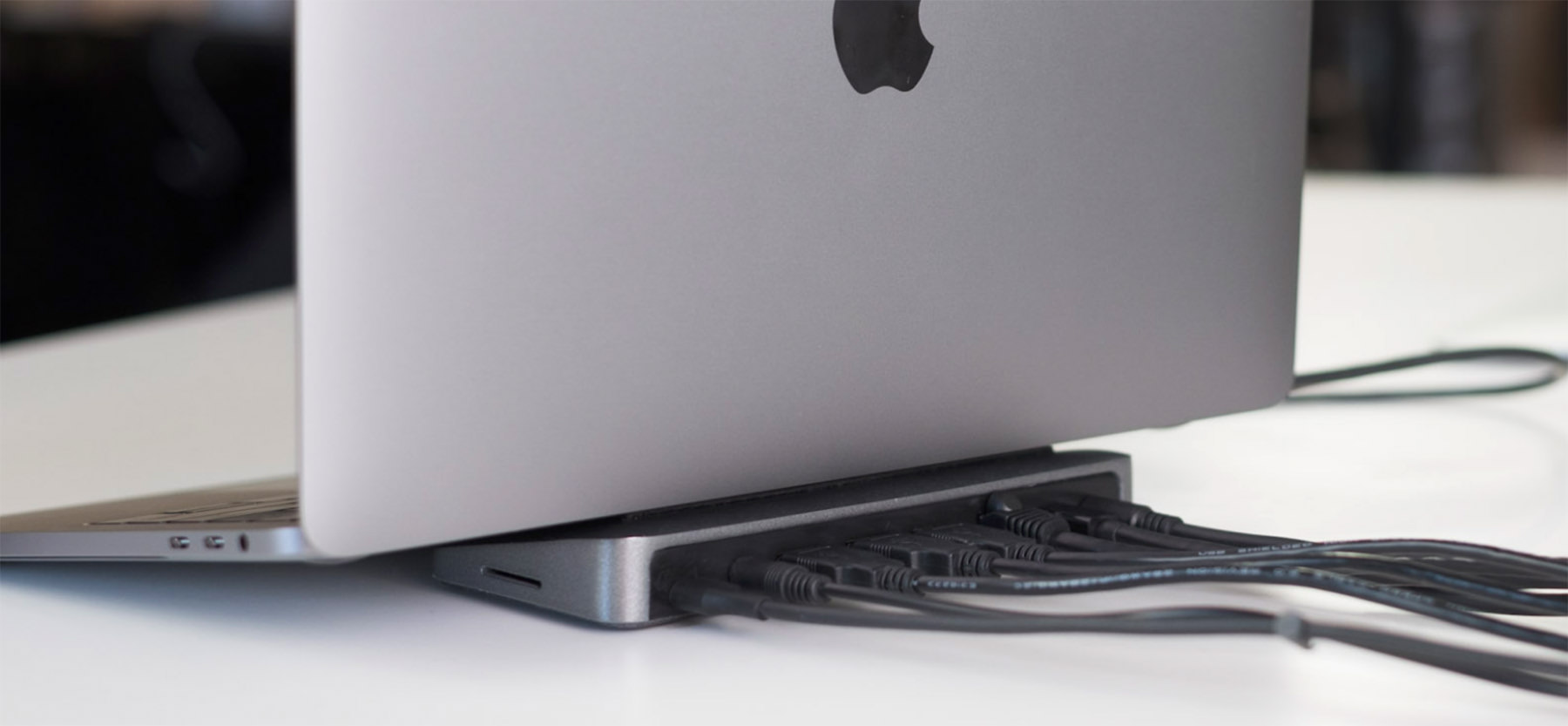
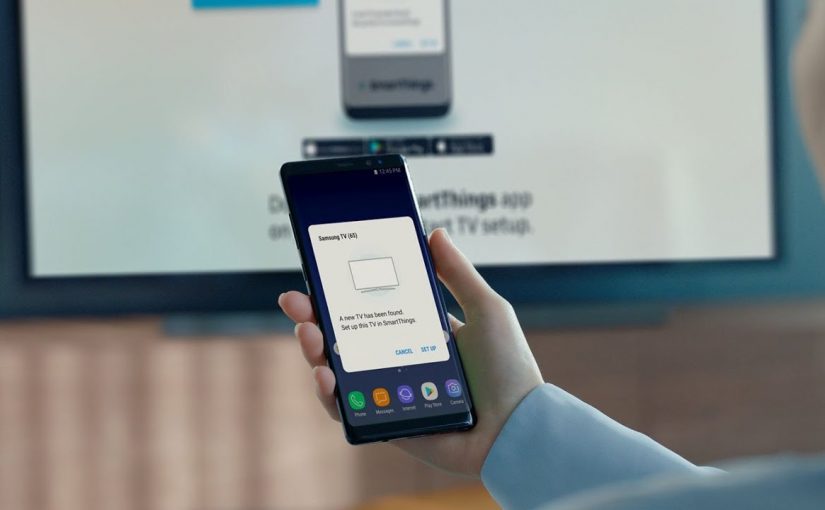

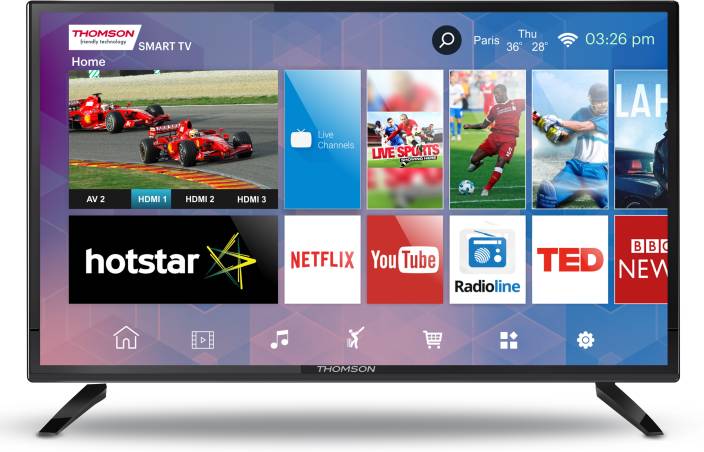
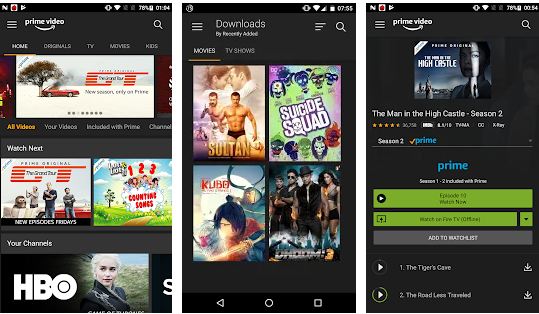


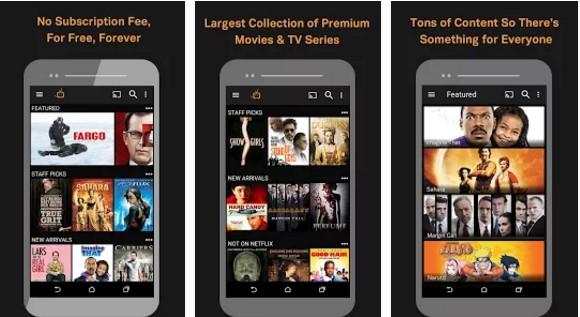
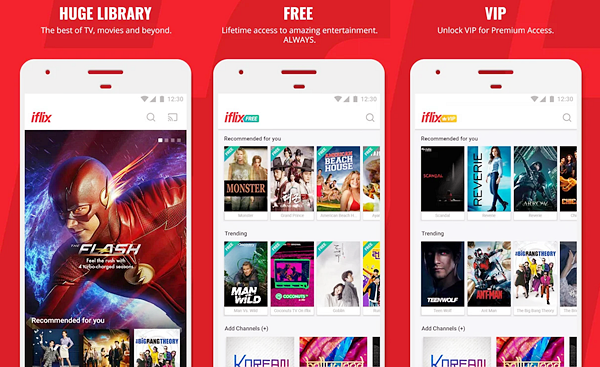


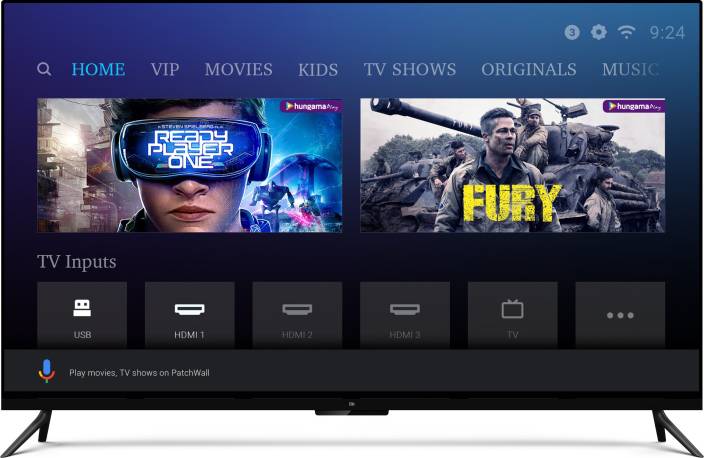
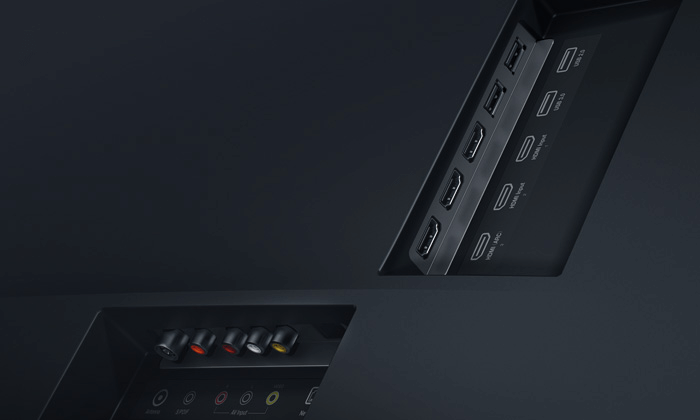
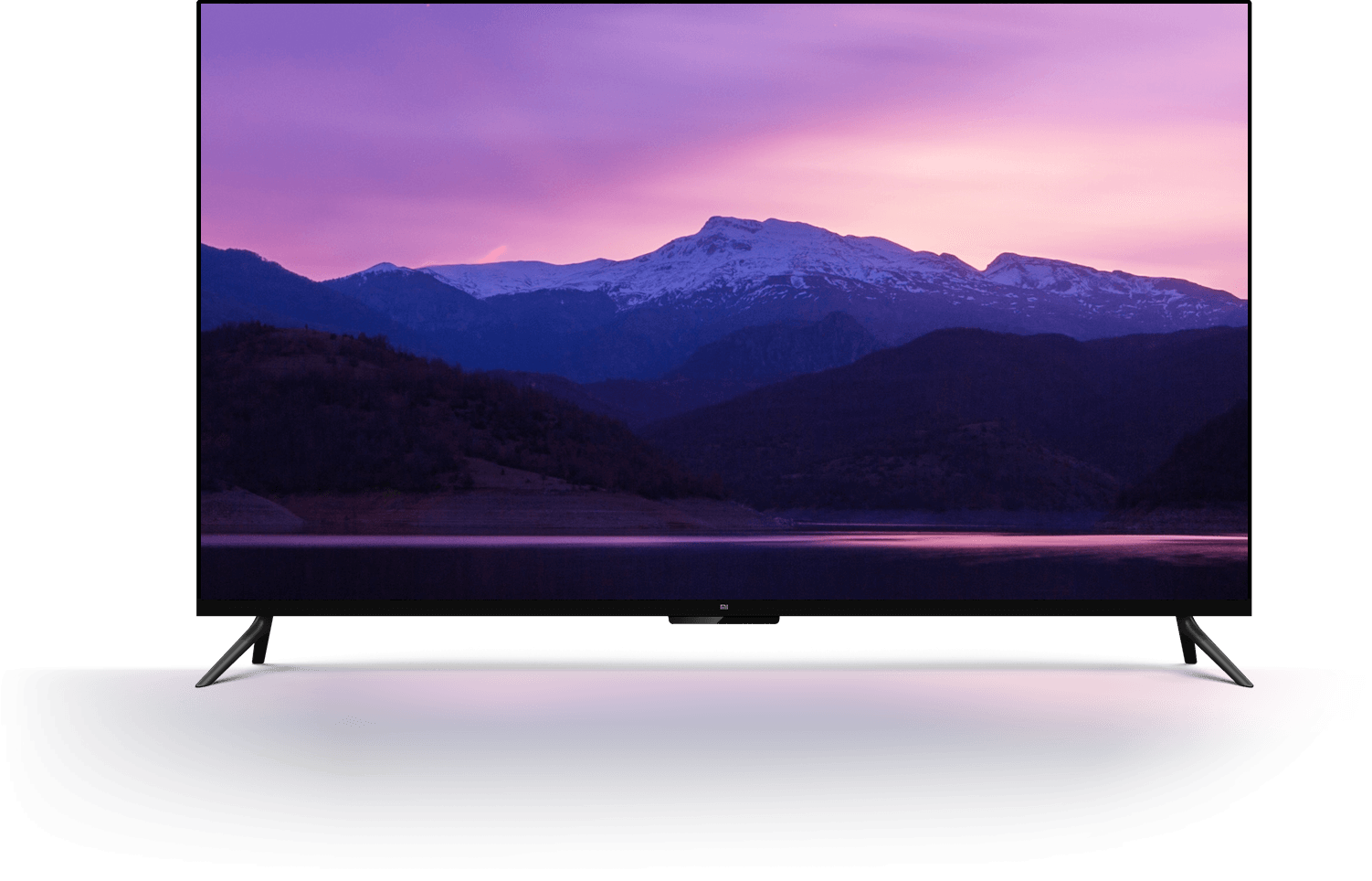
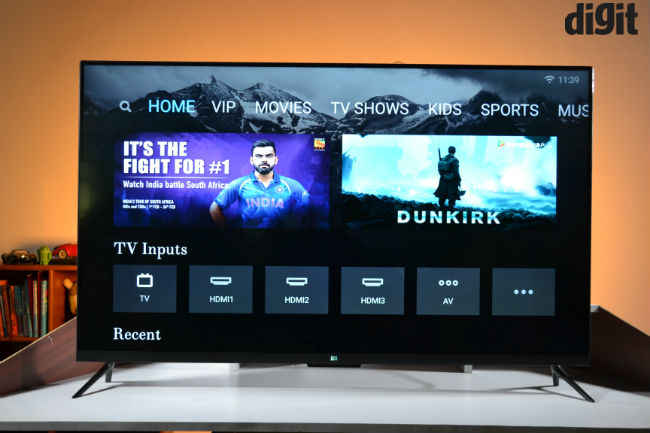
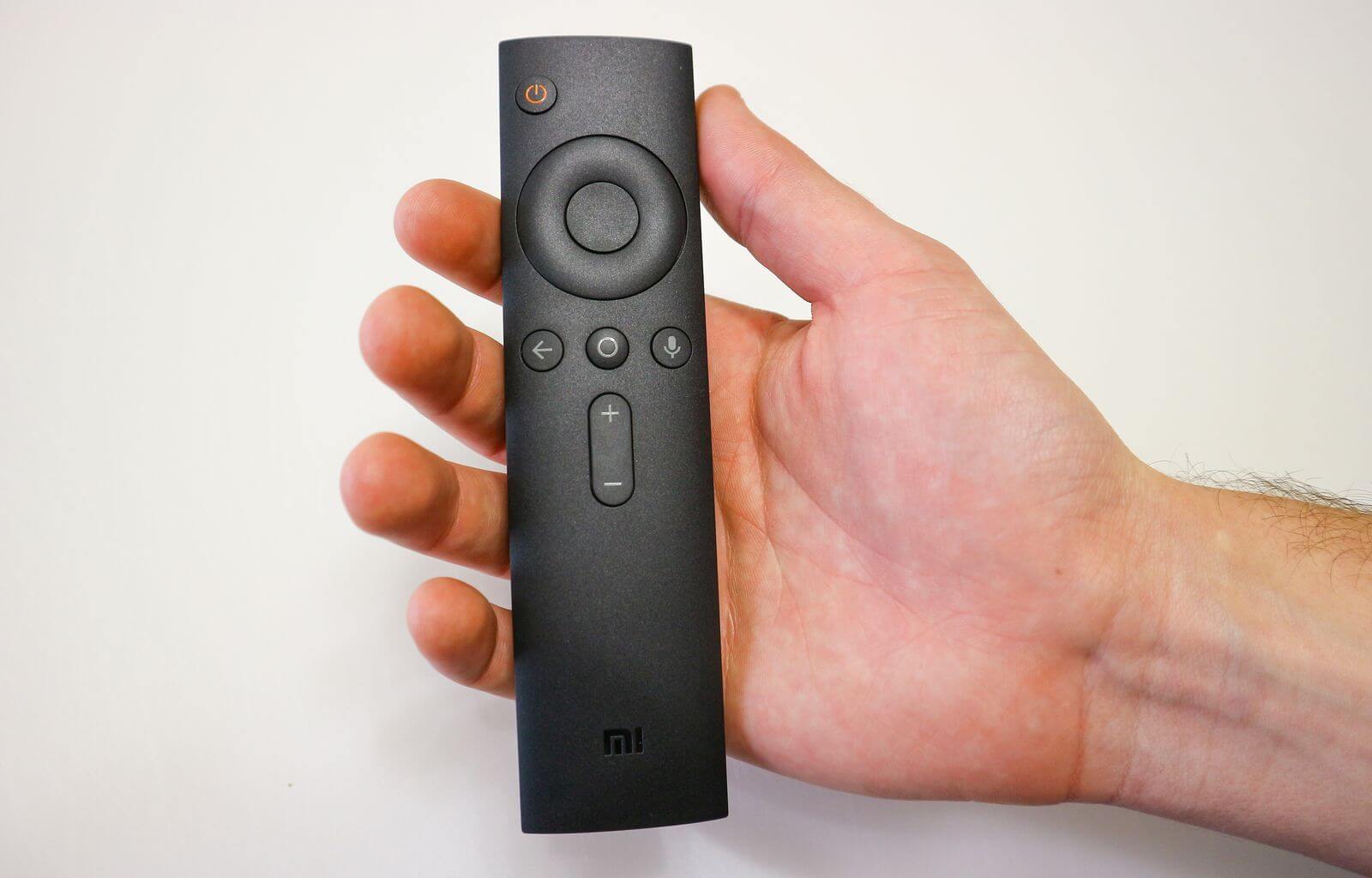
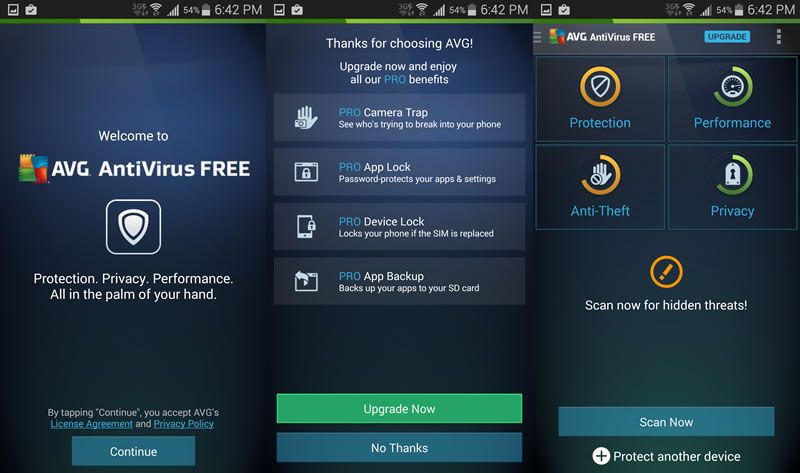




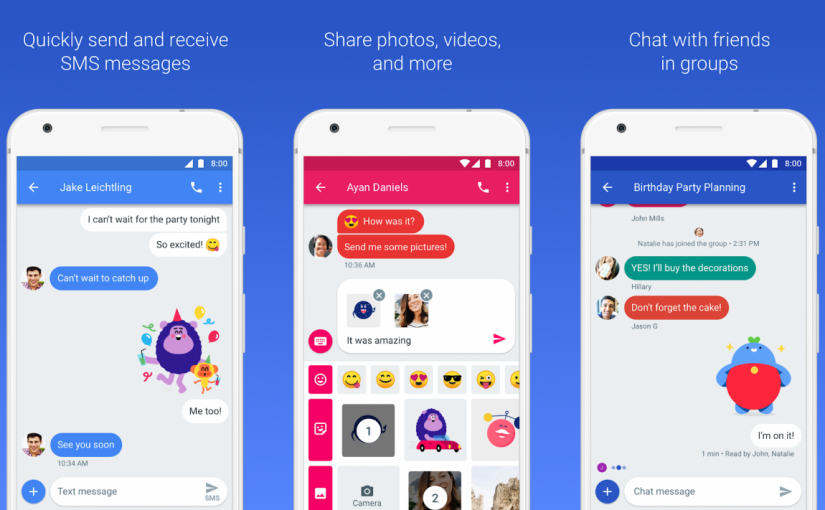


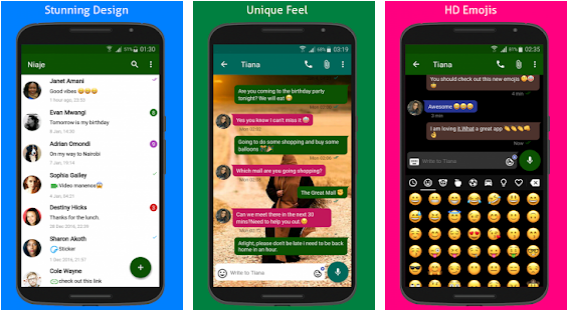
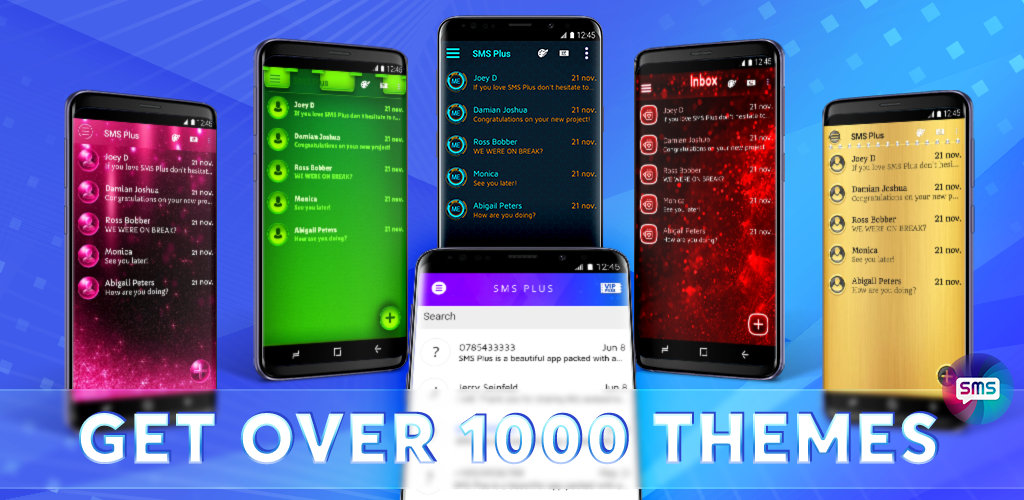
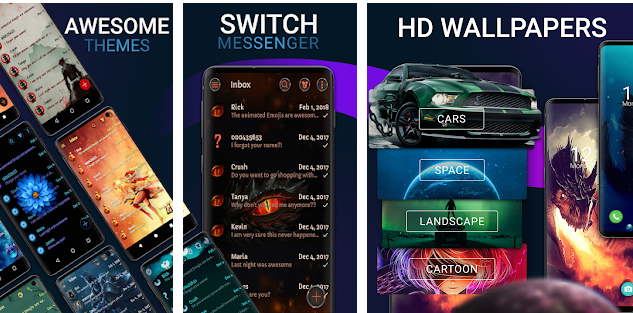
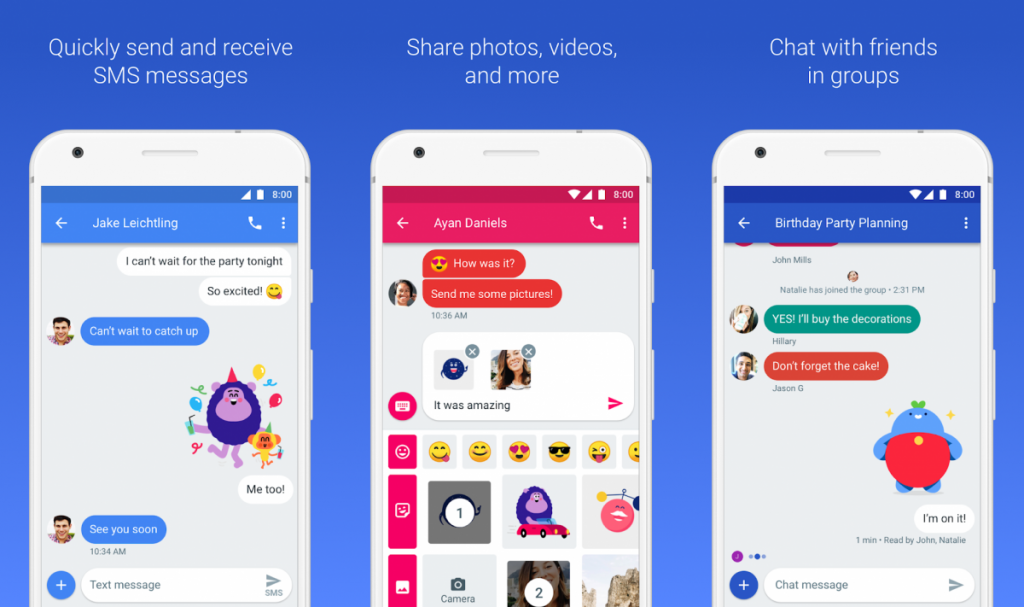
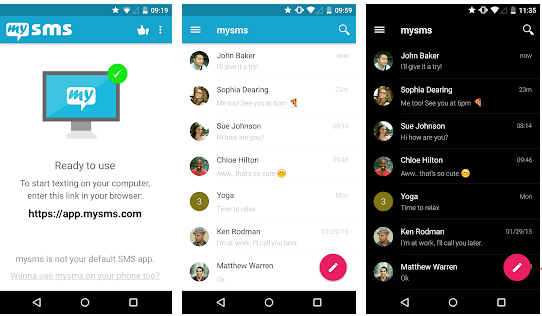


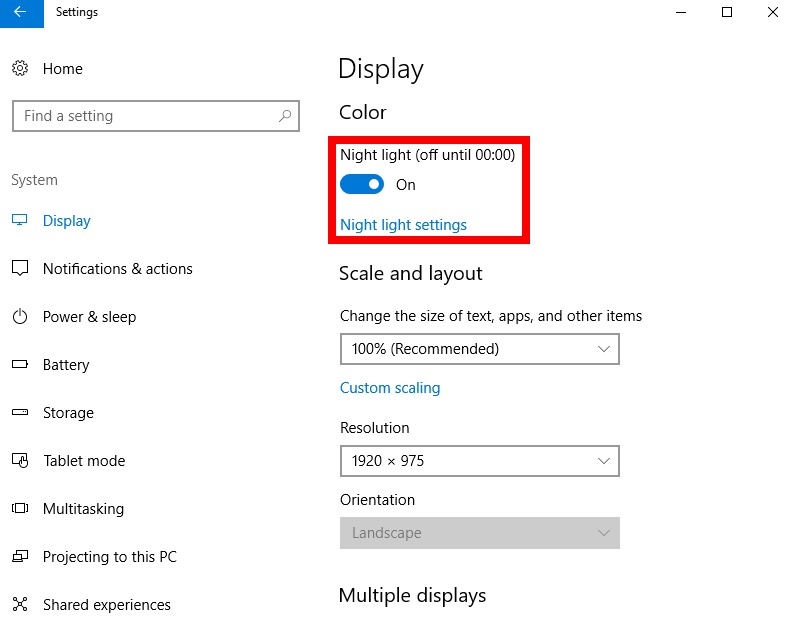
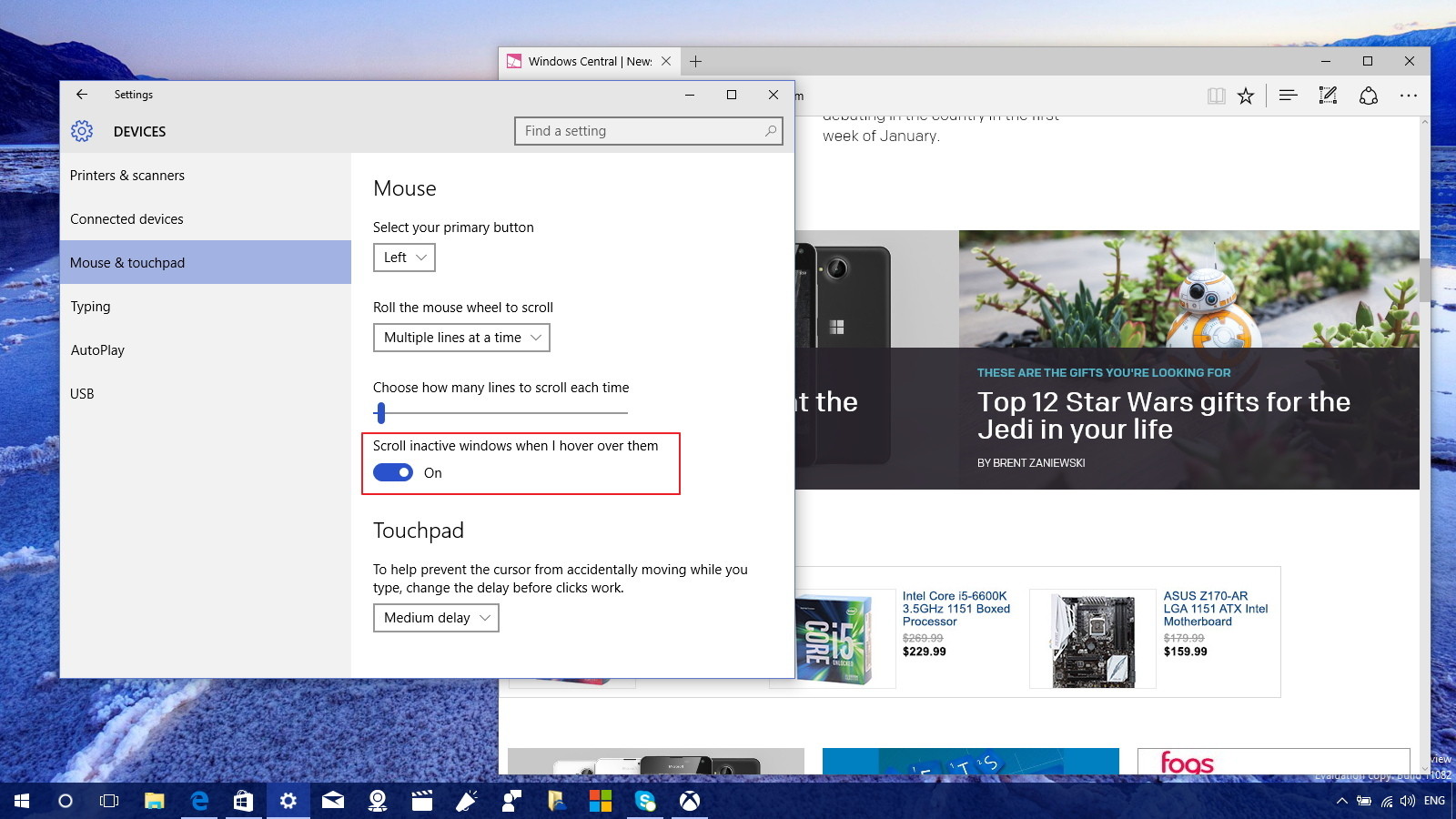
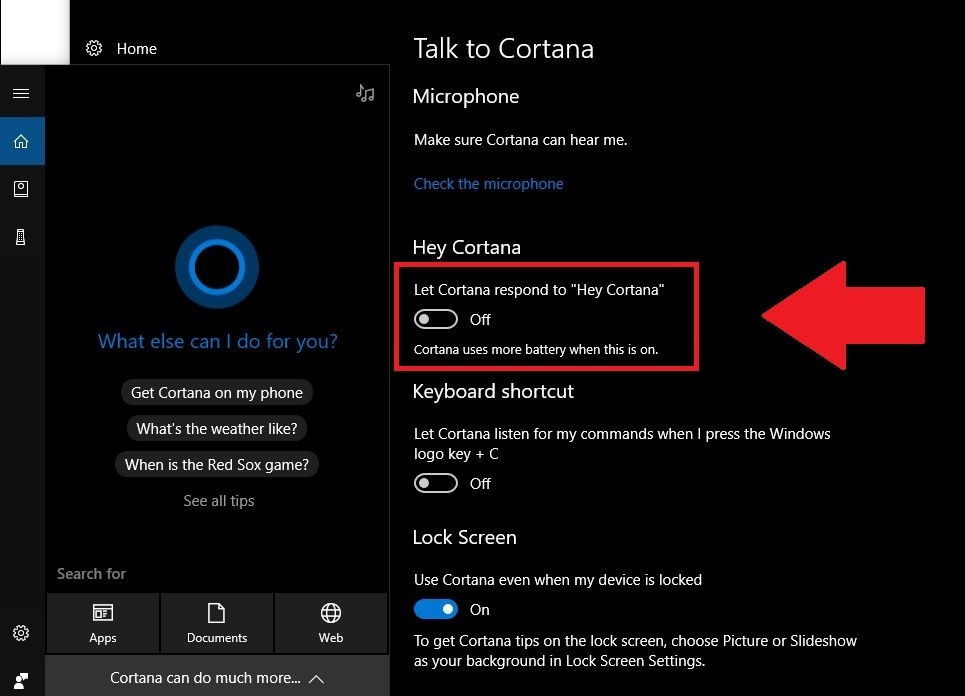
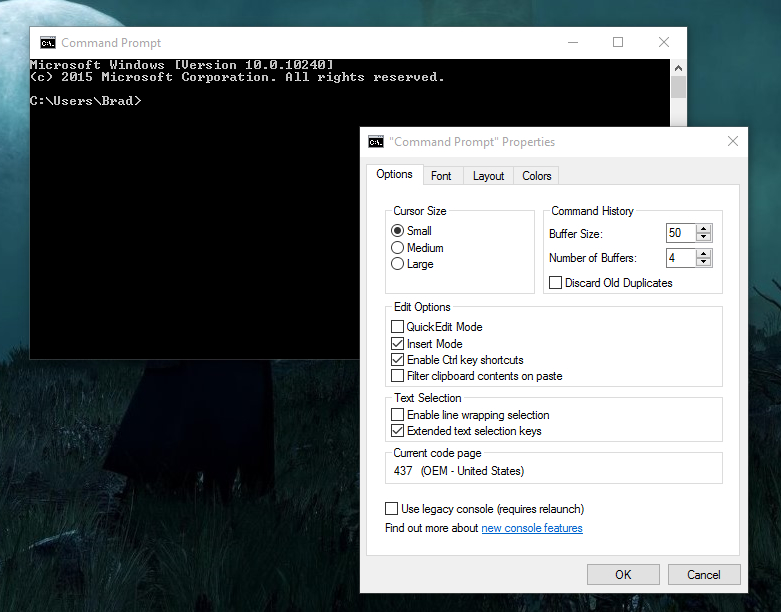
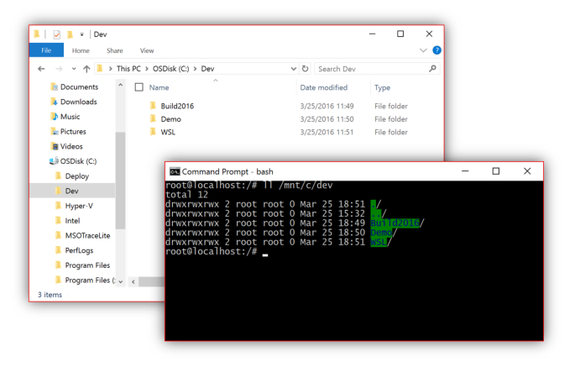
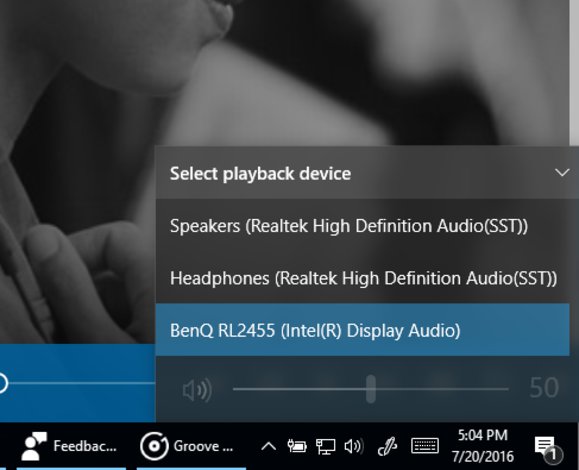
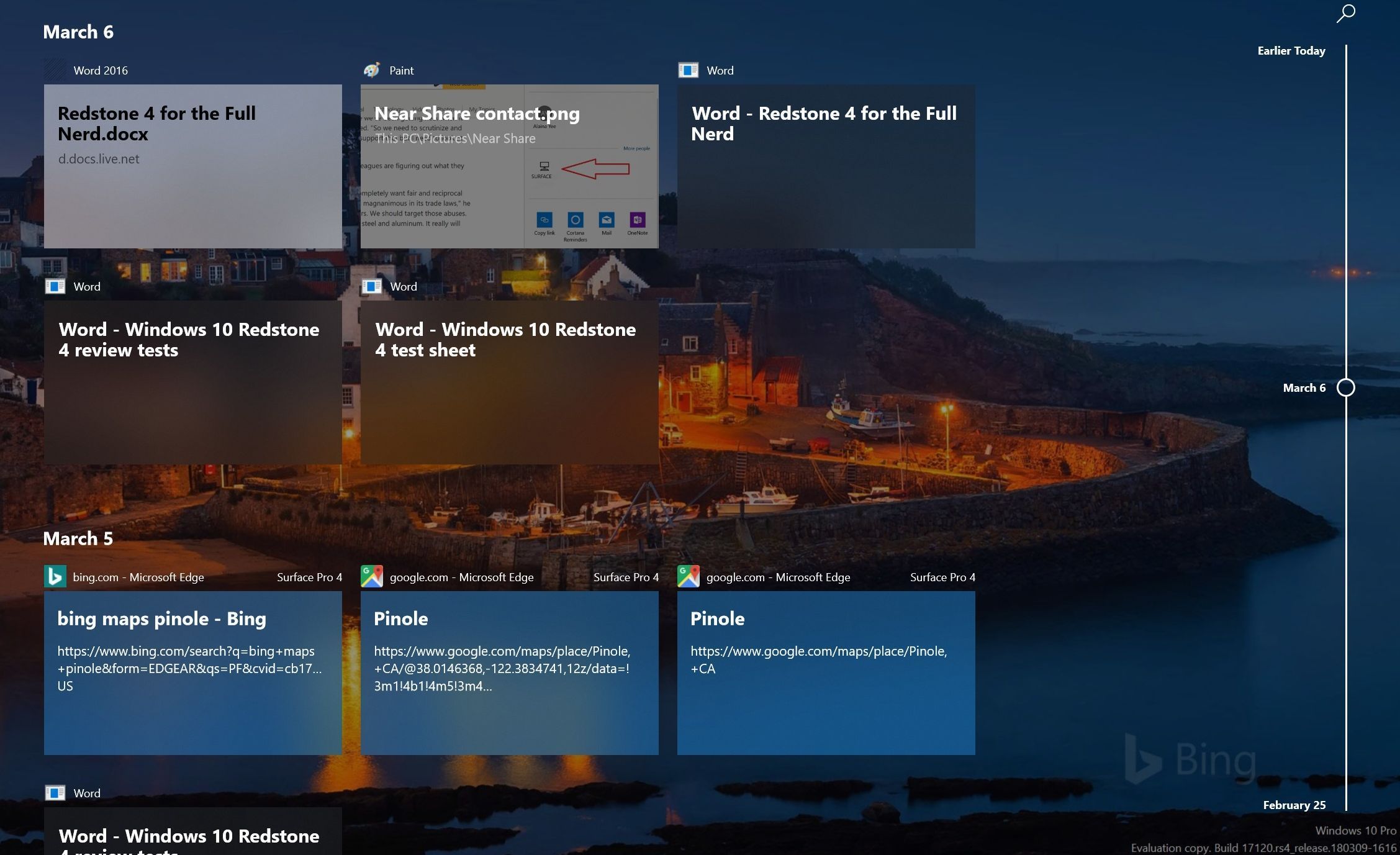
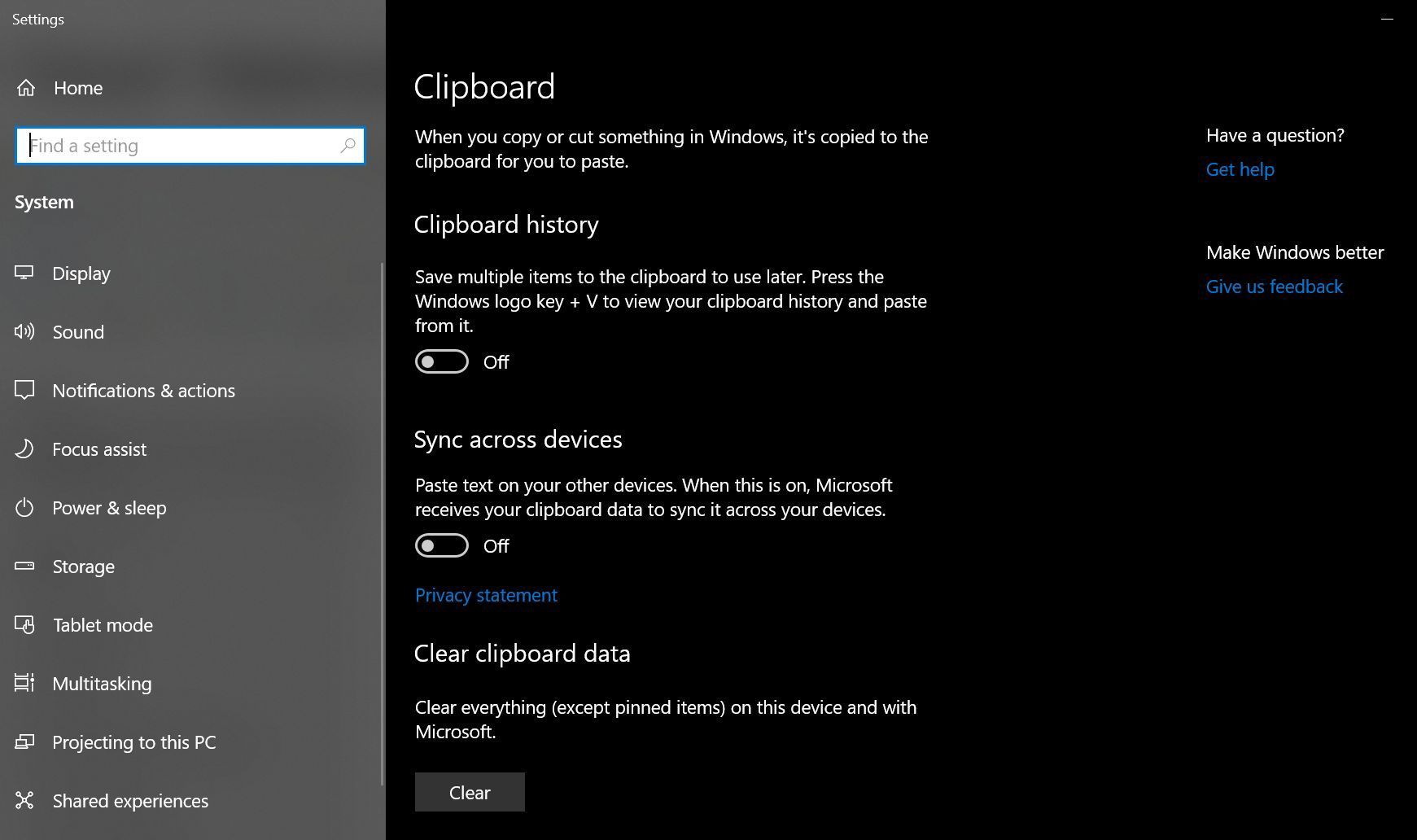
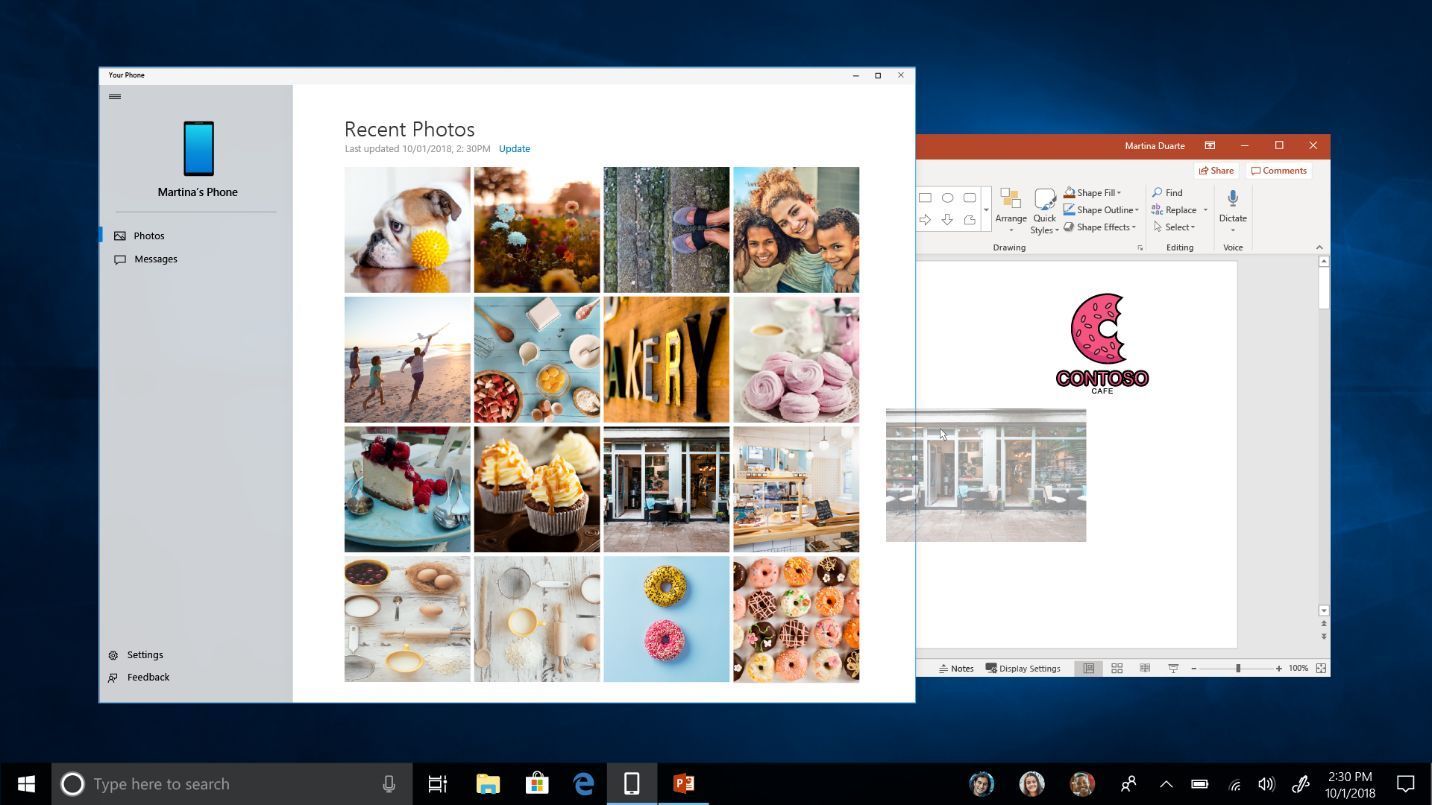
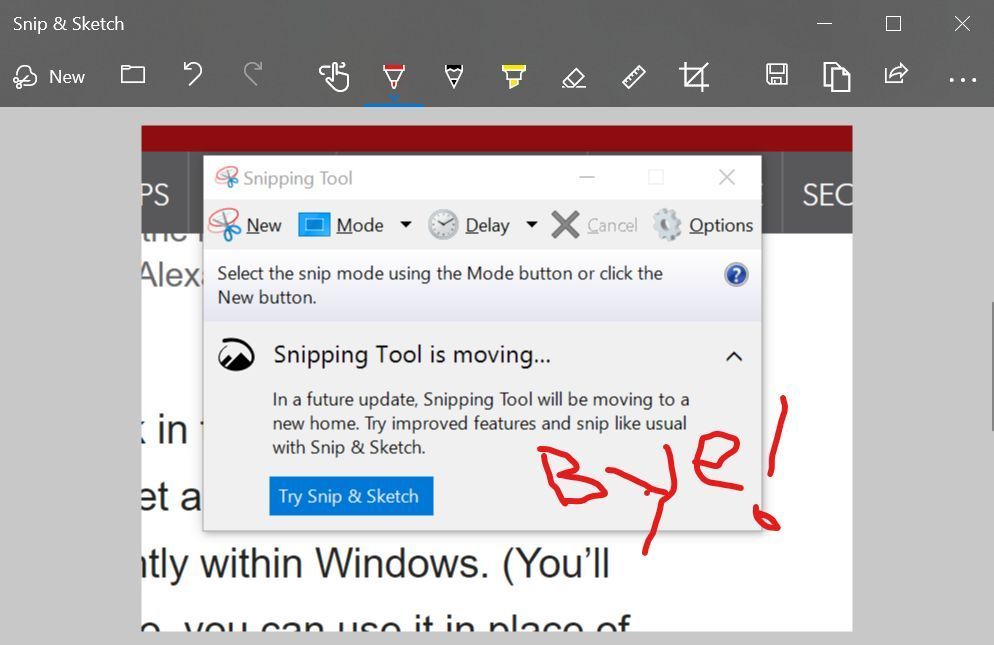
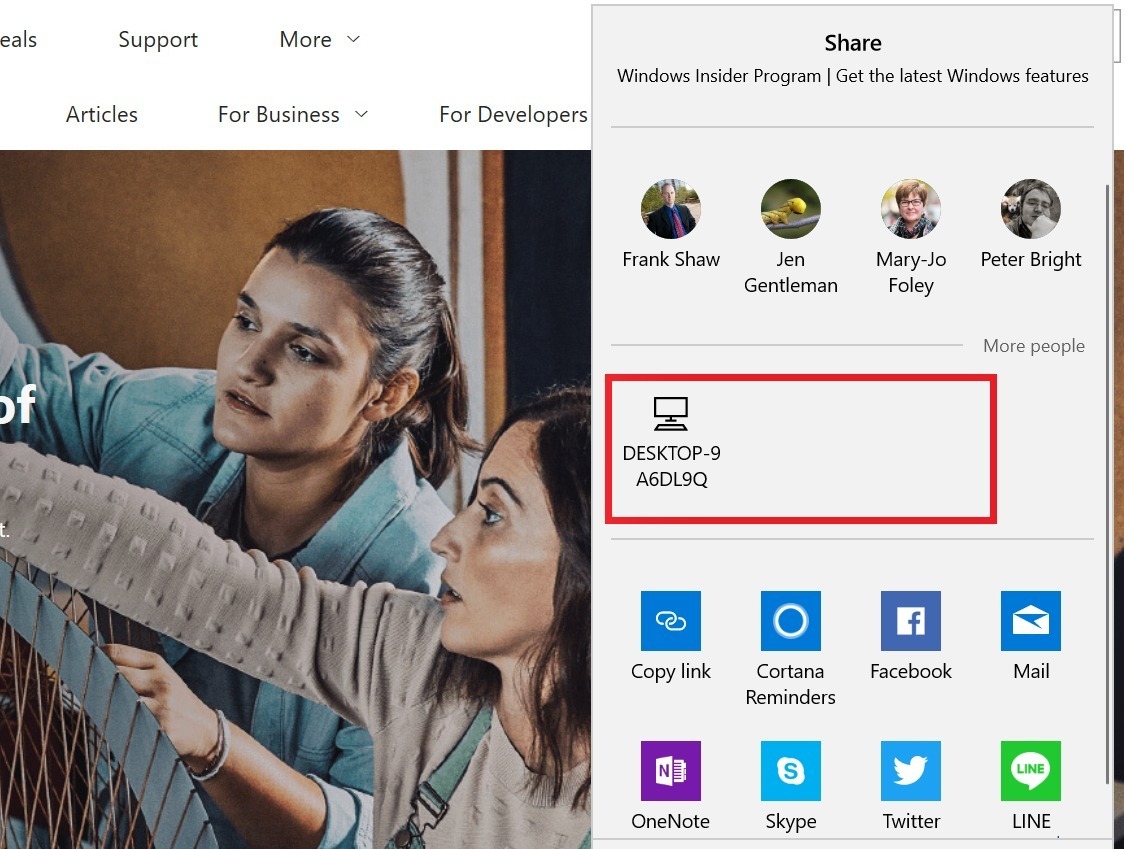
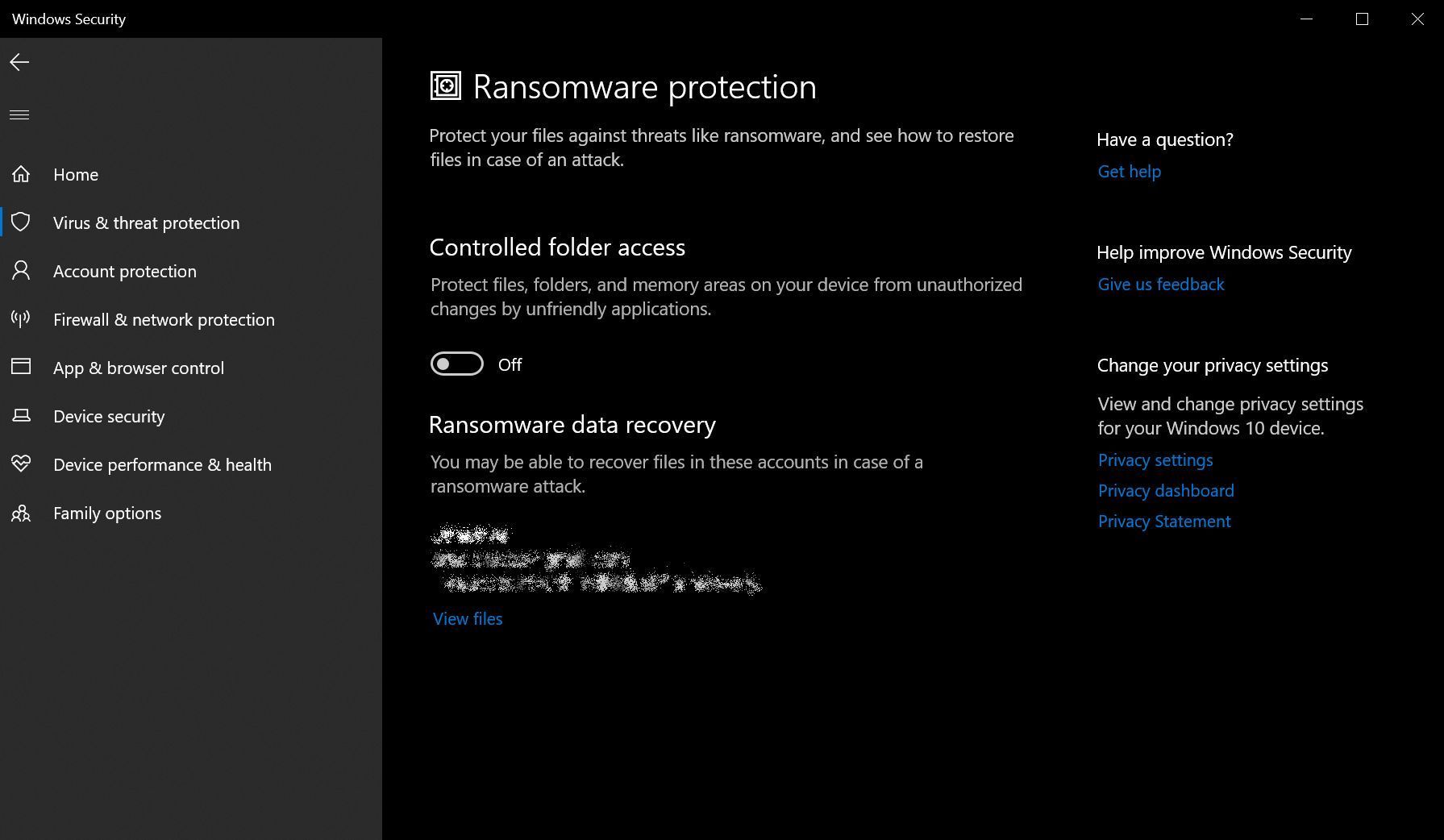
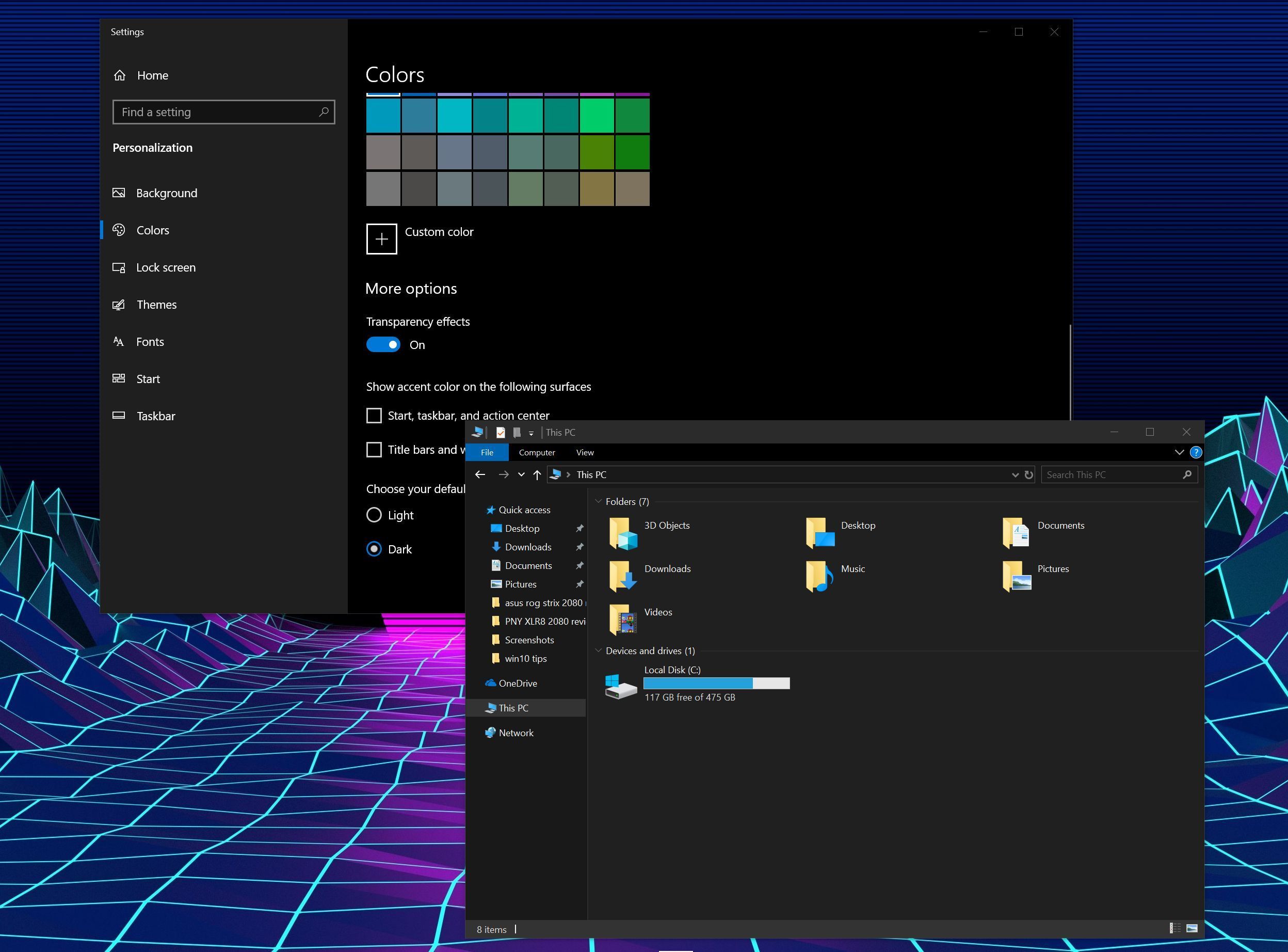
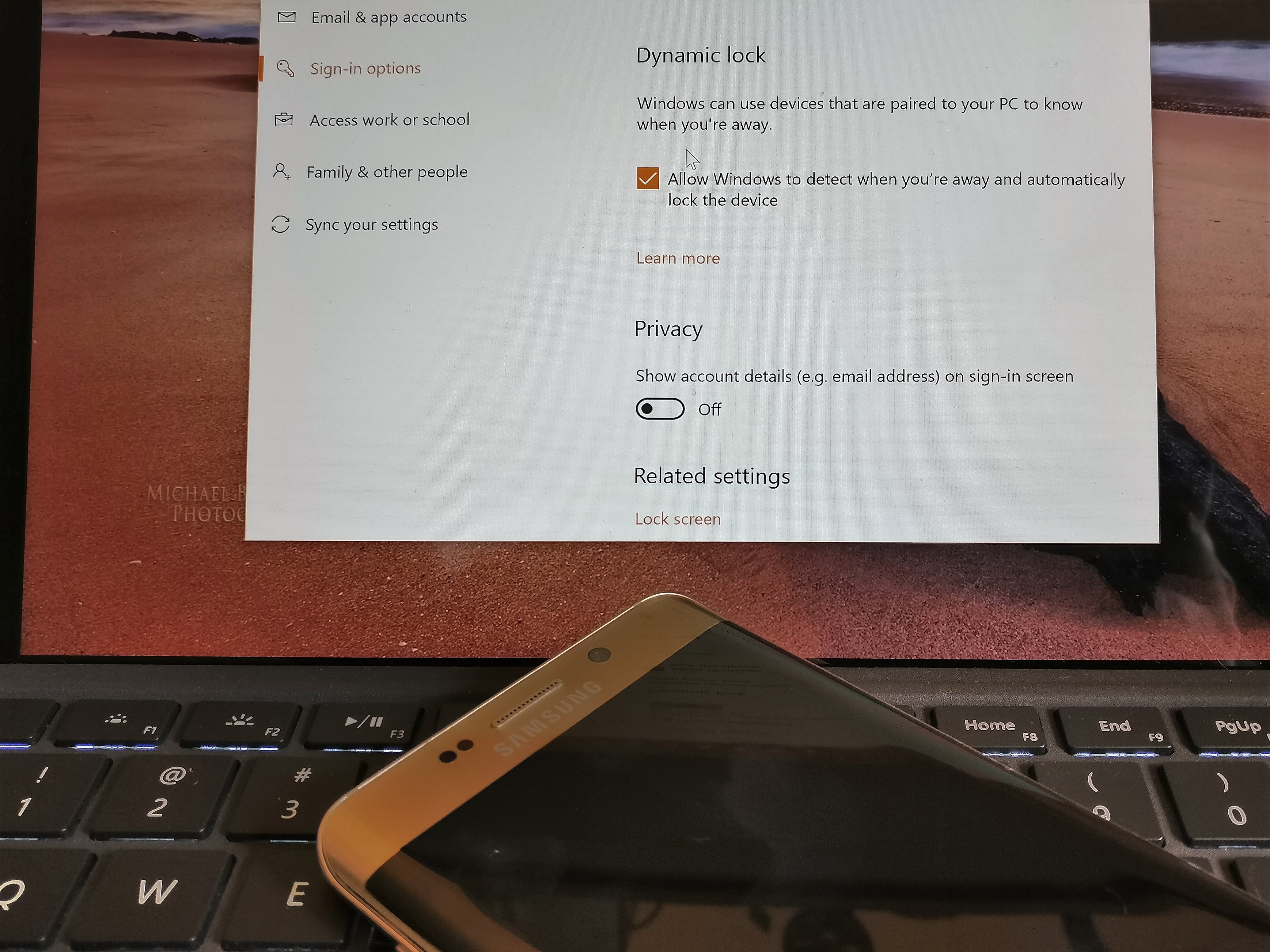
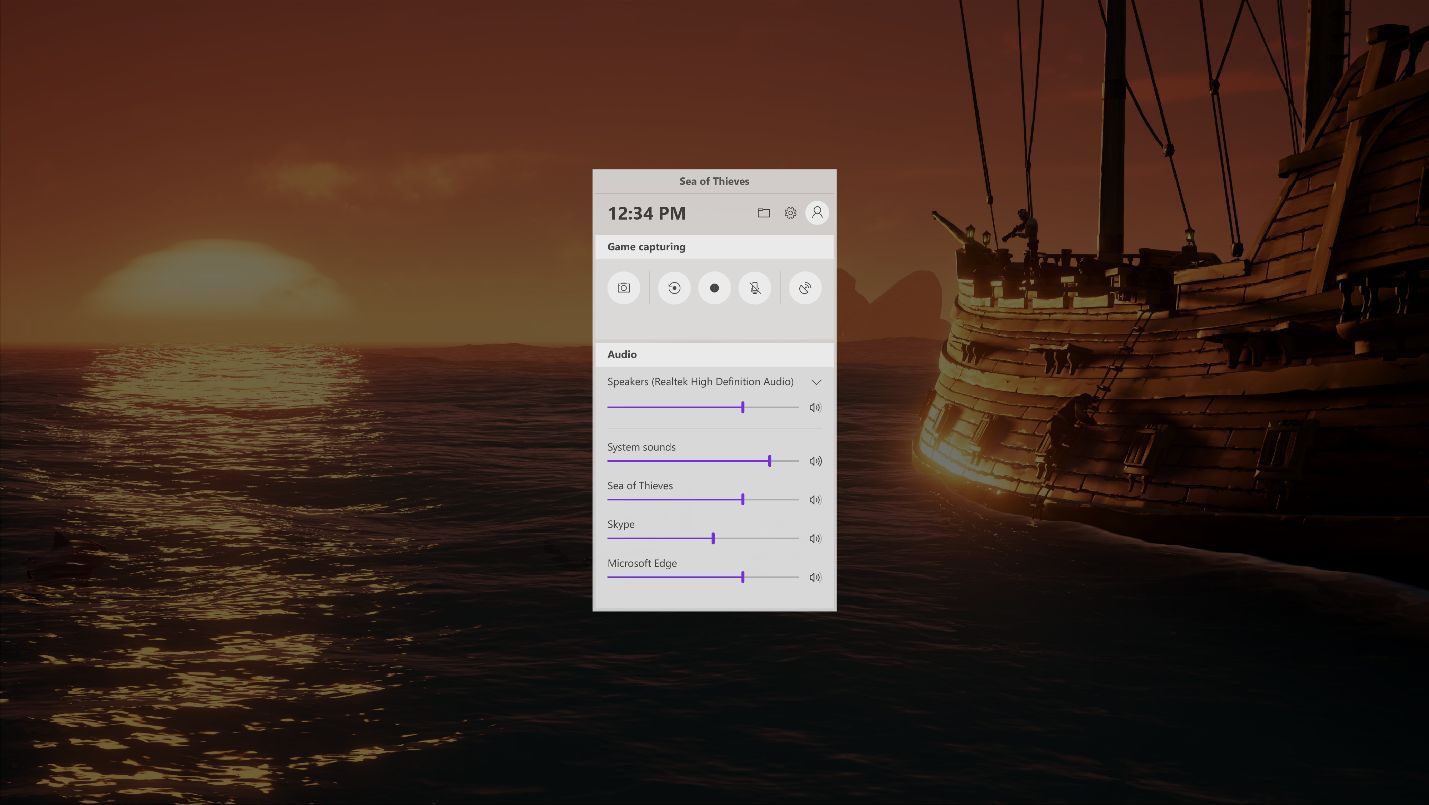
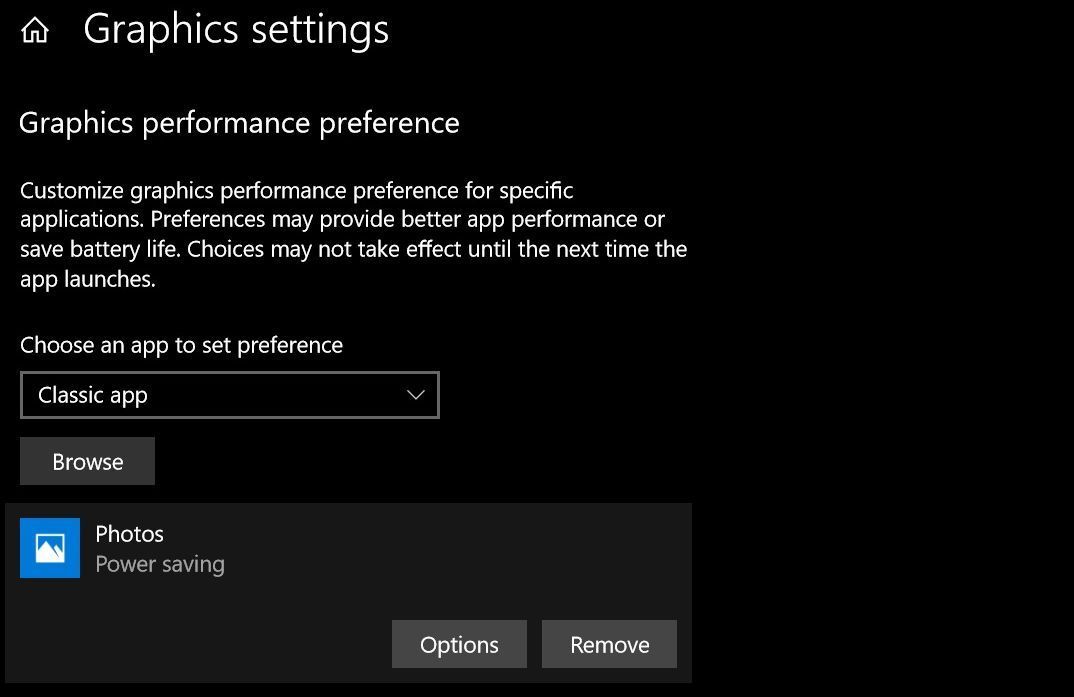
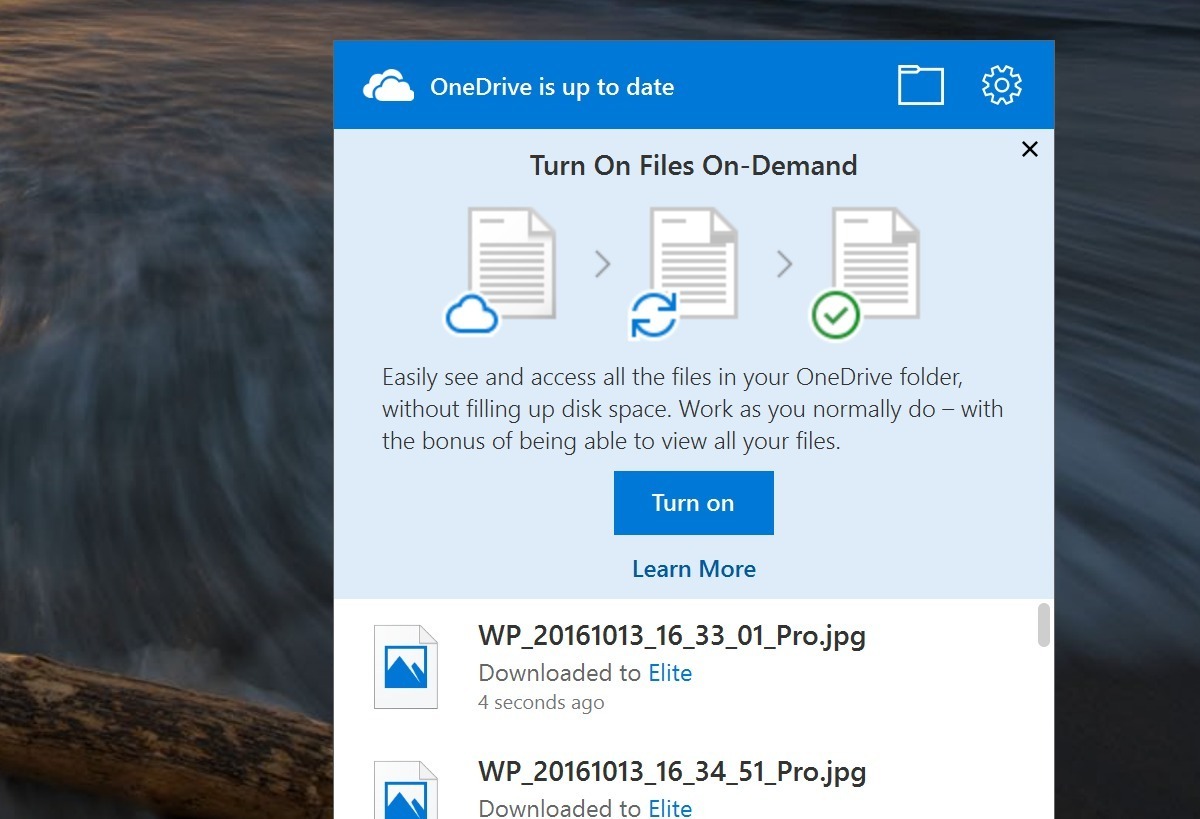
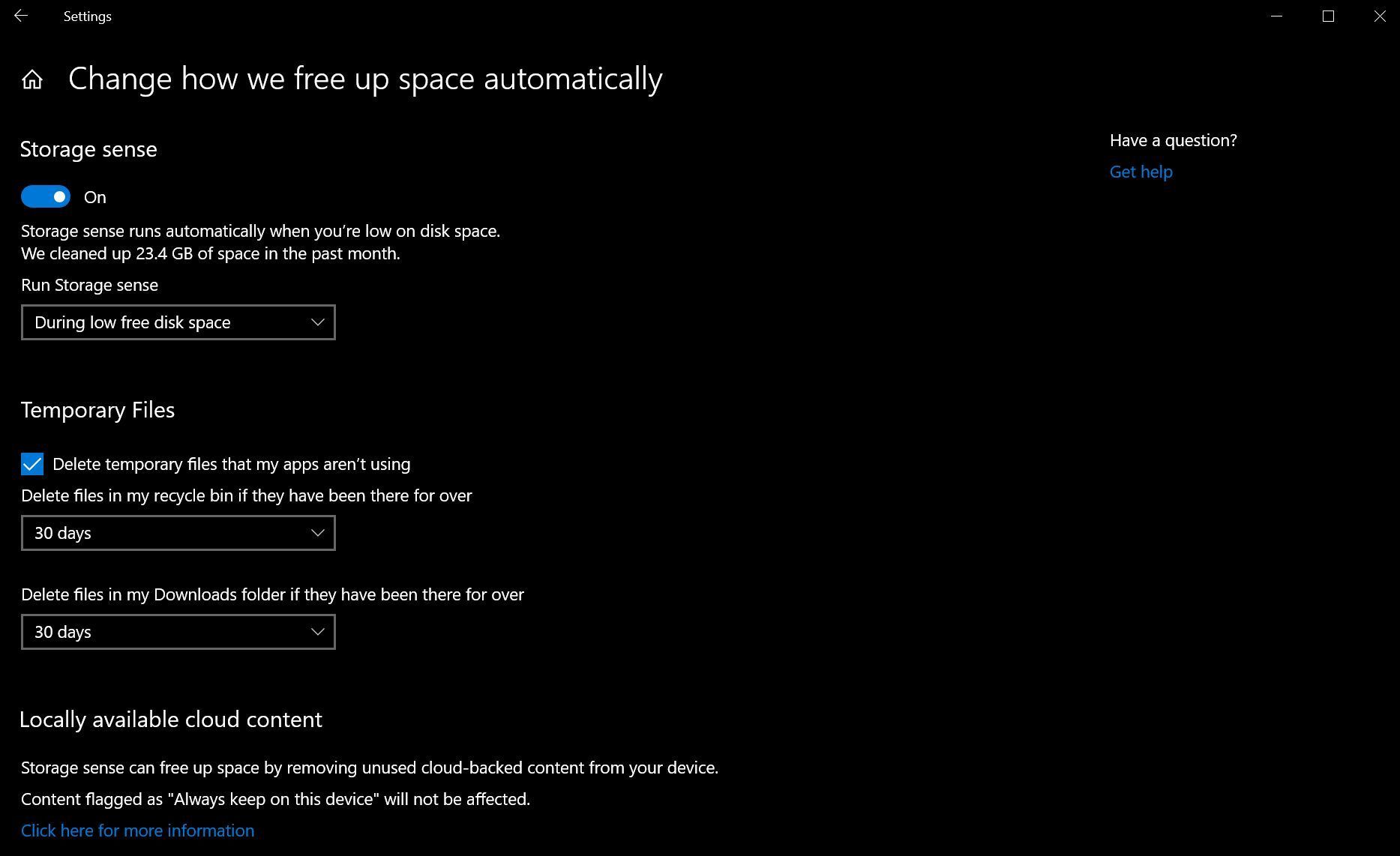
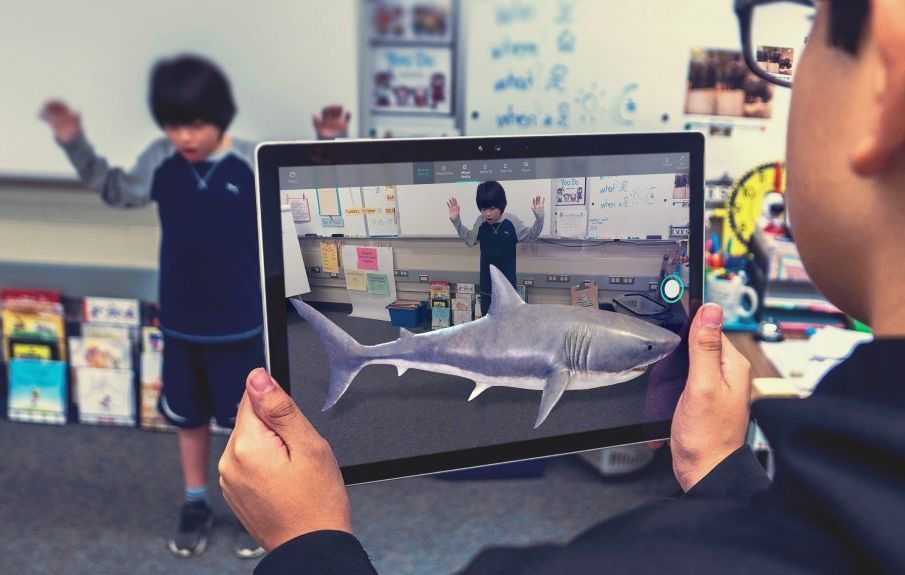
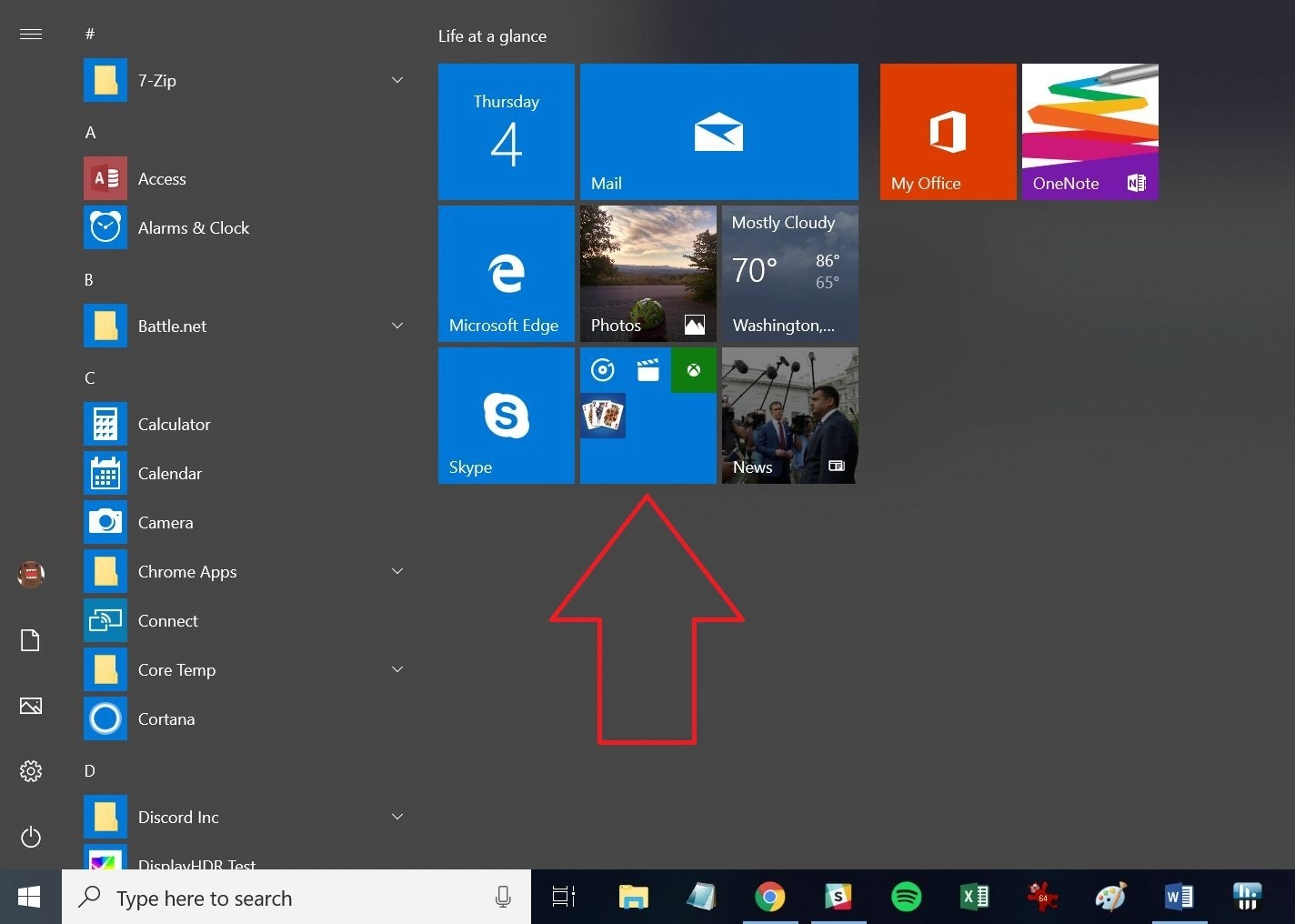
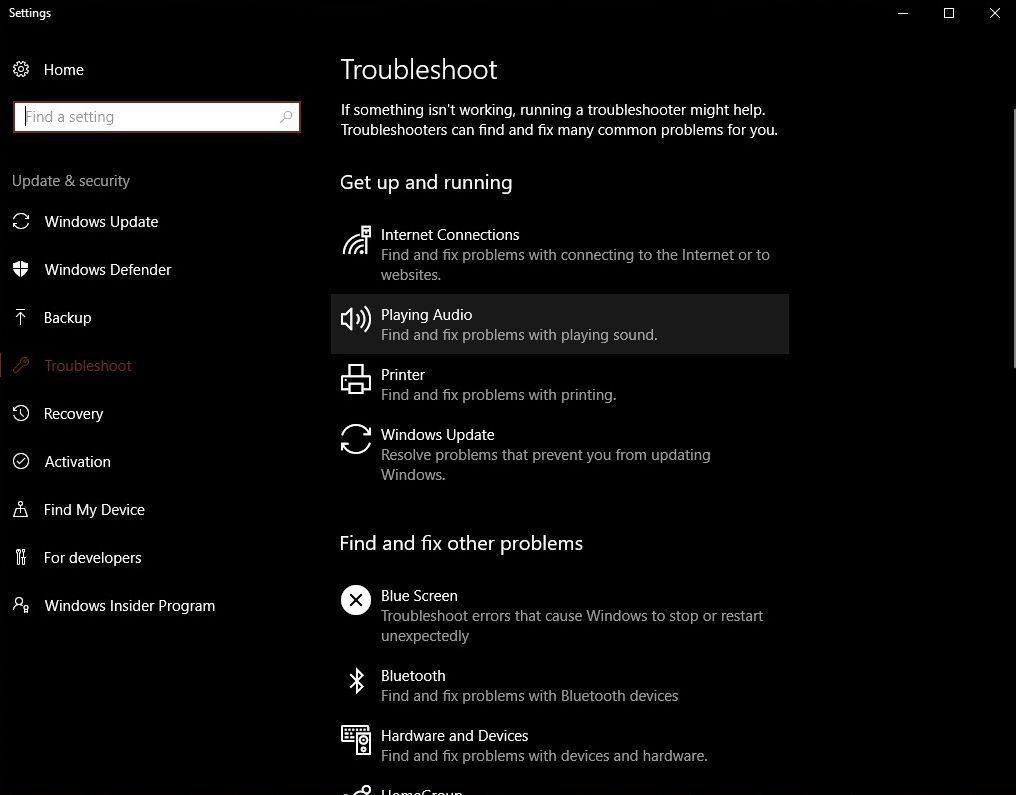
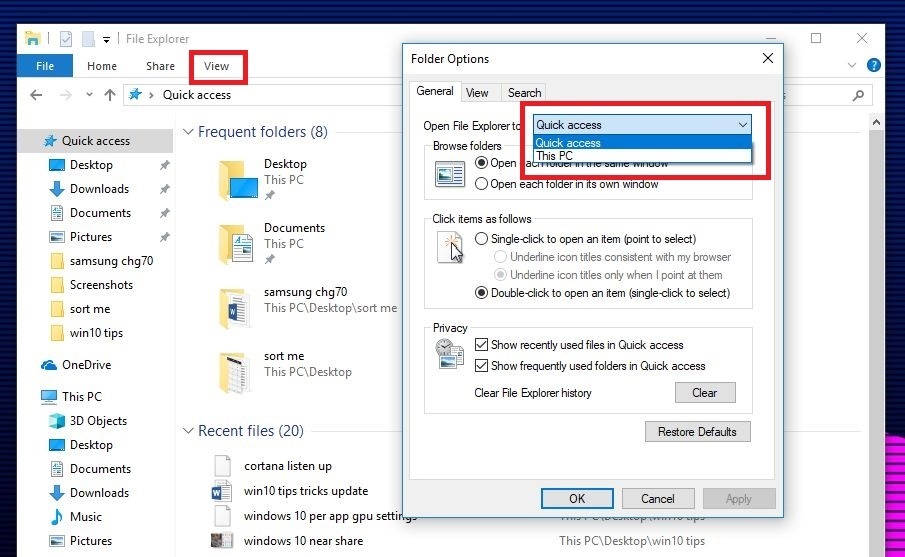
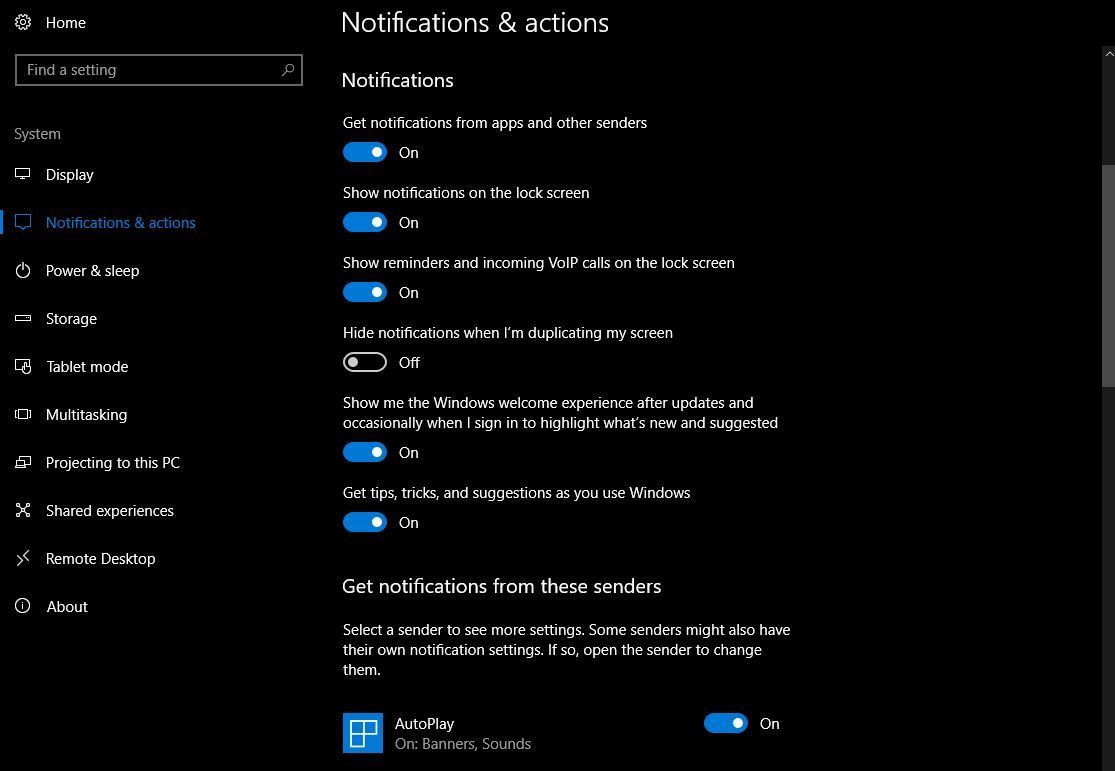
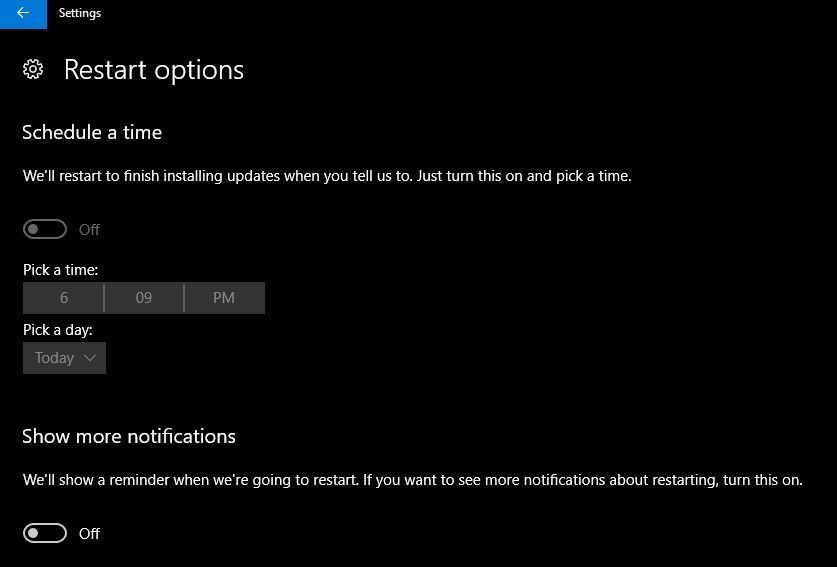
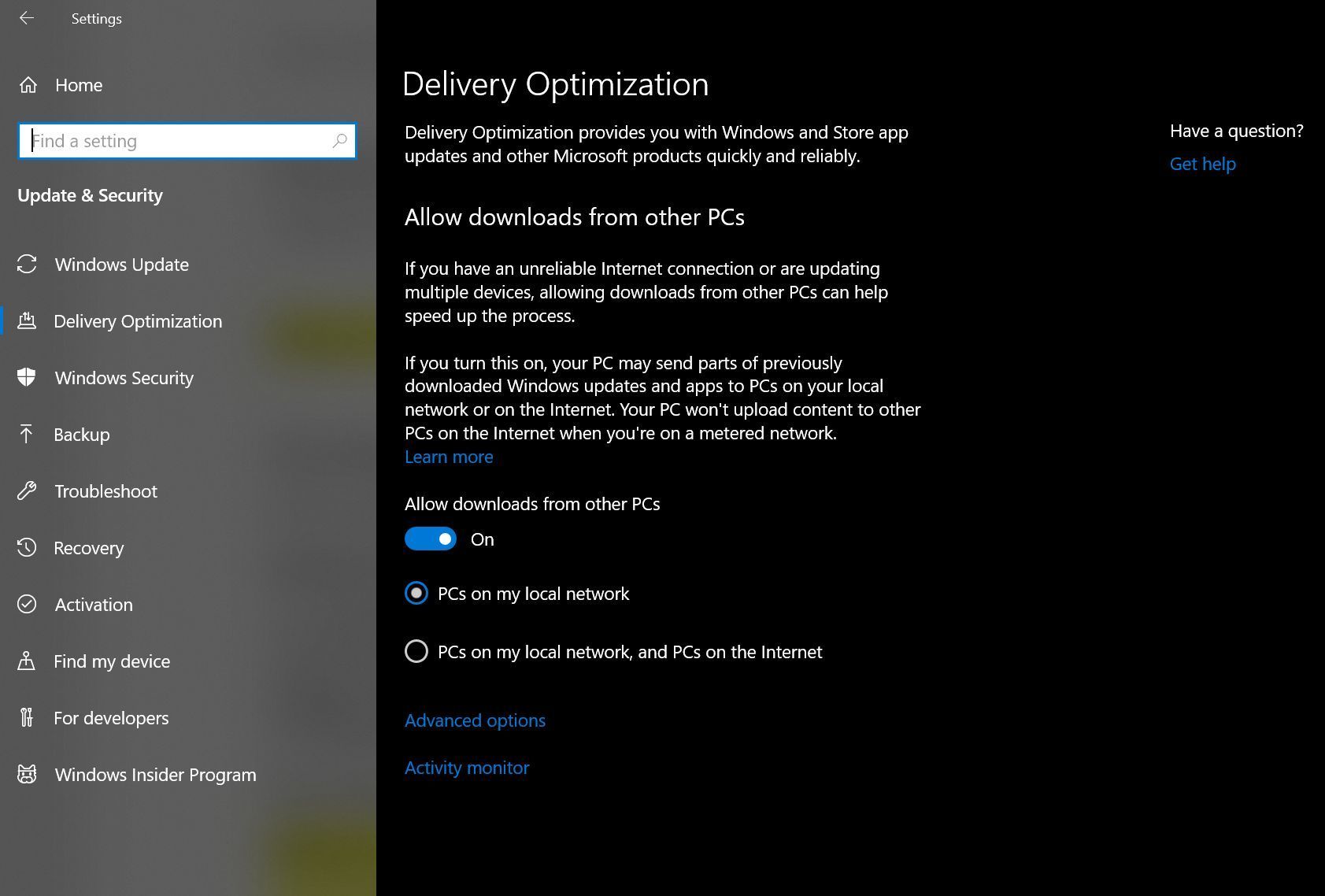

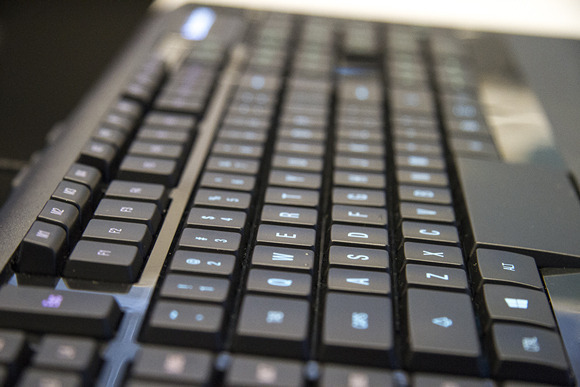
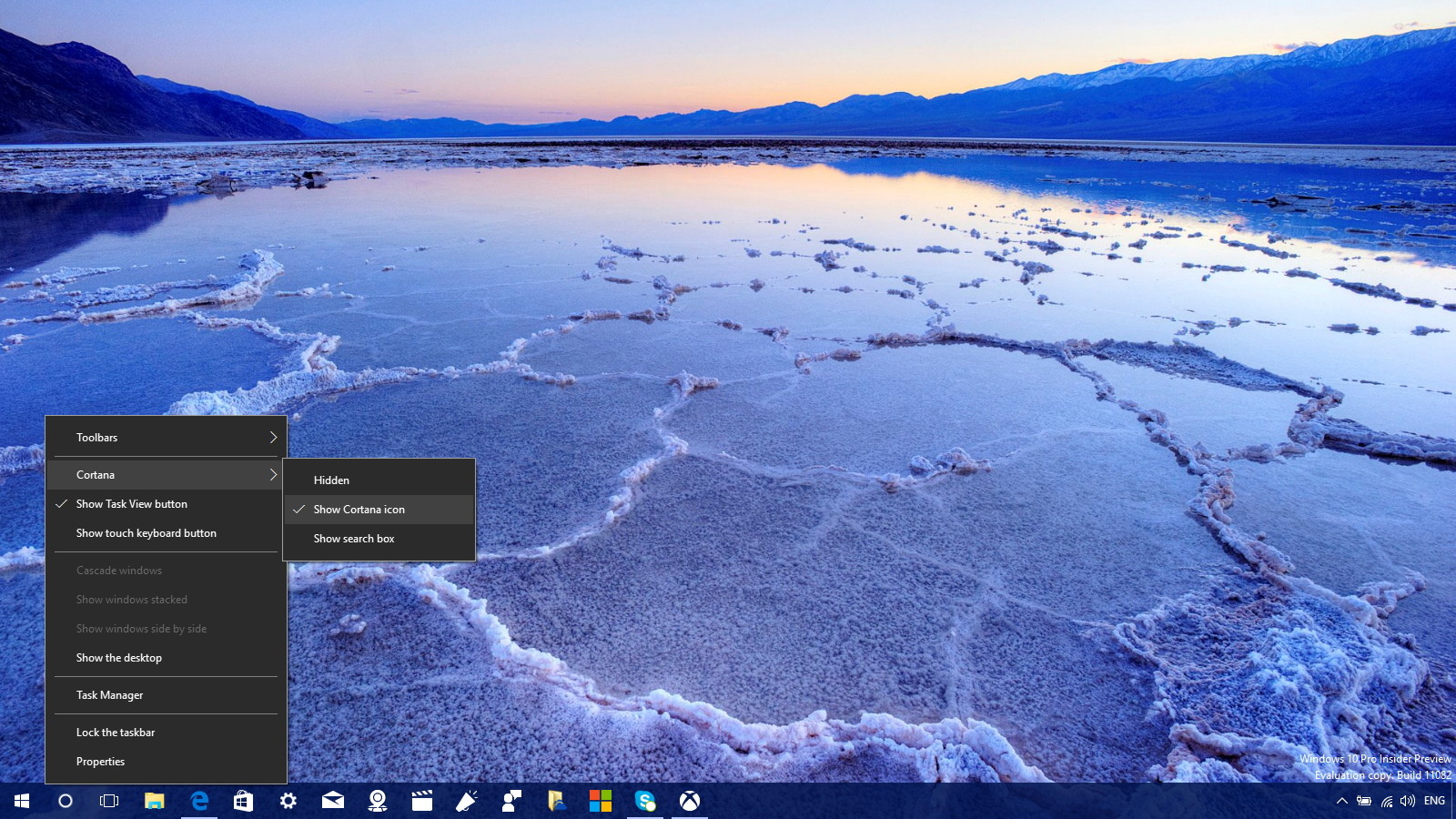

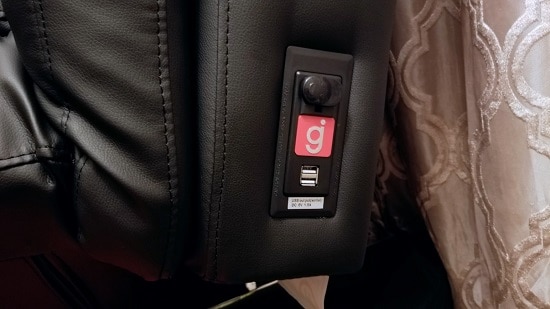
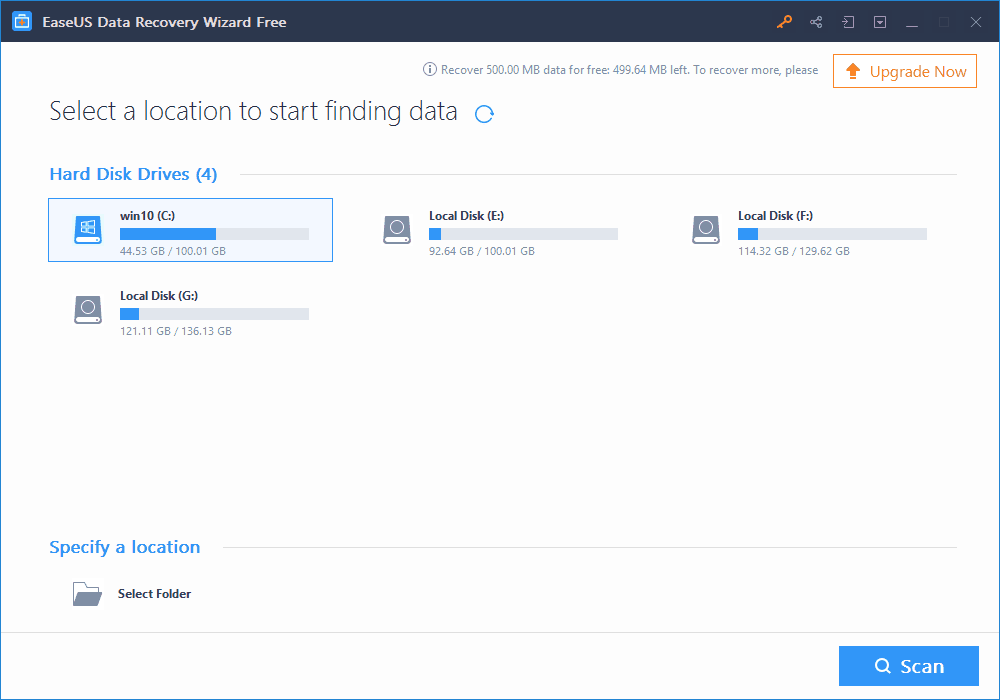

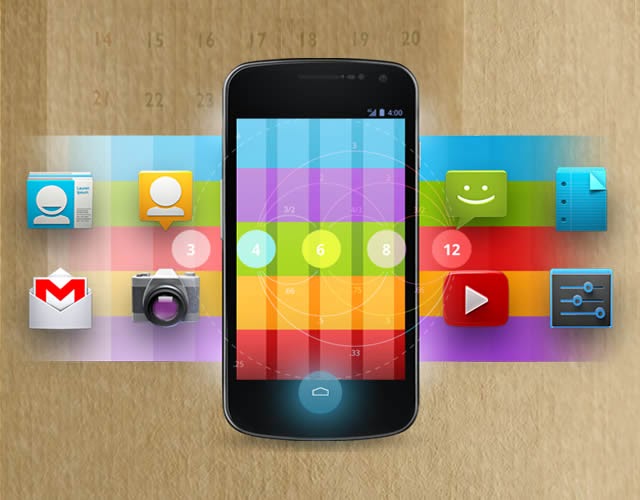
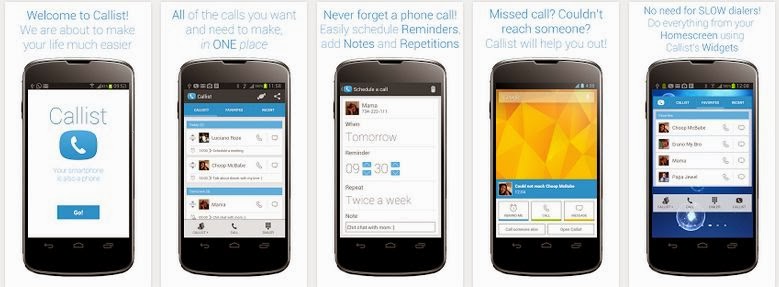
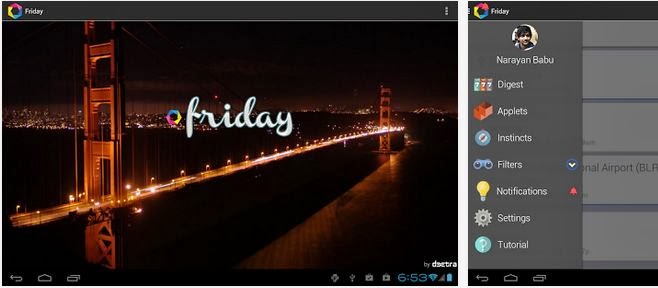

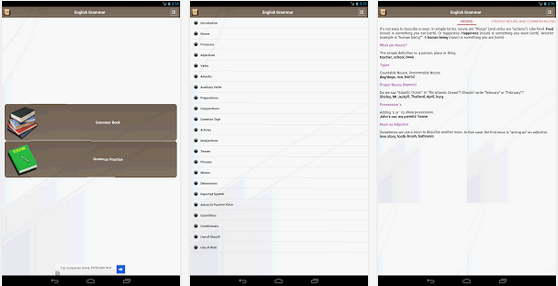
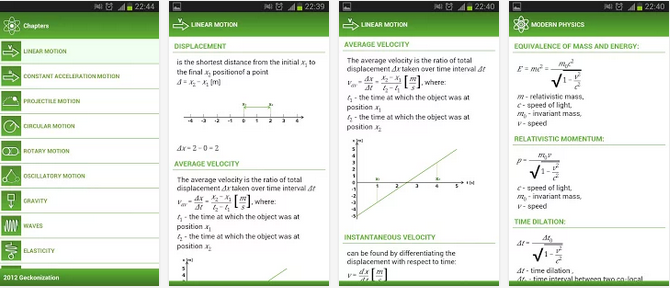



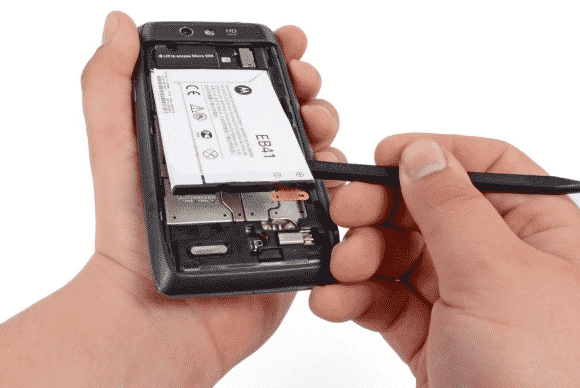
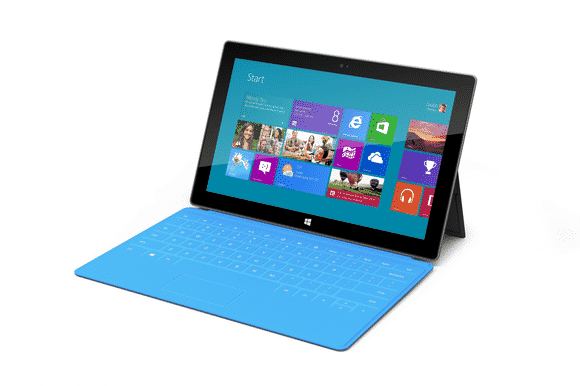
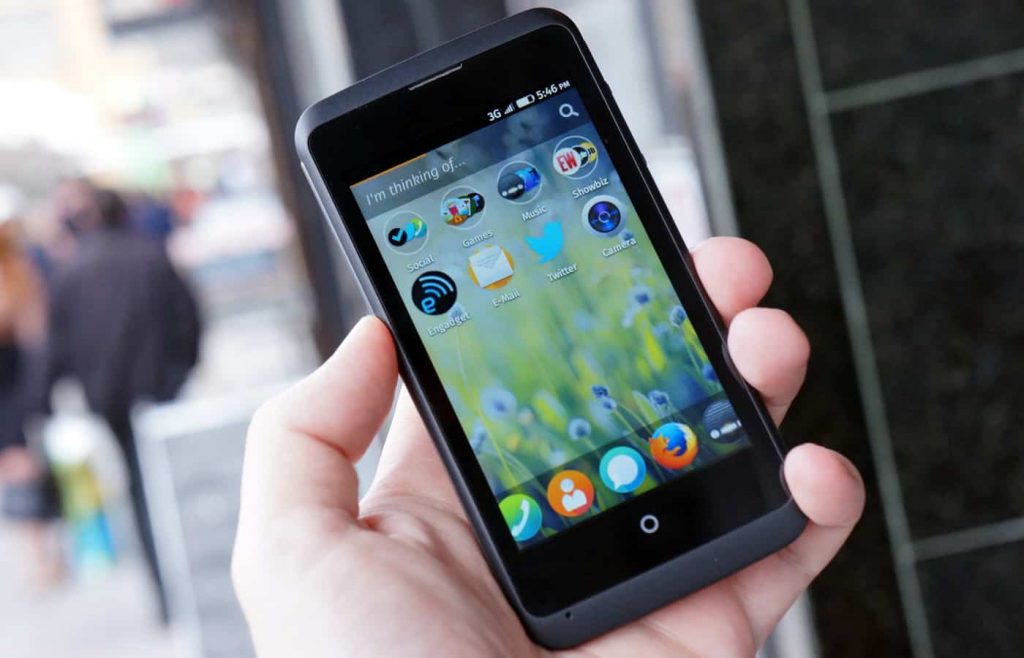
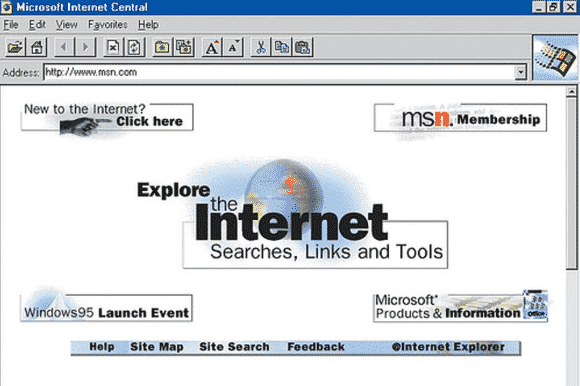
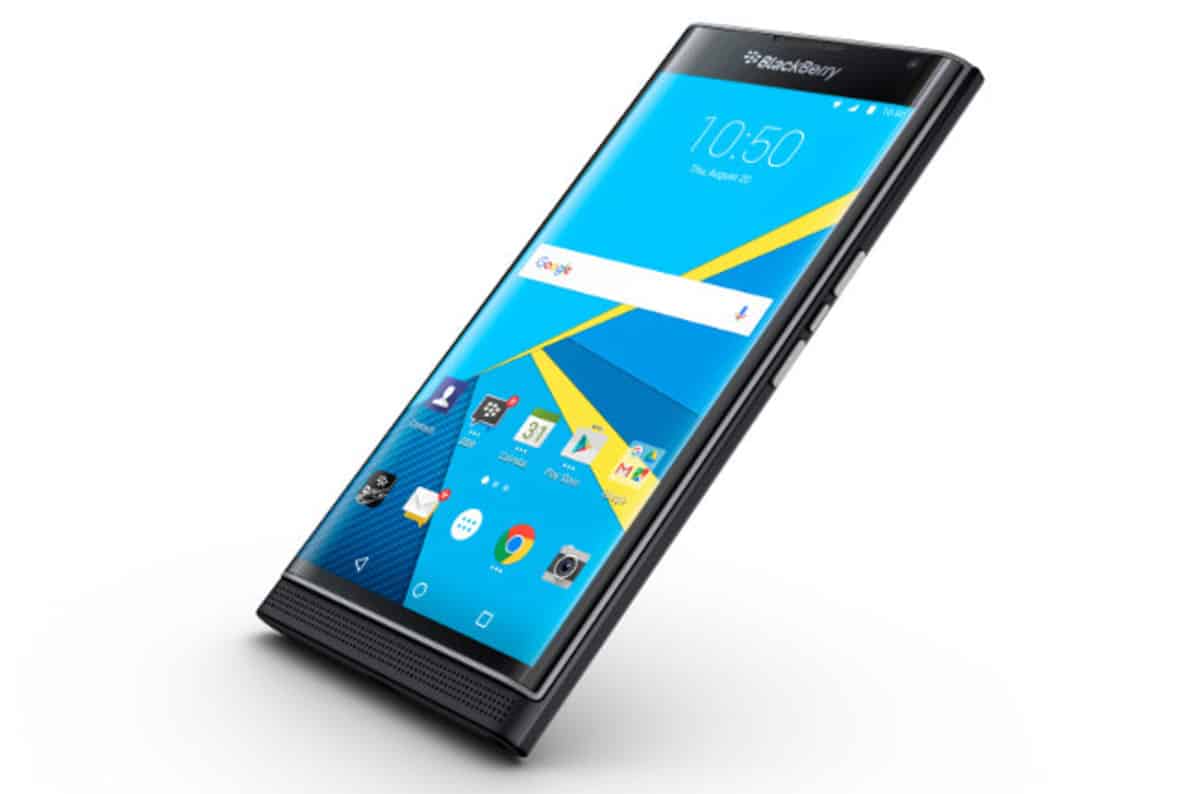

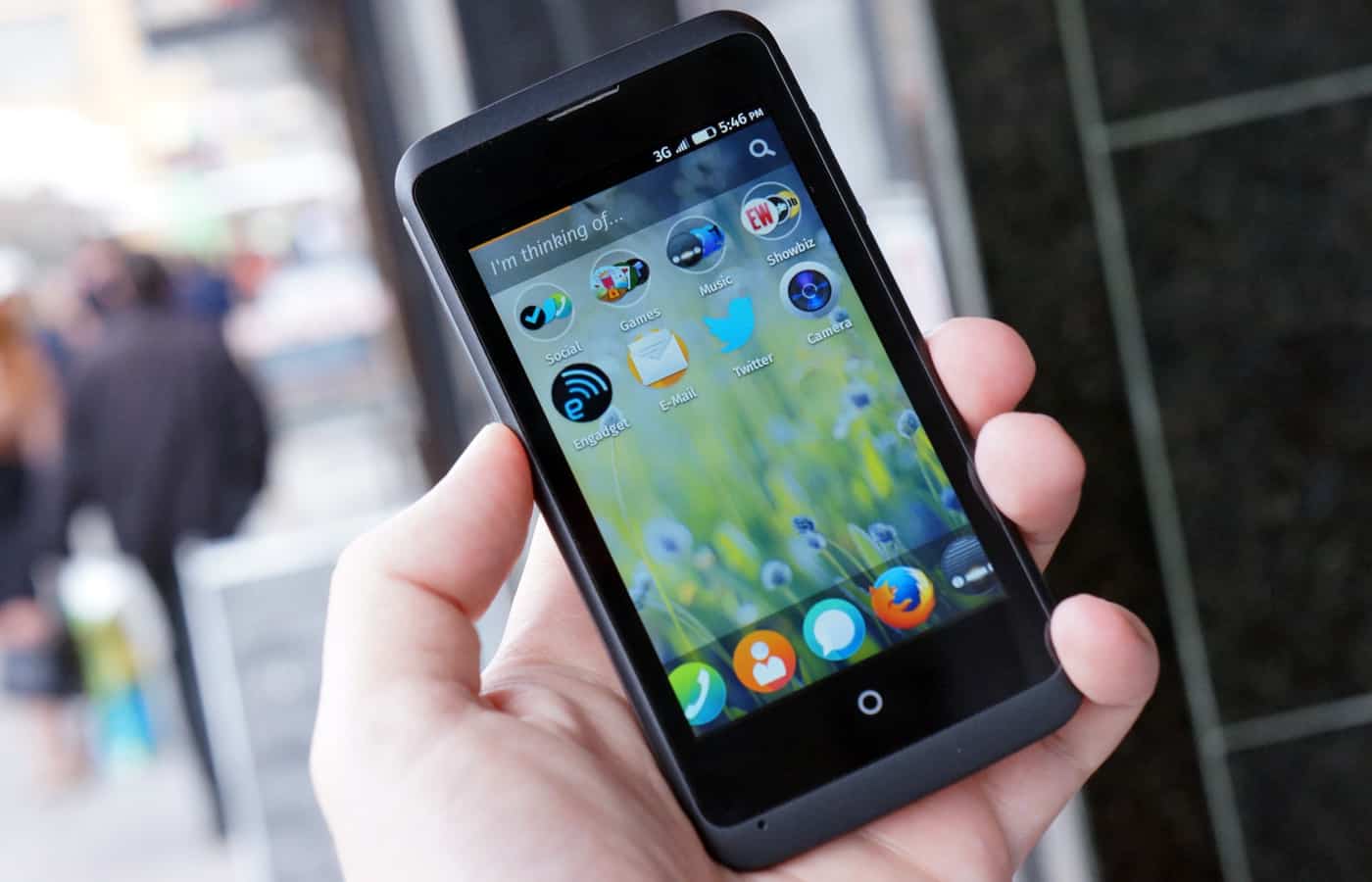
You must be logged in to post a comment.