Search results for: “google ”

  • SEO Best Practices for Small Businesses: Comprehensive Guide

    SEO Best Practices for Small Businesses: Comprehensive Guide

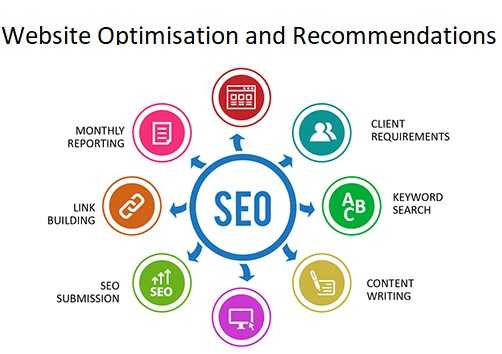
    Unlike large corporations with massive marketing budgets, small businesses must leverage smart, cost-effective strategies to increase visibility and attract customers. Mastering SEO (Search Engine Optimization) is crucial for small businesses aiming to do this.

    SEO involves optimizing your website to rank higher on search engine results pages (SERPs), making it easier for potential customers to find you. With more than 90% of online experiences starting with a search engine, being visible is important.

    Implementing the following effective SEO best practices for small businesses can help your business dominate search engine rankings, drive traffic to your website, and increase revenue.

    Keyword Research

    Start with thorough keyword research to identify the terms your potential customers are using to search for your products or services.

    Use Tools: Utilize keyword research tools like Google Keyword Planner, Ahrefs, or SEMrush to find high-volume, low-competition keywords relevant to your business.

    Long-Tail Keywords: Focus on long-tail keywords—specific, longer phrases that visitors are more likely to use when they’re closer to making a purchase. These are less competitive and can drive highly targeted traffic.

    Analyzing Competitor Keywords

    Identify keywords your competitors are ranking for to find gaps in your strategy. Tools like SpyFu and Moz can help you analyze competitor keywords and refine your own strategy accordingly.

    On-Page SEO

    SEO Best Practices for Small Businesses -  Quality Content and Keyword research

    Quality Content Creation

    On-page SEO involves optimizing individual pages to improve their search engine rankings and content is king in the SEO world. Your content should be:

    • Relevant and Valuable: Provide useful information that addresses the needs and answers the questions of your target audience.
    • Well-written and Engaging: Keep your readers engaged with clear, concise, and well-structured content. Regularly update your blog with informative articles, how-to guides, and industry news. Google rewards websites that provide a great user experience, so focus on writing content that keeps visitors on your site longer.
    • Original: Avoid duplicate content, which can harm your rankings.

    Keyword Optimization

    Incorporate these keywords naturally into your website content, including titles, headings, meta descriptions, and throughout the body text. Avoid keyword stuffing, which can lead to penalties from search engines. Focus on including keywords in:

    • Title Tags and Meta Descriptions: Craft compelling and keyword-rich title tags and meta descriptions that accurately describe your content and entice users to click.
    • Header Tags (H1, H2, H3): Use header tags to structure your content, making it easier for search engines and users to read.
    • URL Structure: Create clean, keyword-rich URLs that are easy for users and search engines to understand.

    Optimizing Images

    Images can enhance user experience but also need to be optimized for SEO:

    • Alt Text: Use descriptive alt text for all images, incorporating relevant keywords.
    • File Names: Name your image files descriptively rather than using generic names like “image1.jpg.”
    • File Size: Compress images to reduce loading times without compromising quality.

    Technical SEO

    SEO Best Practices for Small Businesses - Technical SEO

    Mobile Optimization

    With mobile devices accounting for over half of all web traffic, ensuring your website is mobile-friendly is crucial. Google uses mobile-first indexing, meaning it predominantly uses the mobile version of your site for ranking and indexing. Use responsive design to ensure your site looks and functions well on all devices. Test your website’s mobile-friendliness with Google’s Mobile-Friendly Test tool and make necessary adjustments.

    Page Speed and Performance

    A fast-loading website enhances user experience and improves rankings. Use tools like Google PageSpeed Insights to test your website’s speed and get recommendations for improvement.

    Secure Your Website

    Security is a ranking factor. Ensure your site uses HTTPS instead of HTTP by obtaining an SSL certificate. This not only helps with rankings but also builds trust with your visitors.

    Fix Broken Links

    Regularly check for and fix broken links on your website. Tools like Screaming Frog can help identify 404 errors and other broken links that need attention.

    Local SEO: Capturing Nearby Customers

    SEO Best Practices for Small Businesses - Local SEO: Capturing Nearby Customers
    Local SEO: Capturing Nearby Customers

    For small businesses, local SEO is essential to attract nearby customers.

    Google My Business

    Claim and optimize your Google My Business listing:

    • Complete Your Profile: Fill out all fields, including your business name, address, phone number, and hours of operation.
    • Add Photos: Include high-quality photos of your business, products, and services.
    • Collect Reviews: Encourage satisfied customers to leave positive reviews.

    Local Keywords

    Incorporate local keywords into your content, such as “best pizza in [city]” or “top-rated salon in [neighborhood].” This helps you appear in local searches and attract nearby customers.

    Local Citations

    Ensure your business information is consistent across all online directories and citation sites. Inconsistent information can confuse search engines and hurt your rankings.

    Off-Page SEO: Building Authority

    Off-Page SEO: Building Authority

    Backlinks

    Building high-quality backlinks from reputable sites is vital for SEO. Consider these strategies:

    • Guest Blogging: Write guest posts for industry blogs to gain exposure and backlinks.
    • Content Marketing: Create shareable content, such as infographics or in-depth guides, that others will want to link to.
    • Networking: Build relationships with industry influencers who can link to your site.

    Social Media

    While social media signals don’t directly impact rankings, having an active social media presence can drive traffic to your site, increase brand awareness, and indirectly benefit your SEO efforts.

    Monitoring and Analytics

    Google Analytics

    Use Google Analytics to track your site’s performance. Monitor metrics like organic traffic, bounce rate, and conversion rate to understand how your SEO efforts are paying off.

    Google Search Console

    Google Search Console provides insights into how Google views your site. Use it to monitor your search performance, fix issues, and understand your keyword rankings.

    Regular Audits

    Conduct regular SEO audits to identify and fix issues that could be affecting your rankings. Use tools like Ahrefs, SEMrush, or Moz to perform comprehensive audits.

    SEO is a critical component of a successful digital marketing strategy for small businesses. By implementing these best practices—ranging from keyword research and on-page optimization to local SEO and building backlinks—you can enhance your online presence, attract more customers, and grow your business.


  • The Best Smart Smoke Alarm for Modern Homes

    The Best Smart Smoke Alarm for Modern Homes

    Say goodbye to old, clunky smoke detectors that clash with your home decor. Smart smoke alarms are here, combining sleek designs with cutting-edge technology to fit seamlessly into any home decor. Leading brands like Nest Protect and First Alert smoke alarm offer devices that not only look great but also keep your home safer than ever.

    Smart smoke alarms use a combination of ionization and photoelectric sensors to detect both fast-flaming and smoldering fires, significantly reducing the risk of false alarms. These devices connect to your smartphone, sending real-time alerts no matter where you are.

    A report by Statista projects that the smart home market will grow by 10.67% from 2024 to 2028, reaching a market volume of USD 231.6 billion by 2028, with smart security systems being a major contributor. Data gleaned from Grand View Research suggests that the global market for smart smoke detectors is expected to reach $4.97 billion by 2025, growing at a compound annual growth rate (CAGR) of 8.7% from 2019 to 2025.

    smart smoke alert statistics

    This surge is driven by increasing consumer awareness about fire safety and the rising adoption of smart home technologies in luxury homes.

    Why You Need a Smart Smoke Alarm

    According to the National Fire Protection Association (NFPA), three out of five home fire deaths occur in homes without working smoke alarms. One of the best features of smart smoke alarms is their ability to send instant alerts to your phone. Wherever you are, you’ll know immediately if there’s a potential fire hazard.

    Smart smoke alarms are designed to integrate effortlessly with your existing smart home setup. Whether you’re using Amazon Alexa, Google Assistant, or Apple HomeKit, these alarms can sync with your system, allowing you to control and monitor them with simple voice commands.

    Forget about the annoying beeps of traditional smoke alarms reminding you to change batteries. Smart smoke alarms perform regular self-tests and will alert you when maintenance is needed.

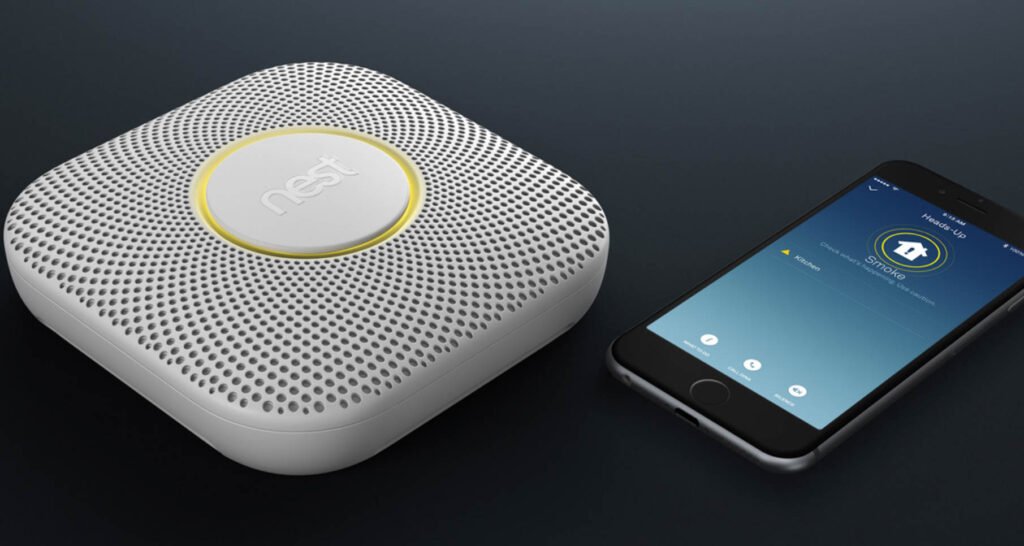
    Many smart smoke alarms come with voice alerts that clearly announce the type of danger and its location, helping you respond more effectively. Some models, like the Nest Protect, even have a nightlight feature with gentle illumination during nighttime alerts.

    How to Choose the Best Smart Smoke Detectors

    Choosing the best smart smoke detector involves evaluating your home’s specific needs and the features of the available options. Start by assessing the size and layout of your home. Larger homes might benefit from interconnected systems, such as the Nest Protect or the First Alert smoke alarm, which ensure comprehensive coverage across all rooms.

    Next, consider the power source—battery or hardwired. Battery-powered models offer flexibility in placement but require regular maintenance to avoid the dreaded smoke alarm chirping due to low battery. Hardwired models, while more permanent, may require an electrician for installation but eliminate the concern of dead batteries.

    Compatibility with your smart home ecosystem is also crucial. If you’re heavily invested in Amazon Alexa, for example, a smoke alarm that integrates seamlessly with Alexa, like the First Alert Onelink Safe & Sound, would be ideal.

    The Best Smart Smoke Detectors You Can Buy

    1. Nest Protect

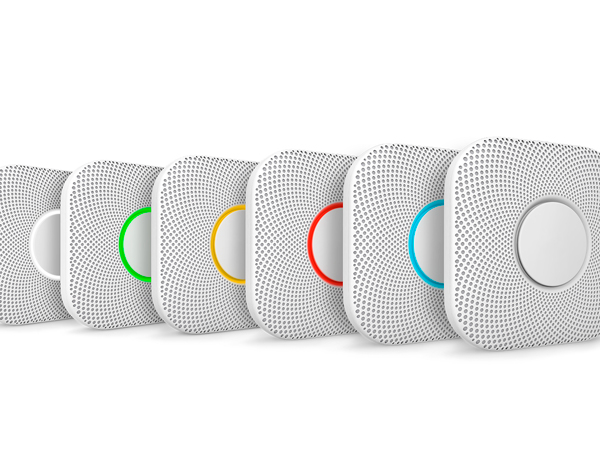
    The Nest Protect is a top-of-the-line smart smoke detector that excels in both functionality and design. It detects both smoke and carbon monoxide, providing comprehensive protection. When it senses a hazard, it not only sounds an alarm but also changes the color of its LED ring for a visual cue, and sends a detailed notification to your phone specifying the nature and location of the alert.

    Available in both wired and battery-powered versions, the Nest Protect can be linked with other Nest Protect devices in your home. This interconnected system ensures that if one alarm goes off, all others will follow suit, providing a thorough alert system throughout your house. However, it’s worth noting that the Nest Protect no longer works with Google Home, limiting some of its smart-home functionality.

    2. First Alert OneLink Safe & Sound

    First Alert OneLink Safe & Sound smart smoke alarms

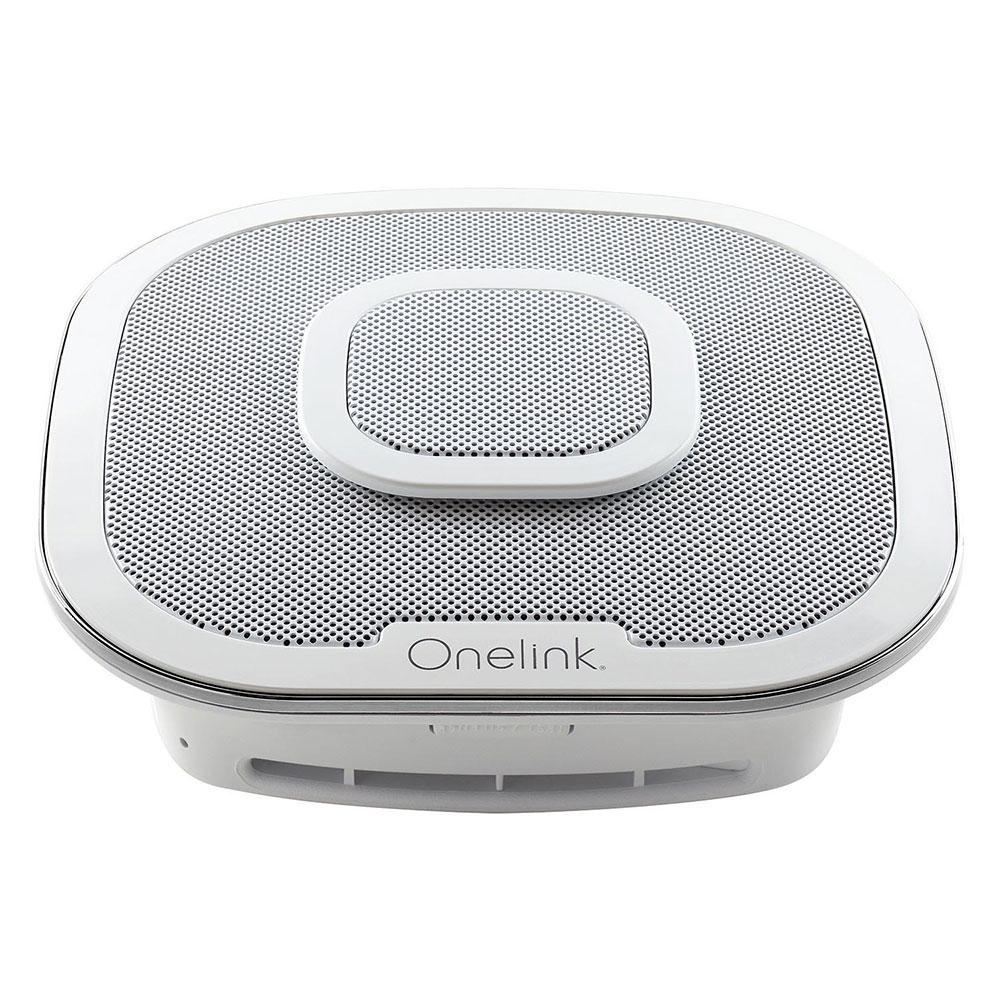
    The OneLink Safe & Sound combines smoke and carbon monoxide detection with the functionality of a smart speaker. With Alexa built-in, this device allows you to play music, listen to audiobooks, control other smart devices, and access a wide range of Alexa functions, all while ensuring your home’s safety.

    It also integrates with Apple’s HomeKit, providing flexibility for various smart home ecosystems. The OneLink Safe & Sound requires a hardwired connection, which might limit installation options but ensures a reliable power source. Its competent 10-watt speaker adds to its appeal, making it a multifunctional device that enhances both safety and convenience in your home.

    3. Apple HomePod Mini

    Apple HomePod Mini smart smoke alarms

    For Apple gadget lovers, the Apple HomePod mini offers a seamless smart home experience. Although it doesn’t detect smoke or carbon monoxide directly, it can listen for alarms and send notifications through the HomeKit app on your Apple devices. If you have a HomeKit-compatible security camera, the notification will include a live image, allowing you to quickly assess the situation.

    Besides its alert capabilities, the HomePod mini delivers excellent audio quality and features temperature and humidity sensors. Its compact and attractive design, coupled with the ability to pair with another HomePod mini for stereo sound, makes it a versatile addition to any HomeKit setup.

    4. Onelink Smart Smoke + Carbon Monoxide (2nd Gen)

    Onelink Smart Smoke + Carbon Monoxide (2nd Gen) smart smoke alarms

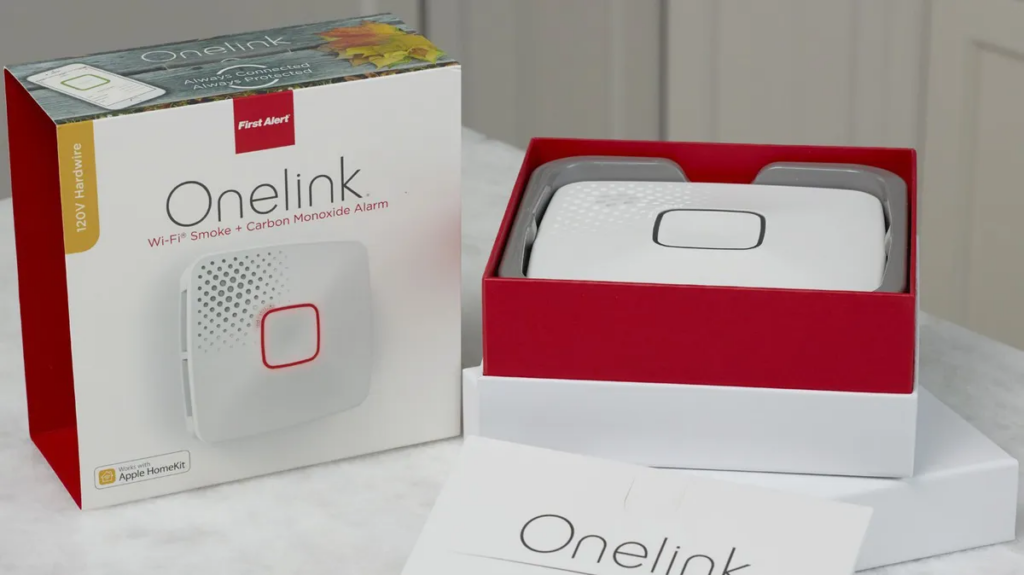
    The second-generation Onelink Smart Smoke + Carbon Monoxide alarm is an excellent choice for those seeking an affordable yet capable device. Available in both battery and hardwired models, it uses photoelectric technology, which is particularly effective at detecting smoldering fires. This alarm can be interconnected with other Onelink devices, ensuring that an alert in one part of your home triggers all alarms.

    The LED ring changes color based on the alarm’s status, providing a clear visual indication of any issues. Compatible with both Alexa and HomeKit, the Onelink alarm offers flexibility in smart home integration, although it does not support Google Assistant. The setup process can be a bit challenging, but once configured, it provides robust protection and smart home functionality at a reasonable price.

    5. Amazon Echo Dot (5th Gen)

    Amazon Echo Dot (5th Gen) smart smoke detector

    The Amazon Echo Dot, while not a smoke detector itself, can enhance your existing setup. By subscribing to Alexa Emergency Assist for $59 per year, the Echo Dot can listen to the sound of your current smoke detectors and send alerts to your smartphone. This feature allows you to keep your older detectors while gaining the convenience of remote notifications.

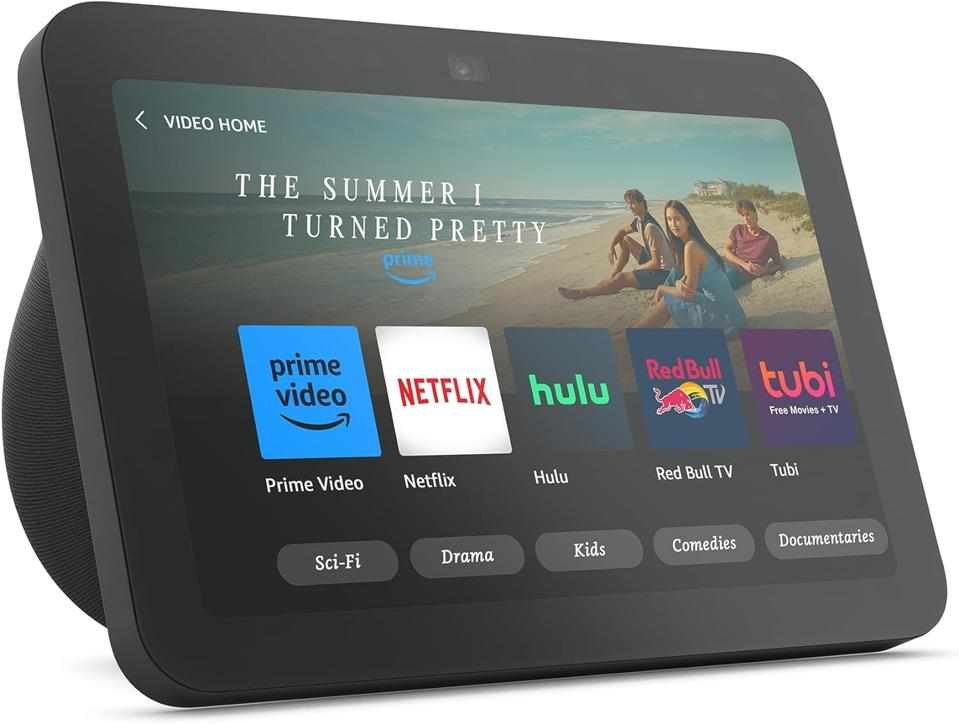
    The Echo Dot features better sound quality and comes in versions including one with a clock display. Though it has a large power brick, it’s still a budget-friendly choice for adding smart home alerts.

    What to Consider Before Buying a Smart Smoke Alarm

    Consider these factors to choose the right smart smoke alarm for your needs.

    1. Type of Sensors: Ensure the alarm includes both ionization and photoelectric sensors for comprehensive detection of different fire types.
    2. Power Source: Smart smoke alarms come in either battery-powered or hardwired versions. Battery-powered models offer easier installation but require regular battery changes, while hardwired models provide continuous power but might require professional installation.
    3. Smart Home Compatibility: Make sure the smoke alarm is compatible with your existing smart home devices, whether you use Amazon Alexa, Google Assistant, or Apple HomeKit.
    4. Connectivity: Consider whether you want an interconnected system, where all alarms in the house go off if one is triggered, or if a standalone unit suffices for your needs.
    5. Additional Features: Some smart smoke alarms come with extra features like nightlights, voice alerts, and remote silence options, which can add convenience and functionality to your home safety system.

    How We Test the Best Smart Smoke Detectors

    Testing smart smoke detectors involves evaluating several critical factors: ease of installation, sensor accuracy, connectivity, and smart home integration. We begin by installing the detectors in different locations within a home to assess their responsiveness to both smoke and carbon monoxide.

    The next step involves testing their connectivity with smart home systems like Amazon Alexa, Google Assistant, and Apple HomeKit. We also simulate various fire scenarios to observe how quickly and accurately the detectors respond, including how well they differentiate between actual threats and false alarms.

    Finally, we evaluate the user interface of the associated smartphone apps, checking how intuitive they are for receiving alerts, performing tests, and adjusting settings.

    Smoke Detectors FAQs

    • Q: What causes a smoke alarm to chirp?
      A: A smoke alarm chirping is often a sign that the battery is low and needs replacement. However, it could also indicate a need for maintenance or that the alarm is nearing the end of its life.
    • Q: Can smart smoke alarms prevent false alarms?
      A: Smart smoke alarms, like the First Alert smoke and carbon monoxide alarm, use advanced sensors. These sensors can distinguish between real threats and common causes of false alarms, like steam or cooking smoke.
    • Q: How often should I test my smoke alarm?
      A: It is recommended to test your smoke alarms at least once a month to ensure they are functioning properly.
    • Q: Do smart smoke alarms work during a power outage?
      A: Battery-powered smart smoke alarms will continue to work during a power outage. For hardwired models, having a battery backup is crucial to ensure they remain operational.
    • Q: Can I integrate my smart smoke alarm with other smart devices?
      A: Yes, most smart smoke alarms are compatible with smart home systems like Amazon Alexa, Google Assistant, and Apple HomeKit, allowing for seamless integration and control.
  • Samsung Galaxy Watch 7 Series: July Unpacked Event

    Samsung Galaxy Watch 7 Series: July Unpacked Event

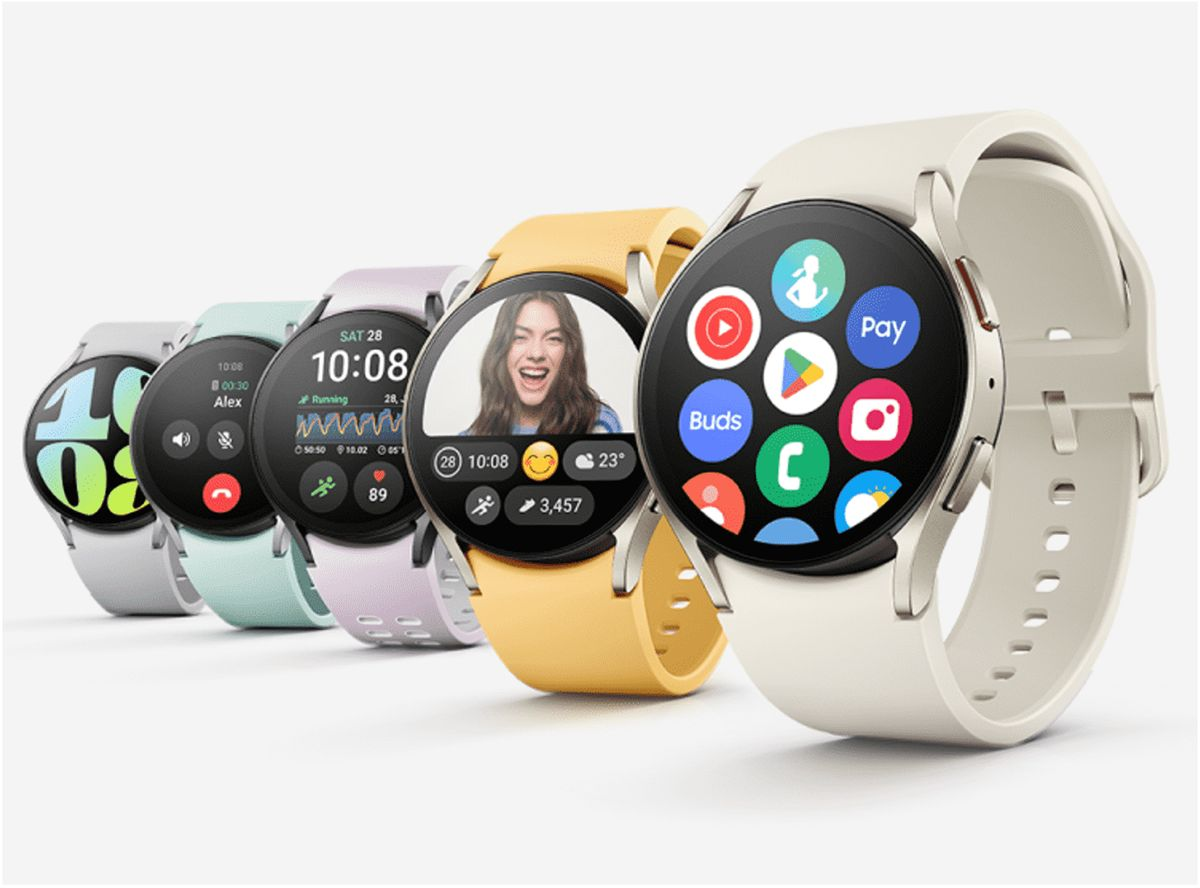
    Samsung’s next-gen smartwatches identified by model numbers SM-L300, SM-L305, SM-L310, and SM-L315, have been spotted on the FCC certification. The latest Galaxy Watch 7 series will be revealed at the next Samsung Unpacked event scheduled to be held on July 10, 2024.

    We got wind of some of the features, including Wi-Fi and LTE connectivity, and different models; Galaxy Watch 7, Galaxy Watch 7 Classic/Pro, and Galaxy Watch 7 FE. Samsung is also expected to showcase the Galaxy Z Fold 6 and Galaxy Z Flip 6.

    Samsung, Apple, and Google have been the leading competitors in the wearables and smartwatch market for years now. The Samsung Galaxy Watch 6 is one of the best smartwatches for Android users, especially those with Samsung phones. It features a rotating bezel, health and fitness tracking, durable sapphire glass, potentially longer battery life, LTE connectivity, and a more competitive price than the Apple Watch Series 9.

    Although the Galaxy Watch 6 and Watch 6 Classic are ideal for Android users, the Apple Watch Series 9 continues to set the standard for smartwatches. It runs on the efficient S9 chip, with improved battery life and on-device Siri processing for quick and private responses. Features include Double Tap, which lets you control the watch by tapping two fingers together, an FDA-cleared electrocardiogram sensor, and SpO2 measurement, although this last feature is no longer available on US models sold after January 18, 2024, due to the Apple Watch blood-oxygen monitoring patent dispute.

    Google’s Pixel Watch 2 which is another good smartwatch for Android users now includes auto-start workout detection, fall detection, SpO2 measurements, and a modernized Fitbit app. It also introduces Safety Check and Body Response features for stress detection and management. Although it’s great for health and fitness tracking, the battery life lasts only about a day.

  • Best Calendar App for iPhone/Android

    Best Calendar App for iPhone/Android

    Efficiently managing your time is paramount, and the best calendar apps are good at simplifying this process. Regardless of whether you’re a business owner juggling multiple responsibilities or an employee with a demanding schedule, the struggle to complete tasks within the limited hours of a day is universal. While a conventional calendar app capably records important events like business meetings or time off, the leading applications surpass these basics and we’re about to introduce them. Also, plan your week ahead;7must-have Android applications for this week

    These exceptional calendar apps do more than just block time. They offer features like intelligent reminders, seamless meeting scheduling, and comprehensive planning for days, weeks, and months. This ensures a meticulous organization of your time, optimizing productivity. Moreover, these apps facilitate effortless planning across all devices through cloud syncing, enabling the addition, review, or editing of entries on smartphones and subsequent synchronization with desktops or laptops.

    Furthermore, the finest calendar apps provide a unified platform for work, personal, and shared calendars, promoting increased productivity. The ability to seamlessly switch between these categories minimizes distractions, allowing you to focus on relevant tasks during work hours and unwind without work-related interruptions at home.

    In essence, these leading calendar apps exceed traditional functionalities, often resembling simplified virtual assistants. They adeptly simplify the complexities of your bustling life, ensuring an uncomplicated and efficient approach to organization. Below, we have a curated list of the current top calendar apps for iPhones and Androids so you don’t have to worry about the best calendar app for your device.

    Calendar app

    Which calendar app is better Apple or Google?

    The choice between Apple’s Calendar app and Google Calendar often depends on your personal preferences and the devices and services you use. Both apps have their strengths and may be better suited for different users.

    Apple Calendar:

    • Integration with Apple Ecosystem: If you use Apple devices like iPhone, iPad, and Mac, the Apple Calendar app seamlessly integrates with them.
    • Siri Integration: Siri, Apple’s virtual assistant, can be used to create and manage events in the Apple Calendar.
    • Privacy: Apple is known for its focus on privacy, and if privacy is a top concern for you, you might appreciate Apple’s approach.

    Google Calendar:

    • Cross-Platform Compatibility: Google Calendar apps work well across different platforms, including Android, iOS, and web browsers. This is beneficial if you use devices from various manufacturers.
    • Collaboration Features: Google Calendar excels in collaboration, allowing easy sharing of calendars and events with others. It integrates with other Google services like Gmail.
    • Search and Machine Learning: Google Calendar uses machine learning to help predict events, suggest locations, and make event creation quicker and more intuitive.
  • Best Remote Jobs Sites in 2024

    Best Remote Jobs Sites in 2024

    The traditional 9-to-5 office setup as we know it is no longer the only path to professional success. Thanks to advancements in technology and changing workplace dynamics, remote work has become increasingly popular and widely accepted across industries. If you’re here, you’re likely already sold on the idea that remote employment opportunities are the way forward. There are a lot of top brands in the world that need remote talent including industry giants such as Apple, Google, Walt Disney, Microsoft, American Express, Cigna, Amazon, Adobe, Merck, Dell, Wells Fargo, and Verizon, among countless others. We’ll review some of the best remote jobs sites to apply for jobs in 2024.

    Top 53 Remote Jobs Sites in 2024

    1. Remote Tech Jobs
    2. Freelancer
    3. SolidGigs
    4. We Work Remotely
    5. Freelance Writing
    6. LinkedIn
    7. RubyNow
    8. Craigslist
    9. Skip the Drive
    10. NODESK
    11. FlexJobs
    12. Lensa
    13. Textbroker
    14. Remoteers
    15. JustRemote
    16. Authentic Jobs
    17. Upwork
    18. Idealist
    19. TranslatorsCafe
    20. Freelance Writing
    21. HubStaff Talent
    22. Contena
    23. Media Bistro
    24. GrowthHub
    25. Glassdoor
    26. Power to Fly
    27. Fiverr
    28. Remotive
    29. Dribbble
    30. Axiom Law
    31. Remote Tech Jobs
    32. Guru
    33. SalesGoat
    34. Remoters
    35. Hitmarker
    36. ServiceScape
    37. LinkedIn
    38. Indeed
    39. Lemon.io
    40. Gun.io
    41. Adzuna
    42. Amazon Mechanical Turk
    43. Hundred5
    44. GitHub
    45. Monster
    46. TravelMassive
    47. Aprés
    48. Dynamite Jobs
    49. 99designs
    50. Business Talent Group
    51. Wellfound (formerly AngelList Talent)
    52. Dice
    53. LGBTQ Remotely

    22 Best Remote Jobs Sites

    1. FlexJobs: This site is like your personal job curator, offering not just remote jobs, but also freelance and part-time gigs. It’s easy to use and free from annoying ads or scams.
    2. SolidGigs: Perfect for freelancers, this site handpicks the best gigs for you every week. Plus, it offers a ton of resources to help you grow your freelance business.

    3. JustRemote: With hundreds of new remote jobs added monthly, JustRemote is your go-to for finding remote positions in various fields. Their paid service is worth it if you’re serious about landing a remote job.
    4. We Work Remotely: This site has been around for a while and is still one of the best places to find remote work. It’s especially great for small businesses looking to hire remote workers.
    5. Dynamite Jobs: Every job listing here is 100% remote, open, and paid. They also offer a Job Placement Program to connect candidates directly with hiring companies.
    6. Remotive: Not just a job board, Remotive also offers valuable advice and resources for landing remote jobs, all for free.
    7. Working Nomads: If you’re into software engineering, Working Nomads is one of the must-visit remote jobs sites. They send curated job listings straight to your inbox, making your job search a breeze.
    8. LinkedIn: While primarily known as a professional networking and digital marketing platform, LinkedIn has been a useful resource for remote job seekers. LinkedIn features thousands of remote job listings updated regularly along with an extensive network of professionals and recruiters. Its advanced search filters and recommendation algorithms help users discover relevant remote opportunities narrowed down to their skills and career goals.
    9. Lensa: Simplifies remote job searching with advanced filtering options, focusing on company values like work-life balance.
    10. Power to Fly: This site is one of the many job sites tailored towards inclusion for women in the workplace. It matches talented women with inclusive companies for remote tech jobs, offering a trial period for job fit assessment.
    11. Remote Tech Jobs: Offers up-to-date remote roles for various tech skills, and allows subscribers to receive job alerts.
    12. Landing.Jobs: Connects top tech talent with European companies for remote roles. And also offers job seekers a more personalized job search experience.
    13. GitHub: Lists remote jobs for developers across different technologies, with daily updates on Twitter.
    14. Dribbble: Offers remote jobs for designers and creatives, with a simple toggle for remote gig searches.
    15. 99designs: Connects designers with clients for freelance projects, with fixed-price packages for billing clarity.
    16. NODESK: Offers remote job listings and resources for digital nomads, covering various categories like Finance and Marketing.
    17. TravelMassive: Lists remote jobs for travel creators, including roles in marketing, development, and sales.
    18. Hitmarker: Focuses on remote jobs in e-sports and gaming, especially entry-level opportunities.
    19. Axiom Law: This site embraces the future of remote legal work by helping lawyers with remote roles.
    20. Business Talent Group: Connects senior executives with remote consulting opportunities, and provides flexibility and independence.
    21. Aprés: It supports women re-entering the workforce with remote roles after maternity leave, offering career coaching and resources.
    22. SalesGoat: Here, the remote sales jobs are for startups and tech companies worldwide and it’s open to applicants with various levels of experience. If you’re interested in working for startups, this is the place to be.
  • Best Budget Android Phones to Buy in 2024

    Best Budget Android Phones to Buy in 2024

    There have been mindblowing changes lately to Android phones thanks to some seriously powerful new chips. Remember when you had to pick between shelling out big bucks for a best-value phone or settling for midrange phones or something slower on a budget? Those days are fading fast. We’ve also seen sweeping changes to Google’s mobile OS—the world’s most popular mobile operating system.

    Even the less affordable Android phones now pack a punch. It’s like everyone’s getting a taste of the good stuff without breaking the bank – suddenly, everyone’s in.

    We’ll check out what these best budget Android phones can do, so we can help you find the cheapest phones no matter the budget.

    What Should I Look for in a Good Budget Android Phone?

    Most expensive phones are designed with high-quality gaming and advanced photography in mind, while more affordable Android phones are carefully engineered with powerful mid-range processors to handle daily tasks with ease and stay up-to-date with Android updates.

    Even more surprising is the fact that these budget smartphones between $150 to $500 offer great user experiences and can last for years.

    Choosing an affordable Android phone that suits your needs and wallet is important for most of us. You don’t want to end up with a phone that feels outdated and sluggish shortly after purchasing it. So, before diving into specs like processor and camera quality, start by considering connectivity. Ensure the phone supports your network and other basics like Bluetooth and Wi-Fi.

    When it comes to the processor, look for an Android phone with a decent chipset to avoid a slow performance. Qualcomm’s Snapdragon processors are common, but not all are equal. Aim for at least a Snapdragon 400-series or higher for better performance. MediaTek’s Dimensity series is also worth considering for speedier performance.

    RAM is another thing you need to look out for; phones with at least 6GB of RAM allow for better multitasking.

    Storage isn’t a major concern nowadays thanks to cloud services like Google Photos and Apple iCloud. These services can store your media securely, freeing up space on your phone.

    Camera quality matters too, especially if you enjoy capturing moments. While cheaper phones may not have great image quality like iPhones, you can still take good pictures with some Android models.

    Battery life is one thing many users overlook. While most phones on the list below have decent battery life, some are built to last longer. They might not be the most expensive phones today, but they sure do perform better than most of the high-end phones. All you need to do is consider your priorities and budget before making a decision.

    Best Budget Android Phones: Cheap Android Phones 2024

    Here are the cheapest Android phones to buy this 2024

    Google Pixel 7a

    Google Pixel 7a Best Budget Android Phones
    Google Pixel 7aBest Budget Android Phones

    Google’s phones are favored by Android lovers; from the Pixel 7 Pro, Pixel 7, and Pixel 6a. The Google Pixel 7a is known as the best budget Android phone in the market, and it’s easy to see why. With a bright 6.1-inch AMOLED display, 8GB of RAM, and a powerful Google Tensor G2 chipset, this phone delivers top-notch performance.

    Its 64MP primary camera captures stunning photos, and you get access to exclusive Pixel features straight out of the box. Plus, it’s the first A-series Pixel with wireless charging support. Despite minor drawbacks like a 90Hz refresh rate and average battery life, the Pixel 7a is one of the cheapest phones under $500.

    OnePlus 12R

    OnePlus 12R Best Budget Android Phones to Buy in 2024

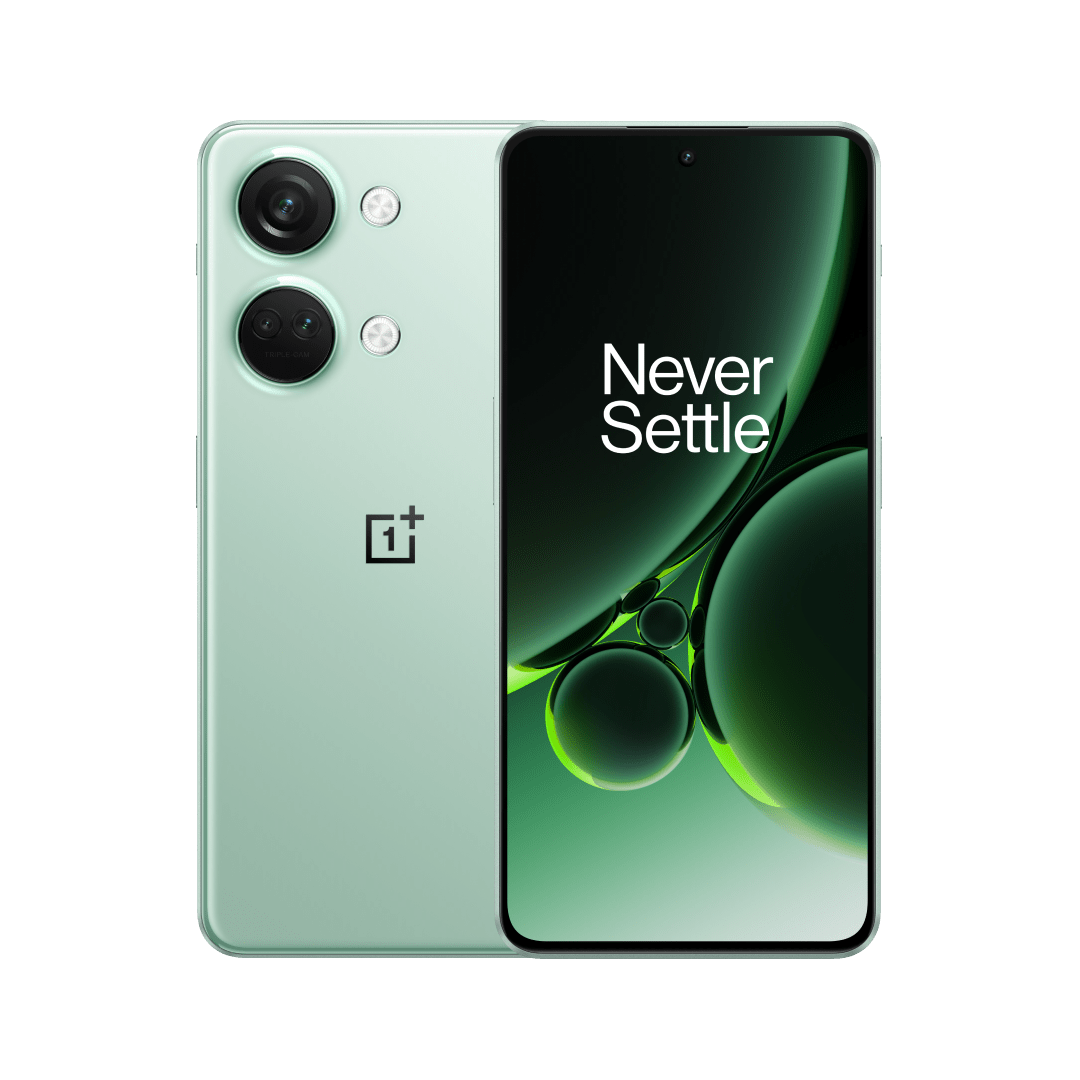
    The OnePlus 12R is dubbed one of the most affordable and best-value Android phones, and for good reason. Packed with a Snapdragon 8 Gen 2 processor, a superb AMOLED display with a 120Hz refresh rate, and impressive camera capabilities, this phone offers flagship-level performance. The sleek design and 100W wired charging are impressive and ideal for anyone in the market for a high-quality smartphone.

    Nothing Phone 2a

    Nothing Phone 2a Best Budget Android Phones to Buy in 2024

    Next up, we have the Nothing Phone 2a, praised for its exquisite design. With features like a transparent back panel and unique Glyph lights, this phone is impressive. Other specs, including a 6.7-inch Flexible AMOLED display and a MediaTek Dimensity 7200 Pro processor, make it a great choice in the budget Android phone market.

    Samsung Galaxy A54

    Samsung Galaxy A54 - best budget android phones
    Samsung Galaxy A54

    Another Samsung phone to buy if you’re looking for the best budget Android phone is the Galaxy A54 5G, sold for $325. It has a Pixel alternative with a fast display and premium design, though lacking wireless charging and slow charging speeds.

    With a Super AMOLED display, flagship-level camera features, and a large 5,000mAh battery, this phone offers solid performance at a reasonable price. Samsung promises users four OS upgrades and up to five years of security updates.

    OnePlus Nord N30 5G

    OnePlus Nord N30 5G

    The OnePlus Nord N30 5G delivers exceptional value for its price. With features like a Snapdragon 695 processor, an AMOLED display, and impressive camera capabilities, this phone is one of the cheapest Android phones to buy. Plus, its 120Hz refresh rate ensures a smooth user experience.

    Although the OnePlus Nord N30 priced at $250 maintains strong performance, it loses the AMOLED display and premium design of its predecessor.

    Moto G Stylus 5G

    Moto G Stylus 5G

    The Moto G Stylus 5G has been termed as the best stylus phone. Alongside solid specs like a Snapdragon 6 Gen 1 processor and a large 6.6-inch FHD+ display, it comes with a built-in stylus for writing and drawing. With its combination of features, performance, and value, it’s an ideal choice for a mid-range smartphone.

    Other Budget Android Smartphones

    • The $350 Motorola Edge has a cool OLED display, solid battery life, and improved cameras and is one of the best budget Android phones.
    • For Galaxy fans, the Samsung Galaxy A14 5G, priced at $200 is a top pick. It features a fast display and great design, though lacking in speaker quality.
    • Motorola Razr sold for about $500 is a budget foldable smartphone with decent performance, good battery life, and a large display, despite limitations in the cover screen and camera quality.
    • You can also get the Samsung Galaxy A04 under $120, which offers good budget specs with Samsung’s One UI software, though limited by its plastic build and low resolution.
    • The $230 T-Mobile REVVL 6x Pro with wireless charging, and long battery life is a great choice for a budget phone if you can handle a large screen, but it has poor display quality and weak performance.

    While these budget Android smartphones might not meet the features of the cheapest iPhones by comparison, they still offer decent performance and features at affordable prices.

  • Free Graphic Design Software for Content Creation

    Free Graphic Design Software for Content Creation

    The widespread use of digital devices and the internet has led to an abundance of information. This sheer volume of information available on social media, articles, online videos, and constant notifications is often overwhelming for some people. Since attention spans are limited due to the fear of missing out, brands are readily churning out visually appealing content that grabs the audience’s attention more effectively.

    Graphic design has become an integral part of content creation for over a decade now. It improves the aesthetics of content to be more engaging and memorable, but that’s not all. Businesses and large corporations have utilized graphic design to establish brand identity and recognition. It is a cornerstone of marketing and advertising. Brands use graphic design to create banners, posters, or online ads, and these visually compelling designs impact the success of campaigns.

    It also influences how every single piece of information is presented, consumed, and shared. In the context of social media, where attention is fleeting, visually engaging graphics are needed to create shareable and viral content. Most people find graphic design an important tool for simplifying complex information through intuitive visuals and this contributes to positive user experience.

    Graphic design doesn’t necessarily require an expert designer for every task, as there are varying levels of complexity in design projects. Simple tasks like creating social media posts or promotional campaigns can often be handled by people with basic design skills. For small businesses and startups looking to save money, learning basic graphic design from online resources is important. However, as your brand grows, you might want to hire a professional graphic designer for more complex and technical projects such as branding, and logo design.

    Read Also: Latest Graphics Card for Gaming: Video Editing/3D Graphics Modeling

    Free Graphic Design Software for Social Media and Content Creation

    Free Graphic Design Software for Social Media and Content Creation

    We took the liberty to compile some of the best graphic design software for beginners and brands that need to save money on designs. Graphic design has become indispensable to content creation, whether you’re the CEO or intern, it wouldn’t hurt to have basic knowledge of the tools that make the magic happen. Let’s find out which software is best for graphic design for beginners and what free app is best for graphic design for Mac and PC.

    Canva

    Free Graphic Design Software for Social Media and Content Creation

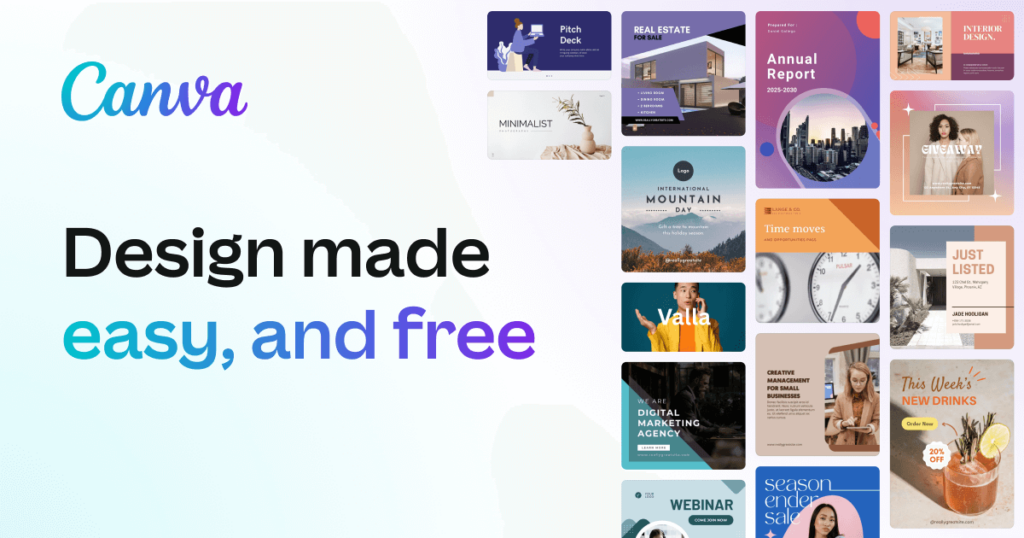
    Canva is a versatile and user-friendly design app, available across various platforms, offering a million templates, graphics, and photos under its free plan, with even more assets accessible through Canva Pro. Canva Pro unlocks additional features, including automatic resizing and brand kit integration. The interface has numerous templates for just about any purpose, as well as a good search feature that helps you easily find the designs you want. The drag-and-drop editor simplifies customization and there’s a design collaboration with sharing options.

    DesignWizard

    Free Graphic Design Software for Social Media and Content Creation

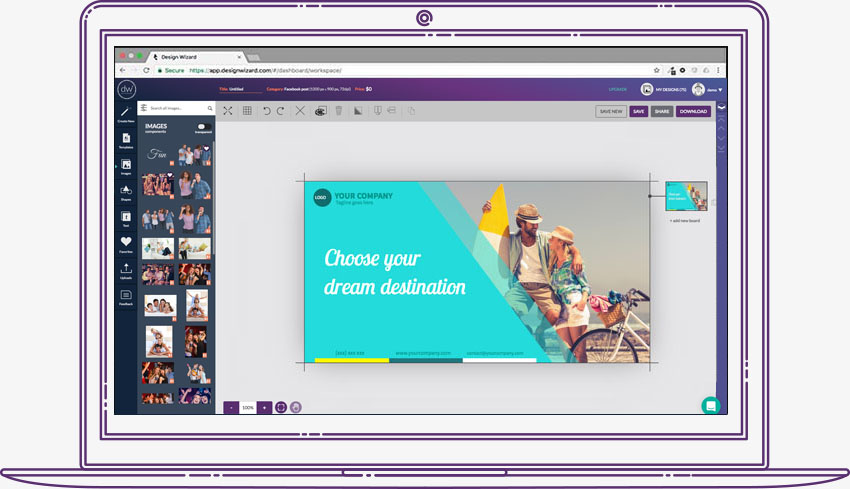
    This free graphic design software functions similarly to Canva but provides access to all its tools in the free version. With an extensive collection of over 5,000 templates, users can effortlessly craft digital content such as social media posts, flyers, ads, and YouTube videos. As well as print materials like gift cards, certificates, and sales posters.

    There’s a library with millions of images, videos, illustrations, and graphics. DesignWizard empowers users to upload fonts, photos, and logos. The platform allows for the creation of custom color palettes and resizing designs, ensuring each final product is what you need for your brand.

    Adobe Express

    Adobe Express
    Adobe Express

    Formerly known as Adobe Spark, is designed for social media and web graphics. Adobe Express is free, with premium features offered at $9.99/month. While its template selection falls short compared to Canva, it compensates with a powerful editor. Quick Actions on the home screen provide efficient tools like image resizing and background removal. Advanced features such as layer options and blend modes are available for deeper customization. Integration with Adobe’s Creative Suite enhances its utility for those planning to use more advanced Adobe tools.

    GNU Image Manipulation Program

    GNU Image Manipulation Program

    An acronym for GNU Image Manipulation Program, GIMP is a go-to free tool for those working with photography. Although not available in-browser and considered more advanced, GIMP is exceptional for its capacity to handle demanding photo editing needs. It lacks templates and may be more challenging to use compared to other software on this list, but its power lies in advanced photo editing and design.

    Pablo by Buffer

    Pablo by Buffer

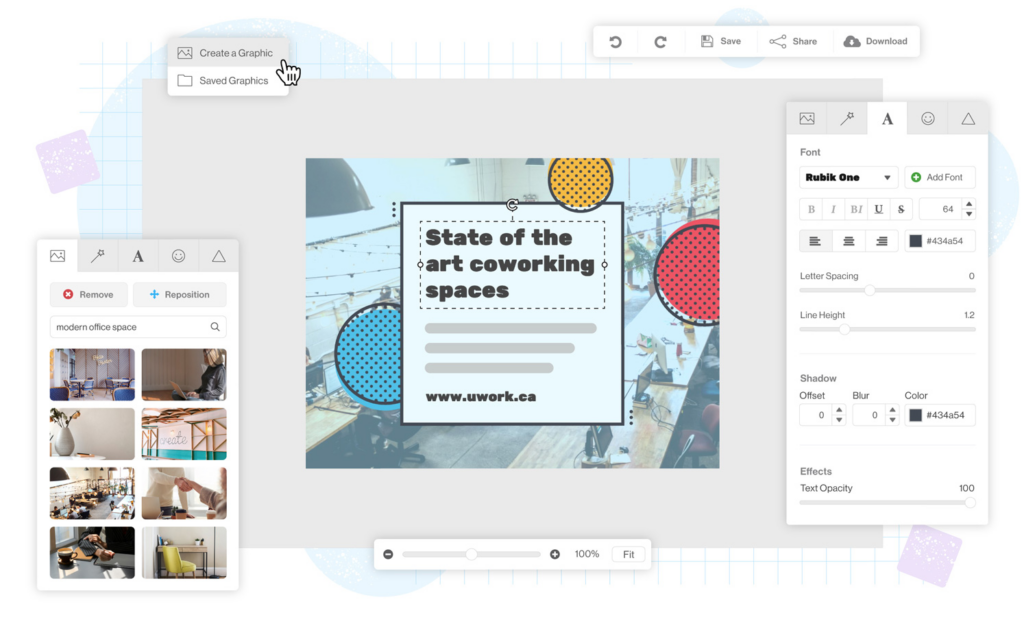
    If you need a minimalist way to create and design content, then use Pablo by Buffer. This straightforward tool allows easy text placement over images, with no need for accounts. The user-friendly interface provides basic options for image selection, template choice, and text formatting. Despite its simplicity, Pablo is great for creating visually appealing social media images, and the tool is free to use.

    Piktochart

    Piktochart

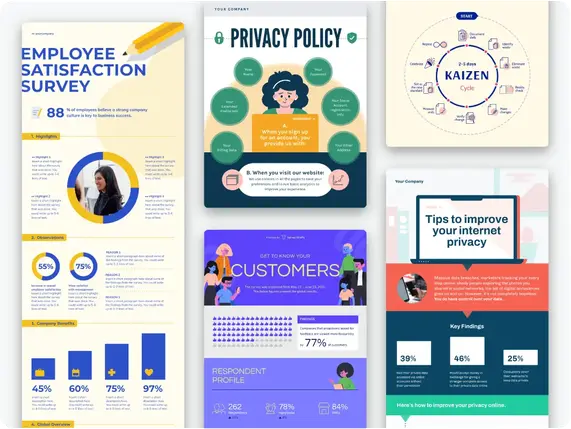
    This free graphic design software focuses on the creation of impactful and shareable infographics. Mostly preferred by non-designers, Piktochart helps users create basic infographics without the need for advanced design software. Offering 400 templates, icons, and graphics, Piktochart is a solid starting point for those eager to understand the fundamentals of infographic creation.

    Snappa

    This is the only app on this list where the free plan provides access to the same resources as the paid plan. Users can download three designs per month. Snappa’s templates, though not as thoroughly themed, have personalized options, including effects and graphics. The process is easy and involves selecting a base template, customizing it, and downloading or sharing the image. Snappa’s free plan is user-friendly as it is less intrusive with upgrade notifications.

    Pixlr

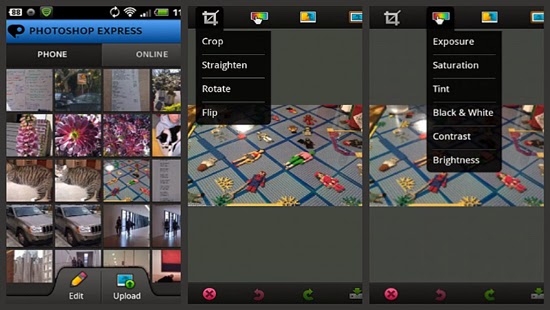
    Pixlr, a popular online image editor, facilitates photo editing with a collection of overlays, effects, and borders. Available as an application on both iOS and Android, Pixlr caters to Instagram users and photography enthusiasts seeking an accessible alternative to expensive photo editing software.

    VistaCreate

    VistaCreate

    Previously known as Crello, Vista’s free design tool has a lot of templates, photos, videos, and vectors for social media and print design. The free plan is forever and includes vast resources, while the Pro plan has more features, such as team collaboration and automatic resizing. The Styles feature simplifies color and font customization, and a generous 10GB file storage is equipped to help both free and Pro users.

    Fotor

    Fotor

    Fotor is an old photo editing tool that has been modified to offer traditional editing features along with powerful AI enhancements. While its AI features are not free, taking advantage of the free trial is recommended to explore its capabilities. Fotor, available instantly through your browser, is known for its speed and user-friendly interface.

  • Meta Quest 3 Complete Beginner’s Guide

    Meta Quest 3 Complete Beginner’s Guide


    Just like was hinted at in Meta Quest 3 Most Anticipated Games for 2024, Meta Quest 3 has the potential to be a highly sought-after and powerful VR headset to buy in 2024, similar to its predecessor, the Quest 2. Compared to the Meta Quest 2, it boasts a better display with higher resolution, a faster processor, and even more advanced passthrough capabilities. However, it comes with a higher price tag.

    The base model with 128GB storage is priced at $500, while the 512GB version is priced at $649. Additionally, there are bundles available for the Quest, such as the comfort bundle which includes an advanced head strap, and the “Power” bundle featuring an elite strap with an extra battery.

    What is Meta Quest 3?

    Imagine wearing a set of glasses and suddenly finding yourself immersed in a digital world, whether it’s exploring the depths of the ocean, battling on the front lines of a war, diving into action-packed adventures, or even engaging in fitness activities. Virtual Reality VR headsets make you feel like you’re there. The Quest 3, as the successor to the widely acclaimed Meta Quest 2, takes this experience to the next level with improved features. A standalone VR headset, meaning you don’t need any cables or a high-powered computer to use it. Think of it as a gateway to extraordinary virtual adventures, all from the comfort of your own home.

    The Meta Quest 3 has high-resolution screens that show you amazing pictures, making it feel like you’re really there. It also has cameras that track your movements, so when you move your head or hands in real life, your avatar (your character) in VR moves too! You also get two wireless controllers that act like your hands in the virtual world, letting you interact with everything you see.

    Getting Started with Your Meta headset

    Meta Quest 3: Your Complete Beginner's Guide 

    Setting up your Meta Quest 3 is super easy. Here’s what you need to do:

    1. Download the Meta app: This app is available for free on both Android and iOS phones and will be your control center for the Quest

    Setting up your headset and controllers

    1. Turn on your Quest 3:
    2. To start using your Meta Quest 3 headset and controllers, follow these steps:
    3. Take everything out of the box.
    4. Charge your headset with the charger and cable provided until it’s fully charged.
    5. Once charged, do the following:
    6. Take off the protective paper from the headset strap and lens.
    7. Hold down the power button on the left side of the headset until you hear a sound and see the Meta symbol.
    8. Remove the battery blockers from the controllers.
    9. Put the controllers on your wrists using the straps.
    10. Turn on each controller by pressing and holding the buttons on them.
    11. After a few seconds, you should see a blinking light and feel a vibration, showing that the controllers are ready.
    12. Follow the instructions on the screen in your headset to set up language and Wi-Fi.
    13. After that, you can adjust the headset’s fit.

    However, Before you update any software, be sure to plug your headset into a charger.

    How to Download Meta app

    To download the Meta Quest mobile app, you can go to the Google Play Store or the Apple App Store. Search for “Meta Quest” and you should find the app. Then, just follow the prompts to download and install it on your device.

    However, to use the Meta Quest mobile app for setting up your Meta Quest Pro, Meta Quest 2, or Meta Quest, make sure your phone is connected to Wi-Fi and has Bluetooth turned on. If you install the app on a device it doesn’t support, you might have trouble setting up your headset.

    Once you’ve activated your headset with the app, you can complete the setup process in virtual reality.

    Pair your Headset With the Meta Quest Mobile App

    The Meta Quest mobile app works with your Meta Quest 3 headset. It helps you do things like shop in the Store, buy and download apps, adjust settings, and share what you’re seeing with your phone or a Chromecast device.

    You don’t have to use the Meta Quest mobile app every time you use your headset, but you’ll need it when you first set up and pair your headset.

    Here’s how to pair your headset with the app:

    1. Get the Meta Quest mobile app from the Google Play or Apple App store.
    2. Open the app and sign in or make a new account.
    3. Tap Menu, then Devices.
    4. Your headset and controllers should pair automatically. If not:
    • Put on your headset and look for a 5-digit code.
    • In the Meta Quest mobile app, enter the 5-digit code from your headset.
    • Once the code is entered, your headset should start pairing with the app.

    Make sure your app is updated. If you can’t find the option to add a Quest headset, update and restart the app. You need Bluetooth and sharing with nearby devices turned on to connect your phone and headset. Once your Meta Quest 3 is set up with the app, you can connect it to your PC using Quest Link or Air Link.

    That said, If you’re still stuck, contact Meta Store Support.

    How to set Set your play area:

    Hover over the clock on the left side of the universal menu. When Quick Settings appears, select it to open the Quick Settings panel. Select Boundary.

    When you’re setting up your boundary, you can pick from these modes:

    1. Stationary: This is for when you’re using your headset while sitting or standing still. It sets up a default boundary area of 3 feet by 3 feet (1 meter by 1 meter) centered on where you are.
    2. Roomscale: This mode is for when you want to move around in your play area. With Roomscale, you can use your Touch controller to draw the boundaries in your physical space. It’s best to have a safe and clear area that’s at least 6.5 feet by 6.5 feet (2 meters by 2 meters).
    set your play area
    Set your play area:
    1. Explore the Meta Quest App Store: This is an online store full of VR games, apps, and experiences. You can browse by category, search for specific things, and download whatever you want.

    Tips To Finding The Best Apps and Games on Meta Quest 3

    Meta Quest 3 has a huge library of VR games and apps for everyone. No matter what you like, there’s something for you! Here are some tips to find the best ones:

    • Think about what you enjoy: Do you like action-packed adventures, challenging puzzles, or hanging out with friends? Knowing what types of games you usually play can help you narrow down your search.
    • Read reviews and watch videos: There are websites and videos online that review VR games and apps. This can help you see what other people think and decide if something is worth your time.
    • Check out user ratings and recommendations: Other VR users can leave reviews and recommend games they like. This is a great way to find hidden gems and see what other people are enjoying.
    • Start with free experiences: There are several free VR games and apps available.  Press / on your right controller to pull up your toolbar menu.

    Navigate Store .

    select what you want to download.

    choose the price to buy it, or tap Free if it’s a free download.

    Trying these out can be a good way to get used to VR and see what types of experiences you like.

    Here are Some Popular Meta Quest 3 Games

     meta quest 3 games
    meta quest 3 games

    Games: There are several types of games on meta quest 3 here are some 

    • Assassin’s Creed Nexus. …
    • Pistol Whip. …
    • Walkabout Mini Golf. …
    • Eye of the Temple
    • The Walking Dead: Saints & Sinners, 
    • Arizona Sunshine, 
    • Dungeons of Eternity,  exploring more 

    Social experiences: Want to hang out with friends in VR? There are apps where you can chat, play games together, or even watch movies in virtual spaces.

    Educational experiences: meta quest 3 can also be a powerful tool for learning. Here are some examples: 

    • Visiting historical sites
    • Taking a virtual tour of the human body 
    • Visiting the bottom of the ocean
    • Learn to play the piano without needing to buy an actual piano.
    • Meditate without any distractions to find inner peace.
    • Enjoy concerts from your favourite artists without leaving your living room.
    • Work together smoothly with your colleagues in a virtual environment.

    How to use your Quest 3 for work and productivity

    Meta Quest 3 isn’t just for entertainment. Businesses are starting to use VR in creative ways to enhance communication, training, and even design processes. Here are some ways your work might benefit from VR:

    • Remote collaboration and meetings: Imagine holding meetings with colleagues who appear virtually present in the same room, even if they’re miles apart. VR can facilitate collaboration and communication by offering a more immersive and engaging experience compared to traditional video conferencing.
    • Training and simulations: VR allows companies to create realistic and safe training simulations. This can be especially beneficial for industries like healthcare, engineering, and manufacturing, where employees can practise procedures or learn new skills in a controlled virtual environment.
    • Product design and prototyping: VR can be used to design and test products in a virtual space before actually manufacturing them. This can save companies time and money by allowing them to identify and address any design flaws before production begins.
    • Brainstorming and creative thinking: VR can provide a unique and inspiring environment for brainstorming sessions and creative problem-solving. The immersive nature of VR can help teams think outside the box and come up with innovative ideas.

    Meta Quest 3 for work

    While VR technology is still evolving, it holds immense potential for various industries. If you’re curious about leveraging the Meta Quest 3 for work, here are some resources to get you started:

    • Meta Workplace: This platform allows businesses to create virtual workspaces where employees can collaborate, meet, and socialise in VR.
    • VR training platforms: Several companies offer VR training solutions for various industries. Explore these platforms to see if one aligns with your company’s needs.
    • VR design software: There are software tools specifically designed for creating and prototyping products in VR. These tools can be a valuable asset for companies looking to explore the benefits of VR design.

    Troubleshooting Common Meta Quest 3 Issues

    Troubleshooting Common Meta Quest 3 Issues
    troubleshooting meta quest 3

    As with any technology, you might encounter occasional issues with your Meta Quest 3. Here are some common problems and their potential solutions:

    • Connection problems: Ensure your Wi-Fi connection is stable and that your headset is properly paired with your smartphone. If issues persist, try restarting your devices or resetting the network connection.
    • Tracking problems: Make sure your play area is well-lit and free of obstructions. If tracking issues persist, consult the official Meta Quest 3 troubleshooting guide for further steps.
    • Battery issues: The Quest 3 offers 2-3 hours of playtime on a single charge. If you plan on longer VR sessions, consider investing in an external battery pack.
    • App crashes: Close any unnecessary apps running in the background and ensure your Quest 3 software is up to date. If the issue persists, try reinstalling the problematic app.

    The best guide for augmented reality apps, is just a small peek into what the Meta Quest 3 can do. With the Quest 3, you can do many amazing things, like visiting stunning virtual places or working with others in exciting new worlds. Feel free to try new things, discover, and let your imagination run wild.

  • 6 Best Chat SDK and Messaging APIs in 2024

    6 Best Chat SDK and Messaging APIs in 2024

    One of the key roadblocks to success when it comes to digital businesses recently relies on a lack of improved customer support, engagement, and retention. Integrating Chat SDK into organizations’ system is one way businesses can improve and increase customer engagement and retention, however,   choosing the best SDK Chat simplifies and improve customer retention even more. That said, in this article, we will highlight some basic guides to choosing the best chat SDK for your app. But before that, let’s get to know what the Chat SDK is all about and how it works. 

    What is Chat SDK and How Does it Work?

    Chat SDK (software development kit) is a set of tools designed to help developers integrate real-time chat into their websites and applications. This shortens the time needed to create a website and application. By using the pre-existing SDK Chat to integrate chat functionality into their websites instead of starting from scratch to create a working interactive system, developers can save time and resources. Having said that, using SDK Chat allows developers to do away with the needless time spent developing new chat systems. It also lowers costs and improves security and scalability. Additionally, SDK Chats are integrated into various types of websites, like messaging websites, social media platforms, and e-commerce platforms.

    Top Chat SDKs available in the industry

    The best SDK Chat is based on your specifications, the platform, and the type of app and website you are building with it. Now let’s explore some of the best SDK chats out there;

    Sendbird

    The first on my list today is Sendbird, it is one of the best SDK chats you can find out there, an SDK chat API for chat boxes. Businesses may enhance engagement, collaboration, and quality of service by utilizing Sendbird’s flexible capabilities, adaptable APIs, configurable SDKs, and more features.

    Group chat, one-to-one messaging, push alerts, read receipts, and other features make Sendbird’s chat box API an excellent choice for both individual and business customers. 

    Features:

    • Sendbird has user interface features that can be fully customized for a smooth integration with your program of choice.
    • It supports group calls for real-time communication and can have up to 25 members.
    • Chatbots with AI capabilities for automated customer service and interaction, enhance customer retention  
    • Support in multiple languages for diversity and a global reach.
    • Push notifications and in-app communications provide a satisfying user experience.

    PubNub

    PubNub is another SDK Chat out there that is very nice and seamless to use. With PubNub, developers have access to a flexible toolbox built around a robust interactive system. This makes for dependable chat experiences as well as ones that work well across a variety of platforms, including web, mobile, 

    Features:

    • Automated Business logic 
    • A profanity filter 
    • Robust support for multi-user operations

    With an emphasis on mobile platforms, PubNub’s SDK chat API is designed to empower development teams and let them quickly and effectively realize their unique chat visions, improving user experiences all around.

    Easy to use UI 

    TWILIO

    Twilio is a unified platform for business communications, it allows businesses to interact with clients through their preferred channels. It is a powerful SDK chat software that allows users to establish and handle chat features on their websites and mobile apps. By providing a flexible and adaptable platform, Twilio enables businesses to deliver smooth and tailored chat experiences that foster interaction and enhance customer satisfaction.

    Twilio is an excellent option for businesses aiming to improve their customer communication approaches and achieve lasting achievements.

    Features:

    • real-time chat functionality. 
    • Multi-channel support, 
    • Customizable chat experiences that can be tuned to suit your company’s brand and style
    • Flexible developer API integrations
    • Advanced security features

    MirrorFly 

    MirrorFly is an SDK chat that helps to keep businesses connected with an improved communication experience. By creating SDK chat, audio, and video SDKs that can be linked with your software programs within a few minutes, it improves connectivity between programs.

    It provides seamless interaction and integration of application programming interfaces (APIs), pre-built UI kits, video guides, simple instruction manuals, and 24/7 technical assistance, as well as secure communication.

    Features:

    • Voice, video, and in-app chat APIs
    • Lite-chat app
    • Low-code strategy  
    • Reliability and Scalability

    Apphitect

    Apphitect is another top Chat SDK with enhanced features and functionalities. With features like push notifications, social interactions, and personal chats, It offers a 99.9% uptime option for the integration of communication channels into web, iOS, and Android applications with its configurable chat API. It supports features of virtual communication tools like screen sharing, video conferencing, and video. 

    Features:

    • Notifications with Push and Offline Messaging
    • Social integration and presence indicators
    • Geo-location tracking 
    • Video Calls 
    • Normal Calls 

    Guide to Choosing the Best Chat SDK for Your App

    The ultimate guide to choosing the best Chat SDK for your app provides a simple and user-friendly UI. It also ensures that all messages are delivered securely. To select a chat solution, first outline why your product requires chat functionality. This will empower you to seek APIs and SDKs that excel in this area.

    Step #1: Documentation

    While chat may seem simple, reliable in-app messaging requires many technical components and engineering resources. As a result, building chat in-house can consume more development bandwidth than an entire product if you don’t carefully prioritize it relative to your core value proposition.

    When choosing a chat API or SDK, you want one with detailed documentation that’s easy to understand. This ensures that SWEs can quickly pick up on using the feature without relying on support.

    You also want to be sure that the chat solution adheres to industry-standard security practices and will protect user data. Otherwise, you risk becoming another data breach headline or facing fines for mishandling customer information. Choose a vendor like Agora.io with robust security features like end-to-end encryption, source code control, and security patches to ensure your apps are safe. A secure in-app messaging platform will keep users’ conversations private and prevent the leaking of personal information.

    Step #2: Reliability

    A reliable chat solution should offer robust real-time messaging functionality and the ability to expand as your needs change. It should also support a range of programming languages and platforms, 3rd party integrations, and multi-protocol capabilities.

    The right solution offers a variety of Chat APIs and SDKs that provide developers with the tools to add in-app messaging to their apps, including direct and group messages, threads, reactions, typing indicators, and more. Its UI/UX Kits enable customizability and ease of integration. Some also provide developers with tools to help productive app communication. Its chat APIs and SDKs are easily integrated into existing web-based or mobile-native systems. They’re scalable and reliable, allowing you to drive 1B+ conversations across multiple apps at minimal latencies. Looking for A Guide to Boost your Dating Website Ranking with Better Skadate SEO?

    Furthermore, a trustworthy chat solution should put security first to guarantee the privacy and accuracy of communications. It should provide end-to-end encryption and adhere to industry standards. Furthermore, it should have a responsive customer support system to promptly address issues or concerns, contributing to a trustworthy and efficient communication platform.

    Step #3: Scalability

    Users use chat apps daily, so product teams must ensure the system can handle many messages and users. This is where a Chat SDK can help.

    While an API-based chat solution may require heavier integration work by developers, it can also save time and resources in the long run. In addition, it can offer a customizable user experience and robust security features such as end-to-end encryption and compliance with industry standards.

    Additionally, real-time Chat SDK tools offer multiple monetization options like in-chat payments and sponsorships, which can turn your chat into a revenue-generating resource for your company. Furthermore, these systems are designed to scale and allow for unlimited concurrent users, which can prove helpful in the case of business expansion. In contrast, subscription-based chat solutions limit simultaneous users on a per-plan basis. 

    Moreover, a scalable Chat SDK should provide efficient load balancing and server-side optimizations, ensuring optimal performance even during peak usage. This capability is essential for accommodating sudden spikes in user activity and maintaining a seamless user experience. Additionally, a well-designed Chat SDK should facilitate easy integration with third-party analytics tools, empowering businesses to gather insights into user behavior and further enhance their scalability strategies.

    Step #4: Security

    The best chat SDK should provide robust security features to keep users’ conversations and data private. This can include end-to-end encryption, securing the server-side components with Transport Layer Security (TLS), or other data protection mechanisms.

    In addition, the SDK should be able to handle large volumes of traffic without breaking down. This can be done by implementing multiple connections to the chat servers, using load balancers, or using other scalable solutions.

    Moreover, the SDK should be capable of saving chat messages to prevent losing important information. This is important because it allows developers to comply with industry-standard data protection regulations and protect against security breaches. This can be achieved by integrating chat providers offering unlimited user data storage. The right tools allow indefinite chat message retention.

    Step #5: Pricing

    Pricing is a major factor in choosing an SDK or API solution. For some apps, the savings in up-front cost and development bandwidth will make it a no-brainer to use a chat SDK. But in-house development may be worth the investment for others, particularly those with a unique vision for how a chat should look and function and the budget to back it up.

    Stream offers a developer-friendly SDK and UI kit to help brands build productive communication features into their mobile and web apps. It supports direct, group, and channel messaging with threads, read receipts, and reactions. Plus, it provides advanced features like online presence, profanity control, and user moderation.

    Its security features protect sensitive data and conversations from eavesdropping. It also complies with GDPR and other privacy standards to keep users’ data secure. It is ideal for e-commerce, marketplace, healthcare, and finance industries. This chat API is a reliable, scalable, and customizable option for businesses of all sizes. It integrates easily and is available on a variety of platforms.

  • Sheryl Sandberg to Resign from Meta Board of Directors

    Sheryl Sandberg to Resign from Meta Board of Directors

    Less than two years after leaving her executive role at Facebook, Sheryl Sandberg is set to step down from the board of Meta, Facebook’s parent company. Serving as the chief operating officer, Sandberg was among the board members who helped structure and boost Facebook’s digital advertising business model in 2008 when it was still a fledgling startup. The 54-year-old who stepped down as Chief Operating Officer (COO) of Facebook in 2022 after more than 14 years in the role shared the news on her Facebook page. Expressing that “the Meta business is strong and well-positioned for the future, so this feels like the right time to step away.” Sheryl Sandberg will be resigning from Meta’s board in May 2024.

    Although she is relinquishing her board position, Sandberg will maintain ties with Meta by serving as an advisor and pledging ongoing support to the company’s teams, as mentioned in her post. She expressed gratitude to Mark Zuckerberg, acknowledging him as a visionary leader and a steadfast friend who stood by her during both joyful and challenging times. Zuckerberg reciprocated the sentiment in a comment, expressing anticipation for the next chapter together.

    Mark Zuckerberg, the CEO and founder of Meta, expressed anticipation for “a new chapter together.” Sandberg, formerly the right-hand woman to Zuckerberg, held a prominent position as one of the company’s most controversial executives who faced various oppositions. And was the subject of intense public argument during her tenure, including the Cambridge Analytica scandal and concerns about user data mining for advertising purposes.

    Before Facebook, Sandberg held roles as Vice President at Google and Chief of Staff for the US Treasury Department under Bill Clinton. She wrote the popular 2013 book Lean In: Women, Work, and the Will to Lead which garnered both acclaim and criticism. The book went on to inspire a generation of working women while facing scrutiny for overlooking the struggles of single parents and women of color. Despite the controversies, Sandberg remains a recognized and successful figure in corporate America, breaking barriers in an industry historically dominated by men.

  • Buyer’s Journey Guide to Finding Sales Classes Near You

    Buyer’s Journey Guide to Finding Sales Classes Near You

    Are you ready to improve your sales game? Look no further! This guide will help you find top-notch sales classes near you. It doesn’t matter if you’re a seasoned sales professional aiming to sharpen your skills or looking to find sales classes online for beginners, as a newcomer eager to embark on a lucrative career path, we’ve got you covered.

    General sales training programs equip you with the knowledge, techniques, and strategies needed to excel in various sales environments. One of the important components of this training is a buyer’s journey. A salesperson may use the buyer’s journey as a framework but should focus on providing the right customer experience. This type of training emphasizes not being too intense or pushy. Every salesperson needs to examine their potential clients’ choices at each stage, to make the customer acquisition process smoother.

    How to Find Sales Classes Near You

    Follow these steps to find the best sales classes in your area:

    Online Courses

    Can I find sales classes near me? Yes, online courses are available for sales classes that fit any level of experience or industry. From entry-level virtual workshops to complete sales certification programs, you can train your team at a high level or get more detailed with learning modules like how to close the deal in complex situations. Some of these courses can also be woven into a more extensive curriculum, which includes foundational sales training and new approaches and mindsets to boost your team’s success.

    For example, this course helps participants understand how to sell value in a world where customers complete much of their initial research before picking up the phone. It explores a customer-centric mindset, unique selling proposition, relationship-selling techniques, and networking skills. It also covers sales call choreography, leveraging customer pain points, handling objections, and servicing relationships after the sale.

    Another option is a virtual workshop on creating a powerful product demo. It walks participants through the ins and outs of creating a solid demo. Which includes research, one-to-one, and one-to-many presentations, incorporating stories, and avoiding sales-killing mistakes. It also covers using evaluation checklists, comparison charts, 3rd-party advice, and proof-of-value trials to mitigate buyers’ concerns.

     Entry-level eLearning courses show new salespeople how to navigate the process smoothly, while more advanced workshops and labs teach them how to apply the sales methodology to specific scenarios.

    In-Person Courses

    Just as you have a vehicle and a road map for a trip, your CRM or sales process is your vehicle to navigate the sales journey. Each sale stage is a stop to your final destination of converting a deal into a customer.

    For example, qualifying a potential buyer is the first step in your sales process. It is when reps meet a new lead through an initial contact and determine whether they have the budget, authority, need, and timeline to buy your product or service. Qualifying a lead is an integral part of the sales process and helps your team focus on pursuing leads that are most likely to buy.

    If your lead meets your requirements, take them up on your offer and move the deal to quoted or closed. It would help if you continued working hard on this sale until it is closed or canceled.

    Regularly review your sales processes to see how well they align with the buyer’s journey. Examining the content you provide at each selling point can help you identify gaps and develop plans to address them. For instance, if your buyers need more information about product features and specifications, comparison charts, 3rd-party advice, or proof of value trials before making a purchase, it may be time to introduce some of these resources into your sales process.

    Corporate Courses

    Whether you’re looking to train an entire sales team or attend a course independently, various options are available. These courses typically follow a particular sales methodology and can be tailored to specific situations. For example, if your company sells SaaS software on a subscription basis, you should pursue courses that teach consultative selling techniques. These can help you build trust with customers and nurture long-term relationships.

    If your business operates on a B2B model, you might choose courses that help you navigate the challenges of selling to major accounts. These include training in strategic account management, which teaches you to identify the right decision-makers and develop a relationship that yields long-term sales success.

    General sales courses also cover the basics of building and delivering a sales pitch. These courses can benefit newer reps who need a comprehensive understanding of the field. Some of these programs follow the MEDDIC sales methodology. Like the other-centered selling approach, others emphasize influence and service over traditional selling strategies.

    Many of these programs are also offered as a part of a more extensive learning management system (LMS) provided by your sales training provider. It enables you to track your progress and receive feedback from your instructors.

    Continuing Education

    In the digitally influenced buyer’s journey, educating potential customers is paramount to earning their trust and ultimately converting them into paying clients. Companies are taking this seriously and investing in training opportunities for their employees. From one-time LinkedIn seminars to formal courses at accredited colleges, there are many ways to make learning a part of the workplace culture.

    Continuing education, also known as lifelong learning, is defined as the “ongoing, voluntary, and self-motivated pursuit of knowledge for personal or professional reasons. It can be anything from studying a subject that interests you to earning a degree at an accredited college. The benefit of this is that it’s a great way to sharpen your skills, learn new techniques, and stay up-to-date on industry best practices.

    How to Navigate the Buyer’s Journey

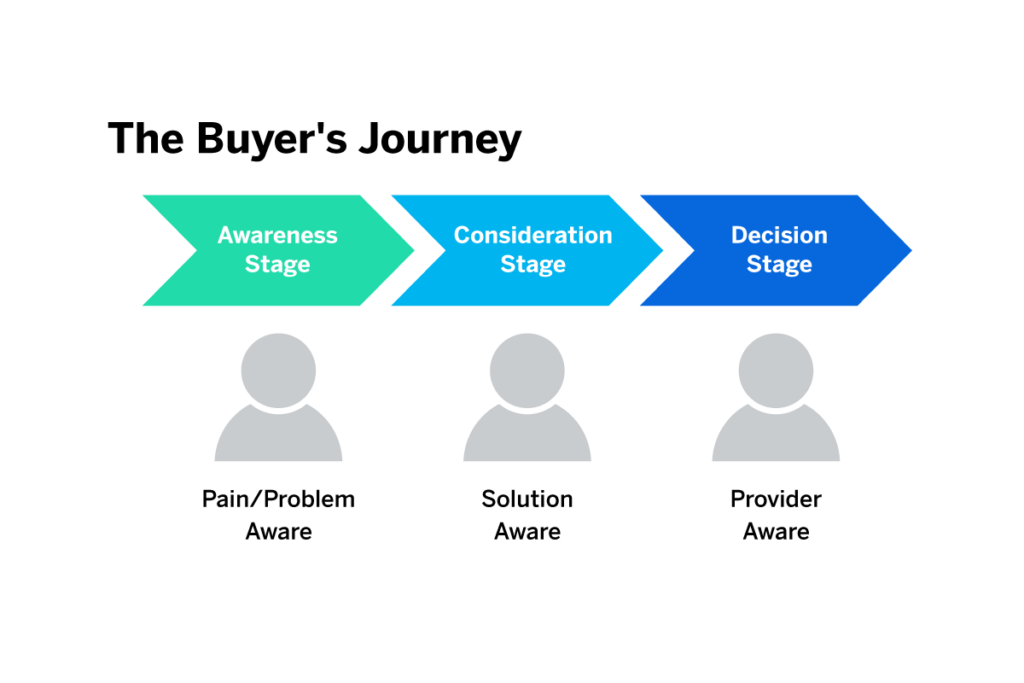
    Finding the ideal sales courses to enroll in is an exciting journey. To ensure you make informed decisions every step of the way, we will break down the buyer’s journey into four key stages:

    • Stage of Awareness: At this point, you learn how the lead begins to recognize a pain point. This initial point of contact between customers and your business is sometimes referred to as the “top of the funnel.
    • Consideration Stage: The goals of your leads shift as they enter the consideration stage. They are now weighing their options rather than attempting to become acquainted with the fundamentals of your products.
    • Decision Stage: In order to determine which good or service gives them the best value, people evaluate their options here. This is where all the effort you have put in throughout the customer journey will pay off. Individuals are aware of the value you have added by assisting them in understanding the features and learning about their subject.

    Benefits of Effective Sales Training Programs

    1. Improved Ability to Close Deals  Acquiring new sales skills is one of the main objectives of sales training. Members of the sales team will be introduced to tactics and procedures they are not familiar with through a sales training program. Effective sales training helps sales team members learn new skills to stay up-to-date with recent trends in the industry.
    1. Improved Customer Relationships: This benefit makes it easier to deliver a satisfactory customer service experience. An effective sales training program helps sales team members identify ways to improve the customer service experience. Sales training promotes attentive listening among sales team members by emphasizing interpersonal communication. Team members can then respond and take appropriate action on behalf of clients. This increased response will undoubtedly elicit good feedback from clients and customers.
    1. Revenue Boost: When sales team members participate in sales training, the organization benefits from an increase in the revenue it generates. Effective sales marketing strategies lead to higher sales, which translates to higher profits. To maximize sales, each salesperson needs to understand the best way to sell the products or services the company offers. Compared to an inexperienced agent, a well-trained salesperson will be able to close more deals faster.  

    Currently, with so many people looking for jobs, having a few extra qualifications can go a long way when landing that next position. It’s a great way to differentiate yourself from your competition. Even if the job isn’t directly related to your educational background, showing that you have a passion for learning and want to advance in your career can be what makes you stand out amongst the rest of the applicants.

  • Top 5 Free Online Library Alternatives to Z library

    Before now, the most popular online library to find any and every resource was Google, however, other digital libraries like Z library with specific resources based on reader interests have been developed. While using Z library as your preferred online library is great, a lot of readers might want to look into alternatives. If you’re an insatiable reader striving to broaden your interests, we’ve curated the top 5 free online libraries similar to Z library in this article.

    This will allow you to explore a vast array of book collections from different authors and genres. You can even get a lot of eBooks and audiobooks through these alternatives without spending a fortune. Say goodbye to waiting times and limited availability. These platforms provide you with a wealth of reading options. These platforms are perfect for book lovers to explore various subjects and try out new authors. If you wish to expand your literary horizons today and embark on a new reading adventure, try these top 5 alternatives to Z library.

    The Rise Of Z Library As A Go-To Online Library

    Z library has earned widespread acclaim and affection from bookworms, primarily attributable to its vast eBook collection and user-friendly interface. This online library caters to diverse tastes by offering an impressive variety of genres and authors, making it a preferred destination for countless readers. The ease of accessing books virtually anywhere and at any hour has solidified its status as a beloved choice among those who relish the convenience of digital reading.

    Nonetheless, it’s worthwhile to remain open to exploring other options and venturing into different alternatives. These alternatives may introduce you to new genres, lesser-known authors, or unique features that can enrich your reading experience. A wealth of literary diversity is waiting to be discovered beyond the familiar confines of Z library, offering an opportunity to expand your academic horizons and embark on new reading adventures.

    1. Project Gutenberg Of Z Library

    Regarding free online libraries, Project Gutenberg is a name of great significance. It serves as one of the first online libraries and is well known for its extensive collection of more than 60,000 free eBooks. It was founded in 1971. This platform’s primary goal is to preserve and maintain cultural assets to ensure that people anywhere may access them. It comprises various literary forms, including novels, poems, non-fiction, and textbooks.

    Project Gutenberg is unique in that it is dedicated to granting unlimited access to all of its works, which makes it an absolute gold mine for book lovers. Project Gutenberg now provides audiobooks for individuals who enjoy listening to their treasured stories rather than reading them. The platform goes above and beyond by making these eBooks accessible in numerous formats, enabling device compatibility. This dedication to accessibility and its rich collection of timeless literature solidify Project Gutenberg’s standing as a valuable resource for readers seeking to immerse themselves in the world of books, all free of charge.

    2. Open Library

    Open Library is a noteworthy destination if you’re searching for a platform with a mission to grant universal access to a wealth of information. Open Library’s primary objective is to establish a dedicated web page for every published book. This initiative sets out to make a comprehensive array of literature accessible to anyone interested. Like a traditional library, you can borrow eBooks for a specific duration.

    The lending period typically lasts 14 days, after which the book is automatically returned, ensuring everyone gets a fair chance to read the available titles. Open Library also allows users to contribute to its collection. If a book is unavailable, you can request it or even upload your scanned copy if you own the physical book. This collaborative approach makes Open Library a community-driven platform, constantly expanding its collection through the contributions of its users.

    3. Librivox

    Librivox is a fantastic alternative to Z library for those who enjoy storytelling through audiobooks. It is a non-profit initiative that aims to make all books in the public domain available as free audiobooks. It relies on volunteers worldwide who lend their voices to record these audiobooks. You can listen to classic novels, poetry, plays, and even non-fiction works with Librivox.

    The platform offers a wide variety of genres and authors, ensuring there’s something for every listener. Whether commuting, relaxing at home, or walking, Librivox allows you to immerse yourself in captivating stories wherever you are. The volunteer narrators at Librivox put in their hearts and souls to bring these books to life. Their passion for literature shines through their recordings, making it an enriching experience for the listeners. If you’ve never tried audiobooks, Librivox is a great place to start and discover the joy of storytelling through sound.

    4. Many books from Z Library

    For those who appreciate indie authors and lesser-known literary gems, Manybooks is a platform that demands your attention. This digital library houses over 50,000 free eBooks, mainly focusing on works by independent authors and self-published books. Manybooks takes pride in offering a platform for authors who may have yet to gain mainstream recognition but possess unique perspectives and storytelling talents.

    You may explore numerous genres, dig into many categories, and discover undiscovered literary gems on Manybooks that might not be easily accessible on different platforms. User reviews and ratings on the website improve your reading experience by assisting you in selecting the books you want to read.

    Personalize your reading experience with Manybooks’ user-friendly e-reader software by changing the font size and adding bookmarks to your preferred pages. This personalized touch enhances the overall enjoyment of the reading process. Manybooks also ensures compatibility with various devices by supporting different file formats, making it an excellent resource for those seeking a rich and diverse selection of literature outside the mainstream.

    5. BookBub

    BookBub offers a complimentary service designed to cater to your reading preferences by providing personalized book recommendations. This platform collaborates with significant eBook retailers and publishers to deliver exclusive, limited-time deals and discounts on eBooks. When you sign up for BookBub, you’ll gain access to daily email newsletters featuring discounted and even free eBooks tailored to your favorite genres.

    What sets BookBub apart is its customization options. You can fine-tune your preferences, select specific genres of interest, and even follow your favorite authors to stay in the loop about their latest releases. BookBub ensures you get all the fantastic deals and new books from the authors you love. Beyond offering discounted books, BookBub provides additional value with author interviews, expert book recommendations, and thoughtfully curated reading lists. This comprehensive approach to connecting readers with authors fosters a vibrant and engaged community of book enthusiasts.

    Conclusion: Z Library

    As a book lover, exploring new libraries and discovering different authors and genres is always exciting. While Z library has been widespread, several alternatives offer unique features and collections. Expanding your literary horizons and trying out these top 5 free online library alternatives to Z library will open you up to a new world of books and stories. Start your new reading adventure today and dive into the vast collections waiting to be explored.

  • Chromebooks to Buy in 2023

    Chromebooks to Buy in 2023

    A Chromebook, powered by ChromeOS—Google’s specialized operating system—is quite different from the conventional Windows or MacOS laptops. While they share the same physical appearance, laptops are much more powerful and perform better than Chromebooks. Chromebooks often feature fragile hardware attributable to cloud-based services instead of locally installed software.

    This translates to lower-powered processors, diminished RAM, and reduced local storage compared to laptops. Notably, select high-end Chromebooks outperform typical laptop specifications. The distinction boils down to the operating system’s access to software and services, with laptops favoring locally installed applications and Chromebooks relying on web-based applications.

    How to download Chrome on Mac. Chromebooks can perform common laptop functions with ease. Tasks like browsing, social media, video streaming, video chat, productivity apps, and basic editing of videos or photos are well within its capabilities. However, for niche tasks, laptops have a better edge over Chromebooks. Ideal for students, office workers, and those operating predominantly online, Chromebooks are best suited for users who don’t need resource-heavy apps.

    While Chromebooks ideally require internet connectivity for their full functionality, select tasks are achievable offline. Given their reliance on cloud-based services, lacking a connection may impede access to vital files and software. It’s crucial to note that Chromebooks require consistent internet access, as their optimal performance relies on an active connection.

    Additionally, using a Chromebook necessitates a Google account, as it facilitates the synchronization of all settings and application data with your Google account.

    Lenovo Flex 5i Chromebooks (13″)

    For those seeking an economical Chromebook, the options are abundant. The Lenovo Flex 5i Chromebook despite its unassuming design and budget-friendly price, surprises with its impressive versatility. The 13-inch 2-in-1 Chromebook outperforms the most budget-friendly systems.

    In terms of specifications and features, the Lenovo Chromebook Flex 5 13ITL5 shares similarities with the most basic model found on Lenovo’s own web store but upgrades the processor to an Intel Pentium Gold dual-core, with two cores, four threads, and a maximum clock speed of 3.5GHz.

    The CPU is an Intel Pentium Gold 7505 clocked at 2GHz, complemented by 4GB of DDR4 memory. Graphics are handled by Intel UHD. The device has a 13.3-inch 1080p IPS touchscreen, offers 32GB of eMMC storage, and features a 720p webcam. Connectivity includes 2x USB-C with DisplayPort, 1x USB-A, and a 3.5mm audio jack. It supports Wi-Fi 6 and Bluetooth 5 but lacks biometric features. The battery capacity is 51 watt-hours, and the device measures 0.67 x 8.43 x 12.2 inches, weighing in at 2.97 pounds.

    Moving on to design and build quality, the Lenovo Chromebook Flex 5 has appealing aesthetics. Thanks to the metal display lid and textured plastic on the lower half, it’s a bit sturdy. The display lid, especially, is impressively rigid for a budget laptop. Given its 2-in-1 design, you can rotate the display 360 degrees to convert the laptop into a tablet.

    The speakers are positioned upward along each side of the keyboard and are far better than many budget laptops with clear sound with a hint of bass. In contrast, the webcam and microphone leave room for improvement. One drawback of many 2-in-1 Chromebooks, including the Flex 5, is the placement of power and volume buttons on the right side.

    Acer Chromebook Spin 714 (2023)

    Acer’s latest Chromebook Spin 714 sets a high standard with 13th Gen Intel Core CPUs, a refined 2K webcam, and its enduringly adaptable build. While it’s on the pricier side(between $500 to $700), it’s a choice that involves very few compromises. Featuring a 14-inch touchscreen with FHD+ resolution, it has a durable and versatile convertible design.

    Building upon the success of the Spin 713, the new Spin 714 model maintains a familiar blueprint while introducing amazing enhancements. It comes with improved speakers and upgraded internals, affording it commendable speed and Wi-Fi 6E capabilities. However, it falls short in terms of display quality and battery longevity compared to its predecessor.

    This model features a 12th-generation Intel Core i5-1235U CPU, 8GB of LPDDR4 RAM, and a 256GB SSD. In terms of design, the Spin 714 maintains a consistent aesthetic with its predecessors. Measuring 12.3 x 8.8 x 0.7 inches and weighing just over 3 pounds. One of the changes in the Spin 714 is the display, which has a 1920 x 1200 resolution IPS panel and a 16:10 aspect ratio.

    The speakers have been equally improved and are currently located above the keyboard for more consistent audio output. The keyboard, touchpad, and included stylus contribute to making the Chromebook special. Battery life is commendable, with the 3-cell battery providing over 10 hours of usage.

    HP Dragonfly Pro Chromebook

    HP Dragonfly Pro Chromebook is a high-powered Intel laptop designed for the modern era of hybrid work and leisure. This Chromebook is one of the most ambitious models to date. It comes in dimensions of 12.4 x 8.7 x 0.7 inches and weighs 3.33 pounds. The 14-inch LCD display impressively offers 1,200 nits brightness.

    Under the hood, it runs on a 12th Gen Intel Core i5-1235U processor, with 256GB storage and 16GB RAM (LPDDR5). The battery promises up to 11.5 hours of usage. Additionally, it features an 8MP user-facing camera, and connectivity options include 4x Thunderbolt 4 USB-C ports, Wi-Fi 6E, Bluetooth 5.3, with 5G support slated for the summer. The Dragonfly Pro Chromebook is available in Ceramic White and Sparkling Black.

    Also, this model introduces several standout features. Firstly, it showcases an RGB keyboard with a haptic trackpad, providing a unique typing experience. The backlighting options, including Rainbow and wallpaper mode, offer a personalized touch. The laptop also boasts a remarkable 14-inch touchscreen display with up to 1,200 nits brightness, ideal for outdoor usage. The 8MP user-facing camera, co-engineered with Google, offers impressive video quality.

    Despite these strengths, areas for improvement include battery life, fan noise, and weight. Enhancements in these aspects, along with the addition of an HDMI port or USB-A, could elevate the Dragonfly Pro Chromebook’s rating. Regardless of the drawbacks its stunning display and overall performance make it a compelling option.

    Asus Chromebook CM34 Flip

    The Asus Chromebook CM34 Flip is a recent release, featuring AMD’s Ryzen 7000 mobile CPUs for excellent performance and long battery life. With a convertible build and a 14-inch touch display with FHD+ resolution, it offers a versatile computing experience. Despite lacking Thunderbolt due to the AMD platform, it remains a strong contender.

    The CM34 Flip impresses with its AMD hardware, touch-enabled display with slim bezels, 360-degree hinge, and remarkable battery life. Equipped with an AMD Ryzen 3 7320C CPU, AMD Radeon graphics, 16GB RAM, and a 128GB PCIe SSD, this laptop is tailored for everyday use.

    The keyboard, with 1.4mm travel, is commendable, offering a backlit full-sized layout. The touchpad is a standout, registering taps and swipes flawlessly. The 16:10 aspect ratio display with ultra-slim bezels provides ample screen space, although it’s highly reflective outdoors. The Harman Kardon-certified speakers deliver clear, punchy sound and the 1080p webcam enhances video calls, a boon for remote work.

    In terms of connectivity, the Flip offers a diverse range of ports, eliminating the need for adapters. Performance-wise, it’s powered by AMD’s Chromebook-specific CPU, handling multitasking adeptly, though it’s not the most potent option. The battery life of the CM34 Flip is an astounding 19 hours on a single charge.

    FAQs About Chromebooks

    What does a Chromebook do?

    Tasks like browsing, social media, video streaming, video chat, productivity apps, and basic editing of videos or photos are well within its capabilities

    What is the difference between a Laptop and a Chromebook?

    While they share the same physical appearance, laptops are much more powerful and perform better than Chromebooks. Chromebooks often feature fragile hardware attributable to cloud-based services instead of locally installed software.

    Which is better for students laptop or Chromebook?

    Ideal for students, office workers, and those operating predominantly online, Chromebooks are best suited for users who don’t need resource-heavy apps.

  • How to Download Chrome on Mac

    How to Download Chrome on Mac

    Why do people download Chrome on Mac? Why do people prefer Google Chrome over Safari?. And why do people download Chrome, to begin with? The answer is simple; Chrome is faster than Safari—Apple’s web browser.

    Today, web browsing has become indispensable, whether for shopping, streaming, or reading. However, choosing the right browser for your Mac might not be as simple as you imagined. In terms of user interface, Chrome offers a clean design, fast data syncing, and a vast library of extensions.

    While Safari, Apple’s native browser, offers an excellent browsing experience, it may not always meet the diverse needs of users, particularly when it comes to extensions and cross-platform functionality. As a result, many users opt to download Chrome on Mac rather than use Apple’s Safari browser.

    Steps to Download Chrome on Mac

    Since Chrome doesn’t come pre-installed on a Mac, a manual installation is in order.

    • Launch Safari by clicking on its icon in the Dock (a blue compass with a red needle).
    • Visit the Google Chrome page in your browser and initiate the download by clicking “Download Chrome.”
    • If the download doesn’t commence, locate and click “Download Chrome” in the upper-right corner.
    • Once the download completes, you’ll find the file in your Mac’s download folder. Click on the Downloads icon, then double-click on googlechrome.dmg. A Downloads icon will also appear at the top-right corner of the Safari window, click on it to access the downloaded file. This action opens up a disk image.
    • Drag and drop the Google Chrome icon into your Applications folder.
    • To open Google Chrome, either select the icon from Launchpad or type “Chrome” into Spotlight (Command + Space).
    • When launching Chrome for the first time, a security prompt will appear, indicating that it was downloaded from the internet. Click “Open” to proceed to sign in to your Google account. Opt to make Chrome your default browser and you’re good to go.

    Check out our previous article on how to install Google Chrome on Ubuntu in 2023.

  • How to Unlock iPhone Without Passcode

    How to Unlock iPhone Without Passcode

    Unlocking your iPhone is usually a breeze with a passcode, Face ID, or Touch ID. Yet, there are situations where you might find yourself locked out. Either because of a forgotten passcode, a disabled iPhone, or a second-hand-bought phone with a lock. Getting locked out of your phone can be incredibly frustrating. There are easy ways to regain access and we’ll show you how to unlock iPhone without passcode or computer.

    There are various misconceptions about unlocking an iPhone without a passcode, but using a Calculator or Camera isn’t one of them.

    How to Unlock iPhone Without Passcode Using a Computer

    One of the ways to unlock iPhone without passcode is by using a computer and entering Recovery Mode. This way, you can restore your iPhone and set up a new passcode, Touch ID, and even Face ID. But first, you must have a compatible Mac or Windows computer(Windows 10 or a later version) and ensure iTunes is installed. You’ll equally need the original cable that came with your iPhone or a compatible alternative to connect it to the computer.

    If your iPhone is currently connected to the computer, unplug it. Next, power down your iPhone. Depending on the model, press and hold both the side button and the volume down button until the power off slider appears. Connect your iPhone to your Mac or Windows PC while simultaneously holding the button. Continue holding the button until the recovery mode screen appears on your iPhone, then release.

    Locate your iPhone either in the Finder or iTunes on the connected computer. A prompt will appear with the option to Restore or Update, choose Restore. Immediately you do this, the computer will download the necessary software for your iPhone and initiate the recovery process. The download will take up to 15 minutes and after the process is complete, your device will restart and display a setup screen. Then disconnect the iPhone from the computer and set it up.

    Unlock iPhone Using iCloud

    If you find yourself in a situation where you need to access your iPhone without its passcode, consider using iCloud as an alternative solution to unlock it. It’s important to note that this method will completely wipe everything off your iPhone. Navigate to iCloud.com, sign in using your Apple ID credentials, and locate the “Find iPhone” option. Always ensure that the “Find My” feature is activated before following the next step.

    Within the list of devices linked to your iCloud account, select the corresponding model of your iPhone. Then initiate the process by clicking on the “Erase iPhone” option.

    How to Unlock iPhone without Password or Computer

    Unlocking an iPhone without a passcode becomes necessary when using a computer isn’t feasible. One option is to utilize the Erase iPhone feature, available for iPhones running version 15.2 or later. Just like we mentioned above for iCloud, this feature wipes the data from your iPhone to grant you access.

    Enter the passcodes you remember until you’re locked out of the iPhone. If the Erase iPhone button hasn’t yet appeared, persist with entering more passcodes. Once it appears, input your Apple ID password to confirm the erasure. Alternatively, Siri can be used to unlock your iPhone without the need for a computer or password. However, this method mostly works for older iOS versions like 8 to 10.

    Start by asking Siri about the current time. Following this, add a new clock and long-press the clock text. Opt to share the text to messages. Then use this action to navigate to the new contact screen and add a new photo to the contact before making your way to the photo library. You can now return to the home screen.

    For those who have pre-set Voice Control, it can serve as a way to unlock your iPhone without a passcode. Start by navigating to Settings, then Accessibility, and Voice Control. Enable Voice Control and select Customize Commands to establish a personalized command. This custom command should mirror your lock screen passcode.

    iOS 17 Passcode Reset

    Should you find yourself unable to input your new passcode for any reason, iOS 17 introduces a handy feature known as Passcode Reset that allows users to use their previous passcode for a period of 72 hours.

    If you’ve installed the iOS 17 Beta on your iPhone after five unsuccessful attempts at entering the correct passcode simply tap on “Forgot Passcode.” Then select “Enter Previous Passcode” to input your old passcode, and proceed to set up a new one. With these steps completed, you have successfully reset your iPhone passcode and regained access to your device.

  • Best Home Security Systems 2023

    Best Home Security Systems 2023

    Security systems serve as powerful deterrents to burglars. Opportunistic criminals steer clear of homes likely to draw attention. When they spot security cameras, the risk of identification and capture by law enforcement rises. Aside from the immediate safety, a security system offers peace of mind even when you’re away. It provides an extra layer of protection, promptly alerting you or the authorities to any suspicious activity. All the Home Security Systems on our list have been designed to provide excellent protection against burglars.

    Choosing the right home security system isn’t a simple task. We’ve gone through this process many times; it involves extensive research, equipment selection, placement decisions, and choosing a monitoring plan.

    While some systems may be objectively better, there’s no one-size-fits-all solution. The ideal security system depends on your preferred living situation, security requirements, and home layout. Fortunately, we’ve invested countless hours researching; we’ve compiled a list of the top home security systems for 2023 to help you narrow down your options.

    Top Home Security Systems to Buy

    Wyze

    Wyze offers high-quality, affordable monitoring services, specializing in low-cost home security systems. Their indoor and outdoor cameras are reliable and user-friendly. Since 2017, Wyze has provided a variety of smart devices like leak and climate sensors. There are no contracts, and a free starter kit is available to those on the annual plan. While their security cameras are sold separately, they offer video cloud storage and a 10-hour battery backup. However, app access is somewhat limited, plus there’s no cellular backup. Additionally, it doesn’t integrate with all smart home devices or support voice compatibility with Apple HomeKit, Alexa, Google Assistant, or IFTTT.

    Vivint

    Vivint Home Security is a high-end, professionally installed home security system with smart home and alarm tech. While it’s the top surveillance choice for many, the cost may deter some. It doesn’t require any contracts, but it’s expensive.

    SimpliSafe


    Most people prefer the SimpliSafe home security system for their offers cost-effectiveness, but there are other amazing perks of using this home security system. Such as easy installation, no binding contracts, customization, and dependable protection. SimpliSafe offers a range of add-ons like cameras, glass break detectors, panic buttons, and environmental sensors for comprehensive security.

    ADT Home Security System

    Unlike some of the security systems out there, ADT’s home security plans’ cost is dependent on equipment type, monitoring availability, and installation fees. The company ensures professional installation, customizable packages, a six-month refund guarantee, 24/7 monitoring, and up to $500 theft protection.

    The ADT plans range from $40 to $60 monthly, varying with equipment and monitoring services. All packages include a digital control panel, door and window alarms, motion detector, etc. Additional smart devices are available to alert homeowners of intrusions, smoke, or gas leaks. ADT has 12 monitoring centers and offers immediate response to emergencies.

    Ring

    Ring offers a variety of home security equipment, from doorbells to motion-activated cameras. Their monitoring plans vary too. From single-camera self-monitoring to full-service professional monitoring, all with recording and replay features. Monthly plans start at $3.99 for Basic, $10 for Plus, and $20 for Pro, and Ring’s no-contract policy allows easy plan changes.

    They also offer different compatible add-ons and extra products, along with video storage options. Ring integrates well with smart devices like Amazon products. They also have a mobile app that enables playback, alerts, and device activation.

  • Amazon Echo Show 8: Users will be Charged for Digital Photo Frame

    Amazon Echo Show 8: Users will be Charged for Digital Photo Frame

    Over the years, Amazon has introduced a range of smart speakers and Alexa-enabled devices. Among the top favorite Alexa devices is the Amazon Echo Show 8. For those unfamiliar with Alexa products, the Echo Show series includes smart displays integrated with Alexa’s capabilities. Despite being Amazon’s second smallest smart display, the Echo Show 8 boasts an impressive eight-inch touchscreen, and unlike the Echo Show 10 and 15, it is compact and very portable.

    What is the Amazon Echo Show 8 used for?

    The Echo Show 8 has quite a lot of uses; from live streaming videos to playing music, checking weather updates, connecting to home security cameras and other smart home devices, and even making video calls. The third generation of the Echo Show 8 which is yet to hit the market (possibly late October 2023) will be sold for $150. A slight increase from its predecessor—the Amazon Echo Show 8(2021 version), which was initially sold for $129.99.

    Amazon Echo Show 8 Subscription

    Amazon is introducing a new feature for its Echo Show 8. However, this added functionality comes at an extra cost. The Echo Show 8 Photos Edition, unveiled at the recent fall hardware event, carries a $10 premium over the standard model.

    This premium allows you to set your photos as the “primary home screen content.” Priced at $159.99, the Show 8 Photos Edition boasts all the same features as the third-gen Echo Show 8. The additional $10 grants you a complimentary six-month subscription to Amazon’s latest service, PhotosPlus, enabling the enhanced photo mode. PhotosPlus introduces Photo Mode, which prioritizes personal memories and images shared by your loved ones on the Echo Show 8 Photos Edition’s home screen.

    The New Echo Show 8 Features (third generation)

    It also boasts a 30-second slideshow rotation for a more impactful display around your home, along with 25 GB of storage for photos and videos from Amazon Photos. Prime members receive unlimited photo storage and an additional 5 GB for videos. Despite sharing the same hardware, the standard Show 8 does not support the new Photo Mode, which is exclusive to the Echo Show 8 Photos Edition.

    A persistent critique of Echo Show devices has been the absence of a dedicated photo frame feature, especially in comparison to Google’s Nest Hub devices, which excel in this regard. Currently, activating photo frame mode on Echo Show displays lasts only three hours before reverting to a rotating display often featuring ads and promotions, unless you navigate menus to disable it. The third-gen Echo Show 8 is available in two variants: standard and Photos Edition.

    Subscription

    Photo Mode revolutionizes the display on existing Show screens, ensuring photos take center stage indefinitely, Ramirez assures. The user interface foregrounds your photos, while information like weather and time recedes into the background.

    Subscribing to a digital photo frame service isn’t a novel concept; certain frames require payment for uploads or offer supplementary features at a cost. For instance, the Skylight Calendar offers a digital calendar with an optional $39 annual fee for a photo frame feature. They also provide a Skylight Frame with no upload fee but offer additional features like cloud backup and albums for $39 per year.

    Beyond the initial six months, maintaining Photo Mode requires a monthly fee of $1.99. Although cancellation is an option at any time, discontinuing the subscription reverts your Echo Show 8 Photos Edition to its standard configuration.

    Likewise, the popular Aura Frame comes without a fee and is $10 cheaper than Amazon’s new photo-centric Show. However, it lacks other smart display features such as Alexa voice assistance, smart home controls, and streaming capabilities.

  • How to Install Chrome on Ubuntu in 2023

    How to Install Chrome on Ubuntu in 2023

    Google Chrome is one of the world’s most widely used and trusted web browsers. Of course, it was developed by one of the world’s most reputable technology companies known for its strong focus on security. However, there’s still a need to be cautious when installing software from unofficial or untrusted sources, as they may not be as secure. The same also applies to Ubuntu. We’ll find out how to install Chrome on Ubuntu.

    Introduced in 2004 by the Computer software company, Canonical, Ubuntu is a free open-source, user-friendly Linux-based OS for computers or virtual private servers. It is well suited for cloud computing, servers, desktops, and IoT devices. Ubuntu’s popularity has roots in quite a number of innovative features. One of which is its clean GNOME interface designed for improved system navigation. Ubuntu has high security with checks, AppArmor, and security practices. The OS also runs smoothly on low-end devices, requiring minimal RAM. Unlike closed-source alternatives such as macOS and Windows, Ubuntu is completely free and customizable.

    How to Install Chrome on Ubuntu

    Ubuntu’s default web browser is Firefox. With each new version of Ubuntu, you’ll find the most up-to-date version of Firefox pre-installed. But, if you prefer using Google Chrome on Ubuntu software OS or any other Ubuntu device, there are two installation options. You can opt for a manual download using the default Firefox browser. Alternatively, you can use the Ubuntu Terminal for a not-so-seamless installation process.

    Installing Chrome on Ubuntu via Web Browser

    How to Install Chrome on Ubuntu in 2023
    How to Install Chrome on Ubuntu in 2023
    • Launch the default Firefox web browser in Ubuntu
    • Go to the official Chrome download page
    • Locate the Download Chrome button and click on it to download the installation file
    • Select the version of Chrome for Ubuntu which is the first option (64 bit .deb for Debian/Ubuntu)
    • Click on Accept and Install
    • Once downloaded, open the file and double-click to initiate the installation process. Or right-click the file and select Open With Software Center
    • Click on the green Install button to install Google Chrome for Ubuntu
    • Enter a password for authentication.
    • Start Chrome and click on settings in the top-right corner of the screen
    • In Settings, scroll down and click on Default Applications
    • Select Google Chrome as the default web browser

    Install Chrome on Ubuntu via the Terminal

    • Open the Ubuntu Terminal with a keyboard shortcut Ctrl+Alt+T
    • Run the Sudo apt update command to update the package lists to the latest version
    • Download the latest version of the Google Chrome package using the wget command. (wget https://dl.google.com/linux/direct/google-chrome-stable_current_amd64.deb)
    • Once the Chrome package is downloaded, install it using the command: sudo dpkg -i google-chrome-stable_current_amd64.deb
    • Start Chrome and click on settings in the top-right corner of the screen
    • In Settings, scroll down and click on Default Applications
    • Select Google Chrome as the default web browser
  • Test The Speed of A Website With These 5 Tools

    Test The Speed of A Website With These 5 Tools

    Slow-loading websites can be incredibly frustrating for users. A website that takes an eternity to load in a fast-paced digital era like the one we’re in can prompt users to abandon such sites and search for alternatives that provide the desired information faster. Users expect seamless browsing experiences and instant access to information. It is essential for website owners to understand the impact of slow website speeds and take measures to optimize their site’s performance. To address this, we’ll look at 5 tools to test the speed of a website.

    Before then, what causes websites to load slowly?. There are a number of reasons a site won’t load at lightning speed. First, the number and size of media files on the website can contribute to slow speeds. Second, the presence of numerous plugins can also slow down a website since these plugins recover data from external sites.

    Also, an excessive number of ads on a website can lengthen loading times and frustrate users. Using lighter plugins, limiting the number of ads, and optimizing computer programs and media file sizes can help improve website speed. Using caching techniques and a reliable web host can equally improve website performance.

    5 tools to test the speed of a website

    5 tools to test the speed of a website

    Google PageSpeed Insights

    PageSpeed Insights is Google’s brainchild and a free versatile tool for testing the speed of a website. This tool can generate tests for both desktop and mobile versions of any website. To test the speed of a website, Google PageSpeed Insights assesses the website against Google’s core web vitals. Analyzing the time taken by the site to load each page.

    This tool offers suggestions for improving the website’s overall performance, and the suggested changes can be made on the spot. It further provides a detailed understanding of page load and its impact on user experience. Considering that even the slightest delay when a website is loading can affect visitor retention.

    GTMetrix Tool For Testing the Speed of A Website

    GTMetrix is a popular and user-friendly online speed test tool, particularly suited for novice website owners. It effectively breaks down performance analysis while keeping things simple. After completing the test, users usually acquire two primary assessments. One is the performance; which is a combination of Google’s Lighthouse score and GTMetrix’s checks. The second assessment is the layout; which evaluates the optimization progress of the site’s pages.

    The tool offers additional features such as an illustrated outline displaying page load for each core web vital. An assessment to optimize web pages and charts that display loading times for each page component. Once site owners login, they have access to a free account that can perform multiple tests across different web browsers, geographic locations, and connections.

    SpeedCurve

    Another great tool for testing the speed of a website is SpeedCurve. A real-time web monitoring solutions that a whole slew of top organizations and brands like BBC, Shopify, Zillow, Casper, and Expedia make use of. Some of the standout features of SpeedCurve include but are not limited to site performance monitoring.

    Website owners assess and measure the experiences of their visitors and SpeedCurve’s advanced debugging features can spot the littlest issues plaguing websites. Then site owners are provided with practical suggestions to fix these technical or SEO problems that will help to improve their site speed.

    Among the other capabilities of the SpeedCurve tool is the tracking of Google’s Core Web Vitals based on field data. As well as other metrics like A/B tests, conversion rates, and cart sizes. Once a poor report from the analysis is received, there are recommendations to help improve the visibility on search engine results pages.

    UpTrends

    An all-in-one site performance tracking tool that is not limited to geographic locations. Which is a huge challenge when choosing the right website speed monitoring tool. UpTrends uses features like RUM and Synthetics to identify and demystify underlying technical glitches and errors slowing websites down. This is instrumental in tracking down site elements that contribute to the slow site speed.

    The tool is developed with features that are capable of monitoring user experience metrics in web applications. It can monitor real browsers against Core Web Vitals, test API calls, and alert users through various online channels against potential issues.

    Dotcom Monitor

    What makes an ideal website performance testing tool is the ability to give accurate real-time reports on sites, provide suggestions for improvement, and a user-friendly interface. All of which DotCom is equipped with for effectual performance monitoring and site visibility.

    As the name “Dotcom” implies, Dotcom Monitor is focused on driving massive traffic and visibility to websites. By improving the performance, usage, and uptime of websites and applications, along with erasing susceptibility to glitches and errors. it equally allows for integration of third-party software such as Slack, Zapier, Microsoft Azure, etc.

  • Threads: Meta Unveils It’s Joining The Fray With Twitter

    Threads: Meta Unveils It’s Joining The Fray With Twitter

    Meta, the parent company of Instagram, the same organization that owns Facebook, is gearing up to launch its new app called Threads, which is set to rival Twitter. The app, available for pre-order on the Apple App Store, will be linked to Instagram. Ahead of its official launch, Threads seeks to provide a space for text-based conversations and community discussions. Threads will allow users to follow and connect with their favorite creators and engage with others who share similar interests. The app’s interface resembles Twitter, offering features such as reposting, liking, and the ability to control who can reply to posts.

    Screenshots of Threads reveal a dashboard that bears a striking resemblance to Twitter, intensifying the rivalry between Meta’s CEO Mark Zuckerberg, and Twitter’s owner Elon Musk. Meta’s entry into the market comes at a time when users are seeking alternatives to Twitter. Particularly after Elon Musk took over the platform and implemented significant changes that made it more challenging to access.

    Instagram Threads, Bluesky, Truth Social, and Other Competitors

    In one of their ongoing battles, Zuckerberg and Musk even agreed to a physical fight recently. Although the seriousness of their intentions remains uncertain. Musk took another swipe at Zuckerberg, sarcastically praising the sanity of Twitter in response to a tweet about the Instagram Threads. This exchange comes as Twitter announced that its popular user dashboard, TweetDeck, will be placed behind a paywall in 30 days. As part of Musk’s efforts to promote Twitter Blue, the platform’s subscription service. Musk has also limited the number of tweets users can see, citing data scraping concerns.

    Meta’s Threads, on the other hand, is expected to offer free access with no restrictions on post visibility. Meta is joining other platforms like BlueSky and Mastodon in the competition to replace Twitter. While Musk has received praise for his commitment to free speech, he has also alienated some users. Zuckerberg hopes to attract dissatisfied Twitter users and create a genuine alternative. In recent years, apps like Donald Trump’s Truth Social and Mastodon have emerged as Twitter-like platforms. Bluesky and Mastodon experienced increased traffic following Musk’s tweet restrictions. However, Threads has the potential to be the most formidable competitor Twitter has faced thus far.

    Meta executives revealed during a company meeting that Instagram Threads would integrate with ActivityPub. The decentralized social media protocol used by Mastodon. This announcement sparked speculation about a potential showdown between Mark Zuckerberg and Elon Musk. An in-house executive expressed the desire for a platform that is sanely run.

    The launch of Instagram Threads, Meta’s Twitter competitor, is expected on July 6th. According to listings on the App Store and Google Play Store.